

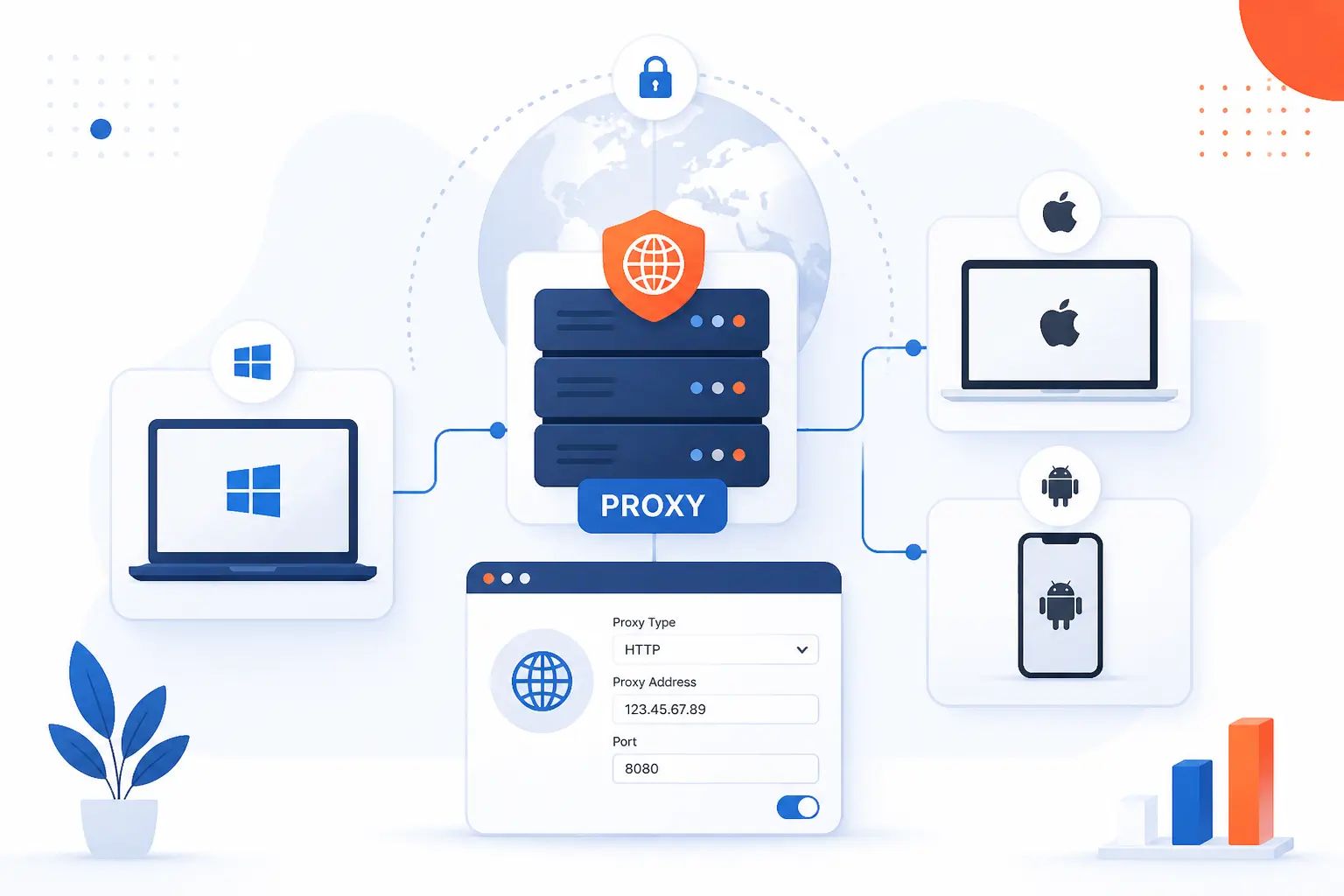
Learning how to use a proxy server means entering a proxy address, port, and optional login details into your device, browser, or network connection settings. A proxy sits between your device and the site or service you are trying to reach, so your traffic goes through that intermediary first. For beginners, the safest path is to use a trusted paid proxy, confirm the exact hostname and port, then test your public IP before using it for real work. We at 1Byte like proxies when they are used deliberately, because guessing at proxy settings is how people end up with broken browsers and mysterious login prompts.
This tutorial walks through Windows, macOS, Android, iPhone, iPad, Chrome, Edge, and Firefox. We will use realistic examples such as proxy.example.net, port 8080, and username [email protected]. Replace those values with the details from your provider or IT administrator. By the end, you should be able to turn a proxy on, confirm it works, and turn it off when you no longer need it.
How to Use a Proxy Server Step-by-Step
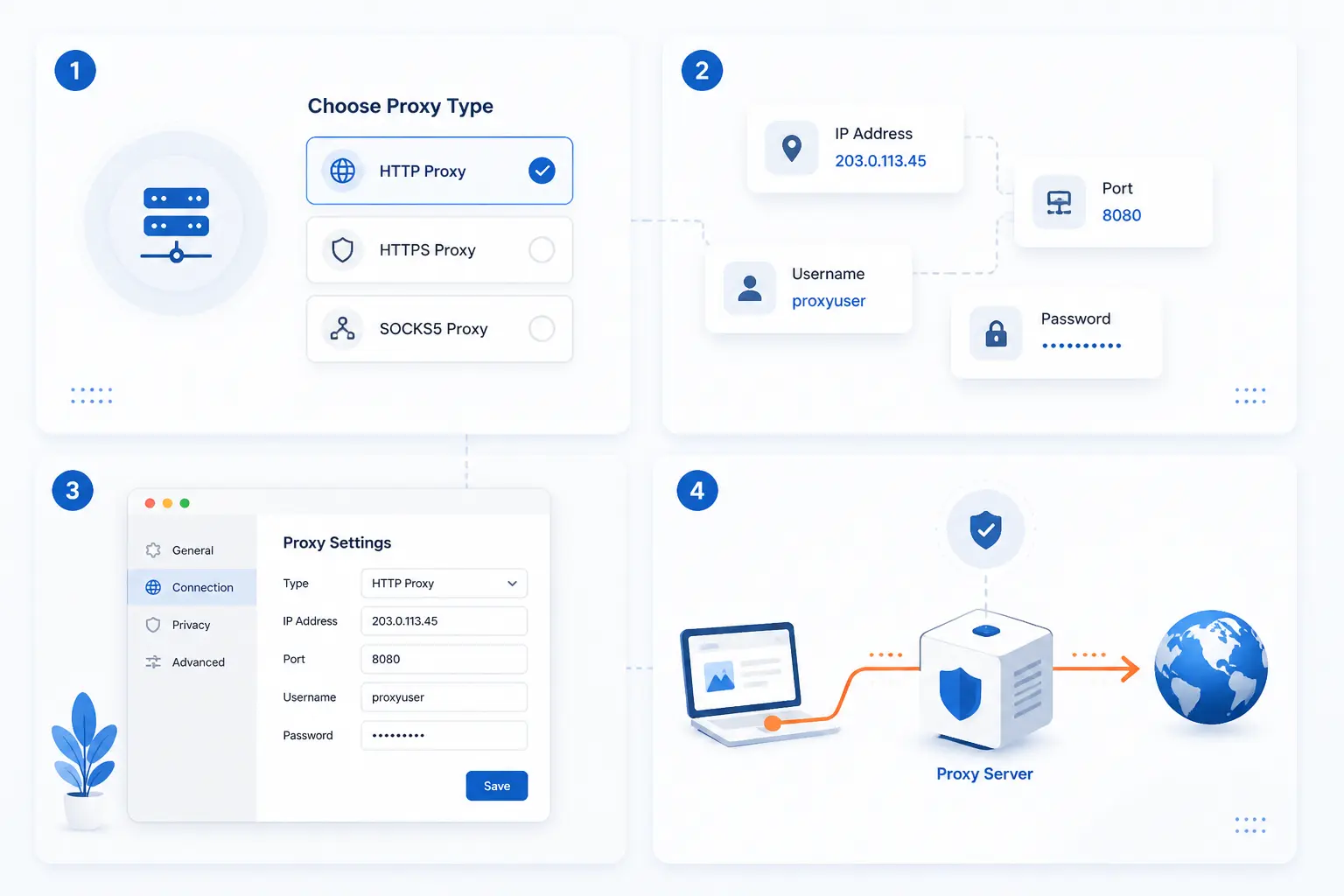
To use a proxy server, choose the proxy type, collect the IP address or hostname, port, and credentials, then enter those values in your operating system, Wi-Fi, or browser settings. Windows, macOS, Android, and iOS all support manual proxy details for common web traffic. Chrome and Edge usually open your system proxy settings, while Firefox can store its own proxy configuration. Follow the steps below in order if you are setting up a proxy for the first time.
FURTHER READING: |
| 1. What Is File Transfer Protocol and How Does It Work |
| 2. What Is Traceroute? Packet Paths, Hops, and Delays |
| 3. What Is ARPANET? Origins, Operation, and Legacy |
1. Choose a Proxy Type That Fits Your Goal
Choose a proxy type before you touch any device settings. Use a datacenter proxy for general testing, a residential proxy when a site expects traffic from consumer internet providers, a mobile proxy when mobile network identity matters, and a shared proxy only when cost matters more than consistency. For a beginner-friendly setup, we usually suggest a datacenter hostname such as proxy.example.net with port 8080, because it is simple to enter and easy to troubleshoot.
You should finish this step with one clear choice written down, such as “manual HTTP proxy for browser traffic.” The most common early mistake is choosing a proxy because it is cheap, then discovering it does not support the protocol your app needs.
2. Get the Proxy IP Address Port and Credentials
Collect the proxy hostname or IP address, port number, protocol, username, and password from your provider or IT team. A realistic set of values looks like this: hostname proxy.example.net, port 8080, username [email protected], and password V7x-example-password. If your provider gives a PAC file, write down the full configuration URL instead, such as https://config.example.com/proxy.pac.
You should see all required fields in your provider dashboard or onboarding email before continuing. Do not guess the port. Ports such as 8080, 3128, and 1080 are common, but the only correct value is the one assigned to your proxy account.
3. Decide Between Automatic Setup and Manual Entry
Use automatic setup only when you were given a setup script or PAC URL, and use manual entry when you were given a hostname or IP address plus a port. On Windows, the official path is Settings > Network & internet > Proxy, where automatic detection, setup scripts, and manual entry are separate choices in Microsoft’s device guidance. If your IT team gives you https://config.example.com/proxy.pac, choose the setup script option. If it gives you proxy.example.net and 8080, choose manual entry.
You should know which path applies before opening your device settings. A common failure point is turning on automatic detection and also entering a manual proxy, which can make browsers behave differently than you expect.
4. Turn On the Proxy in Windows
Open Settings > Network & internet > Proxy on your Windows PC. Under Manual proxy setup, select Set up next to Use a proxy server. Turn on Use a proxy server, enter proxy.example.net in Proxy IP address, enter 8080 in Port, and select Save. If your company says internal sites should skip the proxy, enter an exception such as *.company.local in the exception box.
Once it works, Chrome, Edge, and many Windows apps should load pages through the proxy. If websites stop loading immediately, recheck the port and confirm that Use setup script is not also forcing another configuration.
5. Configure the Proxy in macOS
Open Apple menu > System Settings > Network, select your active service such as Wi-Fi, select Details, then select Proxies. Apple places proxy choices for each network service in that exact area in Apple’s Mac guide. Check Web Proxy (HTTP) if your provider gave an HTTP proxy, or Secure Web Proxy (HTTPS) if it gave HTTPS settings. Enter proxy.example.net in the proxy server field, enter 8080 in the port field, add your username and password if required, then select OK or Done.
You should see the checked proxy type remain selected after saving. Safari and other apps that respect macOS network settings should now use the proxy on that selected network service.
6. Add the Proxy to Android Wi-Fi
Open Settings > Network & internet > Internet, tap the gear icon next to your connected Wi-Fi network, tap the pencil icon or Edit, expand Advanced options, and set Proxy to Manual. Google documents proxy changes under advanced network settings on Google’s Android page, although phone makers may rename a few labels. Enter proxy.example.net in Proxy hostname, enter 8080 in Proxy port, and add localhost,127.0.0.1 in Bypass proxy for if the field appears. Tap Save.
You should return to the Wi-Fi details screen without an error. The main failure point on Android is device variation. On Samsung devices, for example, the path may be Settings > Connections > Wi-Fi > your network > View more > Proxy.
7. Add the Proxy to iPhone or iPad Wi-Fi
Open Settings > Wi-Fi, tap the information icon next to your connected network, scroll to HTTP Proxy, tap Configure Proxy, and select Manual. Enter proxy.example.net in Server, enter 8080 in Port, turn on Authentication if needed, then enter [email protected] and your password. Tap Save. Apple users commonly find this setting under the Wi-Fi network detail page, as shown in Apple support discussions.
You should see Configure Proxy set to Manual for that Wi-Fi network. Remember that this is Wi-Fi-specific. If you join another network, repeat the step there.
8. Open System Proxy Settings From Chrome or Edge
Open Chrome or Edge and use the browser’s system area to launch your computer proxy settings. In Chrome, select the three-dot menu, then Settings > System > Open your computer’s proxy settings. In Edge, select the three-dot menu, then Settings > System and performance > Open your computer’s proxy settings. Microsoft notes that Edge uses the operating system network settings by default in its Edge networking note.
You should land in Windows proxy settings or macOS network settings, not inside a separate Chrome or Edge proxy form. That is expected. Enter the same sample values from earlier, such as proxy.example.net and 8080, in the system screen that opens.
9. Enter the Proxy Directly in Firefox
Open Firefox, select the menu button, choose Settings, stay on General, scroll to Network Settings, and click Settings…. Select Manual proxy configuration, enter proxy.example.net in HTTP Proxy, enter 8080 in Port, and check Also use this proxy for HTTPS if your provider says the same proxy handles secure web traffic. Firefox documents these choices in its Firefox connection guide. Click OK to save.
You should now have Firefox using its own proxy choice, even if Chrome and Edge use the operating system setting. A common failure point is leaving Firefox on Use system proxy settings when you meant to test a separate proxy only in Firefox.
10. Test the Connection and Fix Common Proxy Errors
Test the proxy by opening a private browser window and checking whether your public IP or location changed. On Windows or macOS, you can also open Terminal, PowerShell, or Command Prompt and run curl https://checkip.amazonaws.com/. Compare the result before and after enabling the proxy. If the proxy works, the returned IP should match the proxy endpoint or the provider’s expected exit address, not your normal home or office IP.
If you see a password prompt or a 407 Proxy Authentication Required error, re-enter the username and password exactly as supplied. The HTTP standard behavior is that a proxy can challenge the client for credentials, and MDN summarizes this in its HTTP reference. If pages time out, confirm the port first. If only one app fails, remember that some apps ignore system proxy settings and require their own network configuration.
Choose the Right Proxy Before You Start
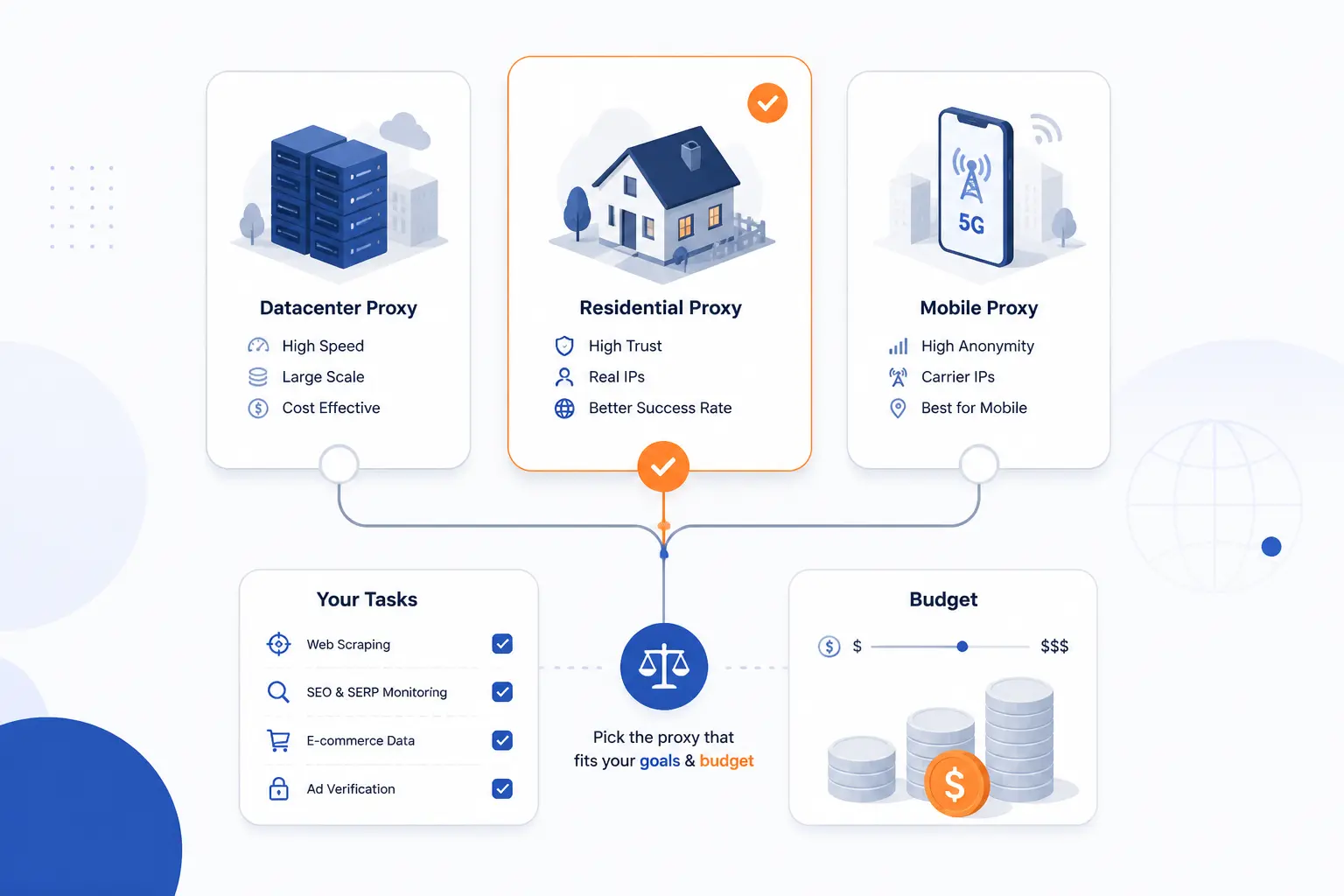
The right proxy is the one that matches your task, budget, and trust requirements. A fast datacenter proxy is often enough for testing a website from another network. A residential or mobile option may be necessary when a service treats hosting-provider IPs differently from consumer or carrier IPs. Shared proxies are cheaper, but shared reputation can be a headache.
| Option | Best for | Main tradeoff |
|---|---|---|
| Residential | Testing consumer-style access | Costs more and may be slower |
| Datacenter | Speed, development, and repeatable tests | Easier for some sites to identify |
| Mobile | Mobile app and carrier-network scenarios | Usually the most expensive |
| Shared | Low-cost experiments | Reputation depends on other users |
Match Residential Datacenter Mobile or Shared Options to Your Needs
Pick residential, datacenter, mobile, or shared based on what the destination service expects to see. If we are testing a checkout flow that customers use from home, a residential proxy can reveal issues a datacenter proxy may miss. If we are verifying firewall allowlists, a datacenter proxy with a stable address is easier to document. If we are testing mobile app behavior, a mobile proxy may better reflect carrier routing.
For most first-time users, a dedicated datacenter proxy is the cleanest starting point. It gives you one address, one port, and fewer reputation surprises. Once your process works, you can move to residential or mobile if the use case truly needs it.
Know When to Use a Hostname Instead of a Raw IP Address
Use a hostname when your provider gives one, especially if the provider rotates backend addresses or manages failover. A hostname such as proxy-us-east.example.net lets the provider change infrastructure without asking you to edit every laptop and phone. A raw IP such as 203.0.113.25 is useful when you need a fixed endpoint for firewall rules or audit notes.
We prefer hostnames for daily use because they age better. Still, document both the hostname and the provider account name. When someone asks what changed, your future self will thank you.
Weigh Free Proxies Against Security Speed and Reliability
Avoid free open proxies for logins, payment pages, admin dashboards, and customer data. One academic measurement studied more than 107,000 listed open proxies and 13M proxy requests over 50 days and found behaviors that included traffic modification and malware injection in some cases. That does not mean every free endpoint is malicious. It does mean you should not hand unknown operators your browsing path and credentials.
Our view is simple. If the task matters, use a provider you can name, pay, audit, and remove. Free proxies are acceptable for learning where the buttons are, but not for real business traffic.
Know Where Proxy Settings Apply
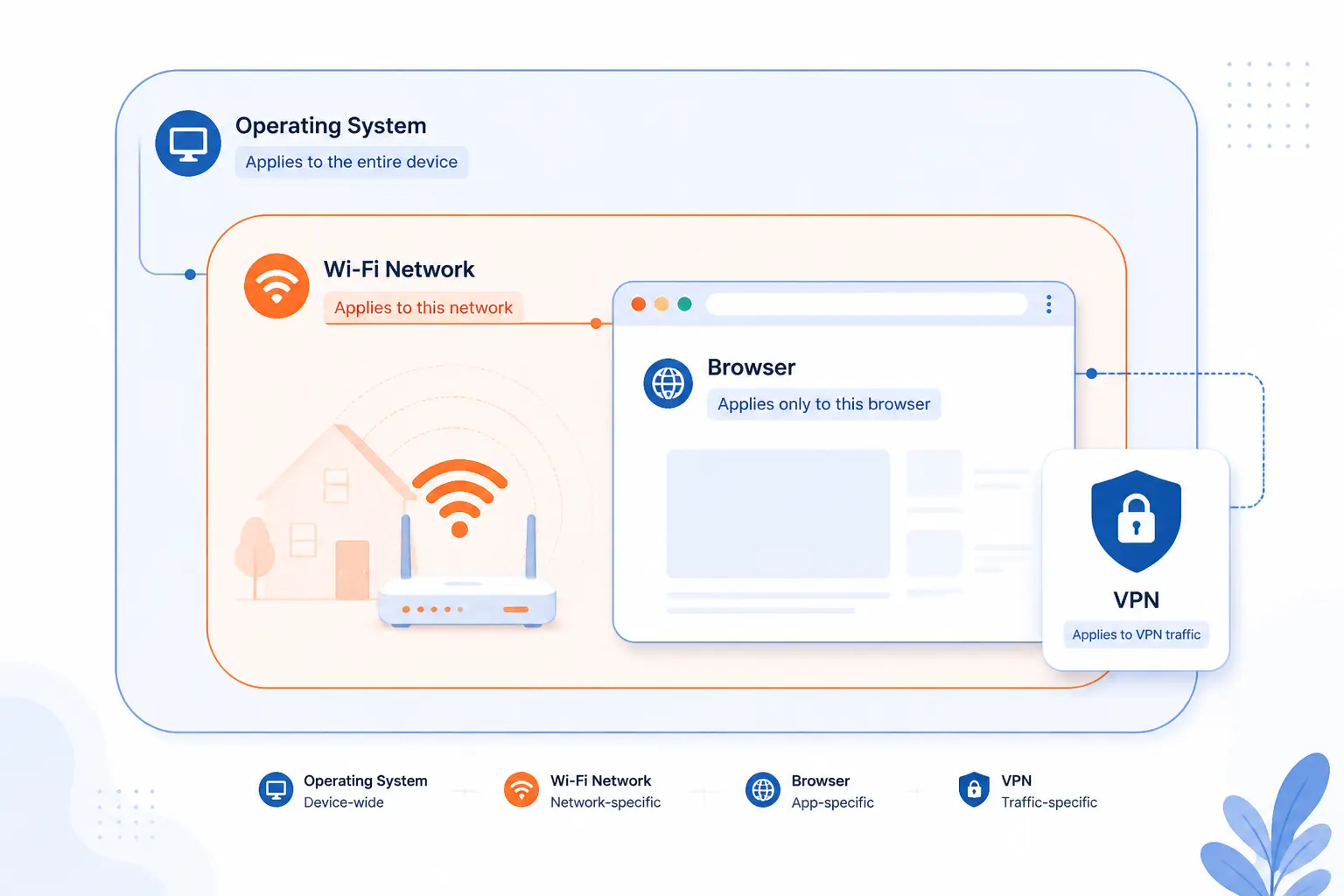
Proxy settings apply at different layers, so you must know whether you are configuring the operating system, one Wi-Fi network, one browser, or a VPN profile. Chrome, Safari, and Edge usually follow system settings on desktop. Firefox can follow the system or use its own settings. Android, iPhone, and iPad proxy settings are commonly tied to a specific Wi-Fi network.
| Place you configure | Usually affects | Good choice when |
|---|---|---|
| System settings | Browsers and apps that respect OS settings | You want broad desktop behavior |
| Wi-Fi network | That saved wireless network | You need proxy use only on one network |
| Firefox settings | Firefox only | You want isolated browser testing |
| VPN profile | Traffic inside that VPN route | Your organization requires it |
Use System Settings for Chrome Safari and Edge
Use system proxy settings when you want Chrome, Safari, Edge, and many desktop apps to behave the same way. On Windows, that means Settings > Network & internet > Proxy. On macOS, that means System Settings > Network > your active service > Details > Proxies. This is the most beginner-friendly model because you configure the proxy once.
The catch is scope. If the proxy is wrong, several apps may break at once. If you only want to test one website in one browser, Firefox manual settings are often safer.
Expect Wi-Fi-Specific Behavior on Android and iPhone
Expect Android, iPhone, and iPad proxy entries to apply to the Wi-Fi network you edited. If you set proxy.example.net on your office Wi-Fi, that does not automatically configure your home Wi-Fi. This behavior is useful because a school, office, lab, or debugging network may require a proxy while your normal network does not.
The practical habit is to name your test network clearly. If we use 1Byte-Lab-WiFi for proxy tests, nobody has to wonder why mobile browsing behaves differently in the office kitchen.
Set VPN Proxy Details Separately When a Connection Requires Them
Set proxy details inside the VPN configuration when your organization tells you the VPN connection has its own proxy. Apple deployment guidance says VPN configurations can use either a manual address, port, and authentication or an automatic file in Apple deployment guidance. That is separate from the Wi-Fi proxy screen. In split-tunnel setups, only traffic that matches the VPN route may use that proxy.
You should see the VPN connect successfully before you troubleshoot the proxy. If the VPN itself fails, proxy settings are probably not the first problem.
Plan a Business Proxy Deployment Differently
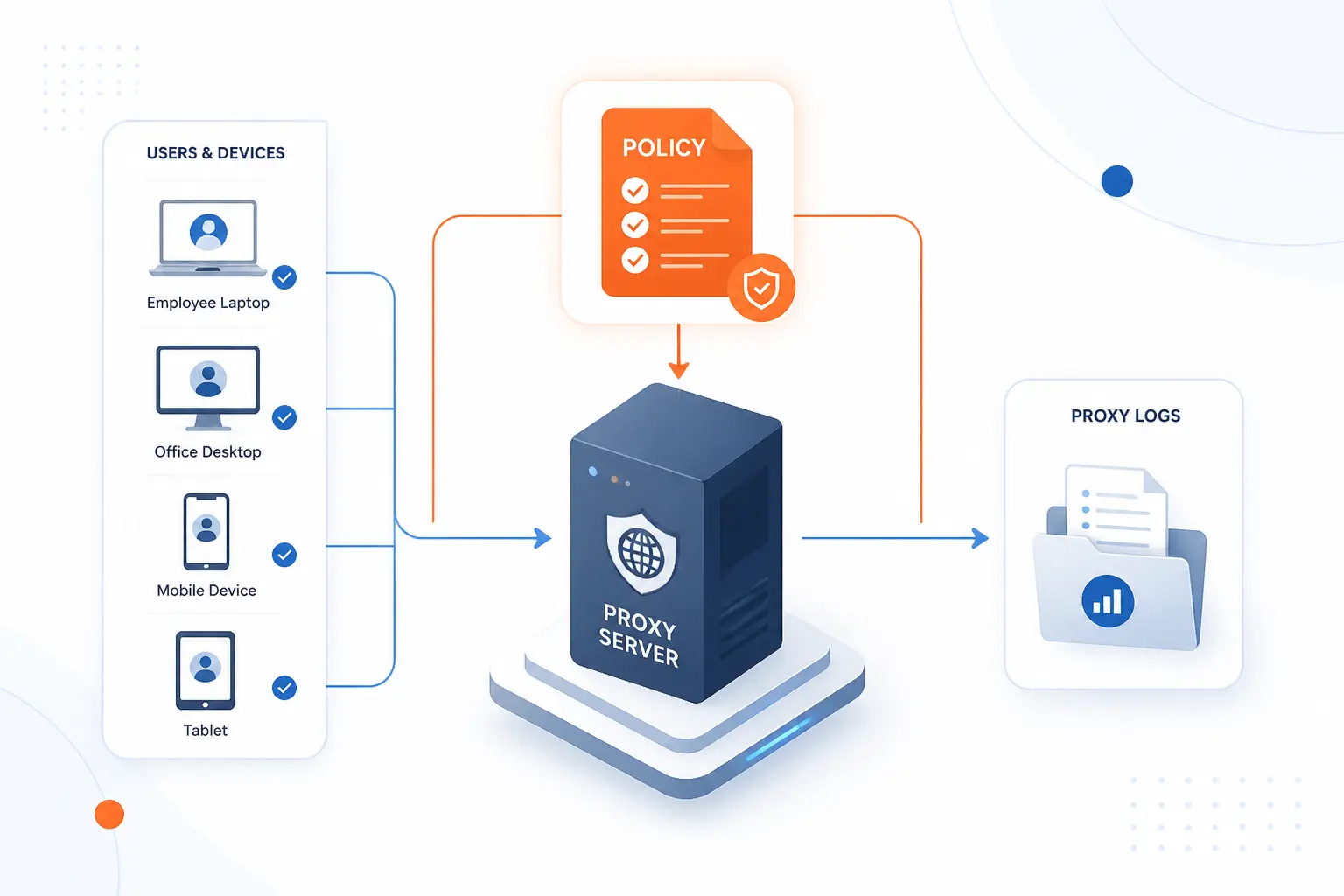
A business proxy deployment is a policy and network design project, not just a device setting. You must define which traffic should pass through the proxy, which users are affected, where logs are kept, and who can change the policy. Small teams may start with manual settings or a PAC URL. Larger teams usually use device management, browser policy, firewall rules, and monitoring.
| Deployment style | Best fit | Typical owner |
|---|---|---|
| Manual setup | Small teams and short tests | Individual user or help desk |
| PAC file | Rules by domain or destination | Network administrator |
| Device management | Managed laptops and phones | IT operations |
| Gateway proxy | Central inspection or filtering | Security and network teams |
Define the Use Case Before You Pick a Tool
Define the business goal before choosing a proxy product or architecture. A proxy for developer debugging is different from a proxy for web filtering, egress control, caching, or vendor IP allowlisting. Write the goal in one sentence, such as “route accounting team web traffic through a logged outbound gateway” or “give QA a stable U.S. exit IP for checkout testing.”
This sounds obvious, but it prevents expensive detours. We have seen teams ask for “a proxy” when they really needed DNS filtering, a VPN, a reverse proxy, or a simple firewall allowlist.
Choose Where the Proxy Should Sit in the Network
Choose the proxy location based on the traffic you need to control. A forward proxy sits between users and the internet, so it fits browsing, outbound controls, and user-based policies. A reverse proxy sits in front of your own application, so it fits inbound access, TLS termination, and traffic routing. A local developer proxy runs on a workstation, so it fits debugging one app without changing the wider network.
For a company, location determines responsibility. If the proxy sits at the gateway, network and security teams must own it. If it sits inside one browser, the app or QA team can usually own it.
Route Traffic and Apply Filtering Inspection and Caching Policies
Route only the traffic that belongs on the proxy, then apply filtering, inspection, and caching policies deliberately. A PAC file can send some domains through the proxy and let others connect directly. Browser and device policies can stop users from bypassing required settings. Gateway controls can log destinations, block known bad categories, and cache repeated requests where that still makes sense.
Be careful with encrypted traffic inspection. It can break applications, create certificate warnings, and raise privacy questions if the policy is not narrow and documented. Our bias is to start with the least invasive control that meets the business goal, then add inspection only when the risk justifies it.
FAQ
These quick answers cover the questions beginners ask right before or right after setup. A proxy is a normal networking tool, but the way you use it matters. If a workplace, school, website, or law says a certain use is not allowed, a proxy does not make that rule disappear.
Are Proxy Servers Illegal?
No, proxy servers are not illegal by themselves. Businesses use them for security controls, testing, filtering, privacy, and network routing. What can be illegal or against terms of service is using a proxy for fraud, unauthorized access, scraping where prohibited, or evading restrictions you agreed to follow.
How Do I Connect to a Proxy Server?
You connect to a proxy server by entering its address, port, and login details in your device, browser, app, or VPN settings. For example, on Windows you use Settings > Network & internet > Proxy. On Firefox, you use Settings > General > Network Settings > Settings….
Is a Proxy Server Free?
Some proxy servers are free, but free does not mean safe or reliable. Unknown free proxies may be slow, overloaded, logged, or operated by someone you cannot identify. For real work, we recommend a trusted provider with clear credentials, terms, and an off switch.
Is a Proxy Just a VPN?
No, a proxy is not the same as a VPN. A proxy usually handles traffic for a browser, app, protocol, or configured route, while a VPN commonly creates an encrypted tunnel for broader device or network traffic. The FTC has warned that privacy tools still require trust because you may be giving the provider visibility into your traffic path in federal consumer guidance.
How 1Byte Can Support Proxy-Ready Projects
1Byte can support proxy-ready projects by helping teams put the surrounding web infrastructure in place. A proxy setup often needs a domain, SSL certificate, hosting environment, or cloud server before it becomes useful in a real workflow. We offer domain registration, SSL certificates, WordPress hosting, shared hosting, cloud hosting, and cloud servers. 1Byte is also an AWS Partner, which matters when a proxy-related project sits near cloud workloads.
Register Domains and Add SSL Certificates for Secure Access
Register a domain and add an SSL certificate when people need a memorable, secure name for a web-facing tool. For example, a team might use tools.example.com for an internal dashboard that documents approved proxy settings. The domain makes the resource easier to remember. The SSL certificate helps browsers validate that users reached the intended site.
This does not turn a proxy into a security cure-all. It simply gives the surrounding access point a proper name and encrypted web connection, which is the baseline we prefer for anything users touch.
Choose WordPress Hosting or Shared Hosting for Simpler Deployments
Choose WordPress hosting or shared hosting when your proxy-related need is documentation, a lightweight portal, or a simple public website. A company might publish setup instructions for staff, list approved values such as proxy.example.net and 8080, or host a basic help page for customers. Those use cases do not always need a custom server.
We would not use shared hosting to run a custom forward proxy service. We would use it for the website or documentation around the project.
Use Cloud Hosting and Cloud Servers for Custom Proxy Environments
Use cloud hosting or cloud servers when you need a custom environment around routing, testing, or application access. A development team might need a controlled server for QA traffic, a reverse proxy in front of an app, or a staging environment that mirrors production access patterns. Cloud servers give technical teams more room to configure software, firewall rules, and logs.
This is where planning matters. We recommend documenting the purpose, allowed users, retention rules, and shutdown process before traffic flows through any custom proxy environment.





Conclusion
How to use a proxy server comes down to five practical details: choose the right type, copy the exact address, enter the correct port, add credentials if required, and test the public IP afterward. Windows and macOS are best handled through system network settings. Android, iPhone, and iPad usually store proxy settings per Wi-Fi network. Firefox is the useful exception because it can keep its own browser-only proxy setup.
Our strongest advice is to treat proxy settings like production credentials, even when you are only experimenting. Use trusted endpoints, avoid unknown free proxies for sensitive work, and write down what you changed. When the test is done, turn the proxy off so tomorrow’s troubleshooting does not begin with yesterday’s forgotten setting.
If you are building a proxy-ready project around a website, app, or cloud workload, start by deciding where the proxy belongs in the traffic path. Then choose the domain, SSL, hosting, or cloud server foundation that supports that design. What will you configure first: one browser for testing, one Wi-Fi network for mobile work, or a full business policy?