

- What Is FTP Hosting
- How FTP Works
- How to Connect to an FTP Server
- Common Uses for FTP on a Website
- Benefits of FTP for Website Management
- Security Risks and Limits of Standard FTP
- FTP vs FTPS vs SFTP
- FTP vs Browser File Manager and Cloud Storage
- Should You Use FTP Today
- FAQ About What Is FTP Hosting
- How 1Byte Supports Businesses as a Cloud Computing and Web Hosting Provider
- Final Thoughts on What Is FTP Hosting
At 1Byte, we see FTP hosting as one of those old tools that still earns its keep when a website needs direct, predictable file access. That matters in a cloud-first economy: Gartner forecast worldwide end-user spending on public cloud services at $723.4 billion in 2025, so even classic upload workflows now sit inside much larger decisions about hosting, deployment, security, and operations.
From our seat, the business question is not whether FTP hosting feels dated; it is whether teams can move files safely, quickly, and without breaking production. McKinsey argues cloud can unlock more than $3 trillion in EBITDA value by 2030, and the everyday examples are surprisingly grounded: WordPress still documents FTP/SFTP for manual updates and bulk file work, while cPanel disables plain FTP by default on new installations because of security risk. That tension tells the real story better than any slogan could.
What Is FTP Hosting

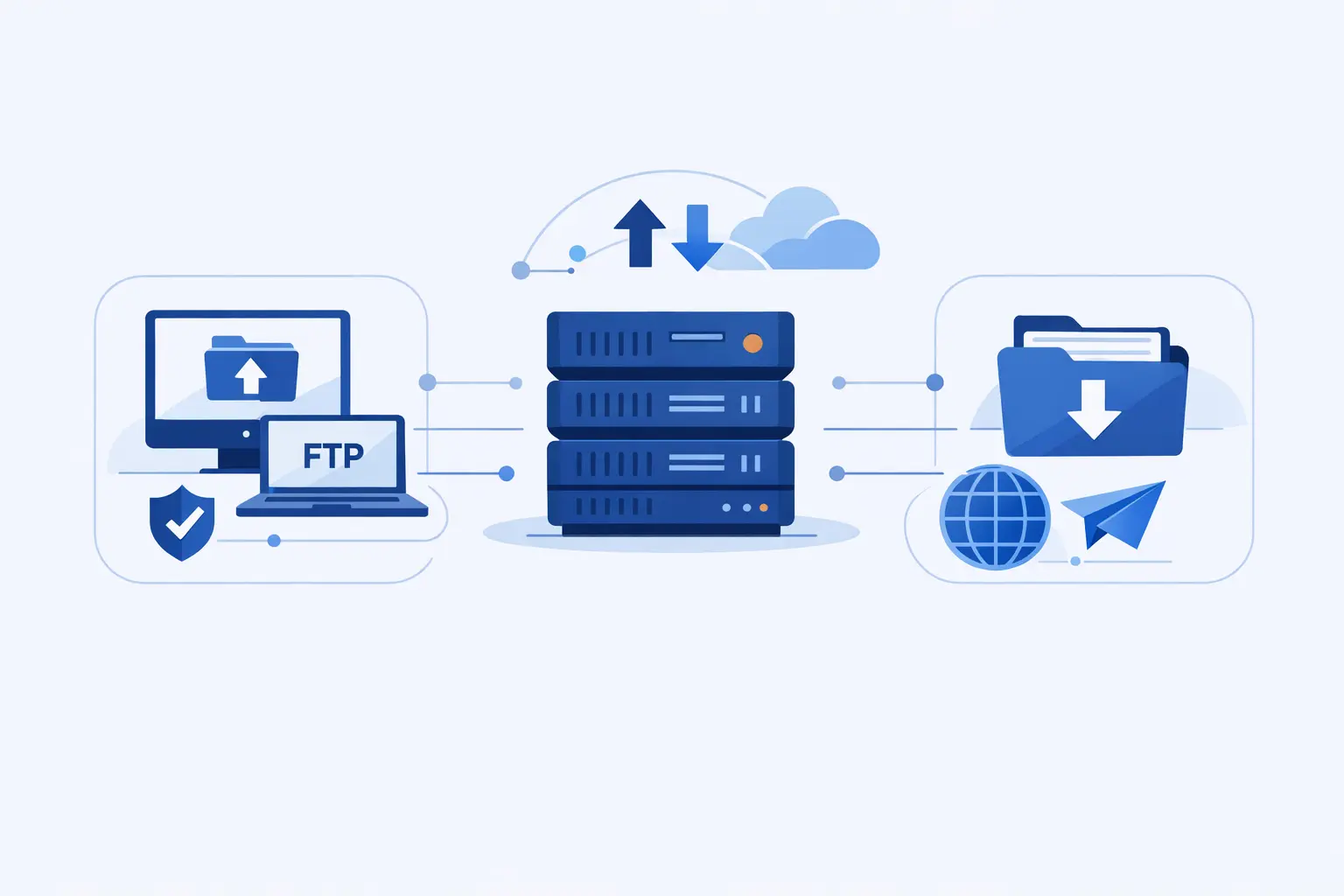
Before we go any further, we should clear up the label confusion. FTP hosting is not a separate hosting model like shared hosting or cloud hosting; instead, it is the file-transfer access a host gives you so you can upload, download, and manage files on the server space attached to your account.
1. FTP Hosting, FTP Hosts, and FTP Servers Explained
In plain English, an FTP server is the software listening for file-transfer requests, an FTP host is the machine or hosting environment running that software, and FTP hosting is the service context in which your provider gives you credentials and directory access. We at 1Byte think beginners learn this fastest when they stop treating FTP as “the website” and start treating it as “the delivery tunnel” into the website’s files.
2. How FTP Helps Publish, Update, and Migrate Websites
Where FTP really shines is publishing or changing many files at once. WordPress’s own documentation says an FTP/SFTP client is a good choice for larger or repeatable tasks, which is why developers still lean on it for manual core updates, theme replacements, media pushes, and full-site migrations when a dashboard-based updater is not enough.
3. How FTP Access Fits Into a Web Hosting Plan
Inside a hosting plan, FTP access usually sits alongside the control panel, database tools, SSL settings, and the document root for your site. Some platforms expose separate FTP accounts, some route you toward SFTP through shell access, and managed cloud platforms can even split deployment credentials by user or by app so teams do not have to share one all-powerful login.
How FTP Works

Technically, FTP lasted because its model was easy to reason about: the original standard uses separate control and data connections. That design keeps commands, replies, and file movement neatly separable, but it also explains why FTP can feel a bit fussy on modern networks compared with newer secure protocols.
1. Client to Server Communication and Authentication
A client begins by opening the control connection to the server and then sending login information. In classic FTP, the login flow revolves around the USER and PASS commands, so authentication is tied directly to that command session before any real file work begins.
2. Command Channels, Data Channels, and Login Credentials
Once you are in, the command channel stays open for instructions such as listing directories, retrieving files, storing uploads, or changing folders, while the data channel carries the actual bytes being moved. From a business angle, that split matters because a transfer can fail even when the login session still looks alive, which is why experienced teams verify the result on the server instead of trusting a cheerful status message.
3. Ports 20 and 21 Plus Active and Passive Modes
The active-versus-passive choice is where many support tickets are born. Active mode asks the server to connect back to the client for data transfer, whereas passive mode makes the client open both connections; in firewall and NAT-heavy environments, passive mode is usually the smoother path because it avoids the callback pattern that modern networks often block.
How to Connect to an FTP Server

Connecting to FTP hosting is usually easier than newcomers expect. Still, the right method depends on whether you need a graphical drag-and-drop client, a scriptable terminal tool, or a browser-side file manager when direct protocol support in mainstream browsers is no longer something you can count on.
1. Choose an FTP Client, Command Line Tool, or Browser Based Option
For day-to-day work, we usually recommend a dedicated client because it gives you queues, better visibility, and clearer error handling. Command-line tools are ideal for automation, while browser-based options now usually mean a hosting file manager rather than native FTP in Chrome or Firefox, since both vendors removed built-in FTP support for security reasons.
2. Use the Host Name, Username, Password, and Connection Port
No matter which client you choose, the essentials stay the same: a host name or endpoint, a username, a password or key material, and the connection port your provider specifies. On managed platforms, those credentials may be user-scoped or app-scoped, which is a smart way to limit blast radius if one credential set has to be rotated or revoked.
3. Upload Files to the Correct Web Directory
After login, the next make-or-break step is using the right web directory. Many Linux hosting environments point website files at a document root such as public_html, while other stacks use a different folder name; if you upload to the wrong place, the transfer can succeed perfectly and the website can still show nothing at all.
Common Uses for FTP on a Website

On live websites, FTP is rarely glamorous. Even so, it often becomes the quiet tool that saves a launch, restores a broken theme, or gets a bulky media library moved without drama when nicer interfaces stop cooperating.
1. Uploading Website Files, Images, and Code
The classic use case is uploading website assets: templates, stylesheets, scripts, images, downloadable files, or application code. That sounds basic, yet it remains crucial for agencies handing off static sites, small businesses adding product photos in batches, or developers pushing a corrected template after a bad deploy.
2. Managing CMS Installations, Site Moves, and Server Files
CMS management is another big one. When a WordPress update fails, a plugin must be swapped manually, or a staging copy has to move into production, FTP/SFTP gives teams direct file-level control without waiting for the application layer to behave itself.
3. Handling Backups, File Sharing, and Remote Storage
FTP also shows up in backups, partner file exchange, and remote storage workflows. That is not just old habit: AWS Transfer Family still offers SFTP, FTPS, and FTP endpoints and layers automation on top of those transfers, which tells us businesses continue to rely on file-transfer endpoints when systems, vendors, or compliance processes are built around them.
Benefits of FTP for Website Management

The upside of FTP is not nostalgia; it is control under pressure. When teams need to move a lot of files, recover from interrupted work, or repeat the same deployment steps across environments, a proper transfer client is often miles ahead of a browser form.
1. Reliable Large File and Multi File Transfers
For large or multi-file jobs, FTP clients are easier to trust because they show queues, failures, and completion states in one place. That visibility matters when a storefront is waiting on an entire image catalog or when a marketing team needs a whole campaign microsite uploaded before a deadline hits.
2. Resume Support, Automation, and Cross Platform Compatibility
Resume support and automation are where experienced operators save real time. In practice, the resume behavior usually comes from the client-and-server combination rather than the hosting brand alone, and tools such as WinSCP, OpenSSH-based utilities, and managed transfer services make repeated uploads, scripted sync jobs, and cross-platform workflows far less brittle.
3. Access Control, Centralized Storage, and Team Collaboration
Good hosting turns file transfer into an access-control problem rather than a free-for-all. Separate users, restricted directories, and scoped deployment credentials help teams collaborate without handing every contractor the keys to the kingdom, which is exactly the kind of discipline businesses need as websites grow from solo projects into shared operational assets.
Security Risks and Limits of Standard FTP

Here is the hard truth: standard FTP passes usernames and passwords in cleartext. From our perspective at 1Byte, that single design fact is enough to disqualify plain FTP for any workflow involving sensitive data, administrative access, or networks you do not fully trust.
1. Plain Text Credentials and Unencrypted Transfers
Because classic FTP does not encrypt commands, credentials, or transferred data by default, anyone positioned to inspect traffic may be able to read or tamper with it. That is why hosts and control-panel vendors increasingly push administrators toward encrypted alternatives instead of treating plain FTP as an acceptable default.
2. Firewall, NAT, and Connection Challenges
Security is not the only pain point. FTP can also stumble over firewalls, NAT, passive port ranges, and connection tracking rules, so what looks like a simple login problem may actually be a network path issue between the client, the server, and the data channel.
3. Why FTP Is Outdated for Sensitive Data
For sensitive data, plain FTP is simply behind the times. cPanel disables FTP by default on new installations, and major browsers removed native support years ago, both of which underline the same industry judgment: if the data matters, use an encrypted protocol or a managed alternative built for modern security expectations.
FTP vs FTPS vs SFTP

The names are similar enough to confuse almost everyone at first. Even so, FTP, FTPS, and SFTP are not interchangeable under the hood, and choosing the wrong one can lead to broken connections, failed automation, or a false sense of security.
1. How Standard FTP Handles File Transfers
Standard FTP handles file transfers with separate command and data behavior but no built-in confidentiality. It remains relevant mostly for legacy systems, tightly controlled internal environments, or compatibility scenarios where the endpoint cannot yet move to a better option.
2. How FTPS Adds SSL and TLS Encryption
FTPS keeps the FTP workflow but adds TLS protection to the session, which is why many hosting platforms treat it as a safer bridge for legacy users who still need FTP-style commands and client compatibility. In other words, FTPS modernizes the transport without reinventing the whole operating model.
3. How SFTP Uses SSH for Stronger Security
SFTP is different again: OpenSSH describes it as an FTP-like program that works over SSH, and WordPress.com explicitly notes that it is not merely a more secure version of FTP despite the similar name. We generally prefer SFTP when it is available because it combines secure transport, cleaner firewall behavior, and strong key-based authentication in a way plain FTP never set out to do.
FTP vs Browser File Manager and Cloud Storage

Businesses also ask whether they should skip FTP entirely and just use a browser panel or a cloud drive. Our view at 1Byte is simple: these tools overlap, but they are not the same job wearing different clothes.
1. When FTP Is Better Than a Browser Based File Manager
FTP is usually better when you need bulk transfers, precise folder work, retry logic, or repeatable deployment behavior. Hosting panels make that limitation obvious in black and white: cPanel notes you cannot upload a folder through this interface, which is exactly the kind of friction a proper transfer client removes.
2. When a Web Based File Manager Is More Convenient
A web-based file manager wins when the task is tiny and time is short. If you need to edit one text file, upload a quick replacement image, or make a small emergency change from a borrowed laptop, a browser panel can be far more convenient than installing and configuring a separate client.
3. How FTP Differs From Cloud Storage
Cloud storage solves a different problem altogether. FTP points you at server directories and application files, whereas cloud drives emphasize sharing, syncing, versioned documents, and user collaboration; businesses often need both, but they should not confuse a website deployment path with a team document workspace.
Should You Use FTP Today

So, should you use FTP today? We would say use the workflow, not the label: plain FTP is usually the wrong answer, while FTPS or SFTP can still be exactly right for the right hosting or operational constraint.
1. When FTP Is Useful for Developers and Web Teams
FTP-style access is still useful for developers and web teams working with shared hosting, legacy vendor integrations, or file-heavy site operations where direct directory control matters. We still see it rescue launches, unblock broken plugin updates, and simplify handoffs between designers, marketers, and technical staff.
2. When FTP Helps With Backups, Bulk Uploads, and Repeated Updates
It also helps with backups, bulk uploads, and repeated updates because those tasks reward visibility and repeatability. When a workflow is the same every week—ship a batch of assets, pull a backup, replace a plugin folder, sync a staging tree—a mature transfer client or automated secure endpoint can keep the process boring in the best possible way.
3. When Secure Alternatives or Simpler Tools Are a Better Fit
Still, simpler or safer tools are often the better fit. If your host offers SFTP, FTPS-only deployment, a robust control-panel file manager, or application-level deployment through Git or CI/CD, we would choose the secure and operationally simpler option every time rather than cling to plain FTP out of habit.
FAQ About What Is FTP Hosting

Beginners usually circle back to the same handful of questions, and that is a good thing. FTP hosting sounds simple on the surface, but the protocol choice and security details matter more than most people expect.
1. What Is FTP in Hosting?
FTP in hosting means your provider gives you file-transfer access to the server space tied to your website or application. It is a method for moving and managing files on a host, not a hosting category all by itself.
2. Why Is FTP Not Used Anymore?
FTP is used less today because plain FTP sends credentials and data without modern default encryption, while hosts and browser vendors have steadily moved toward safer alternatives. That shift is why encrypted options such as FTPS and SFTP, plus web panels and Git-based deployment, have taken the lead.
3. What Are the Risks of Using FTP?
The biggest risks are exposed credentials, unencrypted transfers, and operational headaches around firewalls or misconfigured access. On a live business site, one bad credential or one upload to the wrong directory can quickly turn into downtime or a security incident.
4. What Is the Difference Between FTP and SFTP?
FTP is the older protocol family for direct file transfer, while SFTP is an SSH-based file transfer system with different underlying mechanics and stronger security. Similar names aside, they are not the same protocol dressed in different colors.
5. What Do You Need to Connect to FTP Hosting?
To connect to FTP hosting, you usually need the server or host name, a username, a password or key, the right port, and a client that speaks the protocol your host supports. Just as important, you need the correct target directory so your files land where the web server actually expects them.
How 1Byte Supports Businesses as a Cloud Computing and Web Hosting Provider

As 1Byte, we believe good hosting should let businesses start simple and grow without repainting the whole house. That means pairing easy dashboards and managed services with the practical building blocks teams still need: domains, certificates, hosting tiers, cloud infrastructure, and secure ways to reach files when the situation calls for it.
1. Domain Registration and SSL Certificates for a Secure Website Foundation
We support the front door first. Domain registration and SSL certificates give businesses the naming, trust, and encrypted identity layer every serious website needs, and we see that foundation as non-negotiable before anyone starts worrying about transfer protocols or deployment habits.
2. WordPress Hosting and Shared Hosting for Flexible Website Management
For website operations, we offer both WordPress hosting and shared hosting so teams can choose between a more managed experience and a flexible starting point. Our WordPress hosting emphasizes simplified management and FTP file access, while shared hosting remains a practical fit for smaller sites that still need room to work directly with files and databases as they grow.
3. Cloud Hosting and Cloud Servers From an AWS Partner
On the cloud side, we extend beyond basic hosting into cloud hosting, cloud servers, and AWS-focused support. Because we are an AWS Consulting Partner and also offer our own cloud hosting services, we can help businesses think beyond one-off uploads and toward architecture, migration, resilience, and the long-term shape of their infrastructure.







Final Thoughts on What Is FTP Hosting
If you remember one thing, let it be this: FTP hosting is really about server file access, not about buying a special class of hosting. From our vantage point at 1Byte, the smart modern move is to keep the workflow that helps your team—bulk upload, backup, migration, direct repair—while upgrading the protocol and permissions to match current security realities.
So before you enable plain FTP, ask a sharper question: do you actually need legacy FTP, or do you need secure file transfer that happens to solve the same business problem better? If the answer is the latter, your next step is simple—review what your host supports, prefer SFTP or FTPS where possible, and test the whole process on a staging site before production feels the heat.