

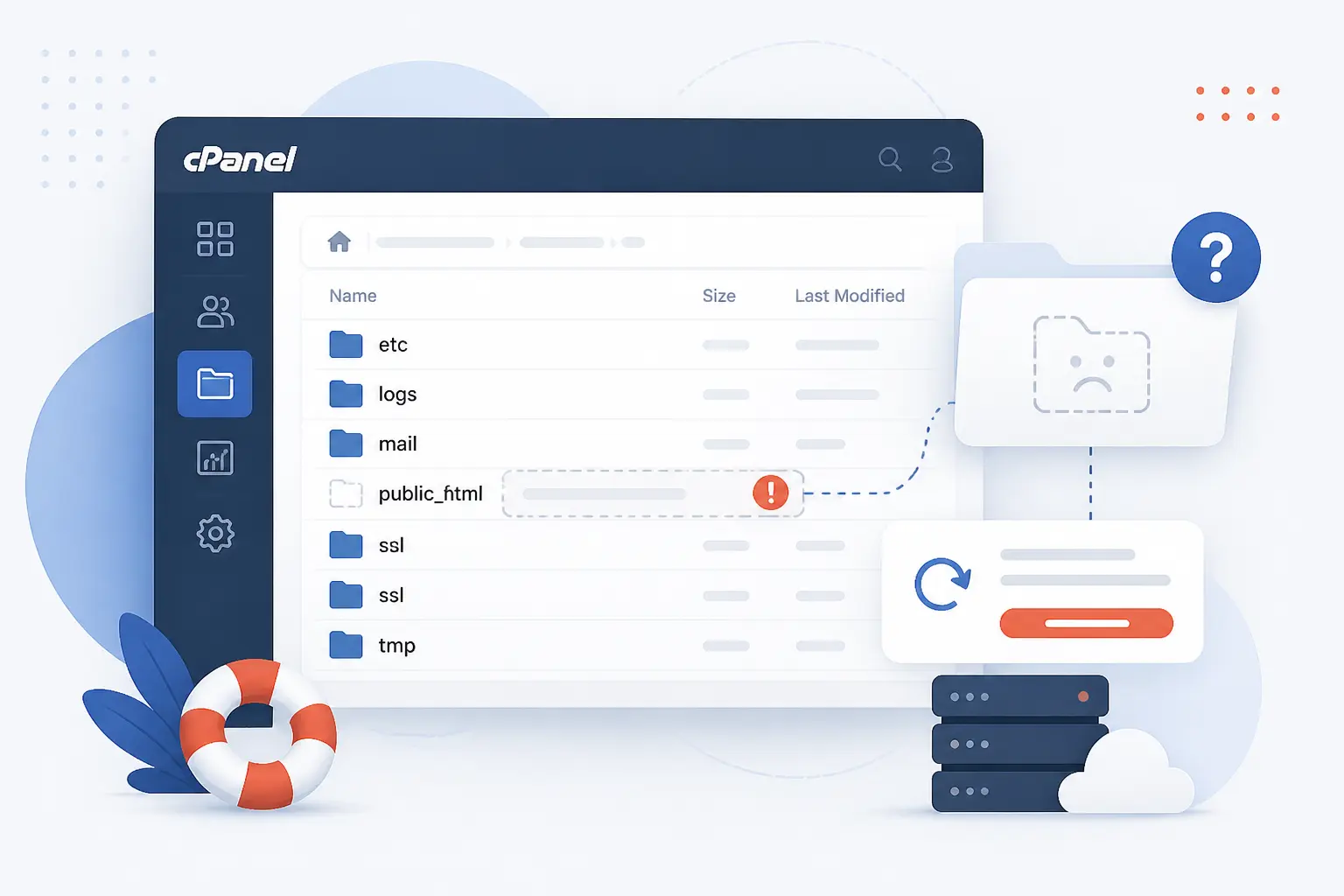
When the public_html folder missing in cPanel throws you off, the fix is usually straightforward. We first confirm the account, then check whether the folder is hidden, moved, mapped to the wrong domain root, or actually deleted. If it is gone, we restore it from Trash or backup before we rebuild anything by hand. That order matters because most “missing folder” cases are not true server failures at all.
How to Fix a Public_Html Folder Missing in cPanel

We fix a public_html folder missing in cPanel by checking ownership, visibility, DNS, document root, backup options, and FTP path in that order. That sequence separates a folder that only looks missing from one that was truly removed. Follow the steps below exactly, and do not create a new folder until you have ruled out recovery. In our experience, rebuilding too early is the mistake that wastes the most time.
FURTHER READING: |
| 1. Public_Html Permissions for Secure Reliable Access |
| 2. How to Block Websites on Chrome for Desktop and Mobile |
| 3. How to Fix ERR_SSL_PROTOCOL_ERROR Step-by-Step |
1. Confirm You Are in the Correct cPanel Account
Open cPanel > Domains and confirm that {your-domain.com} appears in the domain list for this account. If your site’s domain is missing there, you are almost certainly logged in to the wrong cPanel account or into an account that does not own that website. You should see your main domain or addon domain listed with a document root such as /public_html or /public_html/example.com. If the domain is not listed, stop here and sign in with the correct account before you touch any files.
2. Open cPanel File Manager and Check for Hidden, Moved, or Deleted Files
Open cPanel > Files > File Manager, click Settings, select Home Directory, check Show Hidden Files (dotfiles), and click Save. Then use the Search menu set to All Your Files and search for public_html, index.php, index.html, and .htaccess. You should either find the folder itself or discover that the site files were moved into a sibling path such as /public_html_old, /www, or an addon-domain folder. The most common failure point here is forgetting to enable dotfiles, which makes .htaccess seem missing even when it is present in the file manager guide.
3. Verify Whether the Domain Is Loading a Default Page or the Wrong Server
Open https://{your-domain.com} in a private browser window, then compare what you see with the server you expect to use. If the site shows a generic default page, an old copy of the site, or another customer’s page, check cPanel > Domains > Zone Editor > Manage and confirm that the A record for {your-domain.com} points to the right IPv4 address, for example 203.0.113.10. You should see the apex domain resolving to the same server that holds your files. If you recently changed DNS, you may still hit the old server until caches expire, so using a temporary URL or a local hosts-file entry is the cleanest way to test the intended server directly.
4. Check the Domain Document Root and Folder Mapping
Open cPanel > Domains, choose the affected domain, and check the Document Root value before you move any files. For an addon domain, you might see a path such as /public_html/store.example.com, which means uploading files to plain /public_html will never load that site. You should see the document root match the folder that actually contains your live index.php or index.html. The most common failure point is changing the document root and assuming cPanel moves the files for you, but the server only changes where it looks and does not rearrange your content automatically according to the domain management guide.
5. Restore the Folder From cPanel Trash
Click View Trash inside File Manager, select the missing folder or the missing site files, click Restore, and confirm the restore. cPanel moves deleted items to Trash first, so a recently removed public_html or its contents may still be recoverable in seconds. You should see the folder return to the home directory and the files reappear in their original path. This step is worth doing early because it is faster and safer than rebuilding from scratch.
6. Request a Backup Restore if the Folder or Site Files Are Gone
Open cPanel > Files > Backup Wizard > Restore and restore a Home Directory backup if your host makes partial restores available. If you only have a full backup archive, extract the copy of /homedir/public_html from the .tar.gz file and upload it back, or ask the host to restore it for you because cPanel cannot automatically restore a full account backup on its own. You should see the folder tree come back with the same file names you expect, such as index.php, .htaccess, and your CMS directories. The sharp edge here is assuming a full backup can be restored with one click in cPanel, but the backup wizard guide says that automatic full-backup restore is a WHM or host-side task.
7. Create a New public_html Folder Only if No Recoverable Copy Exists
Click + Folder in File Manager, enter public_html as New Folder Name, set New folder will be created in: to /home/{cpaneluser}, and click Create New Folder. Do this only after you have confirmed that Trash, backups, and the actual document root do not already provide a usable copy. You should see a new empty /home/{cpaneluser}/public_html folder appear in the left tree and main file pane. If your main domain is mapped somewhere else, this new folder will not fix the site by itself, so treat it as a last resort container, not a magic repair.
8. Upload or Republish the Site Files to the Correct Web Root
Open the correct document root, click Upload, send a compressed site archive such as site-backup.zip, then select the archive and click Extract. For a static site, make sure files like index.html, assets/, and contact.html land directly inside the web root. For WordPress, make sure wp-admin, wp-content, wp-includes, and index.php sit directly in the web root rather than one folder too deep. You should see the homepage load once the root contains the site’s entry file. The most common failure point is extracting into a nested folder like /public_html/site-backup/, which leaves the live URL looking empty because the real index file is one level too deep.
9. Recover Only Clean Files if Content Was Quarantined After a Hack
Restore only a known-good backup made before the compromise, or replace the application core with fresh files and keep only the content you have verified as clean. For a WordPress site, that usually means restoring the database and clean media, then replacing core files with a fresh package while carefully reviewing themes, plugins, and custom uploads. You should see the site come back without the strange redirects, injected PHP files, or unknown admin pages that often follow a compromise. We strongly prefer a clean restore over a blind file-by-file rescue because security cleanup is about containing damage, not preserving every infected file.
10. Correct the FTP User Home Directory if FileZilla Shows an Empty Folder
Open cPanel > Preferences > User Manager, click Edit for the FTP subaccount, and confirm the Home Directory points to the site path you actually need, such as public_html or public_html/store.example.com. If the account is jailed to the wrong folder, FileZilla may log in successfully and still show an empty or unrelated directory. You should see the correct files appear immediately after reconnecting with the corrected path. A real failure point here is using SFTP with a subaccount, because the subaccount guide says subaccounts cannot use SFTP and only the main cPanel account can use full-account SFTP access through shell access in that way.
11. Test the Site and Escalate Host-Level Mapping Issues if the Default Page Remains
Load https://{your-domain.com}, then test a direct file such as https://{your-domain.com}/test.html after placing a simple file in the document root with the text It works. If the file does not load even though DNS points to the right server and the document root contains the file, ask the host to check virtual-host mapping, account ownership, or server-level configuration for that domain. You should see either the plain test page or the live site, and either result tells you the web root is being read. At that point, if the host’s default page still appears, we treat it as a host-level mapping problem rather than a missing-folder problem.
Why the Folder May Seem Missing or Empty

A missing public_html folder is often a path problem, not an actual deletion. We usually find one of four causes: files were moved, FTP is looking at the wrong directory, the wrong cPanel account was used, or the server uses a different default web root name. Once you know which category fits, the recovery path gets much shorter.
Files Were Deleted or Moved Manually
Check File Manager search results and Trash first, because manual moves and deletes are the simplest explanation. cPanel’s File Manager can move files with the Move action, drag-and-drop, or rename-driven path changes, and deleted items go to Trash before permanent removal. In real projects, we often find a site moved into a folder like /public_html_old during a redesign and never moved back.
FTP Access Removed Files or Opened the Wrong Path
Review the FTP account’s root path, because FTP users only see the directory they are allowed to access. A restricted FTP subaccount might open in /home/{cpaneluser}/public_html/client-a/ while the live site actually runs from /home/{cpaneluser}/public_html, which makes the main web root look empty from that login. We also keep in mind that deleting an FTP account with the “Delete Account and Files” option can remove the files in that home directory, including a live web root if it was assigned there.
You Logged in to the Wrong Account or a Restricted Directory
Compare the domain list and document root in the current account with the site you expect to manage. If the domain is absent, or the account only shows unrelated domains, you are not in the owner account for that site. This happens more than people expect on reseller setups, multi-site projects, and after migrations where old and new accounts coexist for a while.
Your Host Uses Httpdocs or Htdocs Instead of public_html
Look for an alternate document-root name if your host does not actually run cPanel for that site. Plesk, for example, uses httpdocs as the default document root for hosted domains unless it is customized, so a user coming from cPanel may think the site files disappeared when they are simply under a different folder name according to this Plesk administrator note. You should treat the active document root name as a platform detail, not a universal rule.
Extra Troubleshooting When Only Part of the Site Loads

If only part of the site loads, the web root usually exists but the folder mapping is off. We then check addon-domain roots, nested paths, and permissions before we assume the application itself is broken. This is where a homepage might work while images, admin pages, or subfolders fail.
Match Addon Domains to the Correct Document Root
Compare each addon domain in cPanel > Domains with the folder that actually contains its files. A common example is shop.example.com mapped to /public_html/shop.example.com while the files were uploaded to /public_html/store/, which makes the domain appear blank even though the files exist. The fix is to move the files into the listed root or change the mapping so both paths match.
Align Nested Paths Like public_html Mysite With the Live URL
Move the site’s entry files up one level if the URL should load from the domain root but the files sit under a nested folder like /public_html/mysite. If https://example.com is the live URL, then index.php or index.html usually needs to live directly inside the active document root, not in a child folder unless the domain is intentionally mapped there. We see this a lot after ZIP extraction, local-to-live uploads, and one-click migrations.
Reset Permissions When Subfolders Are Not Readable Publicly
Correct permissions on the affected folders and files if the root loads but subfolders return 403 or missing-resource errors. For a WordPress site with shell access, the hardening handbook uses find /path/to/your/wordpress/install/ -type d -exec chmod 755 {} \; for directories and find /path/to/your/wordpress/install/ -type f -exec chmod 644 {} \; for files, which is a good baseline when you need a documented default rather than guesswork. You should see images, theme files, and admin assets start loading again after the permissions match the expected ownership model. The safest move is to apply this only to the affected install path, not blindly across your whole home directory, as shown in the hardening handbook.
Habits That Make the Next Recovery Faster

The fastest recovery is the one you prepared for before anything broke. We keep three habits front and center: reliable backups, a written map of each domain’s real web root, and controlled FTP access. Those habits turn a stressful outage into a short checklist.
Keep Routine Backups and a Local Production Copy
Store a current downloadable copy of the live site outside the server, and keep at least one backup that includes files plus database. cPanel’s backup tools can restore partial backups directly, while full backup archives still give you a manual path to recover the contents of /homedir/public_html. We like having both the server backup and a local ZIP because one broken backup is no backup at all.
Record the Real Web Root for Every Domain
Write down each domain’s document root in a plain text file before you need it. An entry like example.com - /public_html and store.example.com - /public_html/store.example.com removes a lot of second-guessing during an outage. This matters even more when multiple domains share one account and not all of them live in the same folder.
Use Separate FTP Users and Validate Changes With a Test File
Create separate FTP subaccounts for separate site areas, then upload a tiny test file like test.html that says FTP path confirmed before any major deployment. A restricted home directory limits mistakes, and the test file proves that the user can see the exact web root you intended. We consider this the cheapest sanity check in the whole workflow.
FAQ
The short answers below cover the questions we hear most often when a public_html folder seems to vanish. Each one is practical, because at this stage readers usually want confirmation, not theory.
What Is the public_html Folder?
The public_html folder is the standard cPanel web root that holds files visitors can access over HTTP. In cPanel terminology, it sits inside the account’s home directory, and the www directory is a link to it rather than a separate second copy, as explained in the official glossary entry. If a file belongs on the public website, this is usually where it starts.
Where Is the public_html Folder?
The public_html folder is normally inside your cPanel home directory. A typical server path looks like /home/{cpaneluser}/public_html, although addon domains can use deeper paths such as /home/{cpaneluser}/public_html/example.com. If you do not see it, check the actual document root instead of assuming the name stayed the same.
How Do You Restore the public_html Folder in cPanel?
You restore the folder in cPanel by recovering it from File Manager Trash or by restoring a Home Directory backup. If you only have a full backup archive, extract the copy of /homedir/public_html and upload it back, or ask the host to do the restore from WHM. The direct route depends on whether the folder was recently deleted or fully lost.
How Do You Create a public_html Folder in cPanel?
You create it in File Manager with + Folder and place it under /home/{cpaneluser}. Enter public_html as the folder name and confirm the path before clicking Create New Folder. Only do this after checking Trash, backups, and document-root mapping, because an unnecessary new folder can hide the real issue.
How 1Byte Supports Hosting Recovery
At 1Byte, we connect recovery to the pieces that usually break together: domain routing, hosting paths, SSL, and restore capacity. The goal is not to make this problem sound glamorous. The goal is to help you get the right domain to the right server and the right files into the right web root with as little confusion as possible.
Register Domains and Keep DNS Pointed to the Right Hosting Account
Use domain registration and hosting together carefully so the live domain keeps pointing to the account that actually owns the site files. When a public_html folder appears missing, a domain that still resolves to an old hosting account can make the problem look worse than it is. At 1Byte, we think of DNS alignment as the first guardrail in any recovery plan.
Secure Sites With SSL Certificates, WordPress Hosting, and Shared Hosting
Use SSL certificates, WordPress hosting, or shared hosting in a way that keeps the live document root predictable and easy to test after a restore. If you rebuild a WordPress site or re-upload static files, you want HTTPS, the active domain, and the expected folder path all working together once the content is back. From our side at 1Byte, that means treating security and file placement as part of the same recovery conversation.
Scale Restores With Cloud Hosting and Cloud Servers From an AWS Partner
Move larger or more custom recovery work onto cloud hosting or cloud servers when shared paths and one-account workflows stop fitting the project. Teams that manage several sites, staging copies, or manual restores often need clearer separation between domains, file systems, and deployment paths. As 1Byte and an AWS Partner, we see that flexibility as practical insurance when you want cleaner recoveries and less guesswork next time.







Conclusion
If your public_html folder is missing in cPanel, the fastest fix is to verify the account, confirm the document root, inspect File Manager with hidden files enabled, and restore from Trash or backup before creating anything new. Most cases come down to wrong path, wrong server, or wrong account, not a mysterious disappearance.
We would start with Step 1 right now and work down the list without skipping ahead. Once the site is back, create a test file, record the real web root, and save a fresh backup. Want a good next move? Recheck every domain on the account and write down exactly which folder each one serves.