

- Exchange Server Is Microsoft’s Business Email and Calendaring Server
- What Exchange Handles Beyond the Inbox
- How Exchange Is Built
- How People Access Exchange
- Where Exchange Runs and How It Is Licensed
- Exchange Server Versions Support Timelines and Subscription Edition
- Why Availability and Security Shape Exchange Planning
- Frequently Asked Questions
- How 1Byte Supports Business Email Infrastructure
- Conclusion
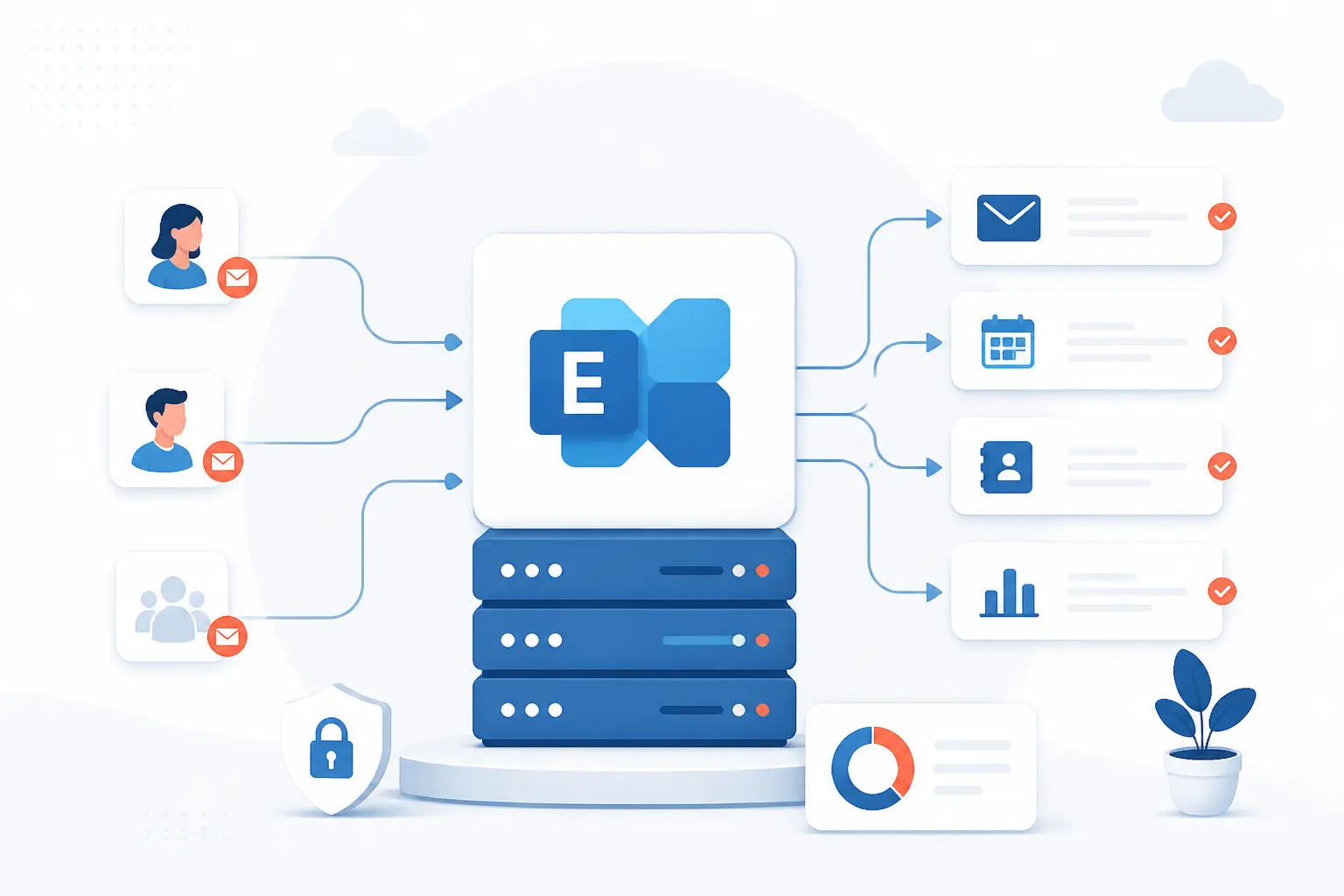
Exchange Server is Microsoft’s business email platform for organizations that want to run mail on their own infrastructure. In practical terms, exchange server stores mailboxes, moves messages between senders and recipients, and keeps calendars, contacts, and meeting data in sync. We think the easiest way to picture it is this: Outlook is the app many people use, but Exchange Server is the system behind it. If your company schedules meetings, books rooms, shares address lists, and enforces mail policies, Exchange Server is often the engine doing that work.
We also think it helps to separate Exchange Server from the broader Microsoft ecosystem right away. Exchange Server is the on-premises product. Exchange Online is the cloud service. Both handle business email, but they are deployed, updated, and licensed in different ways.
Exchange Server Is Microsoft’s Business Email and Calendaring Server

Exchange Server is Microsoft’s on-premises server software for business email, calendars, contacts, tasks, and shared scheduling. It is built for organizations that want direct control over mailbox data, identity integration, transport rules, and update timing. In modern deployments, Microsoft’s architecture guide shows that the platform centers on Mailbox servers, with optional Edge Transport servers for external mail flow. We see it as more than a mail server, because it also acts as a collaboration and policy engine for day-to-day business communication.
FURTHER READING: |
| 1. What Is Migrating Data? Types, Steps, and Risks |
| 2. What Is Hybrid Cloud Management and Why It Matters |
| 3. What Is SMTP Server? How Email Delivery Works |
What Exchange Handles Beyond the Inbox

Exchange handles far more than email. It also manages shared calendars, address books, contacts, tasks, meeting invitations, room and resource booking, mobile synchronization, retention controls, and transport rules. That matters because most businesses do not just send messages. They coordinate people, devices, and compliance requirements through the same system.
Email Routing and Mail Flow
Exchange routes, categorizes, and delivers messages inside and outside the organization. When a user sends mail, Exchange decides where it should go, applies transport rules, checks connectors, and passes the message through the mail flow pipeline until it reaches the right mailbox or the internet. In our view, this is where Exchange stops being “just email” and becomes messaging infrastructure. A small accounting firm may only need internal delivery and spam filtering. A larger company may need routing rules for legal disclaimers, journal copies, or partner-specific connectors.
Calendars Contacts Tasks and Scheduling
Exchange keeps business scheduling data in one shared system. That includes personal calendars, shared calendars, contacts, tasks, free/busy lookups, and resource mailboxes for conference rooms or equipment. This is why meeting booking usually feels automatic in Outlook. The client is simply talking to a server that already knows who is available, which room is free, and whether a delegate can accept the invite. For many teams, this shared scheduling layer is the real reason Exchange exists.
Sync Security and Data Protection
Exchange also handles synchronization, policy enforcement, and data protection. It can keep mailbox data aligned across desktop apps, browsers, and mobile devices, while administrators apply retention settings, transport rules, device controls, and mailbox permissions. We tend to warn beginners about one thing here: mail systems are not passive archives. They are active security boundaries. If you misconfigure access, authentication, or patching, you are not just risking inconvenience. You are risking exposure of the company’s communication record.
How Exchange Is Built

Exchange is built around a few core roles and services, not a sprawl of separate server types. In current on-premises versions, Microsoft simplified the design so deployment and failover are easier to reason about. That makes Exchange less mysterious than it looks from the outside. Under the hood, though, it still depends on identity, databases, transport, and high-availability mechanisms working together.
Mailbox and Edge Transport Roles
The main roles today are the Mailbox role and the optional Edge Transport role. The Mailbox role does the heavy lifting. It stores mailbox databases, runs transport services, and accepts client connections through front-end services. Edge Transport, when used, usually sits at the perimeter and handles external inbound and outbound mail flow, plus anti-spam and rule processing. We like this split because it reflects a clean operational boundary: one role serves users and data, while the other can help shield internet-facing mail traffic.
Legacy Roles and Unified Messaging
Older Exchange versions used more separate roles, and that history still shows up in older guides and inherited environments. Exchange 2010 had distinct Client Access, Hub Transport, Mailbox, and Unified Messaging roles. Exchange 2016 folded those pieces into the Mailbox role, and Unified Messaging was available there, while Exchange 2019 dropped Unified Messaging from the product line. That is why version context matters so much. When someone says “our CAS server” or “our UM setup,” they may be describing a design that no longer maps cleanly to current releases.
Active Directory Databases and High Availability
Exchange depends on Active Directory for identities and configuration, and it uses mailbox databases to store user data. For resiliency, Microsoft’s DAG documentation defines a Database Availability Group as the built-in framework for replicating mailbox databases across up to 16 Mailbox servers and failing over automatically when a server, database, or network component breaks. We think this is the architectural point most newcomers miss. High availability in Exchange is not mainly about “keeping a server up.” It is about keeping active mailbox databases available even when one server does not cooperate.
How People Access Exchange

People access Exchange through Outlook, a web browser, mobile synchronization, or standard mail protocols. Microsoft’s client access overview lists Outlook, Outlook on the web, Exchange ActiveSync, and POP or IMAP as the main paths into a mailbox. We usually tell readers to think of these as front doors to the same mailbox data. The mailbox stays on Exchange. The access method changes based on the device and the feature set you need.
Outlook as the Front-End Client
Outlook is the most common front-end client for rich Exchange features. It exposes email, calendars, contacts, tasks, delegation, shared mailboxes, offline caching, and room booking in one interface. Microsoft’s MAPI over HTTP notes explain that modern Outlook connectivity uses an HTTP-based transport that improves connection stability and recovery after network changes. We have long felt that this is one reason Outlook remains the default business client. It is built to expose more of Exchange’s depth than simpler mail apps can.
Outlook Web App and Browser Access
Browser access exists so users can reach the same mailbox without the desktop app. In modern language, this is Outlook on the web, though many admins still say Outlook Web App or OWA. It gives users mail, calendars, contacts, and settings through a browser, which is useful on shared computers, locked-down devices, or quick remote sessions. When it is well configured, it feels close to the desktop experience. When it is poorly published, it becomes a help desk magnet.
Mobile Access With Exchange ActiveSync
Exchange ActiveSync is the mobile sync method that keeps supported phones and tablets aligned with the mailbox. It can synchronize email, calendar, contacts, and tasks, and it also gives administrators a way to apply device policies or wipe a lost device. We still see it as a practical bridge between corporate control and user convenience. A sales manager on the road does not care which protocol is in play. They care that the meeting moved, the phone updated, and the device can be locked down if it disappears in an airport.
POP IMAP MAPI and EWS Connectivity
These protocols differ mainly in how much of the Exchange feature set they expose. POP and IMAP are simpler mailbox access methods, so they work for basic mail retrieval but do not offer the full Exchange scheduling and collaboration model. MAPI over HTTP is the richer Outlook path. EWS, or Exchange Web Services, is the API layer many older integrations and line-of-business tools have used to work with mailbox data. We generally advise teams to match the protocol to the business need instead of using legacy access out of habit.
Where Exchange Runs and How It Is Licensed

Exchange can run on your own infrastructure, with a hosting provider, or in Microsoft’s cloud. The right choice depends on who should manage servers, where mailbox data should live, and how much control you need over customization and change timing. Licensing also changes with the model, which is why we prefer comparing the options side by side before talking about migration.
| Option | Who runs it | Typical licensing model | Best fit |
|---|---|---|---|
| On-premises | Your IT team | Server licenses plus CALs | Strict control or local data requirements |
| Hosted Exchange | A hosting provider | Provider subscription | Need Exchange without owning the servers |
| Exchange Online | Microsoft | Per-user subscription | Cloud-first operations |
On-Premises Deployments and CALs
On-premises Exchange means your organization installs and operates the servers, and that model uses server licenses plus Client Access Licenses. Microsoft’s CAL guidance explains that the Standard CAL is the base requirement for Exchange access, while advanced features can require an additional Enterprise CAL. This is where licensing gets slippery for newcomers. The server edition and the user access rights are related, but they are not the same thing. We always suggest mapping features first, then licensing the access model that those features actually require.
Hosted Exchange and Exchange Online
Hosted Exchange usually means a third party runs Exchange for you as a managed service. Exchange Online means Microsoft runs the mailbox platform as part of Microsoft 365. Both reduce your server operations burden, but they are not identical. Hosted Exchange can preserve more traditional Exchange patterns, while Exchange Online follows Microsoft’s cloud service model, release cadence, and administrative boundaries. If your team wants less infrastructure work, both deserve a look. If your team wants deep cloud integration, Exchange Online is usually the clearer path.
Hybrid Setups for Gradual Migration
Hybrid Exchange is the bridge between on-premises mail and Exchange Online. Microsoft’s hybrid deployment overview describes secure mail routing, a shared address list, calendar free/busy sharing, mailbox moves, and a single organizational feel across both environments. We think hybrid is one of Exchange’s most useful ideas because it lets businesses migrate in phases. A company can keep some mailboxes local for compliance or legacy app reasons, while moving other users to the cloud without breaking scheduling and directory lookups for everyone else.
Exchange Server Versions Support Timelines and Subscription Edition

The short version is simple: Exchange Server 2016 and 2019 are past support, and Subscription Edition is the current on-premises path. Microsoft’s October 14, 2025 support milestone matters because unsupported mail servers are a security and operations risk, not a harmless legacy detail. We think version awareness should come before any architecture debate. If the installed version is already out of support, the planning conversation changes immediately.
| Version | Status | Planning takeaway |
|---|---|---|
| Exchange Server 2016 | Out of support | Move off it or use approved extended security paths |
| Exchange Server 2019 | Out of support | Treat it as a transition platform, not a long-term endpoint |
| Subscription Edition | Current on-premises line | Use it for ongoing supported deployments |
Exchange Server 2016 and 2019
Exchange Server 2016 and 2019 are still widely recognized names, but they are no longer the supported future for new long-lived planning. That does not mean every server vanished overnight. It means patch coverage, support expectations, and upgrade pressure changed. We see many teams trip over this distinction. A product can still exist in the environment while being the wrong place to stay.
Exchange Server Subscription Edition
Subscription Edition is the actively maintained on-premises Exchange line. Microsoft’s subscription edition notes explain that the initial SE release was code-equivalent to Exchange 2019 CU15, with the long-term shift being the servicing and lifecycle model rather than a dramatic day-one architectural rewrite. We like that approach because it lowers migration shock. Admins do not have to relearn the entire product at once, but they do need to adopt a current servicing rhythm.
Download Paths Updates and Upgrade Planning
The safest upgrade planning starts with exact build identification, not guesses. Microsoft’s release build table maps major versions to cumulative updates, security updates, and downloadable builds, which is essential before you patch, migrate, or troubleshoot coexistence. We would not plan an upgrade from a screenshot of an admin console alone. We would verify the build, read the current prerequisites, confirm client compatibility, and only then decide whether the next move is a CU, an SE upgrade, or a cloud migration.
Why Availability and Security Shape Exchange Planning

Availability and security shape Exchange planning because email is business-critical and internet-exposed. If mail stops, meetings break, workflows stall, and password resets may fail at the worst possible moment. If security slips, attackers do not just gain a mail server. They may gain a foothold into the wider environment. That is why Exchange design discussions always drift toward patching, redundancy, certificates, and identity. Frankly, they should.
Database Availability Groups and Resilience
Database Availability Groups are the core resilience feature for on-premises Exchange. A DAG keeps multiple copies of mailbox databases on different Mailbox servers and can activate another copy when the current one fails. This matters more than raw server uptime because users care about mailbox availability, not whether one particular host is still alive. In our experience, the best Exchange designs assume failure early and make database activation boring.
Major Vulnerabilities and Zero-Day Lessons
Major Exchange vulnerabilities have shown that internet-facing mail systems demand fast, disciplined response. The federal alert issued during the ProxyLogon crisis warned that successful exploitation of on-premises vulnerabilities could give attackers persistent access and wider network control. We still think that episode is the clearest lesson for Exchange planning. Patch speed, attack-surface reduction, and exposure review are not optional hygiene. They are part of the architecture.
Patching Release Notes and Environment Checks
Patching Exchange is not just “install the update and move on.” It should include reading the release notes, checking prerequisites, validating certificates and virtual directories, confirming services restart cleanly, and testing client access and mail flow afterward. We also think teams should rehearse rollback logic before maintenance windows, not during them. Even a well-documented update can surface old problems in load balancing, antivirus exclusions, custom receive connectors, or hybrid trust configuration.
Frequently Asked Questions
These are the questions we hear most often when people compare Outlook, Exchange Server, and Exchange Online. The confusion is understandable because Microsoft uses one brand across a server product, a cloud service, and several client apps. The cleanest way to untangle it is to ask one question first: are we talking about the mailbox platform, the client, or the hosting model?
Does Exchange Server Still Exist?
Yes, Exchange Server still exists. The current on-premises line is Exchange Server Subscription Edition, while Exchange Server 2016 and 2019 are older releases that have moved past standard support. When we hear “Exchange is gone,” what people usually mean is that many organizations have moved to Exchange Online.
What Is the Difference Between Outlook and Exchange Server?
Outlook is a client app, while Exchange Server is the mailbox platform behind it. Outlook is what users click, read, and type in. Exchange Server is what stores the mailbox, routes messages, manages calendars, and enforces policies. If Outlook is the dashboard, Exchange is the engine room.
How Do I Find My Exchange Server?
You usually find it by checking the account settings in Outlook, asking your IT administrator, or looking at your mail domain’s Autodiscover and DNS records. In an on-premises environment, admins can also inspect the Exchange admin tools, server names, or PowerShell output. If your company uses Exchange Online, there may not be a single named server for you to browse to in the old-fashioned sense.
Is Exchange Server the Same as Exchange Online?
No, Exchange Server and Exchange Online are not the same thing. Exchange Server is the on-premises product that your organization runs. Exchange Online is Microsoft’s hosted service in the cloud. They share core mailbox concepts, but deployment, updates, and day-to-day operations are different.
How 1Byte Supports Business Email Infrastructure
We at 1Byte support business email infrastructure by helping teams control the parts around mail that often decide whether a deployment stays orderly or becomes messy. Exchange does not live in isolation. Domains, certificates, websites, and cloud resources all affect how users discover, trust, and reach business systems. Our role is not to blur those lines. It is to keep the surrounding pieces practical and predictable.
Domain Registration and SSL Certificates
Domain registration and SSL certificates are foundational pieces for professional email identity and secure access. A business needs control of its domain before it can issue stable email addresses, set DNS records, or plan migrations between on-premises and cloud mail systems. SSL certificates matter whenever users or systems need trusted encrypted connections, whether that is for webmail, migration tooling, or related HTTPS endpoints. We see these as the nuts and bolts that make the polished parts possible.
WordPress Hosting and Shared Hosting
WordPress hosting and shared hosting help keep the company website and its communication surface organized beside the mail environment. That sounds separate from Exchange, but it often is not. The public site may publish support contacts, webmail links, migration notices, or DNS-dependent services that users touch every day. We prefer clear separation here. Let the website stack do website work, and let the mail platform do mail work.
Cloud Hosting and Cloud Servers
Cloud hosting and cloud servers are practical when a business needs infrastructure around email systems, not just the mailbox platform itself. Teams may need room for directory services, migration utilities, management jump boxes, test environments, or adjacent business apps that interact with mail workflows. As an AWS Partner, 1Byte fits into that broader infrastructure conversation in a practical way. We think that matters because email decisions are rarely only about email.


Conclusion
Exchange Server is best understood as Microsoft’s on-premises business messaging platform, not just an email box with a famous name. It handles mail flow, calendars, scheduling, policies, client connectivity, and resilience in one system. Once we separate the server from the Outlook client and from Exchange Online, the whole product becomes much easier to reason about.
If you are reviewing your own environment, the next smart step is simple: identify which Exchange version or service model you are actually using, then decide whether you need tighter operations, a hybrid bridge, or a full cloud move. Which part of your setup is the real decision point right now: the mailbox platform, the client experience, or the infrastructure around it?