

- How These Best AI for Graphic Design Tools Stack Up
- Top 10 Best AI for Graphic Design Tools
- 5 More AI Design Tools Worth Considering
- How To Choose the Best AI for Graphic Design by Use Case
- What Separates a Useful AI Design Tool From a Gimmick
- How To Build an AI Design Workflow That Still Feels Human
- Free Plans, Paid Plans, and Where Upgrades Matter Most
- Frequently Asked Questions
- Conclusion
The best AI for graphic design right now is not one single tool for everyone. It depends on whether you need fast social graphics, cleaner typography, UI mockups, or more original image generation. We researched the official product pages, documentation, pricing pages, and public review listings for every tool in this roundup so readers can shortlist with confidence. If we had to narrow the field fast, Canva AI is the easiest all-around pick, Adobe Firefly is the safest fit for Adobe-heavy teams, Ideogram is the standout for text inside images, and Figma Make is the most compelling option for UI and product work.
That said, the right choice changes quickly once you care about brand control, export quality, private generations, or how far a free plan really goes. Some tools are great at producing a first concept and weak at refinement. Others are slower to wow you but much better once you need reusable brand systems, collaboration, or client-safe output. That is the gap this list is meant to close.
How These Best AI for Graphic Design Tools Stack Up
The short version is this: the top tools divide into three camps. First are broad design platforms like Canva AI, Kittl, Visme, and Simplified. Second are image-first generators like Adobe Firefly, Ideogram, Midjourney, and Recraft. Third are workflow tools like Figma Make, ChatGPT, Gemini, and Uizard that help shape ideas, layouts, or product screens more than finished campaign art. Our table below shows where each top pick is strongest before we dig into the details.
FURTHER READING: |
| 1. 15 Best Free CDN for WordPress for Speed and Security |
| 2. 15 Best Sales Coaching Software for Smarter Reps |
| 3. 15 Best AI Demand Forecasting Tools for Teams |
Quick Comparison of the Best AI for Graphic Design Tools
| Tool | Best For | Ease of Use | Pricing | Score |
|---|---|---|---|---|
| Canva AI | Everyday marketing graphics and fast team output | Very easy | Free plan, then paid upgrades | 4.8 |
| Adobe Firefly | Brand-safe asset generation for Adobe users | Easy | Credit-based paid plans, plus Adobe bundles | 4.7 |
| Ideogram | Typography, headlines, and text-heavy visuals | Easy | Free plan, then Plus, Pro, and Team plans | 4.7 |
| Figma Make | UI mockups, web layouts, and functional prototypes | Moderate | Free Starter access, then seat-based Figma plans | 4.6 |
| Kittl | Typography-led branding, merch, and print-style assets | Easy | Free plan, then Pro and Expert tiers | 4.5 |
| Visme | Presentations, infographics, and business visuals | Easy | Free access, then paid team plans | 4.4 |
| Designs.ai | All-in-one AI content generation across media types | Easy | Free and paid tiers, enterprise options | 4.2 |
| ChatGPT | Creative direction, prompt building, and image iteration support | Very easy | Free plan, Plus, Business, and Enterprise | 4.3 |
| Midjourney | Stylized concept art and strong visual direction | Moderate | Paid plans only | 4.4 |
| Simplified | Small teams that want design plus publishing in one place | Easy | Free and paid plans | 4.1 |
How I Researched and Evaluated This List
We built this list from official product pages, documentation, pricing pages, and public review listings. We did not treat a flashy homepage as enough on its own. When a tool claimed private generations, commercial rights, AI credits, brand kits, or publish-ready workflows, we looked for the page that actually described that feature. We also compared review patterns where public listings were available, but our scores are editorial judgments, not copies of marketplace ratings.
We scored the top 10 tools against the same criteria:
- Graphic design fit: can the tool realistically produce the kind of assets people mean when they search for an AI design tool, including social graphics, brand visuals, layouts, or marketing collateral.
- Editing control: we favored tools that let you keep refining work through layers, targeted edits, variations, layout control, or reusable styling context instead of forcing one-shot generations.
- Workflow value: we looked at how well the tool supports real work, including collaboration, publishing, exports, brand systems, developer handoff, or repeatable team usage.
- Pricing clarity and entry point: free access, transparent paid plans, and understandable credit systems scored better than vague or hard-to-verify pricing.
- Market feedback: where review listings were public, we used them to spot recurring strengths and complaints, not to outsource the ranking.
That framework rewards tools that help you finish useful work, not just generate something pretty on the first try.
Top 10 Best AI for Graphic Design Tools
The strongest options in this tier all have a clear job. Some are broad, beginner-friendly design platforms. Others are narrower but much better in one lane, like typography, interface generation, or stylized image creation. If you are trying to build a shortlist instead of a fantasy wishlist, start here.
1. Canva AI
- Category: AI design platform
- Best for: social posts, ads, decks, and everyday branded graphics
- Ease of use: Very easy
- Pricing: Free plan with paid upgrades
- Standout feature: AI inside a full drag-and-drop editor
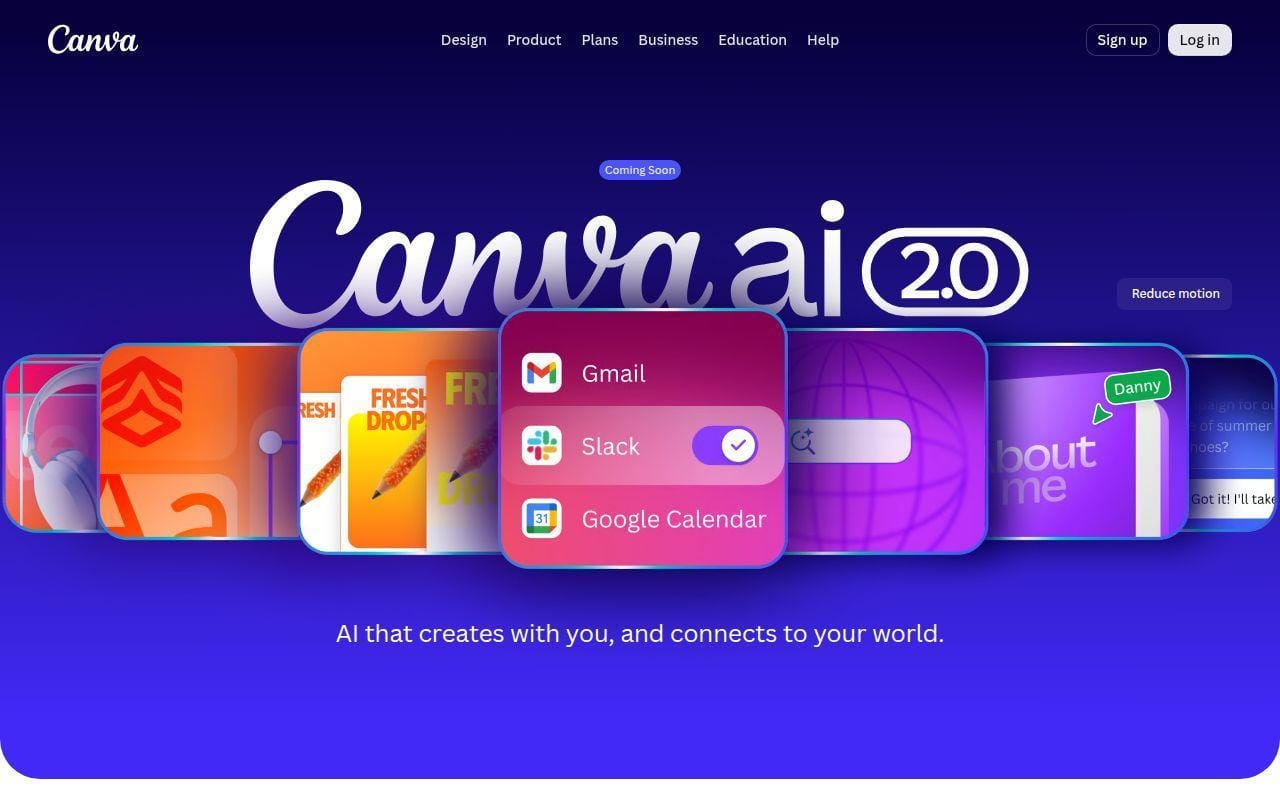
For most readers, Canva AI is still the safest place to start. It stands out because the AI tools sit inside a design platform that already knows how to handle templates, brand kits, collaboration, resizing, and export formats. That matters more than it sounds. Plenty of AI image tools can generate something eye-catching, but far fewer help you turn that output into a finished Instagram post, flyer, presentation slide, or ad variation without switching tabs.
The product page frames Canva AI 2.0 as a conversational creative partner rather than a single generator, and that description holds up well in the documentation we reviewed. The tool is strongest when the job is broad and practical, not when you need the most original art style on the market. In this list, it ranks first because it covers the widest range of everyday design work with the least friction.
How Canva AI works
The workflow starts with a prompt, voice input, or an existing design. On its main AI page, Canva says you can describe what you want, pull in context from connected tools, refine the result through chat, generate elements like images or headlines, and keep the output on brand using saved fonts, colors, and rules. The same page also highlights newer actions like web research and scheduled AI tasks, which tells us Canva is pushing beyond one-off generations into workflow automation.
Once you are inside the editor, the AI becomes more useful because it plugs into actual layout tools. The Pro page shows features like Magic Layers for turning flat AI designs into editable layouts, Brand Kits for storing logos, colors, and fonts, Magic Studio at Scale for batch resizing and background removal via Canva Sheets, Canva Code for interactive experiences, Style Match for carrying visual styling between elements, and captions or background generation for content production. In plain terms, Canva is not asking you to accept a finished output as-is. It wants AI to produce a draft you can keep shaping.
Who is Canva AI for?
This is the best fit for solo creators, small marketing teams, nonprofit staff, founders, teachers, and anyone who needs useful graphics more often than they need pixel-perfect originality. It also works well for teams that care about consistency but do not want a full creative suite learning curve.
We would point dedicated illustrators, art directors hunting for a more unusual visual signature, or advanced UI teams elsewhere. Canva can do a lot, but it still feels most natural when the output is campaign content, business visuals, or polished template-based work.
Canva AI pricing
- Free: $0, with entry-level access to Canva’s editor, templates, and a limited AI starting point.
- Pro: self-serve paid upgrade, with Brand Kits, Magic Studio features, premium assets, and advanced editing tools. Canva’s app listing shows a monthly Pro subscription price.
- Business: built for small teams, with team management and broader brand controls on top of Pro-style capabilities.
- Enterprise: sales-led plan for larger organizations, with higher AI allowances, governance, and organization-level controls.
Canva’s official plan structure is laid out on its pricing page, though some self-serve business details are presented dynamically rather than cleanly on the pages we could read.
Pros and cons
Pros
- AI tools live inside a mature editor instead of a generation-only app.
- Brand Kits, Style Match, and Magic Studio at Scale make repeatable campaign work much easier.
- Canva AI 2.0 can generate layouts, elements, code, captions, and background scenes from one interface.
- G2 reviewers repeatedly praise the template library and drag-and-drop ease.
Cons
- The most ambitious AI features are spread across several names, which can feel messy at first.
- Large or multi-page designs can feel slower, a complaint that shows up regularly in G2 reviews.
- It is better at fast commercial content than at highly distinctive art direction.
Canva AI rating and reviews
- G2: rated 4.7/5 across 6,874 reviews.
If your main goal is to ship useful design work without babysitting the tool, Canva AI is the easiest first shortlist pick. Readers who want more text accuracy or more art-forward output should keep going.
2. Adobe Firefly
- Category: AI image and design generator
- Best for: Adobe-centric design teams and commercial creative work
- Ease of use: Easy
- Pricing: Credit-based plans and Adobe bundle access
- Standout feature: Tight connection to Adobe apps and plan-based credit allowances
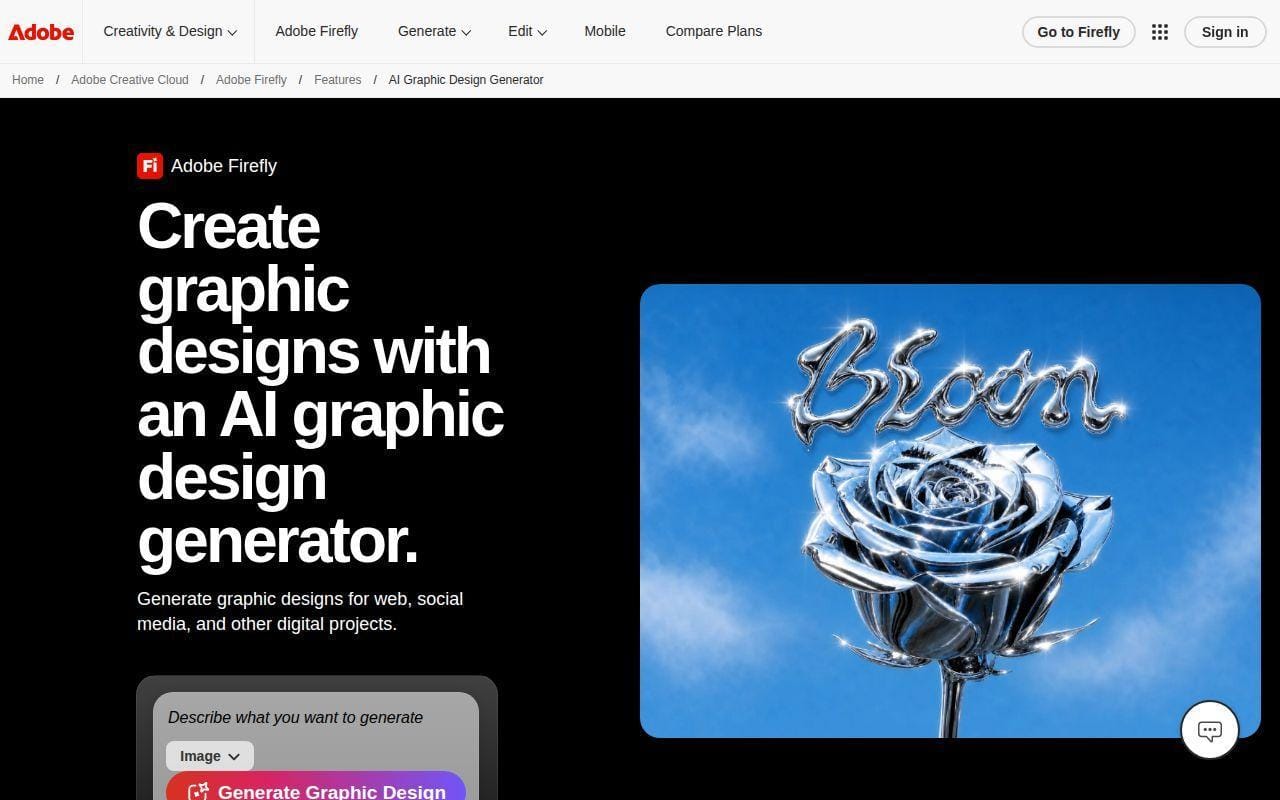
If you already work inside Adobe, Firefly is the least disruptive way to add generative design. Its appeal is not just image generation. It is the way Adobe positions Firefly as part of a wider workflow that extends into Express, Photoshop on web and mobile, and team plans built for higher-volume content creation. That makes it more grounded than many standalone generators.
Based on the official materials we reviewed, Firefly is strongest when you need commercially usable content inside a familiar creative stack. It is not the cheapest route for casual users, and it does not feel as open-ended as Midjourney artistically. What it does offer is a more business-friendly center of gravity, which is why it lands near the top of this list.
How Adobe Firefly works
Adobe’s overview page describes Firefly as a place to turn text prompts into images, graphics, and videos, then refine or remix them with Adobe Express Premium or Photoshop on web and mobile. That wording matters because it points to Firefly as a generation layer plus an editing layer. You are meant to generate first and refine in Adobe’s other tools, not stop at the first render.
The plan pages and FAQs also make the credit system pretty clear. Adobe assigns monthly generative credits, and the allowance changes by plan. The compare-plans material shows Adobe Express Premium includes 2,000 monthly credits, while the Firefly overview highlights team plans such as Firefly Pro, Firefly Pro Plus, and Firefly Premium for teams with 4,000, 10,000, and 50,000 monthly credits respectively. In practice, that means Firefly is easier to budget when you know roughly how much generation volume your team needs.
Who is Adobe Firefly for?
Firefly is a smart fit for creative teams already paying for Adobe, in-house marketers who need AI assets that can move into Adobe workflows, and designers who care about approval chains more than novelty for novelty’s sake.
If you want the simplest free playground or the most stylized visual experimentation, other tools will feel more fun. Firefly earns its rank through workflow fit, not because it is the loosest or weirdest generator here.
Adobe Firefly pricing
- Adobe Express Premium: paid Adobe plan that includes 2,000 monthly generative credits.
- Firefly Pro for teams: 4,000 monthly generative credits for higher-volume team creation.
- Firefly Pro Plus for teams: 10,000 monthly generative credits for larger content demands.
- Firefly Premium for teams: 50,000 monthly generative credits for heavy production usage.
Adobe lays out those allowances on its plan comparison page.
Pros and cons
Pros
- Clear credit structure across Adobe plans and team tiers.
- Designed to feed directly into Express and Photoshop workflows.
- Strong fit for organizations that already live in Adobe’s ecosystem.
- G2 reviewers give it a solid public score and often mention helpful generation quality for design tasks.
Cons
- Best value often depends on whether you are already paying for Adobe elsewhere.
- Less appealing than Canva for general-purpose beginner design work.
- Less distinct than Midjourney if your main priority is a signature visual style.
Adobe Firefly rating and reviews
- G2: rated 4.4/5 across 332 reviews.
We would shortlist Firefly when commercial workflow safety matters as much as the output itself. If you want stronger in-image text or a lower-friction free tier, Ideogram and Canva deserve a close look next.
3. Ideogram
- Category: AI image generator
- Best for: text-heavy graphics, poster concepts, and headline visuals
- Ease of use: Easy
- Pricing: Free, Plus, Pro, Team
- Standout feature: Better plan support for text rendering and private generations
Few tools in this space handle words inside images as convincingly as Ideogram. That alone makes it relevant to graphic designers, because so much real-world design work is not pure illustration. It is posters, hero graphics, ad concepts, product shots with labels, event artwork, and social assets with visible type. A generator can be beautiful and still be useless if the text falls apart.
Ideogram earns this high spot because its official documentation is unusually clear about how the plans work, what private generations require, and how credits are spent. The tool does not try to be a whole design suite like Canva. It stays closer to image generation. Still, for text-heavy concept work, that focus is a strength.
How Ideogram works
The plan and settings docs show a straightforward credit system. Free users get 10 slow credits per week, while paid plans add monthly priority credits, larger concurrent generation queues, and unlimited slow credits on higher tiers. The private generations documentation also notes that private images begin on the Plus plan and above, which matters if you are generating client-facing concepts.
For generation cost, Ideogram breaks out how different model versions and rendering settings consume credits. The docs list varying costs for Ideogram 3.0, 2a, 2.0, and 1.0, plus costs for upscale and the Describe feature. That level of transparency is useful because you can estimate volume instead of blindly burning through usage.
Who is Ideogram for?
Ideogram is a strong choice for marketers who need readable headlines in concept art, designers making poster or ad directions, ecommerce teams experimenting with product visuals, and freelancers who want a clean generator instead of a giant suite.
Readers who need layout editing, team governance, or a full presentation and publishing workflow should look elsewhere. Ideogram is best as a specialized generator, not an all-in-one workspace.
Ideogram pricing
- Free: $0, with 10 slow credits per week and limited public generation.
- Plus: $20 per month, or $15 per month billed annually, with 1,000 priority credits per month, unlimited slow credits, quality export, larger generation queue, and private generation.
- Pro: $60 per month, or $42 per month billed annually, with 3,500 priority credits per month, unlimited slow credits, batch generation, quality export, and the largest queue.
- Team: $30 per member per month, or $20 per member per month billed annually with a 2-seat minimum, plus 1,500 priority credits per user, central billing, and early collaboration features.
The official breakdown is on the subscription plans page.
Pros and cons
Pros
- Very clear plan and credit documentation.
- Private generations start on Plus, which is useful for client work.
- Strong value for text-heavy image generation compared with art-first rivals.
- Team plan includes central billing and admin features instead of just more credits.
Cons
- Not a full design editor for finishing multi-element layouts.
- Many editing features require priority credits rather than the slow queue.
- Less useful than Canva or Kittl once you need brand kits and template systems.
Ideogram rating and reviews
Ideogram has a public review footprint, but it is still thinner and less stable than the larger platforms in this list, so we would use third-party scores cautiously rather than treat them as decisive.
If text inside the image matters, Ideogram belongs on your shortlist. It is one of the few tools here that feels built with that real design constraint in mind from the start.
4. Figma Make
- Category: AI UI and prototype generator
- Best for: websites, product screens, and interactive mockups
- Ease of use: Moderate
- Pricing: Free Starter access, then seat-based paid plans
- Standout feature: Prompt-to-prototype with design-system context
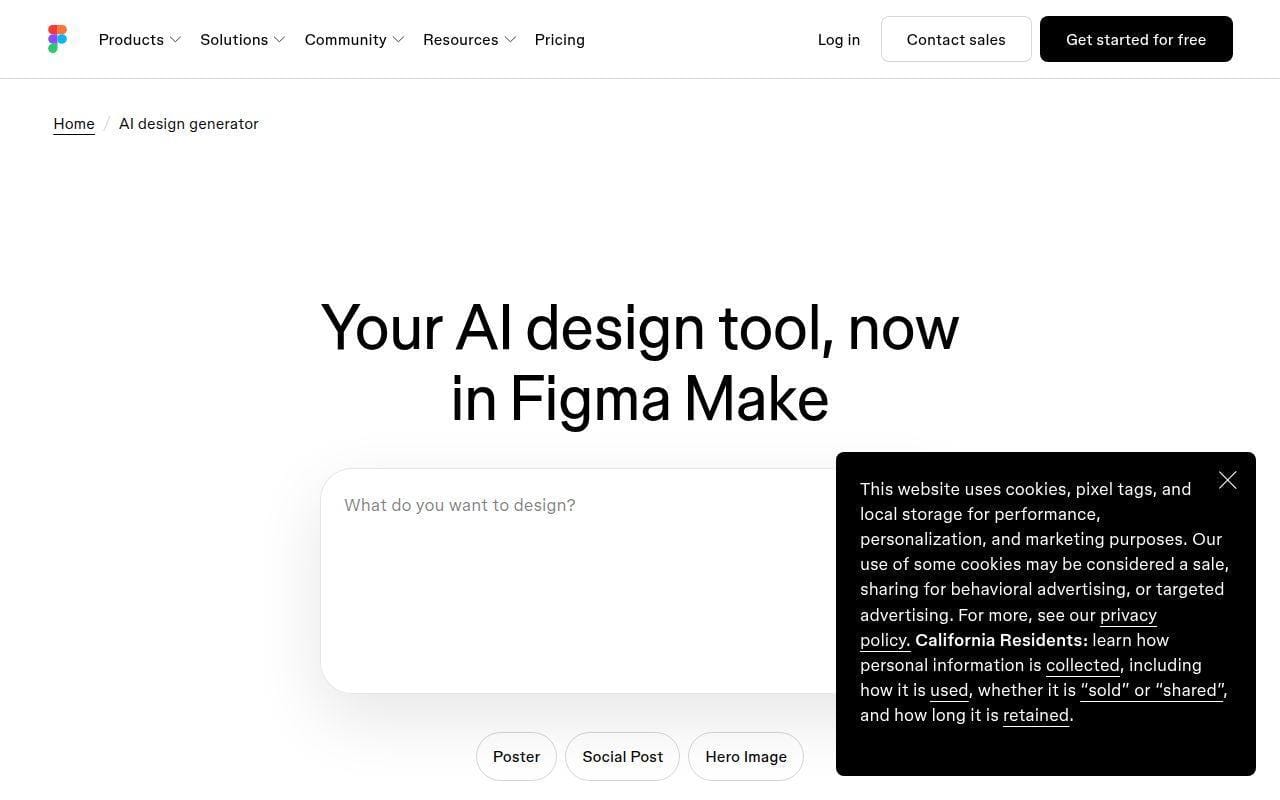
When the design job is screens rather than posters, Figma Make jumps ahead of most rivals. It is not trying to be the best AI poster tool or the best AI logo tool. It is trying to turn prompts, frames, design systems, and backend context into functional prototypes and web apps. That is a different problem, and it is why Figma Make ranks this high.
Our read of the official materials is that Figma is being unusually direct about the workflow. The product page, the help docs, and the pricing page all reinforce the same message: Make is for building with context, not just tossing out visuals. If your design work touches UI, landing pages, product concepts, or developer handoff, that matters a lot.
How Figma Make works
The core workflow starts with a prompt or an existing frame. Figma’s own pages say you can attach reference images, documents, data files, and Figma frames to prompts, then generate a functional prototype or web app. The Make page highlights Make kits for bringing in design systems and npm packages, MCP connectors for external docs or tickets, and Plan mode to structure intent before generation starts.
Figma’s AI web design page also spells out a helpful four-step flow: start with a frame, describe the layout and structure, review the generated result, then refine or publish it. The pricing page adds practical details like backend support, library styling context, publish-to-web, copy as design layers, and mobile access. In short, Make is less about static graphics and more about getting from concept to something interactive and editable.
Who is Figma Make for?
This is for product designers, founders sketching MVPs, growth teams building landing pages, and developers who want a faster bridge between layout ideas and code-backed prototypes. It is also useful for teams that already live in Figma and want AI without leaving the platform.
If your work is mostly brand graphics, merch, social carousels, or poster design, Canva, Kittl, or Ideogram will feel more natural. Figma Make is brilliant, but it is not general-purpose in the same way.
Figma Make pricing
- Starter: Free, with unlimited drafts, UI kits and templates, and 150 AI credits per day up to 500 AI credits per month.
- Professional Full seat: $16 per month, with 3,000 AI credits per month and access to advanced Make features.
- Professional Dev seat: $12 per month, with 500 AI credits per month.
- Professional Collab seat: $3 per month, with 500 AI credits per month.
Figma details those seat options on its pricing page.
Pros and cons
Pros
- Purpose-built for UI, prototypes, and web app concepts.
- Can use frames, libraries, docs, connectors, and backend context as inputs.
- Copy-as-design-layers gives a practical bridge back into Figma Design.
- Public G2 feedback on Figma overall consistently praises collaboration and shared editing.
Cons
- Less suitable than Canva or Kittl for fast marketing collateral.
- Credit-based usage means experimentation can get expensive for heavy teams.
- Some features and access depend on seat type, which adds buying complexity.
Figma Make rating and reviews
- G2: rated 4.7/5 across 1,517 reviews for Figma overall, which is the closest public review signal available for Make as part of the broader platform.
For interface work, Figma Make is one of the most serious tools in this roundup. It is not trying to replace your judgment. It is trying to shrink the distance between idea and interactive draft.
5. Kittl
- Category: AI-first graphic design platform
- Best for: typography, logos, labels, merch, and print-style design
- Ease of use: Easy
- Pricing: Free, Pro, Expert
- Standout feature: Strong text effects and commercial-ready design orientation
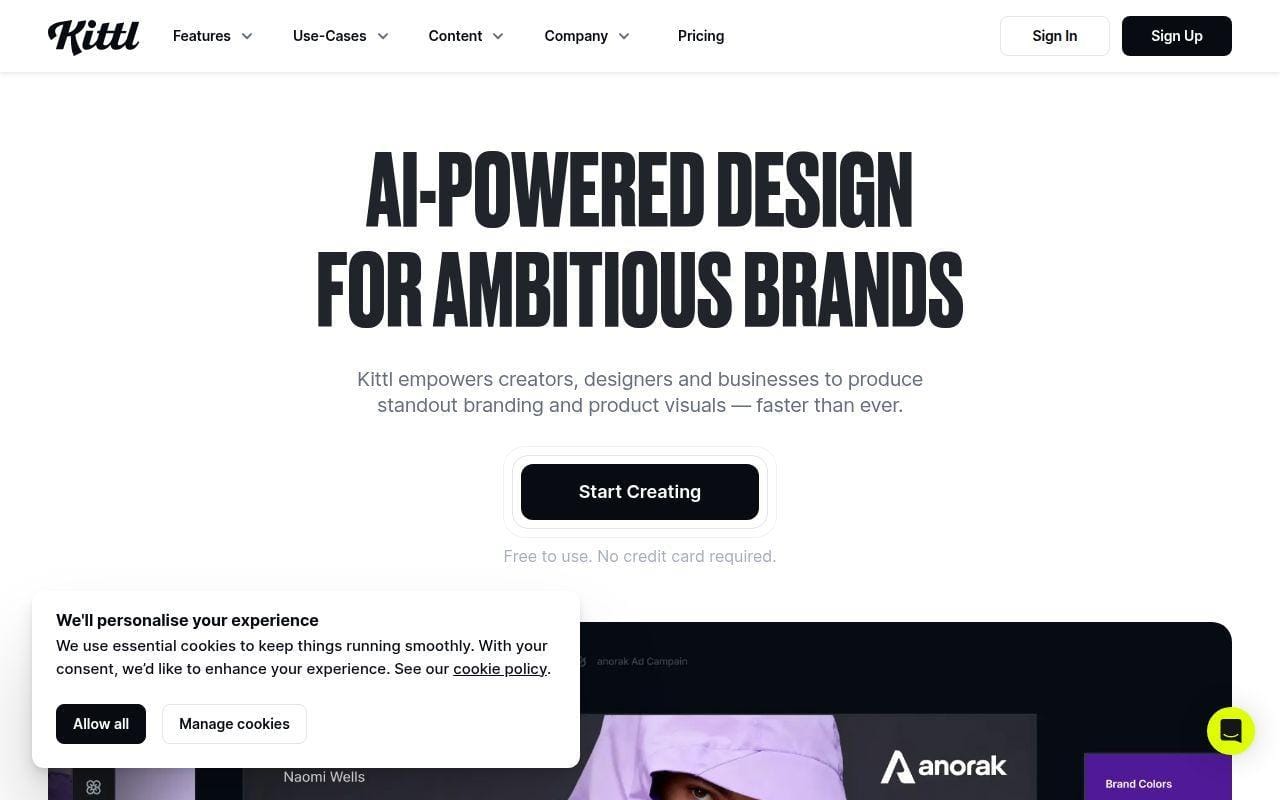
Typography-heavy work is where Kittl starts to separate itself. The platform is very explicit about serving creators, designers, and businesses that need branding and product visuals, and its plan pages keep coming back to premium templates, text effects, vector exports, commercial use, and design flows. That mix makes it one of the best picks for merch graphics, label concepts, packaging-style layouts, and logo-adjacent work.
Kittl is less broad than Canva, but that is part of its appeal. Its positioning is tighter. If you want an AI design tool that feels closer to branded graphic output than to generic image generation, Kittl deserves real attention.
How Kittl works
The documentation and pricing pages frame Kittl as an editor first, with AI features layered into it. Tokens power tools like Kittl Flow, AI Vectorizer, AI Image, AI Image Generator, AI Video, AI Chat, and Reframe. The platform also supports premium templates and mockups, uploads, libraries, and collaboration inside shared workspaces.
We also found clear licensing language on the pricing page. Free is personal use only, while Pro and Expert include a commercial license up to 500,000 copies, and Business plans add an enhanced license beyond that threshold. That is a very practical detail for sellers, merch creators, and agencies.
Who is Kittl for?
Kittl is a strong fit for ecommerce sellers, merch businesses, side-hustle creators, freelancers making logo or poster concepts, and brand designers who care a lot about type and composition. It also looks appealing for teams that want AI-powered mockups without going fully into a broader suite.
We would not pick it first for slide decks, collaborative business storytelling, or UI generation. This is a graphic-design-first tool, not a product-design or document-design platform.
Kittl pricing
- Free: $0, with a starter toolset, limited feature usage, and no commercial rights.
- Pro: $19 per month, with 2,000 AI tokens per month, 10GB storage, premium templates and mockups, vector exports, and commercial licensing.
- Expert: $45 per month, with 6,000 AI tokens per month, 100GB storage, broader asset access, and faster high-volume workflows.
- Business: sales-led tier with enhanced licensing for wider commercial reach beyond the Pro and Expert copy limit.
Kittl’s plan details are laid out on its plan comparison page.
Pros and cons
Pros
- Very strong fit for text effects, merch, labels, posters, and brand-style composition.
- Commercial rights are described more clearly than on many AI tools.
- Vector exports and premium mockups make it more production-minded than many rivals.
- AI token usage is documented in Kittl Help rather than hidden.
Cons
- Free plan is personal-use only.
- Less compelling than Canva for broad office, social, and document design.
- Less suited to UI design than Figma Make or Uizard.
Kittl rating and reviews
Kittl has a public G2 listing, but the public pages we reviewed did not expose a stable score clearly enough for us to quote it confidently here.
If your work revolves around words on graphics, print-style layouts, or merch-ready visuals, Kittl is one of the easiest recommendations in this roundup. It feels more specialized, and in this case that is a plus.
6. Visme
- Category: visual content and presentation platform
- Best for: presentations, infographics, reports, and branded business visuals
- Ease of use: Easy
- Pricing: Free access with paid business plans
- Standout feature: AI design generation inside a business communications platform
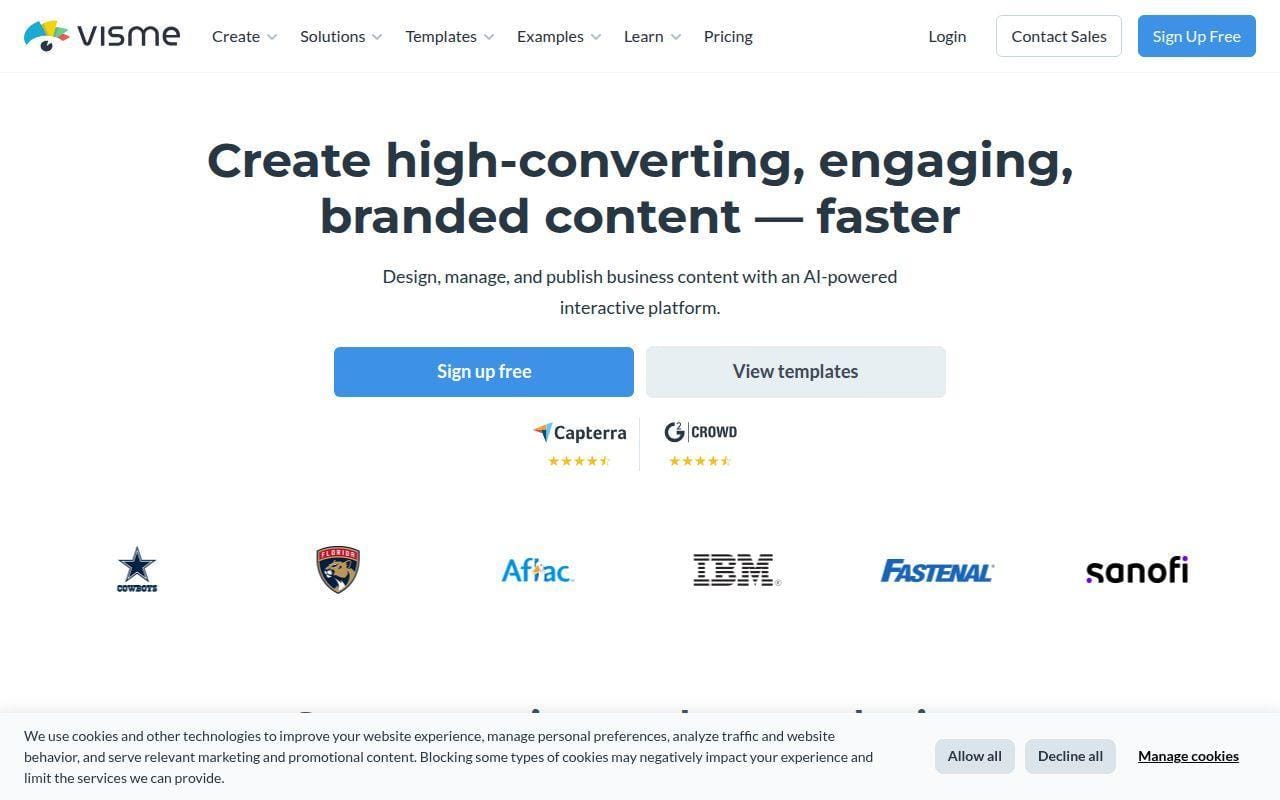
Visme makes the most sense when design work lives next to reporting, presentations, internal comms, or data storytelling. Its AI design generator is not just an image toy bolted onto a page. The official materials describe a platform for creating prompts, editing images, crafting text, and building with brand controls in a broader visual-content environment. That gives it a useful lane of its own.
We do not rank Visme above Canva or Kittl for general graphic design, because it is more business-visuals oriented. Still, for teams that regularly move between presentation decks, infographics, and branded collateral, it can be the more practical choice.
How Visme works
The AI design generator page says Visme AI Designer is available across plans and runs on a credit basis. The broader pricing pages emphasize teams, business, and enterprise usage rather than one-off image creation. That tells us Visme wants AI to support a larger content-production workflow, not dominate it.
The pricing material we reviewed also highlights enterprise-oriented features such as SSO, 2FA, and control over branding on projects. Combined with its long-standing focus on presentations and infographics, the workflow looks best when you need to generate a first layout quickly and then keep everything inside the same workspace for polishing and sharing.
Who is Visme for?
Visme is a strong fit for marketing teams, educators, sales enablement groups, nonprofits, and internal comms teams that produce decks, one-pagers, reports, and infographics more often than pure artwork.
If you mainly need advanced image generation or art direction, it is not the sharpest pick. It is better for structured business visuals than for free-form creative exploration.
Visme pricing
- Free: entry access for trying the editor and AI-assisted creation.
- Paid team plans: self-serve and business-oriented tiers that expand sharing, branding, and collaboration.
- Enterprise: custom pricing, with advanced security, governance, and onboarding support.
- AI usage: Visme AI Designer works on a per-credit basis across plans.
Visme’s official plan notes and enterprise details appear on its pricing page.
Pros and cons
Pros
- Good fit for infographics, reports, and presentations, not just square social graphics.
- AI generation sits inside a broader business-communications platform.
- Enterprise pages mention SSO, 2FA, governance, and onboarding.
- G2 reviewers consistently describe it as useful for visual storytelling and business content.
Cons
- Not the first tool we would choose for logo work or heavily stylized image exploration.
- Pricing is less transparent at a glance than Ideogram or Uizard.
- Credit-based AI usage adds another layer to cost planning.
Visme rating and reviews
Visme has a substantial G2 presence, and the listing we reviewed shows hundreds of public reviews, but the exact score was not exposed clearly enough on the pages we opened for us to quote it cleanly here.
For business visuals, Visme is quietly one of the more sensible picks on this list. It will not win every image-generation contest, but it often wins the “can our team actually use this every week?” contest.
7. Designs.ai
- Category: AI creative suite
- Best for: teams that want chat, images, video, audio, logos, and slides in one place
- Ease of use: Easy
- Pricing: Free, Basic, Pro, Enterprise
- Standout feature: one-click brand extraction across multiple content types
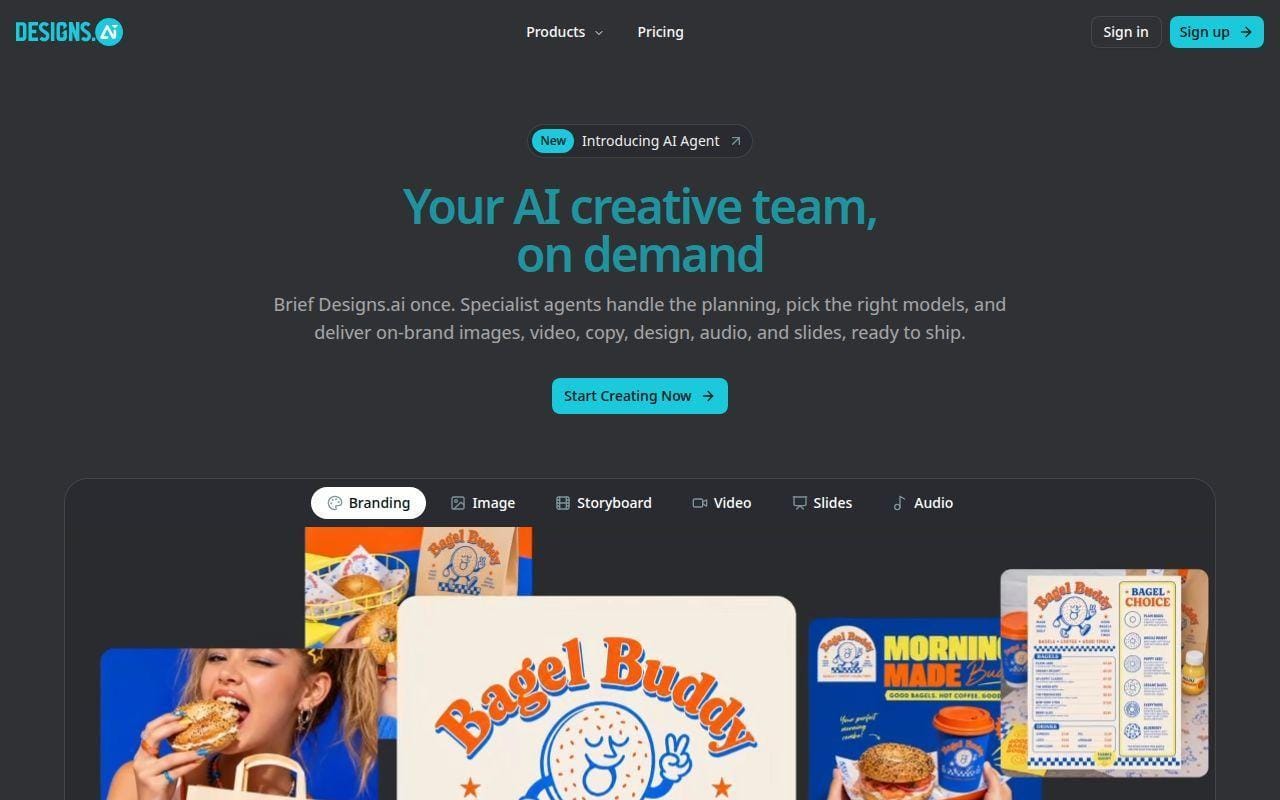
Designs.ai is easiest to understand as an AI content suite that includes graphic design rather than a pure design editor that added AI later. That broader positioning can be either a strength or a distraction, depending on what you need. If your team wants one workspace for images, video, audio, slides, logos, and chat, the official pages make a pretty clear case for it.
Where it gets more interesting for design buyers is brand consistency. The About page focuses hard on one-click brand extraction, shared workspaces, role-based access, admin controls, and enterprise-readiness. So even though this tool is less famous than Canva or Adobe, it is clearly aiming at organizations that want more governed AI creation.
How Designs.ai works
The official About page says you can paste a company URL and let the system pull logos, colors, fonts, and visual style into a Brand Kit. From there, outputs across designs, slides, videos, and other assets are meant to inherit that brand context automatically. The platform also says it routes tasks to different multimodal models in one workspace, which is how it tries to cover so many content types without making users juggle separate subscriptions.
Its homepage and FAQ also make the scope explicit. The suite includes chat, image, video, audio, logo, slides, and branding, with distributed-team and enterprise language throughout. That all-in-one approach is appealing, but it also means the tool feels broader than deeper in any one specific design discipline.
Who is Designs.ai for?
This is best for marketing teams, internal comms, and agencies that want a single AI content hub with some governance. It is also worth a look if brand consistency across non-design staff is the real requirement.
Readers who want the strongest dedicated editor, the best UI prototyping, or the sharpest poster and typography workflow should look elsewhere. Designs.ai is more suite than specialist.
Designs.ai pricing
- Free: confirmed in the FAQ as one of the available subscription tiers.
- Basic: official FAQ confirms the plan tier, aimed at smaller-scale usage.
- Pro: official FAQ confirms the plan tier for broader professional use.
- Enterprise: official materials position this as the governed, scalable option for larger teams.
We could confirm those plan names from the FAQ page, but the current self-serve dollar amounts were not exposed clearly on the official pricing pages we were able to read.
Pros and cons
Pros
- Unusually broad media coverage in one suite, including slides, audio, and video.
- One-click brand extraction is a practical idea for non-design teams.
- Official pages emphasize role-based access, shared assets, and enterprise controls.
- Good fit for teams that care more about governed output than pure design depth.
Cons
- Pricing transparency is weaker than we would like.
- Less specialized for graphic design than Canva, Kittl, or Ideogram.
- Public review coverage is still fragmented compared with bigger rivals.
Designs.ai rating and reviews
Designs.ai has not built the kind of broad, stable public review footprint that would let us lean heavily on an independent score here, so we would judge it more by workflow fit than by marketplace averages.
We would shortlist Designs.ai if your real buying question is “Can one AI suite cover several content types while staying on brand?” If your question is narrower than that, one of the specialists above is usually the better buy.
8. ChatGPT
- Category: AI assistant with image generation and editing
- Best for: ideation, prompt development, creative direction, and image iteration
- Ease of use: Very easy
- Pricing: Free, Plus, Business, Enterprise
- Standout feature: combines brainstorming, writing, and image work in one interface
ChatGPT is not a design canvas first, yet it is still one of the most useful tools in a modern design stack. The reason is simple. Graphic design work rarely begins and ends with drawing. It starts with concepts, positioning, headlines, art direction, references, variations, and feedback loops. ChatGPT helps at every one of those stages, and its official documentation now includes direct image generation, image editing, and canvas-based project work.
We would not buy ChatGPT as a Canva replacement. That is the wrong frame. We would buy it as a creative copilot that can help define the brief, draft copy, structure prompts, generate images, and refine visual ideas faster than most single-purpose tools can manage on their own.
How ChatGPT works
OpenAI’s help center shows three relevant workflows for designers. First, the image-generation guides explain how to create and edit images, including targeted edits through the mobile editor and reuse of saved images. Second, the canvas feature provides a side-by-side workspace for longer writing or coding tasks, which is helpful when you are shaping creative briefs, campaign concepts, or landing page structure. Third, the business pricing pages position ChatGPT as a team workspace with connectors, company context, and central administration.
That combination is what makes ChatGPT useful for design work. You can brainstorm and refine the idea, write the supporting copy, turn it into structured prompts, and then iterate visually in the same general environment. It is not the best finishing tool on this list, but it is arguably the best planning and shaping tool.
Who is ChatGPT for?
ChatGPT is for freelancers, marketers, copy-led designers, creative strategists, founders, and teams that need to reduce the mess between brief and asset. It is especially good when the hardest part is deciding what to make and how to describe it clearly.
If you need exact layer control, reusable templates, or team brand management inside the design tool itself, you still need another platform next to it.
ChatGPT pricing
- Free: entry access for conversational use and lighter workflows.
- Plus: $20 per month, with higher-tier access than Free and paid-plan features in the ChatGPT environment.
- Business: $20 per user per month billed annually, or $25 per user per month billed monthly, with centralized billing, admin controls, connectors, and secure workspace features.
- Enterprise: custom pricing for larger organizations.
OpenAI lays out the team and enterprise tiers on its business pricing page.
Pros and cons
Pros
- Excellent for briefs, copy, prompt engineering, naming, and concept exploration.
- Official docs now cover image creation, image editing, and canvas-based project work.
- Business plan includes connectors and team administration for shared usage.
- G2 reviewers consistently praise ease of use and fast idea support.
Cons
- Not a full graphic editor with brand kits or layout tooling.
- You still need a finishing environment for production-ready assets.
- Reviewers regularly mention occasional context confusion or response limits.
ChatGPT rating and reviews
- G2: rated 4.6/5 across 2,221 reviews.
We would not call ChatGPT the best standalone AI design tool. We would call it one of the best AI design enablers, which is why it earns a top-10 spot anyway.
9. Midjourney
- Category: AI image generator
- Best for: stylized concept art, visual direction, and mood-heavy imagery
- Ease of use: Moderate
- Pricing: Basic, Standard, Pro, Mega
- Standout feature: consistently strong visual style and deep variation tools
Midjourney remains the visual stylist in this lineup. When people want bold, moody, polished image output that feels more art-directed than template-driven, this is still one of the first names that comes up. The official docs reinforce that image-first identity. Midjourney is about generating, varying, upscaling, inpainting, zooming, panning, and now turning images into short videos.
That does not make it the best all-purpose graphic design tool. It is not. But for concept development, campaign moodboards, cover art directions, and high-style visual experimentation, Midjourney is still hard to ignore.
How Midjourney works
The getting-started and web-creation docs show a clear web workflow now. You use the Create page and the Imagine bar, add prompts and reference images, choose settings like aspect ratio and GPU speed, and then keep iterating from the creation feed. Midjourney also supports image prompts, style reference inputs, Omni Reference for character or object consistency, and a web editor for edits.
The modification docs matter even more for designers. Midjourney supports subtle or strong variations, upscale options, Remix for prompt changes, an editor with Pan, Zoom Out, and Vary Region, plus animation tools that can turn an image into a short video. That means it works better as a visual exploration engine than as a quick one-and-done generator.
Who is Midjourney for?
Midjourney is for art directors, brand teams exploring campaign looks, illustrators, pitch-deck makers who need standout concept frames, and creators who value visual flavor over built-in layout tools.
If you need template editing, brand kits, collaborative team control, or easy text handling inside designs, it is not the strongest fit. This is an image engine, not a design office.
Midjourney pricing
- Basic: $10 per month, with 3.3 hours of Fast GPU time and the ability to purchase extra time at $4 per hour.
- Standard: $30 per month, with 15 hours of Fast GPU time and unlimited image generation in Relax mode.
- Pro: $60 per month, with 30 hours of Fast GPU time, unlimited Relax images and SD video, and plan support for commercial use by businesses over the stated revenue threshold.
- Mega: $120 per month, with 60 hours of Fast GPU time and the highest allowance in the standard lineup.
The full breakdown is on the plans comparison page.
Pros and cons
Pros
- Excellent at stylized, polished concept imagery.
- Strong editing and iteration tools including Remix, Vary Region, Pan, and Zoom Out.
- Supports reference images, style inputs, and short video generation from images.
- Official docs clearly spell out commercial-use requirements for businesses above the listed revenue threshold.
Cons
- No free plan.
- Weaker for text-heavy graphics and general layout work.
- Public review feedback is mixed on billing, support, and overall usability.
Midjourney rating and reviews
- G2: rated 4.4/5 across 97 reviews.
- Trustpilot: rated 1.6/5 across 366 reviews.
Midjourney belongs on your shortlist if you want the image itself to carry the wow factor. If you want faster production design around that image, pair it with something else.
10. Simplified
- Category: all-in-one AI content platform
- Best for: small teams combining design, copy, and publishing
- Ease of use: Easy
- Pricing: Free and paid plans
- Standout feature: one workspace for content creation and social publishing
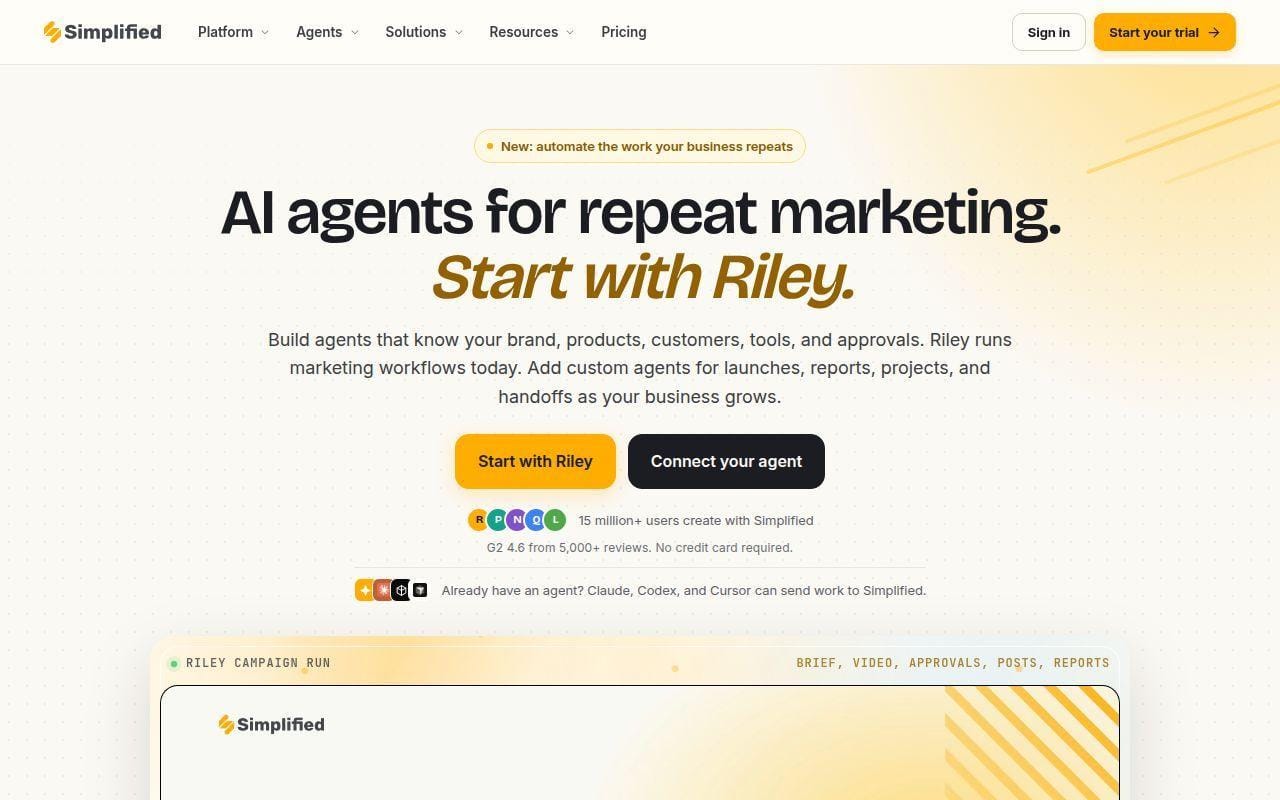
Simplified aims to keep design, writing, and publishing under one roof. That makes it appealing for small businesses that do not want to assemble a stack of separate AI tools for graphics, captions, and scheduling. The research here points to a platform that is broader than a pure design tool, but still relevant for graphic-design buyers who work in marketing reality rather than in a studio bubble.
It lands tenth because its all-in-one pitch is strong, but the design depth is not as persuasive as Canva, Kittl, or Figma Make for their best use cases. Still, for teams that value convenience and collaboration over best-in-class specialization, Simplified can make sense.
How Simplified works
The official pricing materials position Simplified as an “AI agent team” environment rather than just a generator. The plan pages highlight collaboration, project commenting, asset libraries, export formats, text-to-image tools, and content workflows aimed at teams. In other words, the product is trying to unify content creation, not just image generation.
That approach is practical for social and campaign teams. A creator can move from concept to visual to post workflow in one platform, which is the main reason Simplified stays in this top 10 instead of dropping into the secondary tier.
Who is Simplified for?
Simplified is for small marketing teams, agencies serving lots of social clients, and founders who want “good enough across several tasks” more than “best in class at one task.”
We would look elsewhere if graphic design is your core craft and you need stronger control over typography, production exports, or UI generation.
Simplified pricing
- Free: entry-level plan for trying the workspace.
- Paid plans: the official pricing page presents several paid tiers, with listed starting prices ranging from lower-cost individual access up to larger business plans.
- Team value: plan comparisons emphasize collaboration, file exports, stock libraries, and in-workspace commenting.
- Enterprise-style usage: higher tiers expand capacity and team-level controls.
Simplified outlines those tiers on its pricing page.
Pros and cons
Pros
- Convenient all-in-one approach for design, copy, and publishing workflows.
- Official plan pages emphasize team collaboration and project comments.
- Good option for social teams that care about workflow consolidation.
- The vendor’s own pricing page cites a large G2 review base, which suggests broad market usage.
Cons
- Less specialized for serious graphic design than the higher-ranked tools.
- Harder to evaluate as a pure design tool because it tries to do so many things.
- Pricing and plan storytelling are more platform-centric than design-centric.
Simplified rating and reviews
Simplified has a substantial public review presence, but we did not open a third-party review page with a clean, stable score display, so we are not quoting one here.
If your team wants fewer tools more than deeper craft tooling, Simplified is still worth a look. Just be honest about whether you need an all-in-one workspace or a sharper design specialist.
5 More AI Design Tools Worth Considering
The next five tools are not weak. They are simply narrower, less mature for some buyers, or better as supporting tools than as first-choice picks. If one of these matches your exact use case, it may outrank several of the top-10 options for your situation.
11. Gemini
- Category: AI assistant
- Best for: ideation, copy, and Google-centric workflows
- Ease of use: Very easy
- Pricing: Free, AI Pro, AI Ultra
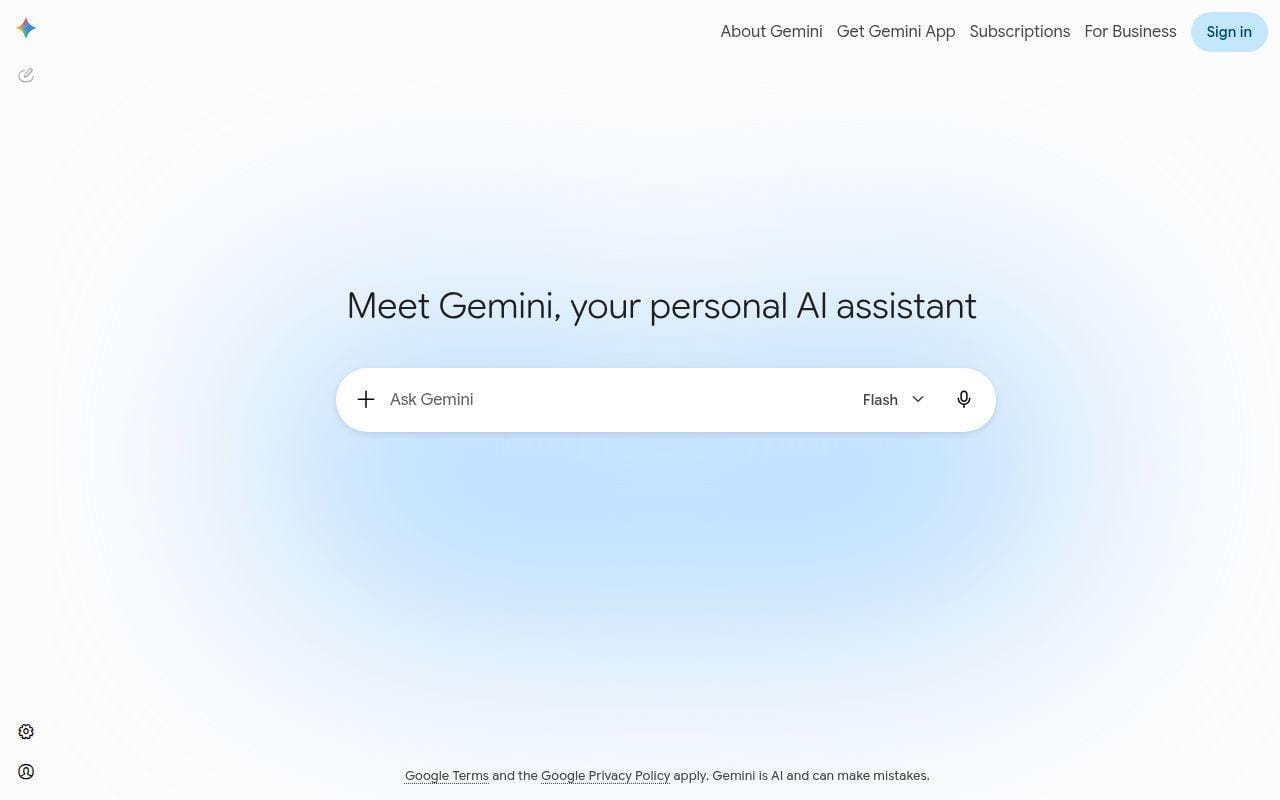
Gemini is worth considering when your design work lives close to Google’s ecosystem. The official subscription pages position Google AI Pro and Ultra as access layers for Gemini’s more capable models, and the broader Google materials make it clear that these plans are increasingly tied to Workspace-style productivity rather than just chatbot access.
That means Gemini is strongest as a design support tool. It can help with naming, creative briefs, structured prompt writing, headline drafts, campaign angles, and concept expansion. It is less compelling as your main finishing environment because the core value is still thinking and generation assistance, not a rich visual editor.
Pricing is more transparent than on some rivals. Google’s US subscription page presents Free, AI Pro, and AI Ultra, while the wider plan ecosystem also points to storage and usage trade-offs. We would mainly shortlist Gemini if you already live in Gmail, Docs, and Google’s broader workflow.
Who is Gemini for?
Gemini is best for marketers, solo founders, and in-house teams that already center work around Google services. If you need a true visual editing platform, it works better beside Canva or Figma than instead of them.
12. Uizard
- Category: AI UI design tool
- Best for: app screens, wireframes, and mockups
- Ease of use: Easy
- Pricing: Free, Pro, Business, Enterprise
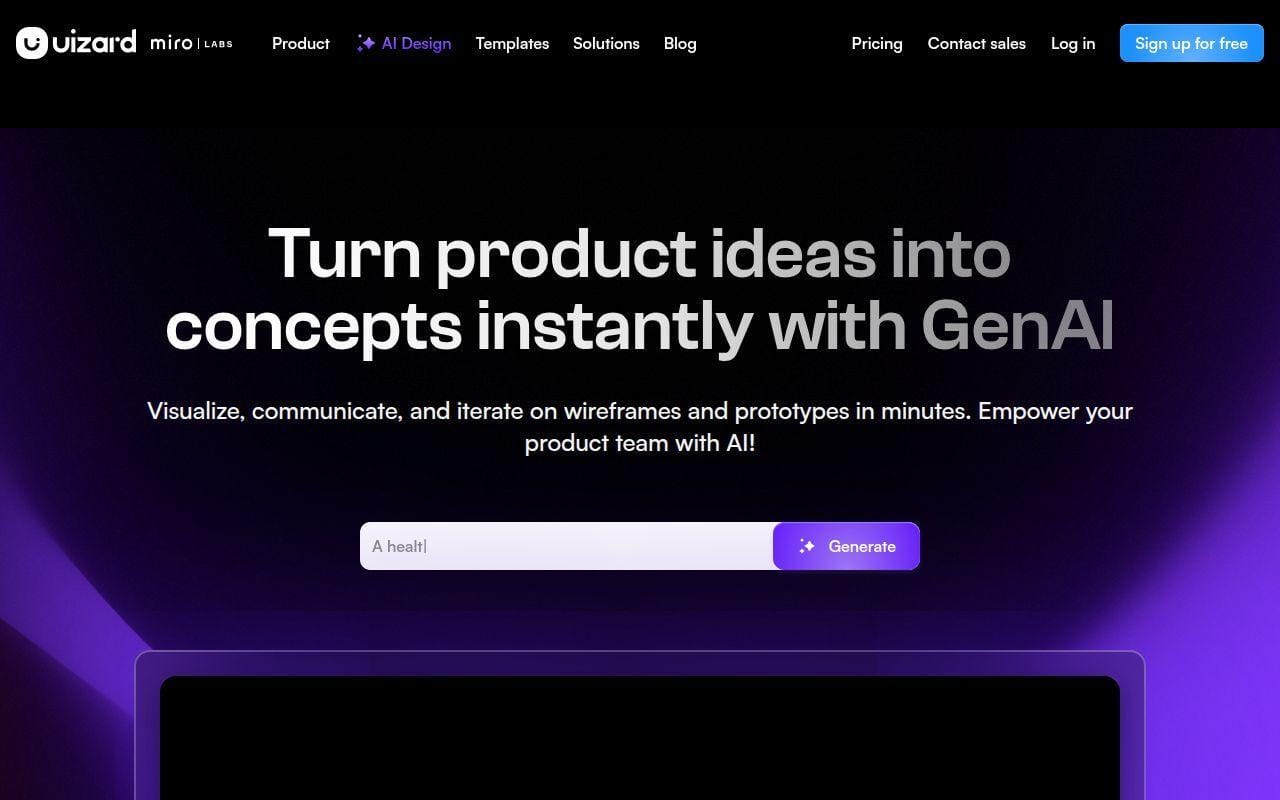
Uizard does one thing better than most of the broader design tools in this roundup. It gets you from text prompt to app or web interface idea very quickly. The pricing page is unusually specific, listing a free plan with 3 AI generations per month, a Pro plan at $12 per month billed annually with 500 AI generations and up to 100 projects, and a Business plan at $39 per month with 5,000 AI generations, custom brand kit support, unlimited projects, and priority support.
The Autodesigner 2.0 page also describes a conversational workflow that combines text prompting with an editable design environment. That is the key appeal. You are not just generating pretty pictures. You are producing UI concepts that can be iterated in a more product-like way.
We rank Uizard outside the top 10 because it is narrower than Figma Make and less broadly useful for graphic design. Still, if your “graphic design” search really includes app screens, startup MVP mockups, or client wireframes, it can be a better fit than many higher-ranked picks.
Who is Uizard for?
Uizard is for founders, product managers, and non-designers who need fast UI concepts without a full Figma workflow. Traditional brand and campaign designers should usually look elsewhere.
13. Recraft Studio
- Category: AI image and vector design tool
- Best for: vectors, mockups, and private paid-plan ownership
- Ease of use: Moderate
- Pricing: Free, Basic, Pro, Teams
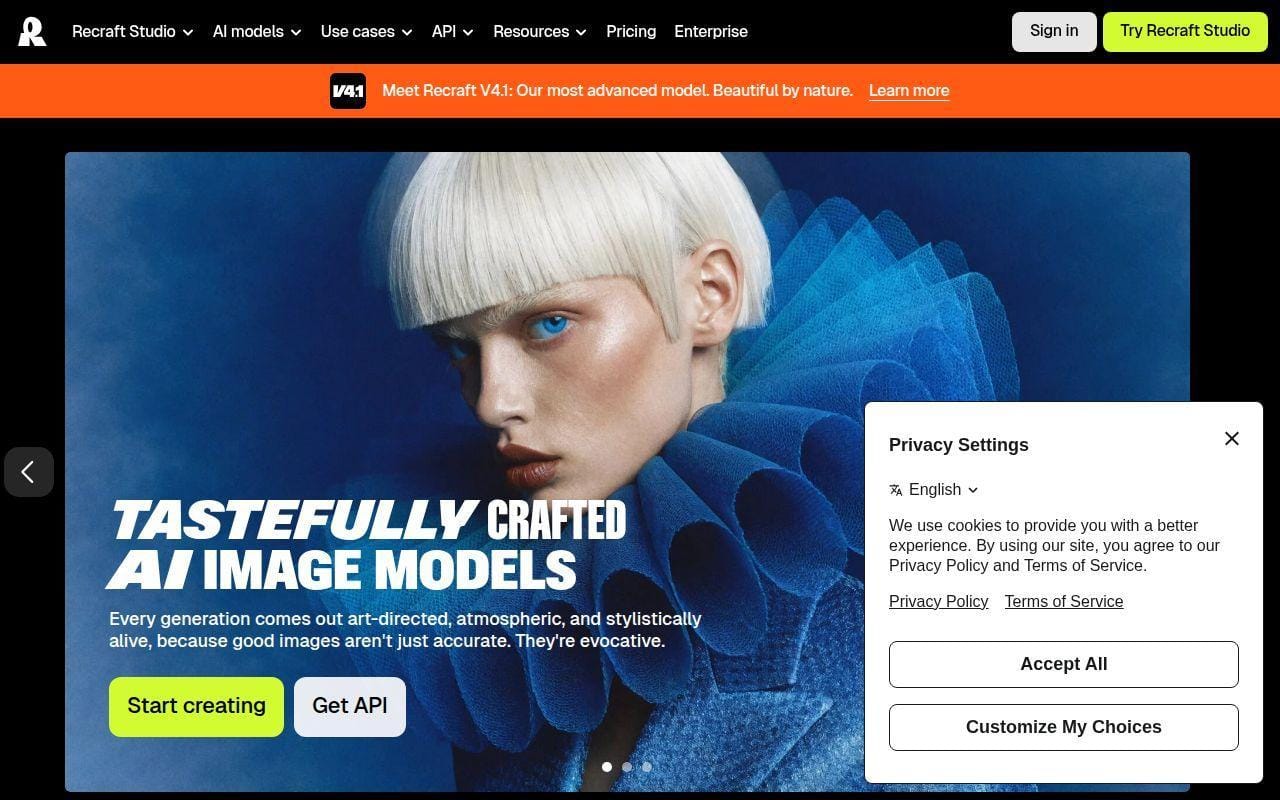
Recraft is one of the more interesting specialist tools because it pushes past generic image generation into vector work, mockups, style creation, background removal, and API-based image workflows. The official docs make a few things very clear. Free-plan images are public and owned by Recraft, while paid-plan assets stay private and come with full ownership and commercial rights. That clarity alone gives it an edge with buyers who care about client usage.
The paid-plan docs are also direct about pricing. Basic starts at $12 per month for 1,000 credits. Pro starts at $20 per month for 2,000 credits and scales up through 4,000, 8,000, and 16,000 credit options. Teams plans start at $22 per month for 2,000 credits and add shared custom styles, centralized account management, premium support, and SSO.
We keep Recraft in the secondary tier because it is less mainstream and less rounded than Canva or Adobe for everyday design work. Still, for designers who care about ownership, vectors, and style-controlled generation, it is easy to see the appeal.
Who is Recraft Studio for?
Recraft is for designers who want more than a pretty raster generator and who care about ownership rules. It is a weaker fit for readers who want a beginner-friendly all-purpose editor.
14. Khroma
- Category: AI color tool
- Best for: color palette discovery and brand color exploration
- Ease of use: Very easy
- Pricing: Not prominently positioned as a paid suite
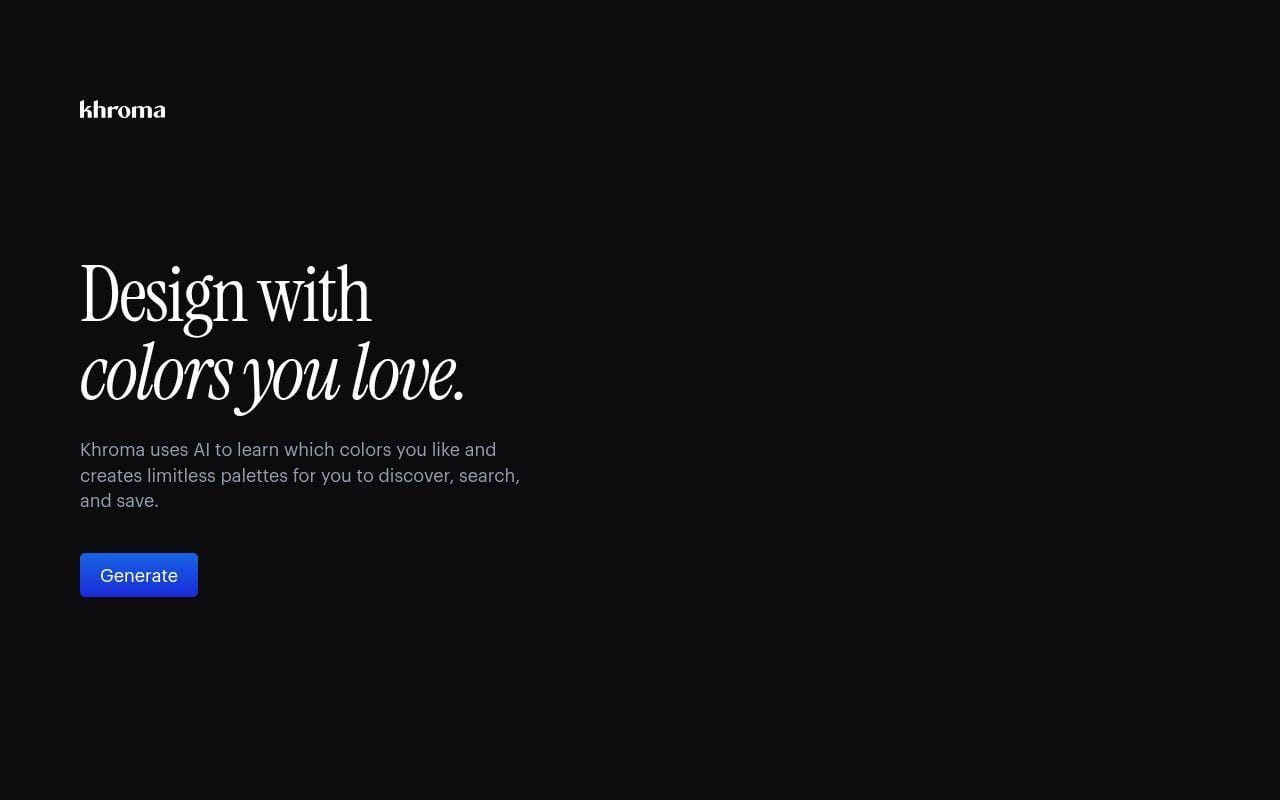
Khroma does not try to be a full graphic design platform, and that is exactly why some readers will like it. Its lane is color exploration. If you are building brand directions, refreshing a visual identity, or trying to escape stale palette choices, a focused color tool can be more helpful than another giant suite.
We would not rank it among the top 10 because it solves one slice of the workflow, not the whole job. Even so, that slice matters. Many AI design tools are strong at image generation but weak at helping users build a consistent color language that can travel across assets.
Think of Khroma as a supporting tool for identity work, moodboards, and concept development. It is best used next to Canva, Kittl, Figma, or another main editor, not as a replacement for them.
Who is Khroma for?
Khroma is for brand designers, marketers, and anyone who spends too long second-guessing palettes. If you need a full creation platform, it is too narrow on its own.
15. Airbrush
- Category: AI image generator
- Best for: stock-style image generation and quick commercial visuals
- Ease of use: Easy
- Pricing: Paid plans with commercial usage rights
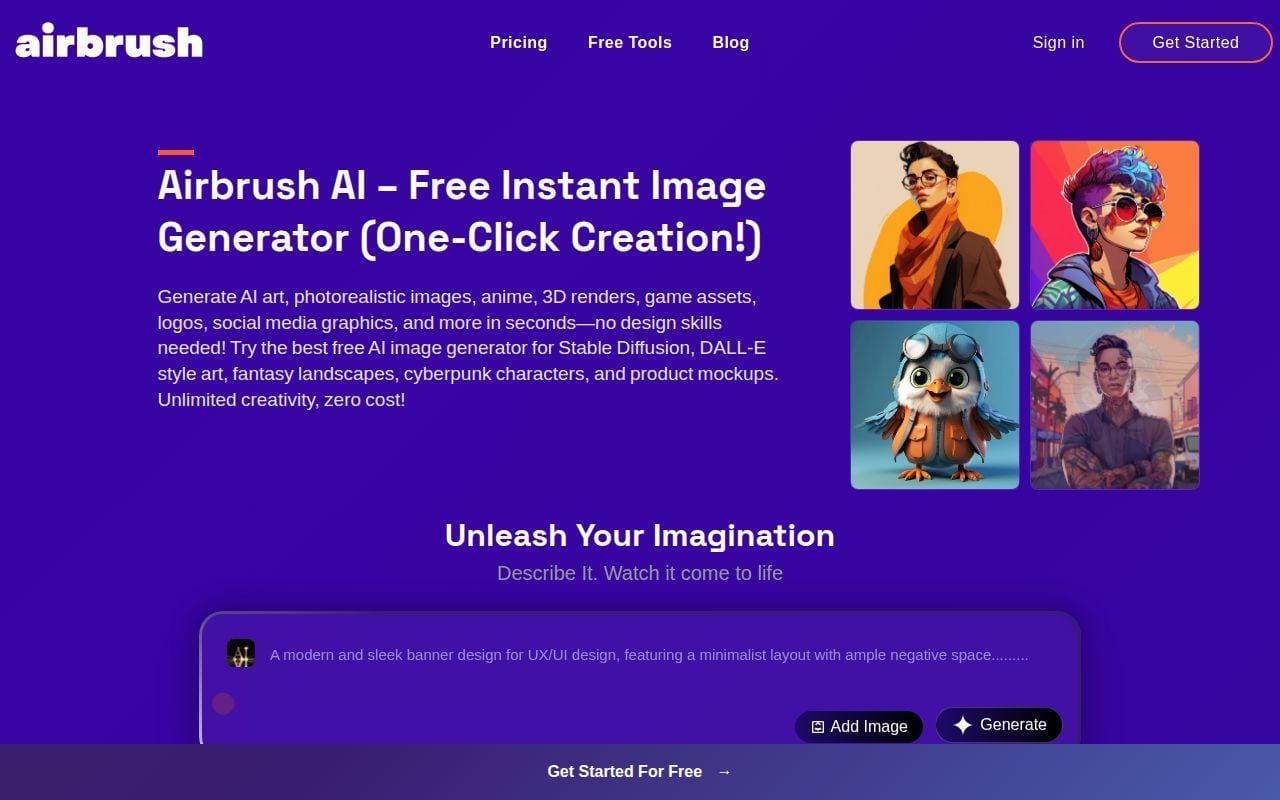
Airbrush is the most straightforward image-generation pick in this secondary tier. The official pricing page emphasizes commercialization rights, and the help center says personal images are not used to train AI models or shown publicly without consent. Those are useful trust signals for business users.
What Airbrush does better than many top-tier alternatives is keep the promise simple. You are here for images, not for a huge creative operating system. That simplicity can be refreshing if all you need is stock-style visuals, blog imagery, or quick ad concepts.
Why is it still fifteenth? Because simplicity cuts both ways. Airbrush does not offer the broader editing, branding, or workflow depth of stronger rivals. It is more of a practical add-on than a main design home base for most teams.
Who is Airbrush for?
Airbrush is for small businesses and content teams that need usable visuals quickly and care about commercial rights. Designers who need deeper brand systems, typography tools, or layout refinement should aim higher up the list.
How To Choose the Best AI for Graphic Design by Use Case
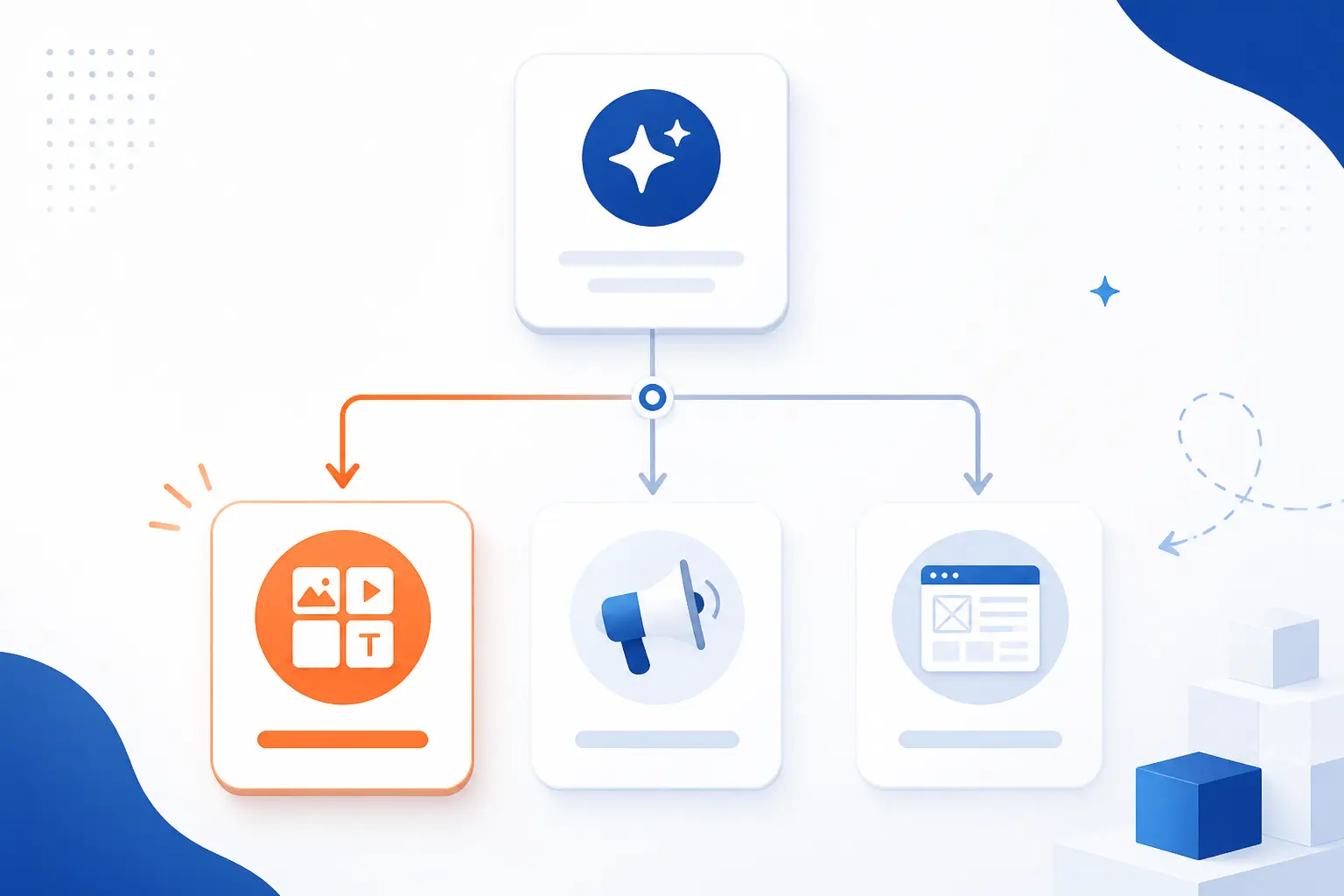
The easiest way to get this choice right is to stop asking for the single best tool. Ask what kind of design work you repeat every week. The answer usually points to two or three realistic contenders very quickly.
Best for Social Media, Ads, and Everyday Marketing Assets
If the job is recurring campaign content, Canva AI is still the most practical first stop. Kittl is a strong alternative when typography and merch-style composition matter more, and Simplified makes sense when your team wants publishing and collaboration in the same tool.
| Tool | Why it fits | Main trade-off |
|---|---|---|
| Canva AI | Brand Kits, Magic Studio at Scale, captions, templates, and easy resizing | Less visually distinctive than art-first generators |
| Kittl | Better text effects, premium mockups, and strong commercial positioning | Less broad for documents and presentations |
| Simplified | Useful when design, copy, and scheduling need one workspace | Design depth is lighter than the leaders |
Best for Text-Heavy Graphics, Typography, and Headlines
Ideogram is the clear standout when the text inside the image needs to hold together. Kittl is the better choice when you want to keep pushing type inside an editor, and Canva AI is the fallback if you need headline generation plus easy finishing tools.
| Tool | Why it fits | Main trade-off |
|---|---|---|
| Ideogram | Better known for usable headline and poster-style image output | Limited as a full editor |
| Kittl | Text effects, vector exports, and print-style layouts | Free plan is personal-use only |
| Canva AI | Helps combine generated text ideas with templates and brand controls | Not as specialized for type craft |
Best for Brand Kits, Merch, and Repeatable On-Brand Output
For repeatable brand output, Canva AI and Kittl are the safest bets, while Designs.ai is worth a look if the bigger need is getting non-design teams to produce on-brand content. That workflow question matters more than flashy demos.
| Tool | Why it fits | Main trade-off |
|---|---|---|
| Canva AI | Brand Kits and batch-style workflows are built into the platform | Less specialized for premium identity craft |
| Kittl | Commercial licensing and strong print-style asset orientation | Narrower overall workflow |
| Designs.ai | One-click brand extraction and multi-format content generation | Less pricing transparency and less specialist depth |
Best for UI Mockups, Wireframes, and Product Screens
Figma Make is the strongest choice when you need something that can become a functional prototype. Uizard is the friendlier lightweight option, and ChatGPT helps more than most people expect by tightening briefs, copy, and prompt structure before you open either tool. Figma’s own research even says 91% of designers who use AI tools say it improves the quality of their outputs, which matches how useful these tools become when they are treated as helpers rather than autopilot replacements.
| Tool | Why it fits | Main trade-off |
|---|---|---|
| Figma Make | Prompt-to-prototype workflow with frames, libraries, connectors, and publishing | More complex buying model |
| Uizard | Fast text-to-mockup workflow for non-designers | Narrower than Figma |
| ChatGPT | Excellent for briefs, flows, prompts, and interface copy | Still needs a visual finishing tool |
What Separates a Useful AI Design Tool From a Gimmick

The useful tools do not just generate something flashy. They give you ways to steer, refine, reuse, and safely deploy the output. That distinction matters because the design software market is already crowded. G2’s design software landscape counted 1,661 vendors, 2,040 products, and 109,195 reviews, so buyers have no shortage of tools. The real question is which ones reduce design friction instead of adding another layer of it.
Output Quality, Prompt Adherence, and Variation Control
The first test is simple. Can the tool produce something close to the brief, and can you push it in several directions without starting over every time? Midjourney does this well with variations, remixing, and region-based edits. Ideogram does it well for text-heavy graphics. Canva AI and Figma Make do it better than expected because they connect generation to actual editing environments instead of isolating it.
We would be skeptical of any tool that wins on first-image drama but loses once you need three cleaner alternatives. Graphic design work is iterative by nature. A one-hit wonder is not enough.
Editing Depth, Layers, and In-Tool Refinement
A flashy generator becomes much more useful once it supports in-tool refinement. That can mean editable layers, targeted edits, variation regions, copy-as-design-layers, or a proper layout canvas. Figma Make, Canva AI, and Kittl all benefit from this. Midjourney improves its case through Pan, Zoom Out, and Vary Region. ChatGPT is helpful here in a different way, because its canvas feature gives teams a place to revise longer creative assets and instructions without constantly reprompting from scratch.
If the output must be exported immediately into another app for even basic cleanup, we count that as a real weakness.
Brand Controls, Collaboration, and Export Flexibility
This is where many AI tools get exposed. Brand kits, team workspaces, private generations, vector exports, and admin controls are not glamorous, but they are what make a tool usable at work. Canva, Figma, Designs.ai, and Recraft all make some version of this argument in their official pages. Kittl also does well here with commercial licensing and vector support.
For teams, we would prioritize platforms that treat AI as one part of a controlled system, not as a slot machine. That is especially true when multiple people are producing content against the same brand rules.
Commercial Safety and Client-Ready Usage
You should always check ownership, privacy, and commercial terms before moving AI output into paid work. Midjourney’s docs, for example, spell out that businesses above a stated revenue threshold need Pro or Mega for commercial use. Recraft’s docs clearly separate public, non-commercial Free outputs from paid private ownership. OpenAI’s image-generation guidance also stresses that generated assets should still follow policy and organizational rules, and that reference images can guide better, more intentional output in practice, which is explained in the image-generation guide.
If a tool is vague on usage rights, that is not a small footnote. It is a buying risk.
How To Build an AI Design Workflow That Still Feels Human
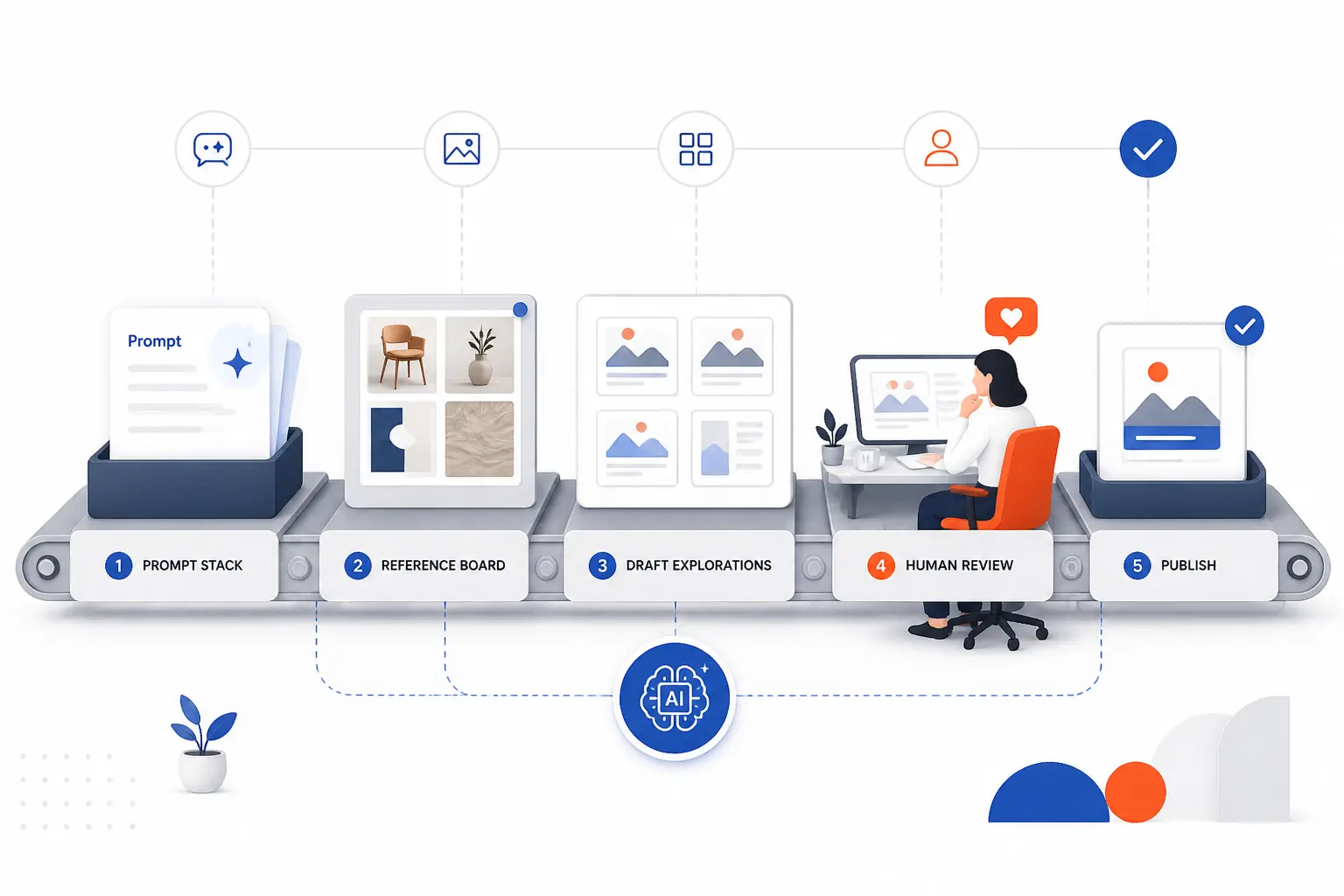
The best results usually come from treating AI as a first-draft partner, not as an auto-publish button. Designers who get the most from these tools tend to reuse instructions, compare multiple directions, and keep a human review step before anything goes live.
Start With Reusable Prompts and Reference Inputs
Do not start every project from a blank prompt if you can help it. Reusable prompt structures, saved brand notes, tone instructions, and reference visuals make outputs more predictable. This is why tools like Figma Make, Midjourney, and Canva AI invest in reference images, library context, or brand systems. The more context the tool gets, the less cleanup you usually need later.
Generate Multiple Directions Before Choosing One
AI is often more useful at option generation than at perfect final output. Generate several concepts, then pick the strongest direction. Midjourney’s variation tools, Ideogram’s queue structure, and ChatGPT’s rapid concept expansion all support this better than a single-pass workflow. It is a lot easier to refine the right direction than rescue the wrong one.
Use Human Review to Refine the Strongest Concept
Human review is where brand sense, hierarchy, readability, and audience judgment still matter. Canva’s editable layouts, Kittl’s text controls, and Figma Make’s design-layer handoff are useful because they assume human refinement is part of the process. We think that is the right product philosophy.
Document Wins So Future Prompts Get Better
Keep a small library of prompts, brand examples, failed attempts, and successful outputs. Over time, that becomes a practical design system for your AI usage. Teams that do this tend to get more consistent output than teams that reprompt from scratch every week.
Free Plans, Paid Plans, and Where Upgrades Matter Most
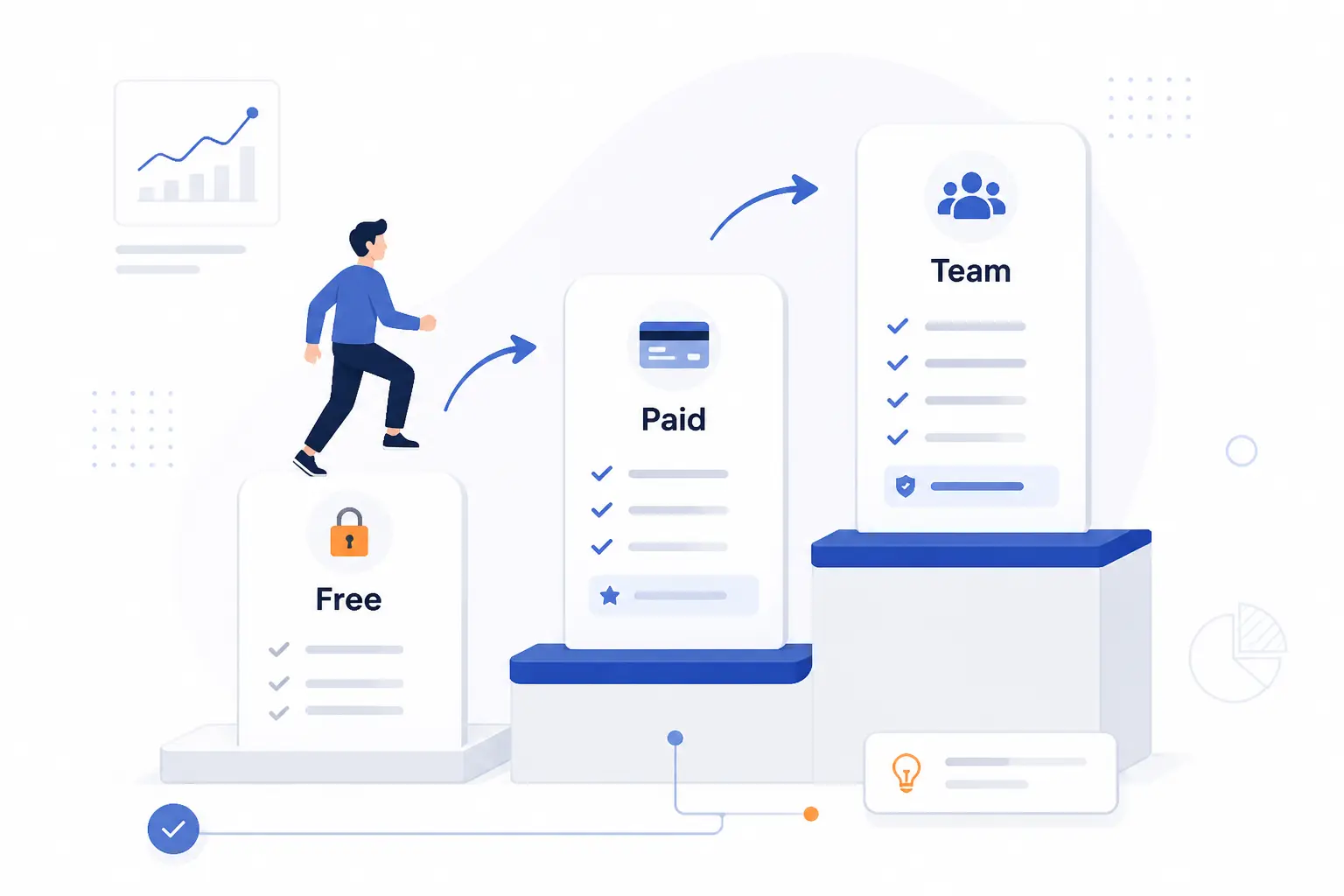
Free access is good for exploration, but it does not always tell you how a tool behaves under real work conditions. The upgrade usually matters most when you need private output, more credits, team collaboration, or commercial-ready licensing.
Which Tools Are Good Enough to Start Free
Canva AI, Figma Make, Ideogram, Uizard, and Recraft all give you enough free access to understand whether the workflow clicks. Recraft’s free plan is a good example of why the fine print matters, because its docs say free-plan images are public and owned by Recraft, while paid plans switch to private ownership and commercial rights on the ownership page. Free is fine for evaluation. It is not always fine for client work.
When Paid Plans Unlock Real Team Value
Upgrading tends to matter once the design work becomes repeatable and shared. Brand kits, private generations, admin controls, collaboration seats, SSO, and larger credit pools are the common tipping points. Canva, Figma, Adobe Firefly, Designs.ai, and Recraft all make stronger business cases at the paid tier than they do on free access alone. If your team is constantly exporting assets into Slack for manual feedback loops, that is usually the sign you are ready for a more serious plan.
Frequently Asked Questions
These are the questions readers usually ask once the shortlist gets down to a few tools. The direct answer comes first, because this topic gets muddy fast if it stays too abstract.
Which AI Tool Is Best for Graphic Design
For most people, Canva AI is the best overall AI tool for graphic design. It balances AI generation with templates, editing, brand controls, and practical export workflows better than most rivals. If your work is more specialized, Ideogram is stronger for text-heavy visuals, Figma Make is stronger for UI, and Midjourney is stronger for stylized concept art.
Can AI Do Graphic Design
Yes, AI can do real graphic design tasks, but it works best as a collaborator rather than a full replacement. It can generate layouts, images, headlines, mockups, and variations very quickly. The stronger tools still assume a human will choose the best direction, fix hierarchy, and make the final judgment call.
What Is the Best Free AI for Graphic Design
Canva AI is the best free starting point for most beginners. Figma Make is excellent if your work leans toward interfaces, while Ideogram is a stronger free option for text-heavy visual concepts. Just remember that free plans often limit credits, privacy, or commercial usage.
What Is the Best AI for Logos and Brand Graphics
Kittl is one of the best picks for logos and brand-style graphics because it focuses heavily on typography, composition, vector-friendly output, and commercial usage. Canva AI is better for broader brand systems and fast marketing output. If your logo work depends on color exploration, Khroma is also a useful supporting tool rather than a full replacement.
Will ChatGPT Replace Graphic Designers
No, ChatGPT is more likely to change the design process than replace graphic designers. It is excellent for ideas, copy, prompt refinement, and visual direction, but it does not remove the need for taste, hierarchy, client interpretation, and finishing craft. In many teams, it is best used before and alongside the main design tool, not instead of one.




Conclusion
The best AI for graphic design depends less on hype and more on where the work tends to break down. If you need an all-around tool, start with Canva AI. If typography matters most, look hard at Ideogram and Kittl. If you build screens or landing pages, Figma Make should be near the top of your shortlist. And if your real need is visual direction rather than final production, Midjourney and ChatGPT are still very hard to ignore.
Our suggestion is simple: pick two tools, not ten. One should be your main finishing environment, and the other should cover ideation or specialized generation. Which pair fits your workflow best right now?