

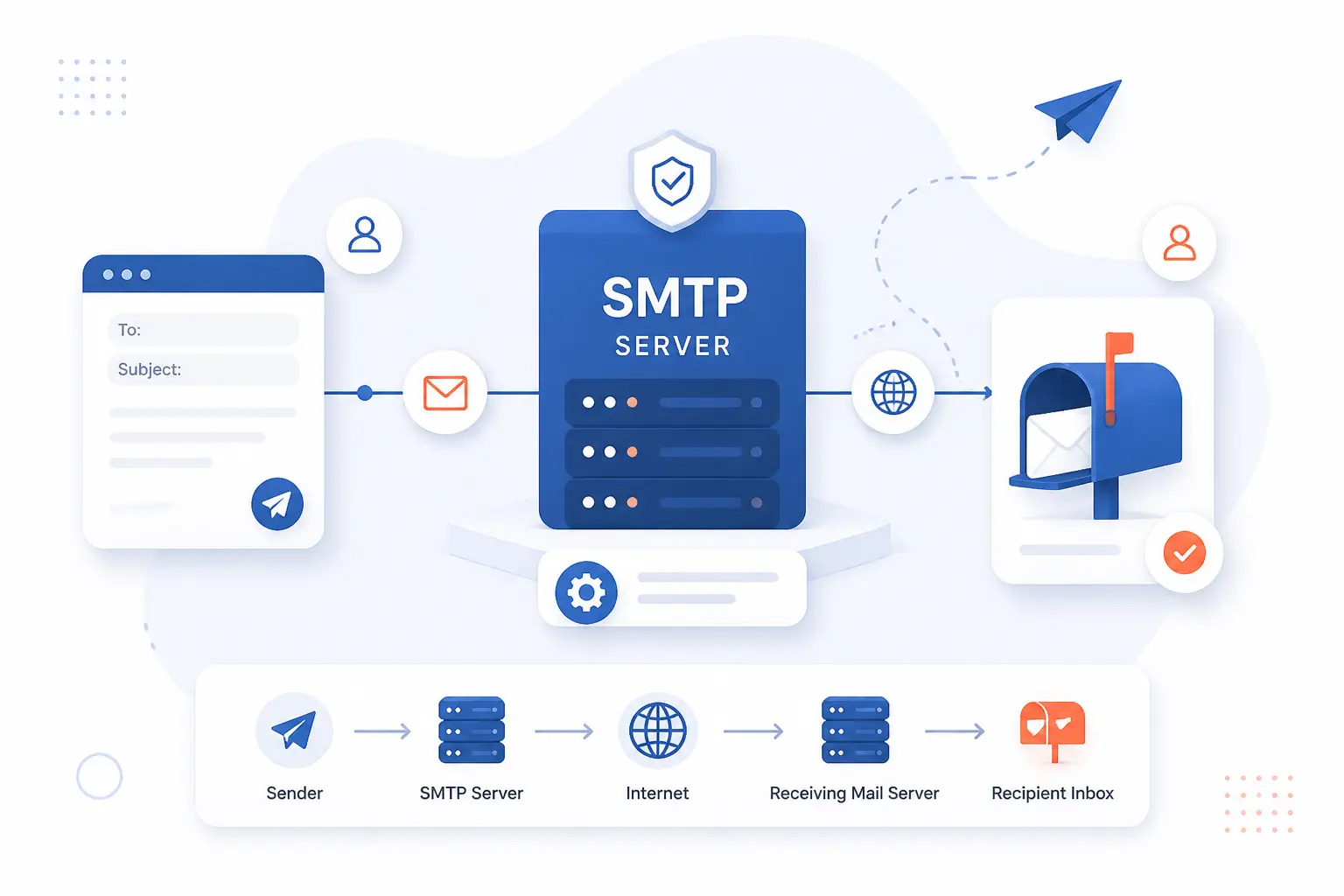
When people ask what is smtp server, the short answer is simple: it is the server that sends outgoing email. It takes a message from your email app, website, or software and passes it toward the recipient’s mail system. If you have ever sent a contact form alert, password reset, invoice, or normal email, SMTP was part of that trip. In practical terms, SMTP pushes mail out, while other protocols are used to read what has already arrived.
An SMTP Server Is the Outgoing Mail Server That Sends and Relays Email

An SMTP server is the outgoing mail server that accepts, sends, and relays email from one system to another. SMTP stands for Simple Mail Transfer Protocol, and it is the ruleset used for moving mail across the internet, as described in the core transport standard. We think of it as the handoff point for mail that needs to leave your device or application. Your inbox app may feel like one tool, but under the hood, sending and reading are separate jobs.
That distinction matters more than most beginners expect. A website contact form uses an SMTP server to send a notification to your team. A checkout system uses one to send receipts. Even a desktop client like Outlook or Apple Mail needs outgoing server settings before it can send anything at all.
FURTHER READING: |
| 1. HTML Fonts Guide to Web-Safe Fonts, Google Fonts, and CSS Styling |
| 2. What Is FTP Hosting and How Does It Work |
| 3. How to Redirect Website URLs With 301, 302 and Domain Forwarding |
How an SMTP Server Routes and Relays Email

An SMTP server routes email by accepting a message, deciding where it needs to go, and relaying it toward the receiving domain. If the destination server is unavailable, it usually queues the message and tries again instead of failing instantly. That is why some emails arrive a few minutes late rather than disappearing. The process sounds technical, but the logic is straightforward once we break it into stages.
From the Mail Client to the Outgoing Server
The first step is message submission from your app, site, or mail client to an outgoing service. In standards terms, that submission role is separated from mailbox access in the message submission standard. A phone, laptop, WordPress plugin, or business app connects to the provider’s sending endpoint, authenticates, and hands over the message. From there, the server checks the sender, stamps the message for processing, and places it in the delivery flow.
For a beginner, the key idea is this: your device usually does not deliver mail directly to every recipient on earth. It submits the message to a sending system that is built for the job. That is safer, easier to monitor, and much more reliable.
DNS Lookup and Relay Between Mail Servers
After accepting the message, the sending system looks up the recipient domain in DNS and finds the server that should receive mail for that domain. SMTP commonly uses MX records for that lookup, and the same transport standard explains how multiple MX records can be ranked and retried. If you send a message to someone at example.com, your outgoing system asks DNS which mail host handles mail for example.com, then opens a connection to that host or its backup.
This is the relay part people often miss. Your server is not sending straight into the recipient’s inbox window. It is talking to another mail server first. Only after that server accepts the message does final mailbox delivery happen on the recipient side.
Final Delivery, Retries, and Bounce Messages
Final delivery happens when the receiving side accepts the message for the recipient mailbox, or rejects it with a status the sender can act on. If the failure is temporary, the message is usually retried from the queue. If the failure is permanent, the sender may get a bounce or delivery status notice in the format defined by the standard notice specification. That is why “mailbox full,” “domain not found,” and “recipient rejected” can produce different kinds of failure messages.
In real life, retries are one of SMTP’s quiet strengths. If a destination server is briefly down, your message may still arrive later without you doing anything. We like that design because it treats email as a store-and-forward system, not a one-shot chat message.
SMTP vs IMAP and POP3

SMTP, IMAP, and POP3 are not competing versions of the same thing. SMTP sends outgoing mail, while IMAP and POP3 retrieve mail that has already been delivered. If you remember only one distinction, remember this one: SMTP is for sending, and IMAP or POP3 is for reading.
| Protocol | Main job | Best fit |
|---|---|---|
| SMTP | Send and relay messages | Apps, websites, mail clients |
| IMAP | Read and sync mailbox contents | Multiple devices, shared state |
| POP3 | Download messages to a device | Simple or older single-device setups |
SMTP Handles Outgoing Mail
SMTP handles outgoing mail and relay between systems. When a store sends an order confirmation or a website sends a form alert, SMTP is the part pushing that message out. It does not manage your inbox view, folders, or read status. That is why you can have correct incoming settings and still fail to send mail if your outgoing settings are wrong.
IMAP Retrieves and Syncs Messages
IMAP is the protocol for reading mail while keeping the mailbox state on the server. The mail access standard was built around remote mailbox access, which is why IMAP works well across phones, laptops, and webmail. Read a message on your phone, and it usually shows as read on your laptop too. For most modern users, IMAP is the better match than POP3.
POP3 Downloads Mail to a Device
POP3 is a download-oriented mailbox protocol that pulls messages to a device instead of focusing on server-side sync. The original legacy retrieval specification reflects that simpler model. Many clients can be told to leave copies on the server, but POP3 still tends to make multi-device use clumsier. We usually see it now in older setups, basic devices, or narrow compatibility cases.
Security, Authentication, and SMTP Ports

Secure email sending depends on two things: proving who is allowed to send and protecting the connection while the message is in transit. A working server setting is not enough if the sender is unauthenticated or the session is exposed. That is why modern mail setups combine login-based submission, domain verification, and encryption. In our view, SMTP is reliable only when those layers are treated as part of the same system.
SMTP Auth and Sender Verification
SMTP Auth proves that a client is allowed to send through a submission service. The authentication extension adds a formal login step so a provider can decide whether a user, device, or app may relay mail. This is the setting behind the username and password fields you see in a mail plugin or app.
That login is only part of the trust picture. Large mailbox providers also expect domain-level checks such as SPF, DKIM, and DMARC, and Google’s sender rules say those records should be configured to improve delivery and pass alignment checks. In other words, valid credentials prove you can use the pipe, while sender verification helps prove the mail really belongs to the domain it claims to come from.
TLS, SSL, STARTTLS, and SMTPS
TLS is the modern way to encrypt SMTP connections, whether the session starts encrypted or upgrades after the initial connection. The current TLS guidance recommends encrypted submission and treats cleartext access as obsolete. You will still see providers mention “SSL,” but that label is often shorthand for an encrypted connection rather than a literal recommendation to use old SSL protocol versions.
STARTTLS begins with a plain connection and upgrades it to TLS if both sides support it. Implicit TLS, often called SMTPS, starts encrypted from the first byte. Neither option is automatically better in every environment, but both are far better than sending credentials and mail content without encryption.
When to Use Ports 25, 465, and 587
For most users and applications, port 587 is the normal choice for authenticated mail submission. The submission standard reserves that port for client-to-server message submission, which makes it the safe default for mail apps, website plugins, and custom business software. If you are entering settings by hand and your provider does not say otherwise, 587 is usually where we would start.
Port 465 is commonly used for implicit TLS submission, and port 25 is still the traditional path for server-to-server relay. That said, port 25 is a poor default for end-user devices because it is often filtered, restricted, or intended for relay traffic rather than normal authenticated submission. As a rule of thumb, use 587 for most sending apps, 465 when your provider explicitly wants implicit TLS, and 25 mainly for mail servers talking to other mail servers.
Ways to Use an SMTP Server

You can use an SMTP server in three common ways: through your email provider, through a cloud sending service, or by running your own mail server. The right choice depends on how much mail you send and how much infrastructure you want to manage. Small teams usually do best with provider-managed sending. Larger apps often move to specialist services when delivery volume, logging, or reputation control become more important.
| Option | Best for | What you manage |
|---|---|---|
| Email provider | Personal and business mailbox sending | Basic settings and credentials |
| Cloud sending service | Apps, alerts, receipts, higher volume | Domain auth, app integration, policy |
| Self-hosted | Full control and special compliance needs | Everything from DNS to reputation |
Your Email Provider’s Outgoing Server
Your email provider’s outgoing server is the simplest option for normal day-to-day sending. If you use a mailbox from Google, Microsoft, or another host, they usually provide the host name, port, and authentication method you need. This works well for personal mail, staff mailboxes, and low-volume notifications tied to a real user account. The catch is that mailbox services are not always ideal for application-driven sending at scale.
Cloud-Based SMTP Services for Higher-Volume Sending
Cloud-based sending services are built for applications that send lots of transactional or operational email. In the AWS setup guide, Amazon SES exposes SMTP endpoints with TLS support, which is a good real-world example of how modern services let apps send password resets, order updates, and alerts without running a full mail server. Other providers follow a similar pattern. You authenticate, verify your domain, and send through a managed platform designed for mail delivery.
For developers, this is often the sweet spot. You keep the familiar SMTP model, but you offload queue handling, IP reputation work, and some operational overhead. We generally recommend this route once email becomes part of a product, not just a person’s inbox.
Self-Hosted Servers and Their Tradeoffs
Self-hosting gives you the most control, but it also gives you the most responsibility. You manage DNS records, certificates, authentication, queue behavior, logs, abuse prevention, reputation, and bounce handling. If something breaks, there is no upstream mailbox vendor quietly fixing it for you.
That does not make self-hosting wrong. It just makes it a serious systems task. We have seen teams assume that “send mail from our VPS” will be quick, then discover that deliverability and trust are the hard parts, not the software install.
FAQ
Most beginner questions about SMTP come back to setup, troubleshooting, and picking the right sending path. The good news is that the basics are consistent across providers. If you know the host name, the port, and the authentication method, you are already most of the way there.
How Do I Find Out What My SMTP Server Is?
You can usually find it in your email provider’s mail settings, support docs, or admin panel. If you are using a website plugin, check the account or service you want that plugin to send through. For work accounts, the right setting may come from your IT admin rather than from the mailbox address itself.
How Do I Fix My Email SMTP Server?
Start by checking the host name, port, encryption mode, username, and password. Next, confirm that your domain authentication records and sender address match the service you are using. If mail still fails, read the exact error or bounce message because SMTP problems are often specific, not mysterious.
Can I Use Gmail as an SMTP Server?
Yes, Gmail can be used for outgoing mail in many common setups. In Google’s mail app settings, the documented outgoing host is smtp.gmail.com, with authentication and encrypted submission options. For business use, keep in mind that mailbox sending and app-based sending are not always the same thing, so high-volume or automated use may need a different service.
Do You Need an SMTP Server to Send Emails?
Yes, you need some SMTP-capable sending service somewhere in the path to send standard email. That service might belong to your mailbox provider, a cloud email platform, or your own server. Even when software hides the details, an outgoing mail system is still doing the work behind the scenes.
How 1Byte Supports Email-Ready Websites and Servers

At 1Byte, we support email-ready sites and applications by helping you put the right pieces under the sending workflow. An SMTP setup does not live in a vacuum. It depends on the domain, DNS, certificates, and the environment running the site or app that needs to send mail. That is why our practical role sits around the email stack, not just inside the mailbox itself.
Domain Registration and DNS Setup for Sending Domains
Domain registration gives you control over the sending domain and its DNS records. That matters because verified sending depends on records such as MX, SPF, DKIM, and DMARC being published correctly. If your business site sends contact form notices, order confirmations, or account emails, the domain layer is where trust starts.
SSL Certificates for Secure SMTP Connections
SSL certificates support the encrypted connections that modern email sending expects. While the exact mail flow depends on your provider or server role, secure submission and secure web application traffic both benefit from valid certificates and clean TLS configuration. In practice, certificates are part of making users, apps, and services trust the connection they are making.
WordPress Hosting, Shared Hosting, Cloud Hosting, and Cloud Servers for Email-Enabled Sites
The hosting choice shapes how your site or app sends mail. WordPress hosting and shared hosting can suit brochure sites, blogs, and smaller business websites that send modest notification mail through an external provider. Cloud hosting and cloud servers make more sense when you run custom apps, background jobs, or software that needs tighter control over mail integration, queues, or outbound policies.
As an AWS Partner, we see this as an architectural decision, not a checkbox. A small site may only need reliable hosting plus an external sending service. A larger application may need cloud servers, domain control, certificates, and a clearly planned outbound mail path from day one.







Conclusion
An SMTP server is the outgoing system that sends and relays email. Once you know that, the rest falls into place: SMTP sends, IMAP or POP3 reads, and security layers decide whether the message is trusted and protected along the way.
If you are setting up a site, app, or mailbox now, our advice is simple. Start by identifying who will send the mail, which domain it should come from, and whether you need a mailbox provider, a cloud sending service, or your own server. Which of those three fits your next project best?