

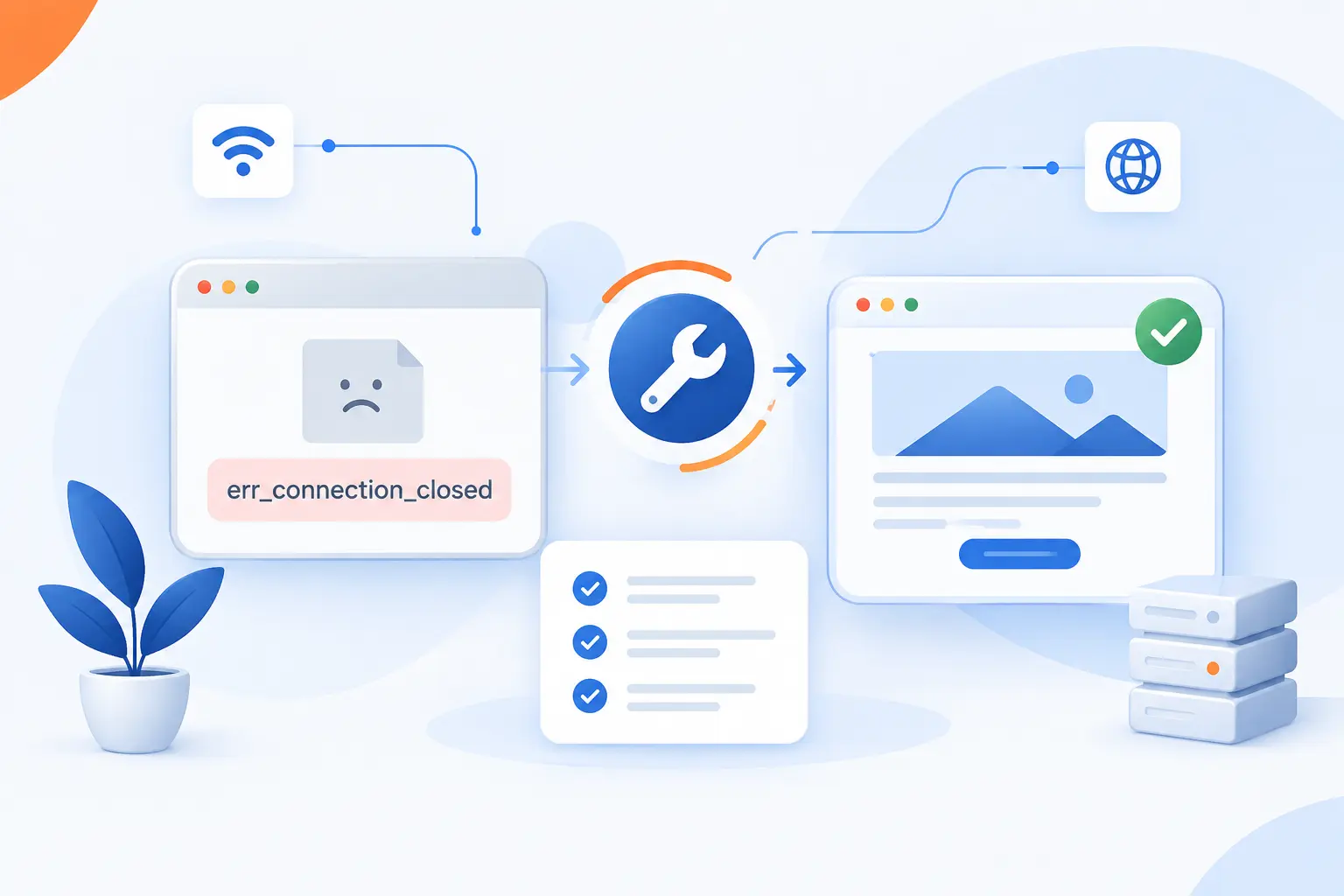
err_connection_closed means your browser started talking to a website, then the connection ended before the page could load. In our hosting work at 1Byte, we usually treat it as a chain problem: browser first, local network second, server third. The fastest fix is to test the simple client-side causes before touching DNS or hosting. Start with your internet connection, cache, VPN, firewall, DNS, proxy, and extensions, then check the website’s hosting and SSL setup if you own the site.
We like this order because it prevents wasted effort. Many people jump straight to “the site is down,” then discover a browser extension or stale DNS cache was the culprit. Others clear cookies forever while the real issue is an expired certificate or a server that is closing TLS handshakes. Follow the steps below in order, and test the same URL after each one, such as https://example.com.
How to Fix err_connection_closed on Chrome and Edge

To fix err_connection_closed in Chrome or Edge, work from the closest cause to the farthest one: your device, your browser, your network settings, then the remote website. The error often disappears after a router restart, cache clear, VPN change, firewall adjustment, DNS reset, proxy removal, or extension test. We recommend testing one change at a time so you know what actually fixed it. Keep the problem URL open in a separate note, for example https://www.your-domain.com/login, and reload it after every step.
FURTHER READING: |
| 1. GPT Partition vs MBR for Booting, Size, and Limits |
| 2. What Is Exchange Server and How It Handles Email |
| 3. What Is Migrating Data? Types, Steps, and Risks |
1. Check Your Internet Connection and Restart the Modem and Router
Check your Wi-Fi or Ethernet connection, then restart your modem and router. On Windows, click the Network, Sound, or Battery icon on the right side of the taskbar and confirm your network says Connected. On macOS, click the Wi-Fi icon in the menu bar and confirm your network has a check mark. Open a second website, such as https://www.wikipedia.org, to see whether the issue affects one site or all sites.
- Unplug the router power cable.
- Unplug the modem power cable.
- If the modem has a backup battery and the lights stay on, remove the battery.
- Wait until the modem and router are fully off.
- Plug the modem back in first and wait for its connection lights to settle.
- Plug the router back in and wait until Wi-Fi returns.
- Reconnect your computer and reload the problem URL.
Once this works, the browser should load the site or at least move to a different, more specific message. Google’s own browser guidance treats modem, router, firewall, cookies, extensions, and server downtime as common areas to check for connection and loading issues. A common failure point is public Wi-Fi: cafés, hotels, and airports may require a captive portal sign-in before normal browsing works.
2. Clear Chrome or Edge Cache and Cookies
Clear cached images, files, cookies, and site data for the browser that shows the error. In Chrome, open Chrome menu > Delete browsing data, or press Ctrl + Shift + Delete on Windows. Set Time range to All time, check Cookies and other site data and Cached images and files, then click Delete data. Google documents these exact data types in its browser data controls.
In Edge, open Settings and more > Settings > Privacy, search, and services > Clear browsing data > Choose what to clear. Set Time range to All time, select Cookies and other site data and Cached images and files, then click Clear now. Microsoft lists this path in its Edge browsing controls.
After clearing data, close all browser windows, reopen Chrome or Edge, and load the same URL again. You should see either the page loading normally or a fresh login screen. The common tradeoff is simple: clearing cookies signs you out of websites, so keep your passwords or password manager ready.
3. Turn Off Your VPN or Try a Different One
Turn off your VPN, then reload the website in the same browser tab. On Windows 11, open Settings > Network & internet > VPN, select your VPN profile, and click Disconnect. On Windows 10, open Settings > Network & Internet > VPN, select the VPN connection, and click Disconnect. On macOS, open System Settings > VPN, then switch the VPN off.
If you use a VPN app, open the app and click its visible Disconnect button. Then test the page again, for example https://www.your-domain.com/wp-admin. If the site loads after disconnecting, reconnect to another VPN region, such as Singapore instead of Los Angeles, and test again. Once it works, you should see the normal page rather than Chrome or Edge ending the request.
The common failure point is a blocked or overloaded VPN exit server. We see this most often when a site’s firewall rejects traffic from a data center IP range used by a VPN provider.
4. Disable Firewall or Antivirus Protection Temporarily
Temporarily turn off firewall or antivirus web protection, then test the site once. In Windows Security, open Start > Windows Security > Firewall & network protection. Select the active profile, usually Private network or Public network, then switch Microsoft Defender Firewall to Off. Microsoft explains that this setting is available per network type in the Windows Security app.
Reload the problem URL immediately. If the site loads, turn the firewall back on and use Allow an app through firewall instead of leaving protection disabled. For third-party antivirus tools, look for a labeled setting such as Web Shield, HTTPS scanning, Firewall, or Network Protection, turn it off briefly, and turn it back on after the test.
Once this works, the site should load only while the blocking rule is disabled. The common failure point is managed work devices: company policy can prevent users from changing firewall settings, so the correct next step is to ask the administrator to review the rule for your browser or domain.
5. Flush DNS and Reset Network Settings in Windows 10 and 11
Run the Windows network reset commands in Command Prompt as administrator. Click Search on the taskbar, type command prompt, right-click Command Prompt, and select Run as administrator > Yes. Enter these commands in this exact order:
netsh winsock resetnetsh int ip resetipconfig /releaseipconfig /renewipconfig /flushdnsThis is the order Microsoft gives for resetting the TCP/IP stack, renewing the IP address, and clearing the DNS resolver cache in its Windows connection guidance. Restart your PC after the commands finish. Then open Chrome or Edge and test the page again, such as https://www.your-domain.com.
When the reset works, ipconfig /flushdns should return a success message, and the browser should stop using stale local DNS information. The common failure point is running Command Prompt without administrator rights, which can block the reset commands.
6. Turn Off Any Proxy Server
Turn off manual proxy settings in Windows unless your school, office, or VPN provider requires them. On Windows 11, open Settings > Network & internet > Proxy. Under Manual proxy setup, click Set up next to Use a proxy server, switch Use a proxy server to Off, and click Save. Under Automatic proxy setup, also review Use setup script and turn it off if you do not recognize the script address.
On Windows 10, open Settings > Network & Internet > Proxy. Turn off Use setup script and Use a proxy server if they contain unfamiliar values, such as 127.0.0.1 with port 8080. Microsoft’s Windows instructions show the same Proxy settings page and its setup-script and manual-proxy fields.
After saving, close Chrome or Edge completely and reopen it. The page should load without being routed through the old proxy. A common failure point is corporate policy: if the proxy switch turns itself back on, a device-management rule may be enforcing it.
7. Disable Problem Extensions and Update or Reset Chrome
Disable Chrome or Edge extensions, then update or reset the browser if the page starts working. In Chrome, open Chrome menu > Extensions > Manage Extensions, or enter chrome://extensions in the address bar. Switch off every extension, especially ad blockers, privacy tools, coupon tools, antivirus browser helpers, and script blockers. Reload the problem page.
In Edge, open Settings and more > Extensions > Manage extensions, or enter edge://extensions. Turn every extension off, then reload the URL. If the site loads, turn extensions back on one by one until the error returns. The last extension enabled is likely closing or altering the request.
Next, update Chrome through Chrome menu > Help > About Google Chrome. If the issue remains, open Settings > Reset settings > Restore settings to their original defaults > Reset settings. Google notes that resetting Chrome changes settings such as startup page, search engine, pinned tabs, extensions, cookies, and site data in its reset instructions.
Once the extension test works, the site should load in a normal tab with extensions disabled. The common failure point is stopping too early: Incognito can be misleading if you allow extensions in Incognito, so test from chrome://extensions or edge://extensions directly.
What err_connection_closed Usually Means

err_connection_closed usually means the browser’s network request was cut off before the page finished loading. The browser may have sent the request correctly, but something closed the TCP or TLS connection. That “something” can be the browser, an extension, a VPN, a firewall, a proxy, DNS, the ISP, or the website server. We read this error as a symptom, not a diagnosis.
Here is the practical split we use when troubleshooting:
| Where the break happens | Typical sign | Best first test |
|---|---|---|
| Browser | Only Chrome or Edge fails | Disable extensions and clear cache |
| Local network | Many sites fail on one device | Reset DNS and proxy settings |
| Website side | Many visitors report the same URL | Check hosting, SSL, and DNS |
Browser Settings or Add-Ons Are Interrupting the Request
Browser settings or add-ons can close a connection by changing, blocking, or rewriting the request before the site responds. Privacy extensions, ad blockers, antivirus extensions, password managers, and old proxy add-ons are common examples. We do not blame extensions by default, but we always test them early because the test is quick and reversible.
A real-world example is a checkout page that loads normally in Edge but fails in Chrome. If Chrome has a script-blocking extension and Edge does not, the extension becomes the prime suspect. Another example is a login page that works in Incognito, then fails in a normal window. That pattern points toward cookies, cache, or extensions, not the server.
Your Network, ISP, or Local Configuration Is Closing the Connection
Your network, ISP, or local configuration can close the connection after the browser sends the request. VPNs, proxies, DNS cache, router firmware, and security software all sit between the browser and the website. Any one of them can interrupt traffic before the page reaches your screen. This is why the same site may load on your phone’s mobile data but fail on your laptop’s Wi-Fi.
Our favorite quick comparison is simple: test the same URL on another device and another network. If https://example.com fails on your laptop’s Wi-Fi but loads on your phone’s cellular connection, the website is probably reachable. The problem is closer to your device, router, ISP path, or local security stack.
The Website Server, Hosting Platform, or SSL Setup Has a Problem
The website server, hosting platform, or SSL setup can close the connection before the browser receives a valid response. This happens when the server is overloaded, the web service is down, the load balancer has no healthy backend, the certificate does not match the domain, or the TLS configuration is broken. On the web, TLS certificates bind a site’s public key to its domain name, which lets the browser confirm it is talking to the right server through HTTPS. MDN’s security reference explains this server-authentication role in its TLS overview.
For a visitor, this looks almost identical to a local problem. For a site owner, the clues are in uptime checks, server logs, SSL tests, DNS results, and load balancer health. If many unrelated visitors report the same error at the same time, we shift our attention to hosting and SSL quickly.
If You Own the Website

If you own the website, treat err_connection_closed as an availability and configuration problem until proven otherwise. Your job is to confirm the server is running, HTTPS is valid, and DNS points visitors to the correct place. Browser fixes still matter, but owner-side checks can reveal issues your visitors cannot solve. Work through hosting, SSL, then DNS, because that order matches how a request reaches your site.
| Owner-side check | Where to look | What “healthy” looks like |
|---|---|---|
| Hosting | Server status, logs, control panel | Web service running and responding |
| SSL | SSL/TLS panel and external test | Valid certificate for the exact hostname |
| DNS | Registrar DNS zone and nameservers | Records point to the active server |
Check for Hosting Outages and Server-Side Misconfigurations
Check your hosting dashboard’s Status, Incidents, Server Status, or Service Health page. If you use a control panel, also open Metrics > Errors or the equivalent Error Log screen. Look for stopped services, repeated connection resets, memory exhaustion, overloaded PHP workers, failed reverse proxy rules, or web server restarts. A realistic test URL is https://www.your-domain.com/health if you have one, or your homepage if you do not.
If you manage the server by SSH, run a direct local test from the server:
curl -I https://www.your-domain.comYou should see an HTTP response line such as HTTP/2 200, HTTP/1.1 200 OK, 301 Moved Permanently, or another expected status. If you use a load balancer, confirm the listener, target group, and health checks are all passing. AWS documents cases where load balancers return errors when targets are unhealthy, time out, or fail TLS handshakes in its load balancer troubleshooting notes.
The common failure point is checking only the homepage. A site can load / while closing connections on /wp-admin, /checkout, or an API route because those paths hit different application code.
Verify That the SSL Certificate Is Valid and Properly Installed
Verify your SSL certificate for the exact hostname visitors use. In your hosting panel, open SSL/TLS, SSL Certificates, or Security > SSL/TLS Status. Confirm the certificate covers both your-domain.com and www.your-domain.com if both versions are public. Also confirm the certificate is installed on the correct server, proxy, CDN, or load balancer.
Then test externally. Open the public certificate checker, enter www.your-domain.com in the Hostname field, and start the scan. You want the result to show a valid chain, a certificate name that matches the hostname, and no handshake failure. If the test says the name does not match, install a certificate that includes the exact hostname visitors type.
If your site runs behind an Application Load Balancer, attach the certificate to the HTTPS listener. AWS states that the certificate’s domain name must match the hostname requested by the client, and its listener certificate guidance explains how the load balancer chooses certificates. The common failure point is installing SSL on the origin server but forgetting the proxy or load balancer that visitors actually reach first.
Review DNS Settings if Visitors Cannot Reach the Site Reliably
Review your DNS records at the registrar or DNS provider that controls your domain. Open the domain dashboard, then open DNS Management, DNS Zone, Advanced DNS, or Nameservers. Confirm the A record for @ points to your server IP, such as 203.0.113.10, and the CNAME for www points to your-domain.com if that is your intended setup. If you use a hosting-provided hostname, confirm the CNAME value matches it exactly.
On Windows, open Command Prompt and run:
nslookup your-domain.comnslookup www.your-domain.comOn macOS or Linux, open Terminal and run:
dig your-domain.comdig www.your-domain.comThe returned IP address or hostname should match your active hosting destination. You can also use ICANN’s public lookup to review registered domain data and nameserver information through its lookup FAQ. The common failure point is changing DNS records in one provider while the domain still uses another provider’s nameservers.
FAQ
These short answers cover the questions we hear most often when readers are trying to fix err_connection_closed quickly. Start with the browser and network checks if you are a visitor. Start with hosting, SSL, and DNS if you own the site. If both sides look healthy, test from another network before making deeper changes.
Why Does It Keep Saying Connection Error?
It keeps saying connection error because the browser cannot complete the request to the website. The cause may be local, such as a VPN, proxy, extension, firewall, or DNS cache. It may also be remote, such as a server outage, SSL mismatch, or bad DNS record.
How to Fix err_connection_closed in Chrome?
Fix err_connection_closed in Chrome by restarting your network, clearing cache and cookies, disabling extensions, turning off VPN or proxy, checking firewall rules, and flushing DNS. Use chrome://extensions to disable extensions and chrome://settings/reset if you need to reset Chrome. Test the site after each change so you can identify the real cause.
Can a VPN or Proxy Cause This Error?
Yes, a VPN or proxy can cause this error by routing traffic through a server that the website rejects or that fails to complete the connection. Turn off the VPN or proxy and reload the same URL. If the page loads, try another VPN region or remove the proxy setting you do not need.
Does This Error Mean the Website Is Down?
No, this error does not always mean the website is down. If the site fails only on one browser, device, or network, the cause is probably local. If it fails for many visitors on different networks, the owner should check hosting status, SSL, and DNS.
How 1Byte Supports Sites Affected by Connection Errors
At 1Byte, we see connection errors as practical infrastructure signals, not mysterious browser drama. A stable site needs a registered domain, correct SSL certificates, suitable hosting, and enough server control to diagnose failures. The services below connect directly to the fixes in this guide. We will keep this grounded: the right choice depends on whether you run a simple site, a WordPress site, or a server-backed application.
| 1Byte service | How it relates to connection errors | Best fit |
|---|---|---|
| Domain registration and SSL certificates | Help align domain, DNS, and HTTPS identity | New sites and certificate fixes |
| WordPress hosting, shared hosting, cloud hosting | Provide hosting choices for different site needs | Blogs, company sites, and growing web projects |
| Cloud servers | Give server-level control for custom stacks | Applications and advanced configurations |
Register Domains and Configure SSL Certificates Correctly
Register the domain and match the SSL certificate to the exact hostnames visitors will use. For example, if visitors use https://www.your-domain.com, the SSL certificate must cover www.your-domain.com. If visitors also use https://your-domain.com, the certificate should cover the apex domain too. This prevents the ugly class of errors where DNS points correctly, but HTTPS identity does not match.
Our viewpoint is simple: domain and SSL decisions should be made together. A domain without correct SSL feels unfinished on the modern web. For connection errors, that pairing matters because browsers are strict about trust, name matching, and certificate validity.
Choose WordPress Hosting, Shared Hosting, or Cloud Hosting for Stable Performance
Choose WordPress hosting, shared hosting, or cloud hosting based on the site you actually run. WordPress hosting fits WordPress sites where the application stack is predictable. Shared hosting can fit smaller websites with straightforward needs. Cloud hosting fits projects that need more room to adjust resources and configuration.
For err_connection_closed, hosting choice matters because the server must keep accepting and completing requests. A small brochure site and a busy WooCommerce store do not place the same load on hosting. We prefer choosing the simplest hosting type that gives the site enough breathing room, because unnecessary complexity creates its own troubleshooting fog.
Run on Cloud Servers With 1Byte AWS Partner Support
Run custom applications on cloud servers when you need server-level control over the web server, runtime, firewall, DNS integration, and SSL placement. Cloud servers are useful when the fix requires checking services, logs, ports, certificates, and application behavior directly. For example, an application behind a reverse proxy may need both the proxy and origin server reviewed. That is hard to diagnose if you cannot see the server layer.
1Byte is an AWS Partner, and that matters when a site’s connection path includes cloud infrastructure. The practical benefit is context: cloud servers, SSL certificates, DNS, and hosting choices all need to line up. When they do, browsers stop guessing and start loading pages.





Conclusion
err_connection_closed is fixable when you troubleshoot it in the right order. Start with your own connection, browser cache, VPN, firewall, DNS cache, proxy, and extensions. If you own the site, move next to hosting status, SSL certificate coverage, and DNS records. That path keeps the work calm, testable, and honest.
Our strongest recommendation is to change one thing, reload the same URL, and write down what happened. If the error disappears, you have learned something useful. If it stays, you have ruled out one layer and can move on with confidence. Ready for the next step? Test your site from a second network, then check SSL and DNS before changing application code.