

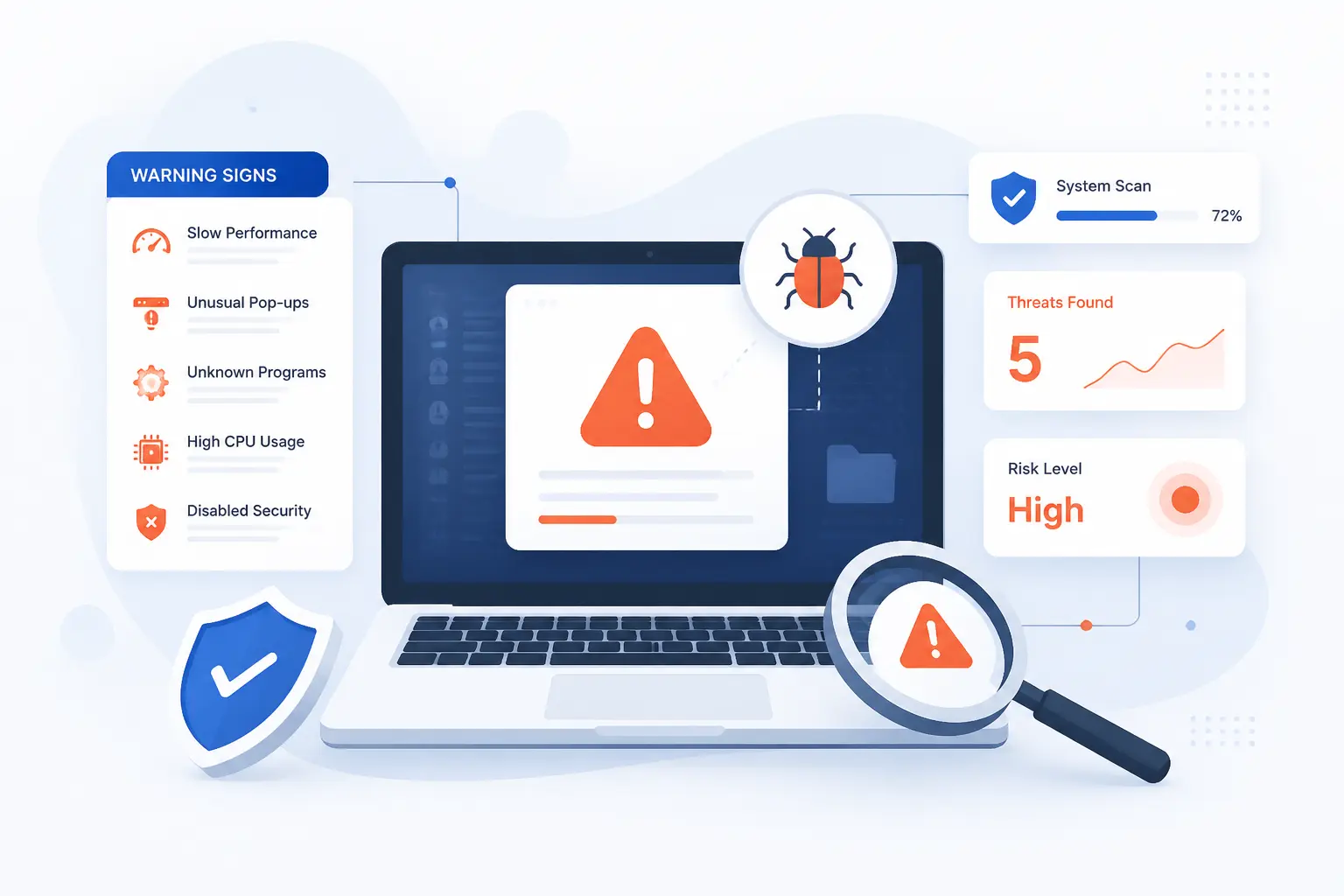
At 1Byte, we think how to detect malware is less about panic and more about order. We start by listing symptoms, then we run built-in scans, check the exact files or processes that look wrong, and confirm anything serious with a second opinion before we clean or reset. If a website may be affected, we check it from the outside first and then review owner tools for stronger proof. Follow the steps below in sequence and you can make a solid first diagnosis even if you have never done this before.
How to Detect Malware on Devices and Websites
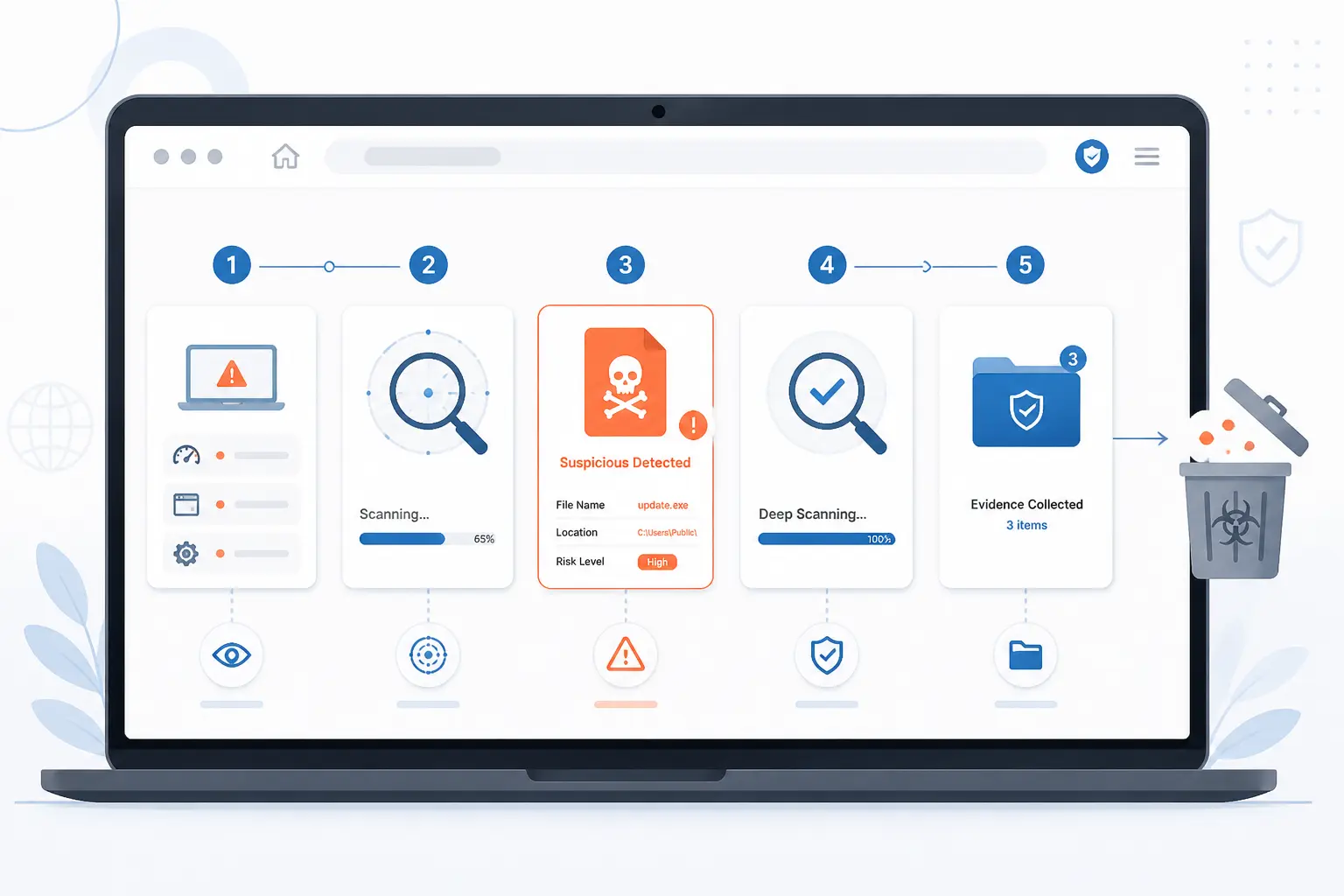
The fastest safe way to detect malware is to collect symptoms, run a full device scan, inspect the file or process that looks suspicious, confirm it with a second scanner, and save the evidence before you remove anything. That workflow works well on Windows, still helps on Macs, and gives website owners a clear external check too. We prefer this order because beginners often clean too early and lose the clues they needed to understand what actually happened. Start here, and do each step once before jumping ahead.
FURTHER READING: |
| 1. Security Management in the Cloud Guide for Safer Data |
| 2. DDoS Mitigation: How to Detect, Defend, and Recover From Modern Attacks |
| 3. How to Choose Keywords for SEO in 2026 |
1. List the Symptoms Before You Start Scanning
Write down every suspicious symptom before you open any scanner. Note the exact pop-up text, the app or browser involved, the time it happened, and one concrete example such as “Chrome opened casino tabs after I clicked a PDF” or “My phone battery dropped from 60% to 20% in one hour.” We like a simple note named malware-notes.txt with bullets for slowdowns, redirects, disabled security tools, mystery apps, and messages you did not send, because those are all common warning signs called out in Google’s warning checklist.
Look for patterns, not just one weird moment. If the same symptom repeats after a restart, after signing in, or only when you open one file or one website, that detail will help you later when a scanner reports a file path, process name, or malicious URL.
2. Run a Full Antivirus Scan on Your Windows PC or Other Computer
Open Start > Windows Security > Virus & threat protection > Scan options > Full scan > Scan now on a Windows PC. Use a real folder or file path as your mental checkpoint, such as C:\Users\{your-name}\Downloads, and let the full scan finish even if it takes a while. When it works, Windows Security will return either a clean result or a threat list with actions like quarantine or remove on the scan options page. If Microsoft Defender seems unavailable, the most common reason is that another real-time antivirus product has put it in disabled mode.
Run your installed security app’s deepest available scan on a Mac or another computer if a built-in full malware scan button is not available. Apple’s built-in protections, including XProtect, work automatically and use signature-based rules, but for a hands-on check you still need the scan feature in the security app you already trust rather than a random emergency download. On a Mac, a finished scan should end with a clean report or a quarantine list you can review.
3. Scan Suspicious Files and Review Active Processes
Scan the single file you distrust instead of your whole drive. On Windows, right-click the file and choose Scan with Microsoft Defender, or upload only a non-sensitive sample such as invoice_8841.zip or QuickBooks_Update.exe to the public upload page to compare results from many engines. A useful result is a report that shows detections, file details, or behavior, but do not upload tax forms, client archives, or other private material because public submissions and reports can be shared with the wider community. In our view, repeated detections across different engines deserve real attention, while a lone hit is a reason to verify again in the next step.
Open Task Manager on Windows by right-clicking Start and selecting Task Manager, then sort the Processes tab by CPU, Memory, or Disk. On a Mac, open Applications > Utilities > Activity Monitor and check the CPU tab for unknown items using unusual resources. Success looks like a process list you can tie back to a known app, while failure usually looks like a random executable name, a process launching from a temp folder, or a task that spikes resources whenever the symptoms appear.
4. Verify Suspicious Findings With a Second-Opinion Scanner
Run a second-opinion scan before you delete files manually. On Windows, one beginner-friendly route is to download the setup guide for ESET Online Scanner, then click One-time scan, open the downloaded .exe, choose Get started, accept the terms, select Full Scan, and click Start scan. When it works, you will see scan progress and then either View Detailed Results for detections or a no-threat result with an option to save the log.
Compare the second scanner’s report with the first one instead of trusting the louder alert. If both tools flag the same file path, process, or archive, you can be much more confident that the problem is real. If they disagree, keep the file quarantined, save the logs, and avoid opening it until you finish the rest of this process.
5. Turn On Play Protect and Review Apps on Android
Open the Google Play Store, tap your profile icon, tap Play Protect, tap Settings, turn on Scan apps with Play Protect and Improve harmful app detection, then return and tap Scan. Use a real app as your check point, such as a recently sideloaded APK or a game you installed from a link in chat. When it works, Play Protect shows a recent scan result such as “No harmful apps found” or warns you about the specific app it wants you to remove on the phone safety help page.
Review every recently installed app right after the scan, especially anything you installed outside Google Play. We would uninstall an app immediately if Play Protect warns about it, if its permissions are far broader than its purpose, or if it lines up with the battery, storage, or pop-up issues you wrote down in step one.
6. Check Any Affected Website With a Remote Malware Scanner
Open the browser-level site checker, enter https://{your-domain.com}, and click Submit. A successful scan returns blacklist status, malware signals, injected code warnings, and checks for outdated software that are visible from the public side of the site. We like this step because it is quick and because it can spot obvious redirects, spam, or defacement without server access, but it is still only a remote view.
Open Google Search Console > Security issues if you own the site and the remote scan looks bad or visitors are seeing browser warnings. That report can show hacked or harmful behavior Google has detected on your site and gives you sample issues to investigate through the Security Issues report. If the public scanner looks clean but Search Console shows a problem, treat the site as compromised until you verify the server files and admin accounts.
7. Record What the Tools Find Before You Clean or Reset Anything
Save the findings before you click remove, quarantine, or reset. Create a note such as malware-findings-01.txt and record the scanner name, detection name, file path, process name, website URL, date, and screenshot file name for each result. When this step is done well, you can answer basic questions later without guessing, such as which account may have been exposed or which plugin version was already suspicious before cleanup.
Take screenshots of the alert windows and export logs when the tool offers that option. We do this every time because cleanup can erase the very evidence you need if the first removal attempt fails or the same infection comes back after a restart.
Malware Clues Worth Taking Seriously
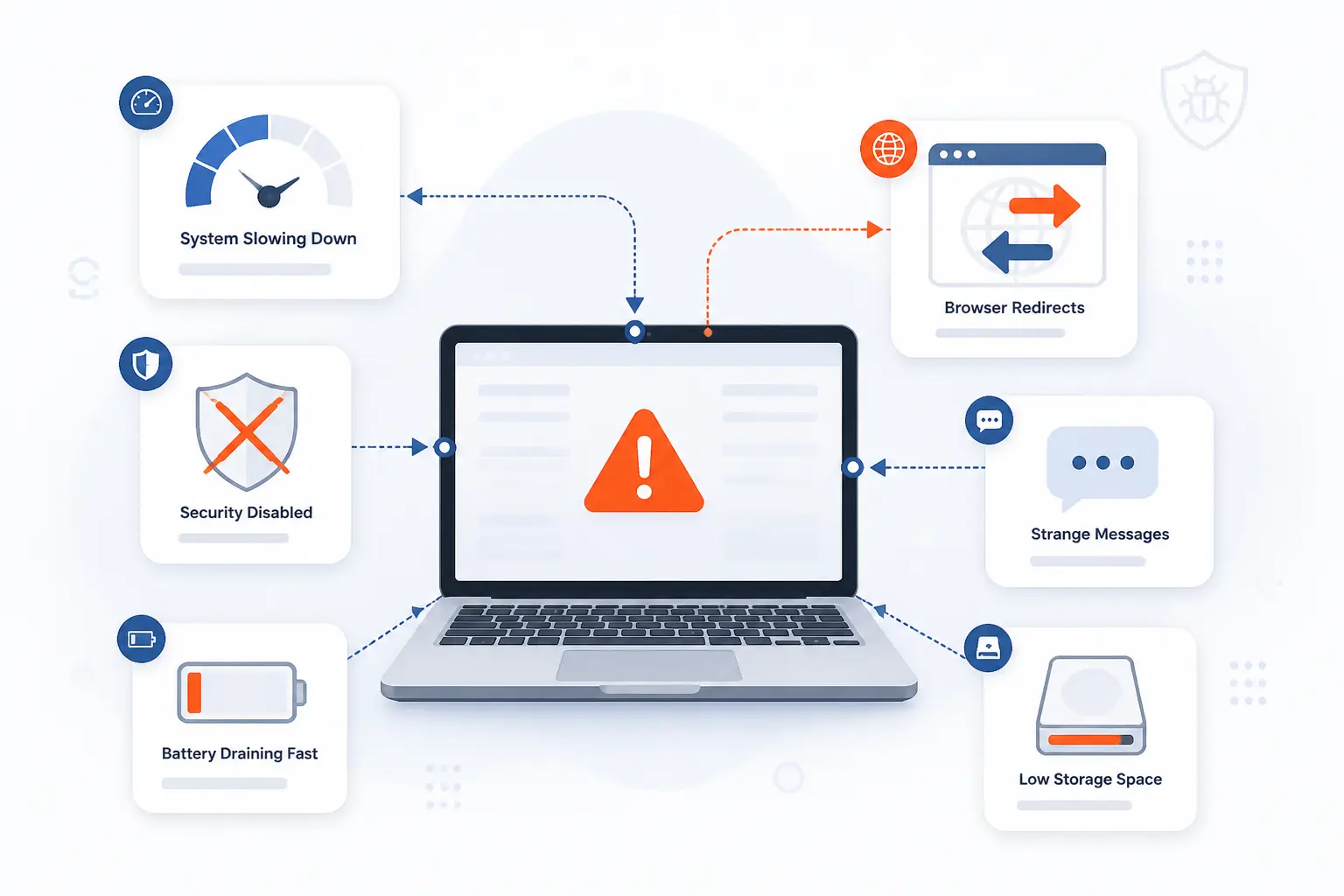
Malware often reveals itself through ordinary symptoms before a scanner names the threat. Slow performance, browser redirects, disabled security tools, strange messages, and battery or storage problems are enough reason to investigate right away, even if you are not yet sure the cause is malicious. We tell beginners to take clusters of symptoms seriously, because one clue can be a bug, but several together usually justify the full process above.
Watch for Slowdowns, Crashes, and Heavy Resource Use
Treat repeated slowdowns, sudden crashes, or unusually high CPU, memory, or disk usage as a real warning sign. These symptoms do not prove malware on their own, but they become suspicious fast when they appear alongside unknown processes, fans running hard at idle, or battery drain that you cannot explain.
Notice Browser Changes, Pop-Ups, and Redirects
Take unwanted home page changes, relentless pop-ups, and redirects to pages you never meant to visit as high-priority clues. The FTC and Google both list persistent pop-ups and strange browser behavior among the common signs that unsafe software may be present, and website owners should think the same way when a site begins redirecting visitors to spam or fake search pages.
Investigate Unknown Programs, Disabled Tools, and Messages You Did Not Send
Investigate software you do not remember installing and any security tool that suddenly stops working. If your antivirus will not open, your browser says extensions were added without permission, or contacts receive messages you did not send, assume an account or device has been tampered with and start scanning immediately.
Pay Attention to Phone Alerts, Low Storage, and Apps That Misbehave
Assume your phone needs a review when it throws harmful-app alerts, runs hot at rest, loses storage for no clear reason, or shows ads outside the app you are using. On Android, those clues matter even more if they started after a sideloaded APK or after granting an app access that made little sense for what it claimed to do.
What Detection Tools Actually Look For
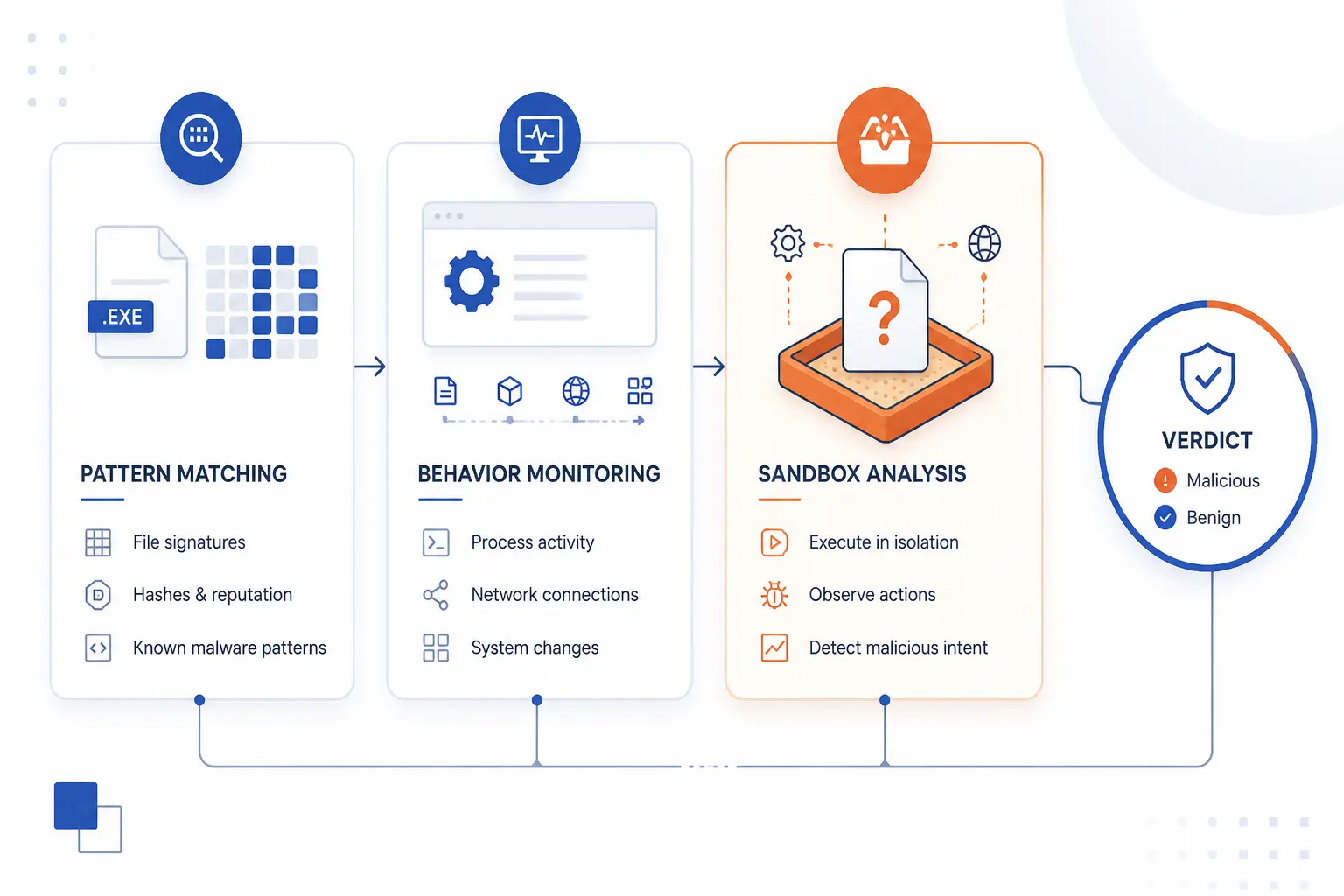
Malware scanners do not rely on one trick. They usually compare files against known threat patterns, watch for suspicious behavior while programs run, and sometimes execute unknown items in isolation to see what they try to do. That mix is why one scan is useful, two scans are better, and a clean result should always be read together with the symptoms you observed.
Match Known Threats With Signatures
Match files against known patterns first, because signature-based detection is still the quickest way to spot familiar threats. Apple explains that XProtect uses signature-based rules, and NIST defines a signature as a recognizable pattern tied to an attack or known malware family. That means scanners are excellent at catching what they already know, but brand-new or heavily altered malware may need more than this layer.
Flag Suspicious Behavior With Heuristics and Analytics
Watch for bad behavior next, because many attacks reveal themselves by what they do rather than what they are named. Microsoft documents behavior monitoring and behavioral blocking as ways to catch suspicious actions, fileless attacks, in-memory activity, and other patterns that a simple file signature can miss.
Observe Unknown Programs in a Sandbox
Run unknown items in isolation when deeper analysis is needed. VirusTotal says its analysis pipeline includes multiple dynamic analysis sandboxes, and MITRE describes dynamic analysis as executing a file in a controlled environment to observe whether it behaves like malware. This is one reason a file can look quiet at first glance yet still reveal network calls, dropped files, or other bad behavior during analysis.
What Website Checks Can and Cannot Reveal
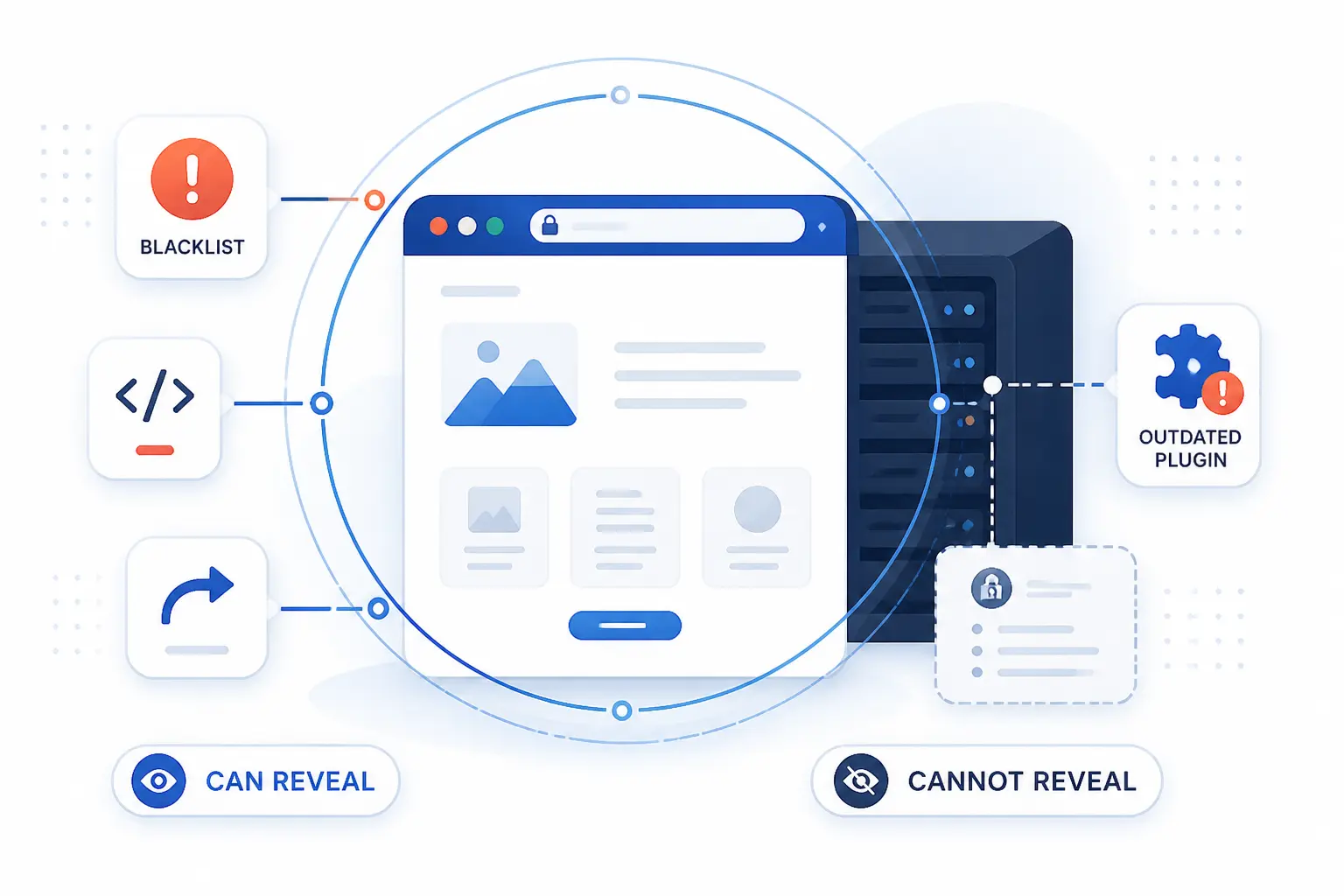
Remote website checks are useful, but they are not all-seeing. They can often reveal blacklisting, visible malicious code, redirects, and outdated software from the public side of a site, yet they can still miss payloads hidden deeper on the server. We use remote scans as the first pass, not the final verdict.
Surface Blacklisting, Malicious Code, and Out-of-Date Software
Use a remote scan to surface what a visitor or search engine can see. Sucuri SiteCheck checks public code for known malware, blacklisting status, errors, and outdated software, while Search Console can report security issues Google believes may harm visitors. That combination is practical for spotting obvious trouble without logging into the server first.
Understand Why Remote Scans Miss Some Server-Side Infections
Assume a clean remote scan can still miss a server-side infection. Sucuri states plainly that a remote scanner only sees what is visible at the browser level, so hidden backdoors, mailers, phishing files, or code that serves only certain users may stay out of sight until you inspect the host itself.
If a Scan Confirms Malware
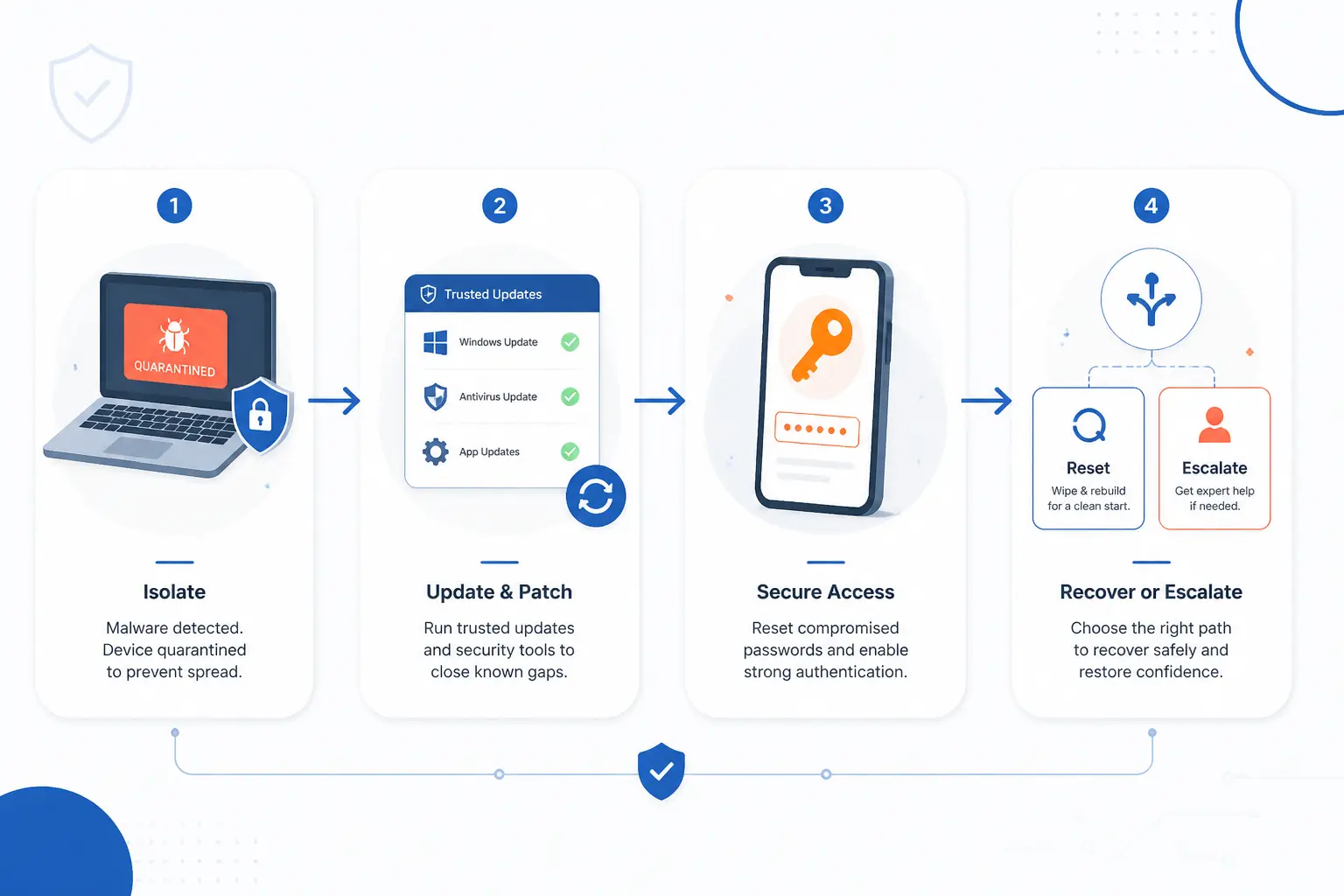
If a scan confirms malware, the next moves are simple: isolate the risk, update and clean with trusted tools, change exposed passwords from a clean device, and reset or escalate if the symptoms keep coming back. We would rather see you slow down for ten minutes here than rush into repeated logins on a compromised machine. This is the point where discipline beats bravery.
Stop Signing In and Disconnect if the Risk Is Active
Stop signing in and disconnect the affected device from Wi-Fi or Ethernet if you see active pop-ups, login prompts, outbound messages, or obvious data theft behavior. The FTC advises immediately disconnecting infected devices from the network and changing compromised passwords, and that is the right instinct for home users too.
Update Security Tools and Remove What They Find
Update the scanner’s threat intelligence or detection modules and then quarantine or remove every confirmed item it finds. Microsoft notes that security intelligence files contain information about the latest threats, so an update before a second pass can catch something the first pass missed. A successful cleanup usually ends with no active detections on a rescan and no return of the original symptoms after restart.
Change Passwords and Review Account Security
Change passwords from a clean device, starting with your email account, password manager, banking logins, and any admin account tied to the infected system. If you reused the same password elsewhere, change those too, then review sign-in history, recovery methods, and multi-factor authentication before you trust the account again.
Reset the Device or Get Trusted Help if Issues Persist
Reset the device with the vendor recovery option if scans stay positive, core security tools keep disabling themselves, or the same symptoms return after cleanup. On Windows, the built-in route is Settings > System > Recovery > Reset this PC on the Windows recovery page.
Factory-reset an Android phone from Settings and follow your manufacturer’s prompts, and erase a Mac with Apple’s recovery guidance if the problem survives repeated scans. What you should see after a proper reset is a fresh setup screen, not the same suspicious app, browser hijack, or warning that brought you here in the first place.
FAQ
Will Malware Go Away on Its Own?
No, malware usually does not go away on its own. Some threats stay active, some hide until a trigger appears, and some simply leave damage behind even after the malicious process stops. We would always scan, save the evidence, and confirm the result rather than waiting it out.
Will My Phone Detect Malware?
Sometimes, yes, but you should not assume it will catch everything automatically. On certified Android devices with Google Play services, Play Protect scans apps and can warn or block harmful ones, yet reviewing recent installs and permissions still matters when your phone starts acting strangely.
Can Malware Hide From Antivirus Software?
Yes, some malware can hide from a single antivirus scan. That is exactly why modern tools combine signatures, behavior monitoring, and sandbox analysis, and why we recommend a second-opinion scan when symptoms and results do not line up cleanly.
Can a Remote Website Scan Find Every Infection?
No, a remote website scan cannot find every infection. It can catch many public-facing problems, but it only sees what is exposed at the browser level, so server-side backdoors or hidden phishing files may still require direct host inspection.
How 1Byte Supports Safer Sites and Servers
At 1Byte, we see safer hosting as the practical side of faster detection. When your domain, certificate, hosting layer, and server access are easier to track, it becomes easier to spot redirects, certificate mismatches, plugin trouble, or admin activity that does not belong. We also think beginners do better when the environment is organized enough that evidence is easy to save and basic recovery steps are not a scavenger hunt. That is where the services below fit this topic in day-to-day work.
Manage Domain Registration and SSL Certificates in One Place
Keep domain registration and SSL certificates organized together so you can check DNS changes, HTTPS warnings, and redirect behavior without jumping between disconnected tools. When a site suddenly points somewhere odd or starts showing certificate errors, having those two pieces easy to review shortens the path from “something feels wrong” to “here is the exact change we need to inspect.”
Run WordPress Hosting and Shared Hosting With Practical Help
Use WordPress hosting and shared hosting when you want a simpler environment for checking plugin updates, basic file changes, and visible site behavior after a scare. We find that many first-time site owners only realize a site may be compromised when pages redirect, spam appears, or an update has been ignored for too long, so a tidy hosting setup makes those checks less painful.
Scale Securely With Cloud Hosting and Cloud Servers From an AWS Partner
Move to cloud hosting or cloud servers when you need cleaner separation between applications, backups, and recovery work. As an AWS Partner, we see real value in environments where you can isolate services, rebuild methodically, and keep website incidents from turning into all-or-nothing downtime for everything else you run.





Conclusion
How to detect malware comes down to a repeatable sequence: note the symptoms, run the full scan, inspect the suspicious file or process, verify with a second opinion, and save the evidence before cleanup. If the problem is on a website, use a remote scan and owner tools as your first pass, then assume deeper server checks may still be necessary.
If you want a useful next step, do one small thing now: run a full scan on your main computer and save the result, even if it comes back clean. That single habit makes the next alert far easier to judge. What device or site would you test first?