

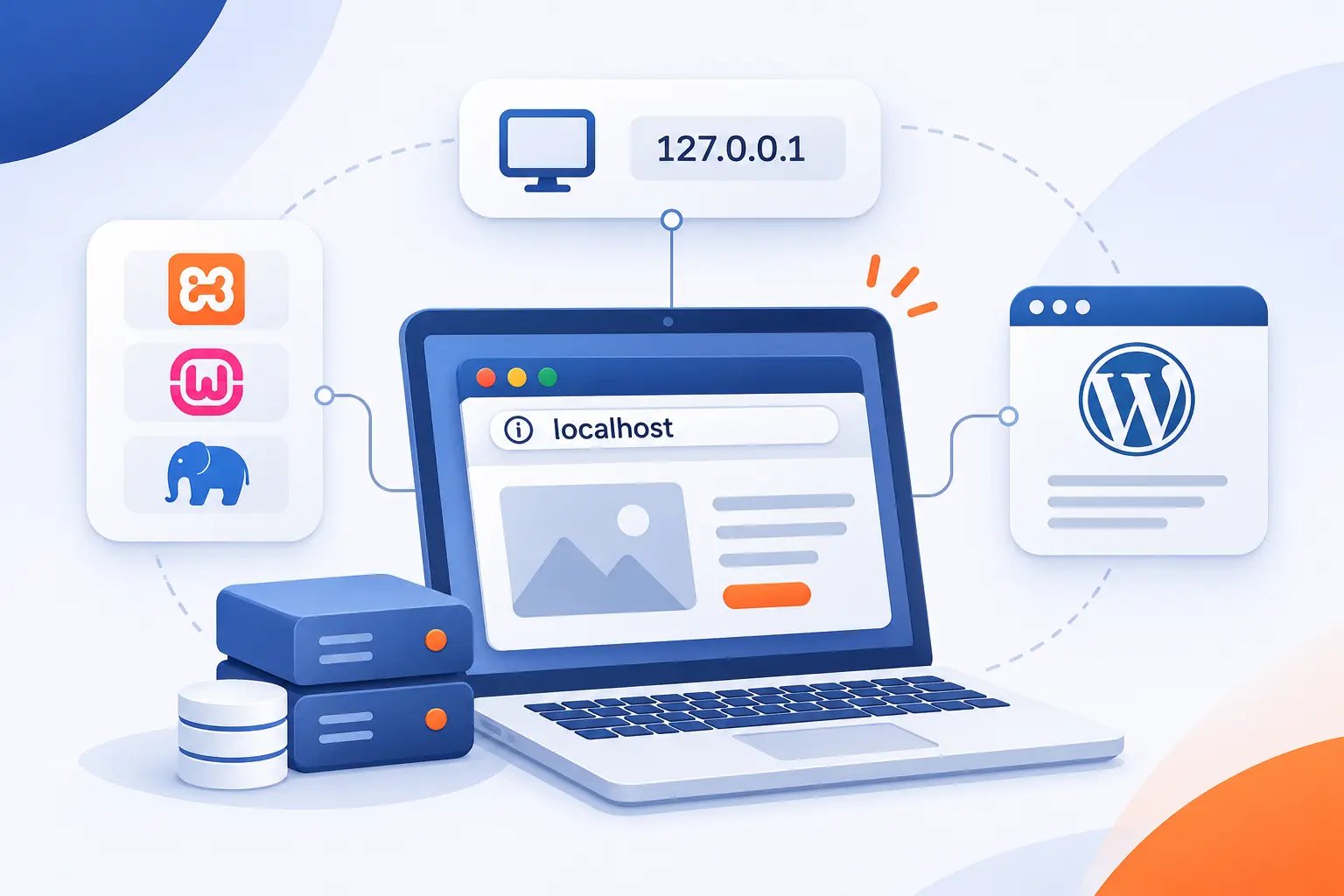
- Localhost Is the Hostname for the Computer Running a Program
- Why Developers Run Websites on Their Own Computers
- What a Local Web Server Needs to Serve a Website
- Tools That Bring a Development Stack to Your Computer
- Where Localhost Fits Into WordPress Configuration
- Local Testing Reduces Exposure but Still Requires Security
- Frequently Asked Questions
- Take Your Local Project Online With 1Byte
- Conclusion
Localhost is a special hostname that means the computer or computing environment where a program is running. When you open localhost in your browser, you usually connect to a service on your own computer. You are not visiting a public website. At 1Byte, we find this distinction essential for understanding website development, server connections, and WordPress configuration.
The name identifies where to connect. It does not install a website, start a server, or make an application secure. Those tasks require separate software and configuration.
Localhost Is the Hostname for the Computer Running a Program
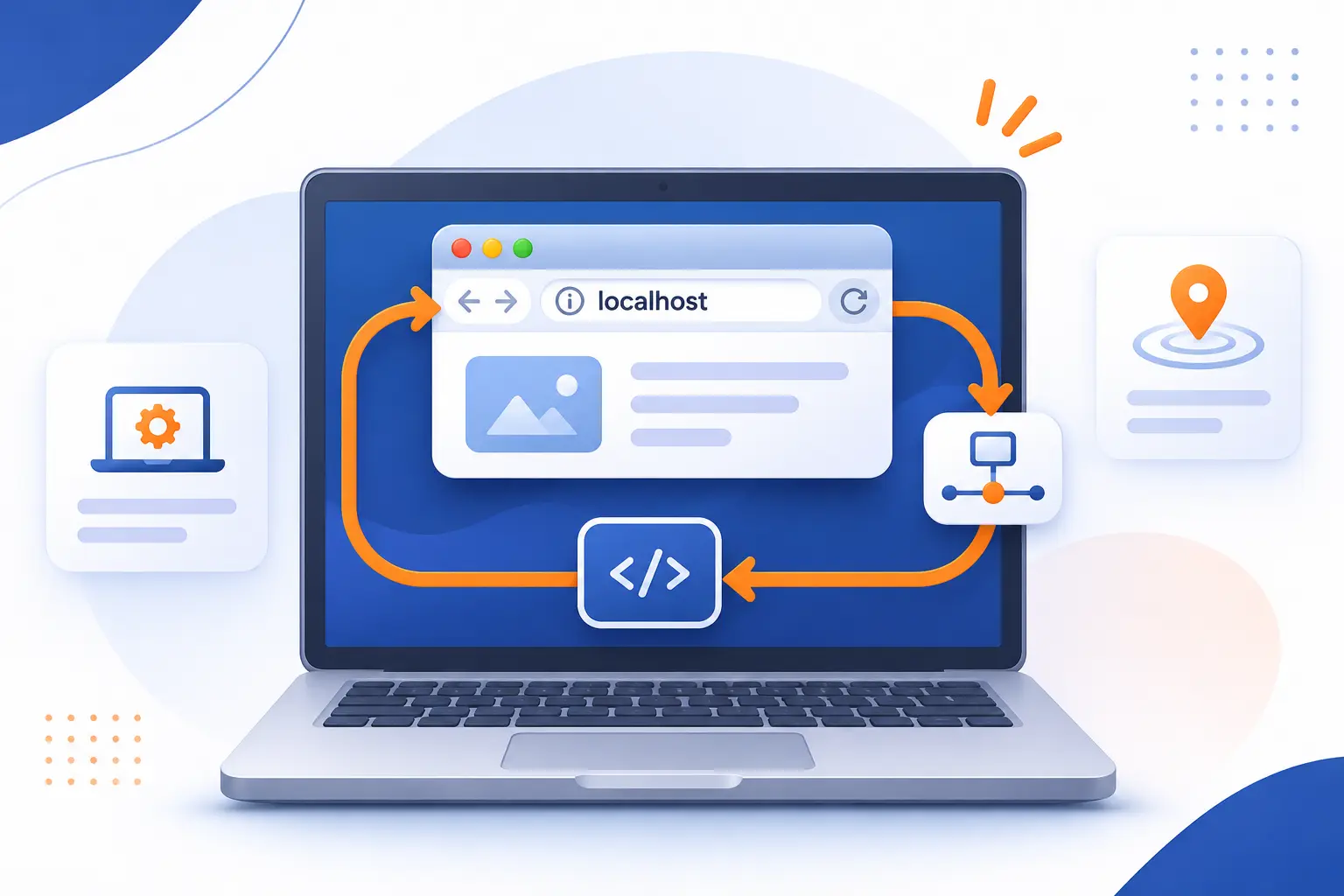
Localhost directs a program back to its own network environment instead of another computer. The operating system handles that connection through a loopback interface. Traffic stays within that environment rather than traveling across your network to another device.
FURTHER READING: |
| 1. 7 Types of Companies and How to Choose the Right One |
| 2. Zero Trust Network Access: How It Secures App Access |
| 3. What Is Enterprise Cloud Computing and How It Works |
Why the Host Can Be Your Computer or a Remote Server
Localhost refers to the environment running the program, which might be your laptop or a remote server. The perspective matters more than the device’s location.
For example, a browser running on your laptop uses localhost to reach your laptop. A command running through an SSH session uses localhost to reach the remote server.
Containers and virtual machines add another boundary. Inside a container, localhost ordinarily refers to that container’s network environment, not automatically to the physical computer. We recommend asking one question first: where is this particular program running?
The Loopback Addresses 127.0.0.1 and ::1
The usual loopback addresses are 127.0.0.1 for IPv4 and ::1 for IPv6. Both point back to the environment making the connection.
The protocol’s handling requirements specify that address lookups for localhost should return the appropriate loopback address. Software should not need a public DNS lookup to resolve it.
These addresses are not always interchangeable when troubleshooting. A server listening only on IPv4 might not answer an IPv6 connection. Check which address the service actually accepts before changing unrelated settings.
How the Hosts File Associates the Name With an Address
The hosts file can associate localhost with a loopback address through a local text entry. A typical entry looks like 127.0.0.1 localhost.
The documented entry format places the IP address before the hostname and any aliases. Linux and macOS ordinarily use /etc/hosts. Windows uses C:\Windows\System32\drivers\etc\hosts.
However, the hosts file is not the whole story. Operating systems and browsers may recognize this special name directly. Changing the file does not start a server or guarantee identical behavior across applications.
Why Developers Run Websites on Their Own Computers
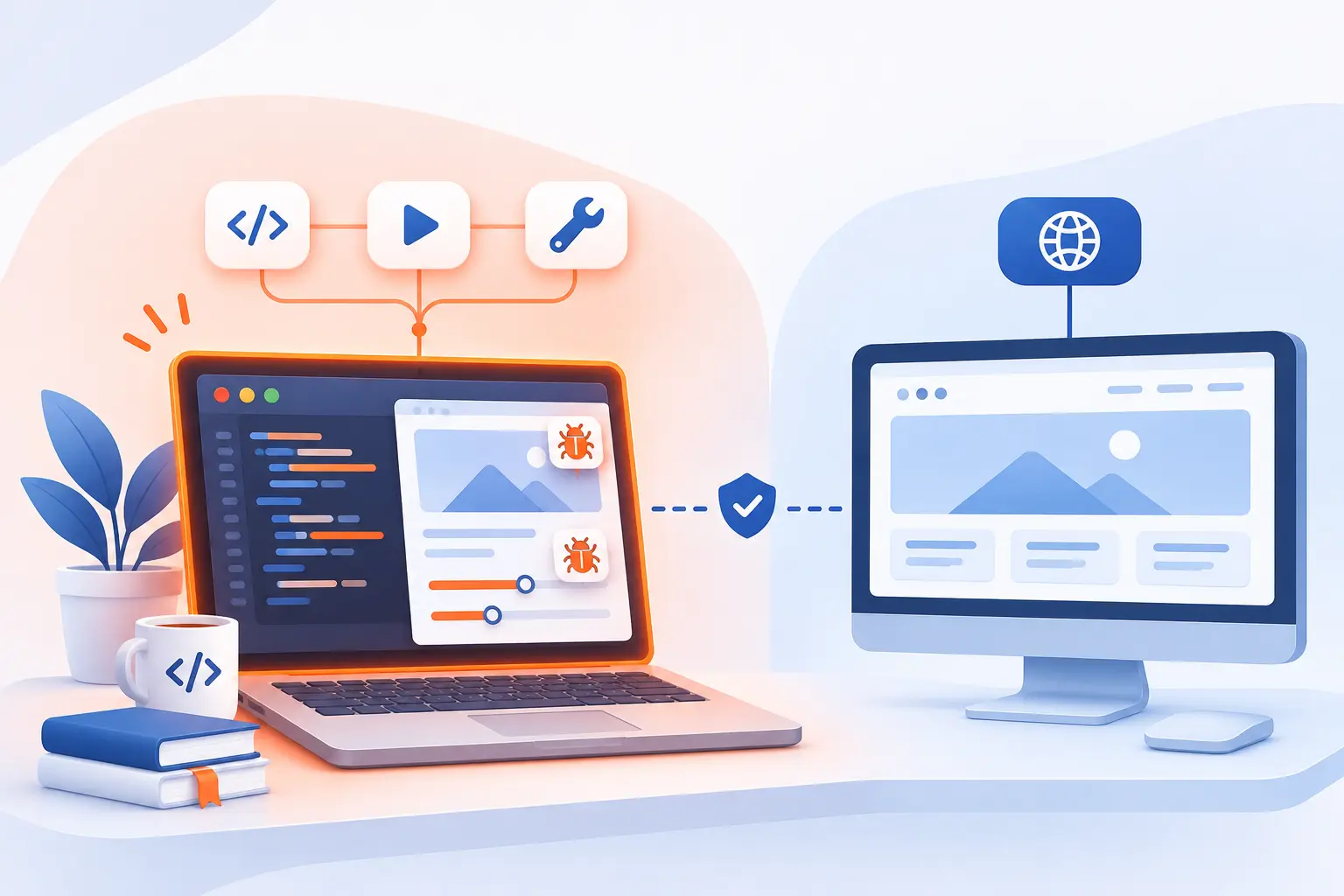
Developers run websites locally to make changes without immediately affecting public visitors. They can inspect errors, compare versions, and experiment with disposable data. We see local development as a rehearsal space, not proof that deployment will work unchanged.
Build and Test Without Changing a Public Website
A separate local copy lets you test changes without modifying the live website. That separation makes risky experiments much more manageable.
Consider a WordPress store testing a checkout plugin update. A local copy can reveal layout problems or PHP errors before customers encounter them. Use payment test modes and artificial customer records rather than real transactions.
Separation must include external connections. A local application can still send real emails or contact production APIs if you leave those credentials enabled.
Learn Web Development in a Self-Contained Environment
A local environment lets beginners practice the request-and-response process without publishing every exercise. You can edit a file, refresh the browser, and inspect the result.
Start with a simple HTML page. Then add CSS, JavaScript, and server-side code as your lessons require them. There is no need to install a database for a page that never stores data.
Many exercises work offline once their dependencies are installed. External fonts, package downloads, and third-party APIs may still require internet access.
Prepare Site Changes Before Moving to Live Hosting
Local testing prepares changes for deployment, but the target hosting environment still needs its own checks. Differences in software versions, permissions, and configuration can change application behavior.
We recommend matching the destination’s PHP and database versions where practical. Test navigation, forms, uploads, and login behavior before transferring the project.
For an existing public website, avoid replacing its database casually. New orders, comments, or registrations may have arrived while you worked locally. A private staging environment on the target infrastructure provides another useful checkpoint.
What a Local Web Server Needs to Serve a Website
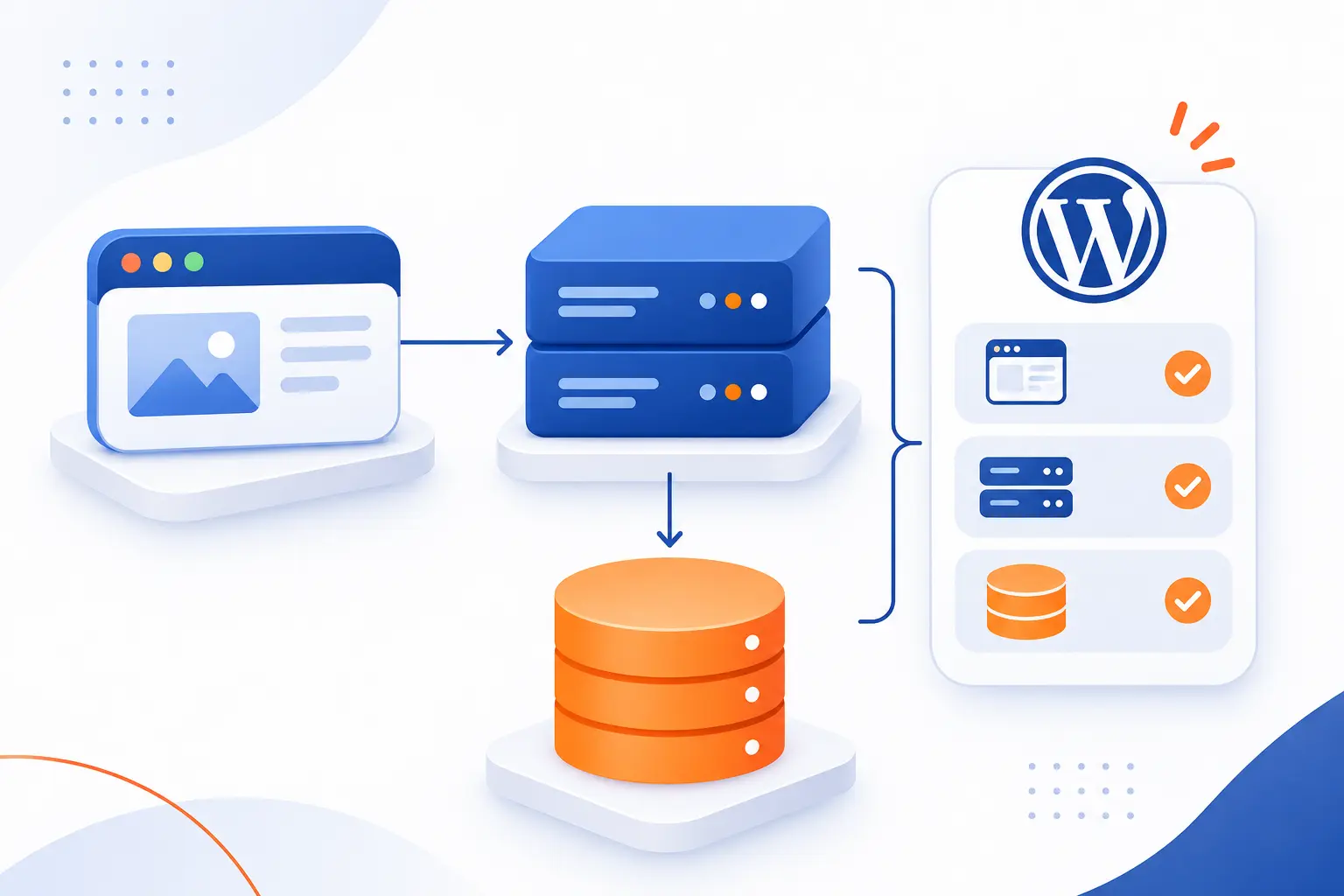
A local website needs a running process that accepts browser requests and returns responses. Static websites may need only a web server. Applications such as WordPress also need server-side execution and a database.
A Web Server Such as Apache or Nginx
A web server accepts HTTP requests and returns files or application-generated responses. Apache and Nginx are common examples.
The server needs an address and port to listen on. Apache’s address-and-port configuration rules explain how its listening settings determine which interfaces accept connections.
A document root identifies the directory containing website files. If you see a default welcome page instead of your project, check that directory and the site’s configuration.
A Database Such as MySQL or MariaDB
A database stores structured application data that must remain available between requests. WordPress uses it for content, settings, user records, and other information.
MySQL and MariaDB are common choices for WordPress development. They run as separate services, even when installed alongside the web server.
A database connection needs the correct server address, database name, username, and password. A running web server cannot compensate for a stopped database service or incorrect credentials.
A Language Interpreter Such as PHP
A language interpreter executes server-side code before the server returns its response. WordPress relies on PHP for this work.
Opening a PHP file directly from your file manager does not normally execute it. The request must reach an environment configured to process PHP.
PHP may run through a web-server module or a separate process such as PHP-FPM. Ubuntu’s installation and testing instructions illustrate how PHP connects with Apache and database functionality.
Why Entering Localhost in a Browser Requires a Running Server
Entering localhost works only when a suitable service is listening at the requested address and port. The hostname points somewhere, but it does not create the service.
For example, http://localhost:8080 targets a different port from the default HTTP address. An application using that port will not automatically respond on another one.
If the connection fails, check the service status, protocol, address, and port. A connection refusal usually indicates a listening or connection problem. A “not found” response means a server answered but could not provide the requested resource.
Tools That Bring a Development Stack to Your Computer
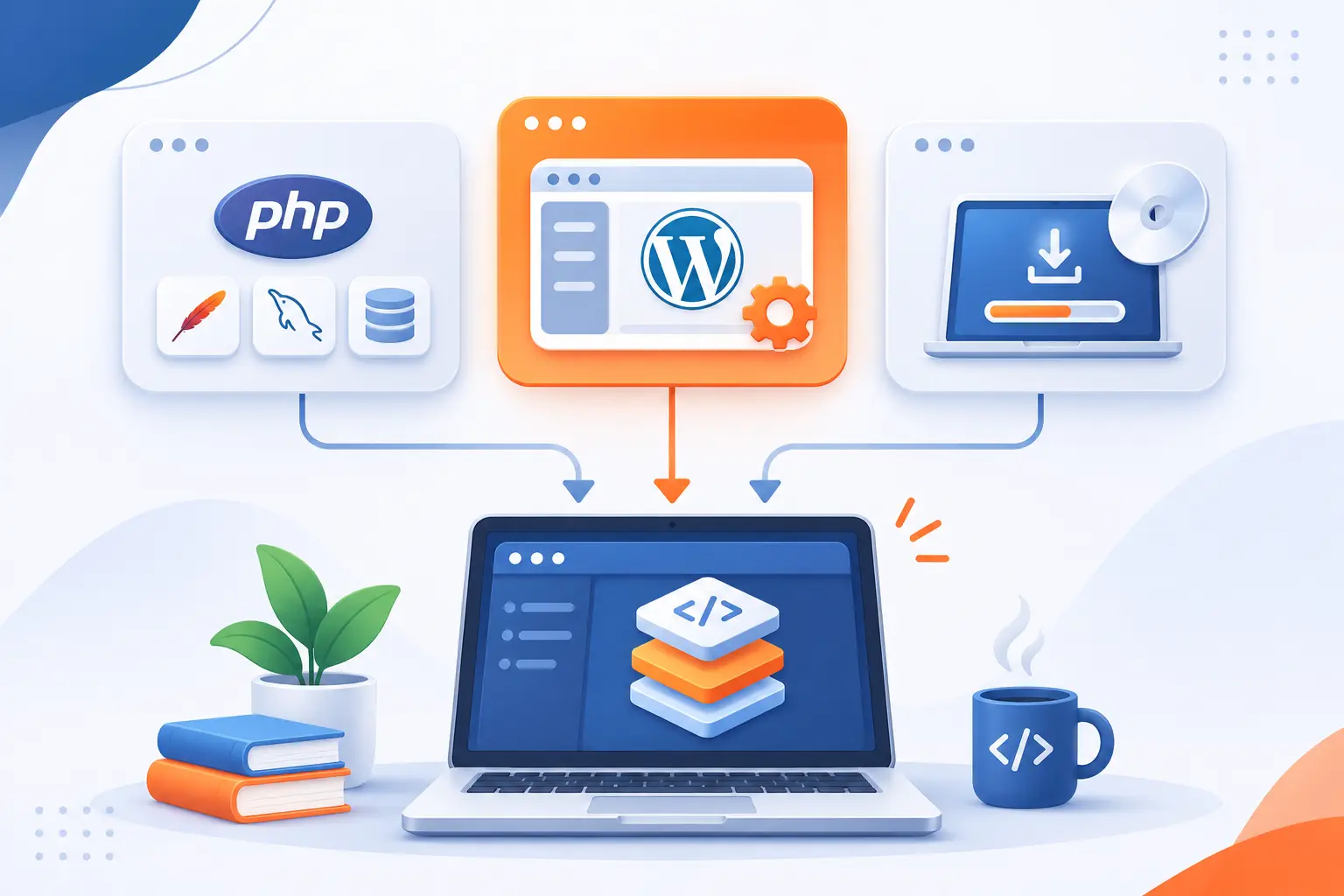
Development tools install or coordinate the services needed to run a website locally. Some provide a general-purpose PHP environment. Others handle WordPress installation and site management. Choose according to your operating system, project, and desired control.
| Option | Environment | Useful when |
|---|---|---|
| XAMPP | Windows, Linux, macOS packages | You want a bundled PHP development stack |
| MAMP | macOS and Windows | You prefer an application-based setup |
| WAMP / WampServer | Windows | You want Windows-focused stack management |
| LAMP | Linux | You want to configure the individual services |
| Local and DevKinsta | Desktop development environments | Your main project is WordPress |
XAMPP for Cross-Platform Development
XAMPP bundles Apache, MariaDB, PHP, and Perl for local application development. Packages are available for several desktop operating systems, although their included versions can differ.
Its control panel helps you start and stop services. You place project files in the configured document root, then open the corresponding browser address.
We would not treat the development defaults as production settings. The project’s deployment warning and security guidance explicitly distinguish development use from public production use.
MAMP for Mac and Windows Environments
MAMP provides an application-based environment for running PHP websites on macOS and Windows. It packages the main services rather than requiring separate manual installations.
Its available components and platform support include Apache, Nginx, PHP, and MySQL. Features differ between MAMP and MAMP PRO, so check the edition before following a tutorial.
Pay attention to the displayed project address. A nondefault port is part of that address, not an optional detail.
WAMP for Windows-Based Projects
WAMP describes a Windows, Apache, MySQL, and PHP stack, while WampServer is a specific implementation. The terms are related, but they are not identical.
WampServer’s installation packages and component options include Apache, PHP, and MySQL or MariaDB. Its tray menus provide controls for managing the development environment.
For Windows learners, this can make service management more approachable. Still, check the bundled software versions rather than assuming every installer matches your eventual host.
LAMP for Linux-Based Projects
LAMP usually means Linux, Apache, MySQL, and PHP, rather than a single downloadable application. Some configurations substitute MariaDB or use another supported programming language.
You typically install and configure its components through Linux package management. That gives you direct experience with service configuration, permissions, and logs.
We favor this approach when learning server administration is part of the goal. For someone who only wants to test a theme, a WordPress-focused application may involve less setup.
Local and DevKinsta for WordPress-Focused Development
Local and DevKinsta automate much of the setup required to run WordPress on a desktop computer. They are purpose-built alternatives to assembling every component yourself.
Local offers automatic installation and PHP environment switching. These features help when comparing a plugin’s behavior across supported PHP environments.
DevKinsta uses Docker-based environments with Nginx and MariaDB. Its included database and email tools support application testing.
Both tools may use custom development hostnames instead of displaying localhost. That does not make the site public. Also, direct publishing integrations do not imply compatibility with every hosting provider.
Where Localhost Fits Into WordPress Configuration
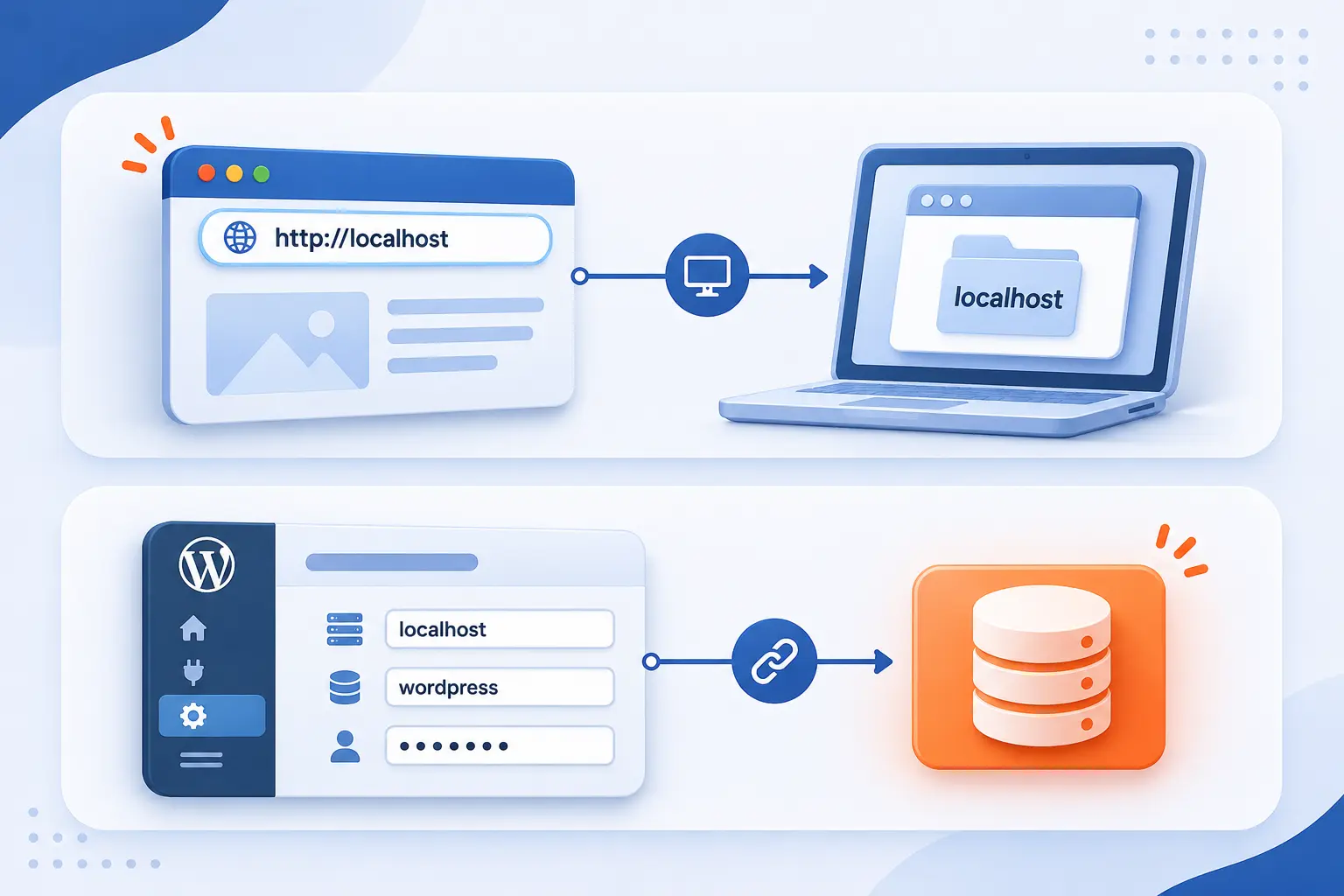
WordPress uses localhost differently depending on where it appears. In a browser address, it identifies the destination for a web request. In database settings, it identifies where PHP should try to reach the database. These settings do not control the same connection.
Run a WordPress Installation on Your Own Computer
Running WordPress locally requires its files, a compatible PHP environment, a web server, and a database. A bundled development tool can prepare much of that environment.
The basic sequence is straightforward:
- Install a development tool and start its required services.
- Create a WordPress site through the tool or place WordPress files in the configured project directory.
- Create a database and provide its connection details when using a manual setup.
- Open the project’s displayed address and complete WordPress installation.
- Test the dashboard and a public-facing page before adding themes or plugins.
Keep this installation separate from production credentials and sensitive customer data. A development copy rarely needs either.
Understand the Database Host Value in wp-config.php
The DB_HOST value tells WordPress where to connect to its database, not what address visitors should open. A common setting is define( 'DB_HOST', 'localhost' );.
WordPress’s database connection settings also support provider-supplied hostnames, alternate ports, and socket details. Use the values appropriate to your actual environment.
There is a subtle distinction here. On Unix-like systems, PHP’s MySQL connection handling commonly treats localhost as a Unix socket connection. An explicit loopback IP normally selects TCP instead. That difference can explain why changing between them affects a connection.
Recognize When WordPress and MySQL Share a Server
Localhost can be the correct database host on a public website when WordPress and its database share the appropriate environment. It does not mean the website is limited to your personal computer.
For example, a visitor reaches your public domain. PHP then connects to a database on the hosting server. Those are separate network relationships.
If the database runs on another server, use its supplied hostname or address. With separate containers, even sharing one physical machine does not automatically make localhost the correct choice.
Local Testing Reduces Exposure but Still Requires Security
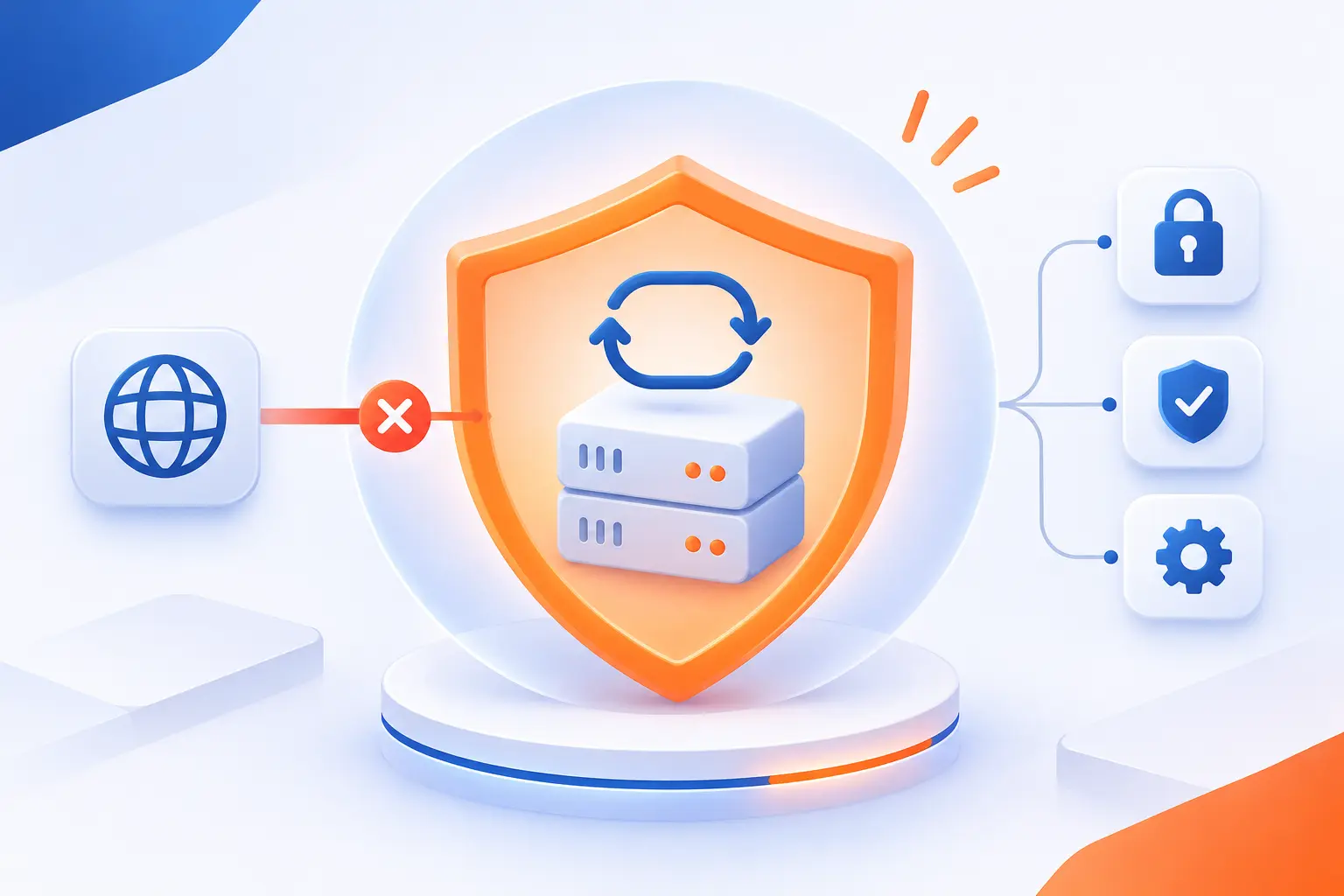
Local testing reduces direct network exposure when services accept only loopback connections. It does not remove risks from malicious code, exposed credentials, or accidental network access. We treat local development as a smaller security boundary, not a security exemption.
Keep Development Services Isolated From Public Access
Bind development services to loopback addresses when other devices do not need access. Confirm both IPv4 and IPv6 behavior where applicable.
The listening rules discussed earlier matter here. A server configured for all interfaces may accept network connections even when you normally visit it through localhost.
Use firewall restrictions as another layer. Avoid unnecessary router port forwarding, disable unused sharing tunnels, and stop services after testing. Keep development software updated and protect database accounts with appropriate credentials.
Recognize How Misconfiguration Can Expose Applications and Data
Misconfiguration can expose a development application through network listeners, published container ports, or sharing tools. Using localhost in your own browser does not prevent those other access paths.
Other mistakes require no public listener. A local copy might send customer emails, reveal credentials through debugging, or write to a production database.
Before testing, replace production secrets and remove unnecessary personal data. Configure email capture and payment test modes where needed. We would rather troubleshoot artificial records than explain why an experiment touched real customers.
Frequently Asked Questions
Localhost questions often come down to access boundaries and naming. Another device cannot use its own loopback address to reach your computer. Likewise, a special-use hostname is not a public domain you can purchase.
Can You Connect to a Local Site From Another Computer?
Yes, another computer can reach the site if its server accepts network connections and firewall rules permit them. Use the development computer’s network address or a configured network hostname, not localhost on the second device. Restrict access to trusted devices and adjust application URLs when necessary.
Can You Register Localhost as a Public Domain Name?
No, localhost is reserved for special use and cannot be registered through ordinary public domain registration. The naming specification also reserves names beneath it. Choose a registrable domain for a public website instead.
Take Your Local Project Online With 1Byte
Moving a local project online means placing it on public hosting, configuring a public domain, and enabling HTTPS. At 1Byte, we offer domain registration, SSL certificates, WordPress hosting, shared hosting, cloud hosting, and cloud servers. We are also an AWS Partner. Choose the hosting approach around your application’s requirements, not merely its development tool.
| Hosting option | Project to consider | Check before choosing |
|---|---|---|
| WordPress hosting | A WordPress website | Plugin, PHP, and migration requirements |
| Shared hosting | A website compatible with a shared environment | Supported software and resource limits |
| Cloud hosting | A project considering cloud-based hosting | Deployment model and application compatibility |
| Cloud servers | A project requiring server-level configuration | Configuration access and administration responsibilities |
Establish a Public Address With Domain Registration and SSL Certificates
Domain registration establishes your public name, while an SSL certificate enables authenticated HTTPS when correctly installed. Neither requires you to expose your development computer.
Register your chosen domain through 1Byte, then configure its DNS records for the destination hosting. Install the appropriate SSL certificate and check that the website loads through HTTPS.
Your public domain replaces the development address for visitors. Update application URLs accordingly, rather than carrying localhost links into the published site.
Publish Your Website With WordPress Hosting or Shared Hosting
WordPress hosting and shared hosting are options to evaluate when your site fits their supported environments. With 1Byte, begin by checking your project’s software and resource requirements.
For WordPress, deployment includes both site files and database content. Update database credentials and stored site addresses using a WordPress-aware migration process.
Then test images, navigation, forms, and account access on the destination. A successful file upload is only part of a successful launch.
Support Larger Projects With Cloud Hosting and Cloud Servers From an AWS Partner
Cloud hosting and cloud servers are options to assess when a project needs a different deployment model or greater configuration control. We offer both at 1Byte and are an AWS Partner.
Start with concrete requirements, such as background processes, required software, database placement, and expected traffic. Confirm which service matches those needs and who handles administration.
Moving to cloud infrastructure does not change what localhost means. Each running environment still has its own local perspective, especially when applications and databases are separated.


Conclusion
Localhost points a program back to its own environment. Understanding that perspective explains browser addresses, development servers, and WordPress database settings.
Our advice is to separate three questions: where does the name point, what service is listening, and who can connect? Those answers resolve many problems that otherwise look mysterious.
For your next step, start a small local project and identify its address, port, document root, and database settings. Before publishing, check those same details against your destination hosting environment.