

- Compare the Options and Understand Our Selection Process
- Top 10 Data Backup Solutions to Consider
- Five More Backup Options Worth Considering
- Where Your Backups Should Live
- Understand What Your Backup Actually Captures
- Free Data Backup Solutions and Their Real Costs
- Protect Backups Against Ransomware and Unauthorized Access
- Build a Backup Routine You Can Restore From
- When Business Continuity Requires More Than Backup
- Frequently Asked Questions About Data Backup Solutions
- Conclusion
The best data backup solutions depend on what you need to recover: individual files, a working computer, or an entire business system. Our strongest starting points are IDrive for multiple devices, Backblaze for straightforward computer protection, and Veeam for managed business infrastructure. Local imaging tools and open-source software fill different needs, often without a recurring software subscription.
We reviewed official product pages, documentation, published pricing, and independent customer reviews. We did not install these products or measure backup speeds. Below, we explain where each option fits, what its pricing actually covers, and which limitations deserve attention before you commit.
Compare the Options and Understand Our Selection Process
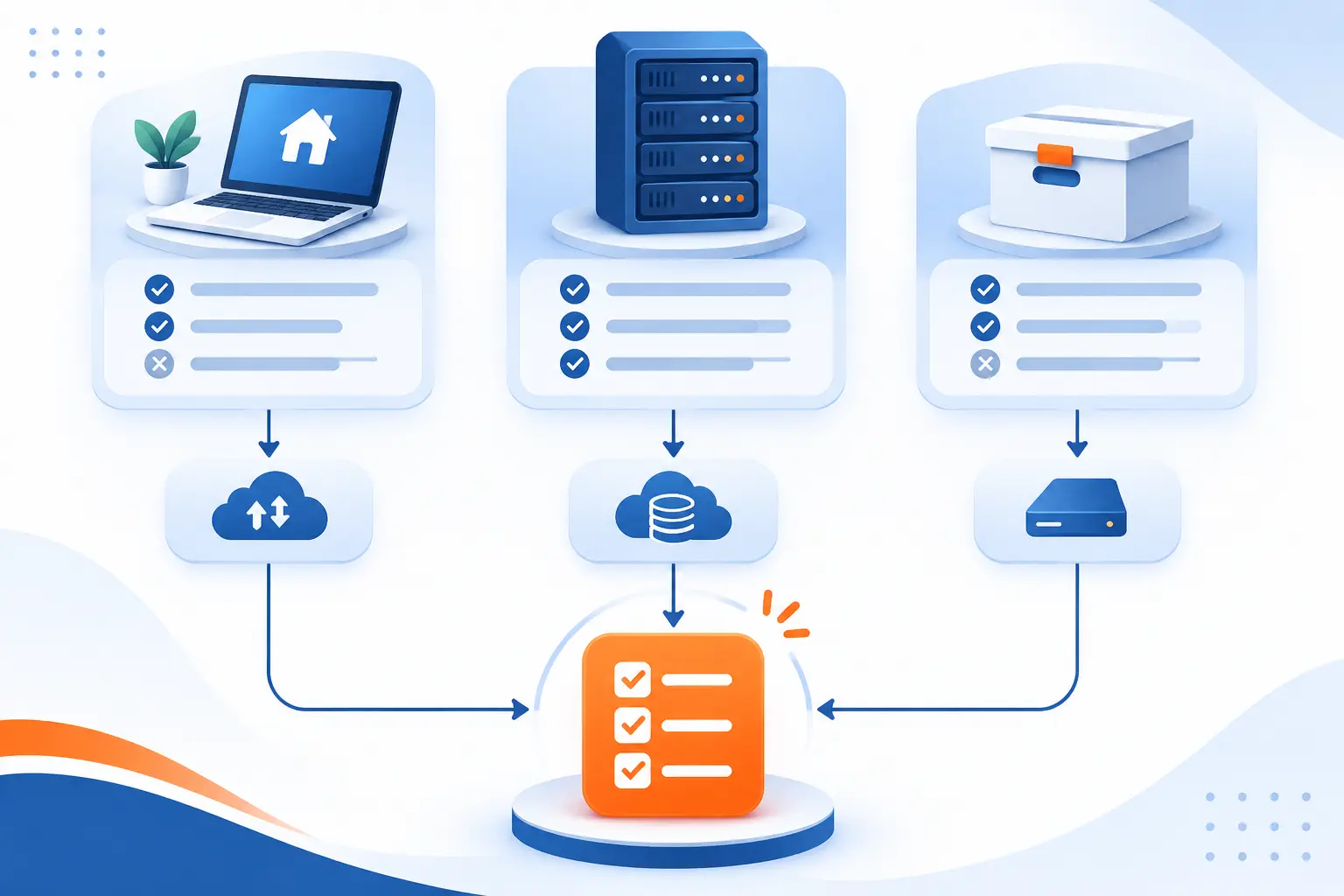
Start with recovery requirements, then compare storage arrangements and licensing. An unlimited computer subscription is not equivalent to a server protection platform. Likewise, free imaging software does not include the hardware needed to store its archives. Our comparison separates these differences rather than treating every product as interchangeable.
FURTHER READING: |
| 1. Best CRM for Small Businesses: 15 Tools Compared |
| 2. Best ERP for Small Businesses: 15 Tools Compared |
| 3. 15 Best Customer Data Platforms for Your Stack |
Data Backup Solutions Compared by Use Case, Storage, Recovery Options, and Cost
Use this table to identify the right category before comparing individual plans. Pricing descriptions deliberately distinguish bundled services from software that needs a separate storage destination.
| Product | Best For | Storage | Recovery Options | Cost Model | Score |
|---|---|---|---|---|---|
| IDrive | Households and teams with multiple devices | Included cloud capacity and local destinations | Files, local archives, physical shipment | Free tier and capacity-based subscriptions | 4.7 |
| Backblaze Computer Backup | Automatic protection for individual computers | Unlimited eligible computer data in its cloud | Downloads, desktop restores, shipped drive | Subscription per computer | 4.6 |
| Carbonite Safe | Personal files with automatic cloud protection | Unlimited eligible data in its cloud | File downloads, Restore Manager, courier service | Annual subscription with introductory discounts | 4.1 |
| Acronis True Image | Personal system images with integrated security | Local storage and cloud capacity on eligible plans | Files, complete systems, rescue media | Annual subscription by edition and device count | 4.5 |
| EaseUS Todo Backup | Windows imaging with flexible purchase options | Local, external, network, and supported cloud destinations | Files, disk images, emergency recovery | Free edition, subscription, or perpetual license | 4.3 |
| AOMEI Backupper Standard | Free personal Windows imaging | Local, external, network, and NAS destinations | Files, system images, bootable recovery | Free edition with paid upgrades | 4.2 |
| MSP360 Backup | Administrators choosing their own storage provider | Local storage and supported cloud accounts | Files, Windows images, edition-dependent workloads | Free or paid software, plus destination costs | 4.4 |
| Duplicati | Encrypted archives with destination flexibility | Local storage, object storage, and supported remote services | Versioned file recovery and documented recovery tools | Free client with optional console subscriptions | 4.1 |
| Paragon Backup & Recovery Community Edition | Noncommercial Windows archive and recovery jobs | User-provided storage | Files, archives, WinPE recovery | Free for noncommercial use | 3.9 |
| Veeam Backup & Replication | Business virtualization and mixed infrastructure | Configured repositories and supported cloud destinations | VMs, files, application items, replication | Limited free edition and paid workload licensing | 4.6 |
Scores reflect our editorial assessment, not independent review-site averages. The list follows practical use cases rather than descending scores. Ease-of-use judgments below come from documented setup requirements and customer feedback, not hands-on testing.
How We Weighted Source Recommendations, Verified Current Products, and Evaluated Trade-Offs Without Hands-On Testing
We gave official documentation more weight than marketing promises and treated customer reviews as supporting evidence. Product-family reviews received less weight when they combined several editions. We also checked whether advertised prices included storage, commercial licensing, and the recovery features discussed.
- Recovery capability, 30%: We assessed documented file, system, application, and workload recovery against the product’s intended audience.
- Protection and retention, 25%: We examined encryption, version retention, storage independence, and available safeguards against deletion or ransomware.
- Total cost clarity, 20%: We considered licensing, included capacity, renewal conditions, external storage costs, and edition restrictions.
- Operational fit, 15%: We judged setup requirements, scheduling, monitoring, and administration against the users each product targets.
- Evidence and support, 10%: We considered documentation quality, accessible support options, and relevant independent customer feedback.
These weights guide our overall judgments. They are not measured performance results. We did not claim successful restores, recovery speeds, or reliability rates that our research could not establish.
Top 10 Data Backup Solutions to Consider
These picks cover the most common personal and business requirements, from automatic file protection to infrastructure recovery. Choose the simplest product that covers your actual recovery needs. More features are useful only when someone can configure, monitor, and restore them correctly.
1. IDrive

- Category: Cloud and local protection software
- Best for: Multiple computers under a shared account
- Ease of use: Moderate, with separate backup and restore controls
- Pricing: Free tier and capacity-based subscriptions
- Standout feature: Physical shipment through IDrive Express
For households juggling several computers, shared capacity makes more sense than paying separately for every machine. That is why we place IDrive first. Its account structure accommodates personal devices, teams, and business systems without forcing every buyer into the same licensing model.
The main trade-off is capacity management. You choose a storage allowance rather than receiving unrestricted space. We would shortlist it when several devices hold a manageable combined dataset, especially when local copies also matter.
How IDrive works
The Windows documentation shows a clear workflow: open Backup, choose the destination, modify the selected files, and run or schedule the job. Local Backup can write to external, USB, or mapped drives. Cloud protection uses your account allowance.
Importantly, local and online jobs are scheduled separately. A cloud job does not automatically prove that your local copy is current. We recommend giving both jobs recognizable names and checking their results independently.
Recovery starts in Restore, where you choose the appropriate source and destination. The documentation also distinguishes restoring into a selected folder from restoring to an original location. That distinction matters when you want to inspect recovered files before replacing working copies.
IDrive Express provides a shipment-based route for transferring bulk data. We see this as a useful alternative when internet transfer is impractical, not a promise of immediate recovery. Check eligibility, service conditions, and applicable shipment charges before depending on it.
Who is IDrive for?
We favor it for families, freelancers, and small teams protecting several devices. Dedicated NAS support and business workload options also make it worth investigating beyond ordinary laptop protection.
Buyers wanting the fewest storage decisions should compare Backblaze instead. Businesses must also distinguish device protection from cloud-application coverage. A desktop subscription should not be assumed to protect hosted email or collaboration services automatically.
IDrive pricing
- Basic: Free, including 10 GB, with no credit card required.
- IDrive Mini: Advertised from $0.25 per month equivalent with annual billing, including 100 GB for an individual account.
- IDrive Personal: Monthly billing starts at $11.99, including 5 TB for one user across multiple computers.
- IDrive Team: Monthly billing starts at $11.99, including 5 TB across five users and five computers.
- IDrive Business: Monthly billing starts at $59.99, including 1.25 TB, unlimited users, and support for computers and eligible server workloads.
The published billing and capacity options distinguish monthly subscriptions from discounted annual offers. Introductory discounts are not permanent renewal rates, and exceeding an allowance can trigger overuse charges.
Pros and cons
Pros
- Local destinations and cloud storage are available within the same software family.
- IDrive Express provides a physical-transfer option for bulk datasets.
- Dedicated NAS applications extend coverage beyond ordinary desktop folders.
Cons
- Local and cloud schedules require separate configuration.
- Capacity limits require monitoring and can produce overuse charges.
- Optional private-key protection makes key safekeeping the customer’s responsibility.
IDrive rating and reviews
- G2: Rated 4.4/5 across 2,070 reviews.
That listing combines online protection, SaaS services, and object storage. It is not a pure Personal-plan score. Accessible reviews include favorable comments about protection and value, alongside complaints about upload and download speeds.
Our verdict: start here when account flexibility matters more than unlimited capacity. Before buying, total the data across every device you intend to include.
2. Backblaze Computer Backup

- Category: Automatic computer protection service
- Best for: Personal computers with large eligible file collections
- Ease of use: Beginner-friendly default selection
- Pricing: Subscription per computer
- Standout feature: Unlimited eligible computer data
If your priority is protecting a computer without choosing a storage allowance, this is our strongest alternative to IDrive. The service concentrates on automatic file protection for Windows and Mac. Its simplicity is valuable, provided its exclusions match your expectations.
“Unlimited” describes eligible data capacity, not unlimited devices or every possible workload. We would choose it for personal documents and media before considering it for servers, NAS appliances, or complete operating-system recovery.
How Backblaze Computer Backup works
Install the client, associate it with your account, and let it identify eligible files. Physically attached external drives can also be included. The service uploads changes in the background rather than asking you to maintain a detailed folder-by-folder job structure.
The critical setup task is checking exclusions. Official documentation says network-mounted drives and NAS devices are excluded. System-related exclusions also mean this is not a substitute for an image that rebuilds your entire computer.
External-drive protection needs attention after installation. Backblaze’s documentation ties disconnected-drive retention to your selected version-history setting. Renaming a drive can require selecting it again. We would make drive checks part of your routine, especially for media libraries stored on removable disks.
Version history deserves deliberate configuration. The product page advertises extended history without an additional subscription charge, but documentation distinguishes default and extended settings. Confirm the option enabled for each computer rather than assuming the longest available period is active.
Recovery options include downloading files, using the desktop restore process, or requesting a physical drive. A shipped drive can be practical for a large recovery, but delivery time and return conditions still matter. Do not treat that route as instant access.
Who is Backblaze Computer Backup for?
We recommend it for home users, photographers, and independent professionals protecting locally stored files. Its automatic approach suits people who would otherwise postpone configuring a more involved tool.
Look elsewhere for NAS protection, application-aware server recovery, or bare-metal system images. Households with many computers should also compare the total per-device subscription cost against shared-capacity alternatives.
Backblaze Computer Backup pricing
- Personal backup: $99 per year per computer, including unlimited eligible data and access to backed-up files.
- Business backup: $99 per year per computer, adding multiple-user management and administrative controls.
- Enterprise control: Contact sales, with advanced support, enhanced lockdowns, OIDC single sign-on, and restricted restore access.
The subscription comparison also offers other billing terms. Longer retention options and physical recovery services have their own conditions, so review those alongside the base subscription.
Pros and cons
Pros
- Eligible computer data does not require selecting a capacity tier.
- Directly connected external drives can join the protected dataset.
- Download, desktop, and physical-drive recovery provide different restoration routes.
Cons
- NAS and network-mounted volumes are outside Computer Backup coverage.
- It does not provide a complete bootable system-image replacement.
- Disconnected drives remain subject to configured retention rules.
Backblaze Computer Backup rating and reviews
- G2: Rated 4.4/5 across 50 reviews.
This listing is more relevant than reviews of Backblaze B2, which is a separate object-storage product. However, its business-oriented feedback does not necessarily describe every personal-user workflow.
Our verdict: an excellent shortlist choice for automatic file protection. Read the exclusions before trusting it with your only recovery copy.
3. Carbonite Safe

- Category: Personal cloud protection service
- Best for: Automatically protecting common personal folders
- Ease of use: Simple defaults with important selection exceptions
- Pricing: Annual subscriptions with promotional offers
- Standout feature: Tiered external-drive and courier options
Automatic selection makes this a reasonable choice for people who want common personal files covered with little setup. Its plan differences are more consequential than they first appear, though. External-drive coverage, automatic video selection, and courier recovery affect which subscription makes sense.
We place it behind Backblaze because beginners must pay closer attention to those distinctions. The service still deserves consideration when its recovery assistance and bundled extras match what you need.
How Carbonite Safe works
During installation, the recommended automatic setting selects common user folders. These include Desktop, Documents, Downloads, Music, and Pictures. Other locations may need manual selection, so a successful installation is not proof that every important folder is covered.
On Windows, the documented manual workflow is straightforward. Select a file or folder, right-click it, and choose Back up with Carbonite. The item then enters the upload queue. We would check unusual application folders immediately after setup.
The selection rules identify important exceptions, including videos on Basic and unusually large files. External drives are not selected automatically. That makes a review of the actual protected dataset essential.
For recovery, Carbonite provides individual-file restoration, account-based downloads, and Restore Manager for broader recovery. Its personal support pages distinguish retrieving selected items from restoring an entire file collection to a repaired or replacement computer.
Security settings also vary by platform. Carbonite’s documentation says private encryption-key management is unavailable for Mac users. We would verify the platform-specific instructions before choosing the service primarily for private-key control.
Another practical distinction is application recovery. Returning a document is different from rebuilding the software that opens it. Some applications require importing their restored data afterward, so include that work in your recovery checklist.
Who is Carbonite Safe for?
It fits personal users who keep most important information in standard folders. Plus and Prime are more relevant when external storage and automatic video inclusion matter.
We would not choose the personal plans for application-aware server recovery or complete business continuity. Mac users who require customer-managed encryption keys should investigate another option. Buyers with several computers should calculate the combined subscription cost before committing.
Carbonite Safe pricing
- Basic: Advertised promotional price of $71.99 annually, against a displayed regular price of $95.99, including automatic encrypted protection and unlimited eligible storage for a computer.
- Plus: Advertised promotional price of $78.99 annually, against $131.99, adding an external hard drive, automatic video inclusion, and Webroot antivirus.
- Prime: Advertised promotional price of $121.49 annually, against $161.99, including Plus features and the courier-recovery benefit shown in the comparison.
Pricing appears on the product page linked in this heading. These are promotional annual amounts, not monthly payment plans. Confirm the checkout total, renewal terms, platform eligibility, and courier conditions before purchase.
Pros and cons
Pros
- Recommended setup selects common personal folders automatically.
- Windows context-menu controls let users add overlooked folders.
- Restore Manager supports recovering the broader file collection.
Cons
- Basic does not automatically select videos.
- External-drive protection requires the appropriate edition and manual selection.
- Private-key management is not supported on Mac.
Carbonite Safe rating and reviews
- G2: Rated 4.0/5 across 198 reviews.
The listing includes broader business-oriented Safe feedback. Accessible reviewers praise simplicity and assistance, but that should not erase edition differences or replace checking your actual protected files.
Our verdict: suitable for straightforward personal protection, especially when assistance matters. Audit file selection before considering setup finished.
4. Acronis True Image

- Category: Personal imaging and security software
- Best for: Recovering complete personal computers
- Ease of use: Moderate because protection choices are broader
- Pricing: Annual subscriptions by edition
- Standout feature: Imaging, cloning, and security in one product
Complete-system recovery is the main reason to shortlist this option over a file-focused cloud service. Its documented feature set includes full images, active disk cloning, rescue tools, and integrated threat protection. That combination is attractive when reinstalling applications would be painful.
We would buy it for those recovery capabilities first. Security extras can be useful, but they should not distract from checking destinations, retention, rescue media, and the cloud allowance attached to your edition.
How Acronis True Image works
The basic workflow is choosing what to protect, selecting a destination, and configuring the schedule. You can protect selected information or create a full image. Local destinations support recovery without first downloading everything from a remote service.
Cloud capabilities depend on the edition. Essentials is local-only. Advanced and Premium add hosted capacity and further security features. This matters because “Acronis includes cloud protection” is not accurate for every subscription.
Active disk cloning serves a different purpose from scheduled archives. It creates a replica for moving to another drive. We would use that capability for a hardware migration while keeping versioned archives for accidental changes and later recovery.
Rescue tools address a computer that no longer starts normally. Acronis documents a recovery toolkit and Universal Restore capability. Preparing the necessary media before an emergency is more sensible than discovering those requirements after a disk fails.
The product comparison also separates True Image from Acronis’s business and service-provider platforms. True Image targets individuals and families. Centralized business policies, broader workload management, and managed service delivery belong to other offerings.
Our practical recommendation is to keep the initial configuration focused. Establish a working image schedule and recovery route before enabling every optional feature. A larger feature set does not automatically produce a clearer recovery plan.
Who is Acronis True Image for?
It suits home users and independent professionals who need more than file recovery. Consider it when applications, settings, and the operating system are part of what you want back.
Look elsewhere if your sole need is inexpensive off-site copies of documents. Businesses requiring centralized infrastructure protection should compare Acronis’s business products or Veeam rather than stretching a personal subscription beyond its intended role.
Acronis True Image pricing
- Essentials: Starts at $49.99 annually, with core local protection, disk cloning, and basic anti-ransomware protection.
- Advanced: Starts at $72.99 annually, adding 50 GB of cloud capacity, full anti-malware, and Microsoft 365 protection.
- Premium: Starts at $124.99 annually, including 1 TB of cloud capacity, Advanced features, and priority support.
The published edition and starting-price comparison explains storage upgrade options and product boundaries. Starting prices do not mean that every supported device quantity is included at the entry amount.
Pros and cons
Pros
- Full-image protection covers more than ordinary file-selection services.
- Active disk cloning supports drive replacement workflows.
- Recovery tools address systems that cannot boot normally.
Cons
- Essentials excludes hosted cloud capacity.
- Cloud allowances vary substantially between editions.
- Business-oriented centralized management requires a different product family.
Acronis True Image rating and reviews
- TrustRadius: Rated 8.1/10 across 52 reviews and ratings.
Accessible feedback values imaging and changed-data protection. Some older reviews describe troubleshooting and Mac recovery issues. Those reports are useful warnings to practice restoration, not proof that the same behavior affects every supported release.
Our verdict: a strong personal recovery package when full-system protection justifies the subscription. Match the edition to your destination requirements before buying.
5. EaseUS Todo Backup

- Category: Desktop imaging and recovery software
- Best for: Windows users wanting flexible licensing
- Ease of use: Guided workflows with advanced options
- Pricing: Free, annual, and perpetual choices
- Standout feature: Paid licenses separate usage rights from upgrade rights
Flexible purchase options give this Windows-focused family an advantage over subscription-only competitors. A free edition covers core archive creation, while Home adds migration and application-oriented features. Buyers can also choose between ongoing upgrades and a fixed-version license.
We see it as a practical middle ground. It offers more system-recovery scope than a basic cloud service, without requiring the infrastructure planning associated with Veeam or Bacula.
How EaseUS Todo Backup works
Start by selecting files, a disk, a partition, or the system. Then choose a destination and schedule the task. Official pages identify local drives, external storage, NAS devices, network locations, and supported cloud destinations.
The free edition documents full, incremental, and differential methods. Those choices determine how each archive relates to earlier recovery points. We would start with a simple schedule and retention policy rather than changing every advanced setting immediately.
Home extends the workflow into cloning, restoring to dissimilar hardware, and selected application data. The edition comparison specifically separates those capabilities from the free offering. A useful buying question is whether you need recurring archives or a hardware-migration tool.
Emergency media provides a route when normal Windows startup is unavailable. Create it before making major disk changes. We also recommend checking that the recovery environment can see the archive destination, particularly when it sits on a network share.
Cloud storage needs careful reading. A software license and a hosted storage entitlement are not automatically the same purchase. The Home checkout displays a cloud option alongside annual licensing, so confirm what is included in your final order and for how long.
Mac software is presented separately within the product family. We would not assume the Windows feature comparison describes identical behavior on macOS. Mixed-device households should compare platform-specific capabilities before standardizing on a name alone.
Who is EaseUS Todo Backup for?
It fits personal Windows users who want files and system images under the same interface. The perpetual option also appeals to buyers who prefer choosing when to pay for another major version.
Look elsewhere if you need a fully managed cloud service with minimal destination configuration. Business administrators should examine the commercial editions rather than assuming Home provides server coverage or organization-wide licensing.
EaseUS Todo Backup pricing
- Todo Backup Free: No software charge, with file, disk, partition, and system protection, plus scheduled archive methods.
- Home Yearly: $39.95 for a computer, including a year of upgrades and standard technical support.
- Home Perpetual: $59.95 for a computer, with standard support but no free upgrade entitlement.
- Home Lifetime Upgrades: Displayed at $79.95 for a computer, including lifetime upgrades and premium technical support.
The individual purchase options distinguish ongoing usage from future-version rights. Promotional bundles and cloud selections should be checked separately at checkout.
Pros and cons
Pros
- The free edition includes system images rather than file-only copies.
- Home adds disk cloning and dissimilar-hardware recovery.
- Perpetual licensing offers an alternative to annual renewal.
Cons
- The basic perpetual license excludes free future upgrades.
- Home-only migration features are unavailable in Free.
- Cloud entitlements require checking the selected purchase configuration.
EaseUS Todo Backup rating and reviews
- GetApp: Rated 4.5/5 across 94 reviews.
The accessible review summary highlights approachable navigation and value. It also notes upsell prompts and limitations in the free edition. We would treat that as a reason to decide your required edition before installation.
Our verdict: a sensible shortlist option for Windows imaging, especially when license flexibility matters. Verify upgrade rights as carefully as the initial price.
6. AOMEI Backupper Standard

- Category: Free Windows imaging software
- Best for: Personal local and network archives
- Ease of use: Guided tasks with edition-dependent features
- Pricing: Free Standard edition with paid upgrades
- Standout feature: System, disk, partition, and file protection
A no-cost starting point is valuable when you already own somewhere to store the archives. This edition covers core personal Windows protection without requiring a hosted subscription. Its main attraction is breadth, provided you understand what remains outside Standard.
We would consider it before paying for a local-only tool. However, the presence of a feature elsewhere in the Backupper family does not mean the free edition includes it.
How AOMEI Backupper Standard works
The official page identifies system, disk, partition, and individual-file tasks. You choose the source and destination, then configure a recurring schedule. Incremental copies can reduce how much changed data subsequent jobs need to process.
Destinations include local disks, external devices, and network or NAS locations. This makes Standard useful when an external drive or household storage appliance already exists. The software license does not purchase that destination or maintain its available space for you.
Basic Sync is also available, but we would not confuse synchronized folders with retained recovery archives. Use the archive workflow when your goal is recovering an older state. Choose synchronization only when matching current folder contents is the actual requirement.
Bootable recovery tools matter for system restoration. The documentation includes recovery-oriented utilities within the product workflow. We recommend preparing the relevant media and confirming device visibility before relying on a full-system archive.
The paid Professional page specifically advertises features such as differential protection, encryption, and automatic cleanup schemes. Those distinctions are important. A free incremental schedule may suit your needs, but it is not the same feature set as the paid editions.
Cloud storage is another separate consideration. The comparison presents a temporary cloud offer rather than permanent hosted capacity bundled with Standard. We would select Standard because it covers the local job you need, not because a trial appears beside the download.
Who is AOMEI Backupper Standard for?
It suits home Windows users who can manage their own storage destinations. We especially like the fit for someone seeking routine images and file archives without immediately purchasing another subscription.
Businesses should review Workstation or the appropriate commercial product. Users requiring encryption, advanced retention automation, or paid support should compare editions carefully. Mac users also need the separately presented Mac offering rather than this Windows edition.
AOMEI Backupper Standard pricing
- Standard: Freeware, with core file, system, disk, and partition tasks, scheduled operations, and incremental protection.
- Professional: Advertised from $39.95, with advanced personal-use capabilities such as differential protection, encryption, and cleanup schemes.
- Workstation: Advertised from $49.95, positioned for business Windows PCs with commercial-use capabilities and advanced protection features.
The edition comparison and starting prices should guide your selection. Check the purchase term and upgrade entitlement rather than assuming every displayed starting price buys a lifetime license.
Pros and cons
Pros
- Standard includes full-system archives alongside file-level tasks.
- Network and NAS destinations support existing household storage.
- Scheduled incremental jobs are available without a software purchase.
Cons
- Encryption and differential protection are promoted as paid-edition features.
- Automatic cleanup schemes require checking the upgrade comparison.
- The cloud offer is temporary, not permanent included storage.
AOMEI Backupper Standard rating and reviews
- G2: The Backupper family is rated 4.3/5 across 17 reviews.
This is a small product-family sample, not a Standard-only score. Features mentioned by reviewers can belong to paid editions. We therefore give the official edition comparison more weight when judging what the free download actually provides.
Our verdict: a useful personal starting point when local protection is the priority. Check the paid-feature boundary before designing your retention and encryption plan.
7. MSP360 Backup

- Category: Locally managed and centrally managed protection software
- Best for: Administrators choosing their own cloud destination
- Ease of use: Moderate to advanced
- Pricing: Free, paid, and managed licensing
- Standout feature: Bring-your-own-storage flexibility
Control over the storage provider is the strongest reason to consider this family. Instead of tying every deployment to a single bundled cloud allowance, MSP360 supports several established destinations. That flexibility suits administrators who already have storage contracts or specific hosting requirements.
It also creates more decisions. You must understand both the software license and the destination’s charges, access permissions, retention behavior, and recovery conditions.
How MSP360 Backup works
Choose between a locally managed installation and the centrally managed offering. Then connect the storage destination, configure the protected data, and set scheduling and retention. Supported integrations include Amazon S3, Azure, Wasabi, Backblaze B2, and IDrive e2.
File-level tasks are available across desktop platforms, while image-based protection is specifically identified for Windows. Server, SQL, and virtualization capabilities depend on the appropriate edition. We would map every workload to its license before requesting a quote.
MSP360 Backup Free targets personal, standalone computers outside a domain. That boundary matters for business buyers. A free download should not be treated as permission to deploy the same configuration throughout an organization.
Managed Backup adds centralized oversight, reporting, alerting, and branding options. These are practical differences for service providers. They reduce the need to inspect each endpoint separately, but someone still needs responsibility for investigating failed or missed jobs.
Object Lock support is another reason to investigate MSP360. It can help retain protected data against deletion when the destination and configuration support it. We would confirm the provider’s exact retention mode rather than assuming a checkbox guarantees complete ransomware protection.
The managed licensing documentation describes computer-based licenses, with virtualization licensing handled by host. Storage remains a separate planning item. This is the central purchasing distinction compared with a simple personal subscription that bundles its own cloud destination.
Who is MSP360 Backup for?
It fits small IT departments, managed service providers, and technically confident individuals. We particularly favor it when destination choice and centralized reporting matter more than a bundled consumer experience.
Look elsewhere if you want the provider to make nearly every storage decision. Buyers without time to manage credentials, retention, and cloud billing may find a packaged service easier to maintain.
MSP360 Backup pricing
- MSP360 Backup Free: No software charge for eligible personal standalone use, including file protection, scheduling, retention settings, and Windows image capabilities.
- MSP360 Backup Pro: Advertised from $19.99 annually for the macOS/Linux starting configuration, with local management and paid-edition support. Windows, server, SQL, and virtualization selections require their applicable licenses.
- MSP Platform with Managed Backup: Configuration-based pricing, with centralized management, reporting, alerting, branding, and live technical support.
The managed configuration calculator separates workload choices when planning an engagement. Add destination storage, requests, transfer, and retention costs to the software quote.
Pros and cons
Pros
- Supported destinations include several independent object-storage providers.
- Managed Backup adds centralized reporting and missed-job oversight.
- Object Lock support offers a route to protected retention.
Cons
- Software pricing does not describe the complete cloud bill.
- Image-based desktop protection is platform-dependent.
- The free edition’s personal, non-domain restriction excludes many business deployments.
MSP360 Backup rating and reviews
- G2: The accessible listing shows 4.5/5 across 513 reviews.
The page snapshot available to us was older than several other review pages in this research. We would not present that count as a live measure. Its feedback also covers managed workflows rather than only the free desktop client.
Our verdict: shortlist it when storage independence is a requirement. Ask for a workload-specific quote and a separate estimate of destination costs.
8. Duplicati

- Category: Open-source client with optional management services
- Best for: Encrypted archives across chosen destinations
- Ease of use: Moderate, with technical recovery responsibilities
- Pricing: Free client and optional console plans
- Standout feature: Storage-provider independence
Destination freedom without a mandatory client license is the appeal here. The open-source engine can write encrypted archives to local storage and supported remote services. Optional commercial management now sits alongside that client, so describing the whole offering as “just free software” misses important distinctions.
We favor it for technically comfortable users who want control over storage and encryption. It is less attractive when nobody wants responsibility for maintaining the recovery process.
How Duplicati works
The documented interface starts with Add backup and Add a new backup. You name the job, configure encryption, select a destination, choose source data, and define scheduling and retention. Supported destination types include S3-compatible services, WebDAV, SFTP, and local storage.
The guided configuration workflow makes the initial choices explicit. That is helpful, but it also exposes decisions bundled services make for you. Destination credentials and the encryption passphrase need secure storage.
Restoration begins on the Restore page. Documentation covers recovery through an existing configuration and routes used when that configuration is unavailable. We recommend practicing the latter scenario, because losing the original computer is exactly when preparation matters.
Duplicati maintains a local database to reduce remote calls and support normal operation. Its documentation says access to the generated archive files and the passphrase enables recovery without retaining that original database. Rebuilding the required state can still involve additional work.
Retention is configurable rather than automatically equivalent to permanent storage. Duplicati removes older snapshots according to the selected policy after creating a new recovery point. Decide how far back you need to recover before minimizing storage consumption.
The optional console adds monitoring and management across machines. That is a separate purchasing decision from running the client locally. We would evaluate it when missed-job alerts and remote administration become more important than avoiding every recurring software charge.
Who is Duplicati for?
It suits technically confident households, small teams, and administrators with existing storage. It is especially appealing when an encrypted archive should remain independent of a single bundled provider.
Look elsewhere if you expect a consumer service to handle the destination, account recovery, and support path together. Business buyers should also verify the exact workflow for application-consistent or complete-system recovery rather than assuming file archives cover every workload.
Duplicati pricing
- Open-source client: Free to download and run, using your selected destination and local configuration.
- Console Free: $0, including an insights dashboard, monitoring for two machines, and visibility into the latest 200 jobs.
- Console Pro: Annual-billing pricing is displayed from $2 per machine monthly, adding missed-job alerts, remote management, priority support, and 100 GB of integrated storage per machine.
- Console Enterprise: From $3 per machine monthly, with a minimum of ten machines under a yearly contract, adding organization management, configuration assistance, and SSO with MFA.
The console subscriptions and storage options distinguish management services from the open-source client. Additional integrated storage and separately purchased destinations can increase the total.
Pros and cons
Pros
- The client does not require a mandatory subscription.
- S3, WebDAV, SFTP, and local destinations provide meaningful provider choice.
- Documented recovery does not depend exclusively on keeping the original local database.
Cons
- Customers manage destination access and encryption-passphrase safekeeping.
- Remote management and missed-job alerts sit in paid console tiers.
- Database rebuilding and unfamiliar recovery paths require preparation.
Duplicati rating and reviews
- G2: Rated 4.4/5 across 17 reviews.
The sample is small. Accessible feedback values customization and encryption, while setup complexity appears as a concern. We would place more weight on a successful recovery rehearsal than on this limited review average.
Our verdict: good value for people willing to own the configuration. Export the job settings and practice recovery from another machine before depending on it.
9. Paragon Backup & Recovery Community Edition
- Category: Noncommercial Windows archive and recovery software
- Best for: Personal scheduled protection and WinPE recovery
- Ease of use: Moderate, with recovery-media preparation
- Pricing: Free for noncommercial use
- Standout feature: Archive browsing through mounted drive letters
Personal Windows users can get useful recovery controls here without paying for a broader disk-management suite. The Community Edition focuses on archive creation, scheduling, retention, and restoration. Its noncommercial license is the first boundary to understand.
We include it because its official page explains recovery preparation unusually concretely. However, we would not confuse the free edition with Hard Disk Manager or transfer every paid-suite capability into this review.
How Paragon Backup & Recovery Community Edition works
The product page describes choosing files, volumes, or disks, followed by the destination and protection strategy. Scheduling and retention settings determine when jobs run and when older archives are removed. That gives users control, but also makes policy choices their responsibility.
Archives can be mounted with a drive letter and browsed like ordinary disks. This provides a practical route for retrieving selected files. We like that approach when the immediate need is a document rather than rebuilding the whole computer.
For startup failures, the page documents Recovery Media Builder and a WinPE-based workflow. Choose the bootable-media type, configure any required network access, then use the appropriate archive for restoration. Depending on the configuration, Windows recovery components may require preparation.
We would verify the complete process before trusting an archive as a system-recovery plan. Confirm that the boot environment starts on the intended computer. Then check that it sees the destination and the recovery point you expect.
The paid Hard Disk Manager pages explain why edition boundaries matter. Disk organization, operating-system copying, and other maintenance tools belong to the broader suite. Buying those features may be reasonable, but they are not evidence that Community Edition includes them.
Paragon also maintains separate support and documentation resources. Its support page distinguishes minor updates from major upgrades and provides a knowledge base and account-based assistance. We would check the installed build and applicable support conditions rather than relying on an old download indefinitely.
Who is Paragon Backup & Recovery Community Edition for?
It fits personal Windows users who want configurable local recovery jobs and are willing to prepare recovery media. Archive browsing is particularly useful when selective retrieval is more common than complete restoration.
Businesses should choose a commercially licensed product. Users who need copying tools, partition management, server support, or automated email notifications should also inspect the paid comparison rather than assuming the free edition covers those requirements.
Paragon Backup & Recovery Community Edition pricing
- Community Edition: Free for noncommercial purposes, including scheduled protection, retention controls, archive browsing, and WinPE recovery capabilities described on its page.
The product page linked above contains the free-edition terms. Hard Disk Manager Advanced is a separate home-use product, while the Business offering addresses commercial deployment. We did not obtain a dependable published checkout amount for those alternatives, so we do not quote one.
We would avoid upgrading merely because another suite has more features. First identify the missing capability. A migration requirement, commercial license, or server workload is a concrete reason to investigate another edition.
Pros and cons
Pros
- Mounted archives allow selected files to be browsed through a drive letter.
- Recovery Media Builder documents a WinPE restoration route.
- Scheduling and retention controls support repeatable personal protection jobs.
Cons
- The license excludes commercial use.
- Operating-system copying and partition management belong to paid alternatives.
- The comparison excludes Windows Server support and SMTP notifications from Community Edition.
Paragon Backup & Recovery Community Edition rating and reviews
We could not verify an independent aggregate specifically for Community Edition from the accessible review pages. We therefore leave its public review score unreported rather than substituting a company-wide rating.
Our verdict: worth considering for personal Windows recovery jobs, with clear licensing limits. Prepare and inspect the recovery environment before treating installation as complete protection.
10. Veeam Backup & Replication
- Category: Business infrastructure protection platform
- Best for: Virtual machines and mixed business workloads
- Ease of use: Administrator-oriented
- Pricing: Limited free edition and paid workload licensing
- Standout feature: Granular recovery and replication capabilities
Business infrastructure needs a different shortlist from a home laptop, and this is the strongest fit here for that distinction. Veeam combines workload protection, granular recovery, and replication within a managed architecture. Its advantages become relevant when restoring applications matters as much as retrieving files.
We would not recommend it simply because it offers more features. Someone must plan the deployment, repositories, permissions, retention, and recovery process. For a personal computer, that responsibility can outweigh the benefit.
How Veeam Backup & Replication works
Administrators connect supported infrastructure, configure repositories, and create jobs for the relevant workloads. The documented workflow separates infrastructure setup from protection policies. That is different from installing a consumer client and accepting its default file selection.
The versioned user guide identifies job creation within the administrator workflow. Depending on the workload, configuration includes source selection, storage, processing options, and scheduling. We would document these choices so another administrator can understand the recovery plan.
Recovery can operate at different levels. Veeam’s product pages describe complete virtual-machine restoration, individual files, and application-item recovery through Veeam Explorers. This matters when recovering an application item is preferable to rolling back an entire server.
Replication is another distinct capability. It creates bootable workload copies for migration and disaster-recovery scenarios. That does not eliminate the need for retained archives, because a replica and a historical recovery point solve different problems.
Platform coverage also needs verification. The official supported-platforms page separates virtual, physical, and cloud requirements. We would check the actual hypervisor, operating-system release, and application version rather than accepting “supports virtualization” as sufficient.
The broader Data Platform packages add monitoring and recovery orchestration. Those additions should follow operational requirements. A business that needs coordinated application recovery may justify them, while a small environment may only need the underlying protection and recovery functions.
Who is Veeam Backup & Replication for?
It fits IT-managed organizations, virtualization administrators, and businesses with mixed infrastructure. We particularly favor it when application recovery and workload restoration need centralized planning.
Home users seeking automatic cloud copies should look elsewhere. Businesses without an administrator should consider a managed service rather than assuming the software manages its own architecture and recovery readiness.
Veeam Backup & Replication pricing
- Community Edition: Free for up to ten workloads, with supported virtual, physical, and cloud protection, granular recovery, and replication capabilities.
- Data Platform Foundation: Obtain configuration-based commercial pricing for workload protection, recovery capabilities, and the appropriate license and support arrangement.
- Data Platform Advanced: Obtain configuration-based pricing, adding monitoring, analytics, and threat insights to the underlying protection functions.
- Data Platform Premium: Obtain configuration-based pricing, adding recovery orchestration and broader resilience capabilities.
The commercial packaging comparison explains edition differences and purchase channels. Budget for repositories, off-site capacity, administration, and recovery infrastructure alongside licensing.
Pros and cons
Pros
- Veeam Explorers support application-item recovery rather than only complete workload restoration.
- Replication adds bootable workload-copy options.
- Platform documentation separates workload and infrastructure requirements.
Cons
- Repositories and protection infrastructure require administrator planning.
- Community Edition has a workload ceiling.
- Monitoring and orchestration differ across commercial packages.
Veeam Backup & Replication rating and reviews
- G2: The broader Data Platform is rated 4.6/5 across 752 reviews.
Accessible feedback highlights recovery capabilities and integration across environments. Licensing complexity appears as a concern for smaller organizations. This score covers the platform family, not only Community Edition or an individual deployment configuration.
Our verdict: a strong business shortlist choice when an administrator owns the recovery process. Define the workloads and recovery objectives before requesting commercial pricing.
Five More Backup Options Worth Considering
These alternatives deserve attention when a particular requirement outweighs broad appeal. They include hosted business services, focused Windows utilities, and administrator-oriented open-source software. We would compare them against the closest matching category above, not against every product indiscriminately.
11. IONOS Cloud Backup

- Category: Hosted business protection service
- Best for: Servers, workstations, and supported cloud applications
- Ease of use: Browser-based administration
- Pricing: Starter advertised from $7 monthly
Keeping hosted servers and their protection arrangements with the same supplier can simplify purchasing and support coordination. That is the main reason we would investigate this service. Its official page describes Acronis-powered technology and centralized browser management.
The documented scope includes server, workstation, mobile, and supported cloud-application workloads. File recovery and complete-system images are both presented. Compared with the personal services above, the emphasis is broader business workload administration rather than protecting an individual computer’s folders.
Plan selection needs care. The page presents Starter, Plus, and Premium, with security and management capabilities differing across them. It also offers usage-based storage at $0.07 per GB and paid advanced feature options. We would request a final configuration showing capacity, device limits, application coverage, and overage treatment before comparing its cost with a bundled endpoint subscription.
The page’s breadth is useful, but a large feature comparison is not proof that every capability belongs to the entry configuration. Ask specifically about the workloads you operate and the storage allowance selected at checkout. We would also clarify who handles failed jobs and restore requests, because hosted administration does not necessarily mean somebody else runs your recovery process.
Who is IONOS Cloud Backup for?
It fits businesses that want browser-managed protection and prefer a hosted supplier relationship. Existing IONOS server customers have an obvious reason to investigate it, though the documented scope extends beyond that situation. We would look elsewhere for a simple personal unlimited-computer subscription or when independent storage-provider selection is the central requirement.
12. CrashPlan

- Category: Business endpoint and application protection
- Best for: Distributed teams and centrally governed recovery
- Ease of use: Automatic client protection with administrative policies
- Pricing: Small-business endpoints advertised at $88 per user annually
Distributed employee devices are the clearest reason to add this option to a business shortlist. Its endpoint documentation emphasizes centralized policies, recovery permissions, and storage choices. That focus differs from local imaging utilities and personal subscriptions.
The enterprise offering supports administrator-defined intervals, retention, quotas, and employee self-service recovery. It also documents customer-managed storage destinations and access controls. A particularly interesting feature is file stubbing, which makes selected information accessible while the broader restoration continues.
The small-business and enterprise pricing page separates self-service purchases from custom enterprise engagements. However, its endpoint pricing card advertises unlimited cloud storage while its general FAQ describes a pooled allowance. Enterprise endpoint documentation also describes pooled capacity. We would obtain written confirmation of the storage entitlement for the exact offering before purchase rather than resolving that inconsistency by assumption.
This distinction also prevents an outdated buying decision. The enterprise platform and small-business checkout are not identical arrangements, according to the endpoint documentation. Compare the operating systems, storage destination, retention controls, and administration features attached to your proposed contract. We would not assume that an older description of a personal or small-business plan applies to the current enterprise offering.
Who is CrashPlan for?
It suits organizations protecting remote employee files across mixed operating systems. Enterprise buyers needing delegated administration, controlled employee recovery, and destination flexibility have the strongest reason to investigate it. We would choose a different category for straightforward disk migration or a personal full-system imaging tool, and clarify the storage inconsistency before signing.
13. ASCOMP BackUp Maker

- Category: Windows file-archive utility
- Best for: Scheduled ZIP archives and flexible destinations
- Ease of use: Guided setup with configurable task options
- Pricing: Free personal edition, Professional advertised at €39.90
ZIP-based archives make this a useful alternative when familiar file packaging matters more than a broad recovery platform. The official page focuses on scheduled file protection, compression, and optional encryption. It is a narrower proposition than the infrastructure tools above.
Destinations include local media, network locations, cloud applications, WebDAV, and supported server transfers. That gives technically comfortable Windows users considerable choice without requiring a centrally managed platform. We would still distinguish selecting files across an entire drive from creating a bootable system replica.
The free Standard edition is for private use and evaluation. Professional permits business use and removes informational windows. The page also specifies that registered Professional customers receive updates and technical support for 24 months, with an update license available afterward. That is a meaningful ongoing-cost detail, even though the initial purchase is not presented like a consumer cloud subscription.
We like the clarity of its focused role. If you need scheduled compressed copies of business documents, you may not need a virtualization-oriented platform. Conversely, ZIP archives should not be mistaken for application-aware server recovery or complete failover. Review the included and excluded paths carefully, and confirm that the selected destination receives each scheduled archive.
Who is ASCOMP BackUp Maker for?
It fits Windows users who want configurable file archives and are comfortable supplying storage. Small businesses can investigate Professional when its commercial license and focused feature set match the job. We would look elsewhere when operating-system restoration, coordinated application recovery, or centrally governed endpoint administration is the primary requirement.
14. Ashampoo Backup FREE

- Category: Free Windows imaging and recovery software
- Best for: Local and network protection with rescue tools
- Ease of use: Backup-plan workflow
- Pricing: Free software with user-provided storage
A built-in rescue system gives this free utility a clear reason to be considered beyond basic file-copy tools. Its product page describes file, partition, disk, browser-profile, and address-book protection. Local, external, and network drives are supported destinations.
The documented incremental system and recurring plans suit routine Windows protection. We would compare it most directly with AOMEI Standard and Paragon Community Edition. Its attraction is a combination of local archives and recovery tools without an initial software charge, rather than a bundled hosted service.
There are concrete requirements worth checking before installation. The activation and device requirements require internet access for activation and recurring license verification, plus administrative rights. The page also excludes partitions or storage devices measuring 8 TB or larger. That restriction can rule it out for a large media library regardless of how appealing the free price looks.
The product page advertises free technical support, which is useful to know. We would still prepare rescue media and confirm that it recognizes the archive destination before relying on a system-restoration workflow. A support entitlement does not replace a readable archive or a recovery environment that can access the required disk.
Who is Ashampoo Backup FREE for?
It fits personal Windows users whose storage falls within the documented limits and who want local or network archives. The rescue system makes it worth comparing when startup failure is part of your recovery concern. We would look elsewhere for large-volume compatibility, a fully offline licensing arrangement, mixed-platform administration, or included cloud capacity.
15. Bacula

- Category: Open-source network protection software
- Best for: Experienced administrators managing multiple systems
- Ease of use: Advanced, configuration-driven administration
- Pricing: Free community software, with infrastructure costs
Centralized control across a network is the reason to consider this project, not beginner convenience. Its community software coordinates protection, recovery, and verification across different computers. Disk and tape support also distinguish it from personal cloud services.
The official component and service description separates the Director, Console, File, Storage, and Monitor services. The Director supervises operations and scheduling. Client-side File services provide data, while the Storage service handles the destination. This architecture gives administrators control but demands more planning than installing a consumer client.
The community project does not require purchasing a software subscription to begin. That does not make a deployment free to operate. Storage hardware, servers, secure configuration, upgrades, and administrator time remain part of the budget. The official site also distinguishes Community Edition from enterprise offerings with additional capabilities and professional support.
We would investigate it when a capable administrator wants to design a network-wide system around existing infrastructure. Its configurability is less persuasive when nobody can maintain the configuration or explain the restore procedure. Before adopting it, document how the catalog, configuration, encryption material, and protected data would be recovered if the central server became unavailable.
Who is Bacula for?
It suits experienced system administrators and organizations that value open-source control over a packaged consumer experience. Disk-and-tape environments have a more relevant use case than an individual seeking automatic laptop protection. We would not recommend it as a beginner’s first project unless learning and maintaining the architecture is an explicit part of the goal.
Where Your Backups Should Live
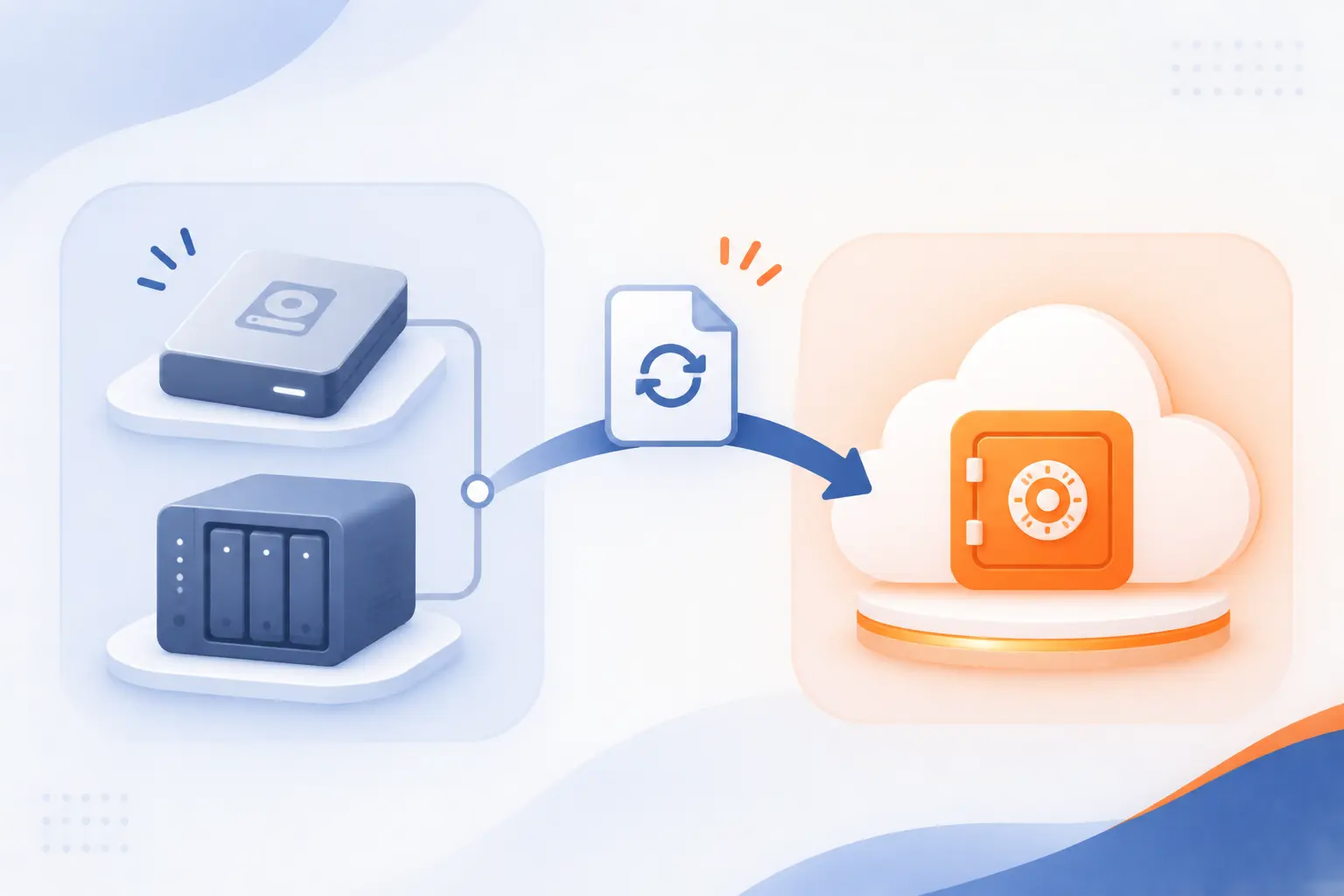
An independent off-site copy should complement convenient local recovery. The right destination depends on the failure you need to survive, not simply the lowest storage price. A nearby disk helps with accessibility, while a separate location protects against losing the premises.
Local Drives and NAS for Accessible Restores and Direct Control
Local storage gives you direct access without first retrieving everything over the internet. The products above document external-drive, network-share, and NAS destinations, although support varies by edition.
| Destination | Documented Examples | Practical Consideration |
|---|---|---|
| Attached drive | IDrive, AOMEI, EaseUS | Keep another copy beyond the same premises. |
| Network or NAS destination | AOMEI, EaseUS, Ashampoo | Confirm recovery-media access to the share. |
We recommend checking destination availability, free space, and recovery access regularly. A drive that is present during setup may be disconnected when the next scheduled job runs.
Cloud Backup for Off-Site Protection and Remote Recovery
Remote storage separates recovery data from the original device and location. Bundled services simplify that arrangement, while tools such as MSP360 and Duplicati let you select a destination independently.
Responsibility still needs definition. The shared-responsibility model keeps customer data and access management within the customer’s responsibilities, even as infrastructure duties change between service types.
Ask who configures retention, investigates failed jobs, and authorizes restoration. Paying for a cloud account does not answer those operational questions.
Hybrid Backup for Local Recovery With an Independent Off-Site Copy
Hybrid arrangements combine accessible local archives with a separately retained remote copy. IDrive documents separate local and online jobs, while destination-flexible tools can support independently configured storage arrangements.
We recommend making the separation operational as well as geographical. Avoid depending on an undocumented copy process or assuming that a successful local job proves the remote destination is current. Check both recovery paths.
Understand What Your Backup Actually Captures
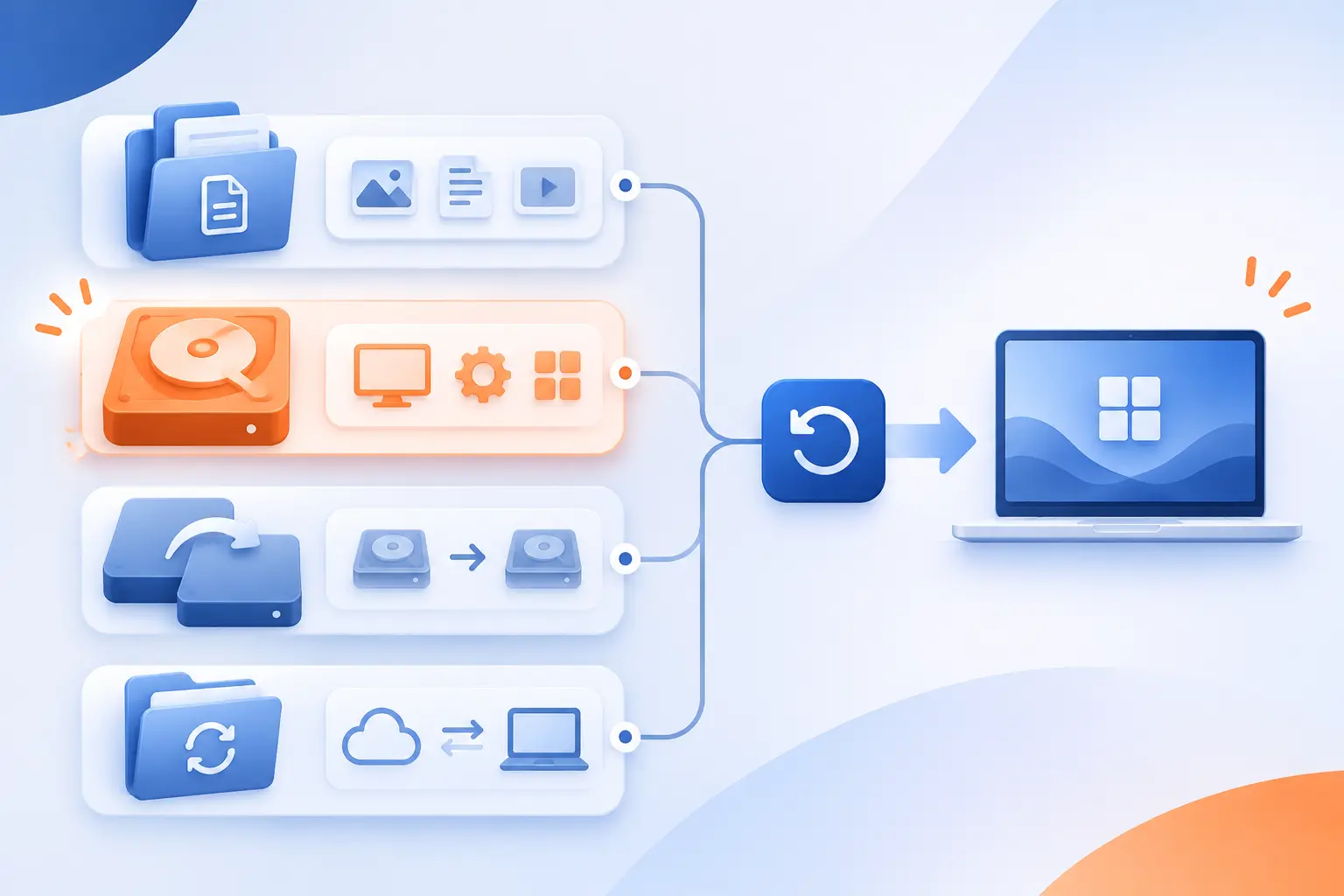
A recovery plan works only when the archive contains what you expect to restore. Files, full images, clones, and synchronized folders serve different purposes. Choose the method around the recovery task rather than the product’s broadest marketing claim.
File and Folder Backups Versus Full System Images
File protection retrieves selected information, while system imaging aims to recover the broader computer environment. The Acronis, EaseUS, and AOMEI documentation illustrates these distinct task types.
| Method | What You Select | Best Starting Point |
|---|---|---|
| Files and folders | Documents and selected paths | Recovering individual information |
| System image | System-related volumes and their contents | Recovering the computer environment |
We would choose an image when reinstalling applications and settings would be disruptive. Still check the product’s hardware and boot-media requirements before assuming restoration to another computer will work.
Disk Cloning for Hardware Migration Versus Versioned Backup Archives
Cloning is primarily a migration tool, while retained archives provide earlier recovery points. Acronis and EaseUS present cloning separately from their scheduled protection workflows.
| Approach | Documented Purpose | Editorial Recommendation |
|---|---|---|
| Disk clone | Copy a drive for replacement or migration | Use for a planned hardware change. |
| Versioned archive | Retain recoverable earlier states | Use for recurring protection. |
We would keep the archive schedule running after a successful migration. A replacement drive does not remove the need to recover yesterday’s deleted document.
File Synchronization Versus Independently Retained Recovery Points
Synchronization keeps locations aligned, but independent retention preserves a recovery state under its own policy. CrashPlan’s endpoint documentation explicitly warns that synchronization can propagate unwanted changes.
| Approach | Main Purpose | Question to Ask |
|---|---|---|
| Synchronization | Keep current information aligned | What happens when a file is deleted? |
| Retained recovery points | Recover an earlier selected state | How long does that state remain available? |
Some synchronization services include recovery features. We would inspect their retention and deletion rules rather than assuming either that synchronization provides no protection or that it replaces an independent archive.
Damaged-Drive Imaging Versus Routine Scheduled Backups
Recovering a failing drive is a specialist rescue task, not ordinary scheduled protection. The published ddrescue recovery manual describes copying readable data while tracking progress through a mapfile.
We would not keep experimenting with routine jobs on the only failing source. Preserve existing copies and seek qualified recovery help when the information is irreplaceable. Rescue work after failure is a fallback, not a replacement for creating recoverable copies beforehand.
Free Data Backup Solutions and Their Real Costs
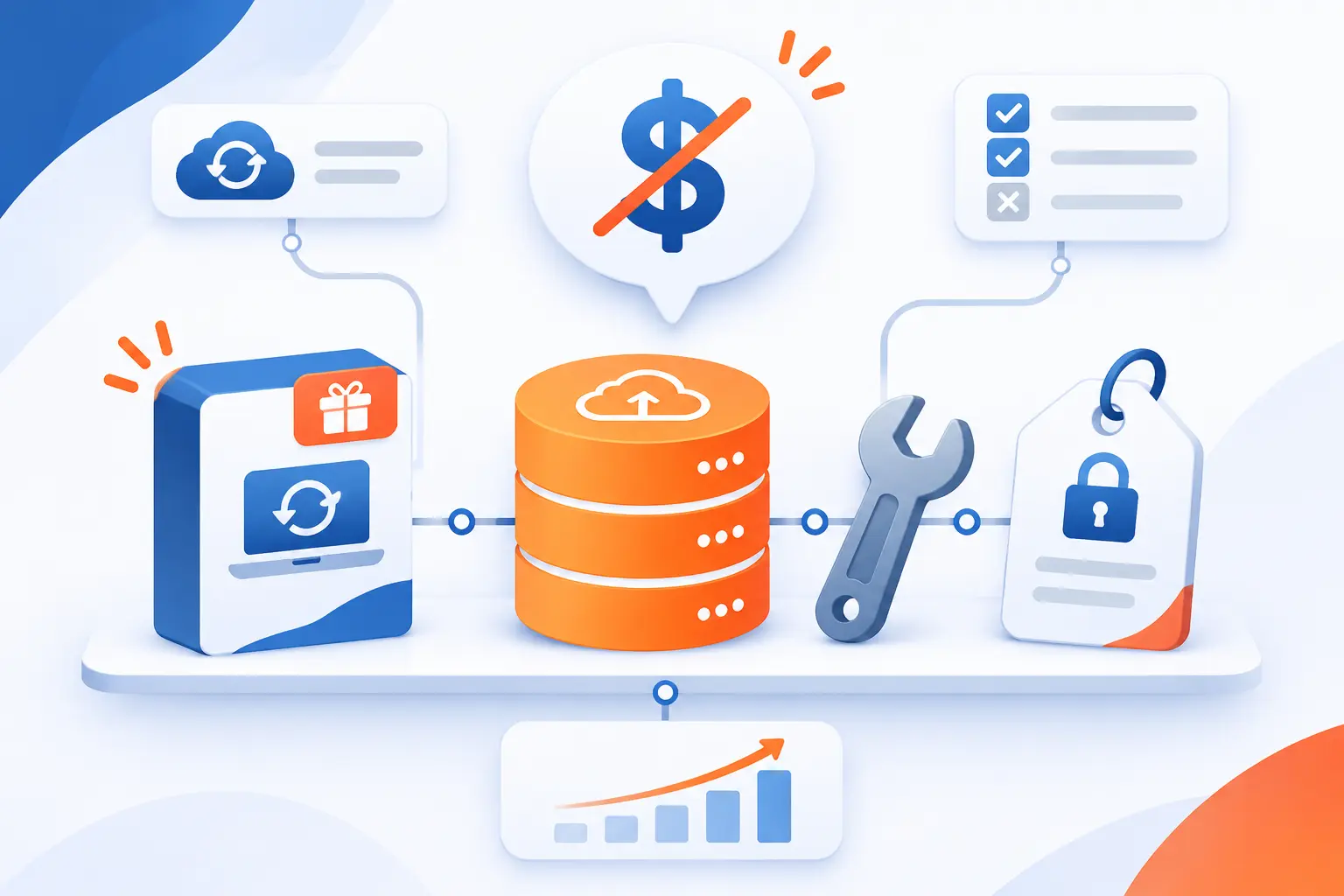
Free data backup solutions can cover substantial personal needs, but the license price is only part of ownership. Storage, administration, commercial-use rights, and upgrade entitlements still matter. We would compare the full arrangement before deciding that free is automatically cheaper.
Free Editions, Free Trials, and Open-Source Licenses
A permanent free edition, a temporary trial, and open-source software are different offers. The product pages above demonstrate why those labels should not be used interchangeably.
| Offer | Example | What to Verify |
|---|---|---|
| Free edition | AOMEI Standard | Feature and usage restrictions |
| Temporary trial | MSP360 managed trial | What stops when the trial ends |
| Open-source client | Duplicati | Storage and maintenance responsibilities |
Built-in tools also deserve consideration. Windows File History supports external-drive or network-location copies without purchasing another application. Its scope is personal files, not every system-recovery requirement.
Personal-Use Restrictions and Features Reserved for Paid Editions
Commercial-use permission can matter more than an extra feature. Paragon Community Edition excludes commercial use, and ASCOMP distinguishes private Standard use from Professional business use.
We recommend checking the license before installing a free edition on work devices. Then compare encryption, cleanup, migration, notification, and server capabilities against the paid-edition documentation. Do not buy an upgrade until you can name the missing requirement.
Storage Charges, Hardware Costs, Renewal Rates, and Recovery Fees
Total cost includes the destination and recovery route, not just the application. The researched pricing pages show several distinct charging models.
| Cost Type | Where It Appears | What to Check |
|---|---|---|
| Renewal pricing | Discounted consumer subscriptions | Regular price after the offer |
| Destination charges | Bring-your-own-storage tools | Capacity, requests, and transfer |
| Recovery service | Physical shipment options | Eligibility, charges, and return terms |
We would also budget for replacing local media and retaining enough space for the intended history. A low initial price is less persuasive if the recovery process is unaffordable or incomplete.
Community Support, Maintenance Responsibilities, and Paid Upgrade Paths
Support arrangements determine who helps when the documented workflow fails. MSP360 Free identifies forum support, while paid and managed offerings provide different assistance routes.
We recommend assigning an owner even for household protection. That person should review job status, maintain recovery instructions, and understand license renewal or upgrade conditions. Open-source availability does not transfer those responsibilities to the community.
Protect Backups Against Ransomware and Unauthorized Access
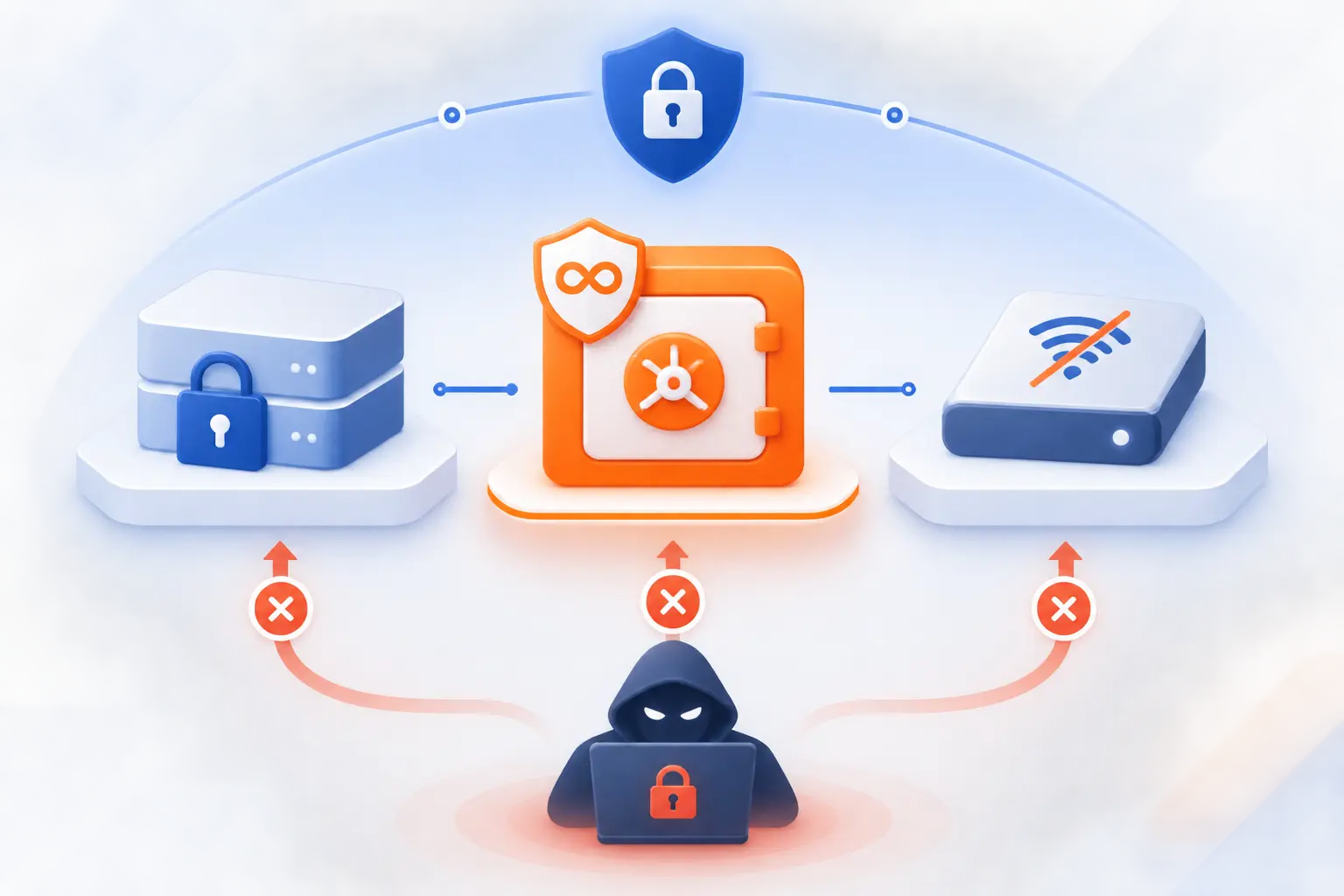
Protection must cover the recovery copies as well as the original files. Retention, restricted access, encryption, and offline or immutable copies address different risks. No single feature should be treated as a complete ransomware strategy.
Version Retention, Immutable Storage, and Offline Copies
Keep recovery points that an attacker cannot easily alter or delete. The federal ransomware guide recommends offline, encrypted copies and regular recovery checks.
Immutable storage is another option when configured correctly. Official S3 documentation explains Object Lock retention and legal holds. Governance and compliance controls have different consequences, so review permissions and retention settings before enabling them.
We would choose retention long enough to cover delayed discovery, then rehearse recovery from an older point. Keeping history is useful only if you can identify and restore a suitable version.
Encryption, Private Keys, and Safe Passphrase Storage
Encryption protects confidentiality, but losing the required key can also prevent legitimate recovery. IDrive’s private-key warning explicitly says the provider does not retain that key.
We recommend storing recovery secrets separately from the computer being protected. Include a controlled way for an authorized person to access them during an emergency. An encrypted archive without an available passphrase is not a usable recovery plan.
Multifactor Authentication, Access Controls, and Data Residency
Account access and storage location need their own review. The business offerings above document combinations of multifactor authentication, single sign-on, role-based permissions, or destination choice.
We would require a clear answer to who can restore, delete, or change retention. Also confirm the actual storage region for the selected service and contract. A provider’s global presence does not establish where your particular dataset resides.
Why Antivirus and Threat Detection Do Not Replace Recoverable Backups
Threat prevention and recovery solve different problems. Acronis and Carbonite bundle security features with some plans, but their recovery workflows remain separate functions.
We recommend treating detection as an additional layer, not permission to remove retained copies. The ransomware guidance also emphasizes rebuilding and restoring critical systems, which still requires accessible data and a practiced response.
Build a Backup Routine You Can Restore From
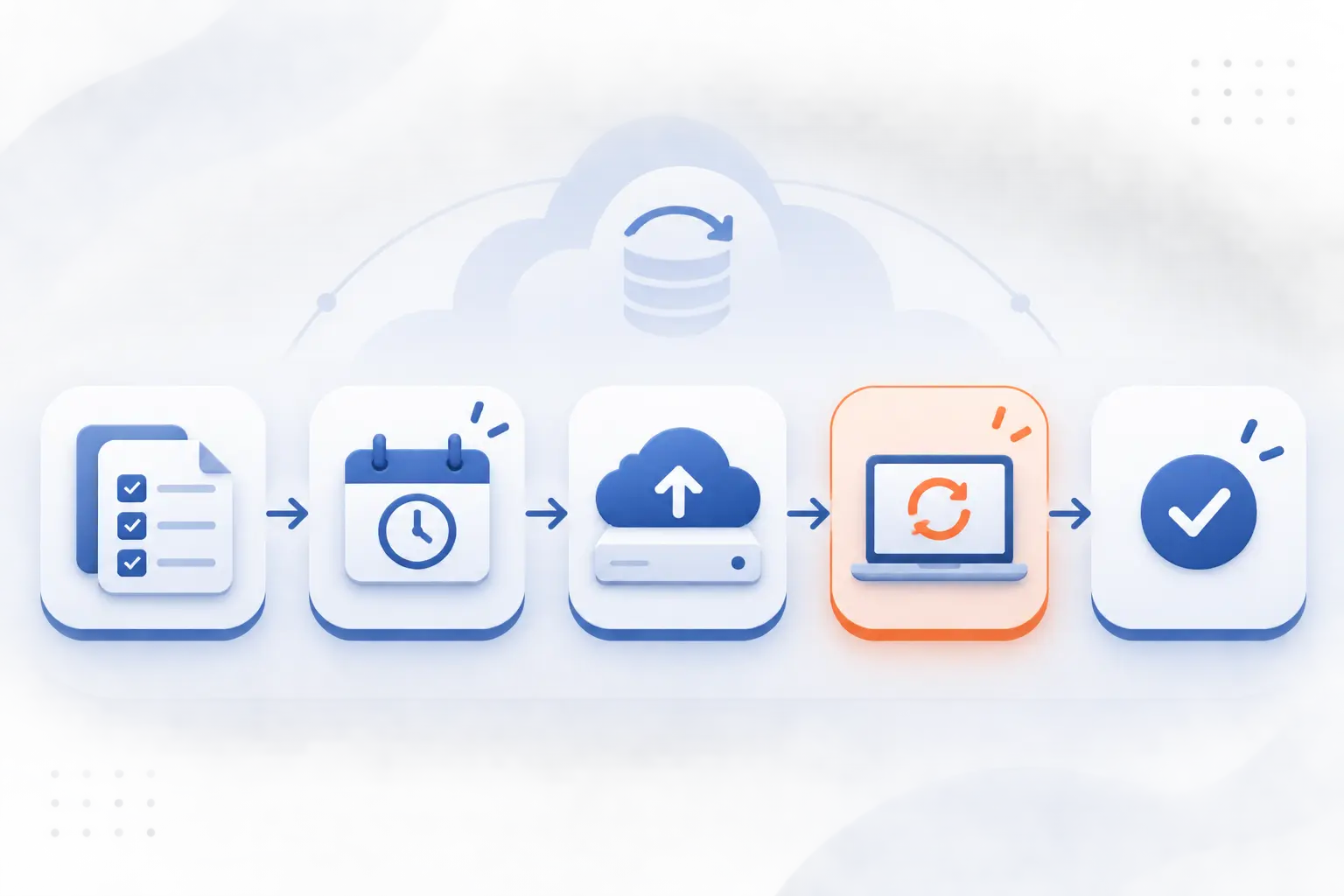
A dependable routine starts with recovery priorities and ends with a demonstrated restoration. Scheduling alone is not enough. We would establish the following process before increasing retention complexity or buying additional features.
Identify Critical Files, Devices, Applications, and Recovery Priorities
List what must return first, including application data and access credentials. The infrastructure and endpoint documentation above shows why protecting ordinary folders may not cover every business workload.
- List important devices, data locations, applications, and account owners.
- Identify which items need file recovery and which require system or application recovery.
- Choose independent destinations and an appropriate retention policy.
- Configure schedules, notifications, and a person responsible for checking results.
- Prepare recovery tools and rehearse the required restoration paths.
Apply the 3-2-1 Rule Across Independent Backup Destinations
Use independent copies so a single incident does not remove every recovery option. The federal guidance defines three copies, two media types, one off-site.
We would check independence rather than simply counting folders. Copies sharing the same location, access path, or unreviewed deletion process may not address the failures you intended to cover.
Schedule Backups Around Acceptable Data Loss and Available Bandwidth
Choose frequency around how much recent work you can afford to lose. The researched tools provide different combinations of continuous detection, scheduled jobs, and administrator-defined intervals.
We recommend confirming that jobs actually finish within the available connection and operating window. A frequent schedule is not meaningful if uploads remain incomplete or the protected device is normally asleep.
Set Retention Rules and Monitor Failed or Incomplete Jobs
Retain history deliberately and investigate missing recovery points. Duplicati documents retention cleanup, while managed offerings such as MSP360 add centralized reporting and alerts.
We would check the last completed recovery point, not only whether the application is running. Review exclusions and destination capacity when expected files or versions are missing.
Create Bootable Recovery Media and Practice File and System Restores
Practice the same recovery task you expect to need during failure. The imaging tools above document rescue environments, while file-focused services provide different retrieval routes.
We recommend restoring selected files into another folder first. For system recovery, also confirm startup, destination visibility, credentials, and the required archive. Record what another authorized person would need if the original computer were unavailable.
When Business Continuity Requires More Than Backup
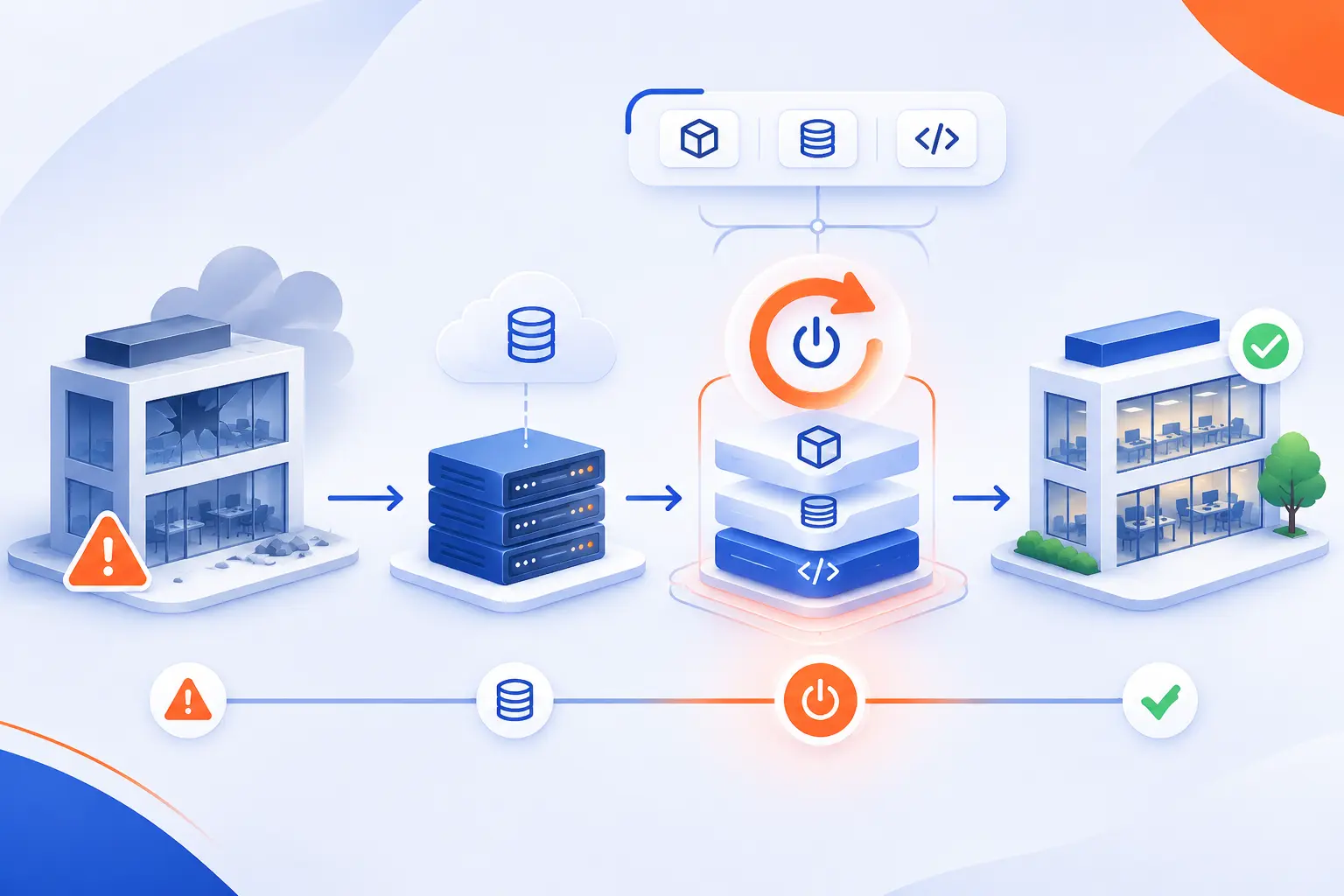
Business continuity requires a way to resume operations, not merely a place to retrieve files. Applications, replacement infrastructure, access, and recovery sequencing can determine the real downtime. We would address these requirements before buying higher-tier disaster-recovery features.
Translate Downtime and Data-Loss Tolerance Into Recovery Objectives
Define acceptable downtime and acceptable data loss before choosing the architecture. The contingency-planning guidance uses recovery objectives and business impact analysis to guide planning.
A recovery time objective describes the targeted restoration period. A recovery point objective describes the acceptable point of data recovery. We recommend writing these requirements for each critical service rather than applying a single target to everything.
Plan Failover and Disaster Recovery as a Service for Critical Systems
Critical services may need replacement execution capacity as well as retained data. Veeam’s replication and orchestration capabilities illustrate why business recovery can extend beyond archive retrieval.
We would ask a disaster-recovery provider about application dependencies, networking, access, failback, and rehearsal arrangements. A promised restore route is not the same as an agreed process for bringing the service back into production.
Extend Protection to Remote Offices, Edge Devices, and Cloud Applications
Every important data location needs an explicit owner and coverage decision. CrashPlan, IDrive, and IONOS distinguish endpoint, server, and cloud-application offerings rather than treating them as interchangeable.
We recommend checking remote devices and hosted applications separately. Confirm whether the proposed plan protects locally stored files, the underlying service data, or both. Then document who performs recovery when the usual administrator or office is unavailable.
Frequently Asked Questions About Data Backup Solutions
The best answers depend on your recovery scope and whether storage is bundled. These questions address common points that can otherwise lead buyers toward the wrong category of product.
What Is the Best Cloud Backup Solution for Personal or Business Use?
We would start with IDrive for multiple personal devices and Backblaze for straightforward protection of an individual computer. Businesses should compare MSP360, Veeam, CrashPlan, and IONOS against their actual workloads and administration requirements. The best choice is the one whose documented recovery process matches what you need back.
How Much Does 1 TB of Cloud Backup Cost Compared With Cloud Storage?
There is no universal price because bundled protection services and raw storage charge differently. As a storage-only reference, B2 advertises $6.95 per TB monthly, before considering the protection software and the arrangement’s other requirements. Compare the complete bill, including retained versions, transfer conditions, software, and support, rather than capacity alone.
What Are the Three Main Types of Data Backup?
The conventional types are full, incremental, and differential. Full copies the selected dataset, incremental captures changes since the preceding relevant job, and differential captures changes since the latest full copy. The researched desktop tools document these methods, but the required recovery chain and implementation should be checked in the selected product.
How Do I Back Up My Computer Using Built-In Operating System Tools?
On Windows, open Windows Backup and configure the supported folders and preferences, or use File History for local file copies. The documented Windows account and folder workflow uses a personal Microsoft account and OneDrive for selected folders. On a Mac, connect a suitable destination and follow the Time Machine setup instructions. Confirm the protected scope rather than assuming either workflow is identical to a complete disk image.
Can I Recover Deleted Files if I Never Created a Backup?
Sometimes, but recovery is not guaranteed without an existing copy or retained version. First inspect the recycle bin, application history, and any service retention already enabled. If the only source is a failing device or irreplaceable information is involved, avoid further experimentation and seek qualified recovery assistance.


Conclusion
The right data backup solutions match the recovery task, not simply the largest feature list. We would shortlist IDrive for shared-device coverage, Backblaze for automatic personal file protection, and Acronis or EaseUS for personal system recovery. AOMEI and Paragon provide useful free starting points within their edition and licensing boundaries.
For managed business infrastructure, compare MSP360’s destination flexibility with Veeam’s workload recovery capabilities. Duplicati and Bacula offer greater control when someone can maintain the configuration. The additional options deserve consideration when their particular service model or feature set fits better.
Choose your shortlist, confirm the complete cost, and document how you would restore. Then recover a real file before calling the job finished. Which files or systems would you need back first if your primary device stopped working?