


- Quick Comparisons and How We Selected These Editors
- Top 10 AI Video Editor Picks for Different Workflows
- 5 More AI Video Editors Worth Considering
- Understand What an AI Video Editor Actually Does
- Match AI Features to the Videos You Make
- Look Beyond the Free AI Video Editor Label
- Build a Reliable AI-Assisted Editing Workflow
- Check Privacy, Media Rights, and Voice Consent Before Uploading
- Frequently Asked Questions
- Conclusion
The best AI video editor depends on what you need to finish, not how many AI features appear on its homepage. We would shortlist Descript for spoken-word editing, CapCut for social content, and Adobe Premiere or DaVinci Resolve for detailed production work. OpusClip makes more sense when your main job is turning long recordings into shorter clips.
We researched official product pages, pricing, documentation, and independent reviews to compare these options. This is a research-based assessment, not a hands-on benchmark. Below, we explain where each tool fits, what its plans include, and which limitations deserve attention before you subscribe.
Quick Comparisons and How We Selected These Editors

Start by matching the editor to your source footage and final deliverable. These products range from full desktop production suites to browser-based clipping services and generative workspaces. Our scores reflect their documented capabilities, practical restrictions, pricing clarity, and independent feedback.
FURTHER READING: |
| 1. Best AI PowerPoint Generator: 15 Tools Compared |
| 2. Best AI Resume Builder: 15 Tools Compared by Need |
| 3. Best AI Image Generator: Compare 15 Leading Tools |
AI Video Editors Compared by Best Use, Platform, Price, and Export Limits
Descript is our broadest recommendation for speech-led content, while the other picks serve more specific workflows. The table uses qualitative pricing summaries to keep billing details and numerical allowances in the individual reviews. N/A means we could not verify a dependable answer from the pages available.
| Editor | Best use | Platform | Pricing model | Export limits to check | Score |
|---|---|---|---|---|---|
| Descript | Podcasts and talking-head edits | Web, Windows, macOS | Free and per-person subscriptions | Resolution and watermark depend on plan | 4.7 |
| CapCut | Social videos and styled captions | Web, desktop, mobile | Free, individual, and team subscriptions | Features and checkout vary by account | 4.2 |
| Adobe Premiere | Professional timeline editing | Windows, macOS, mobile | Subscription | Format and hardware requirements apply | 4.6 |
| DaVinci Resolve | Editing, color, and audio finishing | Windows, macOS, Linux | Free or paid Studio license | Free edition has format and output restrictions | 4.7 |
| VEED | Browser-based captions and branded content | Web, mobile apps | Free and per-user subscriptions | Resolution depends on plan | 4.3 |
| Kapwing | Shared browser projects and localization | Web | Free and paid workspace plans | Duration, watermark, and resolution restrictions | 4.3 |
| OpusClip | Repurposing long recordings | Web | Free, subscriptions, and custom business plans | Free clips have restricted editing and availability | 4.4 |
| Riverside | Recording and editing remote conversations | Web, recording apps | Free, subscriptions, and custom business plans | Separate-track downloads have plan allowances | 4.5 |
| Canva | Branded marketing videos and supporting graphics | Web, desktop, mobile | Free, subscriptions, and enterprise contracts | N/A for a universal plan-wide export ceiling | 4.2 |
| Runway | Generating and transforming visual assets | Cloud-based workspace | Free credits and paid subscriptions | Model output differs from upscaled delivery | 3.9 |
How We Cross-Checked Roundup Recommendations, Verified Products, and Evaluated Trade-Offs Without Claiming Hands-On Testing
We treated the supplied shortlist as a candidate list, then checked product claims against primary sources. Other roundup recommendations were not accepted as evidence. We opened official pages and review profiles, separating vendor descriptions from customer feedback and our own editorial judgments.
Each score uses the same criteria, judged against the product’s intended workflow:
- Workflow fit: We assessed whether documented features address a clear editing job without requiring an unrelated product to finish the essential work.
- Control and deliverability: We examined editable outputs, timeline access, export restrictions, and options for correcting automated decisions.
- Value and pricing clarity: We compared plan inclusions, billing commitments, usage allowances, and how confidently readers can estimate their actual costs.
- Accessibility: We considered the documented interface, supported platforms, and learning demands described in independent reviews.
- Trust and operational limits: We considered review themes, collaboration restrictions, privacy information, and limitations that could interrupt production.
The scores are our judgments, not third-party ratings or measured performance results. List order follows workflow usefulness rather than a strict score ranking. Where a page was incomplete or contradictory, we say so instead of filling the gap.
Top 10 AI Video Editor Picks for Different Workflows
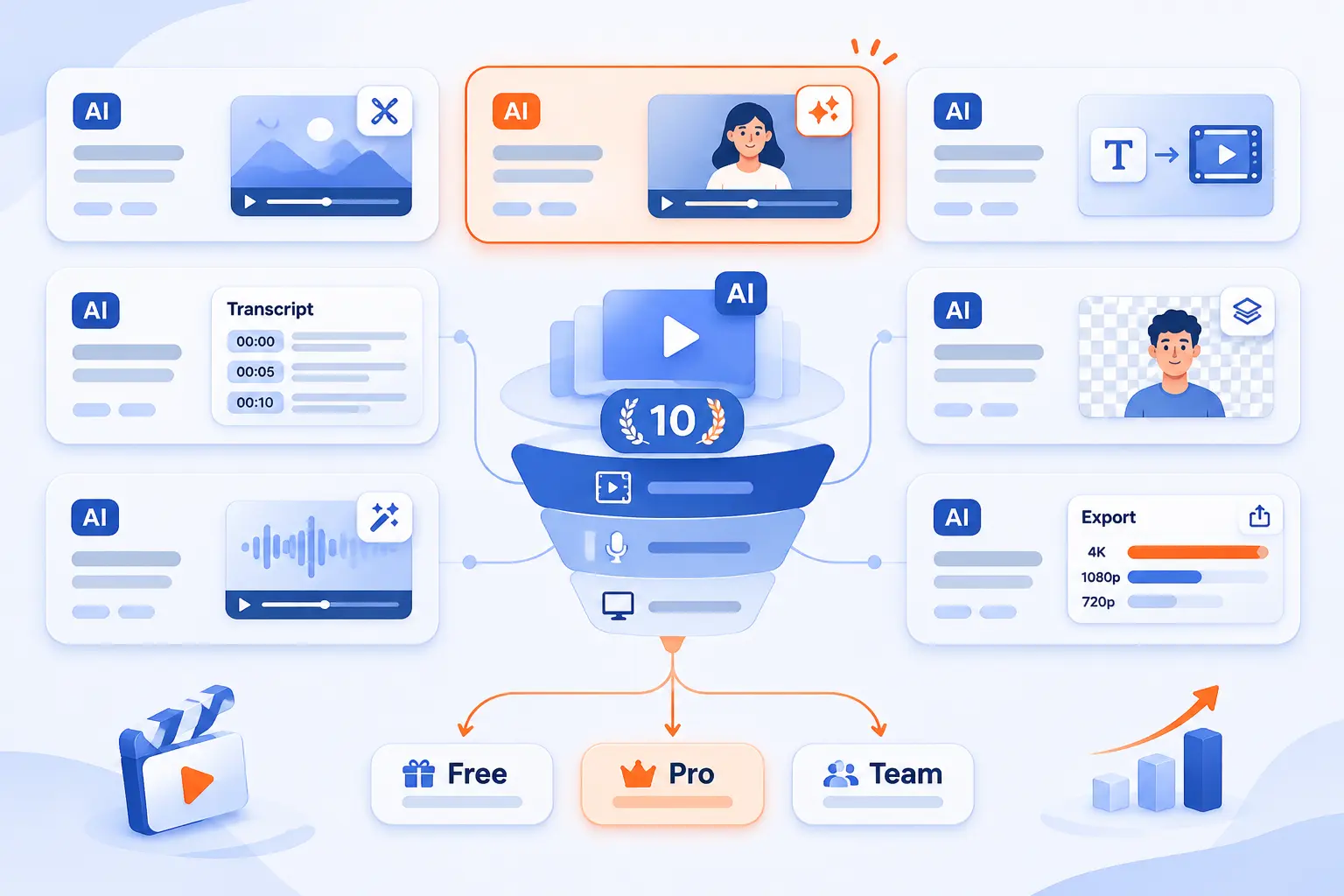
These ten picks cover the most useful starting points for editing existing footage, recording conversations, and creating visual assets. Choose the workflow first, then compare the relevant paid plans. A low subscription price means little if the export or collaboration limits block your actual project.
1. Descript

- Category: Transcript-based audio and video editor
- Best for: Podcasts, interviews, tutorials, and talking-head content
- Ease of use: Approachable text-first workflow, with deeper controls to learn
- Pricing: Free plan and per-person subscriptions
- Standout feature: Underlord editing agent
Editing the transcript instead of hunting through a timeline makes this our strongest starting point for speech-led videos. The product combines text-based cutting with recording, captions, audio enhancement, and an editing agent. That combination matters more for an interview than a large collection of visual effects.
We put it first because its central workflow is easy to understand. Find the words you want to remove, adjust the surrounding edit, and review the result. The appeal is especially clear when a producer or writer needs to shape the story before a specialist handles finishing.
However, an approachable starting point does not eliminate editing judgment. We would still inspect every removed phrase, reaction shot, and shortened pause. A cleaner transcript is not automatically a better conversation.
How Descript works
Start by importing footage or making a recording, then work from the resulting transcript. Text changes control the associated media. Scenes and layouts handle visual arrangement, while tools such as Studio Sound and Remove Filler Words address recurring cleanup tasks.
The documented agent-directed workflow adds plain-language instructions for edits, layouts, clips, and repeated changes. You can ask for a focused adjustment, inspect the result, and continue manually. We see that as a useful middle ground between automatic assembly and full timeline editing.
For a podcast, we would organize the conversation before adding visual polish. Remove the sections that do not serve the episode, review transitions, and only then generate social clips. That order avoids spending attention on material that may disappear from the final cut.
We would also keep voice regeneration separate from ordinary cleanup. Fixing a recorded stumble and synthesizing replacement speech involve different approval decisions. Make the speaker’s consent and the intended wording explicit before using the latter.
Who is Descript for?
Descript fits creators whose videos depend on spoken explanations. Podcasters, educators, interview producers, and small marketing teams should find its documented workflow particularly relevant. It also deserves a look when the person editing thinks more naturally in paragraphs than tracks.
Our advice is to choose it for the editorial stage, not simply because it includes AI. If your hardest problem is deciding which explanation belongs in the video, transcript editing is a meaningful advantage. If your hardest problem is detailed compositing or advanced color finishing, start elsewhere.
Descript pricing
- Free: $0, with basic text-based editing, limited AI access, and watermarked exports.
- Hobbyist: $16 per person monthly with annual billing, or $24 monthly, including 10 media hours, 400 monthly AI credits, and watermark-free 1080p exports.
- Creator: $24 per person monthly with annual billing, or $35 monthly, including 30 media hours, 800 monthly AI credits, higher-resolution exports, and stock media access.
- Business: $50 per person monthly with annual billing, or $65 monthly, including 40 media hours, 1,500 monthly AI credits, Brand Studio, and translation with dubbing.
- Enterprise: Custom pricing, with tailored usage, data controls, administrative features, and onboarding.
Compare media processing and AI allowances separately in the full plan breakdown.
Pros and cons
Pros
- Transcript edits provide a direct way to restructure spoken content.
- Underlord, Studio Sound, and filler-word removal address different production stages.
- Business adds shared branding rather than treating every project as an isolated design.
Cons
- Media hours and AI credits are separate allowances to monitor.
- Additional editors are billed separately.
- G2 reviewers describe resource demands and occasional slow performance.
Descript rating and reviews
- G2: Rated 4.6/5 across 934 reviews.
Reviewers favor the text-based approach, while performance complaints suggest checking your own project demands before committing. We would shortlist Descript first for spoken-word work, then compare its allowances against your monthly recording volume.
2. CapCut

- Category: Cross-platform video editor
- Best for: Social content, captions, and template-led videos
- Ease of use: Accessible starting tools, with more advanced desktop controls
- Pricing: Free, Pro, Ultra, and Teams
- Standout feature: Social styling combined with desktop timeline editing
Social-first styling is the clearest reason to choose this option over a transcript-focused editor. Captions, templates, background removal, voice tools, and timeline editing sit within the same product family. We would shortlist it when the final video needs a recognizable social format rather than elaborate post-production.
Its platform range is useful, but we would not assume every feature behaves identically everywhere. A mobile project, browser session, and desktop subscription can involve different practical choices. Check the version you intend to use, not just a demonstration from another device.
CapCut also receives a more cautious recommendation than its feature list alone might suggest. The independent feedback we opened raises substantial concerns about billing, support, and reliability. Those complaints deserve attention before an annual purchase.
How CapCut works
You can begin with your own clips or a template, arrange material on a timeline, and add captions or other effects. The official site also separates editing existing media from generating new material. That distinction helps avoid buying generation capacity when your real need is cutting recorded footage.
On desktop, focused plain-language requests can direct EditPilot to handle supported tasks such as filler-word removal, caption creation, and speech cleanup. The documentation emphasizes inspecting changes on the timeline. We agree with that approach.
For social work, we would first decide which visual elements are genuinely required. Add the caption style, crop, and essential overlays before experimenting with decorative effects. This makes it easier to spot a paid asset that changes the project’s export requirements.
We would also run an early export with representative assets. Do this before polishing the whole video. The relevant question is whether your exact combination of effects, fonts, and settings can be delivered under your account.
Who is CapCut for?
CapCut fits creators who want hands-on control over short videos without starting in a professional finishing suite. It is a reasonable candidate for promotional clips, creator content, and visually styled explainers. Teams should examine the dedicated collaboration offering rather than assuming an individual subscription covers everyone.
We would look elsewhere if predictable procurement and support are your highest priorities. A technically capable editor can still be a poor business fit when subscription administration becomes a recurring distraction.
For occasional projects, begin with the free tools and a real export requirement. Upgrade only after identifying the specific feature you need. That is a safer decision than subscribing because a template looks appealing.
CapCut pricing
- Free: $0, including basic editing tools and free templates.
- Pro: $19.99 monthly, including 1,200 monthly AI credits, premium templates, Pro features, and cloud storage.
- Ultra: $79 monthly, including 8,645 monthly AI credits, Pro inclusions, and additional AI features.
- Teams: The displayed small-team configuration starts at $12.49 per seat monthly, with shared Pro access, a Brand Kit, and per-seat AI allowances.
The vendor explicitly calls displayed prices reference figures, so confirm your account’s final terms on the subscription comparison page.
Pros and cons
Pros
- Templates, captions, background removal, and voice enhancement cover common social-video tasks.
- EditPilot works inside the desktop timeline rather than producing only a finished file.
- Teams includes a Brand Kit and shared access to Pro features.
Cons
- Final prices depend on the signed-in account and applicable offers.
- Trustpilot feedback repeatedly mentions unexpected charges and cancellation difficulties.
- Reviewers also report export problems and inconsistent automated results.
CapCut rating and reviews
- Trustpilot: Rated 1.2/5 across 1,383 reviews.
We consider CapCut a capable social-content candidate with a meaningful purchasing caveat. Validate your exact workflow and billing terms before making it your default editor.
3. Adobe Premiere

- Category: Professional timeline editor
- Best for: Detailed productions and Adobe-centered teams
- Ease of use: Requires more learning than template-led tools
- Pricing: Individual, education, and business subscriptions
- Standout feature: AI assistance within a full production workflow
Professional timeline control is the reason to choose this pick, with AI serving as an assistant rather than the whole product. Text-Based Editing, media search, speech enhancement, and masking sit alongside detailed editing tools. We would shortlist it when automated work must remain part of a larger, editable production.
The surrounding ecosystem also matters. Adobe’s plans connect Premiere with review tools and, in larger bundles, applications such as After Effects. That can make more sense for an established creative team than adopting a separate service for every task.
However, we would not recommend a full professional subscription merely to add captions to occasional clips. The learning commitment and billing structure should match the work you expect to do.
How Adobe Premiere works
Import footage, build a sequence, and use the timeline for precise arrangement. For dialogue-heavy material, the transcript-to-timeline workflow lets you select, cut, copy, and rearrange spoken passages. Corresponding video changes appear in the sequence.
The documentation also describes speaker filtering and bulk removal of detected filler words. You can then refine timing and transitions directly on the timeline. Captions are a separate finishing step, not simply the editing transcript repackaged automatically.
We would use that division deliberately. Assemble the story from dialogue first, then inspect the visual edit and generate captions from the approved sequence. Otherwise, caption correction may be wasted on sections that later move or disappear.
For teams, review and approval should be part of the plan comparison. A useful editing feature is less valuable if the producer cannot communicate changes clearly. Check who needs an editing license and who only needs to review the result.
Who is Adobe Premiere for?
Premiere fits professional editors, agencies, in-house creative teams, and ambitious creators who need detailed control. It is particularly relevant when other project stages already use Adobe applications. The strongest justification is a production requirement, not familiarity with the brand.
We would also consider it when a project will pass between editors. A full sequence gives the next person more to work with than a single rendered clip. That matters when clients request structural revisions after the initial edit.
Beginners making simple social videos should compare CapCut, Canva, or Descript first. Those tools may better match the task without requiring a professional editing environment.
Adobe Premiere pricing
- Premiere: The displayed U.S. starting offer is $22.99 monthly on an annual, monthly-billed subscription, with Premiere, Adobe Express Premium, and Frame.io access. The product page identifies introductory eligibility conditions.
- Creative Cloud Pro: Regular individual pricing is $69.99 monthly on an annual, monthly-billed subscription, including Premiere, additional creative applications, and a larger generative allowance.
- Creative Cloud Pro for students and teachers: Eligible subscribers see $19.99 monthly for the first year, then $39.99 monthly, with the creative application bundle and premium generative access.
- Premiere for teams: $37.99 per license monthly, annually committed and monthly billed, with business administration, deployment tools, and company asset controls.
- Creative Cloud Pro for teams: $99.99 per license monthly on the same billing structure, adding the wider application bundle and business features.
Introductory offers differ from renewal costs, so inspect the plan and commitment details before purchasing.
Pros and cons
Pros
- Text-Based Editing preserves direct access to the sequence timeline.
- Frame.io supports a defined review and approval stage.
- Business subscriptions include license administration and asset-recovery controls.
Cons
- Annual commitments can apply even when payments arrive monthly.
- Text-Based Editing and caption production are separate workflows.
- G2 reviewers describe resource demands and occasional performance problems.
Adobe Premiere rating and reviews
- G2: Rated 4.5/5 across 1,697 reviews.
Our verdict is straightforward: choose Premiere when you need the production environment around its AI features. For a narrower editing job, the subscription may buy more complexity than value.
4. DaVinci Resolve

- Category: Professional post-production suite
- Best for: Editing, color grading, visual effects, and audio finishing
- Ease of use: Significant learning curve for beginners
- Pricing: Free edition and paid Studio license
- Standout feature: Integrated finishing tools with Studio-only AI features
A substantial free production suite makes this the strongest value candidate for editors willing to learn a deeper application. Editing, color, Fusion visual effects, and Fairlight audio share one environment. The paid Studio edition adds important AI capabilities rather than merely removing a watermark.
We rank it highly because the free edition is useful beyond a short trial. That does not mean it includes every feature promoted across the product family. The distinction between Resolve and Resolve Studio is central to an informed purchase.
For readers comparing an AI video editor with a traditional suite, this is a useful reality check. Automation may shorten particular tasks, but the wider application remains a professional editing system.
How DaVinci Resolve works
Import material into the Media Pool, assemble footage on the Cut or Edit page, and move into the relevant finishing workspace. Color handles grading, Fusion handles compositing, and Fairlight handles audio. This separation gives different production tasks their own controls without requiring separate project files for every stage.
The documented assembly and trimming controls include drag-and-drop editing, traditional editing operations, transitions, and titles. We would learn those fundamentals before relying on automation. They provide the fallback when an automatic choice needs correction.
Studio’s Neural Engine adds tools such as Magic Mask, Smart Reframe, and Super Scale. Resolve 21 also introduces further AI functions, including content search and slate metadata extraction. Check the edition required for the particular feature you want.
Our suggested starting project would be deliberately ordinary. Assemble a short sequence, balance its audio, make basic color adjustments, and export the required format. That tells you more about suitability than experimenting only with an impressive AI effect.
Who is DaVinci Resolve for?
Resolve fits editors who want to develop production skills and keep detailed control over the final image and sound. It is particularly attractive when subscription avoidance matters. The free edition also gives learners a meaningful way to explore the application before purchasing Studio.
We would consider Studio when a specific paid capability removes recurring manual work. Examples include subject isolation, advanced noise reduction, or text-based editing. Buying it for an identified production need is easier to justify than buying it for an unspecified collection of AI tools.
Look elsewhere if your priority is a quick browser workflow or automatic social styling. A professional suite can be excellent software and still be the wrong fit for a simple captioning task.
DaVinci Resolve pricing
- DaVinci Resolve 21: Free, including editing, color, Fusion, Fairlight, and multi-user collaboration. The documented free-edition output ceiling is Ultra HD 3840 × 2160 at up to 60 fps, with format restrictions.
- DaVinci Resolve Studio 21: The opened page displayed a promotional $236 purchase price against a $295 list price, including Neural Engine features, text-based editing, Magic Mask, and additional noise-reduction tools.
The product page linked above contains the purchase options, so we have not repeated that URL. Treat the displayed discount as an offer to verify, not the permanent cost of ownership.
We would also budget for the computer, storage, and monitoring needed by your projects. A license without recurring billing does not make demanding footage inexpensive to process.
Pros and cons
Pros
- The free edition includes complete editing, color, visual-effects, and audio workspaces.
- Studio combines AI tools with detailed manual correction.
- Windows, macOS, and Linux versions support different desktop environments.
Cons
- Text-based editing and several prominent AI functions require Studio.
- Free-edition format and output restrictions matter for professional delivery.
- G2 feedback repeatedly identifies the beginner learning curve.
DaVinci Resolve rating and reviews
- G2: Rated 4.7/5 across 223 reviews.
We would choose Resolve for long-term editing depth and Studio for clearly identified paid features. It is less convincing when the only goal is avoiding a few manual cuts.
5. VEED

- Category: Browser-based creation and editing platform
- Best for: Captions, promotional content, and branded short videos
- Ease of use: Beginner-oriented browser workflow
- Pricing: Free and paid per-user plans, with checkout verification needed
- Standout feature: Captions, generation, and branding in one workspace
Browser-based captioning and branded video production are the strongest reasons to consider this platform. Its product pages combine existing-footage editing with voice, avatar, translation, and generation features. We would shortlist it for teams that want accessible content production without moving into a desktop finishing suite.
The main caution from our research concerns pricing transparency. The official pricing page opened, but its dynamic plan cards did not render dependable prices in our research interface. We will not turn third-party figures into supposedly verified official prices.
That limitation does not erase the product’s appeal. It does mean readers should verify the signed-in offer before comparing its cost with another editor. For a commercial shortlist, an unknown price remains an unknown price.
How VEED works
You can upload existing media or begin with a generated asset, then adjust the video in a browser workspace. The official product descriptions cover subtitles, audio cleanup, background removal, branding, and different aspect ratios. These are relevant tasks for promotional and social content.
The script-to-assembly documentation makes an important distinction: the described Gen-AI Studio workflow assembles stock clips rather than generating every visual from scratch. A product can offer both functions without those functions being interchangeable.
We would decide which route you need before subscribing. Existing-footage editing, stock-based assembly, and newly generated scenes have different quality checks. A strong subtitle workflow does not prove that generated product visuals will meet your brand requirements.
For teams, create a sample project with the actual fonts, logo, caption style, and delivery format. Then check what another contributor can see and change. That exposes practical collaboration requirements before production spreads across many projects.
Who is VEED for?
VEED fits marketers, founders, educators, and small teams producing videos in a browser. It is especially relevant when captions and consistent presentation matter more than advanced compositing. We would compare it directly with Kapwing for shared online production.
Its combination of creation and editing may also suit teams that alternate between recorded footage and scripted promotional pieces. However, we would evaluate those workflows separately. You should not have to accept weak editing controls just because a generation demonstration looks good.
Look elsewhere if your main requirement is detailed professional finishing or tightly separated project permissions on a self-service plan. Those needs deserve a specific documentation check, not an assumption.
VEED pricing
- Free: A no-cost entry tier exists, with restricted export quality and limited access to paid capabilities.
- Creator: Paid per-user tier. We could verify its existence in official documentation, but not a dependable price from the opened pricing cards.
- Pro: Paid per-user tier with higher documented generation limits than Creator. Its current checkout price requires confirmation.
- Studio: Paid tier with expanded collaboration and longer generation allowances. The official documentation identifies it separately from Pro.
- Enterprise: Contact sales for organization-specific requirements, administration, and commercial terms.
We would request the exact seat count, AI allowance, export rights, and renewal total from the official subscription page before approving a purchase.
This is a case where a missing verified number should affect confidence. If a vendor’s signed-in offer differs from a public comparison, use the offer and preserve a copy of its terms.
Pros and cons
Pros
- Subtitles, voice cleanup, background removal, and brand assets share a browser workspace.
- Existing-footage editing and scripted assembly are both documented.
- G2 reviewers frequently praise accessibility and automatic subtitles.
Cons
- We could not verify reliable paid prices from the rendered official plan cards.
- Official collaboration documentation describes broad project access rather than granular permissions on the covered plans.
- Reviewers identify limits in advanced editing for larger projects.
VEED rating and reviews
- G2: Rated 4.6/5 across 2,192 reviews.
We would keep VEED on a browser-editing shortlist, but make pricing and permissions explicit purchasing conditions. Its convenience should be evaluated alongside those operational details.
6. Kapwing

- Category: Browser-based collaborative editor
- Best for: Shared content production, captions, and localization
- Ease of use: Accessible workspace with task-specific tools
- Pricing: Free, Pro, Business, and Enterprise
- Standout feature: Transcript trimming plus shared branding and dubbing
Shared browser production is where this option earns its place, especially when editing and localization belong in the same workflow. Its documented tools include transcript trimming, subtitle creation, audio cleanup, repurposing, and dubbing. Paid plans add shared workspaces and Brand Kit features.
We would compare it with VEED when several people need access without installing a production suite. The useful distinction is not simply that both run online. It is whether the workspace, allowances, and correction tools fit your team’s recurring tasks.
Kapwing’s pricing page was particularly useful for understanding export restrictions. It separates free-tier limitations from the longer, higher-resolution projects available on paid plans. That makes the upgrade decision easier to explain internally.
How Kapwing works
Begin with uploaded media, arrange the project, and apply the relevant editing tools. The word-linked cutting controls let you remove spoken material through its transcript. Other documented tools include Smart Cut for silences and Speaker Focus for reframing around speakers.
Repurpose Studio adds another route for turning an existing recording into shorter outputs. We would use that for candidate clips, then review their opening, context, and ending manually. A short excerpt needs its own coherent point.
For localization, finish the source-language edit first. Then generate translated versions and review names, product terminology, and timing. We would avoid translating a moving draft unless the deadline makes that unavoidable.
Team organization deserves attention too. Establish a shared caption style and approved brand assets before contributors create separate versions. The point of a shared workspace is consistent production, not merely keeping everyone’s files in the same place.
Who is Kapwing for?
Kapwing fits marketing teams, educators, agencies, and creators who prefer browser-based collaboration. It is a sensible candidate when subtitles and localized versions are regular deliverables. The documented plan progression also suits buyers who need to distinguish individual production from business features.
We would consider Pro for established editing needs and Business when voice cloning, lip sync, or additional credits become necessary. That is more practical than choosing the higher tier simply because its name sounds more suitable for a company.
Look elsewhere if your priority is advanced desktop finishing or avoiding cloud uploads. Also check export behavior using representative projects before committing to a high-volume workflow.
Kapwing pricing
- Free: $0, with watermarked exports, a four-minute project export limit, 720p output, and limited cloud storage.
- Pro: The annual-billing view lists $16 monthly, including 1,000 monthly credits, watermark removal, 4K export, and projects up to two hours.
- Business: The annual-billing view lists $50 monthly, including 4,000 monthly credits, custom voice cloning, lip sync, and additional-credit purchasing.
- Enterprise: Custom pricing, with SAML single sign-on, dedicated account management, onboarding, and custom storage.
Check workspace billing and how credits are shared across features in the complete allowance comparison.
We would not treat the page’s maximum subtitle and dubbing examples as independent unlimited benefits. They describe ways to use credits. Ask what your expected mixture of tasks consumes before comparing plans by their largest advertised allowance.
Pros and cons
Pros
- Transcript trimming, Smart Cut, and Speaker Focus address separate editing problems.
- Pro includes a collaborative workspace, custom fonts, and Brand Kit features.
- Business adds voice cloning and lip sync without requiring an enterprise contract.
Cons
- The free plan restricts duration, resolution, and watermark removal.
- Credit usage must cover your actual mix of localization and AI work.
- G2 feedback includes slow exports and plan-limit frustrations.
Kapwing rating and reviews
- G2: Rated 3.9/5 across 40 reviews.
The review sample is smaller than those for several competitors, so we would not overread the aggregate. Kapwing remains a practical shortlist choice when collaborative browser editing is the requirement.
7. OpusClip

- Category: AI clipping and repurposing platform
- Best for: Turning recordings into social-ready excerpts
- Ease of use: Guided upload-and-review workflow
- Pricing: Free, Starter, Pro, and custom Business
- Standout feature: Highlight selection with reframing and publishing options
Finding usable excerpts from long recordings is the main reason to choose this specialist over a general editor. Upload footage or provide a supported link, then review suggested clips with captions and reframing. We would shortlist it for recurring podcasts, interviews, webinars, and other reusable source material.
The product now extends beyond isolated highlight extraction. Its official release documentation describes broader automatic editing and reusable settings. Even so, we would judge it first on whether it identifies clips worth publishing.
That distinction matters because a polished crop cannot rescue a weak excerpt. The clip still needs a clear opening, enough context, and a satisfying conclusion.
How OpusClip works
Start by importing a recording through a file or supported source. The service analyzes the material, proposes clips, and applies features such as animated captions and automatic reframing. Paid tiers add editing and distribution options.
The official release workflow describes Auto-edit for talking videos and Recipes for saving repeated setups. Those features are relevant when every episode needs a similar treatment. We would establish the preferred style on one approved project before reusing it.
Review each candidate as a standalone video. Ask whether the opening makes sense without the original title or previous question. Then check whether a shortened answer accidentally changes the speaker’s point.
We would treat the Virality Score as a sorting aid, not a forecast. An automated label cannot establish how your audience will respond. Choose clips for relevance and clarity before chasing a predicted outcome.
For more detailed finishing, Pro documents exports to Premiere and Resolve. That gives the tool a useful role before the final edit rather than forcing it to replace every production stage.
Who is OpusClip for?
OpusClip fits creators and teams with a continuing supply of long-form material. It is especially relevant when selecting excerpts is the repetitive bottleneck. If you only produce occasional original clips, a general editor may be the simpler purchase.
We would compare the Starter and Pro plans around workflow requirements, not merely credit totals. Timeline handoff, scheduling, additional import sources, and a shared workspace can matter more than a larger allowance.
Look elsewhere when you need detailed color correction, complex scene construction, or an offline editing environment. This is strongest as a repurposing service, even with its broader automatic-editing features.
OpusClip pricing
- Free: $0, with 60 monthly credits, automatic reframing, captions, watermarked output, and restricted clip availability. Editing is not included.
- Starter: $15 monthly, with 150 monthly credits, animated captions, watermark removal, and filler or silence removal.
- Pro: $29 monthly, or $14.50 monthly when billed annually, with 300 monthly credits, a team workspace, AI B-roll, and professional-editor exports.
- Business: Custom pricing, with tailored credits, seats, social connections, priority processing, and integration options.
Check export availability, rollover rules, and credit top-ups in the plan-by-plan details.
We would avoid using the free tier as an archive. Its restrictions make it better suited to evaluating candidate output than storing an ongoing library. Download approved material and preserve the original recording separately.
Pros and cons
Pros
- Highlight selection, captions, and reframing target a clearly defined repurposing job.
- Recipes preserve a repeatable automatic-editing setup.
- Pro supports handoff to Premiere and Resolve.
Cons
- The free tier does not include editing.
- Free generated clips stop being exportable after three days.
- G2 reviewers describe inconsistent clip selection and manual correction needs.
OpusClip rating and reviews
- G2: Rated 4.6/5 across 124 reviews.
We would choose OpusClip to reduce the search for candidate excerpts, not to outsource editorial responsibility. Approve the story before accepting the styling.
8. Riverside

- Category: Recording, editing, and publishing platform
- Best for: Remote interviews, podcasts, and webinars
- Ease of use: Guided recording with transcript-based editing
- Pricing: Free, Pro, Grow, Webinar, and custom Business
- Standout feature: Recording and repurposing within the same platform
Recording the conversation and editing it in the same service is the clearest advantage here. The platform combines local participant recording with transcript editing, audio enhancement, clips, and publishing. We would consider it before buying separate recording and repurposing subscriptions.
Its value depends on where your workflow begins. If the project starts with remote guests, capture quality and track access are central requirements. If you already have a mature recording setup, some of the platform’s value may duplicate tools you own.
We also found an important pricing-page caveat. The opened page included a staging warning and inconsistent legacy comparison fields. We therefore distinguish clear prices from figures that need direct confirmation.
How Riverside works
Create a recording session, invite participants, and capture their material locally. The platform’s documented approach preserves separate participant tracks rather than relying only on the combined call view. After recording, edit the transcript and apply the relevant audio or repurposing tools.
Magic Clips creates candidate excerpts, while other tools address captions, show notes, and publishing. We would approve the main conversation before producing derivative clips. Otherwise, corrections can multiply across outputs.
For remote interviews, confirm the guest setup before the real session. Make sure everyone understands recording, upload completion, and consent. A strong editor cannot repair a missing source track.
Track downloads also deserve a separate check from recording access. Riverside’s pricing FAQ distinguishes unlimited recording from plan-limited separate-track downloads. That matters if another editor needs the individual files for finishing elsewhere.
We would write those handoff requirements into the purchase decision. Ask who needs the original participant tracks, how often they download them, and whether the plan covers that volume.
Who is Riverside for?
Riverside fits podcasters, interview producers, educators, and marketing teams whose production begins with a conversation. It also suits organizations that want recording, clips, and distribution managed together. The strongest case is fewer transfers between separate services.
We would examine Grow when publishing and audience tools matter, rather than upgrading solely for editing. Webinar features have their own requirements. Business becomes relevant when multiple producers, simultaneous editing, or administrative controls enter the picture.
Look elsewhere if your main work involves complex scripted productions or detailed visual finishing. You may still use Riverside for capture, then move the approved tracks into a professional editor.
Riverside pricing
- Free: $0, with a limited separate-track recording trial, watermarked output, basic editing, and Magic Clips.
- Pro: The pricing FAQ lists $29 monthly, or $24 monthly with annual billing, including watermark removal, high-resolution video, transcript editing, and audio enhancement.
- Grow: The FAQ lists $39 monthly, or $34 monthly with annual billing, adding social scheduling, audience tools, and expanded publishing capabilities.
- Webinar: The FAQ lists $99 monthly, or $79 monthly with annual billing, adding registration, engagement tools, and webinar analytics. Conflicting annual totals elsewhere on the page require checkout confirmation.
- Business: Custom pricing, with collaborative editing, custom roles, expanded production controls, and sales-led configuration.
Because the opened page contained conflicting fields, confirm the final offer through the official plan comparison.
Pros and cons
Pros
- Local participant recording and separate tracks support later editing decisions.
- Transcript editing, Magic Clips, and publishing cover successive production stages.
- Business explicitly includes collaborative editing and custom roles.
Cons
- Separate-track download allowances differ from recording access.
- Some generative features require additional AI credits.
- The opened pricing page contained a staging warning and inconsistent totals.
Riverside rating and reviews
- G2: Rated 4.8/5 across 1,757 reviews.
Our verdict favors Riverside when capture and editing belong together. Verify the commercial details carefully, particularly if your production depends on separate-track handoffs.
9. Canva

- Category: Visual design platform with video editing
- Best for: Branded marketing content and mixed-format campaigns
- Ease of use: Template-led and beginner-friendly
- Pricing: Free, Pro, Business, and Enterprise
- Standout feature: Video and supporting campaign assets in one design environment
Brand consistency across video, graphics, and presentations is the strongest reason to choose this platform. Its video tools sit inside a broader visual workspace rather than a dedicated production suite. We would shortlist it when a video is one part of a campaign.
That changes the comparison. A marketing team may need a promotional clip, matching thumbnail, presentation slide, and social graphic. Managing those related assets can matter more than having the deepest timeline controls.
However, we would not confuse broad design convenience with specialist editing depth. Choose the platform because its surrounding workflow fits the job. Do not assume a large template library replaces the controls required by a complicated production.
How Canva works
Begin with a template or blank design, add uploaded footage or library elements, and arrange the video’s visual structure. The documented drag-and-drop assembly tools cover trimming, combining clips, adding text, and working with audio. The surrounding platform provides related design formats.
Brand Kits keep approved colors, fonts, and identity assets available. Business and Enterprise add stronger brand and administrative controls. We would establish those resources before inviting a larger team to create campaign variations.
AI functions include generated assets and other assisted design tasks. Their presence does not mean every task has the same usage cost. Canva’s pricing page distinguishes broader AI access from additional paid allowances.
For a campaign, we would first approve the core message and visual hierarchy. Then adapt the composition for each destination. Simply changing the canvas shape may leave text too small or important material outside the useful viewing area.
We would also inspect every premium library element before finalizing a free-tier project. Your subscription decision should reflect the actual assets and tools used, not just whether basic editing is available.
Who is Canva for?
Canva fits small businesses, educators, social managers, and marketing teams that produce several kinds of visual content. It is especially relevant when non-specialists need to work within approved branding. The broader platform can be a meaningful advantage for those users.
We would consider Pro for an individual who regularly needs premium assets and brand resources. Business is more relevant when approvals, collaboration, and stronger brand control become part of the process. Enterprise addresses organization-wide administration.
Look elsewhere if the project depends on detailed multicam editing, advanced grading, or specialized post-production handoffs. A dedicated editor is the better starting point for those requirements.
Canva pricing
- Free: $0, with the core editor, free templates and elements, limited AI access, and a restricted Brand Kit.
- Pro: $144 annually for one person, including premium content, expanded AI access, Brand Kits, and social scheduling.
- Business: $250 annually per person, including stronger brand resources, approvals, team administration, and higher AI access.
- Enterprise: Custom pricing, including centralized administration, SSO, SCIM provisioning, custom applications, and professional support options.
AI add-ons and applicable taxes can change the total, so compare the published subscription inclusions rather than the editor alone.
Our purchasing advice is to count the surrounding work honestly. If the team already needs the design platform, video features may add useful value. If video is the only requirement, compare dedicated tools before paying for the wider suite.
Pros and cons
Pros
- Brand Kits connect video production with other campaign designs.
- Business adds approvals and team administration.
- Templates and drag-and-drop controls make the starting workflow accessible.
Cons
- Premium assets and advanced capabilities require paid access.
- AI allowance and add-on costs need separate attention.
- The product’s broad design focus may not match specialist finishing requirements.
Canva rating and reviews
- G2: Rated 4.7/5 across 7,816 reviews.
That rating covers the wider platform, not only video editing. We would choose Canva for coordinated visual production, while keeping complex finishing in a dedicated editor.
10. Runway

- Category: Generative creative workspace
- Best for: Creating and transforming visual assets
- Ease of use: Simple entry points, with iteration needed for controlled results
- Pricing: Free credits and paid subscription tiers
- Standout feature: Multiple generation and transformation models in one workspace
Generating a missing shot or transforming an existing visual is the clearest reason to choose this pick. Its cloud workspace brings video, images, audio, and creative tools together. We would treat it as a production companion rather than the default replacement for a full editing timeline.
That positioning matters. Someone searching for an AI video editor may need to cut an interview, create an impossible establishing shot, or change a scene’s appearance. Those are different jobs, and Runway is most compelling for the generative side.
We also apply a stronger value caution here. Credit consumption and repeated attempts can make the useful cost harder to predict. Independent feedback raises concerns that deserve more attention than a polished sample gallery.
How Runway works
Choose a model or creative tool, supply the relevant prompt or media, and generate a result. Review that output, refine the request, and repeat when necessary. Approved assets can then become part of a wider production.
The Gen-4.5 specification documents text-to-video and image-to-video workflows. It also separates native model output from later upscaling. That distinction prevents a delivery setting from being mistaken for the original generation quality.
We would write prompts around the shot’s purpose, subject, movement, and framing. Start with a clearly defined need rather than asking for a complete polished story. A short, approved visual is easier to assess than a sprawling concept with several possible failure points.
Review continuity before approving an asset. Check objects, faces, text, movement, and whether the scene still communicates the intended claim. For product marketing, an attractive result is not sufficient if it misrepresents the product.
Finally, track accepted outputs rather than raw generation counts. Your useful cost depends on how many results survive review. We would budget for iteration instead of assuming the first attempt will be publishable.
Who is Runway for?
Runway fits creative teams, designers, filmmakers, and marketers who need generated or transformed visual material. It is particularly relevant when conventional footage is missing or a concept needs visual exploration. The strongest users will have a clear review process.
We would compare subscription tiers around recurring generation needs, storage, and access to the required models. Do not choose a plan solely by its credit total. Different tasks can consume the allowance differently.
Look elsewhere if your main job is removing pauses, fixing captions, or assembling a long interview. A transcript editor or conventional timeline is a more direct answer to those problems.
Runway pricing
- Free: $0, including 125 one-time credits, selected generative tools, and limited asset storage.
- Standard: $15 monthly, or $12 monthly with annual billing, including 625 monthly credits, access to the listed model collection, watermark removal, and upscaling.
- Pro: $35 monthly, or $28 monthly with annual billing, including 2,250 monthly credits, additional projects, a Brand Kit, and a custom voice clone.
- Max: $95 monthly, or $76 monthly with annual billing, including 9,500 monthly credits, additional parallel generations, expanded storage, and limited rollover.
Organization-specific requirements should be discussed separately, while individual allowances appear in the model and subscription comparison.
Pros and cons
Pros
- Text and image inputs support different visual starting points.
- Paid plans combine model access with storage and asset-management allowances.
- Generation can supplement recorded footage instead of replacing the entire production.
Cons
- Generation credits do not translate directly into accepted final footage.
- Upscaled delivery should not be confused with native model resolution.
- Trustpilot reviewers repeatedly criticize credit value, output consistency, and support.
Runway rating and reviews
- Trustpilot: Rated 1.1/5 across 385 reviews.
We would shortlist Runway for a defined generative requirement, with a controlled trial budget. For ordinary editing, the earlier picks are more direct choices.
5 More AI Video Editors Worth Considering

These alternatives deserve attention when your requirements are narrower than the main shortlist. Filmora emphasizes approachable desktop editing, while the other picks focus on agent-directed work, social polish, repurposing, or screen recordings. Compare them against your actual bottleneck rather than treating them as interchangeable substitutes.
11. Wondershare Filmora

- Category: Desktop video editor with AI assistance
- Best for: Creators who want a conventional timeline and guided features
- Ease of use: More approachable positioning than a professional finishing suite
- Pricing: Basic starts at $49.99 annually in the opened offer
A conventional timeline with a broad collection of creator tools makes this a useful alternative to both browser services and professional suites. The official product pages document captions, silence detection, audio ducking, screen recording, and color tools. We would consider it when you want recognizable desktop editing without beginning in Resolve’s wider post-production environment.
Its main distinction is the packaging. Editing functions, creative assets, AI allowances, and version rights appear as separate purchasing considerations. The license comparison lists Advanced at $59.99 annually, including recurring AI credits and expanded storage. A Perpetual offer is also listed at $79.99, with updates tied to Filmora 16 and a one-time credit allocation.
We would read that distinction carefully. A perpetual software license is not an unlimited subscription to cloud AI services or every future major version. The page also presents an optional creative-assets trial with separate renewal terms. Before checking out, identify which items are essential and which are add-ons you did not intend to buy.
For a creator moving beyond basic cuts, Filmora offers a reasonable comparison point with CapCut. We would assess the editing controls, caption correction, required effects, and final export together. If the appeal is a particular AI function, confirm its credit cost and whether your chosen license includes recurring access. The purchase should solve a recurring task, not merely add another library of effects.
Who is Wondershare Filmora for?
Filmora fits creators who want desktop timeline editing with guided assistance and packaged creative tools. We would look elsewhere for specialist color finishing or assume nothing about future upgrades under a perpetual license.
12. invideo

- Category: Agent-directed video workspace
- Best for: Plain-language editing with manual timeline takeover
- Ease of use: Prompt-led, with editing controls available
- Pricing: Starter displays $10 per seat monthly with annual billing
Plain-language direction combined with a real multitrack timeline is the most interesting reason to investigate this alternative. The official site describes uploading footage, explaining the edit, reviewing the cut, and exporting. It also describes batch changes across shots and searching footage by description. We would compare that workflow with an assistant inside a conventional editor, not just a text-to-video generator.
The documented distinction from several main-list picks is the emphasis on agents acting across an editable project. That could suit users who want to describe a first pass but retain frame-level control afterward. We would still ask the same questions: what changed, can it be corrected, and does the resulting sequence preserve the intended story? An agent label does not answer those questions by itself.
The opened seat and model breakdown lists Starter with a timeline editor, multiplayer editing, selected model access, premium stock footage, and storage. The displayed annual offer is discounted from a higher monthly rate. Starter also limits access to the more advanced agents and models, so the entry price should not be read as access to the complete advertised system.
We would begin with a tightly scoped project and verify the exact agent available on the selected plan. Ask it to perform one clear revision, then inspect the timeline. This is especially useful when comparing an automated assembly with your own editorial preferences. For a team, also clarify whether every contributor needs a paid seat and which model costs come from the shared production budget.
Who is invideo for?
invideo fits creators and teams interested in directing edits conversationally while retaining manual controls. Readers seeking a predictable, traditional desktop workflow should compare Filmora, Premiere, or Resolve first.
13. Submagic

- Category: Short-form editing and captioning service
- Best for: Caption-heavy social videos and talking-head polish
- Ease of use: Focused browser workflow
- Pricing: Starter displays $19 per member monthly
Caption-led social polish is the clearest reason to choose this specialist rather than a broad production editor. Its feature set includes automatic captions, text-based trimming, B-roll, zooms, transitions, audio tools, and publishing. We would compare it with the styling stage of a CapCut workflow rather than with Resolve’s full post-production capabilities.
The main difference from OpusClip is emphasis. OpusClip’s strongest buying case begins with finding excerpts from longer material. Submagic deserves attention when you already know which short video to publish and want a repeatable caption-and-presentation treatment. Its Magic Clips feature also addresses repurposing, but we would evaluate that separately from its core finishing appeal.
The published allowance details describe Starter as including 45 credits, presented as 15 videos, with a two-minute duration limit. The tier includes watermark-free output at 1080p and 30 fps. The page also shows discounted annual offers, so compare the commitment and renewal structure instead of treating the lowest displayed figure as a month-to-month price.
We would pay particular attention to caption correction and visual restraint. Animated words, zooms, and B-roll can support an explanation, but they should not compete with it. Before standardizing a template, review an entire finished clip on the destination device. Check line breaks, brand terminology, subtitle placement, and whether the automatic emphasis lands on the right words. A focused tool is most useful when its default style matches your content rather than requiring repeated cleanup.
Who is Submagic for?
Submagic fits creators, agencies, and marketers producing a recurring stream of short, speech-led videos. We would look elsewhere for long-form storytelling, advanced grading, or projects exceeding the selected plan’s duration limits.
14. Vizard

- Category: Clipping and repurposing platform
- Best for: Social excerpts from webinars, interviews, and podcasts
- Ease of use: Guided browser workflow
- Pricing: Free tier available, paid slider pricing requires verification
Editable output on the free plan is the most concrete reason to compare this service with OpusClip. The official pricing page includes full editor access in its no-cost tier, alongside AI-generated clips. That makes it a useful candidate for evaluating both clip selection and correction before buying a subscription.
The free allowance is listed as 60 credits monthly, with 720p output and three-day storage. Paid Creator adds watermark removal, higher-resolution export, scheduling, and expanded storage. However, the opened usage-based plan selector rendered placeholder prices instead of a trustworthy paid starting figure. We would not report those placeholders as real offers.
The page explains that uploaded video duration consumes credits. That is a meaningful purchasing detail because input volume can be much larger than the combined length of approved clips. We would estimate the length of source recordings before comparing plans. A team uploading full webinars needs a different allowance from a creator importing only selected passages.
Vizard also documents team workspaces and an agent offering. Our advice is to evaluate the straightforward repurposing workflow first, then decide whether the broader tools add value. Review whether proposed clips preserve context, whether speaker framing works, and how easily you can correct captions. For client work, inspect preview sharing and workspace access before uploading multiple accounts’ material. The free tier is a useful evaluation route, but its storage window makes it unsuitable as the only home for your project files.
Who is Vizard for?
Vizard fits teams and creators comparing editable clipping workflows before committing to a paid plan. Readers needing dependable long-term storage or a fixed published paid price should verify those details before subscribing.
15. Tella

- Category: Screen recording and editing platform
- Best for: Product demos, walkthroughs, tutorials, and video messages
- Ease of use: Purpose-built recording and layout workflow
- Pricing: Pro starts at $13 per user monthly with annual billing
Screen-recording presentation is where this specialist differs most clearly from the main shortlist. The documented workflow combines screen, camera, and audio capture with transcript editing, layouts, and screen effects. We would choose it for explaining software rather than forcing a general social editor to behave like a tutorial recorder.
Its value is in the surrounding decisions: where the presenter appears, how the screen is framed, and when the viewer should focus on an interface detail. Those requirements differ from automatic speaker cropping or highlight extraction. The official site also lists native recording options and an agent that can edit, clip, and publish.
The subscription breakdown lists Pro with unlimited videos, recurring credits, team collaboration, analytics, and 4K export. Premium is $19 per user monthly with annual billing, adding a custom domain, domain restrictions, branding removal, and advanced analytics. Enterprise uses custom pricing and adds organizational access controls and onboarding.
We would compare export rights with hosted sharing requirements before choosing a tier. A downloadable file and a controlled branded viewing page are different deliverables. For tutorials, record a representative interaction and inspect text readability, cursor behavior, zooms, and layout changes. Avoid evaluating only a static slide. The tool needs to preserve the details a viewer must follow. Also decide whether recordings should remain hosted or move into your own course, help center, or asset library after editing.
Who is Tella for?
Tella fits founders, educators, support teams, and marketers creating screen-led explanations. We would use a broader editor for complex mixed-camera productions, while keeping Tella on the shortlist for demonstrations and walkthroughs.
Understand What an AI Video Editor Actually Does
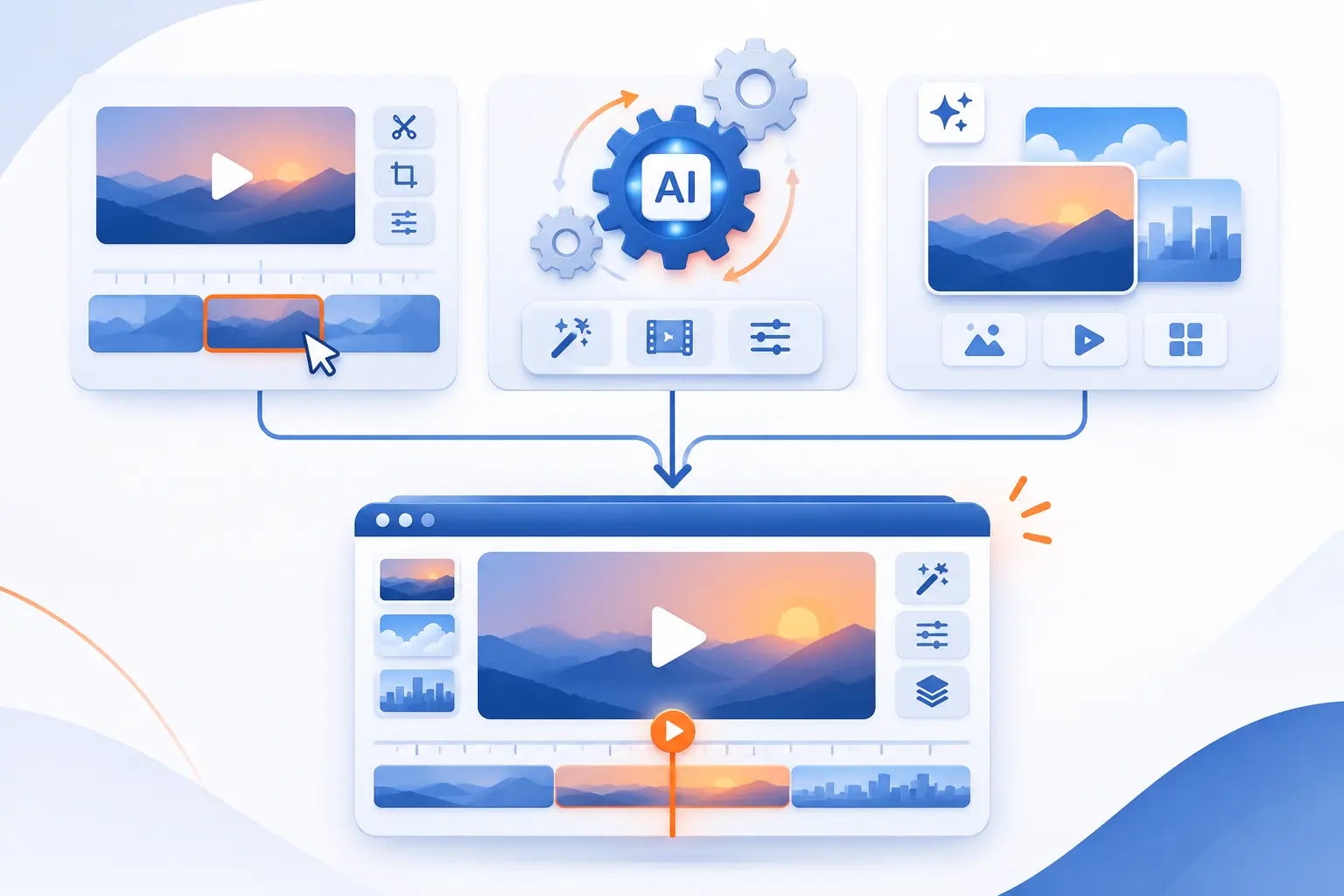
An AI video editor may assist manual editing, execute instructions, or generate visual material, and those capabilities should not be confused. Some products combine all three. Identify the job you need performed before comparing their feature counts.
Traditional Editors With AI Assistance
Traditional editors keep a timeline at the center and automate selected tasks around it. Premiere and Resolve fit this model, even as their AI features expand. You remain responsible for structure, pacing, and final delivery.
These applications are the better starting point when precise correction matters more than automatic assembly. Before installing a professional suite, check the hardware and operating-system requirements against your computer and source footage.
Agentic Editors That Execute Plain-Language Instructions
Agentic editors use instructions to perform editing actions rather than only recommending what to do. Underlord, EditPilot, and invideo’s documented agents illustrate this approach. We would still require an inspectable result and a practical way to correct it.
| Approach | Documented action | Review priority |
|---|---|---|
| Underlord | Edits, layouts, clips, and repeated changes | Story structure and speaker intent |
| EditPilot | Focused cleanup inside the desktop editor | Timeline changes and removed words |
| invideo agents | Instruction-led changes on a multitrack timeline | Scope of changes and manual correction |
Our preference is simple: approve one meaningful change before asking an agent to apply several more.
Video Generators That Create or Transform Footage
Video generators create or alter visual assets, which is different from editing a recorded conversation. Runway is the clearest example in this list. Its generated shots may supplement a production without replacing the editor used to assemble the final story.
Product labels can blur that boundary. Read the input, output, and correction options rather than assuming every prompt box offers the same workflow.
Match AI Features to the Videos You Make

The right feature is the one that addresses your recurring production bottleneck. Speech-led videos need different controls from software tutorials or professional multicam projects. Start with the material you already record and the revisions you make most often.
Talking-Head Videos and Podcasts Need Transcript Editing and Audio Cleanup
Prioritize transcript control and intelligible speech before decorative visual effects. Descript and Riverside are natural starting points, while Premiere offers transcript editing within a professional sequence.
For noisy recordings, inspect what an enhancement tool actually changes. The noise-and-echo treatment description explains a specific cleanup function, not a guarantee that every recording becomes publishable. We would compare processed speech with the original before approving it.
Short-Form Social Videos Need Highlight Detection, Captions, and Speaker Tracking
Choose highlight detection when finding excerpts is the bottleneck, and caption styling when the excerpt is already chosen. OpusClip and Vizard address the first problem. CapCut and Submagic deserve attention for the second.
Review the opening without the original video’s context. Then check speaker crops, caption placement, and whether the clip reaches a complete point.
Screen Recordings and Tutorials Need Cursor-Aware Zooms and Flexible Layouts
Tutorials need readable interface details and deliberate attention cues, not constant visual movement. Tella’s automatic zoom and cursor effects address this requirement directly.
We would inspect a real click sequence rather than a static screen. Ensure the viewer can follow the action without losing surrounding context.
Marketing Teams Need Brand Kits, Shared Projects, and Review Controls
Marketing teams should evaluate permissions and approvals alongside fonts, logos, and templates. A shared workspace does not necessarily provide separate access for each client or project.
For example, the collaborator access rules describe broad project access and additional charges for invited editors on the covered plans. Confirm those details before inviting outside contributors.
Professional Productions Need Multicam Editing, Color Tools, and Timeline Handoffs
Professional productions need editable project structure and finishing controls, even when AI handles the first pass. Premiere and Resolve are the clearest primary environments here. OpusClip’s documented handoff options can complement them.
Before adopting a specialist service, confirm what survives the handoff. We would check clips, timing, captions, media references, and the revisions the finishing editor must still make.
Look Beyond the Free AI Video Editor Label

A free AI video editor is useful only if its output meets your delivery requirements. Editing access, AI usage, export quality, and project storage can have separate limits. Compare the complete path from upload to approved file.
Separate Free Editing Tools From Paid AI Features
Free editing does not imply unrestricted access to every promoted AI function. Resolve separates its free edition from Studio features, while several browser products meter AI work through credits or allowances.
Canva’s shared allowance explanation also distinguishes tool categories and notes that more complex tasks can consume more usage. Build your comparison around the functions you will actually use.
Check Watermarks, Export Resolution, and Video Length Caps
Check export restrictions before spending time polishing a project. A free preview may not represent the file you can deliver.
The plan-specific export instructions illustrate why the final export screen matters. We would confirm watermark status, required resolution, duration, and aspect ratio at the beginning of an evaluation.
Understand Processing Minutes, Generation Credits, and Storage Expiration
Processing minutes, generation credits, and storage windows measure different things. Input duration can consume an allowance even when the final clip is short. Generative work may require several attempts before an asset is accepted.
The credit allocation and expiration rules distinguish recurring allowances from other credit types. Read rollover terms instead of assuming unused capacity remains available indefinitely.
We would also separate temporary project storage from an archive. Preserve originals and approved exports outside any short-lived free workspace.
Account for Per-Seat Charges, Billing Commitments, and Regional Pricing
Compare the total commitment, not just the monthly-looking headline. Annual billing, annual contracts paid monthly, and flexible monthly subscriptions are different purchasing decisions.
Count contributors, identify add-ons, and confirm taxes or regional offers. If pricing cards conflict or do not render, request a written quote rather than guessing.
Build a Reliable AI-Assisted Editing Workflow

A reliable workflow uses automation for a defined first pass and preserves human approval before publication. Keep source material separate, give focused instructions, and review the resulting story. The goal is a correct finished video, not the largest number of automatic changes.
Preserve Original Footage and Specify the Audience, Length, and Format
Keep an untouched source copy and define the deliverable before editing. We recommend this sequence:
- Save original footage and audio outside the editing workspace.
- Write down the intended viewer and the video’s main point.
- Specify the target length, orientation, and publishing destination.
- Create a working project and preserve meaningful revision points.
- Confirm the required export before completing the full edit.
Desktop users should also configure project recovery. Premiere’s Auto Save controls provide one documented example, but project recovery should not replace source backups.
Give Precise Instructions for Cuts, Captions, Audio, and B-Roll
Give the editor a concrete task instead of asking it to make the video better. For example: remove repeated introductions, preserve the complete answer, use the approved caption style, and avoid generated product imagery.
We would separate structural edits from visual styling. That makes it easier to identify which instruction caused an unwanted change.
Review Removed Words, Retakes, and Story Continuity
Review automated removals against the original meaning, not just the cleaner transcript. A pause may signal hesitation, and a repeated phrase may provide necessary emphasis.
Watch transitions between shortened sections. If a cut changes the apparent answer or removes an important qualification, restore context before continuing.
Correct Caption Errors, Vertical Crops, and Generated Visuals Before Export
Inspect the final video as a viewer, not only as a project timeline. Check names, terminology, speaker labels, cropped faces, and generated details.
We would also watch the exported file from beginning to end. Approval belongs to the delivered version, not merely the preview inside the editor.
Check Privacy, Media Rights, and Voice Consent Before Uploading

Do not upload sensitive recordings or clone a voice until you understand the service’s permissions, data handling, and consent requirements. We recommend checking workspace access, retention, model-related settings, and contractual restrictions before production begins.
The custom-voice consent requirements specify an affirmative speaker authorization process. That is a useful reminder to distinguish ordinary editing permission from permission to synthesize someone’s speech.
Generated output also requires a rights review. Canva’s input and output conditions distinguish generated material from incorporated licensed content and explain that outputs may not be unique.
For confidential or regulated work, ask your organization’s privacy or legal team to review the intended workflow. We would not treat a general security statement as approval for every category of recording.
Frequently Asked Questions
Most purchasing questions come down to account requirements, platform support, automation access, and export rights. The answers below distinguish documented capabilities from assumptions. Check the selected plan and application version before committing to a workflow.
Can I Use an AI Video Editor Without Creating an Account?
Sometimes, but account-free access usually covers only part of the workflow. Vizard’s homepage offers a link-based clipping entry point without signup, while its plans describe account-based workspaces and storage. We would not assume that starting without an account guarantees unrestricted editing, saving, or downloading.
Which AI Video Editors Offer Downloadable Desktop Apps?
Descript, CapCut, Premiere, Resolve, Filmora, and Canva offer desktop options, while Tella also documents native recording apps. The desktop installer requirements provide one example of why operating-system compatibility needs a separate check. A downloadable app does not necessarily mean its AI features run offline.
Can ChatGPT or Claude Control an AI Video Editor?
Yes, when the editor provides a supported connection and your account has access to it. Riverside documents connected editing and publishing actions through MCP for compatible assistants. ChatGPT’s custom connection permissions also depend on account and workspace controls. That is different from assuming a chatbot can operate any installed editor automatically.
Can AI Video Editors Translate Captions and Dub Speech?
Yes, several listed products document caption translation, dubbing, or both, including Descript, VEED, and Kapwing. These are separate functions and may have different allowances. We recommend having a fluent reviewer check terminology, timing, speaker identity, and meaning before publication.
Can I Export AI-Edited Videos in 4K?
Yes, several listed products support suitable high-resolution workflows, but access depends on the editor, edition, and plan. A final export setting also does not prove that generated source footage was created at that resolution. Check native generation specifications separately from upscaling and final delivery.


Conclusion
The right AI video editor should match the work you repeat most often. We would begin with Descript for spoken-word editing, CapCut for social styling, and Premiere or Resolve for detailed production control. Choose OpusClip for repurposing, Riverside when recording belongs in the same workflow, and Runway for a defined generative requirement.
Before paying, take one representative project through the complete process. Confirm the corrections, collaboration rules, export, and total commitment. Which part of your current workflow actually needs the most help?