


How does TikTok work? It shows you a personalized stream of videos, then adjusts its recommendations as you watch and interact. You can follow creators, search for topics, save favorites, and publish videos using the app’s camera and editing tools. At 1Byte, we recommend learning those controls before worrying about trends or follower counts. This tutorial takes you from creating an account to publishing your first video, with clear checkpoints along the way.
How Does TikTok Work? Start Watching and Publish Your First Video
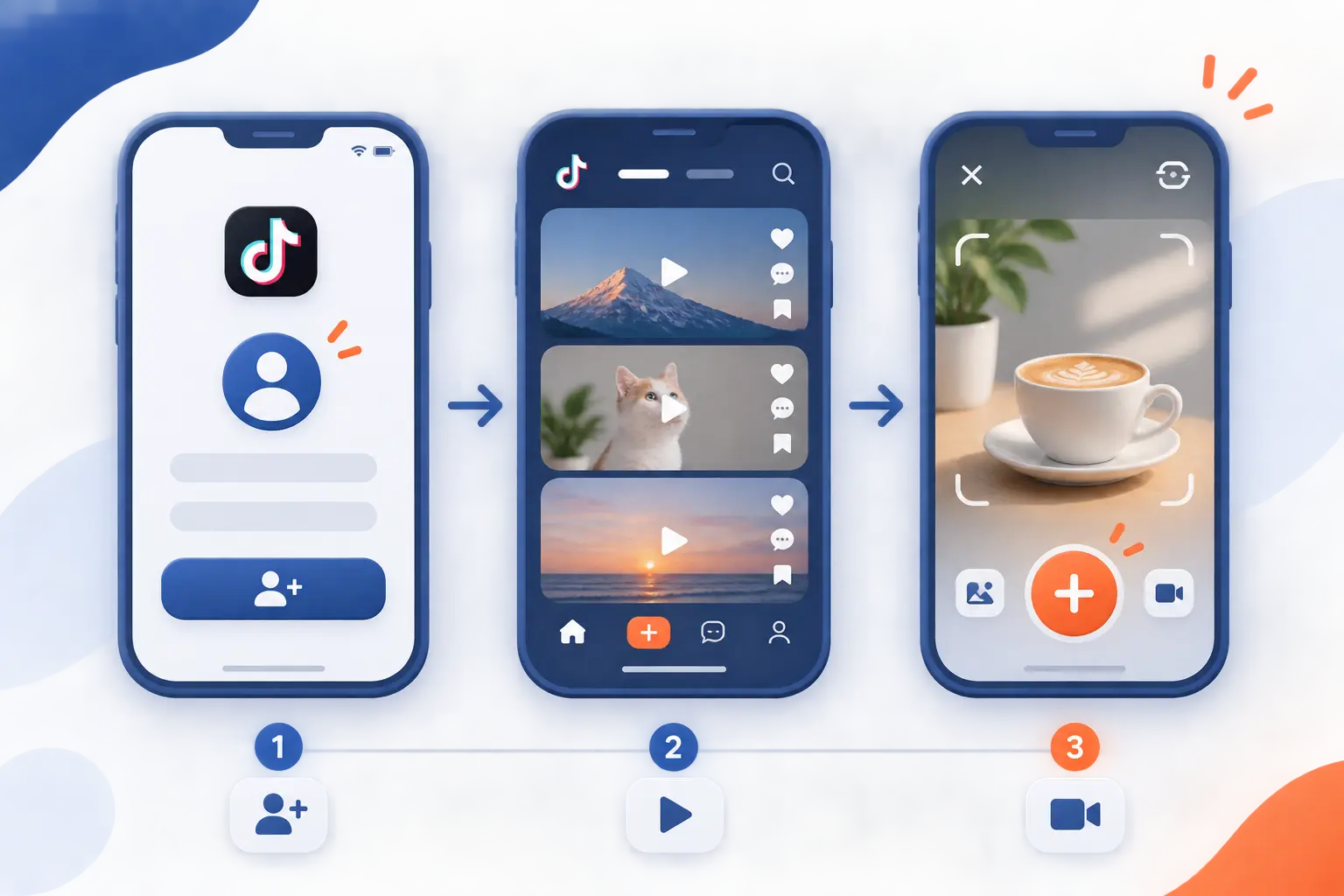
To start using TikTok, create an account, explore videos, and tap the Add post (+) button when you’re ready to record. The steps below follow the mobile app on iPhone and Android. We suggest practicing with a short introduction or a simple demonstration, such as making your morning coffee. Button placement and available features can vary by account, region, and app release.
FURTHER READING: |
| 1. Transport Layer Security: How TLS Protects Your Data |
| 2. File Name Extensions: Show and Identify File Types |
| 3. Social Engineering Attacks: Spot Scams and Reduce Risk |
1. Download TikTok and Create an Account
Install TikTok from the App Store on iPhone or Google Play on Android, then open the app and tap Sign up. Choose Use phone or email, or select an available sign-in provider. Enter your real birthday and complete the verification prompts using an email address or phone number you control.
Once registration works, you should reach the video feed and have access to Profile at the bottom. Keep your verification codes private.
2. Personalize Your Username, Profile Photo, and Bio
Tap Profile > Edit profile to update your username, photo, and bio. Open Username, enter an available name such as maya.coffee.notes, and tap Save. Use Change photo to upload a recognizable image.
In Bio, try something specific, such as “Home coffee experiments and beginner brewing tips.” Save your changes and return to your profile. You should see your chosen photo, username, and introduction together.
3. Choose Your Account Type and Review Privacy Settings
Open Profile > Menu (☰) > Settings and privacy > Account to review your account type. Keep a Personal Account for everyday viewing and creator content. Choose Switch to Business Account if your main purpose is promoting a business, following the documented account distinctions.
Next, open Settings and privacy > Privacy. For a Personal Account, enable Private account if you want to approve followers. Business Accounts are public. Review Comments and Direct messages, choosing the most restrictive available options you prefer. Return to each control to confirm your selections remain saved.
4. Browse the For You and Following Feeds
Tap Home, select For You, and swipe upward to move between recommended videos. Tap a playing video to pause it, then tap again to resume.
Switch to Following to watch content from accounts you follow. This feed becomes useful after you follow creators in step seven. You should see the selected feed label highlighted at the top.
5. Like, Comment on, and Share Videos You Enjoy
Tap the heart, Comments bubble, or Share arrow beside a video to interact with it. A successful like turns the heart red. To comment, type something relevant, such as “Could you show the grind size?” and tap the posting arrow.
For sharing, choose a recipient or Copy link from the share panel. You should see your comment appear or receive confirmation that the link was copied. We favor useful questions over empty engagement.
6. Search for Creators, Topics, Hashtags, and Sounds
Tap the Search magnifying glass, enter a phrase such as French press coffee, and submit your search. Browse the available result tabs, including Users, Videos, Sounds, and Hashtags.
Search an exact username to find a particular creator. To investigate audio already playing in a video, tap its sound title at the bottom. You should reach a results page or a sound page containing related posts.
7. Follow Creators You Want to Keep Watching
Open a creator’s profile by tapping their username, then tap Follow. Read the bio and watch a few posts first. One interesting video does not always mean the whole account suits you.
The button should change to Following, or show a pending request for a private account. Return to Home > Following to start watching your selected creators.
8. Save Favorite Videos and Organize Them Into Collections
Tap the bookmark beside a video to add it to Favorites. Open Profile > Favorites, using the bookmark tab, to find it again.
Where Collections is available, open Collections > Create new collection. Enter a name such as Coffee recipes, tap Next, select your saved videos, and tap Add videos. Open the collection to confirm your selections appear. Favorites are bookmarks inside TikTok, not downloaded video files.
9. Open the Camera and Choose Your Recording Settings
Tap Add post (+) at the bottom to open the camera. Allow camera and microphone access when prompted. Choose an available recording length, such as 60s, without feeling obliged to fill it.
Use Flip to select the front or rear camera. Choose Speed > 1x for normal-speed recording. You should see a live preview before you begin. These controls lead into the app’s documented creation sequence.
10. Select Music, Filters, and Effects for Your Video
Tap Add sound above the camera preview to choose optional audio. Preview a track, then tap its checkmark to select it. Open Filters to adjust color, or Effects to preview a visual effect.
For promotional content, select music cleared for commercial use. Personal Accounts can open Add sound > Sounds > Commercial sounds, following the commercial-use selection instructions. Business Accounts receive the commercial catalog through Add sound. Confirm the selected track appears above your preview.
Our preference for a first video is simple: clear speech, natural lighting, and no distracting effect.
11. Record Clips or Upload an Existing Video
Tap the red Record button to film, or tap Upload to select an existing video from your phone. For recording, tap again to stop, reposition your camera, and record another clip if needed. Tap Continue (✓) when finished.
For an upload, select your video and tap Next. Both routes should bring you to a preview or editing screen. For our coffee example, film the grounds, pouring water, and finished cup.
12. Finish Editing With Text, Stickers, and Audio
Tap Edit on the preview screen to trim your clips, then use Text, Stickers, and the available audio controls to finish your video. Drag a clip’s edges in the timeline to remove unwanted footage.
Add a short label such as Start with freshly ground coffee. If your video includes speech, use Captions where available and correct recognition mistakes. Play the entire preview with sound. You should hear clear speech and see readable text without covering the main subject.
13. Add a Caption, Relevant Hashtags, and a Cover
Tap Next, enter your description, and choose Select cover on the video thumbnail. Try “My first French press experiment. What should I change?” followed by relevant hashtags such as #FrenchPress #HomeCoffee.
Drag the cover selector to a clear frame and tap Save, following the cover and draft controls. You should return to the posting screen with your description and selected thumbnail. Here, the caption describes your post. It differs from subtitles that transcribe speech.
14. Set Posting Permissions and Publish or Save a Draft
Open the audience selector on the posting screen, choose who can view your video, then tap Post or Drafts. For a private practice post, select Only you. Choose Everyone only when your account permits it and you want public visibility.
Before confirming, review Allow comments and any available reuse controls under More options. For promotional content, also review Content disclosure and ads and enable the required disclosure.
After publishing, open Profile and play the post to check it. A saved draft appears in the Drafts folder instead. Drafts can disappear after reinstalling the app or changing devices, so keep your original footage elsewhere.
Why TikTok Recommendations Change as You Watch

TikTok recommendations change because your viewing behavior gives the platform new evidence about your interests. Its documented ranking factors include interactions, content information, and user information. Those factors have different importance across feeds and search. We find it more useful to understand these signals than to chase supposed algorithm shortcuts.
Watch Time and Skipping as Interest Signals
Watching a video through or skipping it helps TikTok estimate your interest. The platform generally gives interactions, including time spent watching, greater weight than many background factors.
For example, finishing several coffee demonstrations may encourage more similar recommendations. That is an illustration, not a guaranteed sequence. If a subject does not interest you, move on rather than watching solely to criticize it.
Likes, Comments, Saves, and Shares as Feedback
Your interactions provide feedback, but TikTok does not publish a universal points system for each action. Likes, comments, shares, and follows appear among its documented signals. Saving a post also gives you a practical way to return to it, without revealing a fixed ranking value.
For unwanted recommendations, press and hold the video and select Not interested. We recommend giving deliberate feedback instead of arguing with every video you dislike.
Captions, Sounds, Effects, and Transcripts as Content Clues
Descriptions, hashtags, and sounds are documented content clues, but effects and transcripts should not be treated as guaranteed ranking shortcuts. TikTok does not publish an exhaustive weighting formula for everything its systems can analyze.
Use accurate descriptions, understandable speech, and corrected subtitles because they make your subject clearer to people. Choose an effect when it improves the demonstration, not because someone promises extra reach. Clear content beats guesswork.
Ways to Connect Beyond Watching Videos

You can participate through Duets, join a hashtag challenge, or share your profile using a QR code. Each option serves a different purpose. Choose a response format when you want to create, and a profile code when you simply want someone to find you.
| Option | Best use | Starting point |
|---|---|---|
| Duet | Respond beside another video | A video’s Share panel |
| Hashtag challenge | Join a shared creative prompt | Search results and participating posts |
| Profile QR code | Share your account in person | Your Profile menu |
Duets for Side-by-Side Responses and Collaborations
Open an eligible video, tap Share > Duet, and record your response beside the original. Choose an available layout, record, then continue through the editing and posting screens.
The finished preview should show both videos playing together. This format suits a musical response or a side-by-side demonstration. The permission requirements explain why some videos lack the Duet option. Availability depends on the original creator’s settings and applicable account restrictions.
Hashtag Challenges for Community Participation
Search for a challenge hashtag, watch participating posts, and create your own response using the same relevant tag. Check the original prompt before recording. Some challenges use a particular sound or effect.
A real example is the community reading challenge, which invited people to discover books and share their thoughts. Your response might introduce a favorite novel. Check your published caption for the clickable hashtag, but do not expect immediate placement in search results.
Profile QR Codes for Helping Others Find You
Open Profile > Menu (☰) > Your QR code to display your account’s scannable code. Some app versions label this item My QR code.
Ask the other person to open their own QR-code screen and tap the scanner icon. Scanning your code should open your profile. Before printing a code for an event or counter display, test it with another phone.
What TikTok Analytics Can Tell You About Your Audience
TikTok analytics show how your posts perform and, where available, who your audience broadly includes. TikTok Studio provides account and content performance tools for reviewing those results. Start with the information already available inside the platform. We would rather compare a few useful posts than buy software before publishing anything.
Video Views, Likes, and Comments in TikTok Studio
Open Profile > Menu (☰) > TikTok Studio, then open Analytics or its View all control. Review the available overview and content sections. Select a published post to inspect its individual performance.
You should see metrics such as views, likes, and comments once data becomes available. Compare posts over similar periods. A video published yesterday has had less opportunity to collect views than an older post.
Follower Demographics and Content Relevance
Open the Followers or Viewers section in TikTok Studio analytics to inspect available audience information. Depending on your account and data availability, this can include audience demographics, locations, and activity patterns.
Use those details to test relevance, not to make assumptions about individuals. For example, compare beginner coffee tutorials with equipment reviews. Look for repeated differences across several posts before changing your whole content direction.
Built-In Analytics vs External Tools for Businesses
Use built-in analytics first, then consider external software only when you can name the missing task. TikTok Studio is the starting point for reviewing your own content. External tools may be useful when a business needs cross-platform reports or shared reporting processes.
Before subscribing, check exactly which metrics the product can access. Ask whether it supports organic posts, advertising, or both. We would not pay for a dashboard that merely redraws information we already understand.
Frequently Asked Questions
You can browse some content without registering, but posting and participating require an account. Other features depend on eligibility, privacy choices, and account type. These answers address the distinctions beginners most often need before moving beyond their first post.
Does TikTok Show Who Viewed Your Profile?
Yes, eligible users can see some profile visitors when both accounts have Profile view history enabled. It shows qualifying visits from the past 30 days, not everyone who visited. Open Profile > Menu (☰) > Settings and privacy > Privacy > Profile views to review the setting, if available. Turning it on also makes your qualifying visits visible to other participating accounts.
How Can I Make Money From TikTok?
You can earn through eligible creator programs, brand partnerships, and other monetization features available to your account. Open Profile > Menu (☰) > TikTok Studio > Monetization to inspect your options. Creator Rewards has specific eligibility and content requirements, so views alone do not automatically generate payments. We recommend learning to make useful, original videos before planning around potential earnings.
Can I Watch TikTok Without Creating an Account?
Yes, you can often watch public videos without an account through a browser or an available guest experience. Open a shared video link in your browser to try it. Login prompts, regional restrictions, and age restrictions can limit access, and guest viewing does not provide the full participation features.
Can Business Accounts Use the Same Music as Personal Accounts?
No, Business Accounts do not receive the same general music catalog as Personal Accounts. They use the Commercial Music Library for cleared selections. A Personal Account’s access to a song does not automatically authorize commercial use, so promotional posts still require appropriate music rights.


Conclusion
How does TikTok work in practice? You watch, give feedback, follow accounts, and create posts with the app’s recording and editing controls. Recommendations respond to your behavior, while privacy and publishing settings control how you participate.
At 1Byte, we suggest one small next step: record a short demonstration and save it as a draft. Review the sound, text, cover, and audience setting before publishing. What useful thing could you show someone in your first video?