

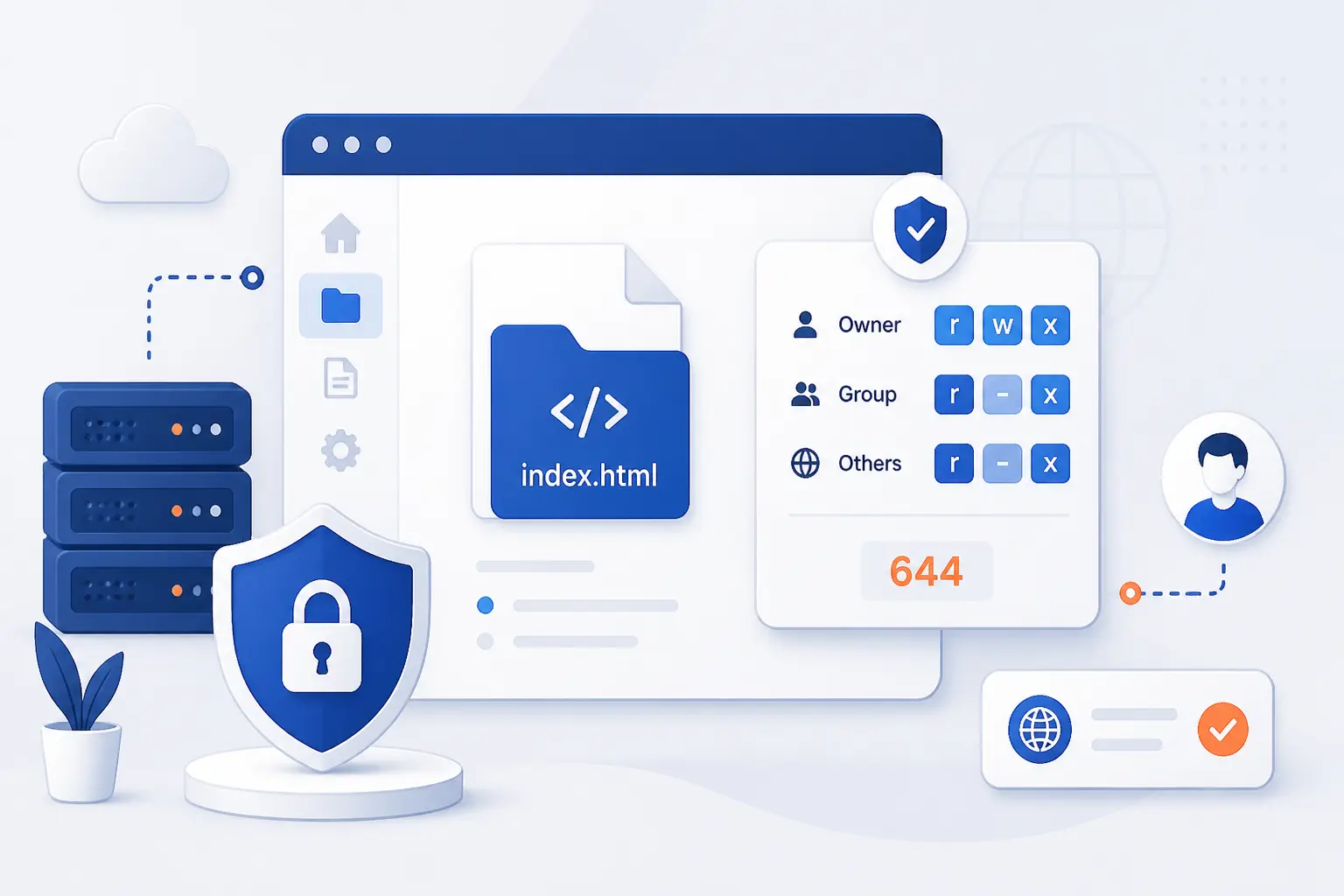
We fix public_html permissions by matching the document root to the server model first, then resetting directories, files, and sensitive configs in that order. In practice, that usually means 0750 or 0755 on public_html, 755 on subfolders, and 644 on normal files. If you follow the steps below in sequence, a beginner can restore secure access without guessing. We prefer this method because permission mistakes rarely live in one place. They usually hide in the handoff between the home directory, the web root, and the handler serving PHP or CGI.
How to Fix Public_Html Permissions Without Breaking Access
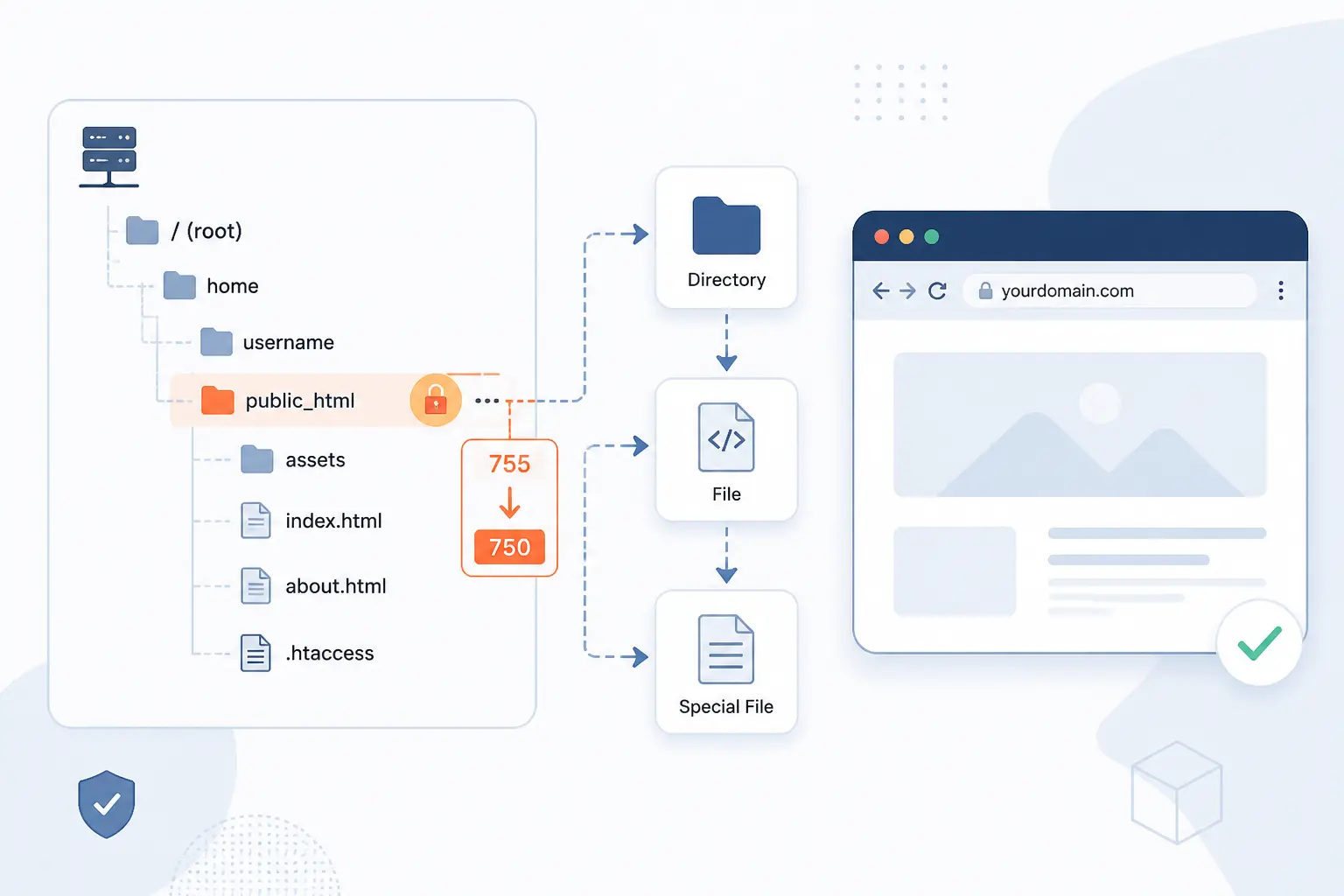
Fix the site by confirming whether your host expects 0750 or 755 on public_html, then reset folders to 755, regular files to 644, and only afterward tighten special files. That order matters because browser access depends on directory traversal before PHP or HTML files can even be read. We have seen many broken migrations where the file values looked fine, but the home directory or document root blocked access one level earlier. Work from the outside in, test after each change, and you will avoid the usual permission spiral.
FURTHER READING: |
| 1. How to Block Websites on Chrome for Desktop and Mobile |
| 2. How to Fix ERR_SSL_PROTOCOL_ERROR Step-by-Step |
| 3. How to Fix Internal Server Error on Your Site |
1. Identify Whether Your Server Expects 0750 or 755
Check your host’s documented default before you change anything. If your account runs through cPanel FileProtect, mod_ruid2, suEXEC, or another per-user model, 0750 is commonly correct for public_html. If the web server still needs global access as nobody or a similar account, 755 may be required instead. A simple real-world clue is the old working server. If ls -ld ~/public_html used to show drwxr-x---, keep that pattern unless the new host says otherwise.
2. Open Your Home Directory and Locate the Public_Html Folder
Open cPanel’s File Manager guide path at cPanel » Home » Files » File Manager, or connect by SSH or SFTP and browse to /home/{your-username}/public_html. You should see public_html directly inside your home directory, not buried inside another folder. On a typical account, the main site lives at a path like /home/maria/public_html. When this step is correct, you are looking at the folder that holds the public files for the primary site.
3. Check the Current Values With Chmod, FTP, or File Manager
Run stat -c '%a %n' ~ ~/public_html in SSH, or in cPanel File Manager select public_html and click Permissions on the toolbar. In many FTP clients, the same check appears in the right-click dialog as File permissions.... A healthy result often looks like 711 /home/{your-username} and either 750 /home/{your-username}/public_html or 755 /home/{your-username}/public_html. If you only have ls -ld, that is still enough. drwx--x--x, drwxr-x---, and drwxr-xr-x tell the same story in symbolic form.
4. Set the Public_Html Directory to the Correct Default for Your Host
Run the one command that matches your server model and stop there before you change anything else. This step is where most repairs succeed or fail because the document root must be traversable before the web server can read index files, images, or PHP scripts. If you are unsure, set the value you identified in Step 1, test the site, and only then continue. You should see the new mode immediately in stat or the file manager permissions box.
Use 0750 on Hosts That Handle Web Access Through Server Configuration
Run chmod 0750 ~/public_html. A correct result usually shows drwxr-x---, and the site still loads because the server reaches the folder through FileProtect or a per-user execution model rather than through world access. We prefer this on properly configured shared hosting because it removes unnecessary access from “others” without blocking the site. If the browser turns into a 403 Forbidden right after this change, your stack likely still needs the others execute bit on the document root. FileProtect notes explain why many cPanel systems secure this folder while leaving the home directory traversable.
Use 755 on Servers That Require World-Readable Directory Access
Run chmod 0755 ~/public_html. A correct result shows drwxr-xr-x, and pages begin loading on stacks where Apache or another web server user still needs directory access outside your account context. This is still normal on some older or differently configured systems, especially after a migration from one PHP handler to another. If you switch from a setup that ran requests as your user to one that runs as nobody, leaving 0750 in place can block the site even when file permissions look fine.
5. Reset All Subdirectories Inside Public_Html to 755
Run find ~/public_html -type d -exec chmod 755 {} \;. This resets folders like images, css, wp-content, and uploads to a safe baseline where browsers and server processes can traverse them. When the command works, a spot check such as stat -c '%a %n' ~/public_html/wp-content should return 755. The most common failure point is forgetting that a recursive command touches every directory below the root, so verify you are in ~/public_html and not your whole home directory. The same recursive pattern appears in the WordPress hardening guide because it works well as a baseline even outside WordPress.
6. Set Regular Website Files to 644 Unless Your Host Requires More Access
Run find ~/public_html -type f -exec chmod 644 {} \;. This is the usual default for normal web files such as index.php, index.html, style.css, app.js, and image files because the owner can write them while the server can still read them. A successful reset leaves a check like stat -c '%a %n' ~/public_html/index.php showing 644. If you use CGI scripts in cgi-bin, this command will remove their execute bit, which is expected and will be corrected in the next step.
7. Tighten Config Files and Script Files Only as Far as Your Setup Allows
Tighten sensitive files one by one with explicit commands instead of locking down the whole tree at once. For example, use chmod 600 ~/public_html/wp-config.php or chmod 600 ~/public_html/.env if your handler runs PHP as your user, and restore executability to CGI scripts with chmod 755 ~/public_html/cgi-bin/contact.cgi. When this works, config files still load silently and executable scripts still run rather than download as plain text or throw server errors. A real failure point here is CGI under strict execution rules. Apache notes that missing execute permission or a failed suEXEC policy check can lead to Premature end of script headers. The Apache CGI documentation is the cleanest reference for that behavior.
8. Confirm Your Home Directory Still Allows the Web Server to Traverse It
Run stat -c '%a %n' ~ and make sure the home directory still has the execute bit pattern your host expects, often 0711 on cPanel systems using FileProtect. This matters because the server must pass through /home/{your-username} before it can reach public_html. A correct result often shows 711 /home/{your-username} or the symbolic form drwx--x--x. The common failure point is a careless recursive chmod on the home directory, which can break the site even though public_html itself is perfect.
9. Test Browser Access to Index Files, PHP Pages, and Folder URLs
Open https://{your-domain.com}/, https://{your-domain.com}/index.php, and at least one known folder URL such as https://{your-domain.com}/blog/. You should see the home page load, the PHP page render normally, and folder URLs either open their index file or return the expected server response. If a folder without an index suddenly lists files, your Apache configuration likely allows directory indexing through Indexes. If a folder should show content but returns a directory error, add the correct index file first and then review the document root and traversal permissions. The Apache directory index docs explain the index-file lookup order and when listings can appear.
What Public_Html Controls on Your Hosting Account
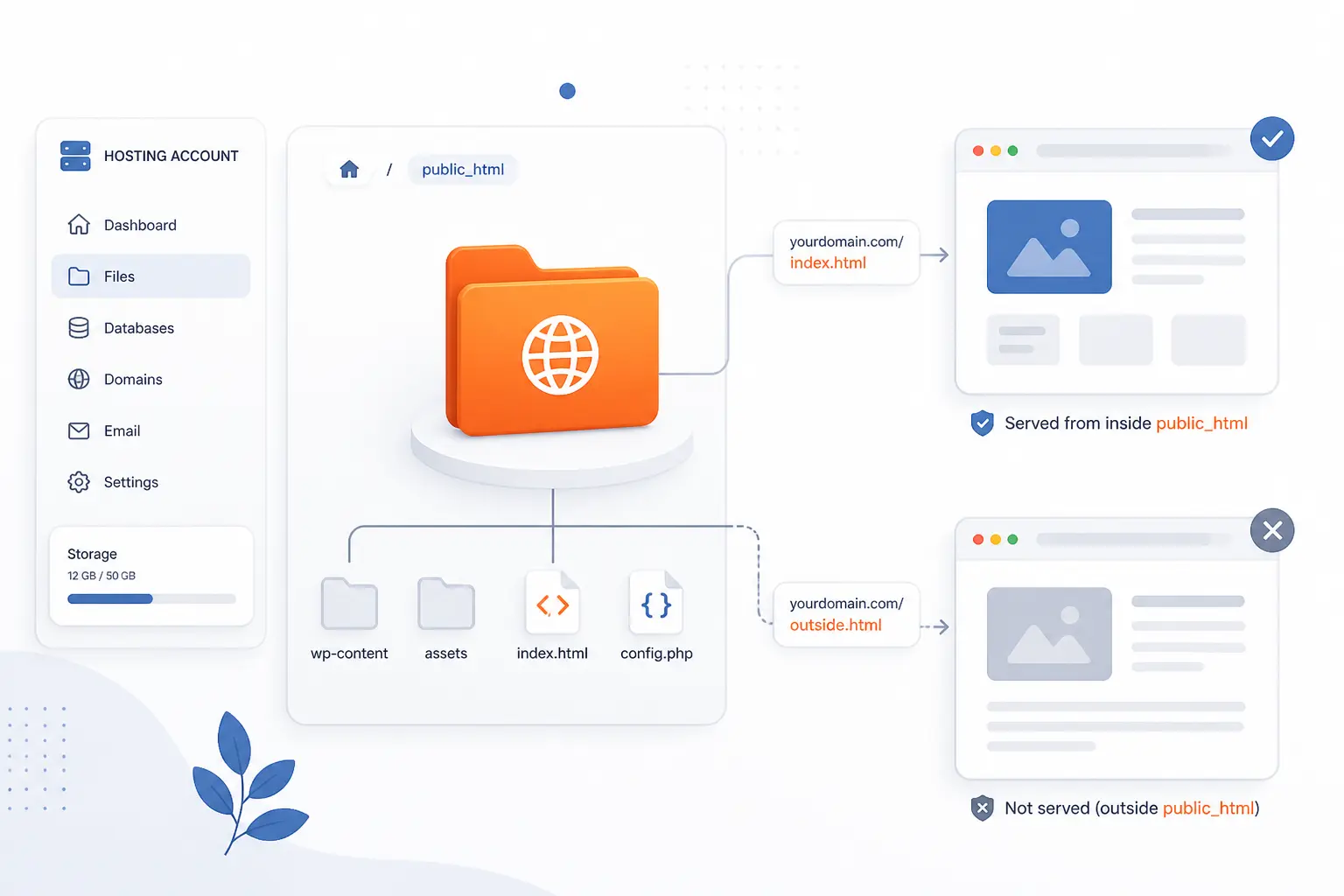
public_html is usually the document root for the primary domain on a shared hosting account. In plain operational terms, it is the folder the web server treats as the starting point for public URLs. Put a file inside it and the browser can usually request it. Leave a file outside it and the browser usually cannot reach it directly. Once we frame it that way, permission choices become much easier to reason about.
Know the Folder as the Document Root for Your Primary Domain
Treat public_html as the web-visible root of your main site. cPanel’s domain manager describes the document root as the directory that contains a domain’s publicly available files, and for the main domain that is commonly /public_html. A simple example is /home/anna/public_html/index.html, which becomes the homepage when the domain points to that account. The domain manager reference also notes that changing a document root changes where the server looks for files, not where the files are stored automatically.
Understand How the Home Directory Path Maps to Browser URLs
Map the filesystem path to the URL by dropping the home-directory part and reading the rest from public_html downward. If your file lives at /home/anna/public_html/about/team.html, the public URL is usually https://example.com/about/team.html. We like this mental model because it helps beginners predict access quickly. If the path after public_html looks wrong, the URL will look wrong too.
Watch What Happens When No Index File Is Present
Expect the server to look for an index file first when someone opens a folder URL. Apache’s default DirectoryIndex behavior checks names such as index.html, and if none of the configured index files exist while Indexes is enabled, the server can generate a directory listing instead. In real life, that means https://example.com/gallery/ may show a file list when gallery/index.html is missing. That is handy for testing, but we rarely want it on a production site.
How File and Directory Permissions Affect Access
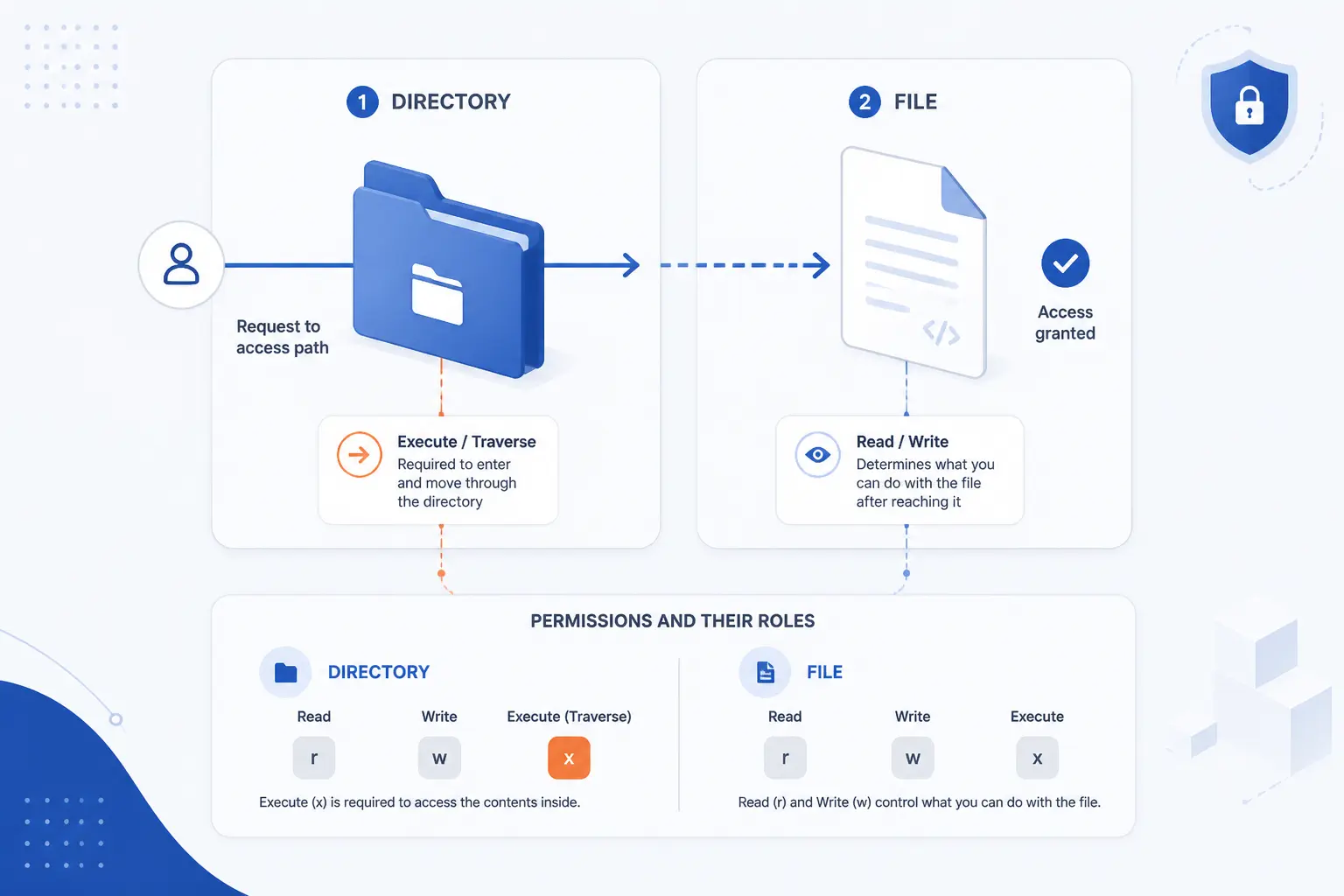
File permissions and directory permissions do different jobs, and mixing them up is what causes most access mistakes. Files need read permission to be served. Directories need execute, also called search or traverse permission, so the server can move through the path to reach those files. That is why the common baseline is directories at 755 and regular files at 644. We see people invert those values all the time, and the site promptly falls over.
Separate Directory Permissions From File Permissions
Keep in mind that a directory mode controls access to names and paths, while a file mode controls access to the file contents. On a live site, ~/public_html/blog can be 755 while ~/public_html/blog/index.php is 644, and that is perfectly normal. The server enters the folder with the directory execute bit and reads the file with the file read bit. The GNU mode reference is clear on this distinction, and it is one every site owner should memorize.
Understand Global Read Access vs Global Execute Access
Remember that on directories, read lets someone list names, while execute lets someone traverse the path to a known file. That is why a home directory can work at 0711. The server may not list its contents, but it can still pass through it to reach public_html. We consider that a smart compromise on many shared hosts because it blocks casual browsing of the account while keeping the site reachable.
Avoid 777 Even When a Script Suggests It
Do not set 777 on public web folders unless you are deliberately testing in a throwaway environment. World-writable permissions give every local user and many server processes more power than they need, which is exactly the opposite of what a secure hosting setup should do. Modern guidance is to run code as the owning user or grant write access only to the few directories that genuinely need it, such as a cache or upload folder. The WordPress file-permission handbook makes the same point for a common real-world CMS, and the lesson carries well beyond WordPress.
Why Default Values Differ Across Servers
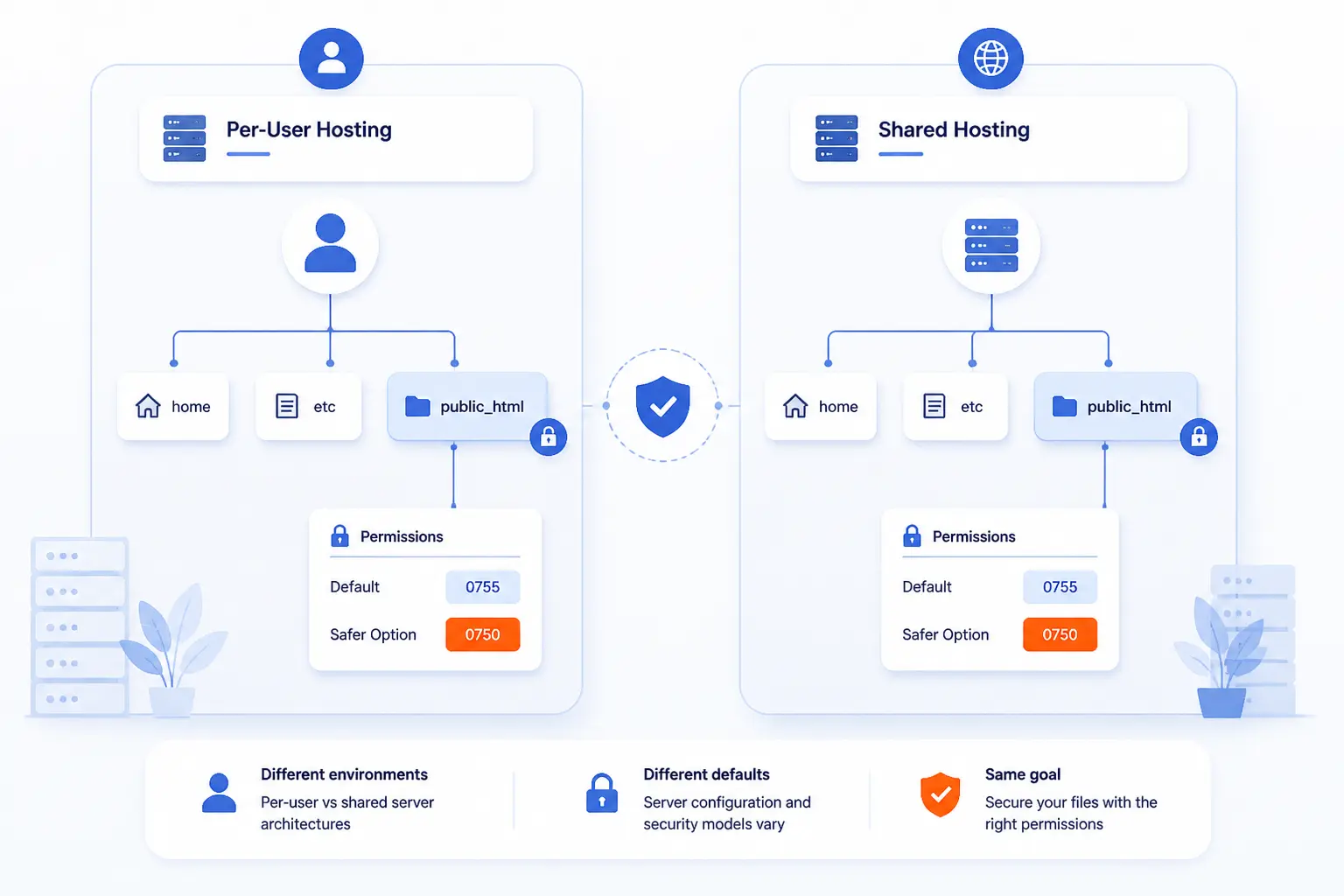
Default values differ because servers do not all read files the same way. Some stacks serve requests as your account user through tools like FileProtect, mod_ruid2, or suEXEC. Others still rely on a shared web-server identity such as nobody. That single difference changes whether public_html can be safely limited to 0750 or still needs 755. We never treat one number as universal because the handler model decides the answer.
| Server pattern | Common root mode | What makes it work |
|---|---|---|
| FileProtect or per-user handler | 0750 | Requests run as the account owner or an allowed group. |
| Global web user still needs access | 755 | The server needs world traversal or read access to reach files. |
| Extra-tight per-user PHP setup | 0750 plus stricter file rules | Specific configs and scripts can be tightened after testing. |
See Why 0750 Is the Common Starting Point on Many cPanel Hosts
Start with 0750 on many cPanel hosts because the platform’s own current guidance says that is the default in most situations. FileProtect also sets a more secure posture on public_html and pairs it with a traversable home directory, which is why a site can stay public without making the account broadly readable. In our view, this is the right default when the server is configured to run requests in the account context rather than as a generic web user.
Recognize Why Some Systems Still Need 755 on Public Web Folders
Use 755 when the stack still requires the web server’s global user to traverse or read the path. cPanel’s handler documentation explains that some PHP models execute as nobody unless a per-user module such as suEXEC or Ruid2 is active, and those setups need broader file access to work. That is why a migration or PHP-handler switch can break a site without any code changes at all. The PHP handler reference is worth checking before you blame the application.
Account for PHP, CGI, and FileProtect Rules Before Tightening Access
Check the handler rules first, then tighten only as far as that handler allows. cPanel notes that per-user modules can permit much stricter PHP file modes, while Apache’s CGI guidance shows that executable scripts still need the execute bit and can fail hard under strict suEXEC checks. In other words, wp-config.php may safely move toward 600, but cgi-bin/report.cgi still needs to remain executable. We like to tighten in layers because it keeps the site live while you learn what the server actually expects.
FAQ
These are the short answers we give most often when someone is fixing public_html permissions for the first time. Read them as practical definitions, not abstract theory. If one of them sounds like your situation, it usually points straight back to one of the repair steps above.
What Does Public_Html Mean
public_html usually means the public document root for your main website. Files inside it are meant to be reachable by browser URLs, while files outside it are usually not directly web-accessible. On many shared hosting accounts, it is the folder your primary domain points to by default.
How Do I Grant Access to a Public Folder
Grant access by setting the folder to the mode your host expects and making sure every parent directory is traversable. In practice, that often means 0750 or 755 on public_html, 755 on subfolders, and a home directory that still allows traversal. If the folder loads in SSH but not in a browser, check the home directory and server handler next.
What Is Chmod 644 and 755
chmod 644 means the owner can read and write the file, while group and others can read it. chmod 755 means the owner can read, write, and execute, while group and others can read and execute. For directories, that execute bit means traverse or search, which is why it matters so much for websites.
Why Would Public_Html Need 0750 Instead of 755
public_html may need 0750 when the server is configured to serve requests through your account user or an allowed group instead of through world access. That setup removes unnecessary permissions from “others” while keeping the site public. Many cPanel environments with FileProtect or per-user modules work this way.
Why Can a Site Stop Loading After a Migration or PHP Handler Change
A site can stop loading because the new server may read files under a different user model. A folder that worked at 0750 on one host can fail on another that now expects 755, or the reverse can happen when tighter per-user execution becomes available. cPanel explicitly notes that migrations and PHP-handler changes can trigger permission errors, which is why we always recheck the handler before we recheck the code.
How 1Byte Helps You Manage Hosting and Access
We help by keeping the path from domain to document root easier to reason about. That starts with domain registration and SSL certificates, continues through WordPress hosting or shared hosting with simple file access, and extends to cloud hosting or cloud servers when you need tighter control over users, groups, and handlers. As an AWS Partner, we also recognize when a site has outgrown one-size-fits-all hosting and needs a clearer permission model rather than another round of guesswork. In our experience, permission problems are much easier to solve when the hosting layer matches the application instead of fighting it.
| Service | Best fit | Practical connection |
|---|---|---|
| Domain registration and SSL certificates | New launches | Point the right name to the right site before you test file access. |
| WordPress hosting or shared hosting | First sites and small apps | Use straightforward file access tools to inspect the web root quickly. |
| Cloud hosting and cloud servers | Custom stacks | Set your own permission rules with more control over the serving model. |
Register Domains and Add SSL Certificates Before You Publish Files
Register the domain and install the SSL certificate before you start testing live file paths. That way, when you open https://{your-domain.com}/index.php, you are checking the real hostname and the real document root instead of a temporary preview URL. We think this removes a lot of false alarms because domain issues and permission issues often masquerade as each other.
Choose WordPress Hosting or Shared Hosting With Easy File Access Tools
Choose WordPress hosting or shared hosting when you want to inspect public_html without managing the entire server yourself. For a beginner, being able to open the web root, review file modes, and correct a broken index.php or .htaccess quickly is half the battle. We usually recommend this route when the site is standard and the goal is clarity, not custom server behavior.
Scale to Cloud Hosting and Cloud Servers for More Control Over Permissions
Move to cloud hosting or cloud servers when you need direct control over users, groups, execution handlers, and deployment workflows. This is where tighter permission policies start to make real sense because the stack is no longer hidden behind generic shared defaults. If your application mixes PHP, scheduled tasks, deployment scripts, and private config files, more control usually means fewer permission surprises.







Conclusion
The safe way to fix public_html permissions is to start at the top of the path, set the document root your host actually expects, reset directories and files to known-good defaults, and test before tightening anything special. We would much rather see you work in small verified steps than swing a recursive chmod at the whole account and hope for the best.
If you have the site working again, make one more smart move and write down the final values for your home directory, public_html, subfolders, normal files, and config files. The next migration will go much faster when you have a permission map ready to follow. What would happen if you had to rebuild this account tomorrow?