

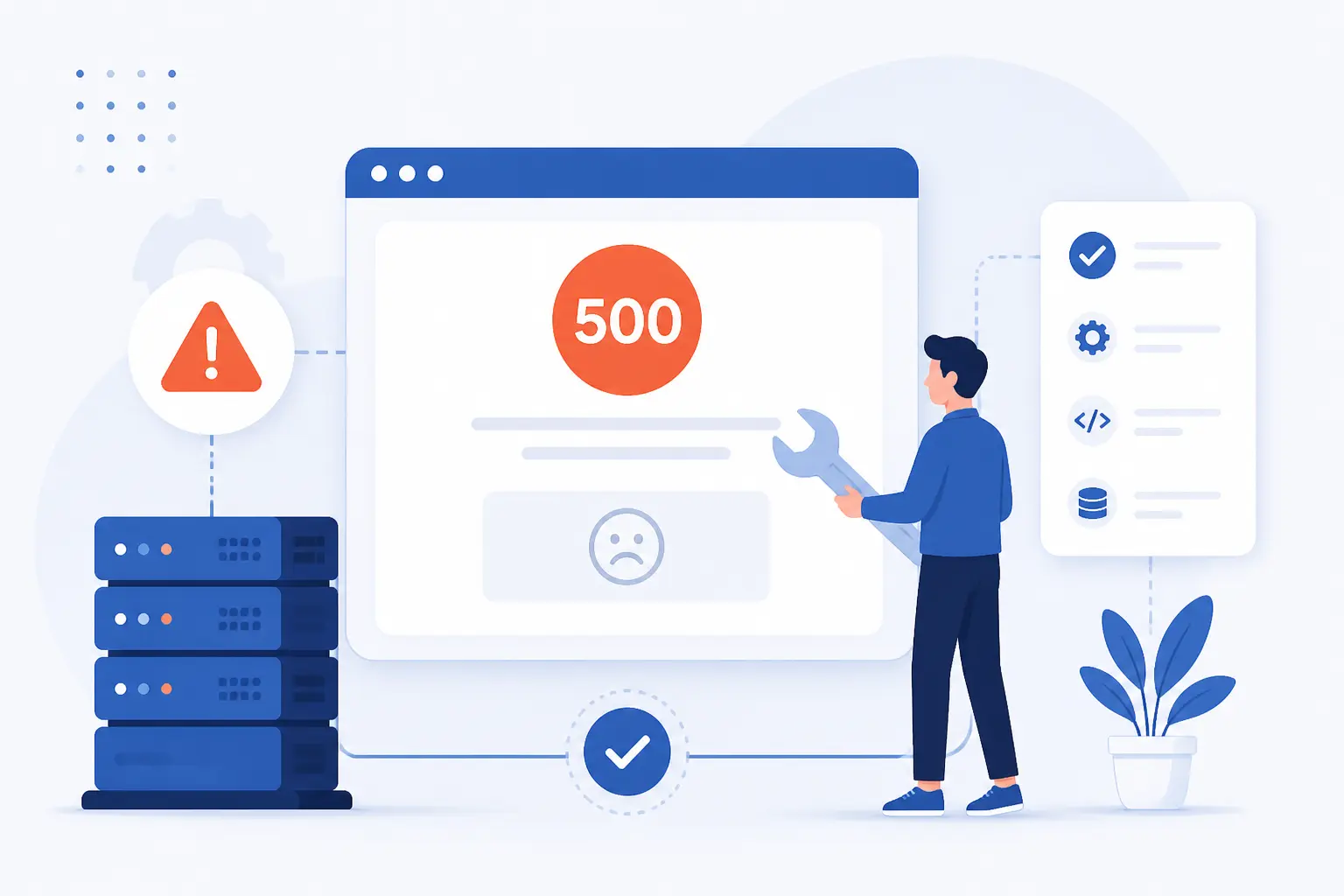
An internal server error is usually fixed by separating quick visitor checks from server-side owner fixes, then working through them in order. If you are only visiting the site, start with the URL, a reload, browser data, another browser or network, and a message to the site owner. If you manage the site, move straight to logs, permissions, PHP, .htaccess, database settings, WordPress plugins and themes, memory, backups, and host status. We like this order because it cuts through guesswork and gets you to the real failure point faster.
In practice, a 500 error is often a bad plugin update, the wrong PHP version, broken rewrite rules, or a database setting that no longer matches the server. We would not start by changing ten things at once. We would start by proving whether the problem is in the browser, the app, or the server, and then fix one layer at a time.
How to Fix Internal Server Error Step by Step
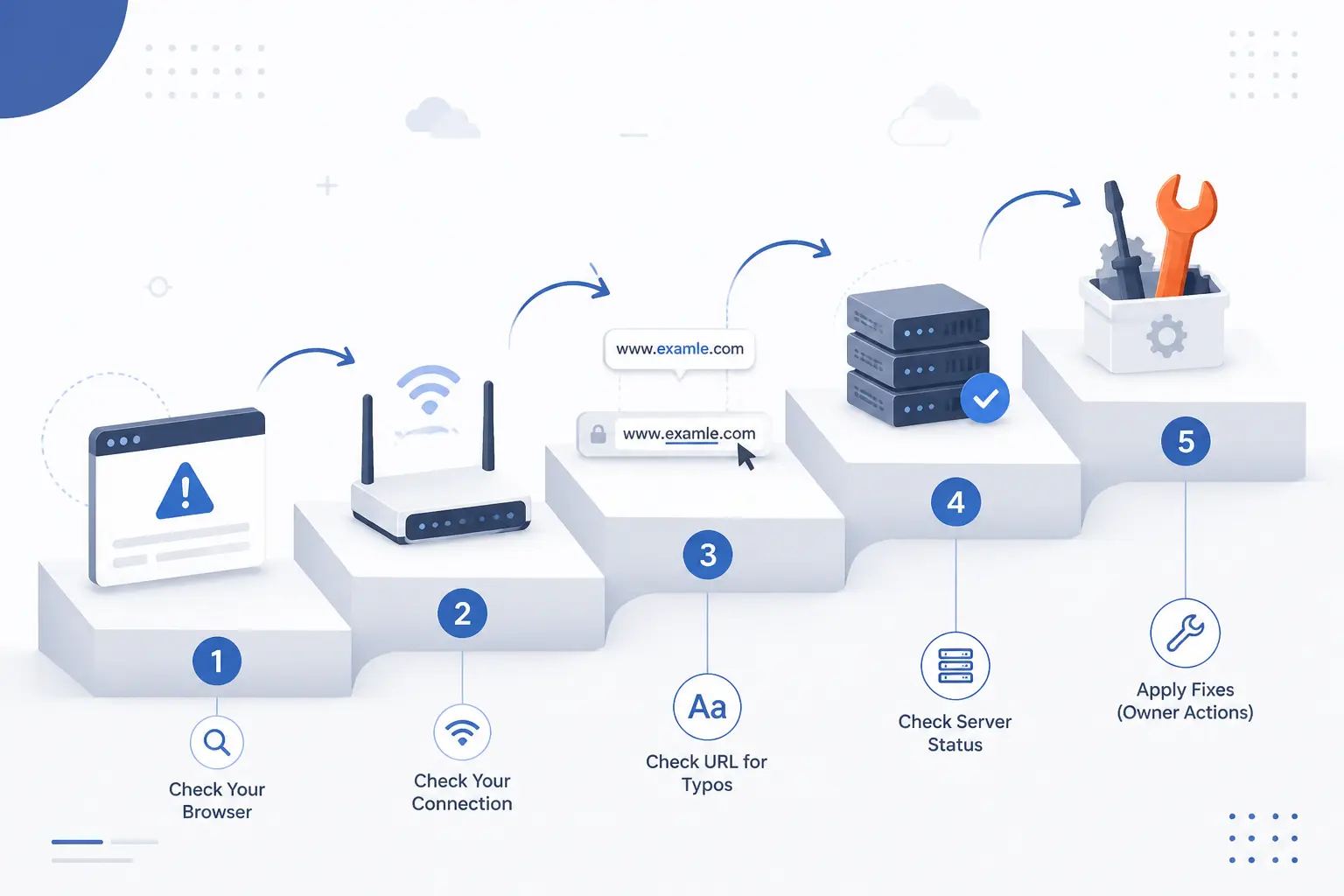
To fix an internal server error step by step, start with the fast checks any visitor can do, then move to server and application fixes only if you own the site. Steps 1 through 5 rule out browser, network, and typo issues. Steps 6 through 16 are the owner path and cover the usual real-world causes we see on WordPress and other hosted sites. Follow the steps in order and stop as soon as the site loads normally again.
1. Confirm the URL Is Complete and Correct
Check the full address bar and correct any typo, wrong subdomain, doubled slash, or broken query string before you do anything else. Try a clean example like
https://www.example.com/contact/instead of a copied link such ashttps://www.example.com//contact/?ref=%. If the URL was the problem, the page should either load or switch to a clearer status like 404. A mistyped URL does not usually cause a 500, but malformed paths can trigger bad rewrite rules on the server and surface as one.2. Reload the Page
Press
Ctrl+Ron Windows orCmd+Ron Mac to reload the page once, then wait a few seconds and try again. If the issue was a temporary process crash, PHP worker hiccup, or brief upstream timeout, the page may come back on the second request. Success here looks simple: the page loads normally and the 500 screen disappears. If the error returns exactly the same way every time, move on and do not keep hammering the page.3. Clear Your Browser Cache and Cookies
Open your browser’s browsing-data screen and remove cached files and cookies for the affected site. In Chrome on desktop, the usual path is
Chrome menu > Delete browsing data, then selectCached images and filesandCookies and other site data, choose a time range such asLast 24 hoursorAll time, and confirm. When this works, the page reloads without serving an old cached error page or a broken session cookie. We have seen this fix admin areas after a login cookie goes stale, especially right after a site migration.4. Try Another Browser or Network
Open the same URL in another browser and then test it on a different network, such as mobile data instead of office Wi-Fi. A successful test tells you whether the issue is tied to one browser profile, one extension set, or one network path. If the site loads on mobile data but not on the office network, that points away from the site code and toward caching, filtering, or network interference. If it fails everywhere, you are likely dealing with a real server-side fault.
5. Contact the Site Owner If You Are Only Visiting
Send the site owner a short report with the exact URL, the time you saw the error, a screenshot, and the steps you already tried. Include a line like,
I got a 500 error on https://www.example.com/checkout/ at 2:14 PM Eastern after reloading and testing on mobile. That gives the owner something concrete to match against server logs. Visitors rarely can fix the root cause themselves because a 500 usually comes from server configuration, application code, permissions, or backend services.6. Check the Website Error Logs as the Site Owner or Administrator
Open
cPanel > Metrics > Errors, or your hosting panel’s error-log screen, and read the newest entries from the exact minute the error happened. On cPanel, the server log viewer shows recent web-server errors in reverse chronological order, which is usually enough to catch a fatal path, permission problem, or rewrite failure quickly. When this step works, you should see a specific file name, line number, or module complaint instead of a vague 500 page.If you run WordPress and need more detail, edit
wp-config.php, turn onWP_DEBUGandWP_DEBUG_LOG, keepWP_DEBUG_DISPLAYoff, then reproduce the error and open/wp-content/debug.log. Success looks like a fresh log entry that names the failing plugin, theme file, function, or database call. We trust logs more than hunches, because this is the point where the mystery usually stops.7. Reset File and Folder Permissions
Reset your WordPress file and folder permissions to the standard
755for directories and644for files. The WordPress permission scheme documents those defaults and the exact recursive commands below. If this works, previously blocked PHP files, uploads, or rewrite files will become readable again and the site will start loading normally.find /path/to/your/wordpress/install/ -type d -exec chmod 755 {} \;find /path/to/your/wordpress/install/ -type f -exec chmod 644 {} \;For the root
.htaccessfile,644is normally the recommended setting. A common failure point is a migration or manual upload that leaves PHP files owned or permissioned incorrectly, so Apache or PHP-FPM can see the file path but cannot execute or read what it needs.8. Switch to the Correct PHP Version
Open
cPanel > Home > Software > MultiPHP Manager, select your domain, choose the PHP version your site actually supports, and clickApply. The PHP version manager documents that exact flow for domain-level changes. If this solves the problem, the site or admin area should load immediately after the switch.A common real-world case is a site that breaks right after a host changes PHP for the domain or after a plugin update starts expecting a newer runtime than the current one. Another common failure point is selecting a version that is available in the menu but not compatible with an older theme or custom code base. If your logs mention deprecated functions, syntax errors, or missing extensions right after the switch, you have likely found the cause.
9. Inspect or Regenerate the .htaccess File
Rename the current
.htaccessfile to.htaccess.old, test the site, and rebuild the file only if the rename clears the error. On most shared hosts, the file sits in the live site root, often/public_html/or the same folder that containsindex.php. If the site starts working as soon as the file is renamed, you have confirmed that rewrite rules or directives inside that file caused the internal server error. The fastest win here is not editing blindly. It is proving the file is the culprit first.Fix Syntax Errors in .htaccess
Open
.htaccessin a plain-text editor and remove or correct the exact line that breaks parsing, calls a missing module, or creates a redirect loop. Look closely at lines added by security plugins, caching plugins, custom redirects, or copied snippets. If this works, the site will load with your existing permalink structure intact. In our experience, one bad rewrite line can take down an otherwise healthy site in seconds.Correct the Defined Root Folder
Place
.htaccessin the same directory as the liveindex.phpfile, which is usually the public web root for a normal single-site WordPress install. For example, if WordPress is live in/public_html/, keep.htaccessthere. If WordPress is live in/public_html/blog/, the rewrite file belongs there instead. When this is correct, requests route cleanly toindex.phpand your permalinks start resolving again.Create a Fresh .htaccess File
Save the old file, create a new
.htaccess, and paste the default single-site rewrite rules, then visitWordPress Dashboard > Settings > Permalinksand clickSave Changes. The rewrite rules guide documents the standard single-site rules, and the Permalinks screen flushes rewrite rules when you visit it. If this works, category pages, posts, and admin routes stop throwing 500s and begin resolving normally.RewriteEngine OnRewriteRule .* - [E=HTTP_AUTHORIZATION:%{HTTP:Authorization}]RewriteBase /RewriteRule ^index\.php$ - [L]RewriteCond %{REQUEST_FILENAME} !-fRewriteCond %{REQUEST_FILENAME} !-dRewriteRule . /index.php [L]Do not use that single-site block on a Multisite install. If your site runs on Nginx rather than Apache, skip this step because Nginx does not read
.htaccessfiles and you need to inspect the server block instead.10. Repair the Database or Verify Database Credentials
Verify the database settings in
wp-config.phpfirst, and then repair tables if the database itself is damaged. The WordPress configuration handbook shows the exact keys to check, namelyDB_NAME,DB_USER,DB_PASSWORD, andDB_HOST. If those values no longer match the server after a migration or password reset, WordPress can throw a 500 or a database connection error depending on the stack.If you have WP-CLI access, run
wp db repair. If you use phpMyAdmin, open the affected database, select the damaged tables, and chooseRepair table. Success means the site stops failing on database-driven pages, and your logs stop showing table or connection faults. A common failure point is a changedDB_HOSTvalue that now needs a port or socket path after a move.11. Disable WordPress Plugins and Reactivate Them One by One
Deactivate all plugins and reactivate them one by one until the error returns. If you can log in, go to
Plugins > Installed Plugins, select all, chooseDeactivate, and apply the bulk action. If you cannot log in, use FTP or File Manager, open/wp-content/, and renamepluginstoplugins.hold. The WordPress troubleshooting handbook documents that folder-rename method and the database method that setsactive_pluginstoa:0:{}.When this works, the site comes back after a specific plugin is disabled, and the error returns only when you reactivate that plugin. That is your smoking gun. We see this all the time after updates to caching, security, checkout, or page-builder plugins.
12. Replace the Active WordPress Theme
Activate a default WordPress theme such as
Twenty Twenty-FourorTwenty Twenty-Five, or rename the current theme folder ifwp-adminwill not open. In the dashboard, go toAppearance > Themesand clickActivateon a default theme. If the dashboard is down, rename the active theme folder from something like/wp-content/themes/mythemeto/wp-content/themes/mytheme.off. If the error disappears, your theme or its custom code was the cause.The most common failure point here is not having a default theme installed, so WordPress has nothing safe to fall back to after you rename the active one. If that happens, restore a default theme from backup or upload one manually, then test again. Theme conflicts often look random from the front end, but they usually become obvious once the default theme loads cleanly.
13. Increase the PHP Memory Limit
Add a higher WordPress memory limit in
wp-config.phpbefore the line that saysThat's all, stop editing! Happy blogging.A safe documented example is:define( 'WP_MEMORY_LIMIT', '96M' );define( 'WP_MAX_MEMORY_LIMIT', '512M' );If this works, large admin screens, plugin-heavy pages, backups, or imports stop crashing with fatal memory exhaustion errors. We treat this as a practical fix, not a magic cure, because a memory bump can hide a wasteful plugin for a while without fixing the plugin itself.
14. Restore a Clean Website Backup
Restore the last clean backup that predates the error instead of stacking more changes on top of a broken site. In cPanel, the restore interface uses
Restore > Choose File > Uploadfor partial backups. If the only good copy you have is a full account backup, cPanel’s documentation says automatic full restore is done in WHM, so you usually need your hosting provider to perform it.Success means the site returns exactly as it worked before the bad update, edit, or migration. The real trick is choosing a backup from before the fault began, not just the most recent file on disk. We would rather lose a small change window than spend hours patching a corrupted site state.
15. Check for Oversized Files and PHP Error Logs
Sort your File Manager by size and open the PHP error log that matches the time of the crash. On WordPress sites, check folders like
/wp-content/uploads/, cache directories, and backup-plugin storage directories for huge archives, failed exports, or repeated temporary files. Then compare that withwp-content/debug.logor the hosting log view. If this step works, you will find the pattern, such as memory exhaustion on one import file or a fatal error tied to one script.A common real-world case is a backup plugin leaving multi-gigabyte archives inside the web root while PHP simultaneously logs exhausted memory or timeout errors. Another is an upload that partially succeeded and now crashes image processing on every page load. Big files are not always the cause, but when they line up with the log time stamp, they deserve your attention first.
16. Ask Your Hosting Provider to Check Server Status
Open a hosting ticket and ask the provider to check server load, Apache or Nginx status, PHP-FPM, disk space, database health, and upstream outages for your account at the exact failure time. Give them the URL, error time, your recent changes, and the log lines you already found. If this is a shared-platform issue, the host may confirm a service failure you cannot see from inside your own files. When this step works, you either get the platform issue resolved or a precise server-side explanation to act on next.
What Internal Server Error Means
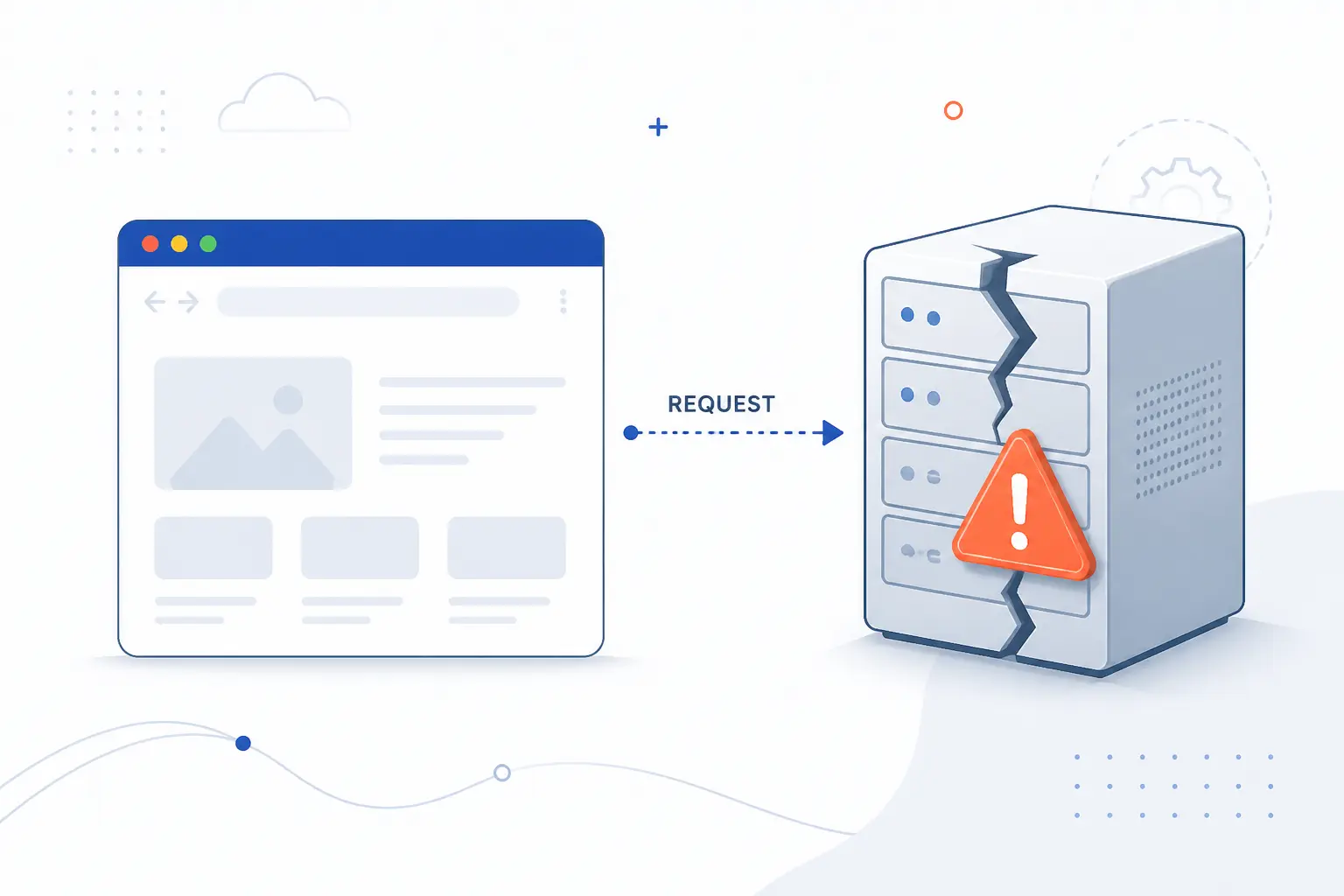
An internal server error means the server reached an unexpected condition and could not finish the request, so it returned HTTP 500. In plain terms, the browser reached the site, but the site or its server broke before sending a usable response. The status code definition describes 500 as a generic server-side failure, which is why the message feels frustratingly broad. That broadness is exactly why systematic troubleshooting matters.
Why It Is a Catch-All 500 Response
It is a catch-all because the server knows something went wrong but does not have a more specific 5xx status ready to send back. That can include misconfiguration, out-of-memory conditions, unhandled exceptions, broken permissions, or other application faults. We think of 500 as the server saying, “I failed, but I have not categorized the failure well enough for you yet.”
Why the Error Page Can Look Different From Site to Site
The error page can look different because the 500 status code is standard, but the page body is not. One site may show a plain Apache message, another may show a host-branded template, and a third may render a custom HTML error page. The code is what matters, not the cosmetics.
Why Visitors Usually Cannot Fix the Root Cause Themselves
Visitors usually cannot fix the root cause because the fault lives on the server side, not in the visitor’s browser. The most a visitor can do is rule out local issues, capture details, and report them well. Real fixes usually require access to logs, files, runtime settings, the database, or the hosting platform.
How 500 Compares With Other 5xx Errors
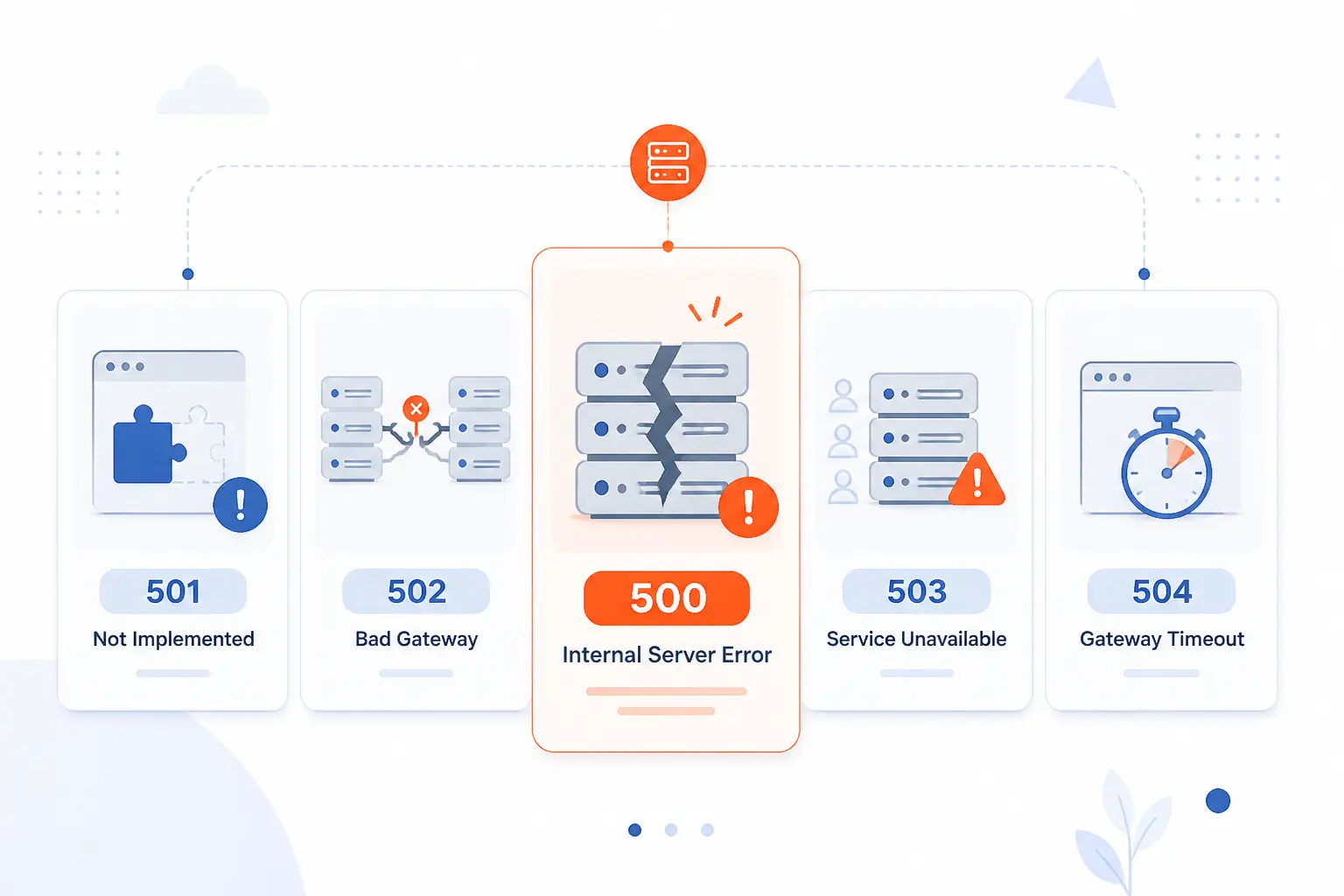
HTTP 500 is the general “something broke on the server” response, while other 5xx codes point to narrower classes of failure. The HTTP semantics standard separates 500 from 501, 502, 503, and 504 so you can tell whether the problem is unsupported functionality, a bad upstream response, temporary overload, or timeout. That distinction matters because the next troubleshooting step changes with the code.
| Code | What it usually means | Best next check |
|---|---|---|
| 500 | Unexpected server-side condition | App logs, permissions, PHP, database |
| 501 | Requested functionality is not supported | Method, module, or feature support |
| 502 | Gateway or proxy got an invalid upstream response | Reverse proxy and upstream app |
| 503 | Temporary overload or maintenance | Capacity, maintenance mode, retry timing |
| 504 | Gateway or proxy timed out waiting upstream | Slow upstream app or network path |
How 500 Differs From 501 Not Implemented
500 differs from 501 because 500 means the server failed unexpectedly, while 501 means the server does not support the functionality needed to fulfill the request. In practice, 501 is about missing capability. By contrast, 500 is about a capability that exists but failed in execution.
How 500 Differs From 502 Bad Gateway
500 differs from 502 because 502 points to a gateway or proxy receiving an invalid response from an upstream server. A 500 often means the app or server itself crashed. A 502 often means the proxy layer is fine but the app behind it answered badly.
How 500 Differs From 503 Service Unavailable
500 differs from 503 because 503 is meant for temporary overload or scheduled maintenance. It can also include a Retry-After header to tell clients when to try again. When we see a clean 503, we usually think capacity or maintenance first, not broken code.
How 500 Differs From 504 Gateway Timeout
500 differs from 504 because 504 means a gateway or proxy waited too long for an upstream server to respond. That usually sends us to slow database calls, stalled app workers, or network issues between layers. A 500 can happen much earlier, even before an upstream timeout becomes the visible symptom.
Why Repeated 5xx Errors Matter for SEO
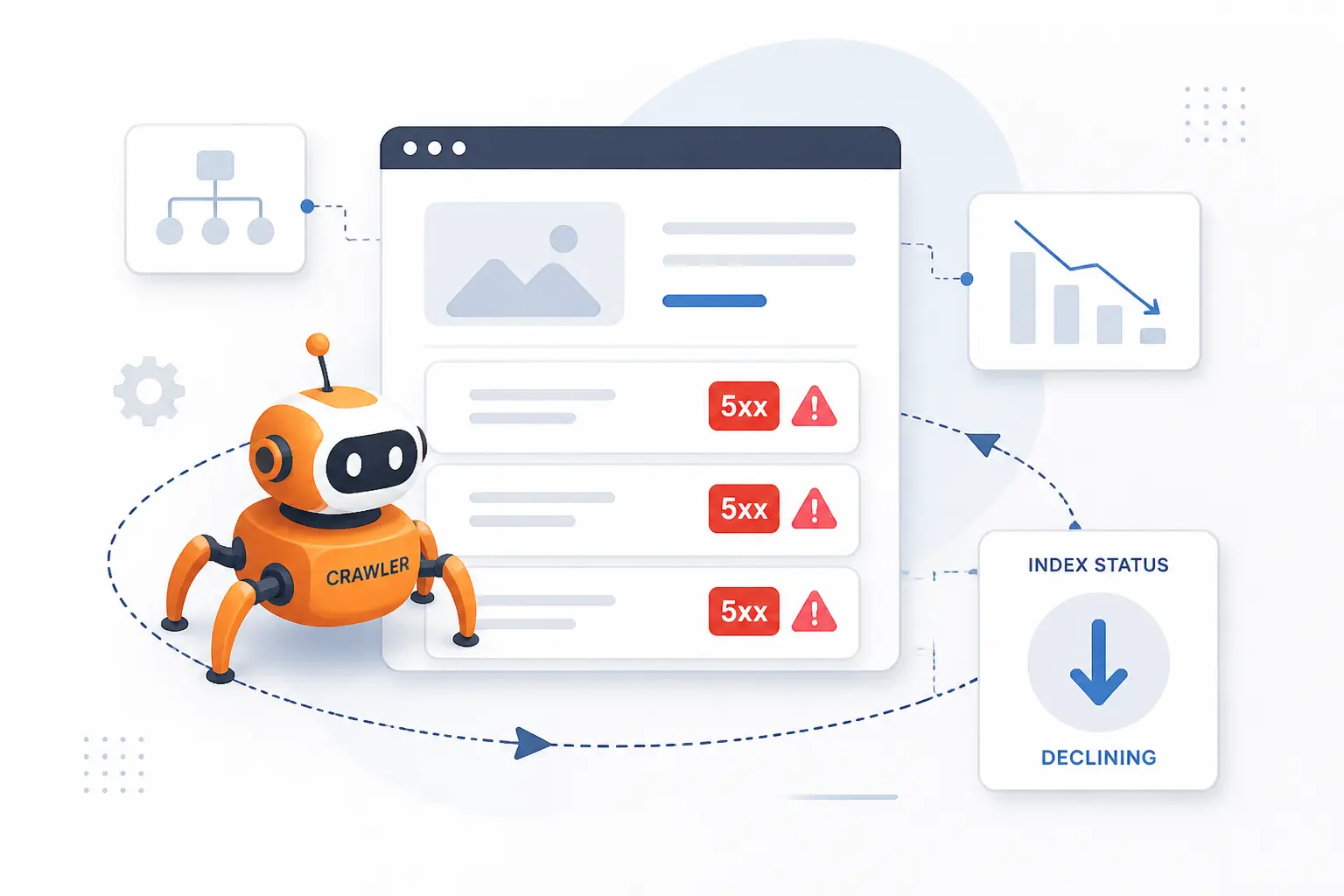
Repeated 5xx errors matter for SEO because search engines treat them as server-side availability problems, not harmless glitches. Google’s crawler guidance says 5xx responses can slow crawling, cause Google to ignore the returned content, and eventually remove persistently failing URLs from the index. That means a technical fault can become a visibility problem if you leave it unfixed.
Protect Crawlability and Organic Visibility
Fix recurring 500 responses on important URLs first, especially your home page, category pages, product pages, and key landing pages. If those pages keep failing, Google may preserve them for a while but will eventually reduce crawling and drop persistent errors from the index. We would treat a repeated 500 on a money page as an SEO incident, not just a hosting annoyance.
Audit Your Site for 500 Responses Regularly
Check Google Search Console for 5xx reports and compare them against your server logs on a regular schedule. Search Console generates error messages for 4xx and 5xx responses, while your hosting logs tell you what failed at the moment of the request. That combination is how you catch patterns, such as one template failing under crawl load or one plugin crashing only on certain URLs.
FAQ
An internal server error is usually a server-side problem, but a few visitor-side checks can still help you narrow it down fast. If you are unsure whether the fault is yours or the site’s, these short answers will point you in the right direction. We have kept them practical, because this is one of those topics where clarity beats theory every time.
What Causes an Internal Server Error?
An internal server error is caused by an unexpected server-side condition that stops the request from completing. Common causes include bad permissions, broken .htaccess rules, PHP memory exhaustion, plugin or theme conflicts, database issues, and server misconfiguration. If you own the site, logs usually tell you which one it is.
Is an Internal Server Error My Fault?
No, not usually. If you are just visiting the site, the root cause is usually on the site owner’s server or application. If you own the site and just changed code, plugins, PHP, redirects, or database settings, then it may well be tied to that recent change.
Can a Broken or Mistyped URL Trigger It?
Yes, it can, but it is not the most common outcome. A bad URL more often returns a 404 or another client-side response, yet malformed paths can trip bad rewrite rules or broken server logic and end up as a 500. That is why we always check the address bar first even though the deeper fault is usually elsewhere.
What Should You Try First in Google Chrome?
Try a normal reload first. If the page still fails, open an Incognito window or clear Chrome’s cached files and cookies for the site, then test again. If the error appears in Chrome, Firefox, and mobile data alike, it is very likely a real server-side issue.
How 1Byte Supports Website Reliability as an AWS Partner
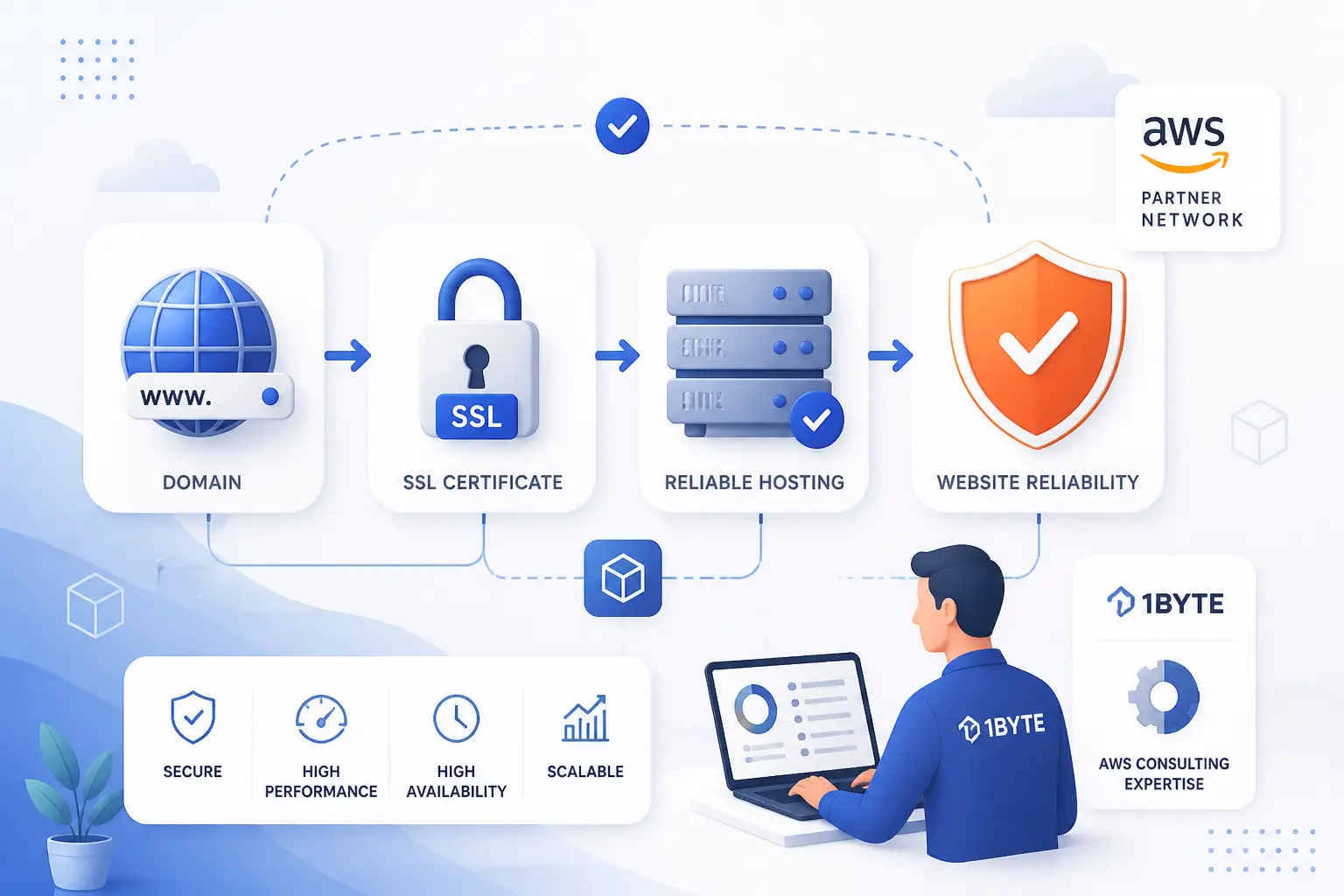
We support website reliability by helping you choose the right starting pieces before small configuration mistakes turn into hard-to-diagnose outages. As an AWS Partner, we look at the practical chain behind uptime: the domain points to the correct place, SSL is configured cleanly, and the hosting model matches the workload. That does not eliminate every internal server error, but it does reduce how many moving parts can go wrong at once. The table below shows where each 1Byte service fits in that chain.
| Service | Best fit | How it helps with reliability |
|---|---|---|
| Domain registration | New sites or domain moves | Keeps naming and DNS changes organized |
| SSL certificates | Any public website | Supports stable HTTPS and clean redirects |
| WordPress hosting | Sites built on WordPress | Simplifies the stack you need to monitor |
| Shared hosting | Smaller, simpler sites | Good when you want less server-level complexity |
| Cloud hosting | Growing sites with custom needs | Gives more room to match resources to demand |
| Cloud servers | Advanced workloads and full control | Useful when you need direct access to logs and runtime settings |
Set Up Domain Registration and DNS With Expert Guidance
Start with clean domain registration and correct DNS records so your site points to the right origin from day one. We often see troubleshooting wasted on the wrong server simply because DNS still points to an old host after a move. When domain registration and DNS are handled carefully, you know the request is reaching the machine you intend to debug. That makes every later internal server error check more trustworthy.
Protect Site Traffic With SSL Certificates and HTTPS Support
Install SSL certificates and keep HTTPS routing consistent across your live domain. SSL will not fix every 500 error, but it removes a whole layer of avoidable confusion around secure requests, redirects, and browser trust. In practical terms, that means fewer false leads when you are deciding whether the problem is the application or the request path. We see clean HTTPS as part of a clean troubleshooting baseline.
Choose WordPress Hosting, Shared Hosting, Cloud Hosting, or Cloud Servers for the Right Workload
Choose the hosting type that matches how much control and complexity your site really needs. For many beginners, WordPress hosting or shared hosting keeps the environment simpler. For heavier or more customized workloads, cloud hosting or cloud servers make more sense because you can line up the runtime, logs, and server behavior with the application more precisely. If you are unsure which path fits your site, the right next step is to map the workload first, then choose the simplest option that still gives you the visibility you need.






Conclusion
Most internal server error cases come down to a short list: bad permissions, wrong PHP, broken .htaccess, database mismatch, or a WordPress plugin or theme conflict. That is the good news. Once you stop treating 500 as a mystery and start treating it as a process, the fix usually appears faster than you expect.
If you are looking at a live outage right now, start with Step 6, read the logs, and let the evidence steer the next move. If the site broke right after an update, jump straight to the plugin, theme, PHP, and backup steps. Which path fits your case better right now, the log-first path or the rollback-first path?