

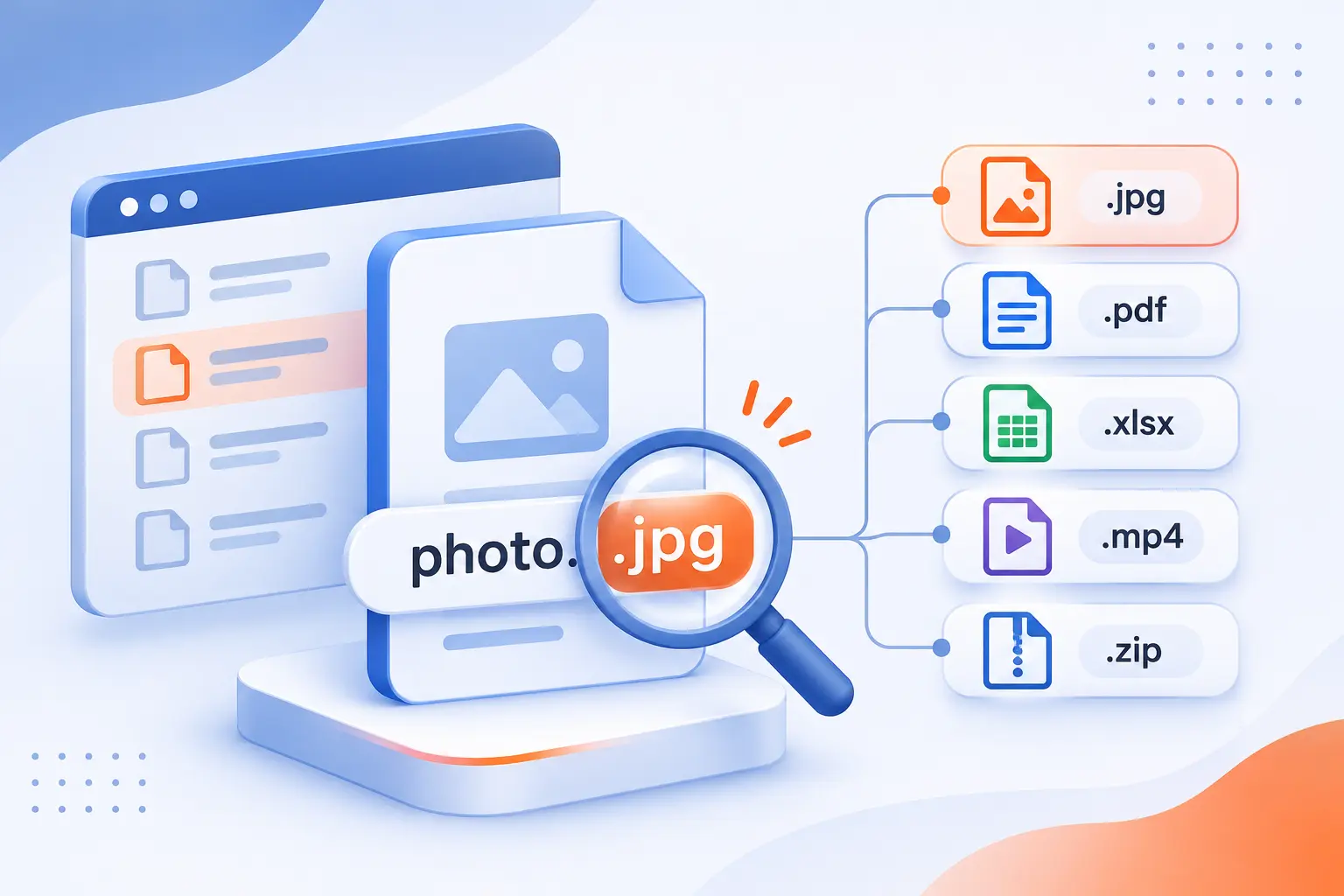
File name extensions are endings such as .pdf, .jpg, and .exe that help Windows identify files and choose an app. To reveal them, enable File name extensions in File Explorer’s View controls. At 1Byte, we recommend leaving this option enabled. It makes everyday documents easier to recognize and suspicious downloads harder to disguise.
We’ll walk through Windows 10 and Windows 11, explain common formats, and show what to check before opening unfamiliar files.
How to Make File Name Extensions Visible in Windows
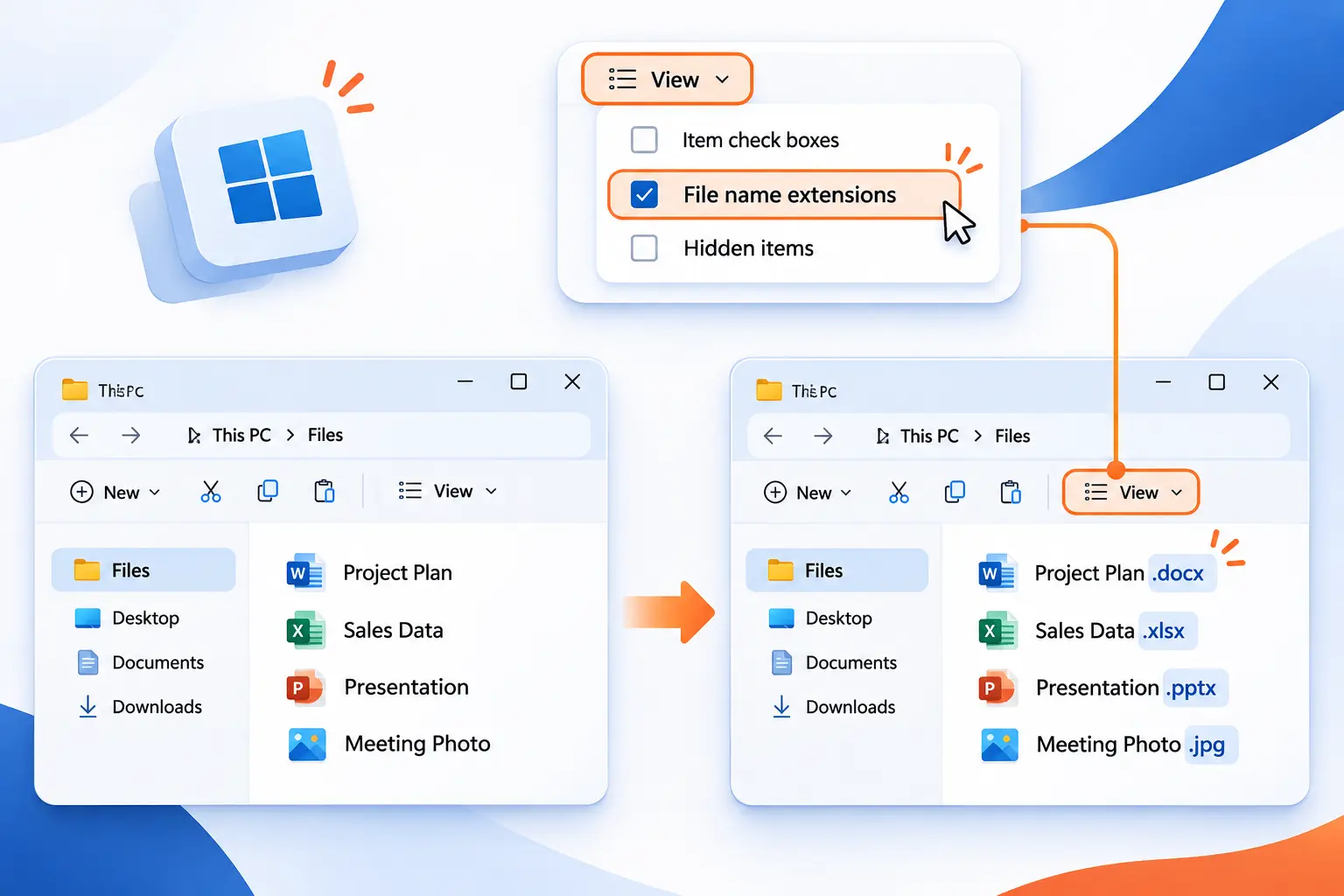
Enable File name extensions in File Explorer to display suffixes beside filenames. Windows 10 uses a ribbon checkbox, while Windows 11 places the option inside View > Show.
FURTHER READING: |
| 1. Social Engineering Attacks: Spot Scams and Reduce Risk |
| 2. What Is Localhost? Addresses, Tools, and WordPress |
| 3. 7 Types of Companies and How to Choose the Right One |
1. Open Windows File Explorer
Press Windows + E to open File Explorer. This built-in keyboard shortcut works in both Windows versions.
You should see a window showing folders and files. Open Documents or Downloads if you want to check familiar filenames.
2. Select the View Tab in Windows 10 or View Then Show in Windows 11
Select View in Windows 10, or select View > Show in Windows 11.
In Windows 10, look for the Show/hide group on the ribbon. In Windows 11, the Show submenu should contain File name extensions.
3. Enable File Name Extensions to Reveal File Suffixes
Select the File name extensions checkbox in Windows 10, or click that menu option in Windows 11.
Files should now display their suffixes. For example, a document previously shown as proposal may appear as proposal.docx. If the option is already checked, leave it checked.
Reading a Filename and Understanding Its Default App
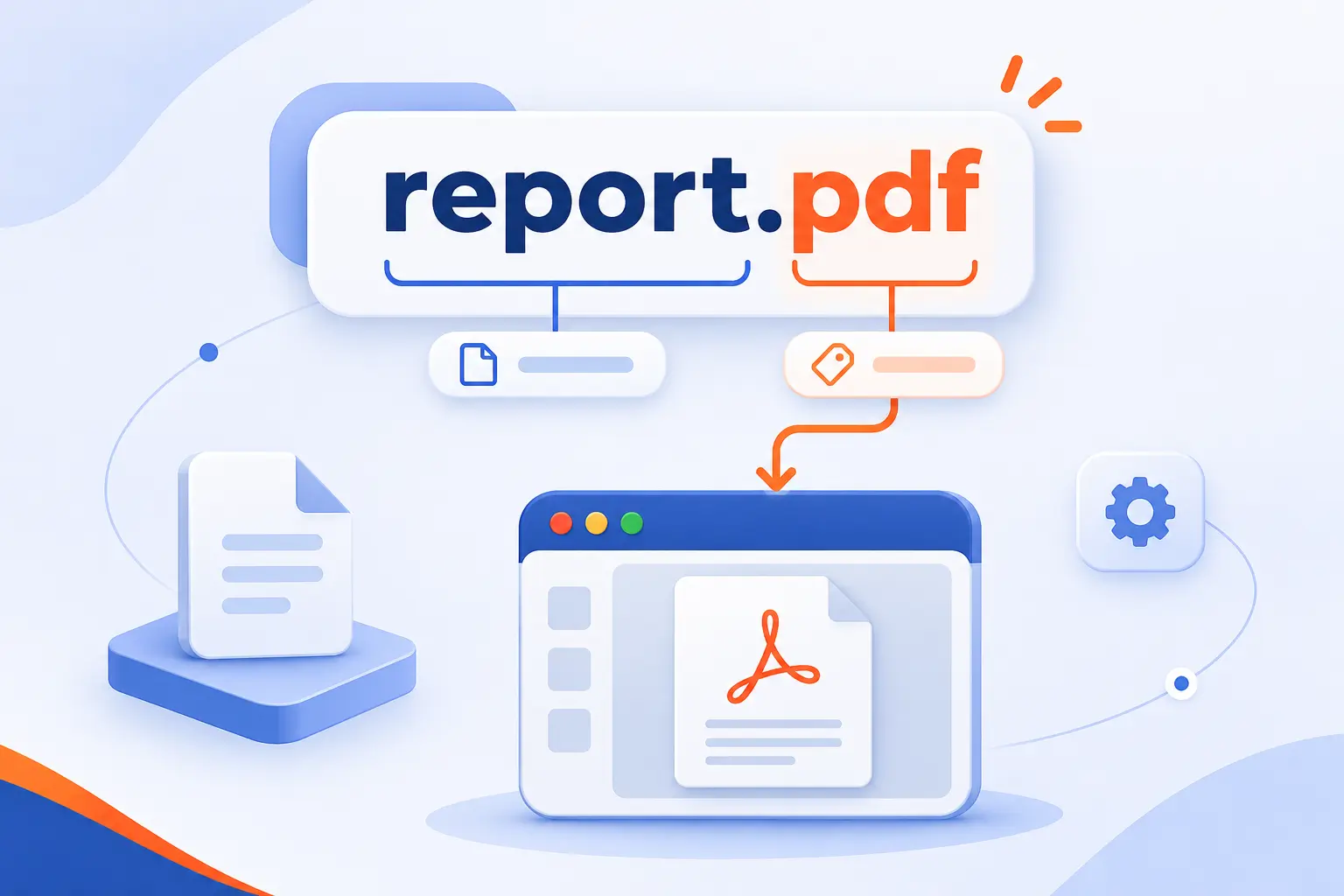
A filename usually contains a descriptive base name and an extension separated by a period. Windows uses the extension to help select the default application. That association tells Windows what to launch, but it does not guarantee the file’s contents match its label.
The Base Name and the Suffix After the Period
The base name describes the file, while the suffix after the final period normally identifies its extension.
Consider customer-proposal.final.docx. The base name is customer-proposal.final, and the extension is .docx. The earlier period belongs to the descriptive name. These documented naming conventions allow a base name and an optional extension.
For another example, homepage-banner.png suggests an image intended for a website. The name explains its purpose, while the suffix suggests its format. Neither part proves that an unfamiliar download is safe.
When renaming your own files, change the descriptive portion unless you have a specific reason to correct the extension.
How File Associations Connect Extensions to Applications
A file association connects an extension with the app Windows normally uses to open it.
For example, double-clicking meeting-notes.txt might launch Notepad. Opening proposal.docx might launch Word. Your installed apps and preferences determine the actual result.
To change that behavior, open Start > Settings > Apps > Default apps. The default application controls let you assign an app to a particular ending.
In Windows 11, search for .txt, select the matching result, and choose Notepad. Confirm with Set default if prompted. In Windows 10, select Choose default apps by file type, find .txt, and select its app to choose Notepad.
The selected application should appear beside the extension. Changing this association does not rewrite or convert the file.
A Practical Reference to Everyday File Types
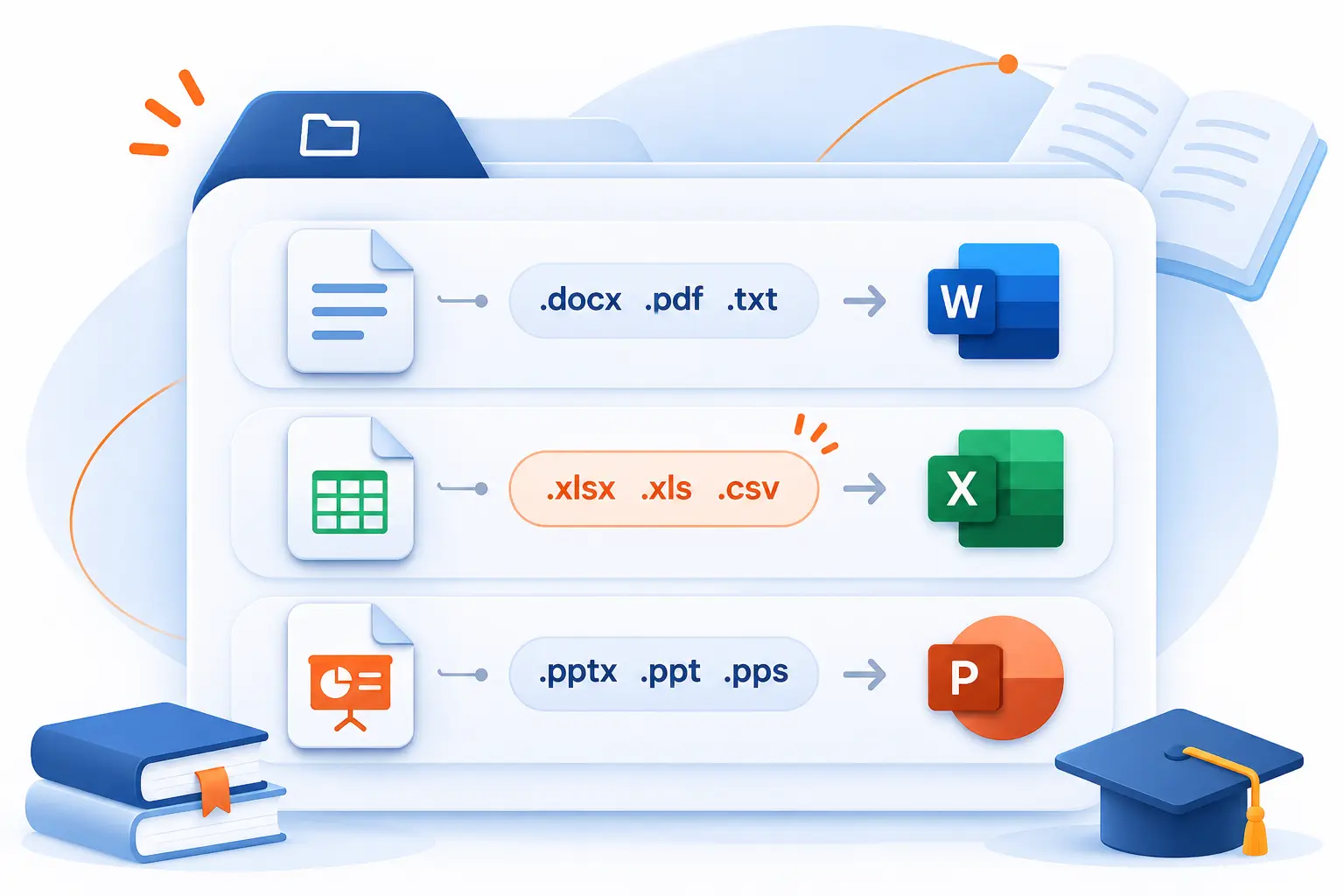
Use the visible extension to narrow down what a file contains and which application can handle it. The table below provides a quick reference. These are common uses, not security guarantees.
| Category | Common endings | Typical example |
|---|---|---|
| Documents | .txt, .doc, .docx, .odt, .pdf | Notes, contracts, manuals |
| Spreadsheets and presentations | .xls, .xlsx, .ppt, .pptx | Budgets and slide decks |
| Images | .jpg, .jpeg, .png, .gif, .svg, .tiff | Photos, logos, graphics |
| Audio and video | .mp3, .wav, .mp4, .mov, .avi | Recordings and clips |
| Archives | .zip, .rar | Packaged project files |
| Windows programs | .exe | Installers and applications |
Text and Formatted Documents: .txt, .doc, .docx, .odt, and .pdf
These extensions usually identify plain text, editable documents, or documents designed to preserve page layout.
The application compatibility reference distinguishes their purposes:
.txtstores plain text without document formatting such as bold headings..docidentifies the older Word document format..docxidentifies the newer XML-based Word document format..odtidentifies OpenDocument Text, supported by compatible word processors..pdfidentifies Portable Document Format, which preserves document formatting for sharing.
For example, installation-notes.txt suits simple instructions. A proposal requiring edits might arrive as proposal.docx, while its distribution copy might be proposal.pdf.
Spreadsheets and Presentations: .xls, .xlsx, .ppt, and .pptx
The .xls and .xlsx endings identify Excel workbooks, while .ppt and .pptx identify PowerPoint presentations.
The versions ending in x use newer XML-based formats. The shorter versions are older formats that remain in circulation.
A file named annual-budget.xlsx would normally open in Excel or another compatible spreadsheet application. A file named sales-presentation.pptx would normally open in PowerPoint or a compatible presentation application.
We recommend keeping the original when exchanging files between different office applications. Compatibility can affect formatting.
Photos and Graphics: .jpg, .jpeg, .png, .gif, .svg, and .tiff
These extensions identify image formats with different strengths for photographs, graphics, animation, and editing.
The browser imaging reference explains their capabilities and compatibility:
.jpgand.jpegboth identify JPEG images, commonly used for photographs..pngsupports transparency and lossless compression, making it useful for screenshots and graphics..gifsupports simple animation and a limited color palette..svgstores vector graphics that can resize without the pixelation associated with enlarging raster images..tiffoften appears in scanning, publishing, and image-editing work.
For a website project, you might receive team-photo.jpg, transparent-badge.png, and company-logo.svg. Their extensions help you distinguish the assets before uploading them.
Sound and Video: .mp3, .wav, .mp4, .mov, and .avi
The .mp3 and .wav endings usually indicate audio, while .mp4, .mov, and .avi commonly indicate multimedia containers.
An MP3 typically contains compressed audio, such as a podcast recording. WAV commonly holds uncompressed audio, although its contents can use other encodings. MP4, MOV, and AVI can package media tracks in different ways.
A container is the package around those tracks. A codec is the method used to encode or decode them. The playback compatibility reference explains why the container’s extension alone cannot guarantee playback.
For example, product-demo.mp4 may need a codec your player lacks. Renaming it to product-demo.mov will not solve that problem.
Compressed Archives: .zip and .rar
ZIP and RAR files are archives that can package multiple files and folders into one downloadable file.
For a trusted ZIP download, right-click website-assets.zip, select Extract All…, choose a destination, and select Extract. You should see the unpacked files in the destination folder. The built-in extraction instructions describe this process.
Windows 11 version 24H2 also supports RAR archives, but its built-in tools do not handle encrypted archives. Those require a compatible application.
Check the extracted filenames before opening anything. A harmless-looking archive name says nothing about the safety of its contents.
Windows Programs: .exe
An .exe file is a Windows executable that can run a program rather than simply display a document.
Legitimate installers commonly use this ending. However, an executable can also perform harmful actions. Its name alone cannot tell you which applies.
We draw a firm distinction between expected software and expected paperwork. An installer downloaded deliberately from a verified vendor is different from an unsolicited “invoice” ending in .exe. Do not run an unfamiliar program just to discover what it does.
Recognizing Suspicious Files Before Opening Them
Check the complete filename and whether its type matches what you expected before opening a download. File name extensions reveal useful clues, especially when a supposed document ends in an executable suffix. They cannot certify that a file is safe.
Double Suffixes That Can Disguise Executable Files
Read the final extension in a suspicious filename instead of trusting an earlier document-like ending.
Consider invoice.pdf.exe. The final extension is .exe, not .pdf. When known extensions are hidden, the displayed name may conceal that crucial distinction.
This is a documented attack technique. The recorded attacker behavior includes real incidents involving document-like names followed by executable endings. For example, the reference describes DarkGate using names ending in .pdf.lnk.
Multiple periods are not automatically suspicious. A name such as proposal.final.docx can be perfectly ordinary. The warning sign is a final extension that contradicts the file’s claimed purpose.
If you expected a PDF but received an executable or shortcut, stop. Do not open it to investigate.
Unexpected File Types in Email Attachments
Verify an unexpected attachment through a contact method you already trust before opening it.
Suppose a supplier normally sends PDF invoices but suddenly sends payment-details.zip. That difference deserves a check, even if the message uses a familiar name.
The consumer fraud guidance recommends contacting the person or company through information you know is genuine. Use an established phone number or independently verified website, rather than details inside the suspicious message.
Ask what was sent, its exact filename, and why its format changed. If the sender cannot confirm it, leave the attachment unopened. Follow your organization’s reporting process, or report the message through your email service.
FAQ
Showing extensions changes how Windows displays filenames, not how it stores their contents. These answers cover hiding, conversion, and accidental renaming.
Why Does Windows Hide Extensions for Known File Types?
Windows can hide recognized suffixes because the Hide extensions for known file types display option is enabled. The extension remains part of the filename even when it is invisible. Enable File name extensions to show it again.
Does Renaming a File Extension Convert Its Format?
No, renaming an extension changes the filename, not the underlying format. For example, changing budget.xlsx to budget.pdf does not create a PDF. The documented mismatch warning illustrates how an extension can disagree with a file’s contents. Use the original application’s Save As or Export command to produce another supported format.
Can You Restore an Extension Changed by Mistake?
Yes, if you only renamed the file and know its original extension, rename it back. Select the file in File Explorer, press F2, and restore the complete name, such as meeting-notes.txt. Press Enter and confirm the extension-change warning if it appears. The original association should return, but renaming cannot repair damaged or overwritten contents.


Conclusion
At 1Byte, we prefer visible filenames over guesswork. Showing file name extensions gives you a clearer view of documents, website assets, archives, and programs.
Start with File Explorer, enable the display option, and inspect a few familiar files. Then make checking the final suffix a habit before opening an unexpected download. What does your Downloads folder reveal now?