

- File Transfer Protocol Is a Standard for Moving Files Over TCP/IP
- How File Transfer Protocol Works on a TCP/IP Network
- How Users Log In and Move Files
- Common Uses and Real-World Examples
- Ways People Access FTP Servers Today
- Why Standard FTP Has Security and Network Limits
- Secure Variants and Modern Alternatives
- FAQ
- How 1Byte as an AWS Partner Supports File Transfers
- Conclusion
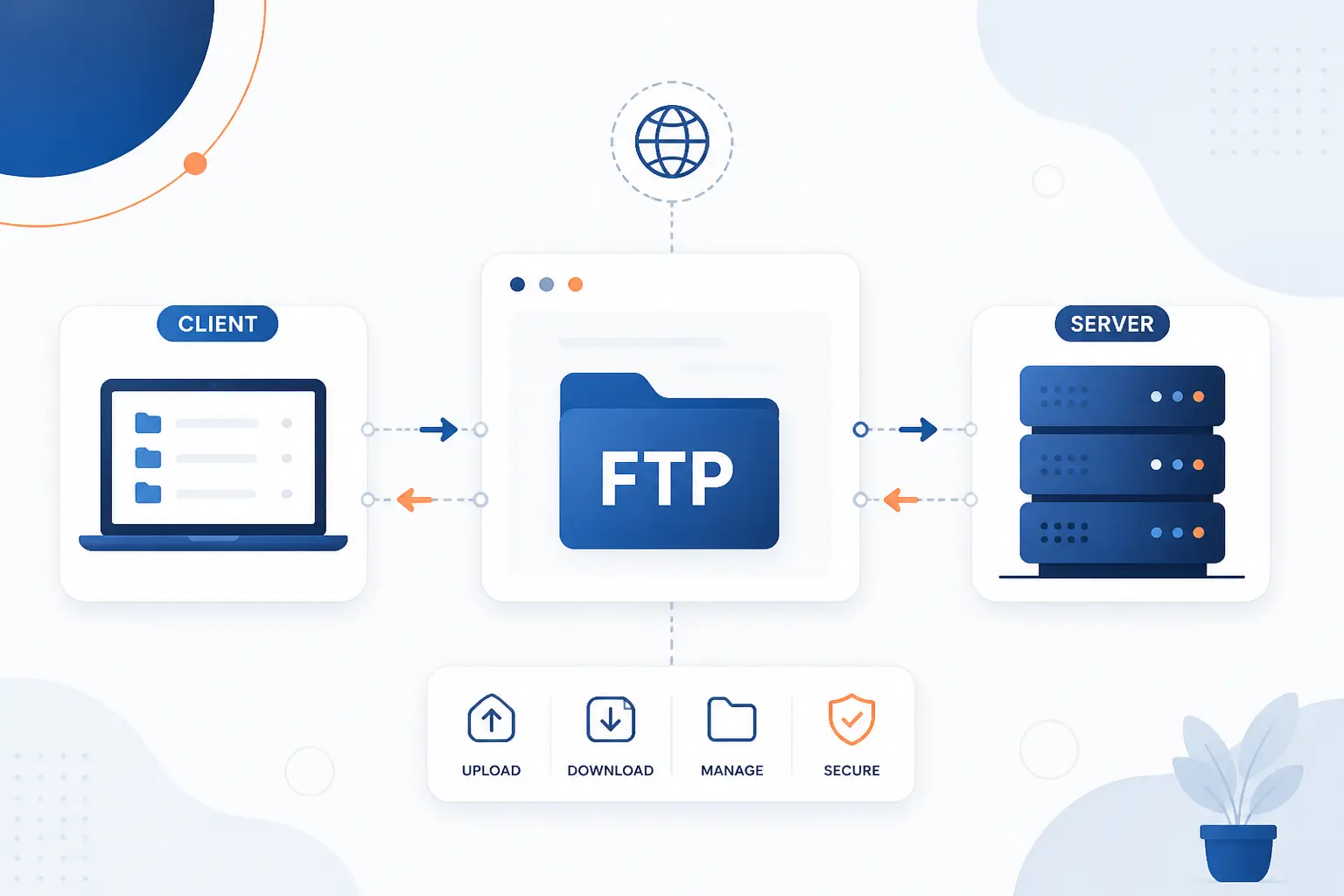
File Transfer Protocol is a network standard that lets one computer send files to, receive files from, and manage files on another computer over TCP/IP. Most people call it FTP. It works with a client, such as a desktop app or command-line tool, connecting to a server that stores the files. The client sends commands, the server replies, and a separate channel usually carries the actual file data. At 1Byte, we still see FTP in hosting work, legacy integrations, public archives, and quick administrative tasks, but we treat standard FTP as a tool that needs caution because it was designed before modern security expectations.
The short version is simple: FTP is good at moving files, but standard FTP is not good at protecting them. That distinction matters. If the job is a private business upload, a database export, or a website credentialed update, we usually prefer an encrypted option such as FTPS or SFTP. If the job is a controlled legacy workflow, FTP can still be practical when it is isolated, monitored, and understood.
File Transfer Protocol Is a Standard for Moving Files Over TCP/IP

File Transfer Protocol is a standard way for a client computer to move files to and from a server across a TCP/IP network. It defines commands for logging in, listing directories, uploading files, downloading files, renaming files, and deleting files. In simple terms, it gives computers a shared language for remote file handling. The original IETF specification describes FTP as a protocol for sharing files, encouraging indirect use of remote computers, and moving data reliably between hosts.
FTP sits at the application layer. That means users and programs interact with it through tools, while TCP handles reliable delivery underneath. We like to think of it as a warehouse clerk model: the control channel is the counter where you make requests, and the data channel is the loading dock where the boxes move.
This design made FTP useful across operating systems. A Unix machine, a Windows machine, and a mainframe could exchange files if both ends understood the same commands and data formats. That portability is one reason FTP lasted so long.
Its age also explains its biggest weakness. Standard FTP assumes a trusted network more than the modern internet deserves. It can still do the job, but it should not be mistaken for a modern secure transport by default.
FURTHER READING: |
| 1. What Is Traceroute? Packet Paths, Hops, and Delays |
| 2. What Is ARPANET? Origins, Operation, and Legacy |
| 3. What Is a VPN Tunnel? How It Works, Types, and Uses |
How File Transfer Protocol Works on a TCP/IP Network

FTP works by opening a command conversation between a client and server, then opening a data connection when a file or directory listing must move. The client asks for an action, and the server responds with a status code and message. When data must travel, FTP separates that flow from the command conversation. This split is powerful, but it also makes FTP more complicated than protocols that use one connection for everything.
Client and Server Roles
The FTP client starts the session, and the FTP server listens for requests and controls access to stored files. The client is usually a program on the user’s machine, such as a GUI app, file manager, deployment script, or terminal command. The server is the machine or service that exposes directories for authorized users.
The client decides what to ask for. It may request a directory listing, upload a file, download a backup, or change into another folder. The server decides whether that request is allowed. It checks credentials, file permissions, server rules, and the current working directory.
This role split is still familiar in hosting. A website owner may use an FTP client to upload theme files. A developer may script a nightly export. A data provider may publish read-only files. In every case, the client initiates, and the server governs.
Control and Data Connections
FTP uses one connection for commands and another connection for file data or directory listings. The control connection stays open while the user is logged in. It carries commands such as USER, PASS, CWD, LIST, RETR, and STOR, plus server replies.
The data connection opens only when needed. If you download a file, upload a file, or request a directory listing, FTP creates a data path for that transfer. Once the transfer finishes, that data connection can close while the control session continues.
This design has a practical benefit. Commands and file bytes do not crowd the same pipe. A client can keep a session alive, move through directories, and start separate transfers as needed. The tradeoff is network complexity, especially when firewalls and NAT devices must track more than one connection.
Default Ports 21 and 20
Standard FTP normally uses port 21 for the control connection and port 20 for the server-side data connection in active mode. The IANA service registry lists 20 for data and 21 for control, which is why those numbers appear in firewall rules, hosting panels, and network diagrams.
Port 21 is the one administrators usually notice first. If a client cannot connect at all, the control port is often where troubleshooting begins. Is the service listening? Is a firewall blocking the connection? Is the hostname resolving correctly?
Port 20 is more specific to the classic active-mode data flow. In passive mode, the server usually supplies another port for the data connection. That is why “FTP is open” can be a misleading phrase. The control port may work while file listings or transfers fail.
Active Mode vs Passive Mode
Active mode has the server connect back to the client for data, while passive mode has the client connect to a server-provided data port. That difference decides which side must accept the new data connection. In active mode, the client tells the server where to connect. In passive mode, the server tells the client where to connect.
Passive mode is usually easier behind home routers, office NAT, and cloud firewalls. The client initiates both the control connection and the data connection, which fits modern outbound-allowed network rules. The active and passive behavior in curl’s manual is a good example of how modern tools expose this choice.
Active mode still appears in older systems. It can work well inside a trusted private network where firewall rules are predictable. Across the public internet, we prefer passive mode because fewer client-side network surprises appear.
| Mode | Who opens the data connection? | Typical fit |
|---|---|---|
| Active | Server connects back to client | Controlled private networks |
| Passive | Client connects to server data port | NAT, firewalls, cloud environments |
Stream, Block, and Compressed Transfer Modes
FTP transfer modes define how bytes are packaged while moving between client and server. Stream mode sends data as a continuous stream and is the common default in ordinary use. Block mode splits data into blocks with headers. Compressed mode uses run-length encoding to reduce repeated data patterns.
Most beginners will only encounter stream mode. It fits normal binary files, text files, images, backups, archives, and website assets. The client sends or receives the file until the data connection ends.
Block and compressed modes matter more in protocol history and specialized systems. They show how FTP was designed to handle different host types and storage models. In modern hosting, compression is usually handled before the transfer, for example by creating a ZIP or tar archive, rather than relying on FTP’s compressed mode.
How Users Log In and Move Files

Users log in to an FTP server by opening a client session, sending credentials, and then running commands that browse folders or move files. The server replies after each command so the client knows whether the action worked. In daily use, a GUI may hide these commands behind buttons and folders. Under the hood, the same basic session flow remains.
Username-and-Password Sessions
A normal FTP login sends a username first and a password second. The client sends USER with the account name, then PASS with the password. If the server accepts both, the user enters an authenticated session.
After login, permissions matter. One account may have read-only access. Another may upload but not delete. A hosting administrator may restrict the account to a specific directory so the user cannot wander across the whole server.
This is where we urge restraint. Use separate accounts for separate people or systems. Do not share one broad account across a team if a narrower account can do the job. FTP access is simple, and that simplicity can become risky when credentials spread too widely.
Anonymous FTP for Public Files
Anonymous FTP lets users access public files without a personal account. Traditionally, the username is “anonymous,” and the password may be an email address or any accepted placeholder. The server then grants limited access, usually read-only.
This pattern was common for public datasets, software archives, and institutional file drops. For example, some scientific data services have documented anonymous public intake for submitting or retrieving files. The point is convenience, not privacy.
Anonymous access should never expose private uploads by accident. If a server accepts incoming files, administrators should separate incoming and public directories. Otherwise, one person’s upload may become another person’s download, and nobody wants that surprise.
Commands for Getting, Putting, and Changing Directories
FTP commands tell the server what file action the client wants to perform. RETR downloads a file from the server. STOR uploads a file to the server. CWD changes the working directory.
LIST asks for a directory listing. DELE removes a file if permissions allow it. MKD creates a directory, while RMD removes one. RNFR and RNTO work together to rename a file.
Modern servers and clients often support extra commands. The standards-track extensions for restart and listing extensions added commands such as SIZE, MDTM, MLST, and MLSD. These make clients better at showing file sizes, modification times, predictable listings, and resumable transfers.
GUI clients make these commands feel like drag-and-drop file management. Still, knowing the command names helps when logs show a failure. If STOR fails, the upload failed. If CWD fails, the client could not enter that folder. Logs stop looking like alphabet soup once the basic verbs click.
Common Uses and Real-World Examples

FTP is commonly used to move large files between systems, update remote website files, and publish public archives. It is less fashionable than it once was, but it has not vanished. We still meet it in hosting panels, old automation scripts, lab equipment, enterprise batch jobs, and public data workflows. The key is matching the tool to the risk of the content.
| Use case | Typical files | Our practical view |
|---|---|---|
| System-to-system delivery | Exports, logs, reports | Use encryption for private data |
| Website maintenance | Images, themes, static assets | Limit accounts to needed folders |
| Public distribution | Open datasets, installers, archives | Read-only access is safer |
Sending Large Files Between Systems
FTP is often used when one system must hand off files to another system on a schedule. A business may export inventory files from one platform and import them into another. A lab instrument may drop readings onto a server. A finance department may send batch reports to a processing system.
The attraction is predictability. FTP has mature client libraries, clear commands, and a long operational history. Many older systems already know how to speak it.
For large files, the best practice is to transfer archives rather than thousands of tiny files. A single archive reduces connection churn and directory overhead. It also gives you one object to checksum, store, and retry if the transfer breaks.
Our view is blunt here: if the file is private, use an encrypted variant or another secure channel. Size is not the only issue. A large file can contain payroll, customer records, credentials, or sensitive logs. The transport should match the contents.
Uploading, Downloading, and Remote File Management
FTP is still used for routine remote file management, especially in web hosting and legacy operations. Users upload images, download backups, replace static files, and clean old directories. The mental model is familiar because it resembles a local file manager.
A designer may drag a folder of assets into a website directory. A developer may download a copy of logs before troubleshooting. A site owner may replace a PDF on the server without opening a shell session.
That convenience is real, but it needs guardrails. Give accounts the smallest directory scope that works. Remove old accounts. Avoid saving passwords on shared machines. When possible, prefer SFTP or FTPS for authenticated work.
Distributing Public Files and Software Downloads
FTP has long been used to distribute public files because anonymous read-only access is simple. Software projects and public institutions historically used mirrors to bring downloads closer to users. Debian, for example, describes its archive as distributed across hundreds of servers worldwide, a reminder that file distribution is partly a geography problem.
Many projects now favor HTTPS and content delivery networks. That shift makes sense. Browsers handle HTTPS well, caching is stronger, and encrypted transport is expected.
Still, FTP remains part of internet history and some live workflows. You may see hostnames that begin with “ftp” even when the actual access method is HTTP. That naming habit survived because people associate “ftp” with downloads, archives, and mirrors.
Ways People Access FTP Servers Today

People access FTP servers through dedicated clients, file managers, command-line tools, and, less commonly now, web browsers. The best access method depends on the user’s skill level and the job. A designer may prefer a GUI. An administrator may prefer a terminal. A script should use a command-line tool or library because repeatability matters more than a pretty screen.
| Access method | Best for | Watch out for |
|---|---|---|
| Web browser | Legacy read-only links | Major browsers removed broad support |
| GUI client | Manual uploads and browsing | Saved passwords and wrong folders |
| Command line | Scripts and repeatable jobs | Credential storage and logging |
Web Browsers
Web browsers are no longer the reliable FTP tools they once were. For years, users could paste an ftp:// address into a browser and browse or download files. That habit is now fragile because major browsers moved away from built-in FTP support.
Chrome’s developer documentation explains that older built-in support was removed after a staged deprecation. Mozilla also removed FTP support from Firefox because standard FTP lacks encryption and had become a security concern.
Our advice is simple. Do not design a workflow that depends on browser FTP access. Use a real client, use HTTPS for public downloads, or choose a secure transfer method for private files.
GUI FTP Clients and File Managers
GUI FTP clients are the easiest option for most manual file work. They show local files on one side and remote files on the other. Users can drag, drop, rename, delete, and create folders without memorizing commands.
This is helpful for website maintenance. A person can upload a batch of images or replace a static file with little training. Many desktop file managers can also connect to remote servers, depending on the operating system and installed support.
The danger is quiet convenience. A saved password may sit on a laptop for years. A user may drag files into the wrong folder. A broad account may expose more directories than the task requires. We prefer using named accounts, limited permissions, and encrypted connections whenever the client supports them.
Command-Line Tools
Command-line tools are best when the transfer must be repeatable, logged, or automated. They fit cron jobs, deployment scripts, backup pulls, and scheduled imports. A script can connect, upload a file, verify a return code, and alert someone if the job fails.
The terminal also makes troubleshooting clearer. You can see connection failures, login errors, path mistakes, and permission denials directly. That visibility helps when a GUI only says “transfer failed.”
Handle credentials carefully. Avoid putting passwords directly into shell history or world-readable scripts. Use environment variables, protected config files, or secret management where appropriate. A fast script is not worth much if it leaks the key to the server.
Why Standard FTP Has Security and Network Limits

Standard FTP has serious security and network limits because it does not encrypt credentials or file data by default, and it uses separate connections that can confuse firewalls. The protocol came from an earlier internet, where trust boundaries were softer. Modern networks are hostile by comparison. If you use standard FTP across untrusted networks, assume someone may be able to observe or interfere with the session.
Clear-Text Credentials and Data
Standard FTP can send usernames, passwords, commands, and file contents without encryption. That means anyone with the right network position may read sensitive material in transit. The FTP security extensions document explicitly discusses the risk of a password passed in the clear, which is the heart of the problem.
This is why plain FTP is a poor choice on public Wi-Fi, shared networks, and the open internet. Even if the file is harmless, the password may not be. Users often reuse passwords, and attackers know that.
We treat plain FTP like a legacy compatibility option. It may be acceptable inside a tightly controlled private network for non-sensitive files. For customer data, credentials, source code, backups, or financial records, we do not consider standard FTP good enough.
Risks Such as Sniffing, Spoofing, and Brute-Force Attacks
FTP is exposed to sniffing, spoofing, and brute-force attacks when it is reachable and unprotected. Sniffing means watching traffic and collecting credentials or file contents. Spoofing means pretending to be a trusted endpoint or altering traffic paths. Brute-force attacks mean repeatedly guessing usernames and passwords.
These risks are not exotic. They are the kind of background noise every public-facing service attracts. If an FTP server is open to the internet, logs may show repeated login attempts from unfamiliar networks.
Practical defenses include strong passwords, account lockout policies, IP allowlists, firewall limits, and moving private workflows to encrypted alternatives. None of these makes plain FTP encrypted. They only reduce exposure. The better fix is to stop sending secrets in clear text.
NAT and Firewall Challenges
FTP often has firewall problems because its command connection and data connection are separate. A firewall may allow the control session but block the data channel. To the user, login works, but directory listings hang or file uploads fail.
NAT adds another layer. In active mode, the server may try to connect back to an address that is private, translated, or blocked. In passive mode, the server must advertise reachable ports and the firewall must allow them.
This is why FTP configuration in cloud and hosting environments needs care. Administrators may need a passive port range, matching firewall rules, and correct public address settings. When those three do not line up, FTP becomes the networking equivalent of a locked door with the key on the wrong side.
Secure Variants and Modern Alternatives

Secure FTP-related options add encryption, authentication improvements, or a different transport model so credentials and file contents are not exposed like they are in standard FTP. FTPS keeps the FTP model and adds TLS. SFTP uses SSH and is a different protocol despite the similar name. FTPES usually means explicit TLS, where the client starts on the standard control port and then upgrades the session.
| Option | What it uses | Best fit | Key note |
|---|---|---|---|
| FTPS | FTP plus TLS | Existing FTP workflows needing encryption | Still has data-channel firewall planning |
| SFTP | SSH | Secure admin and automation tasks | Not the same protocol as FTP |
| FTPES | Explicit TLS upgrade | Servers that require encrypted FTP sessions | Common form of FTPS |
FTPS
FTPS is FTP protected with TLS. It keeps FTP commands and the client-server model, but it adds cryptographic protection for authentication and data when configured correctly. The TLS extension spec explains how TLS support is added to FTP using security commands.
FTPS is useful when an organization already has FTP-based workflows and wants encryption without replacing every tool. Many GUI clients support it. Many servers can require it for logins.
The catch is that FTPS still inherits FTP’s connection behavior. Firewalls must handle control and data channels. Passive port ranges still matter. Certificates must also be valid and trusted, otherwise users learn the bad habit of clicking past warnings.
SFTP
SFTP is a secure file access protocol that runs over SSH, not an encrypted form of standard FTP. The name causes endless confusion. In practice, SFTP usually feels like FTP to users because clients show folders and files, but the network design is different.
SFTP commonly uses one SSH connection. That makes firewall rules simpler than classic FTP, especially for cloud servers and administrative access. OpenSSH’s client manual describes the sftp command as an interactive secure file program.
We often prefer SFTP for server administration because many Linux systems already use SSH. Accounts, keys, and permissions can fit existing operational practices. Still, SFTP access should be scoped carefully. “Secure” does not mean “safe with unlimited permissions.”
FTPES and Other Encrypted Transfer Options
FTPES usually means explicit FTPS, where the client connects first and then requests TLS protection. This differs from implicit FTPS, where TLS is expected from the start on a dedicated secure port. Many modern clients label explicit FTPS as “FTPES” or “Require explicit FTP over TLS.”
Other options may be better depending on the job. HTTPS works well for public downloads and browser-friendly distribution. Rsync over SSH is strong for syncing directory trees. Object storage tools may fit large cloud-native workflows better than a traditional remote directory.
Our practical rule is this: choose the simplest secure tool that both sides can operate correctly. A theoretically perfect method is useless if nobody can configure it. A modest, well-understood secure workflow beats a fancy one that breaks every Friday evening.
FAQ
These quick answers cover the questions we hear most often when people first meet File Transfer Protocol. The main idea is to separate FTP itself from the network layers below it and the secure alternatives beside it. Once that distinction is clear, the choices become much easier.
What Is the Protocol for File Transfer?
The classic protocol for remote file movement is File Transfer Protocol, or FTP. It lets a client log in to a server, browse directories, upload files, and download files. For private data, we usually recommend SFTP or FTPS instead of plain FTP.
What Is the Difference Between FTP and TCP?
FTP is an application protocol for moving and managing files, while TCP is a transport protocol that reliably carries data between computers. FTP uses TCP underneath it. Think of TCP as the road and FTP as the delivery instructions.
Which Is Best, FTP or SFTP?
SFTP is usually better for private or administrative transfers because it encrypts the session through SSH. FTP may still be acceptable for non-sensitive legacy workflows or isolated networks. If credentials or confidential files are involved, we would choose SFTP in most hosting scenarios.
Is File Transfer Protocol Still Used?
Yes, File Transfer Protocol is still used, especially in legacy systems, hosting workflows, public archives, and scheduled integrations. Its role is smaller than it once was because HTTPS, SFTP, FTPS, and cloud storage tools are common. We see it as useful but no longer the default safest choice.
What Port Does FTP Use by Default?
FTP uses port 21 by default for the control connection. In classic active mode, port 20 is associated with the server-side data connection. Passive mode often uses a server-defined range of data ports, so firewall rules may need more than the control port.
How 1Byte as an AWS Partner Supports File Transfers
As 1Byte, an AWS Partner, we support file-transfer workflows by helping customers put the right hosting foundation around the way they move files. That may involve domains, SSL certificates, WordPress hosting, shared hosting, cloud hosting, or cloud servers. The point is not to force every customer into one tool. The point is to make access safer, clearer, and easier to operate.
Domain Registration and SSL Certificates for Safer Access
Domain registration gives users a stable name for reaching file-related services, and SSL certificates help protect encrypted access paths. A clear domain name is easier to manage than a raw server address. It also makes migrations less painful because the name can point to a new destination later.
SSL certificates matter when customers use HTTPS or TLS-protected services around file delivery. They help clients verify the server they are connecting to. Without that trust check, users can be trained into ignoring warnings, and that is a bad habit.
For FTP specifically, certificates are relevant to FTPS and FTPES rather than plain FTP. If a workflow must keep the FTP model, adding TLS correctly is the practical security step. We prefer that over pretending standard FTP is private.
WordPress Hosting and Shared Hosting for Routine File Updates
WordPress hosting and shared hosting often involve routine file updates for themes, plugins, images, and static assets. Some customers still use FTP-style clients because the folder view feels familiar. That can be reasonable for simple maintenance when access is limited and credentials are handled carefully.
We encourage customers to avoid broad, shared credentials. A file account should reach only what it needs. If one person updates a site, that person should not receive more access than the task requires.
For beginners, the real win is clarity. Know which folder is public. Know which files belong to the application. Know how to restore a backup before replacing anything. File transfer is easy until the wrong upload overwrites the wrong directory.
Cloud Hosting and Cloud Servers for Scalable Transfers
Cloud hosting and cloud servers help when file-transfer workloads need more control over compute, storage, and network rules. A small site update is one thing. Scheduled exports, large media drops, and multi-system workflows need a more deliberate setup.
With cloud servers, administrators can define user accounts, configure secure transfer services, set firewall rules, and allocate storage based on the workload. With cloud hosting, customers can place applications and file operations in an environment that fits their traffic and management needs.
Our AWS Partner role matters here because many customers want cloud infrastructure without guessing their way through every decision. We do not need to oversell it. Good file movement is mostly about correct permissions, secure transport, predictable storage, and monitoring the places where transfers fail.






Conclusion
File Transfer Protocol is a long-standing standard for moving files between a client and server over TCP/IP. It works through commands, replies, and separate data connections. That architecture made FTP durable, flexible, and widely supported.
Its weakness is just as clear. Standard FTP does not protect credentials or data by default, and its separate connection model can complicate firewalls. For private files, SFTP, FTPS, FTPES, HTTPS, or another secure option is usually the better path.
Our advice as 1Byte is practical: understand FTP before you use it, and do not use plain FTP just because an old guide says it works. If you are updating a website, moving business files, or planning a cloud-hosted workflow, start by asking one question: does this transfer need privacy, proof of identity, and clean firewall behavior?