


If you want the best free CDN for WordPress, start by deciding what kind of speed problem you are actually trying to solve. Some tools here accelerate full pages and add edge security. Others focus on images only, which can still be enough for blogs, portfolios, and content-heavy sites. Our shortlist is built for commercial investigation, so the goal is simple: help you narrow this down to the few options that really fit your site, your budget, and your tolerance for setup work.
How the Best Free CDN for WordPress Options Compare
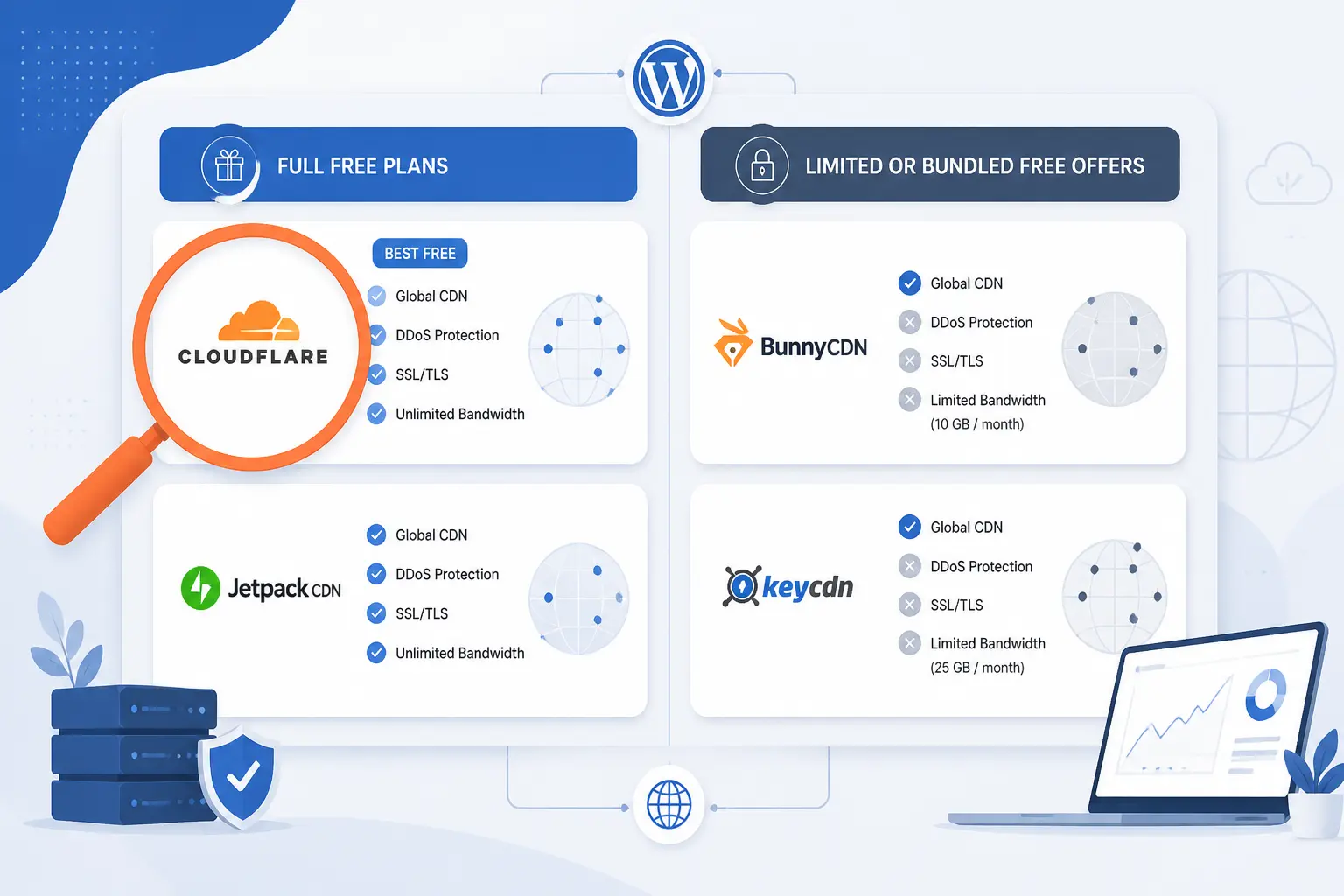
The fastest way to compare these tools is to separate true free plans from bundled or limited free options. Cloudflare, Jetpack, Optimole, Gcore, and Amazon CloudFront all give you a real starting point without paying on day one, but they differ sharply in setup style, coverage, and upgrade path. If you only need image delivery, the simpler picks can be enough. If you want site-wide acceleration plus security, the field gets narrower very quickly.
FURTHER READING: |
| 1. 15 Best Sales Coaching Software for Smarter Reps |
| 2. 15 Best AI Demand Forecasting Tools for Teams |
| 3. 15 Best SMTP Servers for Reliable Email Sending |
Quick Comparison of the Best Free CDN for WordPress Picks
| Name | Delivery scope | Setup model | Starting price | Free option | Score |
|---|---|---|---|---|---|
| Cloudflare | Full-site acceleration and edge security | DNS and plugin | $0/month | Yes | 4.9 |
| Jetpack | Images and selected static assets | Plugin | $0/month | Yes | 4.4 |
| Optimole | Image CDN with optimization | Plugin | Free | Yes | 4.3 |
| Amazon CloudFront | Full-site acceleration | AWS distribution setup | Usage-based | Yes | 4.2 |
| Gcore | Full-site acceleration | Plugin or nameservers | Free to start | Yes | 4.0 |
| Pressidium EDGE | Managed host CDN and WAF | Built into hosting | $21/month | No | 4.1 |
| bunny.net | Full-site CDN with optional optimizer | Pull Zone and plugin | From $0.002/GB | Trial | 4.5 |
| RocketCDN | Limited free pages or whole-site paid | Inside WP Rocket | Included with license | Yes, limited | 4.2 |
| KeyCDN | Full-site CDN | Pull Zone and plugin | From $0.04/GB | Trial | 4.1 |
| Smush Pro | Image CDN | Plugin | From $3/month | No | 4.0 |
How We Researched and Evaluated Each Option
We built this list by reading the official product pages, setup docs, pricing pages, and public review listings we could verify. We weighted free access heavily, but we did not treat every “free” offer as equal. A free image CDN, a usage-based free tier, and a paid host bundle solve very different problems.
- Capability fit: we scored how well each option can realistically speed up a WordPress site, with extra credit for full-site delivery, cache control, and edge security.
- Free value: we judged whether the free plan is genuinely useful on a live site or just a narrow teaser with limits that force an immediate upgrade.
- Setup friction: we compared plugin-only workflows against DNS changes, AWS-style configuration, or host-level bundling that changes how much work the site owner must do.
- Upgrade clarity: we favored services with understandable pricing and a predictable path from small hobby site to business site.
- WordPress fit: we looked for named WordPress plugins, automatic cache handling, media rewriting, or documented compatibility with common WordPress workflows.
Those criteria drive the 5-point scores in the table. They are our editorial judgment from this research, not copied from G2, Trustpilot, or WordPress.org.
Top Free CDN for WordPress Picks
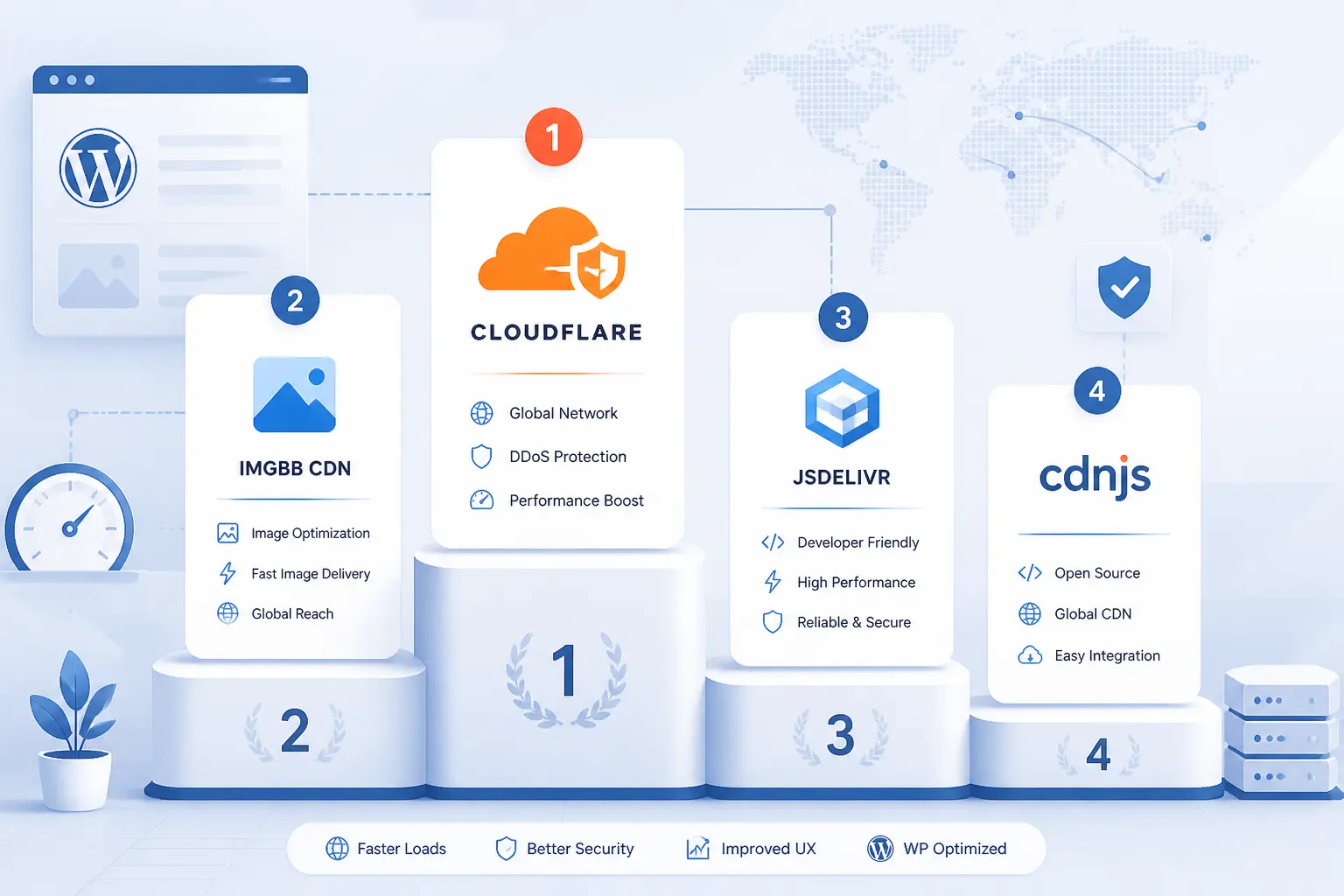
If you want the shortest possible answer, Cloudflare is the best all-around free CDN for WordPress for most sites. Jetpack and Optimole are easier fits when your bottleneck is mostly images and static assets. Amazon CloudFront, Gcore, bunny.net, and KeyCDN make more sense when you want more control and can tolerate a slightly more technical setup.
1. Cloudflare

- Category: Full-site CDN and edge security platform
- Best for: Most WordPress sites that want real free value
- Ease of use: Moderate
- Pricing: Free plan, with optional APO add-on
- Standout feature: CDN plus DDoS protection in one stack
For most readers, this is where the shortlist starts and ends. Cloudflare stands out because the free tier is not just an image proxy or a tiny trial. It gives you actual edge caching, SSL, DNS, and DDoS protection in one platform, which is more complete than what many WordPress-only CDN tools offer. That makes it our top pick for anyone who wants the broadest no-cost coverage before thinking about upgrades.
How Cloudflare works
Cloudflare sits in front of your WordPress site at the DNS level, so requests hit Cloudflare first instead of your origin server directly. In practice, that means you point your domain to Cloudflare nameservers, let it proxy traffic, and then manage caching, SSL, and security from the Cloudflare dashboard. If you want WordPress-specific tuning, the Cloudflare plugin can connect your site and handle automatic cache management when you publish, edit, or delete content.
The free setup already covers the basics well. If you want more aggressive WordPress caching, Cloudflare’s Automatic Platform Optimization is the paid add-on that pushes the service from “strong general CDN” into “serious WordPress accelerator.” The docs show a clean workflow: change nameservers, install the plugin, create an API token, and then enable APO inside WordPress. That is more involved than a one-click image CDN, but it is still approachable for a site owner who can handle DNS.
Who is Cloudflare for?
Cloudflare is for site owners who want one service to handle speed, SSL, and attack protection without paying right away. It is especially good for blogs, brochure sites, publisher sites, and small business sites where global delivery and bot filtering matter just as much as raw speed.
It also fits WooCommerce and other dynamic WordPress builds better than image-only tools, though you need to configure caching rules carefully. If you want something that never touches DNS and lives entirely inside WordPress, look elsewhere. The free plan is excellent, but the setup is still more infrastructure-flavored than plugin-flavored.
Cloudflare pricing
- Free: $0/month. Built for personal or hobby projects, with CDN delivery, SSL, and baseline site protection.
- Pro: $20/month billed annually or $25 monthly. For professional websites, with more advanced performance and security features.
- Business: $200/month billed annually or $250 monthly. For online businesses that need stronger controls and higher-touch features.
- Automatic Platform Optimization: $5/month on the free plan. Adds WordPress optimization with CDN, intelligent caching, and other WordPress-focused tuning.
The full plan lineup and the WordPress add-on are listed on the plan comparison page.
Pros and cons
Pros
- Free tier covers full-site delivery, not just images.
- DDoS protection is included on application service plans, which is rare at $0.
- The WordPress plugin can purge cache automatically on content changes.
- APO gives WordPress users a clear upgrade path for dynamic page acceleration.
Cons
- You usually need a DNS and nameserver change to get the full benefit.
- APO is not included on the free plan, so the best WordPress-specific caching is extra.
- The APO plugin does not support multisite installations.
- G2 reviewers regularly praise the platform’s breadth, but they also mention a learning curve with advanced settings.
Cloudflare rating and reviews
- G2: rated 4.5/5 across 594 reviews.
Our take is simple: if you want the best free CDN for WordPress with real security value, Cloudflare is the default recommendation. It is not the absolute easiest option here, but it is the most complete free one.
2. Jetpack
- Category: WordPress performance plugin with built-in CDN
- Best for: Beginners who want plugin-based setup
- Ease of use: Easy
- Pricing: Free CDN, paid bundles for broader Jetpack features
- Standout feature: Free image and static asset delivery from inside WordPress
Jetpack is the easiest genuinely free option in this list if you do not want to touch DNS. Its Site Accelerator feature lives inside the broader Jetpack plugin, and the official documentation is very clear that the CDN tools are provided free to all sites running Jetpack. That makes it a practical pick for smaller WordPress sites where simplicity matters more than edge rule flexibility.
How Jetpack works
Jetpack’s CDN is called Site Accelerator. You install Jetpack, connect it to a WordPress.com account, then go to Jetpack → Settings → Performance and enable Site Accelerator. The support docs say you can accelerate images, static files, or both, and the system serves those assets from Jetpack’s global network.
There are important limits, though. Jetpack’s own documentation says Site Accelerator serves images and common static assets, but it does not serve static files from themes, third-party plugins, or custom scripts. It can serve WebP automatically to browsers that support it, which is useful, but this is not the same thing as a full reverse-proxy CDN like Cloudflare. Think of it as a fast, low-friction performance layer, not a full edge platform.
Who is Jetpack for?
Jetpack is best for solo site owners, bloggers, and small brochure sites that want a free CDN without messing with DNS, pull zones, or AWS screens. It also suits WordPress users who already rely on Jetpack for other features and want one plugin to cover multiple basics.
It is a weaker fit for developers who need aggressive full-site acceleration or precise cache behavior across custom assets. If your site leans heavily on theme assets, third-party plugin assets, or advanced dynamic routing, this will feel limited fast.
Jetpack pricing
- Jetpack Free: $0. Includes the Site Accelerator CDN, downtime monitoring, and other basic features.
- Security: $9.95 per month for the first year, billed yearly. Includes backup, scan, Akismet, firewall, and one-click fixes.
- Complete: $24.95 per month for the first year, billed yearly. Adds larger backup storage, Stats, VideoPress, Boost, Search, and more.
The broader bundle pricing is listed on the bundle pricing page.
Pros and cons
Pros
- Free CDN access is available to all sites running Jetpack.
- Plugin-based setup is much easier than DNS-first services.
- You can choose image delivery, static file delivery, or both.
- Browsers that support WebP can receive WebP image data automatically.
Cons
- Requires a connection to a WordPress.com account.
- It does not serve theme, third-party plugin, or custom script assets.
- It is better described as a partial CDN than a full-site accelerator.
- Public reviews are much more mixed than the product’s beginner-friendly setup suggests.
Jetpack rating and reviews
- Trustpilot: rated 2.2/5 across 39 reviews.
We like Jetpack when the goal is “turn something on and be done in ten minutes.” Just do not confuse that simplicity with full edge control. If your site outgrows it, move up to Cloudflare or a more configurable CDN.
3. Optimole
- Category: Image optimization plugin with image CDN
- Best for: Sites where images are the biggest performance problem
- Ease of use: Easy
- Pricing: Free plan with visit-based limits
- Standout feature: Device-aware image delivery and cloud library
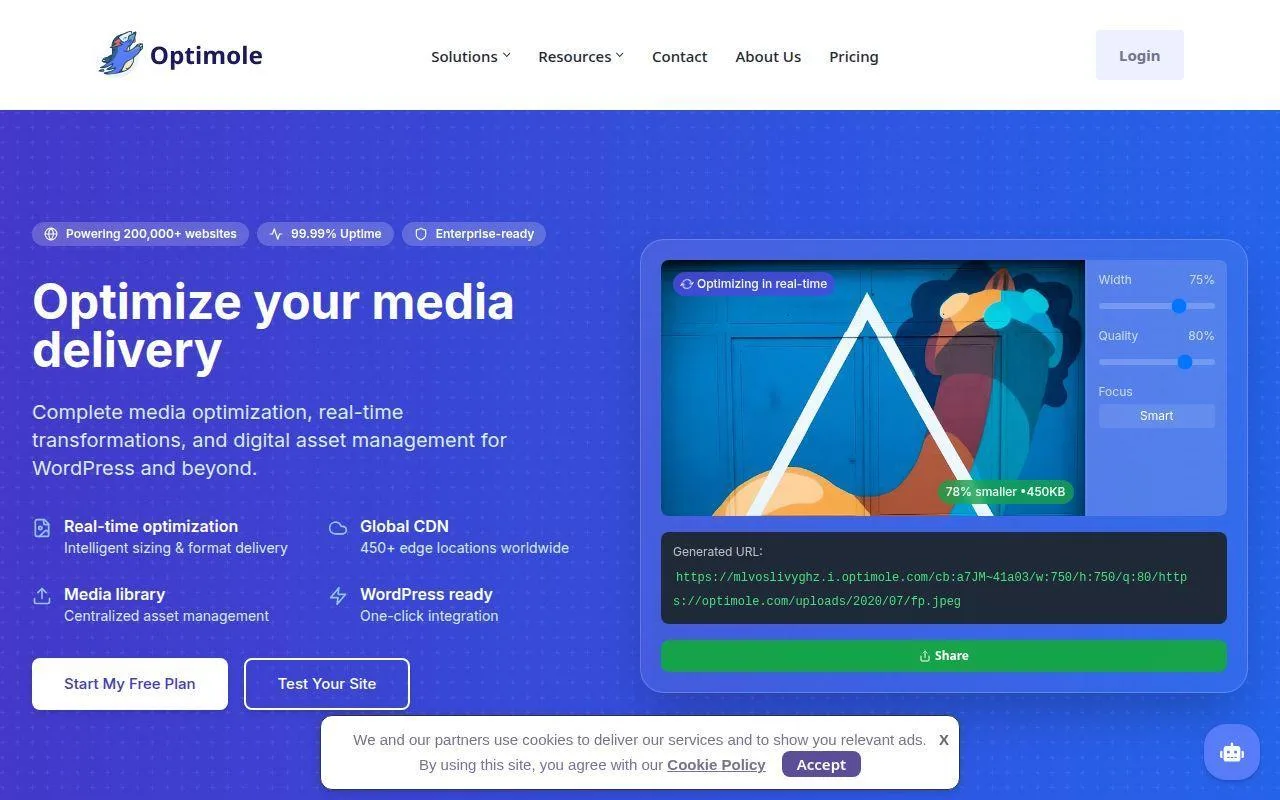
Optimole is one of the strongest image-first options in this roundup. It does not pretend to be a full-site CDN, but it does a lot more than simple compression. The documentation shows a WordPress plugin that can handle format selection, resizing, network-based optimization, and even delivery of images embedded in CSS and JavaScript files when that feature is enabled.
How Optimole works
The setup is built around the WordPress plugin. You install it, connect your account, and then choose the image optimization behavior you want. The docs highlight automatic best-format selection, network-based optimizations, and a Cloud Library tab for using images stored through Optimole’s own cloud layer.
Optimole’s CDN is powered by CloudFront, and the docs say it uses 450 locations worldwide. That matters because the plugin is not just shrinking uploads once and calling it a day. It is dynamically serving the right image version for the user’s device and connection. It can also serve CSS and JS through Optimole when those files contain embedded images, which is a more advanced trick than many beginner plugins offer.
Who is Optimole for?
Optimole is a smart fit for photography sites, design-heavy blogs, affiliate sites, and magazine-style WordPress builds where image weight is doing most of the damage. It also suits users who want cloud-managed image delivery instead of manual image housekeeping.
If you need whole-page caching, edge WAF controls, or broad acceleration for HTML and application traffic, you should look elsewhere. This is excellent for media optimization, but it is still an image-centric service first.
Optimole pricing
- Free: Free. Includes CDN delivery and is meant as the starting tier.
- Starter: Starting at $22.99 per month. Adds higher limits for sites that outgrow the free tier.
- Business tiers: Scaled by monthly visits and image usage. The docs specifically note that custom CDN domains start at Business 100K.
The official subscription guide is laid out on the subscription comparison page.
Pros and cons
Pros
- Strong automatic image handling, including format selection and resizing.
- Can optimize and deliver images embedded in CSS and JS files.
- The plugin workflow is straightforward for non-technical WordPress users.
- G2 reviewers regularly praise its ease of use and WordPress integration.
Cons
- The free plan is limited and larger sites will hit ceilings quickly.
- This is not a full-site reverse proxy CDN.
- Custom CDN domains are reserved for higher tiers starting at Business 100K.
- The public review footprint is still relatively small compared with bigger names in this list.
Optimole rating and reviews
- G2: rated 4.5/5 across 12 reviews.
Optimole earns its place because it solves a common WordPress reality. On many sites, the real problem is not HTML delivery. It is oversized images. If that sounds familiar, this one belongs on your shortlist.
4. Amazon CloudFront
- Category: Enterprise-grade CDN platform
- Best for: Technical users already comfortable with AWS
- Ease of use: Moderate to hard
- Pricing: Free tier and usage-based billing
- Standout feature: Deep control and AWS ecosystem integration
Amazon CloudFront is the most technical mainstream option in this roundup, and that is both its appeal and its drawback. It can absolutely work as a WordPress CDN, and the official getting-started material even points WordPress users in that direction. Still, it is rarely the easiest answer for beginners.
How Amazon CloudFront works
CloudFront works by creating a distribution in front of your origin, which might be your WordPress server directly or an S3 bucket in other setups. Once configured, CloudFront caches content at edge locations and serves it from the nearest point of presence. The service also supports dynamic web pages and application traffic, not just static files, which is why it remains a serious option for larger WordPress stacks.
On WordPress, the usual workflow is to define your origin, choose cache behavior, handle SSL and DNS, and then wire WordPress or your server config to emit CDN URLs where needed. That is why we put it below Cloudflare for most readers. It is more flexible, but it also asks more of you. If you already live in AWS, that tradeoff can be worth it.
Who is Amazon CloudFront for?
CloudFront is best for developers, agencies, and teams already managing infrastructure in AWS. It makes the most sense when your WordPress site is part of a broader AWS footprint and you want one platform for delivery, security integration, and traffic control.
It is not our top beginner recommendation. If you are choosing a CDN for your first WordPress site and just want something easy, Cloudflare, Jetpack, or Optimole are saner starting points.
Amazon CloudFront pricing
- AWS Free Tier: Free usage allowance for eligible accounts. Good for testing and small early deployments.
- Usage-based pricing: Standard delivery is billed by traffic and request volume, with pricing that varies by region.
- Flat-rate plans: AWS also lists flat-rate CDN packages that bundle CloudFront with related services and no overage charges.
AWS breaks down both usage-based and flat-rate options on the CloudFront pricing page.
Pros and cons
Pros
- Suitable for both static and dynamic WordPress delivery.
- Strong fit if your stack already uses S3, Route 53, WAF, or other AWS services.
- Offers a real free starting tier instead of a short marketing trial.
- G2 reviewers consistently praise its fast delivery and AWS integration.
Cons
- Setup is harder than the plugin-led options in this list.
- Costs are less intuitive than flat monthly WordPress-focused tools.
- Cache behavior and origin settings can be intimidating for beginners.
- You may still need extra work in WordPress to get a polished day-to-day workflow.
Amazon CloudFront rating and reviews
- G2: rated 4.4/5 across 190 reviews.
CloudFront is powerful, but it is a “want control” choice, not a “want simplicity” choice. For the right reader, that is perfect. For everyone else, it can feel like using a socket wrench to hang a picture frame.
5. Gcore
- Category: Full-site CDN with WordPress plugin
- Best for: Users who want a free start plus a WordPress-specific workflow
- Ease of use: Moderate
- Pricing: Free to start
- Standout feature: Plugin setup or nameserver-based full-site routing
Gcore is one of the more interesting middle-ground options in this list. It offers a WordPress-specific landing page, a plugin-driven setup, and a separate nameserver route for people who want to accelerate and protect the whole site. That gives it a more WordPress-aware feel than some generic CDN platforms.
How Gcore works
Gcore documents two main paths. The simpler path is the WordPress plugin: sign up, create a CDN resource, install the plugin, add your domain, and then choose file types, folders, and exceptions for caching. The more complete path is nameserver routing, which lets you push the entire site through the CDN and add protection for both static and dynamic content.
That split matters. If you start with the plugin, you can get moving without redesigning your DNS setup. If you later want broader acceleration and network-layer protection, the nameserver model is already there. The WordPress page also highlights free plan features like HTTP/3 in tech preview, free TLS certificates, DDoS mitigation at L3 and L4, API access, logs, Terraform support, and Grafana support. That is a solid feature list for a free entry point.
Who is Gcore for?
Gcore fits users who want a more infrastructure-capable CDN than Jetpack or Optimole, but still want a WordPress-specific on-ramp. It is a good candidate for developers, freelancers, and growing site owners who may begin with static asset acceleration and later move into full-site routing.
It is a weaker fit for people who want the absolute easiest beginner workflow. The product is flexible, but it is not as dead simple as Jetpack, and the value proposition is not as instantly obvious as Cloudflare’s free plan.
Gcore pricing
- Free plan: Free to start. The official WordPress page highlights HTTP/3, free TLS, DDoS mitigation, API access, logs, Terraform, and Grafana support.
- Paid upgrades: Available as your needs grow, though the public pages we reviewed emphasize the free start and sales path more than a neat WordPress-specific plan grid.
You can review the broader CDN positioning on the general CDN page.
Pros and cons
Pros
- Free plan includes unusually technical features for an entry tier.
- WordPress plugin setup is clearly documented.
- Nameserver routing offers a path to full-site acceleration and protection.
- Free TLS and DDoS mitigation are highlighted on the WordPress page.
Cons
- The setup is still more technical than beginner-first plugins.
- The public pricing story is less tidy than some rivals.
- Plugin-led acceleration and nameserver-led acceleration are different experiences, which can confuse new users.
- The WordPress plugin’s independent review profile is much weaker than the product’s feature list suggests.
Gcore rating and reviews
- WordPress.org: rated 2.3/5 on the plugin listing.
That public plugin score is a warning flag, so we would not treat Gcore as a blind beginner pick. Still, the underlying platform is feature-rich enough that technical users may find it better than that plugin rating implies.
6. Pressidium EDGE
- Category: Managed WordPress hosting with built-in edge delivery
- Best for: Businesses that prefer host-bundled performance and security
- Ease of use: Easy once hosted
- Pricing: Included with Pressidium hosting
- Standout feature: Edge caching, WAF, and CDN bundled into hosting
Pressidium EDGE is not a standalone free CDN, and that matters. We included it because some readers comparing CDN options should seriously consider whether bundling this layer into managed WordPress hosting is the cleaner move. If you would rather pay for a managed stack than stitch together plugins, DNS, and security tools yourself, Pressidium has a compelling story.
How Pressidium EDGE works
EDGE is baked into Pressidium’s hosting platform rather than added as a separate third-party service. The entry plans page frames it as global edge-powered caching, load balancing, WAF, and an enterprise global CDN backed by Akamai. That changes the workflow completely. Instead of adding a CDN to existing hosting, you buy hosting where the CDN and security layer are already part of the service.
That is the real selling point here. You are not setting up a pull zone or connecting a WordPress plugin to an external delivery network. You are choosing a WordPress host whose platform already includes edge caching, free SSL management, malware monitoring and removal, vulnerable plugin scanning, and 24/7 support. In other words, the CDN is a hosting feature, not a separate product decision.
Who is Pressidium EDGE for?
Pressidium EDGE is for agencies, businesses, and site owners who want less moving parts. It fits projects where uptime, managed security, and premium support are worth paying for, especially if the alternative is buying separate hosting, WAF, and CDN subscriptions.
Anyone looking for a truly free CDN should obviously look elsewhere. This pick belongs on the list because it can replace several tools at once, not because it wins the free-plan contest.
Pressidium EDGE pricing
- Starter: $21/month billed annually. 1 WordPress site, 50K monthly visits, 50GB CDN traffic, and 10GB storage.
- Pro: $42/month billed annually. 3 sites, 100K visits, 100GB CDN traffic, and 20GB storage.
- Growth: $67/month billed annually. 5 sites, 200K visits, 200GB CDN traffic, and 30GB storage.
- Advanced: $92/month billed annually. 8 sites, 300K visits, 400GB CDN traffic, and 40GB storage.
The hosting-plus-edge bundle is broken down on the entry plans page.
Pros and cons
Pros
- CDN, edge caching, WAF, and support come in one managed package.
- The entry plans clearly list site count, visit allowance, and CDN traffic.
- Good fit for users who do not want to bolt together multiple vendors.
- G2 feedback is very strong for support and managed hosting quality.
Cons
- Not a free CDN and not even a standalone CDN.
- You have to buy into the hosting platform to get the edge stack.
- The included CDN traffic is still plan-based, so this is not unlimited edge usage.
- Overkill for small hobby sites that just need faster image delivery.
Pressidium EDGE rating and reviews
- G2: rated 4.9/5 across 24 reviews.
We would not call this the best free CDN for WordPress. We would call it one of the cleanest “skip the duct tape” options for businesses that would rather pay for a tidy stack.
7. bunny.net

- Category: Developer-friendly CDN platform
- Best for: Users who want affordable control without AWS complexity
- Ease of use: Moderate
- Pricing: Usage-based CDN with free trial
- Standout feature: Very low entry pricing and useful WordPress tooling
bunny.net sits in a sweet spot between beginner WordPress plugins and heavy enterprise platforms. It is not truly free long term, but it is affordable enough that many WordPress users should still compare it against the “free” tools with tight limits. The documentation is also unusually practical, which helps.
How bunny.net works
The base workflow revolves around creating a Pull Zone. In the dashboard, you add the Pull Zone, choose the origin URL or storage zone, select a tier such as Standard or High Volume, then choose the pricing regions you want. Once the zone exists, bunny.net assigns a CDN hostname and starts pulling and caching content from your origin at edge locations worldwide.
On WordPress, the official plugin can rewrite static content links, compress files and images with Bunny Optimizer, offload media to Bunny Storage, embed video through Bunny Stream, and even host privacy-friendly fonts. That gives you more than just one blunt CDN toggle. It is a toolkit. Cache purging is also nicely documented, including whole-zone purges and purge-by-tag, which is the kind of feature growing WordPress sites eventually appreciate.
Who is bunny.net for?
bunny.net is for users who want a real CDN platform without diving as deep as CloudFront. It works especially well for freelancers, agencies, and technical site owners who want more control than Jetpack offers, but want pricing that still feels small-business friendly.
If you only want a totally free set-and-forget CDN, this will not be your final answer. It makes more sense when you are willing to pay a little for cleaner scaling and better control.
bunny.net pricing
- Bunny CDN: From $0.002/GB. Usage-based delivery for standard CDN traffic.
- Bunny Optimizer: $9.50 per website per month. Includes unlimited requests, unlimited optimizations, and unlimited image transformations.
- Trial: 14-day free trial with no credit card required.
The optimizer add-on and product pricing links are summarized on the optimizer pricing page.
Pros and cons
Pros
- Low entry price makes it realistic even for small WordPress projects.
- The official plugin covers rewriting, optimization, offloading, video, and fonts.
- Pull Zone setup is clearly documented step by step.
- Purge by tag is a strong cache-management feature for this price level.
Cons
- Not a forever-free CDN.
- Still more technical than Jetpack or Smush.
- Optimizer pricing is separate from bandwidth pricing.
- You will spend more time thinking about zones, regions, and origin behavior than with WordPress-only tools.
bunny.net rating and reviews
- Trustpilot: rated 4.7/5 across 2K reviews.
bunny.net is one of the best value picks in the whole roundup. It is not the best free CDN for WordPress, but it is one of the easiest upgrades when free plans start to pinch.
8. RocketCDN
- Category: CDN add-on built into a WordPress performance plugin
- Best for: WP Rocket users who want the easiest possible upgrade path
- Ease of use: Very easy
- Pricing: Limited free tier plus paid whole-site tier
- Standout feature: Free acceleration for up to 3 pages inside WP Rocket
RocketCDN is newer and narrower than some rivals, but its pitch is refreshingly clear. If you already use WP Rocket, you can enable a limited free tier from the Content Delivery tab, accelerate a few key pages, and then upgrade to whole-site delivery without signing up for a separate CDN service. That is smart product design, especially for non-technical site owners.
How RocketCDN works
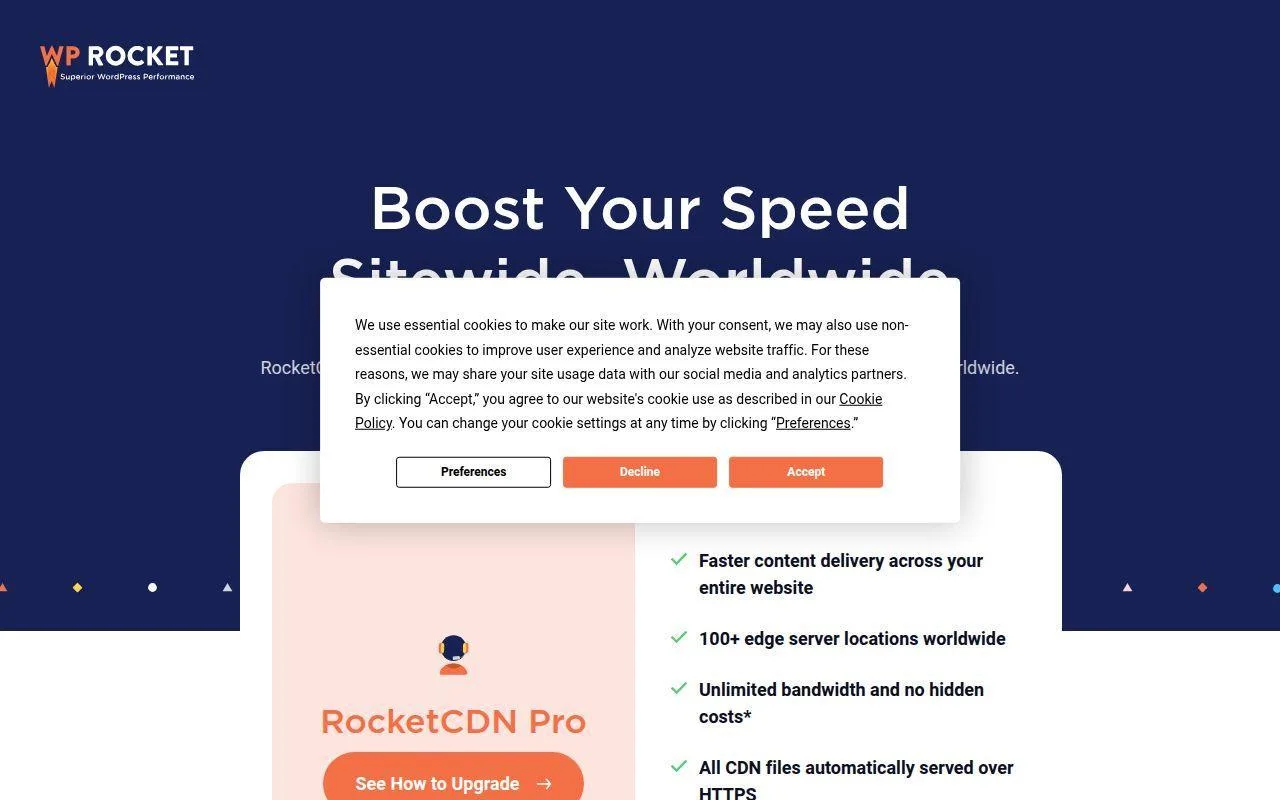
The product lives inside WP Rocket. According to the official page, RocketCDN Free is controlled from the Content Delivery tab and can accelerate up to 3 pages with optimized settings applied automatically. If you upgrade, RocketCDN Pro extends the same content delivery setup across the entire website and broadens edge coverage to 100+ locations.
That means there is very little setup drama. No separate CDN account is required from the user’s perspective, and there is no extra zone configuration. The transition from free to paid is also clean because the existing settings carry over. For busy WordPress owners, that convenience is the whole point.
Who is RocketCDN for?
RocketCDN is for WP Rocket users first and foremost. It is a good fit when you want to accelerate the homepage and a few key landing pages for free, then pay only when you decide the full site needs edge delivery.
If you are not already in the WP Rocket ecosystem, the value drops. This is not the most flexible standalone CDN in the market, and the free tier is much narrower than Cloudflare’s.
RocketCDN pricing
- RocketCDN Free: Included with any active WP Rocket license. Covers 3 pages, 10 edge locations, automatic settings, and unlimited bandwidth.
- RocketCDN Pro: $7.99/month. Extends delivery to the entire website with 100+ edge locations and cancel-anytime billing.
The feature split is shown on the RocketCDN comparison page.
Pros and cons
Pros
- Exceptionally easy for existing WP Rocket users.
- Free tier includes unlimited bandwidth, which is unusual.
- Upgrade path is one click from the same WordPress workflow.
- No separate CDN setup is required.
Cons
- The free tier only covers 3 pages.
- Full-site delivery requires the paid Pro tier.
- It is tightly tied to the WP Rocket ecosystem.
- Advanced edge controls are lighter than what you get from CDN-first platforms.
RocketCDN rating and reviews
RocketCDN is still too product-specific to have a meaningful standalone public review footprint, so we are not publishing an independent score for it. The broader WP Rocket brand is well reviewed, but that is not the same thing as a dedicated RocketCDN rating.
As a convenience feature, RocketCDN is excellent. As a broad free CDN recommendation, it is more situational. Pick it when you already use WP Rocket and want the least possible friction.
9. KeyCDN
- Category: Pay-as-you-go CDN platform
- Best for: Developers who want transparent bandwidth pricing
- Ease of use: Moderate
- Pricing: Usage-based with free trial
- Standout feature: Simple regional pricing and free first 3 zones
KeyCDN has been around long enough to earn a reputation for straightforward pricing and a relatively clean WordPress integration story. It is not the flashiest option here, and it does not win on free-plan generosity. What it does offer is a no-nonsense pay-as-you-go model that many agencies still like.
How KeyCDN works
The WordPress workflow is classic pull-zone CDN territory. You create a Pull Zone, then connect it to WordPress using CDN Enabler or another compatible plugin. The KeyCDN support guide shows the steps clearly: create the zone, log into WordPress, add your CDN hostname or zone URL, save, validate the configuration, and clear cache if needed.
That same integration story is part of why KeyCDN still matters. It is simple enough for developers who want predictable behavior, but not so abstracted that you lose control. When the account is connected, you can also purge cache from WordPress, including from the admin bar or WP-CLI, which is handy in live publishing environments.
Who is KeyCDN for?
KeyCDN is for developers, freelancers, and agencies who want a traditional CDN with transparent bandwidth pricing and a standard WordPress rewrite model. It suits sites that do not need a bundled security platform and do not want the broad overhead of AWS.
It is a poor fit if you specifically want a forever-free CDN. This is more “pay for exactly what you use” than “stay free indefinitely.”
KeyCDN pricing
- North America / Europe: $0.04/GB for the first 10TB per month, with lower rates at higher volumes. Includes unlimited HTTP and HTTPS requests.
- Asia / Oceania: $0.08/GB for the first 10TB per month.
- Africa / Latin America: $0.10/GB for the first 10TB per month.
- Platform minimums: $4 minimum monthly usage, first 3 zones free, then $1 per additional zone.
The pricing grid is on the usage pricing page.
Pros and cons
Pros
- Clear regional bandwidth pricing.
- Unlimited HTTP and HTTPS requests are included.
- First 3 zones are free.
- WordPress integration and purge workflow are well documented.
Cons
- No long-term free plan.
- Minimum monthly usage means tiny sites may not fully exploit the pricing model.
- Less turnkey for beginners than plugin-only WordPress tools.
- The public review pages we checked did not expose a stable product-wide score clearly enough for us to quote one with confidence.
KeyCDN rating and reviews
KeyCDN has a public review presence, but the product pages we could access during research did not present a clear overall score in a way we were comfortable citing here. Rather than guess, we are leaving the rating section unscored.
Editorially, KeyCDN still makes sense if pricing clarity is your top concern. It is not exciting, but sometimes boring and predictable is exactly what you want.
10. Smush Pro
- Category: Image optimization plugin with image CDN
- Best for: Sites that need image delivery and image format control
- Ease of use: Easy
- Pricing: Bundled inside WPMU DEV plans
- Standout feature: Background image handling and AVIF/WebP delivery
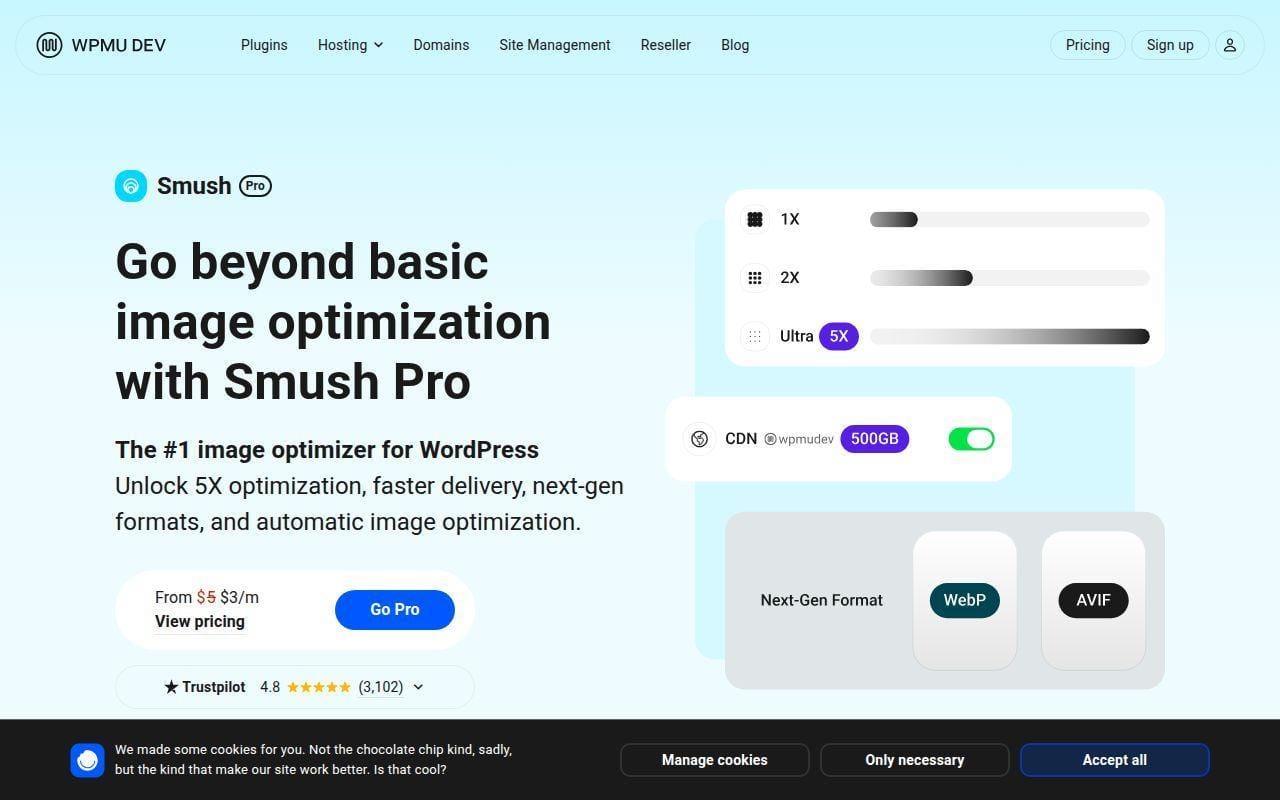
Smush Pro is another image-first CDN, but it is one of the more capable ones in the WordPress ecosystem. The documentation is unusually detailed about what the CDN can and cannot do, which we appreciate. That makes it easier to judge honestly instead of assuming it accelerates everything.
How Smush Pro works
The CDN is enabled directly from the Smush dashboard by opening the CDN tab and turning it on. Once active, Smush serves supported image types from its global network, and the docs note propagation can take up to 30 minutes. It supports JPG, PNG, GIF, WebP, and AVIF, and it can also serve background images in specific implementations.
The important nuance is that Smush Pro only fetches and serves images stored on your site’s own server. It cannot serve images already offloaded to third-party storage like Amazon S3, and it cannot fetch from local development environments. The docs are equally clear that some background image methods work and others do not. That may sound fiddly, but it is better than fuzzy marketing. At least you know the rules before buying.
Who is Smush Pro for?
Smush Pro is a good fit for WordPress site owners who mainly want faster media delivery, automatic resizing, and modern image formats without building a separate CDN stack. It is especially sensible when images are the main payload and you like the rest of the WPMU DEV tool bundle.
It is not a strong choice for full-site acceleration. If your real issue is HTML, dynamic page delivery, or edge security, look at Cloudflare or a host-level option instead.
Smush Pro pricing
- Pro Basic: $3/month billed annually. Includes all Pro plugins, 119-point CDN, 50GB CDN bandwidth, and 5GB backup storage for 1 site.
- Pro Standard: $5/month billed annually. Includes all Pro plugins, 119-point CDN, 100GB CDN bandwidth, and 10GB backup storage for 3 sites.
- Pro Plus: $10/month billed annually. Includes all Pro plugins, 119-point CDN, 250GB CDN bandwidth, and 20GB backup storage for 10 sites.
- Premium: $100/month billed annually at the listed promotional rate. Adds unlimited site licenses, 500GB CDN, 50GB backups, hosting credits, and VIP-style extras.
The bundle structure is shown on the membership pricing page.
Pros and cons
Pros
- Supports WebP and AVIF delivery.
- Can handle background images in several WordPress-friendly implementations.
- CDN bandwidth is included in even the smaller paid plans.
- Part of a broader Pro plugin bundle, which can be good value for multi-tool users.
Cons
- Image-only, not full-site acceleration.
- Cannot serve images already offloaded to third-party cloud storage.
- Some background image methods are unsupported.
- No meaningful free CDN tier inside the Pro product itself.
Smush Pro rating and reviews
- WordPress.org: rated 4.8/5 across 6,047 reviews.
That WordPress.org score reflects the broader Smush plugin, not just the paid Pro layer, but it still tells us the product family has a strong public reputation. If your CDN decision is really an image decision, Smush Pro deserves a look.
More WordPress CDN Options Worth Considering
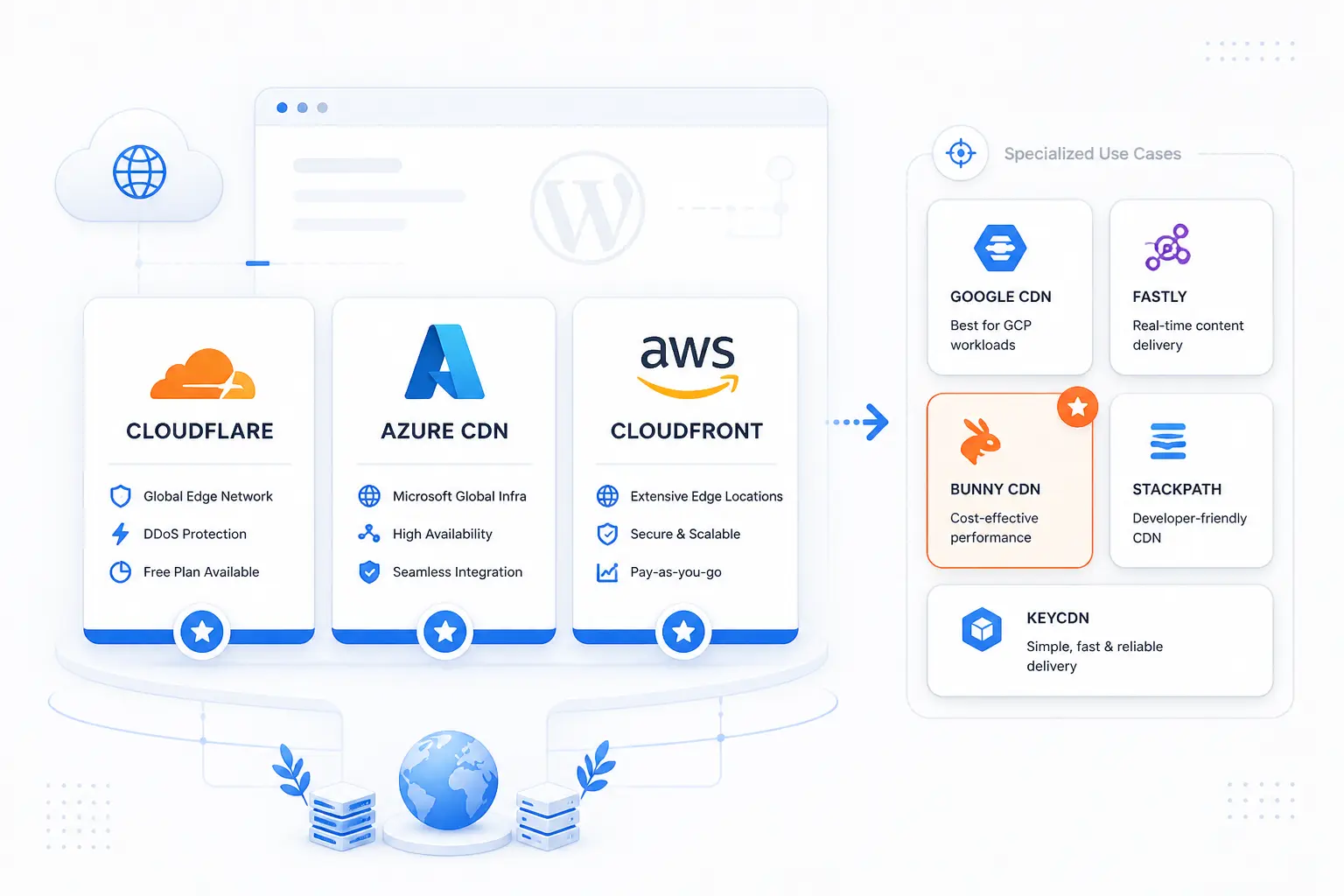
The next five picks are worth knowing, even if they miss our main top 10 for strict free-plan value. Some are better for media offload than page acceleration. Others are really security or enterprise delivery plays that happen to include CDN functionality. If your site has unusual needs, these may actually fit better than the headline picks.
11. Infinite Uploads
- Category: Media offload and CDN service
- Best for: Sites with growing media libraries
- Ease of use: Easy
- Pricing: From $16/month billed annually
Infinite Uploads is more about moving your media library out of local hosting limits than about acting as a traditional front-door CDN. That distinction matters. If your WordPress site is getting heavy because uploads keep piling up, this kind of tool can solve the storage and bandwidth side of the problem more directly than a generic CDN.
The official connect page positions it as an all-in-one service with cloud storage and CDN bandwidth included in the price. It also highlights unlimited sites and uploads, which makes it appealing for agencies or anyone managing several smaller projects under one account.
What it does better than many top-10 picks is portability. The product messaging focuses on offloading the media library, shrinking backups and migrations, and letting you manage cloud media from the WordPress media library itself rather than through separate storage consoles.
The starting plan is listed at $16 per month billed annually, and the page notes that plans at 100GB or more add perks such as custom CDN domains. That means this is not a free CDN, but it can be a cleaner long-term answer for media-heavy sites than trying to stay on a narrow free plan forever.
Who is Infinite Uploads for?
It is best for publishers, course sites, membership sites, and agencies that need media offload plus CDN delivery in one package. If you mainly want full-page acceleration and edge security, the higher-ranked CDN-first services make more sense.
12. Envira CDN
- Category: Image CDN plugin
- Best for: Photographers and gallery-heavy WordPress sites
- Ease of use: Very easy
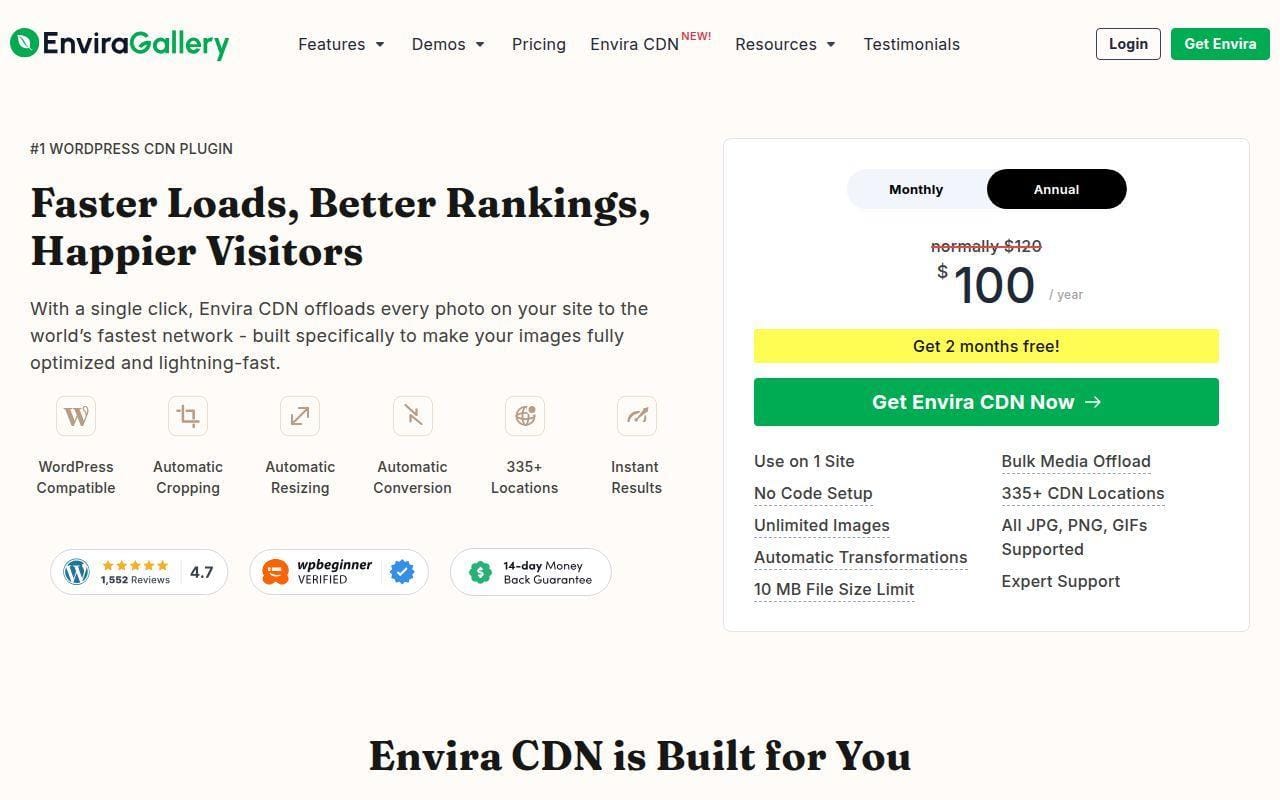
- Pricing: $10/month or $100/year
Envira CDN is specialized, and that specialization is its strength. It is designed for image-heavy WordPress use cases, especially galleries and media-rich portfolios, rather than as a full-site acceleration layer.
The official page emphasizes one-click setup, unlimited images, bulk media offload, automatic transformations, and a 10MB file size limit. It also claims 335+ CDN locations, which gives it a broader media-delivery footprint than many people expect from a gallery-oriented tool.
Where it differs from the top 10 is its tight focus on visual sites. The page repeatedly frames the value around offloading image traffic from your host, lowering the risk of throttling and forced plan upgrades, and keeping the origin server focused on orders, sessions, and core tasks while the CDN handles the images.
Pricing is straightforward by comparison with many CDN products. The monthly plan is $10, while the yearly plan is $100. That simplicity is appealing, even if it means you are paying for a narrower use case than Cloudflare or bunny.net covers.
Who is Envira CDN for?
It is best for photographers, galleries, portfolio sites, and visual brands that care far more about image delivery than full-site caching. If you need edge security, advanced cache behavior, or DNS-layer control, you should pick a broader CDN instead.
13. Sucuri

- Category: Website security platform with CDN performance layer
- Best for: Site owners who prioritize cleanup and attack mitigation
- Ease of use: Moderate
- Pricing: From $199.99/year
Sucuri belongs in this conversation because many WordPress buyers do not actually need “a CDN” in isolation. They need a front-end layer that can absorb attacks, add a WAF, and speed up delivery as part of that protection. That is Sucuri’s angle.
The product page we reviewed bundles malware cleanup, blacklist monitoring, virtual patching, advanced DDoS mitigation, CDN performance, and firewall support into the same platform. In other words, Sucuri is security first and delivery second, which is the reverse of tools like KeyCDN.
That difference is exactly why some site owners should prefer it. If you have already had a hacked WordPress site, or you manage sites where downtime and malware cleanup are bigger concerns than shaving the last few milliseconds off static asset delivery, Sucuri is easier to justify than a bare CDN.
The pricing page lists the Basic plan at $199.99 per year and frames the plans as all-in website security packages rather than bandwidth-driven CDN plans. This is clearly not a free pick, but it is a reasonable “pay for fewer headaches” option.
Who is Sucuri for?
It is best for businesses and publishers that care about firewalling, malware response, and website reputation alongside performance. If you only want cheap or free acceleration, the main top-10 picks are better suited.
14. Fastly
- Category: Enterprise CDN platform
- Best for: Technical teams and larger web properties
- Ease of use: Harder than WordPress-first tools
- Pricing: Free tier, then usage-based or packages
Fastly is one of the most capable CDN brands on the market, but it is not a natural first recommendation for typical WordPress beginners. We still think it is worth mentioning because its pricing page now includes a free tier and a clearer startup-to-scale-up ladder than many readers expect.
The free tier for Full Site Delivery includes 100GB of bandwidth and 10,000 free requests in the pricing details we reviewed. After that, Fastly shifts into regional usage pricing and then sizable business packages, which shows you quickly where the product’s center of gravity sits.
What Fastly does differently from most of the top 10 is enterprise depth. The packages list request allowances, instant purge, TLS domains, image optimizer request volume, and higher support tiers. That is far beyond what a blogger comparing Jetpack and Cloudflare usually needs, but it can be exactly right for complex web operations.
The catch is obvious. Basic package pricing starts at $1,500 per month, so even though the free tier is real, this is not a product with a small-business feel once you move beyond trial-scale use.
Who is Fastly for?
Fastly is for technical teams that need edge performance and are prepared to manage a more advanced service. If you run a normal WordPress business site and want quick value, there are simpler and cheaper choices above.
15. Imperva

- Category: Enterprise CDN and application protection service
- Best for: Enterprises that want CDN plus WAAP
- Ease of use: Moderate to hard
- Pricing: Quote-based
Imperva is another entry that makes more sense when you stop thinking like a blogger and start thinking like an enterprise security buyer. The datasheet positions the CDN as part of Imperva Application Performance and ties it directly to caching, load balancing, automated failover, and the broader WAAP platform.
That makes it more comparable to Sucuri or enterprise Cloudflare than to Jetpack or Smush. The service is built around full-site acceleration, intelligent caching, and protection at the edge, with a custom rules engine for delivery behavior. That is a serious stack, just not a WordPress-first one.
The official datasheet also highlights full-stack PoPs, dynamic content acceleration, automated failover, and a waiting room feature to help keep sites online during peak times. Those are business continuity features, not just page speed features, and they tell you exactly who Imperva is trying to serve.
There is no public self-serve pricing on the materials we reviewed, so this is a quote-based conversation rather than a quick-buy tool. For most small WordPress sites, that alone will take it off the shortlist.
Who is Imperva for?
It is for enterprises that buy performance and application security together and want a full-site edge platform with resilience features. If you are trying to find the best free CDN for WordPress, this is a useful benchmark, not a likely purchase.
How a CDN Improves a WordPress Site

A CDN helps a WordPress site in three big ways: it cuts travel time for assets, reduces pressure on the origin server, and adds a protective layer between your site and bad traffic. That sounds abstract until you connect it to what users actually notice. Pages load faster, traffic spikes hurt less, and attack traffic has more places to get filtered before it reaches WordPress.
Faster Global Delivery and Lower Latency
The most obvious win is speed. Instead of forcing every visitor to fetch files from your one origin server, a CDN stores and serves cached content closer to each visitor. That is exactly how Jetpack describes its Site Accelerator, which serves images and common static assets from a global network of servers.
On image-heavy sites, that alone can move the needle because images usually make up a large share of page weight. Tools like Optimole and Smush push this further by changing image format and size on the fly, which means the CDN is not just closer to the user. It is often delivering a smaller file too.
For WordPress owners, the practical question is not “does a CDN help?” It usually does. The better question is whether your bottleneck is image delivery, static assets, or full HTML and dynamic traffic. That answer determines which type of CDN belongs on your shortlist.
Better Reliability and Lower Origin Load
A CDN also reduces how much work your main hosting account has to do. When cached assets are served at the edge, your origin server can spend more of its resources on WordPress, PHP work, database requests, checkouts, and logged-in sessions instead of re-serving the same files all day.
That is why media-focused services can still be worth buying even if they are not full-site CDNs. The Infinite Uploads service, for example, frames its value around offloading the media library, reducing hosting limits, and serving content through 50+ points of presence.
Gallery-first products say something similar in plainer language. Envira CDN positions its network as a way to move image delivery off the main server so the hosting account can stay focused on core tasks during spikes, launches, and heavy browsing sessions. On busy WordPress sites, that separation is often half the battle.
Built-In Protection Against DDoS Attacks
The security side is easy to underestimate until your site gets hammered. A front-door CDN can absorb and filter a lot of bad traffic before it ever reaches WordPress, which is one reason Cloudflare remains such a strong free recommendation. Its application service plans include free website DDoS protection, which is exceptional value for smaller sites.
Some providers take that further by bundling firewalling, failover, and malware response into the same edge layer. That is the logic behind Sucuri, Pressidium EDGE, and Imperva. They are not just trying to make pages faster. They are trying to make the site harder to knock over.
If your site is commercial, takes payments, or has a public profile, that matters more than benchmark bragging rights. A slightly slower CDN with better filtering can be the wiser buy than a speed-only tool.
How Free CDN for WordPress Setup Usually Works
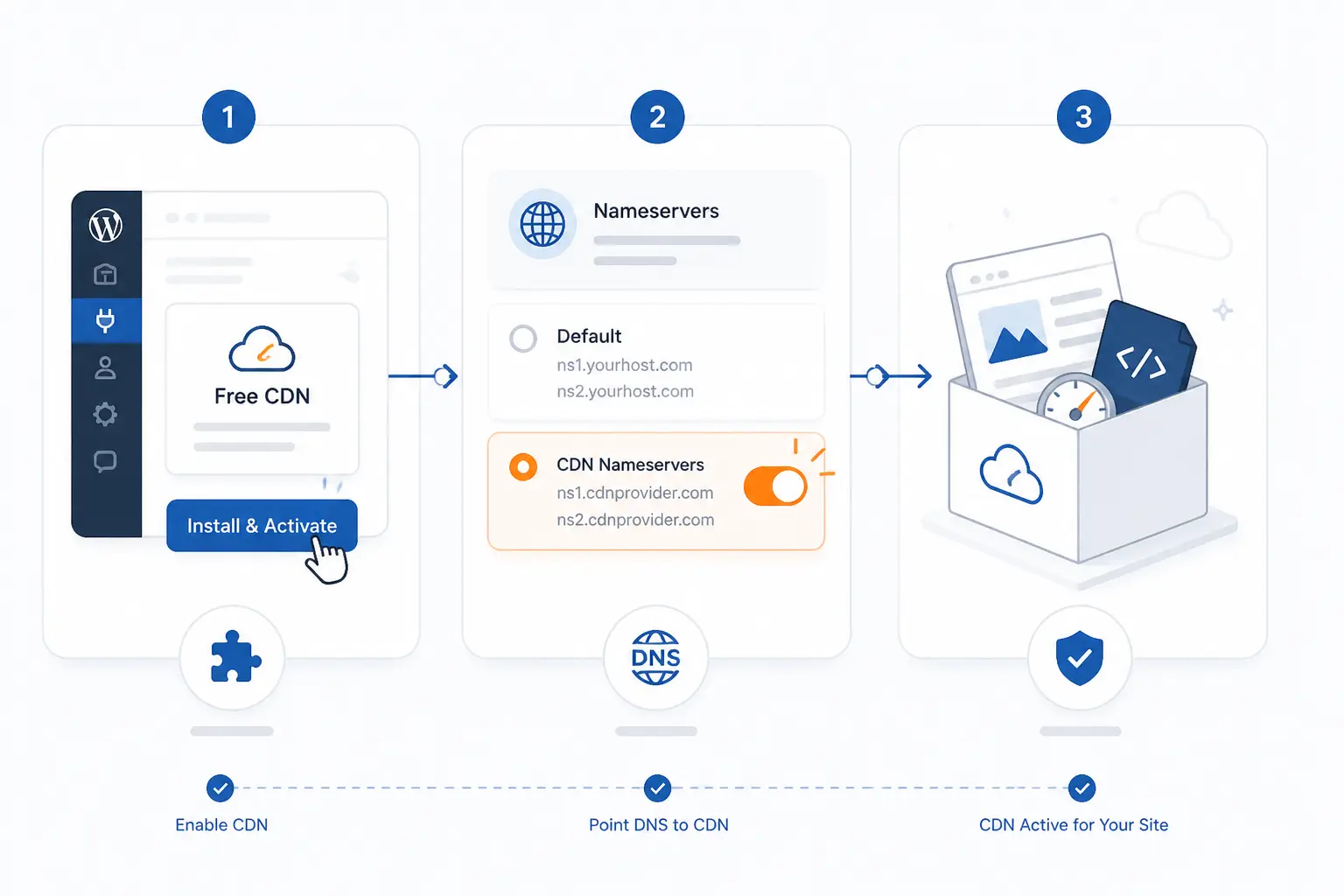
Most WordPress CDN setups fall into three patterns. Some work entirely through a plugin. Some require DNS or nameserver changes so the CDN can sit in front of the whole site. A third group is built into managed WordPress hosting, where the CDN is bundled and mostly invisible. Knowing which model you are looking at saves a lot of confusion.
Plugin-Based Setup Inside WordPress
This is the easiest path and the one most beginners prefer. Jetpack, Optimole, Smush, and RocketCDN all lean heavily on plugin-first workflows. In the Gcore documentation, even a more infrastructure-capable product offers a WordPress path where you create a CDN resource, install the plugin, add the domain, and then choose caching rules from the WordPress integration guide.
The tradeoff is scope. Plugin-based tools are often easier, but they are frequently limited to images, static files, or rewritten asset URLs. That is perfectly fine for many sites. It just is not the same as putting a full reverse proxy in front of WordPress.
DNS and Nameserver Routing
Cloudflare is the best-known example of this model. You point your domain at the CDN’s nameservers, and then the CDN handles traffic before it reaches your hosting account. That is what unlocks the broader feature set, including full-site delivery, SSL handling, cache logic, and edge protection.
For WordPress users, that often sounds scarier than it really is, but it does raise the commitment level. Cloudflare’s WordPress-specific setup guide shows the basic pattern clearly: change nameservers, install the plugin, create an API token, and enable APO if you want stronger WordPress caching from the activation walkthrough.
When you want the CDN to protect the whole site and not just rewrite media URLs, this is usually the path you end up taking.
Built-In CDN From Managed Hosts
Sometimes the cleanest setup is to stop shopping for standalone CDN tools and buy hosting that already includes one. Pressidium EDGE is a good example. Its plans roll edge caching, WAF, global traffic optimization, and CDN capacity into the hosting service itself.
That approach cuts down on moving parts. You do not need separate DNS tuning, plugin connectors, and support boundaries between your host and your CDN vendor. The downside is vendor lock-in and a higher starting cost. Still, for business sites, a bundled stack is often the least painful answer.
Where Free Plans Usually Have the Biggest Limits

The word free covers a lot of ground in this market. Some services are generously free. Some are free only for images. Others are free for a certain number of visits, pages, requests, or trial days. This is where many comparisons go fuzzy, so it is worth slowing down and checking the exact ceiling that matters for your site.
Image-Only Delivery Versus Full-Site Acceleration
This is the biggest dividing line in the whole category. Jetpack’s own support page says Site Accelerator serves images and common static assets, but it does not serve theme files, third-party plugin files, or custom scripts from the support documentation. That makes it useful, but narrower than a full reverse proxy.
Smush has a different form of the same limit. Its CDN is explicitly image-focused and only serves media stored on your own server, not assets already offloaded elsewhere. If your pages are slow because of HTML generation, dynamic behavior, or origin response time, these image-first tools may improve the page score without solving the deeper site issue.
That is why Cloudflare keeps winning broad comparisons. It tackles the whole front door. Many “free CDN” tools really mean “free image CDN.” Those are not interchangeable.
Visit Caps Bandwidth Caps and Trial Periods
Free offers nearly always come with a meter. Optimole organizes its plans around monthly visits and image usage, and the docs even note that enabling the badge can unlock extra allowance in the plan guide. That is very different from a product like RocketCDN Free, which limits page coverage instead of bandwidth.
Some vendors use trials rather than ongoing free plans. bunny.net offers a 14-day free trial, and KeyCDN historically uses that same “evaluate first, pay later” approach. Fastly also has a real free tier, but the allowances are clearly framed as a starting point before usage pricing takes over.
So when you compare “free,” ask one blunt question: free for how long, and free for what amount of traffic? That one question filters out a lot of marketing noise.
Cache Purge and Update Control
Cache invalidation sounds boring until your updated page refuses to change for visitors. This is one place where WordPress-specific integrations really matter. Cloudflare’s plugin can automatically purge associated URLs when you edit posts, pages, attachments, comments, or even switch themes, according to the automatic cache management docs.
On more developer-oriented platforms, you may get finer control. bunny.net documents both full-zone purges and purge-by-tag, which is a very handy middle ground on larger sites because it lets you clear only the content that changed from the purge guide.
Free plans often cut back here, either by simplifying purge logic or by making the workflow more manual. That may be fine on a static blog. It is much less fine on a WooCommerce store, news site, or membership site that changes every hour.
Frequently Asked Questions
Most WordPress CDN questions come down to one of five issues: whether free really means free, whether a plugin is required, whether Core Web Vitals will move, how image CDNs differ from full-site CDNs, and whether dynamic sites can live comfortably on a free tier. Here are the short answers.
What Is the Best Truly Free CDN for WordPress
Cloudflare is the best truly free CDN for WordPress for most sites. It gives you a real free tier with full-site delivery, SSL, and DDoS protection, which is broader than what image-only free tools provide. If you do not want DNS changes, Jetpack is the easier free starting point, but it is also more limited.
Do I Need a Plugin to Use a WordPress CDN
No, you do not always need a plugin to use a WordPress CDN. DNS-first services like Cloudflare and many enterprise CDNs can work at the network level, while plugins mainly improve convenience, cache purging, or media rewriting. In WordPress practice, though, a plugin often makes setup and ongoing management much easier.
Can a Free CDN Improve Core Web Vitals
Yes, a free CDN can improve Core Web Vitals, especially if your site is slowed down by heavy images or distant visitors. The biggest gains usually come from faster image delivery, smaller asset payloads, and lower origin load rather than from the magic word “CDN” itself. If your site is slow because of bad hosting or bloated plugins, a CDN helps, but it will not fix everything.
What Is the Difference Between an Image CDN and a Full-Site CDN
An image CDN mainly accelerates media files and sometimes a small set of static assets. A full-site CDN sits in front of the whole site and can cache or protect HTML, static files, and broader traffic patterns. In simple terms, image CDNs are great for media-heavy WordPress sites, while full-site CDNs are better when you need both speed and edge security.
Are Free CDN Plans Enough for WooCommerce and Dynamic Sites
Sometimes, but often not for long. Free plans can work for WooCommerce when they are used carefully for static assets and edge protection, but dynamic pages, carts, account sessions, and frequent content changes usually push you toward a better cache-control setup or a paid plan. For stores and membership sites, we would favor Cloudflare or a strong managed hosting stack over image-only free tools.







Conclusion
For most readers, Cloudflare is the best free CDN for WordPress because it delivers the broadest real value without charging upfront. Jetpack is the easiest plugin-led option, Optimole is our favorite image-first pick, and bunny.net is one of the strongest low-cost upgrades once free ceilings start to bite.
The best next step is to narrow your shortlist to two questions: do you need full-site acceleration or just faster images, and are you comfortable changing DNS? Answer those honestly, then pick the option that fits your site today instead of the one with the flashiest feature list. Which two are you shortlisting first?