

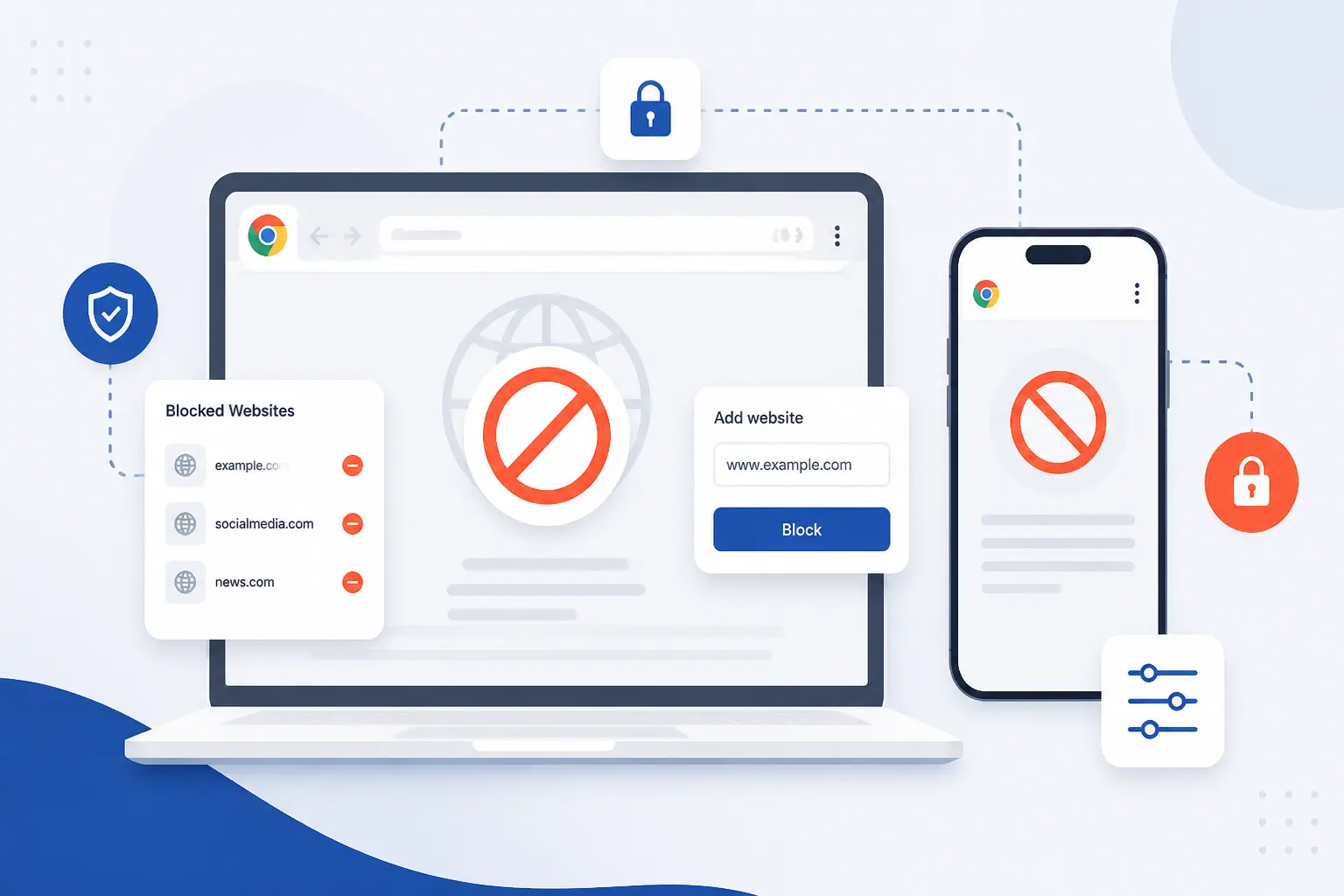
If you want to know how to block websites on Chrome, the short answer is this: use an extension for fast browser-only blocking, or use device and network controls when you need the rule to apply beyond one Chrome window. The best method depends on whether the device is yours, whether you are setting rules for a child, and whether you need the block to work across apps, Wi-Fi, or cellular data. We usually start with the lightest option that solves the problem, then move to family controls or DNS filtering only when the browser-only rule is too easy to bypass. In this guide, we walk through each method in plain steps, with examples and clear success checks.
How to Block Websites on Chrome With an Extension
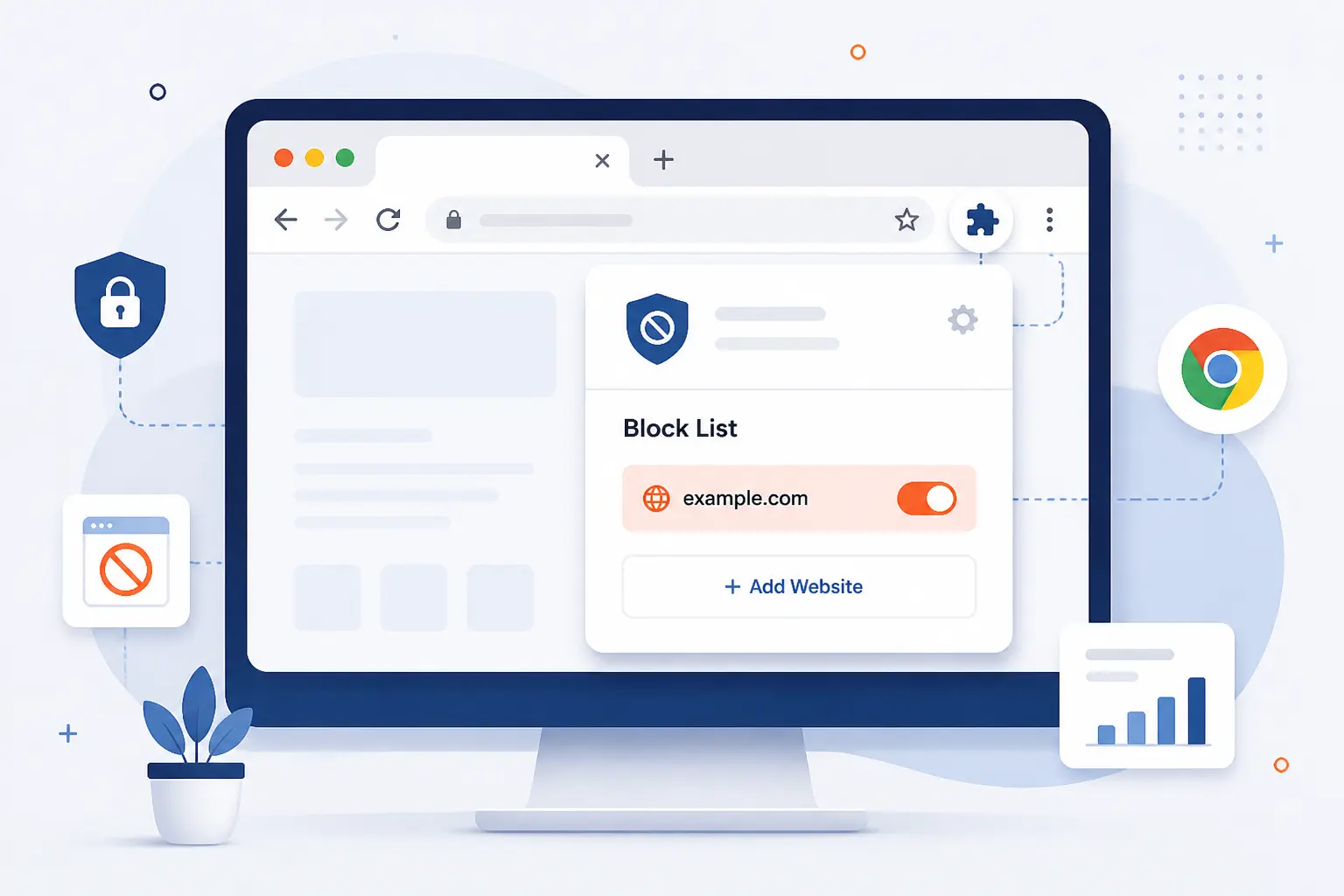
The fastest way to block a site in desktop Chrome is to install a website-blocking extension and add the domain to its block list. This works well when you want a quick rule for your own browser, such as blocking YouTube, Reddit, or a shopping site during work hours. We like this approach because it takes only a few minutes and is easy to test right away. It is also the simplest starting point for most beginners.
FURTHER READING:1. How to Fix ERR_SSL_PROTOCOL_ERROR Step-by-Step 2. How to Fix Internal Server Error on Your Site 3. HTTP Error 404: Meaning, Causes, Fixes, and Prevention 1. Search the Chrome Web Store for Block Site
Open Chrome, visit the Block Site listing, and confirm that the extension name matches what you searched for. A realistic example is searching for
Block Sitein the Chrome Web Store search box and opening the result with the blue install button. You should see an extension page with screenshots, reviews, and anAdd to Chromebutton. That tells you that you are on the install page, not a random website.2. Add the Extension and Confirm the Install
Click
Add to Chrome, then clickAdd extensionin the confirmation dialog. Chrome may show a permissions prompt before the install finishes, and after it works you should see the extension added notification and, in many cases, the Block Site icon near the toolbar. The most common failure point is a work or school-managed browser, because Chrome notes that organizations can block extensions from being installed. See Chrome’s extension controls if you need to confirm where Chrome manages installed add-ons.3. Open the Toolbar Icon or Right-Click the Page
Click the Block Site toolbar icon, or right-click the page you want to block if that context option appears in your install. If the icon is hidden, click Chrome’s
Extensionsbutton, then open Block Site from the list so you can reach its controls. A practical example is openinghttps://www.youtube.com/, then clicking the extension icon while that tab is active. Once this works, you should see a Block Site pop-up, panel, or quick action menu that lets you add the current site.4. Add the Domain to Your Block List
Enter the site you want to block, such as
youtube.com, and save it to the block list. We recommend blocking the domain name rather than a single long page URL unless you only want one page blocked, because a cleaner entry is easier to maintain later. After you save, you should see the new rule listed in Block Site’s blocked sites area, often as a simple domain entry likeyoutube.comorfacebook.com. If you are blocking more than one site, add them one at a time so you can test each rule cleanly.5. Test the Block and Edit the List if Needed
Refresh the site or open it in a new tab and confirm that Chrome shows the extension’s blocked page instead of the website. A good test is typing
youtube.commanually into the address bar after saving the rule, because it proves the block is matching a direct visit and not just the current tab. If the site still opens, remove and re-add the entry in a simpler format likeyoutube.com, then test again. One detail many people miss is Incognito mode, because Chrome extensions do not run there unless you openchrome://extensions, chooseDetailsfor the extension, and turn onAllow in incognito.
How to Block Websites on Chrome Without an Extension
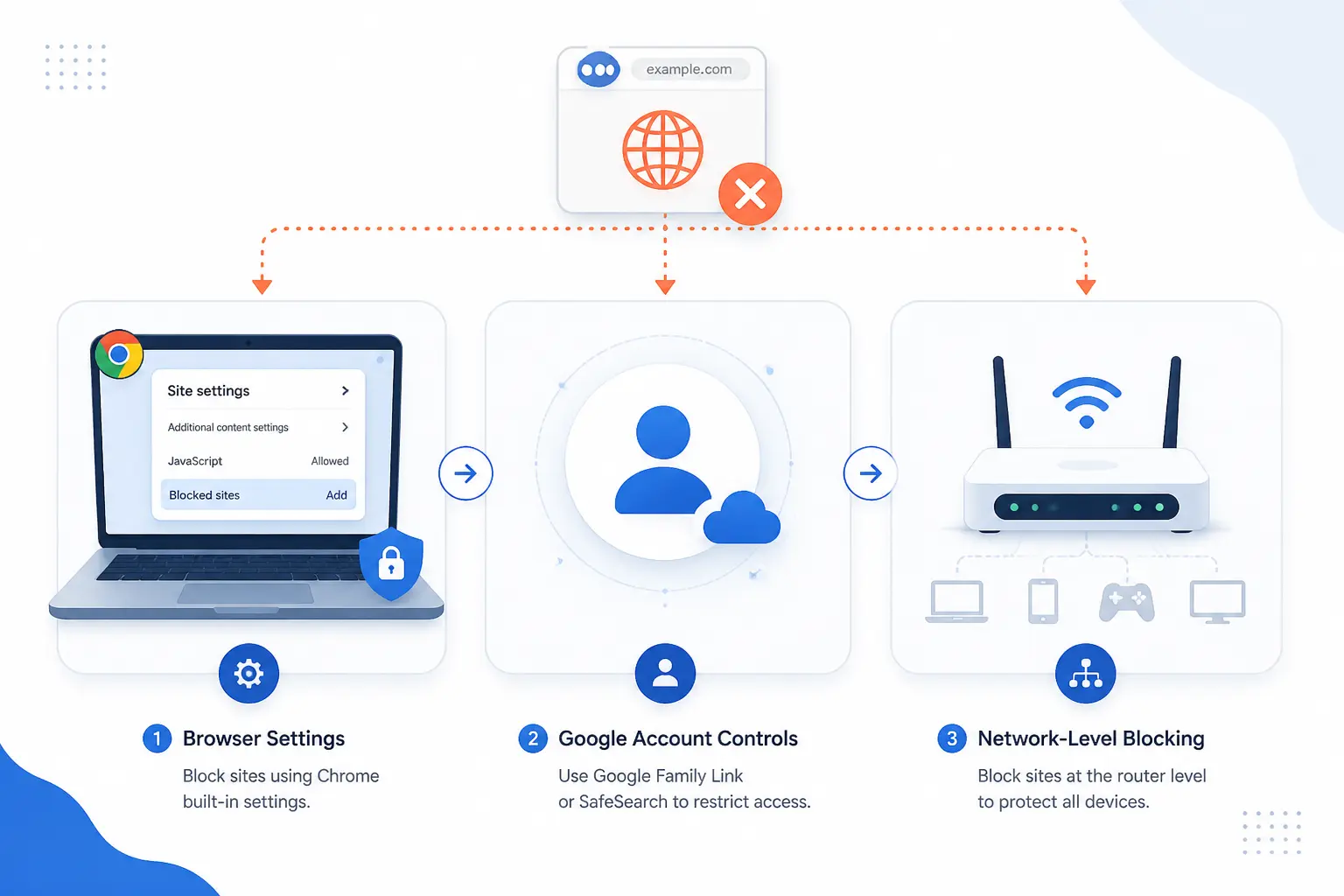
If you need the block to cover more than one browser tab, use a device-level, account-level, or network-level method instead of an extension. These options are better for managed work devices, family setups, or home-wide filtering. We also need to be blunt here: Microsoft’s own support says Family Safety web filtering works with Edge, not Chrome, so it is useful for child account management on Windows but not the cleanest answer for Chrome-specific filtering. The table below shows where each no-extension method fits best.
| Method | Where it works | Best for | Main catch |
|---|---|---|---|
| Chrome Enterprise policy | Managed Chrome browsers | Work, school, or admin-run devices | Needs admin access |
| Hosts file | One computer, all browsers | Simple local blocking | Easy to edit back |
| Microsoft Family Safety | Child Windows account | Windows family controls | Web filters are Edge-based |
| Google Family Link | Child Android device | Chrome rules for kids | Needs a supervised child account |
| Screen Time | iPhone or iPad | Apple parental controls | Best on Apple-managed devices |
| Private DNS | Android device | Device-wide filtering | Blocks by DNS, not page-by-page |
| Router or DNS filtering | Whole home network | Every device on Wi-Fi | Needs router access |
Use URL Blocklist Policies in Chrome Enterprise
Sign in to the Google Admin console with an administrator account, then go to Menu > Devices > Chrome > Settings > Content > URL Blocking. Enter the URLs you want to block, such as youtube.com under Blocked URLs, click Save, restart Chrome on the managed device, then open chrome://policy and click Reload policies. If you manage Windows locally with Group Policy instead, open Policies > Administrative Templates > Google > Google Chrome, enable Block access to a list of URLs, and add one entry per line. When the rule works, URLBlocklist shows Status: OK on chrome://policy. The full admin path and verification steps are in the managed browser policy guide.
Use valid block patterns when you enter rules, because syntax is the most common point of failure. For example, Google’s pattern examples show that example.com blocks that domain and its subdomains, while entries like https://www.example.com/* are not the recommended wildcard form. If you want to block almost everything except a few approved sites, Google shows a classic pattern of blocking * first and then adding specific allowlist exceptions.
Edit the Windows Hosts File for All-Browser Blocking
Open Notepad as Administrator, then open C:\Windows\System32\drivers\etc\hosts. Add one line for the bare domain and one for the www version, such as 127.0.0.1 example.com and 127.0.0.1 www.example.com, then save the file. Once it works, visiting that domain in Chrome usually shows a connection error instead of the real site. The most common failure point is permission trouble, because Microsoft documents access denied errors if you try to edit the hosts file without administrator rights.
Use the hosts file when you want a small, local rule on one Windows computer. We do not love it for family control, because anyone with admin access can undo it, and it does not give you a clean dashboard for review later. Still, for blocking one distracting site on a personal PC, it is quick and dependable.
Set Up Microsoft Family Safety for a Child Account
Sign in to your Microsoft family dashboard, select your child, open the controls for Edge, turn on Filter inappropriate websites and searches, and add domains under Blocked Sites or Allowed sites. A realistic example is adding youtube.com under Blocked Sites or turning on Only use allowed websites for a younger child. You should see the new site rule saved in the child’s web settings. Follow the official steps on the Microsoft support page.
Use this mainly for Windows family management, not as the best Chrome-only answer. Microsoft states that Family Safety web and search filters work only with Microsoft Edge, so if Chrome is the browser you must control, Family Link, Screen Time, DNS filtering, or a managed Chrome policy is usually a better fit.
Use Google Family Link on a Child’s Android Device
Open the Family Link app, tap your child, then go to Controls > Google Chrome and Web. Choose Allow all sites, Try to block explicit sites, or Only allow approved sites, then under Manage sites add a blocked site such as youtube.com. When this works, the child either sees the site blocked or can send a permission request for review. Google’s full path is in Google family controls.
Use Family Link when you need parental controls that actually target Chrome on Android. One detail worth remembering is that the exact site pattern matters, because Google notes that allowing or blocking one address does not automatically cover differently named sites like subdomains or country-specific domains.
Turn On Screen Time to Control Chrome on iPhone
Open Settings > Screen Time > Content & Privacy Restrictions > App Store, Media, Web, & Games > Web Content, choose Limit Adult Websites, then tap Add Website under Never Allow. Enter a real site like www.youtube.com, save it, and test it in Chrome. When the rule sticks, the site should no longer open normally in the browser. Apple’s click path is laid out in Apple’s iPhone guide.
This is one of the better iPhone answers because Apple documents built-in content filters for Safari and third-party apps, not just Safari alone. We still recommend setting a Screen Time passcode, otherwise the person holding the phone can simply reverse the rule.
Change Private DNS for Device-Wide Filtering
Open Settings > Network & internet > Private DNS, choose Private DNS provider hostname, and enter family-filter-dns.cleanbrowsing.org. Save the setting, then test a site category you expect the filter to catch. When this works, Android accepts the hostname and filtered domains stop resolving on both Wi-Fi and cellular data. The hostname and Android 9+ path are documented in the family DNS hostname guide.
Use Private DNS when you want a stronger mobile rule than a browser extension can give you. The most common failure point is a typo or a network that blocks DNS over TLS on port 853, which usually shows up as a connection error when you try to save the setting.
Block Sites at the Router or DNS Level for Every Device
Open your router’s WAN or internet DNS settings and replace the default DNS servers with OpenDNS FamilyShield: 208.67.222.123 and 208.67.220.123. Save the change, reboot the router if it asks you to, then reconnect a phone or laptop and test a blocked category. When it works, every device using your home Wi-Fi starts using the same filtered DNS service. Cisco’s router setup guide lists those FamilyShield addresses and recommends router-level setup for home coverage.
This is the method we reach for when the goal is house-wide coverage, not just one browser. The downside is simple: anyone who switches to mobile data, a different Wi-Fi network, or custom DNS on an unlocked device can step around the filter unless you add device-level controls too.
Pick the Method That Matches Your Goal
The right method is the one that matches your real problem, not the one with the longest settings menu. If you only need to stop yourself from opening a site on one desktop browser, an extension is enough. If you need family enforcement, cross-app blocking, or home-wide filtering, choose device or network controls instead. We have laid out the quick decision table below so you can pick once and move on.
| Goal | Best starting method | Why |
|---|---|---|
| Block one site on your own laptop | Chrome extension | Fastest setup and easy to test |
| Control a child’s Android Chrome use | Google Family Link | Built for supervised accounts |
| Control an iPhone user’s web access | Screen Time | Built-in and device-level |
| Filter every device at home | Router or DNS filtering | One change covers the network |
| Enforce rules on managed work devices | Chrome Enterprise policy | Admin-level control and verification |
Choose Browser-Only Blocking for Quick Desktop Setup
Pick an extension if you only need Chrome on one desktop or laptop to stop opening a few distracting sites. This is the easiest path for personal focus, temporary guardrails, or a shared family computer where you do not want to touch router or operating system settings. If we were blocking reddit.com during work hours on our own machine, this is where we would start.
Choose Device-Level Controls When You Need Wider Coverage
Choose Family Link, Screen Time, Private DNS, or the hosts file when you need the rule to survive outside one Chrome extension. These methods make more sense for parental control, school-style restrictions, or cases where the person can simply switch browsers to dodge a browser-only block. If the device is a child’s Android phone, Family Link is usually the cleanest fit. If the device is an iPhone, Screen Time is usually the first place to look.
Check Whether the Method Works in Incognito and Other Apps
Test Incognito mode and at least one other browser before you trust the block. Chrome says extensions need the Allow in incognito toggle turned on manually, so a block that works in a normal tab may fail in a private window until you enable it. DNS filters, Screen Time, hosts file rules, and managed browser policies usually apply more broadly than a normal extension.
Check other apps too, especially on mobile. A blocked website in Chrome is useful, but if the same service has a standalone app, you may need an app limit or app block as a second layer. That is one reason we prefer account or device controls for children over extension-only rules.
Protect the Settings With a Passcode or Admin Access
Set a parent passcode, admin account, or router password before you call the job done. A Screen Time rule without a Screen Time passcode, or a hosts file rule on an account with admin access, is more suggestion than safeguard. For stronger enforcement, keep the parent or admin credentials separate from the everyday user account on the device.
Review Ratings, Permissions, and Reliability Before Installing Tools
Read the permissions prompt before you install any Chrome extension. Google’s permission warning guide says that an extension with access to all data on the websites you visit can access almost anything in the browser, so we treat site-blocking tools like any other software, with a healthy dose of caution. Look for clear reviews, frequent updates, and a feature set that matches your actual goal. If all you need is one blocked domain, do not install a tool that asks for more reach than that.
Frequently Asked Questions
The short answers below cover the questions we hear most often. If you are deciding between methods, use the answer to choose the lightest setup that still blocks the site where it matters. That usually means extension first, then device or DNS controls if the extension is too easy to bypass.
How Can I Block a Certain Website on Google Chrome?
Use a Chrome extension on desktop, or use Family Link, Screen Time, or DNS filtering on mobile. On desktop, the quickest method is adding a domain like youtube.com to a site-blocking extension’s block list. On phones, Chrome itself is usually not the right control point, so device-level tools are the better move.
Can I Permanently Block a Website?
Yes, you can make the block effectively permanent until an admin or parent changes it. The strongest long-term options are managed Chrome policies, router or DNS filtering, and family-control systems with a separate passcode or admin account. A plain browser extension is easier to remove, so it is permanent only if the user cannot change the settings.
How Do I Block Websites for My Child?
Use Family Link for Android and Screen Time for iPhone. Those tools are built for supervised accounts and give you a parent-controlled place to approve, deny, or restrict web access. On Windows, Family Safety can help manage a child account, but Microsoft’s own support says web filtering is designed for Edge rather than Chrome.
How Do I Block All Unwanted Websites?
Block at the DNS, router, or managed policy level if you need broad coverage. For example, Google shows that admins can block * and then allow only approved sites with exceptions, while home users can use filtered DNS at the router for network-wide coverage. Be careful with all-site blocking, because you can easily break sign-in flows or needed services if you do not add the right exceptions.
Does Blocking Still Work in Incognito Mode?
Sometimes, but not always. Chrome extensions do not work in Incognito unless you turn on Allow in incognito for that specific extension, while device-level and network-level methods are usually broader. That is why we always test both a normal tab and an Incognito tab before we trust the setup.






Conclusion
How to block websites on Chrome is really a question about scope. If you want a fast personal fix on desktop, install an extension and block a domain in minutes. If you want stronger control on a child’s phone, a work-managed browser, or your whole home network, move up to Family Link, Screen Time, Chrome policies, or filtered DNS.
If we were setting this up today, we would start with one real test case, such as youtube.com, confirm the block in normal browsing and Incognito, and only then expand the rules. Which device do you want to lock down first, your laptop, your child’s phone, or the whole home network?