

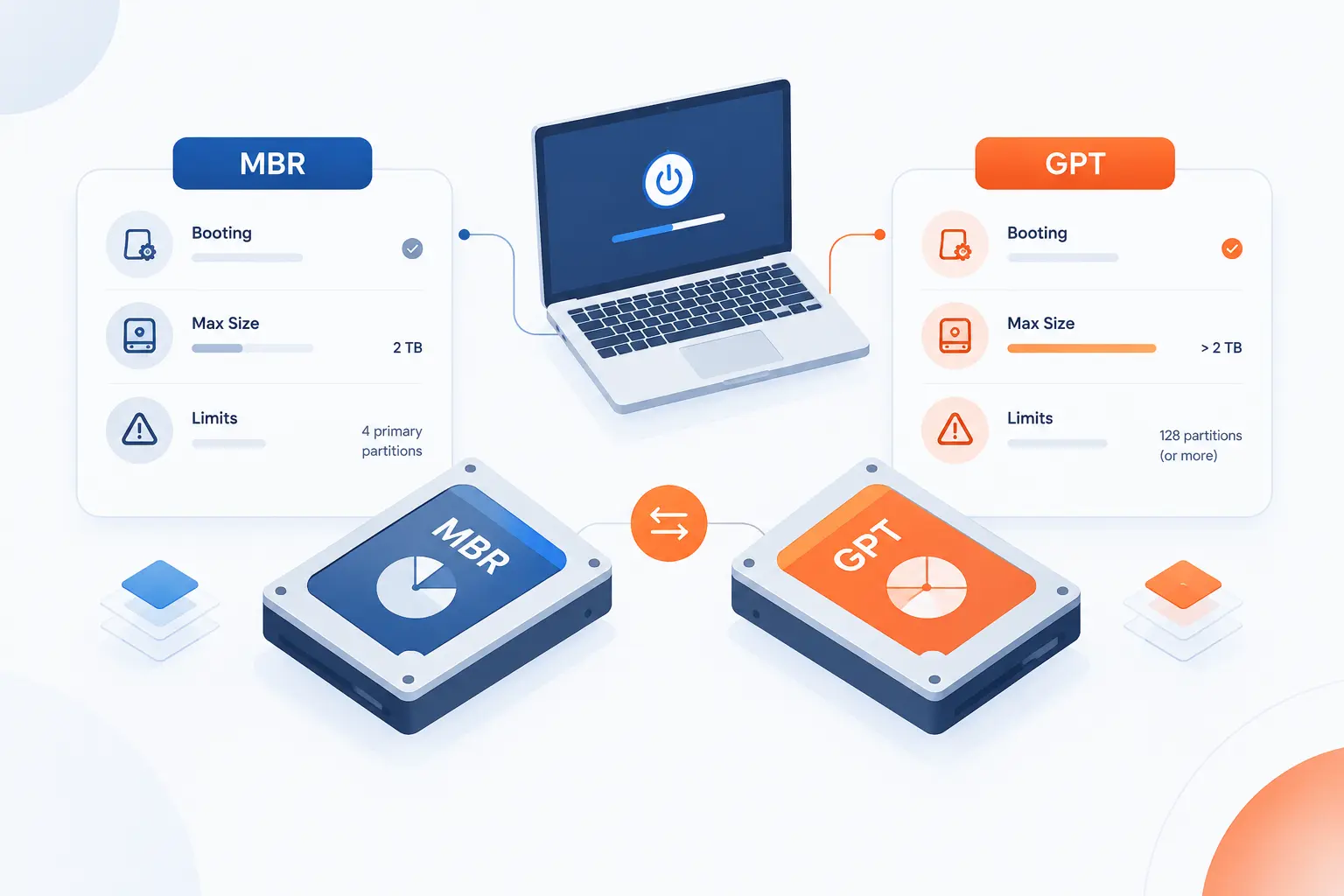
A gpt partition style is usually the right choice for a modern Windows PC, especially if the machine uses UEFI firmware, runs Windows 11, or has a drive larger than the old MBR addressing limit. MBR is still useful when an older computer boots only through legacy BIOS, or when an old operating system or appliance cannot read newer disk layouts. At 1Byte, we treat this decision as a boot-and-compatibility question first, then a storage-size question. If the disk is new and the device is modern, choose GPT. If the device is old and BIOS-only, choose MBR until the hardware or operating system changes.
The short version is simple: GPT is the forward-looking format, while MBR is the legacy fallback. GPT stores more metadata, supports modern firmware booting, and avoids the practical size ceiling that frustrates users who buy multi-terabyte drives. MBR is smaller, older, widely recognized by legacy tools, and sometimes necessary for old PCs. The real decision is not about which label sounds better. It is about what your firmware, operating system, and drive size can actually support.
GPT Partitioning
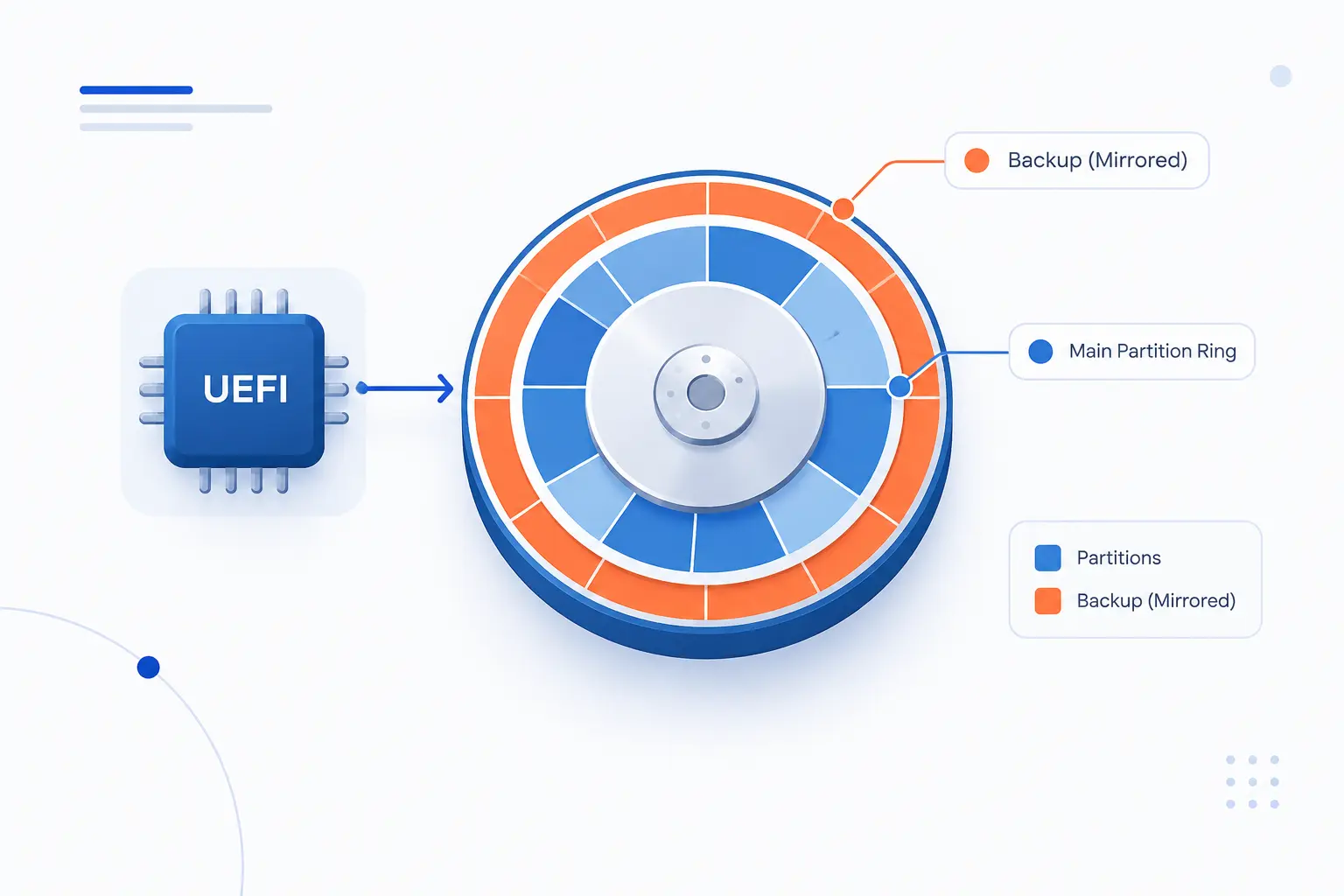
GPT partitioning is the modern disk layout used with UEFI systems and large drives. It keeps primary and backup metadata, identifies entries with globally unique IDs, and gives Windows enough room for many normal volumes without using extended partitions. Microsoft’s deployment guidance states that when Windows is installed on a UEFI-based device, the Windows drive must use this newer disk layout, while extra data drives may use either style through Microsoft’s setup guidance. We prefer GPT for new builds because it removes several old constraints before they become support tickets.
FURTHER READING: |
| 1. What Is Exchange Server and How It Handles Email |
| 2. What Is Migrating Data? Types, Steps, and Risks |
| 3. What Is Hybrid Cloud Management and Why It Matters |
Protective MBR, Backup Tables, and Error Checks
GPT protects itself better than MBR because it keeps a protective record at the start, a main header near the beginning, and backup metadata at the end of the disk. The UEFI specification describes the layout as a protective record at logical block zero, a main header at the next block, and additional structures that describe the usable disk area. That design helps older utilities avoid mistaking the disk for empty. It is not magic, but it is a guardrail.
The backup copy matters when metadata is damaged. A damaged header does not automatically mean the whole disk layout is gone, because a tool may be able to compare or rebuild from the secondary copy. GPT also includes CRC32 checks for integrity checks on key structures. In our view, that is the quiet advantage many beginners miss. GPT was designed after decades of lessons from broken boot sectors and confused disk utilities.
Disk Capacity and Partition Limits
GPT is the practical choice for drives above the old MBR ceiling and for Windows systems that need many normal volumes. Microsoft notes that Windows can create up to 128 entries on a basic GPT disk. That is far beyond what most desktops, workstations, and small servers need. It also avoids the awkward primary-versus-logical split used by MBR.
Capacity is the bigger day-to-day issue. A 4 TB or 8 TB drive initialized as MBR may show missing or unusable space in Windows, depending on the configuration. Microsoft’s storage guidance says disks beyond 2 terabytes should be initialized with the newer layout to use the full capacity. That one number is often the whole story for home lab users and small businesses. Buy a large disk, use GPT, and spare yourself a strange afternoon in Disk Management.
Windows Compatibility and UEFI Boot
Windows boots from GPT when the computer starts in UEFI mode, so firmware mode and disk style must match. This is the part that trips people up during installation. If the installer was booted in UEFI mode, Windows expects the system disk to match that path. If the installer was booted in legacy BIOS mode, Windows expects the older layout.
Windows 11 also pushes the decision strongly toward UEFI systems. Microsoft lists UEFI and Secure Boot capable firmware among the system requirements for Windows 11. That does not mean every data disk in the machine must use GPT. It does mean the boot disk on a supported modern Windows setup should be planned around UEFI. For a beginner, the safest rule is this: if you are installing Windows 11 on modern hardware, do not start with MBR unless you have a very specific reason.
Pros of GPT
GPT’s biggest advantage is that it fits modern PCs without workarounds. It supports UEFI boot, large disks, many normal volumes, backup metadata, and integrity checking. Those features are not decorative. They solve real problems that appear when a machine has a large NVMe drive, multiple recovery volumes, an EFI system volume, and a separate data volume.
We also like GPT because it gives cleaner mental models. A beginner does not need to learn the difference between primary, extended, and logical partitions just to split a drive into sensible sections. A technician does not have to explain why a large drive stops being useful past a certain point. The disk layout stays boring, and boring is good when the system holds production data.
Cons of GPT
GPT’s main drawback is compatibility with older firmware, older operating systems, and old external devices. A BIOS-only PC may not boot Windows from a GPT system disk. Some old imaging tools, recovery media, USB enclosures, televisions, DVRs, or appliance-like systems may expect MBR. That is not GPT’s fault, but it is still your problem if the device cannot read the drive.
There is also a human factor. People sometimes convert a disk without checking boot mode, backup status, or whether the disk is a system disk. A data disk mistake is annoying. A boot disk mistake can leave a machine that does not start. We favor GPT, but we do not favor casual conversions on important disks without a backup.
Who GPT Is Best For
GPT is best for new Windows PCs, UEFI systems, large internal drives, NVMe SSDs, and users who want the fewest future limits. It is also the sensible choice for most new data drives, especially if the drive is larger than the old MBR limit. If you are installing Windows 11, building a workstation, or preparing a machine that should last several years, GPT should be the default.
GPT is also a good fit for labs and business machines where storage may grow. Today’s single data volume can become several volumes later. A backup drive can be replaced with a larger one. Once the hardware supports UEFI, we would rather start with the layout that will not paint us into a corner.
MBR Partitioning
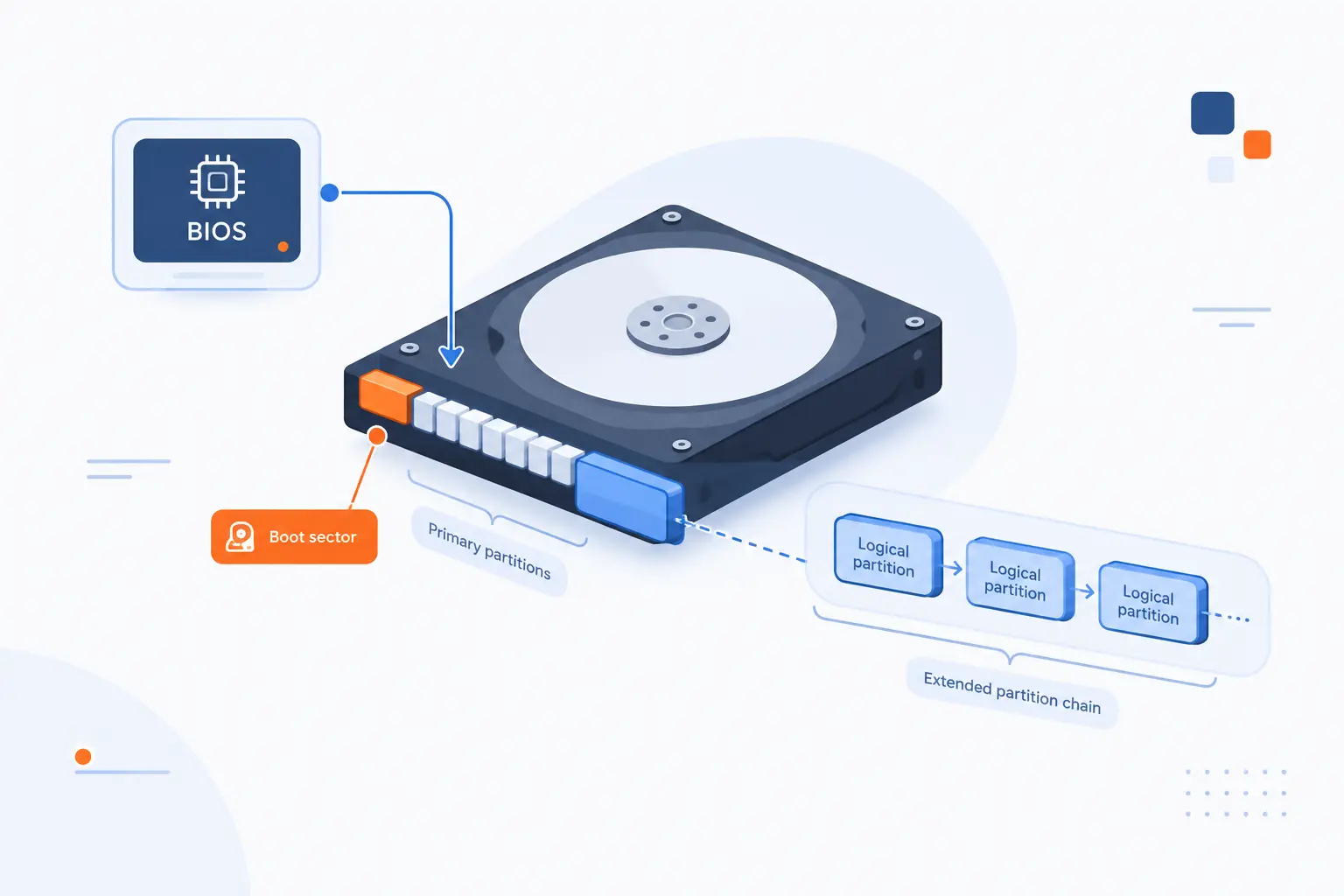
MBR partitioning is the older disk layout built around a single boot record and a small partition table at the beginning of the disk. It works well for legacy BIOS booting and old systems that do not understand GPT. Its limits are concrete: it has a small entry table, relies on extended partitions for extra volumes, and struggles with large modern disks. We keep MBR in the toolbox, but we no longer treat it as the normal choice for new Windows installations.
Single Boot Record and Extended Partitions
MBR depends heavily on one area at the start of the disk, which makes the first sector unusually important. That area contains boot code and the table that describes the main sections of the disk. If it is overwritten or damaged, the system may lose boot information or appear to lose the disk layout. Recovery is possible in many cases, but the design gives you fewer built-in safeguards than GPT.
MBR also uses extended partitions when users need more volumes than the small primary table allows. In practical Windows terms, Microsoft describes MBR basic disks as allowing four primary entries, or a mix that includes an extended container for logical drives. That old structure made sense when disks were smaller. It feels clumsy on modern machines.
Disk Capacity and Partition Limits
MBR is a poor fit for large modern drives because it uses old addressing limits. Microsoft’s storage documentation explains that MBR uses 32-bit fields for sector addressing, which leads to the familiar large-disk ceiling in normal Windows use. If a user installs a multi-terabyte disk and initializes it as MBR, the missing capacity is not a mystery. It is a design limit.
The partition count is also limiting. With only a handful of primary entries available, users may run into structure problems before they run into physical capacity problems. Extended partitions can work around that, but they add complexity. For a small boot disk on an old PC, MBR is fine. For a modern 4 TB data disk, it is the wrong tool.
Windows Compatibility and BIOS Boot
MBR is best known for booting Windows on legacy BIOS systems. If the computer cannot use UEFI, MBR may be required for the system disk. This is why older desktops, older laptops, and some virtual machine templates still use it. The disk style follows the firmware path.
During Windows installation, boot mode and disk layout must agree. Microsoft’s installation documentation warns that setup errors can happen when the machine is started in one firmware mode while the target disk uses the other layout through Windows installation rules. This is why two users can see different results with the same USB installer. One booted the installer as UEFI, the other as legacy BIOS.
Pros of MBR
MBR’s biggest advantage is old-system compatibility. It is the safest choice when the machine boots only through legacy BIOS or when an old operating system cannot handle GPT. Some embedded devices and consumer electronics also recognize MBR more reliably than GPT. For a small USB stick used with an old device, MBR may be the more practical choice.
MBR is also simple in the narrowest sense. It has been around for decades, and many old tools understand it. That matters when you are recovering a vintage PC, running old deployment media, or supporting equipment that cannot be modernized. We do not romanticize it, but we respect its usefulness in the right corner cases.
Cons of MBR
MBR’s main weaknesses are its size limit, small primary table, and lack of GPT-style backup metadata. These weaknesses are not theoretical. They show up when someone buys a large drive, creates too many volumes, or tries to move an old Windows installation into a UEFI-only environment. The layout was built for a different era.
MBR also creates planning friction. You have to think about primary versus logical volumes. You may have to rebuild a disk layout just to use all available space. A single overwritten boot record can create more trouble than it should. When a newer option removes all of that, we need a strong reason to keep using the older one.
Who MBR Is Best For
MBR is best for BIOS-only computers, old Windows versions, small drives, and devices that cannot read GPT. It is also reasonable for removable media that must work across older appliances. If the disk is below the old size limit and the device refuses modern layouts, MBR is not a mistake. It is a compatibility choice.
We would not choose MBR for a new Windows boot drive unless the hardware forced us. That sounds blunt because the trade-off is blunt. If the machine supports UEFI and the operating system is modern, GPT gives you fewer limits. MBR earns its keep when the surrounding hardware is also old.
How to Choose Between GPT and MBR
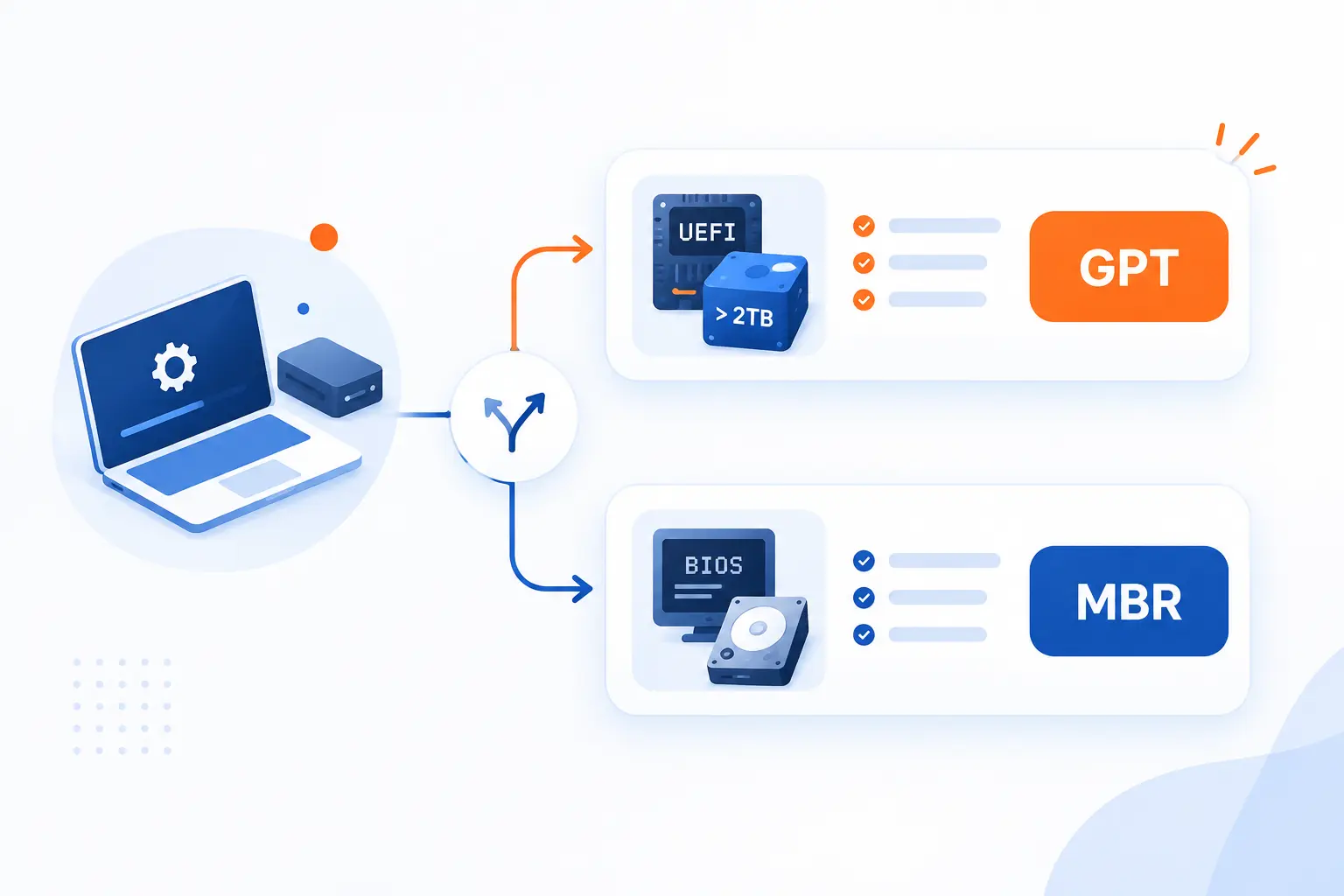
Choose GPT when the PC is modern, uses UEFI, runs Windows 11, or has a large drive. Choose MBR when the machine boots only through legacy BIOS or must work with old software or devices. The decision is not a contest of taste. It is a compatibility map. Start with the boot firmware, then check the operating system, then check the drive size.
| Choice | Best fit | Avoid when |
|---|---|---|
| GPT | UEFI PCs, Windows 11, large internal drives | Old BIOS-only systems must boot from the disk |
| MBR | Legacy BIOS PCs, old operating systems, older appliances | The drive is large or the system needs modern boot features |
Choose GPT for New PCs, Large Drives, and UEFI Features
Choose GPT if the computer is a modern UEFI system or the drive is larger than the old MBR comfort zone. This is the recommendation we would give for most new desktops, laptops, workstations, and cloud-style lab machines. GPT lines up with Windows 11, UEFI booting, Secure Boot capable systems, and current storage sizes. It also avoids the old primary-entry limit.
A real example helps. Suppose a user installs a 4 TB SSD as a data drive in a modern Windows PC. With GPT, Windows can create one large volume or several normal volumes. With MBR, the user may see unusable space or awkward limits. There is no practical upside to choosing MBR in that situation.
Choose MBR for Older Hardware and Legacy BIOS Setups
Choose MBR if the machine boots through legacy BIOS and cannot be switched to UEFI. This applies to many older PCs, old lab systems, and some industrial machines. If the firmware cannot boot from GPT, forcing GPT onto the boot disk will not make the machine modern. It will just make it fail at startup.
MBR can also be the right pick for compatibility media. A small USB drive for an old firmware updater, diagnostic tool, or appliance may work better as MBR. In that case, the drive size and feature limits do not matter much. The winning format is the one the device can actually read.
Consider External Drives, Dual-Boot Plans, and Future Upgrades
External drives and dual-boot systems should be planned around every device that will read or boot the disk. A GPT external drive is a good default for modern Windows, macOS, and Linux environments, but older televisions, recorders, or recovery tools may expect MBR. Dual-boot setups need even more care because firmware mode must be consistent. Mixing modes can make troubleshooting painful.
Future upgrades should also influence the choice. If a Windows 10 machine is moving toward Windows 11 on supported hardware, GPT and UEFI are the direction of travel. If an old BIOS-only system will stay isolated for a special purpose, MBR may remain the least risky choice. Our view is simple: choose for the machine you have, but do not ignore the machine you plan to have next.
How to Check and Convert Partition Style in Windows
You can check the current disk style in Windows through Disk Management or DiskPart. You can convert an empty data disk with built-in Windows tools, but system-disk conversion needs more care. Microsoft provides MBR2GPT for supported Windows system disks, while Disk Management and DiskPart generally require deleting volumes for clean style changes. Back up important data before any conversion. No partition table decision is worth losing a client archive, a family photo drive, or a production configuration.
Find the Current Style in Disk Management
Use Disk Management when you want the easiest visual check. Right-click Start, open Disk Management, right-click the disk label on the left side, choose Properties, and open the Volumes tab. Windows shows the style there. Make sure you click the physical disk label, such as Disk 0, rather than only the C: volume.
This is the safest first step because it changes nothing. It simply tells you what Windows sees. Microsoft’s Disk Management support page also notes that the tool lets users initialize new disks and choose the style during setup through the storage interface. If you are preparing a brand-new drive, that prompt is the moment to choose correctly.
Check the GPT Column in DiskPart
Use DiskPart when you want a fast command-line check. Open Command Prompt or Windows Terminal as an administrator, type diskpart, then type list disk. In the output, the Gpt column uses an asterisk to mark disks using the newer layout. If there is no mark, the disk is using MBR.
Be careful inside DiskPart. It is powerful and unforgiving. Checking with list disk is harmless, but commands such as clean erase disk structure. We like DiskPart for verification and scripted work. For beginners, we prefer Disk Management unless a documented procedure specifically calls for the command line.
Use Windows Tools for Clean Conversions
Use built-in Windows tools for clean conversions when the disk is empty or fully backed up. Disk Management and DiskPart can convert between styles after existing volumes are removed. That is fine for a new drive. It is not fine for a drive full of data unless you already have a verified backup.
For a Windows system disk, Microsoft’s MBR2GPT tool is the official path for supported in-place conversion from the old layout to the newer one. The tool is included in Windows and is documented for converting an operating system disk through the conversion utility. The practical order is backup, validate, convert, switch firmware to UEFI, then boot. Skipping the firmware step is a common reason a converted PC will not start.
Know When a Conversion Utility May Be Needed
A third-party conversion utility may be needed when you must preserve complex data layouts that Windows tools cannot convert cleanly. This is common with multi-volume data disks, unusual recovery layouts, or systems where deleting volumes is not acceptable. We still recommend a full backup first. A tool that promises non-destructive conversion can still fail because of power loss, bad sectors, encryption, or a user choosing the wrong disk.
We take a conservative view here. If the disk holds anything valuable, image it before changing its style. If the disk is a boot disk, confirm firmware support before conversion. If the disk belongs to a business workload, test the plan on a spare machine or clone. The partition table is a small part of the disk, but it controls access to everything else.
FAQ
GPT and MBR questions usually come down to booting, limits, and how to check the current style. The answers below are short because the decision should be practical, not mysterious. GPT is usually the modern default. MBR remains the compatibility fallback.
How Many Partitions Can GPT Support
In Windows, GPT basic disks commonly support up to 128 entries. That is enough for normal desktops, workstations, and most server-style layouts. The UEFI design can allow more in theory, but Windows sets the practical default most users will see.
Which Is Better for Windows, GPT or MBR
GPT is better for modern Windows PCs that use UEFI, large drives, or Windows 11. MBR is better only when legacy BIOS or older software requires it. If you are building or reinstalling a current Windows machine, GPT should be your first choice.
Does GPT Require UEFI to Boot
For Windows boot disks, GPT is tied to UEFI booting. A BIOS-only Windows system normally boots from MBR instead. Data disks are different, because a modern Windows system can often read either style once the operating system is running.
How Do You Find Out if a Disk Uses GPT
You can check in Disk Management by opening the disk’s Properties and reading the Volumes tab. You can also run DiskPart, type list disk, and look for an asterisk in the Gpt column. Check before converting, reinstalling, or changing firmware mode.







Conclusion
GPT is the right choice for most modern PCs, modern Windows installs, UEFI booting, and large drives. MBR is the right choice for older BIOS-only systems, small compatibility drives, and old devices that cannot read newer disk layouts. So our verdict is clear: choose GPT if your hardware supports UEFI and your operating system is modern, and choose MBR if legacy compatibility is the hard requirement.
We at 1Byte like decisions that reduce future trouble. GPT does that for most new systems because it handles large disks, many normal volumes, and modern boot expectations cleanly. MBR still deserves respect, but mostly as a bridge to older hardware. Before you initialize or convert a disk, ask one question: will this drive need to boot an old system, or should it be ready for the next one?