

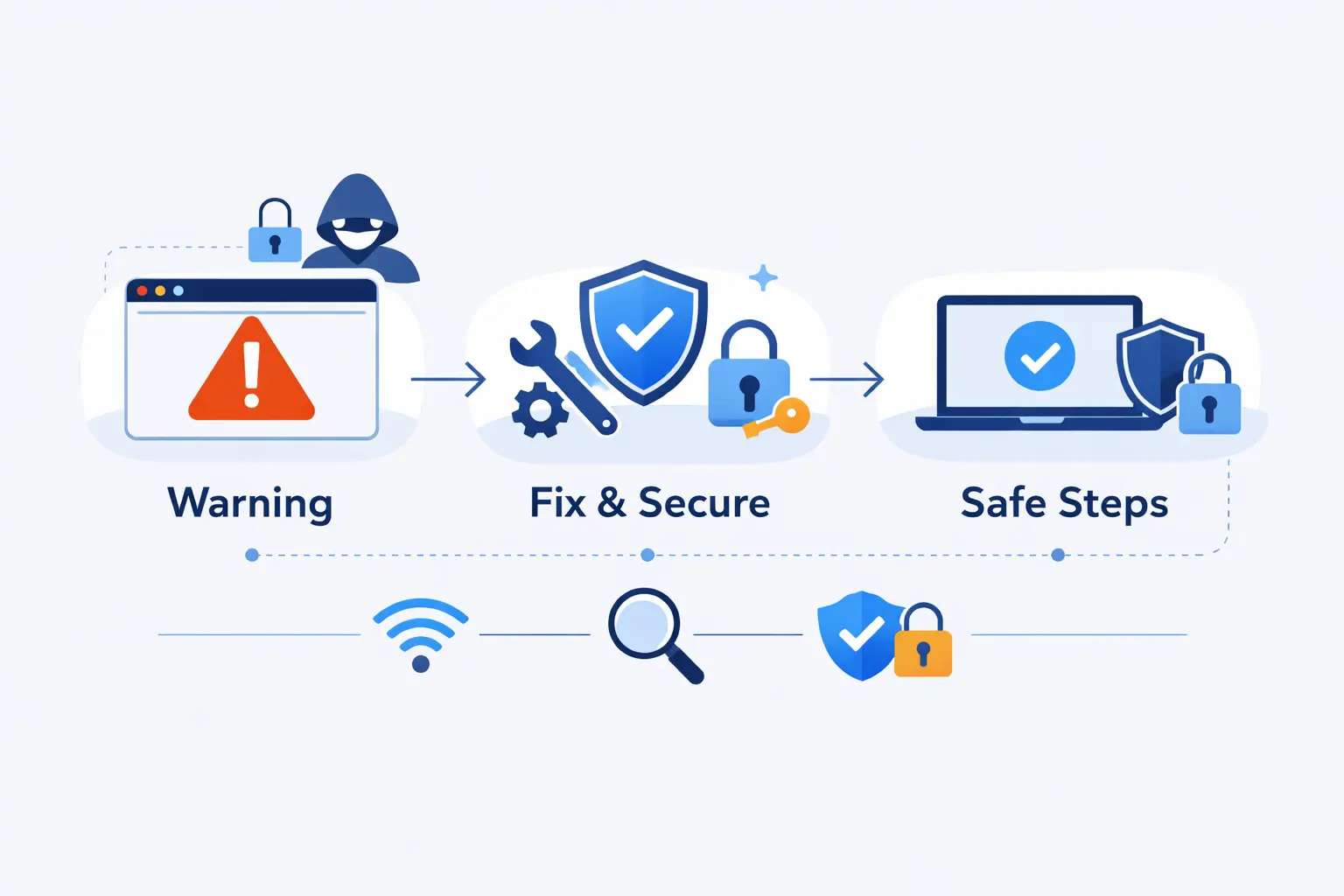
- What the Warning Means for Your Security and Privacy
- How Different Browsers Show the Warning
- Why Browsers Say Your Connection Is Not Private
- Start With These Safe Fixes First
- Advanced Fixes When the Error Still Persists
- What to Do if Every Website Says Your Connection Is Not Private
- When the Problem Is on the Website Side
- Can You Bypass the Warning in Chrome
- How Website Owners Can Fix the Error at the Source
- How to Prevent Future Privacy Errors
- Your Connection Is Not Private FAQ
- How 1Byte Helps Prevent Your Connection Is Not Private Issues
- Conclusion: Fix the Error Safely and Know When the Problem Is Not Yours
At 1Byte, we see the “your connection is not private” warning confuse beginners and seasoned admins alike. The message does not mean your browser hates the internet. It means the browser could not safely confirm the website’s identity or protect the traffic between you and the page.
The bigger picture matters. Google’s Chrome Security team reports 98% of public-site navigations on Windows already use HTTPS, so broken encryption now stands out fast and gets blocked fast. Our rule is simple. Treat the warning like a stop sign, not a dare. We would rather lose a minute than leak a password.
What the Warning Means for Your Security and Privacy

Before we fix anything, we need the right mental model. This warning is about trust, identity, and encryption. Once those pieces click, the troubleshooting path gets much shorter.
1. Why Browsers Block the Page Instead of Loading It
Browsers block these pages because a half-trusted secure connection is worse than no secure connection at all. If certificate checks fail, the browser cannot tell a simple misconfiguration from an attacker sitting in the middle of the connection. On HSTS sites, which tell browsers to use HTTPS only, all certificate errors are fatal and the page does not get a friendly pass.
2. How SSL, TLS, and HTTPS Protect the Connection
People still say SSL, but the modern protocol is TLS. HTTPS is simply the web running over that protected channel. Certificates help the browser verify the site, and they encrypt information you exchange with the site. That keeps logins, payment data, and session cookies from traveling in plain text.
3. What Risks Appear When Encryption or Identity Checks Fail
When encryption or identity checks fail, three risks show up. Someone on the network might read the traffic. Someone might alter the traffic. Or you might be connected to the wrong server without knowing it. That is why this warning matters most on sign-in, banking, and checkout pages.
4. Why the Warning Does Not Always Mean the Site Is Malicious
We also need to keep our heads. A privacy warning does not always mean a site is a scam. Firefox’s own guidance says local software may be blocking or replacing the secure connection, which is exactly what some antivirus tools, VPNs, and corporate inspection systems do. We see this on old router dashboards and fresh site launches alike.
How Different Browsers Show the Warning

The words change from browser to browser, but the logic stays the same. Once we know the wording each browser uses, the warning becomes less mysterious and more actionable.
1. How Chrome and Edge Display Privacy Errors
In Chrome, the full-page privacy screen is direct. Google says it can mean a problem with the site, the network, or your device. Edge shows a similar full-page warning and similar codes, so the same first checks usually apply.
2. How Firefox and Safari Phrase Secure Connection Warnings
Firefox uses more explicit language. You may see Warning: Potential Security Risk Ahead, or a “Secure Connection Failed” page, followed by a code that points you toward the real cause.
Safari is plainer. Apple says you may see “Not Secure” or “Website Not Secure” when the certificate is bad, the transport security is outdated, or the page asks for sensitive data without proper protection.
3. How Not Secure on HTTP Pages Differs From a Privacy Error
We think this is the distinction most readers miss. On plain HTTP pages, browsers may show a “Not secure” label and still load the site. A privacy error is stricter. The browser attempted HTTPS, failed the trust checks, and refused to continue normally.
4. How Error Codes Point to Time, Trust, Domain, and Protocol Problems
Error codes help us sort the mess fast. Date errors often mean an expired certificate or a wrong clock. Authority errors usually mean an unknown issuer or HTTPS interception. Domain errors mean the certificate does not match the hostname. Protocol and cipher errors point to old encryption settings that the browser no longer accepts.
Why Browsers Say Your Connection Is Not Private

This is where readers usually want the straight answer. Browsers say your connection is not private for a handful of repeat reasons, and we can troubleshoot them in a clean order.
1. Expired, Missing, Self-Signed, or Untrusted Certificates
Expired certificates are the classic cause. So are certificates that are not valid yet, self-signed certificates on public sites, and broken chains with a missing middle certificate. In a lab, a self-signed certificate can be fine. On the public web, it gives browsers no trusted outside proof that the site is who it says it is.
2. Domain Mismatches, Subject Alternative Name Issues, and Wrong Server Certificates
Name coverage is another frequent problem. Google uses the example of a www.example.com vs example.com mismatch, where the visitor hits one host and the certificate covers another. The same bug appears when a site forgets the root domain, the www host, or a needed Subject Alternative Name, usually shortened to SAN.
3. Outdated Browsers, Unsupported Encryption, and Incorrect Device Time
Old software can trigger modern trust errors from both directions. An outdated browser may reject a valid chain that relies on newer trust rules. An old server may offer protocols or ciphers that current browsers refuse to use. A wrong date, time, or time zone can make a healthy certificate look expired or not yet valid in seconds.
4. Extensions, Antivirus HTTPS Scanning, VPNs, and Network Problems
Local software can be the troublemaker. Chrome specifically warns that HTTPS scanning can trigger the error because the antivirus inserts itself into secure traffic. VPNs, proxy settings, flaky Wi-Fi, and corporate inspection tools can do the same thing when their certificates or network paths are not set up cleanly.
Start With These Safe Fixes First

We always start with the safe fixes because they solve more cases than people expect. They also carry almost no downside.
1. Reload the Page, Recheck the Website Address, and Try the Correct Domain Variant
The first move is almost boring, and that is why it works. Google tells users to check website URL and reload page. A typo, an old bookmark, or the wrong domain variant can land you on a host whose certificate is not meant for the address you entered.
2. Try Incognito Mode or Clear Cache and Cookies
Next, try a private browsing window. Incognito mode strips away most extension noise and starts a fresh session. If the site works there, the culprit is often an extension, a stale cookie, or cached browser state. If it still fails, clear cache and cookies for that site and test again.
3. Correct the Date and Time and Update the Browser
Then fix the clock. Set the device to update time automatically, confirm the time zone, and reopen the browser. After that, update the browser itself. If you have not rebooted after recent system updates, do that too. Old trust stores and half-applied updates create a lot of fake mystery.
4. Switch Networks and Avoid Risky Public Wi-Fi
If you are on hotel, airport, campus, or coffee-shop Wi-Fi, switch networks before you do anything risky. Public networks often hide a sign-in portal behind the first connection attempt. Open a simple non-sensitive page, finish the network sign-in, and then retry the HTTPS site.
Advanced Fixes When the Error Still Persists

If the easy checks fail, we go one layer deeper. Slow is smooth here. Smooth is fast.
1. Review Extensions and Disable Problem Add-Ons
Start with extensions. Privacy tools, proxy add-ons, ad blockers, developer helpers, and security extensions can all touch requests and certificates in unexpected ways. Turn them off one by one, not all at once forever. The goal is to catch the offender, not to strip your browser bare for good.
2. Check Antivirus HTTPS Scanning and VPN Conflicts
Some security suites inspect encrypted traffic. Some VPNs rewrite paths or inject proxy settings. That is useful in certain setups, but it can also break trust. Turn those features off temporarily and test again. On a work laptop, ask IT before you change anything that looks managed, and never install a root certificate from a random warning page just to make the alert disappear.
3. Restart the Device or Router and Flush DNS Cache
A full restart is still worth your time. Reboot the device, restart the router, and clear your DNS cache if your operating system supports it. We use this step when a domain recently changed IPs, a captive portal got stuck, or a local network state just feels haunted. It will not repair a bad certificate on the server, but it can clear stale local state.
4. Try Another Browser or a Reputable Proxy
A different browser is a clean test. If the site fails everywhere, the issue is broader. If it fails only in one browser, the profile or extension stack is the suspect. A reputable proxy or a mobile hotspot can also help confirm whether your current network is the problem, but we would not use a random free proxy for anything sensitive.
What to Do if Every Website Says Your Connection Is Not Private

When every site breaks, the pattern matters more than the message itself. We stop blaming one website and start looking at the machine, the network, or both.
1. Why a System-Wide Privacy Error Usually Points to Your Device or Network
A system-wide privacy error usually points to the local environment. Think wrong clock, outdated root certificates, antivirus interception, a broken VPN, captive portal problems, or a network device that is tampering with traffic. The browser is seeing the same bad pattern across many destinations, so the website is less likely to be the common factor.
2. How Power Loss Can Affect Time Settings, SSL State, and Root Certificates
Power loss can play a sneaky role. On some desktops and older systems, the small motherboard battery fails and the clock resets after a shutdown. That alone can make valid certificates look invalid. We also see abrupt restarts leave stale session state behind until Windows and the browser fully settle after reboot.
3. Restart Cryptographic Services and Clear SSL State in Windows
On Windows, we often take two housekeeping steps before we panic. We restart Cryptographic Services. Then we clear SSL state in Internet Options under the Content tab. If the machine recently changed time, updated certificates, or survived a rough shutdown, those steps can clear stale local trust data.
4. Check Root Certificates, Run Windows Update, and Reset TCP/IP
Windows keeps a trusted list of certificate authorities, often called root certificates. Microsoft says trusted root certificates are updated through Windows Update, and if automatic updates are off, apps and websites may stop working. That makes Windows Update a real certificate fix, not just general maintenance.
If the network stack still looks suspicious, Microsoft documents how to reset TCP/IP with netsh and then restart the machine. We treat that as a deeper reset when browsers, apps, and multiple sites all fail in the same way.
When the Problem Is on the Website Side

Some warnings are yours to fix. Some are not. Knowing the difference saves time and avoids bad decisions.
1. Signs the SSL Certificate or Server Setup Is Broken
The signs are usually clear. Other people can reproduce the warning. Different devices and networks show the same certificate error. The site serves the wrong name, shows a recently expired certificate, loops between HTTP and HTTPS, or fails only after a server migration. At that point, the website or its hosting stack is the real suspect.
2. Why You Usually Cannot Fully Fix a Missing Certificate on Your End
There is no client-side setting that can conjure a missing or wrong certificate out of thin air. If the server presents the wrong identity, your browser is doing the right thing by refusing it. You can confirm the problem from another browser or another connection, but you cannot repair the remote certificate chain from your keyboard.
3. When to Wait, Contact the Site Owner, or Leave the Site
If it is a small site, contact the owner and explain what you see. If it is a major site handling money, health data, or account logins, leave and use an official support channel instead of forcing your way in. Waiting a bit can make sense after a renewal or migration, but blind trust never does.
Can You Bypass the Warning in Chrome

We know the temptation. A deadline is looming, and the page is “probably fine.” That is exactly when privacy warnings earn their keep.
1. Why Proceeding Should Be a Last Resort
Proceeding should be a last resort because the whole point of the warning is that identity or encryption checks failed. The only times we tolerate it are narrow cases, such as a local router page, a short-lived internal test system, or a device you control and understand. We never recommend it for public logins, payments, or personal data.
2. How the Advanced Proceed Option Works Across Browsers
Across browsers, the bypass is intentionally buried. Chrome and Edge usually tuck it under Advanced when a bypass is allowed. Firefox uses an Advanced view and a risky continue option on some errors. On HSTS sites and some stronger failures, there is no proceed button at all, which is exactly the point.
3. Why Hidden Chrome Bypass Methods Are Unsupported and Risky
We strongly advise against hidden workarounds. Google says Chrome flags can compromise your security and privacy, and the same logic applies to mystery launch switches or undocumented bypass tricks. They are easy to forget, easy to misuse, and dangerous on a browser you use for everyday accounts.
How Website Owners Can Fix the Error at the Source

If you run the site, the problem is usually mundane. That is good news. Mundane problems are fixable.
1. Replace Expired, Self-Signed, Untrusted, or Unsupported Certificates
Replace expired, self-signed, untrusted, or unsupported certificates with one from a publicly trusted CA. Automate renewal if you can. Install the full certificate chain, not just the main site certificate. If your server still offers very old transport settings, retire them so modern browsers do not fail the handshake.
2. Cover the Root Domain, WWW Version, and Subdomains Correctly
Cover every hostname people really use. That usually means the root domain and the www host at a minimum. If you serve subdomains, add them explicitly with SANs or use a wildcard where it actually fits. We see too many launches where the main site works but the admin, shop, or blog subdomain does not.
3. Serve the Right Certificate on the Right Server and IP
If several sites share one server or load balancer, the default site can hand out the wrong certificate. That is a common post-migration bug. The certificate itself may be fine. It is simply attached to the wrong public endpoint, so the visitor gets the wrong identity back.
4. Fix HTTPS Links, Redirects, and Missing HTTPS Support
Google’s HTTPS report calls out deployment mistakes like HTTPS has redirect, invalid certificates, and missing HTTPS pages. In plain terms, fix links that still point to HTTP, redirect users toward HTTPS instead of away from it, and make sure every public page actually exists and works over HTTPS.
How to Prevent Future Privacy Errors

Prevention is mostly disciplined housekeeping. That may sound dull, but dull beats broken.
1. Keep Browsers, Operating Systems, and Root Certificates Updated
Keep browsers, operating systems, and trust stores updated. Leave automatic updates on where possible. Reboot after major patches. If you run a public site, monitor certificate renewals and test before expiration day instead of on it.
2. Verify URLs Carefully and Limit Unneeded Extensions
Verify URLs carefully, especially when you land from email, chat, or ads. Bookmark the real login pages you use often. Keep your extension list short. Every extra extension is another place where requests, certificates, and redirects can get bent out of shape.
3. Use Public Wi-Fi Carefully and Manage VPN or Antivirus Settings Wisely
Treat public Wi-Fi like a shared room, not a private office. Finish any required network sign-in before visiting sensitive sites. Be cautious with VPN and antivirus settings that inspect encrypted traffic. Those features can be useful in the right environment, but they also cause some of the very errors people blame on the web.
Your Connection Is Not Private FAQ

These are the questions we hear most often from readers and hosting clients. Here are the short answers we actually use.
1. Why Does Every Website Say My Connection Is Not Private?
If every website says your connection is not private, the cause is usually local. Check the clock first. Then look at antivirus HTTPS scanning, VPNs, root certificate updates, proxy settings, and the network itself. Testing the same sites on another device or another network is the fastest way to separate site trouble from device trouble.
2. Why Does Google Keep Saying the Connection Is Not Secure?
When people say Google keeps saying the connection is not secure, they often mean Chrome is labeling pages as HTTP or rejecting a bad certificate. If the warning appears on real Google services themselves, stop and investigate your device or network. That is not a page we would ever force through.
3. How Do I Stop Chrome From Showing a Privacy Error?
You do not really stop Chrome from showing a privacy error. You stop the condition that triggers it. Fix the clock, update the browser and system, remove the interfering extension or security tool, or wait for the site owner to repair the certificate. The warning is the symptom, not the disease.
4. Can the Wrong Date and Time Cause a Privacy Error?
Yes. Certificates have start and end dates. If your device time is wrong, the browser can think a good certificate is expired or not valid yet. That is why date and time checks belong near the top of every troubleshooting list.
5. Can Antivirus or VPN Settings Cause a Privacy Error?
Yes again. Antivirus products that scan HTTPS traffic and VPNs or proxies that inspect connections can replace or interfere with certificates. When their local root certificate is missing, stale, or broken, the browser throws a privacy error even if the website itself is fine.
6. How Do I Bypass a Privacy Error in Chrome?
In Chrome, a bypass may appear under Advanced for some errors. We would use it only for a trusted local or internal page, and only after we understand the cause. If the site handles logins, money, health records, or personal data, our answer is simple. Do not bypass it.
7. Is It Safe to Proceed When a Site Says Your Connection Is Not Private?
Usually no. The safe answer is to back out unless you own the environment or clearly understand why the warning is happening. Even then, proceed only for low-risk cases like a router admin page or a temporary internal test host. Public sites should not ask normal visitors to ignore certificate warnings.
How 1Byte Helps Prevent Your Connection Is Not Private Issues

At 1Byte, we would rather prevent this warning than explain it after traffic drops. A privacy error erodes trust faster than most design flaws.
1. Protect Websites With Domain Registration and SSL Certificates
With domain registration and SSL certificates, we help align the name people type with the name the certificate covers. That sounds basic, but it prevents a pile of avoidable errors. We also help teams keep renewals from slipping and make sure public sites use certificates browsers will actually trust.
2. Support Sites With WordPress Hosting and Shared Hosting
On WordPress hosting and shared hosting, we keep a close eye on the simple stuff that causes big pain. That includes forcing the right HTTPS redirects, avoiding stray HTTP assets, and keeping the hosting layer clean when plugins or site changes try to pull the browser back to insecure paths.
3. Scale Applications With Cloud Hosting, Cloud Servers, and AWS Partner Support
For cloud hosting, cloud servers, and AWS Partner support, the job gets more complex because certificates may sit behind load balancers, reverse proxies, and content delivery networks. We help map hostnames to the right public endpoint, keep certificates attached to the right services, and test the full route before a bad deployment reaches real users.







Conclusion: Fix the Error Safely and Know When the Problem Is Not Yours
When we see “your connection is not private,” we do not treat it as background noise. We treat it as a useful guardrail. If one site fails, start with the safe fixes. If every site fails, focus on your clock, software, and network. If the site itself is broken, step back and let the owner fix the source.
That is the long and short of it. Move carefully, read the error code, and do not hand over sensitive data just to save a minute. At 1Byte, we think a good hosting and certificate setup should make this warning rare. When it does appear, a calm, methodical check beats guesswork every time.