

How to fix ERR_SSL_PROTOCOL_ERROR depends on where the secure connection is breaking. At 1Byte, we start on the device first. We check the clock, clear stored browser data, test without extensions, reset local SSL state, and remove filtering tools from the path. If the error stays across multiple browsers and devices, the website usually has a certificate, chain, redirect, or TLS configuration problem.
How to Fix ERR_SSL_PROTOCOL_ERROR on Your Device
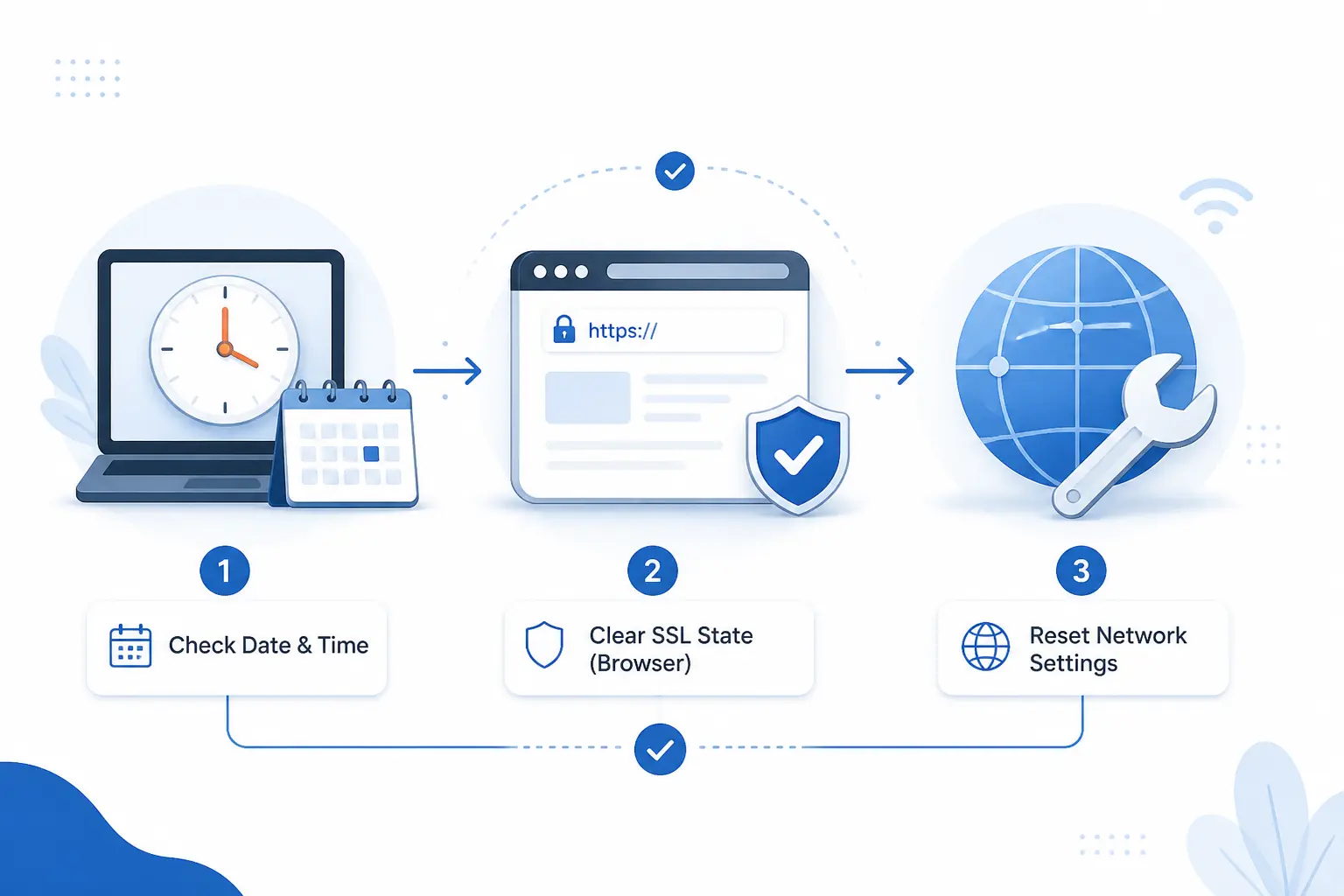
To fix ERR_SSL_PROTOCOL_ERROR on your device, work from the simplest checks to the deeper ones. We begin with settings that break certificate validation. Then we move to browser data, extensions, SSL state, and local network tools. If one clean browser works and another fails, the issue is usually local.
FURTHER READING: |
| 1. How to Fix Internal Server Error on Your Site |
| 2. HTTP Error 404: Meaning, Causes, Fixes, and Prevention |
| 3. How to Fix There Has Been a Critical Error on This Website in WordPress |
1. Check the Device Date, Time, and Region
Wrong date, time, or region can make a valid certificate look invalid, so this is the first check we make. Chrome treats inaccurate clocks as certificate problems, and Windows recommends automatic time and time-zone sync from its time settings page. We have seen this happen after dead laptop batteries, manual time changes, and bad time-zone settings.
2. Clear Browser Cache and Cookies
Stale cookies and cached files can keep a browser stuck on an old redirect or broken session. Google and Microsoft both include browsing-data cleanup in standard troubleshooting because corrupted local data can stop pages from loading properly. We usually clear cached files first, then cookies for the affected site if a full wipe feels too disruptive.
3. Test the Site in Incognito, Another Browser, and With Extensions Off
If the site opens in Incognito or another browser, the error is usually coming from an extension, stored site data, or a damaged browser profile. Chrome’s official browser instructions tell users to test in Incognito first, then disable extensions, because Incognito starts a separate session and most extensions stay off unless you allow them. From our side, this is one of the highest-value tests because it separates browser clutter from real certificate trouble fast.
4. Clear the Local SSL State
Clearing the local SSL state is mainly a Windows move, and it resets stored handshake and session information rather than deleting installed certificates. That matters after a certificate renewal or hostname change, when the OS may still hold a bad session. We treat it as a small, low-risk reset before touching bigger settings.
5. Update or Reset the Browser
An outdated or damaged browser can break modern HTTPS, so update the browser first and reset it only if the error persists. Chrome and Edge both document updates, browsing-data cleanup, and reset or repair flows as normal fixes for connection problems. We prefer updating before resetting because it rules out old code with less disruption.
6. Temporarily Pause Antivirus, Firewall, VPN, Proxy, and Security Tools
Antivirus web shields, local firewalls, VPNs, proxies, and HTTPS-inspection tools can interrupt TLS before the page loads. Google notes that connection failures can come from VPN issues, proxies, or security software. Chrome’s enterprise documentation also shows that HTTPS inspection depends on trusted certificates and correct allowlists. If the page works the moment one tool is paused, the real fix is to adjust that product, not to leave it off.
7. Disable QUIC if Chrome Still Shows the Error
Disabling QUIC is a narrow last test, not a first-line fix. It matters most in managed or Chromium-based environments. Current Chrome documentation still exposes a QUIC control through the policy reference, which tells us the protocol can still be explicitly allowed or blocked. If you do not manage the browser or device, we would try every other step first and treat QUIC as a clue, not a cure.
8. Turn Off Unfamiliar Background Network Services
Unfamiliar background network services can break HTTPS by intercepting traffic, rewriting DNS, or inserting local certificates. Google’s HTTPS inspection notes make clear that TLS inspection is a real interception layer with certificate and allowlist requirements, and Chrome’s error guidance also points to VPN and security software as common interrupters. In plain terms, if a new parental-control app, privacy tool, proxy client, or “safe browsing” utility appeared right before the error, that tool deserves suspicion.
What Usually Causes ERR_SSL_PROTOCOL_ERROR
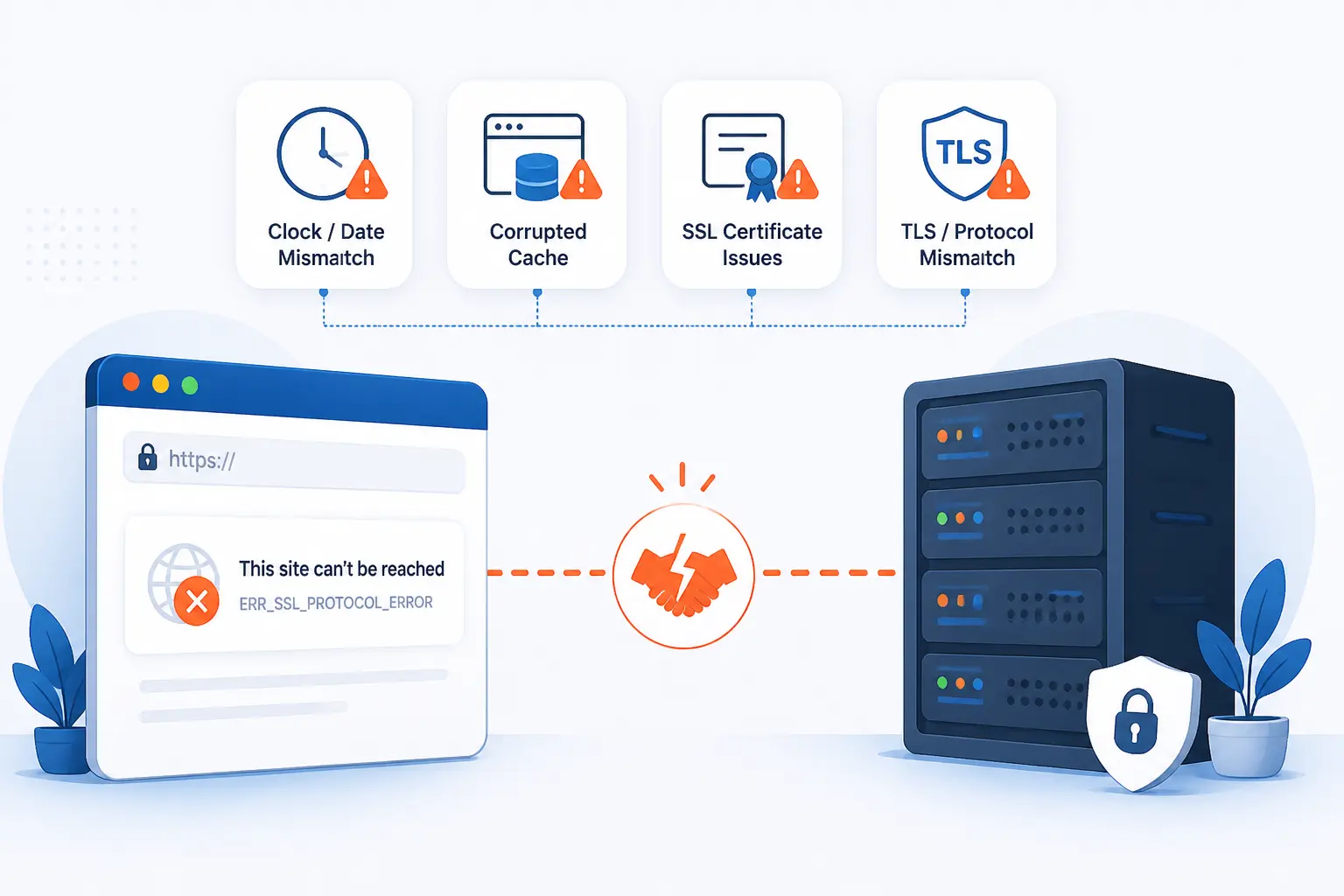
ERR_SSL_PROTOCOL_ERROR usually appears when the browser and server cannot agree on a trustworthy secure connection. In practice, the root cause is often local browser data or a bad clock. Server-side problems are just as common, especially expired certificates, hostname mismatches, broken chains, redirect loops, or obsolete TLS settings. We find the error easier to diagnose when we group causes into local issues, certificate issues, and transport or routing issues.
1. Browser Data, Outdated Software, and Wrong Clock Settings
Browser junk, outdated software, and wrong clock settings are common because they all confuse certificate validation before a website gets a fair chance to respond. A machine with the wrong year can make a fresh certificate look invalid. A stale browser profile can also hang onto bad cookies, cached redirects, or broken extensions. That is why so many successful fixes look boring at first glance.
2. Expired Certificates, Domain Mismatches, and Incomplete Chains
Expired certificates, domain mismatches, and incomplete chains break trust at the identity layer. The modern server identity rules center that check on the subjectAltName entries in the certificate, so a certificate for www.example.com does not automatically cover example.com unless it is actually listed. We see this a lot after new domain launches and rushed DNS changes.
Incomplete chains fail differently. The site serves its own certificate but forgets the intermediate needed to build trust back to a known root. NGINX’s current NGINX docs explicitly tell operators to serve the combined file with the server certificate first and the chained certificates after it, and Let’s Encrypt explains why browsers may fail when that chain is not presented fully. A real-world version is a server that points to cert.pem instead of a full chain file after renewal.
3. Redirect Loops, Proxy Rules, DNS Records, and Old TLS Settings
Redirect rules, proxy behavior, DNS records, and outdated TLS settings can fail the connection even when the certificate looks fine. Cloudflare’s redirect-loop example shows how an HTTPS redirect at the edge can fight with an origin redirect back to HTTP. We also see old A or AAAA records send traffic to the wrong server, where the wrong certificate then makes the problem look like SSL instead of DNS.
HSTS makes these failures feel harsher because, once a browser has learned that a host must use HTTPS, it will not offer a casual bypass for certificate errors. The HSTS reference captures that strict behavior, and Chrome has already removed support for TLS 1.0 and 1.1 while recommending TLS 1.3, with TLS 1.2 still offered for older clients. That combination turns misconfigured legacy servers into hard failures.
What Website Owners Should Check if Visitors Still See the Error
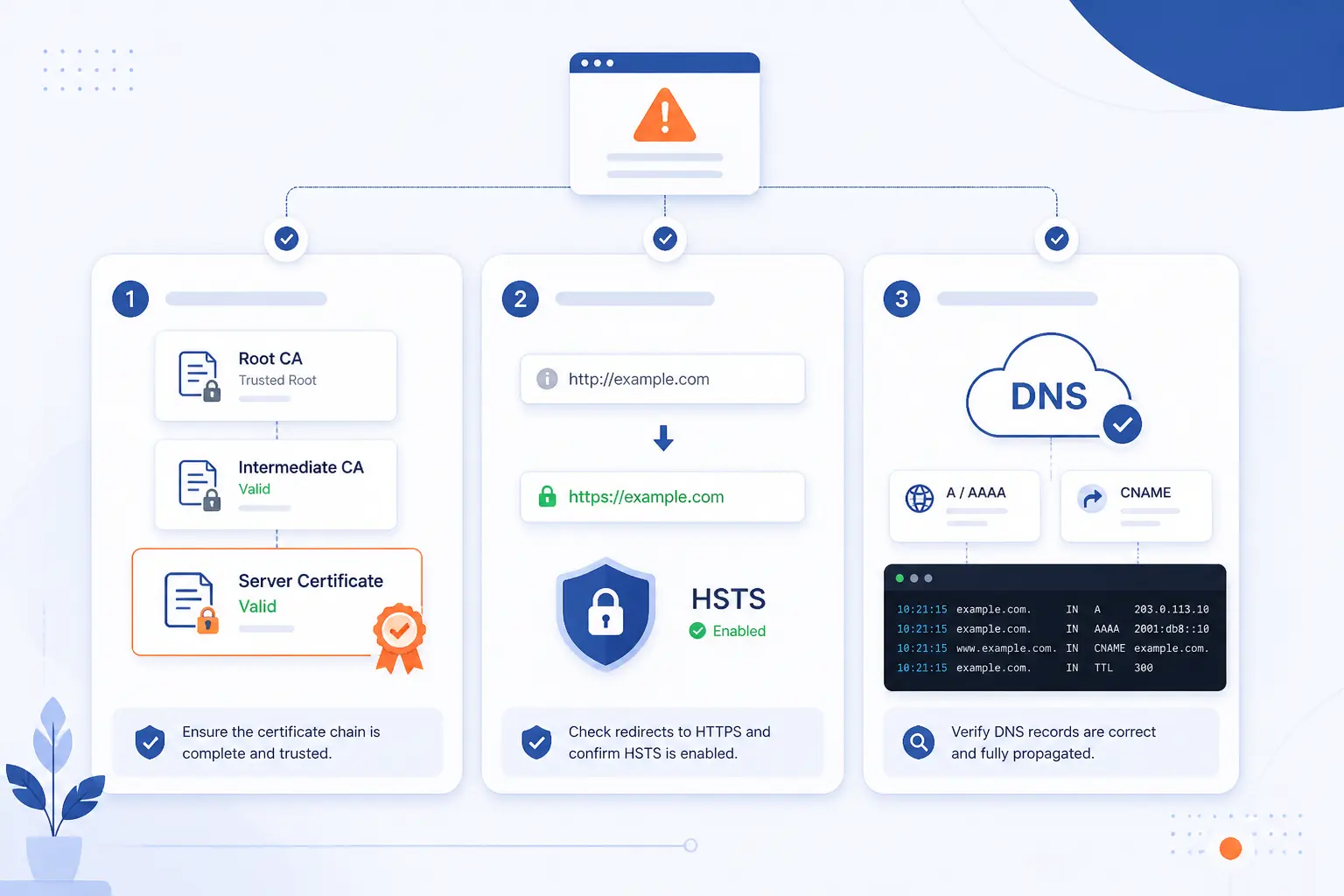
If visitors still see ERR_SSL_PROTOCOL_ERROR after basic device troubleshooting, website owners should assume the server path needs review. We would start with certificate validity and hostname coverage. Then we would confirm the full chain, inspect TLS settings, review redirects, HSTS, and DNS, and finally check logs. That order catches the most common breakpoints without wasting hours on guesswork.
1. Verify and Renew the SSL Certificate
Verify and renew the SSL certificate first because an expired or mis-scoped certificate cannot be patched over by browser tricks. Check the not-before and not-after dates. Confirm the certificate covers every live hostname. Make sure users land on one of those covered names after redirects. If example.com, www.example.com, and a control panel subdomain all exist, each destination has to be covered on purpose.
2. Install the Full Certificate Chain
Install the full certificate chain because browsers need the intermediate certificates that connect your server certificate to a trusted root. NGINX and Apache both document this requirement, though the exact file layout differs by stack. Let’s Encrypt also explains that a normal deployment presents the end-entity certificate together with the intermediate. We have seen perfectly valid renewals fail in production simply because the right certificate was issued but the wrong file was loaded.
3. Update TLS Protocols and Cipher Suites
Update TLS protocols and cipher suites because modern browsers will not negotiate with old or weak settings forever. Chrome’s guidance for incompatible servers is to use TLS 1.3 with TLS_AES_128_GCM_SHA256 and to keep TLS 1.2 available for older clients, while Chrome’s platform history makes clear that TLS 1.0 and 1.1 are gone. In plain language, if your server still depends on legacy defaults, the browser is doing exactly what it should by refusing the connection.
4. Review Redirects, HSTS, and DNS Records
Review redirects, HSTS, and DNS records together because these settings interact more than many teams expect. A clean certificate on the right server still fails if DNS points some users to the old server, if the proxy mode does not match the origin’s HTTPS behavior, or if HSTS forces browsers to revisit a broken HTTPS path without a click-through option. We would trace the full path from the typed hostname to the final HTTPS destination and check every hop.
5. Ask Your Host to Review Logs and Server Software
Ask your host to review logs and server software because handshake failures often reveal the exact class of problem. NGINX exposes handshake counters such as failed handshakes, no common protocol, no common cipher, and hostname mismatch, and its logging documentation explains where those events are recorded. Once you see the pattern in logs, the fix usually stops being mysterious.
FAQ
The short answers are these: ERR_SSL_PROTOCOL_ERROR is a warning sign, fixing an unsupported protocol in Chrome usually means updating the browser or the server’s TLS settings, and you should contact your host when the problem clearly lives beyond one device. We hear these questions often because the error name sounds scary, but the troubleshooting path is usually practical. Here is the plain version.
1. Is ERR_SSL_PROTOCOL_ERROR a Security Risk
ERR_SSL_PROTOCOL_ERROR can be a security risk, but the error itself is a warning rather than proof of an attack. It often appears for routine reasons like a bad clock, a broken certificate chain, or a misconfigured proxy. Still, we would not ignore it on a login, payment, or admin page because HSTS and browser certificate checks exist to stop you from trusting the wrong endpoint.
2. How Do I Fix an Unsupported Protocol in Chrome
To fix an unsupported protocol in Chrome, update Chrome first and then make sure the website supports modern TLS. If only one site fails, the owner usually needs to enable TLS 1.2 or 1.3 and compatible ciphers on the server. If every site fails, a local proxy, antivirus tool, or managed browser policy is the more likely culprit.
3. When Should I Contact My Hosting Provider
Contact your hosting provider when the error appears across multiple devices or browsers, or when a renewed certificate still fails in production. At that point, you need server-side checks such as chain validation, TLS negotiation review, redirect tracing, and handshake logs. In our experience, this is the moment when logs save more time than more browser resets.
How 1Byte Helps With SSL and Hosting Issues
At 1Byte, we help prevent this class of error by keeping the domain, certificate, hosting stack, and final HTTPS path aligned. That sounds simple, but most SSL breakage starts when one of those pieces drifts after a renewal, migration, or redirect change. Our role is practical: reduce the chances of mismatch, incomplete chains, and outdated TLS setup before visitors hit the error page.
1. Register Domains and Add SSL Certificates Without Common Setup Mistakes
Register domains and add SSL certificates without common setup mistakes by treating names as infrastructure, not decoration. When we handle domain registration and SSL certificates together, our practical focus is making sure the live hostname, DNS target, and certificate coverage all agree before traffic hits the site. That is the cleanest way to avoid the classic www versus apex mismatch and the “right cert on the wrong server” problem.
2. Secure WordPress Hosting and Shared Hosting With HTTPS-Ready Setup
Secure WordPress hosting and shared hosting with HTTPS-ready setup by checking the basics that often drift on busy sites, especially after theme, plugin, or control-panel changes. WordPress hosting and shared hosting both benefit from clear HTTPS redirects, a complete certificate chain, and current browser-compatible TLS settings. We have a simple rule here: if the homepage, admin area, and canonical domain do not agree on HTTPS behavior, users eventually notice.
3. Run Cloud Hosting and Cloud Servers With AWS-Partner Support
Run cloud hosting and cloud servers with AWS-Partner support by keeping modern TLS expectations in mind as workloads move or grow. As an AWS Partner, we think about cloud hosting and cloud servers in terms of correct certificate deployment, current protocols, and server logs that explain failed handshakes. If an SSL error keeps returning after a migration or platform change, that is usually the moment to inspect the full chain, the redirect path, and the negotiated protocol together.







Conclusion
How to fix ERR_SSL_PROTOCOL_ERROR gets much easier once we stop treating it like one bug. If one browser or device fails, start local with the clock, browser data, extensions, SSL state, and security tools. If every clean test still fails, move to the server and inspect the certificate, chain, TLS settings, redirects, DNS, and logs. Where will you start first: on the device, or at the edge where HTTPS is really breaking?