


- Why Website Owners Transfer Web Hosting
- How to Choose a New Provider Before You Transfer Web Hosting
- What You Need Before You Transfer Web Hosting
- Ways to Transfer Web Hosting
- How to Transfer Web Hosting Step by Step
- Common Problems During a Transfer Web Hosting Project
- Frequently Asked Questions About Transfer Web Hosting
- How 1Byte Supports Transfer Web Hosting Projects as an AWS Partner
- Conclusion
To transfer web hosting without losing data or causing downtime, we move the site in a fixed order: back up everything, build the new hosting account, copy the site, test it privately, switch DNS only when the new copy works, and keep the old host active until the move is complete. That is the safest method. When we transfer web hosting, we treat files, databases, email, DNS, and SSL as separate parts because each one can fail in a different way. If we rush the sequence, we invite outages that were easy to avoid.
Why Website Owners Transfer Web Hosting

Website owners transfer web hosting when their current provider no longer fits the site. The usual reasons are weak performance, poor uptime, unhelpful support, missing features, or pricing that stops making sense at renewal. In other cases, the hosting plan itself is not bad, but the website has grown beyond it. We always start by naming the real problem, because a clear reason leads to a better move.
FURTHER READING: |
| 1. What Is Windows Hosting and Who Should Use It? |
| 2. InMotion vs HostGator: Which Hosting Provider Is Better for Your Site? |
| 3. What Is Email Hosting? Features, Costs, and How It Works |
1. Performance Uptime Support Features and Pricing Issues
Most owners move because the current host has become too slow, too unreliable, or too frustrating for the money. Slow page loads, random errors, and frequent support handoffs wear people down fast. We also see moves triggered by basic limits, such as weak backup options, outdated software versions, or expensive add-ons for features that should be standard. A hosting move makes sense when it fixes a concrete pain point, not when it only swaps one cheap plan for another cheap problem.
2. When Site Growth Requires a Better Hosting Plan
Site growth is a solid reason to move because growing sites need more resources and more control. A small brochure site may run well for years on a simple shared plan, but a busy store, forum, booking site, or membership platform often needs steadier database performance and better resource isolation. We like to move before the site is in constant distress. If checkout pages, search filters, or admin tasks start dragging during peak hours, the plan has probably been outgrown already.
How to Choose a New Provider Before You Transfer Web Hosting
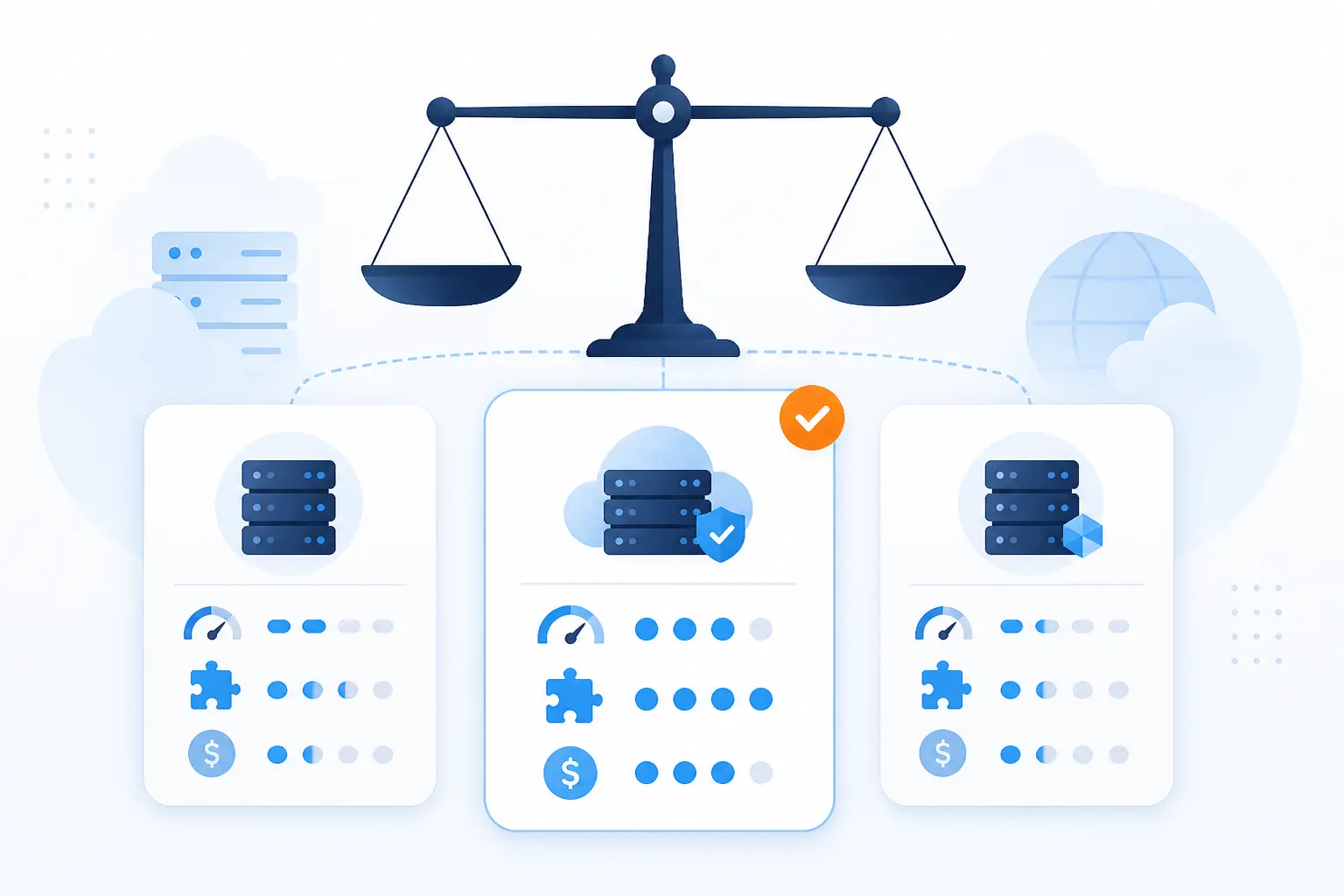
Choosing the new provider is where many successful moves are won or lost. The right choice matches your software, traffic pattern, budget, and comfort level with server management. The wrong choice forces a second migration later, which is the last thing anyone wants. We prefer boring clarity here over flashy sales pages.
1. Match Your Site to Shared VPS Dedicated or WordPress Hosting
The right hosting type depends on what your site does, how much traffic it gets, and how much server control you actually need.
| Site situation | Usually fits best | Why |
|---|---|---|
| Portfolio, brochure site, small blog | Shared hosting | Lower cost and less server administration |
| Standard content site on WordPress | WordPress hosting | A cleaner fit for the CMS and routine site maintenance |
| Growing store, membership site, busy forum | VPS hosting | More isolated resources and better control over the environment |
| Large custom app or very high traffic site | Dedicated hosting | Full machine control and more predictable capacity |
We tell beginners to be honest about their operating skills. A dedicated server is powerful, but it is also work. If your team does not want to manage the server itself, a simpler plan is often the smarter choice.
2. Compare Security Reliability Speed Customer Support and Renewal Pricing
A good provider is not just fast on day one. We compare security basics, uptime history, software freshness, response times during support requests, and what the plan costs after the intro period ends. Renewal pricing matters more than teaser pricing because that is what you actually live with. In our view, a decent control panel, clear backup options, and competent support usually matter more than a flashy homepage promise.
3. Review Backups Storage Bandwidth Server Location and Scalability
The hosting plan should fit your present site and your next likely step. We check how backups work, how much storage is really available, whether there are strict bandwidth or inode limits, and where the server is located relative to the main audience. A nearby server can help dynamic pages feel snappier, especially for sites that depend heavily on database calls. We also want a clean upgrade path, so the next growth step does not require another full migration.
What You Need Before You Transfer Web Hosting
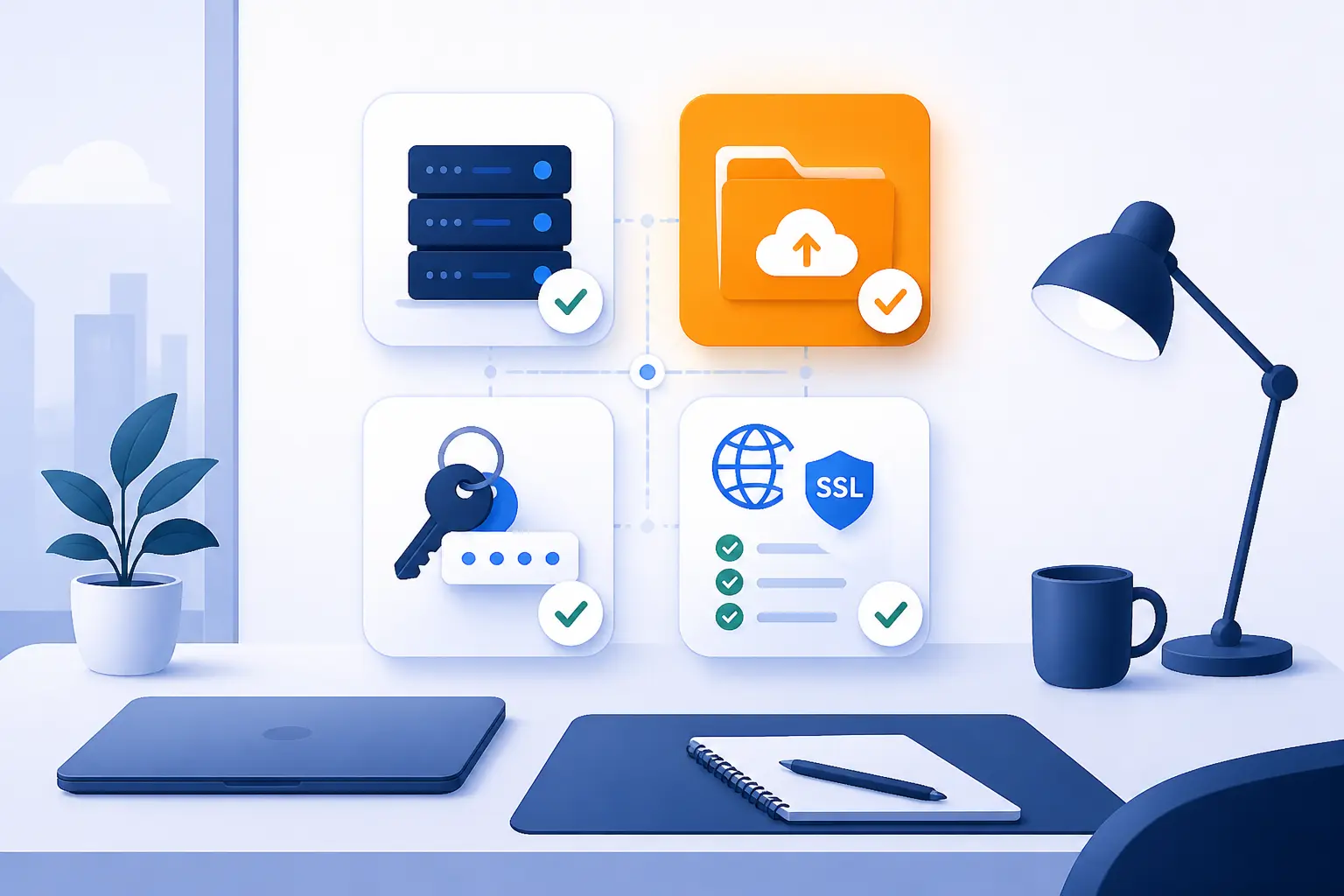
Before a move starts, you need four things in place: the old host stays active, the site is fully backed up, the right credentials are ready, and email, SSL, and DNS have a plan. That is the minimum safe setup. Missing any one of those pieces can turn a simple move into a long night. We treat preparation as insurance, because it usually saves more time than it costs.
1. Keep Your Old Hosting Account Active Until the New Site Is Tested
You should keep the old hosting account active until the new site is fully tested and publicly live. Canceling early is one of the fastest ways to create downtime, lose mail, or discover that a hidden file never got copied. We want both environments available during the cutover window. That overlap gives us room to compare content, fix edge cases, and roll back quickly if something looks wrong.
2. Back Up Website Files Databases Hidden Files and Configuration Files
You need a complete backup, not just the visible website folder. That means public files, databases, hidden files such as .htaccess, and configuration files such as wp-config.php, .env, or app-specific config files. Dynamic sites fail when even one of those pieces is missing. We also like to keep a local copy before touching DNS, because the backup inside the old host’s panel is not much help if the old account disappears or becomes inaccessible.
3. Gather FTP Access Control Panel Access Database Credentials and Nameservers
You should collect every credential before the move begins. Hunting for passwords mid-migration is a classic way to waste time and make mistakes.
- FTP, SFTP, or SSH login details
- Control panel access for both old and new hosts
- Database name, user, password, and host value
- Domain registrar access
- Current nameserver or DNS zone details
If someone else built the site, we also confirm who owns the domain and who controls DNS. More than a few migrations stall because the technical move is ready but the domain is sitting in an old employee’s account.
4. Plan for Email Accounts SSL Certificates and DNS Changes
Email, SSL, and DNS need their own cutover plan because they do not always move with the website. That is especially true when the site is hosted in one place and mail is hosted somewhere else.
An MX record directs email to a mail server, so changing DNS carelessly can break inboxes even when the website itself loads fine.
As one practical example, if you use Google Workspace for mail, Google says new MX changes can take up to 72 hours to be recognized. That is why we decide in advance whether email is staying put, moving later, or moving at the same time.
Ways to Transfer Web Hosting
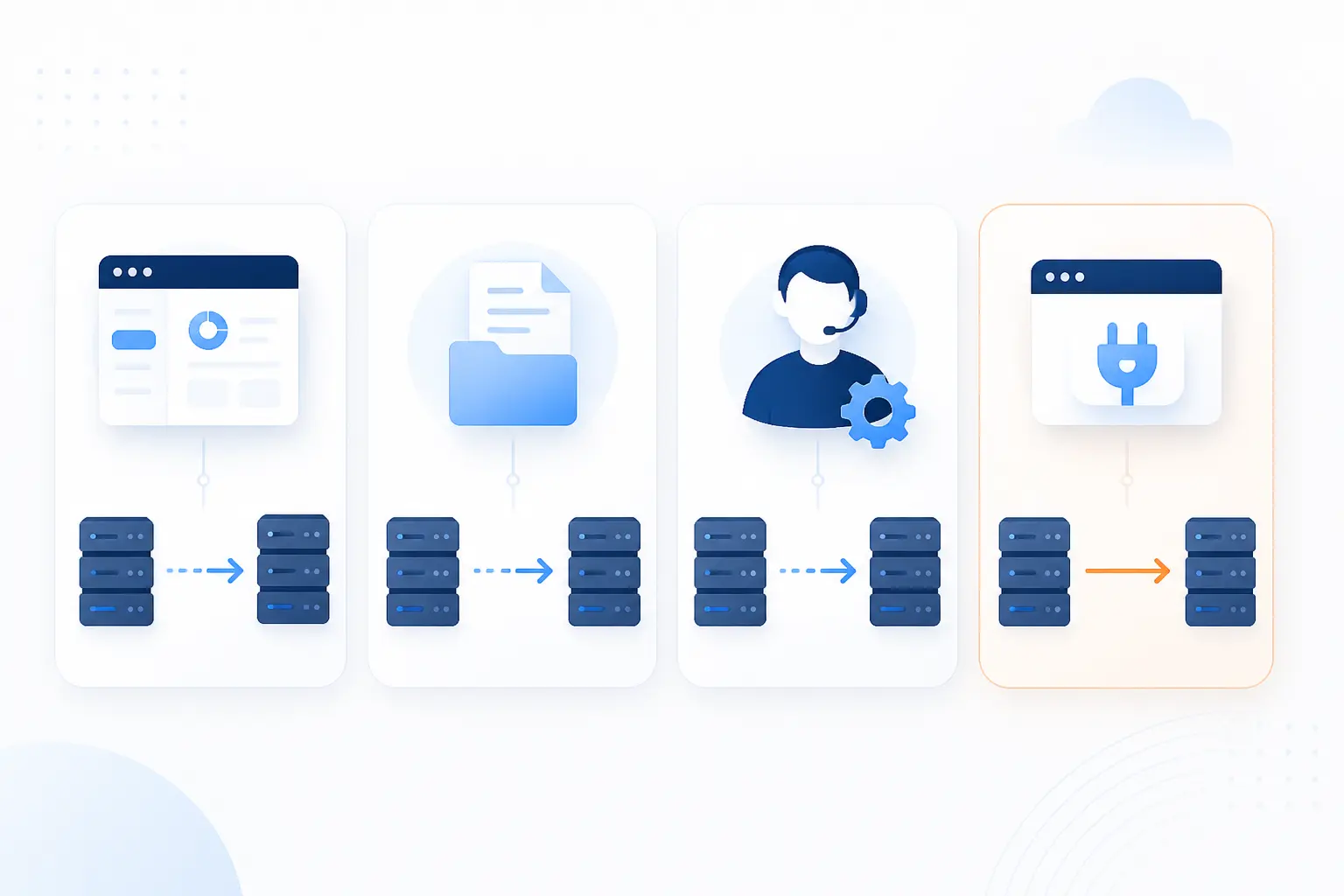
There are four common ways to move a site: a control panel copy, a manual file and database move, a managed migration service, or a WordPress migration plugin. None is universally best. The right method depends on your access level, the site’s complexity, and how much risk you can tolerate. We choose the simplest method that still preserves the parts that matter.
1. Use a cPanel Transfer When Both Hosts Support It
If both hosts support cPanel and the right privileges are available, the built-in account copy method is often the fastest route. In this WHM guide, cPanel says the interface can copy accounts, packages, and configurations from a source server to a destination server. We like this option for standard cPanel-to-cPanel moves because it usually preserves more settings than a manual upload. It is less ideal when the site uses a non-standard stack or when root-level access is not available.
2. Do a Manual Transfer With FTP and phpMyAdmin
A manual move gives you the most control, but it also gives you the most chances to miss something. This method usually means downloading site files through FTP or SFTP, exporting the database, creating a new database, importing the data, and updating configuration files. We use it when control panels do not match, when we only want one site moved, or when we need to clean things up during the migration. It is slower, but it is often the clearest option.
3. Use a Managed Migration Service for Complex or High Risk Moves
A managed migration service is the safer choice when the site is complex or the downtime risk is expensive. We recommend this route for stores, learning platforms, large media libraries, multisite setups, custom apps, or anything with serious traffic. It is also sensible when email, DNS, subdomains, cron jobs, and SSL are tangled together. Paying for expertise is cheaper than repairing a broken checkout flow after a rushed manual move.
4. Use a WordPress Migration Plugin for WordPress Sites
A WordPress migration plugin can work well for straightforward WordPress sites. We like plugins when the site uses common themes and plugins, the media library is manageable, and the hosting environment is not heavily customized. They can stumble on very large sites, odd server rules, or plugins that store data in unusual ways. For that reason, we still test everything carefully after the import, especially forms, image paths, logins, and payment flows.
How to Transfer Web Hosting Step by Step
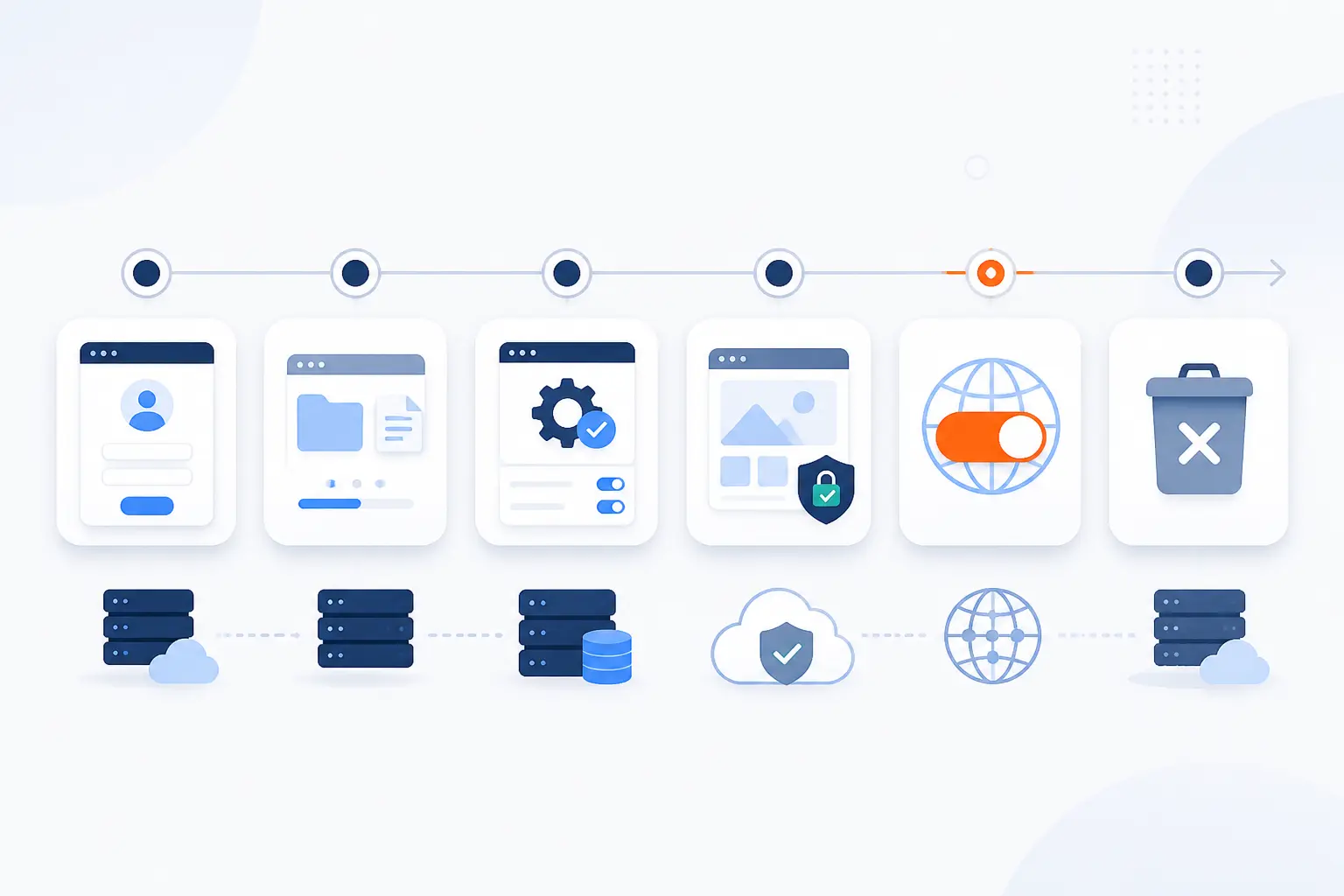
The safest process is simple in principle: set up the new account, copy the site, fix configuration details, test privately, switch DNS, and cancel the old host only at the very end. That order protects data and keeps downtime low. We follow the same sequence whether the site is small or large. The only difference is how much testing we add between steps.
1. Purchase the New Hosting Plan and Set Up the New Account
The first step is to create the new hosting account and confirm that it can run your site. We check PHP version, database version, disk space, SSL options, and any app-specific requirements before copying anything. If the new server runs a much newer or older software stack, we note that early. Many migration problems are really compatibility problems wearing a hosting costume.
2. Download Website Files and Export the Database
You should copy the full file set and export the database before making live changes. Static sites may only need files, but WordPress, Joomla, Drupal, Laravel, and most custom CMS sites also need a database dump.
According to the import and export screens, phpMyAdmin can export backups to local files and restore SQL data later. We still double-check that the exported file opens normally and that its size looks reasonable.
3. Create the New Database and Import Your Backup
You need a fresh database on the new host before the site can connect properly. That means creating the database, creating a database user, assigning the right permissions, and then importing the SQL backup. We like to name things clearly here, because vague names make later troubleshooting harder. If the import throws an error, stop and fix it before uploading more files, since broken database imports tend to create confusing symptoms later.
4. Update Database Settings URLs and Configuration Files
Configuration files must point to the new environment, or the site will not know where its database or public URL lives. For WordPress, that usually means checking database credentials and, when needed, updating these WordPress constants for WP_HOME and WP_SITEURL. For other platforms, the same idea applies through an environment file or config file. We also watch for old absolute URLs in media paths, redirects, and application settings.
5. Upload Files to the New Server and Preserve the Folder Structure
Files must land in the correct location with the same folder structure the application expects. A missing uploads directory, theme folder, or include file can break the site even when the database import was perfect. We do not drag files around casually during this step. The safest move is a faithful copy first, then cleanup later if cleanup is needed.
6. Test With a Temporary URL Server IP or Staging Site
You should test the new copy before the public DNS change. That is the step that keeps most migrations calm.
cPanel documents both a temporary URL and a hosts file preview as ways to test a site on the new server before public DNS points there. We use that private test window to check pages, forms, logins, images, redirects, and admin tasks.
7. Point the Domain to the New Host and Wait for DNS Propagation
Once the new copy is working, you can point the domain to the new host by changing nameservers or editing the DNS records. That does not update everywhere at once, because TTL controls cache time for DNS records. During this phase, some visitors may reach the old server while others reach the new one. We reduce risk by making final content changes just before cutover and by keeping both environments available for a while.
8. Cancel the Old Hosting Only After the New Site Is Fully Live
You should cancel the old host only after the new site is live, email is working, and DNS has clearly settled. We also like to verify forms, transactions, SSL, redirects, and admin access one more time before ending the old account. That last pause saves a lot of regret. If anything still depends on the old server, it will usually show itself during this final check.
Common Problems During a Transfer Web Hosting Project

Most migration failures come from a small set of repeat problems. The site goes down during DNS changes, backups are incomplete, configuration values still point to the old server, mail stops flowing, or search engines get mixed signals. None of that is exotic. We avoid most of it by slowing down the cutover and checking each moving part separately.
1. Downtime During DNS Propagation
Downtime during DNS propagation happens when the new server is not ready while some visitors are already reaching it. We reduce that risk by testing before the switch, keeping the old host active, and avoiding major content edits during the transition window. If possible, we lower TTL in advance so cached old records expire sooner. Even then, we plan for a period where traffic is split between old and new destinations.
2. Data Loss From Incomplete Backups
Data loss usually comes from partial backups, not from the move itself. The classic misses are hidden files, uploaded media, cron jobs, database dumps, or configuration files that were stored outside the main web root. We never assume a backup is complete just because it exists. A good backup is one you can verify and restore, not one you hope is fine.
3. Broken Links Database Errors and Compatibility Problems
Broken links and database errors usually mean the new environment does not match the old one closely enough. Wrong database credentials, missing PHP extensions, different PHP versions, bad file permissions, and old absolute URLs are frequent culprits. WordPress sites can also show strange behavior when URLs stored in the database still reference the old domain or old path. We troubleshoot this by checking logs first, then config files, then database values, in that order.
4. Email Interruptions and MX Record Issues
Email breaks when website owners assume website hosting and email hosting are the same thing. They often are not. If mail is hosted elsewhere, the site can move while MX records stay exactly as they are. That is why we map the email path before touching DNS, then verify mail flow after the switch.
5. SEO Risks From URL Changes Redirect Gaps and Sitemap Problems
SEO risk appears when URLs change and the migration is handled like infrastructure only. In its site-move guidance, Google recommends mapping old URLs to new ones and keeping redirects for at least 1 year. We also update internal links, canonical tags, and XML sitemaps when the domain, path, or protocol changes. If the URL structure stays the same and only the server changes, SEO risk is much lower, but we still monitor crawl errors and indexing after launch.
Frequently Asked Questions About Transfer Web Hosting
Most questions about transfer web hosting come down to email, cost, account ownership, downtime, and timing. The short answers are encouraging. A careful move usually works well, and the scary problems are mostly preventable. We find that confidence goes up fast once people separate the website, the domain, DNS, and email into different pieces.
1. Will I Lose My Email If I Transfer My Domain
No, you will not automatically lose your email if you transfer your domain. Email usually keeps working if the correct MX records stay in place and the mail service itself is unchanged. The real risk appears when DNS is edited blindly during the move.
2. How Much Does It Cost to Migrate a Website
The cost ranges from free to expensive, depending on the method and the site’s complexity. A simple manual move or plugin-based WordPress move can cost little beyond your time, while complex projects may justify paid migration help. We think the real cost question is not the fee alone, but the cost of downtime if the move goes badly.
3. How to Transfer Hosting From One Account to Another
You transfer hosting from one account to another by copying files and databases, recreating the environment on the new account, testing it, and then switching DNS. If both accounts use compatible control panels, the process can be quicker. If they do not, a manual move is usually cleaner.
4. Can You Transfer Web Hosting Without Downtime
Yes, you often can transfer web hosting with little or no visible downtime. The key is to build and test the new site before the DNS change, then keep the old host active during the propagation window. In practice, the closer the new environment matches the old one, the smoother the cutover tends to be.
5. Should You Keep Your Old Host Active During the Move
Yes, you should keep the old host active until the new site is fully live and verified. That overlap protects you during DNS changes and gives you a rollback option. We consider this one of the simplest and smartest rules in any migration plan.
How 1Byte Supports Transfer Web Hosting Projects as an AWS Partner
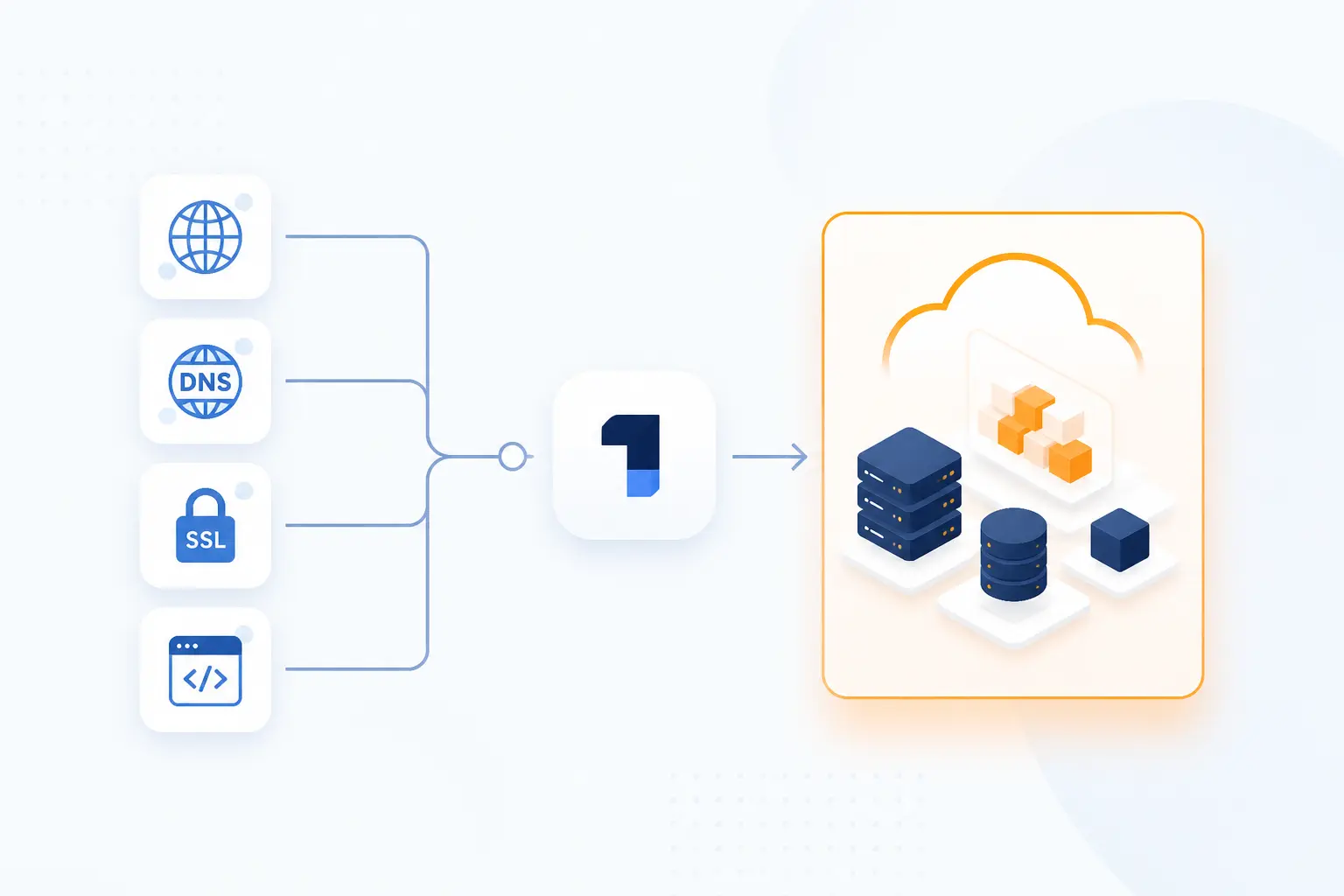
At 1Byte, we approach transfer web hosting projects by lining up the essentials before the cutover: domain registration, DNS decisions, SSL certificates, and the right destination environment. As an AWS Partner, we think the target platform should match the real workload, not just the marketing label on the plan. Some sites need a modest home. Others need more room and more control. The important part is choosing that destination before the migration starts.
1. Domain Registration and DNS Coordination for Smooth Cutovers
Domain registration and DNS coordination matter because the cleanest server move can still fail at the naming layer. We help frame the move around who controls the domain, where DNS is managed, and what records must stay untouched during the cutover. That is practical, not glamorous, but it is the difference between a tidy switch and a confused one. When the registrar and DNS plan are clear, the rest of the migration is easier to execute calmly.
2. SSL Certificates and WordPress Hosting Support for Secure Migrations
SSL certificates should be ready before traffic shifts to the new host. We view that as basic hygiene, because nobody wants a browser warning on launch day. For WordPress sites, WordPress hosting can be a sensible landing zone when the goal is a cleaner, more CMS-focused environment. The main point is to make sure the certificate, the domain, and the application all agree before the public cutover.
3. Shared Hosting Cloud Hosting and Cloud Servers for Different Growth Stages
Different sites need different landing spots, and that is where shared hosting, cloud hosting, and cloud servers each have a role. Shared hosting can suit smaller sites with lighter demands, while cloud hosting and cloud servers make more sense as traffic, customization, or application demands increase. We prefer matching the plan to the site’s next stage, not only its current size. That helps keep one migration from turning into two.






Conclusion
To transfer web hosting safely, we keep the order disciplined: back up the site, prepare the new account, copy files and databases, test privately, switch DNS carefully, and cancel the old host last. That is the whole method. It is not flashy, but it works.
We have found that most migration trouble comes from skipped preparation, not from the move itself. If you are planning a cutover soon, which part deserves your attention first: backups, DNS, email, or the new hosting environment?