

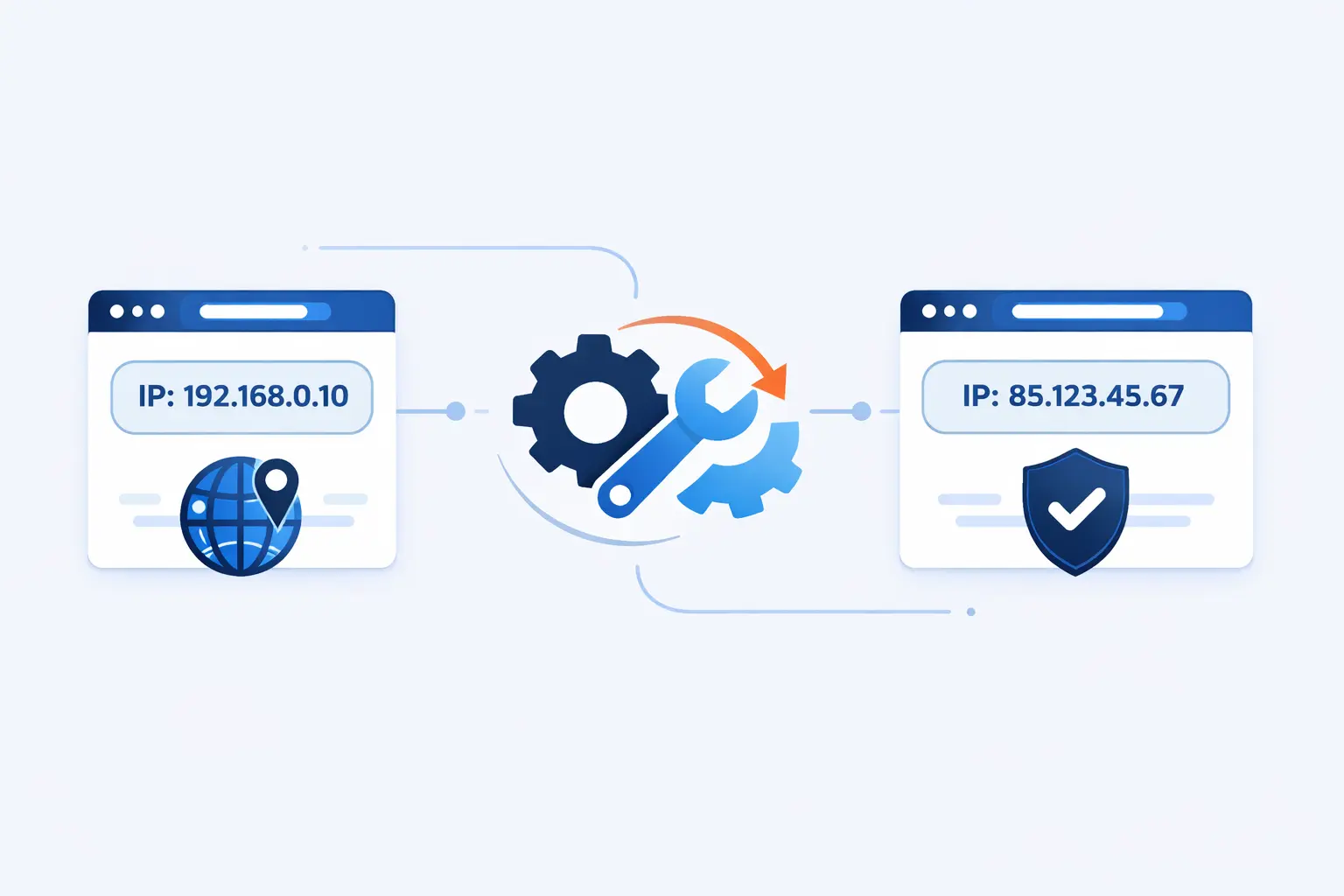
- What an IP address is and why it matters
- Why people change an IP address
- What to do before you change an IP address
- Where to find your current IP address
- How to change an IP address with a VPN
- How to change an IP address with a proxy
- How to reset or renew your IP address automatically
- How to manually change an IP address on each device
- Other ways to get a different IP address
- Pros and cons of changing an IP address
- FAQ
- How 1Byte supports customers as a cloud computing and web hosting provider
- Final thoughts on how to change an IP address
At 1Byte, we have learned that people ask how to change an IP address for wildly different reasons. Some want more privacy. Others are trying to fix a stubborn network problem. A few simply need a clean, visible location for testing, travel, streaming, gaming, remote work, or an app that keeps insisting they are in the wrong place. The trick is that “change my IP” can mean more than one thing, and the right method depends on which kind of address you actually need to change.
From our seat in hosting and cloud infrastructure, this topic matters far beyond home Wi-Fi. Gartner forecasts worldwide public-cloud end-user spending to total $723.4 billion in 2025, which tells us more businesses are juggling VPNs, proxies, cloud firewalls, geo-aware services, and IP allowlists at the same time. That is why we like to slow the conversation down, define the moving parts, and then choose the safest path instead of swinging a hammer at the wrong nail.
What an IP address is and why it matters
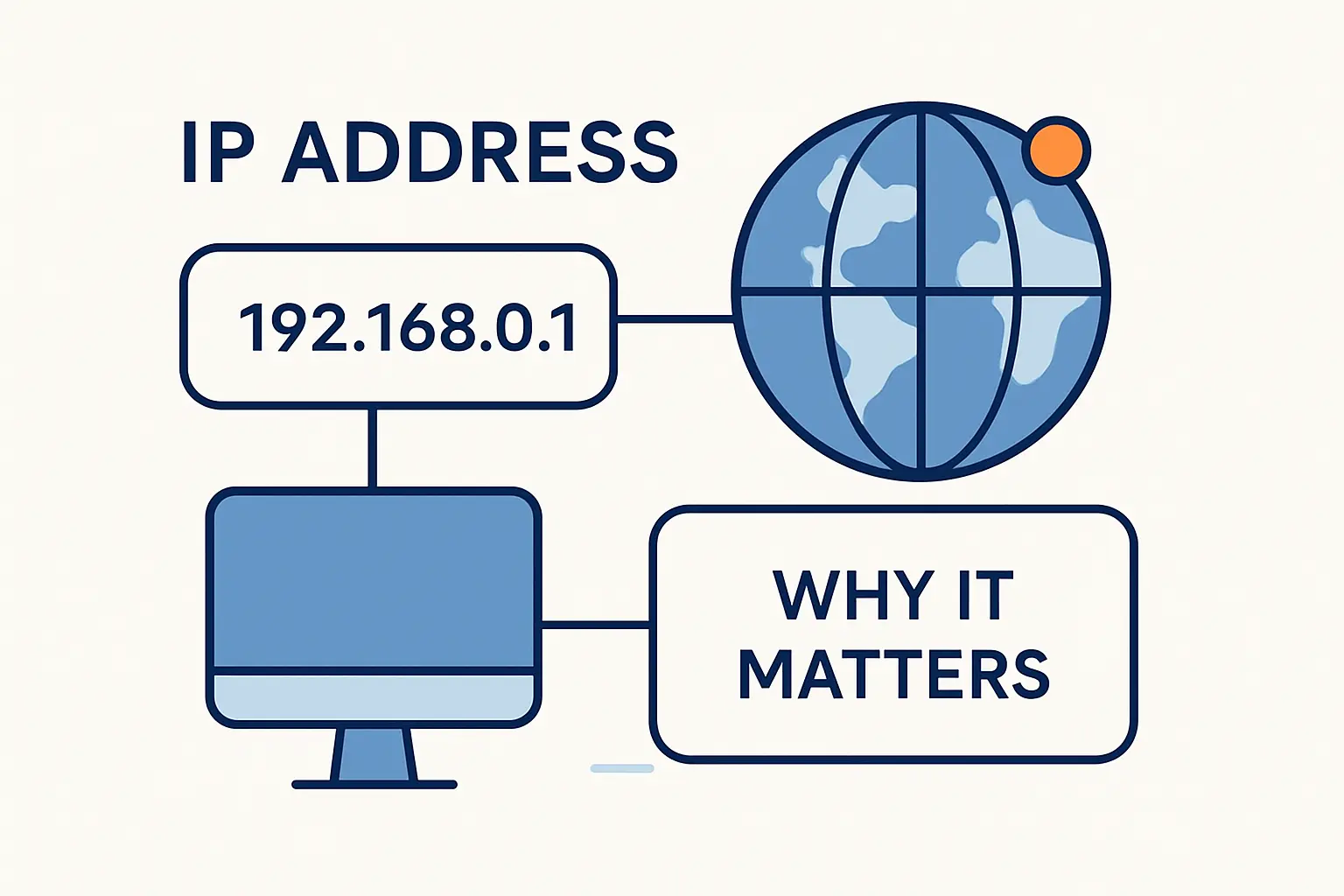
An IP address is the network label that helps devices send and receive traffic. We think of it as a routing identity, not a personal identity, but it still influences how websites, apps, cloud services, and security tools treat a connection. For a beginner, that sounds abstract. For a business, it shapes login policies, API access, fraud checks, rate limits, firewall rules, and even whether a service believes a user is in the right region.
1. Public and private IP addresses
A public IP address is the one the broader internet sees. Usually, that address belongs to your router, modem, mobile carrier gateway, VPN server, or cloud edge rather than to every device in the building. A private IP address lives inside your local network, where your laptop, phone, printer, NAS, and smart devices talk to the router. That distinction is the whole ballgame: changing a private address fixes local conflicts, while changing a public address changes what outside services can see.
2. Dynamic, static, and dedicated IP addresses
Dynamic addresses are assigned automatically and can change over time, which is why a reboot or reconnect sometimes produces a different result. Static addresses stay fixed until someone changes them, so they are useful for servers, remote access, device management, and strict firewall rules. Dedicated IPs are typically reserved for one customer, one service, or one workload. In our view, businesses care about that last category because allowlisting, outbound mail reputation, partner integrations, and predictable access controls all work better when the address is stable.
3. IPv4 and IPv6 basics
IPv4 is the older addressing format that most people still recognize immediately, while IPv6 is the newer format designed to provide a much larger address space and smoother end-to-end networking. Many networks now run both at once. That means your device can appear to use one protocol in one app and another elsewhere, which occasionally confuses people during testing. When we troubleshoot, we always ask which protocol is active before we assume the address truly changed.
Why people change an IP address
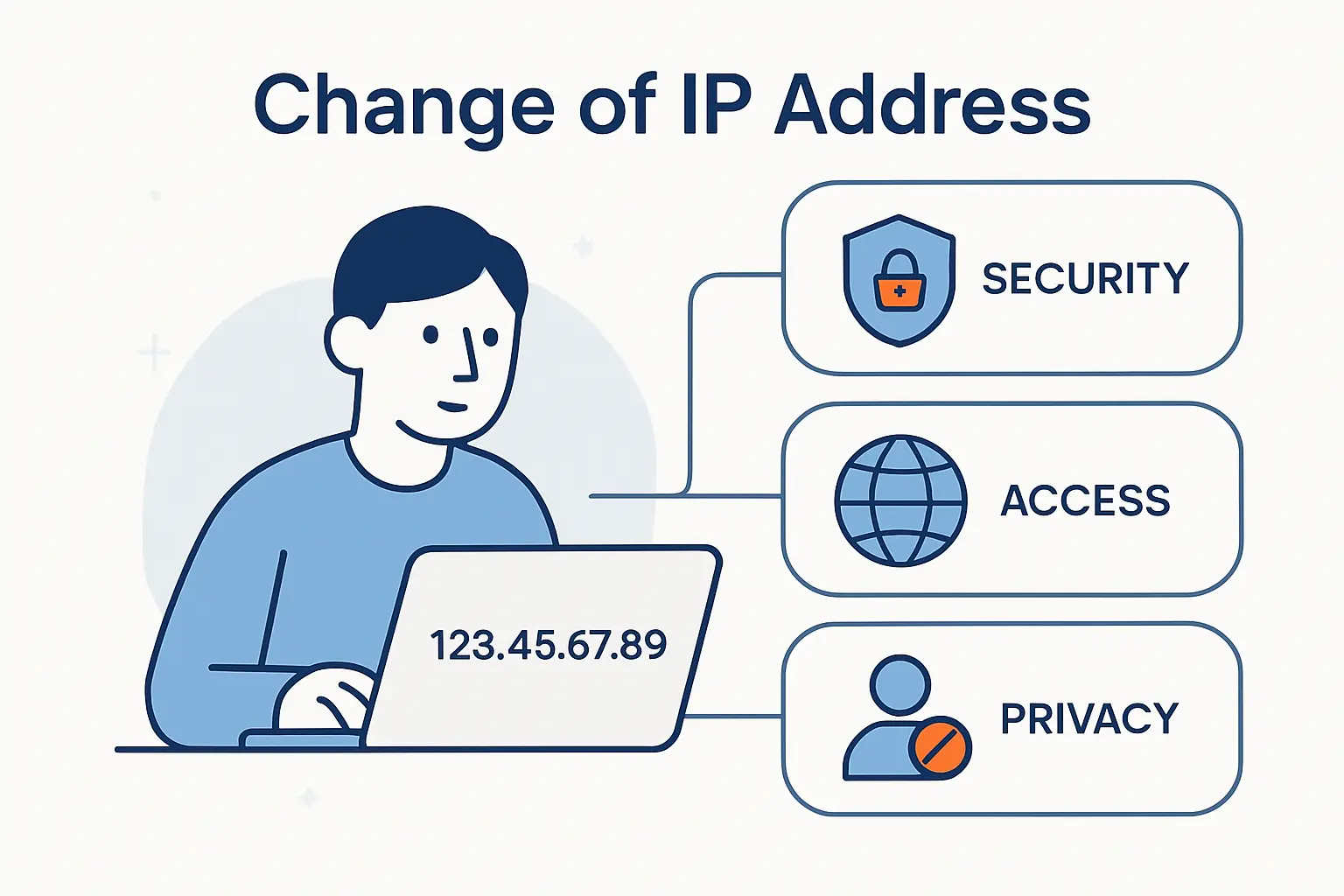
The motivation matters because each method solves a different problem. A VPN helps when the goal is to change the public address that websites see. Renewing DHCP helps when the local lease went sideways. Manual settings help when a device needs a predictable address on the LAN. Without that context, people often choose a flashy solution for a small plumbing issue.
1. Reduce tracking and improve privacy
Your IP address can reveal a rough network origin, and over time it can help advertisers, analytics systems, fraud engines, or website logs connect activity to the same connection. Changing it can reduce that passive linkage. Still, we do not oversell the benefit. Cookies, logged-in accounts, browser fingerprinting, app identifiers, and behavior patterns can continue to identify a user even after the visible address changes.
2. Access restricted content and change your visible location
Many services rely on IP geolocation to decide which catalog, language, search result, or local regulation applies. That is why travelers often see different content the moment they land and connect to a new network. Businesses run into the same issue during ad verification, QA testing, fraud review, and region-specific product launches. In those cases, a different public IP can be useful, but it should be used within the service’s rules and the law.
3. Fix bans, invalid settings, and network issues
Sometimes the problem is less dramatic and more mundane. A stale DHCP lease, a duplicate local address, a bad manual setting, or a public IP that inherited a rough reputation can create login failures, blocked forms, failed API calls, or “network unavailable” errors. On office networks, the trouble can spread further because allowlists, VPN gateways, and zero-trust policies may be tied to a specific address. In practice, changing the right IP can clear the jam, but changing the wrong one only adds smoke to the room.
What to do before you change an IP address
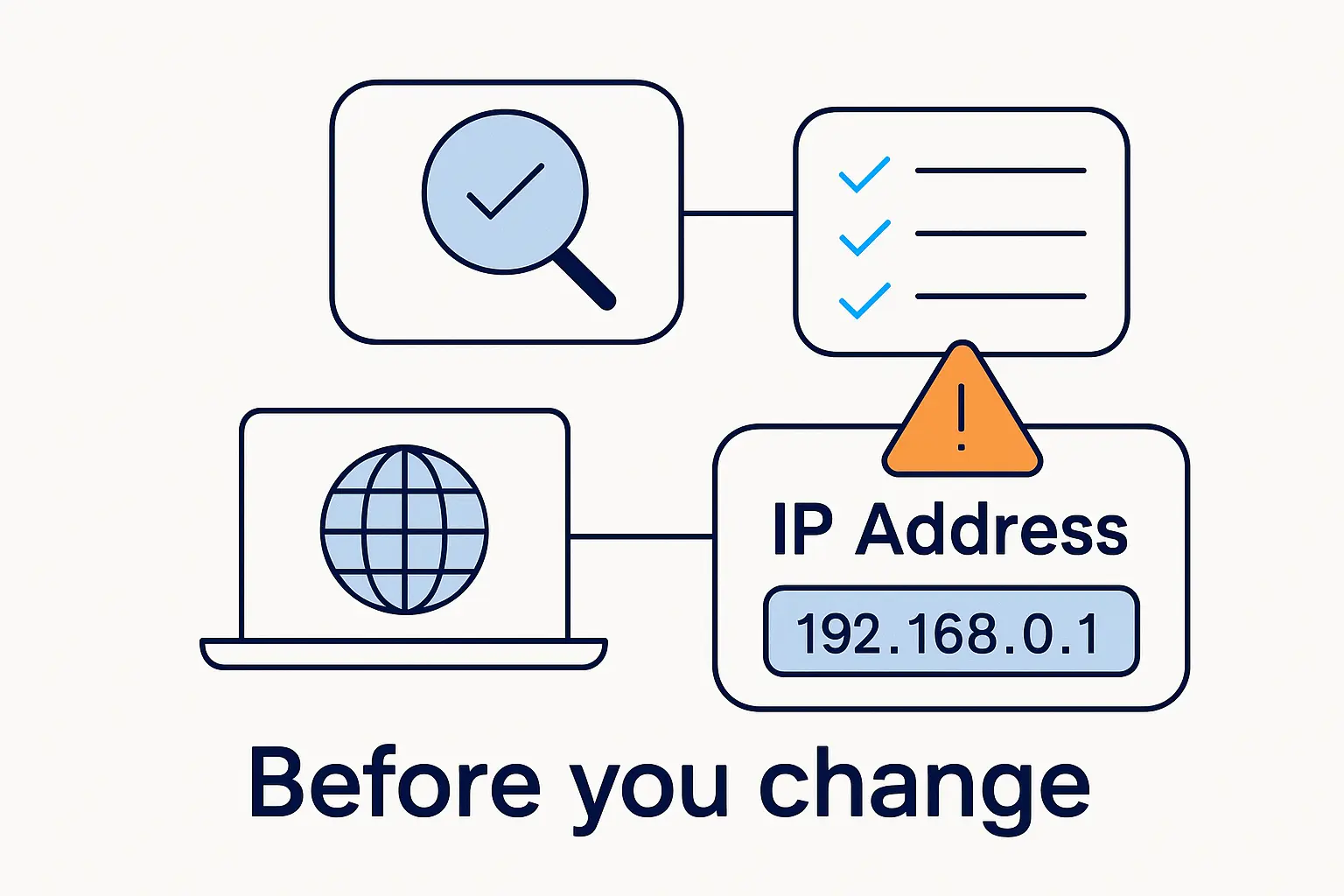
Before we touch anything, we like to establish a baseline. That habit saves time, prevents self-inflicted outages, and makes it easy to roll back. Most IP problems become much easier once you know what your device had before, what it received afterward, and whether the change happened on the public side or the local side.
1. Find your current IP address first
Start by checking both the public IP and the local device IP. The public address tells you what websites and external services are seeing. The private address tells you how your device is identified on the local network. If you skip this step, you may think a VPN or router reboot failed when the public address changed but the local one stayed the same, or vice versa.
2. Record your current network settings
Write down the current IP address, subnet mask or prefix, default gateway, DNS servers, and whether the device is set to DHCP or manual. A quick screenshot works too. We recommend this especially for office laptops, developer machines, point-of-sale systems, and servers because the small details matter. One missing gateway entry can turn a simple tweak into an afternoon of detective work.
3. Know whether you need a public IP change or a private IP change
If a website, streaming service, remote application, or partner firewall is the issue, you probably care about the public IP. If only one printer, PC, phone, or local app is failing on your home or office network, you probably care about the private IP. Framed that way, the decision becomes simpler. Public changes are usually handled by a VPN, proxy, ISP, router reconnect, or new network. Private changes are handled inside device or router settings.
Where to find your current IP address
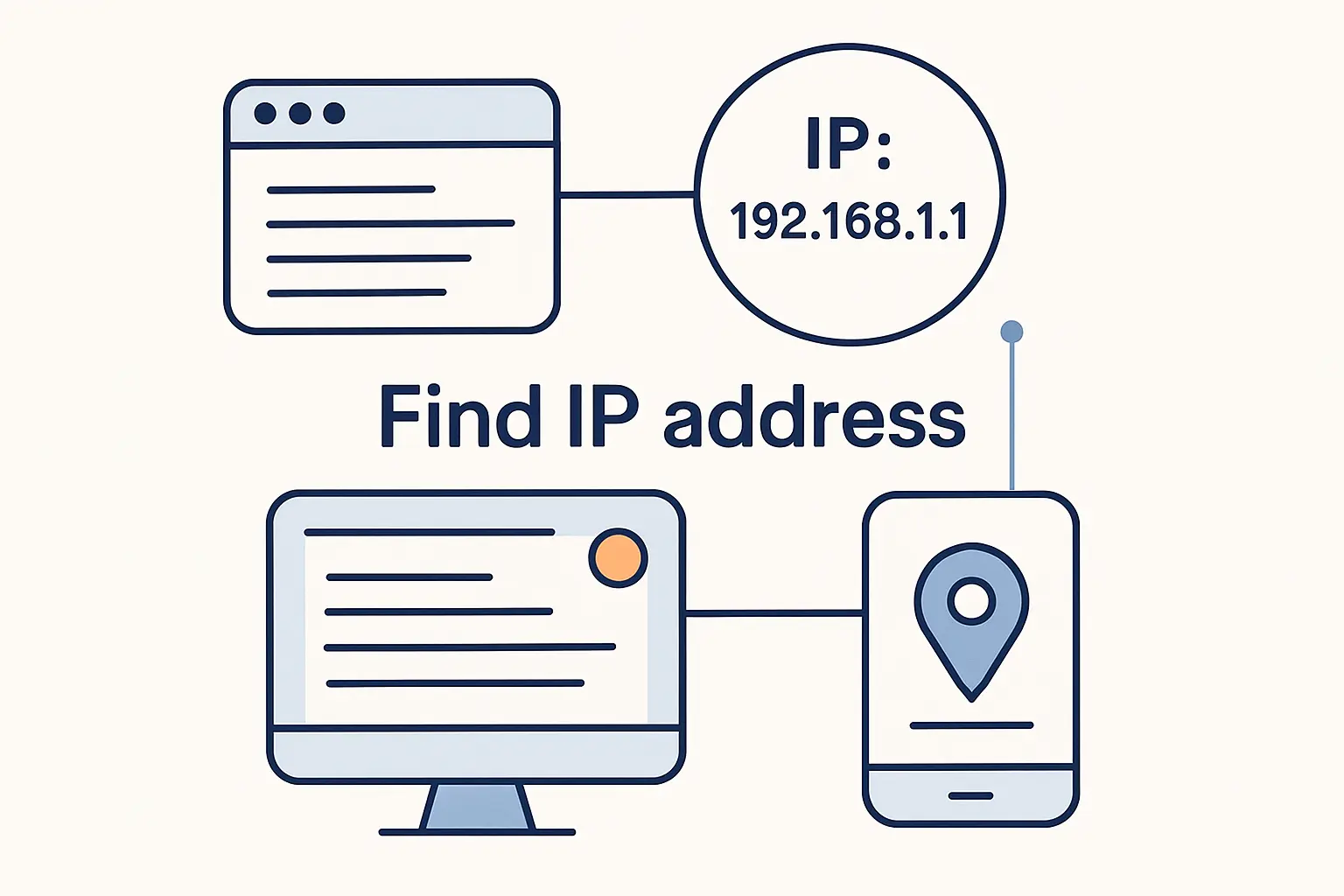
The menus differ by platform, but the logic is the same everywhere: check the network adapter that is actually connected. A Wi-Fi address and an Ethernet address can be different on the same machine, and mobile data may show another public address entirely. For clean troubleshooting, test the active connection only.
1. On Windows and Mac
On Windows, you can look in Network & Internet settings, adapter properties, or the Command Prompt with ipconfig. On Mac, open System Settings, choose Network, select the active connection, and inspect the TCP/IP details. We usually compare the local address, router, and DNS entries together because they tell a fuller story than the IP field alone. If something looks odd there, the problem may be configuration, not reputation or geolocation.
2. On Android and iPhone
On phones and tablets, the quickest path is usually the current Wi-Fi network details screen. Android often shows the local address under network details or advanced settings, while iPhone and iPad show it inside the selected Wi-Fi network’s info panel. If you are on cellular data, the visible public IP may differ again because the carrier is sitting between the device and the broader internet. That is normal, not magic.
3. How to confirm that your IP address changed
Check the value before and after the change, then test the behavior that made you change it in the first place. If you wanted a new visible location, confirm the public address from a browser. If you wanted to fix a local conflict, confirm the device’s LAN address and reconnect to the app, printer, NAS, or router page that was failing. We also suggest reopening the affected service in a fresh browser session so old cookies and cached redirects do not muddy the waters.
How to change an IP address with a VPN
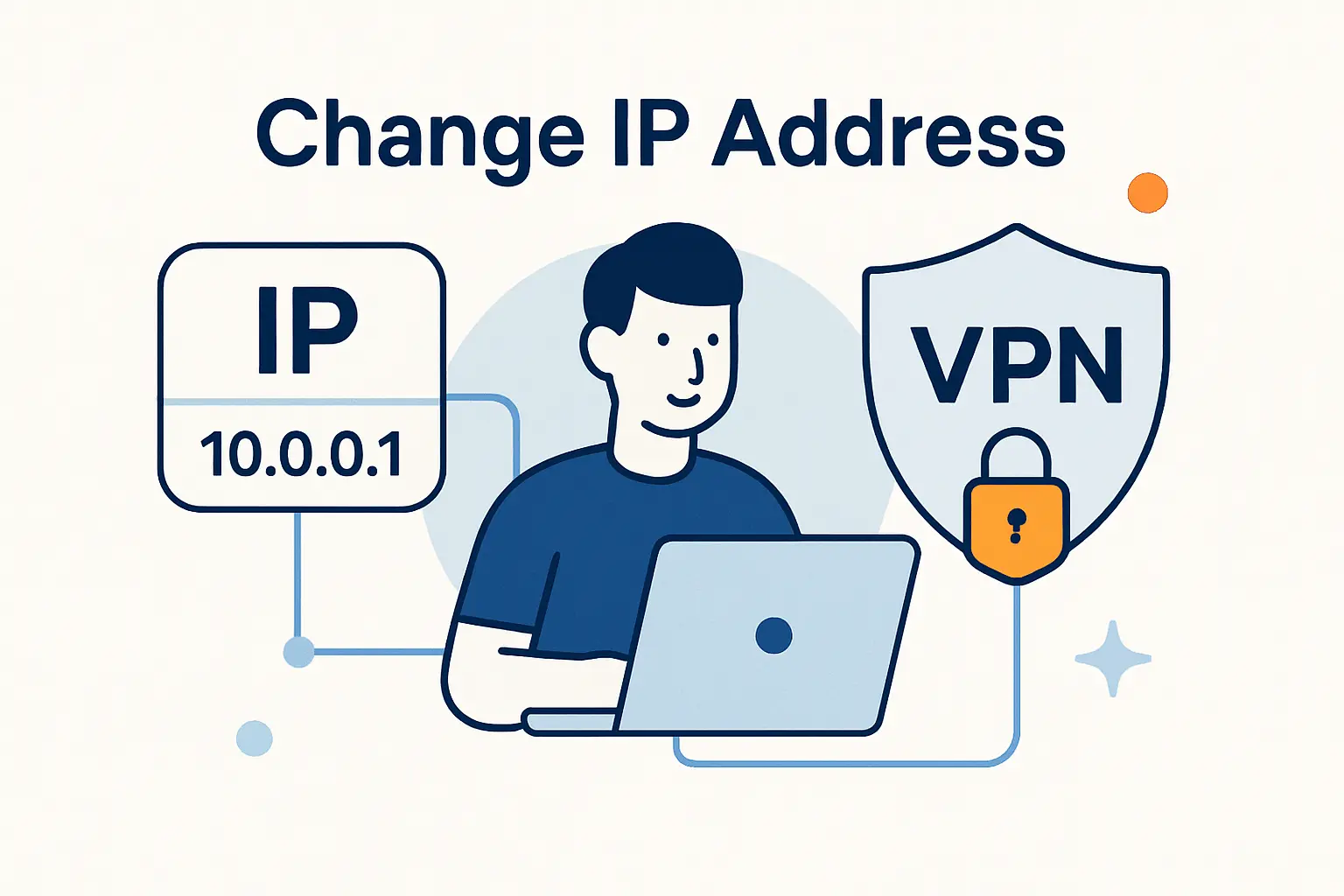
For most people, a VPN is the cleanest public-IP solution. It is fast to deploy, easy to reverse, and far less error-prone than manual network surgery. In business terms, it also creates a more controlled security boundary because traffic is routed through a known service rather than through a random coffee-shop network or a half-configured proxy.
1. Why a VPN is the fastest and most secure option
A VPN routes traffic through an encrypted tunnel and makes outside services see the VPN server rather than your original network. Google’s own help explains that its VPN can replace your real IP address with a Google server IP address, and commercial VPNs work on the same general principle. For us, that is why a VPN is usually the right first move when the goal is privacy, travel access, safe public Wi-Fi use, or testing from another visible region.
2. How to install the app and connect to a server
Pick a reputable provider, install the client, sign in, and choose the server location that matches your goal. After connecting, test the visible public IP and then open the app or site you care about. If the task is sensitive, enable the kill switch, use the provider’s DNS, and turn on multi-factor authentication for the account. In our experience, most frustrations come from skipping that last verification step and assuming the tunnel is active when it is not.
3. How server location changes your visible IP address
When you connect to a server in another region, websites generally see the exit server’s IP and estimate your location from that point, not from your couch or office chair. That can unlock region-specific testing, localized search results, or a different content catalog. The tradeoff is latency. A farther server adds distance, and distance usually adds delay, so we recommend using the nearest acceptable region instead of the most exotic one on the list.
How to change an IP address with a proxy
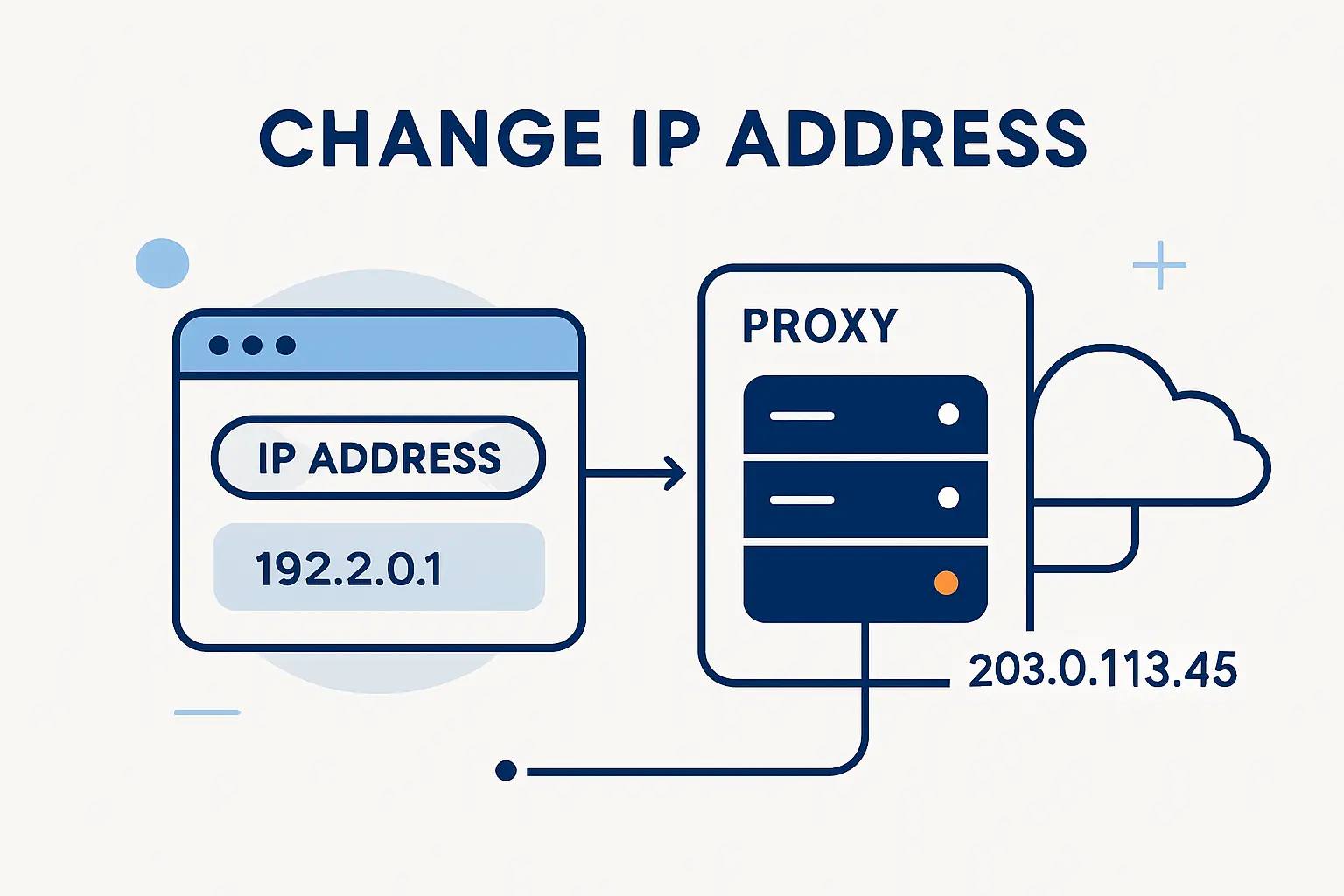
A proxy can also change the visible address, but it usually works at the app or browser layer rather than for the whole device. That makes it useful for targeted tasks like scraping controls, browser testing, or routing one workflow through a different path. It also makes it easier to misconfigure, which is why we treat proxies as a precision tool, not a universal shield.
1. How a proxy changes your visible IP address
A proxy stands between your app and the destination service. The site sees the proxy’s address for that connection, while other apps may continue using your original path. That split behavior can be handy when you want only one browser or one script to look different. On the other hand, it can be confusing because some traffic changes location while other traffic stays put.
2. Proxy setup on browsers and devices
Setup varies by platform, but the common pattern is to enter the proxy host, port, and sometimes authentication details in the browser or operating system. On Pixel devices, Google says you can change network settings like automatic connections, metered access, proxy settings, and more. Modern browsers may also support system proxy settings or PAC files, which larger organizations use to steer traffic without editing every app by hand.
3. Why a proxy is less secure than a VPN
A proxy does not automatically protect all device traffic, and many proxy setups do not encrypt everything end to end. DNS requests may still leak outside the proxy path. Local apps may ignore the proxy completely. Authentication can also be brittle, especially across enterprise apps, captive portals, and security agents. That is why we prefer proxies for specific testing tasks and VPNs for broader privacy or safer remote connectivity.
How to reset or renew your IP address automatically
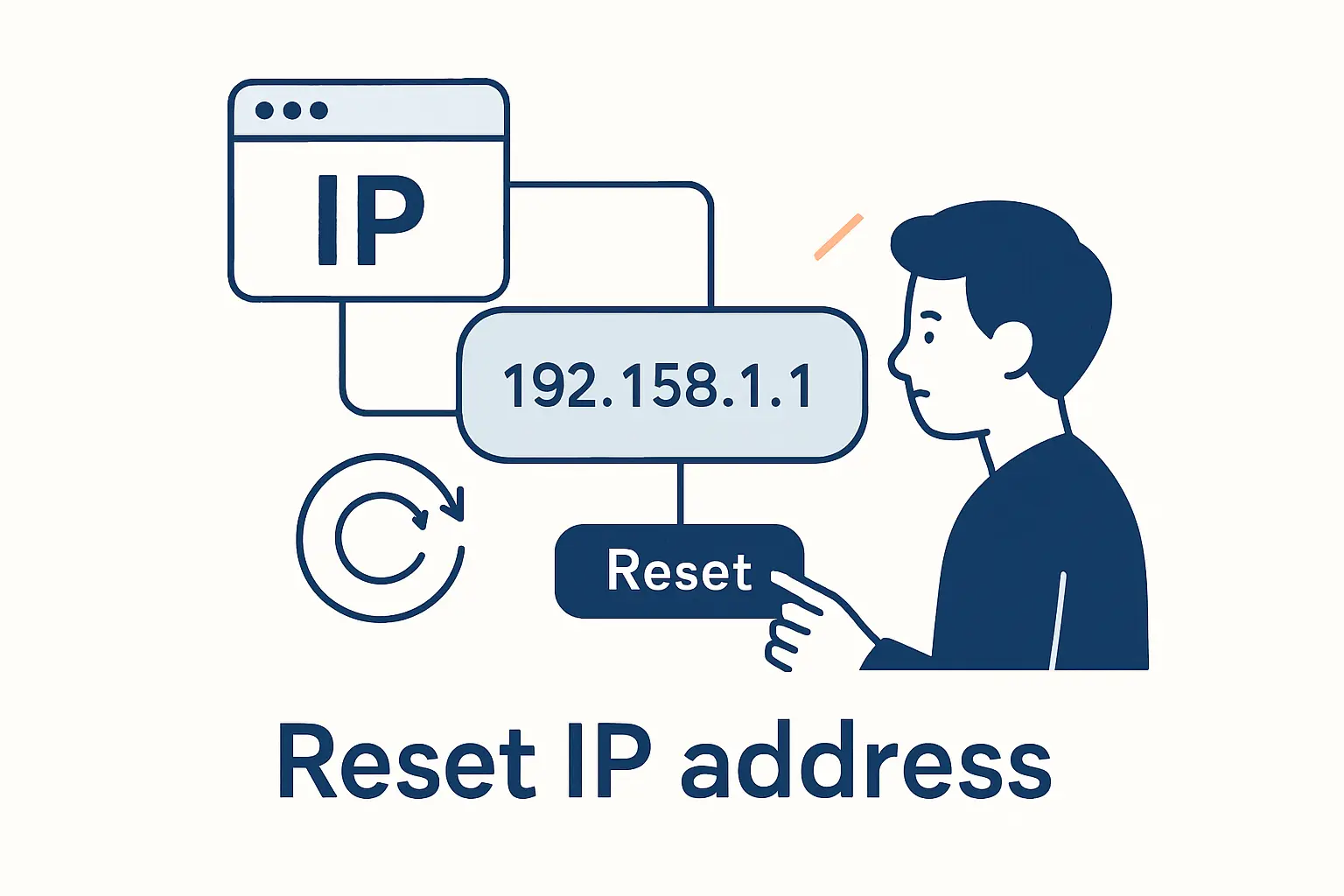
If the address is dynamic, you may not need a special service at all. Sometimes a reconnect is enough. We like these methods because they are simple, reversible, and often built into the operating system. The catch is that they do not guarantee a new public IP every time, especially if the ISP tends to hand the same lease back to the same customer.
1. Restart your router and reconnect to your ISP
Power cycling the router or modem can trigger a new public lease on some connections. It is most likely to help when the ISP uses dynamic addressing and the prior lease has expired or is not immediately reissued. For a home network, this is often worth trying before paying for anything. For a business line with a static address, though, a reboot usually changes nothing except the level of everyone’s anxiety.
2. Release and renew your IP address on Windows
On Windows, open Command Prompt and run ipconfig /release followed by ipconfig /renew when the adapter is using DHCP. Microsoft’s command reference says renew the DHCP configuration for adapters that obtain an address automatically, which is exactly what you want when a local lease is stale or invalid. If the adapter is set manually, this method will not do the trick because there is no DHCP lease to renew.
3. Renew DHCP lease or switch back to automatic settings
On Mac, you can renew the DHCP lease from the network details screen. On phones and tablets, the equivalent fix is often to forget the network, reconnect, or switch the IP setting from Manual back to Automatic or DHCP. We recommend that path whenever a device was previously assigned a static local address and suddenly stopped behaving. Quite often, the hand-typed value is the culprit, not the network itself.
How to manually change an IP address on each device
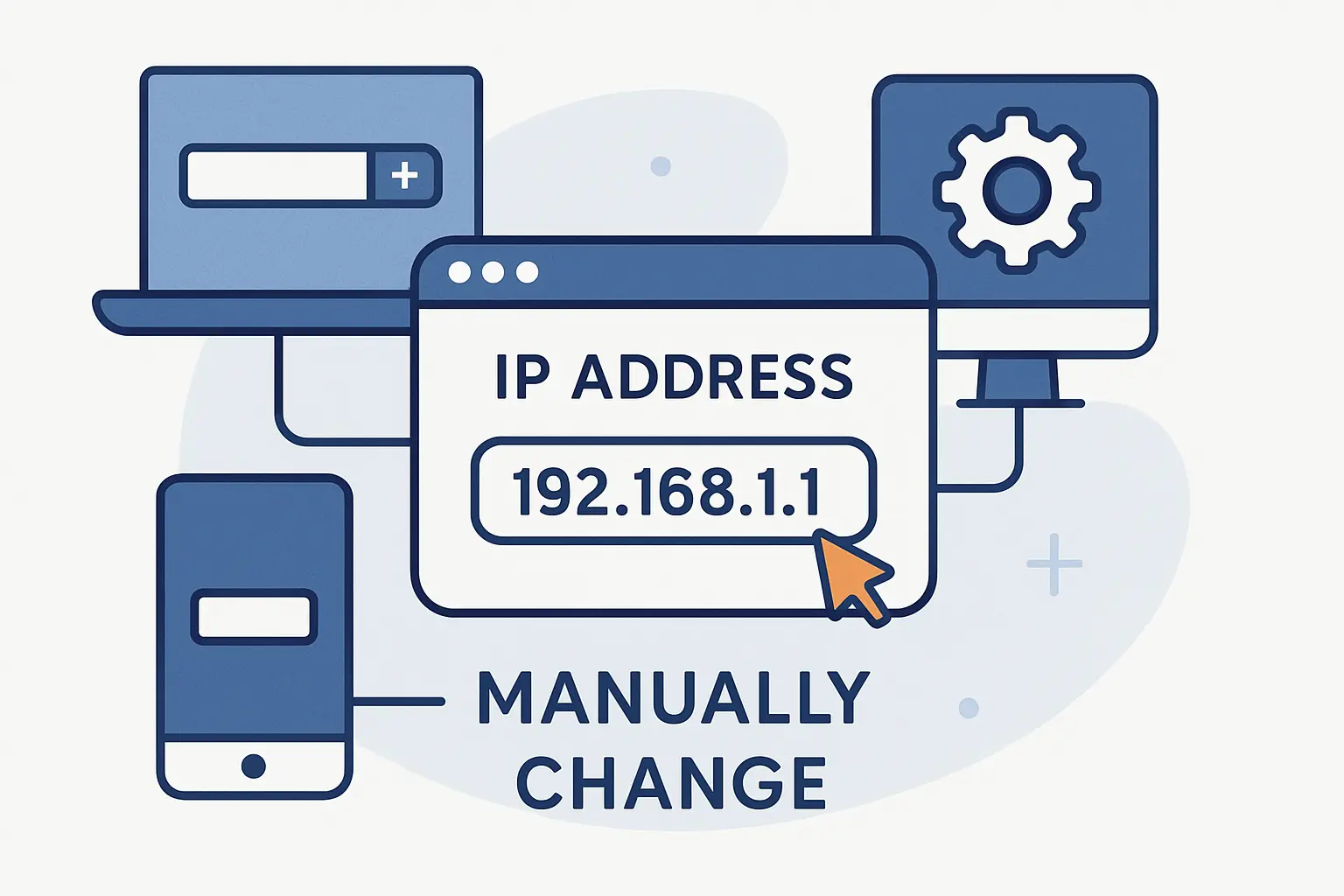
Manual changes are for the local network side of the house. They are useful when you need a stable address for port forwarding, device discovery, lab work, or a business app that expects a fixed client. Still, manual settings should be handled carefully. Pick an unused address in the correct subnet, keep the right gateway and DNS entries, and avoid stepping on the router’s DHCP pool unless you know exactly how that pool is managed.
1. On Windows
In Windows, open the active adapter settings, edit the IPv4 properties, and switch from automatic assignment to manual if you need a static local address. Enter the IP, subnet mask, default gateway, and DNS servers that fit your network. We usually suggest choosing an address outside the router’s regular automatic range to avoid collisions. If something breaks immediately, switch back to automatic and compare the original values you recorded earlier.
2. On Mac
On Mac, Apple lets you use DHCP or a manual IP address from System Settings > Network > Details > TCP/IP. That path is clean and reliable for assigning a local address when you know the correct router, subnet, and DNS values. We like Mac’s layout here because it keeps the important fields in one place, which lowers the odds of forgetting a gateway or mixing old DNS settings with a new address.
3. On Android
On Android, the usual path is Wi-Fi, the selected network, advanced options, and then IP settings set to Static. From there, you enter the local IP, gateway, network prefix length or subnet, and DNS servers. The exact labels vary by manufacturer, so do not panic if the menu looks a little different on Samsung, Pixel, or another brand. The principle is the same across them all: stay on the right subnet and do not duplicate another device’s address.
4. On iPhone and iPad
On iPhone and iPad, you will usually find the relevant controls in the current Wi-Fi network’s info screen under Configure IP or related advanced options. Apple’s setup guidance notes that you can define static network settings for Wi-Fi networks, and the same core fields matter later as well: address, subnet, router, and DNS. If you are only trying to fix a broken connection, switching back to automatic assignment is often the safer first move.
Other ways to get a different IP address
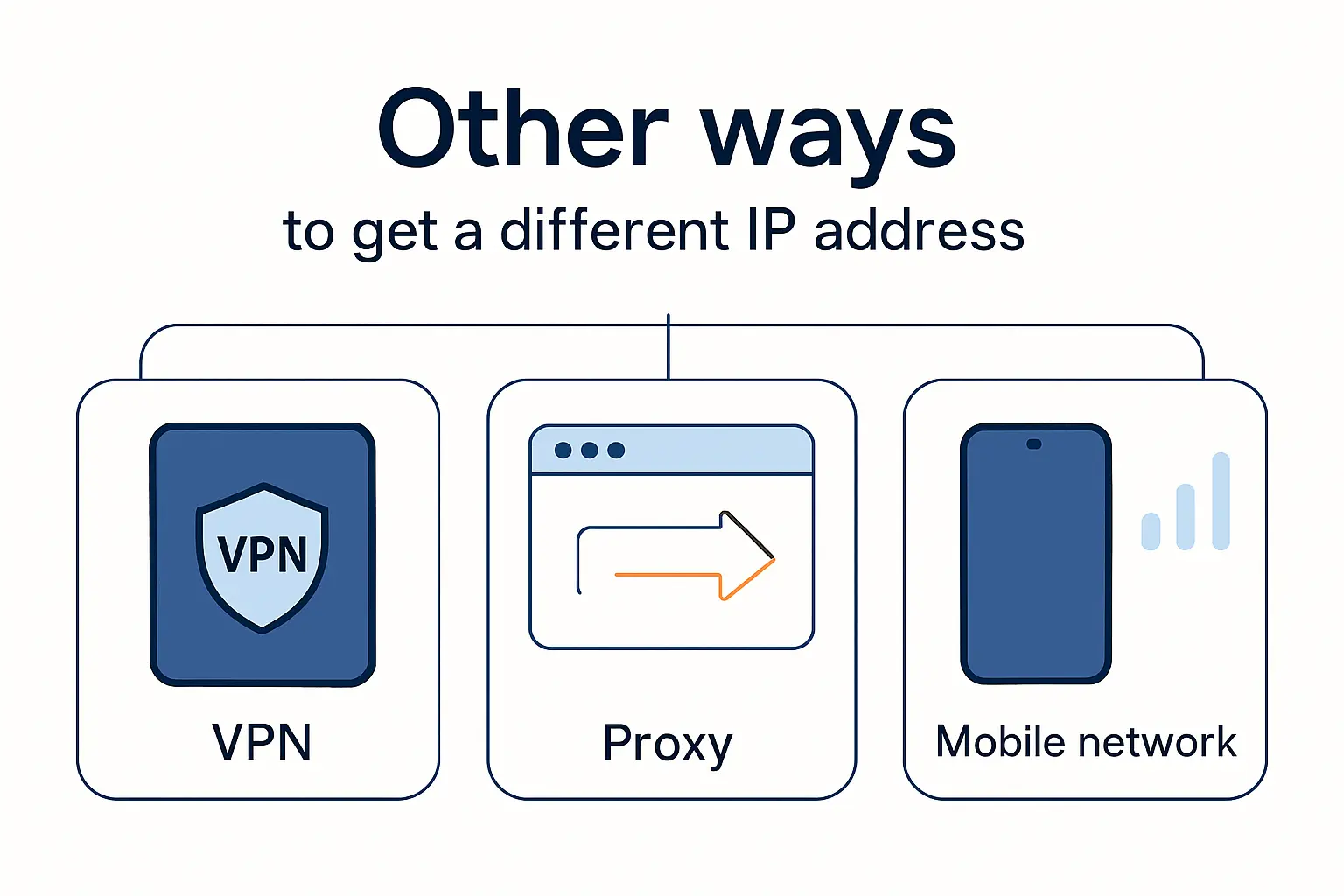
Not every situation needs a VPN or manual edit. Sometimes the simplest option is to use a different network altogether or ask the provider to help. We say this a lot because network troubleshooting has a nasty habit of becoming overengineered. A clean, low-friction answer is still the best answer.
1. Ask your ISP for help
Your ISP may be able to release a dynamic lease, assign a static address, explain whether the service uses carrier-grade NAT, or confirm whether a public change is even possible on the current plan. For business users, this is often the smartest route when partner firewalls, mail systems, remote branches, or compliance tooling depend on a predictable public address. It is not glamorous, but it is often the right call.
2. Use public Wi-Fi for a different network address
Connecting through a different network usually gives you a different public IP immediately. That can be useful for a quick test or to confirm whether the issue is tied to your home or office connection. The downside is obvious: public Wi-Fi is less trustworthy, more heavily filtered, and more likely to use captive portals or shared reputation pools. If you take this route, we strongly recommend pairing it with a VPN.
3. Try the Tor browser for extra privacy
Tor routes traffic through multiple relays, which can provide stronger anonymity for web browsing than a simple IP swap alone. It is slower, however, and plenty of websites challenge or block Tor exit nodes. We see it as a specialized privacy tool, not an everyday fix for every login or streaming problem. If the goal is routine business access, a mainstream VPN is usually more practical.
Pros and cons of changing an IP address
Changing an IP address is useful, but it is not a magic cloak. We like it because it can solve real privacy, access, and reliability issues with relatively little effort. At the same time, every method carries tradeoffs in speed, trust, compatibility, and cost. A mature decision weighs both sides instead of chasing a silver bullet.
1. Benefits for privacy, security, gaming, and content access
A new public IP can reduce casual tracking, alter visible location, and sometimes help when a service has overreacted to the old address. A new private IP can clear conflicts on the local LAN. For gamers, changing networks or renewing a lease can occasionally help after harassment, stale routing, or regional mismatches. For business teams, the benefit is often cleaner testing, safer remote work, or a tidier security posture around allowlists and segmentation.
2. Tradeoffs such as slower speeds, cost, and blocked websites
Nothing is free in networking. VPNs and proxies can add latency, premium providers cost money, and static or dedicated public addresses often cost more than dynamic ones. Some websites dislike datacenter IPs, some apps reject anonymous endpoints, and some enterprise networks behave badly when traffic suddenly appears from another country. In other words, a changed IP may solve one problem while creating a fresh one next door.
3. Why changing your IP address does not make you fully anonymous
Even strong privacy tools have limits. Browser fingerprints, logins, cookies, device IDs, account behavior, payment methods, and application telemetry can continue to identify a user long after the address changes. Apple puts the compatibility side plainly, warning that some websites, networks, and services might need to see your IP address. We think that is the right mental model: changing an IP improves privacy and flexibility, but it does not erase every other signal.
FAQ
Below are the short answers we give most often when customers ask us to cut through the jargon. The details still matter, but these quick explanations should help you choose the right path without getting lost in the weeds.
1. Is it possible to change an IP address?
Yes. You can change a public IP by using a VPN, switching networks, reconnecting through your ISP, or in some cases restarting the router. You can change a private IP by renewing DHCP or assigning a manual local address on the device.
2. Is changing an IP address legal?
In general, yes. People and businesses change IP addresses all the time for privacy, security, travel, testing, and network management. What matters is what you do afterward. A new IP does not make unlawful access or fraud lawful.
3. Does resetting your router change your IP address?
Sometimes, but not always. If your ISP uses dynamic public addressing, a reboot or reconnect may result in a new lease. If the service is static, the address usually stays the same. Many providers also reissue the old dynamic address if it is still available.
4. How do you release your IP address and get a new one?
On Windows, you typically use ipconfig /release and ipconfig /renew for DHCP-based local addresses. On other devices, the equivalent fix is to renew the DHCP lease, reconnect to the network, or switch the interface back to automatic addressing. For a different public IP, a VPN or a different network is often faster.
5. Does a VPN change your IP address?
Yes, in most cases it changes the public IP that websites and online services see. The device still keeps a local address on your home, office, or mobile network, but the outside world generally sees the VPN server’s address instead.
6. Why does your IP address show a different city?
IP geolocation databases are approximate and sometimes outdated. Your ISP may route traffic through another city, your mobile carrier may terminate traffic far from your phone, or your VPN may exit in a neighboring region. That mismatch is common and does not necessarily mean anything is wrong.
How 1Byte supports customers as a cloud computing and web hosting provider
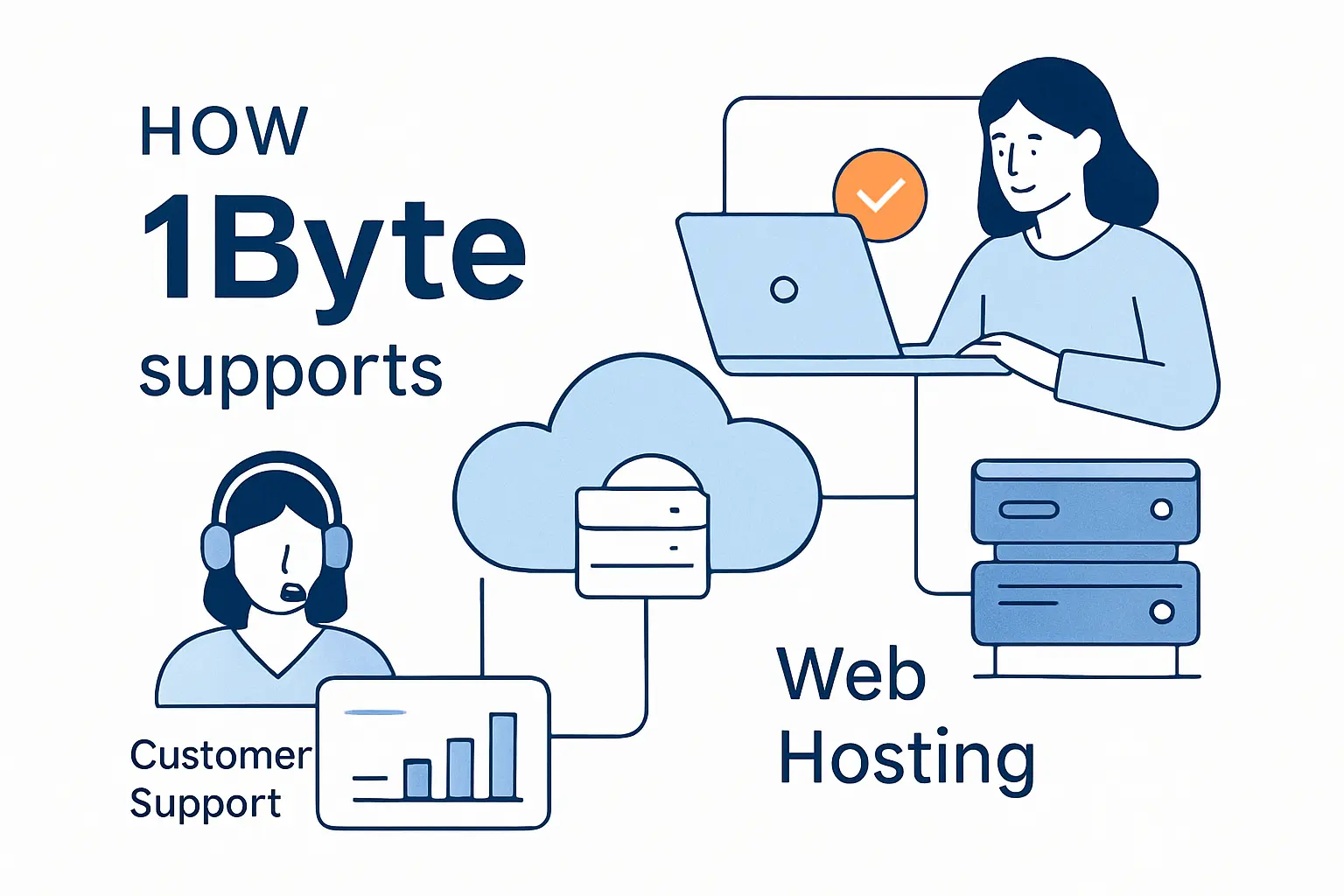
At 1Byte, we do not look at IP changes as isolated button clicks. We look at them as part of a wider system that includes DNS, certificates, web apps, firewalls, cloud edges, mail reputation, and customer uptime. That broader view matters because a changed address can ripple across the stack. When we help customers, the goal is not merely to swap a number. It is to keep the service reachable, trusted, and stable.
1. Domain registration and SSL certificates
When a public IP changes, domain records, certificate validation, reverse proxies, and origin restrictions often come into play. We help customers think through the chain from DNS to HTTPS so the site still resolves cleanly and encrypts traffic correctly after the move. In plain English, we try to prevent the classic mess where the address changed, the browser warning appeared, and nobody knows which record or certificate is now pointing at yesterday’s server.
2. WordPress hosting and shared hosting
Shared hosting and WordPress environments add their own wrinkles. A site may sit behind caching layers, plugin redirects, CDN rules, or security tools that expect the old origin or the old route. We guide customers through the practical side of that change: updating records, clearing caches, checking admin access, verifying forms, and making sure email and media still work. For beginners, that handholding is often the difference between a smooth change and a broken launch.
3. Cloud hosting and cloud servers with AWS Partner support
Cloud workloads raise the stakes further because the “IP address” might really mean an elastic public endpoint, a load balancer, a bastion host, a private subnet route, or a firewall allowlist shared across several services. From our point of view, that is where planning pays off. We help customers map dependencies, separate public and private networking, and avoid accidental outages when a server, application, or environment gets a new address during migration, scaling, or incident response.







Final thoughts on how to change an IP address
Changing an IP address is not hard once you know which address you mean. If you want the internet to see a different location, start with a VPN or another network. If a device on your home or office LAN is the problem, focus on DHCP renewal or a manual private address instead. That small distinction saves a surprising amount of time.
At 1Byte, we would make one final suggestion: decide whether your goal is privacy, access, troubleshooting, or infrastructure control before you touch the settings. Then choose the lightest tool that actually solves that problem. If you are working on a business system, map the dependencies first. So here is the next question we would ask you: do you need to change the address your router sees, or the address the whole internet sees?