

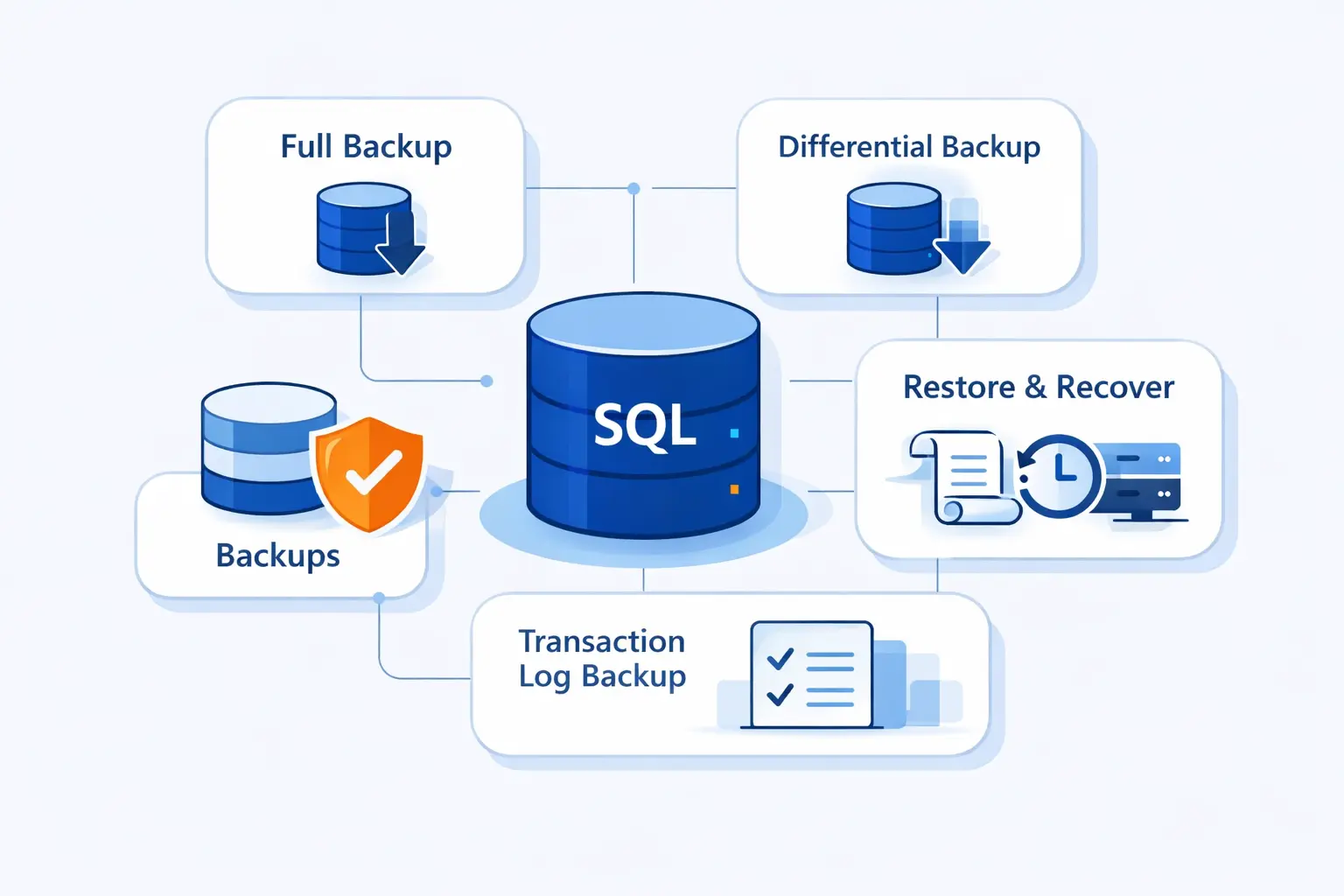
- Why SQL Server Backup Matters
- SQL Server Backup Types You Need to Know
- How to Create a SQL Server Backup
- Essential SQL Server Backup Commands and Options
- Choose the Right SQL Server Recovery Model
- Build a SQL Server Backup Strategy Around RPO and RTO
- Restore SQL Server Backup Files Without Gaps
- SQL Server Backup Security, Permissions, and Limitations
- Common SQL Server Backup Mistakes to Avoid
- SQL Server Backup Tools and Automation Options
- SQL Server Backup FAQ
- How 1Byte Supports the Infrastructure Behind SQL Server Backup
- Final Thoughts on SQL Server Backup
At 1Byte, we treat SQL Server backup as a restore problem first and a file-creation problem second. A backup file means very little if nobody knows which differential belongs to it, where the log chain breaks, or how long recovery will take under pressure. That is why we design SQL Server backup plans around business impact, not checkbox compliance. The market is moving the same way. The global cloud backup market was $5.49 billion in 2024, which tells us backup has become core infrastructure, not an afterthought.
In this guide, we walk through the SQL Server backup types that matter, the methods teams actually use, the options worth turning on, and the restore planning that separates a calm recovery from a long night of guessing. We also share our own view from 1Byte. Boring, tested backups are good backups.
Why SQL Server Backup Matters
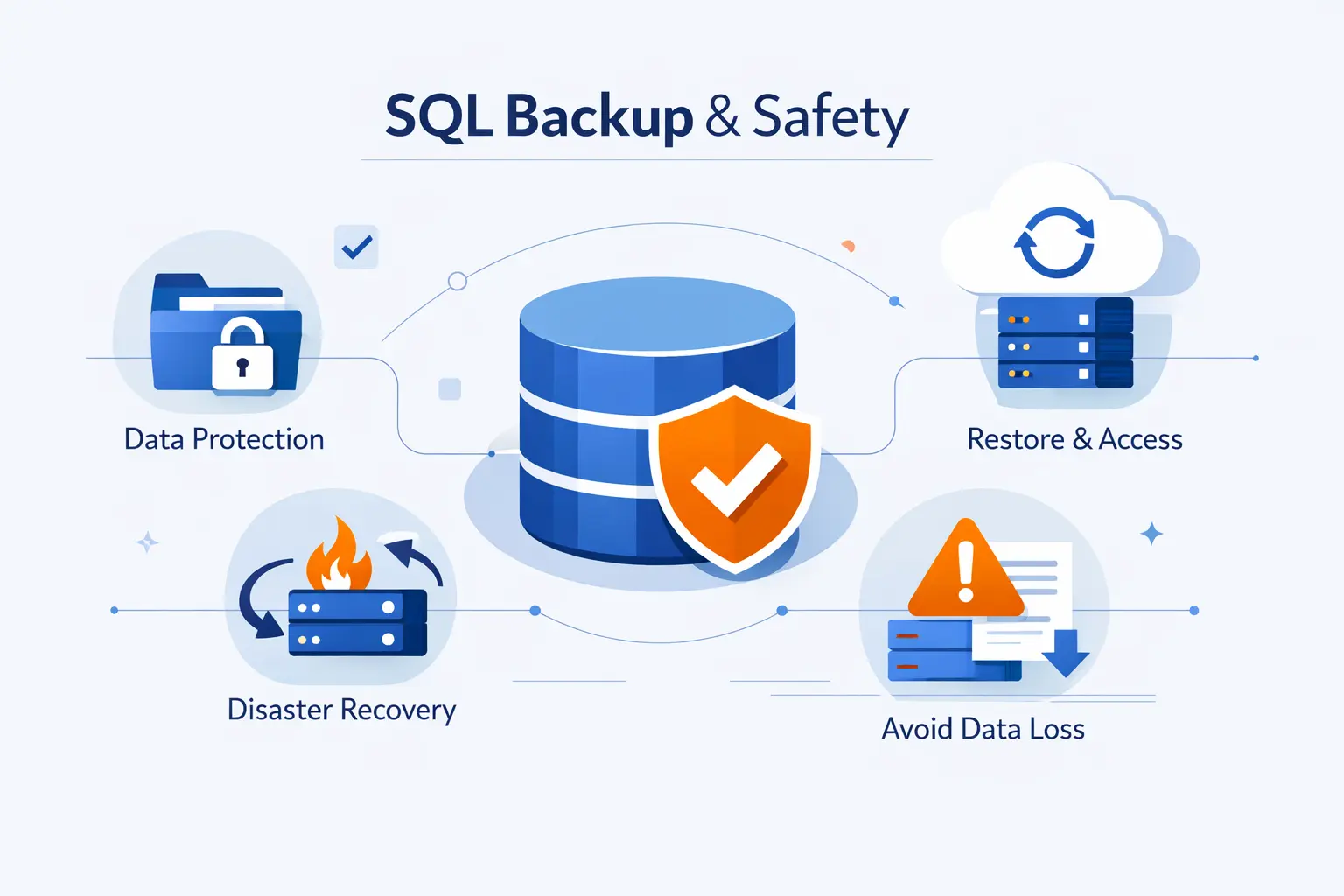
Microsoft is blunt about one foundational limit in SQL Server. table-level backups cannot be created, so protection starts at the database, file, filegroup, and log level. Once we accept that, backup and restore planning becomes much clearer.
FURTHER READING: |
| 1. What Is Domain Privacy and Do You Need It? |
| 2. Difference Between Domain and Hosting and Why You Need Both |
| 3. What Is a Custom Domain? Meaning, Examples, and How to Buy One |
1. Why SQL Server Backup Is the Only Protection Against Data Loss
We like high availability. We like replicas. We like resilient storage. But none of those replace backup. If an application bug updates the wrong rows, a user drops a table, or ransomware encrypts live data, every replica can copy the same bad state. A real backup gives us a known recovery point outside the damaged moment. That is the whole game.
2. Failure Scenarios Your Backup Strategy Must Cover
We think in ugly stories, not pretty diagrams. A useful strategy must cover hardware failure, storage corruption, accidental deletes, bad deployments, failed patching, malware, and plain human error. It should also cover quieter problems, like someone discovering corruption weeks later. If your SQL Server backup plan only handles a dead server, it is too narrow.
3. Core Backup, Restore, Device, and Media Terms to Know
Here is the plain-English version. A backup is the copy you can restore. A backup device is where SQL Server writes that copy, such as disk, tape, or a URL target. Media is the file or set of files that holds backup data. A restore is the sequence that replays those files into a usable database. We also keep two business terms close by. RPO is the amount of data you can afford to lose. RTO is how long you can afford recovery to take.
SQL Server Backup Types You Need to Know
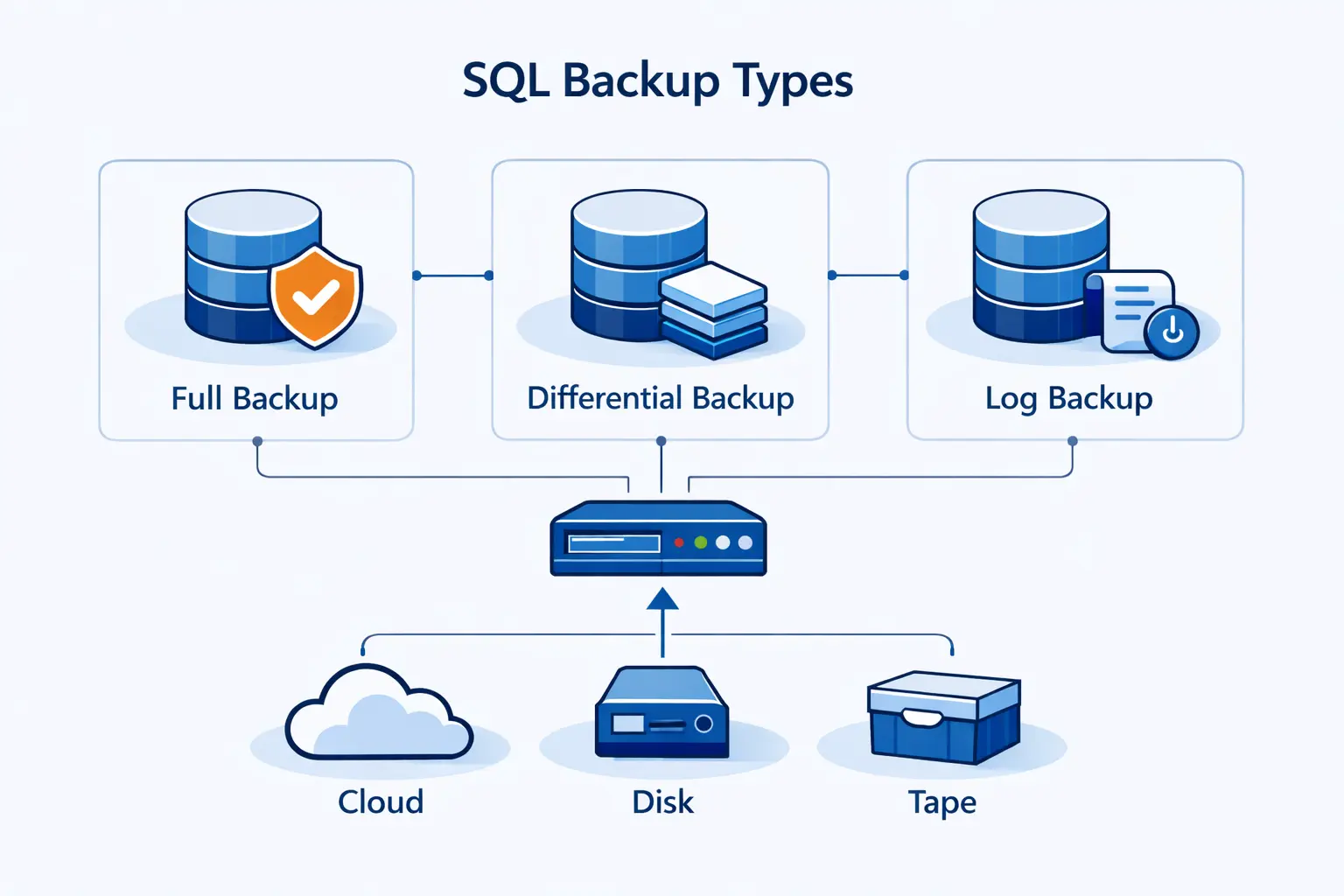
Different backup types solve different timing problems. In Transact-SQL, a copy-only full backup can’t serve as a differential base, which is exactly why it is useful before risky maintenance. We choose backup types by recovery goal, not habit.
1. Full Database Backup as the Foundation of the Backup Chain
A full database backup is the starting point for most plans. It captures the whole database and enough log information to restore it consistently. When we review a shaky backup setup, the first question is simple. Where is the latest successful full backup, and how quickly can we restore it? If that answer is fuzzy, the rest of the chain does not matter yet.
2. Differential Backup for Faster Protection Between Full Backups
A differential backup records what changed since the last regular full backup. We like differentials because they are often much faster to create than another full backup, yet they can shorten restore time compared with replaying a very long stack of log files. The catch is simple. The longer you wait between full backups, the larger each differential usually gets.
3. Transaction Log Backup for Granular Point-in-Time Recovery
Transaction log backups are what make fine-grained recovery possible. They capture committed work after the last log backup and let us restore to a specific point rather than only to the time of the last full or differential. In busy OLTP systems, this is usually where the real protection lives. It also keeps the log from growing without bound when the database uses a recovery model that depends on a live log chain.
4. File, Filegroup, Partial, Copy-Only, and Tail-Log Backup Use Cases
These are specialized tools, but they matter. File and filegroup backups help with very large databases. Partial backups help when some filegroups are stable and others change constantly. Copy-only backups are great before a schema change or application release because they give us an extra safety net without disturbing the usual schedule. Tail-log backups belong in serious restore planning because they can capture the last bit of work before recovery starts.
How to Create a SQL Server Backup
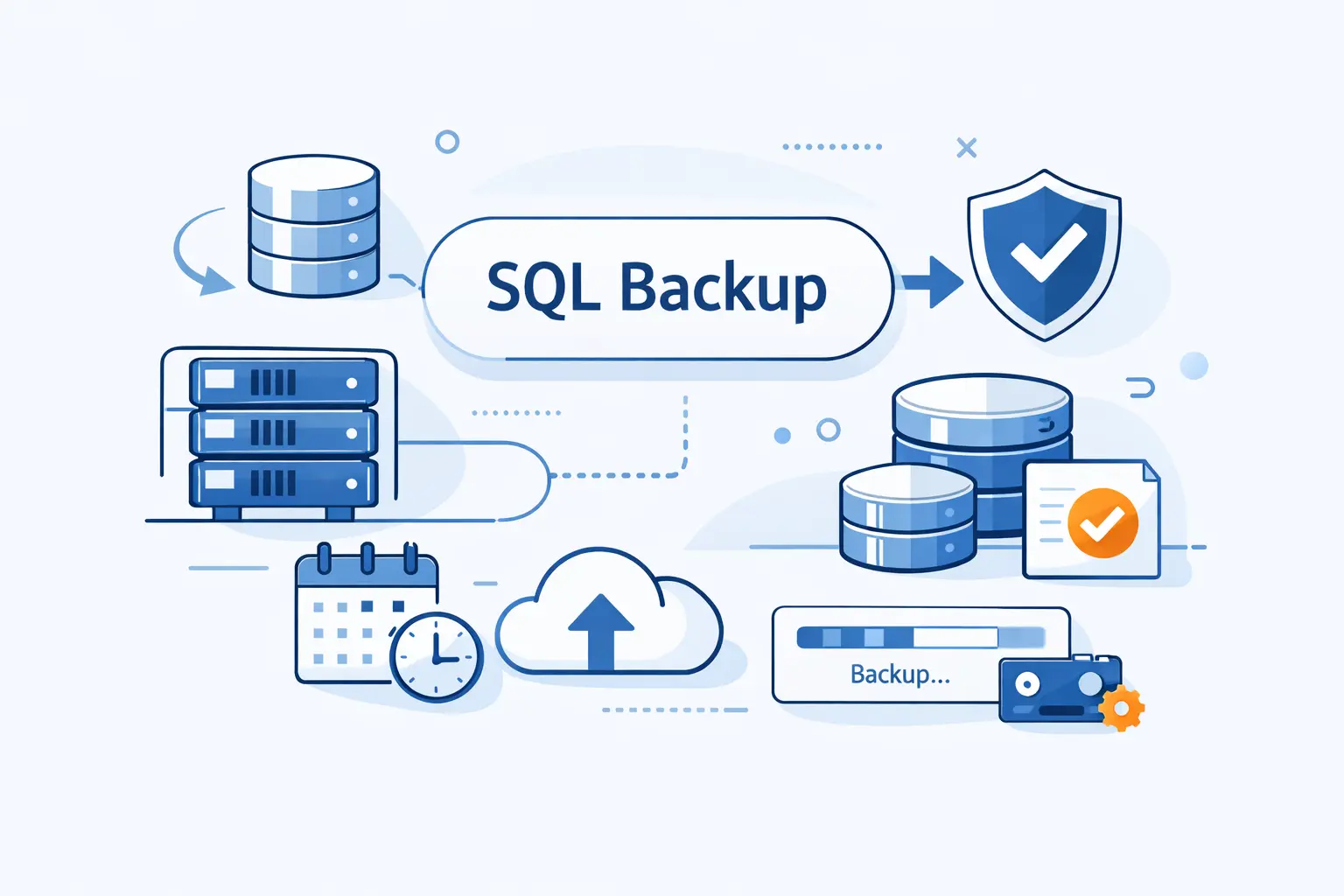
For day-to-day work, Microsoft supports creating a full backup with SQL Server Management Studio, Transact-SQL, or PowerShell. We usually tell beginners to start in SSMS, then script what works so the process becomes repeatable and reviewable.
1. Use SQL Server Management Studio for Guided Backups
SSMS is the easiest way to learn the moving parts. Right-click the database, open Tasks, choose Back Up, then pick the backup type, component, and destination. For one-off work, this is perfectly fine. What we really like, though, is the Script button. It exposes the exact command SQL Server will run, which helps you move from clicking to automation without guessing.
2. Use the BACKUP DATABASE Command in T-SQL
T-SQL is where backup work becomes predictable. It belongs in jobs, runbooks, change requests, and version control. If we need to prove exactly what happened, we would rather read a script than reconstruct a wizard after the fact.
BACKUP DATABASE SalesDBTO DISK = 'E:\SQLBackups\SalesDB_full.bak'WITH COMPRESSION, CHECKSUM, STATS = 5That pattern is enough for a strong starting point. From there, we add naming rules, retention, and separate destinations based on the database and its risk.
3. Use PowerShell for Scripted Full Backups
PowerShell is useful when the work spans many servers or needs to fit into broader operations scripts. We use it when we want loops, credential handling, or integration with other Windows automation.
Backup-SqlDatabase -ServerInstance "SQLPROD01" -Database "SalesDB" -BackupFile "E:\SQLBackups\SalesDB_full.bak"If your environment has more than one instance, PowerShell starts to earn its keep very quickly.
4. Choose the Backup Component, Destination, and File Striping
Every backup job needs three choices. What are we backing up, where will it go, and how many files should carry the load? A small database may be fine with a single disk file. A large one may benefit from multiple striped files to spread I/O and shorten elapsed time. We also prefer backup files on a path that is separate from the database files themselves. Keeping everything on one volume is just asking for trouble.
Essential SQL Server Backup Commands and Options
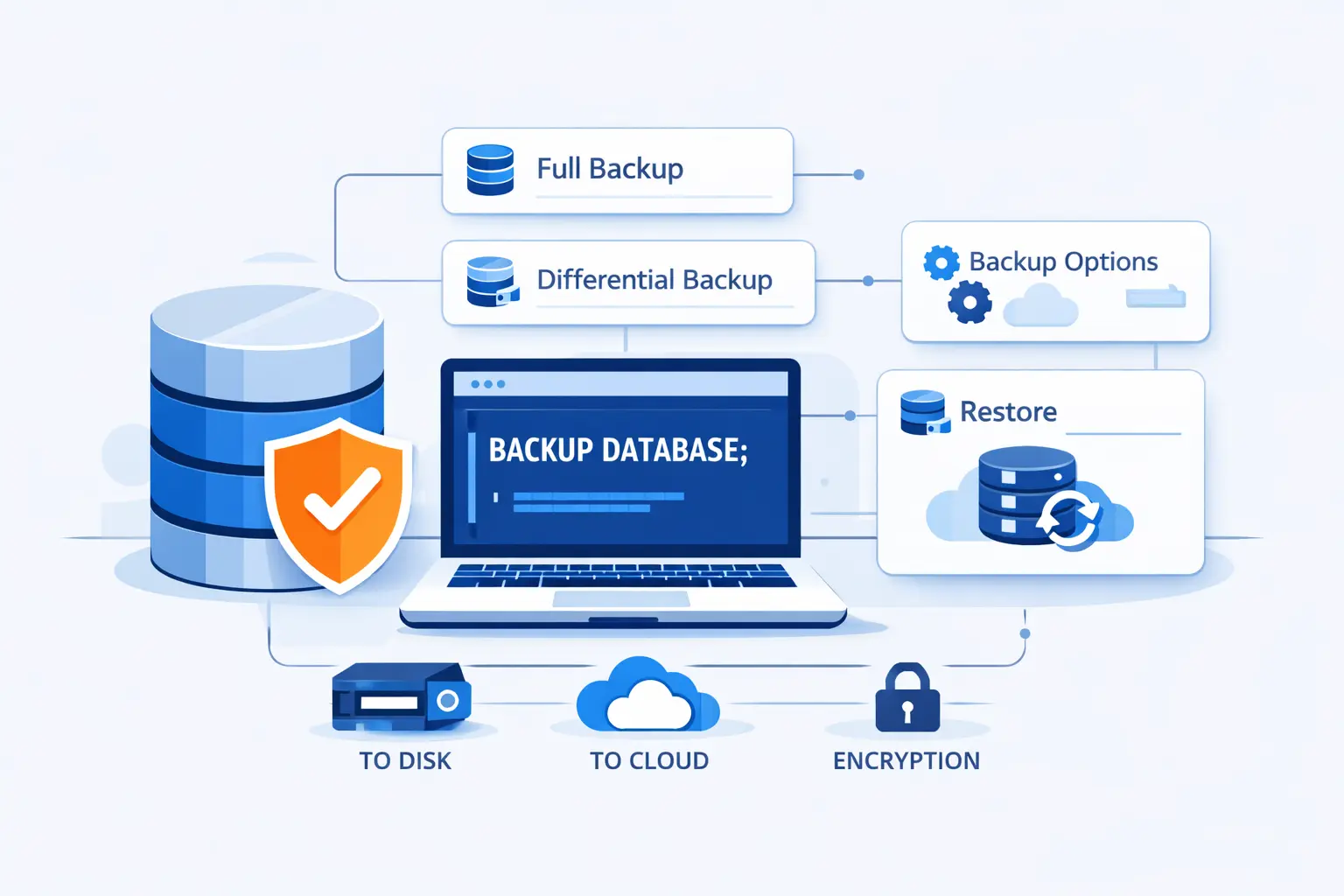
We prefer plain commands over clever commands. In backup work, clarity beats style every time because someone may need to read that script half-awake during an outage.
1. Understand BACKUP DATABASE and BACKUP LOG Basics
Think of BACKUP DATABASE as the command for full, differential, partial, file, and filegroup backups. Think of BACKUP LOG as the command that extends the recoverable timeline between data backups. A practical rule helps here. Data backups give you a base. Log backups move you forward from that base. If you remember that, restore planning becomes much easier to reason about.
2. Use Differential, Copy-Only, and Log-Specific Options Correctly
WITH DIFFERENTIAL is for changes since the last regular full backup. COPY_ONLY is for one-off protection that should not disturb the normal schedule. NORECOVERY matters when you are preparing a restore sequence and want SQL Server to stay ready for the next backup in the chain. These options are simple on paper, but we see teams misuse them all the time. Most restore confusion starts with one misunderstood option.
3. Improve Reliability Using Compression, Encryption, CHECKSUM, and STATS
We usually begin with COMPRESSION and CHECKSUM. Compression often reduces file size and backup time, though it uses CPU. CHECKSUM adds validation during backup, which is worth the overhead in many production systems. STATS is less glamorous, but it matters too. Progress output is a gift when a backup window is tight and people are watching the clock.
4. Choose Disk, URL, Azure Blob, S3-Compatible Storage, or Mirrored Media
Modern SQL Server estates do not need to think only in terms of local disk. Microsoft says SQL Server can write backups to S3-compatible object storage, and the same URL approach also works with Azure Blob Storage. In practice, we like a fast local landing zone for capture and a separate off-site destination for resilience.
Choose the Right SQL Server Recovery Model
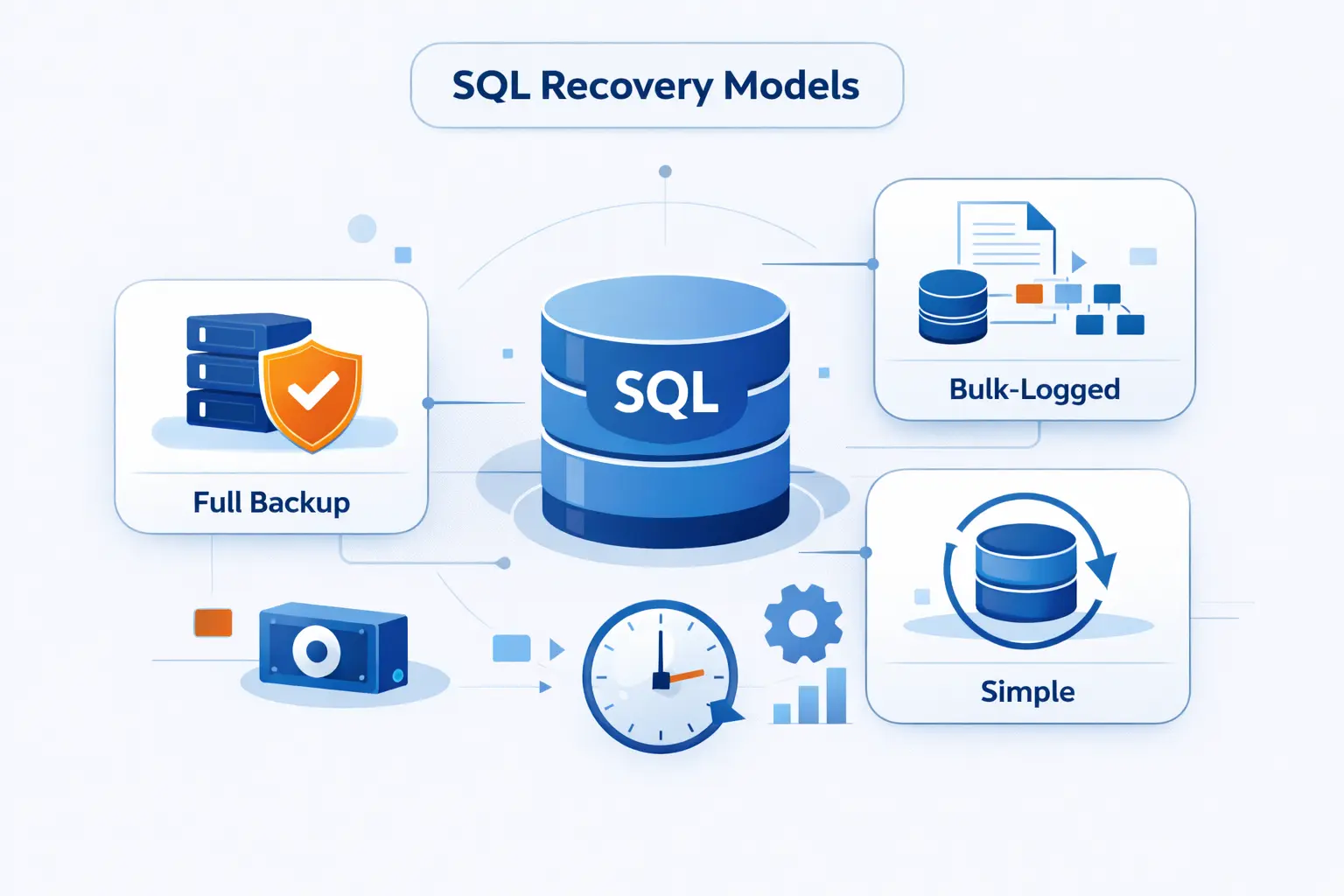
Recovery model is the policy switch that decides what SQL Server can recover. Microsoft states that the simple recovery model doesn’t support transaction log backups, which is why recovery model choice has to come before scheduling.
1. Simple Recovery for Easier Log Management
Simple recovery is attractive because log space is reclaimed automatically and the plan is easier to manage. We like it for development, test, throwaway staging, and data that can be recreated from another source. The tradeoff is serious. You lose point-in-time recovery. If a mistake happens after the last data backup, the work after that point must be redone.
2. Full Recovery for Point-in-Time Restore Needs
Full recovery is where most production databases belong when business data matters. It supports point-in-time restore, which is often the difference between losing minutes and losing hours. The price is discipline. You must take regular log backups. If you do not, the log will keep growing and your nice theory about recovery will collapse under storage pressure.
3. Bulk-Logged Recovery for Large Bulk Operations
Bulk-logged recovery is best seen as a temporary operating mode, not a lifestyle. We use it deliberately for heavy bulk work, such as large imports or certain maintenance tasks, when log volume matters. Then we switch back. That is the key. Bulk-logged can be useful, but only if everyone involved understands the restore limits that come with it.
Build a SQL Server Backup Strategy Around RPO and RTO
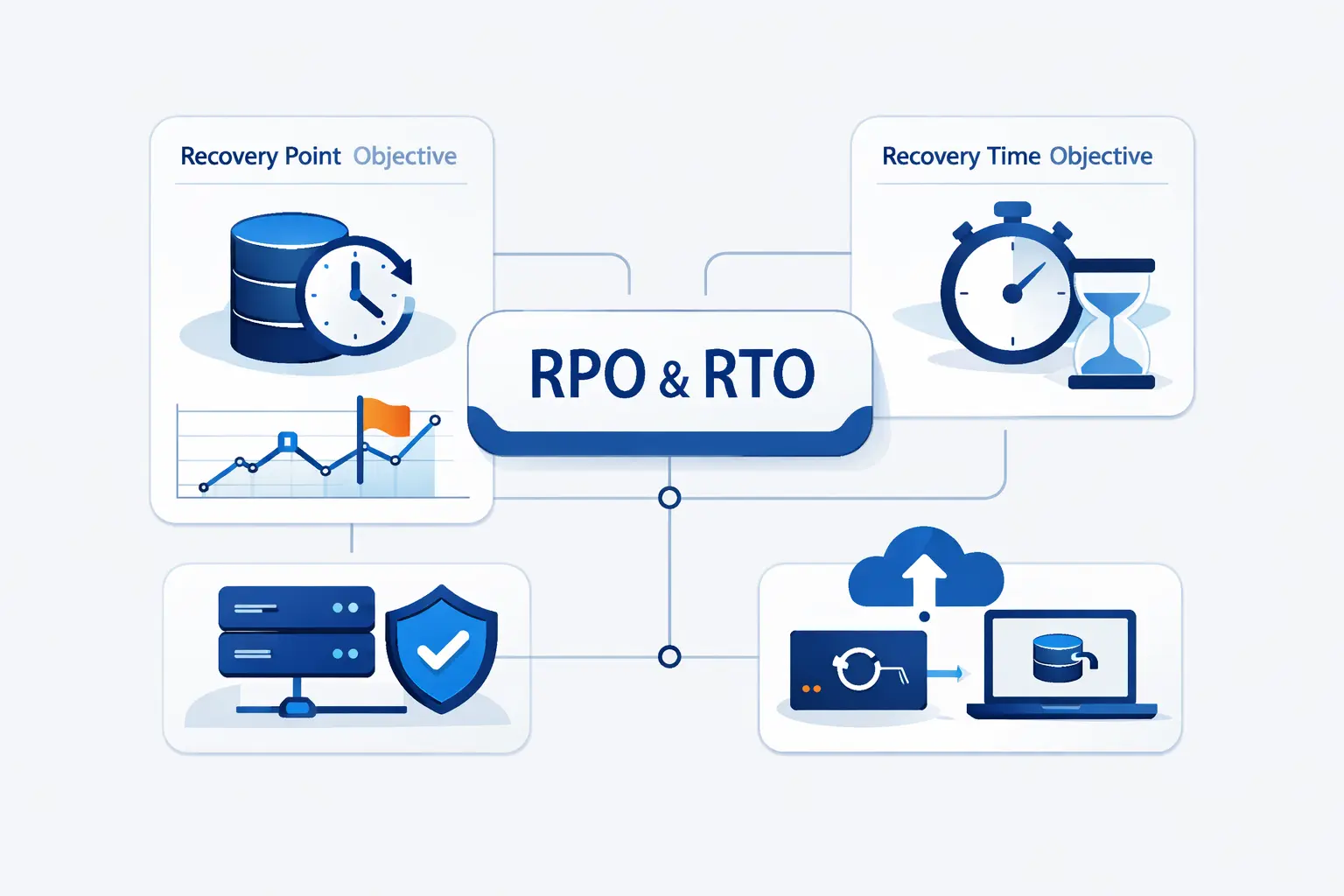
We start every SQL Server backup conversation with two business questions. How much data can you afford to lose, and how long can you afford to be down? RPO answers the first. RTO answers the second. Everything else is implementation detail.
1. Schedule Full, Differential, and Log Backups Around Business Activity
We do not believe in one universal schedule. A quiet internal database and a busy checkout database should not look the same. Full backups usually belong in lower-traffic windows. Differentials often fit well between them. Log backups should match business sensitivity. If the business hates losing more than a few minutes of work, the log schedule has to reflect that reality.
2. Align Backup Frequency With RPO and RTO Targets
This is where many plans become honest. If your RPO is five minutes, your log backups need to run at least that often. If your RTO is very tight, you may want differential backups often enough to avoid replaying an enormous log chain during recovery. We prefer to write this out explicitly in the runbook. Otherwise people nod through planning and panic during restore.
3. Store Backups on a Different Drive and Keep Off-Site Copies
A backup on the same drive as the database is better than nothing, but not by much. We want at least one copy away from the data volume and another copy away from the server or site. That can mean another host, another storage system, or object storage. The point is separation. If one failure can destroy both the database and its backup, the design is weak.
4. Plan Automation, Notifications, and Retention Early
We have seen more damage from silent backup failures than from complicated technology. Jobs should alert loudly when they fail. Retention rules should be defined before the first disk fills up. Naming should be consistent before anyone has to search for the right file under pressure. If the process works only when one specific person is available, it is not automated enough.
Restore SQL Server Backup Files Without Gaps
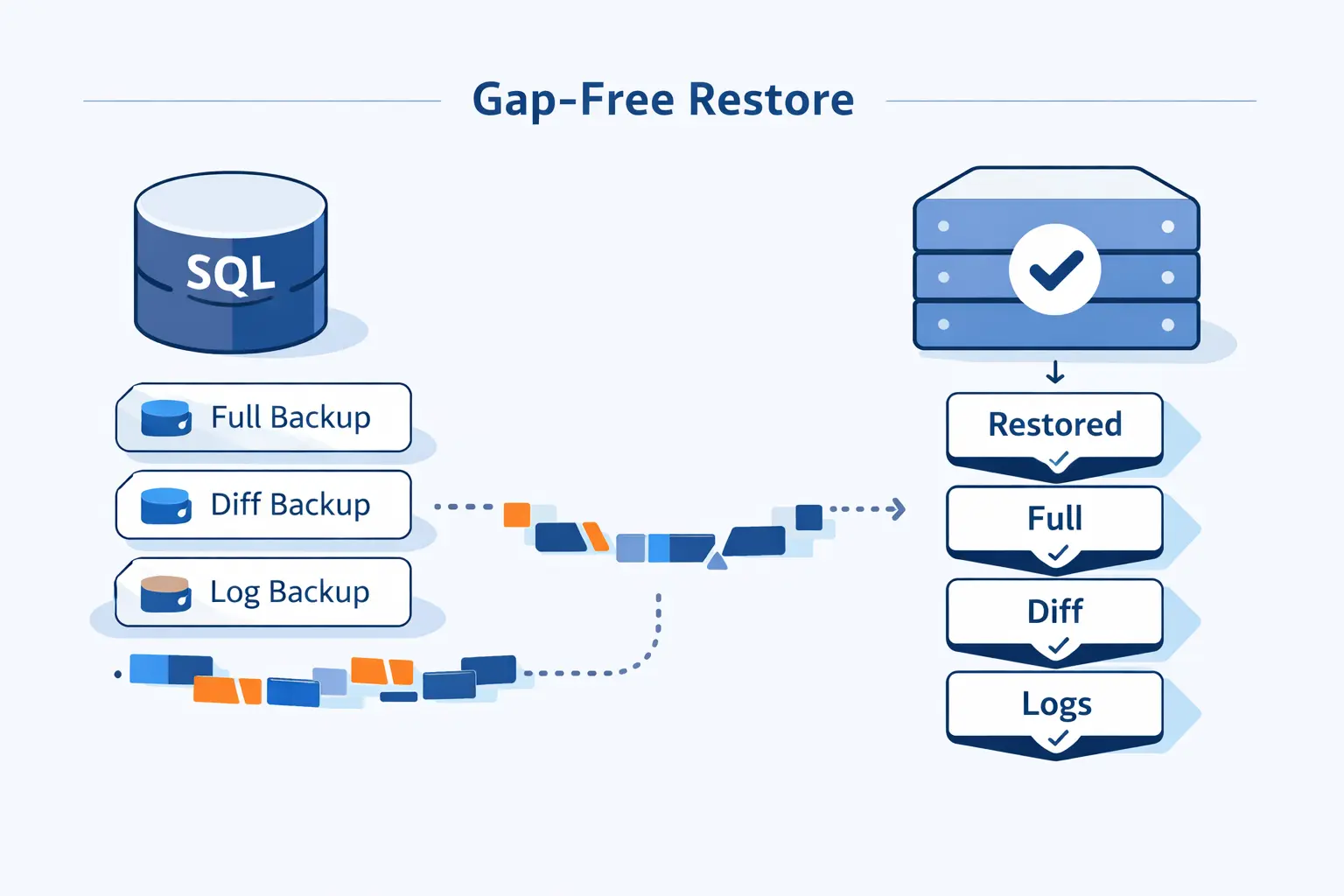
Restore work is where backup theory gets graded. Microsoft is explicit that log backups after the data backup must be restored in chronological order. One missing file can break the chain and force a much older recovery point.
1. Restore Full, Differential, and Log Backups in the Right Order
The common sequence is full backup first, then the latest matching differential if you have one, then every required log backup after that. The last restore step is RECOVERY. Not before. Recover too early and you may have to start the whole sequence over.
RESTORE DATABASE SalesDBFROM DISK = 'E:\SQLBackups\SalesDB_full.bak'WITH NORECOVERYRESTORE DATABASE SalesDBFROM DISK = 'E:\SQLBackups\SalesDB_diff.bak'WITH NORECOVERYRESTORE LOG SalesDBFROM DISK = 'E:\SQLBackups\SalesDB_log_01.trn'WITH NORECOVERYRESTORE DATABASE SalesDB WITH RECOVERY2. Use Point-in-Time Recovery to Minimize Data Loss
Point-in-time restore is the feature many teams assume they have until they actually need it. Microsoft notes that point-in-time recovery is not possible inside a bulk-logged log backup that contains bulk changes. That is why we treat bulk-logged as a short, deliberate exception, not as the everyday default.
3. Test Every Restore Path, Use VERIFYONLY, and Run DBCC CHECKDB
Before a real incident, we test the boring path. RESTORE VERIFYONLY backup set is complete and the entire backup is readable, which makes it a useful first screen. We do not confuse that with proof that the database will come online cleanly, but it is still a valuable step.
After a test restore, we go further. Microsoft says PHYSICAL_ONLY is recommended for frequent use on production systems, but we still schedule broader integrity checks on a cadence that matches the system’s risk. VERIFYONLY helps us trust the file. CHECKDB helps us trust the restored database.
SQL Server Backup Security, Permissions, and Limitations
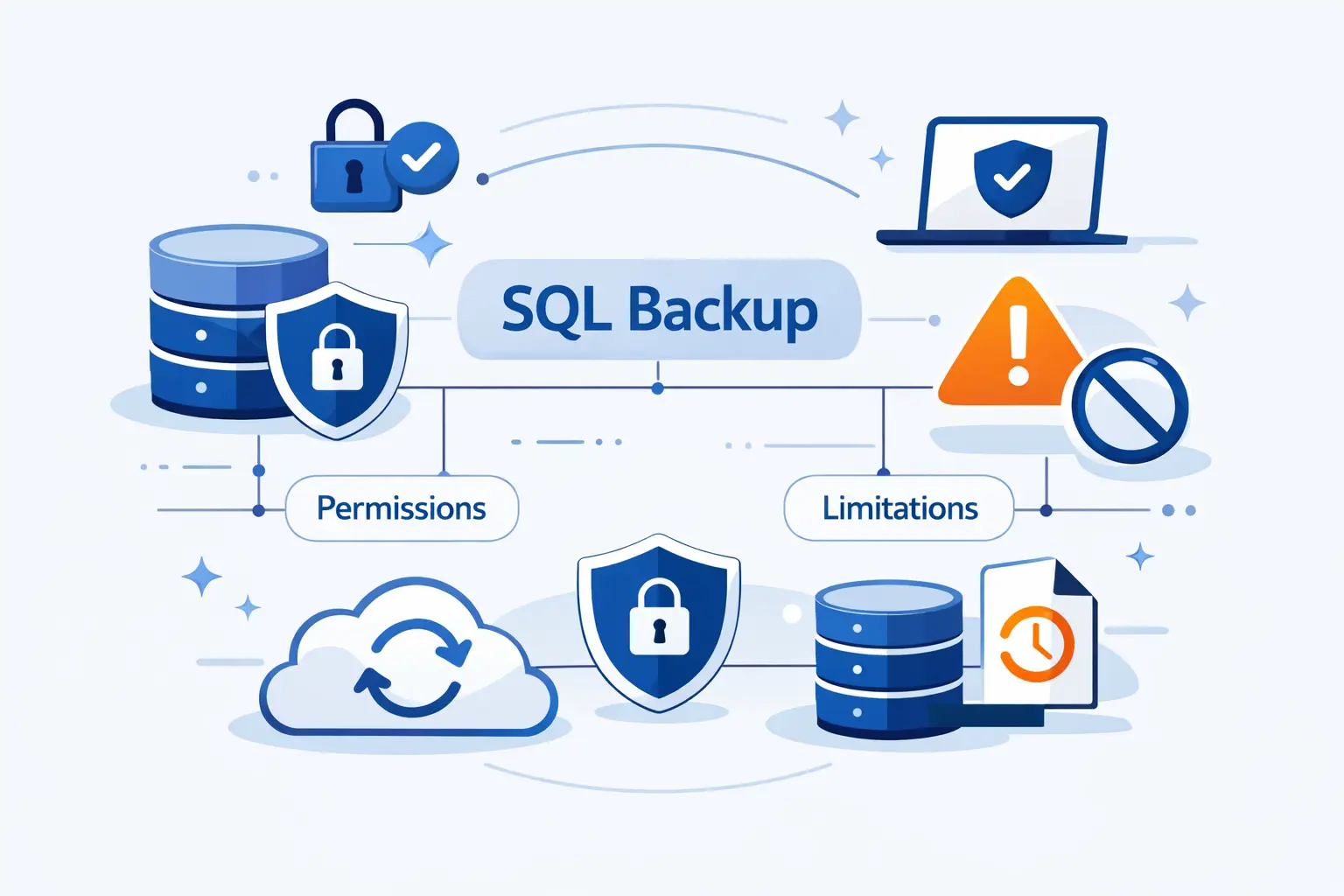
Backups are privileged data. We treat them that way. A backup can contain the whole business in portable form, which means security decisions around backup and restore deserve the same seriousness as production access controls.
1. Understand Required Roles and Backup Device Permissions
At a minimum, the account running backups needs the right SQL Server role membership, and the SQL Server service account needs write access to the target path. We also keep restore access narrow. If too many people can restore databases wherever they want, you create a quiet data exfiltration path and a serious operational risk.
2. Know the Version Compatibility Rules and Transaction Limits
We keep two limitations on the whiteboard. First, backups from newer SQL Server versions do not restore to older versions. Second, backup and restore commands are not allowed inside explicit or implicit transactions. Those details sound small until a migration or emergency makes them very large. This is why test restores on the target version matter well before change weekend.
3. Encrypt Backups and Restrict Restore Sources to Trusted Files
We strongly favor encrypted backups for anything that leaves the server. Microsoft warns that without the certificate, you can’t restore the backup, so encryption is never just a checkbox. You must protect the certificate or key with the same seriousness as the backup itself.
We also treat incoming backup files as untrusted until proven otherwise. Microsoft recommends that you do not restore databases from untrusted sources. Our rule is simple. Restore suspicious files on an isolated nonproduction system first, inspect the database code, and only then consider moving data forward.
4. Use Auditing and Isolation for Safer Restore Workflows
We like restores to be controlled events. That means a ticket, an approver, a named operator, and an isolated destination when possible. Even a simple process helps. Who requested the restore, what source file was used, where was it restored, and who validated the result? Those answers should never depend on memory.
Common SQL Server Backup Mistakes to Avoid
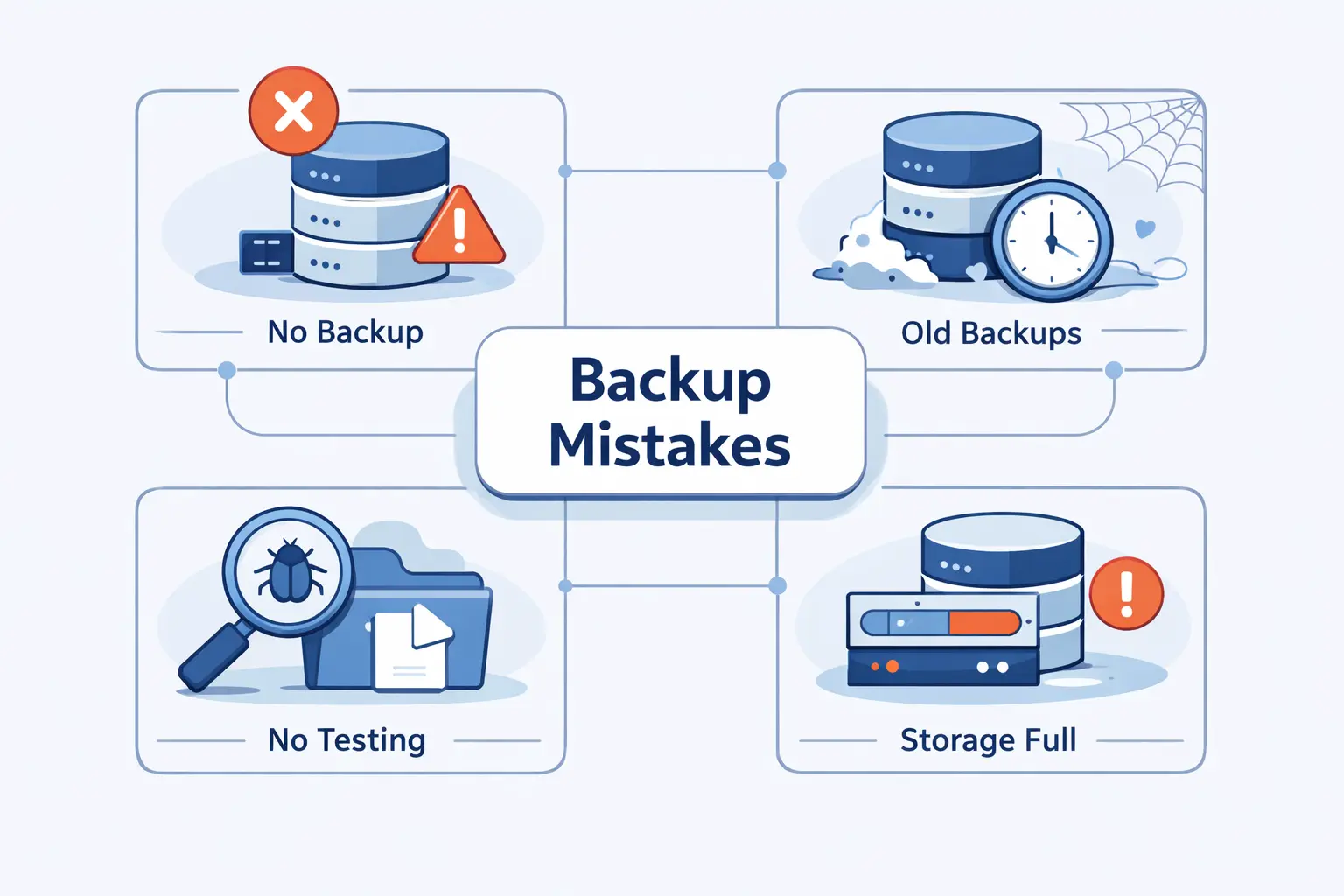
Most backup failures are not caused by missing features. They are caused by missing habits. We see the same few mistakes again and again, which is good news because habits can be fixed.
1. Not Having a Clear Backup and Restore Plan
A job schedule is not a plan. A plan explains backup types, frequency, destinations, retention, recovery model, ownership, and the exact restore sequence for common incidents. If your team has backup files but no restore runbook, you are carrying hidden risk.
2. Not Testing Backups or Verifying Backup Media
The backup job succeeded. Fine. Can the database actually be restored on another server, with the same permissions, to the expected point, inside the expected time? That is the real question. We distrust green check marks that have never been tested. A quiet monthly restore drill can save an expensive public failure later.
3. Ignoring Transaction Log Growth and Backup Monitoring
This one bites hard. Teams switch to full recovery because they want better protection, then forget to schedule log backups. The result is a growing log file, mounting pressure on storage, and a false sense of safety. Monitoring must cover backup success, backup age, storage consumption, and the health of the log chain.
4. Keeping All Backup Copies in One Location
If every copy lives on the same server, storage array, or network segment, one bad event can wipe out everything you thought was safe. We prefer separation by device, path, and location. The exact pattern can vary, but the principle does not. One location is not enough.
SQL Server Backup Tools and Automation Options
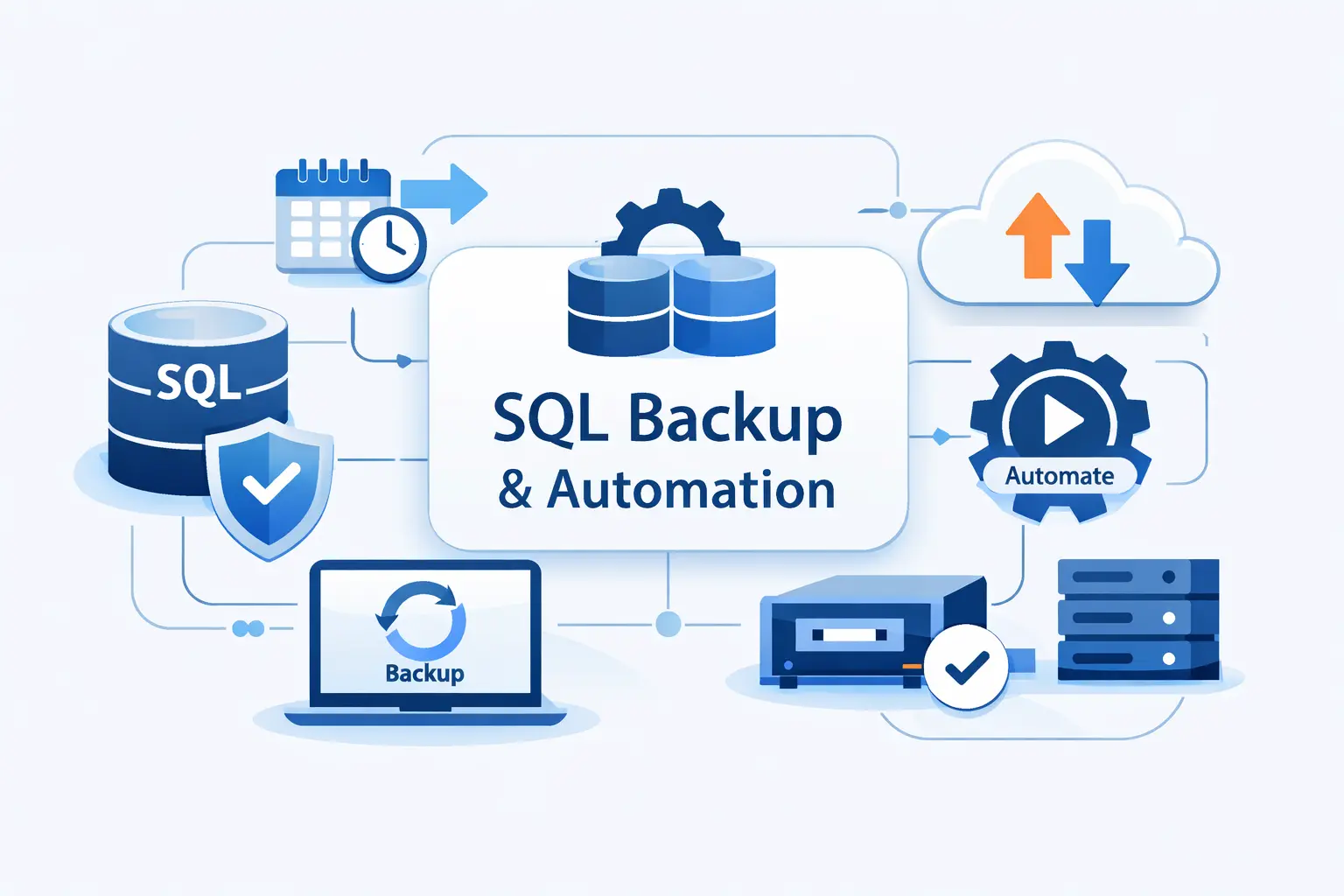
Native SQL Server tools are enough for many environments. When teams shop for additional software, we think the real question is not whether the tool can make backups. Most can. The better question is whether it helps you recover faster, more safely, and with less human guesswork.
1. Native Tools in SSMS, T-SQL, and PowerShell
SSMS is good for guided work and learning. T-SQL is best for precise, repeatable jobs. PowerShell is useful when you need orchestration across many instances. We usually combine them. Learn in SSMS, script in T-SQL, orchestrate in PowerShell.
2. Cloud Storage, Scheduling, Compression, Encryption, and Retention Features
If you use third-party tooling, we would look for a few basics first. Can it write to separate destinations, enforce retention, compress sensibly, handle encryption cleanly, and alert when jobs fail? Fancy dashboards are nice. Clear retention and reliable notifications are better.
3. Transactionally Consistent Backups, Application-Aware Processing, and Log Handling
This is where tools earn trust. We want SQL Server aware behavior, not generic file copying. The product should respect the backup chain, distinguish full from differential and log backups, and avoid accidental log truncation or chain damage. If a tool hides these details too much, we get nervous.
4. Centralized Policies, Auto-Discovery, and Fast Recovery Options
At larger scale, central policy matters more than one clever feature. We want consistent schedules, visible exceptions, and a clean way to discover new instances before they become forgotten risk. Fast recovery options also matter. The value of automation is not just fewer clicks. It is fewer surprises.
SQL Server Backup FAQ
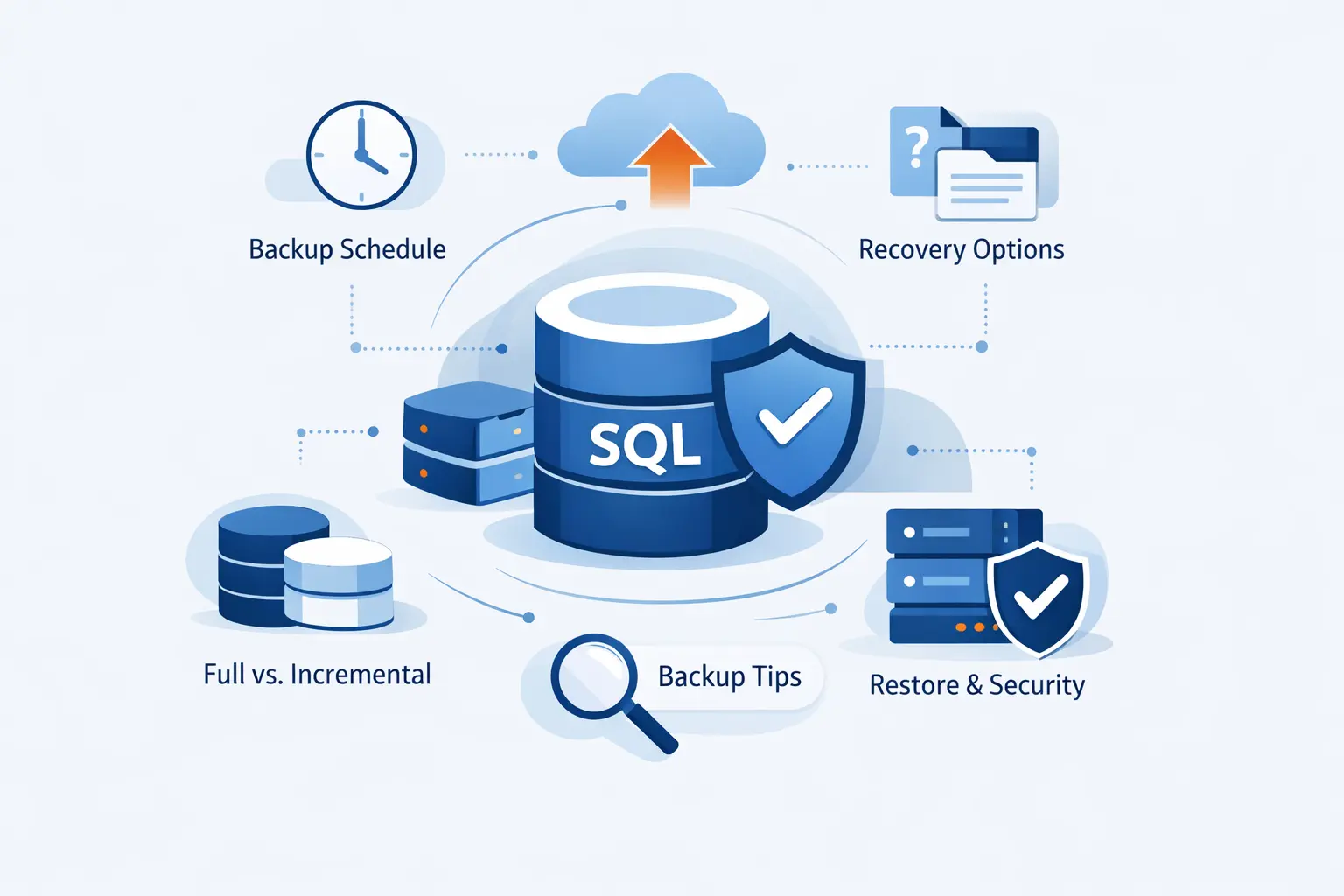
Below are the short answers we hear most often when teams start reviewing a SQL Server backup plan or cleaning up an old one.
1. How to Back Up SQL Server?
You can back up SQL Server with SSMS, a T-SQL BACKUP command, or PowerShell. We usually start with a full backup, save it to a separate backup path, and then add differential and log backups if the recovery goal calls for them.
2. What Are the Main Backup Types in SQL Server?
The main types are full, differential, and transaction log backups. Beyond those, SQL Server also supports file, filegroup, partial, copy-only, and tail-log backups for more specialized recovery needs.
3. How to Take a Full Database Backup in SQL Server?
You can use SSMS or run a simple command like BACKUP DATABASE to disk. We suggest starting with a named file path, then adding compression and checksum once the basic process is working and tested.
4. How Often Should You Schedule SQL Server Backups?
The right answer depends on RPO and RTO. A low-risk internal database might need only daily data backups. A busy transactional system may need frequent log backups, regular differentials, and scheduled full backups during quieter hours.
5. Which Recovery Model Supports Transaction Log Backups?
Full and bulk-logged recovery models support transaction log backups. Simple recovery does not. That one choice changes both your protection level and your operational workload.
6. Where Should You Store SQL Server Backup Files?
Store them away from the database files, and keep at least one copy off the server or off-site. Local speed is useful, but separation is what gives the backup real value during a failure.
7. Can You Restore SQL Server to a Specific Point in Time?
Yes, if the database is using the right recovery model and you have the required full, differential, and log backups in sequence. Point-in-time restore is one of the main reasons production teams stay disciplined about log backups.
How 1Byte Supports the Infrastructure Behind SQL Server Backup
At 1Byte, we do not pretend infrastructure alone solves backup discipline. It does not. What we can do is support the hosting, storage, network, and security foundation that makes a solid SQL Server backup strategy practical instead of fragile.
1. Support Different Hosting Needs With Shared Hosting, Cloud Hosting, and Cloud Servers
Different applications need different foundations. Shared hosting can support simpler website layers or public fronts tied to a broader business stack. Cloud hosting and cloud servers make more sense when teams need custom operating systems, dedicated backup paths, management hosts, staging environments, or room to build their own recovery workflows around SQL Server and related services.
2. Secure Online Services With Domain Registration and SSL Certificates
Backup planning is not only about database files. It also touches the admin portals, reporting endpoints, dashboards, and support workflows around them. Domain registration and SSL certificates help keep those services reachable and encrypted, which matters when staff need safe access during routine maintenance or a stressful restore window.
3. Launch Sites With WordPress Hosting and Scale Infrastructure With AWS Partner Support
Many businesses run more than a database. They run a public website, internal tools, customer portals, and background systems that all depend on stable infrastructure. WordPress hosting can support the public content layer, while cloud infrastructure and AWS partner support help when teams need stronger networking, storage separation, and room to design more serious backup and recovery patterns.







Final Thoughts on SQL Server Backup
We think the best SQL Server backup plan is the one you can explain on a whiteboard and prove in a restore test. If the chain is clear, the schedule matches business risk, the storage is separated, and the restore path is rehearsed, you are already ahead of many environments that look polished but fail under pressure.
At 1Byte, our plain view is this. Backups are important, but restores are decisive. Build the chain carefully, document it honestly, test it regularly, and keep the process boring enough that it still works on the worst day of the year.