

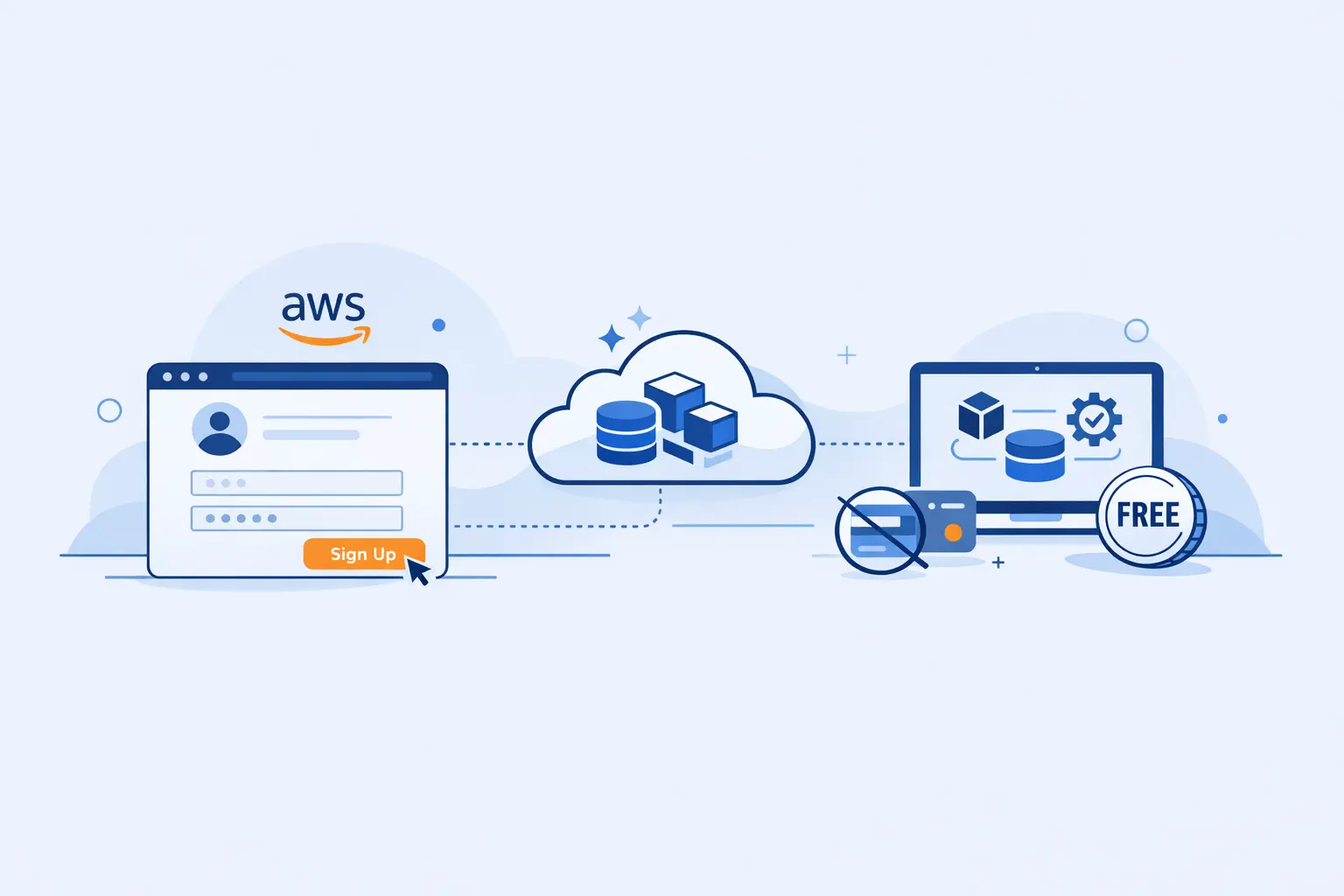
- How the AWS Free Tier Works Before You Sign Up
- What You Need Before You Create an AWS Account for Free
- How to Create an AWS Account for Free Step by Step
- How to Secure Your AWS Account After Sign Up
- How to Stay Within the AWS Free Tier and Avoid Unexpected Charges
- FAQ
- How 1Byte Supports Website and Cloud Projects Beyond AWS Account Setup
- Final Takeaways on How to Create an AWS Account for Free
If we want to create an AWS account for free, we should start with the current rules, not old screenshots. Synergy Research Group says AWS, Microsoft, and Google captured 63% of enterprise cloud infrastructure spending in Q3 2025, which helps explain why AWS basics are still worth learning well.
At 1Byte, we think the smart beginner move is boring in the best way. Pick the safest plan, read the billing prompts slowly, and lock down the root user before you launch anything public.
How the AWS Free Tier Works Before You Sign Up
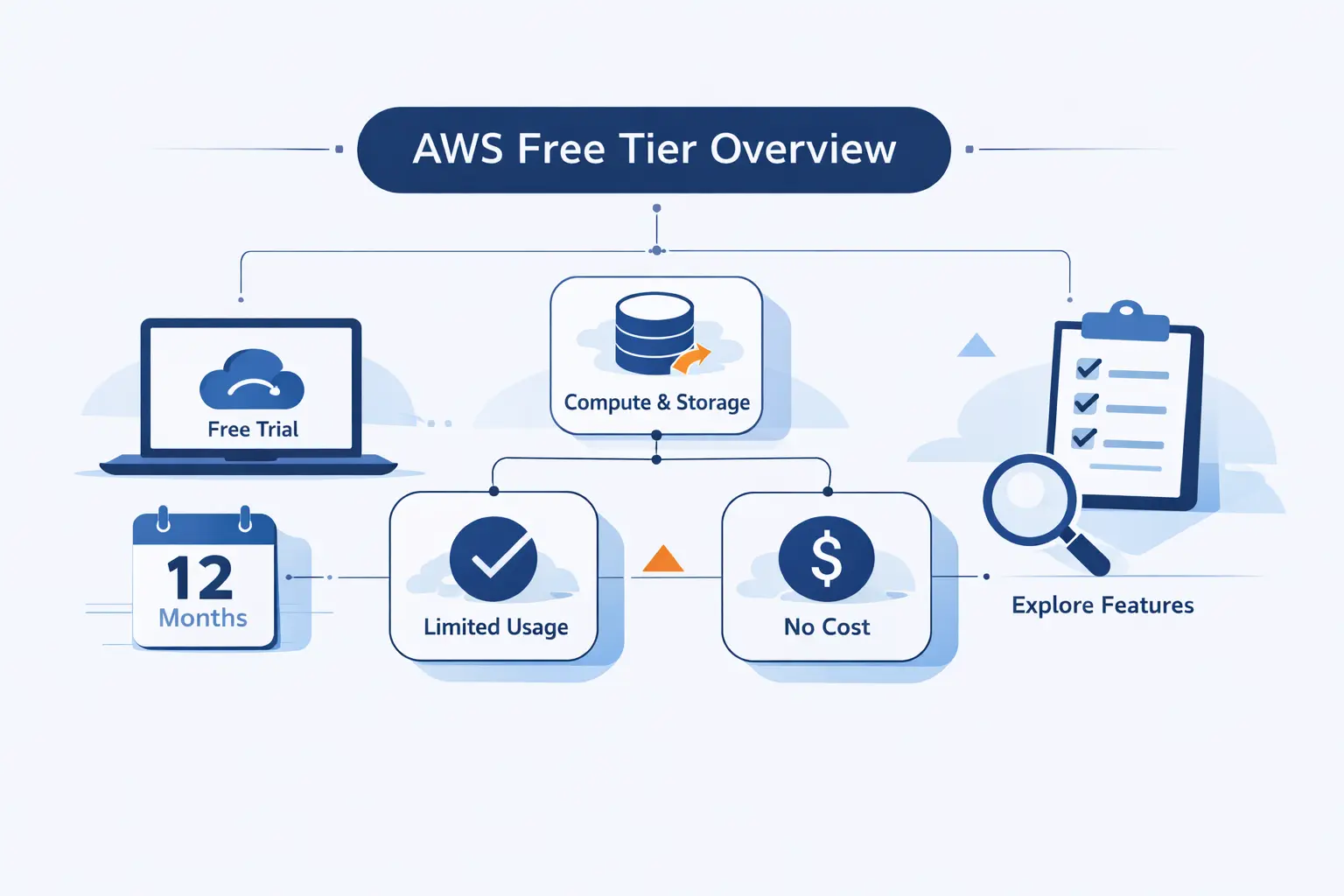
Before we sign up, we need to fix one common point of confusion. For new AWS accounts created after July 15, 2025, AWS uses the newer Free Tier model with a free plan, a paid plan, introductory credits, and always free services.
FURTHER READING: |
| 1. ECS vs EKS: Which AWS Container Service Should You Use in 2026? |
| 2. AWS Cost Optimization Services: Top 5 Providers in 2026 |
| 3. AWS Indonesia: How to Optimize Your Cloud Services |
1. What It Means to Create an AWS Account for Free
When we say create an AWS account for free, we mean there is no upfront signup fee. Free does not mean every AWS service stays free forever. AWS still asks for billing and identity checks during registration, and usage rules still apply once the account is active.
We prefer to explain it this way. AWS gives beginners a guarded on-ramp, not an unlimited sandbox. That difference matters, because most surprise bills start with the wrong expectation.
2. How the Free Plan Compares With the Paid Plan
AWS says the free account plan ensures you won’t incur charges while you explore, while the paid plan opens full service access and standard pay-as-you-go billing.
If we are learning, testing, or building a tiny proof of concept, we start with the free plan. If we already know we need production-only features, we do not pretend the free plan is the right tool.
3. Always Free Services, Short-Term Trials, and New Customer Credits
AWS splits the offer into separate buckets. Always free services stay free up to listed monthly limits, short-term trials expire on their own schedule, and introductory credits sit on top as a temporary balance for eligible usage.
That structure is easy to miss when we are new. Some benefits reset each month, some expire, and some depend on the account still qualifying as brand new.
What You Need Before You Create an AWS Account for Free
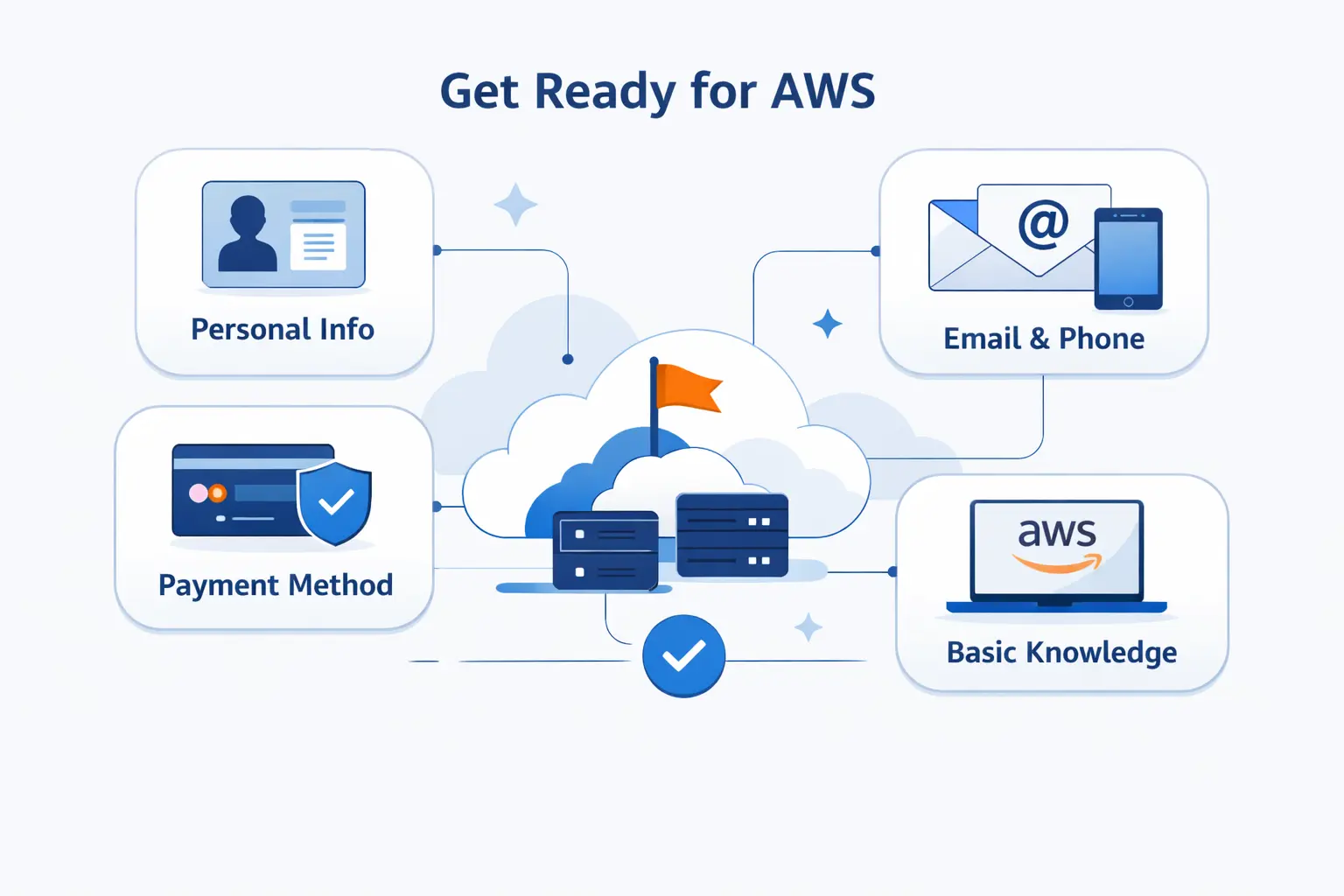
The smoothest signup starts before the first form. AWS lists root user email, account name, and contact details as basic prerequisites, and we suggest gathering them before you click Create Account.
1. Root User Email, Account Name, and Password
Use an email address you control for the long term, because AWS turns it into the root sign-in. For the password, AWS requires 8 to 128 characters plus a mix of character types, so this is a good place for a password manager.
If we are opening the account for a company, we strongly prefer a shared business inbox over one employee’s personal mailbox. AWS recommends the same approach so the company does not lose root access when staff changes.
2. How to Choose Between a Personal and Business Account
AWS says personal and business accounts have the same features and functions. The real question is ownership. Who gets the invoices, who approves billing, and who should control the root credentials?
For a personal lab, choose personal and keep it clean. For anything tied to client work, internal systems, or company cards, choose business and keep the root identity attached to the organization.
3. What to Prepare for Billing, Contact, and Identity Verification
Bring a card that can pass online verification. AWS says it may place a temporary $1 USD authorization during signup and then refund it after the card is validated.
Keep your phone nearby too. AWS can verify identity by text message or voice call, and the code step is easier when we are at a desk instead of midway through a commute.
How to Create an AWS Account for Free Step by Step
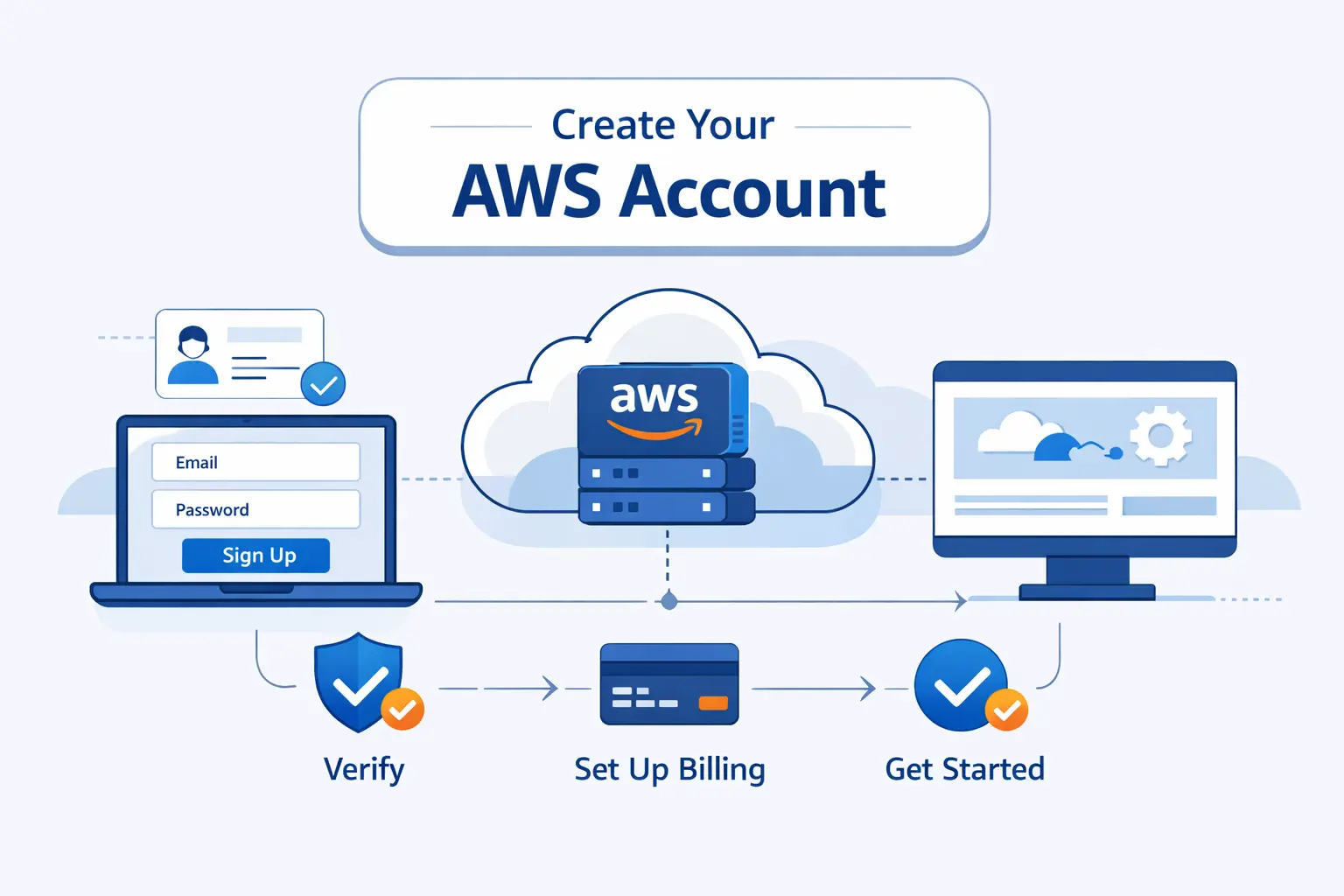
If we slow down and follow the screens in order, the signup itself is straightforward. Here is the path we recommend to beginners.
1. Step 1 Enter Your Account Information and Verify Your Email
Go to the AWS signup page, enter the root email and account name, then verify the email with the code AWS sends. We check spam before resending anything, because duplicate attempts often create more confusion than they solve. Choose an account name you will recognize later on bills and in the console.
2. Step 2 Add Contact Information and Accept the AWS Customer Agreement
Choose Personal or Business, fill in the contact details, and read the AWS Customer Agreement before you accept it. We also match the contact name and address to whoever will actually own the account, because cleanup is harder later.
3. Step 3 Add and Verify Your Payment Method
Add the payment method and billing address, then complete card verification. AWS will not let the signup continue without a valid payment method, even if we intend to stay on the free plan.
4. Step 4 Verify Your Phone Number and Identity
Enter the phone number, solve the CAPTCHA, and finish the identity check by SMS or voice call. If the phone step fails, AWS says we can usually return to the existing signup flow rather than opening a brand-new account.
5. Step 5 Choose an AWS Support Plan
Select a support plan. For beginners, we usually keep Basic Support. AWS’s own setup tutorial calls it the default selection, says it is free, and notes that we can change plans later if the project grows.
6. Step 6 Complete Sign Up and Wait for Account Activation
Click Complete sign up and then wait for the activation email. AWS re:Post says activation can take up to 24 hours, though it often finishes much faster.
If the wait drags on, check spam and look for any email asking for extra payment or identity confirmation. That is usually the first place AWS tells us to look when activation stalls.
How to Secure Your AWS Account After Sign Up
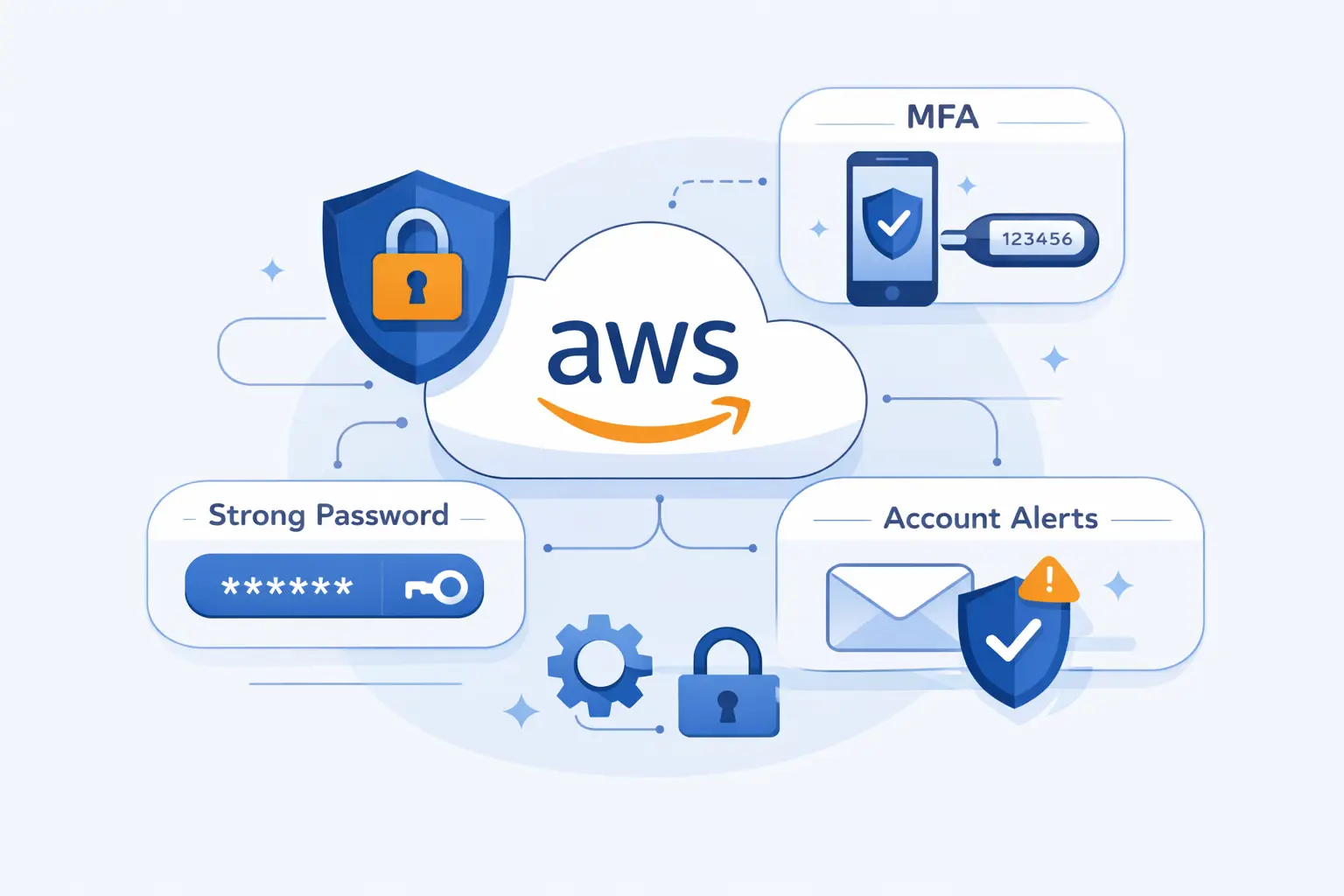
This is the part many tutorials rush past, and we think that is a mistake. AWS says the root user has complete access to all AWS services and resources, so security should start the minute the account goes live.
1. Why the Root User Should Be Protected
Root credentials can touch billing, recovery, passwords, and access keys. That is why we do not use root for routine console work, testing, or day to day administration.
To us, the root user is an emergency key. It should stay locked away until a task truly requires it.
2. When to Use IAM Users Instead of the Root User
For normal work, AWS points new accounts toward administrative identities instead of root. IAM users still have a place, especially for workloads that cannot use IAM roles, such as WordPress plugins, certain third-party tools, or emergency access accounts.
If we are just learning alone, one admin identity is usually enough. We only create extra IAM users when a human or tool has a clear reason to need its own credentials.
3. How to Set Up Multi-Factor Authentication
Turn on MFA for the root user before you do anything public. AWS provides a console flow to enable a virtual MFA device for the root user, and that should be one of the first tasks after activation.
We also like keeping recovery information safe and, where possible, attaching more than one MFA device. That makes account recovery much less painful if a phone disappears.
How to Stay Within the AWS Free Tier and Avoid Unexpected Charges
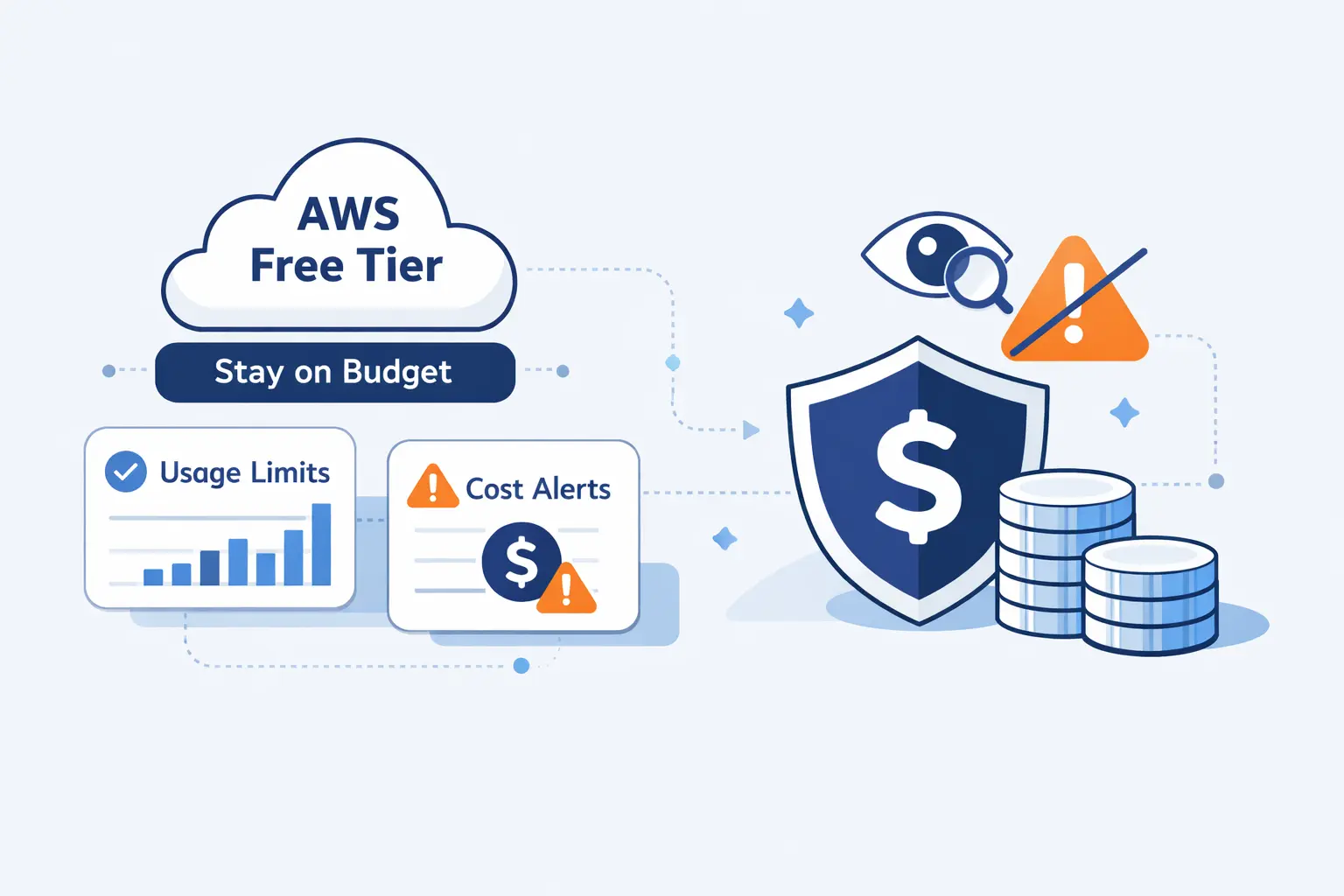
From the AWS documentation, we infer that most beginner billing mistakes come from treating the free tier like blanket coverage. It is not. Limits are service specific, and plan rules still matter after signup.
1. How Free Usage Limits and Paid Usage Work
Always-free services stay free only within their stated monthly limits. If we go past those limits, AWS says standard pay-as-you-go rates kick in, and any remaining introductory credits are applied automatically before we see a balance due.
That is why we read the small print before we click Create, not after.
2. When Charges Can Start on AWS
Charges can start when we exceed an always-free limit, use a service the free plan does not allow, or move to the paid plan and run billable resources. Some special account changes, such as joining an AWS Organization, can also change plan status and billing behavior immediately.
AWS also gives us tools to watch this early. The Free Tier page, credits page, and budget alerts are worth checking before every experiment that might leave a resource running.
3. Where to Check Service Pricing Before You Build
Before we build, we check the service pricing page and remember that the public Pricing Calculator website needs no AWS account, which makes rough estimating easy.
After launch, the Billing console matters more than guesswork. We use the Free Tier page to confirm current usage and AWS Budgets to set a ceiling we are willing to pay if a test goes sideways.
FAQ
These are the short answers we give most often when someone just wants the quick version.
1. Can I Create an AWS Account for Free?
Yes. AWS states that creating an AWS account is free. The important catch is that free signup is not the same thing as unlimited free usage.
2. Is It Free to Have an AWS Account?
Having the account does not require an upfront fee. Using AWS stays free only while we remain inside the free plan rules, always-free limits, and any eligible credit balance.
3. How Do New Customers Get Up to $200 in AWS Credits?
New online accounts receive sign-up credits and can earn more by completing eligible activities shown in the Explore AWS widget in the console. We recommend checking that widget early, because some rewards stop applying if the account changes status.
4. Do I Need a Credit or Debit Card to Create an AWS Account?
In most cases, yes. AWS requires a valid payment method during signup, and its public FAQ says it accepts most major credit and debit cards.
5. How Long Does AWS Account Activation Take?
Usually it is quick. AWS says activation typically takes minutes, but it can stretch to a full day. If it runs longer, check for emails asking for extra verification or billing confirmation.
How 1Byte Supports Website and Cloud Projects Beyond AWS Account Setup
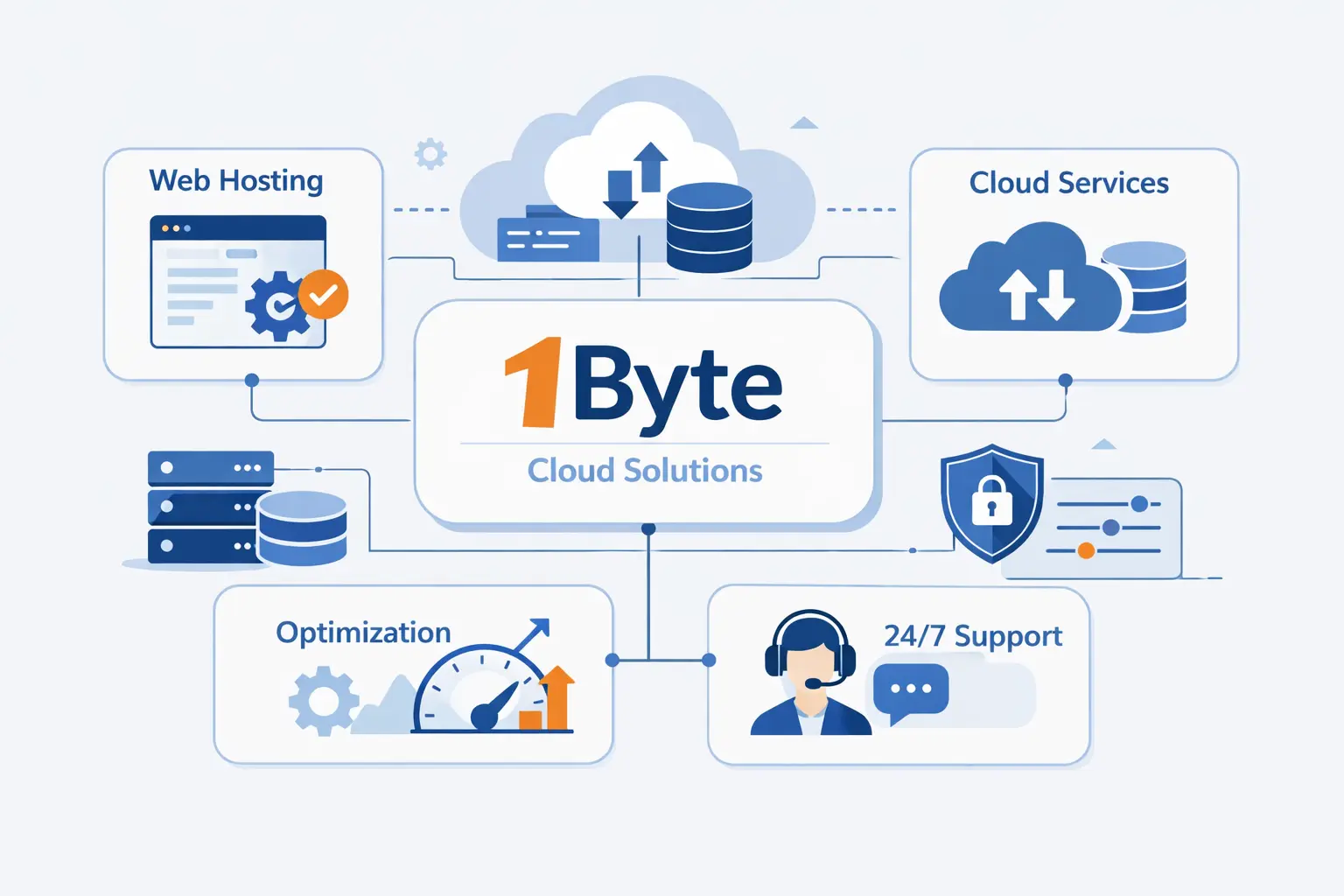
At 1Byte, we like AWS, but we also know a fresh account is only one piece of a real project. Most websites still need a domain, certificates, hosting choices, backups, and someone to translate cloud options into plain decisions.
1. Domain Registration and SSL Certificates for a Secure Start
We often remind clients that AWS account creation solves account access, not web identity. A real site still needs a domain, DNS choices, and SSL configured correctly.
That is why we like starting with the basics. If the name, certificate, and DNS are tidy, every later move gets easier.
2. WordPress Hosting and Shared Hosting for Easier Website Launches
We are happy to say the quiet part out loud. Many first websites do not need raw AWS at all. If the job is a blog, brochure site, or a small store, WordPress hosting or shared hosting is usually the faster, clearer path.
You spend less time choosing instances and more time publishing pages. For beginners, that trade is often worth it.
3. Cloud Hosting, Cloud Servers, and AWS Partner Support for Growth
When projects grow, the hosting story changes. Heroku’s AWS case study shows what happens when a platform team migrated platform data stores to managed AWS services as operational work started eating into product work.
Flywire offers another useful example. It containerized workloads and adopted serverless solutions on AWS as its environment matured, which is the kind of shift many software teams eventually face.
This is where our AWS partner support is meant to help. We can sort out when shared hosting is enough, when cloud hosting or a cloud server is the better next step, and when AWS support becomes worth the extra complexity.







Final Takeaways on How to Create an AWS Account for Free
If we had to boil this guide down to one sentence, it would be this. You can create an AWS account for free, but staying safe and staying free both depend on careful choices after the signup form.
Choose the plan on purpose. Secure the root user immediately. Add MFA before you build. Check pricing before you launch anything that might keep running.
At 1Byte, we prefer simple starts and deliberate growth. A tiny test project is enough to learn AWS. Once the basics make sense, we can decide whether AWS, WordPress hosting, shared hosting, cloud hosting, or a cloud server is the best home for the next stage.