

- What the Facebook Debugger tool does for shared posts
- How Facebook link previews rely on Open Graph tags
- How to use Facebook Debugger step by step to refresh a URL
- How to read the Facebook Debugger results and what each section means
- Fix common link preview problems revealed by Facebook Debugger
- Advanced troubleshooting when previews stay wrong after Scrape Again
- Canonical URLs redirects and SSL changes that can affect what Facebook scrapes
- WordPress ways to add and manage Open Graph tags for reliable previews
- How 1Byte supports customers publishing pages that preview correctly on Facebook
- Conclusion and final checklist for Facebook Debugger success
At 1Byte, we treat link previews as a first-class production surface, not a marketing afterthought. A Facebook share preview is often the very first “render” a prospect ever sees of a page we host—sometimes before a browser tab is even opened, sometimes inside Messenger, sometimes in a group feed where context is thin and attention is thinner. When that preview is wrong, the business cost is real: credibility drops, click intent softens, and teams end up debugging “social” symptoms that are actually web-platform fundamentals.
Cloud infrastructure trends only sharpen that urgency. Public cloud adoption keeps pushing more websites into CDN-heavy, cache-layered, edge-accelerated architectures, and those architectures are fantastic for performance—right up until an external crawler fetches something unexpected. In our world, where public cloud end-user spending is forecast to total $723.4 billion in 2025, the number of teams shipping fast, iterating often, and caching aggressively is only going up, which means “preview drift” becomes a recurring operational risk rather than a one-off annoyance.
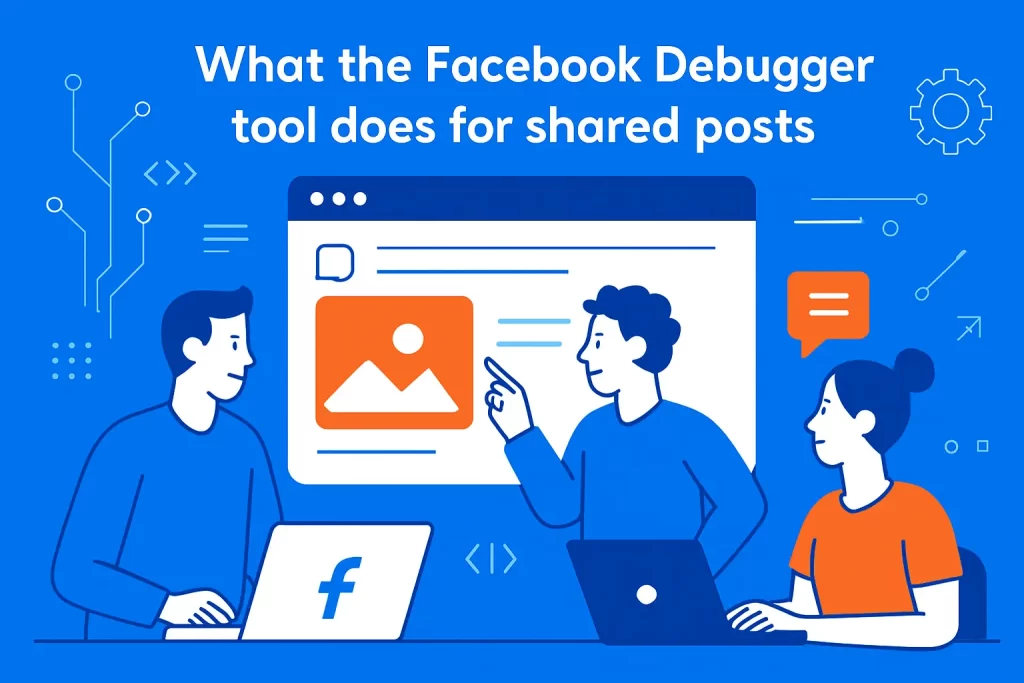
What the Facebook Debugger tool does for shared posts
Facebook’s Sharing Debugger (often casually called “Facebook Debugger”) is the most practical way to close that loop. It shows us what Meta’s scraper actually saw, what it cached, and what it intends to render. More importantly, it lets us force a re-scrape so our customers can validate fixes quickly—without guessing, without waiting for a random cache expiry, and without burning hours re-posting links to see what “sticks.”
Below, we’ll walk through how we use the tool in real support scenarios, why Open Graph tags still matter in modern stacks, and how we isolate the difference between a website bug and a scraping/caching artifact. Our bias is pragmatic: ship a preview that’s consistent, secure, and boringly reliable.
1. Analyze a URL to spot incorrect metadata missing images and broken previews
Most preview failures feel mysterious because the browser view looks fine. A page loads, the hero image appears, the headline is correct, and yet Facebook shows a stale thumbnail, a random logo, or a title that looks like it came from a different era of your site. The debugger cuts through that by answering one question: “What did the scraper extract from the HTML response it fetched?”
From our hosting support perspective, that single question neatly separates problems into two buckets. On the “site” side, the HTML might genuinely be missing the expected Open Graph tags, or those tags might point to assets that are blocked, redirected, or mis-served. On the “scrape” side, the site might be correct now, but Facebook may still be holding onto an earlier snapshot, especially if the URL has been shared before or if the image URL stayed constant while the underlying file changed.
When we troubleshoot with customers, we treat the debugger output like a mini incident report: it reveals which URL variant was fetched, whether Facebook followed redirects, what canonical URL it decided to associate with the object, and what Open Graph properties it accepted. That’s often enough to spot classic issues such as duplicate og:image tags from multiple WordPress plugins, an og:image that’s present but unreachable from outside your network, or a canonical tag pointing at a different permalink than the one you’re posting.
2. Show how Facebook scrapes the page and renders a share preview for the link
Facebook’s scraper behaves less like a modern browser and more like a conservative HTTP client: it fetches the URL, reads server-rendered HTML, and extracts metadata from the response it receives. That mental model matters because many preview problems are really rendering-model mismatches.
Client-side frameworks are a frequent culprit. If your Open Graph tags are “injected” by JavaScript after initial load, the user’s browser may eventually display them in the DOM, but the scraper may never see them because it doesn’t wait for client hydration the way humans do. Meanwhile, authentication walls and geo-based challenges can produce similarly confusing outcomes: a logged-in user sees the real page, while the scraper sees a consent interstitial, a bot-check, or a generic “access denied” response.
Rendering is also context-dependent. A preview that looks acceptable in one Facebook surface can appear cropped, truncated, or differently emphasized in another. The debugger’s preview pane is our baseline because it shows what Facebook believes it can render from the data it cached, not what we hope it will render based on our local tests.
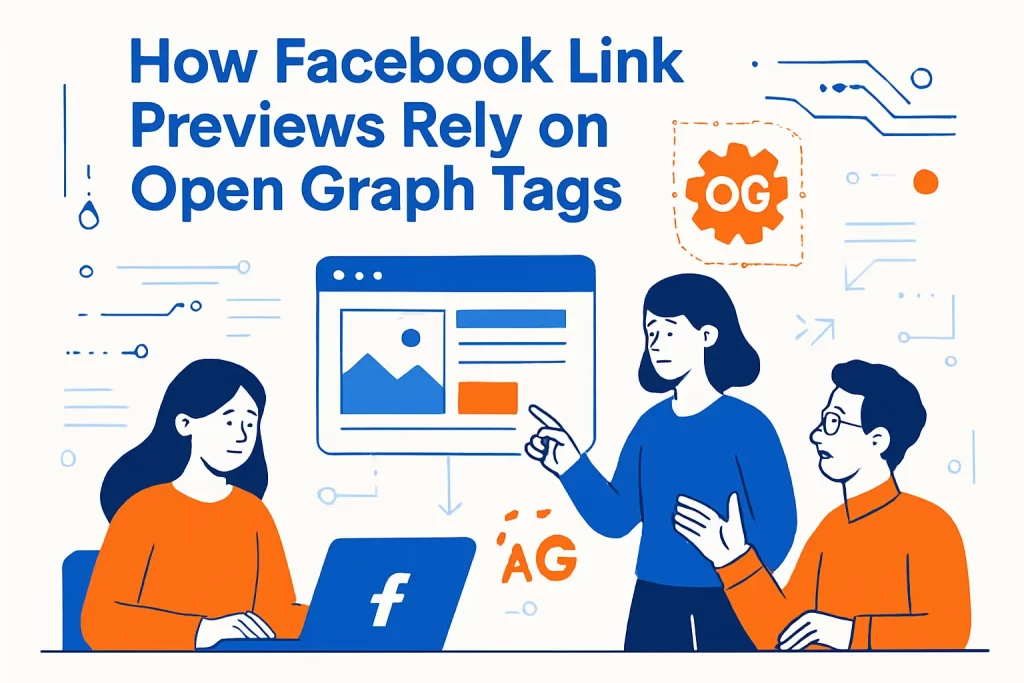
How Facebook link previews rely on Open Graph tags
1. Open Graph tags define the title description and image that appear in the preview
Open Graph tags are still the closest thing the web has to a shared “link preview contract.” The protocol defines a minimal set of properties (notably og:title, og:description, og:image, and og:url) that let a publisher tell a consumer how a page should be represented when shared.
In practice, we’ve found Facebook’s behavior to be pragmatic: it will often fall back to the HTML <title> element or the standard meta description if Open Graph fields are missing, and it may select a visible page image if og:image is absent. That sounds helpful—until it isn’t. Automatic selection can pick a logo, a tracking pixel-adjacent badge, or a layout image that has nothing to do with the content being shared.
Our operational stance is simple: if you care about the preview, be explicit. Explicit tags reduce ambiguity, make cache refreshes more deterministic, and prevent “random image roulette” when your layout changes or your CMS swaps template blocks.
2. Cached preview data can cause outdated titles descriptions or thumbnails to keep showing
Even when your Open Graph tags are perfect, caching can still make you look wrong. Facebook caches the scraped result for performance and consistency, which means the preview you see today might reflect a previous scrape rather than your current production HTML.
From a hosting perspective, we consider this a multi-layer cache problem. The first layer is Facebook’s own cache of the page’s Open Graph properties and derived preview. The next layer is your site’s caching: full-page caching, application caching, reverse proxies, and CDNs. Then there’s asset caching for images, where the HTML might update immediately but the referenced image is still being served from a cache node that hasn’t refreshed.
Because of that stack, “I changed the image” isn’t a complete statement. What matters is whether the image URL changed, whether the new image is reachable from the public internet, whether your server returns consistent headers for it, and whether Facebook is being forced to fetch the new version rather than relying on a cached fingerprint.
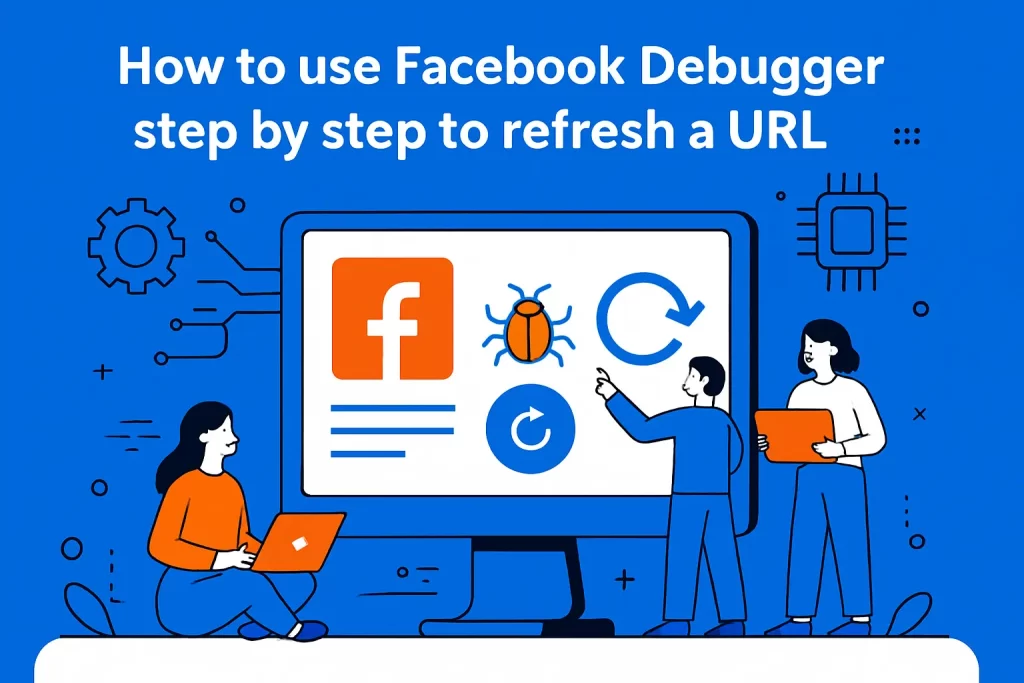
How to use Facebook Debugger step by step to refresh a URL
1. Grab the exact URL you want to share on Facebook
The first step sounds trivial, but it’s where a surprising amount of preview chaos begins. Facebook treats different URL variants as different objects more often than teams expect. Trailing slashes, uppercase/lowercase differences, tracking parameters, and redirected short links can all produce distinct scraping outcomes.
Our habit at 1Byte is to begin with the URL you will actually paste into Facebook—then confirm what the website considers canonical. If your CMS outputs a canonical URL that differs from the one you’re sharing, Facebook may associate the preview with the canonical object instead, and that can make your tests feel inconsistent if you keep debugging a non-canonical variant.
For ecommerce and campaign landing pages, we also encourage teams to decide whether tracking parameters belong in the shared URL. Sometimes they do, sometimes they don’t, but the key is consistency: changing URL variants mid-campaign can fragment share metrics and complicate preview troubleshooting.
2. Open the Facebook Debugger tool and log in to access full debugging features
Facebook’s Sharing Debugger is available through Meta’s developer tools. In most cases, you’ll need to be logged in to use it effectively, and certain behaviors can vary depending on account state, session freshness, or even browser settings.
In support situations, we’ve seen “it hangs forever” reports that disappear after a clean login flow on the debugger page itself. That points to a practical reality: the tool is a web app, and web apps inherit all the session quirks, cookie policies, and extension conflicts of the browser they run in.
When we guide customers, we recommend keeping the debugger workflow “clean” the same way we keep deployment workflows clean: minimize variables, avoid stale sessions, and treat the debugging environment as part of the system under test.
3. Paste the URL run Debug then use Scrape Again to fetch updated data
Once you submit a URL, the debugger shows the most recent scrape result it knows about. After you change Open Graph tags or fix an image URL, the key action is to force a new fetch. The “Scrape Again” flow is your lever to refresh the cached representation.
In real-world incidents, we treat “Scrape Again” as a validation step, not a magic wand. If you scrape again and nothing changes, that is information: it often means the website is still serving old HTML due to server-side caching, the image is blocked or not publicly accessible, the canonical URL is steering the scraper elsewhere, or your origin server is presenting different content to crawlers than it presents to browsers.
One practical trick we’ve learned from operating hosting at scale is to verify the raw response outside of Facebook as well. If a direct fetch of the HTML from an external network does not include the updated Open Graph tags, then Facebook is not the problem—you’re still deploying or caching old markup.
4. Check the updated preview and repeat after making changes on your website
Preview debugging is iterative by nature. After you scrape again, the preview pane becomes your “expected result” checkpoint: title, description, image, and URL should match what you intend to share.
When a preview is still off, we prefer small, controlled changes rather than broad, simultaneous edits. Tweaking multiple tags at once can hide the root cause, especially if multiple systems are generating metadata (a theme, an SEO plugin, a social plugin, and a custom snippet) and you’re not sure which one Facebook is actually picking up.
Operationally, we also suggest a change log mindset. Treat preview fixes like production fixes: record what changed, verify the output in page source, scrape again, and only then declare victory. That discipline saves time when the same issue appears on another URL a week later.
How to read the Facebook Debugger results and what each section means
1. Warnings that should be fixed vs warnings that may not cause visible issues
The debugger often reports warnings that feel scarier than they are. Some warnings are truly actionable—like missing critical Open Graph properties, unreachable images, or malformed tags that prevent parsing. Others are informational, reflecting best practices or legacy expectations that may not impact the rendered preview in the specific surface you care about.
At 1Byte, we classify warnings by user-facing impact. If the warning plausibly changes what a human sees in the preview, we treat it as a fix-now item. If it’s about optional properties, inferred values, or legacy app identifiers that don’t affect rendering, we treat it as a tidy-up task that can be scheduled rather than rushed.
That triage is important because teams can waste hours chasing a warning that never changes the preview while overlooking the real issue: a duplicate og:image tag, a canonical mismatch, or an image URL that returns a content type Facebook won’t accept.
2. Time scraped details including HTTP response code domain and IP address
The scrape metadata is deceptively powerful. The “time scraped” line gives you recency context—useful when you’re trying to confirm whether Facebook actually re-fetched after your changes. The domain and resolved network details help you spot edge cases where the scraper reached a different endpoint than you expected.
From a hosting operator’s perspective, these details also help diagnose infrastructure issues. If your site is behind a load balancer or CDN, inconsistent routing can cause the scraper to hit a node that still has stale cache or an older deployment. Likewise, if your firewall has bot rules or geo restrictions, the request can be handled differently than normal traffic.
When a customer tells us “it works for me,” we try to pivot them toward “what does the outside world see?” Scrape metadata is a fast way to ground that conversation in observable behavior.
3. Share preview showing how the link will look when posted
The preview box is the output that matters most. It answers the practical question your stakeholders care about: “If we post this link right now, what will it look like?”
We use it to validate more than just correctness. Visual quality matters: an image that’s technically correct but poorly cropped, low contrast, or dominated by tiny text can underperform even if it passes every metadata check. Branding consistency matters too: if some pages share with a logo thumbnail while others share with a hero image, the feed looks uneven and less trustworthy.
In our experience, the preview pane is also where teams notice unintended consequences. A title template might be too verbose for social, a description might pull boilerplate instead of an excerpt, or an image might be a placeholder that was never meant to represent the page publicly.
4. Open Graph properties from raw tags to verify what Facebook detected on the page
The Open Graph properties section is where we “trust, but verify.” It shows what Facebook believes the page declared, not what your CMS settings screen claims it declared. That distinction is everything in systems with multiple layers of abstraction.
Our workflow is to compare three views: what your CMS or plugin UI says, what “View Page Source” shows in the HTML response, and what the debugger extracted. If the tags are wrong in page source, your fix belongs in your site generator. If page source is correct but Facebook extracted something else, you’re likely dealing with duplication, parsing conflicts, or redirects/canonicalization steering the crawler.
We also look for subtle issues that don’t show up as obvious errors: whitespace artifacts, HTML entities that render oddly in previews, multiple conflicting values for the same property, or absolute URLs that quietly resolve somewhere unexpected due to rewrites.
Fix common link preview problems revealed by Facebook Debugger
1. Outdated title description or image caused by Facebook caching
Cached previews are the most common “nothing makes sense” complaint we hear. A marketing team updates the headline, swaps the hero image, and publishes the change, yet Facebook continues to show the prior version. In many cases, the website is correct and Facebook is simply showing a cached representation.
Our preferred fix pattern is progressive. First, confirm the updated Open Graph tags exist in the raw HTML response. Next, use the debugger’s re-scrape flow to prompt a fresh fetch. After that, if the image still appears stale, we consider whether the image URL stayed constant while the underlying file changed; in that scenario, caches downstream may continue to serve the previous asset.
From a systems viewpoint, the goal is to give Facebook a new, unambiguous signal. That might be a refreshed scrape, a corrected canonical URL, or an updated image URL that guarantees the scraper is not reusing an earlier cached resource.
2. Missing or broken images by verifying the og image tag points to a working file
When an image doesn’t show, we approach it like any other availability problem: can the scraper actually fetch the asset successfully, from the public internet, without credentials, and without fragile redirects?
At 1Byte, we often discover that the og:image points to something that works inside the site but fails externally: a blocked directory, a private object storage URL, a hotlink-protected path, or a file type that the scraper doesn’t accept. Another frequent issue is protocol inconsistency, where the page is served securely but the image URL points to a non-secure resource, triggering mixed-content behaviors or downstream filtering.
Pragmatically, the “right” og:image is boring: absolute URL, publicly fetchable, served with a conventional content type, and stable enough that caches don’t betray you mid-campaign.
3. Formatting issues by cleaning og title and og description for spaces punctuation and typos
Metadata copy is still copy. Small formatting problems can degrade a preview even when the technical plumbing is correct. Double spaces, trailing punctuation, inconsistent capitalization, and accidental template fragments are all common when titles are assembled by CMS rules.
From our perspective, the best practice is to treat og:title and og:description as intentionally authored fields, even if they’re generated by default templates. That doesn’t necessarily mean manual editing for every page; it means having a sane default that reads well in a feed and doesn’t depend on fragile concatenation rules.
We also recommend avoiding surprises like smart quotes that render inconsistently, or descriptions that begin with navigation labels. If your Open Graph description is “Welcome to our site” on every page, it’s not a description—it’s wasted real estate.
4. OG tag errors from missing properties unrecognized tags or duplicate tags
Duplicate tags are the quiet saboteur of social previews. WordPress sites are especially prone to this when an SEO plugin outputs Open Graph tags while a theme or social sharing plugin outputs a second set. Facebook may pick the first occurrence, the last occurrence, or behave inconsistently depending on parsing order and tag structure.
Missing required properties can also produce unpredictable fallbacks. If og:image is missing, Facebook may attempt to infer an image from the page body, which can work until a layout change breaks it. Unrecognized tags typically don’t help and can introduce confusion in complex templates, especially if they resemble Open Graph fields but don’t conform to expected property names.
Our fix strategy is to make the head section boringly deterministic: one canonical URL, one clear Open Graph set, and one source of truth in your CMS configuration. The debugger is where we confirm that the final HTML matches that intent.
Advanced troubleshooting when previews stay wrong after Scrape Again
1. Click Scrape Again multiple times and wait a few minutes after recent page updates
Sometimes the correct fix is patience plus repetition, especially when you’ve just deployed a change and multiple cache layers are converging. A re-scrape can fetch updated HTML while images remain in a separate caching workflow, or a CDN edge node might still be serving an older version for a short interval.
We’ve seen cases where the Open Graph tags update quickly but the preview image lags, or where the preview appears correct in the debugger but not yet in the live composer UI. In those moments, repeatedly scraping can be a practical way to ensure Facebook has had multiple opportunities to ingest the newest response.
Still, we don’t treat repeated scraping as a substitute for correctness. If the underlying HTML is inconsistent across requests, you can scrape all day and keep getting different answers.
2. If Scrape Again hangs sign out and sign in directly on the debugger page then retry
A hanging scrape is a uniquely frustrating failure mode: you try to refresh the cache, the spinner never resolves, and you’re left guessing whether anything happened. We’ve watched customers spiral here, assuming their site is broken when the issue is actually the tool session.
In our support playbook, a clean authentication path is a legitimate troubleshooting step. Signing out, then signing in directly on the debugger page, can clear stuck session state and restore normal behavior. Using a private browsing window can also isolate cookie and extension issues without forcing you to reconfigure your main browser profile.
This is not “hand-wavy” advice—it’s the reality of modern toolchains. Debug tools are software too, and sometimes the fastest route back to signal is to reset the tool environment.
3. Test in another browser like Safari Chrome or Firefox when scraping behavior differs
Browser variance sounds like an old problem, but it still shows up in developer tools—especially ones tied to login state and security policies. If the debugger behaves differently across browsers, that’s a clue that the issue may be local (extensions, tracking protection, cached scripts) rather than remote (your server or Facebook’s scraper infrastructure).
At 1Byte, we like cross-browser tests because they’re cheap and clarifying. If a scrape succeeds instantly in one browser but fails in another, you’ve narrowed the problem space dramatically. That’s a win even if you still need to fix the root cause later.
When teams are under time pressure—launch day, press release, product drop—this kind of tactical workaround can keep the business moving while the deeper issue is investigated.
4. Return to the website to confirm updates are finalized and caches are refreshed
When previews refuse to change, we go back to fundamentals: is the website actually serving the new metadata to external clients? “It’s updated in WordPress” is not the same as “it’s deployed in the HTML response.”
We recommend verifying via page source, not just the DOM inspector, because the inspector can reflect client-side changes that scrapers won’t see. If you use full-page caching, purge it. If you use a CDN, invalidate the relevant paths. If you use an optimization plugin that combines or delays head output, make sure it’s not stripping or duplicating Open Graph tags.
From our hosting side, we also check logs when possible. A successful scrape should show a request from Meta’s crawler user agents; if you see no request at all, the scraper may be blocked upstream, or it may be fetching a different URL than the one you expect due to redirects and canonical rules.
Canonical URLs redirects and SSL changes that can affect what Facebook scrapes
1. Canonical URLs history can reveal past URL changes that influence sharing behavior
Canonicalization is where “one page” turns into “multiple identities” if you’re not careful. Facebook wants a stable object identifier for a URL, and your canonical tags help it decide what that identifier should be.
We’ve seen migrations where old URLs still redirect, but canonical tags point somewhere new, and the debugger shows the preview tied to an unexpected destination. That can happen even when the content is effectively the same, because the scraper is building an association graph of URL variants, redirects, and canonicals.
If your site has a long history—rebrands, CMS changes, permalink rewrites—canonical history is often the hidden reason previews feel “haunted.” The fix is usually to make the canonical consistent, ensure redirects are intentional, and stop generating conflicting signals across templates.
2. Protocol changes from HTTP to HTTPS after enabling SSL can impact canonical alignment
Enabling SSL is the right move for security and trust, but it can introduce subtle preview issues if your metadata doesn’t follow the protocol change cleanly. A page may redirect from non-secure to secure, while og:url still declares the older scheme, or while canonical tags lag behind your redirect rules.
From a scraping standpoint, inconsistencies like that can lead to split identity: some shares attach to the non-secure URL object, others attach to the secure one, and cache refreshes seem random because you’re debugging one while users are posting the other.
Our recommendation is alignment, not heroics. Decide on the preferred scheme, ensure redirects enforce it, update canonical and Open Graph URL fields accordingly, and verify that all referenced assets—especially og:image—are also served securely and consistently.
3. Redirect surprises when scraping URLs that end in a number
URLs that end with an identifier can trigger unexpected routing rules in some stacks. Certain frameworks interpret numeric endings as file-like paths, pagination, or internal IDs, and then normalize the URL with a trailing slash or redirect it into a different route.
For Facebook scraping, that can be painful because the URL you paste is not necessarily the URL that gets scraped and cached. The debugger may show that it followed redirects and decided another URL is canonical, leaving you wondering why your changes don’t apply.
We generally fix this by making redirects explicit and predictable. If your application normalizes URL structure, do it consistently and reflect that normalization in canonical tags, so the scraper’s “final” URL is not a surprise but an intended destination.
WordPress ways to add and manage Open Graph tags for reliable previews
1. Add Open Graph tags via theme functions.php a custom plugin or an SEO plugin
WordPress gives you several viable ways to output Open Graph tags, and the “best” choice depends on who owns the workflow. If developers control the theme, adding tags in a disciplined way via functions.php or a small custom plugin can be clean and stable. If marketers control the workflow, an SEO plugin often provides safer day-to-day editing without code changes.
At 1Byte, we prefer approaches that reduce duplication risk. A custom implementation can be excellent, but only if it’s the single source of truth. An SEO plugin can be excellent, but only if the theme is not also outputting its own Open Graph set.
Implementation pattern we trust in production
Rather than pasting random snippets from the internet, we advocate a simple pattern: generate Open Graph tags server-side, hook into wp_head, use absolute URLs, and keep the logic minimal. Complexity belongs in content selection (which image, which title), not in output mechanics (multiple conditional branches that accidentally fire twice).
2. Plugin options include Yoast WordPress SEO Plugin SEOPress The SEO Framework and WP OpenGraph
In the WordPress ecosystem, the plugin choice matters less than the consistency of your configuration. Yoast, SEOPress, The SEO Framework, and dedicated Open Graph plugins can all produce solid output when properly set up, and they can all produce broken previews when combined carelessly.
Our experience is that most “Facebook is ignoring my featured image” complaints are actually “two systems are outputting two different og:image tags.” Another common theme is that the plugin is configured, but the chosen image is not publicly reachable due to hotlink protection, incorrect media URLs, or aggressive optimization that changes how images are served.
We also encourage teams to understand what the plugin is doing, not just whether the toggle is enabled. Knowing which templates it affects (posts, pages, archives) can prevent surprises when a homepage shares differently than an article page.
3. Confirm raw tags match View Page Source before scraping again in Facebook Debugger
This is one of our strongest “save yourself hours” recommendations: always validate Open Graph tags in “View Page Source,” not just in an element inspector. The inspector can show you a post-hydration reality that Facebook will never see.
After confirming the raw HTML includes the correct tags, we then use the debugger to confirm Facebook detected the same values. If those two views disagree, the discrepancy becomes actionable: either the site is serving different HTML to different clients, or Facebook is choosing between duplicate/conflicting tags.
Only after page source is correct do we scrape again. Otherwise, you’re just repeatedly caching the wrong thing faster.
How 1Byte supports customers publishing pages that preview correctly on Facebook
1. Domain registration that keeps URLs consistent for sharing and canonical setup
Preview reliability starts earlier than most teams think: it starts with a stable URL strategy. When a domain changes hands, when www/non-www flips, or when multiple domains point to the same site without a canonical plan, link previews become fragmented across multiple identities.
From our seat as 1Byte, domain registration and DNS stewardship are part of the preview story. A consistent hostname policy makes canonical tags easier to implement, redirects easier to reason about, and Facebook scraping outcomes far more predictable.
If we sound fussy here, it’s because we’ve seen how costly URL inconsistency becomes once a link has been widely shared and cached. Cleaning it up later is possible, but it’s rarely as clean as doing it right from the start.
2. SSL certificates that support secure HTTPS links and clean social preview signals
Secure delivery is table stakes, but social previews add a twist: the page URL, canonical URL, Open Graph URL, and Open Graph image URL all need to agree on the secure posture of the site. When they don’t, scrapers can end up bouncing through redirects, mixing schemes, or failing to fetch assets that are restricted.
We help customers treat SSL changes like a coordinated release. That means aligning redirects, updating canonical rules, confirming images are served securely, and ensuring that caching layers don’t keep serving mixed-protocol artifacts long after the migration “looks done” in the browser.
Ultimately, the goal is trust. A secure preview is not just a padlock in a URL bar; it’s a consistent, scrape-friendly footprint that external platforms can fetch without friction.
3. WordPress hosting shared hosting cloud hosting and cloud servers with 1Byte as an AWS Partner
Infrastructure quality shows up in scraping outcomes more than people expect. If your origin is slow, intermittently blocked, or inconsistently cached, scrapers will capture those inconsistencies and bake them into previews. If your deployment model serves different HTML from different nodes, crawlers can end up caching an “unlucky” variant.
As 1Byte—offering WordPress hosting, shared hosting, cloud hosting, and cloud servers, and operating as an AWS Partner—we design hosting environments to be predictable under both human and crawler traffic. That means sensible caching defaults, observability that helps explain what the crawler fetched, and platform support that understands the difference between “my site is down” and “my metadata isn’t deterministic.”
When customers come to us with Facebook preview issues, we don’t treat it as a superficial social bug. Instead, we treat it as a systems problem spanning HTML generation, cache coherence, and asset delivery—because that’s what it is.
Conclusion and final checklist for Facebook Debugger success
1. Validate Facebook preview image sizing with 1200 x 630 as optimal and 200 x 200 as minimum
Image sizing is one of those details that feels cosmetic until it becomes operational. If the image is too small, oddly cropped, or inconsistently generated, Facebook may fall back to something else, or it may render a preview that looks low quality compared to competitors in the same feed.
Our practical stance is to standardize the OG image pipeline rather than improvising per page. That can mean generating social images at publish time, enforcing consistent aspect ratio, and making sure the chosen image is the one your CMS actually outputs into og:image—not merely the one you intended in a design doc.
2. Use Scrape Again after each meaningful metadata change until the share preview matches
A meaningful metadata change deserves a verification loop. When you adjust Open Graph tags, swap a preview image, change canonical rules, or migrate from one URL structure to another, it’s worth re-scraping and confirming the result in the debugger preview pane.
We also recommend stopping only when the preview is stable across repeated scrapes. If each scrape produces a different result, the issue isn’t Facebook being moody—it’s your system serving inconsistent HTML or conflicting metadata across layers.
Once the preview matches, document what worked. Future-you will thank present-you the next time a campaign page needs to be refreshed quickly.







3. Standardize Open Graph tag QA so every new page shares consistently
The long-term win is process, not heroics. At 1Byte, we encourage teams to build Open Graph QA into publishing: verify page source, verify a public fetch, run the URL through the debugger, and only then treat the page as share-ready.
For organizations with multiple authors, multiple plugins, and multiple deployment paths, this is where preview issues either disappear—or become a recurring fire drill. A lightweight checklist, consistently applied, beats a frantic scramble every time a link goes live.
If we were to leave you with one next step, it would be this: pick a single high-value URL on your site, run it through the debugger, and compare the output to your “View Page Source” right now—what’s the first mismatch you discover, and what would it take to prevent that mismatch from happening on every future page?