

- What CMS Hosting for WordPress Really Includes in 2026
- The Data Behind Speed, Security, and Uptime (Why Hosting Impacts Growth)
- How to Choose the Best CMS Hosting for WordPress (A Practical Scorecard)
- 30 Best CMS Hosting Providers for WordPress in 2026 (Detailed Profiles)
- Common Scenarios and the Host Type That Fits
- FAQ: CMS Hosting for WordPress
- Conclusion
Picking the best cms hosting for wordpress feels simple until your site grows. Traffic spikes. Plugins pile up. A checkout slows down. Then hosting stops being “just infrastructure” and starts shaping revenue, SEO, and even how fast your team can ship updates.
This guide breaks down what “CMS hosting” means for WordPress in 2026. It also compares leading providers across real workflows: publishing, marketing, ecommerce, and development. You will see what each host does well, what to set up first, and what to watch before you migrate.
Quick Picks by Scenario
- You publish often: choose managed hosting with staging, easy restores, and WordPress-aware caching.
- You run WooCommerce or memberships: choose a host that handles dynamic pages safely and supports fast incident recovery.
- You build client sites: choose an agency-friendly platform with repeatable environments and collaboration.
- You want maximum control: choose cloud/VPS only if you truly own updates, security, and performance testing.
- You want the simplest path: choose a platform-style host that reduces operational decisions.
What CMS Hosting for WordPress Really Includes in 2026
1. WordPress Hosting Is a Workflow Choice, Not Just a Server
WordPress hosting is not only about CPU and storage. It is about how easy it feels to run your site week to week. Good CMS hosting supports the workflows that keep WordPress stable, such as staging, backups you can restore fast, caching that does not break key pages, and guardrails that reduce risky changes. When the workflow is smooth, teams ship updates faster and spend less time firefighting.
2. Managed vs Self-Managed: Know What You Want to Own
Managed hosting is a good fit when you want fewer operational chores. The host owns more of the platform work, so your team can focus on content, campaigns, and product updates. Self-managed hosting is a good fit when your team wants full control and can consistently own patching, monitoring, security hardening, and performance testing. If you cannot name the person responsible for those tasks, self-managed hosting will feel cheaper at first and more expensive later.
- Managed: you still own themes, plugins, and content quality.
- Self-managed: you also own server updates, firewall rules, backups, monitoring, and incident response.
3. The “CMS” Part Matters More as Your Content Strategy Gets Serious
The “CMS” part shows up when content volume and team size grow. You need staging that supports previews and approvals. You need redirects that are easy to manage and safe to deploy. You need backups that protect both the database and media. You also need support that understands common WordPress conflicts, so fixes do not turn into a slow ticket cycle.
Tip: If your site is a content engine, prioritize editor experience and safe publishing workflows before you compare “bonus” features.
The Data Behind Speed, Security, and Uptime (Why Hosting Impacts Growth)

1. WordPress Popularity Makes Hosting Quality Non-Negotiable
WordPress remains the default CMS for many teams. That scale brings opportunity, but it also raises the stakes. WordPress is used by 43.0% of all the websites, that is a content management system market share of 60.2%, so hosts keep investing in WordPress-first stacks.
Popularity also attracts attacks, spam, and automation. So, a “cheap server” mindset breaks quickly. Strong hosting reduces risk and keeps your site stable.
2. Performance Shapes Real User Behavior
Speed drives trust. It also drives conversions. Google highlighted how quickly users abandon slow pages. 53% of visits are likely to be abandoned if pages take longer than 3 seconds to load, so your hosting setup can directly affect how many visitors even reach your content.
That does not mean hosting solves everything. Themes, plugins, and images matter. Still, a good host gives you a strong baseline so optimizations actually stick.
Action takeaway: Treat caching, image optimization, and a stable theme as your baseline. Then test key templates after every major change so speed does not quietly regress.
3. SEO Rewards Good User Experience More Than Ever
Search engines push teams toward measurable UX. Core Web Vitals matter because they reflect real-user performance. HTTP Archive reported that 48% of mobile sites passed Core Web Vitals in 2024, which shows how many sites still struggle with performance fundamentals.
Hosting will not fix poor front-end decisions. Still, a better platform can make performance easier to maintain because it reduces bottlenecks in caching, routing, and server-level tuning.
4. Security Risk Comes Mostly From the Ecosystem Around WordPress
Most WordPress breaches start with plugins, weak credentials, or outdated components. Patchstack documents this problem every year. In 2024, 7,966 new vulnerabilities were found in the WordPress ecosystem, primarily in third-party plugins, so your host’s update workflow and security tooling matter.
Pick a host that supports safe updates. Add your own discipline with plugin hygiene. Hosting and process work together.
Minimum Security Baseline Checklist
- Limit admin accounts and enforce strong authentication.
- Remove unused plugins and themes.
- Patch on a predictable cadence, not “whenever.”
- Verify backups and practice restores before you need them.
5. Downtime Creates Real Cost Even for “Content” Sites
Downtime hurts leads, sales, and brand trust. It also breaks ad campaigns and email launches. Uptime Institute reported that 54% of the respondents to the 2023 Uptime Institute data center survey say their most recent significant, serious or severe outage cost more than $100,000, which explains why teams invest in resilience.
Uptime is not only a promise. It is your ability to restore quickly, confirm what changed, and prevent repeat incidents.
For WordPress, resilience usually means good backups, fast restores, and clear incident response. It also means avoiding fragile setups.
How to Choose the Best CMS Hosting for WordPress (A Practical Scorecard)
| Category | What “Good” Looks Like | What to Verify in a Trial | Common Red Flag |
|---|---|---|---|
| Change management | Staging is simple and restores are fast | Create staging, deploy a small change, roll back | Staging exists but is hard to use |
| Performance system | Caching is predictable and easy to test | Test key templates before and after enabling caching | Multiple caching layers cause conflicts |
| Security and recovery | Backups are reliable and restores are clear | Run a restore drill on a staging copy | Backups exist but restore is unclear |
| Support quality | Support understands WordPress workflows | Ask a plugin conflict question and evaluate response | Support answers are generic |
| Scaling path | Growth does not require a painful rebuild | Confirm upgrade paths and migration options | Scaling requires platform lock-in |
1. Start With Your Real Website Job
Ask a simple question: what job does your site do?
- If it sells, prioritize checkout stability and caching discipline.
- If it publishes, prioritize editorial workflows and safe updates.
- If it generates leads, prioritize speed, uptime, and tracking reliability.
- If it supports clients, prioritize collaboration and repeatable staging.
Then name the owner. Who approves plugin installs, who owns performance, and who handles recovery when something breaks? Your host choice should match real ownership, not ideal ownership.
2. Check the Platform Fit Before You Compare Features
Many hosts list similar features. The platform fit matters more:
- Managed WordPress hosting fits teams who want fewer operational tasks.
- Cloud platform hosting fits teams who want control and customization.
- Agency-focused hosting fits teams who manage many sites and stakeholders.
3. Prioritize Safety and Recovery Over Fancy Add-Ons
Most hosting pain comes from avoidable incidents. So, focus on the basics:
- Reliable backups with easy restore workflows
- Clear staging and deployment routines
- Security layers that reduce brute force and bot abuse
- Support that understands WordPress realities
4. Treat Performance as a System
Hosting performance does not come from one feature. It comes from a system:
- Server-level caching plus WordPress-aware caching
- A content delivery layer for global visitors
- Clean database management and plugin discipline
- Monitoring that catches regressions after changes
30 Best CMS Hosting Providers for WordPress in 2026 (Detailed Profiles)
1. WP Engine
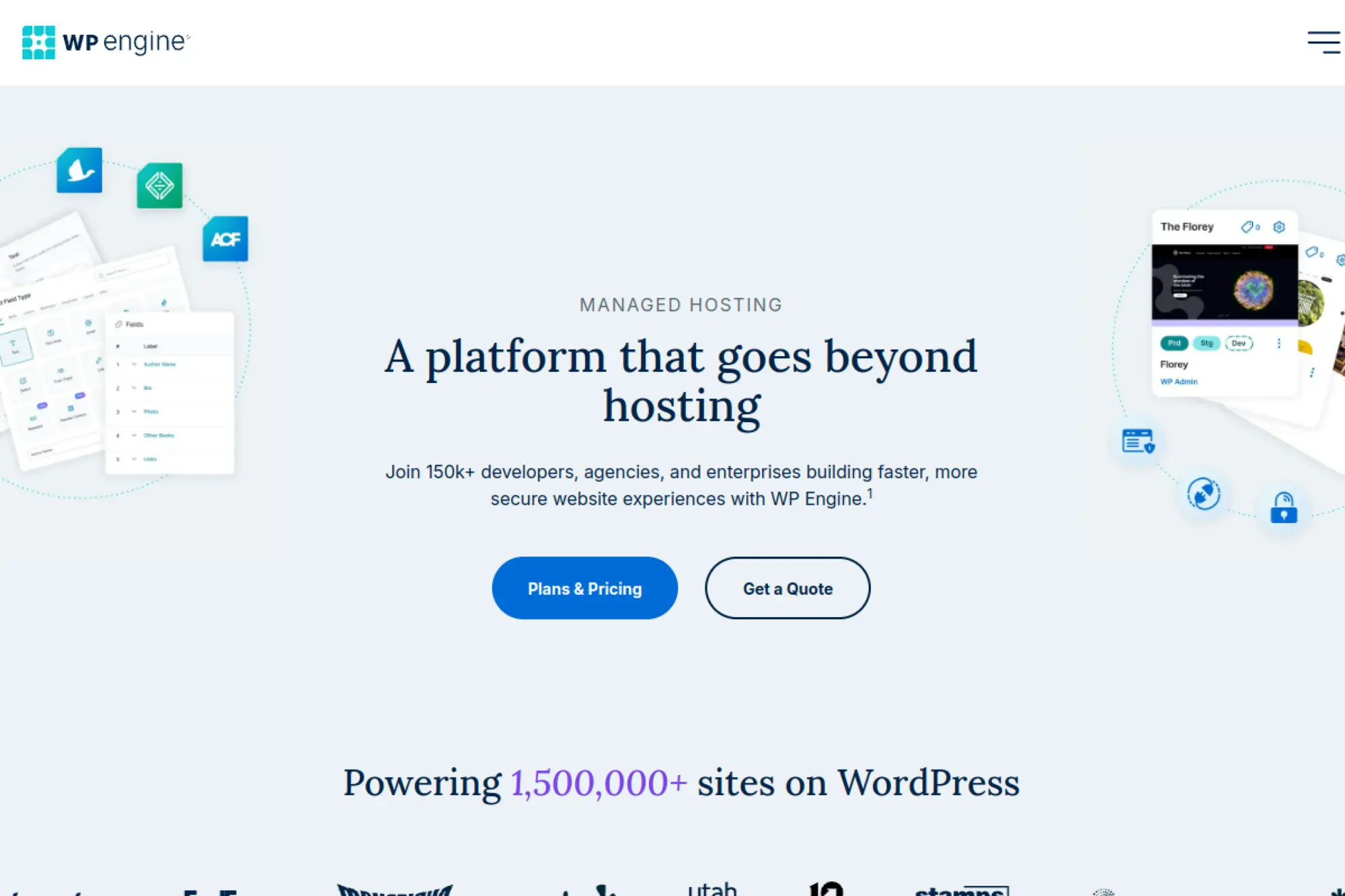
WP Engine suits teams that treat WordPress as a serious business platform. It focuses on managed WordPress workflows, performance, and safer change management. You can run marketing pages, content hubs, and WooCommerce with more confidence because the platform encourages clean deployments.
Best for
Growing brands that need reliable managed hosting, clear staging routines, and support that speaks “WordPress” fluently.
Key workflows to configure
Set up a repeatable release routine so changes do not surprise you.
- Create a staging environment for every major update
- Enable platform caching and align it with your plugin stack
- Connect a CDN option if your audience is global
- Schedule backups around content and commerce activity
Sales growth lever
Use staging and fast rollbacks to launch landing pages quickly. That helps you test campaigns without fear. When pages load faster and stay stable during promos, paid traffic turns into leads instead of bounces.
Watch outs
WP Engine often makes the most sense when you commit to its workflow. If you want full server freedom, you may feel constrained. Plan your plugin stack carefully and avoid overlapping optimization plugins.
Quick start checklist
- Audit plugins and remove unused tools
- Migrate content and test key templates
- Set up staging and a change approval routine
- Connect caching and performance monitoring
- Run a restore drill so you trust recovery
2. Kinsta
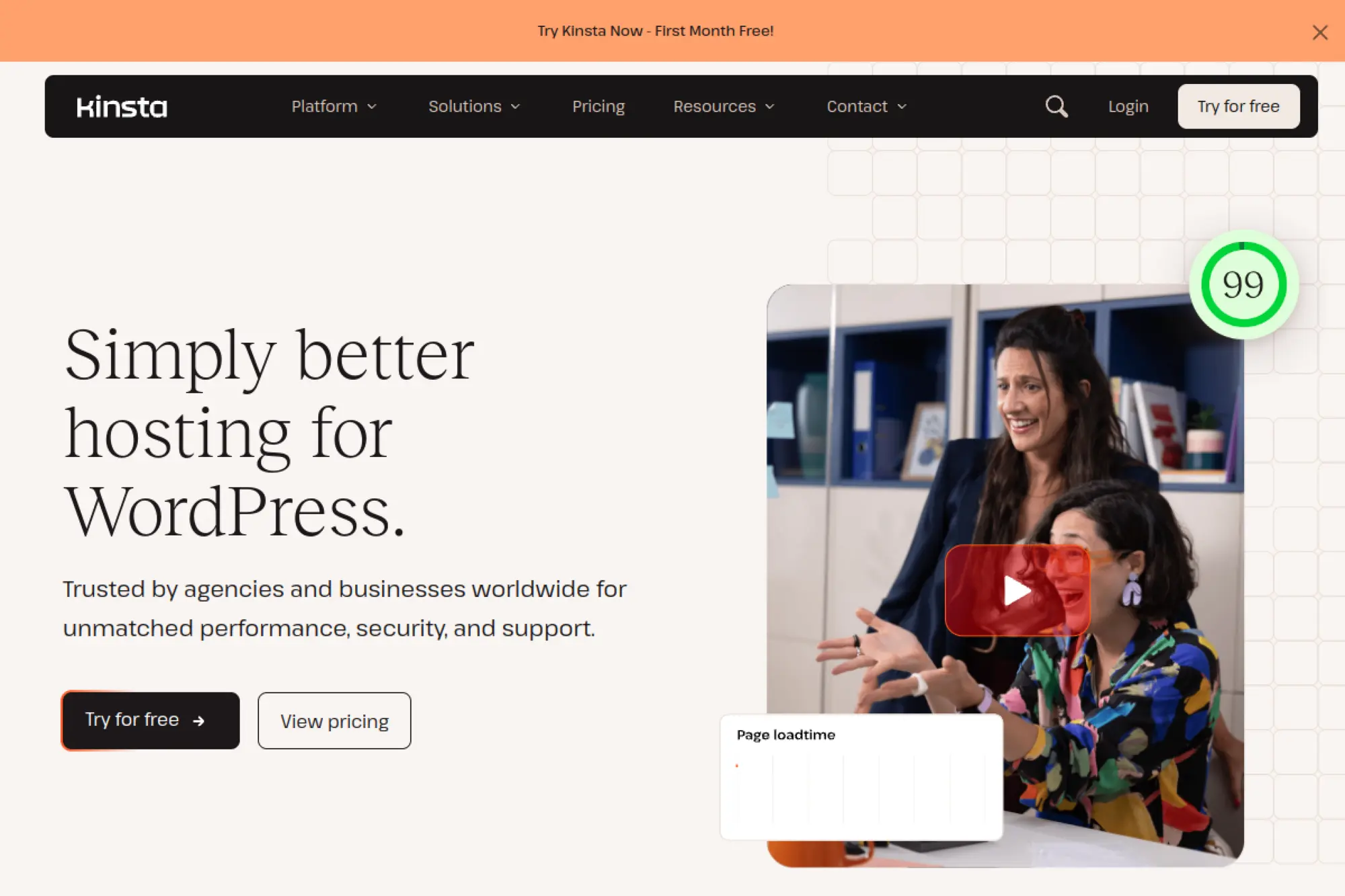
Kinsta targets performance-focused WordPress teams that want a clean managed experience. It pairs a modern dashboard with practical tools for developers and marketers. You can build, deploy, and maintain WordPress sites without wrestling with dated hosting panels.
Best for
Teams that want managed WordPress hosting with a strong UX, fast support, and clear environments for testing changes.
Key workflows to configure
Build a baseline setup that stays consistent across sites and projects.
- Configure staging for theme and plugin updates
- Align caching behavior with your dynamic pages
- Set up redirects and SSL early in the migration
- Define a backup and restore process your team trusts
Sales growth lever
Speed and stability support better SEO and paid campaign performance. That creates compounding gains. You can also ship more often when you know staging and backups protect you from bad releases.
Watch outs
Kinsta fits best when you accept managed guardrails. If you need exotic server-level customization, you may prefer a VPS. Also watch your plugin choices. Some caching plugins fight with platform caching.
Quick start checklist
- Move a single low-risk site first
- Verify forms, checkout, and email delivery
- Enable monitoring and error logging
- Document your update workflow for the team
- Set rules for who can deploy to production
3. SiteGround

SiteGround blends ease of use with WordPress-specific tooling. Many small businesses like it because it simplifies common tasks. It also gives you a helpful support experience when you hit normal WordPress issues like plugin conflicts or caching confusion.
Best for
Small businesses and service providers that want a friendly dashboard, solid support, and a WordPress-ready hosting environment.
Key workflows to configure
Focus on setup that reduces support tickets later.
- Configure caching and confirm it does not break dynamic pages
- Set up backups and test a restore on staging
- Harden login security and limit admin access
- Connect email sending in a reliable way for forms
Sales growth lever
SiteGround can help you run a fast brochure site that converts visitors into calls and quotes. When pages load smoothly and forms deliver reliably, your local SEO and paid lead gen work better.
Watch outs
Shared-style hosting still has boundaries. Heavy WooCommerce sites may outgrow it. Plan for scaling before you launch aggressive campaigns, especially if your site depends on many plugins.
Quick start checklist
- Install a lightweight theme and keep plugins tight
- Turn on caching and test key pages
- Set backup frequency that matches your change rate
- Secure admin accounts and enforce strong passwords
- Run a speed test before and after launch
4. Bluehost
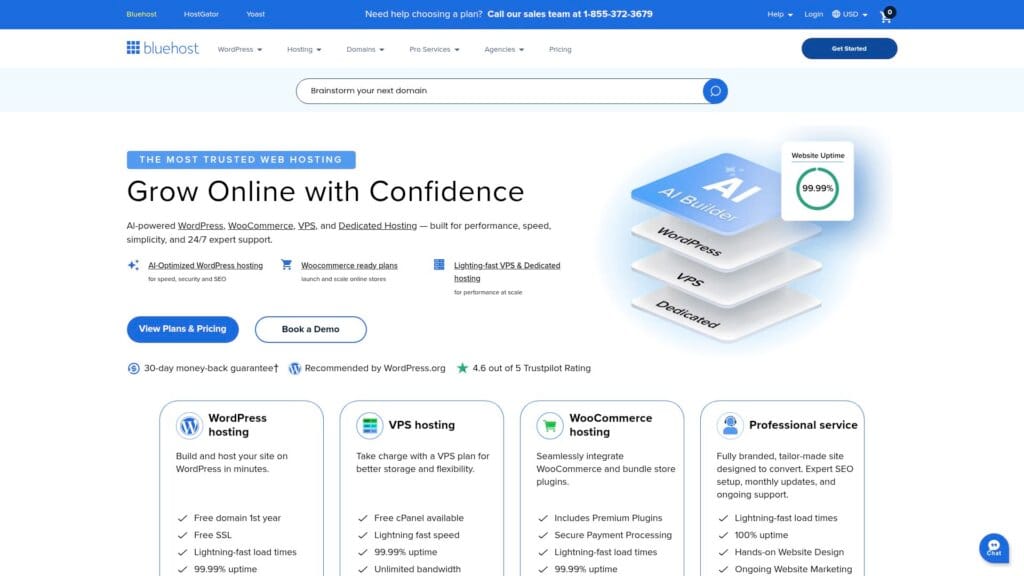
Bluehost stays popular with beginners because it offers a familiar onboarding flow and WordPress-oriented plans. It also sits on the official WordPress.org radar, which influences many first-time site owners. The platform works well when you want a guided path instead of a deep infrastructure project.
Best for
New WordPress site owners who want a mainstream host with simple setup, bundled services, and a large knowledge base.
Key workflows to configure
Make sure your WordPress foundation stays clean from day one.
- Set a staging routine before you install many plugins
- Configure caching and avoid duplicate caching plugins
- Set automatic updates with a review habit
- Set up backups you can restore without support
Sales growth lever
Bluehost can help you get online quickly, which matters for early revenue. Faster launches let you validate offers sooner. That also helps you collect feedback and improve your message without waiting on complex infrastructure work.
Watch outs
Many beginners install too many plugins. That causes speed and security issues regardless of host. Keep your stack lean. Also watch plan boundaries as your traffic and content grow.
Quick start checklist
- Start with a minimal theme and essential plugins
- Enable backups and test a restore
- Connect your domain and confirm SSL works
- Set an update schedule you will follow
- Track performance before running ads
5. Hostinger

Hostinger appeals to budget-minded teams that still want a smooth WordPress experience. It often feels more modern than legacy shared hosting, thanks to its streamlined control panel. It works well when you want fast onboarding and simple site management.
Best for
Creators, freelancers, and early-stage businesses that want an affordable path to a fast WordPress site.
Key workflows to configure
Set guardrails early so your site stays fast as it grows.
- Configure caching and validate it with real page tests
- Set up backups and define who can restore
- Harden admin accounts and limit plugin installs
- Create a lightweight media workflow for images
Sales growth lever
Lower hosting cost can free budget for content and acquisition. That helps you publish more often or spend more on campaigns. If you keep your WordPress build lean, you can still get strong speed and conversion outcomes.
Watch outs
Value hosting rewards simplicity. Heavy page builders and bloated plugins can erase the advantage. Treat performance as a product requirement, not a nice-to-have.
Quick start checklist
- Migrate with a staging-first approach
- Confirm forms, email sending, and analytics
- Turn on caching and compress images
- Set a plugin approval rule for your team
- Schedule a monthly cleanup of unused tools
6. DreamHost
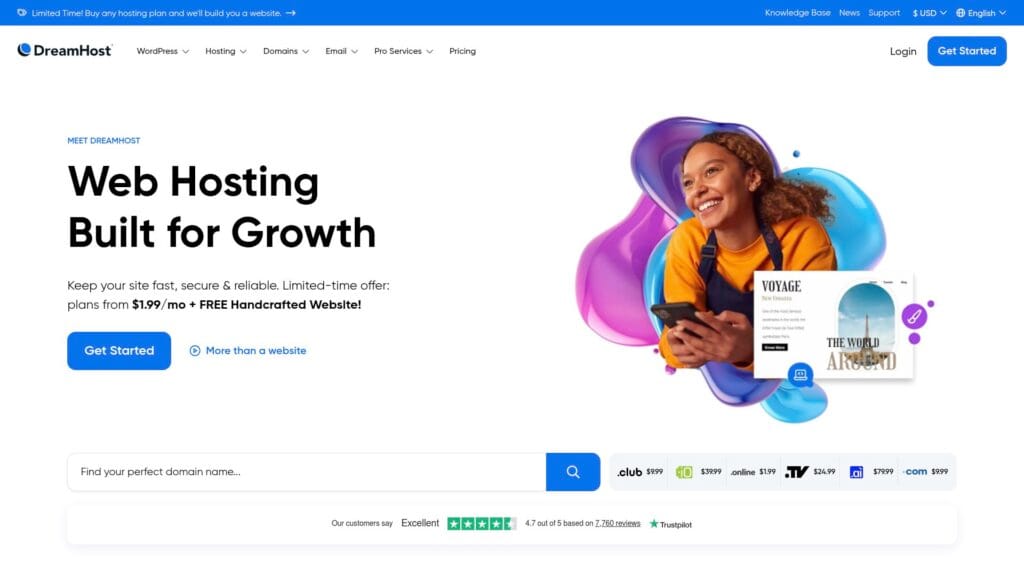
DreamHost offers straightforward WordPress hosting with a long-standing presence in the space. It fits people who want a simple relationship with their host and a clear dashboard. You can run blogs, portfolios, and small business sites without overthinking infrastructure.
Best for
Bloggers and small teams that want reliable WordPress hosting and a clean setup without enterprise complexity.
Key workflows to configure
Build a stable baseline, then grow features carefully.
- Set backups and verify restore steps
- Create a staging habit for theme changes
- Configure caching and confirm it supports logged-in users
- Set email delivery for form notifications
Sales growth lever
A stable hosting foundation helps you focus on publishing and promotion. That supports organic traffic growth. When you spend less time debugging hosting issues, you spend more time improving content and offers.
Watch outs
As with any general host, you need discipline around plugins. Do not treat WordPress like an app store. Install only what you will maintain.
Quick start checklist
- Clean up your WordPress install before migrating
- Test theme responsiveness and key pages
- Enable backups and document restore steps
- Set security basics for admin accounts
- Monitor site speed after each major change
7. Pressable
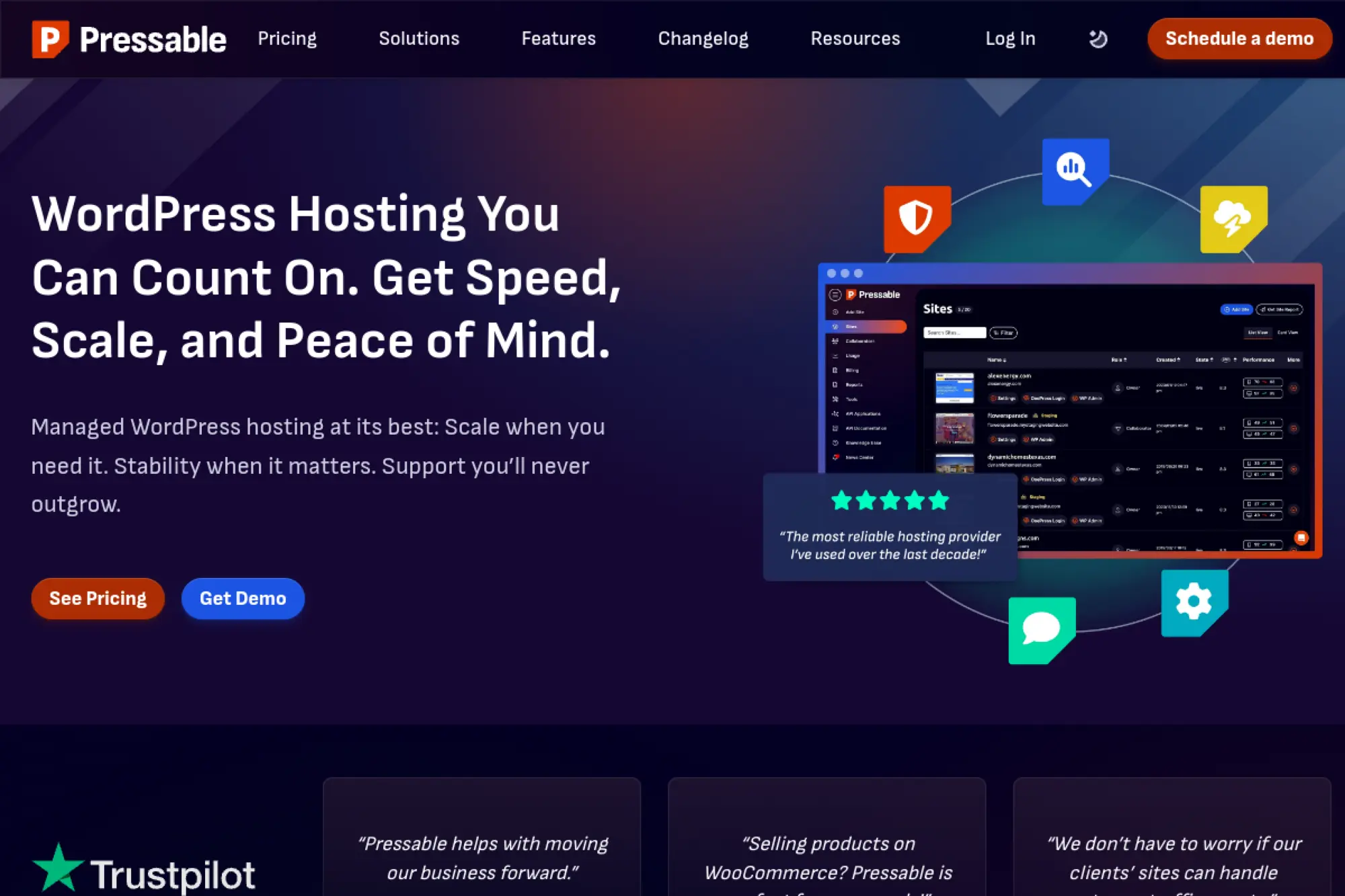
Pressable positions itself as a managed WordPress platform for businesses and agencies. It also benefits from Automattic’s ecosystem focus, which many WordPress users trust. You get a workflow that supports multiple sites and predictable operations.
Best for
Agencies and teams that manage multiple WordPress sites and want a managed platform with strong WordPress alignment.
Key workflows to configure
Standardize how you deliver and maintain client sites.
- Set up staging for each site you manage
- Define update ownership across plugins and themes
- Configure backups and test restores for each client
- Align caching with dynamic pages like carts and portals
Sales growth lever
Agency workflows drive revenue when they reduce rework. A consistent platform lowers time spent on maintenance. That gives you more billable time for SEO, conversion improvements, and new builds.
Watch outs
Managed platforms work best with standard WordPress patterns. If a client needs unusual server software, confirm compatibility early. Also set expectations around how you handle plugin emergencies.
Quick start checklist
- Map your current sites and their plugin stacks
- Migrate one client site as a pilot
- Document your update and rollback process
- Set user roles and access boundaries per client
- Create a maintenance calendar you can keep
8. WordPress.com
WordPress.com works well when you want a highly managed WordPress experience and you prefer a platform approach. It reduces operational work and keeps most technical tasks out of your way. That appeals to creators and small businesses that want to focus on publishing, selling, and audience growth.
Best for
Teams that want an all-in-one WordPress platform with strong built-in maintenance and fewer moving parts.
Key workflows to configure
Make sure your content and marketing stack fits the platform model.
- Confirm theme and plugin needs before committing
- Set up custom domain, redirects, and analytics
- Configure forms, newsletters, and commerce tools
- Define roles so contributors publish safely
Sales growth lever
When you reduce operational tasks, you move faster on campaigns. That helps you publish more, run more promotions, and keep your site consistent. Speed of execution often beats marginal infrastructure tuning for small teams.
Watch outs
WordPress.com offers a distinct platform experience. Some advanced plugins or custom workflows may not fit. Validate your must-have tools, especially if you run a complex ecommerce setup.
Quick start checklist
- List required plugins and integrations
- Import content and validate permalink structure
- Set user roles and publishing flow
- Configure payments and tax rules if you sell
- Test critical pages on mobile and desktop
9. Flywheel
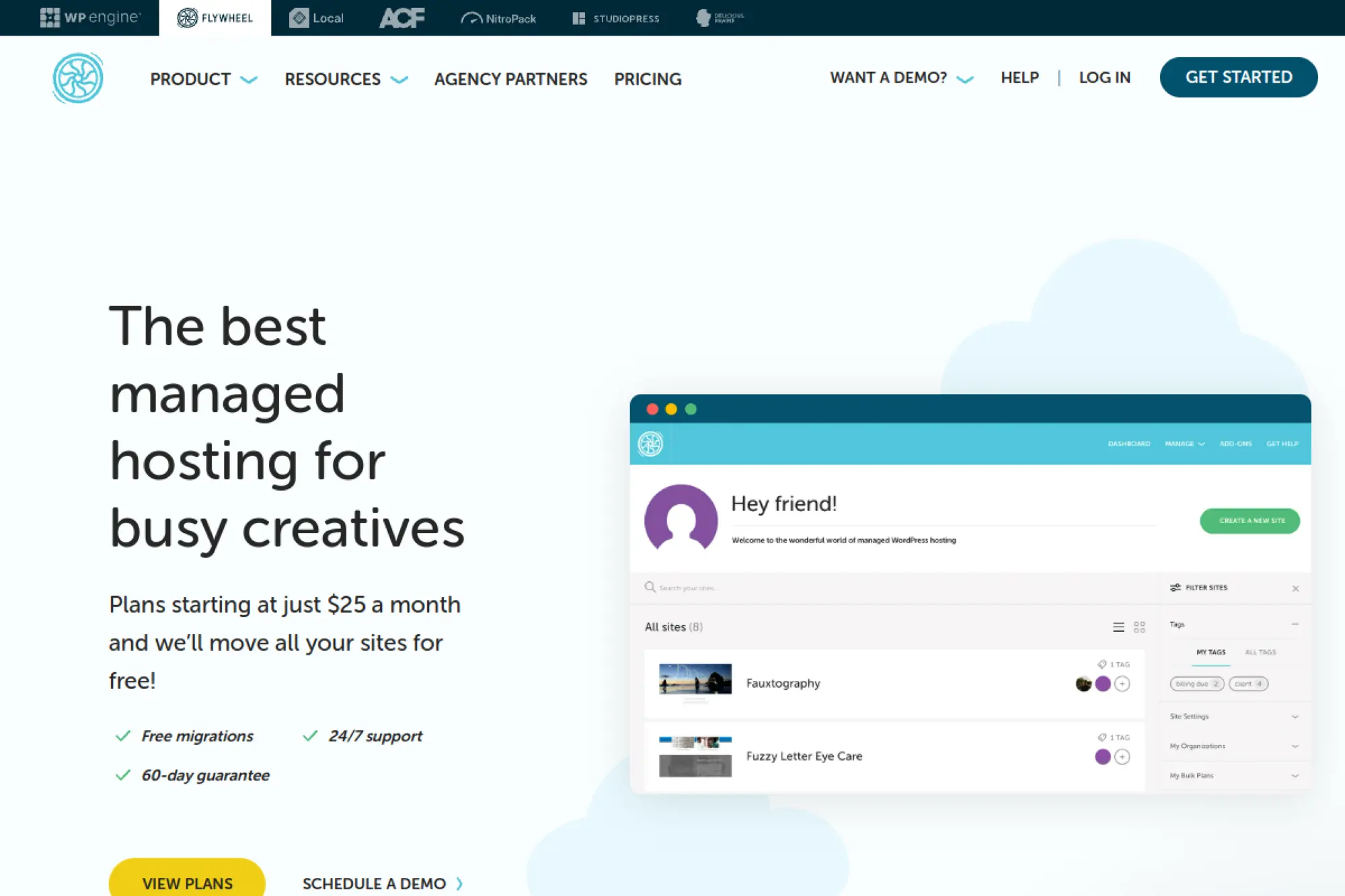
Flywheel aims at designers, freelancers, and agencies that deliver WordPress sites to clients. It emphasizes collaboration and a smoother handoff process. The platform can reduce the friction that happens when a project moves from build to maintenance.
Best for
Agencies and creative teams that build WordPress sites for clients and want client-friendly workflows.
Key workflows to configure
Turn hosting into part of your delivery process, not an afterthought.
- Set up staging for every client build
- Define who approves production pushes
- Configure backups and maintenance responsibilities
- Align caching with design and animation choices
Sales growth lever
Client experience affects referrals. If your hosting workflow makes launches smooth and updates safe, clients trust you more. That trust leads to retainers, ongoing optimization projects, and more introductions.
Watch outs
Agency hosting works best when you standardize builds. If each client site uses a radically different stack, you will still spend time debugging. Create internal templates and plugin standards.
Quick start checklist
- Create a standard plugin and theme baseline
- Set staging as the default work environment
- Define launch day checks for every project
- Document client handoff steps and access rules
- Schedule recurring maintenance reviews
10. Rocket.net
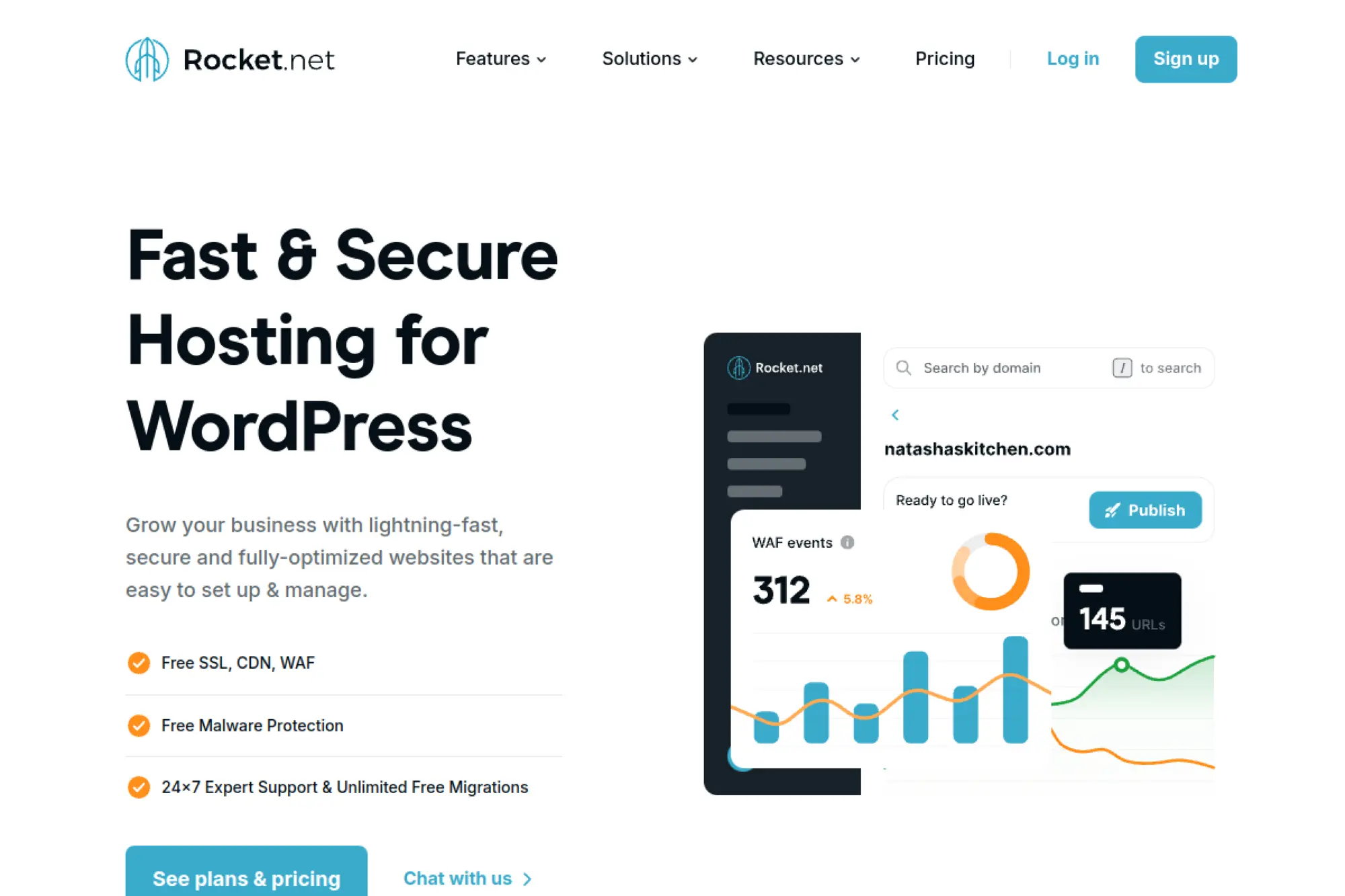
Rocket.net markets a speed-first approach to managed WordPress hosting. It appeals to teams that want strong performance without stacking many optimization plugins. If you run landing pages or content sites that depend on paid traffic, this focus can pay off.
Best for
Marketers and site owners who care about fast global delivery and want a simpler performance stack.
Key workflows to configure
Performance stays stable when you keep your setup consistent.
- Configure caching rules for dynamic pages and logins
- Set up staging for all major campaigns
- Define a media optimization workflow
- Set monitoring alerts for speed regressions
Sales growth lever
Faster pages tend to improve campaign efficiency. You can often lower bounce and improve lead quality. When you spend less time tuning caching plugins, you spend more time improving offers and landing page copy.
Watch outs
Speed-first hosting still needs a disciplined WordPress build. Heavy page builders and ad scripts can slow any site. Also confirm how you handle custom server needs if you run specialized integrations.
Quick start checklist
- Run a pre-migration performance benchmark
- Migrate and retest key landing pages
- Remove redundant optimization plugins
- Set up staging for campaign iterations
- Monitor speed after every marketing launch
11. Nexcess
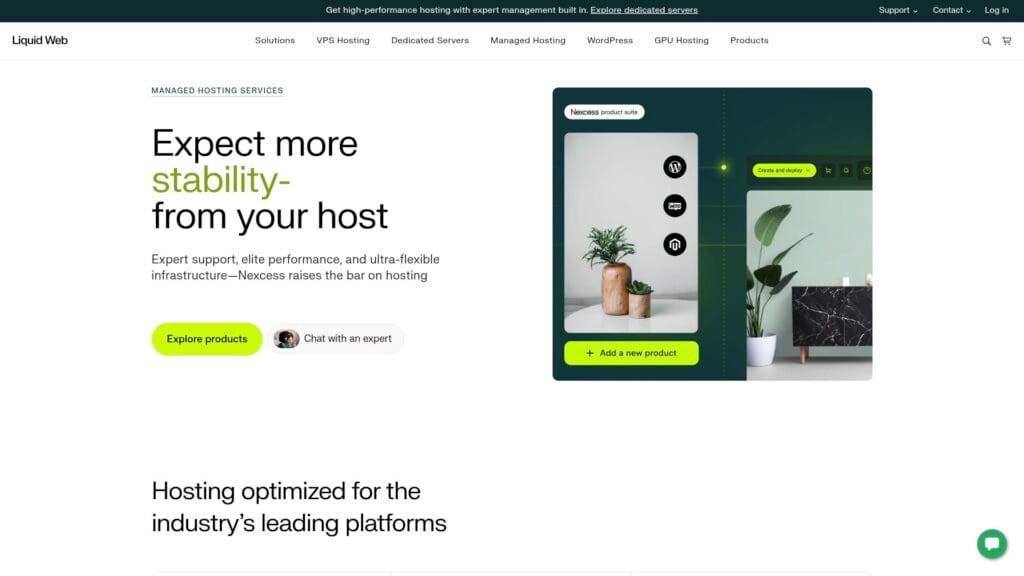
Nexcess focuses on managed hosting for WordPress and ecommerce use cases. It often appeals to store owners and membership sites because those sites need stability under load. You want hosting that supports logged-in sessions, carts, and frequent updates without constant firefighting.
Best for
WooCommerce stores, membership sites, and revenue-first WordPress projects that need stability and support.
Key workflows to configure
Ecommerce succeeds when you reduce friction and protect revenue flows.
- Configure caching exclusions for cart and checkout
- Set staging for plugin updates and promotions
- Enable backups before inventory or price changes
- Set security monitoring for admin and customer accounts
Sales growth lever
Checkout reliability drives revenue more than fancy features. A host that handles traffic spikes helps you run promotions with confidence. You can also iterate faster on product pages when staging reduces risk.
Watch outs
Ecommerce sites often grow complex. Plugins for shipping, tax, and subscriptions can conflict. Keep a clear change log and test on staging before you update anything near a campaign.
Quick start checklist
- Clone production to staging and test checkout
- Map plugin dependencies and update order
- Set backups and practice restore procedures
- Secure admin roles and enforce strong access rules
- Stress-test your site before peak promotions
12. Liquid Web
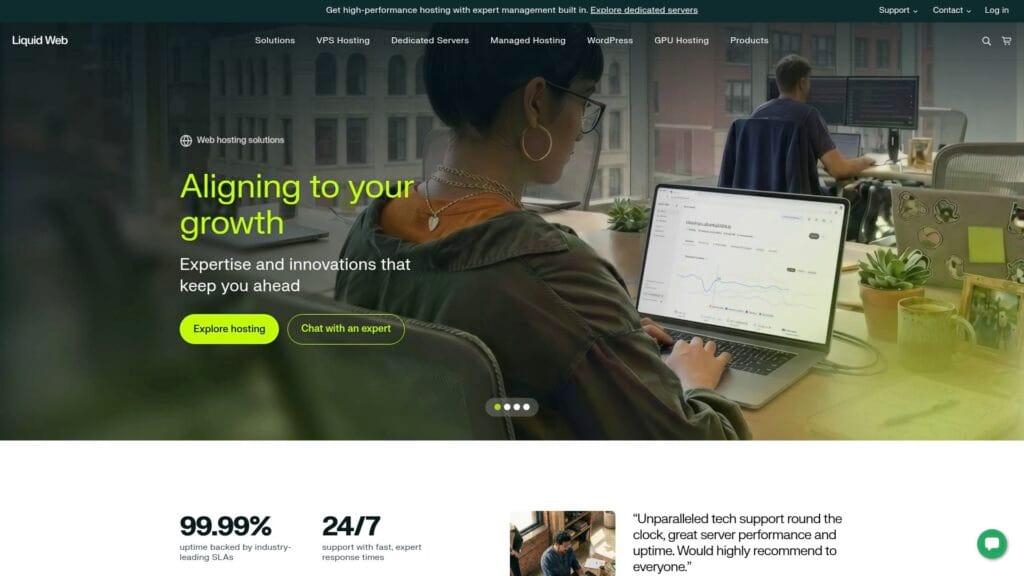
Liquid Web targets mission-critical hosting needs. It often fits businesses that prioritize support quality, stronger infrastructure options, and higher-touch service. If your WordPress site supports revenue operations, you may value that service model.
Best for
Businesses that want premium support and a hosting partner mindset for high-impact WordPress sites.
Key workflows to configure
Reduce risk by building operational routines around change.
- Set up staging and a formal release checklist
- Implement backups aligned to business hours
- Configure monitoring and incident response contacts
- Harden admin access and secure file permissions
Sales growth lever
Premium hosting can protect revenue during campaigns. It can also reduce the time you lose to downtime and slow debugging. That time shifts back into growth work like content, SEO, and conversion testing.
Watch outs
Higher-touch hosting often costs more. So, match it to business value. If you run a hobby blog, you may not need it. If your site supports leads and sales, the support model can make sense.
Quick start checklist
- Define your business-critical pages and flows
- Migrate and test those flows first
- Set monitoring alerts and escalation rules
- Document your release process for your team
- Schedule recurring performance reviews
13. Pantheon
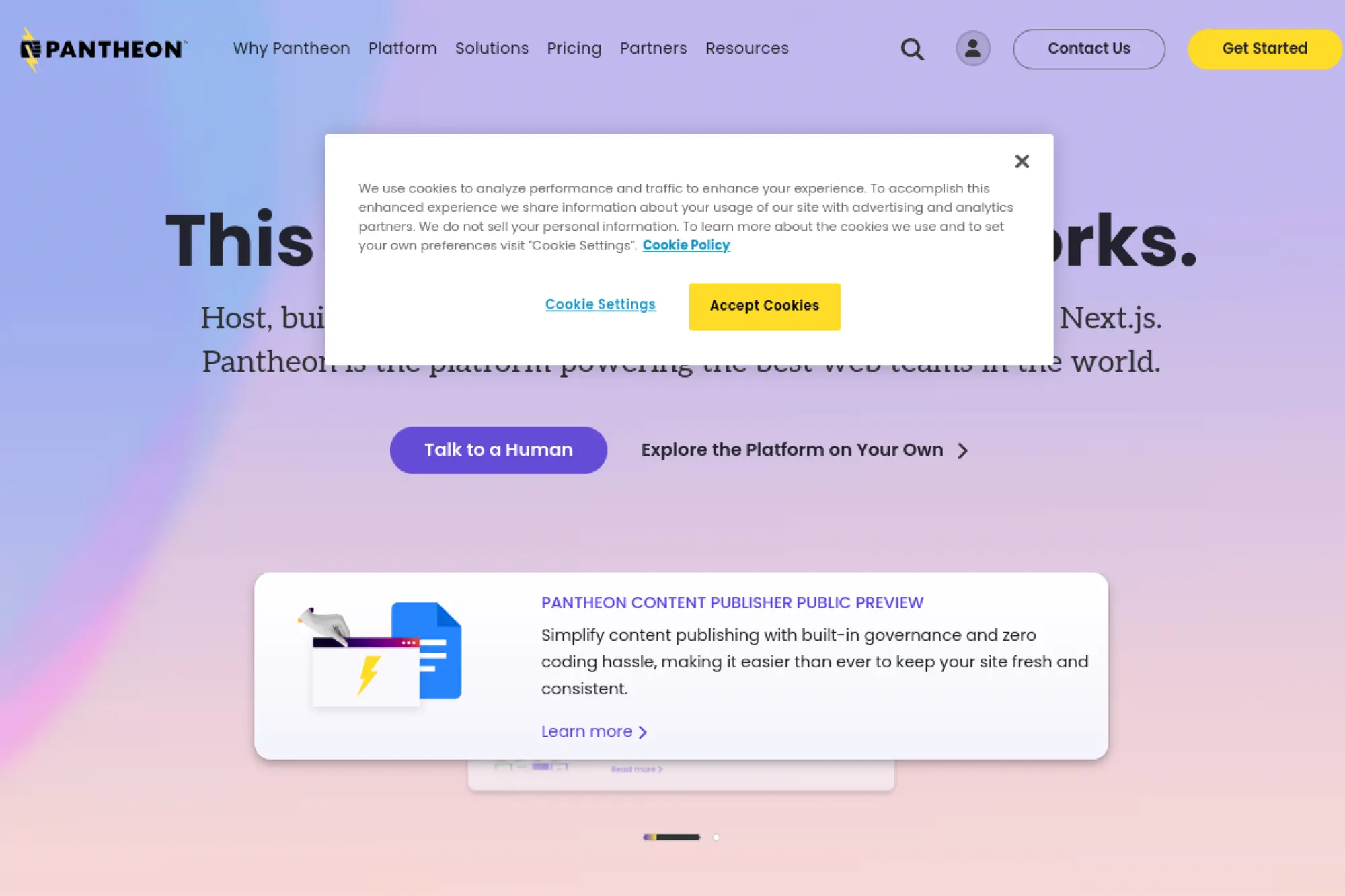
Pantheon sits closer to a WebOps platform than classic hosting. It targets teams that treat WordPress as part of a broader engineering workflow. You can build a disciplined pipeline with clear environments and structured deployments, which reduces “it works on my machine” chaos.
Best for
Developer-led teams that want structured environments, repeatable deployments, and strong workflow tooling.
Key workflows to configure
Use Pantheon best when you connect it to your engineering habits.
- Set up dev, test, and live environment routines
- Connect version control and code review practices
- Define database and media sync rules between environments
- Set automated backups and release monitoring
Sales growth lever
Better workflows reduce release risk. That means marketing can ship landing pages faster. It also means you can run experiments more often. Over time, iteration speed becomes a growth advantage.
Watch outs
Pantheon can feel like “too much” for very small teams. If you do not use structured workflows, you may not capture its value. Make sure your team actually wants a more formal deployment model.
Quick start checklist
- Align your team on a release process
- Connect code repository and branch strategy
- Set environment sync rules and document them
- Test staging workflows before first major release
- Monitor performance after each deployment
14. Pagely
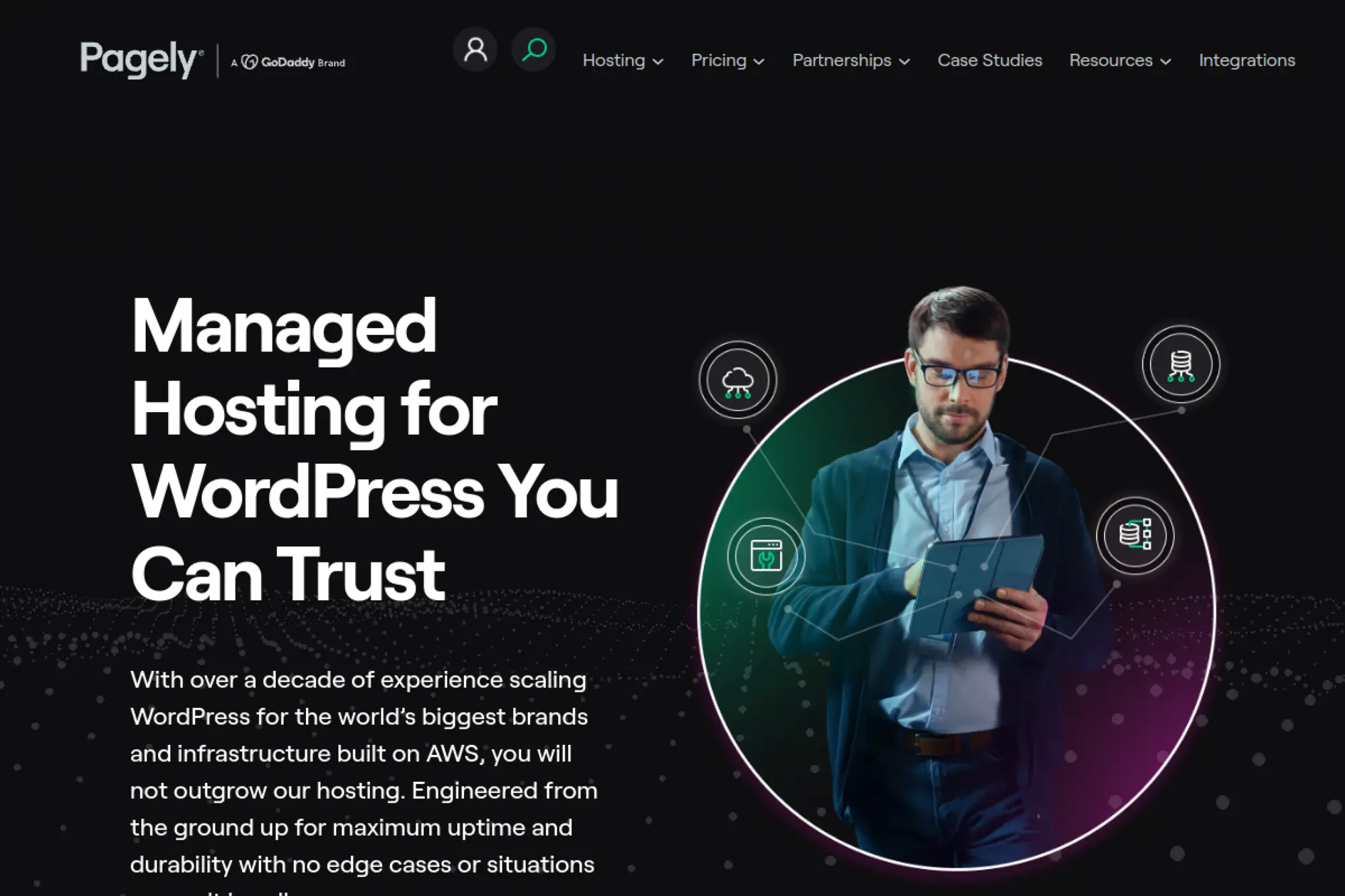
Pagely focuses on enterprise-grade managed WordPress, often tied to large-scale traffic needs and governance requirements. It suits organizations that need strong reliability and a clear operational model. It also works for teams that want WordPress on a mature cloud foundation without managing the entire stack themselves.
Best for
Enterprises and high-traffic publishers that need a managed WordPress solution with strong governance and scale.
Key workflows to configure
Enterprise WordPress succeeds when you treat it like a product platform.
- Define roles, approvals, and publishing permissions
- Set staging and release governance for changes
- Configure backups, retention, and restore testing
- Implement security policies for plugins and themes
Sales growth lever
Enterprise hosting helps you protect brand trust. When campaigns run during high-traffic moments, reliability supports revenue. You also reduce the hidden cost of incident response and emergency fixes.
Watch outs
Enterprise hosting demands process. If you move fast without structure, you may resist governance. Align stakeholders early. Confirm integration needs, especially if you connect to SSO, DAM, or CRM systems.
Quick start checklist
- Document your security and publishing requirements
- Standardize plugin selection and approval
- Run a staged migration with a rollback plan
- Set monitoring and incident response ownership
- Train editors on workflow and staging habits
15. Pressidium

Pressidium positions itself for managed WordPress performance and reliability, including setups that must handle serious traffic. It fits teams that want a managed platform but still care deeply about architecture and uptime. It also appeals to businesses that want to reduce operational distractions.
Best for
High-availability WordPress projects, including publishers and businesses that cannot afford instability.
Key workflows to configure
Reliability comes from repeatable habits, not hope.
- Set up staging and require testing for updates
- Define cache rules for logged-in experiences
- Schedule backups and run restore drills
- Configure security layers and monitoring alerts
Sales growth lever
Stable hosting keeps your site available during demand spikes. That helps with campaign launches, media mentions, and product drops. You also protect SEO by avoiding frequent downtime and slow responses.
Watch outs
Managed hosting simplifies operations, but it does not replace good WordPress hygiene. Keep plugins minimal. Also document your change process so new team members do not ship risky updates.
Quick start checklist
- Audit your current site for heavy plugins
- Migrate and validate performance on key templates
- Set a staging-first update policy
- Configure monitoring for errors and slow pages
- Practice recovery before you need it
16. WPX
WPX attracts marketers and site owners who want speed and responsive support without managing a complex stack. It often fits affiliate sites, content businesses, and lead-gen websites. If you need a practical managed environment that keeps things simple, WPX can be a strong option.
Best for
Marketing-led WordPress sites that want straightforward managed hosting and quick help when something breaks.
Key workflows to configure
Simple workflows still need structure to stay fast.
- Set caching and test key pages for breakage
- Create a staging habit for design updates
- Set backups and verify restore speed
- Configure basic security hardening for admin accounts
Sales growth lever
When your content site stays fast, your SEO and ad campaigns work better. You also reduce the downtime that kills momentum during launches. A support team that resolves issues quickly can protect revenue from small failures.
Watch outs
Marketing teams often add scripts and tracking tags aggressively. That can slow any site. Treat third-party scripts like a budget item. Add only what you measure and keep.
Quick start checklist
- Migrate and validate core pages and forms
- Remove redundant performance plugins
- Optimize images and reduce third-party scripts
- Enable backups and confirm restore steps
- Set a monthly “site hygiene” review
17. Cloudways
Cloudways offers a managed layer on top of popular cloud infrastructure providers. That makes it attractive when you want flexibility without fully self-managing a server. You can choose infrastructure options while still getting a hosting dashboard and managed features.
Best for
Teams that want managed cloud hosting flexibility, especially developers who still want a guided WordPress experience.
Key workflows to configure
Cloud hosting works best when you standardize your deployment habits.
- Pick an infrastructure region close to your audience
- Set staging and a deployment routine for changes
- Configure caching and confirm compatibility with your plugins
- Set backups and define retention needs
Sales growth lever
Cloudways can help you scale without migrating to a different host. That stability matters when you grow. It also lets you right-size resources as traffic changes, which can protect margin.
Watch outs
You still need cloud literacy. If you want everything fully managed, a pure managed WordPress host may feel easier. Also be careful with plugin stacks that assume traditional shared hosting setups.
Quick start checklist
- Choose a server size that fits current traffic
- Launch WordPress and secure admin access
- Configure caching and test dynamic pages
- Set backups and run a restore test
- Document your scaling process for peak periods
18. DigitalOcean
DigitalOcean fits developers who want predictable cloud infrastructure for WordPress without enterprise complexity. You can deploy WordPress quickly on cloud servers and then customize the stack. This approach works well when you want control and you can handle server maintenance.
Best for
Developers and technical founders who want a self-managed WordPress setup with flexible infrastructure.
Key workflows to configure
Self-managed hosting requires a real operations checklist.
- Set up system updates and security patch routines
- Configure server-level caching and PHP tuning
- Implement backups at both server and WordPress levels
- Use a CDN for global asset delivery
Sales growth lever
When you control the stack, you can tune performance for your exact site. That can improve conversion for ecommerce and lead gen. You also avoid paying for managed features you do not use, which can protect budget for growth.
Watch outs
You own the risk. If a security patch breaks something, your team fixes it. If you lack ops experience, that can distract you from marketing and product work. Consider managed hosting if you need speed of execution.
Quick start checklist
- Deploy WordPress and lock down admin access
- Configure firewall rules and SSH practices
- Set automated backups and test restores
- Install monitoring and uptime alerts
- Create a documented update schedule
19. Amazon Lightsail
Lightsail gives you a simpler entry point into AWS for WordPress. It works like a clean, approachable VPS product. This is useful when you want AWS reliability and you also want to keep setup manageable.
Best for
Teams that want a straightforward WordPress VPS on AWS and can handle basic server management.
Key workflows to configure
Build a minimal ops layer so your WordPress site stays secure and stable.
- Configure updates for the server and WordPress stack
- Set backups and verify restore steps
- Implement caching and a CDN strategy
- Lock down access, keys, and admin roles
Sales growth lever
Lightsail can support growth when you need infrastructure that integrates with AWS services. That matters if you add analytics pipelines, email services, or custom APIs later. This reduces the need to re-platform as you expand.
Watch outs
Lightsail remains self-managed at its core. You will handle patching and troubleshooting. If your team does not want ops work, managed WordPress hosting can keep you focused on growth.
Quick start checklist
- Deploy WordPress and secure default accounts
- Configure DNS and SSL correctly
- Set automated backups and monitoring alerts
- Harden the server with minimal open ports
- Document how you will scale if traffic grows
20. Akamai Connected Cloud (Linode)
Linode, now part of Akamai Connected Cloud, remains a developer-friendly VPS choice for hosting WordPress. It fits teams that prefer direct infrastructure control and predictable cloud behavior. You can deploy WordPress and then tune it as needed.
Best for
Developers who want a cloud VPS for WordPress with clear control and room for customization.
Key workflows to configure
Get your ops foundation in place before you push traffic to the site.
- Automate OS patching and security updates
- Set server monitoring and log review habits
- Configure backups and snapshots plus WordPress backups
- Optimize caching and database performance
Sales growth lever
A self-managed VPS lets you tune performance for content-heavy sites. That helps SEO and time on page. It also supports custom business logic when you need integrations beyond typical WordPress plugins.
Watch outs
You need someone accountable for server security and maintenance. Without that, WordPress becomes fragile. If you run a small team, consider managed hosting so marketing and content do not stall.
Quick start checklist
- Deploy WordPress and secure SSH access
- Set firewall rules and disable unused services
- Configure backups and test restoration
- Install performance monitoring for server and WordPress
- Create a change log for updates and deployments
21. Vultr
Vultr offers cloud compute options that developers often use for WordPress. It fits teams that want control and geographic flexibility. You can run WordPress on a VPS and build a tuned stack around it, especially for performance-focused projects.
Best for
Technical users who want to host WordPress on a fast VPS with control over the stack.
Key workflows to configure
Performance and security come from process on self-managed hosting.
- Set up patching and server hardening routines
- Implement backups at both server and WordPress layers
- Configure caching and database optimization
- Use a CDN and image optimization workflow
Sales growth lever
VPS control helps you optimize for speed, which supports conversion and SEO. It also helps you integrate custom services without being boxed into managed hosting limitations. This flexibility can support growth experiments.
Watch outs
VPS hosting punishes neglect. If you do not patch and monitor, you increase risk. Also plan for support: you may need an ops partner if your team does not manage servers daily.
Quick start checklist
- Deploy WordPress and secure admin access
- Configure firewall rules and login protections
- Set automated backups and periodic restore tests
- Install caching and test logged-in experiences
- Monitor uptime and server resource usage
22. A2 Hosting
A2 Hosting often attracts WordPress users who care about speed and developer-friendly features on more traditional hosting plans. It offers a range of hosting types, which can help you start small and evolve. This makes it a flexible option for DIY builders.
Best for
WordPress users who want performance-focused hosting options with room to move from basic plans to more advanced setups.
Key workflows to configure
Set up your WordPress stack with a performance baseline.
- Configure caching and confirm it matches your theme
- Set a staging workflow for updates
- Implement backups and verify restores
- Secure admin accounts and limit plugin sprawl
Sales growth lever
Better performance can improve lead flow from organic search and ads. You can also move faster when you keep updates safe. This helps you iterate on landing pages and site copy without fearing downtime.
Watch outs
Traditional hosting still requires you to manage more of WordPress yourself. Do not rely on plugins to solve everything. Build a lean site and keep your maintenance routine consistent.
Quick start checklist
- Install a performance-friendly theme
- Set caching and test core page templates
- Enable backups and run a restore test
- Secure WordPress admin and file permissions
- Monitor speed after adding each new plugin
23. InMotion Hosting
InMotion Hosting appeals to small and mid-sized businesses that want business-grade support and a host that covers more than just WordPress. It offers WordPress hosting options while still fitting teams that also run email, domains, and related services in one place.
Best for
Small businesses that want WordPress hosting with a business-focused service model and room to grow.
Key workflows to configure
Make sure your site runs like a business asset, not a hobby project.
- Set backups and create a restore playbook
- Configure caching and verify performance stability
- Set staging for major site changes
- Implement security hardening for admin access
Sales growth lever
Business hosting helps when you rely on leads and consistent site availability. When forms work, pages load fast, and updates feel safe, you can run campaigns with less risk and better conversion.
Watch outs
Do not overbuild your site early. Complex page builder stacks can create long-term maintenance debt. Keep your setup clean so you can scale without rebuilding.
Quick start checklist
- Launch staging and test updates there first
- Connect analytics and conversion tracking
- Enable backups and confirm restore steps
- Secure admin accounts and audit users
- Review plugin list quarterly and remove clutter
24. GreenGeeks

GreenGeeks stands out for brands that want to align hosting choices with sustainability values. It still supports typical WordPress workflows, so you do not have to trade usability for mission alignment. This can matter for nonprofits, ethical brands, and founders who want operational consistency with brand messaging.
Best for
Sustainability-minded brands and organizations that want WordPress hosting aligned with eco-friendly positioning.
Key workflows to configure
Set up performance and security so your message reaches visitors smoothly.
- Configure caching and test site speed on mobile
- Set backups and confirm how to restore quickly
- Secure logins and limit admin permissions
- Create a staging habit for site changes
Sales growth lever
Brand trust drives conversion. If sustainability matters to your buyers, hosting alignment supports your story. Pair that with a fast and stable WordPress site, and you reduce friction between mission and action.
Watch outs
Values do not replace performance discipline. Avoid bloated themes and excessive plugins. Also confirm your growth path if you expect large traffic spikes or ecommerce complexity.
Quick start checklist
- Launch with a lightweight theme and essential plugins
- Enable caching and image optimization
- Configure backups and test a restore
- Secure admin roles and rotate passwords
- Publish a sustainability page to reinforce trust
25. ScalaHosting
ScalaHosting often attracts users who want managed VPS flexibility without jumping into raw cloud infrastructure. It fits projects that outgrow basic shared hosting but still want a managed experience. This can work well for growing businesses that need more control.
Best for
Growing WordPress sites that need more power than shared hosting, plus a managed experience to reduce ops work.
Key workflows to configure
Use the extra control to build a more reliable site, not a more complex one.
- Set up staging and a clean deployment routine
- Configure server-level caching and WordPress caching
- Implement backups and verify restore steps
- Harden security settings and admin access
Sales growth lever
VPS-style resources can improve consistency during traffic spikes. That supports campaigns and product launches. It also helps WooCommerce and membership sites run smoother, which can reduce cart abandonment and support tickets.
Watch outs
More power can tempt you into adding complexity. Keep your plugin stack lean. Also make sure you understand what the host manages versus what you still own, such as WordPress update discipline.
Quick start checklist
- Move a staging copy first and validate speed
- Enable backups and confirm restore workflow
- Configure caching for both static and dynamic pages
- Set security rules for admin logins
- Plan a quarterly performance and plugin review
26. FastComet
FastComet offers WordPress-friendly hosting that often appeals to users who want a global audience reach without managing a cloud stack themselves. It can suit small businesses, blogs, and portfolios that want reliable performance across regions.
Best for
WordPress sites with a distributed audience that want a straightforward hosting experience and global-friendly delivery.
Key workflows to configure
Focus on predictable delivery for visitors in different locations.
- Configure caching and verify performance in key regions
- Set up a CDN and optimize image delivery
- Implement backups and test restore steps
- Set security basics and spam protection
Sales growth lever
Global performance supports international lead gen and ecommerce. When visitors in different countries get a smooth experience, more sessions turn into inquiries or sales. Hosting that reduces latency supports that outcome.
Watch outs
Global delivery still needs a clean WordPress build. Heavy themes and oversized images slow everyone down. Also confirm how you will handle scaling if you expect major spikes from press or viral content.
Quick start checklist
- Pick a data center location close to core visitors
- Enable caching and CDN configuration
- Optimize media uploads and lazy loading
- Set backups and a restore runbook
- Test forms and checkout in multiple regions
27. IONOS
IONOS provides WordPress hosting options with a strong footprint in international markets. It can fit businesses that want a large provider with broad infrastructure offerings, especially if you already use IONOS for domains or email. It supports standard WordPress needs with familiar management tools.
Best for
Cost-conscious businesses and international teams that want WordPress hosting from a large infrastructure provider.
Key workflows to configure
Set up WordPress with a business-first mindset.
- Configure backups and confirm you can restore quickly
- Set caching and performance monitoring basics
- Create staging habits for updates and redesigns
- Lock down admin access and user roles
Sales growth lever
IONOS can simplify vendor sprawl if you already use its services. Fewer vendors can mean fewer billing and DNS issues. That stability helps you keep campaigns and content publishing consistent.
Watch outs
Large providers can feel less specialized than boutique managed WordPress hosts. If you want deep WordPress tuning or developer workflows, you may prefer a WordPress-only platform.
Quick start checklist
- Map domain and DNS changes before migration
- Confirm SSL, redirects, and permalink structure
- Enable backups and run a restore test
- Install security plugins thoughtfully and avoid overlap
- Benchmark performance and improve biggest bottlenecks
28. GoDaddy

GoDaddy remains a common choice because many site owners already use it for domains. Its WordPress hosting options can offer a simple path when you want one vendor for multiple website services. This can reduce friction for non-technical teams that prefer a single dashboard.
Best for
Businesses that already use GoDaddy and want a convenient WordPress hosting setup with minimal vendor complexity.
Key workflows to configure
Convenience still needs a disciplined WordPress workflow.
- Set backups and confirm restore procedures
- Configure caching and test site behavior carefully
- Create a staging routine for changes
- Secure admin access and audit plugins regularly
Sales growth lever
When your domain, DNS, and hosting live together, you reduce launch friction. That can help you move faster on new pages and campaigns. Faster execution helps sales teams, especially for local businesses that depend on timely promos.
Watch outs
Do not assume convenience equals performance. Test real-world speed after setup. Also avoid plugin overload, since that can slow any WordPress site regardless of host.
Quick start checklist
- Consolidate domain and DNS settings cleanly
- Migrate and validate key pages and forms
- Enable backups and test restoration
- Set caching and remove redundant plugins
- Review performance after every new campaign launch
29. Namecheap EasyWP
Namecheap’s EasyWP targets users who want a simple managed WordPress experience without a heavy setup process. It often appeals to people who also want domain management in the same place. This can work well for smaller sites, side projects, and early-stage business pages.
Best for
Budget-friendly WordPress projects that want a managed experience and easy domain coordination.
Key workflows to configure
Keep your site lean so the platform stays fast and stable.
- Configure caching behavior and validate core pages
- Set backups and confirm restore steps
- Use staging for theme updates and design changes
- Secure admin access and reduce plugin count
Sales growth lever
Simple hosting lets you ship pages quickly. That supports early validation. It also helps you invest your budget in content and distribution. A lean WordPress build can still perform well when you keep complexity under control.
Watch outs
Smaller managed platforms may not fit high-traffic ecommerce or heavy membership stacks. If you plan to scale aggressively, make sure your migration path stays easy later.
Quick start checklist
- Choose a lightweight theme and core plugins only
- Connect domain and set redirect rules
- Enable backups and test restore flow
- Set staging as the default place for changes
- Monitor performance and remove slow plugins early
30. InterServer
InterServer often shows up in “value hosting” conversations because it offers straightforward hosting options and flexible plans. It can suit users who want a simple WordPress site without paying for premium managed platforms. This makes it a practical option for small projects and cost-focused businesses.
Best for
Value-focused WordPress users who want basic hosting flexibility and can handle more of WordPress maintenance themselves.
Key workflows to configure
With value hosting, your setup discipline matters even more.
- Set up backups and confirm restore steps early
- Configure caching and avoid overlapping optimization tools
- Create a staging process for risky updates
- Lock down admin access and monitor login attempts
Sales growth lever
Lower overhead helps you invest in growth channels like SEO content and paid ads. If you keep your WordPress build lean, you can still get strong performance. That combination can work well for local service businesses and niche publishers.
Watch outs
You may need more hands-on maintenance than with premium managed hosts. Plan a maintenance schedule you will actually follow. Also keep an eye on performance as you add features.
Quick start checklist
- Clean up your plugin list before migration
- Enable backups and practice restoration
- Configure caching and test key templates
- Secure admin accounts and remove unused users
- Set monthly maintenance tasks and stick to them
Common Scenarios and the Host Type That Fits

1. You Run a Content Site and Publish Often
Pick a managed WordPress host with strong staging and backups. Your biggest risk comes from frequent changes. You want fast rollbacks and clear update habits. You also want caching that does not break previews or logged-in editor views.
Must-Haves:
- Staging that supports previews and approvals.
- Backups you can restore without waiting on support.
- Caching that does not break editor and logged-in views.
- A clean process for redirects and content updates.
2. You Run WooCommerce or a Membership Site
Pick a host that understands dynamic pages. Cart and account pages need careful caching. Also prioritize monitoring and easy restores. Ecommerce growth creates stress in the database and plugin layer. Hosting should reduce that stress, not add to it.
“Do Not Break” Checklist:
- Protect cart, checkout, and account pages from caching mistakes.
- Prioritize database stability and monitoring.
- Practice restores and confirm how fast you can recover.
- Keep plugins minimal and well-maintained.
3. You Build Many Client Sites
Pick an agency-friendly platform that supports collaboration and repeatable workflows. Standardize your plugins. Standardize your staging process. Make hosting part of your delivery system so client launches feel smooth.
“Repeatable Delivery” Checklist
- Standardize themes, plugins, and block libraries.
- Use staging as the default for risky changes.
- Document your handoff and maintenance workflow.
- Make performance and security checks part of launch QA.
4. You Want Maximum Control (and You Have Technical Ownership)
Pick a VPS or cloud provider and own the stack. This path can deliver strong performance and flexibility. It also requires patching, monitoring, and security hardening. Make sure someone on your team truly owns those tasks.
Choose this path only if you can consistently own patching, monitoring, security hardening, and performance testing. If that ownership is unclear, you will spend more time maintaining hosting than improving the site.
5. You Want Simplicity Above All
Pick a platform-style host that reduces operational decisions. This can be the fastest way to launch and maintain a stable site. It can also keep your team focused on content, offers, and distribution.
“Simplicity With Guardrails” Checklist
- Use a minimal theme and a small plugin stack.
- Set a predictable update routine.
- Turn on backups and verify restore steps early.
- Track performance after major changes, not only at launc
FAQ: CMS Hosting for WordPress
1. What makes hosting “CMS hosting” instead of generic web hosting?
CMS hosting adds WordPress-aware tooling and support. It usually includes staging, backups with clearer restores, caching that matches WordPress patterns, and support that recognizes common CMS issues. Generic hosting can still run WordPress, but your team must assemble more of the workflow alone.
2. Do I need managed WordPress hosting to rank in Google?
You do not need managed hosting to rank. You need a site that is fast, stable, and easy to maintain. Managed hosting often makes that easier because it reduces operational friction. If you self-manage well, you can still get strong outcomes.
3. Which matters more: hosting or plugins?
Both matter, but start with hosting workflow and then keep plugins disciplined. A great host cannot rescue a bloated stack. A clean stack cannot fully compensate for weak recovery and unstable performance.
4. How do I avoid migration downtime?
Use a staging migration first. Test forms, checkout, media, and SEO settings. Then switch DNS when you feel confident. Keep your old host active briefly so you can roll back if you find a hidden issue.
A Step-by-Step Mini-Plan
- Migrate to staging first and validate key templates.
- Lower DNS TTL before cutover.
- Run a short freeze window for content changes.
- Validate forms, payments, and tracking after launch.
5. What is the fastest way to improve WordPress performance after switching hosts?
Start with the basics: remove unused plugins, optimize images, and limit third-party scripts. Then align caching with your site’s dynamic pages. Finally, monitor performance after every major change so you catch regressions quickly.
A “Fast Wins” Checklist
- Enable one caching approach and remove duplicates.
- Compress images and clean up oversized media.
- Audit plugins and remove what you do not maintain.
- Test your heaviest templates and optimize them first.
6. How often should I update WordPress and plugins?
Update on a predictable cadence and use staging for risk. Apply critical security updates quickly. For everything else, batch updates, test key flows, then deploy. Consistency beats “random updates when something breaks.”







Conclusion

The “right” host depends on what you want to own. Managed platforms shine when you want speed, stability, and safer changes. Cloud and VPS hosting shine when you want control and you can handle operations. The smartest choice matches your team’s reality, not your ambition.
If you want the best cms hosting for wordpress, treat hosting as part of your growth system. Start with a clean WordPress build. Configure staging, backups, and caching on day one. Then measure speed, stability, and conversion over time. That approach turns hosting into an advantage instead of a recurring emergency.