

- What the error means and why it appears
- Use WordPress recovery mode and the site admin email to regain dashboard access
- Confirm the real cause with logs and debugging
- Troubleshoot plugin conflicts that trigger there has been a critical error on this website
- Troubleshoot theme issues, child themes, and custom code
- Recover from failed updates, missing files, and corrupted core
- Fix server-side PHP issues: version compatibility, extensions, and limits
- How 1Byte supports WordPress sites facing critical errors
- Conclusion: prevent future there has been a critical error on this website incidents
When a WordPress site throws the dreaded “there has been a critical error on this website,” we’re not looking at a mystical curse—we’re looking at a crash. At 1Byte, we treat this message the same way we treat any production incident in cloud infrastructure: isolate the failing component, confirm the failure mode with logs, restore service fast, and then reduce the chance of recurrence.
Still, WordPress incidents feel uniquely stressful because they’re public. One minute your checkout page is converting; the next, a critical error blocks the entire experience. In a cloud economy where Gartner forecasts worldwide end-user spending on public cloud services will total $723.4 billion in 2025 and where so many businesses run revenue-critical websites on hosted infrastructure, this isn’t “just a bug”—it’s operational risk.
Our viewpoint is simple: most critical-error events are recoverable without heroics if we follow a disciplined sequence. That sequence is what we’ll lay out here, with the same calm, forensic posture we use when we’re helping customers untangle a bad plugin update, a brittle theme customization, a failed core upgrade, or a server-side PHP mismatch.
What the error means and why it appears
Before we touch files or flip switches, we align on what WordPress is actually telling us. The “critical error” screen is a symptom, not a diagnosis, and treating it like a diagnosis leads to random changes that can make things worse.
1. Fatal PHP error during code execution prevents WordPress from loading
A WordPress page load is a chain of PHP execution: core boots, the active theme initializes, plugins register hooks, and then WordPress resolves the requested route. A “critical error” usually means PHP hit a fatal condition that stopped execution—think missing classes, undefined functions, syntax errors, or incompatible method signatures.
From an infrastructure lens, the important insight is this: PHP doesn’t “degrade gracefully” on fatals. Once execution halts, WordPress can’t render templates, can’t complete authentication flows, and often can’t even reach the point where it would show a useful stack trace to a normal visitor. That’s why our first move is always to get eyes on the fatal source via recovery mode and logs rather than guessing which plugin “probably” caused it.
2. Why the message can appear instead of a blank white screen in newer WordPress versions
Older WordPress crash behavior often looked like a silent white screen. Modern WordPress deliberately intercepts certain fatal errors and shows a safer message, which is why you now see the “critical error” screen more often instead of a blank page.
Technically, this is tied to WordPress’s fatal error handler, which can render the user-facing template and initiate recovery workflows; the core implementation is visible in There has been a critical error on this website. as part of the handler’s default messaging logic, and that detail matters because it explains a key operational reality: the frontend message is intentionally generic, while the actionable details are meant to be routed to admins via recovery mode and logs.
3. Common root causes failed updates, malware infections, and server-side resource limits
In the incidents we see across hosted WordPress estates, the most common triggers cluster into three families.
First, failed updates. An interrupted plugin/theme update can leave a partially-written file tree, so the next request loads a mixture of old and new code. Autoloaders break, include paths change, and PHP crashes early.
Second, security events. Malware and backdoors rarely announce themselves politely; they modify files, inject obfuscated payloads, or alter loaders so that execution dies when a corrupted file is parsed. Even “cleanup” actions can cause fatals if a security tool deletes a file that a plugin still expects.
Third, server-side constraints. Memory ceilings, execution timeouts, missing PHP extensions, or disabled functions can manifest as sudden fatal errors—especially after you install a heavier plugin (ecommerce, page builders, caching) or after the host changes PHP versions behind the scenes.
Use WordPress recovery mode and the site admin email to regain dashboard access
We like recovery mode because it’s designed for exactly this scenario: your site is broken, but you need a safe administrative foothold to fix it without immediately resorting to invasive file surgery.
1. Find the recovery email and open the recovery mode sign-in link
When WordPress detects a fatal error that it can trap during a normal request, it can email the site administrator with a special sign-in link. In that session, WordPress pauses the failing extension (plugin or theme) only for your admin view, letting you reach the dashboard and make changes.
Operationally, we treat that message as your “incident console.” It usually contains the file path that threw the fatal and the component name, which is more valuable than any guesswork. WordPress documents this flow in Recovery Mode is a built-in WordPress feature and also notes a subtle but real trap: if your outgoing mail plugin loads after the crash point, WordPress may fall back to server-level email delivery, which can affect deliverability.
2. Use the entered recovery mode URL format to access recovery mode when needed
Sometimes the email never lands (spam filtering, server mail restrictions, or the error happens too early). In that case, we attempt the manual entry point, which WordPress users commonly invoke by appending /wp-login.php?action=entered_recovery_mode to the login endpoint.
In our experience, this is best viewed as a “try it quickly” step, not a guaranteed bypass. If WordPress hasn’t registered a recoverable fatal in the right way, the manual URL may simply behave like a normal login or fail to identify the paused component. Even then, it’s worth attempting because the cost is low and the upside is immediate dashboard access.
3. Exit recovery mode after the site is stable again
Recovery mode is not a new normal; it’s a controlled quarantine. Leaving it running while you continue to make unrelated changes can mask real user impact because your admin session may be protected while visitors still hit errors elsewhere.
Our practice is to treat “Exit Recovery Mode” as the end of the first incident phase. After we exit, we validate the public site, then validate wp-admin in a normal session, and only then do we proceed with hardening work like cleanup, updates, performance tuning, or refactoring custom code.
Confirm the real cause with logs and debugging
We can’t fix what we can’t see. The fastest WordPress recoveries happen when we stop chasing symptoms and instead confirm the exact fatal error signature from logs.
1. Check the server error log file and focus on parse and fatal errors
Server error logs are where PHP usually confesses. Depending on your stack, you might be looking at an Apache error log, an Nginx error log, a PHP-FPM log, or a hosting control panel “errors” viewer.
When we triage, we search for “PHP Fatal error” and “PHP Parse error” first. Parse errors often mean the file can’t even be interpreted (commonly from a botched edit or an incomplete update). Fatal errors more often indicate runtime incompatibilities: a missing class, a method signature mismatch, or a call to an extension function that doesn’t exist on this server.
2. Enable WP_DEBUG, WP_DEBUG_LOG, and WP_DEBUG_DISPLAY in wp-config.php
If server logs aren’t accessible—or if the stack is noisy—we enable WordPress debugging with intent. The key is to log errors without spilling sensitive details to visitors.
WordPress’s own handbook explains how to configure WP_DEBUG, WP_DEBUG_LOG, and WP_DEBUG_DISPLAY in wp-config.php so that errors are captured into a file while on-screen display is suppressed. From a hosting provider’s perspective, this is the safest compromise: you get evidence, but you don’t broadcast filesystem paths, database queries, or internal object structures to the open web.
3. Review wp-content debug.log and capture only the most recent relevant lines
Once debug logging is enabled, WordPress commonly writes to wp-content/debug.log. That file can grow quickly, and it often contains warnings and notices that are not the crash root cause.
Our method is disciplined: reproduce the error once, then immediately inspect the most recent lines. We avoid pasting the entire file into tickets or chats because it can leak secrets (paths, API keys in warnings, request payloads). Instead, we extract only the freshest block that includes the fatal line, the stack trace, and the plugin/theme path involved.
Troubleshoot plugin conflicts that trigger there has been a critical error on this website
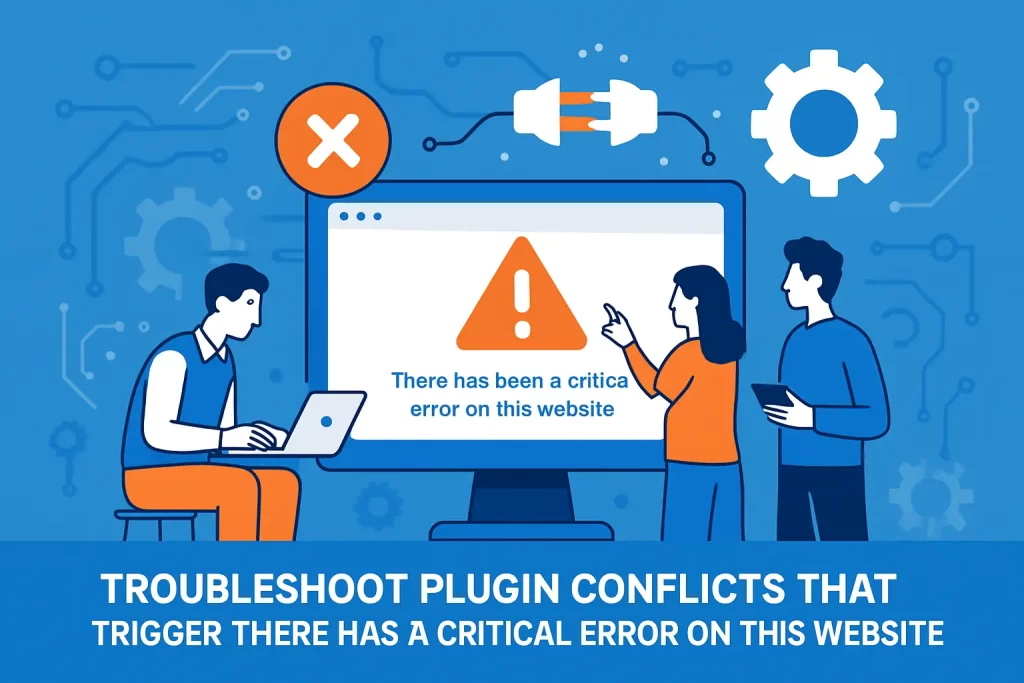
Plugins are a superpower and a liability. The WordPress ecosystem gives you velocity, but it also gives you third-party code quality variance—and conflicts tend to surface right after updates or configuration changes.
1. Disable all plugins from the dashboard or hosting panel when possible
If we can still reach wp-admin (especially via recovery mode), we disable plugins in a clean, reversible way: deactivate everything, confirm the site loads, then proceed to isolate the culprit.
From a systems angle, this is equivalent to removing optional modules from an application runtime. WordPress core plus a default theme is your “minimum viable boot.” If the site still crashes with plugins off, we immediately shift focus to the theme or core, because plugin conflict testing would be a dead end.
2. Rename wp-content plugins folder via FTP or file manager to force plugin deactivation
When wp-admin is unreachable, filesystem-level control is the blunt instrument that works. Renaming the plugins directory forces WordPress to consider all plugins missing and therefore inactive on the next request.
WordPress documents this approach in rename the folder “plugins” to “plugins.hold” as part of its troubleshooting FAQ, and we like it because it’s reversible and doesn’t destroy configuration stored in the database. After the site returns, we restore the folder name and proceed with isolation in a more deliberate way.
3. Reactivate plugins one by one to identify the conflicting plugin
Reactivation testing can be slow if you do it naively, yet it’s still the most trustworthy way to identify a conflict. Each activation changes the runtime surface area: new autoloaders, new hooks, new database interactions, and sometimes new PHP requirements.
To speed it up, we often reactivate in batches (especially on large sites) and then bisect: if a batch causes a crash, we split that batch and test again. The key is to keep notes as we go. Without notes, teams repeat steps, lose time, and misattribute root cause—particularly when multiple plugins fail under the same server constraint.
4. Example Redis Cache Predis library not found and object-cache.php related failures
A classic “looks like WordPress is down” incident involves object caching drop-ins. Redis-based caching is beneficial, but it adds an additional runtime dependency: a PHP Redis client and a drop-in file that must load early.
We’ve seen the failure pattern where the site crashes with errors like “Class ‘Predis\Client’ not found” or where a stale object-cache.php drop-in conflicts with a newly installed caching plugin. The Redis Object Cache plugin explicitly states it Supports Predis, PhpRedis (PECL), Relay, which is a polite way of saying “your server must actually have one of these clients available and correctly wired.”
What we do differently in this case
Instead of only deactivating the plugin, we also verify the drop-in state. If wp-content/object-cache.php belongs to a different caching system (or an older version), we treat it as a separate artifact that can keep breaking the site even after a plugin toggle.
5. Example Gravity Forms submission and settings errors that persist after isolating plugins
Form plugins can fail in ways that don’t look like “a plugin crash” at first. A site may load fine until a specific form is rendered, validated, or submitted, and then a fatal error appears only on that transaction path.
In those cases, isolation still helps, but we focus the test on the exact failing flow: load the form page, submit a representative payload, then check logs immediately. Configuration-driven failures can persist even after “the conflict” is removed, because the database retains entries that reference classes, feeds, or add-ons that are no longer present. When that happens, our fix is usually a combination of removing the failing add-on integration, repairing the plugin install, and then re-validating outbound integrations like email delivery or webhook calls.
Troubleshoot theme issues, child themes, and custom code
Themes aren’t just CSS. Modern WordPress themes can behave like application frameworks, especially when they ship with builders, bundled plugins, and aggressive front-end optimization layers. When a theme breaks, it can break everything.
1. Switch to a default WordPress theme to test whether the theme is the cause
If wp-admin is available, switching themes is one of the cleanest tests we can run. Default themes tend to follow core standards and avoid exotic dependencies, so they make a solid baseline.
When the critical error disappears immediately after switching, we stop blaming WordPress core and start auditing the theme’s code paths: custom functions, bundled builder components, overridden templates, and compatibility with the current PHP runtime. At that point, the fastest “restore service” move might be to keep the default theme temporarily while we repair the broken theme in staging.
2. Rename the active theme folder when wp-admin is inaccessible
If wp-admin is down and the frontend is down, we use the filesystem again. Renaming the active theme directory forces WordPress to fall back to an available default theme (or to fail more loudly if none exists).
We consider this a controlled disruption because it changes the site’s appearance, yet it’s often preferable to total downtime. Once the site boots, we can return to a safer workflow: regain admin access, inspect logs, and then decide whether to repair, roll back, or replace the theme.
3. Review child theme overrides and CSS and JS customizations after updates
Child themes are where “small tweaks” turn into long-term maintenance obligations. An override that worked perfectly last year can break today if the parent theme updates a template signature or changes a hook’s expected parameters.
Our bias is to suspect the child theme whenever a critical error follows a theme update. We look for overridden PHP templates first (because they can fatal), then for custom functions.php additions, and only later for CSS/JS changes. Front-end assets rarely crash PHP, but modern build pipelines sometimes inject PHP-based asset loaders or optimization code that can fail under strict server settings.
4. Example WooCommerce product page critical error tied to Cornerstone and version compatibility
WooCommerce adds complexity because it’s both a plugin and an ecosystem. Product pages are especially sensitive: they trigger templates, shortcodes, gallery code, pricing logic, inventory checks, and sometimes page-builder modules.
We’ve encountered cases where a builder component—such as Cornerstone-driven modules inside a theme framework—works on most pages but fatals on product pages because it interacts with WooCommerce hooks in an unexpected order. The practical takeaway is that “it loads on the homepage” doesn’t clear the theme. If the crash only happens on products, we test products, and we isolate builder add-ons and template overrides that are specific to product rendering.
Recover from failed updates, missing files, and corrupted core
When the error follows an update, we assume the filesystem might be inconsistent until proven otherwise. WordPress updates are usually safe, but “usually” is not a guarantee—especially on overloaded servers or sites with aggressive security layers.
1. Restore the site from a known good backup including both files and database
Backups are not a checkbox; they’re a rollback strategy. A real restore point includes both the files and the database, captured close enough in time that WordPress doesn’t wake up with mismatched code and schema expectations.
At 1Byte, we’re unapologetically pro-restore when the incident timeline is clear: “the site worked, an update ran, and then it crashed.” In that scenario, a restore is often faster and safer than hand-editing production. After service is restored, we can replay the update in staging, observe the exact failure, and then apply a controlled fix.
2. Reupload WordPress core files while excluding the wp-content directory
If core files are missing or corrupted, reuploading WordPress core can recover integrity without touching your themes, plugins, or uploads inside wp-content.
We do this when logs point to core includes failing, when checksum verification suggests tampering, or when an update was interrupted mid-write. The discipline here is important: we overwrite core, but we do not overwrite wp-config.php, and we avoid deleting wp-content because that’s where your business logic lives.
3. Use WP-CLI wp core download with skip-content and force to refresh core files
On servers with shell access, WP-CLI turns a messy file operation into a predictable command. The core refresh workflow many administrators use is wp core download --skip-content --force, which overwrites WordPress core files while preserving content directories.
From our hosting perspective, this is one of the most “boringly reliable” repairs you can do—provided you understand what it touches and you have a backup. After the download, we typically verify that the site boots, then we move up the stack to plugins and themes, because a core refresh won’t fix a third-party fatal.
4. Reduce update risk with staging sites and safer update workflows
We’ll say this plainly: “updating on production” is a cultural habit, not an operational best practice. The safer workflow is staging-first, then production, with clear rollback points.
In practice, that means cloning the site, running updates in staging, executing a small checklist of critical user journeys (login, checkout, forms, search, admin editing), and only then promoting changes. Even if you’re a small business, this habit pays off because it converts unknown downtime into a planned maintenance window with predictable outcomes.
Fix server-side PHP issues: version compatibility, extensions, and limits
When plugins and themes “suddenly” start failing, we often find the true change happened below WordPress: a PHP version shift, an extension removed, or a resource limit reached under higher load.
1. Upgrade PHP version to meet WordPress requirements and avoid incompatibilities
WordPress core and most actively maintained plugins track modern PHP behavior. If your server runs an outdated or unsupported PHP runtime, you’re exposed to both security issues and compatibility failures.
At the same time, upgrading PHP can also break older plugins that were never updated. That’s why we recommend a deliberate approach: confirm your current runtime, check compatibility notes for your critical plugins (ecommerce, membership, caching, builders), test in staging, and then upgrade. Done correctly, this step often improves both performance and stability, not just “fixes the error.”
2. Increase PHP memory limit when logs indicate resource limits are being reached
Some critical errors aren’t caused by bad code; they’re caused by insufficient resources for legitimate work. Page builders, image processing, large WooCommerce catalogs, and import/export workflows can demand more memory than a small default limit allows.
Rather than blindly raising limits, we look for log evidence: memory exhaustion messages, repeated failures at the same request type, or fatals that appear only on heavy admin screens. Once confirmed, we raise the limit using the correct method for the hosting environment (control panel, PHP-FPM pool settings, or WordPress config), then re-test the exact failing action.
3. Raise local PHP limits using .user.ini and validate settings with phpinfo.php
On many shared and managed environments, you don’t control the global php.ini. In those cases, per-directory overrides such as .user.ini can be the practical lever, assuming the host allows it.
We also validate changes rather than trusting them. A simple phpinfo.php file (created temporarily and removed immediately after) can confirm whether your runtime actually picked up the new values. In incident response, confirmation is everything; otherwise teams waste hours “fixing” settings that never applied.
4. Watch for missing PHP extensions, disabled PHP functions, and shared hosting constraints
Some plugins rely on extensions like imaging libraries, multibyte string handling, XML parsing, or network transports. Others depend on functions that hosts sometimes disable for security hardening.
Shared hosting adds another variable: noisy neighbors and conservative limits. If a site is barely within resource ceilings on a quiet day, a traffic spike or a heavier plugin update can push it over the edge. When that happens, the “right fix” might not be another tweak inside WordPress—it might be moving the workload to an environment where resources scale with need.
How 1Byte supports WordPress sites facing critical errors
We’ll be candid: not every business wants to become an expert in PHP runtime behavior, log analysis, and safe deployment patterns. That’s part of why hosting matters. The platform you run on determines how quickly you can recover and how safely you can change.
1. Domain registration and SSL certificates to keep WordPress sites secure and trusted
Critical errors are not always security incidents, yet security weaknesses often create the conditions for catastrophic failures. A compromised admin account, a hijacked domain configuration, or an expired certificate can turn a small technical issue into a full-blown trust crisis.
From our side at 1Byte, we treat domains and SSL as foundational controls: they protect login flows, they reduce interception risk, and they keep browsers from scaring away customers during already-stressful outages. Security isn’t “extra”; it’s the baseline that keeps troubleshooting from becoming damage control.
2. WordPress hosting and shared hosting built for reliable updates and day-to-day stability
Many WordPress critical errors happen during mundane operations: updating a plugin, uploading a theme, regenerating thumbnails, or running scheduled tasks. That’s why stability isn’t just uptime—it’s predictable behavior during change.
Our hosting philosophy prioritizes practical supportability: access to logs, sane defaults, and the ability to roll back quickly when an update misbehaves. Just as importantly, we encourage staging-based workflows because tooling alone can’t compensate for risky deployment habits.
3. Cloud hosting and cloud servers with scalable resources plus AWS Partner expertise
Some WordPress sites outgrow fixed limits, especially ecommerce, media-heavy sites, and multi-author platforms. In those cases, scaling isn’t vanity—it’s resiliency. More CPU headroom, more memory, and cleaner isolation reduce the odds that a single expensive request will tip the whole site into a fatal state.
With cloud servers and cloud hosting, we can align the runtime environment to the workload rather than forcing the workload to shrink to fit arbitrary constraints. Our AWS Partner expertise also shapes how we think about architecture: we prefer clear observability, controlled change, and fail-safe rollback paths so that WordPress behaves like a managed application, not a fragile snowflake.
Conclusion: prevent future there has been a critical error on this website incidents
Fixing today’s crash is important, but preventing the next one is where operational maturity shows. We’d rather you spend your time building content, products, and customer relationships than spelunking through fatal errors under pressure.
1. Maintain routine backups and restore points before plugin, theme, or core updates
The most reliable WordPress recovery plan is still the simplest: restore from a known good point. That requires routine backups that you can actually restore, plus an intentional habit of taking a fresh restore point before any meaningful change.
In our experience, teams that practice restores occasionally are dramatically calmer during real incidents. Muscle memory matters, and a restore that has never been tested is an assumption—not a plan.
2. Minimize conflicts by removing unused plugins and themes and testing changes safely
Every inactive theme and unused plugin is still a piece of software you have to track, update, and trust. Reducing inventory reduces attack surface and reduces the odds of a surprise incompatibility during upgrades.
Just as crucial is how you test. A staging site, a conflict-test routine, and a short checklist of business-critical pages turn updates from roulette into routine maintenance. WooCommerce’s guide on How to test for plugin and theme conflicts matches the same discipline we use in hosting operations: isolate variables, test the exact failure path, then change one thing at a time.







3. Escalate to hosting support or a WordPress expert when logs indicate deeper server or code issues
Some failures are not “plugin toggles.” If logs point to deep runtime constraints, filesystem permission issues, corrupted storage, or repeated fatals inside custom code, escalation is the professional move.
At 1Byte, we’d rather you bring us a small, well-scoped log excerpt and a reproduction path than spend days making blind edits. So here’s our suggested next step: if you had to fix one thing this week to reduce future critical errors—would it be a staging workflow, a backup-and-restore drill, or a plugin inventory cleanup?