

- What the WordPress error establishing a database connection means
- Fast triage checks to narrow down the cause
- Check wp-config.php settings for the WordPress error establishing a database connection
- Fix database host and connectivity problems
- Repair WordPress database tables safely
- Repair with hosting tools and phpMyAdmin
- Replace corrupted WordPress core files without losing content
- Server load, backups, and security issues that trigger database connection failures
- How 1Byte helps prevent and resolve WordPress database connection issues
- Conclusion and next steps if the error persists
When a WordPress site throws the dreaded “error establishing a database connection,” it’s not being poetic—it’s describing a very specific failure in a very short chain of dependencies. PHP has to run, WordPress has to bootstrap, credentials have to be correct, the database host has to be reachable, and MySQL (or MariaDB) has to accept the connection and return expected tables. Break any link in that chain and the whole page collapses into that single, unhelpful sentence.
From our seat at 1Byte—where we host WordPress, move WordPress between environments, and troubleshoot WordPress under load—we’ve learned that the fastest fixes come from disciplined diagnosis, not frantic file edits. Even better, the business impact is big enough that it deserves that discipline: public-cloud investment keeps rising (Gartner forecasts $723.4 billion in 2025 while McKinsey estimates $3 trillion in EBITDA value by 2030 is at stake for companies that go beyond basic adoption), so reliability failures increasingly translate into lost orders, missed leads, and eroded trust rather than “just a technical glitch.”
In practice, we most often see this error after migrations, partial restores, database-host changes, or a well-intentioned security hardening that accidentally blocks database connectivity. Sometimes it’s intermittent and tied to resource limits, which is exactly why we prefer a triage-first approach: confirm the pattern, confirm reachability, then validate configuration, then repair or replace only what’s necessary.
What the WordPress error establishing a database connection means
1. How WordPress uses a database to store site content and settings
WordPress is “just PHP files” only in the same way a restaurant is “just a kitchen.” The real operation lives in the database: posts, pages, menus, WooCommerce orders, plugin settings, user accounts, and a surprising amount of runtime state (including cached options, transients, and rewrite rules) all live there. Once WordPress can’t talk to that database, it can’t even reliably decide which theme to load, which plugins to initialize, or what the home URL should be.
Operationally, that means the error is not the same as a theme crash or a plugin fatal error. A broken theme can often still show wp-admin or at least allow a recovery mode flow. By contrast, a database connection failure blocks the bootstrap early, so both front-end and admin can go dark together. From the business side, that’s why this particular message tends to correlate with “everything is down” reports rather than “a specific page is broken” tickets.
2. Why wp-config.php database settings determine whether WordPress can load
WordPress decides how to connect to the database primarily through wp-config.php. That file supplies the database name, username, password, and host—plus a table prefix that tells WordPress what tables to look for once it connects. If any of those values are wrong, WordPress may fail immediately (wrong host, wrong password), or it may connect successfully but still behave as “broken” (right credentials, wrong database name, missing tables, wrong prefix).
From our perspective, wp-config.php is the most common “single point of truth” that gets out of sync during migrations. Someone copies files first, imports the database later, or creates a new database user but forgets to update the config. On managed platforms, environment variables or platform-level connection strings can add another layer, yet WordPress still needs consistent values by the time it calls the database layer.
3. Typical situations where the error appears after a migration, new install, or config change
Migrations create perfect conditions for this error because they mix many moving parts: DNS cutovers, new database servers, different MySQL hosts, and different privilege models. A common real-world scenario we see is a site moved from a “single box” shared hosting plan (web and database on the same server) to a setup where the database is on a separate host. Everything looks identical in the file tree, but the database host is no longer localhost, so WordPress fails until that single line is corrected.
Fresh installs can also fail if the database was created but the user doesn’t have privileges, or if the installer wrote credentials that don’t match the actual database user. Config changes introduce a different failure mode: an editor adds a stray character, breaks PHP syntax, or pastes “smart quotes,” causing the config to parse incorrectly. At that point, WordPress can’t even reach the step where it tries to connect.
Fast triage checks to narrow down the cause
1. Confirm whether the issue is consistent or intermittent across visitors and devices
Before we touch files, we ask a deceptively simple question: is the error consistent or intermittent? Consistent failures usually mean wrong credentials, wrong host, missing privileges, missing tables, or the database server being down. Intermittent failures often point to resource pressure—connection limits, slow queries, CPU contention, storage issues, or an overloaded database instance that sometimes accepts connections and sometimes refuses them.
To test this quickly, we open the site from a different network (mobile hotspot versus office Wi‑Fi), try both the homepage and a deep URL, and refresh a few times spaced out rather than hammering reload. On production sites, we also check from a monitoring endpoint if one exists. If the error flips between “working” and “database connection error,” we treat it as a capacity or stability incident first, because “fixing” credentials won’t solve a saturated database server.
2. Test whether the database server is reachable using phpMyAdmin or Adminer
The next move is to bypass WordPress and test the database directly. If the host provides phpMyAdmin, we use it. If it doesn’t—or if we’re working in a locked-down environment—we sometimes deploy Adminer temporarily because it’s a single PHP file and can be removed cleanly after diagnosis.
A successful database login tells us several things at once: the database service is up, networking to it works (at least from the web server context), and credentials are valid. From there, we verify the expected tables exist and that the table prefix matches what WordPress expects. A failed login, on the other hand, immediately pushes us toward credential validation, permission fixes, or database-server health checks rather than WordPress-level repairs.
3. After changes, retest using private browsing and clear any cache if needed
WordPress troubleshooting is full of false victories because caches can lie. After making changes, we retest in a private window, and we clear any server-side page cache if the host uses one. Object caches can be even trickier: if Redis or Memcached is involved, stale options can produce confusing behavior even after the database itself is healthy again.
From our hosting operations experience, we also watch for CDN caching of the error page. If a CDN cached the failure response, users can continue seeing the database error even after the origin is fixed. That’s why we prefer a controlled retest: private browsing, direct origin access when possible, then CDN-pathed access last.
Check wp-config.php settings for the WordPress error establishing a database connection
1. Validate DB_NAME, DB_USER, and DB_PASSWORD against your current database details
When we suspect configuration drift, we compare what’s in wp-config.php against what the hosting control panel (or the database administrator) says is correct. The authoritative reference on what these settings mean and how they’re used is the wp-config.php documentation, and we follow that model closely because it reduces guesswork and avoids folklore fixes.
In practical terms, we confirm that the database name is the one that actually contains the WordPress tables, that the user exists, and that the password matches exactly (copy/paste errors are common). On migrations, we also verify that the user is mapped to the right database—hosting panels sometimes create the user successfully but don’t assign it to the database with privileges, leaving credentials that “look real” but still can’t read tables.
2. Verify DB_HOST, including cases where it must include a hostname and port number
DB_HOST is where migrations love to hide their sharp edges. On many setups, localhost is correct because the database is on the same machine. On other platforms, especially managed or clustered hosting, the database host is a dedicated hostname, sometimes with an explicit port, and WordPress won’t infer that for you.
When we troubleshoot this at 1Byte, we look for any platform documentation that specifies a database endpoint. If a port is required, WordPress can accept a hostname:port style value as described in the same documentation (for example, localhost:3307 as an alternate-port pattern). After changes, we re-test direct database login to confirm the endpoint is reachable before we assume WordPress is the problem.
3. Confirm the table prefix matches the prefix shown in database table names
It’s easy to connect to the right server with the right user and still fail if WordPress is looking for tables that aren’t there. That happens when $table_prefix in wp-config.php doesn’t match the actual prefix in the database. We see this most often when someone imports a database dump from another environment where the prefix was customized, then uploads a wp-config.php that still uses the default prefix.
The fastest verification is visual: look at the table list in phpMyAdmin or Adminer and note the prefix used on tables like options, posts, and users. Once the prefix matches, WordPress can locate its schema. If the prefix is wrong and you “fix” it by changing the database table names instead of the config, you can create collateral damage—so we nearly always adjust wp-config.php rather than renaming tables unless there’s a strong reason to do the opposite.
Fix database host and connectivity problems
1. When localhost is correct and when managed hosting uses a separate database host
On a classic LAMP stack where WordPress and MySQL run on the same server, localhost is usually correct and also usually fastest. Problems arise when an environment changes under your feet: a provider moves databases to a separate node, a site is migrated to a managed service with a remote database endpoint, or you’re connecting across containers where “localhost” no longer means what you think it means.
From our operational viewpoint, remote database hosts introduce additional failure domains: DNS resolution for the database hostname, firewall rules between tiers, and TLS or authentication requirements if the database is hardened. Troubleshooting should reflect that reality. Rather than repeatedly editing WordPress files, we confirm the web server can resolve and reach the database host, then confirm the database accepts connections from that source network.
2. Local development fixes such as switching DB_HOST from localhost to 127.0.0.1
Local development has its own brand of confusion because “localhost” can map to different protocols or sockets depending on the stack. On some systems, PHP’s MySQL client libraries treat localhost as “use a Unix socket,” while an IP loopback forces a TCP connection. That’s why one of the most reliable local fixes is to change DB_HOST from localhost to 127.0.0.1 when a socket mismatch is suspected.
In our experience, this is especially relevant when developers switch between Dockerized environments, local PHP bundles, and OS-native MySQL installs. The right mental model is: you’re not “changing WordPress,” you’re changing the transport. If TCP works and sockets don’t (or vice versa), the database isn’t “down”—it’s just not reachable the way WordPress is currently attempting.
3. Troubleshoot MySQL socket and local server setup issues on macOS and MAMP style stacks
On macOS, MAMP-style stacks, and other local bundles, socket paths are a common culprit. WordPress can be configured to include a socket path as part of DB_HOST, which is useful when MySQL listens on a socket file that isn’t in the default location expected by PHP. When the socket changes (after an update, reinstall, or switching between bundled and system MySQL), WordPress may suddenly fail to connect even though “MySQL is running.”
We recommend treating local troubleshooting like production troubleshooting: confirm the database process is up, confirm a direct login works, then align WordPress configuration with the actual endpoint. If you find yourself repeatedly “fixing” local database errors by reinstalling your stack, it usually means the underlying endpoint assumptions aren’t documented. Writing down the working host and socket details once saves hours later.
Repair WordPress database tables safely
1. Enable WP_ALLOW_REPAIR and use the WordPress repair.php tool
When credentials are correct and the database server is reachable, table corruption becomes a realistic suspect—especially after abrupt shutdowns, disk-full events, or failed restores. WordPress includes a built-in repair utility that can be enabled by adding WP_ALLOW_REPAIR in wp-config.php and then visiting /wp-admin/maint/repair.php, as described in the same wp-config.php documentation.
From a hosting-provider lens, we like this tool because it’s WordPress-native and targeted. Still, we treat it like a scalpel, not a hammer. Before enabling it, we prefer having a database backup (even a quick export) because a repair attempt is a write operation, and write operations deserve rollback options.
2. Choose Repair Database versus Repair and Optimize Database based on urgency and backups
The repair screen offers different levels of intervention. In an outage, we prioritize the fastest path to restoring reads and writes, then circle back for optimization when the site is stable and backups are confirmed. Optimization can be beneficial, but it’s not the first priority when orders are failing or content editors are blocked.
At 1Byte, we also consider the hosting environment’s performance characteristics. On slower storage or heavily loaded shared environments, repair-plus-optimization can take longer than expected, which increases the time window where operators keep retrying, refreshing, or making additional changes. A calmer sequence—repair first, validate functionality, then optimize during a quieter window—reduces risk.
3. Remove WP_ALLOW_REPAIR after repair to prevent leaving the repair page exposed
The repair tool is intentionally designed to work even when you can’t log in, which implies something important: it’s not protected by normal authentication when enabled. That is exactly why we consider removing WP_ALLOW_REPAIR non-negotiable once the repair is complete. Leaving it enabled is the kind of “temporary fix” that quietly becomes a permanent liability.
Operationally, we like to build a habit around this: edit wp-config.php, run the repair, remove the constant, and then immediately retest the repair URL to ensure it no longer loads. Good incident response closes doors after it walks through them, and this is one of those doors.
Repair with hosting tools and phpMyAdmin
1. Run database repair from a hosting control panel when you prefer not to edit wp-config.php
Not every workflow is comfortable editing wp-config.php, and in some managed setups you may not even have direct file access. In those cases, hosting control panels sometimes provide “repair database” utilities, and they can be a safer fit for teams that want guardrails. When we’re supporting customers, we often ask which access path is least risky: file edits, database console, or panel tooling.
From our point of view, the best tooling is the tooling you can execute correctly under pressure. If a control panel offers a repair function that’s well-documented and reversible, it can be preferable to a rushed manual change. The key is to avoid stacking changes: pick one repair method, run it, validate results, then proceed.
2. Use phpMyAdmin to check all tables and run Repair Table
phpMyAdmin is a practical middle ground: it gives enough visibility to verify table presence, table naming, and table status without requiring shell access. Once inside, we typically check tables for errors, then run a repair operation only on the tables that report issues. Doing it table-by-table can feel slower, yet it reduces the blast radius when a database has a mix of healthy and unhealthy tables.
We also use phpMyAdmin as a truth serum. If WordPress claims it can’t connect, but phpMyAdmin access works and the tables look healthy, then the failure is usually in configuration, permissions, or application-level exhaustion rather than raw database availability. That insight keeps troubleshooting from drifting into random “WordPress reinstalls” that don’t address the root cause.
3. Confirm database user access and permissions once tables and credentials look correct
Permissions failures can masquerade as connection failures, especially when the database user exists but lacks rights on the target schema. In shared hosting panels, it’s possible to create a user, set a password, and still forget the step where you grant privileges to that user on the database. WordPress then “connects” in the sense that the server is reachable, but it can’t read required tables and fails during initialization.
From a systems perspective, we want least privilege, but we also want correct privilege. The right fix is typically granting the appropriate permissions to the WordPress database user for that database, not switching WordPress to a higher-privilege account. Once access is corrected, we retest by loading both the homepage and wp-admin to ensure reads and writes are functioning.
Replace corrupted WordPress core files without losing content
1. Download a fresh WordPress copy and remove wp-content before uploading
When the database is healthy and reachable but WordPress still fails in odd ways, corrupted core files become a plausible cause—especially after partial updates, interrupted deployments, or malware cleanup attempts. The safest philosophy here is “replace core, keep content.” That typically means downloading a fresh WordPress copy and ensuring you do not overwrite wp-content, where themes, plugins, and uploads live.
In our experience, this approach is particularly effective for sites that were updated via an unreliable FTP client that silently skipped files. Core files are supposed to be deterministic; if your core directory is a patchwork of old and new, WordPress may behave unpredictably. Replacing core restores a known-good baseline without touching your database content.
2. Overwrite core files while keeping wp-config.php intact
The practical rule we follow is simple: preserve wp-config.php and preserve wp-content. Everything else in core can be replaced. If you overwrite wp-config.php, you risk wiping the very settings that allow WordPress to connect to the database, which can turn a partial incident into a full outage.
During this step, we also watch for hidden operational hazards. File ownership and permissions can change during uploads, particularly when switching between SFTP users or deployment methods. If core replacement “fixes” the database error but causes update failures later, it’s often because permissions drifted. A careful upload process avoids trading one problem for another.
3. Clear browser cache and retest to avoid loading outdated files
After core replacement, we retest in a clean browser context. Cached assets can cause mismatched JavaScript or CSS, which doesn’t usually trigger a database connection error, but it can create misleading symptoms like broken admin screens that look like deeper failures. Private browsing helps us separate “the site is still down” from “the browser is showing yesterday’s mess.”
From an incident-response standpoint, this step is about confidence. If we’re going to declare a fix, we want confirmation from a fresh session and, ideally, from a second device. That prevents the embarrassing (and costly) scenario where operators announce recovery while customers still see an error page.
Server load, backups, and security issues that trigger database connection failures

1. Database server downtime, maintenance, heavy traffic, and too many concurrent connections
Intermittent database connection errors often come down to resource constraints. A database can be “up” and still refuse new connections if it’s hit its configured connection ceiling or if it’s struggling under load. We’ve seen this pattern with traffic spikes, runaway cron jobs, slow queries introduced by a plugin update, and even bot traffic that inflates concurrent requests until the database is the bottleneck.
To frame the issue clearly, we like the explanation from the “Too many connections” error overview, because it pushes teams to think in terms of connection limits and database capacity rather than mystical WordPress failure. Once you’re in that mindset, the solution set expands: caching strategy, query optimization, scaling the database, or adjusting connection handling at the application layer.
2. Restore from backups when wp-config.php or environment settings are incorrect
Backups are not merely for catastrophic loss; they’re also a fast way to undo configuration drift. If a wp-config.php edit introduced the failure and you have a recent known-good version, restoring that file can be the cleanest fix. Likewise, if a migration involved many changes and you can’t confidently isolate the one that broke connectivity, rolling back to a consistent snapshot can be smarter than stacking guesses.
We’ve watched teams burn hours trying “just one more tweak” when the real need was to restore a coherent state and then re-apply changes carefully. The habit we promote is: snapshot before change, document the change, verify after change, and keep rollback options within reach. That’s how infrastructure becomes boring—in the best sense of the word.
3. Malware and compromised wp-config.php files that break database connectivity
Security incidents can cause database connection failures in both direct and indirect ways. Directly, malware may modify wp-config.php (changing credentials, adding malformed code, or injecting output) and prevent WordPress from connecting. Indirectly, a compromised site can generate extreme database load—brute-force attempts, spam injections, or malicious cron behavior—until the database denies connections under pressure.
From our standpoint, the right response is layered: restore known-good configuration, rotate database credentials, scan and clean the file system, and then harden the environment to reduce repeat incidents. If the same issue reappears after “fixing” credentials, we treat that as a signal to investigate deeper rather than endlessly re-editing configuration.
How 1Byte helps prevent and resolve WordPress database connection issues
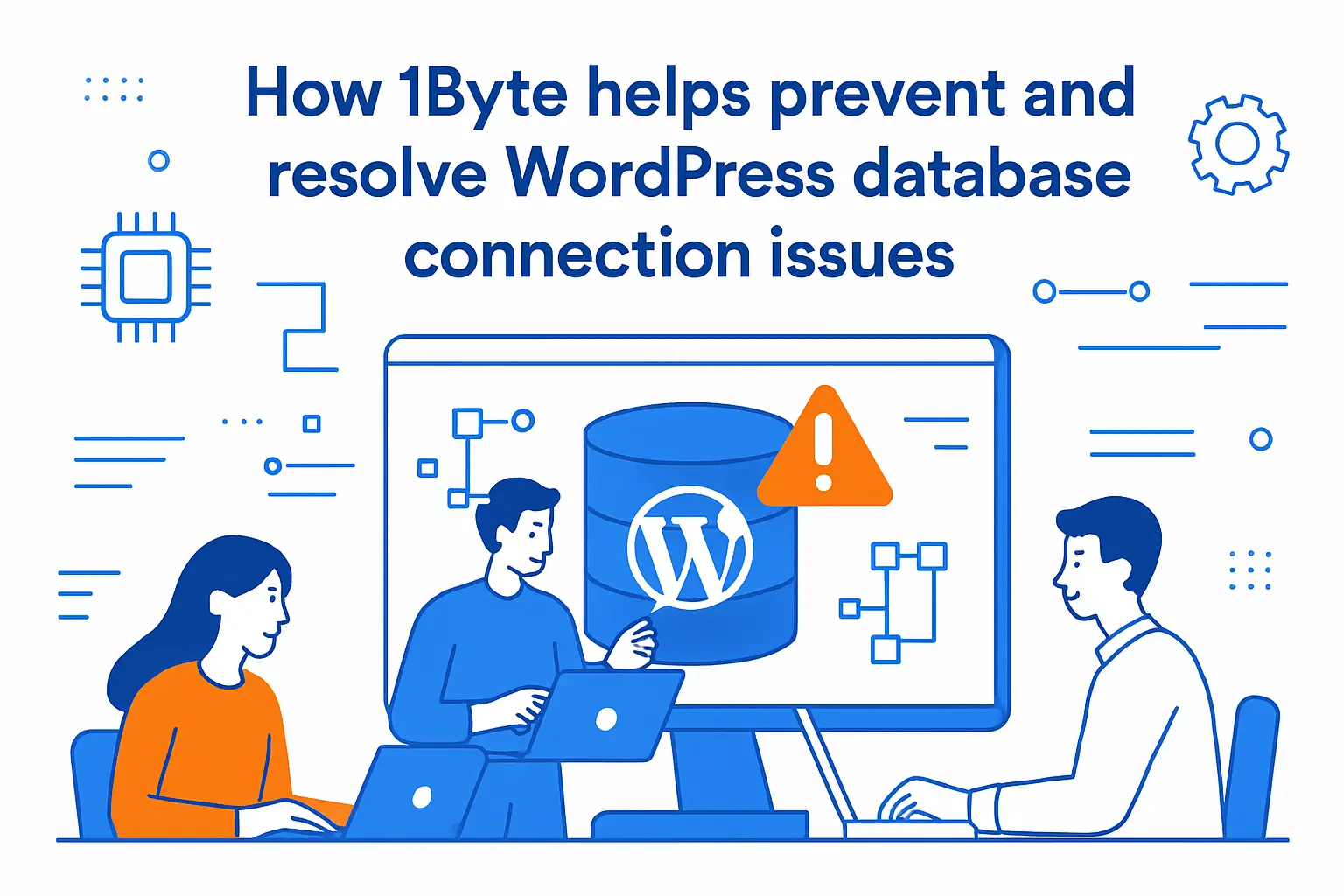
1. WordPress hosting and shared hosting to keep WordPress database connectivity stable
We think of hosting as a reliability product, not just disk space. In our WordPress and shared hosting environments, the goal is to keep the entire request path stable: DNS resolves, TLS terminates cleanly, PHP runs predictably, and the database tier remains reachable under normal operating conditions. When customers hit database connection errors, we look beyond “what’s in wp-config.php” and ask what changed in the underlying environment—resource saturation, maintenance events, permission drift, or upstream networking issues.
Practically, that means we invest in monitoring signals that correlate with database failures: connection pressure, slow-query patterns, storage health, and service restarts. We also encourage staged change workflows—because the fastest database fix is the one you never need after a controlled deploy.
2. Domain registration and SSL certificates to support secure, correctly configured WordPress sites
Although domains and SSL don’t directly control database connectivity, they shape how troubleshooting unfolds. A misconfigured domain or certificate can produce confusing symptoms (redirect loops, mixed content, origin bypass attempts) that distract teams from the real database problem. When the site is already down, clarity matters, so we prefer clean, consistent domain configuration and certificate management as part of the baseline hygiene.
From our perspective, security basics also reduce database incidents indirectly. A site that enforces HTTPS correctly and avoids questionable “quick fixes” is less likely to be compromised, and compromised sites are disproportionately likely to experience database outages due to malicious load and unauthorized writes. Reliability and security aren’t separate tracks—they’re braided together.
3. Cloud hosting and cloud servers with AWS Partner support for scaling WordPress and MySQL workloads
Some WordPress sites outgrow the economics of a single shared database tier. At that point, scaling is less about “more CPU” and more about architectural headroom: separating concerns, sizing database capacity to traffic reality, and ensuring that peaks don’t become outages. In cloud hosting and cloud servers, we can design a path where WordPress and MySQL scale with the workload rather than fighting for the same constrained resources.
In environments where customers want a more structured scaling story, our AWS Partner support helps align infrastructure decisions with operational goals: resilience, observability, and predictable performance under growth. From a WordPress database-connection standpoint, the win is simple: fewer incidents caused by resource ceilings and more time spent building the site instead of rescuing it.
Conclusion and next steps if the error persists
1. When to contact your hosting provider with the exact checks you have completed
If you’ve verified database reachability via phpMyAdmin/Adminer, validated wp-config.php values, and ruled out prefix mismatches, it’s time to treat the incident as infrastructure-level rather than WordPress-level. That’s the moment we recommend contacting your hosting provider with a crisp summary of what you tested and what you observed, because it allows the support team to skip the beginner checklist and jump straight to logs, service health, and resource constraints.
From our support experience, the best tickets are the ones that read like a lab notebook: what changed, what you checked, and what the result was. The worst tickets are the ones that read like a mystery novel. Precision shortens outages.
2. What to document before escalating, including database host, port, prefix, and recent changes
Before escalating, we document the connection details and the recent change history. That includes the current DB_HOST value (and whether it includes a port or socket), the database name and user, the table prefix, and any migration steps that recently occurred. We also note whether the error is constant or intermittent and whether direct database login succeeds.
Good documentation prevents repeated work. It also protects teams from accidental regressions, because it makes it harder to “fix” the problem by reintroducing an older misconfiguration. When time is money, this discipline pays for itself quickly.







3. Prevention checklist: backups, careful wp-config.php edits, updates, and security monitoring
Preventing database connection errors is less glamorous than fixing them, yet it’s where mature operations live. We recommend a simple, repeatable checklist: maintain restorable backups, make wp-config.php edits carefully (and ideally via versioned workflows), keep WordPress core and plugins updated in a controlled way, and monitor security signals that predict database trouble.
If you’re staring at this error today, the next step is to decide which path you’re on: is this a configuration mismatch you can correct cleanly, or is it a stability/capacity incident that needs deeper hosting intervention? Once you’ve answered that honestly, what would you like to optimize next—faster recovery the next time, or fewer incidents in the first place?