

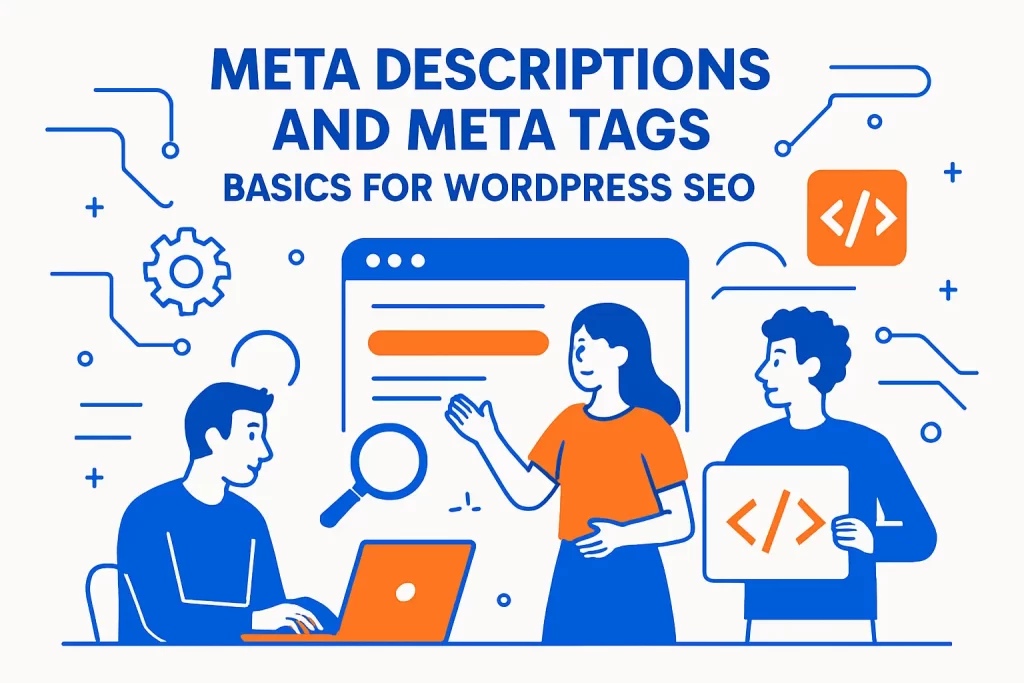
- Meta Descriptions and Meta Tags Basics for WordPress SEO
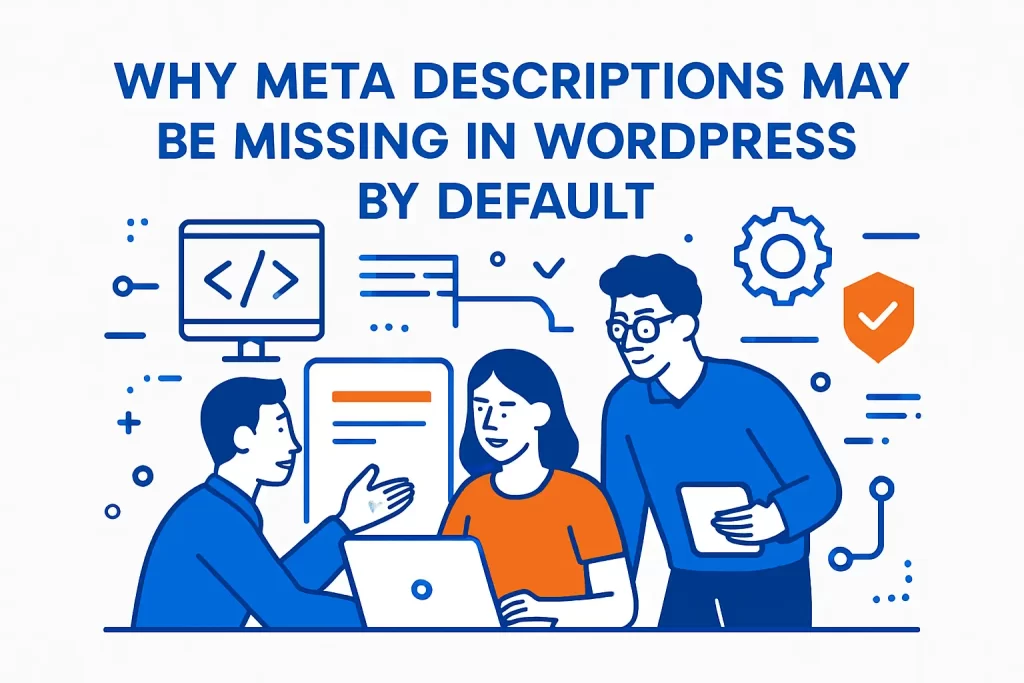
- Why Meta Descriptions May Be Missing in WordPress by Default
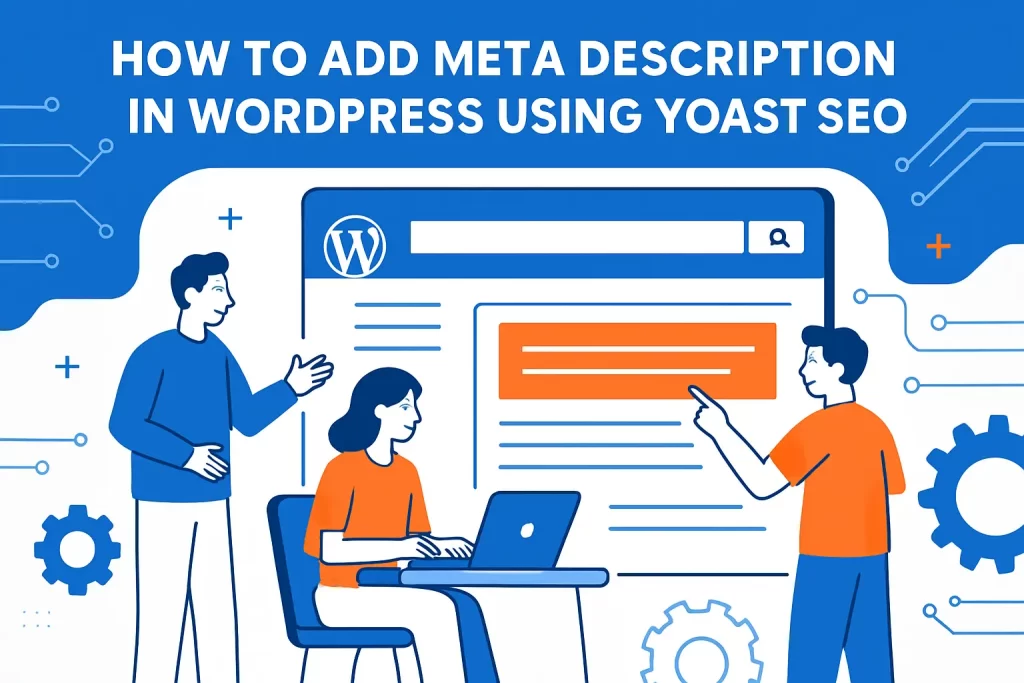
- How to Add Meta Description in WordPress Using Yoast SEO
- How to Add Meta Description Meta Tags Manually in WordPress Themes
- Troubleshooting Meta Descriptions That Do Not Update
- Writing Meta Descriptions That Earn Clicks and Match Search Intent
- Meta Description Length, Previews, and Accessibility Checks
- How 1Byte Supports WordPress Sites With Hosting and Cloud Services
- Conclusion and Checklist for How to Add Meta Description in WordPress
As 1Byte—a cloud computing and web hosting provider that lives and dies by how our customers’ sites get discovered—we treat meta descriptions as a deceptively small knob with outsized business impact. Search snippets, social link previews, and even internal team workflows (think: “Which landing page is this again?”) all hinge on a few lines of text that most WordPress sites never deliberately set.
From a market perspective, this obsession makes sense: in a cloud economy that Gartner forecasts to total $723.4 billion in 2025, competition is less about simply being online and more about converting attention efficiently, because compute, content, and distribution are now table stakes. Organic search is still one of the highest-intent channels we can earn rather than rent, and the snippet is the handshake before the click.
Meta Descriptions and Meta Tags Basics for WordPress SEO
Meanwhile, WordPress remains the default publishing substrate for a huge share of the internet—W3Techs reports 43.2% of all websites use WordPress—so the “how” matters at scale. If you’re running a B2B site, a WooCommerce store, or a content hub, meta descriptions become part copywriting system, part technical integration, and part governance problem.
In the rest of this guide, we’ll move from foundations to implementation (plugin and manual), then into troubleshooting and writing craft. Along the way, we’ll keep our 1Byte bias visible: we care about repeatable processes, low-risk changes, and outcomes that survive theme updates, caching layers, and Google’s habit of rewriting what we thought we controlled.
1. What meta tags are and what the meta description tag does
Meta tags are small pieces of HTML metadata that live in a page’s <head> and describe the document to user agents—search engines, social crawlers, browser UI, and a grab bag of bots that treat your pages like an API. In practical WordPress work, we group these into a few buckets: title signals, description signals, crawler directives (robots), canonicalization, and social preview metadata.
The meta description is the classic “summary” tag: <meta name="description" content="...">. Conceptually, it’s not your ranking lever; it’s your click-qualification lever. In other words, it frames the promise your page makes before the user commits attention. When our customers ask why a page with good content underperforms, we often find the snippet tells the wrong story—or tells no story at all—because WordPress never produced a tailored description in the first place.
Technically, the description tag is just one candidate input for snippet generation. Google is explicit that Google primarily uses the content on the page to automatically determine the appropriate snippet—which means your meta description is best understood as a strong suggestion that must align with the visible page, not a magic override.
2. Where meta descriptions can appear in search snippets and link previews
Search results are the obvious destination: a title line, a URL line, and a snippet line that may or may not match what you wrote. Yet the same “description-ish” text often gets reused (or used as a fallback) in link previews across platforms and tools. That includes messaging apps, social networks, and collaboration tools that prefetch your page to generate a card.
Open Graph metadata adds another layer of preview control. The Open Graph protocol describes og:description – A one to two sentence description of your object as an optional but recommended property. In practice, many platforms will fall back to your meta description when Open Graph fields are missing, inconsistent, or blocked by caching and redirect quirks.
From a business angle, these previews matter because they compress your brand into a tiny box. A product page shared by a sales rep, a blog post dropped into a Slack channel, or a support article pasted into a ticket—each becomes a miniature advertisement. If the preview text is random, duplicated, or clipped into nonsense, trust erodes before a human even lands on your site.
3. How title tags and meta descriptions work together in search results
Think of the title tag as the label and the meta description as the pitch. A good title answers “What is this?” while a good description answers “Why should I choose this result?” When both are aligned, the snippet reads like a coherent unit, and the click feels like a rational next step rather than a gamble.
Operationally, we recommend pairing them intentionally: use the title to anchor the primary topic and brand context, then use the description to clarify the angle, scope, and payoff. For service pages, that payoff is often a specific problem solved. For content pages, it’s usually a promise of depth, freshness, or a distinctive framework.
On the technical side, cohesion reduces the risk that Google swaps in an unexpected snippet. When the page’s first paragraph, headings, and structured context reinforce the same message your meta description conveys, you’re essentially making it easier for the algorithm to agree with you—even if it still reserves the right to improvise.
Why Meta Descriptions May Be Missing in WordPress by Default
1. Default WordPress does not automatically output description and keywords meta tags
WordPress core is a publishing engine, not an SEO opinionated framework. Out of the box, it manages content, permalinks, and template rendering, then leaves “search appearance” to themes and plugins. Many themes will output modern essentials (like the title tag and canonical behavior), but a consistent, per-page meta description is not guaranteed unless you add logic for it.
The key integration point is the head hook. WordPress documents that The wp_head action hook is triggered within the <head></head> section of the theme’s header.php template, and that’s where themes and plugins inject metadata. If no component chooses to generate <meta name="description">, your page can ship without one.
At 1Byte, we see this most often after a theme switch or a site migration: the prior stack had an SEO plugin generating descriptions, the new stack doesn’t, and nobody notices until rankings wobble or social previews look wrong. Because the symptom appears “outside WordPress” (in Google or social platforms), teams misdiagnose it as a hosting issue when it’s really an output responsibility issue.
2. Why meta keywords are widely ignored and why meta descriptions still matter for snippets
Meta keywords are the tag that refuses to die in tutorials and legacy checklists. For Google Search, the guidance is blunt: Google doesn’t use the keywords meta tag in web search ranking, largely because it was abused and provided low-quality signals. If you’re adding meta keywords “for SEO,” you’re spending effort where it won’t compound.
Meta descriptions, by contrast, still matter because they can influence how your result is presented and whether it earns the click. Even when Google rewrites your snippet, the presence of a thoughtful description often improves the odds of a clean summary being available, and it provides fallback text for other ecosystems that are less sophisticated than Google’s snippet generator.
From a governance standpoint, descriptions also force clarity. When a page can’t be described in a compact, honest sentence, the page may be trying to do too much. That’s not an SEO superstition; it’s product thinking applied to content architecture.
3. Why each page needs unique description data instead of a one size fits all tag
Uniform meta descriptions are one of the most common “quiet failures” we audit. Teams set a sitewide description—often the homepage tagline—and unknowingly stamp it across every URL. The result is a SERP full of duplicates, where pages look interchangeable and users have no reason to click the one you actually want to convert.
Uniqueness isn’t about artistry; it’s about disambiguation. Category pages need different framing than product pages. A “pricing” page has a different intent than an “about” page. Even within a blog, two posts can share a topic but serve different jobs: one might be a primer, another a migration guide, another a troubleshooting checklist.
In our experience, the cleanest approach is a layered strategy: provide defaults that cover you when editors forget, then override strategically for the pages that carry revenue, lead capture, or brand reputation risk. That blend keeps the system resilient without forcing perfection everywhere.
How to Add Meta Description in WordPress Using Yoast SEO
1. Add and edit meta descriptions in the post and page editor using the Yoast SEO meta box
When we need a scalable, low-risk way to manage meta descriptions, we typically start with an SEO plugin, and Yoast remains a common choice because it puts editing where content teams already work: the post and page editor. The workflow is straightforward: open the post, locate Yoast’s “Search appearance” area, and write the description intended for the snippet.
Yoast’s own guidance is clear that Yoast SEO allows you to set custom meta descriptions for each post or page, and that’s the core feature we’re using here. Once saved, the plugin outputs the tag into the document head, and you can validate it immediately by viewing source.
What we look for before calling it “done”
- Clarity comes first: the description should describe the specific page, not the site.
- Relevance matters: the snippet should reflect what a searcher will actually find after the click.
- Consistency wins: the tone should match your brand voice and the page’s purpose.
One operational note we’ve learned the hard way: editors sometimes confuse the “excerpt” with the meta description. While excerpts can be useful fallbacks, relying on them blindly can produce awkward, truncated, or contextless snippets—especially on pages with templated intros.
2. Set default meta descriptions for content types so pages are covered even when you forget
Even disciplined teams forget metadata during busy publishing cycles. Defaults solve that. With Yoast, you can define templates for content types (posts, pages, products, and custom types) so new content is covered automatically. This is a governance feature as much as an SEO feature: it reduces the “unknown unknowns” that appear when multiple authors publish across departments.
Yoast documents that you can manage these defaults via settings, noting the meta description field lets you add a brief summary and can use variables in Yoast’s Content types settings so you can produce consistent patterns at scale. We like templates that are minimal and safe—something that won’t mislead—then we override for priority pages.
How we template without creating spammy sameness
- Prefer a content-derived variable (like an excerpt) when it’s truly editorial, not boilerplate.
- Use brand context lightly so every snippet doesn’t read like an ad that says the same thing.
- Reserve heavy persuasion for pages you explicitly rewrite by hand.
This approach aligns with how we operate infrastructure: sane defaults, explicit overrides, and observability so you can detect drift.
3. Edit the homepage meta description from Yoast SEO settings or by opening the homepage editor
The homepage is special in WordPress because it can be a static page or a dynamic “latest posts” view, and your editing surface changes depending on that configuration. Practically, you’ll either edit the homepage like any other page (if it’s static) or set homepage metadata in Yoast’s settings (if the homepage is a posts index).
For teams that keep “latest posts” as the front page, Yoast explicitly supports editing the homepage snippet fields through the plugin’s homepage settings, as discussed in the same help guidance where your homepage displays latest posts and you can adjust title and description from settings—many support threads echo the path of “Yoast SEO → Settings → Homepage,” and Yoast support confirms that this is where you should be able to edit it.
From our perspective, the homepage description is less about keyword targeting and more about brand clarity. That snippet often becomes your company’s default “definition” in search. If you don’t choose it deliberately, you’re letting the algorithm pick your elevator pitch on your behalf.
How to Add Meta Description Meta Tags Manually in WordPress Themes
1. Add meta tags in header.php within the theme head section
Manual implementation is appealing when you want full control, minimal plugin footprint, or a custom logic stack. The basic approach is to output <meta name="description"> inside the theme’s header.php, within the <head> section, ideally near where the theme calls wp_head() so other plugins can still inject what they need.
When we do this for customers, we strongly prefer a child theme or a small “must-use” plugin that hooks into wp_head. Direct edits to a parent theme are fragile: the next theme update can wipe your changes, and your meta layer quietly disappears. In hosting terms, it’s like making manual changes on a server without configuration management: it works until it doesn’t, and you often discover failure after revenue has already leaked.
A safe, minimal pattern (logic-first, not theme-edit-first)
<!-- Inside your theme's header.php, within <head> --><?php // Pseudocode: generate a description string based on context $description = ''; if ( is_singular() ) { // Prefer explicit SEO description (if you store one), else excerpt, else fallback $description = get_the_excerpt(); } else { $description = get_bloginfo( 'description' ); } if ( ! empty( $description ) ) { echo '<meta name="description" content="' . esc_attr( wp_strip_all_tags( $description ) ) . '" />'; }?>Notice what’s missing: hardcoded marketing copy. Manual meta descriptions scale only when the system can generate reasonable defaults and allow targeted overrides.
2. Use the Tagline setting as a sitewide description source for a generic meta description
If you truly need a sitewide fallback, WordPress already provides a human-friendly piece of text meant to describe the site: the Tagline. In the WordPress admin, you can set it under Settings → General, where WordPress defines the Tagline as In a few words, explain what your site is about, and many themes expose it in their headers and identity blocks.
As a fallback description, the tagline is acceptable—but only as a fallback. Using it on every page creates duplicate snippets, which can make your site feel thin or repetitive in search results. Still, we’d rather ship a coherent sitewide statement than ship nothing at all, because “nothing” invites arbitrary snippet extraction that can go off the rails on pages with navigation-heavy layouts.
How we recommend using the tagline
- As a homepage backup when no custom description exists.
- As an archive fallback when an archive page lacks its own intro text.
- As a temporary safety net during migrations and redesigns.
Once the site is stable, we gradually replace tagline fallbacks with page-specific descriptions for the URLs that matter most to the business.
3. Use conditional logic to output different descriptions for single posts versus multi post views
WordPress is context-driven: a single post view, a category archive, a search results page, and the homepage can all be rendered by different templates or the same template with different query context. If you output one description everywhere, you’re ignoring that context and producing misleading metadata.
Conditional tags give you a clean separation. For example, for singular content you might prefer a custom field or excerpt; for archives you might prefer the taxonomy description; for search pages you might output a generic “Search results for…” line or omit descriptions entirely depending on your indexing strategy.
Context-aware output pattern
<?php $description = ''; if ( is_singular() ) { $description = get_the_excerpt(); } elseif ( is_category() || is_tag() || is_tax() ) { $description = term_description(); } elseif ( is_home() || is_front_page() ) { $description = get_bloginfo( 'description' ); } else { $description = ''; } if ( ! empty( $description ) ) { echo '<meta name="description" content="' . esc_attr( wp_strip_all_tags( $description ) ) . '" />'; }?>From an SEO risk standpoint, this conditional approach prevents embarrassing outcomes—like a product category page showing a random sentence from a sidebar widget as its “description” across the web.
Troubleshooting Meta Descriptions That Do Not Update
1. Verify the current meta description by checking page source or browser developer tools head section
Before we change settings, we verify reality. That sounds obvious, yet it’s the single most common mistake we see: someone changes a description in Yoast, refreshes the page, and assumes it failed—when the real culprit is caching, a different template, or even checking the wrong URL variant.
Operationally, we use a simple checklist:
- View Page Source and search for
name="description". - Open DevTools and inspect the
<head>to see what’s actually emitted. - Confirm you’re not looking at a cached HTML version served by a performance layer.
At 1Byte, we treat this as observability. If you can’t observe what your site outputs, you can’t manage it, and SEO becomes superstition instead of engineering.
2. Identify theme or plugin conflicts that can override or duplicate meta description output
Duplicate meta descriptions are surprisingly common. A theme may output a generic description, while an SEO plugin outputs a page-specific one—so the head contains two description tags. Different crawlers behave differently when that happens. Some pick the first, others pick the last, and some treat the ambiguity as a quality smell.
Yoast itself frames this as a technical root cause: The HTML source code for your site should contain exactly one description meta tag and conflicts can lead to missing or ignored preferred descriptions, so a conflict check is the right next move if you see duplicates.
Where we’ve found conflicts in real deployments
- Theme frameworks that add “SEO settings” as a selling point.
- Page builders that inject head markup globally.
- Multiple SEO plugins installed during a migration “just to compare,” then never removed.
Our practical rule is conservative: choose one system of record for meta description output. If Yoast is that system, turn off the theme’s SEO outputs. If the theme is the system, avoid overlapping plugins.
3. Account for Google recrawling delays and cases where Google rewrites the snippet
Even when your source code is perfect, the SERP may not update immediately. Google needs to recrawl, reprocess, and decide whether it will actually use your provided description for a given query. That delay can feel like “it’s not working,” but it’s often just distribution lag.
More importantly, snippet rewriting is normal. Earlier in this guide, we pointed to Google’s statement that it primarily builds snippets from on-page content; that implies a hard truth: you can improve your odds, but you cannot force a fixed snippet in all contexts. In our experience, the best way to reduce rewriting is to make the meta description match the visible page summary closely—especially the opening paragraph or a clear introductory block.
When a team wants “control,” we reframe the goal: don’t aim for absolute control of Google’s snippet; aim for consistency of meaning across what your page says, what your description suggests, and what Google can safely quote.
Writing Meta Descriptions That Earn Clicks and Match Search Intent

1. Write for the searchers goal by aligning with navigational informational commercial or transactional intent
Meta descriptions fail most often when they ignore intent. The same topic can have wildly different goals depending on the query. A navigational search wants the “official” page. An informational search wants an explanation. A commercial investigation wants comparisons and proof. A transactional search wants a path to buy, book, or contact.
We write descriptions as intent-matching microcopy. For example, an informational “how-to” page should promise a clear outcome and mention the kind of steps included. A product page should surface differentiators like delivery, compatibility, or guarantees—without turning the snippet into hype. A pricing page should acknowledge what the searcher fears (hidden fees, complexity) and provide reassurance.
A practical intent filter we use
- For navigational queries, emphasize “official,” “login,” “documentation,” or the specific destination.
- For informational queries, emphasize “learn,” “guide,” “steps,” and what problem gets solved.
- For commercial queries, emphasize “compare,” “features,” “reviews,” and why your approach differs.
- For transactional queries, emphasize “buy,” “book,” “get started,” and friction reducers like setup speed.
This isn’t just SEO craft; it’s conversion discipline applied to the smallest conversion surface you have.
2. Use active voice to clearly describe value and make the snippet feel relevant
Active voice works because it assigns action and outcome quickly, and snippets are scanned under time pressure. Instead of describing what the page “is about,” we prefer describing what the page “helps you do.” That subtle shift often improves relevance because it mirrors what the searcher is trying to accomplish.
In our internal reviews, we flag descriptions that sound like corporate mission statements. A snippet is not an annual report. It’s closer to a helpful signpost: precise, honest, and specific enough to prevent the wrong click. Wrong clicks cost money too—through pogo-sticking, support load, and brand distrust.
Active-voice patterns that usually work
- “Learn how to…” when the page truly teaches and has steps.
- “Compare…” when the page contains a real comparison, not just opinion.
- “Get…” when the page provides a direct resource, tool, or next action.
When we host high-performing WordPress sites, the winners tend to communicate value quickly everywhere: page hero, headings, and snippet included.
3. Add a call to action that fits the page purpose and encourages the click
A call to action in a meta description is not a hard sell; it’s a directional nudge. The best CTA depends on what happens after the click. If the page is educational, “See the steps” is aligned. If it’s a service page, “Request a quote” might be appropriate. If it’s a tool page, “Try it now” is honest—assuming there’s actually a tool to try.
We also like CTAs that reduce perceived risk: “See examples,” “View pricing,” “Read the checklist,” or “Compare options.” Those phrases communicate what the user will get, which makes the click feel like a safe bet rather than a leap.
CTA pitfalls we avoid
- Don’t promise “instant” anything if the page is slow, gated, or vague.
- Avoid generic “Learn more” when you can name what they’ll learn.
- Skip bait language that creates mismatch and increases bounce behavior.
If your site is performance-constrained, hosting and caching improvements can make CTAs more truthful—because speed is part of the promise.
4. Include the focus keyphrase naturally so it can be highlighted in results
Keyword inclusion in the meta description is not primarily about ranking; it’s about resonance. When the searcher’s words appear in the snippet, they often render in bold, and the result feels more relevant. That visual reinforcement can be the difference between “maybe” and “click.”
Still, we avoid stuffing. The description should read like a human wrote it for another human. If the keyphrase fits naturally, include it once and move on. If it doesn’t fit, it’s a sign the page might not be aligned with the query you’re trying to win—or the keyphrase itself is an awkward abstraction that no searcher actually uses.
Our “natural inclusion” test
- Read it aloud as if it were a sentence in a real conversation.
- Confirm the keyphrase doesn’t distort meaning or tone.
- Ensure the page itself uses the same language so the snippet doesn’t feel disconnected.
When this alignment is present, Google has less incentive to rewrite, because it can already see that the description matches the page and the query context.
Meta Description Length, Previews, and Accessibility Checks

1. Target a practical length range and use Yoast checks to avoid too short or too long descriptions
We aim for “short enough to display well, long enough to say something meaningful.” That sounds fuzzy, but it’s the right mental model because snippet visibility changes by device, query, and formatting. Instead of chasing a rigid character count, we chase completeness: does the snippet contain topic, angle, and payoff without rambling?
Yoast helps by giving immediate feedback and a preview UI, which is less about obeying a universal limit and more about avoiding obvious truncation. The important operational behavior is iterative: draft, preview, refine, then validate output in source code.
What we optimize for in previews
- Front-load the unique value so truncation hurts less.
- Keep brand fluff out unless brand trust is the differentiator.
- End on a meaningful phrase rather than cutting off mid-thought.
On high-competition pages, we’ll often A/B our own writing over time by watching click patterns in Search Console, then revising descriptions as the page evolves.
2. Understand character versus pixel truncation and why visible length can vary
Search snippets don’t truncate purely by characters; they truncate by rendering constraints. Wide letters and narrow letters take different space, and rich result features can compress what’s visible. That’s why a description that “looks fine” in one context can clip in another.
In our infrastructure mindset, this is a variable viewport problem. The safe move is to treat the first clause of your description as the critical payload. If the only meaningful detail arrives late, you’re betting on a display area you don’t control.
A writing trick that respects truncation reality
- Start with the primary promise of the page.
- Follow with a concrete detail (what’s included, what’s covered, what’s different).
- Finish with a soft CTA only if space remains.
This structure reads well even when clipped because the “why click” logic is delivered early.
3. Preview snippets before publishing and keep voice search and screen readers in mind
Previews are not vanity; they’re QA. We preview because the snippet is part of the user journey, and user journeys deserve testing. In Yoast, there are two ways to preview your snippet using the Yoast SEO sidebar or the Yoast SEO meta box, which makes it easy to review before you ship changes to production.
Accessibility also matters. While meta descriptions aren’t the same as alt text or ARIA labels, they can be surfaced in assistive contexts and are often read aloud in various discovery experiences. A description stuffed with jargon, awkward punctuation, or keyword fragments can sound untrustworthy when spoken, even if it looks fine on-screen.
Our accessibility-aware snippet checklist
- Prefer plain language over acronyms unless your audience truly speaks in acronyms.
- Avoid excessive symbols that create noisy screen reader output.
- Write complete thoughts that can stand alone when read out of context.
When your snippet is readable, your brand feels more credible, and credibility is the quiet multiplier behind organic performance.
How 1Byte Supports WordPress Sites With Hosting and Cloud Services
1. Domain registration and SSL certificates to help customers launch and secure their websites
Meta descriptions are a content layer, but they ride on trust. If your domain setup is messy, redirects are inconsistent, or HTTPS isn’t enforced properly, crawlers and social scrapers can fetch the wrong version of a page—and then your carefully written metadata never gets seen.
At 1Byte, we focus on getting the foundation right: clean domain configuration, predictable canonical behavior, and SSL that prevents mixed-content surprises. When a site has multiple URL variants (with and without “www,” HTTP versus HTTPS), metadata debugging becomes a hall of mirrors. A stable domain and certificate setup reduces those variables so SEO work becomes repeatable rather than mystical.
In real projects, that stability shows up as fewer “why isn’t it updating?” incidents—because the URL being crawled is actually the URL you’re editing.
2. WordPress hosting and shared hosting to keep sites fast manageable and easy to maintain
WordPress is easiest to run when the hosting environment respects its rhythms: PHP execution, database performance, object caching opportunities, and sane file permissions. A slow or unstable site indirectly harms snippet performance, because users who do click may bounce when the page drags, and that behavior can feed back into how your result competes over time.
We build hosting plans to reduce operational friction: patching workflows, backup strategies, and performance tuning that doesn’t require a full DevOps team to maintain. For many small businesses, shared hosting is still a pragmatic choice when it’s well-managed, because the goal is not to cosplay as a hyperscaler—it’s to ship a reliable website that supports the business.
When the site is fast and stable, teams are more likely to keep metadata polished, because publishing feels pleasant instead of painful.
3. Cloud hosting and cloud servers with AWS Partner expertise for scalable infrastructure
For higher-traffic WordPress sites, the meta description problem turns into a systems problem: multiple environments, aggressive caching, CDN layers, and deployment pipelines that can desync what editors see from what bots fetch. That’s where cloud hosting matters.
With cloud servers and AWS-aligned expertise, we help teams scale WordPress in a way that preserves correct head output: cache purges that actually invalidate, origin behavior that doesn’t serve stale HTML indefinitely, and rollout patterns that keep metadata changes coherent across regions. Even the best-written snippet is wasted if an old cached head keeps getting served to crawlers.
From our viewpoint, SEO isn’t just marketing. SEO is a distributed systems challenge wrapped in copywriting, and the organizations that win treat it that way.
Conclusion and Checklist for How to Add Meta Description in WordPress
1. Choose your approach plugin based with Yoast SEO or manual header.php implementation
The fastest reliable path for most teams is a plugin workflow, because it centralizes control and reduces theme-edit risk. Yoast is a solid option when you want editor-friendly controls, previews, and templates for defaults. Manual implementation makes sense when you need custom logic, minimal plugins, or you’re building a bespoke theme with clear ownership of head output.
Our 1Byte stance is pragmatic: choose the approach your team can sustain. The best solution is the one that still works after a redesign, a staffing change, and the next round of plugin updates.
2. Confirm the meta description is output correctly on the page and avoid overrides
After you add or edit a meta description, validate it in the page source and confirm you have a single description tag. Then check for caching artifacts and conflicts. If the source code is right but the SERP isn’t, give crawlers time—and remember that snippet rewriting is part of the system, not a failure of your implementation.
If you only take one habit from this guide, let it be this: verify output before you debate outcomes. That one discipline saves hours of chasing ghosts.







3. Optimize each description for clarity intent and click through potential
Descriptions earn clicks when they match intent, use active language, and honestly preview what the page delivers. Defaults keep you covered, but deliberate writing wins on the pages that matter most—your homepage, your money pages, your top content, and your support pages that shape trust.
So what’s the next step: will you audit your highest-traffic pages first and rewrite descriptions to match intent, or will you start by implementing a systemwide fallback so you never ship an empty snippet again?