


- How Git stores branch names and what renaming actually changes
- When to rename a branch and what to check first
- git rename branch locally with git branch -m
- Rename a remote branch by pushing the new name and deleting the old
- Reset upstream tracking and clean up remote references after renaming
- Renaming a branch on GitHub: permissions, redirects, pull requests, and Actions
- Update local clones after a default branch rename on GitHub
- GUI and workflow tools for branch renames: GitKraken and Graphite
- 1Byte cloud hosting and infrastructure for Git driven projects
- Conclusion: Git rename branch checklist for local, remote, and GitHub
At 1Byte, we live at the intersection of code and infrastructure: Git branches decide what gets built, what gets tested, and what gets deployed. Rename a branch casually, and a “simple ref change” can ripple into broken CI triggers, missing deployment previews, or an overnight incident where a release pipeline can’t find its target branch. Rename it deliberately, and the same operation becomes a quiet, reversible act of hygiene.
Market context matters because branch naming is no longer an internal developer detail; it’s a production control surface. Gartner forecasts worldwide public cloud end-user spending will total $723.4 billion in 2025, while Statista projects public cloud revenue worldwide will reach US$980.30bn in 2025, and in that kind of environment we routinely see teams wire branch names into everything from Terraform workspaces to Kubernetes namespaces and preview URLs.
Because branch names travel farther than they used to, our goal here is practical: we’ll explain what renaming changes inside Git, show safe command sequences for local and remote renames, cover GitHub behavior (including what it updates and what it does not), and end with a checklist we can use repeatedly without drama.
How Git stores branch names and what renaming actually changes

1. Branches as pointers to commits, not containers for commit data
Conceptually, a Git branch is not a “folder of work” or a “container of commits.” Instead, it’s a name that points at a single commit, and that pointer moves forward as new commits land. From the internals point of view, a branch in Git is a simple pointer or reference to the head of a line of work, which is why branch operations feel lightweight even in very large repositories.
Operationally, that pointer model is exactly why renaming is usually safe for history: commits remain in the object database and keep their identities; only the human-friendly label changes. In our hosting world, that distinction is gold—your build artifacts, container images, and deployment history still trace back to commit hashes even if the branch label evolves.
Why we care in production
In many modern CI/CD setups, branch names select environment policies (“deploy from main,” “run security scans on release/*,” “preview from feature/*”). Renaming therefore isn’t risky because Git loses code; it’s risky because automation often treats the branch name as a routing key.
2. Branch references stored as text files under .git/refs/heads
Under the hood, local branch names are refs, and refs are stored as plain references that map names to object IDs. A useful mental model is “branch name → ref → commit,” and Git reads that mapping constantly to decide what HEAD means and what “the current branch” points to.
On a clean repo, you’ll often find branch refs under .git/refs/heads/, one file per branch. In practice, larger repos may not show a file for every branch there, which surprises people the first time they go spelunking in .git after a rename.
Packed refs and why files sometimes “disappear”
During maintenance, Git can compress many individual ref files into a single database-like file for efficiency. In Pro Git’s internals chapter, that consolidation is described as Git moving refs into a packed-refs file, while still preserving normal Git behavior from the user’s perspective.
3. Why remote branch rename often behaves like delete and recreate
Remote “rename” feels like a first-class action in hosting UIs, yet Git’s network protocol fundamentally pushes ref updates. In other words, you don’t send “rename this remote ref” as a single atomic instruction in typical Git workflows; you update refs by pushing new names and optionally deleting old names.
That behavior becomes obvious when you look at refspecs: the push syntax is built around mapping a source ref to a destination ref. In the Git internals documentation, the refspec is <src>:<dst>, and deletion is effectively “push nothing to a destination,” which is why remote renames can look like “create a new branch, delete the old branch” when audited.
A practical implication for teams
When a remote rename is implemented as “delete + create,” anything that was tightly bound to the old name (open PR head branches, branch protections keyed by exact names, external webhooks filtering on branch) may react as if a branch vanished and a new one appeared.
When to rename a branch and what to check first

1. Common reasons for renaming: typos, clarity, and evolving conventions
Most renames happen for boring reasons, and that’s a compliment. Typos happen, scope changes, and naming conventions evolve as teams mature—especially when repositories become multi-service monorepos and branch names start carrying routing meaning for automation.
In our experience, the strongest reason to rename is communication: a branch name is the first thing a reviewer sees in a pull request list, the first thing an incident responder sees in a deployment log, and the first thing a release manager sees in a changelog draft. If the name lies, people waste time; if the name tells the truth, people ship with confidence.
Our rule of thumb at 1Byte
We prefer renaming early in a branch’s life, before it becomes a dependency for other branches, scheduled jobs, or external integrations. The later the rename, the more it becomes a coordination exercise rather than a simple ref move.
2. Why renaming a pushed branch can disrupt collaborators and open pull requests
Once a branch name is pushed, it stops being “your private label” and becomes shared vocabulary. Teammates may fetch it, set upstream tracking, base their work on it, or reference it in documentation and tickets. From that moment, renaming is less about Git mechanics and more about social coordination and automation hygiene.
Pull requests add another layer: the PR system is tracking head and base references, and those references may be stored by name. Even when a platform tries to smooth the transition, external tooling—release notes generators, deployment dashboards, chatops bots—may still be looking for the old name.
Real-world failure mode we’ve seen
A common breakage pattern is a CI workflow that triggers only on specific branches; after a rename, the workflow silently stops running on the renamed branch, which delays detection until a merge window is already tight. The fix is usually trivial, but the timing is what hurts.
3. Confirm the starting point: check out the right branch and list branches with git branch -a
Before any rename, we like to slow down and confirm what we are renaming and what exists locally versus remotely. The simplest sanity check is to ensure we’re on the expected branch, then list all branches including remote-tracking refs.
git switch your-branchgit branch -aFrom there, we look for three things: the local branch name, the corresponding remote-tracking branch (often under remotes/origin/), and any similarly named branches that could be mistaken for the target. During incidents, that extra minute saves us from renaming the wrong thing and then having to explain why the “real” branch did not move.
git rename branch locally with git branch -m

1. Rename the currently checked out branch with git branch -m new-name
Renaming the current local branch is the cleanest case: we change the label, and our working directory stays on that branch. The command is short, but what it does behind the scenes is more thoughtful than it looks.
git branch -m new-nameAccording to the Git manual, when a branch is renamed, a reflog entry is created to remember the branch renaming, which matters when we need to recover “what happened” after a hurried refactor of branch names. That reflog breadcrumb is one reason we prefer the built-in rename rather than ad-hoc ref edits.
What we verify immediately afterward
After renaming, we run git status to confirm we’re still on the intended branch, then git branch to confirm the name change. If the branch had an upstream, we assume it is now wrong until proven otherwise, because upstream tracking is a separate piece of configuration.
2. Rename a different local branch with git branch -m old-name new-name
Sometimes we want to rename a branch without switching to it—especially if switching would disturb a worktree, a staged set of changes, or a local debugging setup. In that case, Git lets us provide both the old and new names explicitly.
git branch -m old-name new-nameThat explicit form is also safer in scripts and runbooks because it reduces ambiguity. When we write internal documentation for customers hosting multiple projects on our platform, we prefer commands that are easy to audit: “rename exactly this to exactly that,” with no reliance on current checkout state.
A small but important naming convention note
Branch names can contain slashes, which are part of the name rather than directories in the Git object model. That detail matters if your organization uses prefixes like feature/ or release/ and expects renames to preserve discoverability.
3. Handle capitalization only changes on Windows with git branch -M
Case-only renames are deceptively tricky on case-insensitive filesystems, which are common in Windows environments and sometimes present in macOS configurations. In those setups, renaming Feature/login to feature/login can look like “no change,” or it can collide with existing refs depending on tooling and shell behavior.
git branch -M OldName newnamePractically, we treat -M as a “force move” for the name when Git decides the destination already exists or cannot be distinguished cleanly. In teams that mix Windows laptops with Linux CI runners, we also recommend agreeing on lowercase branch naming conventions to avoid these edge cases altogether.
A safer workaround when you want to be extra cautious
If you suspect a case-collision, an intentionally ugly intermediate rename can help: rename to a temporary distinct name, then rename again to the final casing. That two-step approach is boring, and boring is what we want when production pipelines are watching.
Rename a remote branch by pushing the new name and deleting the old
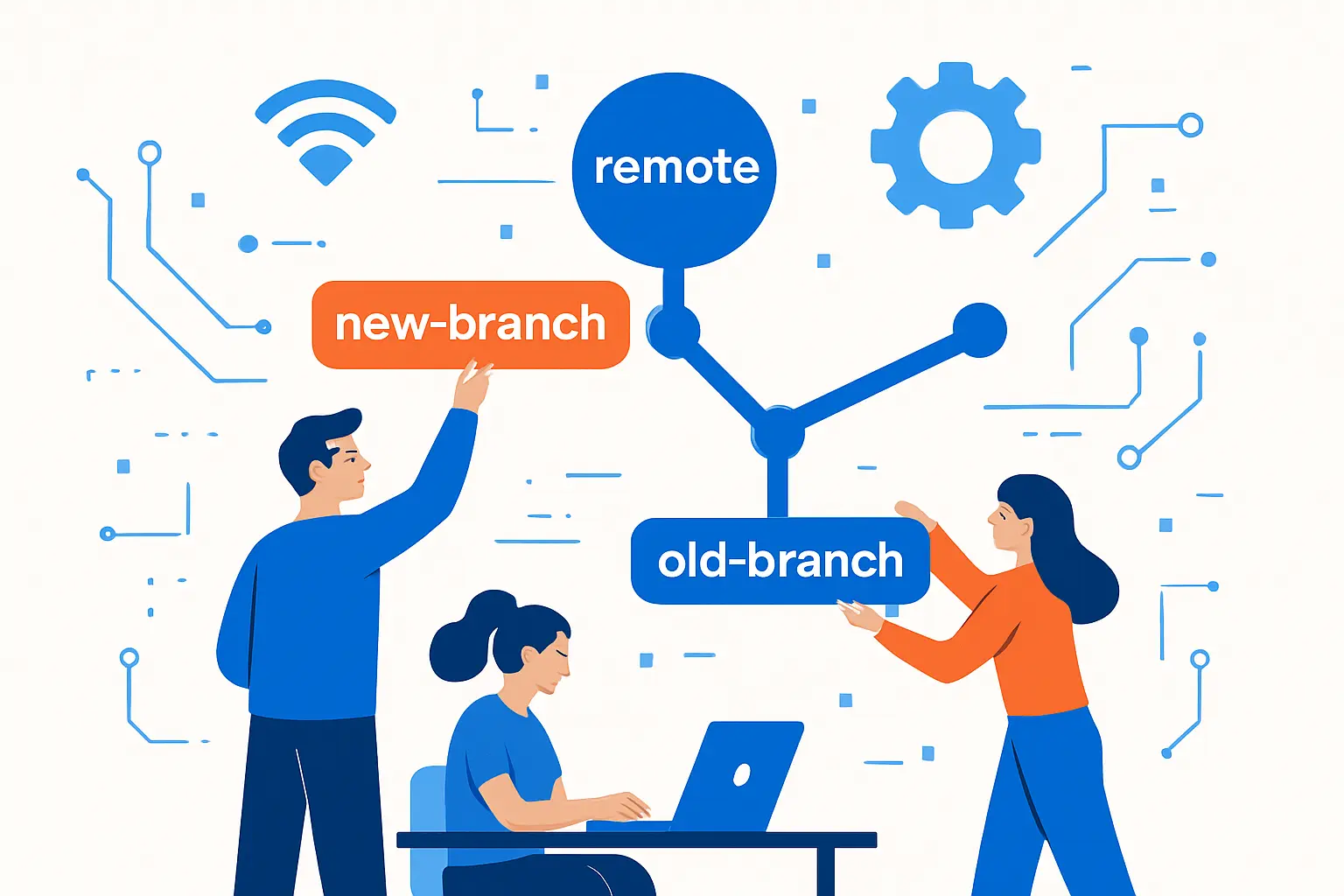
1. Standard remote flow: push the renamed branch with git push origin -u new-name
A local rename changes only your local ref. To make the new name exist remotely, we push the branch under its new name, then set upstream tracking so future pushes and pulls are predictable.
git push origin -u new-nameIn practice, the -u flag is more than convenience: it encodes intent. Without it, engineers often end up with a local branch whose upstream still points to an old remote name, and the resulting pushes can go somewhere surprising—particularly in repos where multiple remotes exist (fork + upstream, or staging + production).
Business impact framing
In a mature delivery org, “predictable pushes” translates directly to “predictable releases.” When the upstream is wrong, automation can publish artifacts under unexpected tags or deploy from unexpected refs, which is the sort of mistake that is technically small and operationally expensive.
2. Clean up the outdated remote branch with git push origin –delete old-name
After pushing the new branch name, the old remote branch still exists unless we remove it. Many teams forget this step, and the repo slowly accumulates “ghost branches” that confuse reviewers and make audit trails noisy.
git push origin --delete old-nameUnder the hood, deletion is just a push of an empty source to a destination ref. The Git push documentation states that pushing an empty <src> allows you to delete the <dst> ref from the remote repository, which is why deletion can also be expressed with a colon refspec. From a security point of view, we also remember that branch protections on the server may forbid deletes, so “permission denied” is a policy signal, not a Git mystery.
Coordination tip we’ve learned the hard way
When the branch is shared, we announce the rename window first, then delete the old branch after collaborators have had a chance to update local tracking. That short pause prevents a flood of “my push stopped working” messages.
3. Alternative refspec approach for remote rename with git push origin :old-name new-name
The refspec form is handy when we want a single mental model for “push this local ref to that remote ref.” It also makes the “delete and recreate” reality explicit, which can be useful in postmortems and change reviews.
git push origin :old-name new-nameFunctionally, that command deletes old-name on the remote and then pushes new-name based on your local state. From our perspective, the refspec approach is best reserved for people who already understand refspec mapping, because the syntax is compact enough to be misread during a stressful maintenance window.
When we prefer refspecs
In GitOps-style repos—where infrastructure state and policy are stored in Git—refspec pushes are sometimes used in automation. If a rename must be driven by a pipeline, we keep the refspec explicit so the pipeline logs clearly show what ref was deleted and what ref was created.
Reset upstream tracking and clean up remote references after renaming
1. Why upstream does not automatically change after a local rename
A local branch name is one concept; its upstream tracking configuration is another. Renaming the branch changes the local ref name, but Git does not assume you want to change where it pushes and pulls from, because that would be a potentially destructive guess—especially when multiple remotes are configured.
From a systems angle, that separation is a feature: it allows a local branch to track a differently named remote branch, which is occasionally useful for compatibility or gradual migration. In our day-to-day operations, though, it’s usually accidental, and the symptoms show up as confusing prompts like “your branch is ahead of origin/old-name” even though you swear you renamed it.
How we detect mis-tracking quickly
Running git branch -vv after a rename is an underrated habit; it shows the upstream each local branch is associated with. If the upstream is wrong, we fix it before anyone starts force-pushing “to make it work.”
2. Re-link tracking with git push –set-upstream origin new-name or git push origin -u new-name
To align the local branch with its remote counterpart, we explicitly set upstream. Either of the following patterns is common, and which one we use depends on whether the remote branch already exists and whether we want to publish it in the same step.
git push --set-upstream origin new-name# orgit push origin -u new-nameOnce upstream is correct, the day-to-day workflow becomes calm again: git pull and git push “just work” without requiring explicit refnames each time. In customer environments with strict change management, that calm is not a nicety; it’s what prevents people from improvising risky commands under deadline pressure.
Small governance note
If your organization relies on protected branches, make sure the new branch name is covered by the right ruleset or protection pattern. A rename can accidentally move a branch outside a protected glob, and the first time someone pushes directly to it, you discover the gap.
3. Remove stale references with git remote prune origin
Even after the remote is updated, local clones often keep remote-tracking references to branches that no longer exist on the server. That stale state is confusing because it looks like “the branch still exists,” especially in UIs that list remote-tracking refs alongside real remote branches.
git remote prune originIn the Git remote documentation, the prune subcommand is described as a way to delete all stale remote-tracking branches for a remote, which is exactly what we want after a rename-and-delete sequence. When we support teams with large monorepos, we often recommend pruning as part of a regular hygiene cycle, because it reduces cognitive load during reviews and incident response.
Renaming a branch on GitHub: permissions, redirects, pull requests, and Actions
1. Who can rename branches: write access limits vs admin access for default and protected branches
GitHub’s UI makes renaming feel easy, but permissions still matter, especially for default and protected branches. In GitHub’s documentation, people with write permissions can rename a branch unless it is the default branch or a protected branch, and admin permissions are required for the sensitive cases.
From a governance standpoint, this is healthy friction. Default branches and protected branches tend to be deployment sources, compliance boundaries, or release anchors; renaming them should be treated as an operational change, not just a UI edit.
What we recommend before touching the default branch
Confirm that your deployment tooling, dependency pins, and documentation don’t hardcode the default branch name. When something is hardcoded, GitHub can’t fix it for you, and the rename becomes a scavenger hunt across CI configs and infrastructure scripts.
2. What GitHub updates automatically: redirects, branch protections, PR base branches, and draft releases
GitHub does help—up to a point. When a branch is renamed, GitHub states that URLs containing the old branch name are redirected, branch protection policies are updated, and base branches for open pull requests and draft releases can be updated automatically as part of the rename workflow.
In our experience, those automatic updates reduce the blast radius primarily for human workflows (clicking links, reviewing PRs). The remaining risk tends to be machine workflows: config files that match branch names exactly, third-party integrations that cache refnames, and scripts that build raw URLs.
A concrete example from the trenches
Preview deployments often generate subdomains from branch names, such as branch-name.preview.example.com. After a rename, the code may still deploy, yet the preview link someone pasted into a ticket goes dead, which slows down product feedback loops.
3. Important limitations: raw URLs, git pull behavior, and GitHub Actions workflow references to old branch names
Limitations are where incidents hide. GitHub documents that raw file URLs are not redirected, and it also notes that a git pull for the previous branch name does not get redirected in the way a browser URL might.
Actions adds a sharper edge: GitHub notes that Actions workflows do not follow renames for published actions, meaning references like @old-branch-name can break downstream users. From a platform reliability viewpoint, we interpret that as a supply-chain safety tradeoff: automatic redirects in executable references could introduce surprising security implications, so the burden shifts back to maintainers to communicate deprecations clearly.
Our mitigation playbook
Before renaming, we search workflow files for branch filters and action references, then we stage a PR that updates them as part of the rename change. After the rename, we also keep an eye on failing workflow runs to catch the “one config we forgot” scenario quickly.
Update local clones after a default branch rename on GitHub
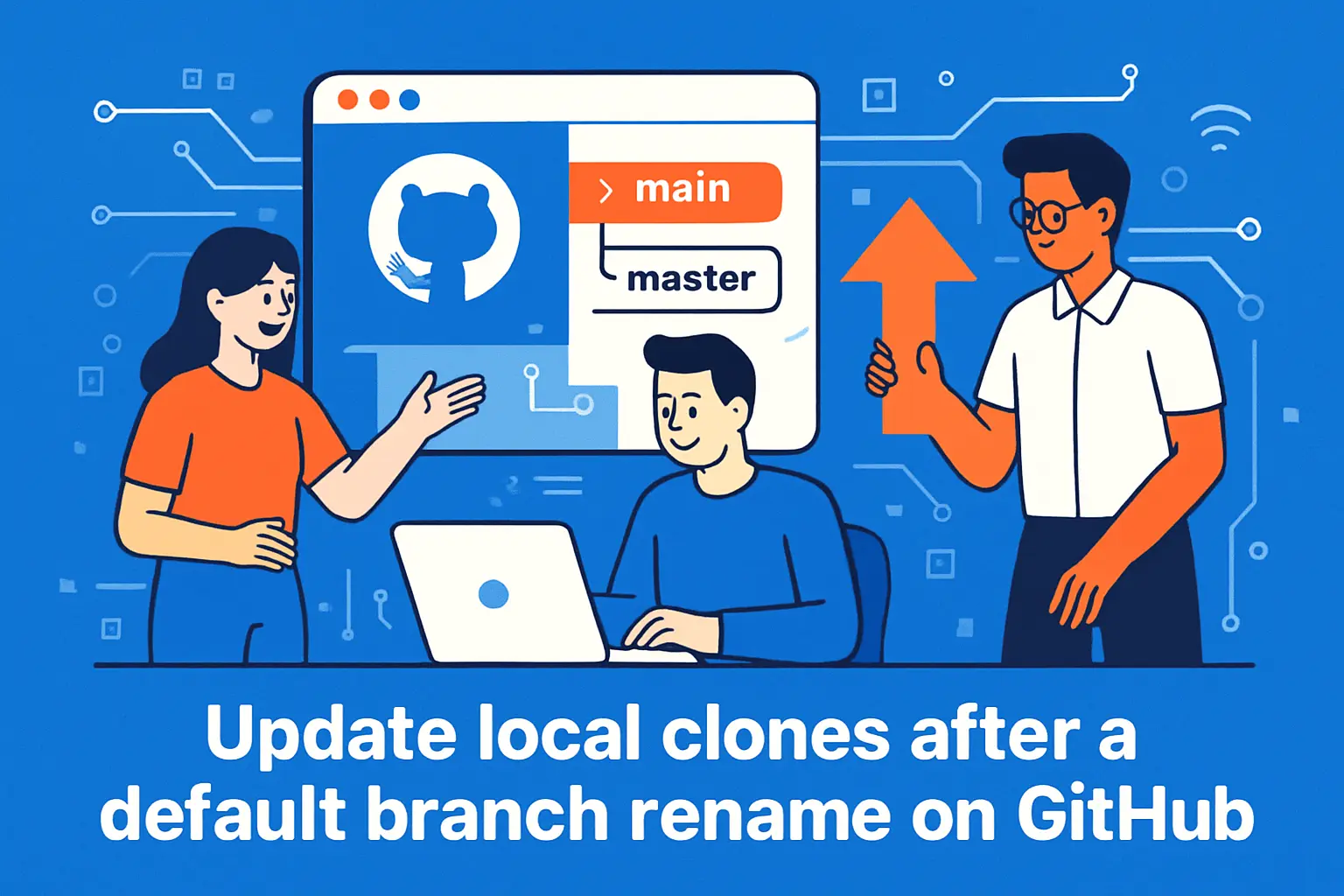
1. Rename locally and sync with origin using git fetch origin
After a default branch rename on GitHub, local clones need to be brought back into alignment. The fastest path is to rename the local branch (if needed) and then fetch so your clone learns about the new remote refs.
git fetch originIn team environments, we often see a mix of states: some developers have already fetched and see the new remote branch, while others keep pushing to the old remote branch name until it disappears. Coordinating the update avoids a confusing split-brain period where “the default branch” means different things on different laptops.
One small detail that prevents a lot of confusion
If you keep a terminal prompt that shows upstream tracking (for example, showing branch:upstream), treat that indicator as a diagnostic tool. After a rename, it will often reveal the mismatch immediately.
2. Reattach upstream with git branch -u origin/NEW-BRANCH-NAME NEW-BRANCH-NAME
Once the remote branch exists locally as a remote-tracking ref, we explicitly attach the local branch to track it. This step turns future git pull and git push back into predictable operations.
git branch -u origin/NEW-BRANCH-NAME NEW-BRANCH-NAMEFrom an operational lens, upstream tracking is “default routing.” When it’s wrong, humans compensate by adding more explicit flags, and the repo becomes harder to use safely. When it’s right, routine work stays routine, which is exactly what we want when production support rotations are already busy.
If your local and remote names intentionally differ
Occasionally, you might keep a local alias name while tracking the official remote name during a transition. That’s valid, but we recommend documenting it because it can confuse pair programming sessions and shared troubleshooting.
3. Align remote HEAD with git remote set-head origin -a
Remote HEAD is a symbolic hint inside your clone that says “this is the default branch for that remote.” After a rename, that hint can be stale, and tools may behave oddly—especially tooling that relies on default branch assumptions for comparisons.
git remote set-head origin -aIn our workflows, aligning remote HEAD is the “final polish” step. It doesn’t usually fix broken builds directly, yet it makes branch discovery and default comparisons sane again, which improves day-to-day developer experience and reduces the chance of accidental work on the wrong base branch.
GUI and workflow tools for branch renames: GitKraken and Graphite

1. Rename in GitKraken and update upstream using Set Upstream
Not every team wants to do sensitive operations in a terminal, and we understand why: GUIs can reduce typo risk and make ref relationships visible. In GitKraken’s guidance, renaming locally is described as a workflow where you right-click on the branch and choose the Rename option, then follow up by setting upstream for the remote branch mapping.
From our perspective, the key is not “GUI versus CLI,” but “does the tool force you to see what will happen next.” A good GUI makes it obvious when you renamed only locally, when you still need to push, and when an old remote branch is still lingering.
How we recommend using GUIs safely
Do the rename in the GUI, then verify the outcome with a plain git branch -a in a terminal. That hybrid approach combines safety rails with an authoritative view of what Git believes is true.
2. Complete the remote update in GitKraken by deleting the old origin branch name
Renaming locally is only half the story; remote cleanup is what keeps the repository understandable for everyone else. In GitKraken’s typical flow, you push the new branch name and then delete the old remote branch reference explicitly, which aligns with how Git itself models deletion and remote ref updates.
What we like about this workflow is that it encourages completeness. A remote branch that “should be gone” but isn’t gone creates a long tail of confusion: reviewers might open the wrong branch, automation might still target the old name, and metrics dashboards might double-count activity.
A governance caveat
If branch protections prevent deletion, the GUI will surface an error that is easy to misinterpret as “the tool is broken.” In reality, the server is enforcing policy, and the correct response is to rename within the bounds of policy or request a temporary exception.
3. Graphite rename for stacked branches with gt rename and follow up restack
Branch renames get more complex when you’re using stacked branches, where each branch depends on another. Graphite’s CLI includes a dedicated rename flow; in its command reference, gt branch rename exists precisely because stack metadata and PR relationships can be sensitive to naming and ancestry assumptions.
After a rename in a stacked world, we usually want to verify that the stack still replays cleanly. Graphite’s guidance on dependency management emphasizes that restacking keeps descendant branches aligned after parent changes, and its documentation covers how to restack Git branches efficiently with Graphite’s CLI when needed. In production-facing work, that “stack integrity” is not theoretical; it’s what prevents a rename from turning into a surprise rebase marathon right before release.
Where this matters most
Teams shipping infrastructure changes in small, reviewable slices benefit from stacked workflows, yet those same workflows amplify the cost of naming mistakes. When stacks are involved, we recommend treating rename as a planned change with a quick validation cycle, not as a casual cleanup.
1Byte cloud hosting and infrastructure for Git driven projects

1. Domain registration and SSL certificates for secure deployments
Branch naming intersects with domains more than people expect. At 1Byte, we often help teams implement preview environments where each branch gets a dedicated URL; renaming then becomes a routing event, not just a developer convenience.
From the infrastructure side, domains and SSL certificates are the trust layer: the browser, the API client, and the security scanner all need stable names and valid certificates. When branch-derived subdomains are in use, we encourage conventions that are DNS-safe and predictable, and we prefer automation that can re-issue or re-map certificates cleanly when branch names change.
Practical guidance we give customers
Keep production hostnames independent from branch labels, and treat previews as disposable. That separation ensures a branch rename can inconvenience a preview link without ever threatening a production endpoint.
2. WordPress hosting and shared hosting for production sites and apps
Not every Git-driven project is a microservices platform; plenty of serious businesses ship on WordPress, PHP apps, and shared hosting setups with disciplined release processes. In those environments, branch names often map to deployment stages: a “staging” branch might publish to a staging site, while the default branch publishes to production.
Because those pipelines are simple, they can also be brittle. A rename can break a deployment script that pulls a specific branch name, or it can break a webhook that listens for pushes on a specific ref. Our advice is to keep the deployment logic explicit, version-controlled, and tested in the same way application code is tested, because the pipeline is part of the product.
A small reliability pattern
Instead of deploying “whatever is on a named branch,” deploy an immutable build artifact that is traceable to a commit. Branch names can still gate promotion, but they stop being the only key to production.
3. Cloud hosting, cloud servers, and AWS Partner support for scalable environments
As projects scale, branch names become part of infrastructure orchestration: GitOps controllers reconcile desired state from a branch, CI systems select runners based on branch patterns, and security tools apply policies by refname. In cloud server environments, we see the tightest coupling when organizations encode branch names into resource names, environment tags, and IAM policy conditions.
Our posture at 1Byte is pragmatic: branch-based automation is powerful, yet it needs guardrails. When a rename is planned, we recommend treating it like any infrastructure change—announce it, update pipelines, validate in staging, and only then remove the old remote ref. For customers working with AWS, that same discipline fits naturally into change review processes and can be supported with partner-aligned best practices around staged rollout and observability.
What we optimize for
Predictable deployments beat clever shortcuts. If a rename can change where code goes, then the rename deserves the same seriousness as a routing change or a firewall rule update.
Conclusion: Git rename branch checklist for local, remote, and GitHub

1. Local checklist: rename with git branch -m and verify with git branch -a
Locally, our checklist is deliberately repetitive: confirm the current branch, rename it with git branch -m, then verify what Git thinks exists with git branch -a. Afterward, we inspect upstream tracking because the name change does not guarantee the remote relationship is correct.
When Windows or mixed-filesystem teams are involved, we also treat case-only renames as special. In that scenario, a forced rename or a temporary intermediate name is often the cleanest route, and it prevents the “it worked on my machine” branch mismatch that can waste hours across a team.
Local success criteria
The rename is complete locally when the working tree is on the new name, no duplicate similarly named branch exists, and upstream tracking is either intentionally set or intentionally absent.
2. Remote checklist: push new branch name, delete old branch name, and set upstream
On the remote side, we push the new name first, set upstream, and only then delete the old remote branch. That order gives collaborators a window to migrate and gives automation a chance to be updated without racing a disappearing ref.
After deletion, we prune stale remote-tracking branches in local clones so people stop seeing ghosts. Once that cleanup is done, branch lists become truthful again, and truth is what makes repos feel maintainable rather than haunted.
Remote success criteria
The rename is complete remotely when the new remote branch exists, the old remote branch no longer exists, and developer clones no longer list the deleted ref after a prune or fetch-prune cycle.
3. GitHub checklist: confirm protections and automation references, then guide collaborators to update clones
On GitHub, we start with permissions and protections: can the branch be renamed, and will protections move with it? Next, we audit automation for hardcoded names—Actions workflows, deployment scripts, and any documentation that includes branch-specific URLs.
Finally, we guide collaborators through the local update commands and encourage them to realign remote HEAD. If we had to pick one habit that prevents the most confusion, it’s simple communication: “Here’s the old name, here’s the new name, here’s how to update, and here’s when we’ll delete the old ref.”







Next step
If we were doing this together on your repo, which branch rename would you attempt first as a low-risk rehearsal: a short-lived feature branch, or the default branch that your deployments depend on?