

- 1. What the briefly unavailable for scheduled maintenance message means
- 2. How WordPress maintenance mode works behind the scenes
- 3. Common reasons WordPress gets stuck in maintenance mode
- 4. Fix briefly unavailable for scheduled maintenance by deleting the .maintenance file
- 5. If you do not see .maintenance: show hidden files and confirm the correct directory
- 6. When the maintenance page remains but .maintenance is missing
- 7. Preventing WordPress maintenance mode issues during future updates
- How 1Byte helps keep WordPress sites stable during updates
- Conclusion and quick troubleshooting checklist
At 1Byte, we treat WordPress “maintenance mode” as a tiny feature with outsized consequences. The message looks harmless—almost polite—yet it can quietly turn into a revenue leak, a credibility hit, and an operations distraction that pulls teams away from the work that actually moves the business forward.
From the outside, “Briefly unavailable for scheduled maintenance. Check back in a minute.” reads like a momentary pause. Behind the scenes, though, it’s a file-based switch that can stick when an update is interrupted, when server resources are tight, or when caching layers keep serving the maintenance response long after WordPress has recovered. In other words: the problem is often less “WordPress is broken” and more “the update handshake didn’t complete cleanly.”
Business leaders usually don’t care about the handshake; they care about impact. Downtime isn’t abstract when a storefront can’t take orders or a lead form can’t submit. New Relic’s research puts a sharp edge on that reality, citing a median cost of $2 million USD per hour for high-impact outages, and while a stuck maintenance page is not always a headline incident, it behaves like one from a customer’s point of view.
1. What the briefly unavailable for scheduled maintenance message means
Zooming out, the infrastructure context matters as well. Gartner forecasts worldwide public cloud end-user spending to total $723.4 billion in 2025, and McKinsey estimates $3 trillion of EBITDA value by 2030 is up for grabs for organizations that move beyond adoption into disciplined operations. That discipline shows up in small moments: safe deployments, repeatable rollbacks, and hosting environments that don’t turn routine updates into roulette.
WordPress remains a default choice for many brands precisely because it’s flexible and widely supported—W3Techs reports WordPress powers 42.8% of all the websites—which also means maintenance-mode failures are a “common enough” emergency that every operations team should have a fast, boring playbook to resolve them. Ours is what we’ll share here: what the message means, what WordPress is doing under the hood, the typical reasons it gets stuck, and the practical fixes we use in hosting support when time is tight.
1. WordPress shows maintenance mode during core, plugin, and theme updates
Maintenance mode is WordPress’s way of protecting site visitors from landing on a half-updated application. During an update, files may be added, replaced, or removed. A plugin might ship a new database migration. A theme update could change templates that the currently cached pages expect. Rather than serve unpredictable output, WordPress displays the maintenance message until the updater completes and the system looks consistent again.
Operationally, we think of this as a “traffic cone,” not a “lock.” The site is still present on disk, the database is still there, and your web server is still running. WordPress is simply choosing to present a controlled response while it changes itself. That distinction matters because it keeps troubleshooting grounded: you usually don’t need to rebuild the site; you need to clear the condition that is telling WordPress to remain in maintenance mode.
From a hosting perspective, the maintenance phase also reduces support risk. When updates run, the server can be doing bursty work: extracting archives, writing many small files, and compiling caches. Even on healthy infrastructure, those tasks can have brief spikes. By showing a maintenance page, WordPress limits the chaos that would come from visitors hitting endpoints mid-change.
2. How long it should last before you treat it as a stuck update
In the normal case, maintenance mode is genuinely brief. A small plugin update often completes quickly, while a large plugin or theme bundle can take longer—especially if the server is busy, the storage layer is slow to write, or security tooling is scanning changes as they happen.
Practically, we advise teams to think in terms of “the update should progress continuously.” If you can see ongoing update activity in your hosting file manager (timestamps changing) or in your WordPress admin (progress indicators moving), patience is usually the right move. If nothing is changing and the message persists across refreshes and devices, it’s time to assume the update routine exited early and left maintenance mode enabled.
One nuance we’ve learned the hard way: the maintenance message can appear “stuck” even when WordPress is already recovered, simply because a caching layer is still serving the maintenance response. That’s why we like to combine file checks with cache checks, rather than treating the message as definitive proof of the current state.
2. How WordPress maintenance mode works behind the scenes
1. WordPress creates a temporary .maintenance file during updates
WordPress maintenance mode is file-driven. When an update begins, WordPress writes a small file named .maintenance. When the update finishes cleanly, WordPress removes that file. While the file exists, WordPress detects it early in the request lifecycle and chooses to output the maintenance message instead of rendering your theme.
This approach is elegantly simple, and it’s also the source of most “stuck maintenance” incidents: if the update process is interrupted, the cleanup step never runs, so the file remains. The site can be perfectly capable of loading, but WordPress keeps seeing the flag and politely declines to proceed.
In our view, the file approach is a pragmatic compromise. WordPress can’t assume advanced locking primitives or job schedulers on every hosting stack. A “flag file” works on practically every Unix-like environment and most managed hosting setups, which is why the fix is similarly universal: remove the flag when it’s safe to do so.
2. Where the .maintenance file is located in the WordPress root folder near wp-config.php
The .maintenance file lives in the WordPress root directory—the same directory where you’ll find wp-config.php, wp-admin, wp-includes, and wp-content. In hosting dashboards, this root is often your document root (commonly labeled something like public_html), but it can vary depending on how your account is structured.
Multi-site and multi-domain hosting adds a twist. Some environments map each domain to its own document root folder. Others place WordPress in a subdirectory and point the web root elsewhere. Because of that, we approach troubleshooting like investigators: we verify the location by finding wp-config.php first, then we look for .maintenance alongside it.
Hidden-file behavior is another practical detail. Since the filename begins with a dot, many file managers and FTP clients hide it by default. As a result, people sometimes conclude “the file isn’t there,” when the real issue is “the tool isn’t showing it.” We’ll address that directly later, because it’s one of the most common places teams lose time.
3. Common reasons WordPress gets stuck in maintenance mode
1. Update interruptions such as closing the browser tab mid update
Updates are not purely browser-side, but the browser is often the trigger and the progress window. When someone closes the tab, loses connectivity, or navigates away mid-update, the process can be left in an awkward state. Sometimes WordPress finishes anyway; sometimes it doesn’t. Either way, the cleanup logic that removes .maintenance is most reliable when the entire flow completes normally.
Human behavior is the unglamorous root cause here. A marketer sees a spinning indicator and opens a new tab. A developer clicks “update all,” then jumps into a meeting. An admin is working from a café and the connection drops. None of those are “mistakes” in the moral sense; they’re normal. Still, they are exactly the kind of interruption that turns a routine patch into a support ticket.
In incident reviews, we like to write the lesson as a process rule, not a blame note: updates should be treated like deployments, and deployments deserve attention until they complete. The more business-critical the site, the more true that becomes.
2. Bulk updates across many plugins and themes causing stalls or conflicts
Bulk updates are tempting because they promise speed. The tradeoff is that they compress risk: many file changes, many potential database migrations, and many compatibility assumptions all land at once. When something fails in the middle, it can be harder to identify which component caused the failure, and the odds rise that WordPress will be left in maintenance mode.
From the hosting side, bulk updates also look like a burst workload. Storage sees a rapid series of writes. Security scanners may spike. PHP processes can queue. If the server is on shared resources or is already busy, the update can slow down enough that a user assumes it’s hung and interrupts it, compounding the issue.
We’ve also seen an especially thorny pattern: a plugin update succeeds, but a theme update introduces a fatal error that prevents the admin from loading afterward. The site appears “stuck,” yet the real problem is a runtime error masked by the maintenance message or cached response. The fix may begin with removing .maintenance, but it sometimes ends with disabling a plugin or rolling back a theme.
3. Compatibility issues and resource limits like low memory, low disk space, or slow server timeouts
WordPress updates are simple in concept—download, unzip, replace files—but they aren’t free. The server needs room to write temporary archives and the extracted content. The PHP runtime needs enough headroom to complete the updater without hitting fatal errors. Meanwhile, the web server needs to allow the request to run long enough to finish, or the update can be cut short.
Resource constraints often hide until update time because day-to-day browsing is comparatively gentle. A content site can feel perfectly fine to visitors yet still fail updates due to a cramped disk or constrained execution limits. In our hosting support work, these cases show up as “it always happens when we update,” which is a signal to stop treating the symptom and start treating the environment.
Slow storage can be equally deceptive. If your site lives on an overloaded node or a sluggish volume, file writes may become the bottleneck. When that happens, an update doesn’t just take longer; it becomes more likely to be interrupted, and the window for partial state increases.
4. Fix briefly unavailable for scheduled maintenance by deleting the .maintenance file
1. Wait 10 to 15 minutes first to confirm the update is not still running
Before we remove .maintenance, we want to be confident we’re not cutting across an active update. If the update is still writing files and we remove the flag, visitors could hit a site mid-change. That’s how you get the worst kind of “half-working” behavior: random errors, missing classes, or broken admin pages that come and go.
Instead of racing, we recommend a quick triage loop. First, check whether you can still access the WordPress admin in another browser session. Next, review your hosting process manager or resource monitor if available: a busy PHP worker pool can indicate ongoing work. Finally, peek at file timestamps in the WordPress directories; if many files are changing right now, patience is your friend.
In operations, calm beats clever. Once you’re confident the updater is no longer progressing, deleting .maintenance becomes the cleanest and most reversible action you can take.
2. Delete .maintenance using a hosting file manager in public_html or the document root
For most site owners, the fastest path is the hosting file manager. Log into your hosting control panel, open the file manager, and navigate to the folder that contains wp-config.php. That folder is your practical “ground truth” for where WordPress is installed.
Once you’re there, look for .maintenance. If your file manager has a setting to show hidden files, enable it. After the file is visible, delete it. At that moment, WordPress no longer sees the maintenance flag, and it will attempt to render your site normally on the next request.
What we do next matters as much as the deletion. Refresh the site in an incognito/private window to avoid being fooled by browser cache. If the site loads, proceed to the WordPress admin and review updates: you’re looking for anything that is partially applied or still pending.
Safety notes we follow in production hosting
- Before deleting anything, we confirm we are in the WordPress root by locating
wp-config.php. - During troubleshooting, we avoid “repair actions” in multiple places at once because it obscures cause and effect.
- After recovery, we check whether the update that triggered the incident finished or failed, then we plan the next attempt.
3. Delete .maintenance using FTP or SFTP and then refresh the site
FTP or SFTP is the other common route, particularly for teams with established deployment workflows. Connect using your preferred client, navigate to the WordPress root directory, and ensure hidden files are visible (many clients hide dotfiles by default). Once you see .maintenance, delete it.
After removal, refresh the site from a clean browser session. If the maintenance message disappears, log into /wp-admin and validate that plugins and themes show a consistent state. If something is still “half-updated,” resist the urge to keep clicking update buttons repeatedly; instead, identify the specific component that failed and update it individually.
If you also have SSH access
Some teams prefer command-line work because it is faster and less error-prone. In that case, navigate to the WordPress root and remove the file directly:
cd /path/to/your/wordpress/rootls -larm .maintenanceFrom there, we typically reload the site, then immediately check the admin dashboard for any pending updates or error notices.
5. If you do not see .maintenance: show hidden files and confirm the correct directory
1. Enable hidden file visibility in FTP clients such as FileZilla
When a customer tells us “there is no .maintenance file,” our first question is not “are you sure?”—it’s “are you showing hidden files?” Dotfiles are routinely hidden because they’re easy to delete accidentally, and most tools default to a “clean” view.
In FileZilla, the relevant setting is the option that toggles hidden-file visibility. Once enabled, the directory listing will include dot-prefixed filenames. If .maintenance exists, it should appear in the same directory as wp-config.php.
If it still doesn’t appear, we interpret that as useful evidence: either WordPress is not currently being held in maintenance mode by the flag file, or you are not looking at the installation that is actually serving the domain.
2. LocalWP on macOS: reveal hidden files and remove .maintenance in the app public folder
Local development tools like LocalWP are excellent for safe testing, yet they can confuse troubleshooting because they introduce another filesystem layout. On macOS, hidden files may also be visually concealed in Finder depending on your settings, so the quickest route is often using the terminal or the file browser built into the LocalWP workflow.
Inside a LocalWP site, you’re generally looking for the “app” directory, then the “public” directory, then the WordPress root where wp-config.php lives. Once you’re in the correct folder and hidden files are visible, removing .maintenance works the same way it does on a hosted server.
From our perspective, the big idea is consistency: local, staging, and production all use the same WordPress mechanism. The path is different, but the fix is identical.
3. Double check you are working in the active WordPress root and not a subfolder
Misidentifying the root directory is the silent time-waster of WordPress recovery. It happens when a site was installed in a subdirectory, when a host uses domain-specific roots, or when a team migrated content and left an old WordPress copy behind.
To verify the active root, we look for a combination of signals. The presence of wp-config.php is the first. The next is whether the directory contains wp-admin and wp-includes. Finally, we confirm that the domain’s document root in the hosting control panel maps to the folder we’re editing.
Once the active root is confirmed, troubleshooting becomes deterministic. Until then, every change is a guess, and guessing is how small incidents become long ones.
6. When the maintenance page remains but .maintenance is missing
1. Clear browser cache and any platform cache after removing or confirming .maintenance
If .maintenance is gone and you still see the maintenance message, assume caching until proven otherwise. Browsers can cache responses. Hosting platforms can cache full pages. CDNs can cache edge responses. Any of those layers may continue to serve the maintenance page even though WordPress is ready.
Our preferred test is a private/incognito window plus a second device on a different network. That combination reduces the odds that you’re seeing a cached artifact. If one device shows the site and another shows maintenance, caching is almost certainly involved.
After that, we clear caches in a controlled order: browser first, then any WordPress caching plugin, then host-level cache, then CDN. Clearing everything at once works sometimes, but it also hides which layer was the culprit, which means the problem is more likely to repeat.
2. Flush server caching layers that can cache the maintenance page such as LiteSpeed cache
Server-side caching is powerful precisely because it bypasses PHP and WordPress for many requests. That’s great for speed and resilience, but it also means a cached maintenance response can persist even after the underlying flag file is removed.
LiteSpeed-based stacks are a classic example: if the maintenance response was cached, flushing the cache becomes part of recovery. The same logic applies to other acceleration layers, including reverse proxies and managed host caches. From our hosting seat, we treat cache invalidation as a first-class operational action, not an afterthought.
One subtlety: cache layers can vary by device type, cookie presence, or URL path. As a result, the homepage may recover while a product page remains stuck. That pattern is almost always caching behavior, not WordPress selectively failing.
3. Check for failed updates in WordPress admin and temporarily disable plugins if needed
Once the site loads again, the incident isn’t automatically “over.” A stuck maintenance event can be the visible symptom of a deeper update failure. Inside WordPress admin, review updates and look for anything that is still pending or showing warnings.
If the admin is inaccessible or behaves strangely after removing maintenance mode, we shift into isolation mode. The quickest diagnostic is temporarily disabling plugins by renaming the plugins directory (which forces WordPress to treat plugins as inactive). If the site stabilizes, reactivate plugins one by one until you find the component that triggers errors.
The theme layer can also be the cause. Switching to a default theme is a fast way to learn whether the active theme is compatible with the updated plugin set. After the culprit is identified, you can update it, roll it back, or replace it with a supported alternative.
7. Preventing WordPress maintenance mode issues during future updates
1. Keep the update process running until maintenance mode is disabled and updates complete
Prevention begins with attention. Updates should be treated as a controlled change window, even for small sites. When someone clicks “update,” that person is effectively initiating a deployment. The job isn’t finished when the click happens; it’s finished when WordPress returns to normal operation and the admin dashboard confirms a consistent state.
In our internal playbooks, we also add a human safeguard: avoid starting updates when you can’t watch them. That means no “quick update” right before travel, right before a meeting, or while commuting on unstable connectivity.
Discipline is boring, which is why it works. The sites that never get stuck are rarely “lucky”; they’re usually operated with a quiet respect for the update lifecycle.
2. Update in smaller batches, verify compatibility, and test updates in a staging environment
Smaller batches reduce blast radius. Updating one major plugin at a time makes it easier to pinpoint failures, and it lowers the chance that several components will try to migrate the database simultaneously.
Staging is the other lever we rely on. A staging environment lets you run the same updates on a copy of the site, observe errors without customer impact, and validate key flows like checkout, form submissions, and login. If something breaks, you learn in private, not in production.
Compatibility checks are part of that staging mindset. Before applying major updates, we scan plugin release notes, confirm PHP compatibility on the hosting side, and verify that mission-critical plugins are actively maintained. Those steps feel “extra” until the day they save you from a preventable outage.
3. Maintain backups, correct file permissions, and adequate hosting resources for updates
Backups are the safety net that turns panic into procedure. When a site is stuck in maintenance mode, a backup gives you options: restore to a known-good point, then retry the update with better preparation. Without backups, teams tend to perform improvisational surgery on production systems, which is where small mistakes become expensive ones.
File permissions and ownership also matter because updates require writing files. If WordPress can’t write to its own directories, updates fail in strange ways, and maintenance mode may linger. We see this after migrations, when files were moved under a different user or hardened incorrectly.
Hosting resources are the final piece. Updates are short bursts of heavier work, so environments that are tuned only for steady-state traffic can struggle. We prefer hosting plans that leave headroom for those bursts—because updates are not exceptional events; they are routine hygiene.
How 1Byte helps keep WordPress sites stable during updates
1. Domain registration and SSL certificates to keep sites secure and trusted
At 1Byte, we’ve learned that maintenance-mode incidents often begin long before the update click. When domains, DNS, and SSL are managed haphazardly, teams lose time during recovery simply trying to access the right system or verify the right endpoint.
Domain registration under a controlled account, clean DNS management, and properly issued SSL certificates create a stable perimeter. That perimeter matters during updates because it keeps troubleshooting focused on application state, not on identity and trust layers.
Security is also operational leverage. When certificate renewals and DNS changes are predictable, teams can schedule updates with fewer unknowns, and you don’t end up debugging a maintenance message while also fighting browser warnings and mixed-content errors.
2. WordPress hosting and shared hosting options for reliable day to day site operations
Most WordPress problems are not exotic; they’re operational. Reliable hosting reduces the background noise that turns routine tasks into fragile rituals. When the filesystem is responsive, when PHP workers aren’t starved, and when monitoring is in place, updates complete more consistently.
Shared hosting can be the right fit for many sites when it’s properly managed and not overloaded. In that context, the goal is predictability: stable performance, sane isolation, and clear access to logs and file management so that recovery steps like deleting .maintenance remain quick and safe.
For WordPress-specific hosting, we also emphasize workflows: staging support, backup integration, and caching controls that make it obvious what’s being served. Those “boring” features are what keep a maintenance incident from becoming a multi-hour investigation.
3. Cloud hosting, cloud servers, and AWS Partner support for performance and scalability
As sites grow, the maintenance-mode conversation changes. Larger WordPress deployments may run object caches, CDNs, reverse proxies, and more aggressive full-page caching. That stack can deliver excellent performance, yet it also introduces more layers that may keep serving the maintenance response after WordPress itself is healthy.
Cloud hosting and cloud servers give teams clearer scaling paths and better isolation for burst workloads like updates. When resources are right-sized and storage performance is consistent, update operations become less failure-prone. On top of that, having strong support pathways—including AWS Partner support where appropriate—helps teams resolve infrastructure-side constraints before they surface as application incidents.
From our perspective, the most valuable outcome is not “the fastest server.” The win is a stack that behaves predictably under change, because WordPress sites don’t fail only under traffic; they often fail under deployment.
Conclusion and quick troubleshooting checklist
1. Fast recovery checklist: wait briefly, delete .maintenance, clear caches, verify updates
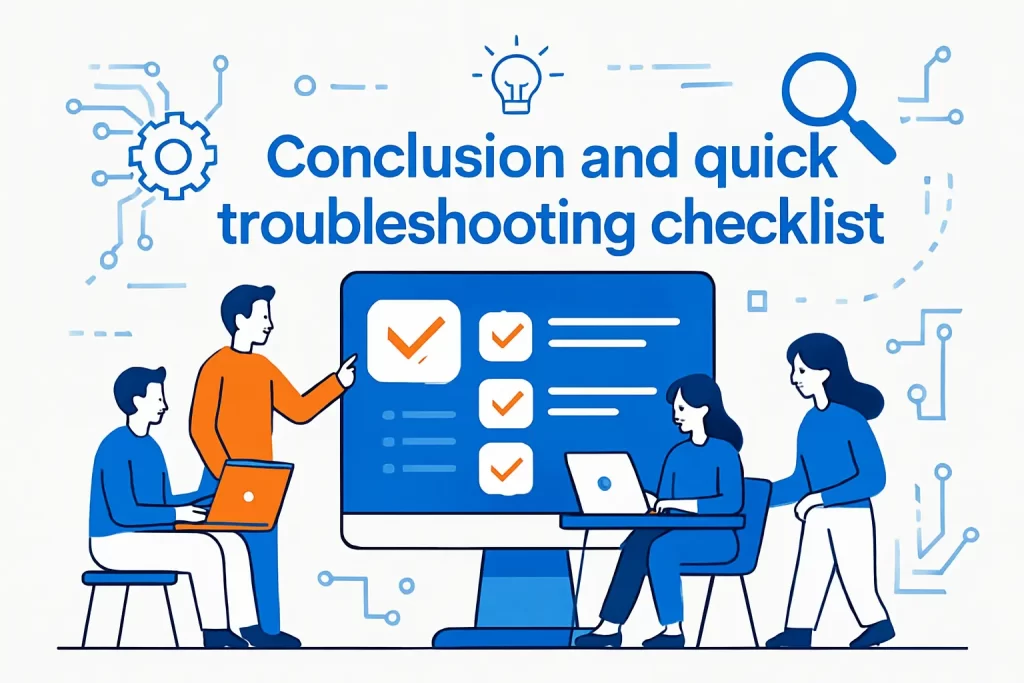
When a WordPress site shows the scheduled maintenance message, we like to respond with a short, repeatable sequence rather than improvisation. The steps below are designed to minimize collateral damage while restoring service quickly.
- First, confirm the update is no longer actively progressing by checking for ongoing file changes and admin responsiveness.
- Next, locate the WordPress root by finding
wp-config.php, then check for.maintenancewith hidden files visible. - After that, delete
.maintenanceif it exists and you’re confident updates are not still running. - Then, refresh using a private/incognito window and a second device to separate real state from cached state.
- Finally, clear caching layers in order—browser, plugin, host, CDN—and verify pending updates inside WordPress admin.
Handled this way, the incident becomes predictable: either the flag file was the issue, or it becomes immediately clear that caching or a failed component update is the real culprit.







2. Escalation checklist: restore from backup or contact hosting support when issues persist
Sometimes the maintenance message is just the first domino. If deleting .maintenance doesn’t restore the site, or if the site returns but behaves inconsistently, escalation is not defeat—it’s professionalism.
- Consider restoring from a clean backup if core functionality is broken after the maintenance flag is removed.
- Review server error logs and WordPress debug logs to identify fatal errors tied to a specific plugin or theme update.
- Temporarily disable plugins (via directory rename) to isolate whether the failure is application-layer rather than infrastructure-layer.
- Contact hosting support when filesystem access, resource ceilings, or platform caching layers block recovery steps.
At 1Byte, we think the right final move is to turn the incident into a prevention upgrade: once the site is stable, tighten the update workflow, test in staging, and ensure your hosting plan has the headroom that updates quietly demand. If you had to fix this once, what would it take to make sure the next update is a non-event rather than an interruption?