

Clean HTML starts with an editor you trust. The right choice helps you format markup consistently, preview changes fast, and avoid structural mistakes that turn into accessibility and UX issues.
This guide collects free html editors for different workflows. Some tools are ideal for full projects. Others are better for quick edits, prototypes, or browser-based collaboration.
Use the quick picks to shortlist fast. Then use the comparison checklist to configure your editor once and keep your output clean every day.
Quick Picks: Choose a Free HTML Editor Fast
Pick the editor that matches how you work today. Then improve it with formatting, validation, and a fast preview loop.
- Want the safest all-around choice: Choose a general-purpose code editor with strong extensions, then add a formatter and live preview.
- Want the lightest setup for quick edits: Choose a lightweight text editor and rely on your browser plus a strict formatter.
- Want to share work instantly: Choose a browser-based editor that supports quick previews and easy collaboration.
- Want terminal-first speed: Choose a modal editor and standardize a team formatter so output stays consistent.
If you are unsure, start with a mainstream editor, keep the plugin list small, and standardize settings in your project so every contributor ships consistent markup.
What an HTML Editor Is and What “Free” Really Means
An HTML editor is any tool that helps you write, format, preview, and validate HTML. Some tools stay minimal and fast. Others act like full IDEs with project navigation, integrations, and language tooling.
- Text editors: Great for quick edits, simple pages, and low overhead workflows.
- IDE-style editors: Better when HTML lives inside larger projects and you want integrated tooling.
- Browser-based editors: Useful for demos, prototypes, sharing, and fast review cycles.
“Free” can mean fully open-source, free-to-use with optional paid add-ons, or a product with a free mode that limits certain advanced features. When you choose, confirm what is included in the free version so your workflow does not break later.
How to Compare Free HTML Editors Without Overthinking It
Start with your daily workflow. Then pick an editor that supports it with the least effort. A “better” editor becomes a worse choice when it forces constant context switching.
When you compare free HTML editors, focus on these practical wins:
- Formatting you can trust: You want consistent indentation and predictable output.
- Fast preview loops: You should see changes quickly in a real browser.
- Validation and guardrails: Catch broken nesting, duplicate IDs, and missing attributes early.
- Snippets and Emmet support: You should type less while writing clearer markup.
- Project navigation: Search across folders, jump between files, and refactor safely.
- Collaboration: Shared settings reduce “works on my machine” formatting fights.
Finally, treat your editor setup like a product. Keep it simple. Add tooling only when it removes real friction.
How to Shortlist Free HTML Editors in One Pass
Use this shortlist logic to avoid overthinking. Start with your use case, then pick the editor style that supports it with the least friction.
| Use case | Editor style | What to prioritize | Fast setup tip |
|---|---|---|---|
| Landing pages and repeated updates | Extension-friendly desktop editor | Formatter, snippets, live preview, validation | Standardize workspace settings in the repo |
| One-off fixes and quick markup edits | Lightweight text editor | Speed, search/replace, clean indentation | Pair with a strict formatter and browser checks |
| Remote server edits | Terminal-first editor | Keyboard workflows, reliability, low resource use | Create a repeatable formatting command |
| Prototypes and sharing | Browser-based editor | Instant preview, share links, quick iteration | Treat it as a demo stage, not production source |
After you shortlist, pick one tool and commit to a small setup: formatting, basic validation, and a preview loop. That combination does more for clean HTML than switching editors repeatedly.
Editor Picks for Clean Code and Fast Workflow
1. Visual Studio Code
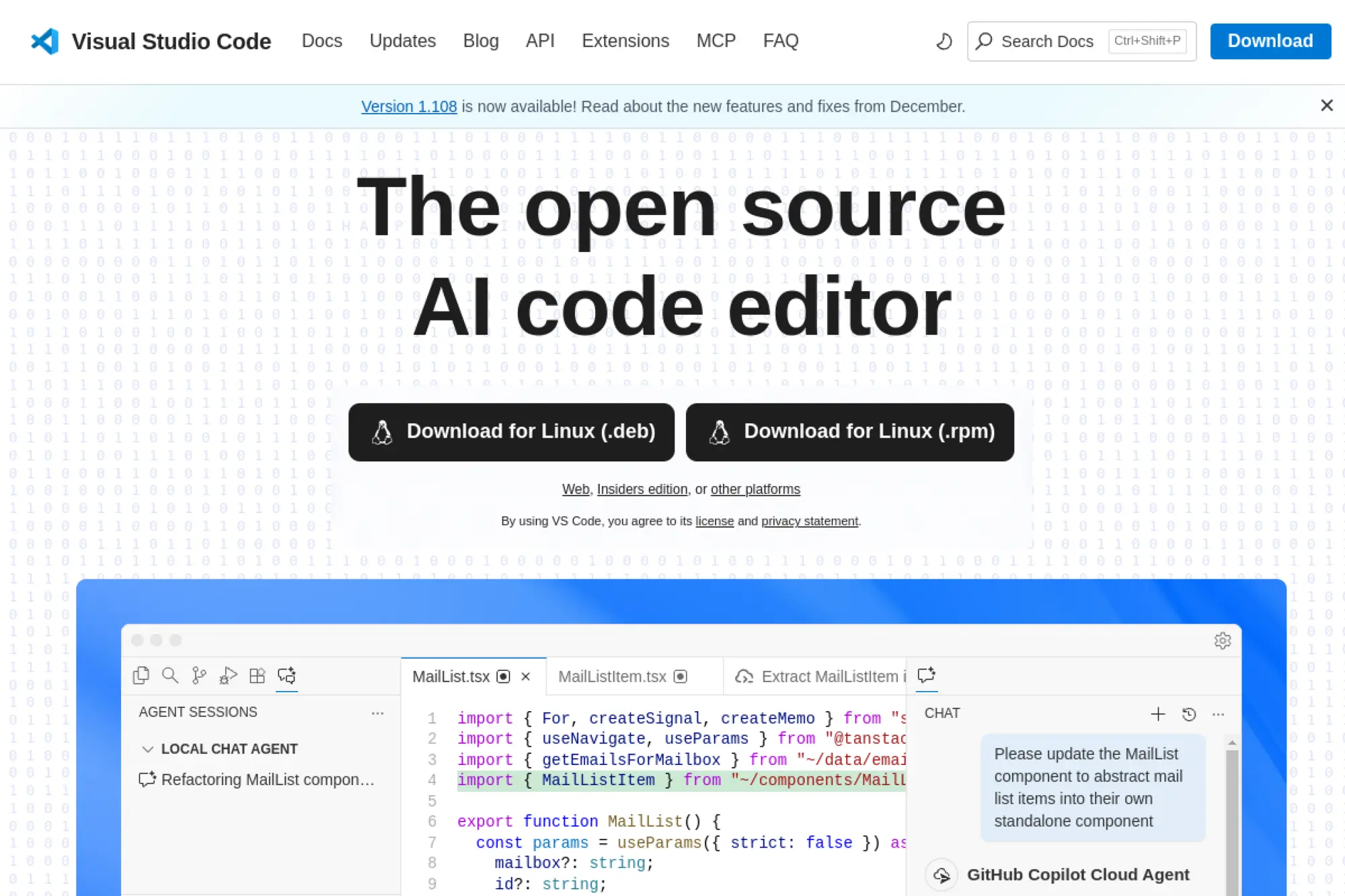
Visual Studio Code works well for quick HTML edits and full web projects. It stays approachable for beginners, but it also supports deep workflows through extensions. That mix makes it a practical default for many teams.
Best for
Marketing teams, agencies, and product teams that build and maintain many pages. It shines when you need a modern editor with strong HTML support, Git integration, and a large plugin ecosystem.
Key workflows to configure
- Enable format-on-save so every commit keeps a consistent style.
- Use Emmet expansions to scaffold tags, classes, and repeating blocks fast.
- Add HTML validation and accessibility hints to catch structural mistakes.
- Set up a live preview workflow so you edit and verify in one flow.
Sales growth lever
Turn your editor into a landing page factory. Reusable snippets and shared settings let you launch new campaign pages faster, test messaging sooner, and keep the site consistent. That helps you move from idea to published page with fewer handoffs.
Watch outs
Extensions can sprawl. Too many plugins slow the editor and confuse teammates. Keep a small, intentional set. Store shared settings in your repository so formatting stays predictable.
Quick start checklist
- Create a project workspace for your site or component library.
- Turn on format-on-save and pick a single formatter.
- Install HTML validation plus a live preview tool.
- Add snippets for common sections like heroes, footers, and forms.
- Commit your settings so the team shares the same defaults.
2. VSCodium
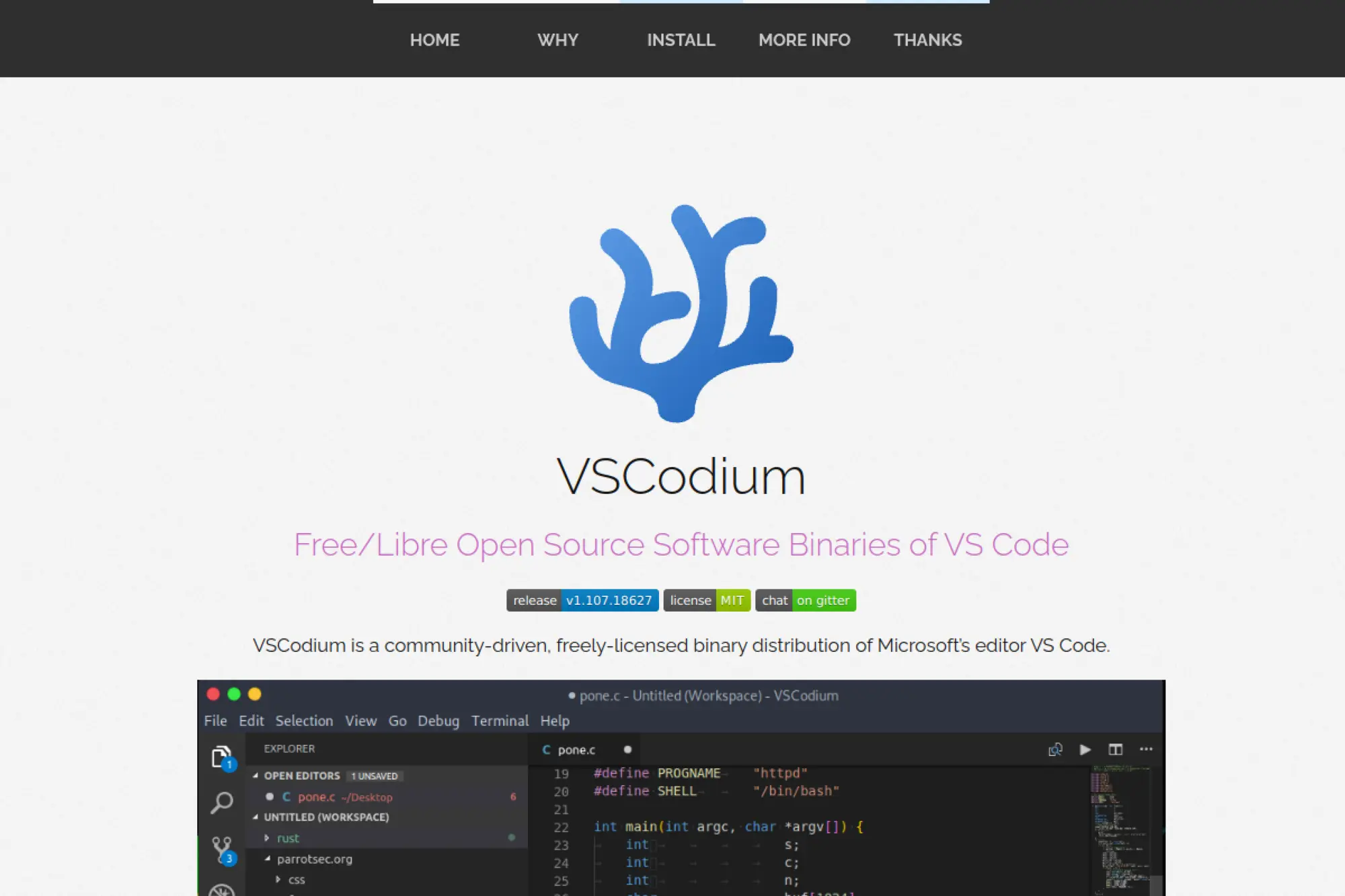
VSCodium gives you the Visual Studio Code experience without the Microsoft-branded distribution. If your team wants the familiar interface while staying closer to open-source defaults, it fits well.
Best for
Privacy-conscious teams, regulated environments, and developers who prefer community-driven builds. It also works well when you want a “clean” baseline and you already know the VS Code workflow.
Key workflows to configure
- Set up a trusted extension source and standardize your core plugin list.
- Align formatting rules across the team using a shared configuration file.
- Enable HTML linting so you catch markup issues before code review.
- Use workspace settings to avoid per-developer drift.
Sales growth lever
A simpler approval path can speed delivery. When your security team feels comfortable with your editor, procurement and onboarding move faster. That can reduce the time between “we need a new landing page” and “the page is live.”
Watch outs
Some extensions and marketplace flows differ from the Microsoft distribution. Plan for that difference. Test your essential plugins early so you do not block your workflow later.
Quick start checklist
- Install the editor and open a real project folder.
- Pick one formatter and one linter for HTML.
- Set workspace defaults for indentation and line endings.
- Validate your extension setup on a fresh machine profile.
- Document your “team baseline” in a short setup note.
3. Notepad++
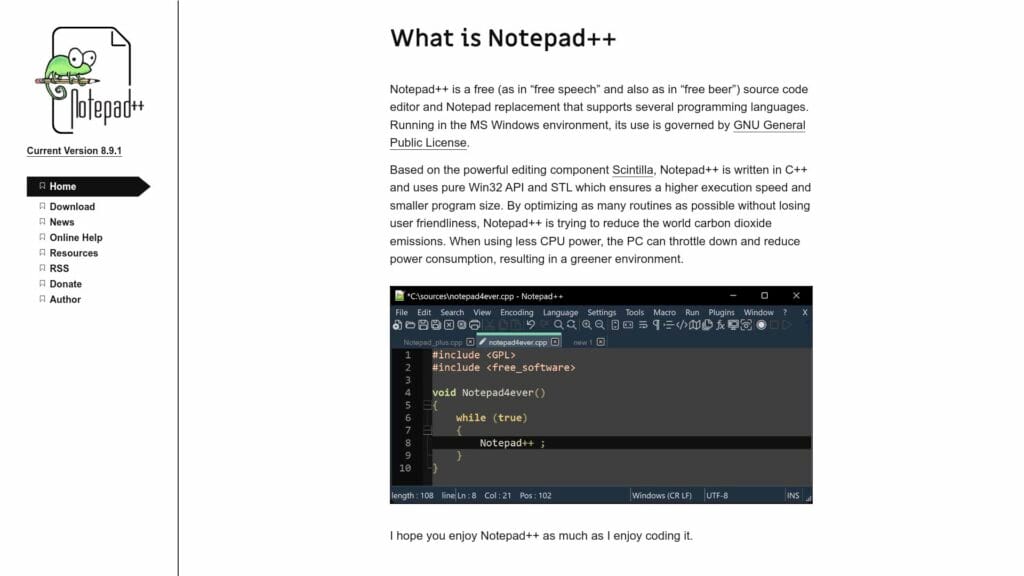
Notepad++ stays fast and lightweight. It opens instantly, handles large text files well, and supports syntax highlighting for HTML. When you need quick edits on Windows, it delivers.
Best for
Windows users who need a reliable editor for quick HTML edits, template tweaks, and search-and-replace jobs. It is also great for troubleshooting when you do not want a heavy IDE.
Key workflows to configure
- Set your preferred indentation so you do not mix tabs and spaces.
- Use powerful search-and-replace for cleaning up messy markup.
- Create small macros for repetitive HTML edits across files.
- Pair it with an external browser preview workflow for fast checks.
Sales growth lever
Speed matters when the request is urgent. Notepad++ helps you push quick copy changes, fix broken markup, or correct tracking snippets without waiting on a heavy toolchain. That can keep campaigns running smoothly.
Watch outs
It is not a full IDE. You will rely on external tools for live preview, deeper validation, and project-wide refactors. Also, treat plugins carefully and keep your setup simple.
Quick start checklist
- Set a default indentation style and stick to it.
- Turn on visible whitespace to spot formatting problems.
- Create macros for your most common HTML edits.
- Keep a browser preview workflow ready for quick verification.
- Use folders and tabs to manage a working set of files.
4. Phoenix Code
Phoenix Code targets web developers, designers, and students. It focuses on visual tools and live previews, so you can verify your HTML and CSS changes quickly. It feels more “web-native” than many generic editors.
Best for
Front-end work where you value quick visual feedback. It fits well for landing pages, small sites, and design-to-code iterations where you want to reduce guesswork.
Key workflows to configure
- Use live preview to shorten the edit-and-check loop.
- Set up HTML assistance features so tag edits stay consistent.
- Install extensions for formatting and validation to keep code clean.
- Organize your work as projects so you can search and refactor safely.
Sales growth lever
Live preview helps you ship better-looking pages faster. That speed can improve stakeholder alignment. You can show a near-real result early, get faster feedback, and publish sooner. That supports more rapid campaign cycles.
Watch outs
The ecosystem is smaller than the biggest editors. That is not always a problem, but you should confirm your must-have workflows before you commit. Also, keep an eye on which features vary by platform.
Quick start checklist
- Open your site folder as a project.
- Enable live preview and confirm it matches your target browser.
- Add an HTML formatter and a validator.
- Create snippets for recurring sections and layout blocks.
- Set a consistent indentation style for the whole team.
5. Pulsar
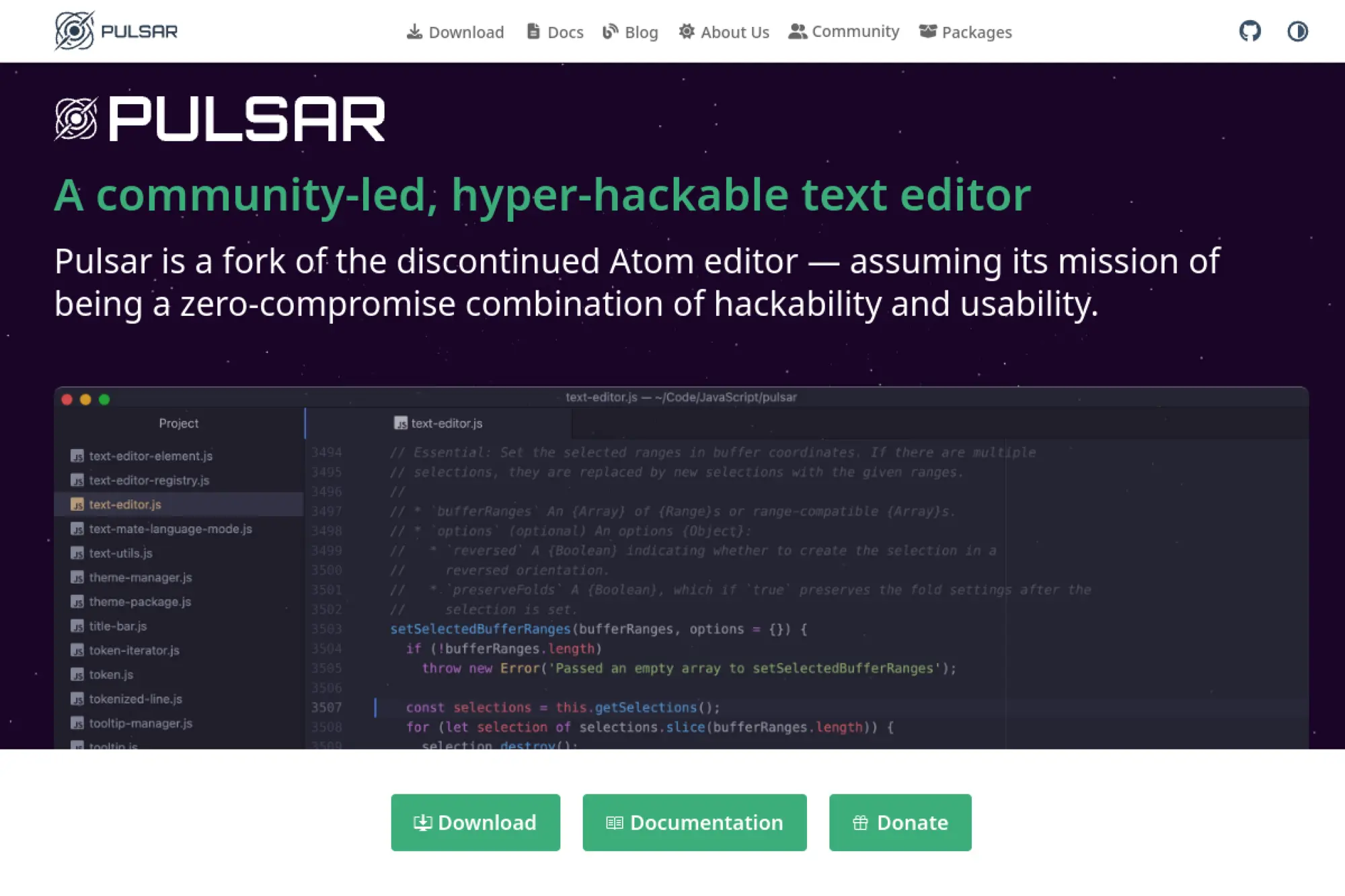
Pulsar is a community-led fork of Atom. It keeps the “hackable editor” spirit alive, with packages, themes, and deep customization. If you like tailoring your tools, Pulsar can feel like home.
Best for
Developers who want a customizable desktop editor with a strong package culture. It also suits teams that like building a personalized environment for front-end work.
Key workflows to configure
- Install a formatter and enforce it through save hooks.
- Add HTML linting to catch broken nesting and missing attributes.
- Create snippets for your design system components and page sections.
- Set up Git workflows inside the editor if you prefer fewer context switches.
Sales growth lever
Customization can become a competitive advantage. You can build editor snippets that match your brand’s component patterns. That reduces small mistakes and speeds up the creation of new pages, especially when multiple people touch the same templates.
Watch outs
Package quality varies. Some extensions may lag or conflict. Keep a tight list of approved packages. Document them so onboarding stays smooth.
Quick start checklist
- Pick a theme and font setup that supports long editing sessions.
- Install a single formatter and a single linter for HTML.
- Create a shared snippet library for your team.
- Configure project search and navigation shortcuts.
- Test your setup on a real landing page repo.
6. Vim
Vim is a classic for a reason. It runs almost everywhere, works well over SSH, and rewards consistent keyboard use. If you spend a lot of time editing files on servers, Vim stays hard to beat.
Best for
Developers who want a keyboard-first workflow and who often work in terminals. It also fits ops-heavy teams that need to patch HTML templates directly on remote machines.
Key workflows to configure
- Set sensible indentation defaults for HTML and template files.
- Add a formatting workflow so you do not rely on manual spacing.
- Configure linting so you catch invalid markup during edits.
- Create macros for repetitive changes, like updating tracking tags or meta blocks.
Sales growth lever
Vim helps you fix issues fast when time matters. That matters for revenue when a broken page blocks signups or orders. Quick, confident edits reduce downtime and keep your funnel healthy.
Watch outs
The learning curve is real. You should expect a ramp-up period. Also, plugin ecosystems can become complicated if you keep adding tools without a plan.
Quick start checklist
- Learn core motions, search, and replace workflows first.
- Set indentation rules for HTML and templates.
- Add a formatter command you can run on demand.
- Create a small set of macros for repeated page edits.
- Keep your config readable and version-controlled.
7. Neovim
Neovim builds on the Vim workflow but modernizes the ecosystem. It fits developers who want modal editing with a cleaner path to modern features like language servers and better UI integrations.
Best for
Terminal-focused developers who want a modern, configurable environment without giving up the speed of modal editing. It works well when you maintain HTML inside larger apps and you want consistent tooling.
Key workflows to configure
- Enable language server support for HTML to get smarter completions.
- Wire up format-on-save so markup stays consistent across commits.
- Use fuzzy search for quick file navigation in large repositories.
- Add snippet support so you can scaffold common page structures fast.
Sales growth lever
Neovim can speed up routine work. Faster editing and navigation mean you can iterate on pages quickly. That helps when you need frequent campaign updates or rapid landing page experiments.
Watch outs
Neovim setups can turn into hobby projects. Keep your configuration focused on outcomes. Also, lock down a team baseline if you share tooling between developers.
Quick start checklist
- Start from a well-known starter config to reduce setup time.
- Add HTML language server support and a formatter.
- Enable snippets and a fuzzy finder.
- Test edits on a real template file, not a demo.
- Document the setup so teammates can replicate it.
8. GNU Emacs
GNU Emacs is more than a text editor. It is a programmable environment that many developers shape into a personal workstation. If you like customizing workflows and keeping everything in one tool, Emacs can fit.
Best for
Developers who write a lot of documentation alongside HTML. It also fits teams that value powerful text manipulation, project navigation, and customizable workflows across many file types.
Key workflows to configure
- Use a dedicated HTML editing mode for better highlighting and indentation.
- Add snippet support so you can insert clean boilerplate quickly.
- Enable on-the-fly linting so structure issues show up early.
- Integrate Git so you can review diffs without leaving your editor.
Sales growth lever
Emacs can reduce context switching. You can keep notes, TODOs, content drafts, and code changes in the same environment. That can speed up collaboration between content and engineering, especially when you ship many small updates.
Watch outs
Keybindings feel different from mainstream editors. Also, configuration can grow quickly. Keep a curated setup and avoid constant tinkering during delivery sprints.
Quick start checklist
- Install a solid HTML mode and a snippet system.
- Enable linting and formatting commands for HTML.
- Set project navigation shortcuts for fast file switching.
- Connect Git workflows so reviews stay close to edits.
- Write a short setup guide for your future self.
9. Helix
Helix brings modern language features into a terminal editor with strong defaults. It uses selection-based editing and integrates language server support in a way that feels straightforward. If you want power without endless configuration, it stands out.
Best for
Developers who like terminal-first workflows but want built-in “smart” features. It fits well when you edit HTML inside large repositories and you rely on navigation and diagnostics.
Key workflows to configure
- Set up the HTML language server so completion and diagnostics work reliably.
- Define a formatting command so you can clean markup quickly.
- Use project-wide search to refactor repeated sections safely.
- Learn selection-based commands to speed up repetitive edits.
Sales growth lever
Fewer moving parts means fewer workflow breaks. That stability helps when you need to push frequent updates to conversion-critical pages. You spend less time fixing your editor and more time shipping.
Watch outs
Helix does not mirror Vim exactly, even though both use modal ideas. Expect a learning phase. Also, the plugin ecosystem is smaller than the biggest editors, so confirm your key needs.
Quick start checklist
- Install the editor and open a real project folder.
- Enable HTML language server support and confirm diagnostics appear.
- Add a formatting workflow you can run consistently.
- Practice selection commands on a template file.
- Save your settings so you can reproduce them later.
10. Micro
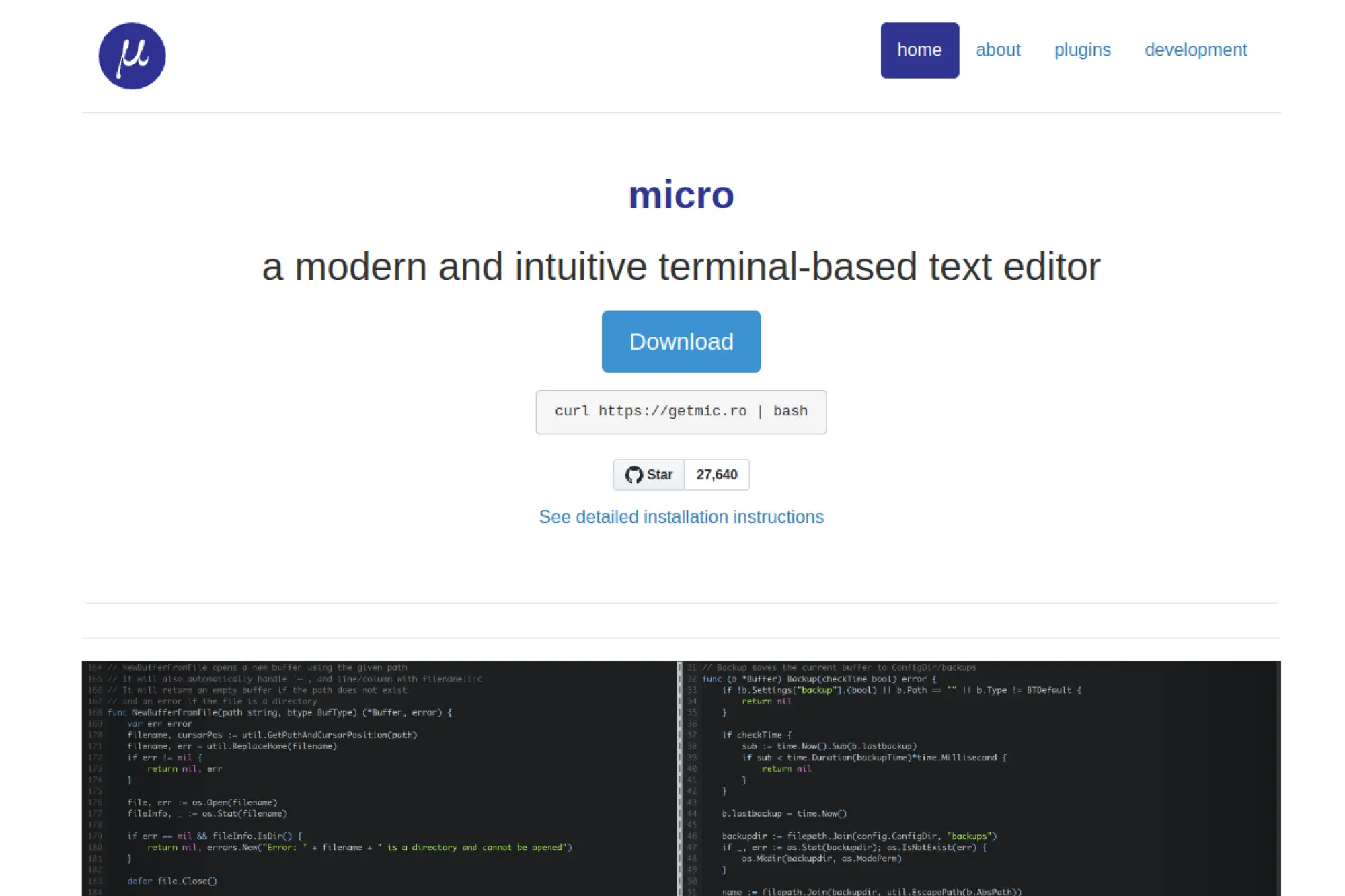
Micro makes terminal editing feel approachable. It uses familiar shortcuts, supports multiple cursors, and keeps the setup simple. If Vim feels intimidating, Micro is a practical alternative for HTML work in the terminal.
Best for
Developers and ops teams who frequently edit files over SSH and want a friendly editor. It also works well for quick HTML edits when you do not want to open a GUI tool.
Key workflows to configure
- Set indentation defaults so you do not introduce messy formatting.
- Enable syntax highlighting for HTML and related template files.
- Use the plugin system to add linting or formatting helpers.
- Build a simple preview habit by syncing changes to a browser check quickly.
Sales growth lever
When a production page breaks, you need quick action. Micro helps you patch markup quickly on a server or in a container session. That can protect revenue when the issue affects signups or checkout flows.
Watch outs
Micro stays lighter than full IDEs, which is the point. If you need deep project refactoring or extensive language tooling, you may outgrow it. Keep it as a reliable “always available” tool.
Quick start checklist
- Install Micro on any machine you SSH into regularly.
- Set consistent indentation and whitespace visibility.
- Enable HTML highlighting and basic completion features.
- Add a formatting command you can run before committing changes.
- Practice multi-cursor edits for repeated markup updates.
11. Geany
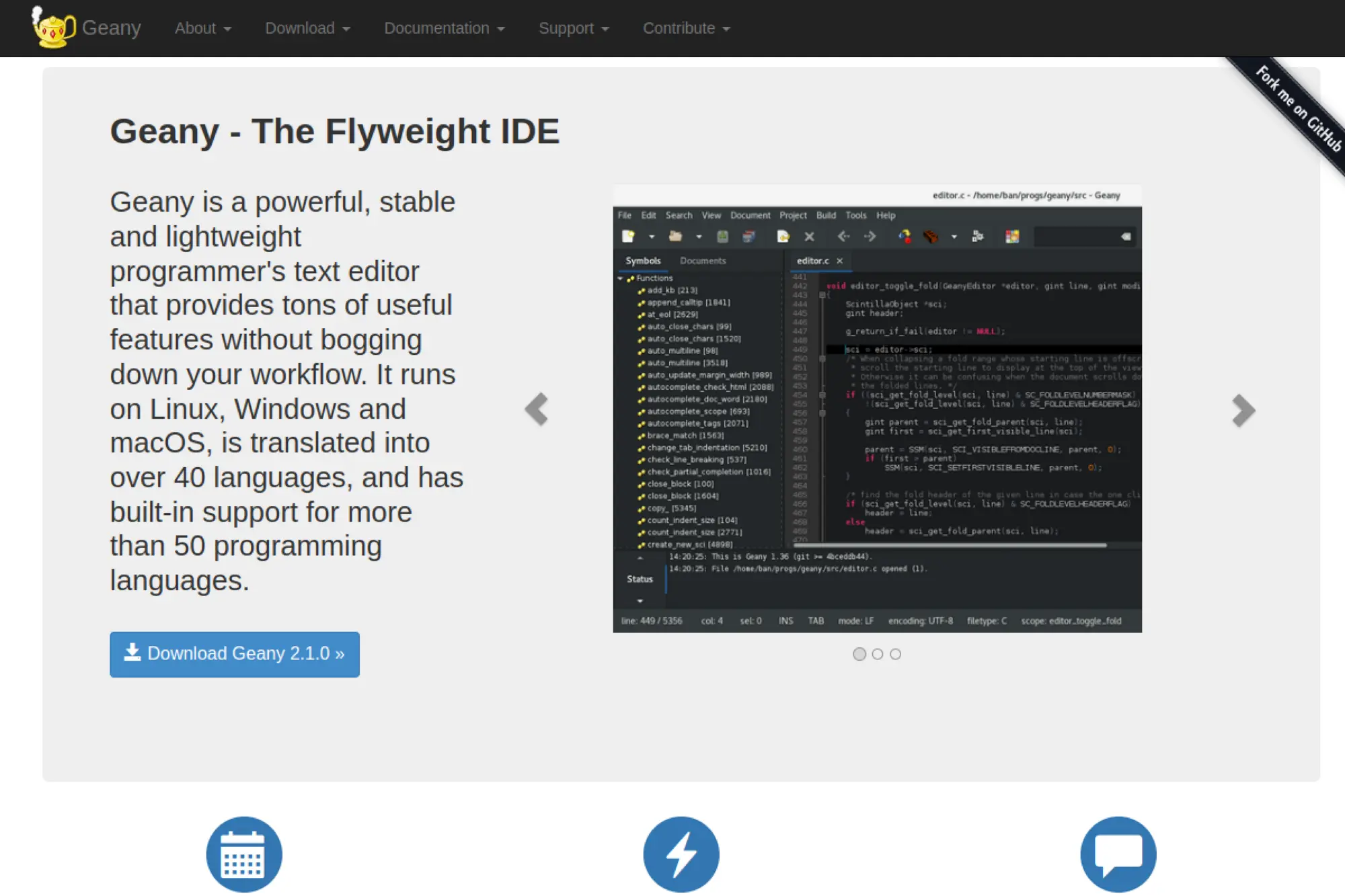
Geany sits between a simple text editor and a full IDE. It launches quickly and supports projects, build commands, and useful navigation. For HTML work inside small-to-medium projects, it provides enough structure without feeling heavy.
Best for
Developers who want a lightweight desktop editor with basic IDE features. It fits well on older hardware, minimal setups, or teams that prefer simpler tooling.
Key workflows to configure
- Create a project per site or client so navigation stays clean.
- Define build or preview commands to reduce switching to the terminal.
- Configure snippets for common HTML sections and patterns.
- Use symbol lists and file navigation to move quickly through templates.
Sales growth lever
Geany can make campaign page work more repeatable. When you store templates and snippets in one place, you produce consistent pages faster. That can reduce turnaround time for new offers or seasonal updates.
Watch outs
The interface feels utilitarian. That is fine, but it may not match modern expectations for built-in web tooling. Plan to pair it with external linters and formatters if you need stronger guardrails.
Quick start checklist
- Open your site folder as a project and save it.
- Set indentation rules for HTML and templates.
- Create snippets for your page layout and repeated sections.
- Add a quick preview command that opens your page in a browser.
- Run formatting before every commit to keep code clean.
12. Bluefish
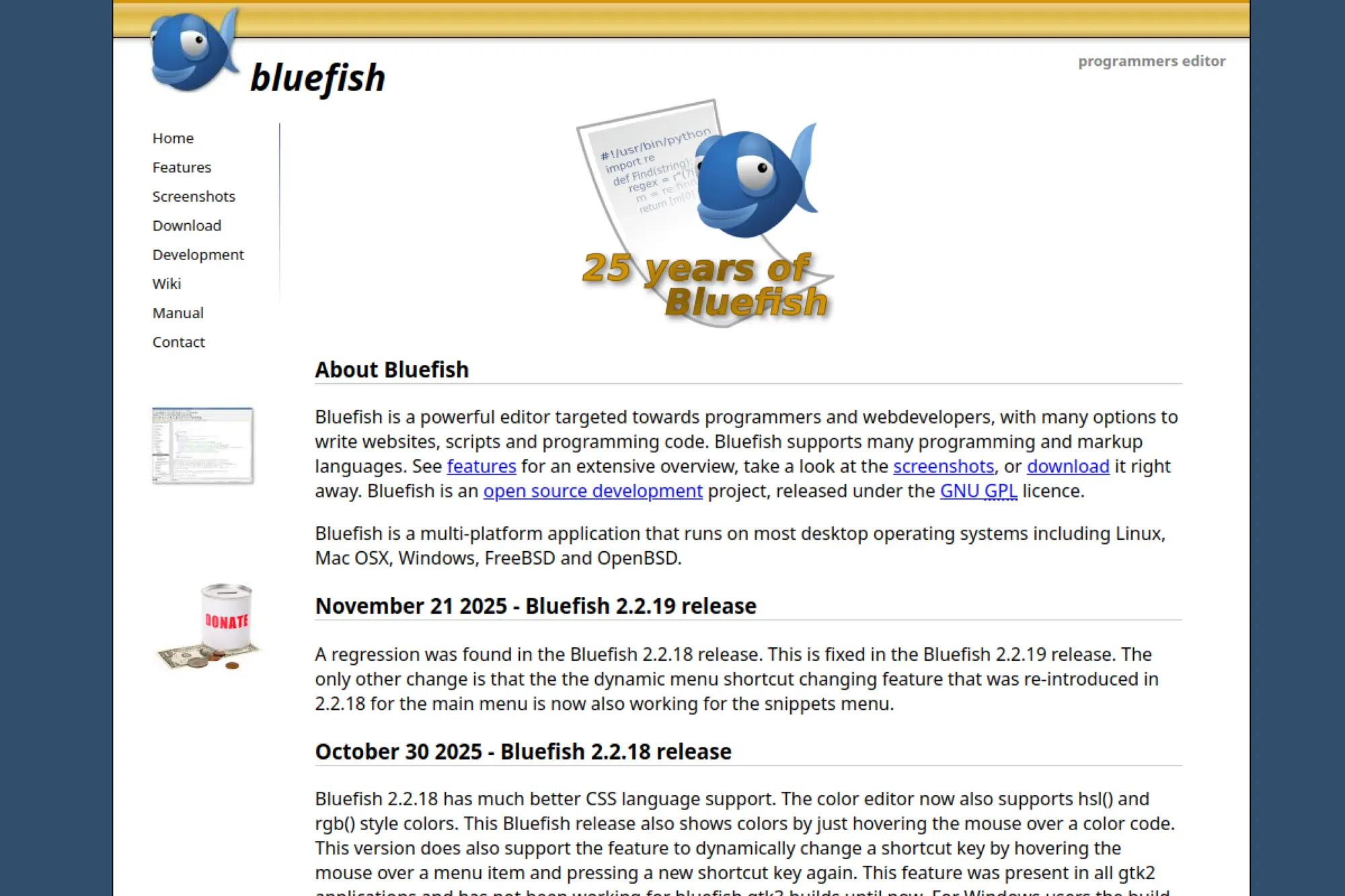
Bluefish is built with web development in mind. It offers helpful UI tools for writing markup while still keeping you in control of your code. If you like visual helpers for tags and attributes, it can save time.
Best for
Web authors and front-end developers who want an editor that leans into HTML workflows. It fits well for people who do not want a full IDE but still want web-focused features.
Key workflows to configure
- Use project support so you can switch between sites cleanly.
- Customize toolbars for the tags and patterns you use most.
- Set up snippets for repeated blocks like navigation, cards, and forms.
- Configure an external preview command to check pages quickly.
Sales growth lever
Bluefish helps you produce consistent markup faster, especially for content-heavy sites. That consistency reduces small errors that break layout or tracking. Cleaner pages also make optimization work smoother, which supports conversion and SEO efforts.
Watch outs
The UI can feel busy if you enable too many panels. Keep only the tools you use daily. Also, confirm that your preferred workflow works well on your operating system.
Quick start checklist
- Create a project for each site or client.
- Enable only the web-focused panels you actually use.
- Build a snippet library for your most common components.
- Connect an external browser preview shortcut.
- Adopt a formatter so output stays consistent across files.
13. Kate
Kate is a powerful programmer-friendly editor with strong project features. It works well for multi-file work, deep search, and flexible layouts. If you live on Linux and want a capable GUI editor, Kate deserves attention.
Best for
Linux developers who want a fast editor with project features and a modern feel. It also suits teams that maintain large sets of HTML templates and need reliable navigation.
Key workflows to configure
- Enable language server support for smarter HTML editing.
- Set up Git integration so you can review changes as you work.
- Use session management to switch between client projects quickly.
- Configure formatting so HTML remains consistent across contributors.
Sales growth lever
Kate’s strength is speed across many files. That helps when you run promotions that require site-wide updates, like changing CTAs, banners, or pricing messages. Faster, safer edits reduce the risk of shipping mismatched messaging across pages.
Watch outs
Kate can feel feature-rich at first. A minimal setup works best. Start with project navigation, formatting, and Git. Add more only when you see a clear payoff.
Quick start checklist
- Open your site folder as a project and save a session.
- Enable language server support for HTML.
- Set a formatting workflow and stick to it.
- Configure a quick preview shortcut in your browser.
- Use built-in search for consistent changes across templates.
14. CotEditor
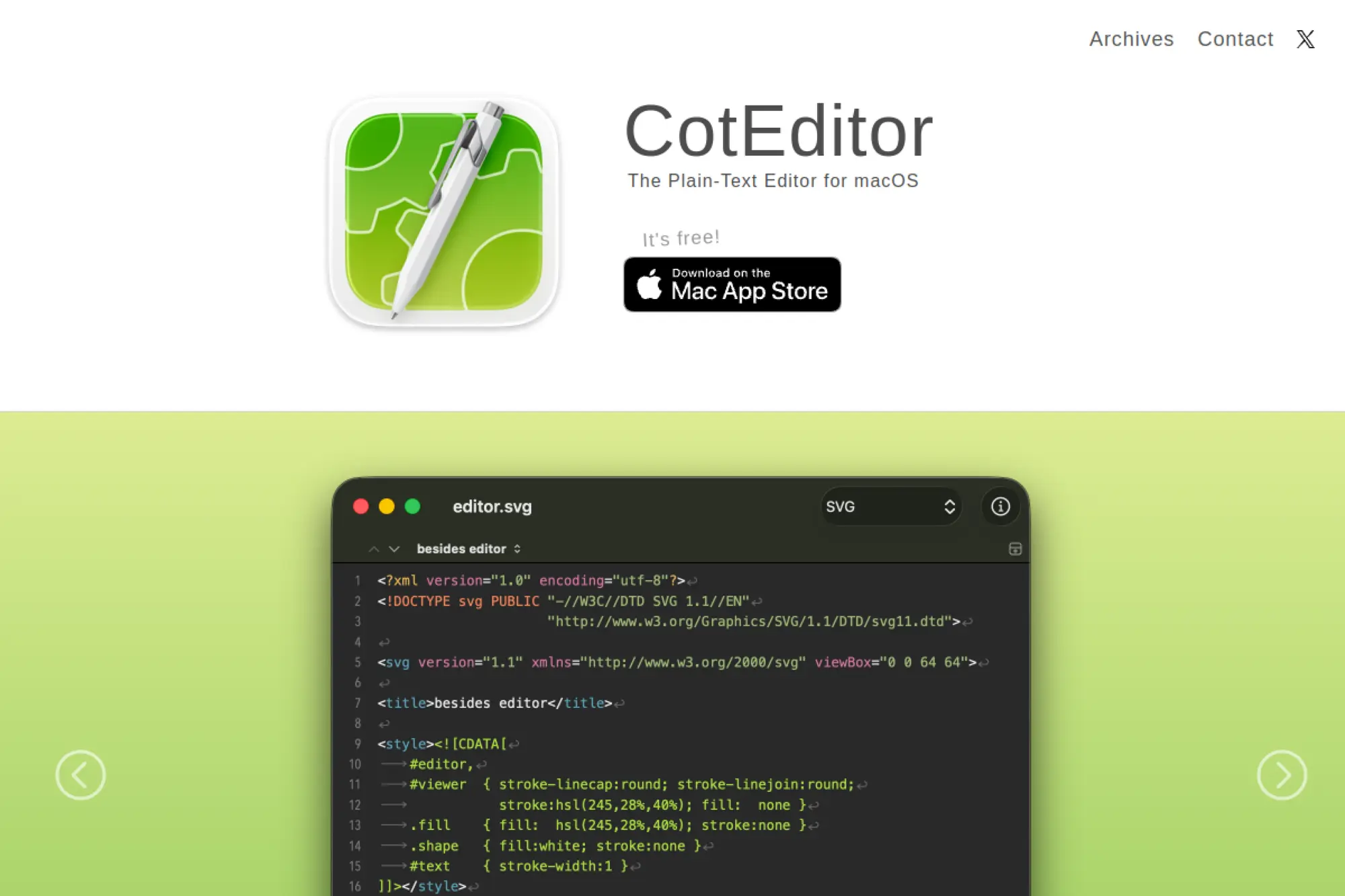
CotEditor is a macOS-native plain-text editor that prioritizes speed and a clean interface. It stays lightweight while still supporting syntax highlighting and strong find-and-replace. For HTML and content edits on Mac, it feels natural.
Best for
Mac users who want a focused editor for HTML, email templates, and static pages. It is especially useful when you prefer a fast tool for small, frequent edits.
Key workflows to configure
- Set HTML as the default syntax for relevant file types.
- Use powerful find-and-replace to clean messy markup quickly.
- Create scripts or shortcuts for formatting and validation.
- Use split views for editing long templates safely.
Sales growth lever
Many conversion wins come from quick iteration on copy and layout. CotEditor makes these updates fast. When you can adjust headings, refine CTAs, and fix layout quirks quickly, you reduce the delay between insight and implementation.
Watch outs
It is not an IDE. You will rely on external tooling for deeper validation, linting, and live reload. That is fine if your workflow is “edit fast, verify in browser, commit clean.”
Quick start checklist
- Set default indentation rules for HTML files.
- Enable syntax highlighting and ensure it matches your file types.
- Create reusable snippets for repeated sections.
- Adopt an external formatter and wire it into your workflow.
- Keep a simple preview routine in your primary browser.
15. TextMate
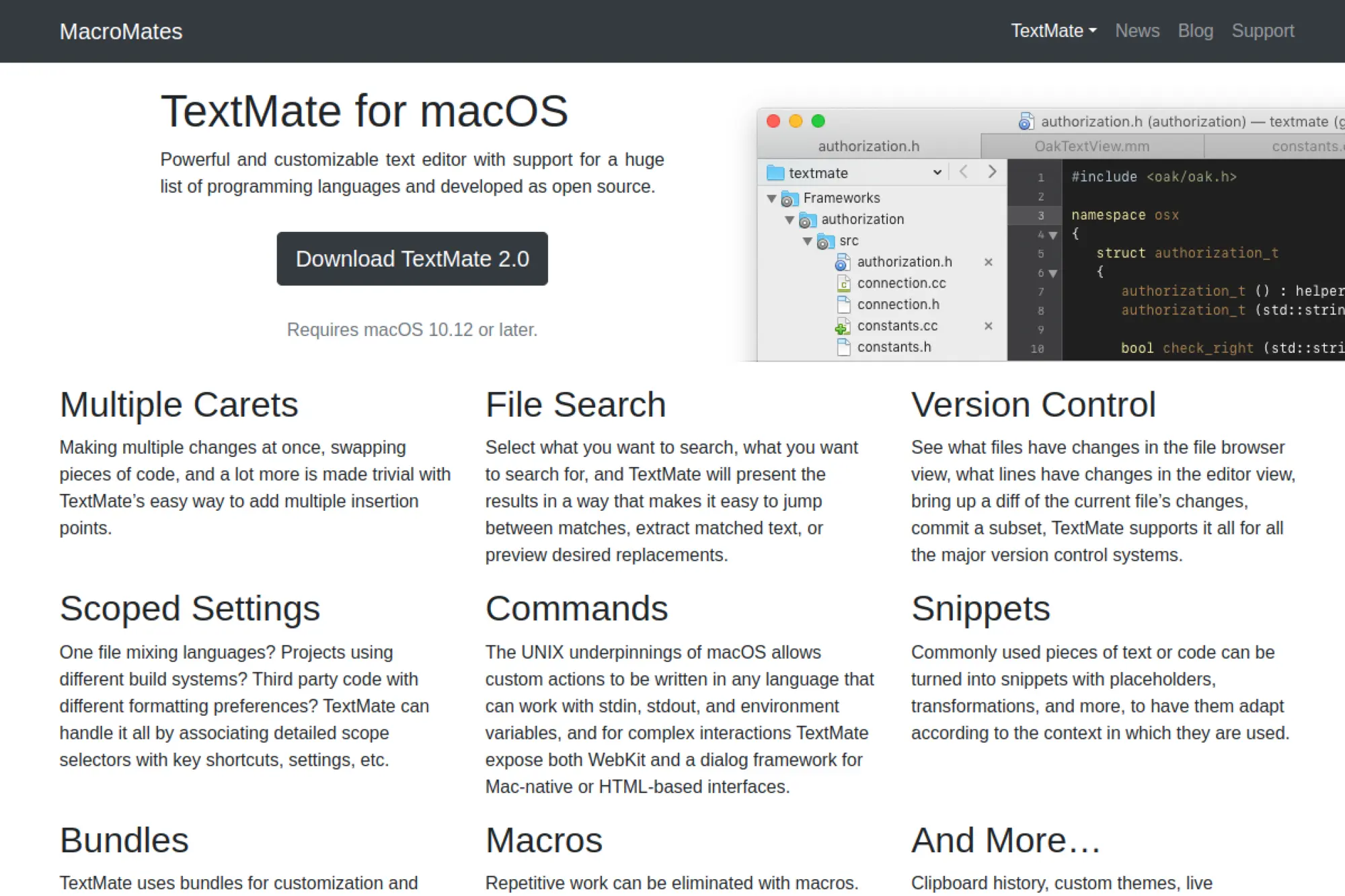
TextMate is a classic macOS editor known for bundles, snippets, and an efficient workflow. It feels lightweight but still powerful. If you like automating repetitive markup tasks, it can be a strong fit.
Best for
Mac developers who love snippets and templating. It works well for HTML-heavy workflows like marketing sites, templated pages, and email markup.
Key workflows to configure
- Install or enable an HTML bundle that matches your style of markup.
- Create snippets for common layout blocks and form patterns.
- Configure commands that run formatters or validators on your files.
- Use project navigation to keep related templates organized.
Sales growth lever
Snippets accelerate output. When your team builds many similar pages, a strong snippet library helps you ship faster while keeping structure consistent. That supports rapid campaign launches and reduces QA effort on repetitive patterns.
Watch outs
The ecosystem is smaller than newer editors. You may need to build or script the last mile of your workflow. Keep your setup focused on clear wins, like formatting and snippets.
Quick start checklist
- Enable an HTML-focused bundle and confirm indentation behavior.
- Create a snippet set for your most common components.
- Add a formatting command you can run before commits.
- Set up a quick browser preview habit for final checks.
- Keep bundle changes in version control if you share them.
16. BBEdit
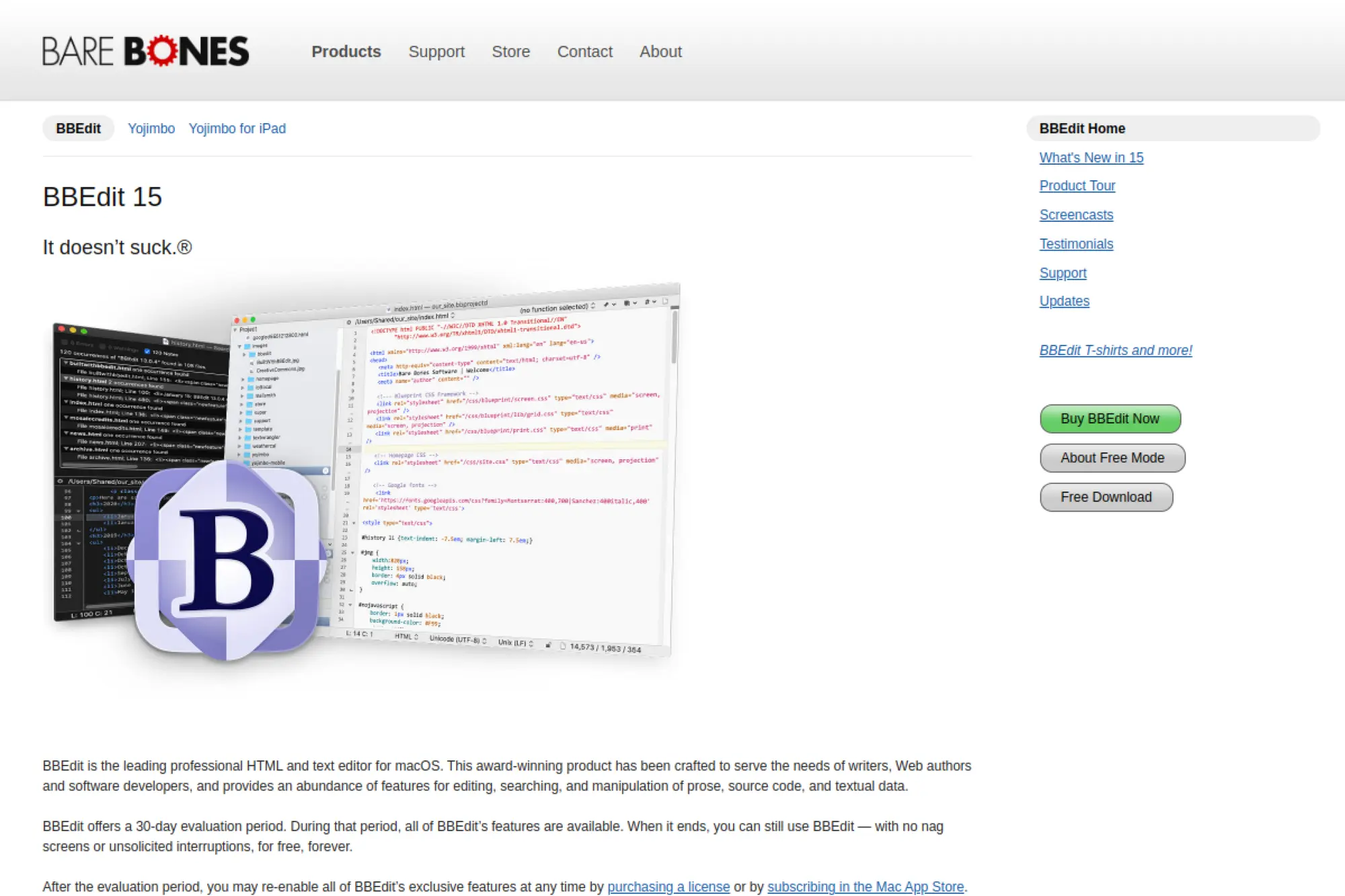
BBEdit has a long reputation as a professional HTML and text editor on macOS. It supports powerful search, text manipulation, and project organization. It also offers a free mode, which makes it a strong “serious editor” option without immediate cost.
Best for
Mac teams that maintain many HTML files and value deep search, reliable editing, and structured workflows. It works well for agencies, content teams, and developers who edit templates daily.
Key workflows to configure
- Use multi-file search to update repeated content across a site.
- Create clippings for common HTML blocks and brand patterns.
- Set up text filters to clean, format, or transform markup quickly.
- Keep a browser preview routine for final verification.
Sales growth lever
Bulk edits become safer and faster. That helps when marketing needs consistent changes across many pages, like updating offer text or adjusting forms. Better control over large-scale edits reduces risk and speeds delivery, which can directly support revenue-driving launches.
Watch outs
Some advanced features require a paid license. Plan around what you get in free mode and confirm it covers your needs. Also, avoid overcomplicating your workflow when simple formatting and preview routines will do.
Quick start checklist
- Open your site folder and save it as a project.
- Create clippings for repeated sections like headers and footers.
- Adopt a consistent formatting workflow for HTML.
- Use multi-file search carefully and review diffs before publishing.
- Document your preferred settings for teammates.
17. PSPad
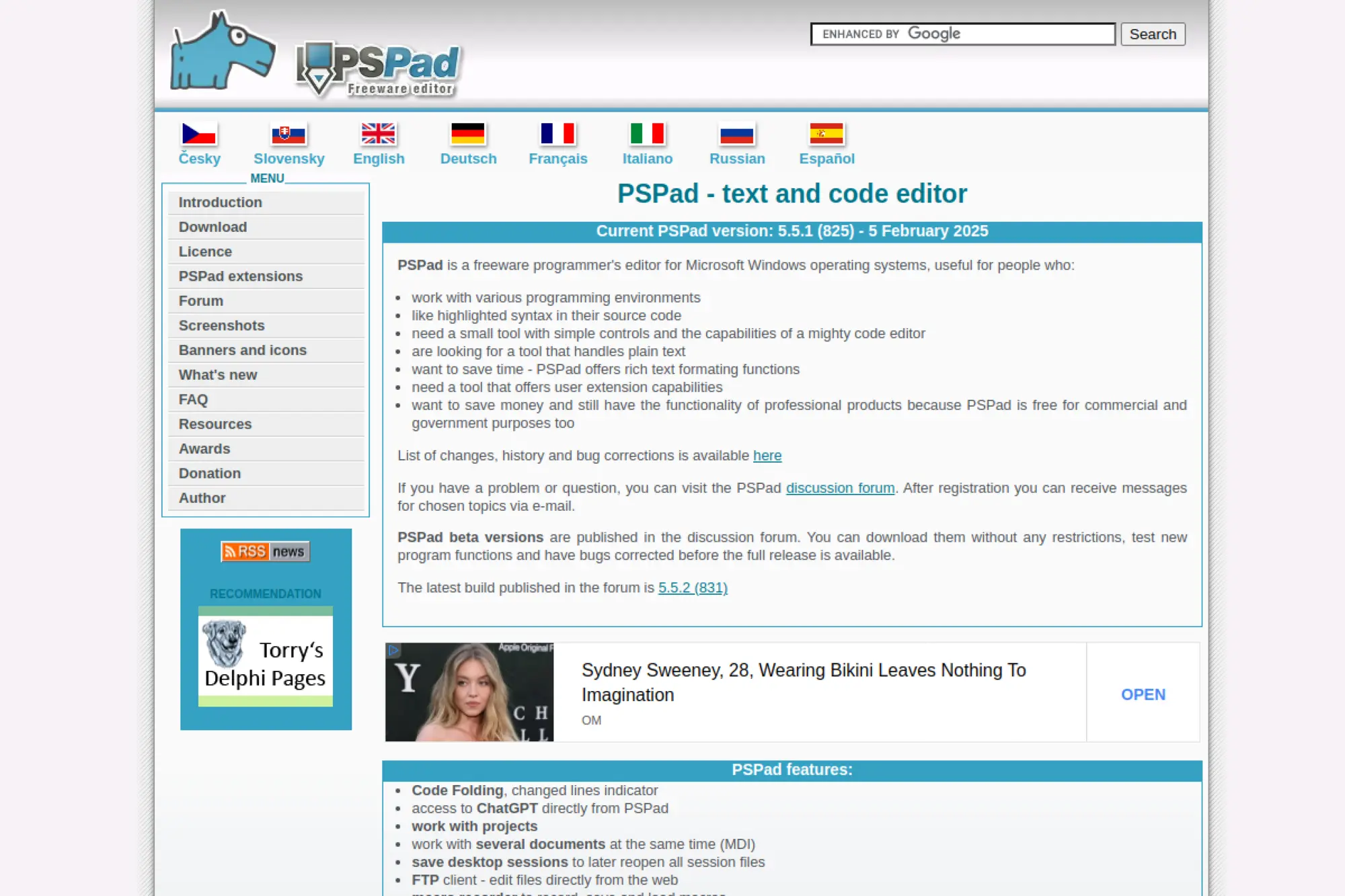
PSPad is a Windows-focused freeware editor built for programmers. It includes HTML tooling, templates, and a feature set that goes beyond basic text editing. If you need a capable Windows HTML editor without a heavy footprint, PSPad is worth a look.
Best for
Windows users who want a practical HTML editor for templates, small sites, and quick fixes. It fits well for people who prefer a single tool that combines editing, preview, and utilities.
Key workflows to configure
- Use built-in templates to scaffold clean markup quickly.
- Configure an external browser preview so you validate in modern engines.
- Set up FTP workflows if you maintain files on remote servers.
- Create macros for repeated edits across multiple templates.
Sales growth lever
PSPad supports fast iteration on Windows-heavy teams. That can speed up content updates, tracking changes, and layout tweaks. Faster updates help marketing teams keep pages aligned with active campaigns and reduce delays that cost conversions.
Watch outs
The interface offers many features, which can feel dense at first. Keep your daily workflow simple. Also, treat built-in preview tools as convenience and rely on your primary browser for final checks.
Quick start checklist
- Set indentation rules and confirm they match your repo style.
- Enable HTML templates and customize them for your brand patterns.
- Configure an external browser preview command.
- Create macros for repeated campaign edits.
- Run formatting before publishing to keep markup consistent.
18. CudaText
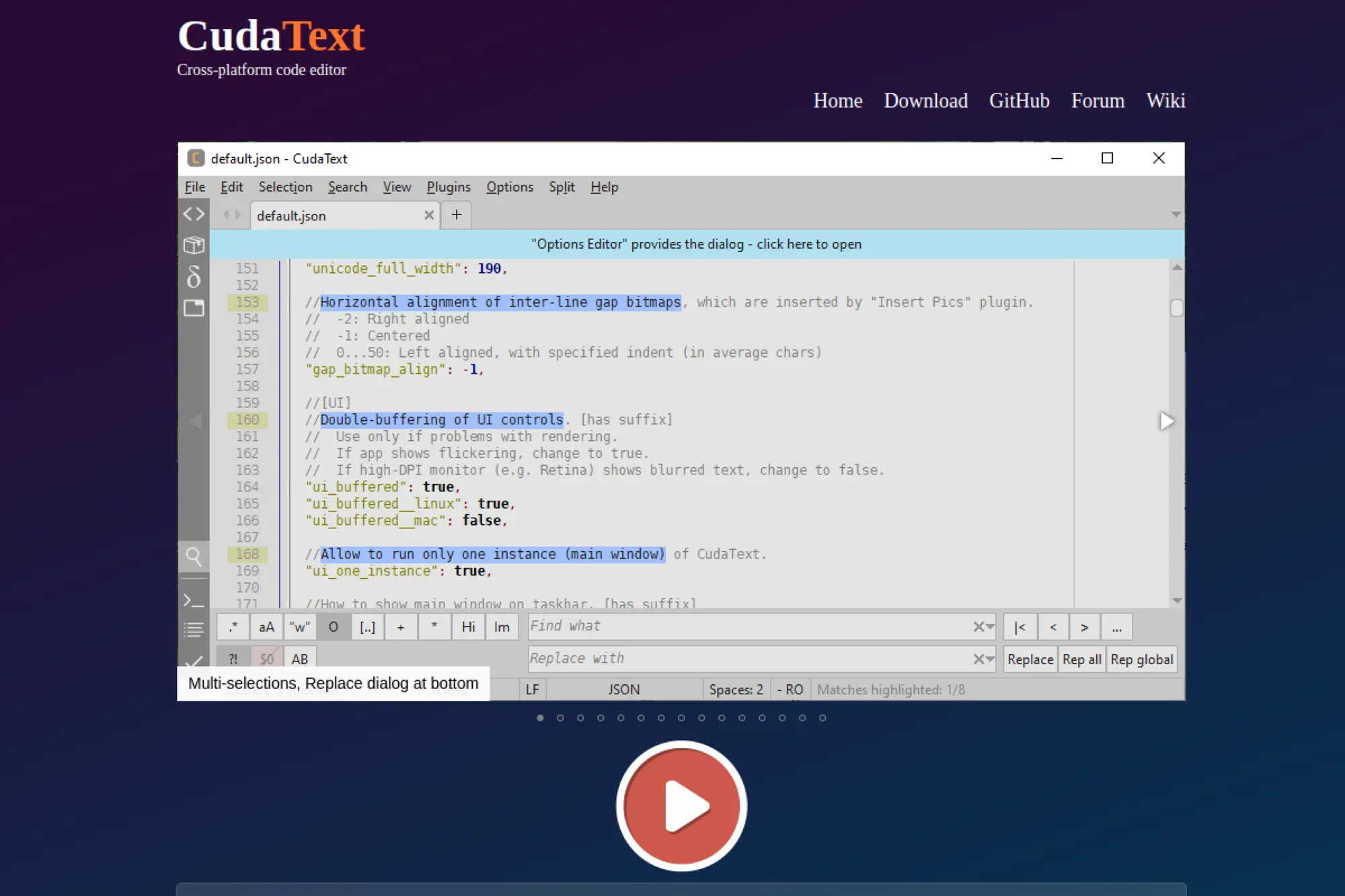
CudaText is a fast, cross-platform editor with a plugin ecosystem and strong multi-caret editing. It supports HTML-focused helpers and can become a powerful front-end workstation if you configure it well.
Best for
Developers who want a lightweight GUI editor with serious editing features. It works well when you edit many similar HTML files and you value speed and precision.
Key workflows to configure
- Install add-ons for formatting, linting, and HTML completion.
- Configure a command palette workflow for quick actions.
- Use multi-caret editing for repeated updates across templates.
- Set up a project manager so you navigate a site structure cleanly.
Sales growth lever
Multi-caret editing saves time on repetitive work. That matters when you update many pages for a campaign, adjust product badges, or change CTA text site-wide. Faster edits reduce labor and speed up release cycles.
Watch outs
Some “must-have” features depend on plugins. That means you should standardize your add-on list if you work in a team. Also, spend time early to tune settings so HTML indentation stays consistent.
Quick start checklist
- Install CudaText and open a real site folder.
- Add HTML completion, formatting, and linting add-ons.
- Configure indentation rules for HTML and templates.
- Practice multi-caret edits on repeated markup blocks.
- Save your configuration so you can reproduce it later.
19. Lite XL
Lite XL is a lightweight, extensible editor that stays fast and responsive. It supports plugins and customization without the overhead of a full IDE. If you want speed and simplicity, it can be a refreshing choice.
Best for
Developers who want a quick editor for HTML and front-end work, especially on lower-resource machines. It also fits people who like a minimal interface but still want extensions.
Key workflows to configure
- Install plugins for HTML completion and formatting.
- Set up project navigation so you can jump between templates quickly.
- Create snippets for repeated HTML patterns and components.
- Configure keybindings for the commands you use constantly.
Sales growth lever
Lite XL’s speed helps you stay in flow. When your editor feels instant, you ship faster. That matters for teams that run frequent experiments on landing pages and need quick edits without tool friction.
Watch outs
You may need to assemble your workflow using plugins and custom settings. That is normal for a lightweight editor. Plan a short setup session and document it if you work in a team.
Quick start checklist
- Install Lite XL and set a comfortable theme and font.
- Add an HTML formatter and basic linting support.
- Set indentation rules and confirm they match your repo.
- Create snippets for your common page sections.
- Use it on a real project for a full workday before deciding.
20. Lapce

Lapce is a modern code editor that emphasizes speed and built-in language tooling. It supports language server workflows and aims to keep editing responsive. For HTML work inside modern stacks, it can feel efficient and focused.
Best for
Developers who want a modern editor with strong language tooling and a clean interface. It fits teams that like IDE-style features but do not want a heavyweight environment.
Key workflows to configure
- Enable language server support for HTML so completions stay accurate.
- Configure a formatter so markup stays consistent across contributors.
- Use project navigation tools to manage large template trees.
- Leverage the built-in terminal for quick build and preview commands.
Sales growth lever
Lapce can shorten the time from idea to working prototype. When language tooling catches mistakes early, you spend less time debugging broken templates. That supports faster shipping on conversion pages and product flows.
Watch outs
Lapce continues to evolve. That means features and plugins can change. If you adopt it for a team, lock down a stable workflow and avoid constant switching of tooling.
Quick start checklist
- Install Lapce and open your site folder as a project.
- Enable HTML language server support and confirm diagnostics appear.
- Set a consistent formatter for HTML and related files.
- Configure a preview command that matches your local stack.
- Document the minimal setup for teammates.
21. Zed
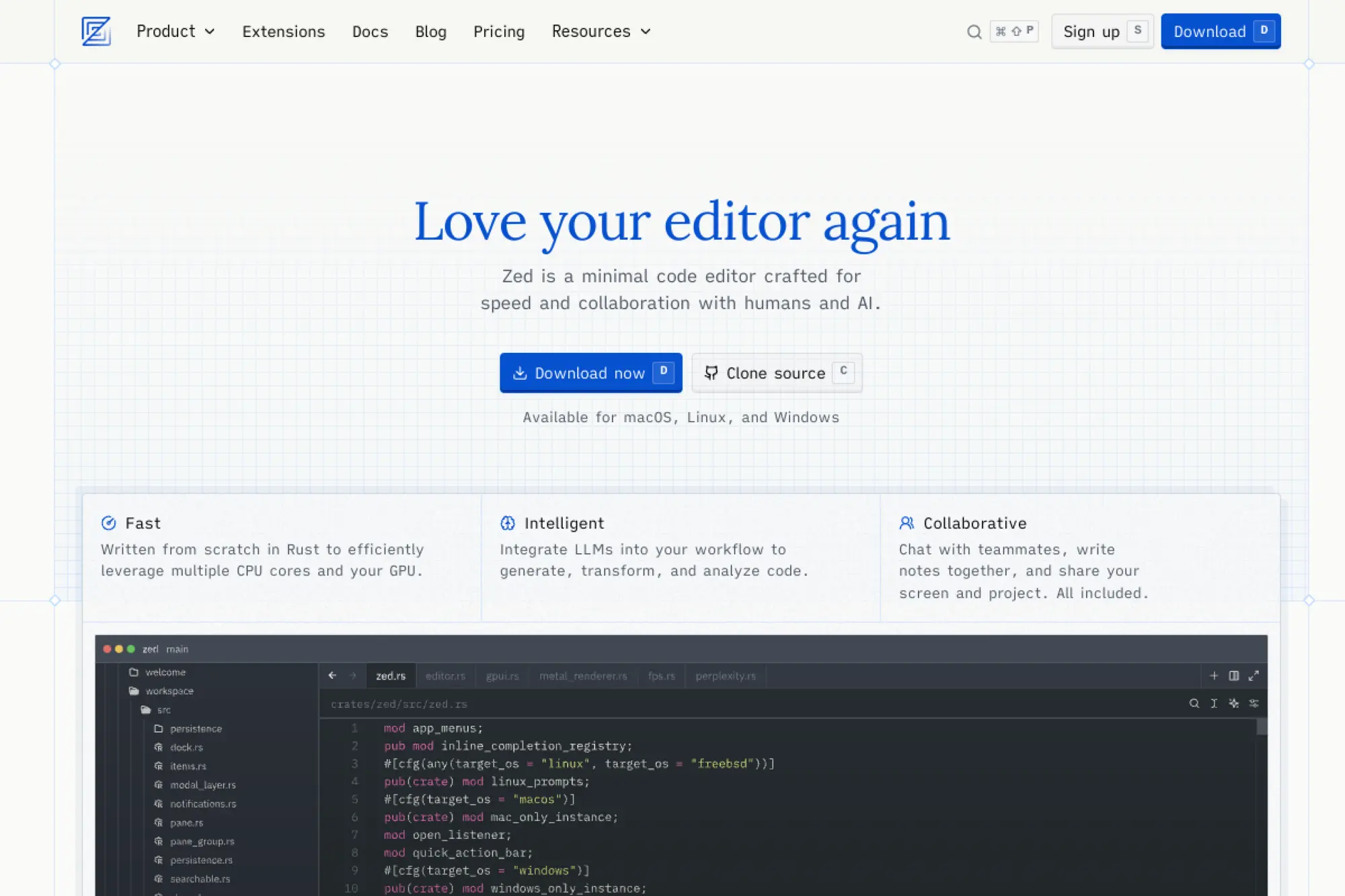
Zed focuses on speed and collaboration. It feels modern, responsive, and designed for real teamwork. If you want an editor that supports pair work and quick review cycles, Zed is a compelling choice.
Best for
Teams that pair program, review HTML changes live, or need fast feedback from design and marketing. It also fits developers who care about responsiveness and a polished editing experience.
Key workflows to configure
- Set up formatting and linting so shared work stays consistent.
- Use built-in Git workflows to review diffs while you edit.
- Leverage collaboration features for real-time reviews of landing pages.
- Use AI assistance carefully for refactors, then verify the result.
Sales growth lever
Collaboration cuts cycle time. When a marketer can review HTML changes live and a designer can confirm layout intent quickly, you ship faster. Faster releases can translate to quicker experimentation and earlier campaign launch dates.
Watch outs
Some advanced features may require accounts or paid add-ons. Also, new tools often evolve quickly. Confirm stability for your must-have workflows before adopting it across a team.
Quick start checklist
- Install Zed and open a real project repository.
- Configure formatting and linting for HTML.
- Test Git workflows for reviewing and staging changes.
- Run a short collaborative review session on a landing page edit.
- Write down your agreed team defaults.
22. Apache NetBeans
Apache NetBeans is a full IDE that can handle larger projects where HTML lives alongside backend code. If you work in a multi-language codebase and prefer IDE features, it offers a stable, free option.
Best for
Developers building full applications where HTML templates connect to server-side logic. It fits well when you want IDE navigation, project structure, and integrated tooling in one place.
Key workflows to configure
- Set up your project structure so templates, assets, and server code stay organized.
- Enable formatting and validation to keep markup consistent.
- Use integrated Git workflows for clean commits and reviews.
- Configure run and preview tasks so you can test changes quickly.
Sales growth lever
When HTML ties directly to product features, stability matters. A full IDE can reduce integration errors and speed up debugging. That can help you ship product improvements faster, which supports revenue and retention.
Watch outs
Full IDEs take more resources than lightweight editors. If your work is mostly small HTML pages, you may not need the extra weight. Choose it when your project complexity justifies it.
Quick start checklist
- Install NetBeans and import an existing web project.
- Enable HTML formatting and validation tooling.
- Configure a run and preview workflow that matches your stack.
- Set Git defaults and ensure commits include formatted code.
- Document project setup for consistent onboarding.
23. Eclipse IDE

Eclipse is a modular IDE that can support web development through its ecosystem. If you already live in the Eclipse world for backend work, adding HTML editing and validation can keep everything under one roof.
Best for
Enterprise teams and developers who use Eclipse for larger systems and also maintain HTML templates. It fits well when your workflow depends on a plugin-driven IDE with strong project support.
Key workflows to configure
- Install the web tooling you need for HTML and related assets.
- Enable validators so markup issues surface during development.
- Set up formatting rules to keep templates consistent across the team.
- Connect Git workflows so reviews stay tied to editor actions.
Sales growth lever
Consistency reduces defects. When your templates behave predictably, you spend less time chasing production issues that hurt conversions. Eclipse can also support repeatable builds and structured workflows, which helps larger teams ship reliably.
Watch outs
Eclipse can feel complex if you only need an HTML editor. It shines when you already use it for broader development. If you start from scratch, a lighter editor may get you moving faster.
Quick start checklist
- Install the IDE and add web development tooling.
- Import an existing project and confirm templates render correctly.
- Enable HTML validation and set formatting rules.
- Configure a local run and preview workflow.
- Standardize settings across the team for consistent results.
24. IntelliJ IDEA Community Edition
IntelliJ IDEA Community Edition is a free IDE that supports many workflows beyond HTML. It can be a practical choice when HTML lives inside a larger application and you want strong navigation, refactoring, and project structure support.
Best for
Developers who work on JVM-based projects and also edit HTML templates. It fits well when you want a single IDE for code, templates, and project management.
Key workflows to configure
- Enable inspections for HTML to catch common mistakes early.
- Set code style rules for consistent formatting across templates.
- Use Git integration to review diffs and keep commits clean.
- Connect your local preview and build workflow so testing stays quick.
Sales growth lever
Better inspections reduce broken releases. When templates support onboarding and checkout flows, small markup bugs become business problems. Strong IDE guardrails help you ship changes with more confidence and fewer regressions.
Watch outs
Some advanced web features belong to paid editions. Confirm that Community Edition covers your specific front-end needs. Also, be mindful of resource use if you work on a lighter machine.
Quick start checklist
- Open your existing repo and let the IDE index the project.
- Turn on HTML inspections and confirm they match your standards.
- Set formatting rules and apply them before commits.
- Configure a preview workflow that mirrors production behavior.
- Share IDE settings guidance with your team to reduce drift.
25. CodePen
CodePen is a browser-based playground for HTML, CSS, and JavaScript. It makes it easy to prototype UI ideas, share them, and get feedback. For front-end experiments, it often beats setting up a local repo from scratch.
Best for
Rapid UI experiments, marketing prototypes, and shareable demos. It works well when you need to show a concept to a stakeholder quickly.
Key workflows to configure
- Create a starter template that matches your brand styles and structure.
- Use external resources carefully to mirror real production dependencies.
- Keep snippets organized so you can reuse components across prototypes.
- Export prototypes into your real codebase when they prove value.
Sales growth lever
CodePen speeds up validation. You can prototype a pricing card, a signup form layout, or a hero section quickly. That helps marketing and product teams align earlier. Earlier alignment often leads to faster launches and more experiments.
Watch outs
Free tiers may limit privacy and collaboration features. Also, prototypes can drift from real production constraints. Use CodePen to validate ideas, then move the code into your real project for final polish.
Quick start checklist
- Create a base template with your preferred HTML structure.
- Add a simple styling baseline that matches your brand system.
- Prototype a component and test it across browsers.
- Share it for review and gather feedback early.
- Port the final HTML into your production repo with consistent formatting.
26. JSFiddle
JSFiddle is a fast way to build and share small HTML, CSS, and JavaScript examples. It is especially useful for reproducing layout bugs or testing a small snippet without full project overhead.
Best for
Bug reproduction, quick demos, and small experiments. It is also great for sharing a minimal example with teammates or support.
Key workflows to configure
- Build a small baseline snippet that reflects your typical HTML structure.
- Add only the external resources you truly need to reproduce behavior.
- Use clear naming and comments so others understand the intent quickly.
- Save and share links for reproducible reports and review.
Sales growth lever
Faster debugging protects revenue. When a production page breaks, a minimal reproducible example speeds diagnosis. That reduces the time between “something is wrong” and “it is fixed,” which can protect conversions.
Watch outs
It is not a full project environment. You will not manage complex file trees the way you would locally. Use JSFiddle for experiments and debugging, then apply fixes in your real codebase.
Quick start checklist
- Create a baseline HTML snippet you can reuse.
- Add only essential CSS and scripts to match the issue.
- Document the steps to reproduce the problem in comments.
- Share the link with your team for fast review.
- Move the final fix back into the production repo.
27. CodeSandbox
CodeSandbox acts like a full IDE in your browser. It supports real project structures, dependencies, and collaboration. If you want a hosted environment for prototypes or shareable demos, it is a strong option.
Best for
Full prototypes, component libraries, and demos that need a real project structure. It is useful when you want to share a working environment without asking someone to clone and install locally.
Key workflows to configure
- Start from a template that matches your stack and adjust the HTML entry point.
- Configure formatting so contributions stay consistent.
- Use collaboration tools for review and paired debugging.
- Sync code to a repo when the prototype becomes production-bound.
Sales growth lever
CodeSandbox can shorten the path to a shareable demo. Demos help sales, onboarding, and stakeholder buy-in. When your team can share a working version quickly, you reduce friction and speed up decisions.
Watch outs
Free tiers may limit private work and compute resources. Also, hosted environments can differ from production hosting. Validate the final result locally and in your real deployment pipeline.
Quick start checklist
- Create a sandbox from a template that fits your project goals.
- Set formatting and linting rules early.
- Build a small HTML-driven feature or page prototype.
- Share it with stakeholders and collect feedback.
- Export or sync the code to your production repository.
28. StackBlitz

StackBlitz provides fast browser-based development environments. It works well for front-end prototypes and shareable examples. When you want a quick, interactive demo without local setup, StackBlitz is easy to reach for.
Best for
Front-end prototypes, shareable bug reproductions, and teaching. It fits teams that want quick demos for UI and workflow validation.
Key workflows to configure
- Start from a project template that matches your front-end approach.
- Keep formatting consistent so prototypes stay readable.
- Use live preview to validate HTML changes quickly.
- Export the result into your real repo once the idea works.
Sales growth lever
Fast demos can unlock faster approvals. When a stakeholder can click a link and see a working page, feedback becomes concrete. That shortens review cycles and helps you ship improvements sooner.
Watch outs
Some dependencies may behave differently in a browser-based environment. Also, free plans can limit private projects. Use StackBlitz for speed, then validate in your production setup before launch.
Quick start checklist
- Create a new project and identify the main HTML entry point.
- Apply formatting so the code stays clean from the start.
- Prototype the UI change and verify it in preview.
- Share the link for feedback and iterate quickly.
- Move the final HTML into your main repository.
29. Replit
Replit is a cloud IDE that supports many languages and makes collaboration easy. It can host and run projects, which helps when your HTML depends on a backend or when you need a quick, shareable environment.
Best for
Prototypes that mix HTML with server logic. It also fits learning, experiments, and quick internal tools that you want to share without setup friction.
Key workflows to configure
- Pick a project type that matches your needs and define a clear HTML entry.
- Set formatting rules so your markup stays readable.
- Use collaboration tools for review and pair debugging.
- Use environment variables for secrets instead of hardcoding them in HTML or scripts.
Sales growth lever
Replit can speed up experimentation. You can build and share a working prototype quickly, which helps validate an idea before you invest in a full implementation. That can save time and speed up learning, which supports smarter growth work.
Watch outs
Cloud IDEs come with resource limits and security concerns. Treat anything public carefully. Also, confirm that hosted behavior matches your production assumptions before launch.
Quick start checklist
- Create a project and add a clean HTML template.
- Configure formatting and basic validation.
- Run the project and verify behavior in preview.
- Share with a teammate for review and iterate.
- Export code into your main repo when it is ready.
30. Glitch
Glitch is built around remixing and sharing small web apps. It makes it easy to start from an existing project, change the HTML, and share a live result quickly. If you want a hosted prototype with minimal setup, Glitch is a fun option.
Best for
Quick hosted prototypes, demos, and simple microsites. It is useful for hackathon-style iteration and for sharing proof-of-concepts with non-technical stakeholders.
Key workflows to configure
- Start from a template and remix it into your own workspace.
- Keep HTML clean by using a formatter and a consistent structure.
- Organize assets so images and scripts stay easy to manage.
- Share the live link for review and feedback loops.
Sales growth lever
A live demo can reduce debate. When stakeholders can click and see the page working, feedback becomes faster and more specific. That speed supports quicker iteration on marketing ideas and can help you validate concepts before a full build.
Watch outs
Hosted demo platforms often default to sharing. Be careful with sensitive code. Also, demos may pause or behave differently than production. Use Glitch as a validation tool, then move the final work into your production environment.
Quick start checklist
- Remix a project that matches your goal and structure.
- Edit HTML with a consistent formatting routine.
- Test changes in the live preview and fix broken links or assets.
- Share the demo for feedback and refine quickly.
- Export the final markup into your production repository.







Conclusion

Choosing an editor is not about finding the “best” tool. It is about finding the tool that helps you write clean HTML consistently, preview changes quickly, and collaborate without friction.
If you want a safe default, start with a popular general-purpose editor and add only the essentials: formatting, validation, and fast preview. If you prefer minimalism, pick a lightweight editor and pair it with a strict formatter and a reliable browser testing habit. Either way, the best free HTML editors are the ones you can configure once and trust every day.