

- What is an AI Video Editor?
- Why Beginners Gravitate Toward AI Video Editing
- What to Look For in an AI Video Editor (Beginner Checklist)
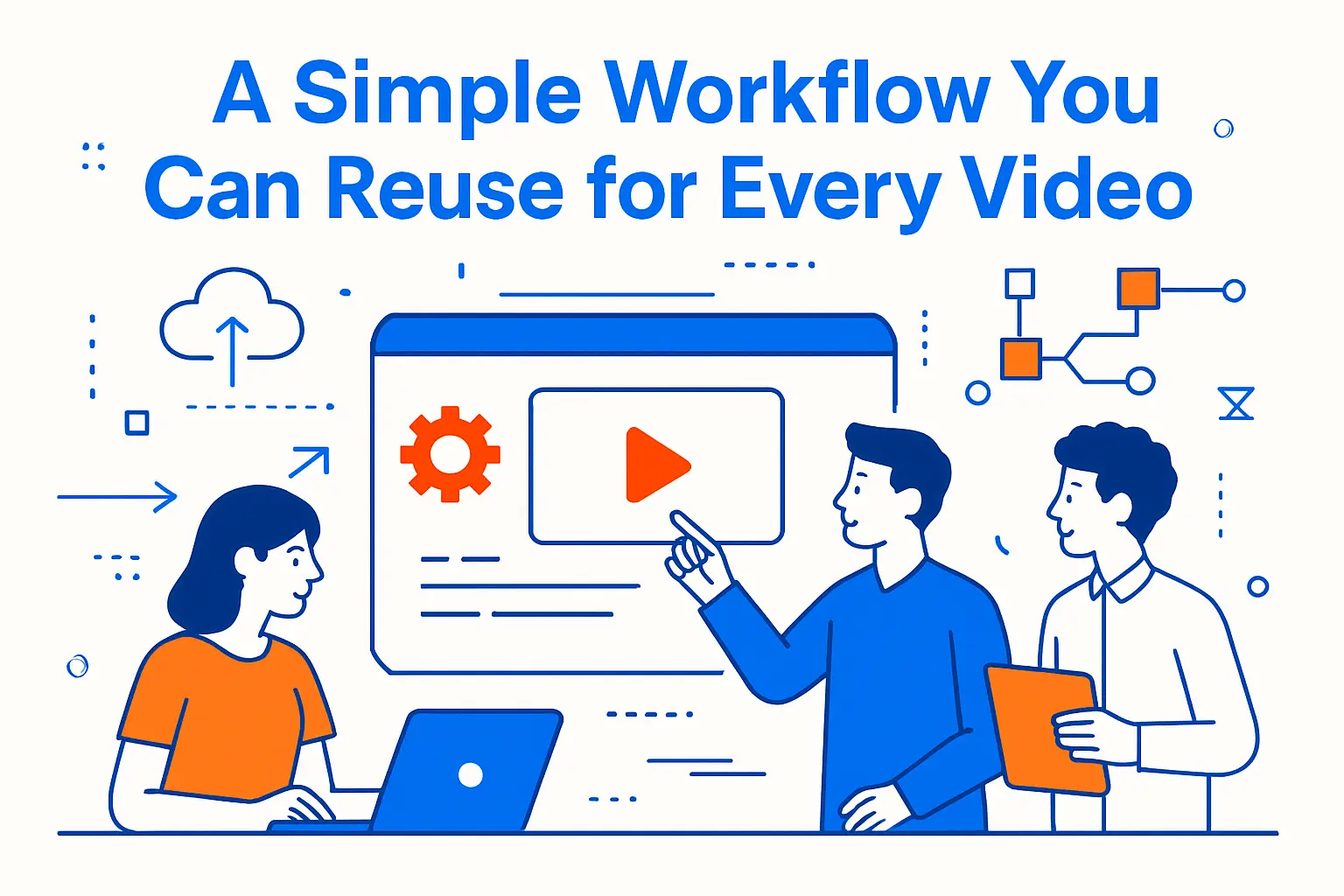
- A Simple Workflow You Can Reuse for Every Video
- Beginner-Friendly AI Video Editor Tools and Apps
- How to Choose Your First Tool Without Getting Stuck
- Common Beginner Mistakes (and Fast Fixes)
- FAQs
- Conclusion
Learning video editing can feel like learning a new language. You have timelines, cuts, audio levels, captions, exports, and a dozen tiny decisions that stack up fast. That is exactly why beginners keep searching for an AI video editor that can handle the boring parts and leave the creative parts in your hands.
This guide stays beginner-first. You will learn what “AI video editing” really means, how to pick a tool without wasting a weekend, and which tools make the first projects feel doable. Each option below includes practical workflows, real sales use cases, and a quick start checklist you can follow right away.
What is an AI Video Editor?
An AI video editor is a video editing tool that uses automation to speed up common tasks like cutting dead space, generating captions, cleaning audio, reframing for different platforms, and repurposing long videos into short clips. In this guide, “best” means the tool helps beginners finish and publish consistently, not just experiment with flashy effects.
FURTHER READING: |
| 1. AI Presentation Maker: 30 Tools for Professional Slides |
| 2. Best AI PowerPoint Generator: Top 30 Picks for 2026 |
| 3. Best AI Resume Builder: Top 30 Picks for 2026 |
Quick Best Picks by Use Case
- Fast mobile edits and social templates: Jump to your mobile-first editors (start with the template-driven options).
- Talking-head cleanup (silence trimming + captions): Jump to your text-based and auto-cut editors.
- Turn long videos into short clips: Jump to your repurposing tools (highlight finder + social formatting).
- Onboarding and training videos without refilming: Jump to your avatar and script-to-video tools.
- Professional editing you can grow into: Jump to your pro-grade editors with AI helpers.
- Finish-pass quality boost: Jump to your enhancement/upscaling tool for polishing exports.
Compact Comparison Table
| What you’re trying to do | Best tool type to choose | What AI should do for you | What you still do manually | Common mistake to avoid |
|---|---|---|---|---|
| Post social clips fast | Template-first editor | Auto captions, quick effects, reframing | Tighten hook, remove fluff, add CTA | Overusing the same template look |
| Clean up talking videos | Text-based or auto-cut editor | Silence trimming, filler cleanup, captions | Keep natural pauses for emphasis | Making pacing feel rushed |
| Repurpose long recordings | Repurposing tool | Find highlights, format for platforms | Check context and accuracy | Publishing clips without a goal |
| Make training videos quickly | Script-to-video or avatar tool | Generate scenes/voice, speed updates | Keep tone human and transparent | Using synthetic delivery everywhere |
| Learn “real” editing | Pro editor with AI helpers | Transcribe, caption, rough-cut assist | Story structure and pacing | Starting too complex too soon |
Why Beginners Gravitate Toward AI Video Editing
Video matters because it turns attention into action. People watch before they click, buy, or book a call. That pressure can make editing feel stressful, especially when you need content often.
Many teams still struggle to even begin. Wyzowl reports that 37% of marketers don’t know where to start with video marketing, and that single barrier explains the popularity of guided templates and “auto” features.
Short-form content raises the stakes. HubSpot also notes that 21% of marketers say short-form videos deliver the highest ROI, so beginners now need tools that help them cut faster, caption faster, and publish faster.
AI no longer feels like a niche skill. Gallup found that 23% of U.S. employees use AI at work a few times a week or more, which makes AI-assisted editing feel like a normal productivity upgrade instead of a risky experiment.
Creators also shape what “normal” looks like. Adobe shared that 86% of global creators now use creative generative AI, which signals a clear shift toward AI-supported creative workflows.
If you sell to other businesses, video can act like a silent salesperson. A Brightcove survey reports that 95% of B2B buyers say video plays an important role in deciding to move forward with a purchase, so even a simple product walkthrough can move deals forward.
Finally, the ecosystem keeps maturing because platforms measure everything. Wistia highlights how much data sits behind modern video decisions with 100+ million videos analyzed, which helps explain why today’s tools try to “recommend” edits instead of forcing you to guess.
What to Look For in an AI Video Editor (Beginner Checklist)
AI means different things in different tools. Some apps use AI to edit your timeline. Others use it to generate scenes. A few focus on captions, cleanup, or repurposing.
Pick tools that remove friction, not control
A good beginner tool should speed you up without trapping you. You should be able to override AI choices. You should also understand what the tool changed and why it changed it.
Prioritize these beginner-friendly AI features
- Text-based editing that lets you cut by deleting words
- Auto captions with easy styling
- Silence trimming for talking videos
- Auto reframing for vertical and square formats
- Noise cleanup and level balancing
- Templates and brand presets so your videos look consistent
Check “export pain” before you commit
Beginners often lose hours at the finish line. Make sure the tool exports cleanly, keeps captions synced, and supports the channels you use. Also confirm it handles your typical camera footage and screen recordings.
Decision Filters
- Decide where the editor lives: If it’s not where you already work (phone, browser, desktop), you’ll stop using it.
- Confirm brand repeatability: Look for saved styles (captions, titles, safe margins, intro/outro) so every video doesn’t start from zero.
- Check collaboration reality: If you work with a team, prioritize shared projects, comments, and versioning over “cool AI effects.”
- Know your privacy comfort level: If you edit sensitive footage, prefer tools that clearly support local workflows or strong account controls.
A Simple Workflow You Can Reuse for Every Video
Beginners improve fast when they repeat one workflow. You do not need a new process for every platform. You need one system that produces clean, clear clips that match your brand.
Start with a single goal
Decide what the video should do. It can educate, show proof, answer objections, or drive a call to action. A clear goal makes editing decisions easier.
Then run the same editing loop
- Import your footage and label the best takes
- Cut mistakes and dead space first
- Fix audio before you add effects
- Add captions and on-screen callouts
- Drop in simple b-roll or screenshots where you explain something
- Apply a brand preset for fonts, colors, and logo placement
- Export, publish, and save a reusable template for next time
Use AI like an assistant editor
Let AI handle repetitive cleanup. Then do the human work: pacing, emphasis, and clarity. That mix usually produces the best “beginner-to-pro” jump.
First Project Setup
- Create a starter project template: One intro, one outro, one caption style, one title style, and a consistent call-to-action card.
- Save a “default brand pack”: Logo files, brand colors, and a short list of approved fonts so you don’t redesign every week.
- Make a reuse folder: B-roll, screenshots, and recurring overlays you can drag into any new edit.
- Define your publishing checklist: Captions checked, audio cleaned, hook tightened, CTA visible, export tested on your main platform.
Beginner-Friendly AI Video Editor Tools and Apps
Quick clarification before you pick a tool: an AI video editor helps you edit footage faster (cuts, captions, cleanup, formatting). An AI video generator creates new video scenes from text or images. Some tools do both, but beginners usually get the best results by choosing an editor for real footage first, then adding generation features only when they fit your content style.
1. CapCut
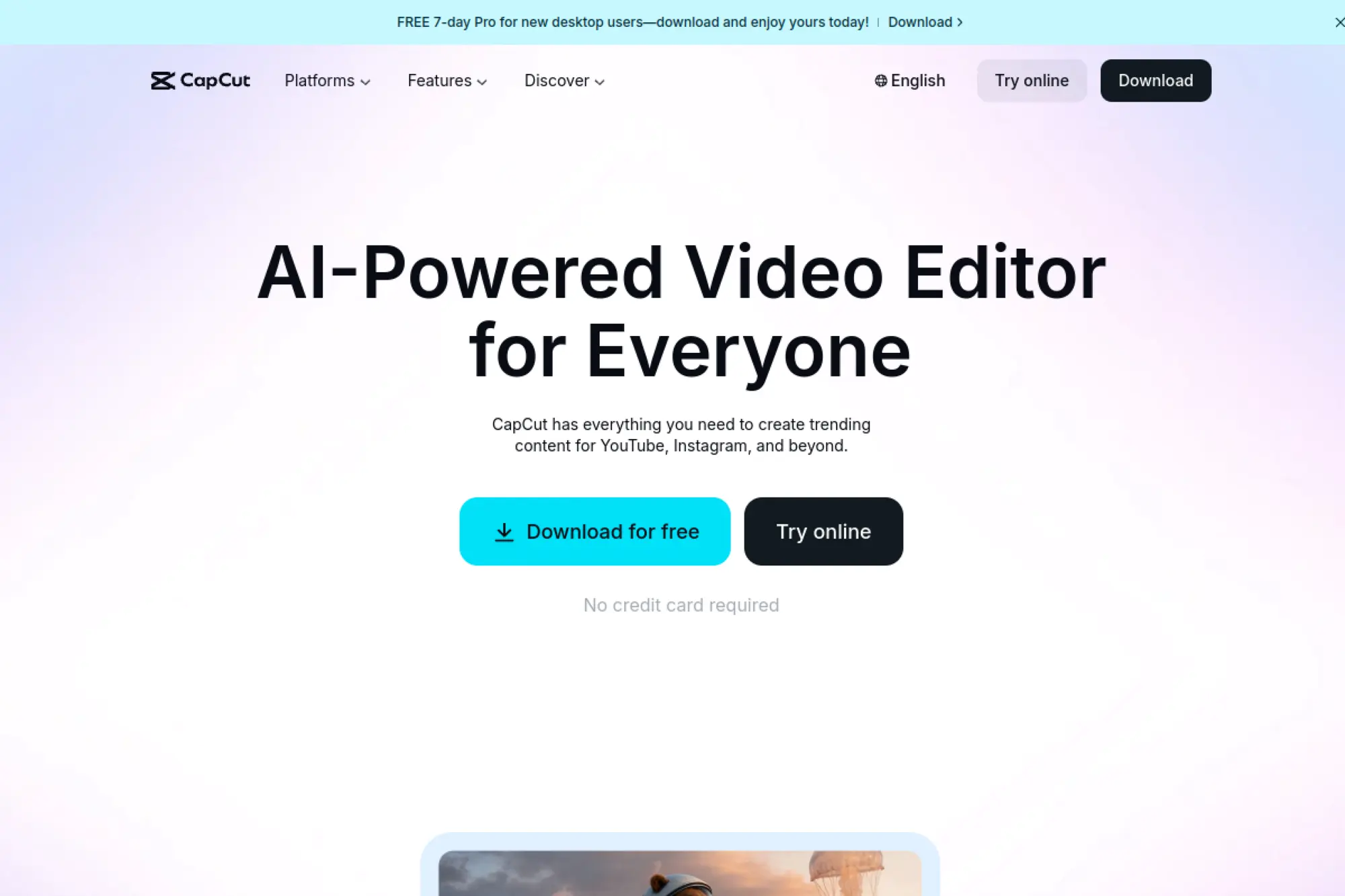
CapCut makes editing feel approachable because it leads with templates, effects, and social-ready formats. It works well when you want speed and you do not want to learn a complex timeline on day one. If you create short clips often, CapCut can carry most of the workload with AI-assisted helpers like captions and background cleanup.
Best for
Short-form creators, social media managers, and founders who want fast edits that still look polished.
Key workflows to configure
- Set caption styling once and reuse it across videos
- Build a simple brand kit with colors and fonts
- Create a reusable intro and outro template
Sales growth lever
Turn product benefits into quick “problem to solution” clips. Post them as ads, landing-page support, or follow-up messages after demos.
Watch outs
Templates can look overused if you rely on them too heavily. Keep your cuts tight and your message clear so your content still feels original.
Quick start checklist
- Pick one template and customize it to your brand
- Enable auto captions and fix key terms in your niche
- Save your caption style as a preset
- Export a test clip and confirm it looks right on mobile
2. Canva
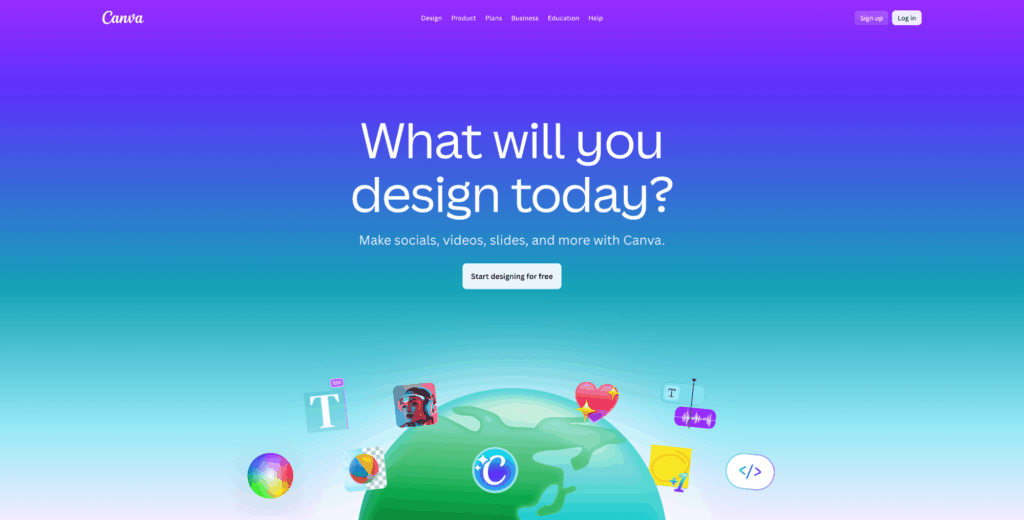
Canva works like a design tool that happens to include video. That makes it ideal for beginners who already create posts, decks, or one-pagers inside Canva. You can drag elements onto a timeline, apply consistent styles, and keep everything on brand without learning “pro editor” habits first.
Best for
Marketing beginners who want brand-consistent videos for social, ads, and simple explainers.
Key workflows to configure
- Create a brand kit with fonts, colors, and logo assets
- Build reusable page-based video templates
- Set default caption styles and title cards
Sales growth lever
Make lightweight sales enablement videos. For example, build a short “how it works” clip that you can embed in proposals or send after discovery calls.
Watch outs
Canva shines with structured, graphic-forward videos. If you need heavy cutting or complex audio mixing, you may outgrow it for advanced projects.
Quick start checklist
- Duplicate a video template that fits your niche
- Replace placeholder text with your real offer
- Drop in product screenshots and a simple voiceover
- Export and test on your primary platform
3. Adobe Express
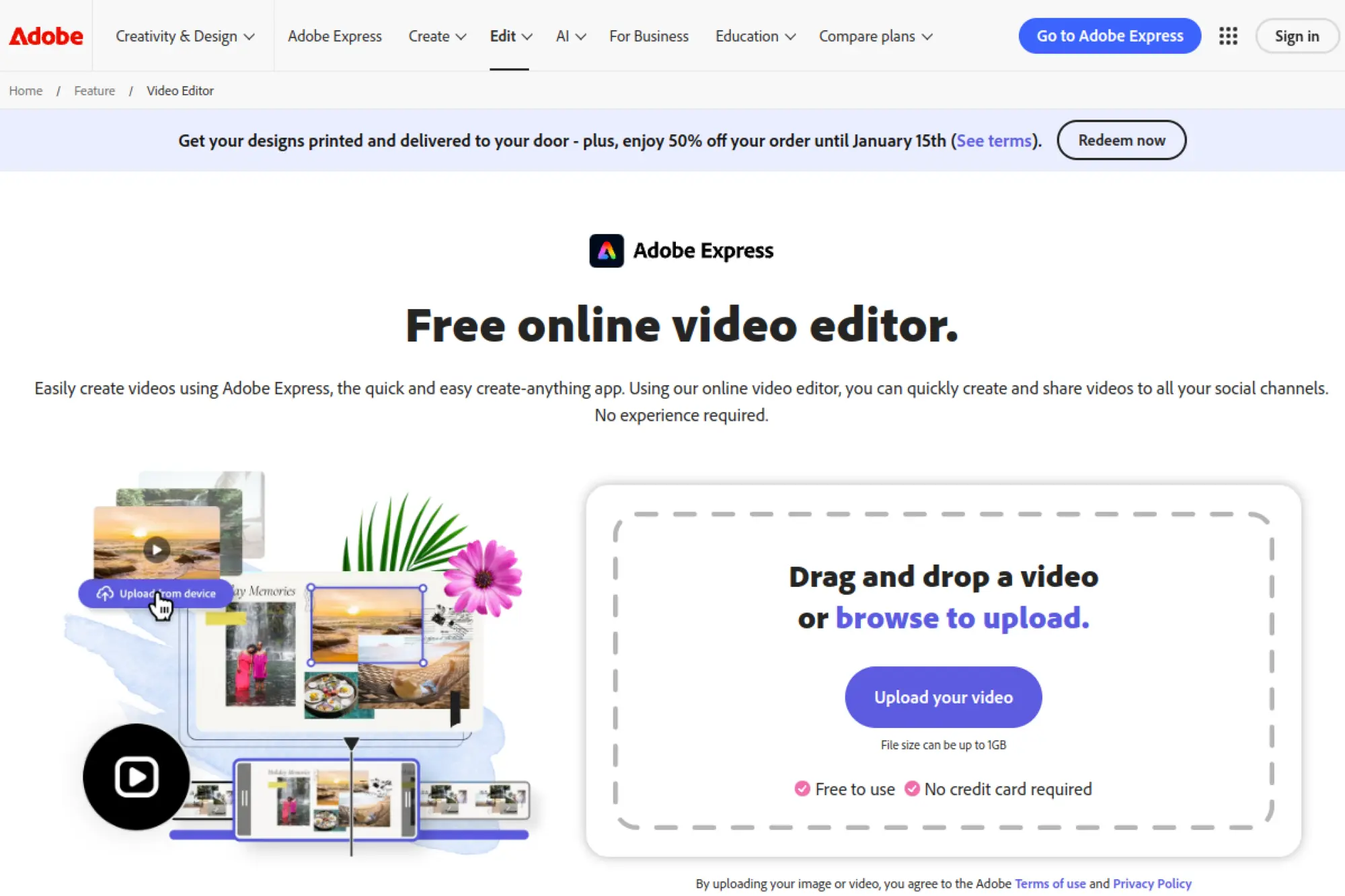
Adobe Express gives beginners a fast path to clean marketing videos. It focuses on quick edits, templates, and cross-device convenience. You can start a project in a browser, keep it simple, and still end up with a professional look that fits a brand style guide.
Best for
Small teams who want promo videos, announcement clips, and brand-safe edits without a steep learning curve.
Key workflows to configure
- Create branded title cards and end screens
- Store logos, colors, and fonts for repeat use
- Use quick trim, split, and resize tools for platform versions
Sales growth lever
Create short, reusable video assets for email campaigns and landing pages. Then reuse the same pieces in retargeting creative.
Watch outs
Express targets speed, not advanced post-production. If you want detailed timeline control, plan to pair it with a more traditional editor later.
Quick start checklist
- Choose a template that matches your campaign goal
- Upload your footage and cut to the core message
- Add captions and a clear call to action
- Save the project as a reusable template
4. Microsoft Clipchamp
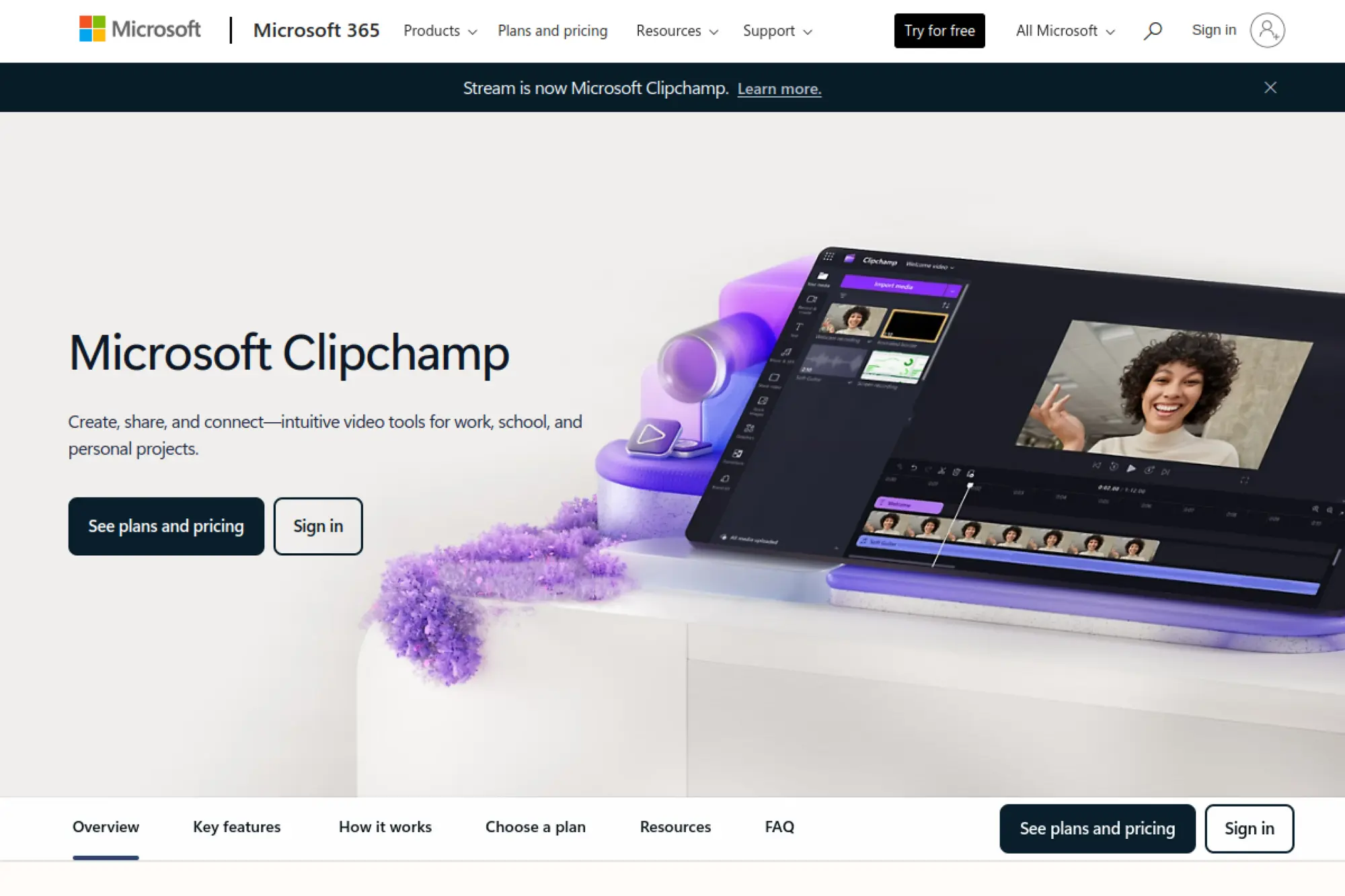
Clipchamp fits beginners who want an editor that feels familiar and works well for quick business videos. It supports browser-based editing and includes AI helpers that reduce the “blank timeline” problem. If you work in a Microsoft-heavy environment, Clipchamp can also feel like a natural add-on to your existing workflow.
Best for
Work, school, and internal business videos like updates, training clips, and simple explainers.
Key workflows to configure
- Set up brand assets for consistent lower-thirds and titles
- Use auto captions for accessibility and silent viewing
- Create a repeatable template for recurring updates
Sales growth lever
Build quick customer FAQ videos that reduce repetitive sales calls. You can also share them in follow-ups to keep deals moving.
Watch outs
Browser editors depend on stable internet and system resources. Test longer projects early to avoid slowdowns late in the process.
Quick start checklist
- Record a short screen share with voiceover
- Trim pauses and tighten the first seconds
- Add captions and a branded intro card
- Export and share using the same naming system every time
5. Descript
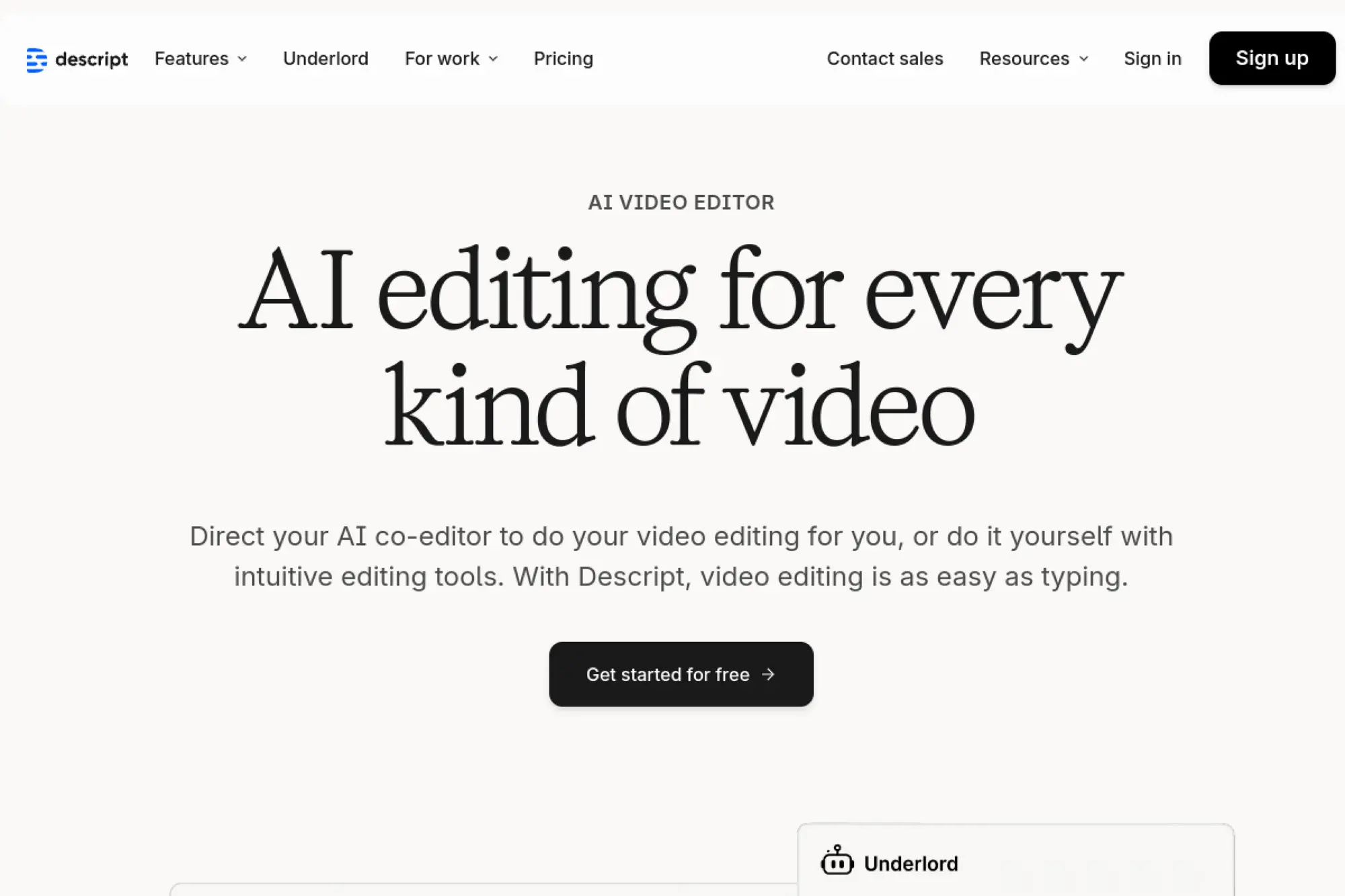
Descript changes the editing mindset. Instead of thinking “timeline first,” you think “words first.” You edit the transcript, and the video follows. That makes it one of the most beginner-friendly ways to cut talking content, interviews, podcasts, and screen recordings without feeling lost in a traditional editor.
Best for
Podcasters, educators, and founders who record talking videos and want fast cleanup through text editing.
Key workflows to configure
- Transcribe and remove filler words with a consistent style
- Create reusable caption and lower-third formats
- Build an export preset for your main platform
Sales growth lever
Turn webinars into sales assets. Pull short objection-handling answers from longer recordings and use them in nurture sequences.
Watch outs
Text-based editing can remove natural pauses that add personality. Keep some breath in the pacing so the speaker still sounds human.
Quick start checklist
- Import a talking video and generate a transcript
- Delete obvious mistakes directly in the text
- Add captions and simple on-screen emphasis
- Export and watch the full result before posting
6. VEED
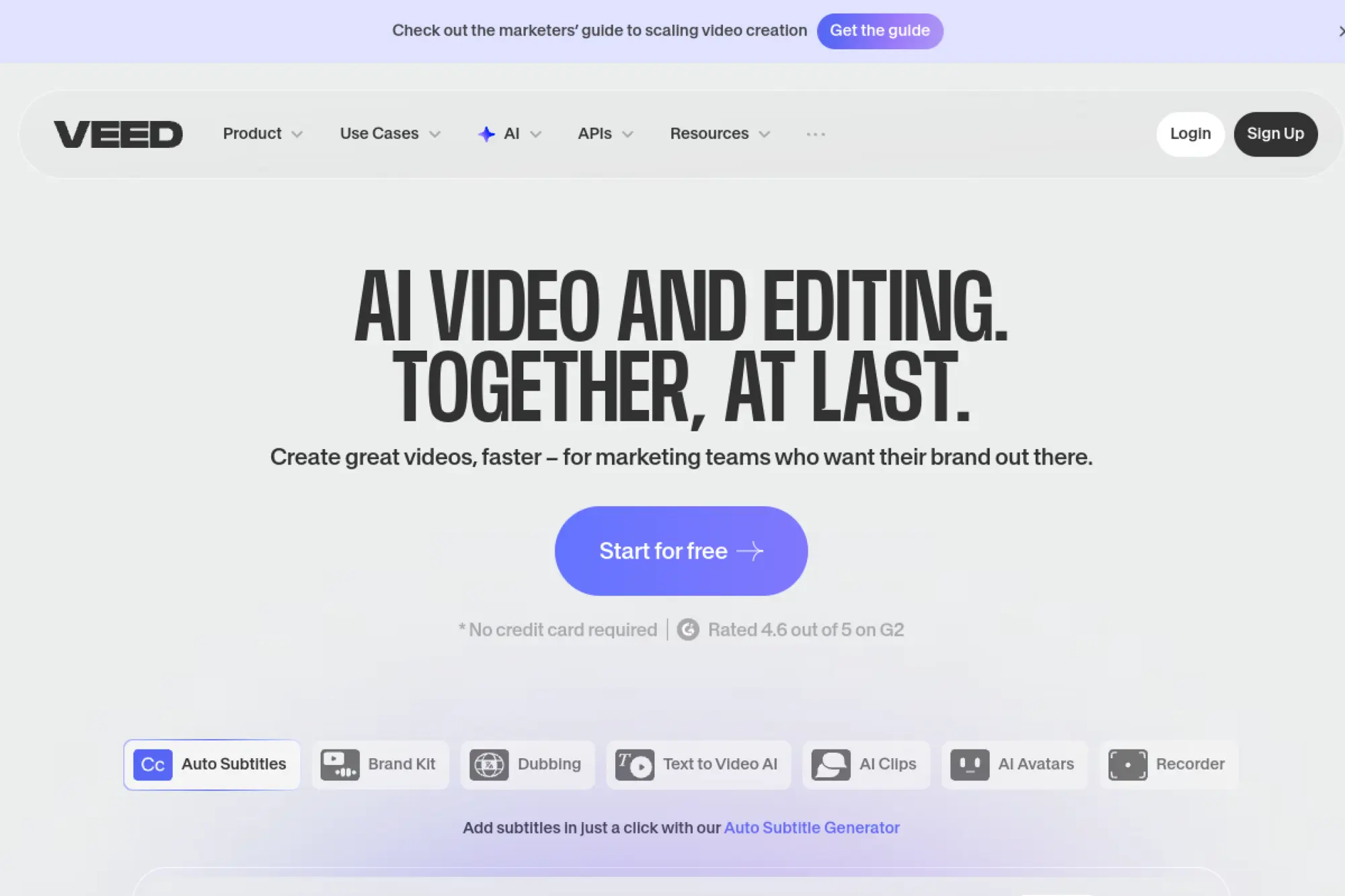
VEED is a browser-based editor that suits beginners because it bundles the full workflow in one place. You can cut clips, add captions, clean audio, and repurpose long videos into shorter cuts without switching tools. It also works well for teams because you can share projects and keep brand elements consistent.
Best for
Teams that want an all-in-one online editor for social clips, marketing videos, and quick explainers.
Key workflows to configure
- Use text-based editing to cut by editing the transcript
- Set auto caption styling and export formats once
- Create a reusable project template for your content series
Sales growth lever
Repurpose long product demos into short, targeted clips for different buyer personas. Match each clip to a single pain point and distribute them across channels.
Watch outs
AI features can tempt you to overproduce. Keep the visuals simple and focus on clarity, pace, and a strong call to action.
Quick start checklist
- Upload a long video and create a short highlight
- Add captions and fix industry terms
- Apply a clean title card and end screen
- Export and test playback on mobile
7. Kapwing
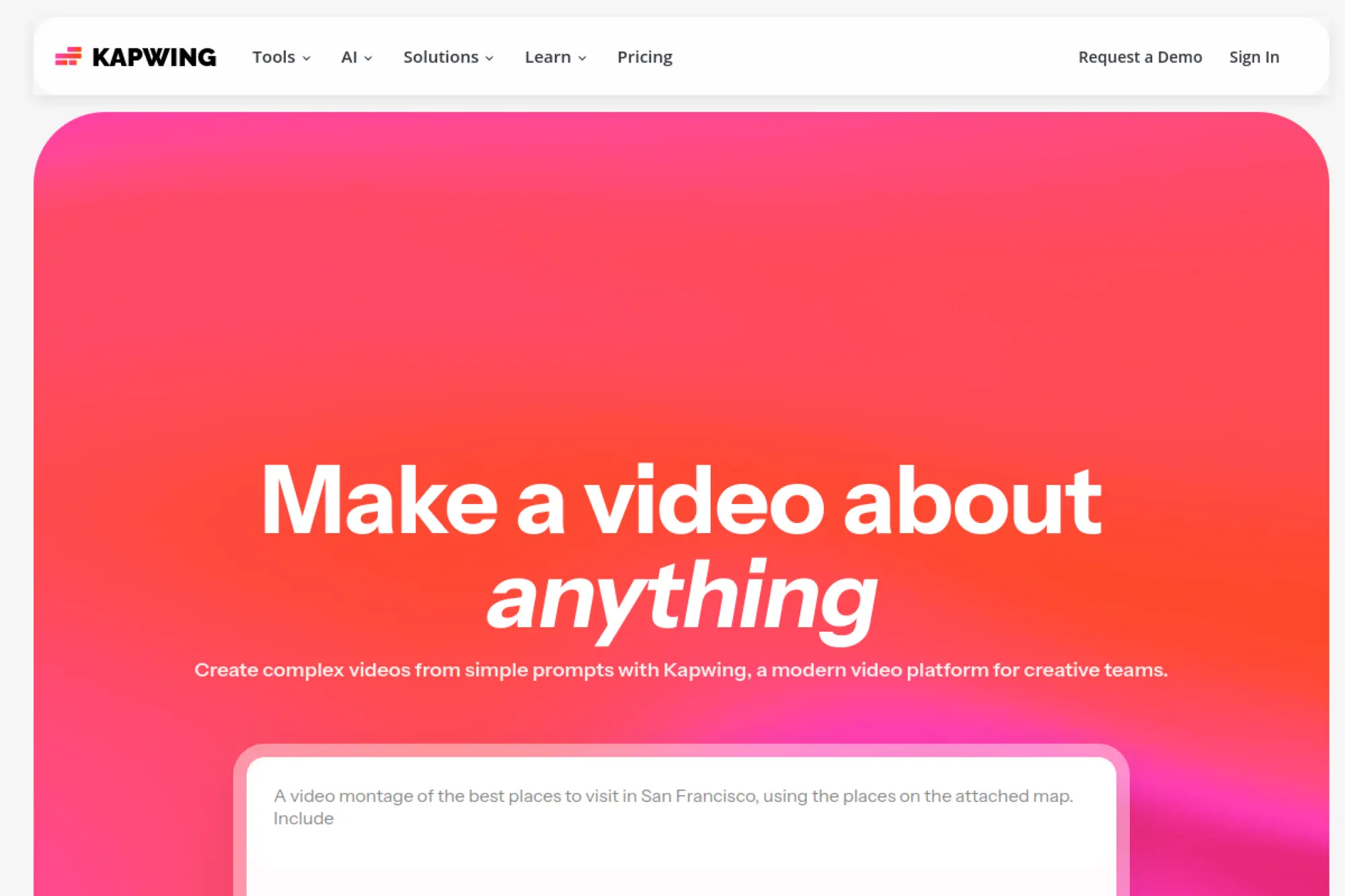
Kapwing stands out for fast social editing, meme-style content, and collaboration. Beginners like it because it feels playful and forgiving. You can quickly add subtitles, overlays, and layout changes that match the style of modern social platforms, especially when your goal is engagement rather than “cinematic.”
Best for
Creators who want quick social edits, caption-heavy videos, and collaborative review with teammates.
Key workflows to configure
- Create caption presets that match your brand tone
- Save reusable layouts for talking-head plus b-roll
- Use repurposing tools to resize for multiple channels
Sales growth lever
Transform customer quotes and reviews into short proof clips. Pair a single quote with a clear before-and-after message and post consistently.
Watch outs
It is easy to add too many stickers and animations. Use visual emphasis only when it supports the message.
Quick start checklist
- Pick one social format and design a consistent layout
- Add captions and highlight key phrases
- Save the style as a reusable template
- Publish and track which hook gets the best retention
8. InVideo
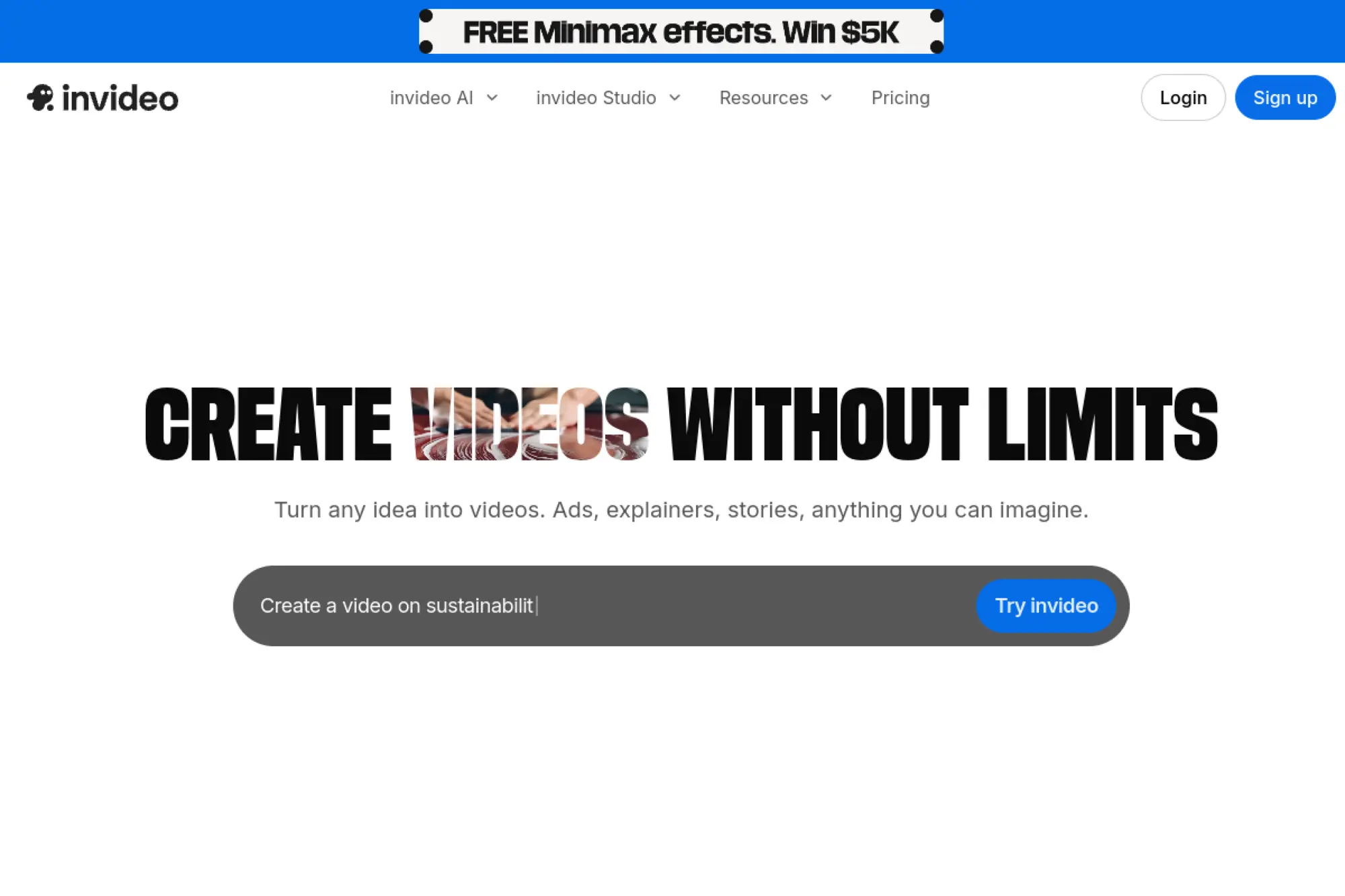
InVideo focuses on helping beginners turn ideas into finished marketing videos fast. It leans on templates, stock assets, and AI-assisted creation so you can move from script to video with less manual editing. If you need “good enough, shipped today,” InVideo fits that reality.
Best for
Small businesses that need promo videos, simple ads, and social content without heavy production resources.
Key workflows to configure
- Create a brand style preset for fonts and colors
- Build a repeatable video structure for offers and promos
- Use AI-assisted scene creation to speed up drafts
Sales growth lever
Create offer-focused clips for retargeting. Use a consistent structure: problem, proof, offer, and next step. Then rotate hooks to test messaging.
Watch outs
Template-heavy videos can feel generic. Swap in real screenshots, customer quotes, and product footage to make it feel specific.
Quick start checklist
- Start from a template built for your goal
- Replace stock text with your real value proposition
- Add captions and a clear call to action
- Save the project as your default campaign base
9. Pictory
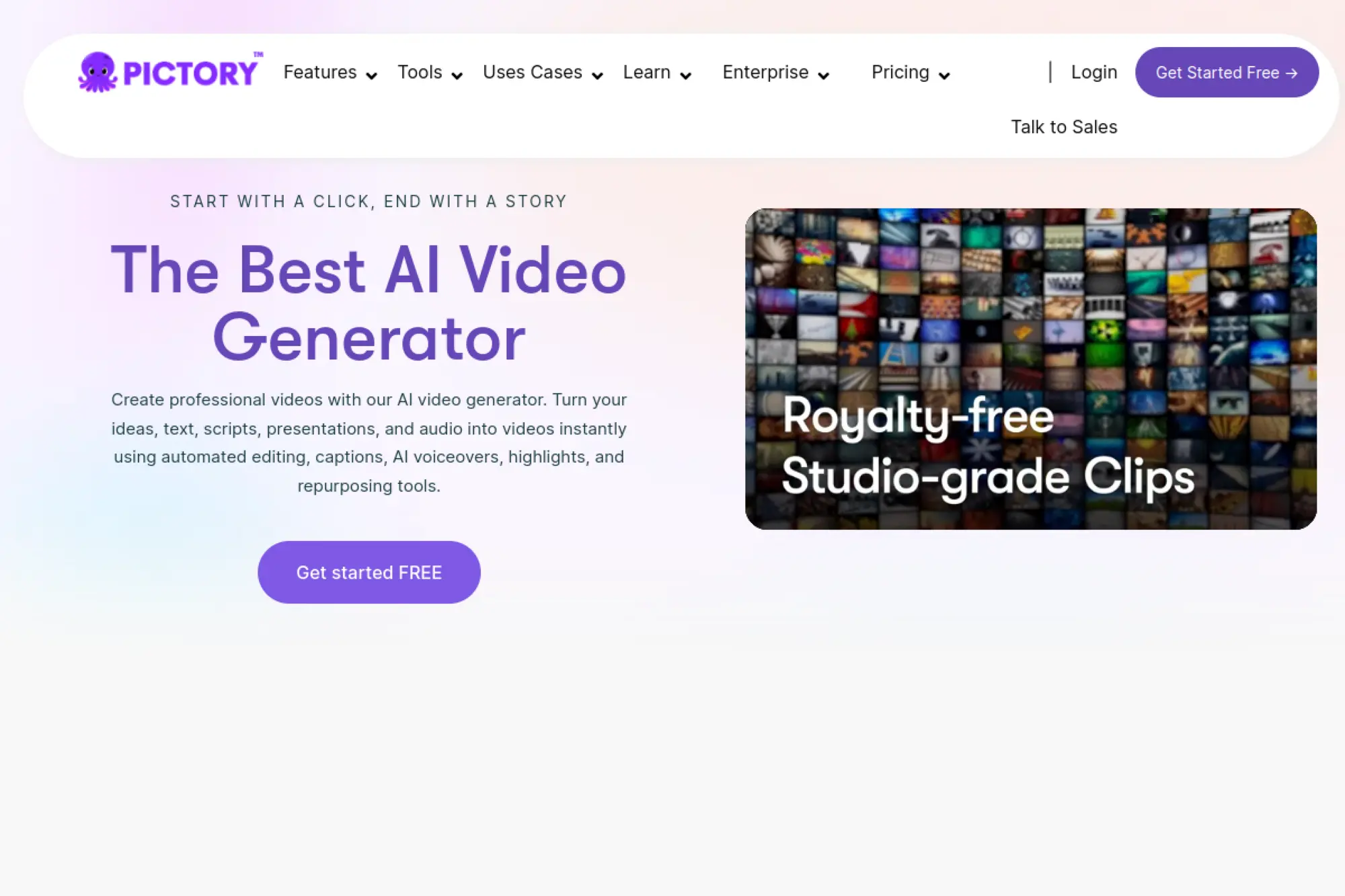
Pictory helps beginners repurpose content without doing full timeline editing. It works well when you already have long recordings, blog content, or scripts and you want to turn them into shorter, branded videos. The strength is speed and reuse, not complex creative editing.
Best for
Marketers who want to turn long-form content into short clips and summaries for social distribution.
Key workflows to configure
- Set a consistent visual style for captions and titles
- Create branded outro and call-to-action cards
- Build a repeatable clipping process for webinars and podcasts
Sales growth lever
Use Pictory to build a content engine around your sales calls and webinars. Pull the best answers into short clips that handle objections before prospects talk to you.
Watch outs
AI summaries can miss nuance. Review every clip to ensure the message stays accurate and the pacing stays natural.
Quick start checklist
- Upload a long video and select key sections
- Edit captions for product names and key phrases
- Add your logo and a consistent title style
- Export a batch and schedule posts ahead of time
10. Lumen5
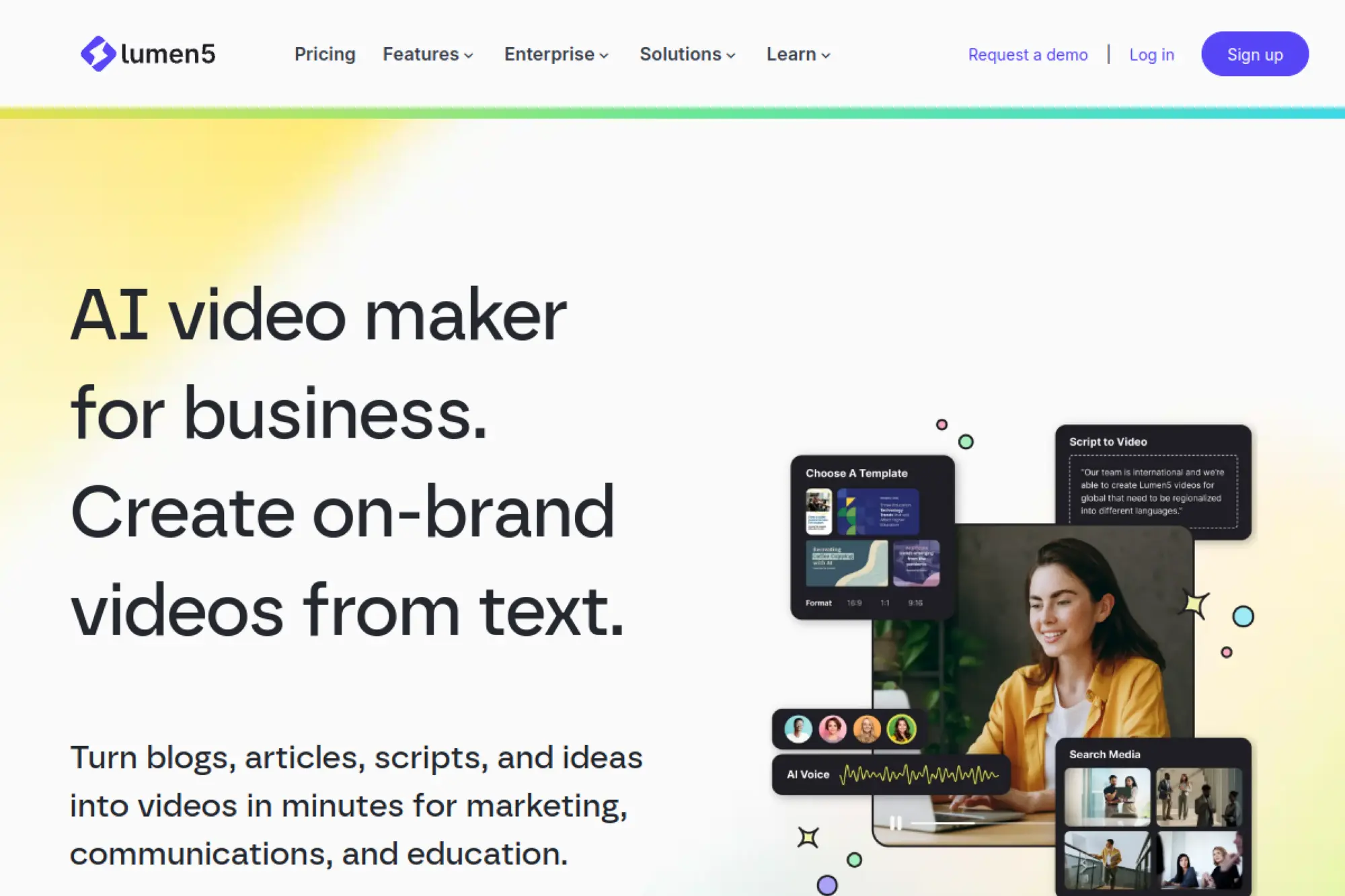
Lumen5 makes video creation feel like building a slide deck. It works well for beginners who want to convert written content into short videos with text overlays, stock visuals, and simple motion. If you publish articles or newsletters, Lumen5 can help you turn those ideas into video quickly.
Best for
Content marketers who want to convert blog posts, product pages, and announcements into social videos.
Key workflows to configure
- Set brand colors and typography for consistent overlays
- Create a repeatable structure for educational clips
- Build a library of on-brand visuals and icons
Sales growth lever
Turn top-performing articles into video “teasers” that drive clicks back to your site. Pair each teaser with a strong call to action that matches the article’s intent.
Watch outs
Text-heavy videos can lose viewers if the pacing drags. Keep sentences short and emphasize only the main points.
Quick start checklist
- Paste in a blog section and let the tool build scenes
- Shorten the on-screen text to the essentials
- Add brand styling and a clear ending CTA
- Export and post with a matching caption in the platform text
11. Animoto
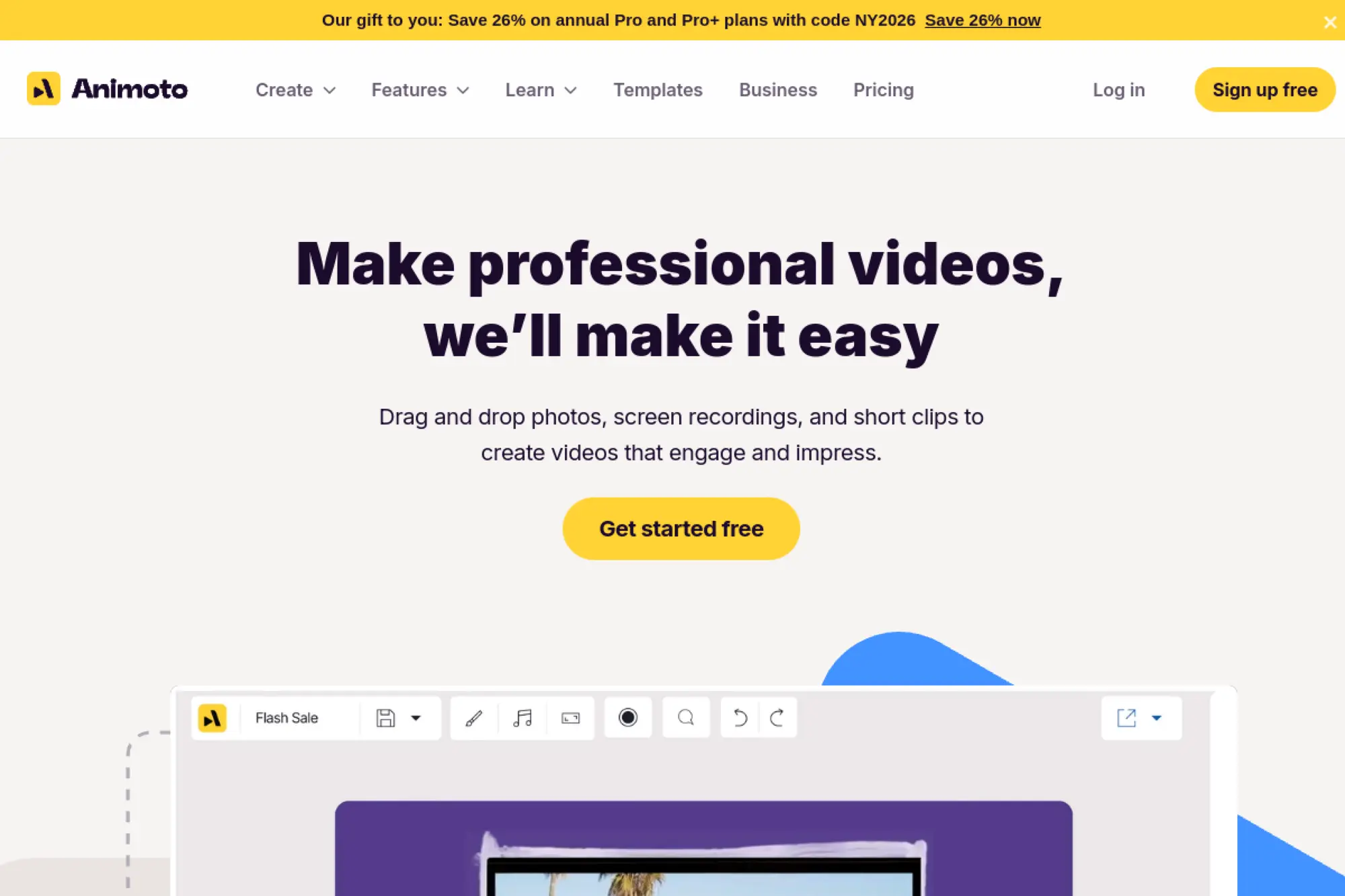
Animoto is a classic beginner-friendly choice because it guides you through simple video building blocks. You combine clips, images, text, and music into a clean sequence with minimal friction. It works best when you want a polished marketing look without advanced editing decisions.
Best for
Small businesses making product promos, testimonials, event recaps, and social ads.
Key workflows to configure
- Save a brand theme for colors and fonts
- Create a repeatable layout for testimonials and case studies
- Build reusable end screens with contact details
Sales growth lever
Create short testimonial videos that sales reps can send as proof. Combine one customer quote with a clear, specific result and a simple next step.
Watch outs
Slideshows can feel generic if you do not include real product footage. Mix in screen recordings, real customer photos, or short clips from actual use.
Quick start checklist
- Select a template that matches your goal
- Upload your best customer proof assets
- Add short, readable text overlays
- Export and use it in outreach and retargeting
12. Wondershare Filmora
Filmora aims at beginners who want a desktop timeline editor without the intimidation of pro suites. It includes AI-assisted tools that help with common pain points like cutouts, captions, and quick enhancements. If you want more control than a template tool but you still want training wheels, Filmora fits well.
Best for
Creators moving from mobile editing to desktop, especially for YouTube-style videos and tutorials.
Key workflows to configure
- Create a default project template with your intro and fonts
- Use auto captions and build a consistent subtitle style
- Set up audio cleanup presets for voice clarity
Sales growth lever
Build a repeatable product demo format. Use the same structure each time so viewers learn to trust your videos and recognize your brand quickly.
Watch outs
More features can tempt you to over-edit. Focus on the story: clear hook, clear benefit, and a clean call to action.
Quick start checklist
- Start with a simple talking-head plus screen share project
- Cut mistakes and tighten pacing before adding effects
- Add captions and a branded lower-third
- Export a version for your main channel and reuse the template
13. CyberLink PowerDirector
PowerDirector is a strong option for beginners who want a feature-rich editor that still feels approachable. It includes AI-assisted features that can speed up edits, especially around effects, cleanup, and quick transformations. It is also useful if you want one tool that covers many video types without constant add-ons.
Best for
Prosumer creators who want a flexible desktop editor for social videos, tutorials, and product demos.
Key workflows to configure
- Create reusable motion titles and branded text styles
- Set up caption workflows for talking videos
- Build export profiles for each platform you post on
Sales growth lever
Create better mid-funnel content. Publish product walkthroughs and comparison clips that answer objections before a prospect books a call.
Watch outs
Feature depth can slow beginners down. Learn a small set of tools first, then expand when you feel consistent with your output.
Quick start checklist
- Import footage and cut down to your key message
- Apply audio cleanup and normalize levels
- Add captions and a simple call-to-action overlay
- Save your project as a reusable template
14. DaVinci Resolve
DaVinci Resolve can look intimidating at first, but beginners love it once they learn the basics because it combines editing, audio, and color in one environment. The AI-assisted features in the ecosystem can speed up tasks like tracking and subject isolation, which helps you make videos look high-end without manual labor.
Best for
Beginners who want to grow into a professional workflow, especially for YouTube and brand videos.
Key workflows to configure
- Create a basic project template with bins and timelines
- Set a consistent caption and title style for your channel
- Build a simple color look you can reuse across videos
Sales growth lever
Upgrade perceived quality. Better-looking videos raise trust, and trust increases conversions on demos, webinars, and product pages.
Watch outs
Resolve rewards patience. Avoid trying to master every page at once. Learn cutting and audio basics first, then add color polish.
Quick start checklist
- Import media and organize clips before editing
- Do a rough cut focused on message and pacing
- Clean audio and add captions for clarity
- Apply a light color pass and export
15. Adobe Premiere Pro
Premiere Pro is the industry standard for many editors, but beginners can still start here if they want a tool they will not outgrow. Modern AI-assisted features reduce busywork, especially around transcription, captioning, and rough-cut cleanup. If you plan to scale a serious content operation, Premiere can support that path.
Best for
Creators and teams who want a long-term professional editor with AI-assisted workflows for speed.
Key workflows to configure
- Set up auto transcription and caption styling presets
- Create a project template with your bins and sequences
- Build a reusable motion graphics package for titles
Sales growth lever
Use Premiere to produce consistent “series” content: product tips, customer stories, and comparison videos. Consistency builds trust and keeps your brand visible during long buying cycles.
Watch outs
Premiere has a learning curve. Keep your first projects small and rely on templates. Add complexity only after you can finish and publish reliably.
Quick start checklist
- Start from a simple project template
- Transcribe and cut your talking parts first
- Add captions and basic titles
- Export a test clip and confirm platform playback
16. Final Cut Pro

Final Cut Pro is a strong choice for beginners on a Mac because it feels fast and responsive. The magnetic timeline can reduce common beginner mistakes, like accidentally leaving tiny gaps. While it is not a “push button and done” tool, it supports a clean workflow that can scale from simple edits to polished brand videos.
Best for
Mac-based creators who want a stable editor for YouTube videos, tutorials, and product content.
Key workflows to configure
- Create a library structure for recurring content series
- Build title and caption styles that match your brand
- Save export presets for your common destinations
Sales growth lever
Cut clean product demos and onboarding videos. Use them to reduce support tickets and speed up customer activation after the sale.
Watch outs
Final Cut rewards organization. If you dump everything into one timeline, you will slow down. Use libraries and keywords from the start.
Quick start checklist
- Create a new library for your brand content
- Import footage and mark the best moments
- Build a short rough cut, then add captions
- Export and save settings as a preset for next time
17. Runway

Runway sits closer to “creative AI studio” than a traditional editor. Beginners like it because it can remove backgrounds, generate visuals, and help you create eye-catching moments without advanced compositing skills. It fits best when you want quick creative transformations or you want to experiment with AI-driven video effects.
Best for
Creators who want AI-assisted visual effects, background removal, and fast content experiments.
Key workflows to configure
- Use AI background removal for product demos and talking clips
- Create reusable motion styles for intros and transitions
- Build a review habit: always check frames for artifacts
Sales growth lever
Create thumb-stopping creative for ads. Use Runway to build quick variations of the same concept so you can test hooks and visuals faster.
Watch outs
AI visuals can look synthetic if you push them too far. Keep your brand trust in mind and use AI effects as accents, not the whole message.
Quick start checklist
- Upload a short clip and test a background removal
- Add simple on-screen text and captions
- Export and review quality on your target platform
- Save settings you want to reuse for future edits
18. Opus
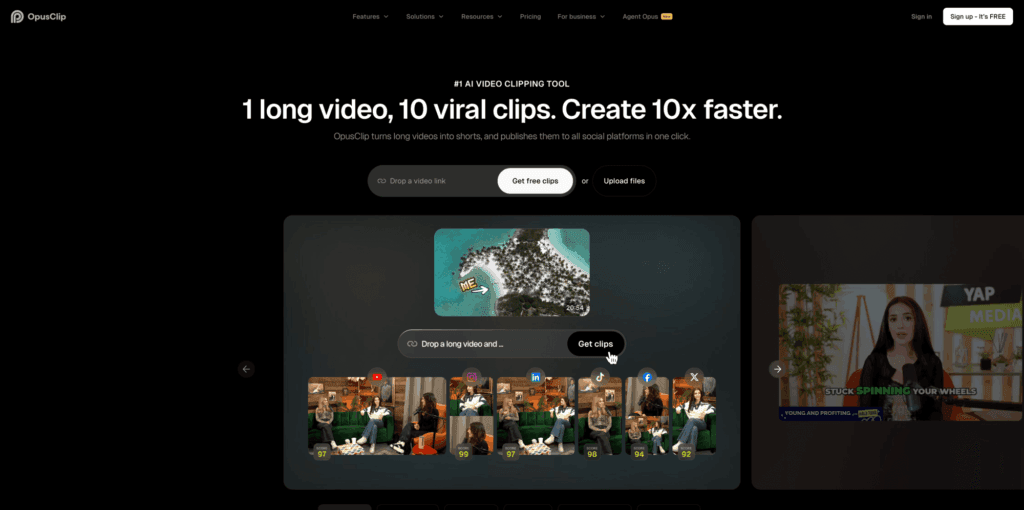
OpusClip focuses on one common beginner goal: turning long content into short clips. Instead of forcing you to watch your full recording and manually cut highlights, it helps you find strong moments and package them for social. If you run webinars, interviews, podcasts, or tutorials, OpusClip can help you build a steady stream of short content.
Best for
Repurposing long recordings into short clips for social media and paid distribution.
Key workflows to configure
- Define brand templates for captions and layout
- Choose a consistent framing style for talking videos
- Create a content review process before publishing
Sales growth lever
Clip your best objection-handling answers from sales calls or webinars. Post them weekly to educate prospects and reduce friction before conversion.
Watch outs
AI can pick highlights that feel exciting but miss context. Watch each clip and ensure the message stays accurate and on-brand.
Quick start checklist
- Upload one long video with clear audio
- Review suggested clips and pick the strongest message
- Edit captions for industry terms and brand voice
- Export and schedule posts in batches
19. Vizard
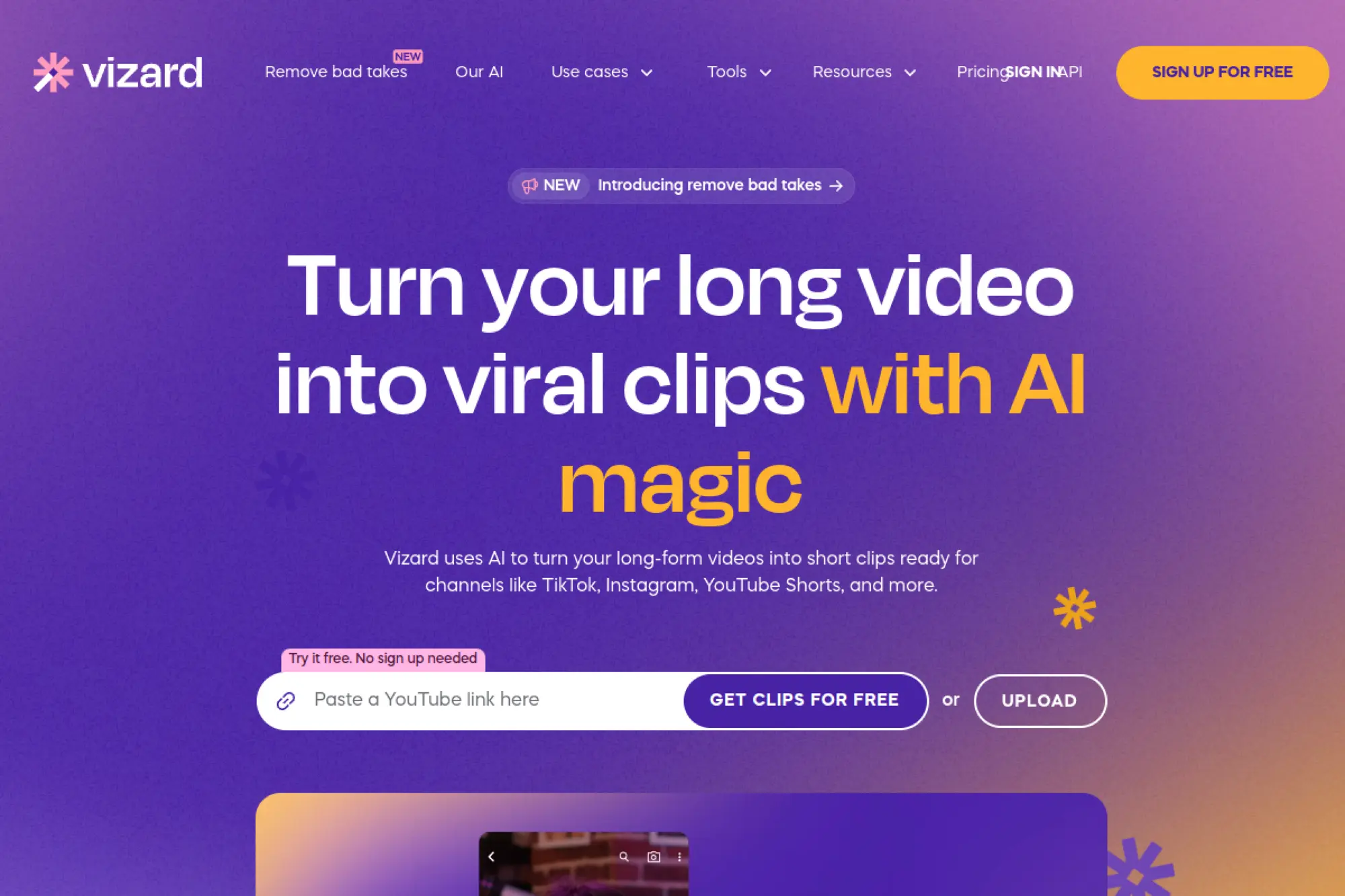
Vizard helps beginners repurpose content quickly, especially when they want social-ready clips without doing heavy manual editing. It works best for creators who already have long recordings and need a simple path to multiple short outputs. It can also fit teams that want a consistent clipping workflow across many videos.
Best for
Turning long videos into short highlight clips with captions and social formatting.
Key workflows to configure
- Set a consistent caption style and safe margins
- Define your preferred clip “voice” and tone
- Build a weekly clipping routine tied to content publishing
Sales growth lever
Create a library of short clips that answer the same top sales questions. Then link those clips in follow-ups instead of rewriting the same explanations.
Watch outs
Repurposing tools can create volume without strategy. Decide what each clip should accomplish before you publish it.
Quick start checklist
- Upload a clear webinar or interview recording
- Select clips that align with one buyer pain point
- Edit captions for clarity and professionalism
- Export and label clips so you can reuse them later
20. Wisecut
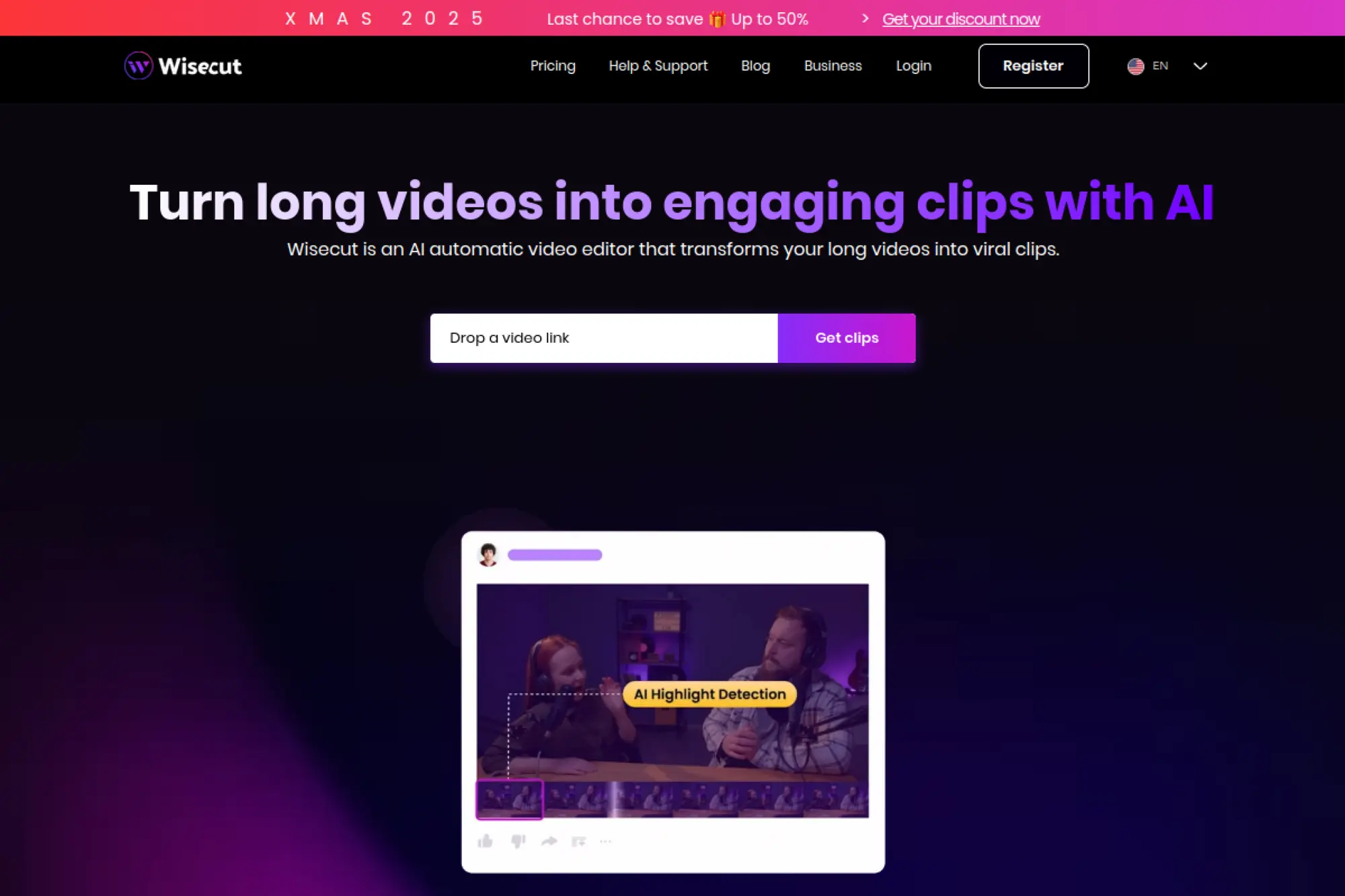
Wisecut targets beginners who hate trimming and want the tool to do the first pass. It focuses on tasks like cutting silences, creating highlights, and adding captions. If you record long talking videos, Wisecut can help you create tighter edits faster, especially when your main struggle is pacing.
Best for
Talking-head creators, educators, and coaches who want faster cleanup and tighter pacing.
Key workflows to configure
- Enable silence trimming to remove dead air automatically
- Set caption style for readability and brand consistency
- Use a storyboard-style review to polish the final cut
Sales growth lever
Create short lesson clips that build trust. Publish them as “micro training” and direct viewers to a longer workshop or consultation.
Watch outs
Aggressive silence cutting can make you sound rushed. Keep natural pauses where they add emphasis or emotional clarity.
Quick start checklist
- Upload a raw talking video with clear sound
- Run the auto cut and review the pacing
- Add captions and a simple title overlay
- Export and test on mobile before posting
21. Gling
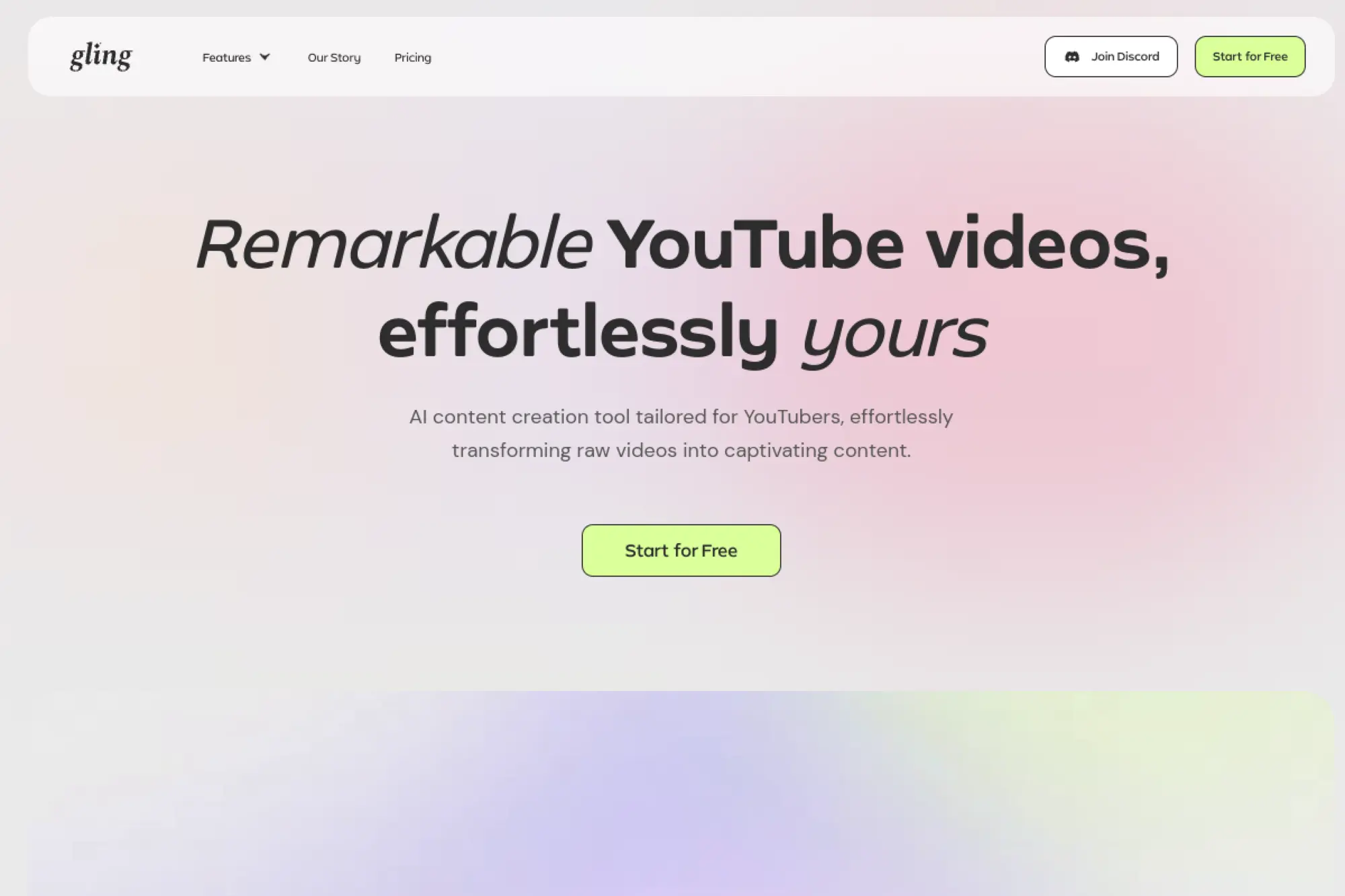
Gling is built for creators who want to remove bad takes, filler, and awkward pauses without spending hours cutting. It helps you clean up a recording quickly, then export into a more traditional editor if you want extra polish. Beginners like it because it removes the most tedious part of editing first.
Best for
YouTube creators, educators, and vloggers who want faster cleanup before doing final polish.
Key workflows to configure
- Remove silences and filler words for better pacing
- Generate captions and review accuracy on key terms
- Export a cleaned cut into your main editor for finishing
Sales growth lever
Produce more consistent content without burning out. More consistent posting builds familiarity, and familiarity reduces sales resistance over time.
Watch outs
AI cleanup can remove personality if you over-tighten. Keep moments that feel authentic, especially when you sell high-trust services.
Quick start checklist
- Upload a raw recording with separate audio if possible
- Run the cleanup pass and review key cuts
- Fix captions for names and product terms
- Export and add branding in your final editor
22. AutoPod
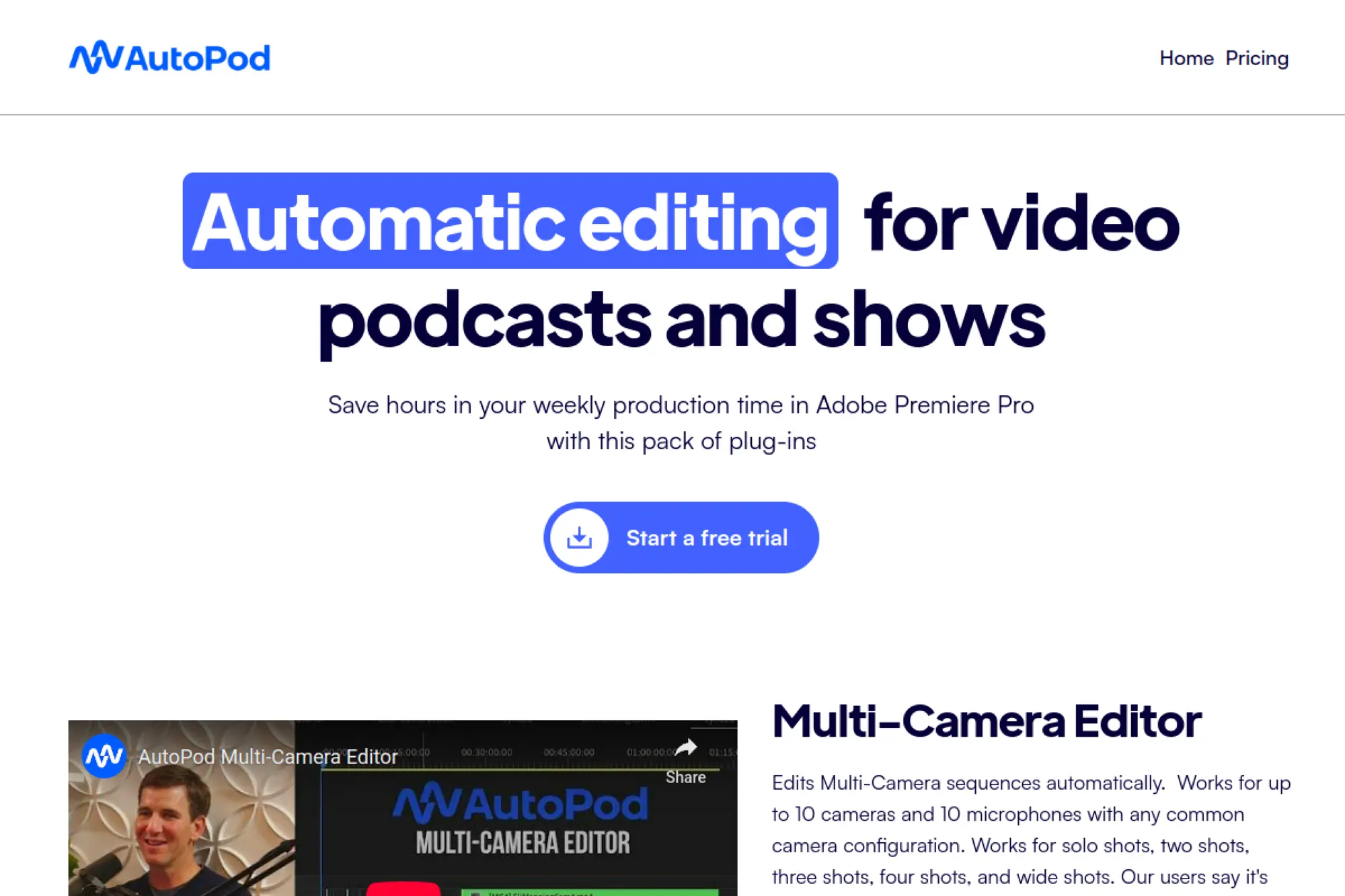
AutoPod is a specialized tool for editing multi-camera podcast and interview workflows inside a familiar editing environment. Beginners who run video podcasts often get stuck on camera switching and repetitive cutting. AutoPod helps automate those repetitive choices so you can focus on the story and the audience experience.
Best for
Video podcasters and interview shows that need fast multi-camera edits with consistent rules.
Key workflows to configure
- Map speakers to camera angles in a repeatable setup
- Create a consistent cutting style that matches your show
- Use clip creation workflows for social highlights
Sales growth lever
Podcast clips can become a lead engine. Cut strong moments into short social videos and drive viewers to a newsletter, a webinar, or a booking page.
Watch outs
Automation still needs review. Check for awkward switches, missed reactions, or moments where a wide shot would feel more natural.
Quick start checklist
- Set up a standard project template for your show
- Run a short test episode to tune the switching rules
- Export a full episode and a few highlight clips
- Save presets so each new episode stays consistent
23. Captions
Captions is built for creators who want talking videos to look sharp with minimal effort. It focuses heavily on caption styles, quick edits, and “camera-ready” polish. Beginners like it because it gives fast results for the most common modern format: a person speaking to the camera with text emphasis.
Best for
Talking-head creators, personal brands, and teams producing user-generated style ads.
Key workflows to configure
- Pick a caption style that matches your brand personality
- Create reusable hooks and end-screen templates
- Use AI cleanup features to tighten pacing and clarity
Sales growth lever
Create more ad variations quickly. Test different hooks, offers, and proof points while keeping the visuals consistent and recognizable.
Watch outs
Caption-heavy videos can feel noisy. Use emphasis with intent. Highlight only what you want the viewer to remember.
Quick start checklist
- Record a clean, well-lit talking clip
- Apply captions and fix product terminology
- Add a simple hook title and call to action
- Export and watch with sound off to confirm readability
24. Submagic
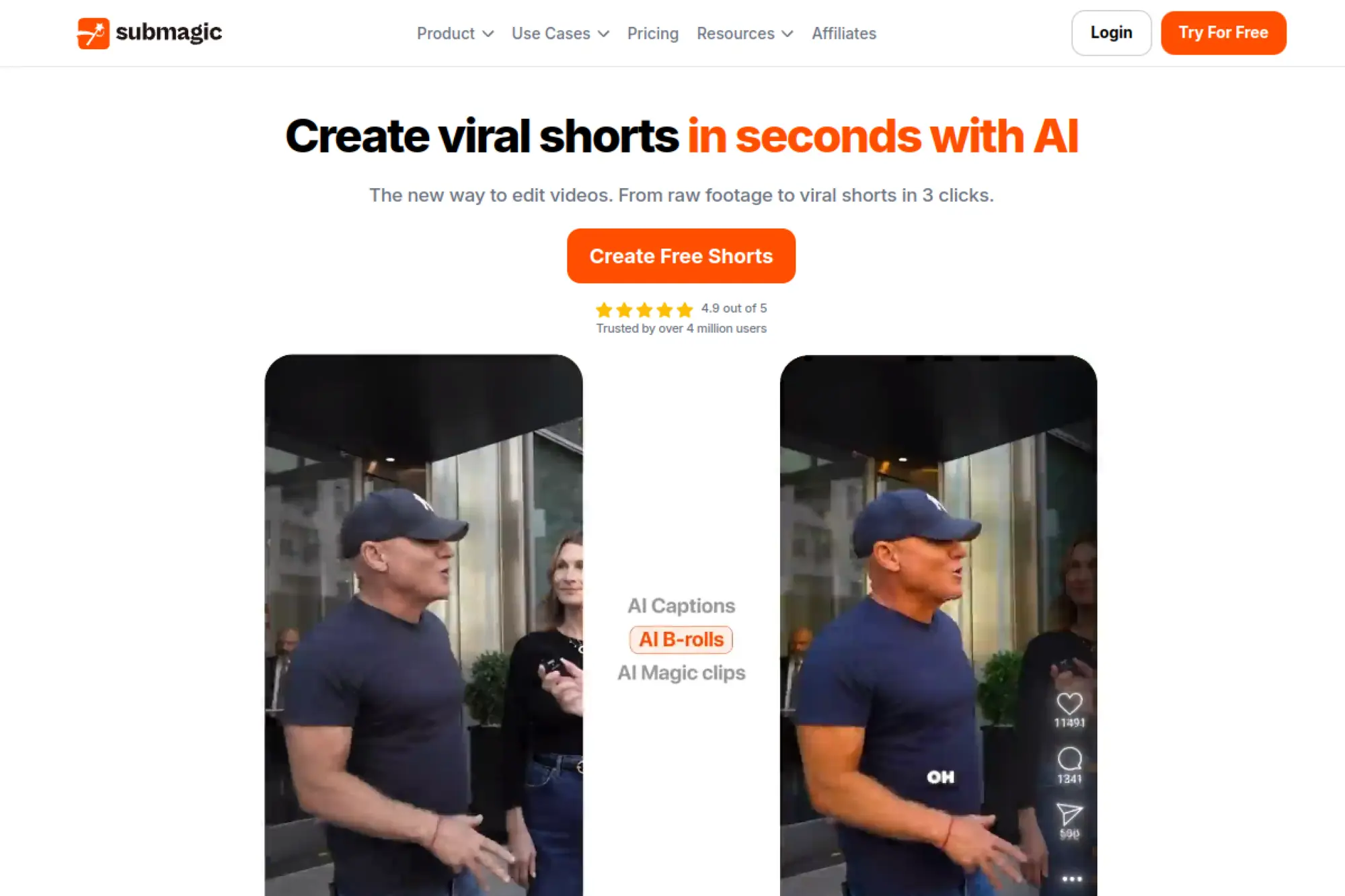
Submagic centers on captions, punchy pacing, and social-ready edits. It works best for short-form content where captions and rhythm matter as much as the visuals. Beginners use it to turn “raw talking clip” into “scroll-stopping short” without getting stuck in complex editing tools.
Best for
Short-form creators who want bold subtitles, quick pacing, and social-friendly styling.
Key workflows to configure
- Set a consistent subtitle style that matches your brand
- Create a repeatable template for hooks and end screens
- Use AI trimming and pacing tools to tighten delivery
Sales growth lever
Use Submagic to produce short proof clips for top-of-funnel reach. Combine one strong claim with one proof point and one next step.
Watch outs
Over-stylized captions can distract from your message. If you sell premium services, keep styling clean and readable.
Quick start checklist
- Upload a short talking clip with a clear hook
- Generate captions and correct key terms
- Add light emphasis and keep timing natural
- Export and test on the platform you post to most
25. Riverside
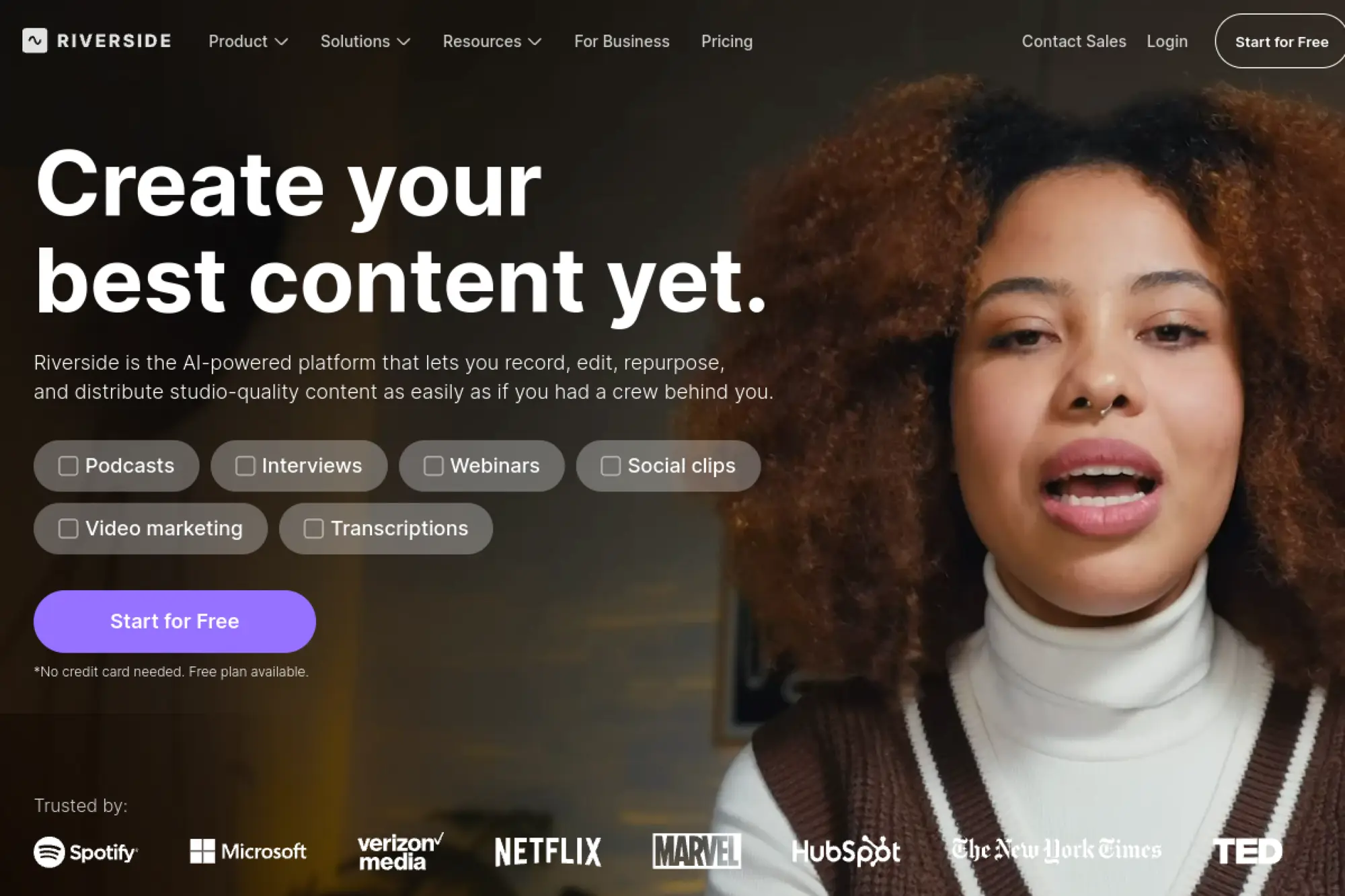
Riverside is known for recording, but it also helps beginners turn recordings into publishable video and clips. That “record plus edit” combo matters because beginners often lose time moving files between tools. Riverside can simplify the path from conversation to social-ready highlights.
Best for
Podcasters, interview shows, and teams that record remote conversations and want fast clip creation.
Key workflows to configure
- Create a consistent show layout and branding
- Use transcript-driven editing for fast rough cuts
- Generate short clips for social distribution after each episode
Sales growth lever
Turn your best guest insights into lead magnets. Share a compelling clip, then point viewers to a signup page for the full episode or a related resource.
Watch outs
Recording quality still matters. Strong lighting and clean audio reduce how much “AI fixing” you need later.
Quick start checklist
- Record a short interview and confirm audio quality
- Trim the episode into a tight main cut
- Create a few highlight clips with captions
- Export and store clips in a labeled content library
26. Synthesia
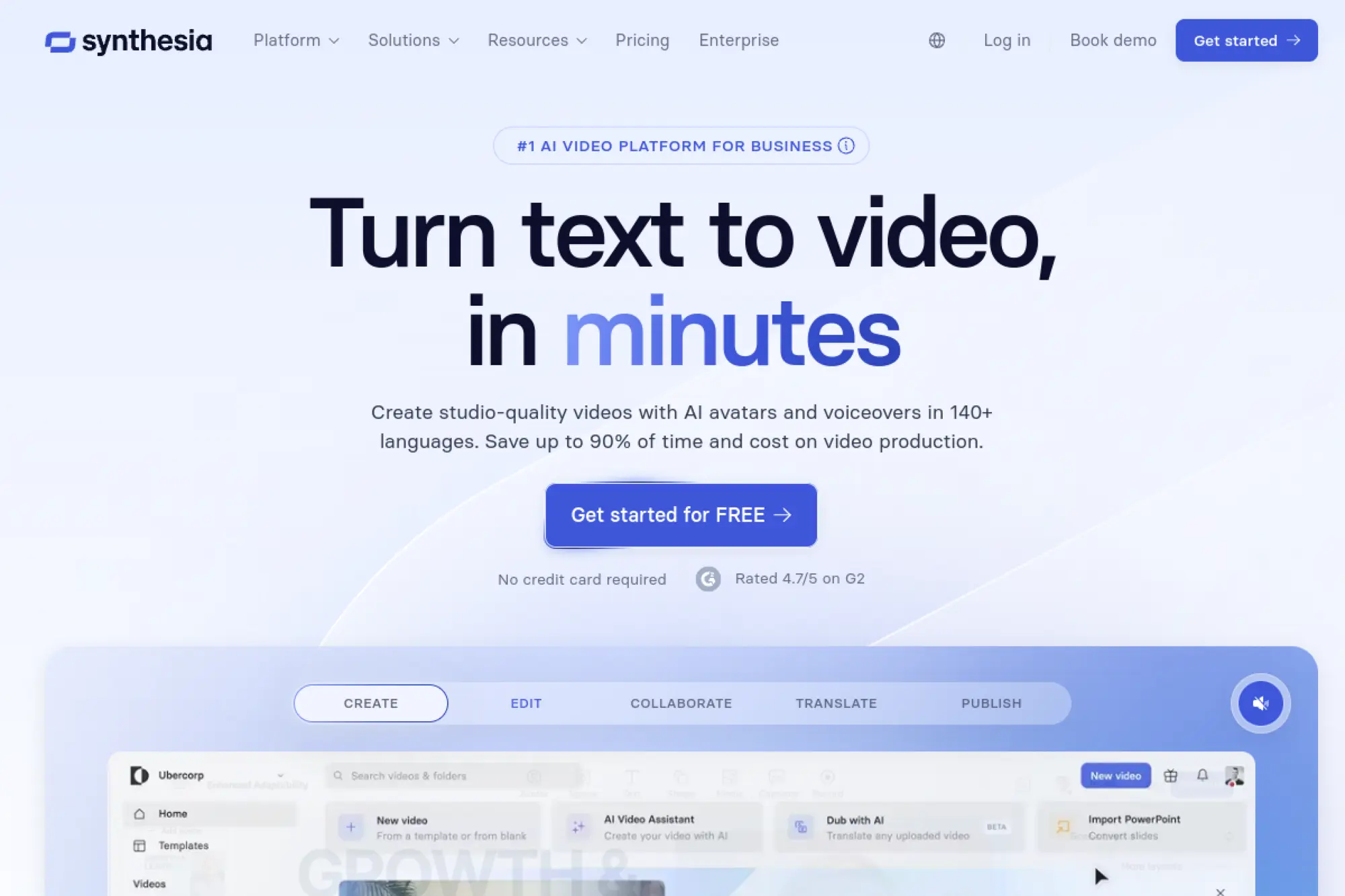
Synthesia focuses on AI avatar videos. That matters for beginners who need training, onboarding, or internal updates but do not want to be on camera. You can create professional-looking videos from a script and update them later without re-recording everything.
Best for
Training videos, onboarding, internal communications, and explainers that need consistent delivery.
Key workflows to configure
- Write scripts using a consistent structure and tone
- Create reusable templates for training modules
- Build brand styling for backgrounds and on-screen text
Sales growth lever
Create scalable product education. Good training reduces churn and creates expansion opportunities because customers understand the value faster.
Watch outs
Avatar delivery can feel less personal. Use it where clarity matters most, then pair it with real human video for trust-building content.
Quick start checklist
- Draft a short script with one clear learning goal
- Create a simple branded slide background
- Generate the video and review pacing and pronunciation
- Export and test it inside your training platform
27. HeyGen
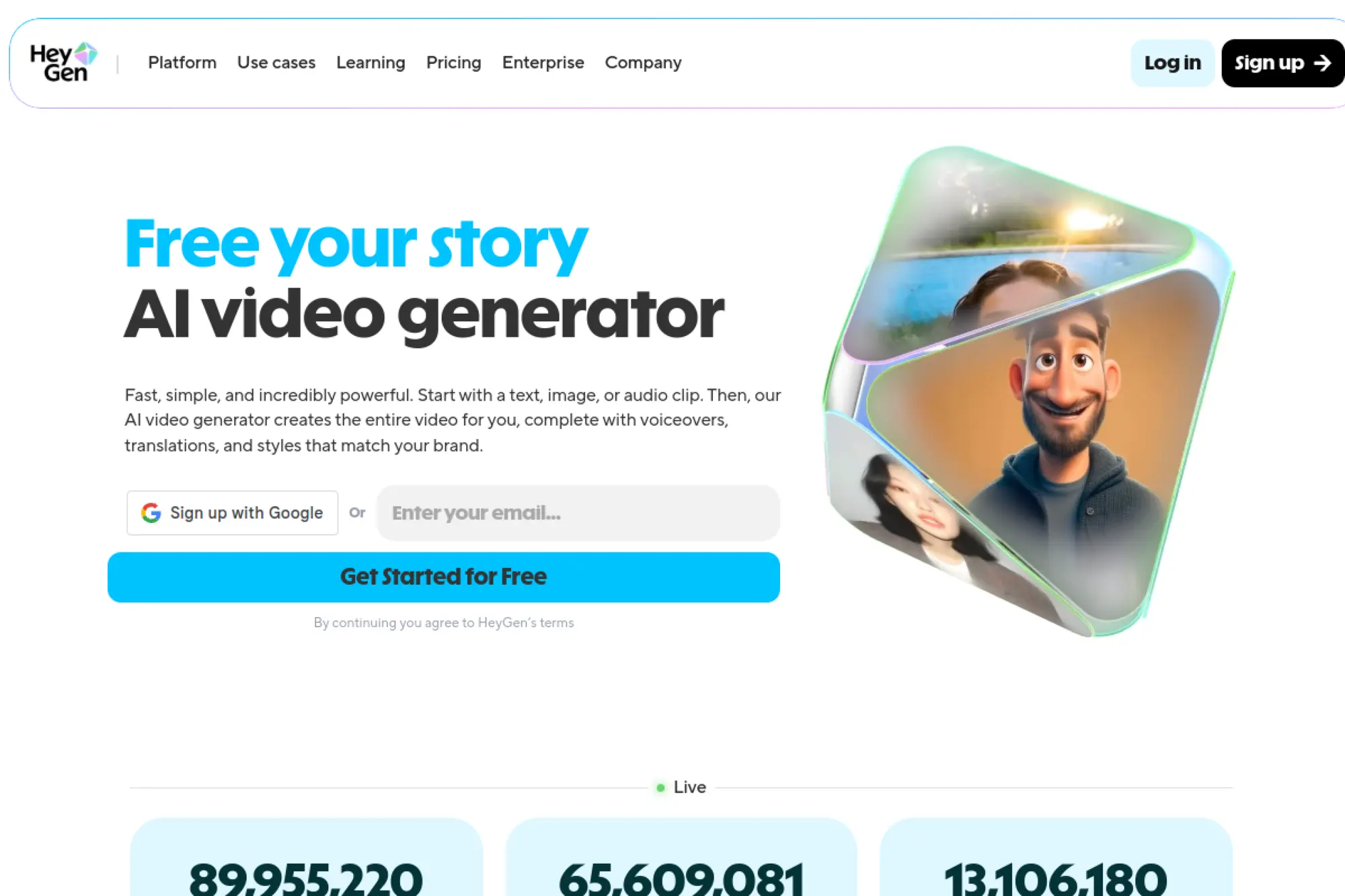
HeyGen combines AI avatars and AI-assisted video generation workflows. Beginners use it to create explainers, personalized outreach videos, and training content without needing cameras, studios, or a full production setup. It can help you move from idea to video quickly when speed matters.
Best for
Personalized sales videos, multilingual messaging, and fast explainer content with an on-screen presenter.
Key workflows to configure
- Create a reusable script format for outreach messages
- Design branded backgrounds and lower-thirds
- Build a review process for name and product pronunciation
Sales growth lever
Send personalized video follow-ups at scale. A clear, friendly video can increase reply rates and keep leads warm between steps.
Watch outs
AI presenter videos can feel generic if the script lacks specificity. Use real details about the prospect, their pain points, and next steps.
Quick start checklist
- Write a short outreach script with a specific CTA
- Generate the video and review pronunciation carefully
- Add simple on-screen text for key points
- Send it to a small batch and track replies
28. D-ID
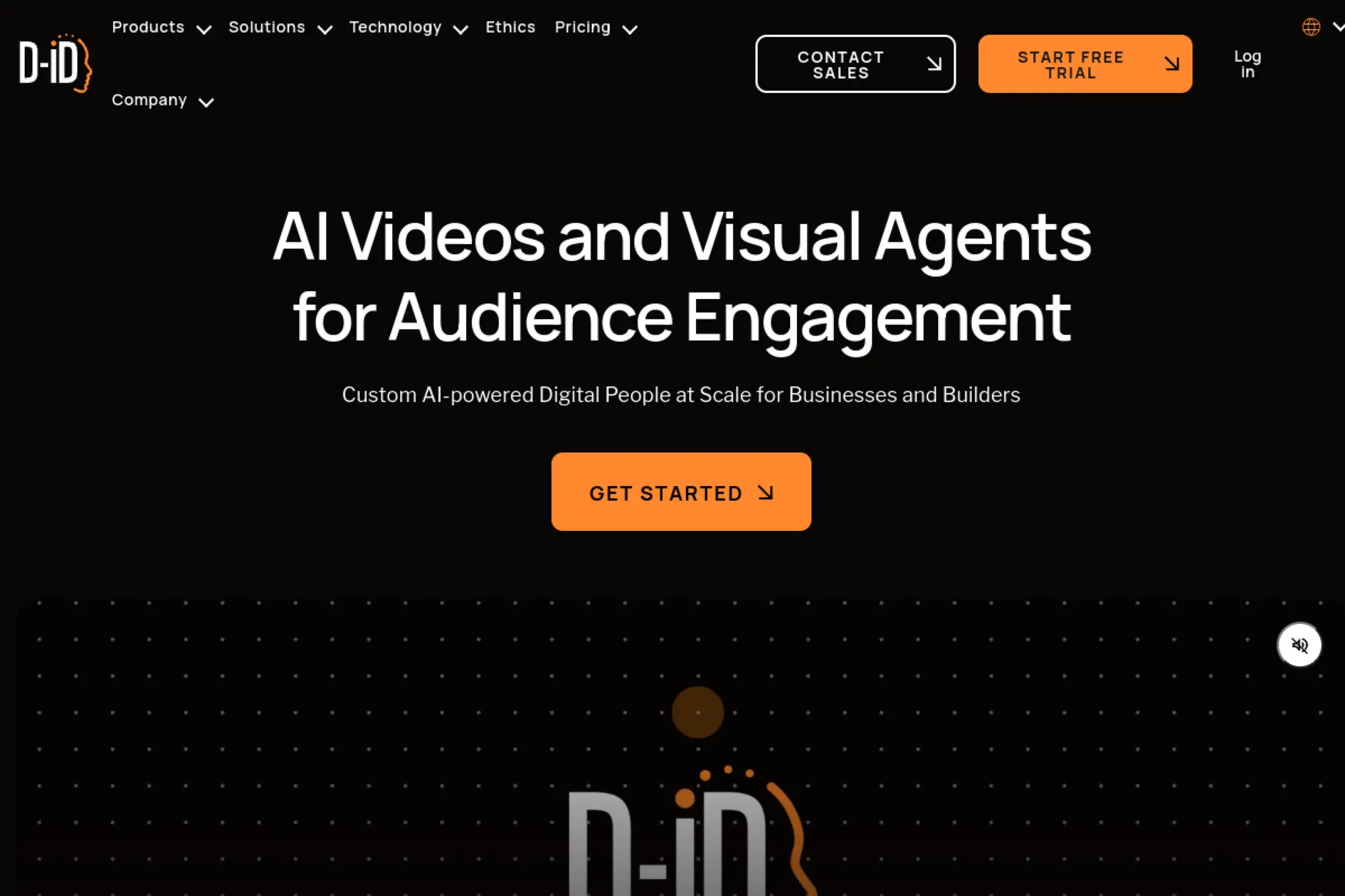
D-ID focuses on creating talking-head style videos using AI-driven avatars. It can help beginners produce quick explainers, announcements, or internal messages without filming. If you want a “face on screen” but you do not want to record yourself every time, D-ID can fill that gap.
Best for
Short explainers, internal updates, and quick video scripts that need a presenter without filming.
Key workflows to configure
- Create a consistent script template for recurring messages
- Use brand-safe backgrounds and on-screen text overlays
- Review generated output for realism and trust signals
Sales growth lever
Create lightweight explainer videos for landing pages. Use them to reduce confusion and increase conversions from visitors who need a clearer “why this matters” story.
Watch outs
Some audiences react negatively to synthetic faces. Use the tool where speed matters, and keep your brand trust and transparency in mind.
Quick start checklist
- Write a short script and keep sentences simple
- Generate a first draft and review pacing
- Add captions and a clear call to action
- Test with a small audience before wide distribution
29. Fliki
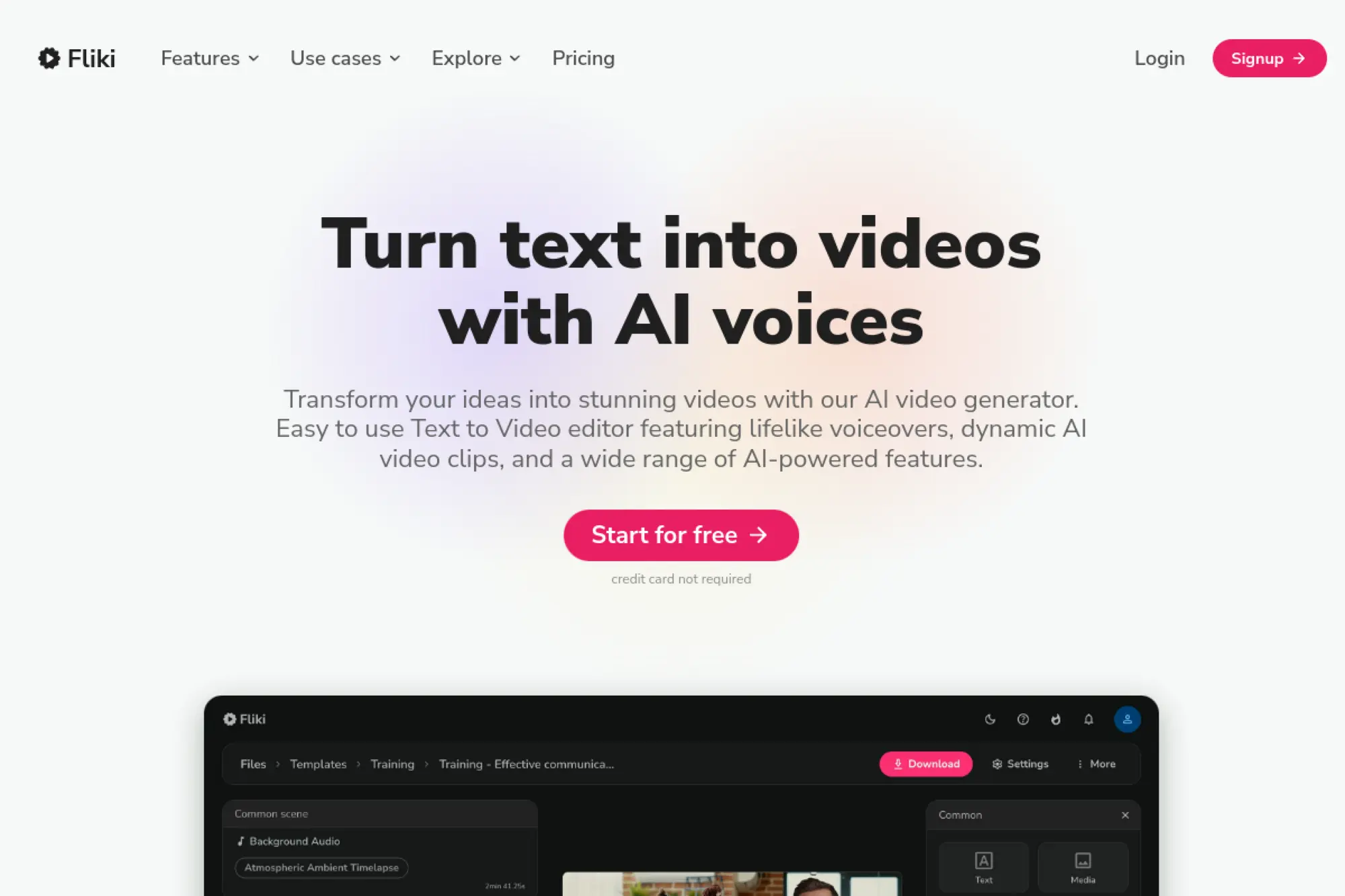
Fliki helps beginners turn text into video with voiceovers and scenes. It works well for creators who prefer writing first and filming less. If you produce educational content, list-style videos, or simple explainers, Fliki can speed up creation and keep your output consistent.
Best for
Text-first creators who want narrated videos for education, product explainers, and social content.
Key workflows to configure
- Create a consistent script structure for your niche
- Build brand styling for fonts, colors, and title cards
- Set a repeatable process for visual selection and review
Sales growth lever
Create educational “how it works” series content. Educational clips build authority, and authority shortens the trust gap that slows purchases.
Watch outs
Text-to-video tools can produce generic visuals. Use your own screenshots, product footage, and customer examples to keep the video grounded.
Quick start checklist
- Write a short script with a strong hook
- Generate the video draft and replace weak scenes
- Add captions and reinforce the call to action
- Export and reuse the same structure for the next video
30. Topaz Studio
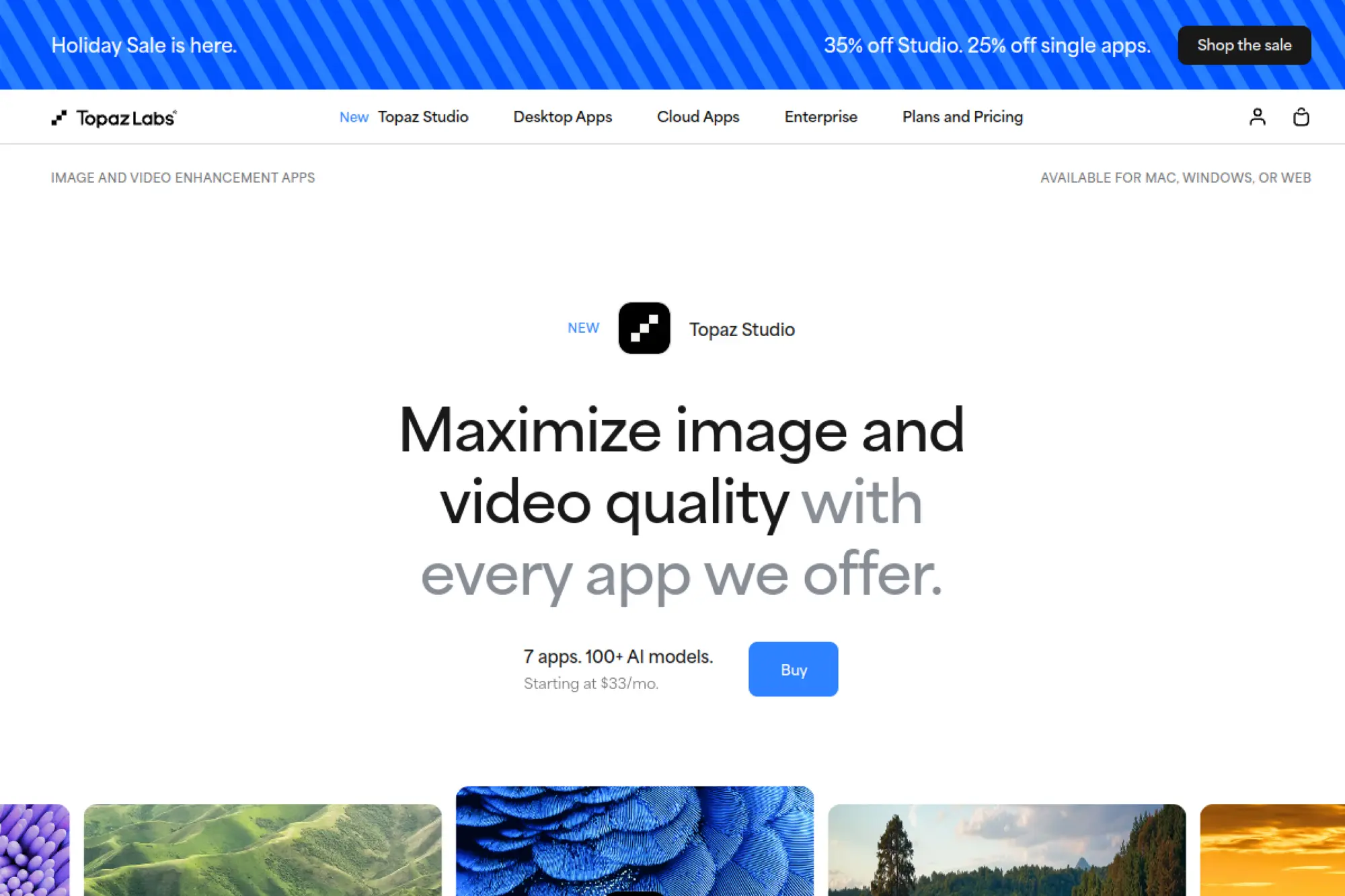
Topaz Studio fits the “finishing” stage more than the “edit from scratch” stage. Beginners often shoot content that looks slightly noisy, soft, or uneven. A finishing tool helps you clean and enhance footage after you cut the story in your main editor. That can raise perceived quality without reshoots.
Best for
Creators who want to improve the visual polish of their footage after they complete a basic edit.
Key workflows to configure
- Enhance clarity and reduce noise on final exports
- Stabilize shaky footage when reshooting is not possible
- Create a repeatable “finish pass” you run before publishing
Sales growth lever
Polish builds trust. Cleaner-looking footage can increase watch time and conversion rates because viewers judge quality fast, especially in competitive niches.
Watch outs
Enhancement can look unnatural if you push it too hard. Aim for subtle improvements that keep skin tones and textures realistic.
Quick start checklist
- Finish your cut in your primary editor first
- Run a light enhancement pass and compare before and after
- Export and review on the same device your audience uses
- Save the settings as a repeatable preset
How to Choose Your First Tool Without Getting Stuck
Beginners often pick tools based on hype. That usually leads to frustration. Instead, pick based on your content type and your weakest step.
If you speak to camera most of the time
Choose a tool that nails captions, pacing, and cleanup. You will publish more often if the tool reduces dead air and makes subtitles painless.
If you already record long content
Choose a repurposing tool. Clip creation is a distribution strategy, not just editing. A good repurposing workflow can turn one recording into a week of content.
If you need training and onboarding videos
Choose an avatar or script-to-video platform. That lets you update content without re-filming and keeps delivery consistent across modules.
If you want to grow into professional editing
Choose a traditional editor with AI helpers. You will learn editing fundamentals while still getting speed boosts from transcription, captions, and automation.
Common Beginner Mistakes (and Fast Fixes)

Most beginner problems come from the same root issue: doing “polish” before doing “story.” Fix the order and your results improve fast.
- Weak hook: Lead with the outcome, then show the steps. Fast fix: Write your title as a promise, then make the first seconds prove it.
- Over-editing: Effects can hide weak structure. Fast fix: Cut for clarity first, then add only the overlays that improve understanding.
- Unreadable captions: Captions should be effortless to scan. Fast fix: Prioritize contrast, simple styling, and short lines that don’t cover key visuals.
- Messy audio: Viewers tolerate average visuals, not distracting sound. Fast fix: Clean noise and balance levels before you touch transitions.
- No repeatable system: Starting from scratch kills consistency. Fast fix: Save templates, presets, and a publishing checklist so each new video begins “half done.”
When you combine a repeatable workflow with the right AI support, you build momentum. Momentum matters more than perfection, especially at the beginner stage.
FAQs
Is there a free AI video editor?
Yes. Many tools offer free tiers or free trials, but beginners should confirm the export experience (watermarks, limits, and caption styling) before building a workflow around it.
Can AI edit a video automatically?
AI can automate cleanup and generate a first draft (cuts, captions, pacing suggestions), but you still need to review for clarity, context, and brand tone.
What’s the easiest AI video editor for social clips?
Choose a template-first editor if your priority is speed and consistent formatting. The easiest option is usually the one that matches where you edit (phone vs browser vs desktop).
What should beginners prioritize first: effects or story?
Story first. A clear hook, tight pacing, readable captions, and clean audio will outperform flashy effects most of the time.
Do AI video editors replace video editors?
They reduce repetitive work. You still need judgment: what to cut, what to emphasize, and what message the viewer should remember.







Conclusion
Choosing an AI video editor gets a lot easier once you stop hunting for “the most powerful” tool and instead pick the one that fits how you work—mobile, browser, or desktop—and the type of videos you publish most. Start with the basics AI does best for beginners: clean cuts (including silence trimming), readable captions, quick reframing for different platforms, and simple audio cleanup. Those upgrades alone can make your videos feel more professional without adding complexity.
The real win isn’t trying every tool—it’s building a repeatable workflow. Use the same steps every time: outline the hook, rough cut, clean audio, add captions, add lightweight branding, then export and review on the platform you’ll post to. Once that system feels natural, you can explore advanced features like highlight detection, automatic B-roll suggestions, or script-to-video options without losing consistency.
If you want the fastest results, pick one tool today, publish one video this week, and improve one thing per upload. That’s how AI becomes a practical editing assistant instead of another “cool tool” you never finish projects with.