

Slide decks still decide deals, budgets, and buy-in. Yet most teams build them under pressure, so the story gets messy and the design gets rushed. An AI presentation maker changes that rhythm. It helps you turn raw notes into a structured first draft fast, so you can spend your energy on the message, the proof, and the ask.
This guide breaks down what modern AI slide tools can (and cannot) do, how to pick the right one for your workflow, and a curated lineup of options you can use to create professional presentations without starting from a blank slide every time.
Quick Best Picks by Use Case
- Best for teams already using office suites: Choose tools that live inside your existing slide editor so drafts, edits, and exports stay frictionless.
- Best for fast deck drafts from prompts or documents: Choose generators that produce a clean outline first, then let you adjust slide-by-slide without redesigning.
- Best for brand-controlled, client-ready decks: Choose tools that support templates, locked styling, and shared libraries so outputs stay consistent.
- Best for interactive training and workshops: Choose tools that support quizzes, polls, audience input, and facilitation flows.
- Best for marketing visuals and design-first slides: Choose tools with strong layout systems, asset libraries, and quick resizing across formats.
FURTHER READING: |
| 1. Best AI PowerPoint Generator: Top 30 Picks for 2026 |
| 2. Best AI Resume Builder: Top 30 Picks for 2026 |
| 3. Best AI Voice Cloning Tools: Top 30 Picks for 2026 |
Compact Comparison Table
| What You Need | What to Look For | Common Trade-Off | Best-Fit Tool Type |
|---|---|---|---|
| Polished slides in a familiar editor | Native editing, template support, smooth export | Less “from-scratch” creativity | Suite-based slide editors with AI assist |
| Fast drafts from docs or notes | Outline-first generation, clean structure controls | Needs human tightening and proof | Prompt/document-to-deck generators |
| Brand consistency across teams | Locked styles, shared libraries, reusable blocks | Less flexibility for one-off experiments | Template-driven presentation platforms |
| Sales and proposal workflows | Personalization, versioning, collaboration | More setup to standardize | Deck tools built for teams and iteration |
| Workshops and education | Interactive elements, facilitation flows | Depends on audience participation | Interactive presentation makers |
What An AI Presentation Maker Really Does
An AI presentation maker helps you move from “idea” to “deck draft” with less friction. You can start with a prompt, a document, a web page, or a pile of notes. Then the tool creates an outline, suggests slide types, drafts copy, and applies a visual structure that looks intentional.
That “draft” word matters. The best tools behave like a strong assistant, not an auto-pilot. You still decide what matters, what to cut, and what to emphasize. You also own the job of making claims accurate, keeping brand voice consistent, and choosing the right level of detail for the audience.
Most tools now cover a similar set of moves:
- Structure: turn a topic into a slide flow that makes sense.
- Writing: draft headlines, bullets, and speaker notes in a consistent voice.
- Design: apply layouts, spacing, and typography that look balanced.
- Visuals: suggest images, icons, charts, or AI-generated graphics.
- Iteration: rewrite, shorten, expand, or reframe slides without manual reformatting.
At the same time, AI slide tools often struggle in predictable places. They may sound confident while being wrong. They may overuse generic phrases. They may miss nuance in regulated industries. They may also drift from your brand if you do not lock templates down.
So the real win is not “AI makes slides for you.” The win is “AI removes the slow parts so you can focus on persuasion and clarity.”
How To Choose A Tool For Professional Slides
Picking the right tool starts with one practical question: where do you want the final deck to live? Some teams need native PowerPoint files. Others prefer browser-first decks that behave like a web page. Many teams want both, depending on who they send it to.
Next, map the tool to your production reality. A sales org cares about speed, personalization, and version control. A marketing team cares about brand systems and multi-channel reuse. A trainer cares about engagement and interactivity. The tool should match the job.
Use these selection filters to stay focused:
- Brand control: Can you enforce fonts, colors, layouts, and locked elements?
- Input sources: Can you start from docs, PDFs, URLs, or existing decks?
- Editing comfort: Will your team edit in PowerPoint, Google Slides, or a new editor?
- Collaboration: Does it support comments, approvals, and shared libraries?
- Export needs: Do you need PPT, PDF, online links, or all of them?
- Security posture: Can admins control data access, AI features, and sharing?
- Sales enablement fit: Can you personalize fast without breaking formatting?
Finally, consider the “deck lifecycle.” A deck is not a one-time output. It lives through updates, forks, rebrands, last-minute edits, and stakeholder feedback. The best AI presentation maker is the one that survives that reality without creating chaos.
How to Use an AI Presentation Maker Without Losing Quality
- Start with source material, not vibes: Use a doc, notes, brief, or agenda so the draft is anchored to real inputs.
- Generate an outline first: Aim for slide titles that read like a story, not a list of topics.
- Convert titles into takeaways: Each slide title should communicate the point you want remembered.
- Cut filler aggressively: Remove generic slides, repeated points, and anything that doesn’t serve the audience’s decision.
- Add proof and specifics: Replace vague claims with concrete evidence, examples, or internal data you can defend.
- Standardize the visual system: Apply your template, align spacing, and enforce a consistent visual hierarchy.
- Rewrite for speaking: Slides are not documents—shorten text and move detail into speaker notes where appropriate.
- Run a final human review: Fact-check, brand-check, tone-check, then rehearse to catch awkward flow.
Prompt Pack
Prompt: Sales Proposal Deck
Create a professional proposal presentation for [company/audience]. Goal: [decision you want]. Product/service: [what you sell]. Include: problem framing, current state, proposed solution, implementation plan, timeline, risks/mitigations, pricing structure (no numbers unless provided), and clear next steps. Tone: confident, concise, consultative. Use slide titles as takeaways.
Prompt: Pitch Deck
Build a pitch deck for [startup/project]. Audience: [investors/partners]. Include: problem, why now, solution, differentiation, business model, go-to-market, traction (use only metrics I provide), roadmap, team, and the ask. Keep slides minimal, with speaker notes for details.
Prompt: Training Session Deck
Create a training presentation for [topic]. Audience level: [beginner/intermediate/advanced]. Include: learning objectives, key concepts, examples, practice activity, quick knowledge check questions, and a recap. Make titles outcome-focused and avoid long paragraphs.
Prompt: Executive Update
Turn these notes into an executive update deck: [paste notes]. Audience: leadership. Include: highlights, risks, decisions needed, and next milestones. Keep it short, with a clear “ask” slide and a final summary slide.
Prompt: Webinar Slides
Create webinar slides for [topic] aimed at [audience]. Structure: hook, agenda, core insights, demonstration/examples, key takeaways, and Q&A slide. Use a conversational tone and ensure each slide supports spoken delivery.
Fresh Stats To Support The Shift To AI Slides

Budget trends show where software workflows are heading. Gartner forecasts worldwide GenAI spending to reach $644 billion, which makes AI features harder to ignore in everyday productivity work.
Work habits also show strong demand. A Microsoft and LinkedIn Work Trend Index report found 75% of global knowledge workers using it at work, which helps explain why slide creation tools now compete on AI drafting and rewriting, not just templates.
Productivity data helps you set realistic expectations. A Harvard and BCG field experiment reported AI support boosting speed by over 25% on tasks that fit the tool’s strengths. Slides are often exactly that kind of task, because they combine summarization, rewriting, and structure.
The macro upside is also large. McKinsey estimates generative AI could add $2.6 trillion to $4.4 trillion annually across use cases, including marketing and sales work where presentations play a direct role.
Adoption is not limited to a niche group anymore. An NBER working paper reports nearly 40% of working-age Americans using generative AI, which means your customers, partners, and competitors already expect faster content cycles and sharper communication.
Put those signals together and you get a clear pattern: slide creation is moving toward faster drafting, tighter brand enforcement, and smarter reuse of existing content. The tools below help you do that in different ways.
AI Presentation Maker Tools To Try
Each option below targets a slightly different workflow. Some tools generate complete decks from prompts. Others focus on making your existing slides look better, stay on brand, and ship faster. Use the “Best for” and “Watch outs” sections to shortlist quickly, then test your top picks with real source material.
1. Microsoft PowerPoint
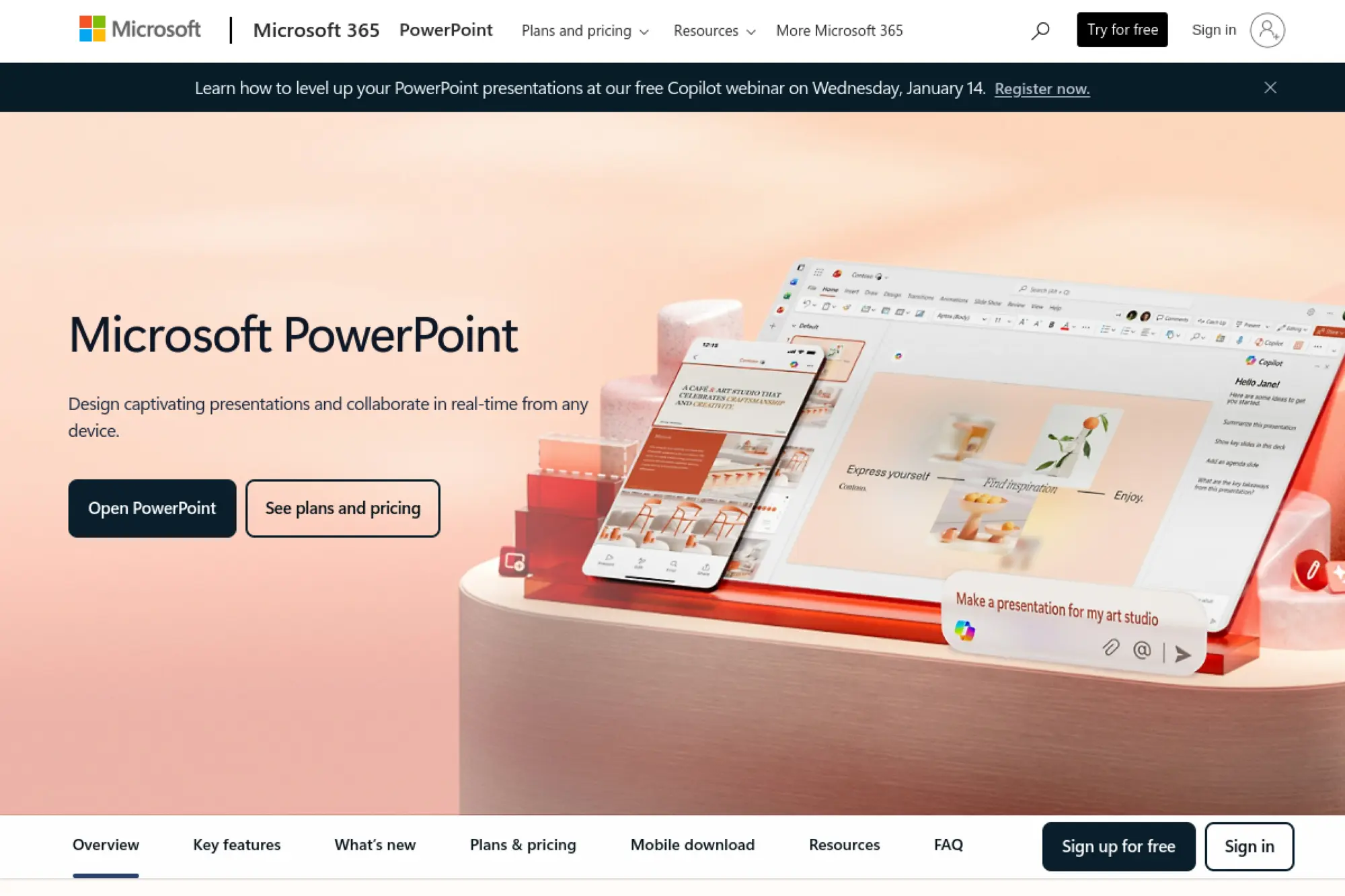
PowerPoint remains the default destination for many professional decks, and its AI features now help you draft slides without leaving the file. You can start from an idea or turn existing documents into a structured outline, then refine slide text and speaker notes as you go. This keeps creation close to the place where final formatting happens.
Best for
Teams that already live in Microsoft tools and need polished, client-ready decks that match existing templates. It also fits orgs that must store work in controlled tenant storage and keep editing in a familiar interface.
Key workflows to configure
- Standardize a master deck template and slide layouts.
- Create a prompt brief your team can reuse for common decks.
- Define a review step for claims, pricing, and customer names.
- Set up a shared slide library for approved slides and visuals.
Sales growth lever
Use AI to produce a clean first draft fast, then have reps personalize the story for each account without spending hours on layout. You can also keep proposal decks aligned with brand and messaging while moving quickly between industries and use cases.
Watch outs
AI can draft confident copy that still needs fact-checking. It can also overfill slides if you do not steer it toward concise headlines. Treat the output as a draft and keep your template rules tight.
Quick start checklist
- Pick one high-value deck type, like a sales overview.
- Start from a strong template, not a blank file.
- Generate an outline, then rewrite slide headlines for clarity.
- Replace generic visuals with approved brand assets.
- Run a final QA pass for claims and formatting.
2. Google Slides
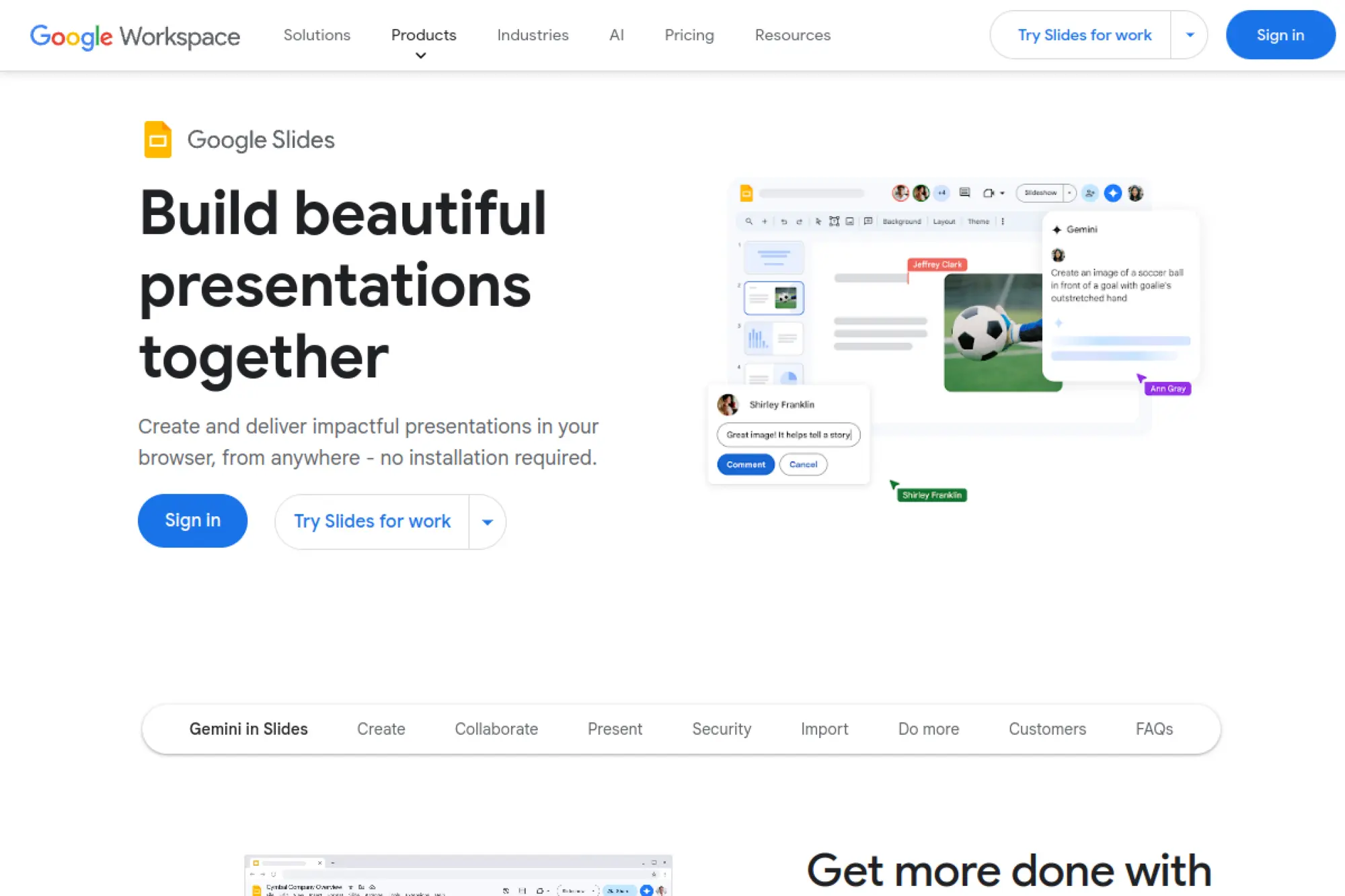
Google Slides wins when collaboration matters more than perfect slide micro-formatting. With Gemini features in Google Workspace, teams can draft a slide flow from a prompt, then iterate together in real time. That combination makes it easy to turn messy thinking into a deck that stakeholders can improve quickly.
Best for
Google Workspace teams that want fast collaboration across marketing, sales, and product. It also fits organizations that prefer link-based sharing and lightweight version history over file-based workflows.
Key workflows to configure
- Create a brand theme with locked fonts, colors, and layouts.
- Build a shared folder structure for draft, review, and approved decks.
- Define prompt templates for recurring meeting types and pitches.
- Set commenting rules so feedback stays actionable and focused.
Sales growth lever
Use fast collaboration to tighten deal messaging. When sales, product, and leadership can edit the same deck quickly, you cut delay and reduce version confusion. That speed helps you respond to buyers while interest is high.
Watch outs
Exports can shift formatting when you move a deck into PowerPoint. Also, AI features may vary by workspace plan and admin settings. Confirm access before you promise a new process to the team.
Quick start checklist
- Start with a brand theme and a small slide library.
- Draft an outline with AI, then edit for audience fit.
- Assign owners to sections, not individual slide pixels.
- Keep a final “approved” version in a shared folder.
- Export and test on the device you will present from.
3. Canva

Canva blends AI-assisted design with a huge template and asset ecosystem. With Magic Design for Presentations, you can turn a short prompt into a cohesive slide draft that already looks modern. Then you can apply brand assets, add visuals, and repurpose the same content into other formats.
Best for
Marketing teams and founders who need on-brand design fast, plus the ability to reuse the same story across pitch decks, social assets, and docs. It also works well for teams that present from a browser or mobile device.
Key workflows to configure
- Set up Brand Kit assets, fonts, and color palettes.
- Create reusable presentation templates for key use cases.
- Define a review step for tone, legal language, and claims.
- Build a shared folder system for campaigns and accounts.
Sales growth lever
Use Canva to keep visuals consistent across the entire sales motion. A deck that matches your landing pages and outbound ads builds trust. It also reduces the “franken-deck” effect that often hurts perceived quality.
Watch outs
Highly complex enterprise templates can feel harder to enforce compared with PowerPoint add-ins. Also, some teams still expect a native PPT file, so test export quality for your common layouts.
Quick start checklist
- Import your logo and set brand fonts and colors.
- Generate a draft deck with Magic Design as a baseline.
- Edit headlines to match your positioning and proof points.
- Replace generic visuals with brand-safe assets.
- Export and run a live rehearsal using Presenter View.
4. Beautiful.ai
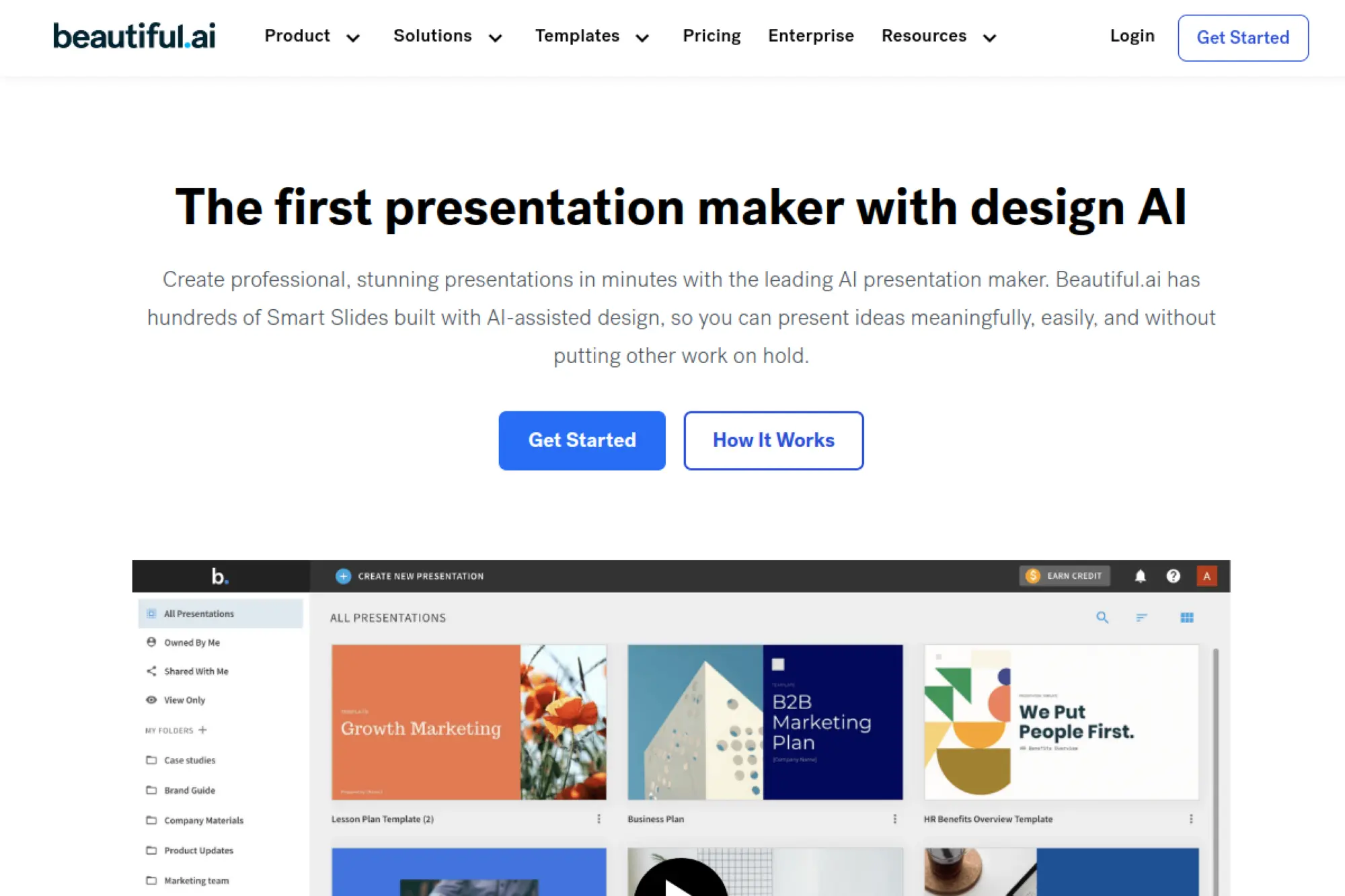
Beautiful.ai focuses on design automation. It uses “smart slides” that keep layouts balanced as you add or remove content. Instead of fighting alignment and spacing, you focus on what you want to say, then let the system keep things looking clean and consistent.
Best for
Teams that need strong design without dedicated designers. It works especially well for business storytelling, internal updates, and customer-facing decks where a polished look increases confidence.
Key workflows to configure
- Build a brand theme with your fonts, colors, and logo rules.
- Set slide types your team should default to for common stories.
- Create a shared template library to reduce layout drift.
- Define content guidelines for concise, scannable slides.
Sales growth lever
When design looks consistent, prospects focus on your message instead of your formatting. Use Beautiful.ai to produce proposal decks faster and keep them visually tight, even when different reps edit content across the funnel.
Watch outs
Design automation can feel restrictive if you want full manual control. Also, if your brand requires very specific slide masters, you may need extra setup time before the tool feels “enterprise-ready.”
Quick start checklist
- Create a brand theme before you generate any decks.
- Draft a narrative outline, then generate slides from it.
- Replace long bullets with short headlines and visuals.
- Standardize a few “approved” slide types for your team.
- Export and test the deck in your presentation environment.
5. Presentations.AI
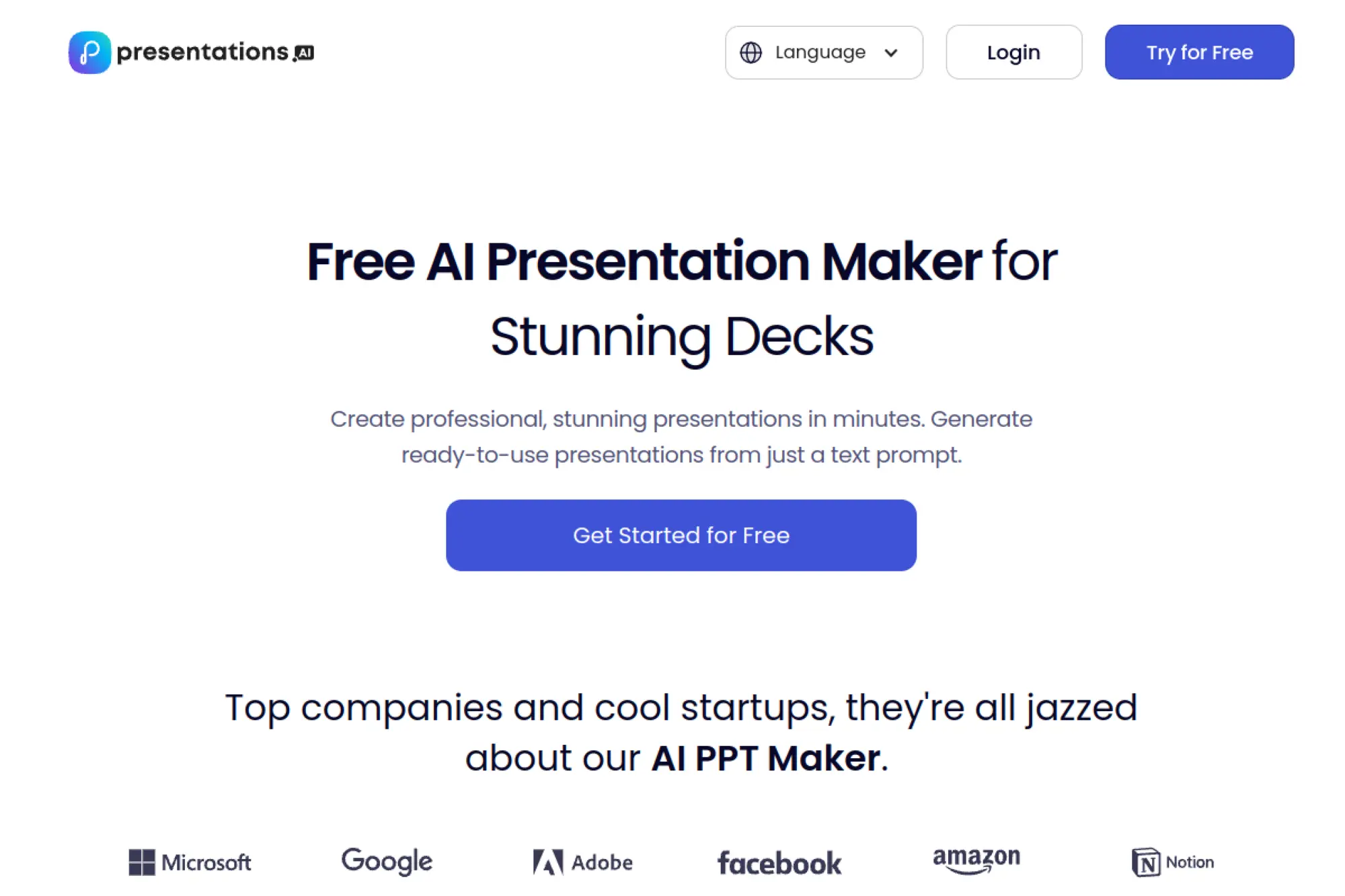
Presentations.AI positions itself as a web-based AI PPT maker for teams. You can generate decks from a prompt or transform documents into slides, then collaborate in a shared workspace. It also emphasizes sharing and engagement insights, which can help when decks act as sales collateral.
Best for
Revenue teams that want fast creation plus link-based sharing and collaboration. It can also fit distributed teams that need a single place to build, review, and ship presentations.
Key workflows to configure
- Set up workspace brand styling so decks stay consistent.
- Create templates for common deck types like proposals and QBRs.
- Assign owners for sections so edits do not overlap.
- Define a “final review” step before external sharing.
Sales growth lever
Use engagement signals to improve follow-up. When you know which sections prospects focus on, you can tailor the next call and send tighter supporting materials. That makes your outreach feel relevant, not generic.
Watch outs
Some stakeholders still prefer PowerPoint files, so validate export workflows early. Also, ensure your team understands what AI drafts well and what it tends to oversimplify, especially in technical contexts.
Quick start checklist
- Generate a draft from a real proposal or brief.
- Rewrite slide titles to match your value proposition language.
- Add customer proof and remove generic filler.
- Share internally first, then refine from feedback.
- Standardize the final deck as a reusable template.
6. Gamma
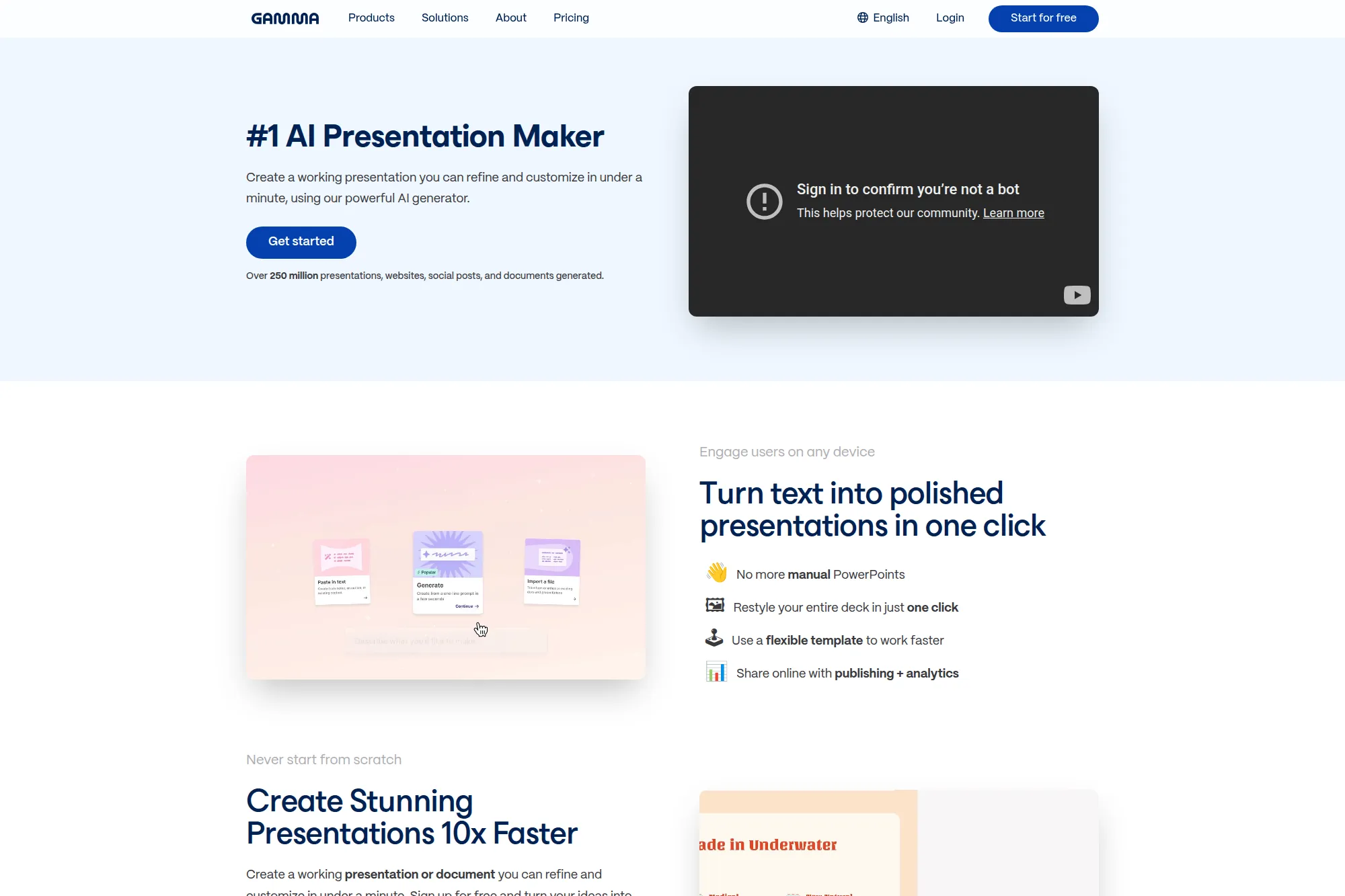
Gamma is a web-first tool that generates presentations and documents with AI, then lets you publish them as shareable links. It shines when you want content that works like a scrollable story, not just a traditional slide sequence. You can still export when you need a more classic format.
Best for
Teams that communicate asynchronously and want decks that feel like interactive pages. It also works well for product updates, internal strategy docs, and lightweight pitch narratives you share as links.
Key workflows to configure
- Create custom themes so every new draft stays on brand.
- Build a standard outline format for recurring deck types.
- Use embeds for demos, videos, and supporting resources.
- Set publishing rules so “draft” content stays internal.
Sales growth lever
When buyers read decks on their own time, you need clarity and flow. Gamma helps you ship a clean narrative quickly and keep it updated without redoing layouts. That lets sales teams respond faster to new objections.
Watch outs
Some enterprise buyers still want a PowerPoint file and may treat web-first decks as “marketing pages.” Also, you should review every AI-generated claim, especially if the deck summarizes complex product details.
Quick start checklist
- Choose one use case, like an outbound pitch narrative.
- Generate a deck from a clear prompt and a short brief.
- Trim copy until slides feel scannable.
- Apply a brand theme and replace placeholder visuals.
- Publish a link for internal review before external sharing.
7. Tome
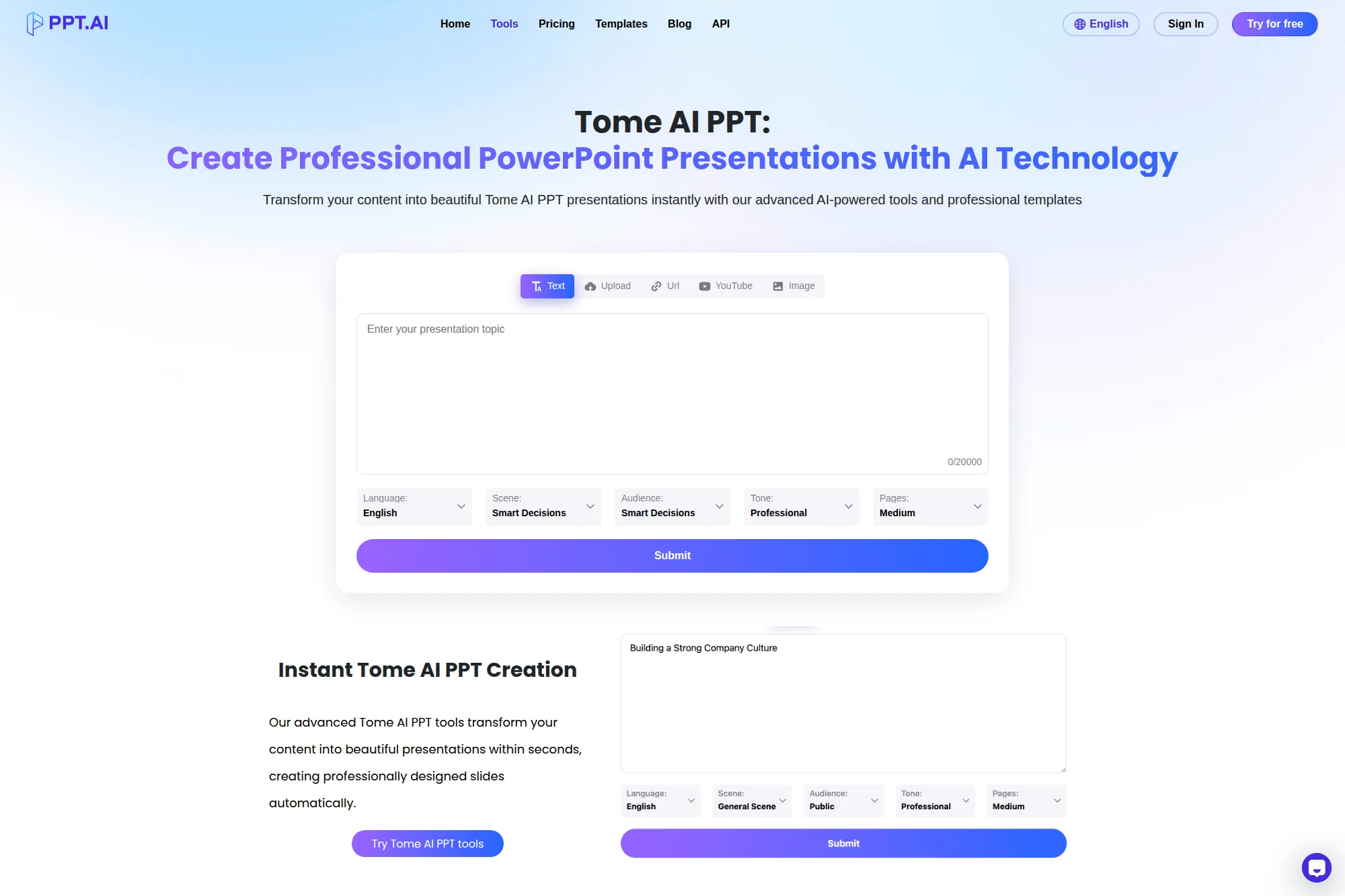
Tome works like an AI-powered canvas that can become a presentation, a one-pager, or a visual story. You can generate an outline, then expand sections into pages that mix text, visuals, and embeds. The end result often feels more like a modern narrative doc than a rigid slideshow.
Best for
Founders, product teams, and marketers who want to tell a story with flexible layout and rich embeds. Tome also fits teams who share decks as links and refine them over time.
Key workflows to configure
- Build prompt templates for common story arcs, like problem-to-solution.
- Create reusable sections for intros, proof, and calls to action.
- Standardize voice guidelines so AI copy stays consistent.
- Use embeds for product demos and customer proof assets.
Sales growth lever
Use Tome to create a narrative that matches how buyers research. You can send a link that reads well on any device, then adjust the story quickly based on feedback from discovery calls and objections.
Watch outs
If your team needs strict slide-by-slide control, Tome can feel different from classic tools. Also, AI-generated copy can sound polished but generic. You still need to inject your real positioning and proof.
Quick start checklist
- Start from a strong outline, not a vague prompt.
- Generate a draft, then rewrite headlines in your own language.
- Add customer quotes, case studies, and product specifics.
- Embed your demo and a clear next-step call to action.
- Share internally, then lock a “golden version” for reuse.
8. Pitch
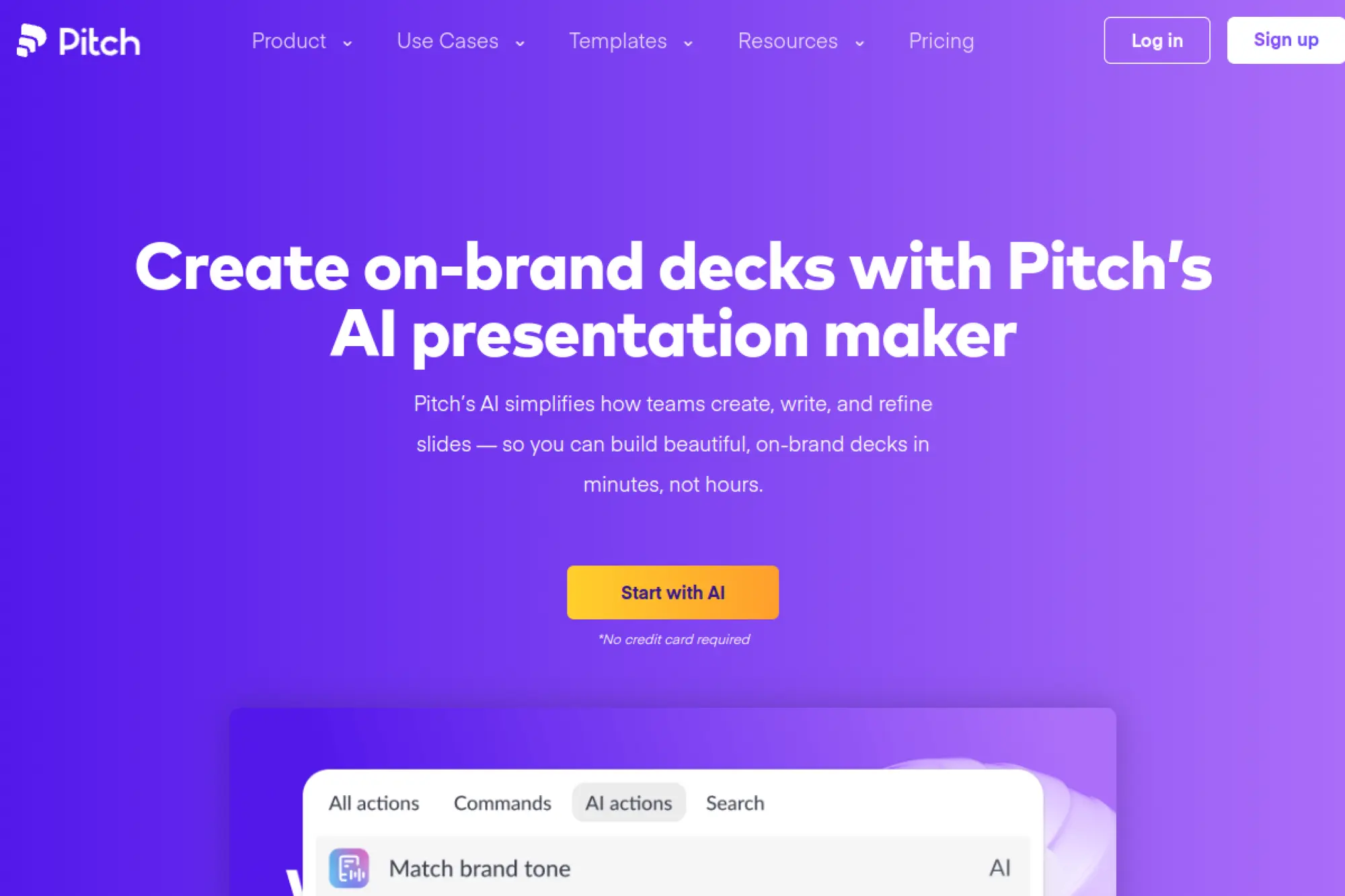
Pitch combines a modern presentation editor with AI-assisted creation and refinement. You can start with AI to get a first draft, then use built-in tools to rewrite, proofread, and polish content. Pitch also supports team collaboration workflows that match how revenue teams actually build decks.
Best for
Teams that need a shared space for creating and updating on-brand decks together. It works well for startups, agencies, and sales orgs that ship many decks and want fewer formatting debates.
Key workflows to configure
- Set up brand templates with approved fonts and color palettes.
- Create a shared deck library for reusable slides and modules.
- Use AI to draft sections, then assign owners to refine them.
- Establish a final review workflow before client sharing.
Sales growth lever
Pitch helps you ship consistent decks quickly, which matters when deals move fast. Use AI-assisted rewriting to tailor the same base deck to different buyer personas while keeping the narrative tight and the visuals aligned.
Watch outs
AI features often run on a credit system, so usage can vary by plan. Also, exports may not always match a strict PowerPoint master. Test the full workflow with your most complex deck.
Quick start checklist
- Create a branded workspace template before generating decks.
- Generate a draft deck from a prompt and a short brief.
- Rewrite slide titles to match your positioning language.
- Use comments to collect feedback in one place.
- Publish a final version and store it in your deck library.
9. Prezi
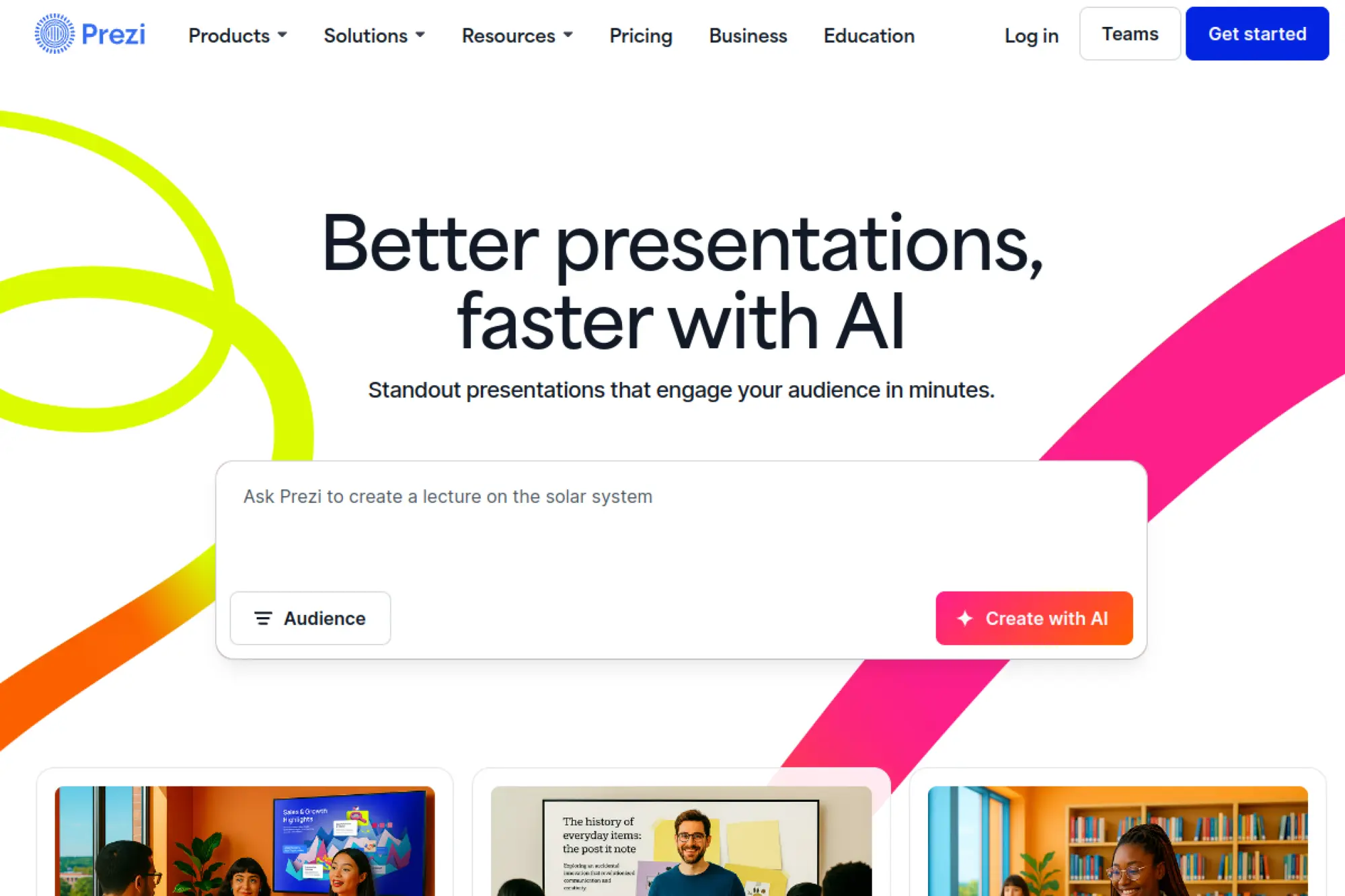
Prezi offers a different style of presenting, built around motion and visual storytelling rather than static slides. With Prezi AI, you can start from a prompt or upload a file to generate a presentation, then refine it to fit the zooming format. This approach can make your message feel more dynamic when the context calls for it.
Best for
Speakers, educators, and sales leaders who want to stand out during live presentations. It also fits teams that use storytelling to differentiate, especially when a standard deck feels too predictable.
Key workflows to configure
- Define a story arc you reuse across key presentations.
- Generate a draft with AI, then restructure for narrative flow.
- Create branded visual styles that match your identity.
- Build reusable sections for product, proof, and next steps.
Sales growth lever
Prezi can make product stories feel more memorable, which helps in competitive deals. Use it when you need to educate buyers, simplify complex concepts, and create a stronger “I remember them” effect after the call.
Watch outs
Motion can distract if you overuse it. Also, teams that rely on strict corporate templates may find it harder to match brand rules perfectly. Use Prezi where differentiation matters more than template fidelity.
Quick start checklist
- Pick one flagship deck to convert, like a product overview.
- Generate a draft from a prompt, then refine the narrative flow.
- Replace generic visuals with brand-approved assets.
- Rehearse pacing so motion supports the story.
- Save reusable sections as building blocks for future decks.
10. Visme
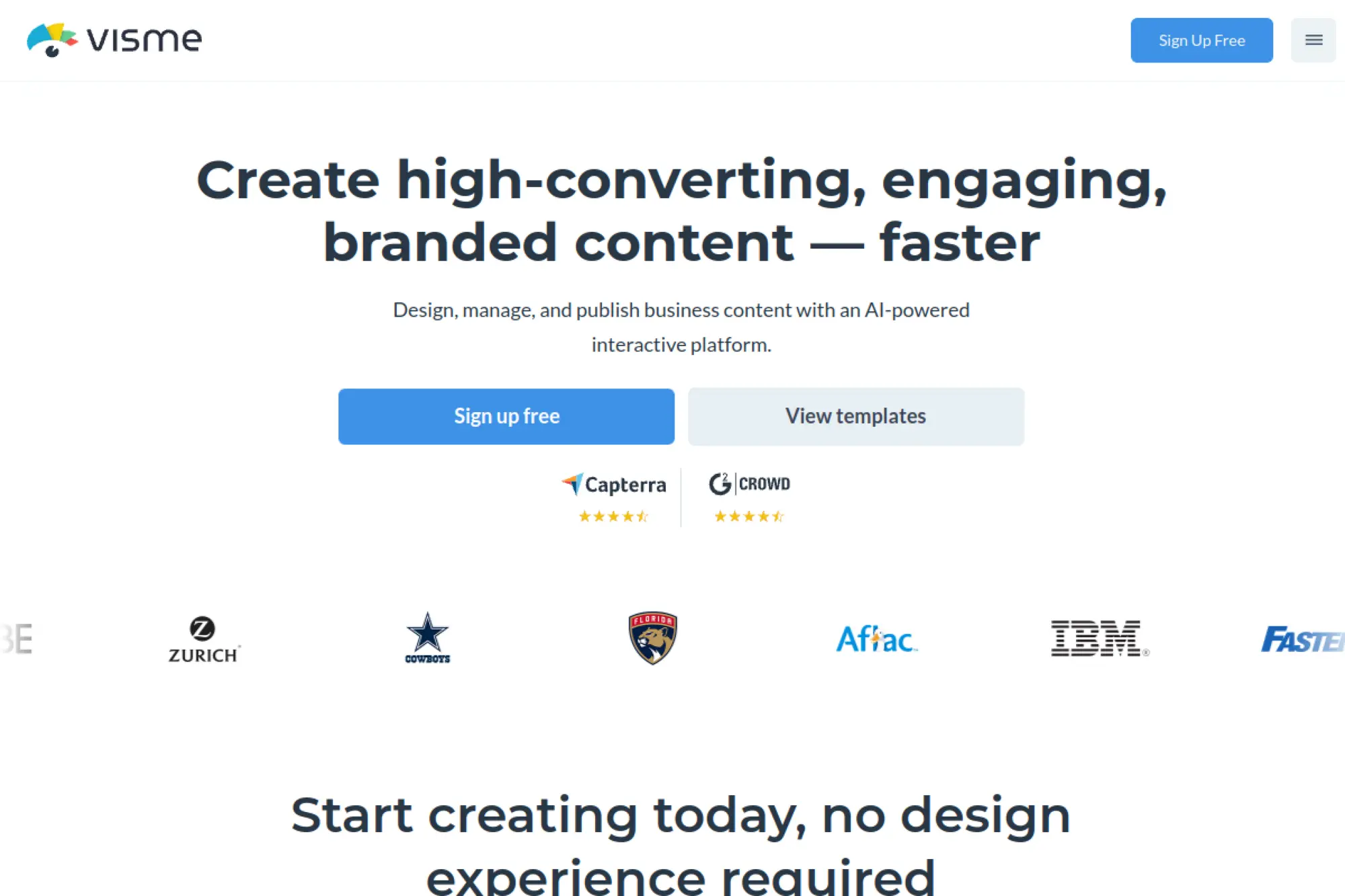
Visme positions itself as an AI-powered platform for business content, including presentations, documents, and data visualizations. Its AI branded presentation generator helps teams create decks that follow organizational guidelines, which matters when many people create slides without design support.
Best for
Marketing and sales teams that create many visual assets and want brand consistency across decks, one-pagers, and reports. It also fits teams that rely on charts and infographics to tell a data story.
Key workflows to configure
- Set up branded templates and approved design elements.
- Generate decks from existing content, then polish visuals.
- Create reusable data visualization styles for recurring metrics.
- Build a shared asset library for icons, images, and components.
Sales growth lever
Visme helps you present complex value clearly. Use it to turn product outcomes into visuals that buyers can scan quickly. Clearer slides reduce friction, shorten explanation time, and increase confidence in the decision.
Watch outs
Because Visme covers many content formats, teams may need time to learn the “right way” to build decks inside the platform. Also, always review AI-generated copy for accuracy and tone before sending externally.
Quick start checklist
- Create a brand kit and a small set of slide templates.
- Generate a deck from a real brief or document.
- Replace long text with charts, diagrams, and visuals.
- Standardize a reusable library of proof slides.
- Export and test in the format your buyers expect.
11. Slidebean
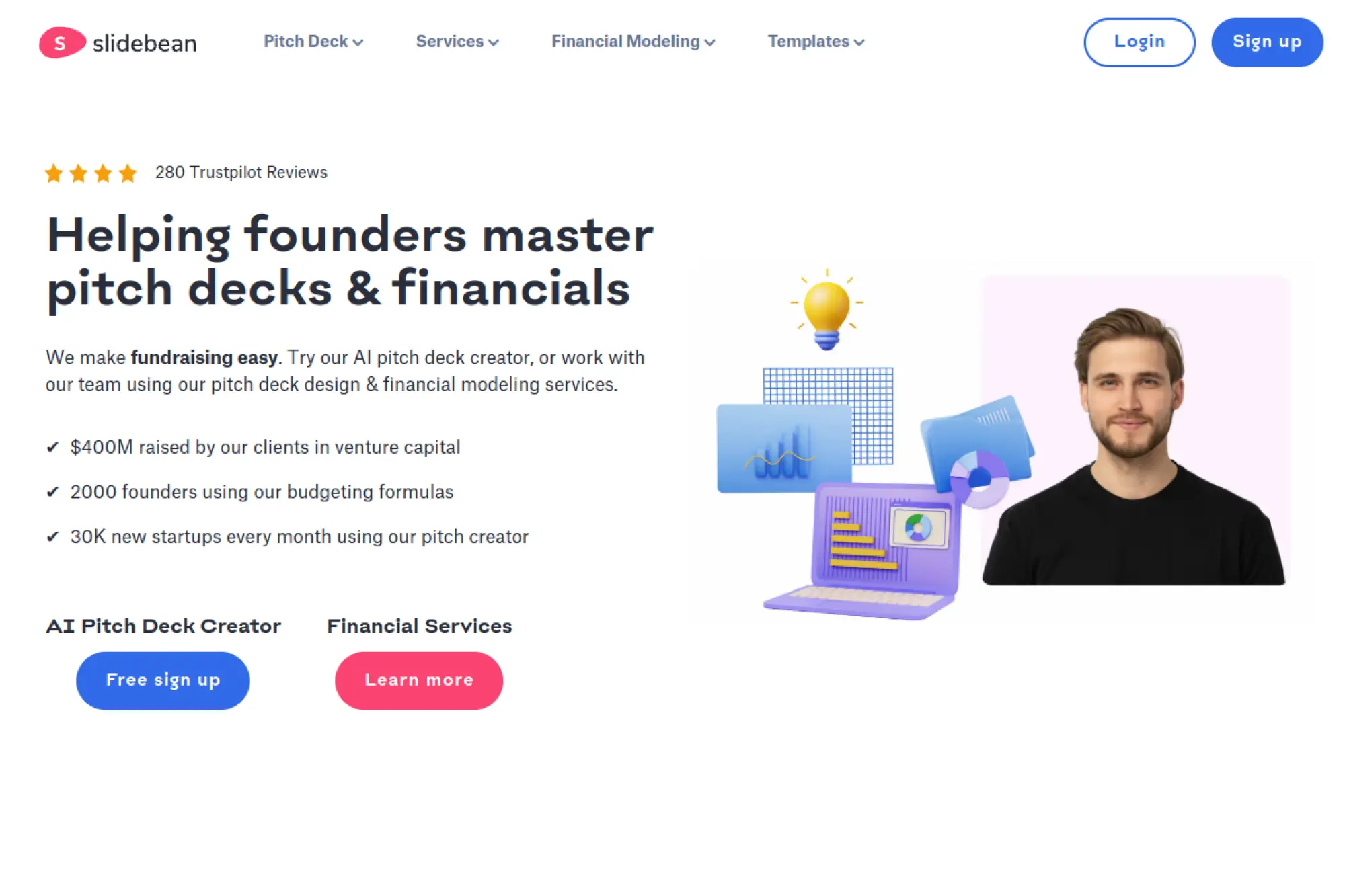
Slidebean is known for pitch deck creation, especially for startups. Its AI features focus on generating pitch decks based on a company’s website, then letting you refine the content and design. The platform also emphasizes storytelling structure that matches how investors and partners evaluate opportunities.
Best for
Startup founders, accelerator teams, and early-stage revenue leaders who need a pitch deck fast and want an opinionated structure. It’s also useful when your website already contains strong messaging you can reuse.
Key workflows to configure
- Align website messaging with your investor or buyer narrative.
- Generate a draft pitch deck, then rewrite for clarity and proof.
- Create a standard slide order your team can reuse.
- Set brand rules so visuals stay consistent across versions.
Sales growth lever
A strong pitch deck is often a sales asset, not just an investor tool. Use Slidebean to keep your story tight and consistent across fundraising, partnerships, and enterprise sales. Consistency improves trust and reduces confusion.
Watch outs
The AI workflow depends heavily on what your website communicates. If your site is vague, the deck will inherit that vagueness. You also need to validate every claim and ensure the story matches your current strategy.
Quick start checklist
- Audit your website messaging before generating a deck.
- Create a draft, then tighten the problem and solution sections.
- Add real proof: customer outcomes, traction, and differentiation.
- Standardize visuals for charts, screenshots, and logos.
- Export and rehearse the deck with a live talk track.
12. Decktopus
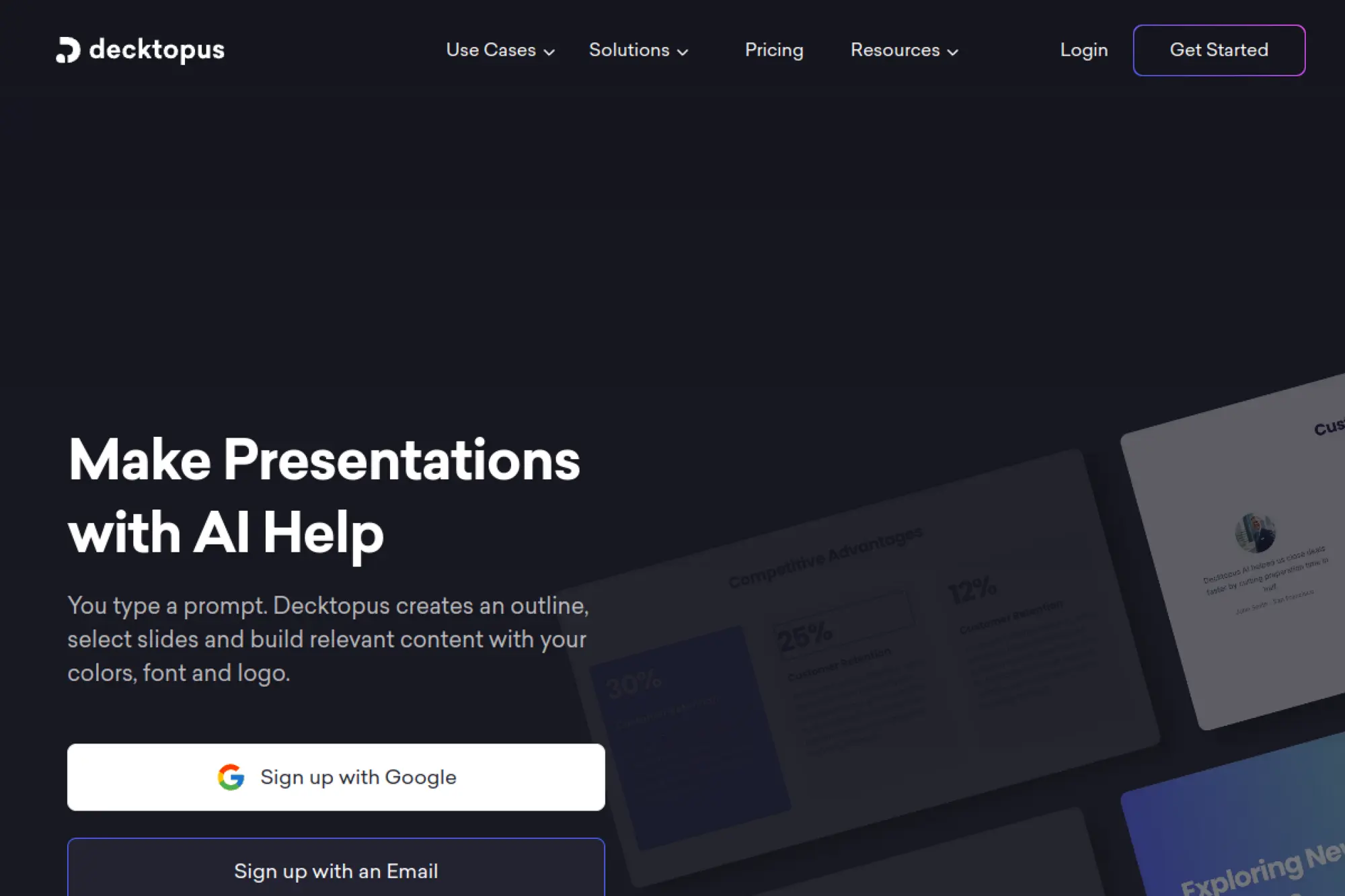
Decktopus is built around the idea that you type what you need, and the tool builds a structured presentation with relevant slides. It focuses on helping non-designers produce clean decks with less effort. You can also regenerate slides when the first draft does not match your intent.
Best for
Small teams, consultants, and sales reps who want an AI-driven starting point and an easy editor. It works well when speed matters more than perfect brand customization.
Key workflows to configure
- Upload brand elements like logo, fonts, and color palette.
- Create standard prompts for your most common deck types.
- Use “paste in text” workflows to convert notes into slides.
- Set a review routine to remove filler and tighten claims.
Sales growth lever
Decktopus helps reps create proposal decks quickly, which keeps momentum after discovery. You can send a structured follow-up deck sooner, with clearer positioning and a cleaner call to action.
Watch outs
AI-written copy can sound generic if you do not provide context. You also need to review slide density, because auto-generated content sometimes adds more text than a live audience can absorb.
Quick start checklist
- Create a prompt that includes audience, goal, and tone.
- Generate a draft and delete anything that feels generic.
- Add your product specifics, proof, and differentiation.
- Apply brand styling and replace placeholder visuals.
- Export and test sharing with a teammate before sending.
13. Plus AI

Plus AI stands out because it works inside tools many teams already use. It acts as an add-on for PowerPoint and Google Slides, so you can generate and remix slides while staying in your normal workflow. That helps when your organization already has templates and slide libraries it must follow.
Best for
Consultants, sales teams, and operators who need AI slide drafting inside their existing deck tool. It’s especially useful when you must deliver native slides that teammates can edit without learning a new platform.
Key workflows to configure
- Install the add-on and confirm it works in your environment.
- Choose a company template so outputs match your brand.
- Set prompt patterns for common decks and slide modules.
- Use “remix” style workflows to reformat existing slides faster.
Sales growth lever
Plus AI helps you personalize decks without breaking formatting. That supports account-based selling, where small differences in examples and proof can make a pitch feel tailored. Faster personalization can also shorten the time between meetings.
Watch outs
Add-ons depend on permissions and IT policies, so plan rollout with admins. Also, AI still needs human review for accuracy, especially when you generate content from long documents or external sources.
Quick start checklist
- Pick one existing deck and rebuild one section using AI.
- Compare output to your template rules and adjust prompts.
- Create reusable prompts for common slide types.
- Train reps on editing, not just generating.
- Store the final version as a reusable base deck.
14. SlidesAI.io
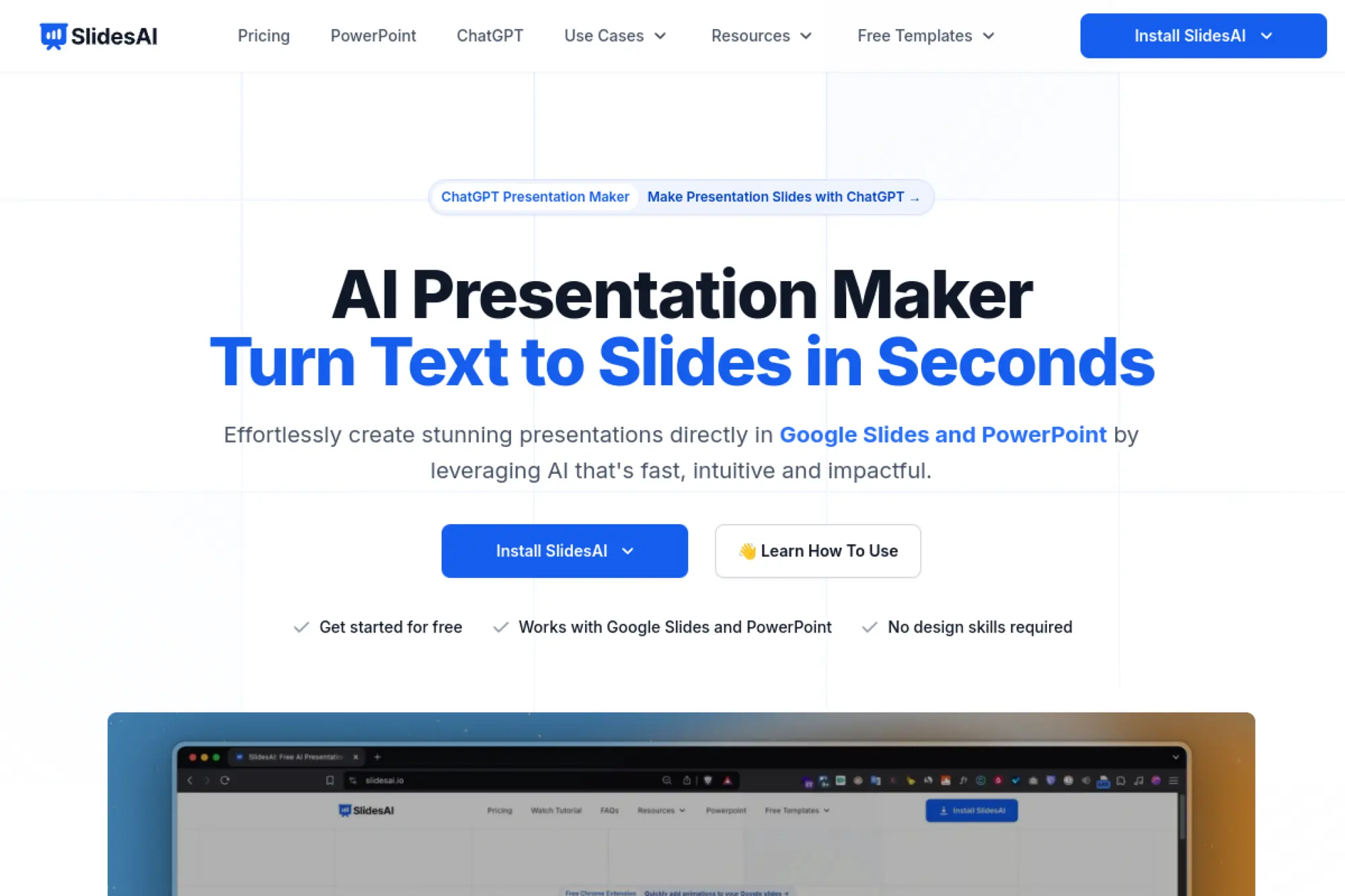
SlidesAI.io focuses on turning text into slides quickly inside Google Slides and PowerPoint. It works well when you already have content, like notes, a blog draft, or a rough outline, but you do not want to spend time turning it into a structured deck manually.
Best for
Teams that repurpose written content into presentations often, such as marketing, education, and enablement. It also fits users who want an AI assistant in their slide editor instead of another separate platform.
Key workflows to configure
- Define a standard outline format your team can paste in.
- Choose a consistent theme that matches brand guidelines.
- Create rewrite prompts for shortening and tightening bullets.
- Set a visual review routine to keep slides uncluttered.
Sales growth lever
Turn existing assets into sales collateral faster. For example, you can convert a product brief into a customer-facing deck, then have an AE add account-specific proof and a clear next step. That shortens the time from idea to usable collateral.
Watch outs
Text-to-slides tools can produce slides that look fine but feel generic. The value comes from the edit pass. Plan for human rewriting, and treat visuals as placeholders until you confirm brand fit.
Quick start checklist
- Paste a clean outline instead of a long wall of text.
- Generate slides, then rewrite headlines for clarity.
- Cut slide text until it feels presentable, not readable.
- Add brand-safe visuals and remove irrelevant filler.
- Save the best output as a reusable template.
15. MagicSlides.app
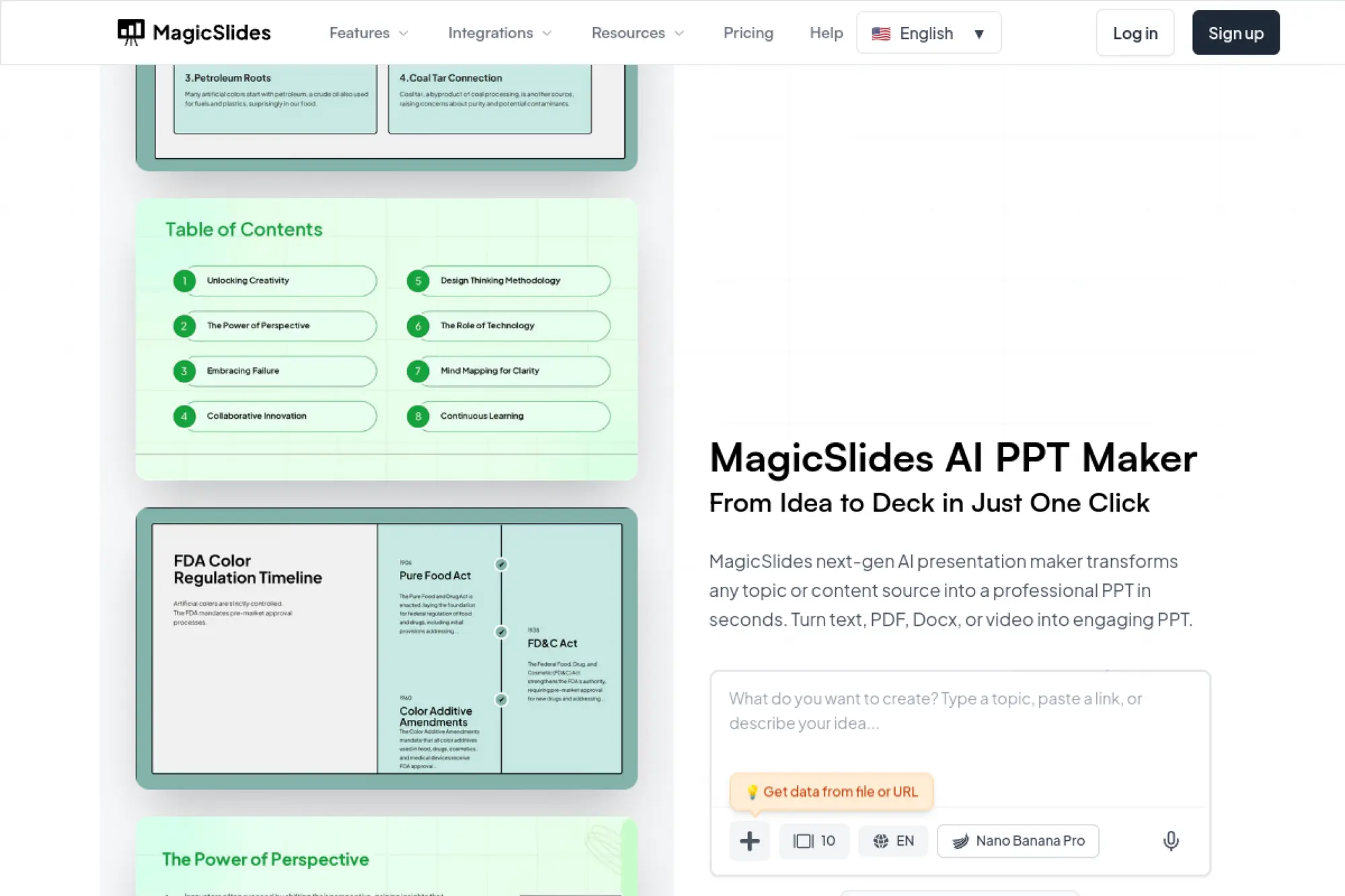
MagicSlides.app offers AI-powered slide generation that connects closely with Google Slides workflows. You can generate presentations from topics and source materials, then export or keep editing in familiar tools. This makes it useful when your team wants speed but does not want to abandon existing slide habits.
Best for
Educators, marketers, and operators who often convert content into slides quickly. It also fits teams that want fast first drafts and plan to do their final polish inside Google Slides.
Key workflows to configure
- Pick a consistent template style that matches your brand.
- Define what “done” means, so drafts do not ship unreviewed.
- Set guidelines for slide density and headline style.
- Create a small library of approved visuals and icons.
Sales growth lever
MagicSlides makes it easier to turn content into outbound assets. You can convert a webinar summary, a product explainer, or internal notes into a deck that sales can share. That improves speed and keeps messaging aligned across channels.
Watch outs
Any tool that can generate slides from external content needs strong review habits. Check accuracy, remove filler, and ensure visuals are appropriate for customer-facing contexts. Also confirm that your organization is comfortable with the data flow.
Quick start checklist
- Start with a prompt that specifies audience and goal.
- Generate a draft and delete low-signal slides.
- Rewrite headlines in your brand voice.
- Apply your theme and swap in approved visuals.
- Run a quick rehearsal to confirm pacing and clarity.
16. Slidesgo
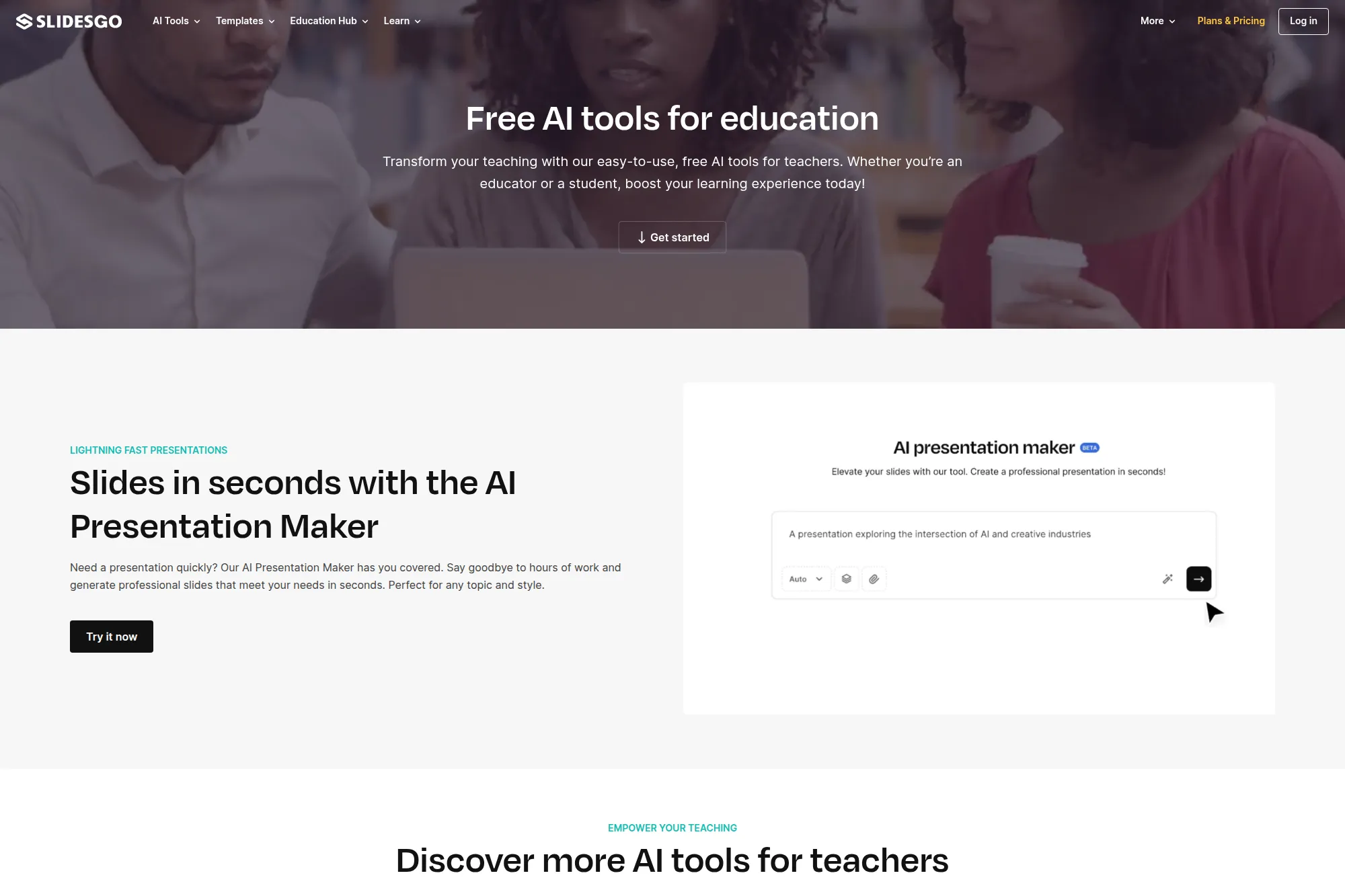
Slidesgo has long been popular for templates, and its AI tools now help you generate presentations quickly while still leaning on a strong design library. The workflow is straightforward: generate a draft, then customize it with an editor and template assets. This approach works well when you want a fast start and a clean visual style.
Best for
Educators, trainers, and small teams that want attractive decks quickly without hiring design help. It also fits anyone who wants templates plus AI generation in one place.
Key workflows to configure
- Select a consistent style that matches your brand personality.
- Build a repeatable prompt format for class, training, or business decks.
- Use the editor to replace generic content with your real material.
- Create reusable slides for intros, agendas, and summaries.
Sales growth lever
Slidesgo can help create enablement decks and training materials faster, which supports better onboarding and product understanding. When internal teams align faster, customer-facing messaging improves and sales conversations feel more confident.
Watch outs
Template-driven design can still produce “template vibes” if you do not customize thoughtfully. Also, always verify AI-generated claims. Use the tool to draft structure, then add your proof and examples.
Quick start checklist
- Pick one template style and stick to it across a series.
- Generate a draft, then edit for relevance and tone.
- Swap visuals for brand-safe assets.
- Standardize reusable slides for future decks.
- Export and test presentation mode before delivery.
17. Venngage
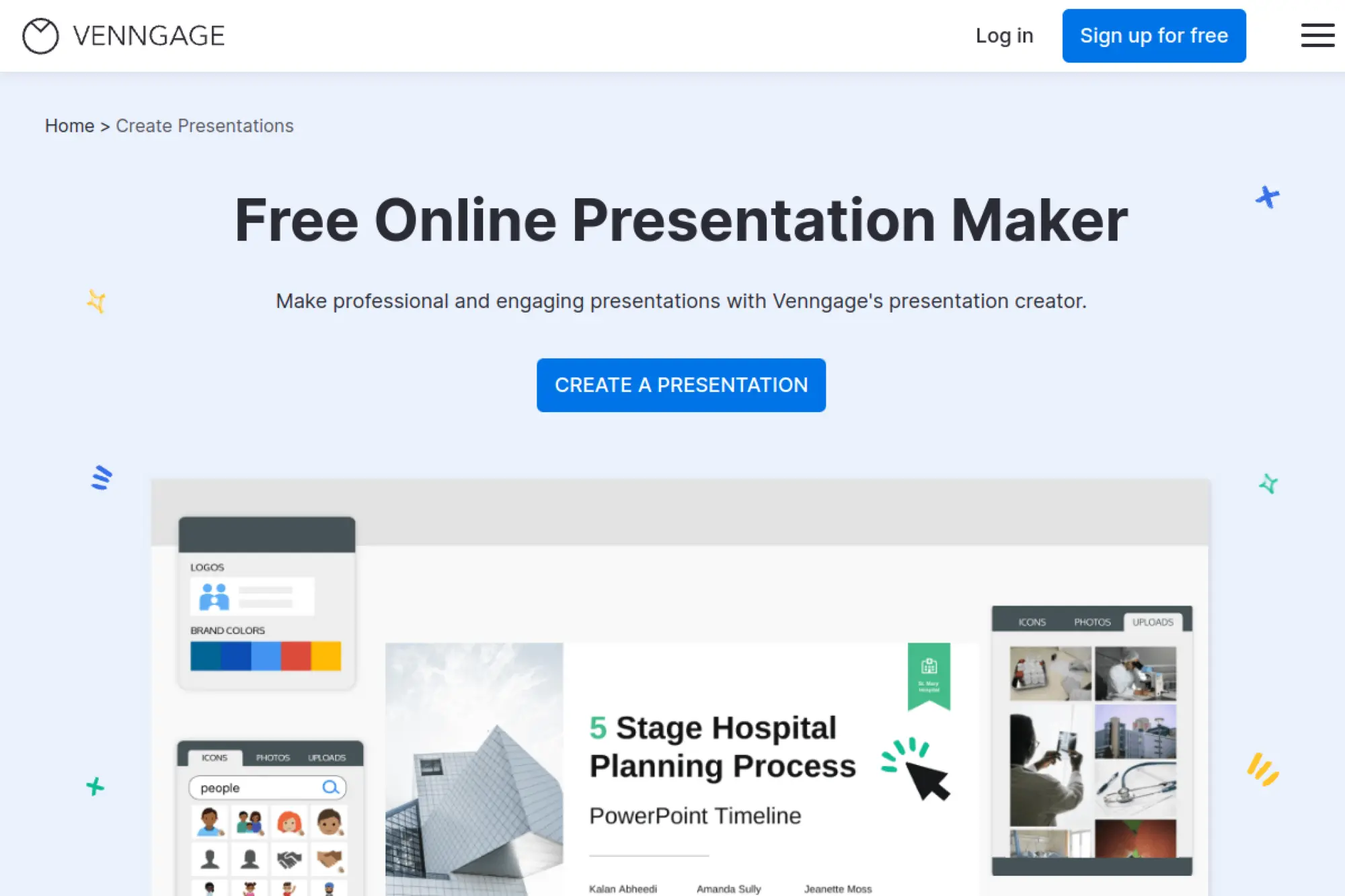
Venngage is best known for infographics and visual communication, and its presentation maker leans into that strength. If you want slides that look like polished visuals rather than text-heavy documents, Venngage is a strong option. It helps teams translate ideas into graphics that people actually understand quickly.
Best for
Marketing, HR, and customer success teams that need data-forward presentations. It also fits teams that want to elevate internal reporting with better visual storytelling and brand consistency.
Key workflows to configure
- Build brand styles so visuals stay consistent across creators.
- Create a library of infographic slide modules.
- Standardize chart styles and icon usage for clarity.
- Set rules for how much text is allowed per slide.
Sales growth lever
Clear visuals shorten explanation time in sales conversations. If buyers understand your value faster, calls improve. Use Venngage to make competitive comparisons, outcomes, and processes easier to scan and remember.
Watch outs
Infographic-heavy decks can look great but still miss the core narrative. Start with a strong story outline before you design. Also, confirm export workflows for teams that must deliver PowerPoint files.
Quick start checklist
- Choose a branded template and create a few reusable modules.
- Draft the narrative flow before you build graphics.
- Replace paragraphs with charts, icons, and short headlines.
- Review slides for clarity at a glance.
- Export and validate formatting in your delivery format.
18. Piktochart
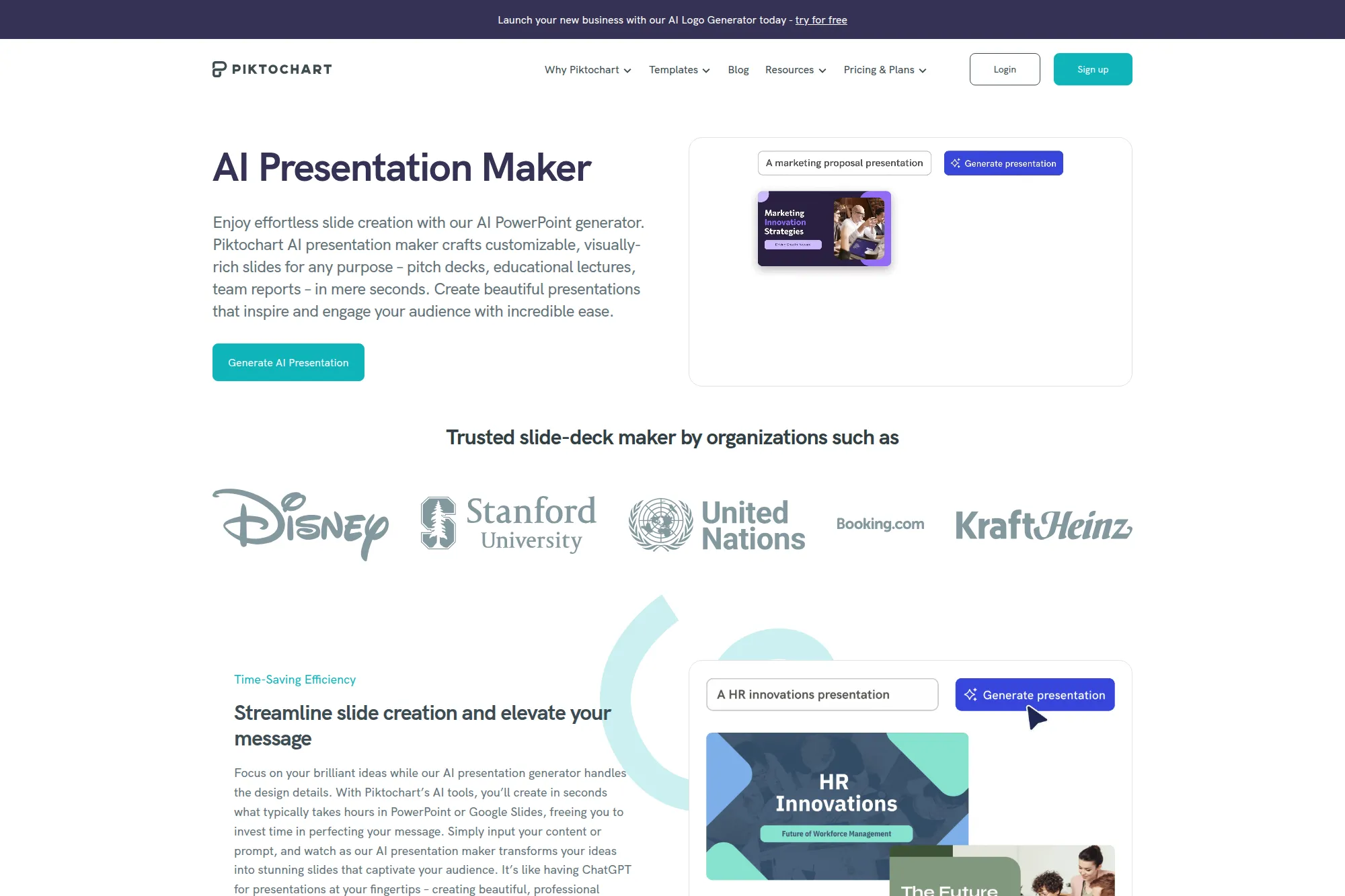
Piktochart blends design and data visualization with AI-assisted creation. Its AI presentation maker helps you turn a prompt or content into a deck draft, then refine it in an editor designed for visual storytelling. This can be a strong path for turning reports and research into presentation-ready slides.
Best for
Teams that need to communicate insights clearly, such as marketing ops, product marketing, and research teams. It also works well when you want stronger charts and visual structure than standard templates provide.
Key workflows to configure
- Define brand colors, fonts, and chart styling.
- Turn a report into an outline before generating slides.
- Create reusable slide patterns for recurring updates.
- Set a review step for data accuracy and clarity.
Sales growth lever
Use Piktochart to create buyer-facing decks that explain outcomes, not just features. Strong visuals help buyers justify decisions internally. That can improve multi-stakeholder deals where clarity and proof drive momentum.
Watch outs
AI can summarize content in ways that remove nuance. Always compare slides against the source material. Also, define who owns the final “source of truth” so decks do not drift from current positioning.
Quick start checklist
- Pick one internal report to convert into a deck.
- Generate slides, then rewrite slide titles as conclusions.
- Replace generic visuals with your real charts and proof.
- Apply brand styling across the deck.
- Save the deck as a template for future updates.
19. Genially
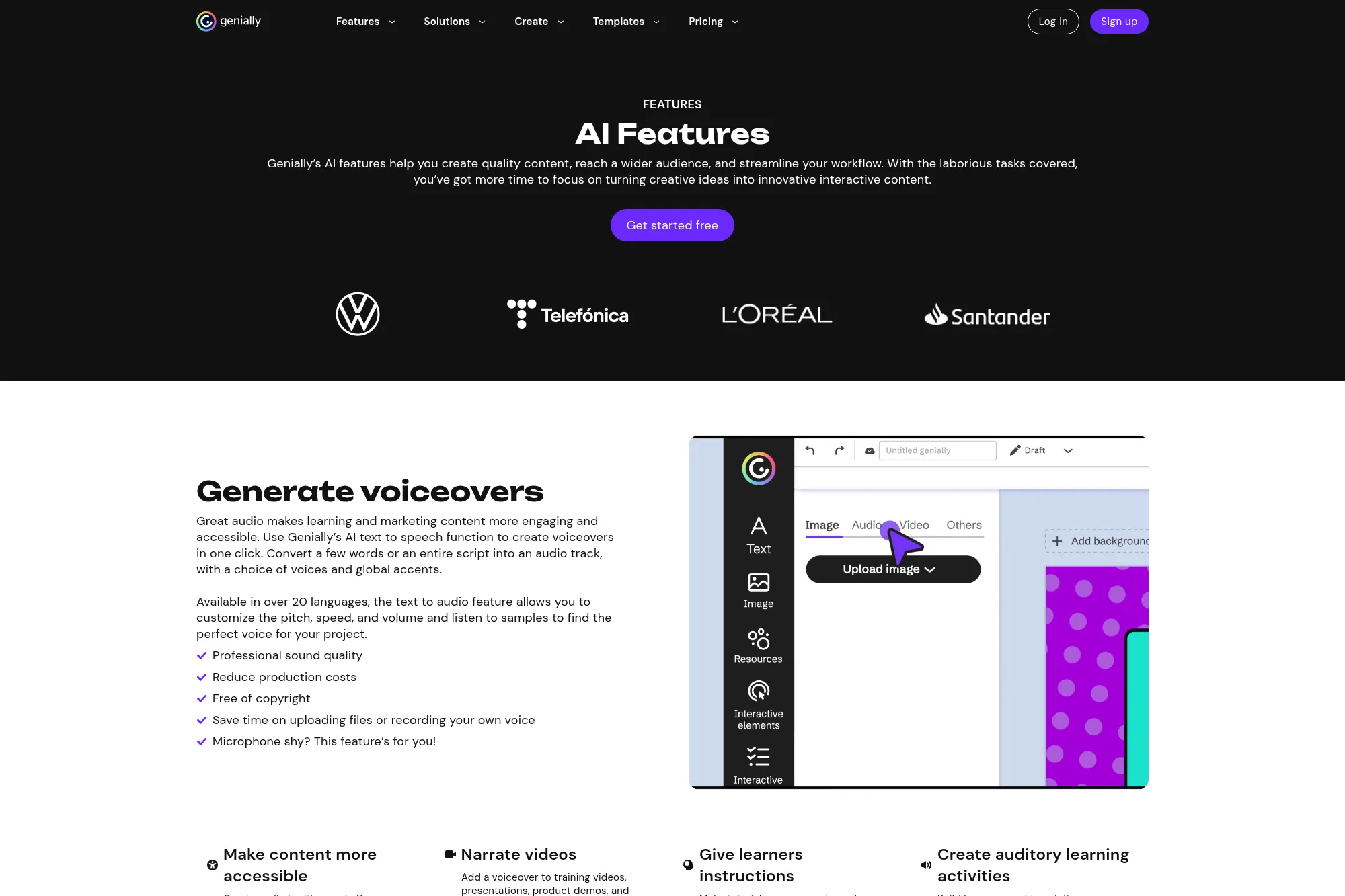
Genially focuses on interactive presentations and learning experiences, and it layers AI tools into that workflow. Instead of only generating slide text, it helps you create supporting assets like images, voiceovers, translations, and rewritten copy. This is useful when engagement matters as much as aesthetics.
Best for
Training teams, educators, and marketers who create interactive presentations and want to move faster on visuals and narration. It’s also a solid option for product demos that need clickable, engaging elements.
Key workflows to configure
- Choose interactive templates that match your presentation goals.
- Use AI to generate visuals that fit slide context.
- Rewrite and tighten text so slides stay scannable.
- Translate and localize content for global audiences.
Sales growth lever
Interactive presentations can hold attention longer than static slides. Use Genially to build demo-like decks with clear calls to action and engaging visuals. Better engagement can lead to better follow-up conversations and clearer buyer intent.
Watch outs
Interactive experiences can become heavy if you add too many elements. Keep the story simple and make the interactivity serve the narrative. Also, confirm how your audience prefers to consume the content, since not every buyer wants a clickable experience.
Quick start checklist
- Start with a simple interactive template.
- Draft concise copy, then use AI to refine clarity.
- Add visuals and voiceover only where they improve understanding.
- Test the deck on the devices your audience uses.
- Publish and collect feedback for iteration.
20. Simplified
Simplified is a broader content suite that includes an AI presentation maker. That matters if your team wants one place to draft decks, then reuse the same messaging for other marketing assets. The workflow suits teams that create content at a high cadence and want fewer tool switches.
Best for
Marketing teams and content creators who need decks as part of a larger campaign workflow. It’s especially helpful when you want consistent messaging across slides, ads, and social content.
Key workflows to configure
- Set brand guidelines so content stays consistent.
- Create prompt templates tied to campaign goals and personas.
- Build reusable deck structures for common campaign types.
- Define a review step for claims, tone, and compliance.
Sales growth lever
When marketing and sales share language, conversion improves. Use Simplified to create a campaign narrative that becomes both a deck and supporting content. This reduces mismatched messaging and gives sales better collateral faster.
Watch outs
All-in-one platforms can feel broad, so keep your process simple. Define which decks you build here versus in PowerPoint or Slides. Also, review AI copy closely so it does not drift into generic marketing language.
Quick start checklist
- Choose one campaign and build its deck as the “source story.”
- Generate a first draft, then tighten the narrative.
- Apply brand styling and swap in approved visuals.
- Reuse the deck’s messaging for other assets.
- Store the final deck as a reusable campaign template.
21. Zoho Show (Zia AI)
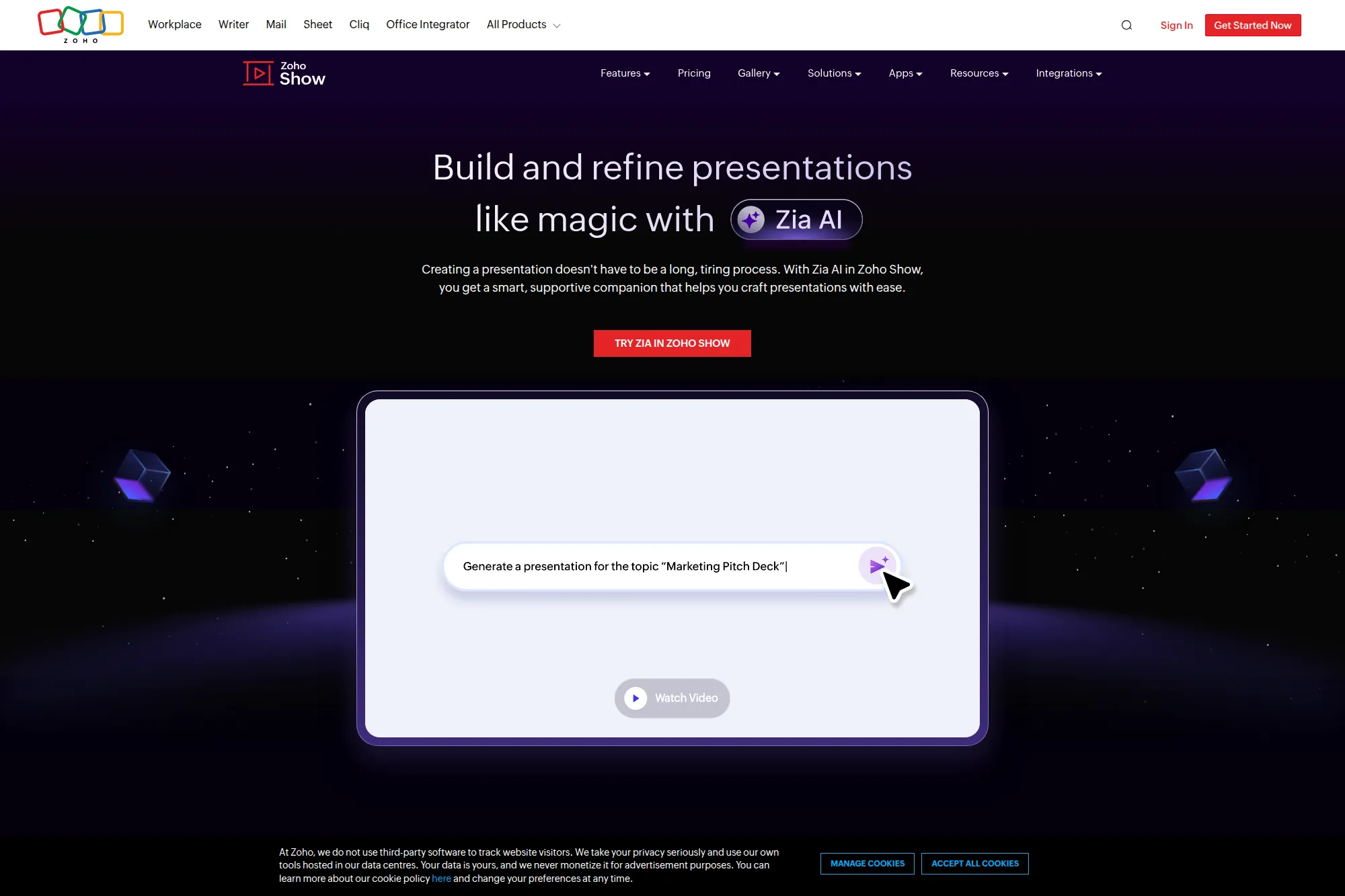
Zoho Show includes Zia AI, a presentation assistant that helps generate and expand slides from a prompt. It also helps refine slide content so you can shorten, summarize, and restructure text quickly. This is especially helpful when you want AI support inside a dedicated presentation tool that already fits your team’s workflow.
Best for
Teams that use Zoho tools or want a browser-based alternative to PowerPoint with built-in AI assistance. It fits recurring internal decks, customer updates, and training materials that need frequent edits.
Key workflows to configure
- Define your theme and base layouts for consistent output.
- Create prompt templates for common slide structures.
- Use AI to expand decks while keeping the story aligned.
- Establish a final review step for accuracy and tone.
Sales growth lever
Sales teams often need to update decks quickly as deals evolve. Zia AI helps you adjust messaging, shorten crowded slides, and create new slides that match an existing story. That reduces lag between buyer feedback and deck updates.
Watch outs
AI-generated content still needs human review, especially for product capabilities and pricing. Also confirm your organization’s AI configuration requirements early, so rollout does not stall on access or governance details.
Quick start checklist
- Enable AI features and confirm access for your team.
- Create a base deck template for a common use case.
- Generate a draft and rewrite slide titles as clear claims.
- Trim text and add visuals to improve scanability.
- Save the final deck as a reusable internal standard.
22. WPS Office AI PPT Maker
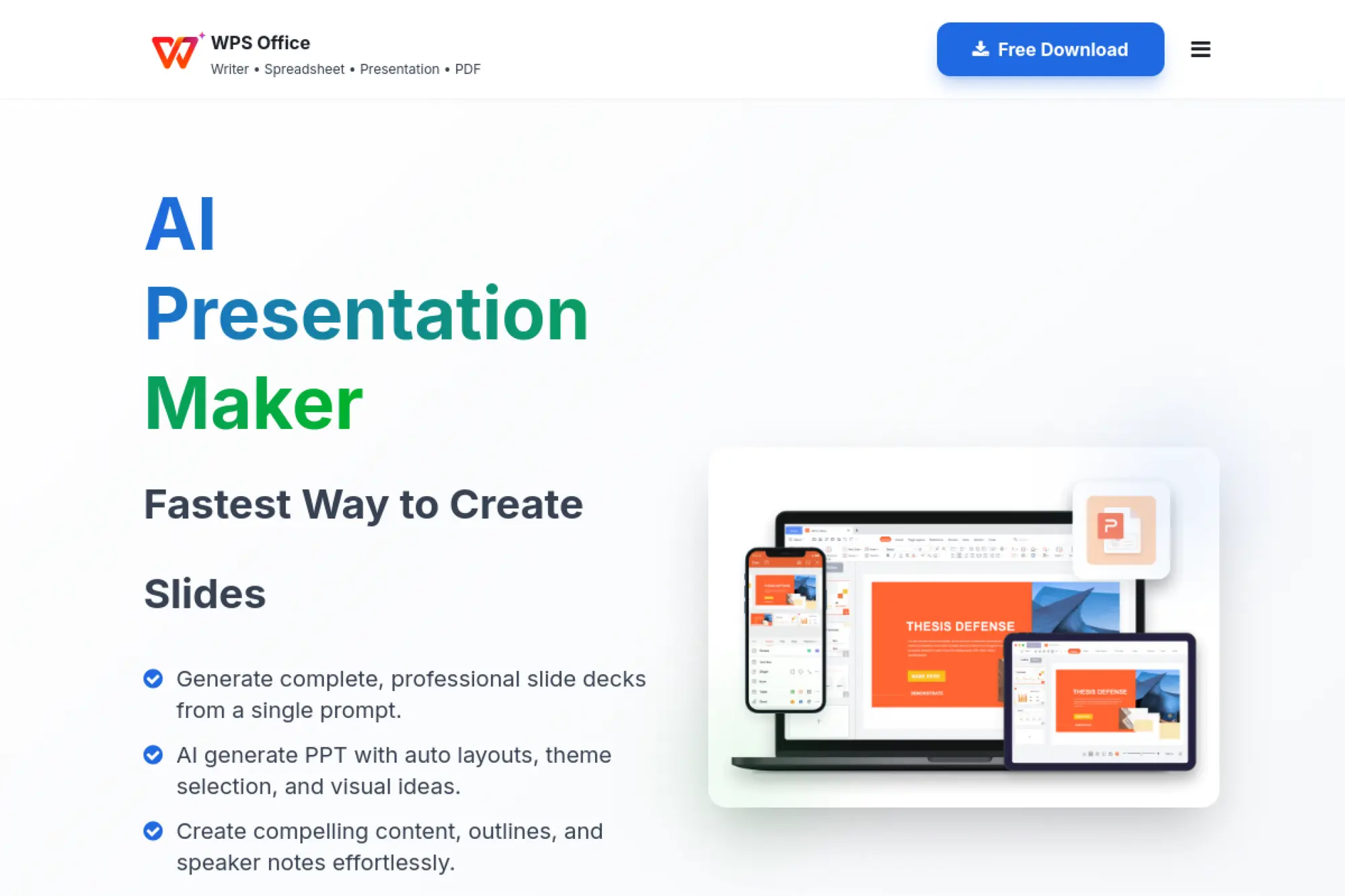
WPS offers an AI presentation maker integrated into its office suite. The core idea is simple: generate a deck draft from a prompt, then edit and customize within the WPS presentation environment. This can work well when you want a PowerPoint-like experience with AI generation built in.
Best for
Teams that want a Microsoft-style presentation editor but prefer an alternative office suite. It also fits individuals and small teams that want AI drafting support without moving between multiple tools.
Key workflows to configure
- Choose a theme aligned with your brand style.
- Create prompts that specify audience, purpose, and tone.
- Build reusable slide patterns for recurring presentations.
- Define a review step for factual accuracy and formatting.
Sales growth lever
Use WPS AI to draft proposal or pitch decks quickly, then spend your time on deal-specific proof and objection handling. Faster deck creation can help you follow up sooner, while the story still feels fresh for the buyer.
Watch outs
Cross-tool compatibility can vary across office suites. Always test how files render when shared with clients who use PowerPoint. Also confirm data policies and storage expectations for your organization.
Quick start checklist
- Generate a draft deck from a clear, detailed prompt.
- Rewrite headlines and tighten bullets for clarity.
- Apply consistent branding across all slides.
- Export and test the file with a teammate on another tool.
- Store a reusable base deck for future use.
23. Wondershare Presentory
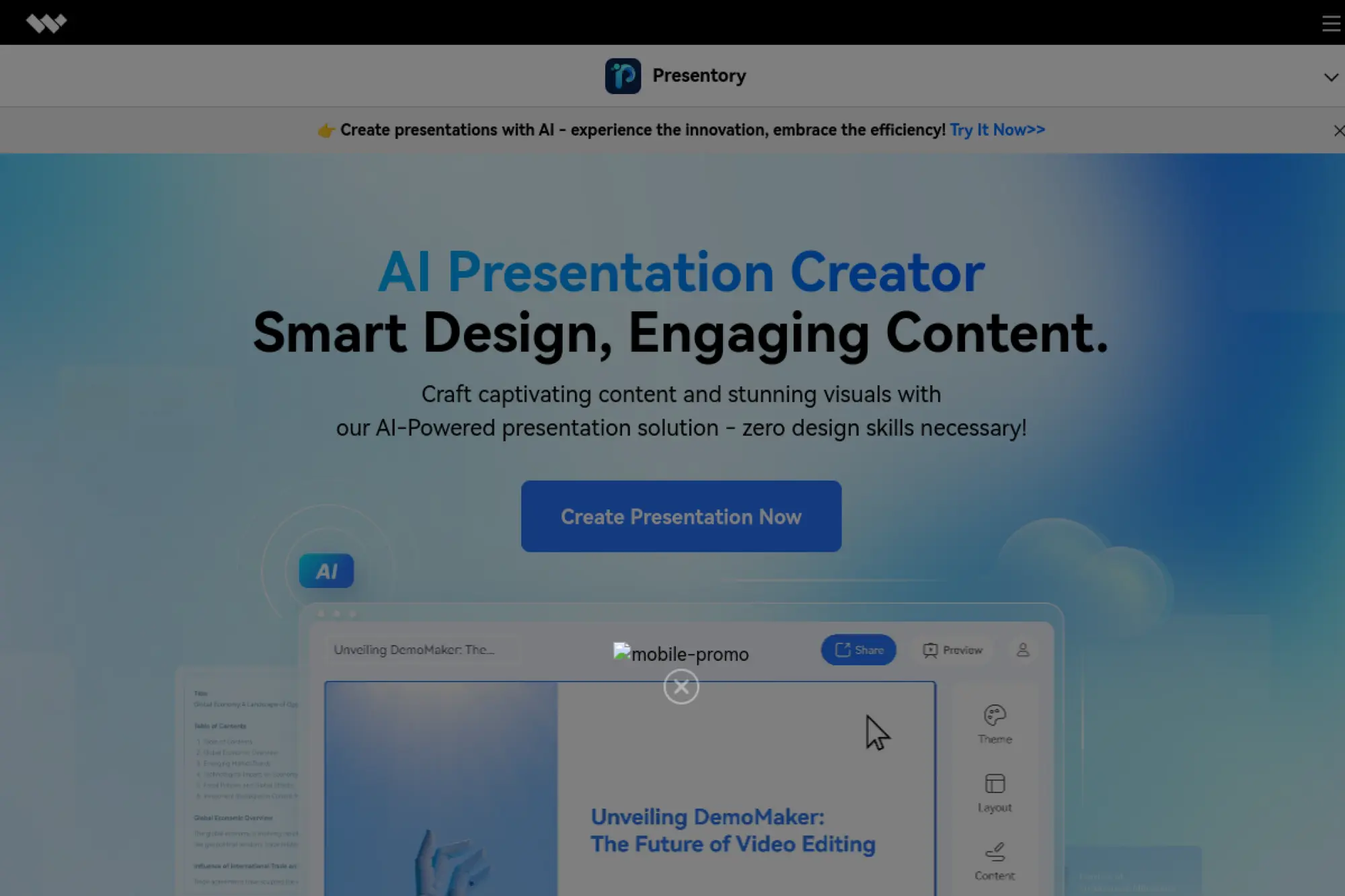
Presentory positions itself as a dedicated AI PowerPoint generator. You provide a topic or paste your content, and it creates a structured presentation draft with a chosen theme. Then you adjust layout, images, and copy within the editor before exporting for delivery.
Best for
Individuals and teams that want a purpose-built AI deck generator with a guided workflow. It works well for training content, internal updates, and marketing presentations that start from written material.
Key workflows to configure
- Define a consistent theme style that matches your brand tone.
- Create prompt templates for recurring deck types.
- Use the editor to refine structure and remove filler.
- Standardize how you add proof, screenshots, and visuals.
Sales growth lever
Presentory helps you get to a professional-looking draft fast, which can improve speed to follow-up after discovery calls. The faster you can send a clean, tailored recap deck, the more you control the narrative between meetings.
Watch outs
AI decks still require brand alignment and fact checking. Also, if your organization has strict template rules, you may need to export and polish inside PowerPoint to match exact standards.
Quick start checklist
- Start from a clear outline or a well-structured brief.
- Generate the deck, then rewrite slide titles as takeaways.
- Replace placeholder visuals with approved assets.
- Trim content so each slide supports spoken delivery.
- Export and run a final formatting review.
24. Storydoc
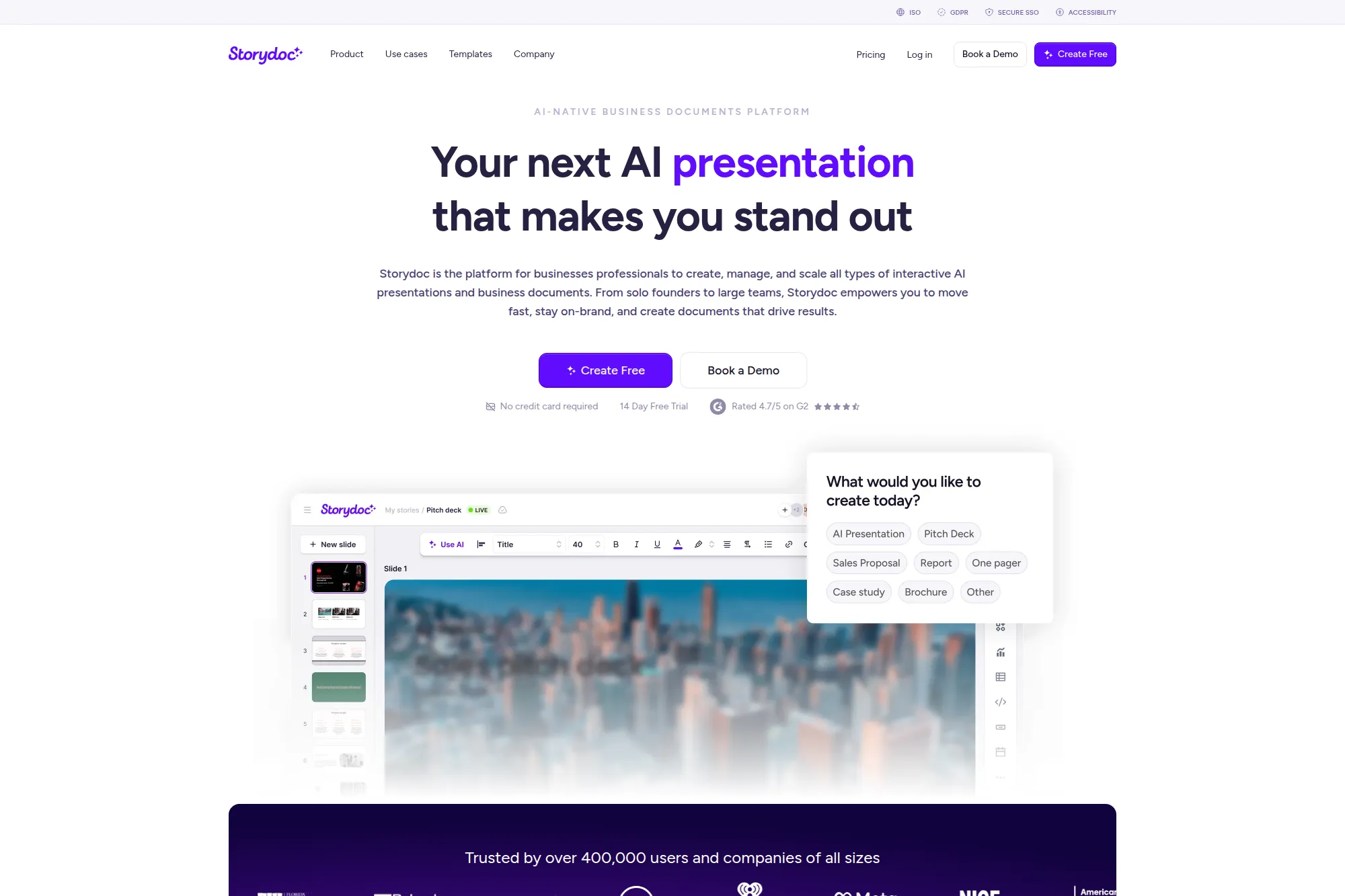
Storydoc is an AI-native platform for interactive business documents and presentations. Instead of treating a deck as a static file, it treats it as a trackable, shareable experience. You can generate a first draft with AI, then add interactive elements like embedded scheduling, forms, or calls to action.
Best for
Sales teams and agencies that send proposals, pitch decks, and reports as links. It’s especially useful when you want engagement visibility and the ability to personalize content at scale.
Key workflows to configure
- Set brand styling and reusable templates for key doc types.
- Create a standard proposal structure that AI can draft reliably.
- Add interactive elements that support the next step.
- Define a versioning approach so updates stay controlled.
Sales growth lever
Interactive decks can reduce friction in the buying journey. When prospects can click, explore, and schedule next steps from the same asset, you remove extra back-and-forth. Tracking also helps you time follow-up based on real engagement.
Watch outs
Not every buyer wants an interactive document. Some still prefer traditional slides. Plan a fallback export option for accounts that require classic formats, and confirm security requirements for external sharing.
Quick start checklist
- Create a proposal template that matches your sales process.
- Generate a draft from a client brief or website.
- Add clear calls to action and a next-step path.
- Remove generic AI copy and insert real proof.
- Test the link experience before sending to prospects.
25. RELAYTO
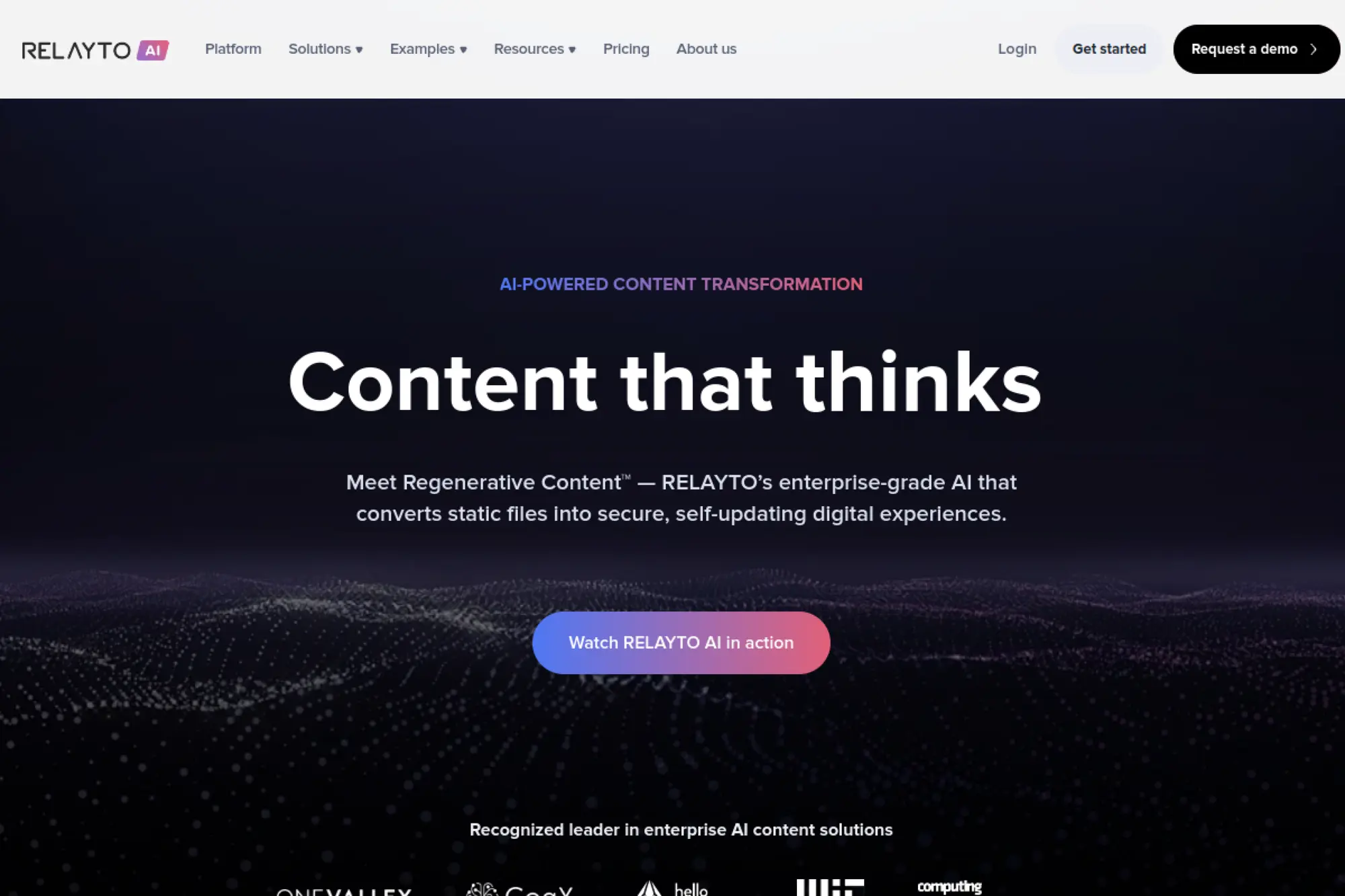
RELAYTO focuses on transforming static files, including slides and PDFs, into interactive, trackable experiences. It uses AI to enhance the content experience with navigation, calls to action, and conversational access to the information. This makes it less about drafting slides from scratch and more about making finished content perform better.
Best for
Organizations that treat decks as content assets across the funnel, especially in regulated or complex industries. It’s also useful for enablement hubs where teams need the latest version of collateral in one place.
Key workflows to configure
- Convert existing decks into interactive experiences and hubs.
- Define governance rules for approved content and updates.
- Add calls to action aligned with your funnel steps.
- Enable conversational access so readers find what matters faster.
Sales growth lever
When you turn a deck into a controlled digital experience, you gain better engagement signals and clearer next steps. That helps sales teams follow up with better timing and tighter messaging, based on what the buyer actually explored.
Watch outs
This is not a classic slide editor, so it will not replace PowerPoint for last-minute deck edits. Treat it as a distribution and performance layer. Also, plan governance early so content does not fragment across teams.
Quick start checklist
- Upload a high-value deck, like a product overview.
- Convert it into an interactive experience with navigation.
- Add a clear next step call to action.
- Share internally and validate analytics signals.
- Roll out a content hub for the broader library.
26. deckrobot
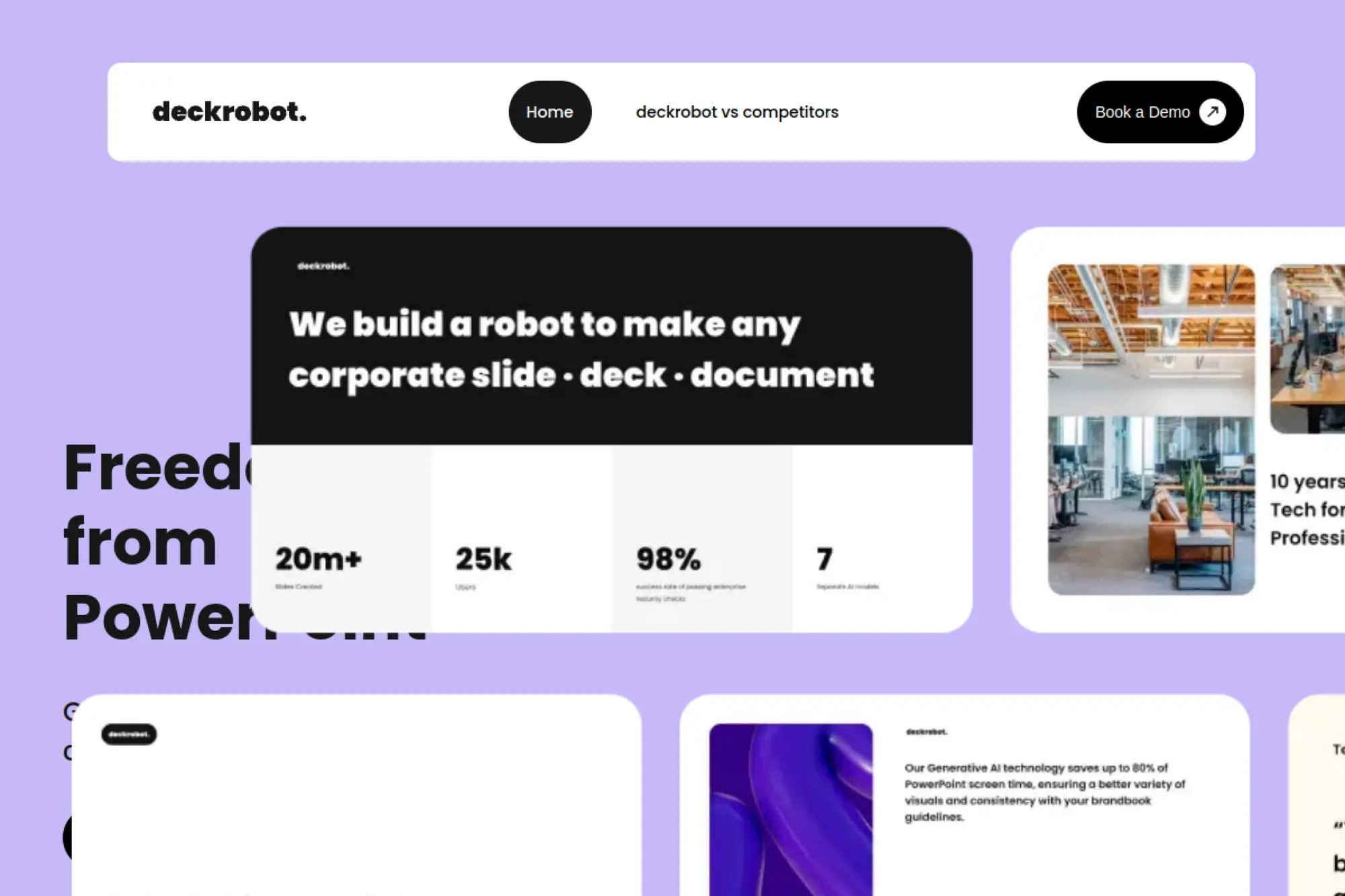
deckrobot is built for teams that already use PowerPoint but struggle with brand compliance and consistent design quality. It helps you generate or enhance slides while applying corporate style rules. This is especially valuable in large organizations where many people create decks but only a few people own the brand system.
Best for
Enterprise teams with strict brand standards and heavy PowerPoint usage. It works well for consulting-style organizations, sales enablement teams, and any environment where brand consistency matters across many creators.
Key workflows to configure
- Set up corporate styles and template rules inside the tool.
- Build a corporate slide library for common use cases.
- Use AI-assisted layout suggestions to improve clarity.
- Create a “compliance check” step before external sharing.
Sales growth lever
Brand-consistent decks build trust, especially in high-stakes deals. deckrobot helps reps ship polished slides faster without waiting on design resources. That speed and consistency can improve win rates by reducing “presentation quality” friction.
Watch outs
Tools like this need thoughtful setup to deliver value. If corporate templates are messy, automation will not fix the underlying structure. Plan time for template cleanup and clear adoption training for users.
Quick start checklist
- Audit your current PowerPoint templates and slide masters.
- Configure brand styles and test on real decks.
- Train teams on when to generate versus when to refine.
- Create a shared library of approved slides.
- Measure adoption by time saved and fewer design escalations.
27. AhaSlides
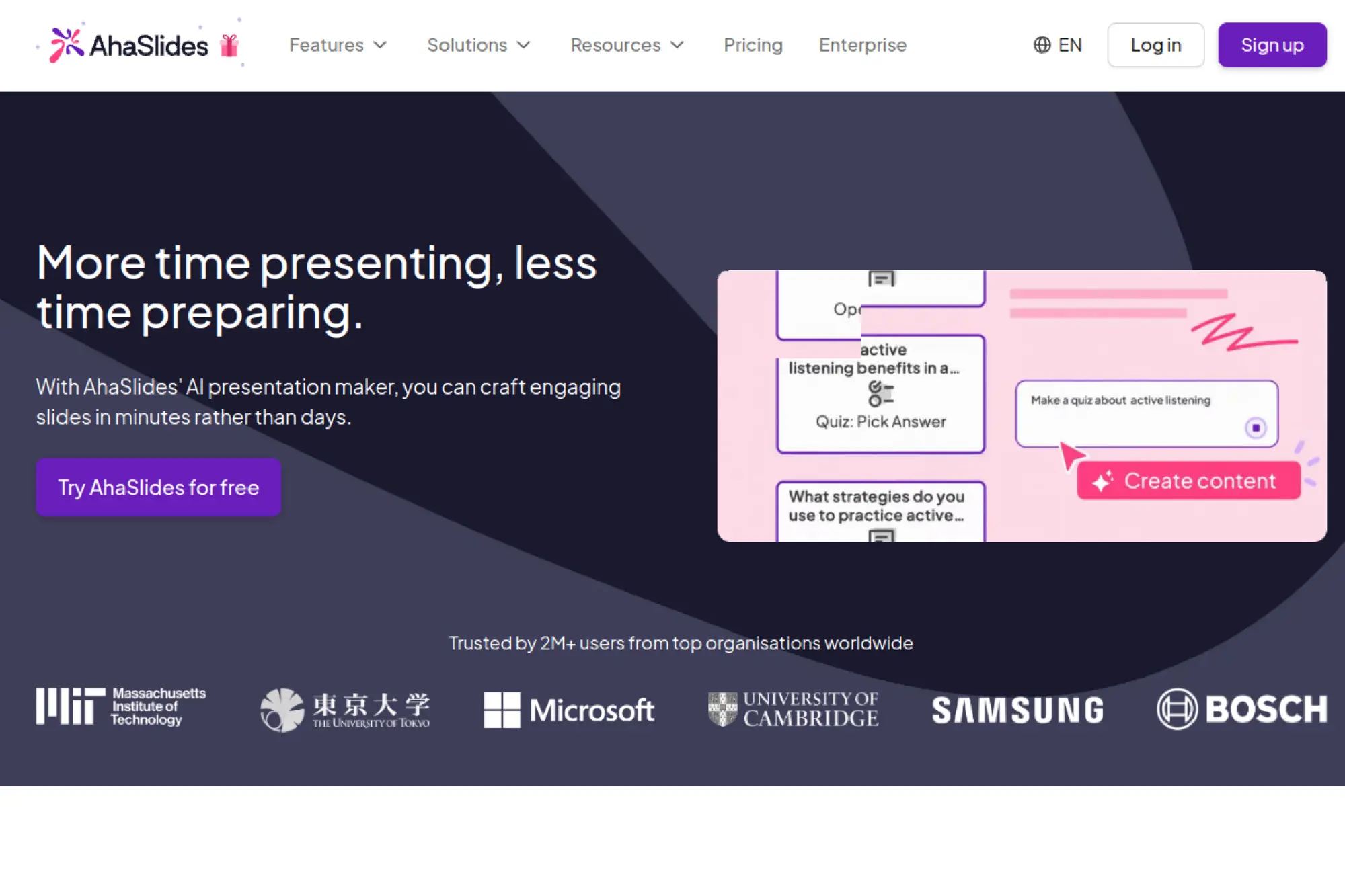
AhaSlides focuses on interactive presentations, with features like polls and quizzes layered into a slide flow. Its AI presentation maker helps you draft interactive sessions quickly, which is useful when engagement matters more than static design perfection. You can build the outline, generate questions, and refine tone through iteration.
Best for
Trainers, educators, facilitators, and teams that run workshops or webinars. It also fits product teams that want to gather feedback live during demos and enablement sessions.
Key workflows to configure
- Generate a session outline with AI, then refine for pacing.
- Create interactive questions that match learning objectives.
- Set visual themes so sessions stay on brand.
- Build reusable formats for recurring meetings and trainings.
Sales growth lever
Interactive moments create useful sales signals. You can learn what prospects care about, what they understand, and where objections appear. That data makes your follow-up sharper and your sales cycle more informed.
Watch outs
Interactive presentations rely on audience participation, so you need to plan prompts that encourage responses. Also, keep the content focused. Too many interactive slides can slow the story and reduce impact.
Quick start checklist
- Start with one workshop format, like a product demo Q&A.
- Generate the outline with AI, then cut anything unnecessary.
- Add a few interactive slides that support your objective.
- Rehearse the flow and participation timing.
- Save the session as a reusable template.
28. Mentimeter
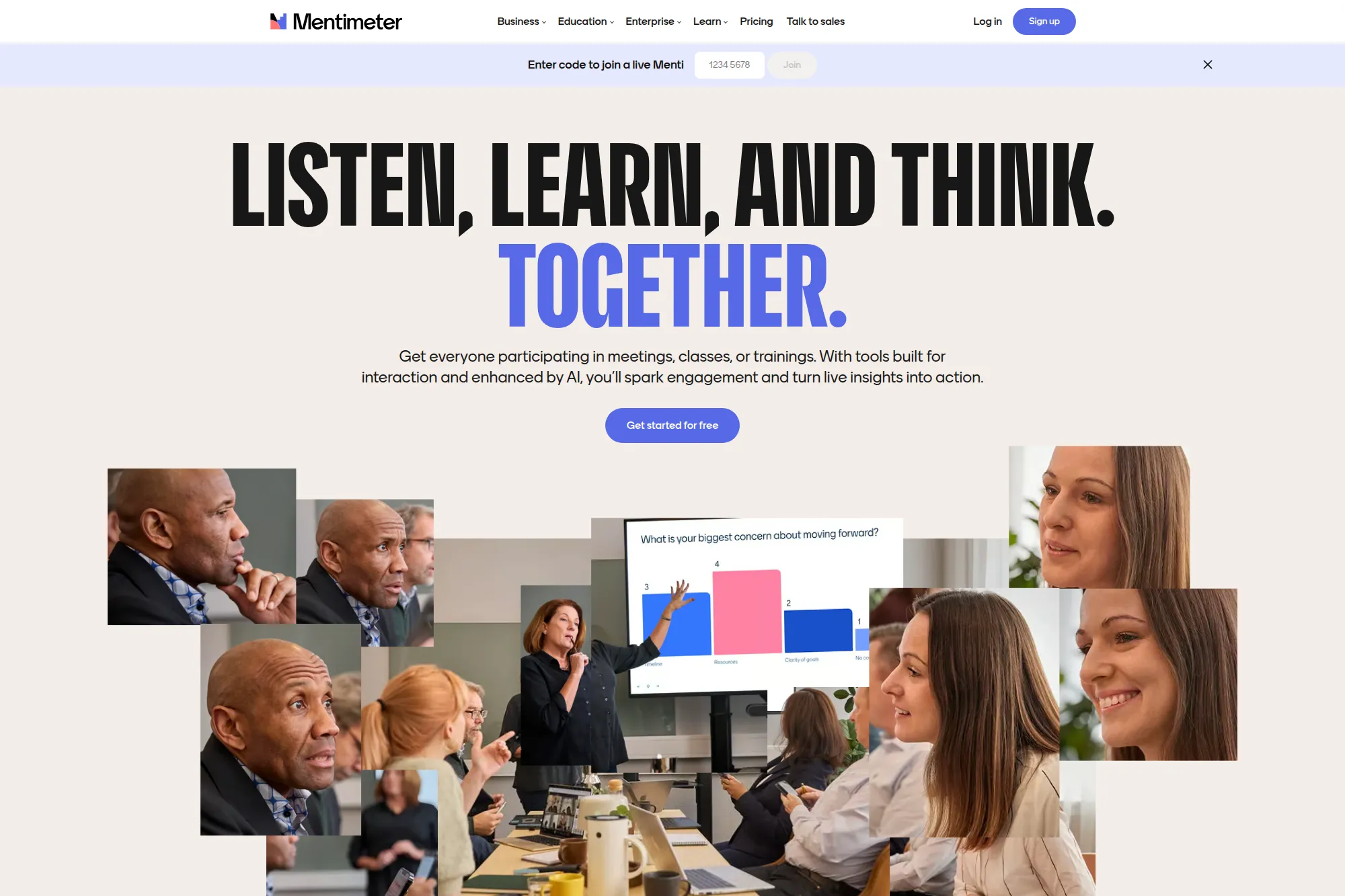
Mentimeter is widely used for interactive presentations, and its AI Creation features help you draft a session from a prompt. Instead of starting with blank slides, you can start with a structured set of questions and content, then refine the flow in the editor. This is a practical way to build engagement without spending hours planning the structure.
Best for
Teams that run meetings, workshops, and conferences where interaction matters. It also works well for customer-facing sessions where you want real-time audience input and fast iteration.
Key workflows to configure
- Enable AI features based on your workspace settings.
- Create prompt templates for common meeting types.
- Standardize interactive slide patterns for consistency.
- Set brand themes so sessions match your identity.
Sales growth lever
Use interactive questions to surface priorities and objections early. When you ask the right questions during a pitch or workshop, you gather insight that improves the next step. That can increase relevance and reduce wasted follow-up.
Watch outs
Mentimeter is not built for heavy design control like a classic slide editor. Treat it as a delivery and interaction tool. Also, review AI-generated questions for tone and appropriateness before using them live.
Quick start checklist
- Create a new session using AI Creation.
- Refine questions so they match your audience and goal.
- Trim content to keep the experience fast and focused.
- Apply brand styling and test presentation mode.
- Save the best session as a reusable format.
29. Sendsteps
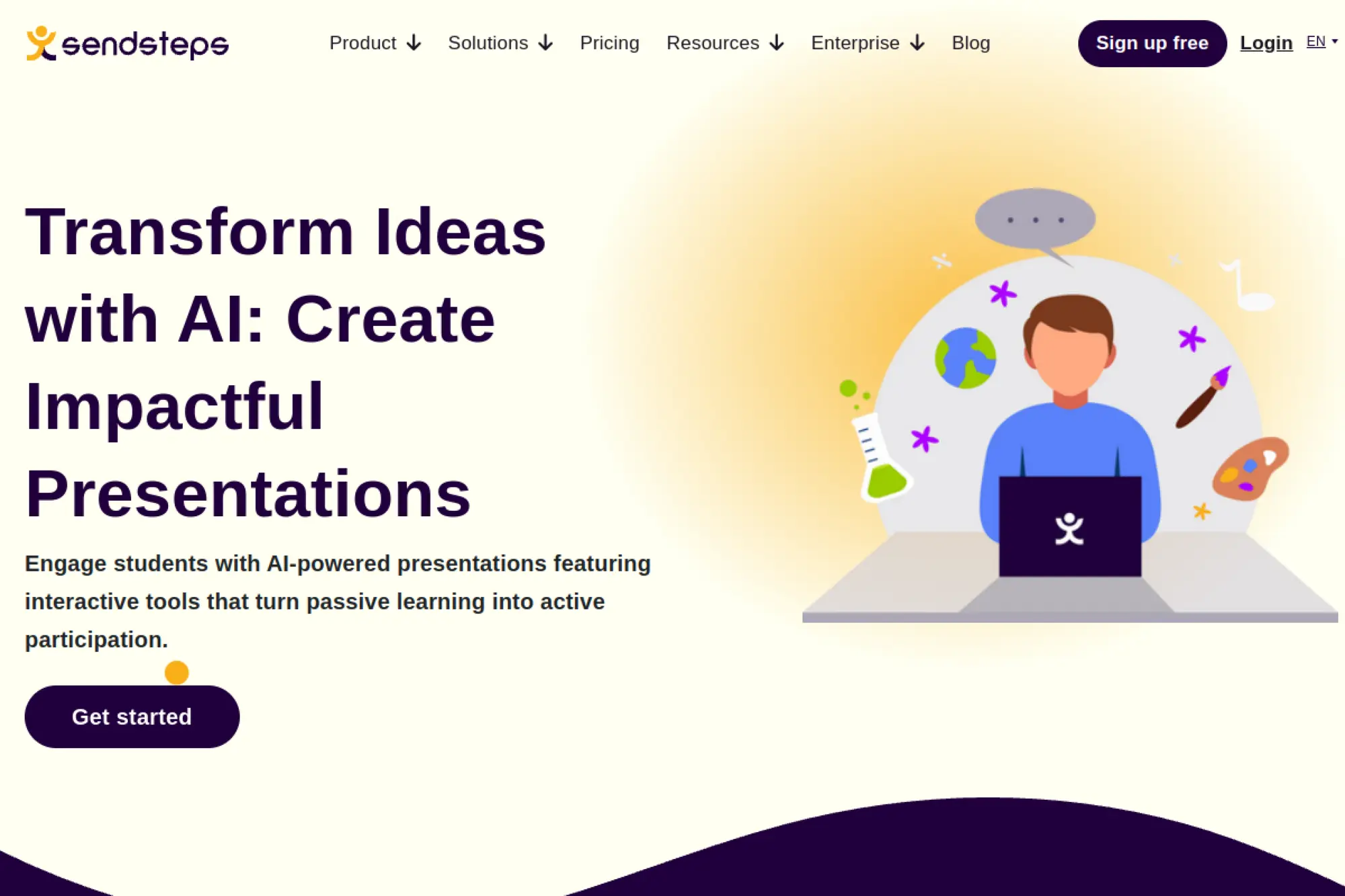
Sendsteps offers an AI presentation maker designed for interactive, audience-driven presentations. You can generate a deck from a topic or document, then add interactive elements like quizzes and Q&A. This makes it a useful option when you want presentations that do more than talk at the audience.
Best for
Educators, trainers, and facilitators who want interactive presentations without heavy manual setup. It also fits teams that want to turn existing documents into a session draft quickly.
Key workflows to configure
- Generate a presentation draft from a topic or uploaded content.
- Select the audience type so the tone and depth match the room.
- Add interactive elements to reinforce learning and engagement.
- Create reusable session templates for recurring trainings.
Sales growth lever
Interactive presentations help sales and customer success teams run better enablement sessions. You can test understanding live and adjust your delivery based on responses. That can improve adoption and reduce churn drivers that start with confusion.
Watch outs
AI-generated content still needs review, especially when topics change quickly. Also, interactive presentations depend on reliable participation, so plan for connectivity and audience comfort with live responses.
Quick start checklist
- Generate a draft presentation for a training topic.
- Rewrite slide titles as clear learning outcomes.
- Add a few interactive questions to check understanding.
- Test the live flow with a colleague.
- Save the final version as a reusable session template.
30. SlidesPilot
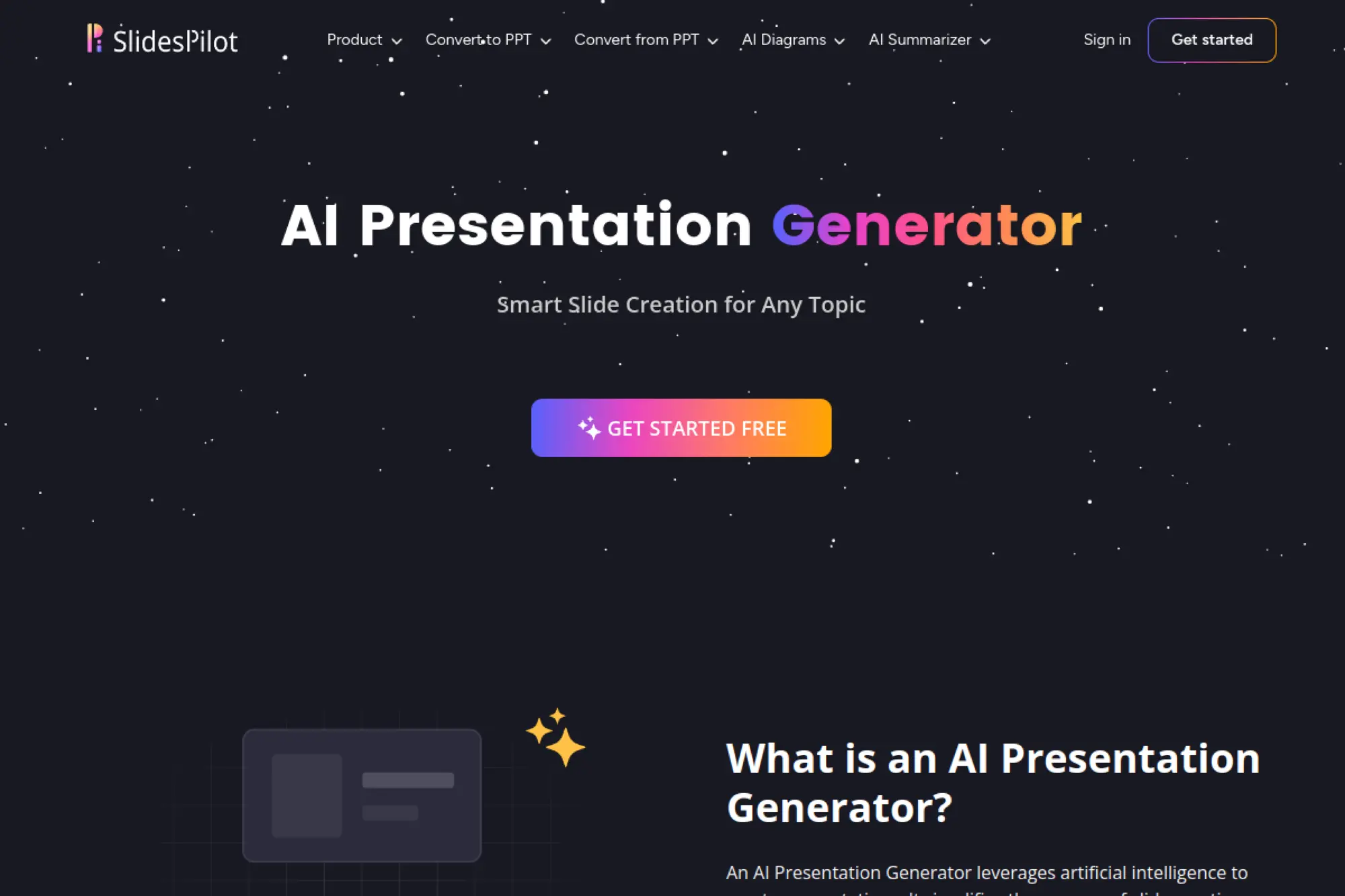
SlidesPilot focuses on AI-driven slide generation from topics and documents, with an emphasis on fast creation and export. It helps you move from a general subject to a structured presentation quickly, then refine the result through template choices and editing. This is useful when you need a quick draft that still looks professional.
Best for
Professionals, educators, and teams that want rapid deck drafts plus flexible export. It’s a solid choice when you frequently start from documents and need a presentation output without manual formatting.
Key workflows to configure
- Choose a consistent template style that matches your audience.
- Generate a draft from a topic or document content.
- Rewrite and shorten content to fit spoken delivery.
- Create a repeatable structure for recurring presentations.
Sales growth lever
SlidesPilot can help sales teams respond quickly with a structured deck when a prospect asks for a recap, proposal, or summary. Speed matters in competitive deals. Faster delivery helps you keep attention and reduce the chance of stalled momentum.
Watch outs
Always validate facts, product details, and claims in AI-generated slides. Also, if your brand requires strict templates, plan a final polish step in your standard slide editor after export.
Quick start checklist
- Start with a clear prompt that includes audience and goal.
- Generate the deck and remove low-value filler slides.
- Rewrite slide titles as strong takeaways.
- Apply your brand visuals and proof points.
- Export and rehearse delivery before sending externally.
How To Roll Out AI Slide Creation Without Breaking Brand Or Security

AI slide tools work best when you treat them like a system, not a shortcut. Start with a narrow use case, like a sales recap deck or a training outline. Then build a repeatable workflow around it.
Focus on these rollout moves:
- Standardize inputs: define what a good prompt includes (audience, goal, tone, source material).
- Lock brand rules: templates, fonts, colors, and slide types should guide every draft.
- Keep humans accountable: someone must own fact-checking and messaging accuracy.
- Build a slide library: reuse the slides that work instead of regenerating every time.
- Train for editing: teach teams how to cut, tighten, and clarify, not just generate.
When you do this, your AI presentation maker becomes a lever for consistency and speed, not a source of random decks that all look different.
One final note: measure outcomes that matter. Track time saved, fewer revisions, faster follow-up, and better content reuse. Those signals prove the workflow works and help you expand it responsibly.







Conclusion
An AI presentation maker is most valuable when it helps you move faster without sacrificing clarity, credibility, or brand consistency. The best tools don’t just “generate slides” — they accelerate the boring parts (structure, first-draft copy, layout direction) so you can spend your time where it matters: tightening the story, adding proof, and shaping a deck that actually persuades. If you treat AI output as a draft, use a template-led system, and apply a consistent human review checklist, you’ll get presentations that look more professional, read more confidently, and ship on time — whether you’re building internal updates, client proposals, sales pitches, or training decks.