

Choosing a logo is not a design task first. It is a trust task. Your logo shows up on your website, your emails, your invoices, and your ads. People decide fast, so your mark has to read fast.
That speed has proof behind it. A Consumer Reports summary of a Stanford credibility study found “design look” appeared in 46.1% of the comments, and another web aesthetics study suggests people can form an opinion in 50 milliseconds.
That reality explains why founders and marketers lean on AI. Adoption keeps moving up, too. IBM reports 42% of enterprise-scale organizations have AI actively deployed, and McKinsey estimates generative AI could add $2.6 trillion to $4.4 trillion annually.
Still, speed alone does not grow revenue. Consistency does. A Lucidpress brand consistency study reported a 33% increase in revenue from consistent branding.
This guide helps you pick the best AI logo generator for your workflow, not just your curiosity. You will get practical “best for” notes, setup workflows, and the trade-offs to watch before you download anything and commit your brand to it.
What is an AI Logo Generator?
The best ai logo generator is a tool that turns a short brand brief (name, industry, tone, and style preferences) into logo concepts you can refine into a usable identity. The right choice is not just the tool that outputs something attractive; it is the one that helps you produce a simple, scalable mark, export practical files, and apply the logo consistently across your website, social profiles, emails, and marketing assets.
FURTHER READING: |
| 1. Top 30 Easy AI Video Editor Tools for Beginners |
| 2. Best AI PowerPoint Generator: Top 30 Picks for 2026 |
| 3. Best AI Resume Builder: Top 30 Picks for 2026 |
Best AI Logo Generator Picks by Use Case
- Best for launching fast with a brand kit: Choose a tool that builds logo variations plus reusable assets (social headers, icons, and templates) so your brand looks consistent everywhere.
- Best for content teams and ongoing campaigns: Pick a platform where your logo flows into design templates for posts, ads, and presentations.
- Best for website-first businesses: Use a logo maker that fits your site workflow and makes it easy to preview the mark in headers, favicons, and mobile layouts.
- Best for deeper customization: Prioritize tools that let you fine-tune spacing, alignment, icon balance, and typography rather than locking you into preset layouts.
- Best for concept exploration: Use an AI model to explore directions, then convert the best option into a clean vector mark with a simple cleanup workflow.
| Tool type | Best for | Main strength | What to watch | Practical handoff note |
|---|---|---|---|---|
| Brand-kit logo maker | Fast launch with consistent visuals | Guided setup and ready-to-use variations | Can look template-like if you accept defaults | Plan a quick cleanup step before you commit site-wide |
| Design suite workflow | Teams making ongoing marketing content | Logo becomes templates across channels | Easy to stop at “good enough” and look generic | Lock fonts, spacing rules, and variants early |
| Website-builder logo maker | Small businesses building a site first | Preview in real layouts with fewer handoffs | Limited uniqueness if you follow common icon tropes | Test in favicon and mobile header before download |
| Text-to-image concept generation | Exploring unique directions | High variety for creative discovery | Not a logo until simplified and vectorized | Generate structure-first, then redraw as a clean mark |
How to Choose the Best AI Logo Generator for Your Brand
1. Start With Where the Logo Will Live
Start with context, not style. A logo that looks great on a website header can fail on a small social profile circle. A mark that prints well on a box can look too heavy on a mobile screen.
So write down your real-world touchpoints before you generate anything. Do you need a clean favicon? Do you need a badge for packaging? Do you need a wordmark that reads well on a podcast cover?
This step helps you judge results faster. It also helps you avoid the most common AI logo mistake: picking the most detailed option because it “looks impressive,” then discovering it turns into visual noise at small sizes.
2. Prioritize Vector-Ready Output and Clean Shapes
Logos must scale. That is why vector output matters. Even if you start with an AI image model, plan a path to a vector version. A vector workflow makes your logo easier to print, embroider, and adapt.
Also, simple shapes beat complicated illustrations. A strong silhouette survives resizing, monochrome printing, and low-contrast settings. It also looks more “intentional” on landing pages and ads.
When you evaluate any generator, ask a simple question: can you get a version that still looks good in one color? If not, you do not have a logo yet. You have an illustration.
3. Treat Typography as a Product Decision
Typography does a lot of brand work. It signals tone, price point, and category fit. It also carries legibility, which directly affects trust.
Many AI logo makers give you a quick font picker. That helps. Still, you should look for a tool that lets you fine-tune spacing and alignment, or at least gives you clean font pairings that feel deliberate.
If you plan to scale your brand, also think about a “type system.” You want a logo type style that can extend into headings, ads, and product pages. This is where brand kits and design systems become more valuable than extra logo variations.
4. Look for a Brand Kit Workflow, Not Just a Download Button
A logo alone rarely fixes a brand. Most small brands actually need repeatable assets. You need social profile images, headers, favicons, and simple templates for posts and ads.
A good AI logo generator should help you get from “logo idea” to “usable system.” That can mean built-in social templates, export presets, or a brand kit that stores colors and fonts. It can also mean clean handoff files so you can move into Canva, Figma, or Adobe tools without rework.
If your tool stops at “here is a logo,” you will still spend time rebuilding everything else.
5. Check Licensing, Originality Risk, and Trademark Reality
AI makes creation easy. It does not make legal risk disappear. Logos can collide with existing marks, especially when you use common icons, common layouts, or trendy style prompts.
So treat licensing as part of the workflow. Read what rights you get after purchase or download. Confirm whether fonts and icons carry commercial usage rights. Then run a basic competitor scan and a trademark search in the markets you plan to sell in.
If your brand is high-stakes, consider a hybrid approach: use AI to explore directions, then hire a designer to finalize a distinctive mark.
Licensing and trademark mini-checklist (use this before you publish the logo everywhere):
- Confirm commercial usage rights: Make sure your plan or download includes the rights you need for your real channels (site, ads, packaging, and social).
- Verify icon and font rights: Some tools use libraries or font pairings that still have usage rules—treat this as part of your workflow, not an afterthought.
- Run a competitor scan: Search your category for similar symbols, layouts, and color combos so you do not blend into the market.
- Do a trademark search in priority markets: If the brand matters long-term, confirm it is not too close to existing marks before you invest in growth assets.
- Document your rollout: Save dated screenshots of your first consistent use on your website and major profiles, because trademark rights are based on use of the mark in commerce.
Quick note on copyright: If your final logo includes AI-generated visual elements, copyright questions can get nuanced depending on how the work was created and refined. If you plan to register the work or need clarity for high-stakes branding, review Copyright Registration Guidance for Works Containing AI-Generated Materials and keep a simple record of what you changed and finalized as a human creator.
How to Get Non-Generic Results From AI Logo Makers
1. Write a Tight Brand Brief Before You Generate
AI responds well to clarity. So give it clarity. Write a short brand brief you can reuse across tools. Keep it simple. Use plain adjectives. Avoid buzzwords that every brand uses.
Include your audience, your product category, and your tone. Then add what you do not want. For example: “no gradients,” “no abstract swooshes,” or “no generic tech icons.” This negative list matters because most logo generators default toward safe clichés.
When you keep the brief consistent, you can compare tools fairly. You also reduce random results that waste your time.
2. Prompt for Structure, Not Just a Vibe
Many people prompt for style only. That leads to surface-level logos. Instead, prompt for structure. Ask for a bold silhouette. Ask for a simple mark. Ask for negative space concepts. Ask for a strong icon that still reads when small.
Copy-and-paste prompt pack (edit the brackets):
- Simple icon mark: “Create a bold, minimal icon for a [industry] brand called [name]. Flat, one-color friendly, readable at small sizes, no gradients, no thin lines, clean silhouette.”
- Wordmark-first: “Design a clean wordmark for [name] with a [tone] feel. Emphasize legibility, balanced spacing, and a timeless look. Avoid trendy swooshes and overly decorative effects.”
- Negative space concept: “Generate an icon concept using negative space to suggest [core idea]. Minimal detail, strong shape, flat vector style, scalable.”
- Differentiate from category clichés: “Create a logo concept that avoids common [industry] clichés (no [cliché icon list]). Use a unique metaphor tied to [brand story] instead.”
- Request real variants: “Provide primary, stacked, and icon-only variations with consistent proportions and spacing rules.”
If you use a text-to-image tool, describe the geometric structure and layout. You can also ask for a flat vector look, clean edges, and minimal detail. That gives you an easier path to a real logo later.
Structure-first prompting reduces cleanup work. It also improves consistency across your brand assets.
3. Iterate Like a Marketer, Not Like a Designer
Designers often refine slowly. Marketers test quickly. Use that mindset. Generate options, shortlist, then test against real use cases like a website header or product label mockup.
Also, compare options against competitors. A logo can look great on its own and still feel “already taken” in the market. If you cannot describe what makes your mark different, your customers will not feel the difference either.
Iteration works best when you keep notes. Write what you like about each direction, then ask the tool to lean harder into that specific trait.
4. Clean Up the Result in a Real Design Tool
Even the best AI logo maker can leave small issues. Spacing can feel off. Curves can look uneven. Type can sit slightly wrong. Those details matter because logos get repeated everywhere.
Plan a cleanup step. You can use a vector editor, a layout tool, or a brand design platform. This step lets you lock consistent spacing, choose final colors, and create a clean monochrome version.
That cleanup step also makes your logo feel “owned.” It stops looking like a template and starts looking like your brand.
Fast cleanup workflow (turn a good concept into a brand-ready mark):
- Simplify first: Remove tiny details, decorative strokes, and complex shading.
- Normalize geometry: Align edges, smooth curves, and unify stroke weights so the mark feels intentional.
- Lock spacing rules: Define clear space, set a consistent relationship between icon and type, and keep alignment consistent.
- Create required variants: Build monochrome, reversed, and icon-only versions so you can deploy everywhere without redesigning later.
- Preview in real contexts: Check favicon, social avatar crop, mobile header, and a simple landing page hero before finalizing.
5. Test the Logo Like a Conversion Asset
A logo is part of conversion. It sits near the top of your funnel. So test it like you test messaging. Put it on a landing page header. Put it in an ad mockup. Put it next to a call-to-action button.
Then ask a simple question: does this logo match the promise on the page? If your brand says “premium,” but the logo looks playful, you create friction. If your brand says “friendly,” but the logo looks cold, you create distance.
When the logo matches the story, trust feels automatic.
Fast originality check (takes minutes, prevents months of regret):
- Reverse image search your icon concept: If close matches appear in your category, regenerate with a different metaphor.
- Search your category + “logo”: Compare your symbol, layout, and typography style against top competitors on the first page.
- Remove one cliché: If your category commonly uses a predictable icon, ban it and prompt for a new concept direction.
- Stress-test in monochrome: If it fails in one color, it is too dependent on decoration instead of form.
Top Picks: AI Logo Generators and Logo Makers
1. Design.com
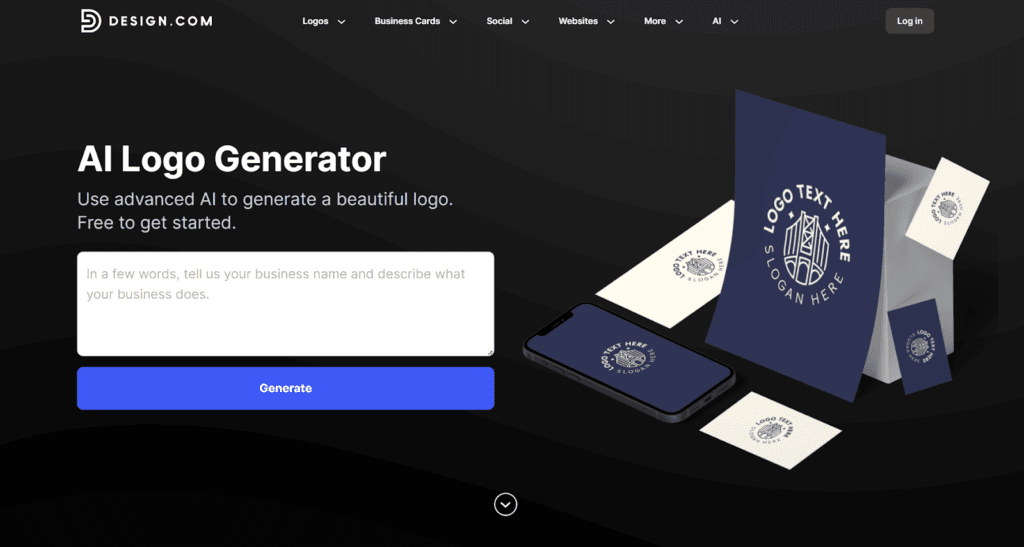
Design.com’s AI Logo Generator works well when you want a professional logo instantly and also need a complete brand ecosystem without hiring designers. It feels closer to an AI brand builder than a simple logo tool, so it fits entrepreneurs who need to launch with consistent visuals across all channels while staying under budget.
Best for
Startups and small businesses that need a scalable logo system plus matching brand assets for websites, business cards, social media, and marketing materials all from one platform.
Key workflows to configure
- Enter your business name and add keywords that describe your industry and brand personality.
- Let the AI generate thousands of logo concepts from its 400,000+ template library instantly, then browse variations tailored to your niche.
- Use the conversational AI editor to refine your logo’s icon and text through simple chat commands.
- Upload or create your logo, and let automatic brand synchronization apply your colors across 50+ design tools.
- Generate multiple logo versions and save them to compare lockups for horizontal, stacked, and icon-only layouts.
- Download in all formats: vector (SVG, EPS, PDF), high-resolution raster (PNG, JPG), animated (GIF, MP4), plus transparent backgrounds.
Sales growth lever
Deploy the same logo and brand colors automatically across your website, email signatures, social posts, business cards, and presentations to build instant recognition and reduce “who are you?” friction with prospects.
Watch outs
- Run a competitor visual audit before finalizing to avoid common icon patterns in your category.
- Test your logo at small sizes (favicon, profile photo) to ensure readability.
- Verify extended licensing options if you want to remove your template from circulation for exclusive use.
- Remember that the AI editor uses custom-trained models for copyright safety—always use the chat interface for modifications rather than external tools.
Quick start checklist
- Define your brand in one sentence with tone and audience context.
- Generate logo options using your business name plus 2-3 descriptive keywords.
- Shortlist 3-5 favorites and refine using the AI chat editor.
- Pick one primary logo and one simplified icon-only mark.
- Download all file formats (vector + raster + animated) for future flexibility.
- Upload your own logo to trigger automatic brand color sync across all 50+ design tools.
- Create matching business cards, social graphics, and email signatures using the integrated ecosystem.
- Document your brand colors and fonts in a shared folder for team access.
2. BrandCrowd
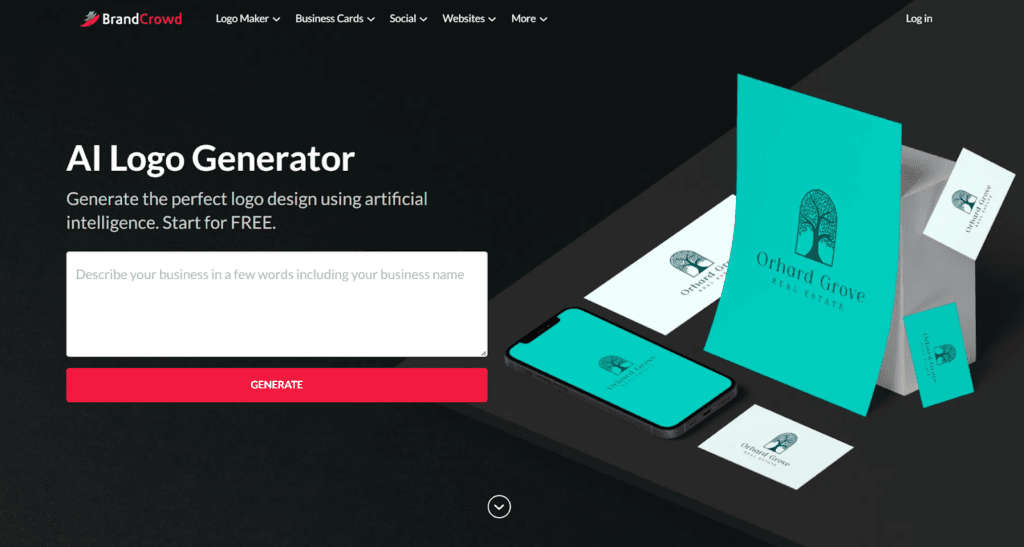
BrandCrowd’s AI Logo Maker works well when you prioritize quality assurance and designer-crafted aesthetics over pure automation. Think of it as an AI-curated professional design library. It fits business owners who want the confidence of designer-made templates backed by the industry’s highest customer ratings (4.8 stars from 9,000+ Trustpilot reviews) rather than algorithmic experimentation.
Best for
Small businesses and startups that need a professionally crafted logo with guaranteed originality, plus automatic brand consistency across websites, business cards, and all marketing materials.
Key workflows to configure
- Enter your business name or descriptive keywords to trigger AI-powered logo suggestions.
- Browse thousands of designer-made logo concepts from 380,000+ exclusive templates tailored to your industry.
- Use the conversational AI editor to modify your logo’s icon and text with intuitive chat commands, for copyright-safe results.
- Customize fonts, colors, layouts, and icons using the drag-and-drop editor.
- Preview your logo on real-world mockups like signage, apparel, and marketing materials before finalizing.
- Upload or finalize your logo to activate automatic brand color inheritance across 50+ design tools.
- Download in all formats: vector (SVG, EPS, PDF), high-resolution raster (PNG, JPG), animated (GIF, MP4), plus transparent backgrounds and icon-only versions.
Sales growth lever
Lock in brand recognition by deploying the same logo colors automatically across your website, social posts, business cards, email signatures, and presentations. BrandCrowd’s brand synchronization ensures perfect visual consistency, building trust and recall with prospects.
Watch outs
- Consider extended licensing to remove your chosen template from the library and guarantee exclusive brand ownership.
- Preview your logo at small sizes (social profile, favicon) to confirm readability across all touchpoints.
- Verify that your final design stands out visually from competitors in your category.
- Remember that every BrandCrowd logo is quality-checked for originality and commercial safety before availability.
Quick start checklist
- Write a one-sentence brand description with tone, audience, and industry context.
- Generate logo options using your business name plus 2-3 keywords describing your style.
- Shortlist 3-5 favorites and preview them on real-world mockups (business cards, signage, apparel).
- Refine your top choice using the AI chat editor or manual customization tools.
- Select one primary logo and one simplified icon-only mark for flexible use.
- Download complete file sets (vector + raster + animated) for maximum flexibility.
- Trigger automatic brand synchronization by uploading your logo to sync colors across all 50+ design tools.
- Create matching business cards, social graphics, website elements, and email signatures using the integrated ecosystem.
- Save your brand color codes and font selections in a shared team document.
3. Looka

Looka works well when you want a polished logo fast and you also want matching brand assets without building them from scratch. It feels closer to a “brand starter kit” than a pure generator, so it fits founders who need to launch and keep moving.
Best for
New businesses that need a clean wordmark plus a simple icon that works across website, email, and social channels.
Key workflows to configure
- Write a short brand brief with tone words and industry context.
- Choose a color direction that matches your category and price point.
- Generate logo lockups for horizontal and stacked layouts.
- Create social profile versions and a favicon-style mark.
Sales growth lever
Use the same logo system across your homepage, ads, and invoices to reduce “who are you?” friction and increase repeat recognition.
Watch outs
- Do a competitor scan before you commit to a common icon concept.
- Keep details minimal so the mark stays readable when small.
- Confirm usage rights and font licensing before broad rollout.
Quick start checklist
- Define your brand tone in plain language.
- Shortlist a few directions and compare them on a header mockup.
- Pick one primary logo and one simplified mark.
- Export files for web and print use.
- Document colors and fonts in a simple brand note.
4. Tailor Brands
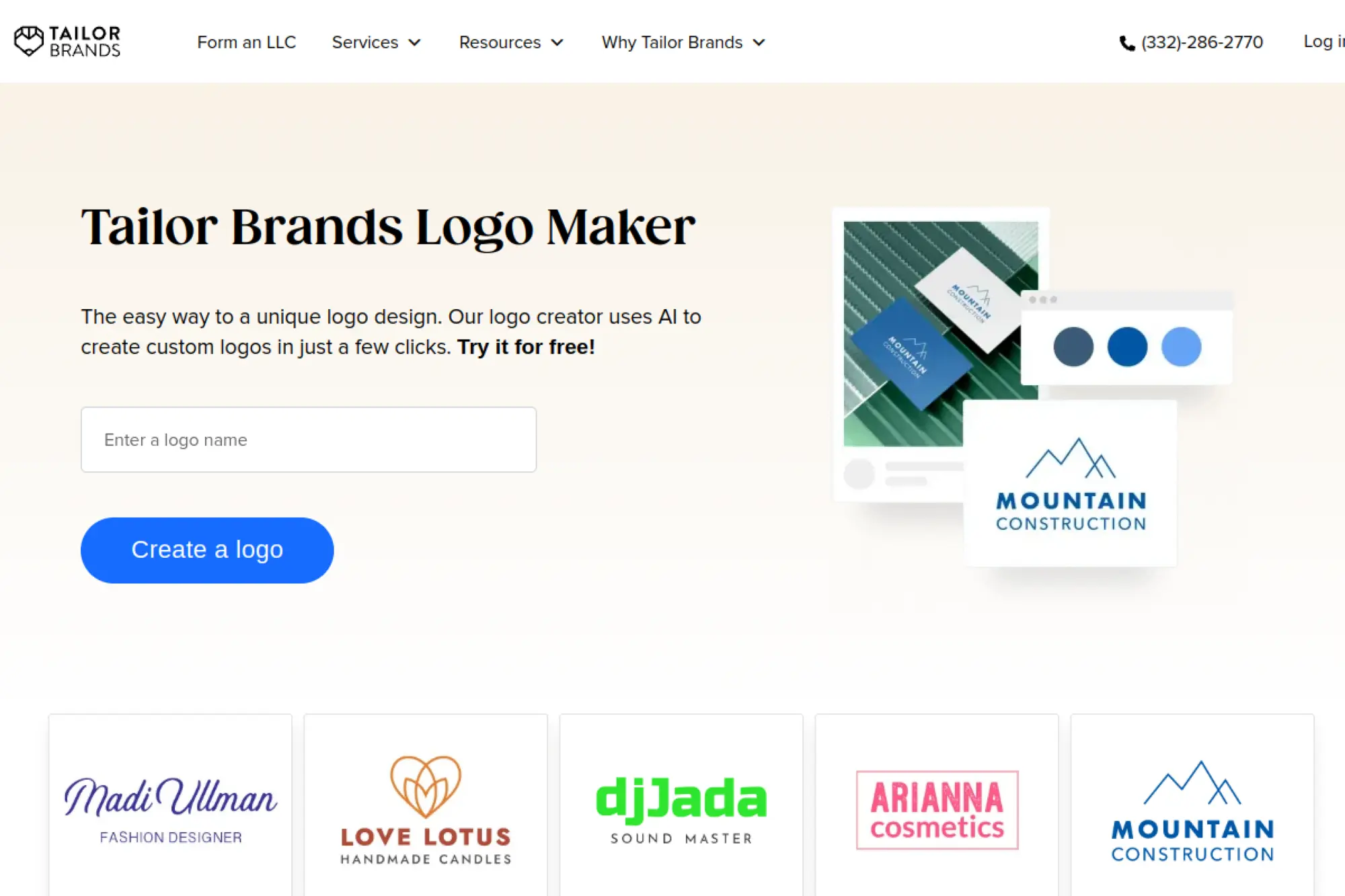
Tailor Brands aims at entrepreneurs who want a logo, but also want help turning that logo into a business identity. It often feels like a guided setup experience, which helps when you do not want to think like a designer.
Best for
Solo founders who want a logo plus optional business add-ons like basic branding assets and launch support.
Key workflows to configure
- Answer the brand style questions with real customer context.
- Pick a type direction first, then add an icon only if it helps.
- Build consistent color rules for light and dark backgrounds.
- Save your logo versions so you can update them later.
Sales growth lever
Turn your logo into a consistent identity across touchpoints, then reuse the same look in outreach emails and lead magnets to boost recognition.
Watch outs
- Watch for upsells you do not need yet and keep your scope tight.
- Double-check how licensing works before using the logo everywhere.
- Avoid trendy icons that could blend into your category.
Quick start checklist
- Write down your brand promise in one sentence.
- Generate options and filter hard for simplicity.
- Choose a version that reads well in monochrome.
- Download core files and store them in a shared folder.
- Add the logo to your website header and email signature.
5. Wix Logo Maker
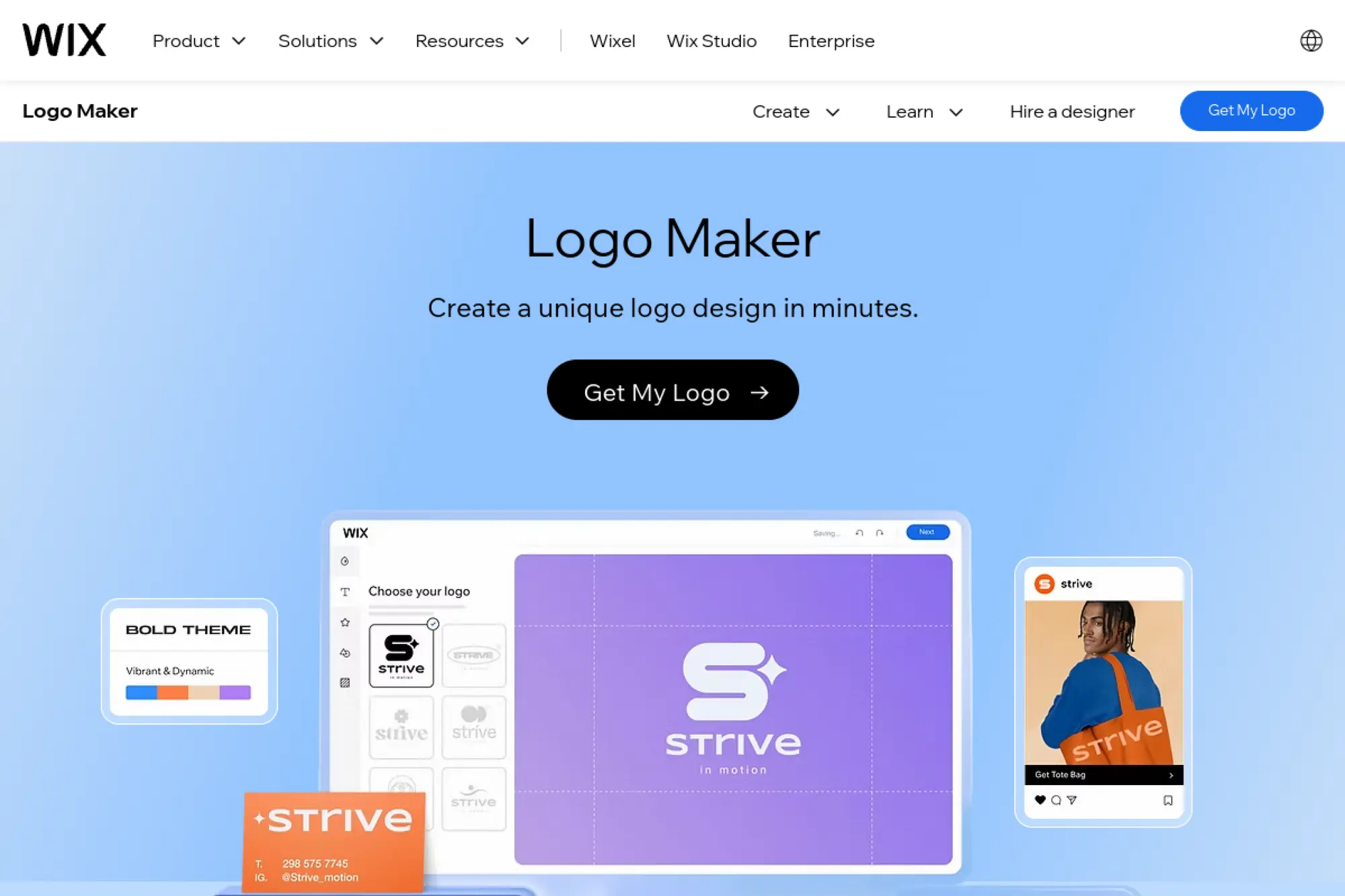
Wix Logo Maker makes the most sense when you already plan to build your site on Wix. The strongest benefit is workflow, because you can move from “logo” to “site” without bouncing between tools.
Best for
Small businesses that want an end-to-end Wix setup with a logo that matches the site theme.
Key workflows to configure
- Align logo colors with your site palette early.
- Pick a font family that can also work for headings on your site.
- Create a simplified mark for icons and profile images.
- Preview the logo on site headers and social templates.
Sales growth lever
Match your logo and website styling so visitors feel continuity from ad click to landing page, which reduces bounce caused by “wrong brand” vibes.
Watch outs
- Do not over-design the mark just because the editor allows it.
- Check contrast on mobile screens before you finalize colors.
- Keep spacing generous so the logo does not feel cramped in headers.
Quick start checklist
- Choose a site template style direction first.
- Generate logos that match that direction.
- Save a primary logo and a compact version.
- Apply the logo inside Wix and check all pages.
- Export a transparent file for external use.
6. Canva
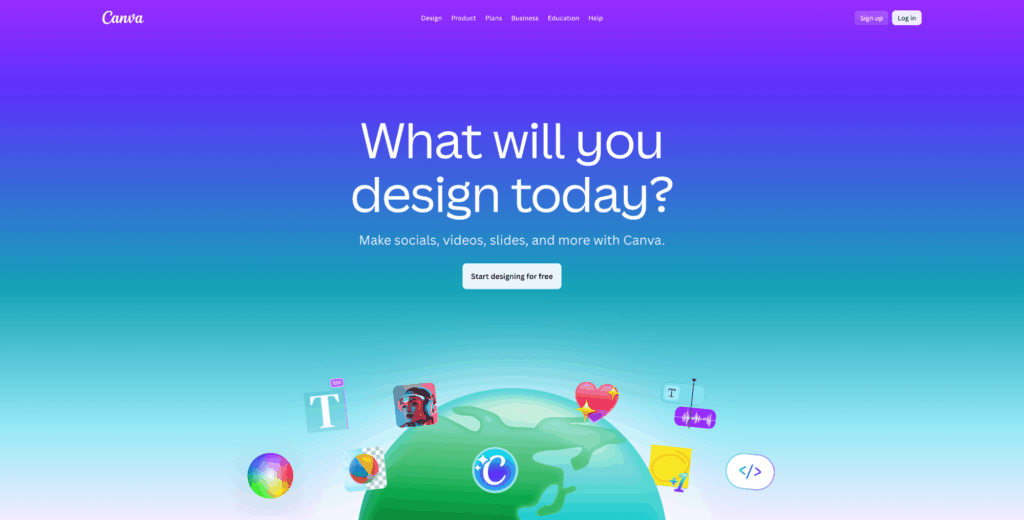
Canva is a practical choice when “logo” is just one piece of your content engine. It shines for teams and creators because you can design the logo, then reuse it instantly across social posts, slides, and ad creatives.
Best for
Creators and small marketing teams that want to build a repeatable brand look across content, not just a standalone logo.
Key workflows to configure
- Set brand colors and fonts so every design stays consistent.
- Create logo variants for profile images, thumbnails, and headers.
- Build templates for posts and promos that match the logo style.
- Store logos in shared brand folders for easy access.
Sales growth lever
Use your logo inside reusable content templates so your feed and ads look instantly recognizable, which can lift recall and click-through over time.
Watch outs
- Templates can look familiar, so customize beyond the default layout.
- Confirm you can export the formats you need for print workflows.
- Keep a clean, simplified mark for small placements.
Quick start checklist
- Create a brand kit with colors and type choices.
- Design a simple logo and a compact icon version.
- Apply the logo to social and slide templates.
- Export transparent versions for web use.
- Document spacing rules so designs stay consistent.
7. Adobe Express
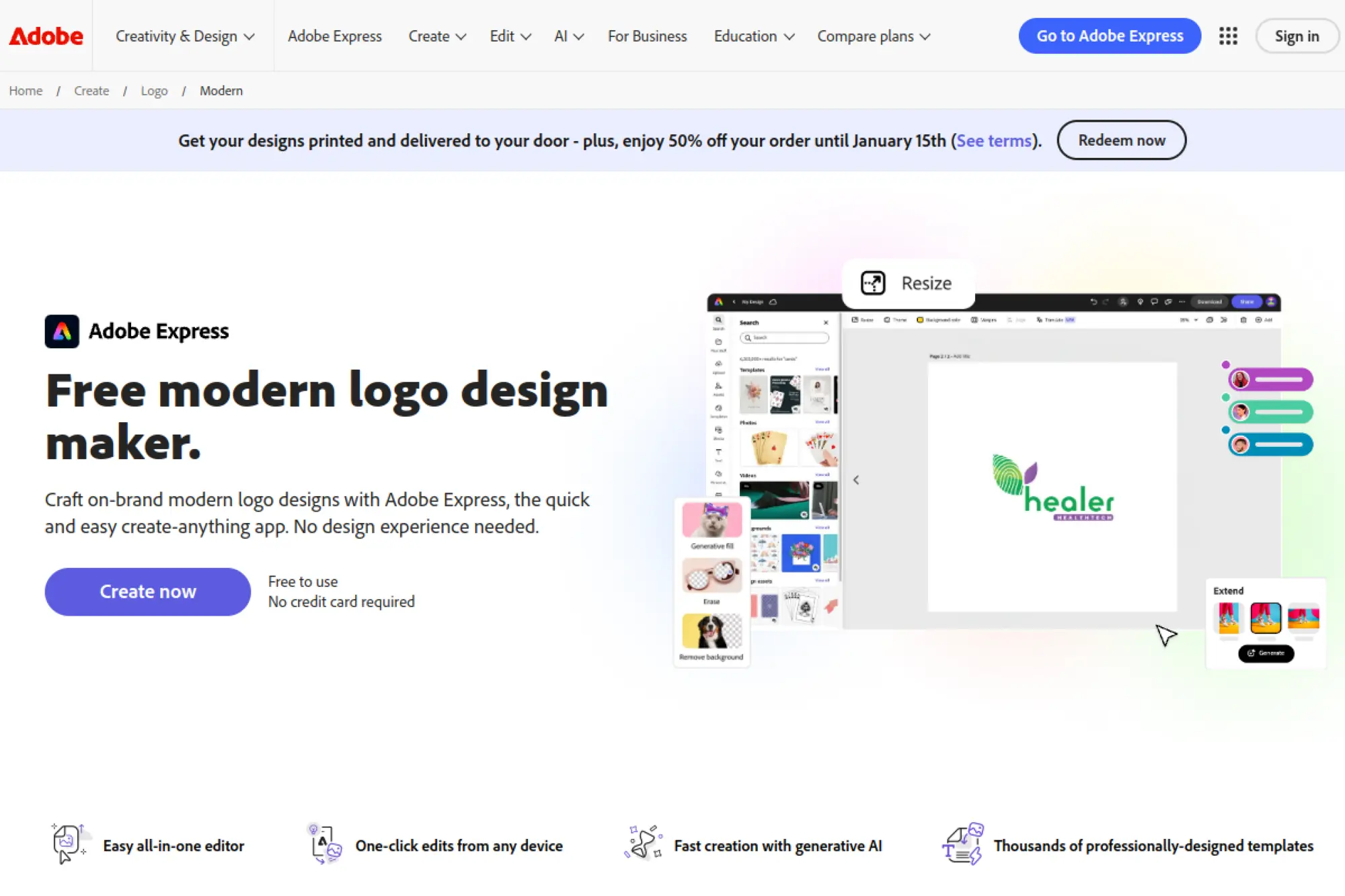
Adobe Express fits teams who want speed, templates, and generative AI support inside a familiar Adobe workflow. You can start with a logo idea, then quickly produce matching social graphics and promo assets without starting over.
Best for
Marketers who already use Adobe tools and want quick brand-safe asset creation for campaigns.
Key workflows to configure
- Create a brand kit with logo, fonts, and colors for reuse.
- Build logo variants for light and dark backgrounds.
- Turn the logo style into social post templates.
- Set export presets for common placements like headers and avatars.
Sales growth lever
Move from logo to campaign assets faster, then keep the same look across paid and organic channels to build trust through repetition.
Watch outs
- Templates can push you toward generic layouts if you rush.
- Check that your final logo stays simple and scalable.
- Confirm you have print-ready output if you need packaging.
Quick start checklist
- Choose a logo style direction that matches your offer.
- Lock your font and color choices early.
- Create a primary logo and a simplified mark.
- Build matching templates for social and promos.
- Export and test on your live landing page header.
8. Shopify Logo Maker
Shopify’s Logo Maker is a straightforward tool for store owners who want a usable logo without learning design software. It focuses on speed and simplicity, which helps when you need to ship products, not manage design files all week.
Best for
Shopify merchants who need a quick logo for a new storefront, product labels, and social profiles.
Key workflows to configure
- Choose an industry style that matches your product category.
- Pick a clean logo layout that reads well on mobile.
- Set a color palette that matches your store theme.
- Create variants for store header and social profile use.
Sales growth lever
Launch with a consistent storefront look fast, then use the same logo on packaging inserts and post-purchase emails to build repeat recognition.
Watch outs
- Keep expectations realistic about customization depth.
- Do a uniqueness check since icon libraries can overlap.
- Plan a later upgrade path if you scale into retail or wholesale.
Quick start checklist
- Decide your store tone and style before you start.
- Create a simple logo that stays readable when small.
- Apply it to your theme header and checkout emails.
- Use the same mark on packaging and inserts.
- Revisit and refine once you have sales traction.
9. Fiverr Logo Maker
Fiverr’s Logo Maker blends AI speed with designer-made starting points. That combination helps when you want something more curated than a generic icon picker, but you still want to move quickly and stay budget-aware.
Best for
Founders who want AI-assisted options while keeping a path to human designer refinement.
Key workflows to configure
- Describe your business clearly so the style suggestions fit.
- Choose a direction that matches your positioning, not trends.
- Customize typography and spacing to feel intentional.
- Decide if you need designer help for final polish.
Sales growth lever
Start with an AI-assisted logo, then hire a designer for tweaks that make it more distinctive, which can strengthen trust on high-value offers.
Watch outs
- Do not assume “designer-made base” guarantees uniqueness.
- Keep your logo simple enough for small placements.
- Confirm what files you receive before you buy.
Quick start checklist
- Write a short positioning statement and use it in the brief.
- Pick a logo that fits your offer’s price point.
- Customize colors for strong contrast on web.
- Download core files and store them centrally.
- Consider a designer pass for final uniqueness.
10. Brandmark
Brandmark is a strong pick if you want a logo plus a broader set of brand-ready outputs. It positions itself as “pay once” branding, which can work well when you prefer ownership over ongoing subscriptions.
Best for
Startups that want a logo and matching brand assets for a launch sprint and investor-facing decks.
Key workflows to configure
- Start with a wordmark direction and confirm readability first.
- Generate icon concepts that match your industry and tone.
- Lock a primary palette and a neutral fallback palette.
- Create consistent lockups for web headers and documents.
Sales growth lever
Use the broader asset set to keep every touchpoint on-brand, which makes your startup look more “real” during sales calls and demos.
Watch outs
- Some generated icons can look common, so audit similarity.
- Check spacing and alignment carefully before final export.
- Keep a one-color version for simple applications.
Quick start checklist
- Pick a logo direction that matches your brand promise.
- Create a clean monochrome version.
- Export core files for web and print use.
- Apply the logo to a pitch deck template.
- Standardize your brand colors across your site and socials.
11. LogoAI
LogoAI positions itself as a brand building platform, not only a logo generator. That matters if you want your logo direction to carry into social content and repeatable identity work without rebuilding everything manually.
Best for
Small brands that want a logo plus matching identity assets to support ongoing content and promotion.
Key workflows to configure
- Define brand keywords that reflect your audience and niche.
- Choose a type style that can extend into marketing headings.
- Create logo variants for social icons and cover images.
- Set brand colors that work on both light and dark layouts.
Sales growth lever
Build a consistent look across social content and landing pages, so prospects recognize you faster across multiple touchpoints.
Watch outs
- Automated social assets can feel generic if you do not customize.
- Do a quick uniqueness check before you commit to an icon.
- Keep the logo simple enough for print and embroidery use.
Quick start checklist
- Write a brand brief and a “do not use” list for clichés.
- Generate options and shortlist only simple silhouettes.
- Pick a primary logo and an icon-only mark.
- Export and apply to your website header.
- Create a social template that matches the same visual rules.
12. Designs.ai
Designs.ai works best when your logo creation sits inside a broader content workflow. It offers multiple creative tools, which helps marketers who want to move from logo concept to ads, videos, and social content without switching platforms.
Best for
Marketing teams and solo creators who need a logo plus a fast path to multi-channel creative output.
Key workflows to configure
- Set brand colors and fonts so every asset feels connected.
- Create a simple logo that can sit beside busy ad copy.
- Generate supporting visuals that match the logo style.
- Standardize export sizes for your main channels.
Sales growth lever
Use the same visual identity across logo, ads, and social content so your campaigns feel consistent and more trustworthy.
Watch outs
- All-in-one tools can encourage rushing, so slow down at the logo step.
- Avoid overly detailed marks that break in small placements.
- Check that typography feels unique to your brand voice.
Quick start checklist
- Decide brand tone and key adjectives first.
- Create a logo that holds up in monochrome.
- Save a brand palette and font pairing.
- Build one reusable promo template.
- Apply the system to your landing page and first campaign.
13. Renderforest
Renderforest is a strong option if you want a logo plus the ability to extend that logo into video intros, mockups, and website assets. It suits brands that plan to market with motion and visuals, not just static posts.
Best for
Creators and small businesses that want a logo and branded visuals for videos, intros, and promos.
Key workflows to configure
- Choose a logo style that can animate cleanly for intros.
- Create a simplified icon for social and watermark use.
- Set color rules so the logo works on different backgrounds.
- Preview the logo on mockups that match your product category.
Sales growth lever
Use logo-driven video intros and mockups to make your content feel more “produced,” which can increase perceived professionalism.
Watch outs
- Animation-ready logos should stay simple and bold.
- Do not rely on a trendy icon that could age quickly.
- Validate print readiness if you plan physical packaging.
Quick start checklist
- Pick a logo concept with a strong silhouette.
- Create a static and a simplified mark version.
- Export files for web and print use.
- Build a quick video intro template.
- Apply the same logo to thumbnails and end screens.
14. Namecheap Logo Maker
Namecheap’s Logo Maker is a practical choice if you want a simple, fast logo workflow tied to domain and web setup. It works well for side projects and small brands that need a decent identity without a heavy design process.
Best for
Entrepreneurs launching a new site and buying a domain who want a quick logo to match.
Key workflows to configure
- Choose fonts that match your niche and audience expectations.
- Select icons that feel specific to your offer, not generic.
- Create color variations for dark and light backgrounds.
- Download and store files in a brand folder for reuse.
Sales growth lever
Get a logo in place fast so you can launch your site sooner, then use the same mark across emails and social profiles for recognition.
Watch outs
- Icon libraries can lead to similar logos across industries.
- Keep typography spacing clean to avoid an “auto-generated” look.
- Do a quick competitor scan before finalizing the icon concept.
Quick start checklist
- Write your business name and a short tagline draft.
- Choose typography first, then add an icon only if it helps.
- Export a transparent version for web use.
- Apply the logo to your site header and favicon.
- Save brand colors for future design work.
15. LOGO.com
LOGO.com focuses on helping you go from “idea” to “business presence.” That makes it useful if you want a lightweight logo creator that also supports the basics of launching, like simple assets and quick brand building.
Best for
Early-stage founders who want a logo and supporting tools to get a basic brand online quickly.
Key workflows to configure
- Generate logo options from your business name and keywords.
- Choose colors you can reuse across your website and emails.
- Create a compact version for avatars and icons.
- Store your logo variations for future edits.
Sales growth lever
Publish a consistent identity across logo, website, and basic marketing assets so prospects feel continuity from first click to checkout.
Watch outs
- Template-based logos can feel familiar if you do not customize.
- Keep your mark simple and readable at small sizes.
- Confirm what file formats you can export for print needs.
Quick start checklist
- Write a clear brand description and keywords.
- Pick a simple logo direction that fits your niche.
- Create a monochrome version for flexible use.
- Apply the logo across your web presence.
- Save your files in one shared brand folder.
16. DesignEvo
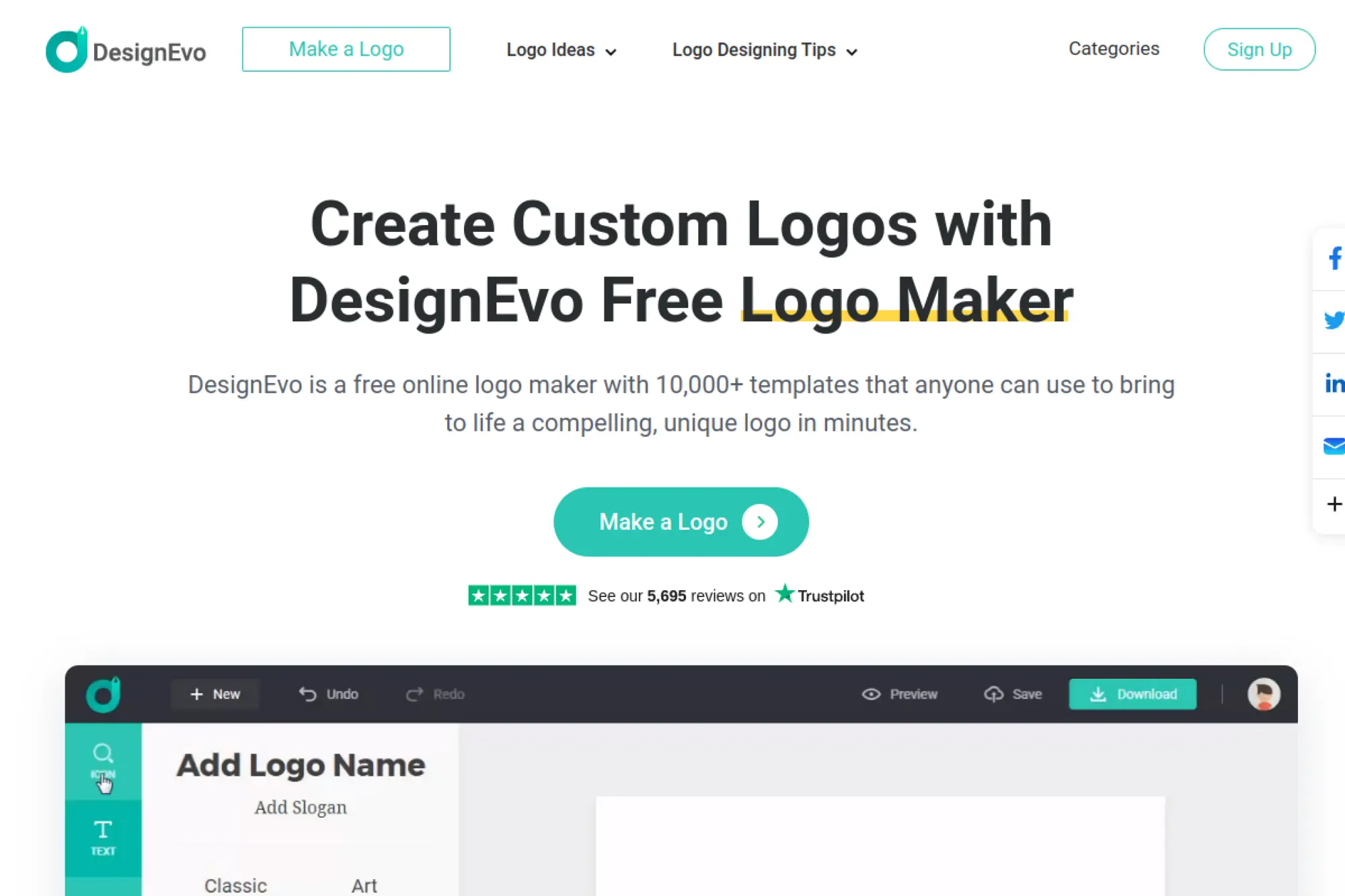
DesignEvo leans into templates and manual customization. That may sound less “AI,” but it can still be a smart choice when you want more control over layout than a purely automated generator gives you.
Best for
Budget-conscious founders who want hands-on control and a wide range of starting templates.
Key workflows to configure
- Pick a template style that matches your industry norms.
- Replace default icons with something more specific to your niche.
- Adjust typography and spacing so it feels custom.
- Create versions for light and dark background usage.
Sales growth lever
Manual control helps you avoid “same as everyone else” logos, which can make your brand feel more credible on first contact.
Watch outs
- Templates can look templated if you only change the text.
- Keep details minimal so your logo works in small placements.
- Confirm you can export the formats you need for print vendors.
Quick start checklist
- Choose a template with strong typography and simple shapes.
- Swap the icon for something more original.
- Lock your color palette and font pair.
- Export transparent versions for web use.
- Test the logo on a header and a social profile mockup.
17. Placeit

Placeit fits brands that sell products or content and want to see their logo “in the world.” It pairs logo creation with mockups, which helps you validate your mark on merch, packaging, and promotional visuals before you commit.
Best for
Merch brands, Etsy sellers, and creators who need logo + mockups for marketing and storefront visuals.
Key workflows to configure
- Choose a logo template that matches your product category.
- Set a color palette that will look good on real materials.
- Create a badge-style logo for stickers and packaging seals.
- Preview the logo on mockups you plan to actually sell.
Sales growth lever
Use mockups to create more convincing product images and storefront banners, which can lift perceived quality and reduce hesitation.
Watch outs
- Template-based marks can overlap, so customize beyond the defaults.
- Keep the logo simple enough for embroidery and print.
- Make sure the logo still works in one color.
Quick start checklist
- Pick a logo template aligned with your niche.
- Customize typography and icon choices to feel unique.
- Preview on product mockups you will actually use.
- Export transparent versions for your storefront.
- Apply the logo consistently across your listings and socials.
18. Logomaker by VistaPrint
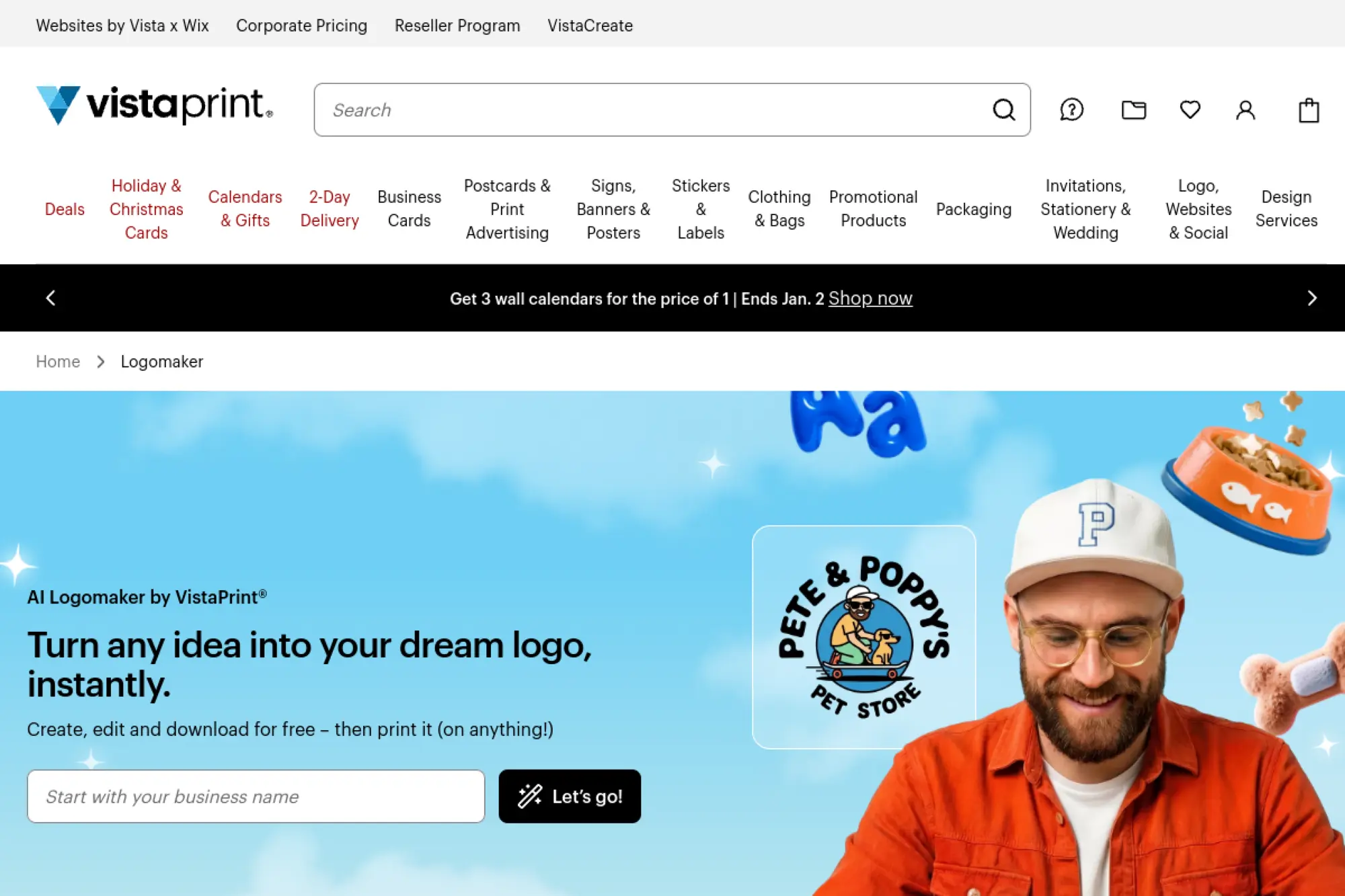
VistaPrint’s Logomaker works well when print sits at the center of your brand. You can create a logo and then move directly into business cards, signage, and packaging without rebuilding files for a printer.
Best for
Local businesses that need a logo for print products like cards, flyers, and signage.
Key workflows to configure
- Pick a logo direction that looks clean on paper and signage.
- Choose colors that print well and still look good online.
- Create a version that works on a light background and a dark one.
- Preview the logo on printed product mockups inside the platform.
Sales growth lever
Align your print materials with your online presence so customers recognize you instantly, from storefront to website to receipts.
Watch outs
- Some icon assets may appear in other logos, so check uniqueness.
- Keep thin lines and small text to a minimum for print clarity.
- Confirm what rights and file formats you receive.
Quick start checklist
- Design a logo that reads clearly at small and large sizes.
- Create a simplified icon for social profiles.
- Export print-friendly files and store them safely.
- Apply the logo to your first print product set.
- Use the same logo on your website header for consistency.
19. Ucraft AI Logo Generator
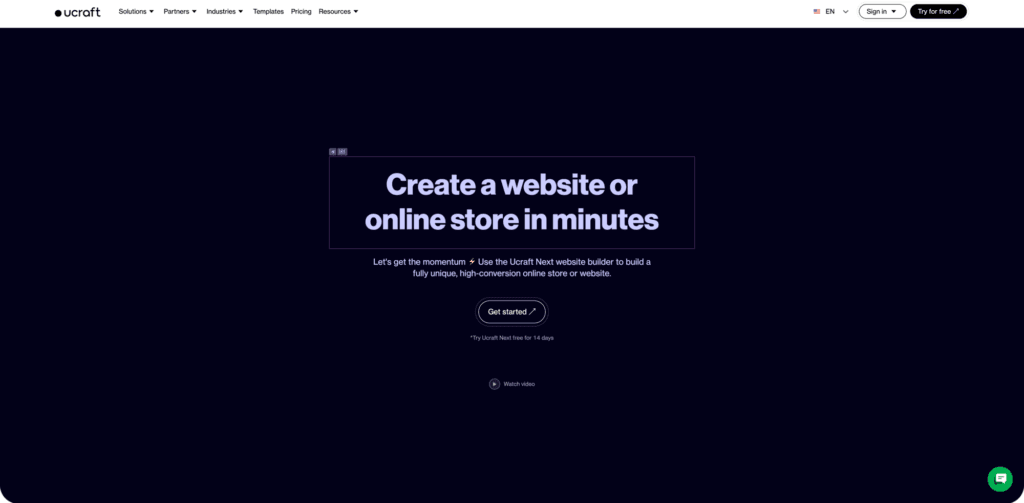
Ucraft gives you both an AI logo generator and a broader website-builder ecosystem. That combo is useful when you want a logo and a simple brand kit, then want to launch a site without stitching together multiple services.
Best for
Founders who want an AI-generated logo and an easy path to building a basic website presence.
Key workflows to configure
- Enter brand keywords that describe your product and tone.
- Select typography that matches your market category.
- Generate a logo that works as both icon and wordmark.
- Save a mini brand kit with colors and font choices.
Sales growth lever
Launch faster with a coherent identity across logo and site, which reduces trust gaps when customers land on your page from ads or search.
Watch outs
- Automated logos can feel generic without thoughtful customization.
- Double-check contrast for accessibility on web layouts.
- Run a quick competitor scan to avoid similar icon concepts.
Quick start checklist
- Write down three brand adjectives you can defend.
- Generate options and shortlist the simplest marks.
- Pick a primary logo and a compact icon version.
- Apply logo colors to your website theme.
- Export and store your files for future use.
20. FreeLogoDesign
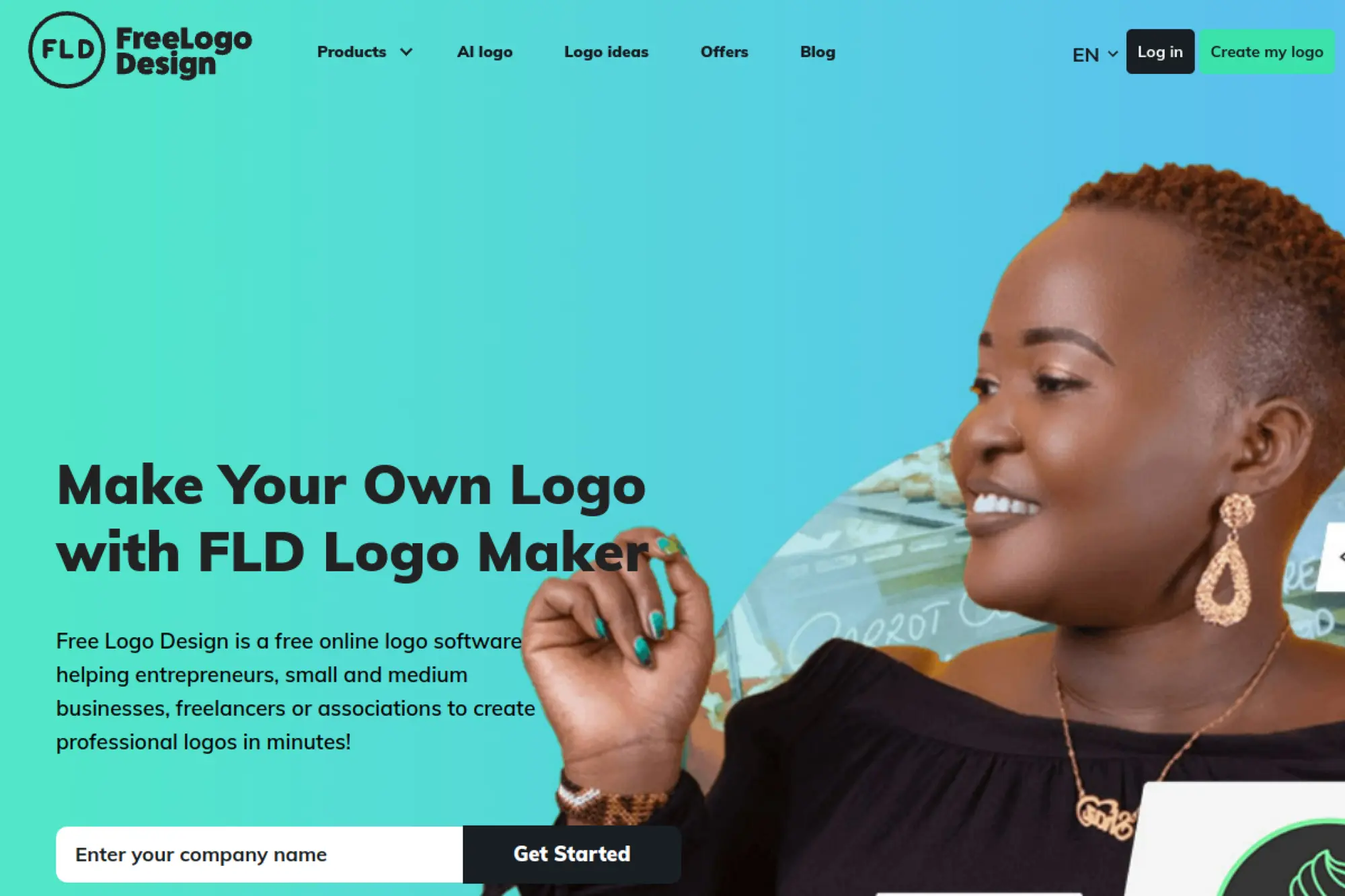
FreeLogoDesign is a fast option when you need a straightforward logo and you prefer a template-driven editor. It works well for early-stage projects where you value speed and simplicity over deep customization.
Best for
Side projects, local services, and community groups that want a simple logo without learning design software.
Key workflows to configure
- Start from a template that already matches your category style.
- Replace icons so your mark does not feel too common.
- Adjust colors to match your brand tone and readability.
- Create a simplified version for social profile use.
Sales growth lever
Get a usable identity quickly, then focus on sales pages and offers while keeping a consistent look across channels.
Watch outs
- Template icons can overlap with other brands, so customize hard.
- Keep your logo readable at small sizes.
- Confirm export options if you need print-ready files.
Quick start checklist
- Pick a template that is clean and minimal.
- Customize typography and spacing for a more original look.
- Create a one-color version for flexible use.
- Export a transparent file for web use.
- Apply it consistently across your site and social profiles.
21. Logomaster.ai
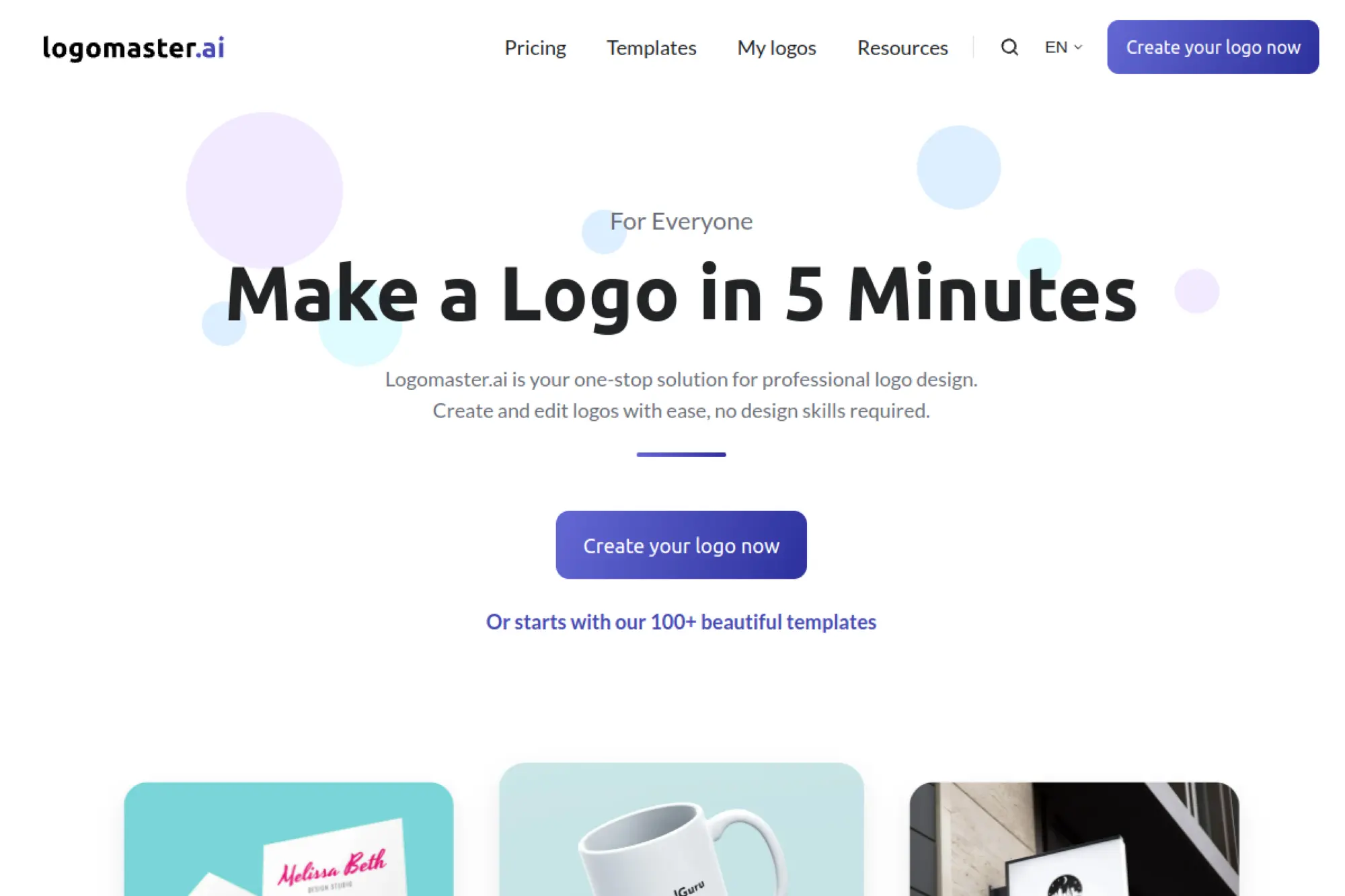
Logomaster.ai focuses on fast logo creation with AI assistance and simple editing. It fits founders who want a clean, modern look without spending days in a design tool.
Best for
Startups, consultants, and personal brands that want a professional-looking logo with minimal fuss.
Key workflows to configure
- Pick an industry and style that matches customer expectations.
- Choose typography that reads clearly in small placements.
- Select an icon concept that feels specific to your niche.
- Create light and dark background versions for flexibility.
Sales growth lever
Use a clean identity to strengthen perceived professionalism on proposals, landing pages, and outbound emails.
Watch outs
- Minimal logos still need spacing discipline to look premium.
- Do not rely on a generic icon that competitors might share.
- Test the logo in monochrome before you finalize it.
Quick start checklist
- Decide your brand tone and audience before generating.
- Shortlist only logos that read well when small.
- Pick a primary logo and a simplified mark.
- Export transparent assets for web use.
- Apply the logo to your website header and proposal template.
22. Logopony
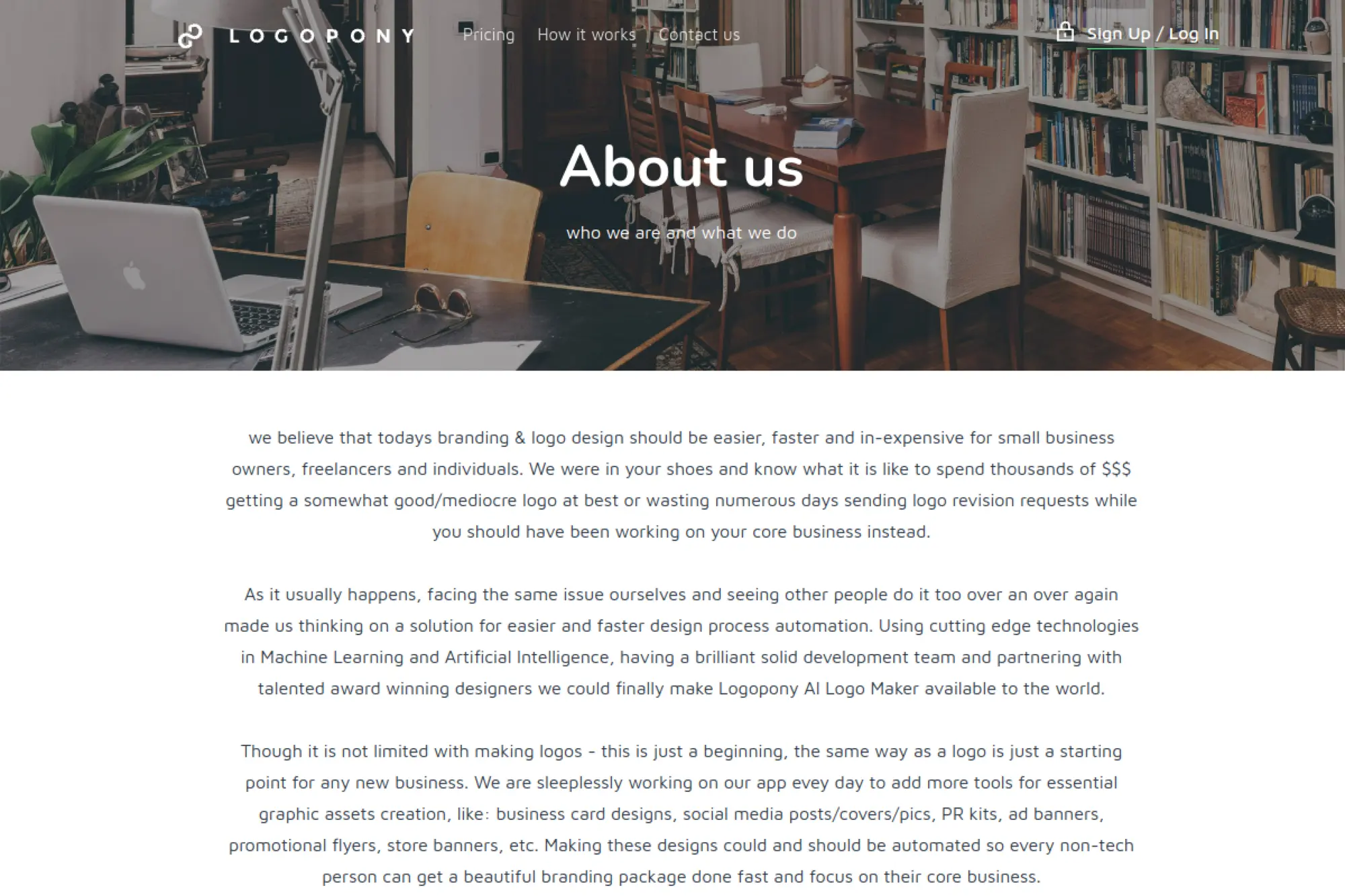
Logopony positions itself as an AI logo maker built for small business owners who want branding done faster. It also emphasizes expanding beyond logos into other marketing assets, which helps when you need more than a single mark.
Best for
Freelancers and small businesses that want a logo plus a lightweight path to supporting graphics.
Key workflows to configure
- Choose a logo style that matches your service category.
- Lock typography and spacing so the mark feels intentional.
- Create a compact version for profile images and icons.
- Save color rules so future designs stay consistent.
Sales growth lever
Use the logo as the anchor for proposals, social posts, and simple promo assets so your brand looks stable and credible.
Watch outs
- AI-generated icons can feel generic if you do not refine them.
- Do a competitor scan before you finalize the concept.
- Keep the mark simple enough for real-world printing.
Quick start checklist
- Write a short brand brief in plain language.
- Generate options and filter for simplicity and clarity.
- Create a primary logo and an icon-only mark.
- Export and test on your website header.
- Reuse the same colors and fonts in future assets.
23. Turbologo
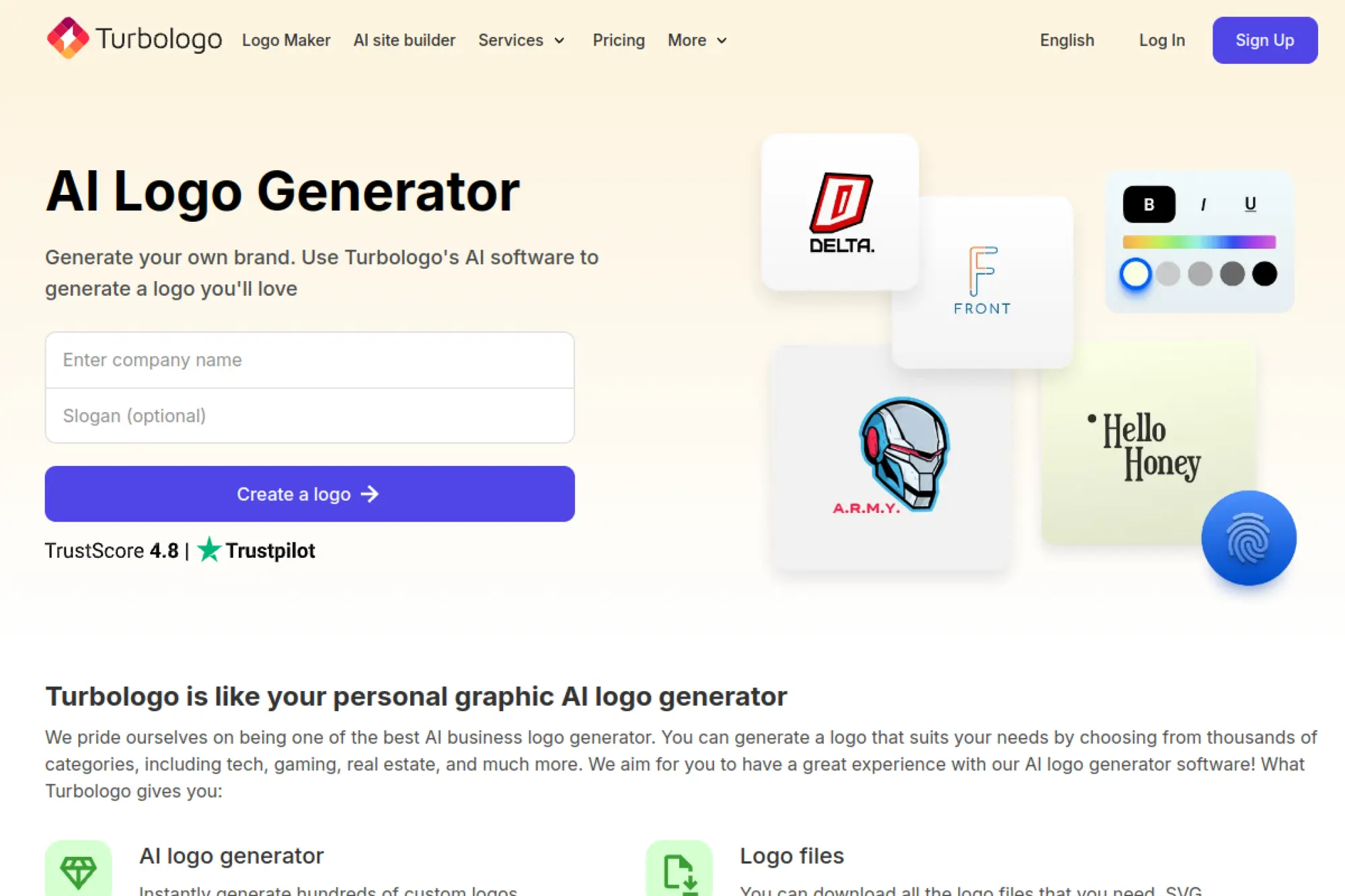
Turbologo focuses on fast logo generation with customization and a guided flow. It can be a good middle ground when you want automation, but you still want to make meaningful edits to type and layout.
Best for
Service businesses that want a quick logo for websites, proposals, and social presence.
Key workflows to configure
- Define your business name and brand tone first.
- Choose a logo direction that fits your industry norms.
- Customize the icon and typography to reduce template feel.
- Create versions for different backgrounds and placements.
Sales growth lever
Use a clear logo to make your brand feel legitimate on lead pages and quote forms, which can improve conversion quality.
Watch outs
- Icon libraries can create overlap, so aim for specificity.
- Avoid overly complex marks that break on mobile.
- Check how your logo looks next to competitor branding.
Quick start checklist
- Write a positioning sentence and keep it visible while designing.
- Pick a simple, readable logo direction.
- Create a monochrome variant for flexible use.
- Export web-ready files for your site and socials.
- Apply the logo consistently across your marketing touchpoints.
24. Hostinger Logo Maker
Hostinger’s Logo Maker works best when you want to connect logo creation to a website launch. It fits entrepreneurs who want a practical logo quickly, then want to move into building a site without switching platforms.
Best for
New website owners who plan to use Hostinger’s ecosystem and need a quick logo for launch.
Key workflows to configure
- Describe your logo goals in plain language with clear style words.
- Choose an option that reads cleanly in your site header.
- Set colors that match your website palette and accessibility needs.
- Create a simplified icon for favicons and avatars.
Sales growth lever
Ship a cohesive site faster, then use the same identity in email and social profiles to build recognition as you start driving traffic.
Watch outs
- Do not let “fast” push you into a generic symbol choice.
- Check how the logo looks on mobile navigation bars.
- Confirm you can export what you need for print use later.
Quick start checklist
- Write down your brand tone and target customer.
- Generate options and shortlist the simplest marks.
- Choose a logo that fits your website layout.
- Export transparent assets for web use.
- Apply the logo to your header, footer, and email signature.
25. Kittl
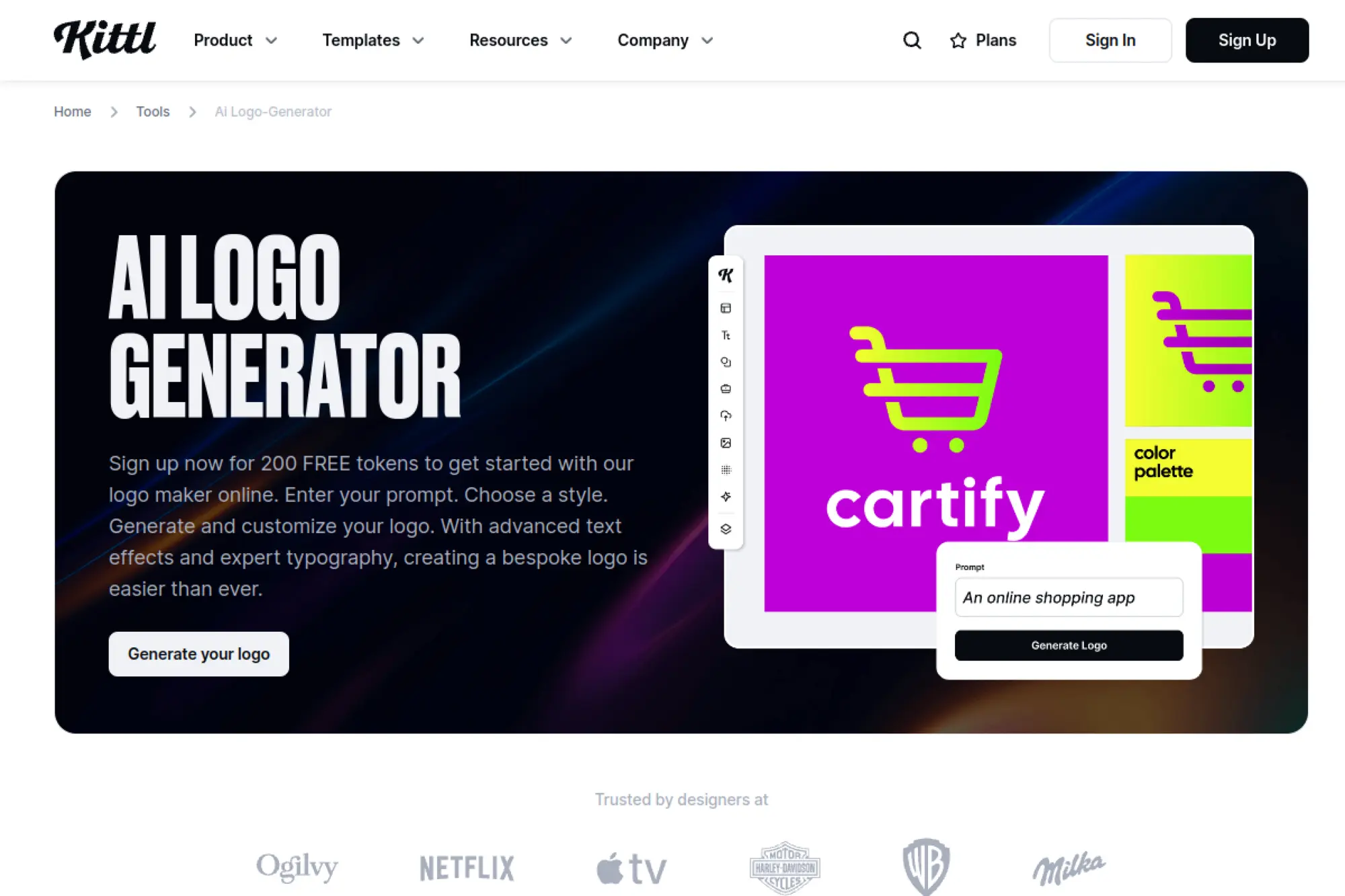
Kittl is a great option when typography matters. It blends AI generation with strong design tools, so you can generate concepts and then refine them in a layout environment that feels built for brand work.
Best for
Brands that want strong typographic logos, badges, and merch-friendly marks with editor-level control.
Key workflows to configure
- Prompt for a clear typographic direction and a simple icon concept.
- Use the editor to refine spacing, alignment, and hierarchy.
- Create a badge-style version for stickers and packaging.
- Build templates for merch, social, and promo assets that match.
Sales growth lever
Turn your logo into product-ready visuals faster, which helps creators and merch brands keep releases consistent and recognizable.
Watch outs
- Complex text effects can reduce clarity in small placements.
- Keep a simple version for icons and favicons.
- Double-check licensing for fonts and commercial usage.
Quick start checklist
- Decide whether your logo is type-first or icon-first.
- Generate a concept, then refine spacing in the editor.
- Create a monochrome version for flexible use.
- Export web and print-friendly assets.
- Apply the same style to a small set of brand templates.
26. Recraft
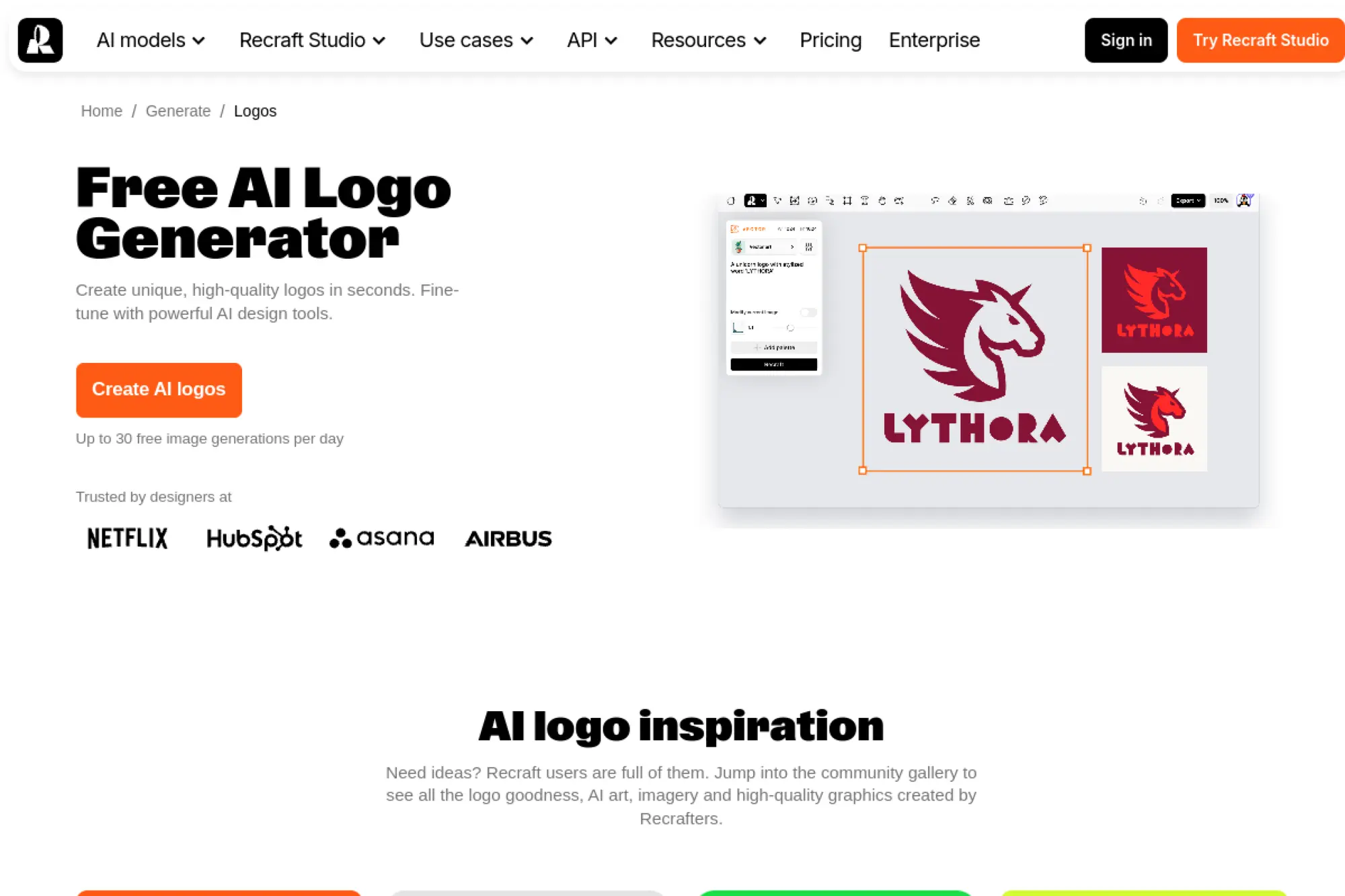
Recraft stands out when you care about vector output and clean graphics. It can generate logo-like visuals in a vector workflow, which can reduce the “now I must trace this” problem that comes with many text-to-image models.
Best for
Designers and founders who want AI-assisted logo concepts with a vector-first workflow for real scaling.
Key workflows to configure
- Generate logo concepts using a vector art style direction.
- Iterate on prompts to simplify shapes and improve silhouette.
- Refine colors so the logo works on light and dark backgrounds.
- Export and test the logo across common placements.
Sales growth lever
Vector-ready outputs speed up brand rollout because you can move faster into packaging, print, and web use without heavy cleanup.
Watch outs
- AI can still generate awkward shapes, so plan a cleanup pass.
- Check uniqueness before using the logo publicly.
- Keep text minimal if you need guaranteed legibility.
Quick start checklist
- Write a prompt focused on simple shapes and clear silhouette.
- Generate several directions and shortlist the cleanest.
- Create a one-color version for flexibility.
- Export vector files and store them safely.
- Test on your header, favicon, and packaging mockups.
27. Logo Diffusion
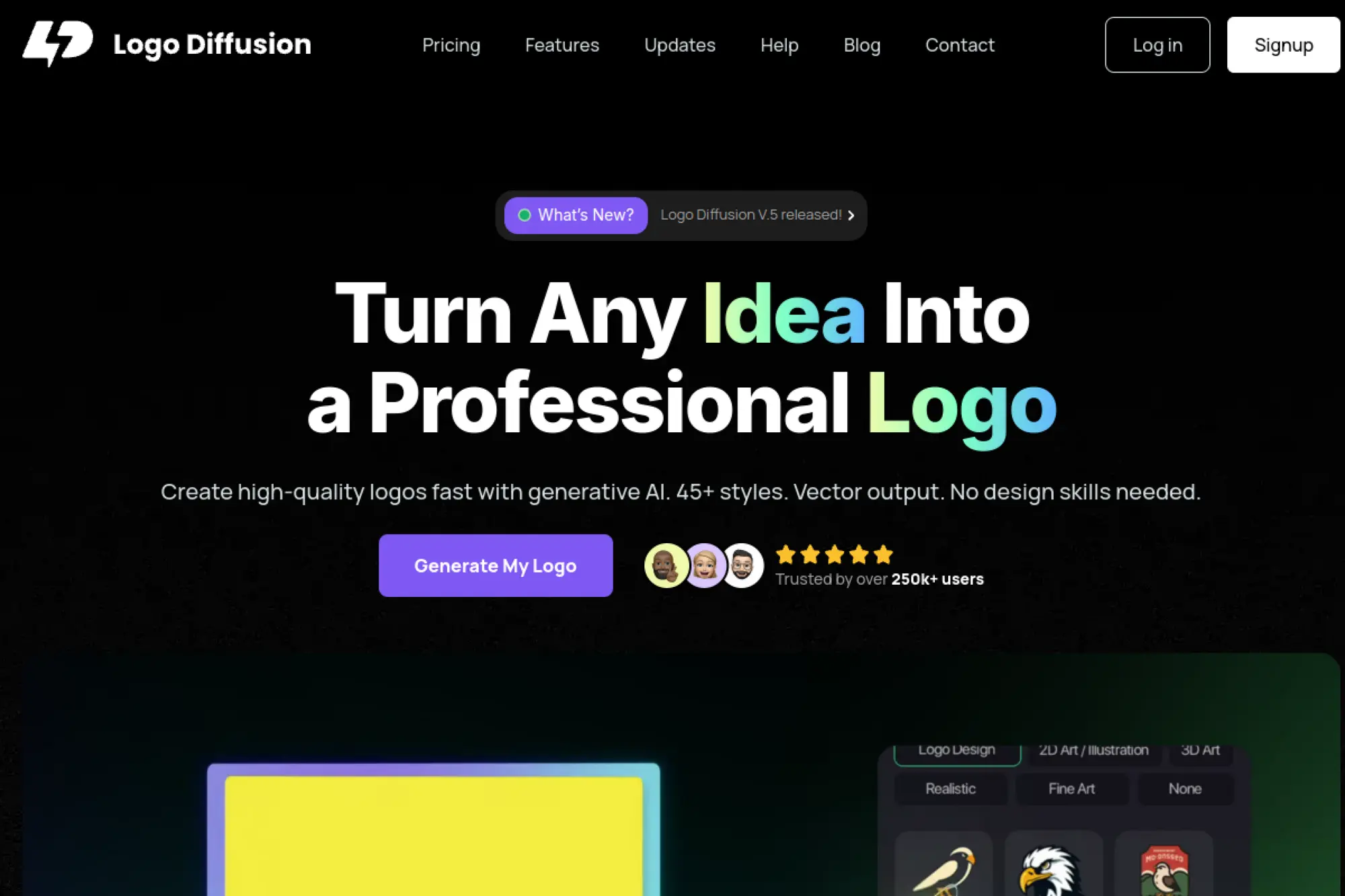
Logo Diffusion leans into generative AI workflows built specifically for logo creation. It fits users who want prompt-based generation, plus tools that keep the output closer to “logo design” than general image art.
Best for
Entrepreneurs who want prompt-based logo ideation with workflows focused on brand marks and variations.
Key workflows to configure
- Use text-to-logo prompts to explore multiple directions quickly.
- Refine prompts to simplify geometry and reduce detail.
- Try “logo to logo” style workflows to iterate from a draft mark.
- Export and organize versions for different brand placements.
Sales growth lever
Rapid iteration helps you land on a stronger concept faster, then deploy a consistent mark across ads, landing pages, and product visuals.
Watch outs
- Prompt-based logos can still resemble popular styles, so audit similarity.
- Clean up edges and spacing before final use.
- Confirm commercial rights and usage rules before scaling usage.
Quick start checklist
- Write prompts that describe shape and structure, not just style.
- Shortlist options with strong silhouettes.
- Create a monochrome version for flexibility.
- Export files and test on real brand placements.
- Store final versions and document your color and type choices.
28. Ideogram
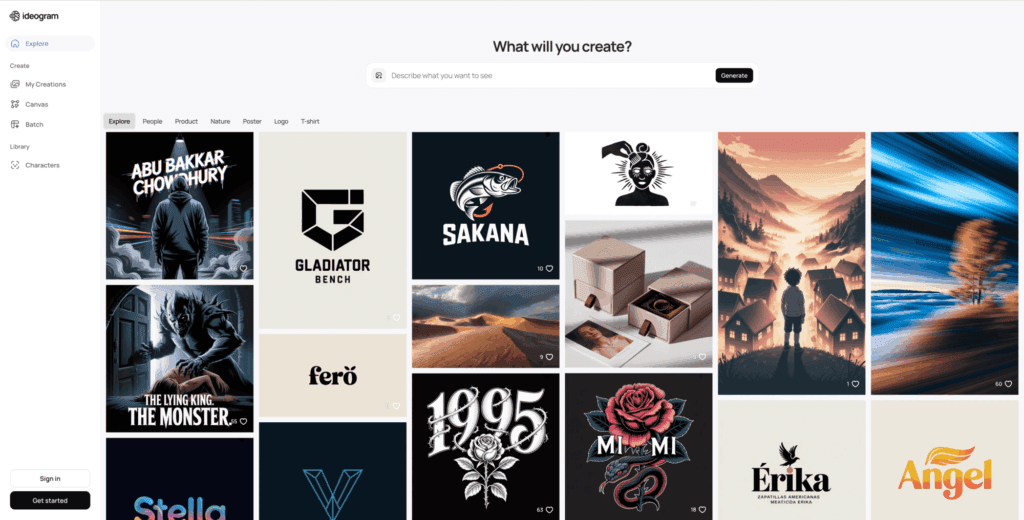
Ideogram is not a traditional logo maker, but it earns a spot because it handles text in images unusually well. That makes it useful for logo ideation when you want the concept to include readable typography, not just an icon.
Best for
Early-stage brand exploration when you want prompt-based concepts with legible brand names and slogans.
Key workflows to configure
- Prompt for flat, minimal, logo-style designs with clean edges.
- Ask for typographic lockups that include your brand name clearly.
- Generate icon-only variations for avatar and favicon use.
- Move the best option into a vector editor for cleanup.
Sales growth lever
Use Ideogram to explore many logo directions fast, then pick a concept that matches your positioning before you spend time polishing it.
Watch outs
- You still need to convert and refine for true logo usability.
- Do not assume uniqueness; check competitors and trademarks.
- Keep shapes simple so the logo survives resizing.
Quick start checklist
- Write a prompt that specifies minimal, flat, brandmark style.
- Generate options and shortlist based on readability.
- Choose one direction and simplify it further.
- Rebuild the final version as vector artwork.
- Test it on your landing page and social profiles.
29. Midjourney
Midjourney is a powerhouse for visual exploration. It is not a plug-and-play logo maker, but it can generate strong brand motifs, mascots, and icon concepts that you can later refine into a proper logo system.
Best for
Brand concept exploration when you want original visual directions, especially for mascots and stylized icons.
Key workflows to configure
- Prompt for simple silhouettes, flat colors, and minimal detail.
- Generate icon concepts, then choose one with a strong outline.
- Remove background and rebuild the mark as vector artwork.
- Create consistent brand motifs you can reuse in marketing art.
Sales growth lever
Create distinctive visual hooks that make ads and thumbnails more recognizable, then translate the best idea into a clean logo mark.
Watch outs
- Midjourney outputs need cleanup and vector rebuilding for real logo use.
- Text rendering can be unreliable, so do typography separately.
- Always do a uniqueness and trademark scan before launch.
Quick start checklist
- Define a clear brand character or symbol direction.
- Generate concepts focused on simple shapes.
- Pick the strongest silhouette and remove extra detail.
- Rebuild the final mark as a vector logo.
- Test on real placements like headers and packaging.
30. Adobe Firefly
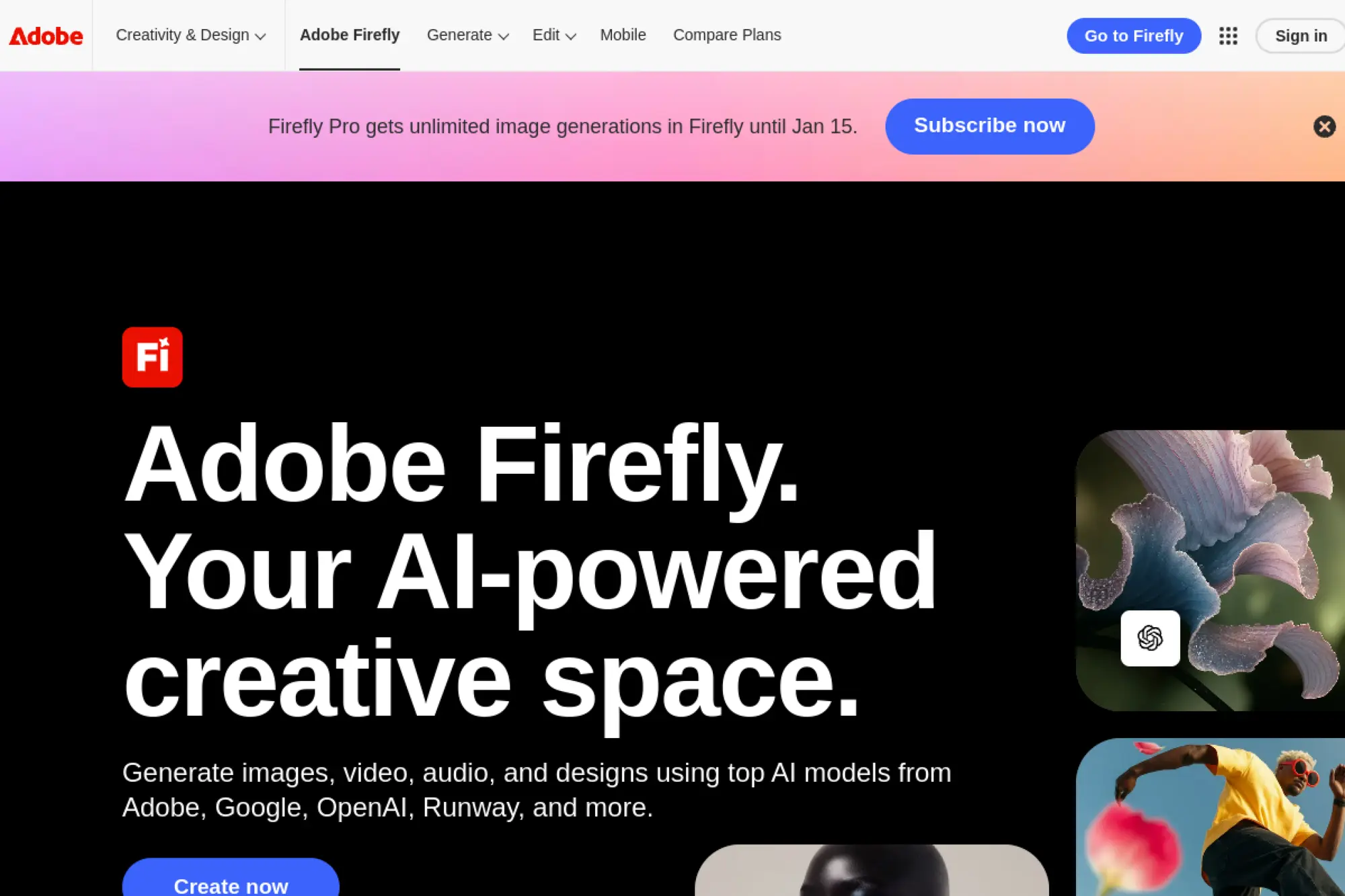
Adobe Firefly is not “just” a logo generator. It is a creative space for generating and editing images and designs. That makes it useful for logo ideation, icon exploration, and building supporting brand visuals in a workflow that many teams already trust.
Best for
Design and marketing teams that want AI-assisted visual exploration with a path into Adobe workflows for final production.
Key workflows to configure
- Generate icon concepts that match your brand tone and category.
- Create background patterns and brand motifs for campaigns.
- Refine the best icon into a clean mark in a vector tool.
- Use the same visual language across ads and landing pages.
Sales growth lever
Build a consistent “brand world” around your logo, which strengthens recall and makes your marketing look more cohesive.
Watch outs
- Firefly outputs still need logo-specific cleanup for final marks.
- Do typography in a tool built for type spacing and alignment.
- Keep the final logo simple and scalable.
Quick start checklist
- Generate a set of icon directions that match your brand brief.
- Select one concept with a strong silhouette.
- Rebuild the concept as vector artwork for clean scaling.
- Create supporting brand visuals that match the same style.
- Apply the system consistently across your website and ads.
31. DreamStudio
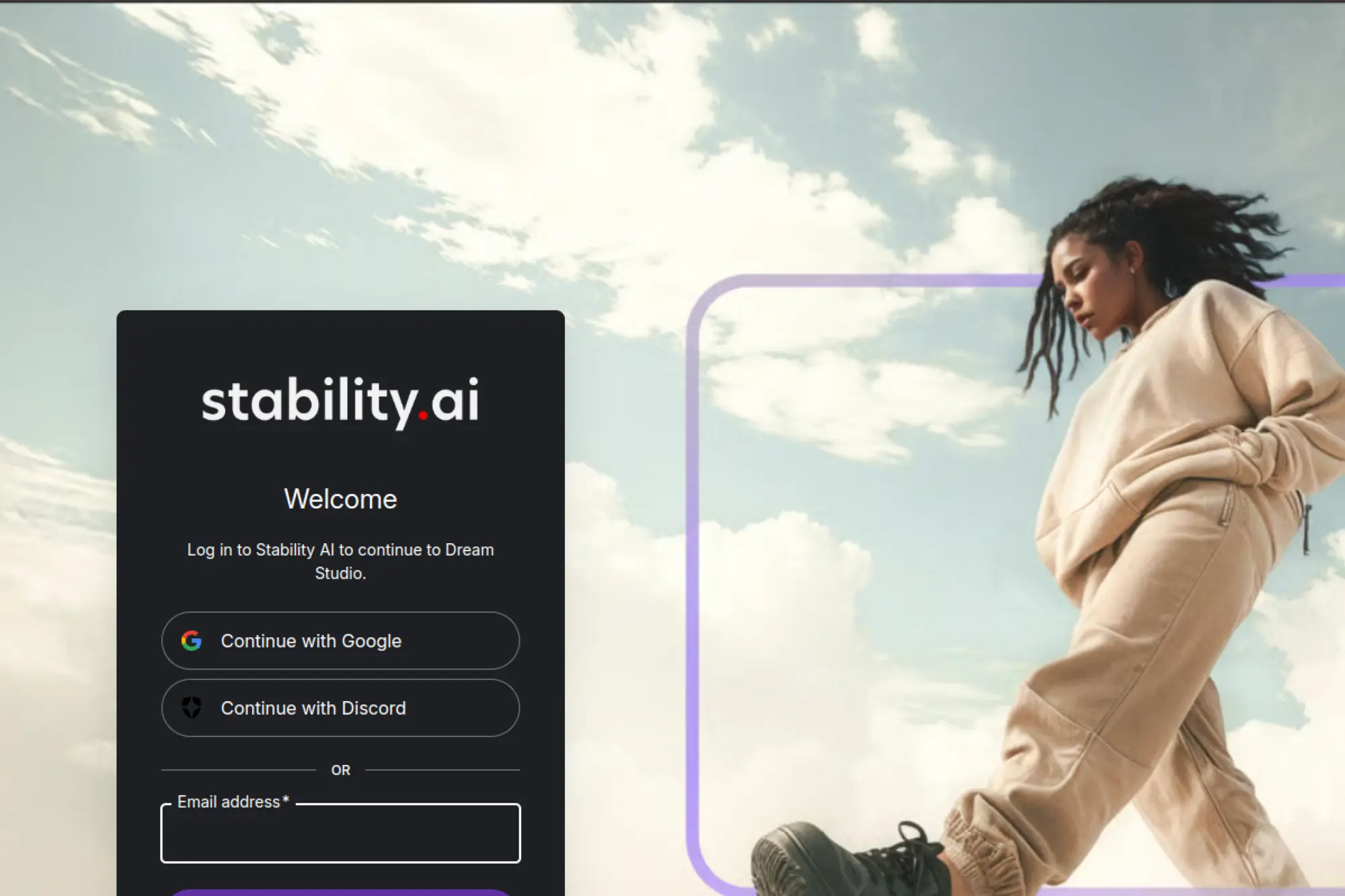
DreamStudio gives you a Stable Diffusion-style workflow in a hosted interface. It is a strong option for users who want prompt control and experimentation, then want to turn the best concept into a real logo through vector cleanup.
Best for
Advanced users who want more control over prompt-based image generation for logo concept exploration.
Key workflows to configure
- Prompt for flat, minimal, vector-style outputs and clean edges.
- Use negative prompting to avoid complex textures and gradients.
- Generate icons and mascots, then simplify for brandmark use.
- Rebuild the final selection as vector artwork for production.
Sales growth lever
Explore a wider creative space to find a more distinctive concept, then translate it into a clean, repeatable identity system for marketing.
Watch outs
- DreamStudio outputs are not “final logos” until you refine them.
- Text rendering can be inconsistent, so do type separately.
- Do a trademark and competitor scan before going public.
Quick start checklist
- Write a short brand brief and list what you want to avoid.
- Generate several icon directions with minimal detail.
- Shortlist one concept with a clear silhouette.
- Rebuild it as a vector logo and refine typography.
- Test the final mark on your website header and packaging mockups.
FAQs About AI Logo Generators
1. Can You Trademark an AI-Generated Logo?
You can often trademark a logo if it is distinctive and you use it in commerce, but AI does not guarantee uniqueness. Treat AI output as a starting point. Then do clearance checks in your target markets before you invest in signage, packaging, or large ad spend.
If you plan to build a brand long term, you should also push the design away from generic icons and common layouts. Distinctiveness helps both marketing and legal defensibility. When the stakes are high, consider using AI for exploration and a designer for the final production files.
2. Should You Use a Logo Maker or a Text-to-Image Model?
Use a logo maker when you need production-ready files quickly and you want built-in exports for typical brand placements. Use a text-to-image model when you want broad creative exploration and you plan to refine later.
Many brands get the best result by combining both. Generate ideas in a creative model, then rebuild the best concept in a vector tool. That hybrid workflow gives you originality and usability.
3. What Files Should You Save After You Pick a Logo?
Save a vector version for long-term flexibility. Save transparent raster versions for web use. Save a monochrome version for simple applications like stamps, embroidery, or low-cost printing.
Also save a short brand note that lists your colors and typography choices. That small document prevents brand drift when you design future ads, landing pages, and social posts.
4. How Do You Avoid a Generic “AI Logo” Look?
Generic logos come from generic inputs. Start with a clear brand brief. Then constrain the style. Ask for simple shapes and strong silhouettes. Avoid default icons that match your category too closely.
Finally, do a cleanup pass. Fix spacing. Simplify shapes. Choose typography intentionally. That final refinement step often makes the difference between “tool-generated” and “brand-owned.”







Conclusion

Choosing the best ai logo generator is less about finding the tool with the prettiest first draft and more about finding the workflow that helps you produce a simple, scalable mark you can actually deploy across your brand. Start by picking a direction that matches your use case (brand kit speed, customization control, website-first, or concept exploration), then push for non-generic results with structure-first prompts, create real variants, and preview the logo where it will live: favicons, headers, social avatars, and landing pages.
Before you commit, reduce risk: confirm commercial usage rights, run quick originality checks, and treat trademark readiness as part of the process if the brand will matter long-term. Once you’ve chosen a winner, save a complete handoff package (variants, background versions, editable master, and brand notes) so your team stays consistent. Do that, and your logo becomes more than a graphic; it becomes an asset that supports trust, recognition, and conversions from day one.