


- Top AI PowerPoint Generator Picks at a Glance
- What “Best AI PowerPoint Generator” Really Means
- What’s New in AI-Generated Presentations Right Now
- How to Choose the Right Tool for Your Team
- Top Picks to Generate PowerPoint Decks With AI
- Common Workflows That Drive Better Decks (and Better Deals)
- FAQ: Getting Results From AI PowerPoint Generators
- Conclusion
Slide decks still steal time—and they still decide deals, budgets, and buy-in. If you’re looking for the best ai powerpoint generator, you’re not just chasing “pretty slides.” You need a tool that can turn messy notes or documents into a clean, editable .PPTX draft—without breaking your brand or creating hours of rework.
This guide ranks 30 tools, but it also shows how to choose based on workflow: PowerPoint-native, Google Slides-native, or web-first exporters (best when you need speed and don’t mind exporting for final edits).
Quick answer: The “best” AI PowerPoint generator depends on where you finalize edits. If your org lives in PowerPoint, start with Microsoft Copilot in PowerPoint (native workflow). If you want fast drafting with strong design, try Gamma (export to PPT) or Canva (AI-first design). If you’re a Google Workspace team, pair Gemini in Google Slides with a standardized template.
Top AI PowerPoint Generator Picks at a Glance
Best PowerPoint-native: Microsoft Copilot in PowerPoint (fast drafts + native editing)
Best Google Slides workflow: Gemini in Google Slides (collaboration-first)
Best design-forward exporter: Gamma (modern layouts + export)
Best all-around template + brand kit: Canva (Magic Design + brand controls)
Best layout automation: Beautiful.ai (structure + export options)
Best for teams using custom templates: Plus AI (PowerPoint + template workflows)
Best for quick training decks: Decktopus (prompt-to-deck speed)
FURTHER READING: |
| 1. Best AI Resume Builder: Top 30 Picks for 2026 |
| 2. Best AI Image Generators: Top 30 Picks for 2026 |
| 3. Best Content AI Writing Tools: Top 30 Picks for 2026 |
Comparison Table
| Tool | Works best when… | Where you work | PPTX export | Brand template support | Best for |
|---|---|---|---|---|---|
| Copilot in PowerPoint | You finalize inside PowerPoint | PowerPoint | ✅ Native | ✅ Template-first | Sales, proposals, exec updates |
| Gemini in Google Slides | You co-edit live in Workspace | Google Slides | ✅ (via Slides) | ✅ (via templates) | Collaboration-heavy teams |
| Canva | You want on-brand design fast | Web/Canva | ✅ Export | ✅ Brand kit | Marketing, social, pitch visuals |
| Gamma | You want web-first speed + export | Web | ✅ Export | ✅ Themes | Startup decks, internal docs→slides |
| Beautiful.ai | You want layout discipline automatically | Web | ✅ Export | ✅ Themes | Clean, consistent decks at scale |
| Plus AI | You need AI inside Slides/PowerPoint + custom templates | Add-in | ✅ Native | ✅ Custom templates | Teams standardizing deck |
What “Best AI PowerPoint Generator” Really Means

“Best” depends on your workflow, not your curiosity. Start by naming the moment you lose time today. Then match a tool to that moment.
A strong AI slide tool usually wins in five places:
- Story speed: It turns raw notes into a logical flow you can defend in a meeting.
- Layout discipline: It keeps slides clean when you add or remove content.
- Brand control: It respects templates, fonts, and tone so the deck looks like your company.
- Editability: It gives you a PowerPoint file you can hand off without drama.
- Team adoption: It fits your current habits (PowerPoint, Google Slides, browser, or an add-in).
Also decide what you will not outsource to AI. For most teams, that list includes final claims, legal wording, pricing details, and competitive statements. AI can help you draft, but you still own accuracy.
What’s New in AI-Generated Presentations Right Now

AI slide tools are no longer “nice demos.” People use them at work. A Gallup analysis reported that 23% of workers report using AI at least a few times per week.
Productivity gains also look real when teams deploy AI in focused tasks. A field study on a generative AI assistant reported a 14% increase in productivity for a customer support role where speed and clarity matter.
Adoption inside business workflows keeps rising, even in serious functions. Deloitte reported that 86% of responding organizations have integrated GenAI into their M&A workflows, which signals that leaders now treat AI as a process tool, not a side experiment.
At the same time, a lot of people remain new to AI at work. Microsoft reported that 46% of survey respondents who use generative AI at work have used it for less than six months, so you should expect uneven skills inside your team. Your rollout plan matters as much as your tool choice.
How to Choose the Right Tool for Your Team
Choose a tool the same way you choose a CRM workflow: start with the job to be done. Then look for the smallest change that saves the most time.
Use these selection filters:
- Where the work happens: If your team lives in PowerPoint, favor add-ins and native edits. If your team drafts in the browser, favor fast exporters.
- Input type: Some tools shine with “prompt to deck.” Others shine with “document to deck” or “existing slide cleanup.”
- Brand risk: If brand mistakes create rework, prioritize template locking, brand kits, and layout automation.
- Handoff reality: If your deck must move across teams, pick tools that export editable PowerPoint files cleanly.
- Security expectations: If you work with client data, pick tools that support enterprise controls and predictable governance.
Then run a simple pilot. Pick one real deck you ship often, like a sales proposal, a quarterly review, or a training module. Generate it with your top two tools. Compare the time you spend fixing layout and rewriting copy. The “best” tool is the one that reduces edits, not the one that generates the flashiest first draft.
Top Picks to Generate PowerPoint Decks With AI

How we picked and ranked these tools: We prioritized tools that (1) generate a usable outline and slide draft quickly, (2) keep layouts consistent as you edit, and (3) support real-world handoff—especially editable PowerPoint export. We also scored tools higher when they support brand templates, team workflows, and governance (permissions, enterprise controls, predictable sharing).
1. Copilot in PowerPoint
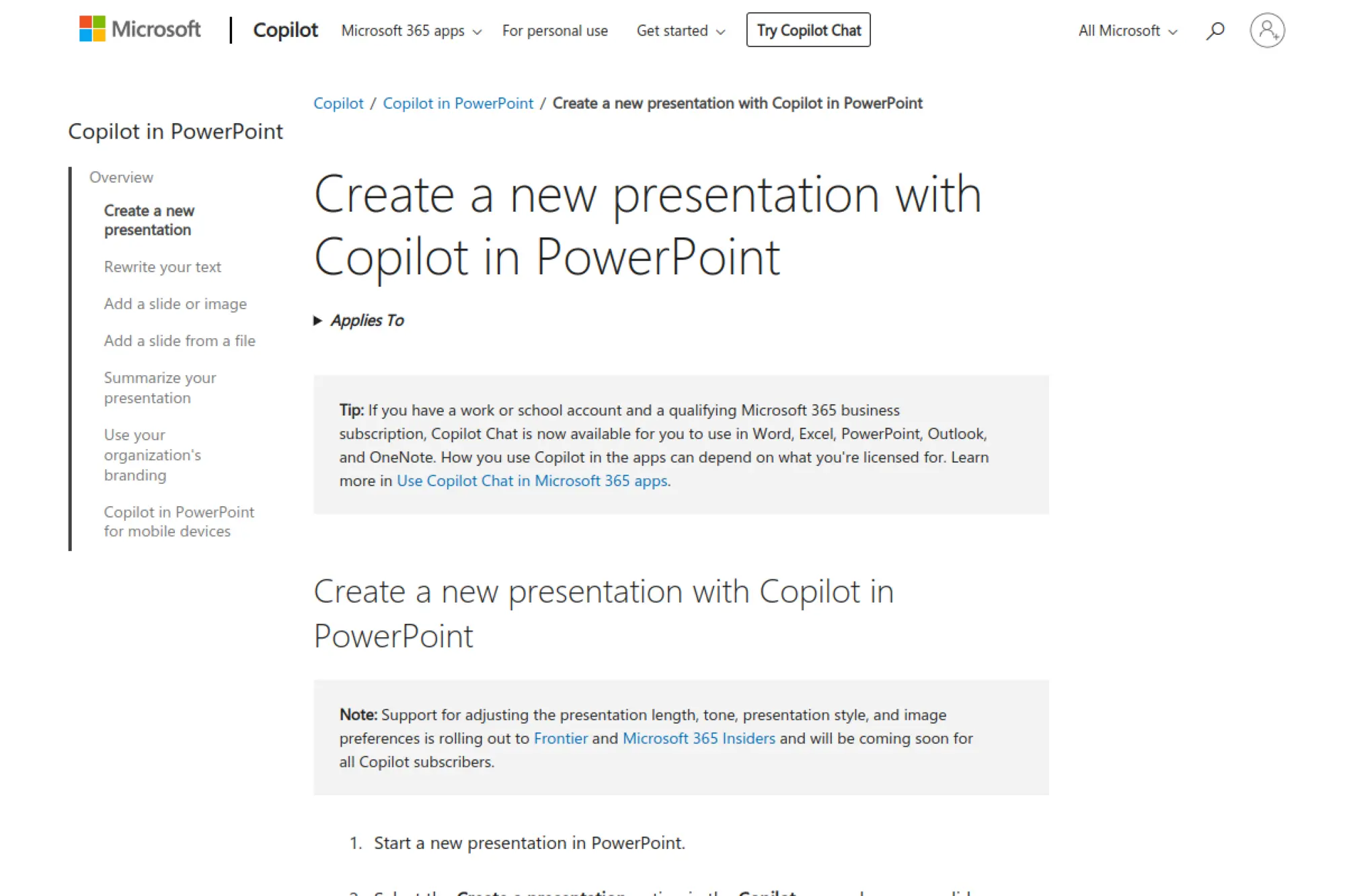
Copilot in PowerPoint works best when you already live inside Microsoft’s slide workflow. It helps you draft a deck from a prompt or from an existing file, then keeps you in the same editor for refinements.
Best for
Teams that need a fast first draft without leaving PowerPoint, especially when you want the output to stay editable and familiar for every stakeholder.
Key workflows to configure
- Turn internal docs into a slide outline, then expand into slides.
- Rewrite slide copy for tone, clarity, and audience fit.
- Standardize decks by starting from an approved template.
Sales growth lever
Shorten proposal turnaround time. When reps can produce a clean draft quickly, they follow up faster and keep momentum after discovery calls.
Watch outs
Copilot can sound confident even when it guesses. Treat it as a drafting partner and keep humans responsible for facts, pricing, and claims.
Quick start checklist
- Pick a single “gold standard” company template.
- Create a prompt library for your common decks.
- Set a review step for key claims before sending.
2. Google Slides
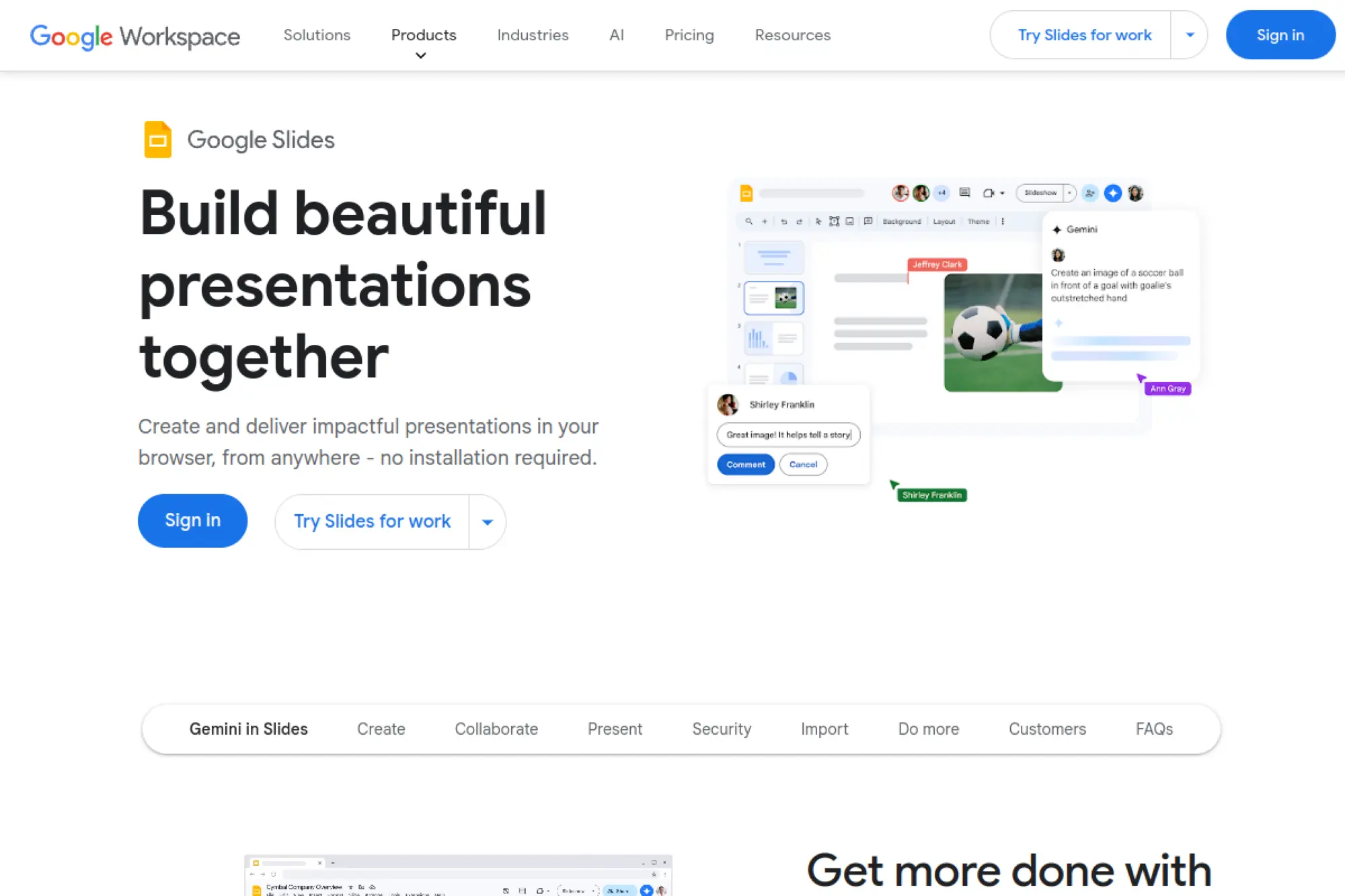
Google Slides becomes an AI slide workflow when you pair it with Gemini and a strong collaboration culture. You can generate a draft in Gemini, move it into Slides, and then collaborate with your team in real time.
Best for
Fast-moving teams that co-edit decks live and want AI help with structure, rewriting, and visual suggestions before a meeting.
Key workflows to configure
- Draft an outline with AI, then assign slides to owners.
- Standardize speaker notes and talk tracks across reps.
- Export to PowerPoint when your customer requires it.
Sales growth lever
Improve deal team alignment. When product, sales, and leadership can edit the same deck quickly, you reduce last-minute contradictions before a pitch.
Watch outs
Formatting can shift when you export to PowerPoint. Plan time for a final layout check if you must deliver a PowerPoint file.
Quick start checklist
- Create a shared deck template with locked styles.
- Build a slide library for case studies and proof points.
- Set a naming rule so teams find the latest deck fast.
3. Canva
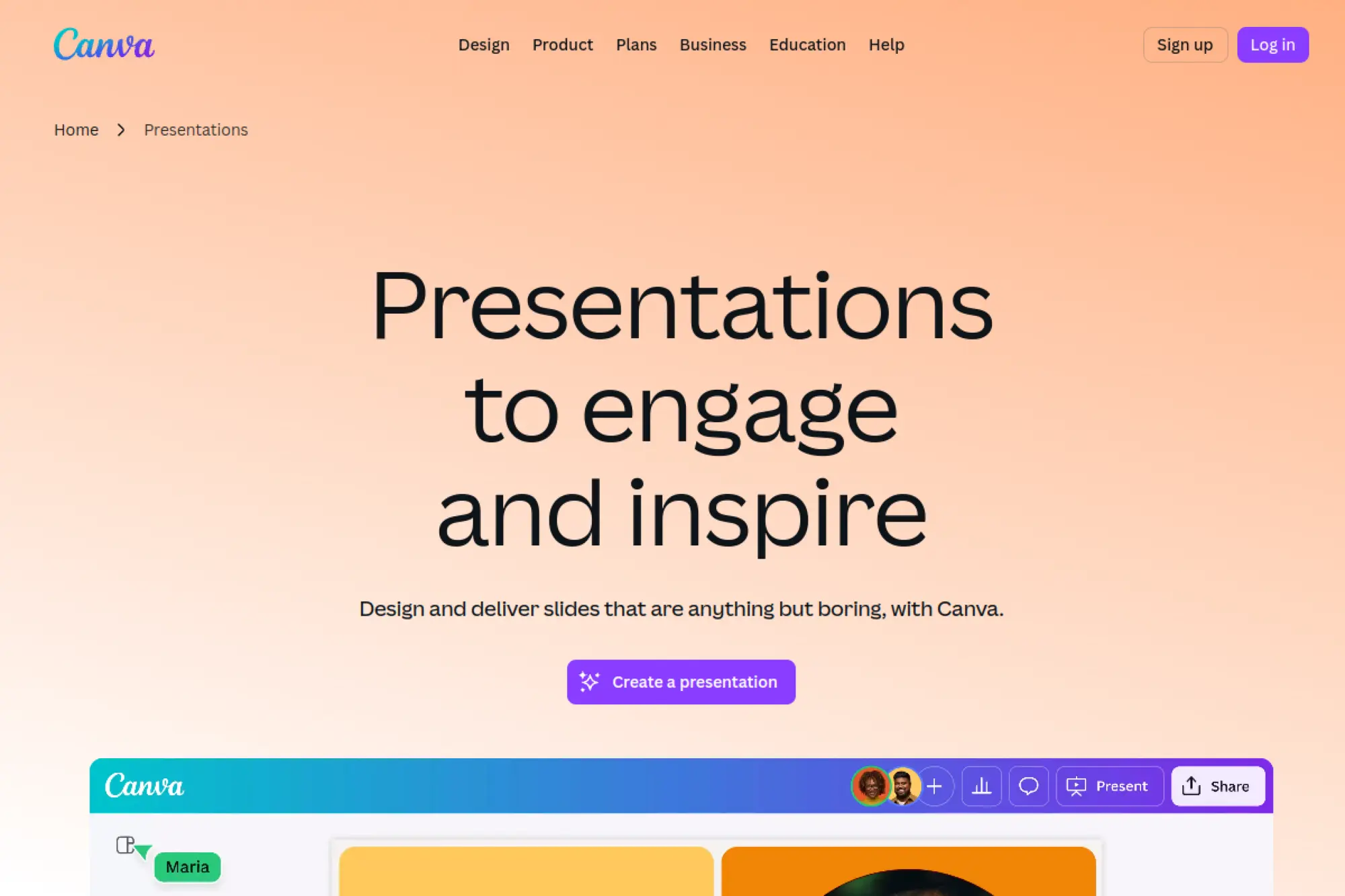
Canva is a strong option when design speed matters and your team wants a visual-first workflow. Its AI features help you draft layouts and visuals quickly, then you can export to PowerPoint for delivery.
Best for
Marketing and sales enablement teams that care about brand polish, image quality, and easy template reuse across many decks.
Key workflows to configure
- Build a brand kit with fonts, colors, and reusable components.
- Create reusable page templates for common slide types.
- Generate visuals and headlines, then refine for accuracy.
Sales growth lever
Raise perceived quality in customer-facing decks. Cleaner visuals can increase trust, which helps reps move from interest to commitment.
Watch outs
Complex Canva designs can export with elements flattened. If you need heavy edits later in PowerPoint, keep designs simple and modular.
Quick start checklist
- Start from a single brand-approved presentation theme.
- Create a shared folder for approved sales assets.
- Run an export test before a high-stakes presentation.
4. Beautiful.ai
Beautiful.ai focuses on smart layouts that stay clean as you edit. Its PowerPoint add-in and export path make it practical when you want automated design but still need a PowerPoint deliverable.
Best for
Teams that want consistent, professional slide design without a dedicated designer, especially for recurring decks like proposals and updates.
Key workflows to configure
- Create slide templates for your common story arcs.
- Use document-to-slide drafting for quick first versions.
- Export to PowerPoint for stakeholder edits and handoff.
Sales growth lever
Reduce time lost to formatting. Reps can spend more time tailoring the message and less time aligning boxes and fonts.
Watch outs
When you export, some design choices may require small adjustments inside PowerPoint. Plan a short “polish pass” before sending to clients.
Quick start checklist
- Build a branded theme once and reuse it.
- Create a slide library for objections and proof points.
- Set a review process for external-facing decks.
5. Gamma
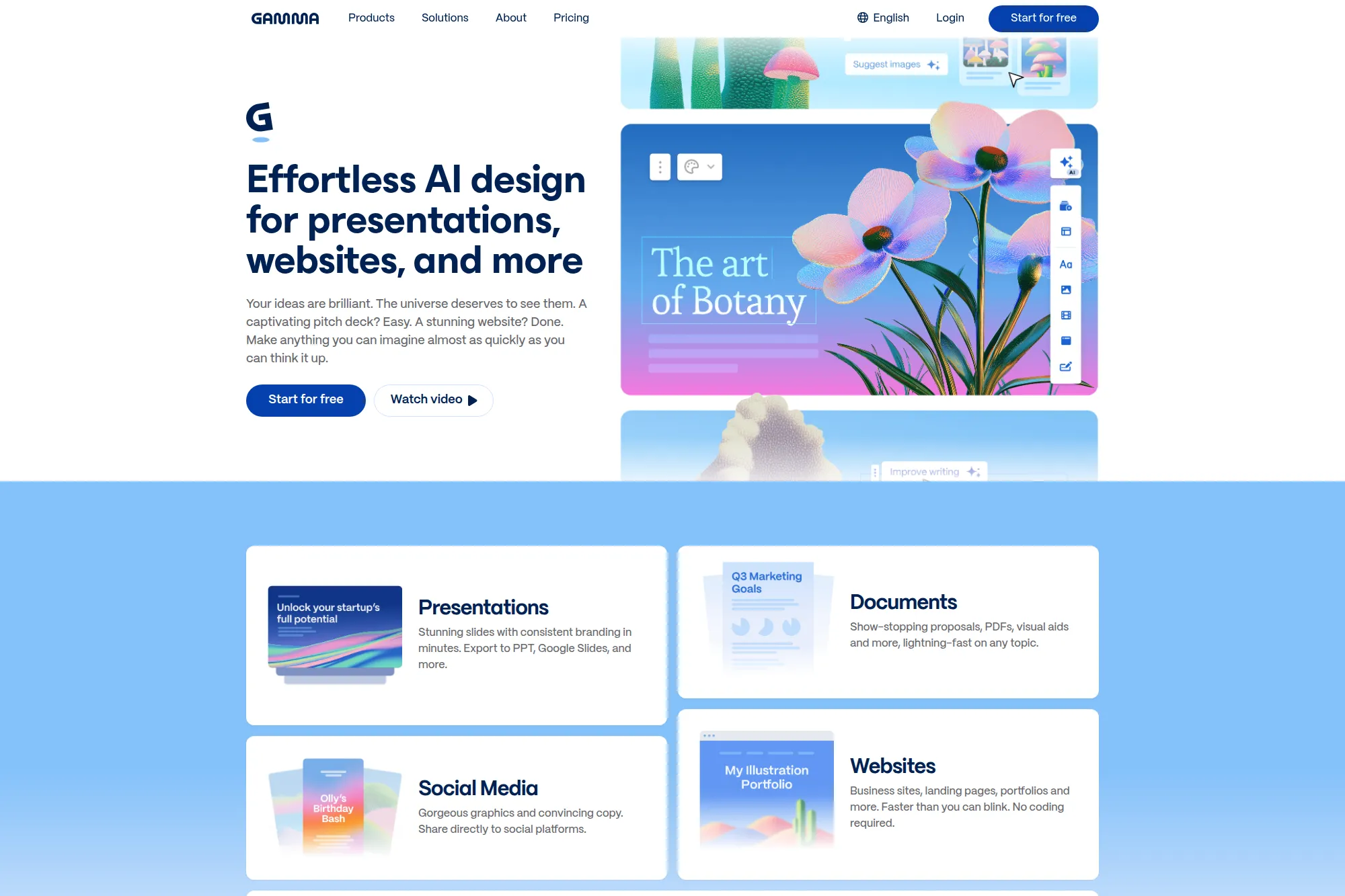
Gamma makes it easy to go from idea to a structured deck quickly. It shines when you want a web-style presentation with fast iteration, plus the option to export for PowerPoint delivery.
Best for
Founders, marketers, and consultants who want rapid drafting, clean structure, and easy iteration before the final PowerPoint handoff.
Key workflows to configure
- Generate a deck from a prompt, then refine the outline.
- Import existing slides or documents and restyle them.
- Export to PowerPoint for final brand compliance checks.
Sales growth lever
Test messaging faster. You can iterate on positioning and narrative quickly, then use the best-performing version in outbound and pitches.
Watch outs
Exported slides may need spacing adjustments. If your company demands pixel-perfect templates, build a short cleanup step into your workflow.
Quick start checklist
- Write a reusable prompt for your core deck type.
- Standardize section headers across teams.
- Export early once to validate formatting expectations.
6. Pitch
Pitch combines collaboration with AI features for drafting and refining slides. It works well for teams that build decks together and need PowerPoint export for external delivery.
Best for
Teams that want a modern collaborative editor, plus AI help for writing and cleanup, with a straightforward path to a PowerPoint file.
Key workflows to configure
- Generate a draft deck from a prompt, then assign owners.
- Use AI actions to rewrite copy for tone and clarity.
- Export to PowerPoint for client handoff or compliance review.
Sales growth lever
Speed up account-based customization. You can duplicate a core deck, then use AI to tailor language for each industry or persona.
Watch outs
Some interactive blocks may not export perfectly. Keep key slides simple if your final deliverable must be edited heavily in PowerPoint.
Quick start checklist
- Create a workspace template for sales decks.
- Define tone rules for each audience segment.
- Run an export test on a deck with charts and media.
7. Prezi

Prezi stands out when you want motion-rich storytelling, then still need to produce a PowerPoint version for teams that require traditional slides. It also supports AI-assisted conversion from uploaded files.
Best for
Presenters who want a more engaging narrative style, plus a backup plan that exports to PowerPoint slides for compliance or sharing.
Key workflows to configure
- Start from an existing PowerPoint and convert with AI help.
- Build a narrative structure that supports non-linear presenting.
- Export to PowerPoint when stakeholders require slide files.
Sales growth lever
Differentiate your pitch. A more dynamic story can hold attention longer, which helps when you sell complex products with many stakeholders.
Watch outs
Exported PowerPoint slides become static. If motion is core to your message, plan a “Prezi-first” delivery and use PowerPoint as backup.
Quick start checklist
- Convert an existing deck to test the workflow.
- Build a reusable narrative template for demos and pitches.
- Export a PowerPoint version and verify layout quickly.
8. Visme

Visme blends AI-assisted creation with interactive visuals and strong design control. It also supports exporting presentations into an editable PowerPoint file, which helps when you need PowerPoint delivery after richer design work.
Best for
Teams that want more visual variety than traditional PowerPoint editing, but still need to hand off a PowerPoint version to clients or leadership.
Key workflows to configure
- Use AI to draft content blocks and slide structure.
- Standardize brand assets inside a shared brand kit.
- Export to an editable PowerPoint file for final delivery.
Sales growth lever
Turn product value into visual proof. Strong diagrams, charts, and interactive elements can make benefits easier to grasp in a sales call.
Watch outs
PowerPoint exports may flatten some animations. If motion matters, treat the PowerPoint file as a distribution format, not the primary experience.
Quick start checklist
- Create branded slide templates for your top use cases.
- Build an approved chart style guide.
- Export a sample deck and validate editability in PowerPoint.
9. Slidebean
Slidebean targets pitch decks and business storytelling. It can generate certain deck types with AI and then let you export to PowerPoint, which helps when you need investor-ready structure but still want PowerPoint control later.
Best for
Startups and go-to-market teams that need a pitch deck narrative quickly, with a clear path to exporting for stakeholder edits.
Key workflows to configure
- Generate a pitch deck draft from your company information.
- Standardize your storyline slides across the organization.
- Export an editable PowerPoint file for final revisions.
Sales growth lever
Clarify the “why now” story. A sharper narrative helps sales teams and founders land meetings, keep attention, and drive next steps.
Watch outs
Some charts and special elements may export as images. If your buyer needs to edit charts inside PowerPoint, plan to rebuild those visuals.
Quick start checklist
- Write your core story in plain language first.
- Map slides to buyer questions, not company org charts.
- Export early and confirm what stays editable.
10. Decktopus
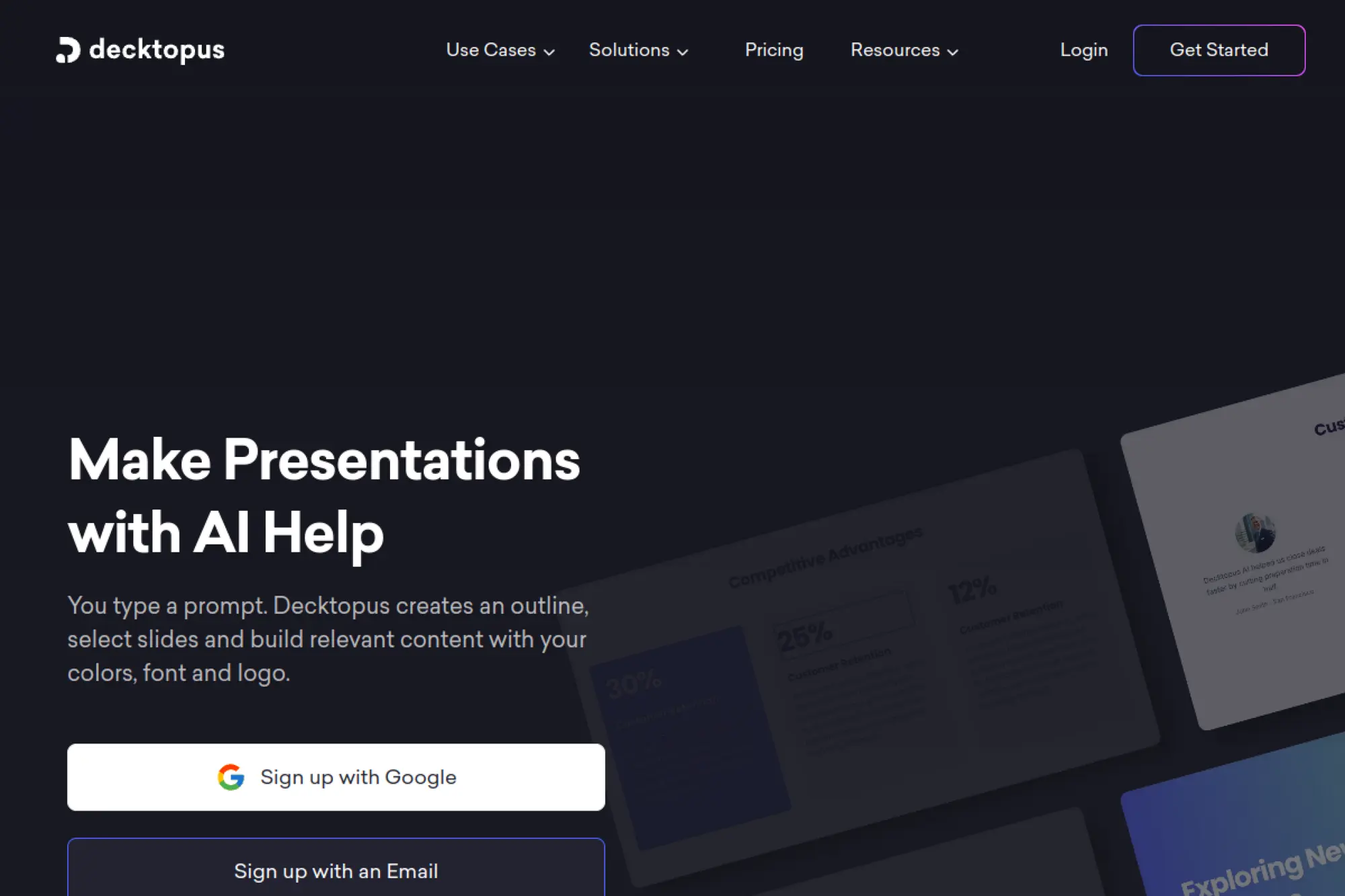
Decktopus focuses on guided deck creation. You provide a prompt or upload content, and it produces a structured presentation you can customize, then export for PowerPoint usage.
Best for
Non-designers who need a “guided assistant” approach and want AI help choosing slide types, flow, and visuals.
Key workflows to configure
- Convert a document into a presentation draft with AI support.
- Create branded themes so decks stay consistent.
- Export as a PowerPoint file for wider sharing.
Sales growth lever
Standardize sales storytelling. When every rep starts from the same structured deck flow, you reduce message drift and strengthen positioning.
Watch outs
AI drafts still need human editing. Watch for generic claims and replace them with customer-specific proof, outcomes, and examples.
Quick start checklist
- Create a branded theme and reuse it across decks.
- Build a “sales deck outline” template prompt.
- Export a test deck and confirm formatting quality.
11. Slidesgo AI Presentation Maker
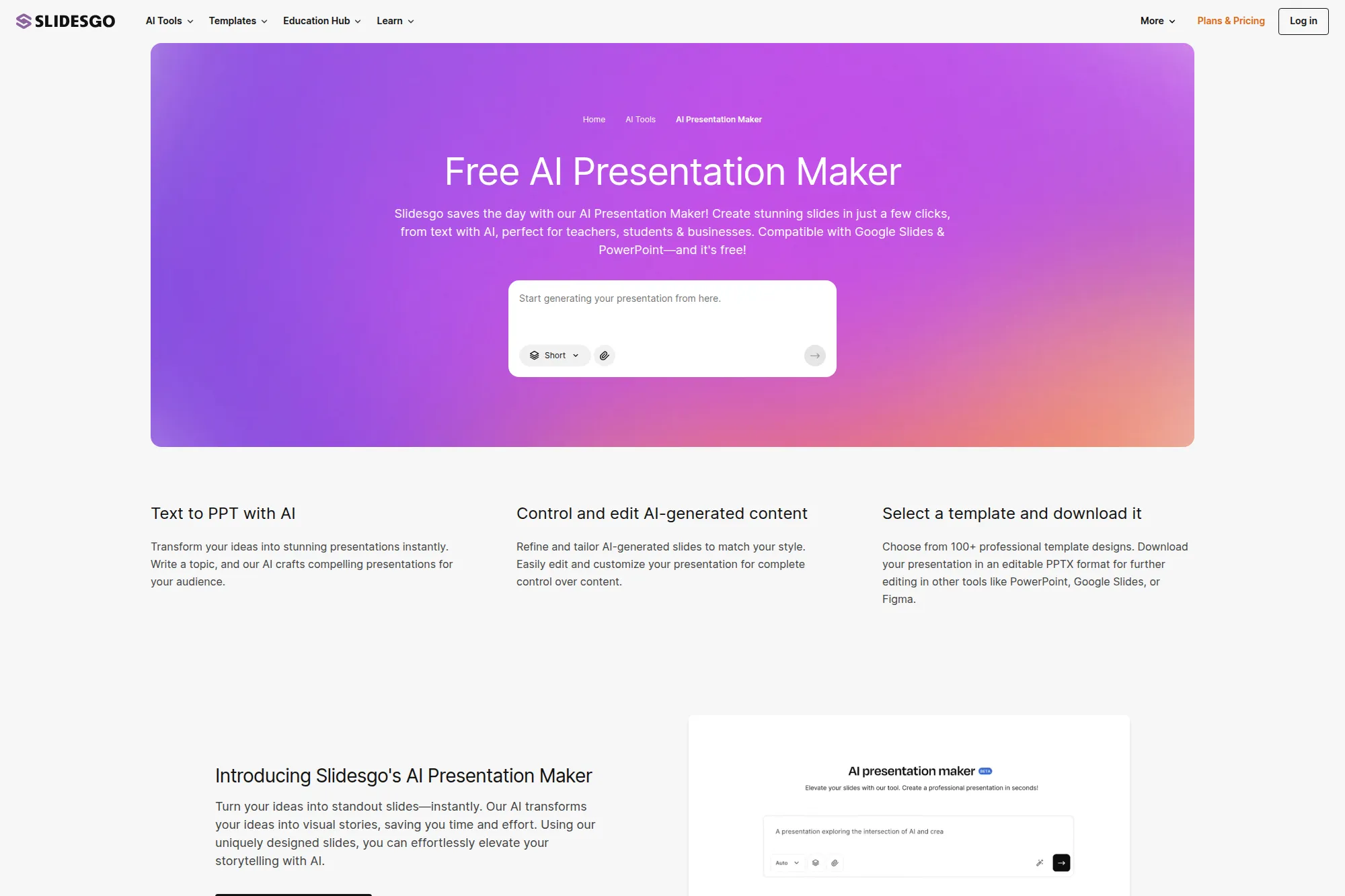
Slidesgo pairs AI generation with a large template ecosystem. It works well when you want to start from a topic, then choose a template style and download an editable PowerPoint file.
Best for
Educators, marketers, and small teams that want quick generation plus plenty of template choices for different visual styles.
Key workflows to configure
- Generate a deck from a topic, then edit the outline.
- Match the deck to a template aligned with your audience.
- Download the deck for editing in PowerPoint.
Sales growth lever
Move faster from idea to deck. Faster drafts mean faster outbound experiments, faster webinars, and faster partner enablement.
Watch outs
Templates can tempt you to over-design. Keep slides focused on the decision you want the audience to make.
Quick start checklist
- Pick a small set of approved template styles.
- Create a prompt format for consistent outlines.
- Run a quick quality check for brand alignment.
12. SlidesAI
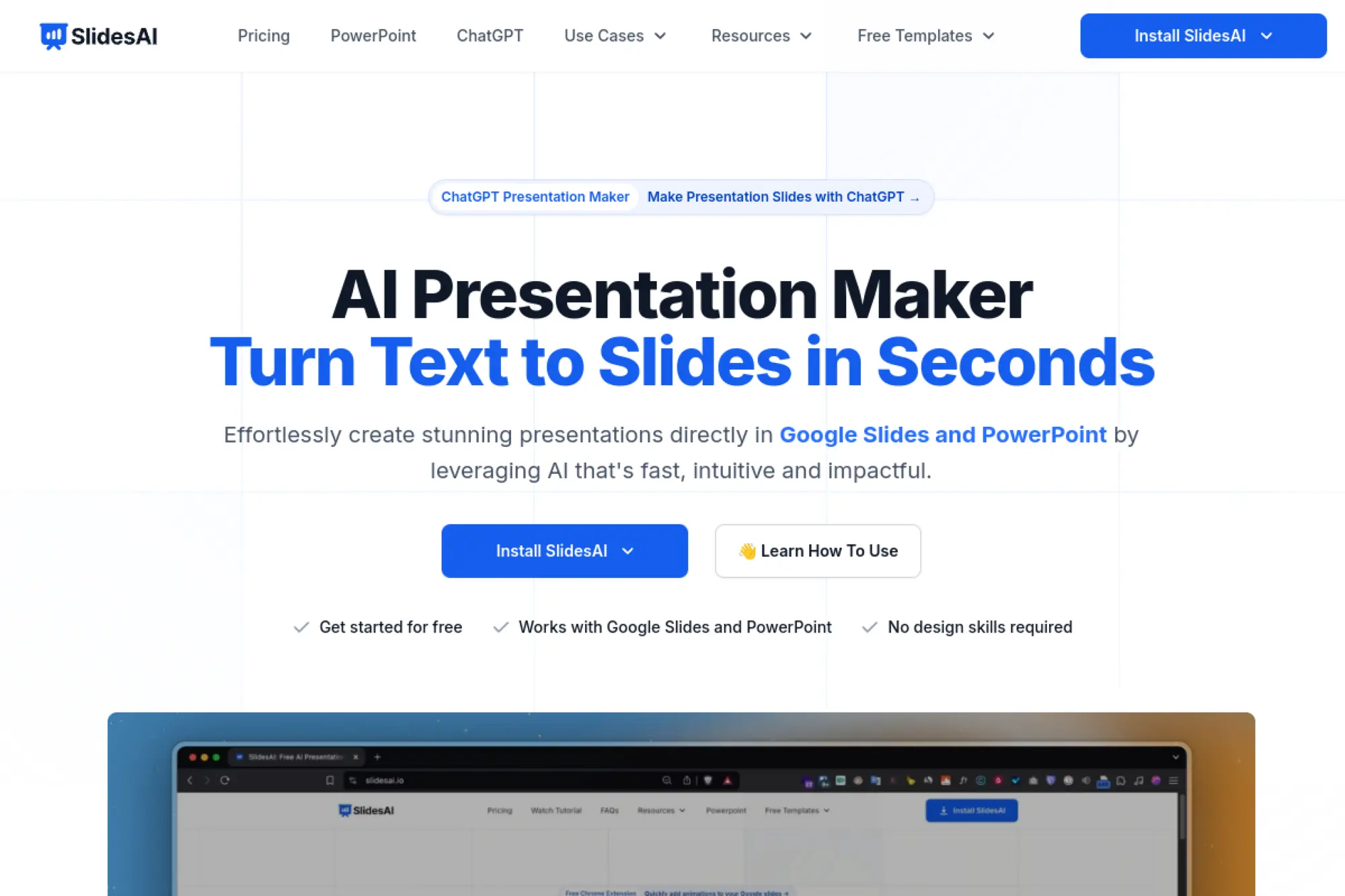
SlidesAI works as an add-on for slide editors and helps generate content into slide format quickly. It is a strong option when your team wants AI help without switching away from their current presentation tool.
Best for
Teams that already work in slide editors and want a fast “notes to slides” conversion with minimal workflow change.
Key workflows to configure
- Turn meeting notes into a slide outline and draft.
- Rewrite content for brevity and clarity slide by slide.
- Export as a PowerPoint file for sharing and presenting.
Sales growth lever
Accelerate follow-ups. After a discovery call, a rep can turn notes into a recap deck quickly and keep the deal moving.
Watch outs
AI may overfill slides with text. Keep the main slide message short, then push detail into speaker notes.
Quick start checklist
- Create a house style for headings and slide titles.
- Build a checklist for “too much text” detection.
- Save reusable slide layouts for common story beats.
13. Plus AI
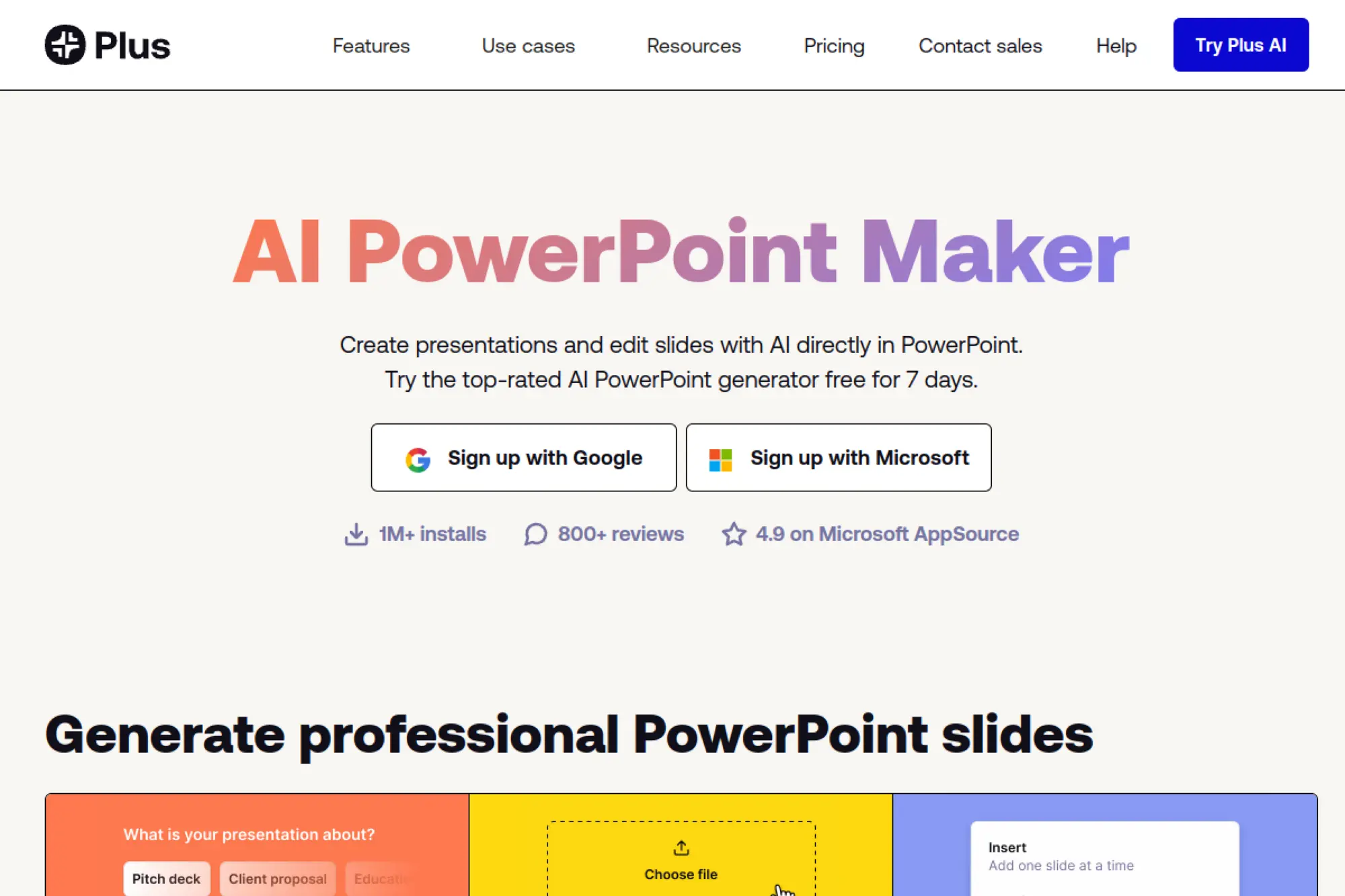
Plus AI aims to keep slide generation close to where teams already work. It supports creating presentations with AI and then exporting to PowerPoint when needed, which helps teams that collaborate in different ecosystems.
Best for
Cross-functional teams that draft in shared slides and need a reliable export path to PowerPoint for delivery or stakeholder edits.
Key workflows to configure
- Generate an outline, edit it, then build slides from it.
- Upload internal documents to create a structured deck.
- Remix existing slides into a cleaner layout style.
Sales growth lever
Personalize decks at scale. You can keep a core story, then use AI to tailor language and slide emphasis for each account.
Watch outs
AI will not know your latest product details unless you provide them. Use file uploads or paste current messaging to avoid outdated claims.
Quick start checklist
- Create a standard outline format for your sales deck.
- Collect approved value props in a reusable prompt block.
- Test export quality before rolling out to the team.
14. MagicSlides
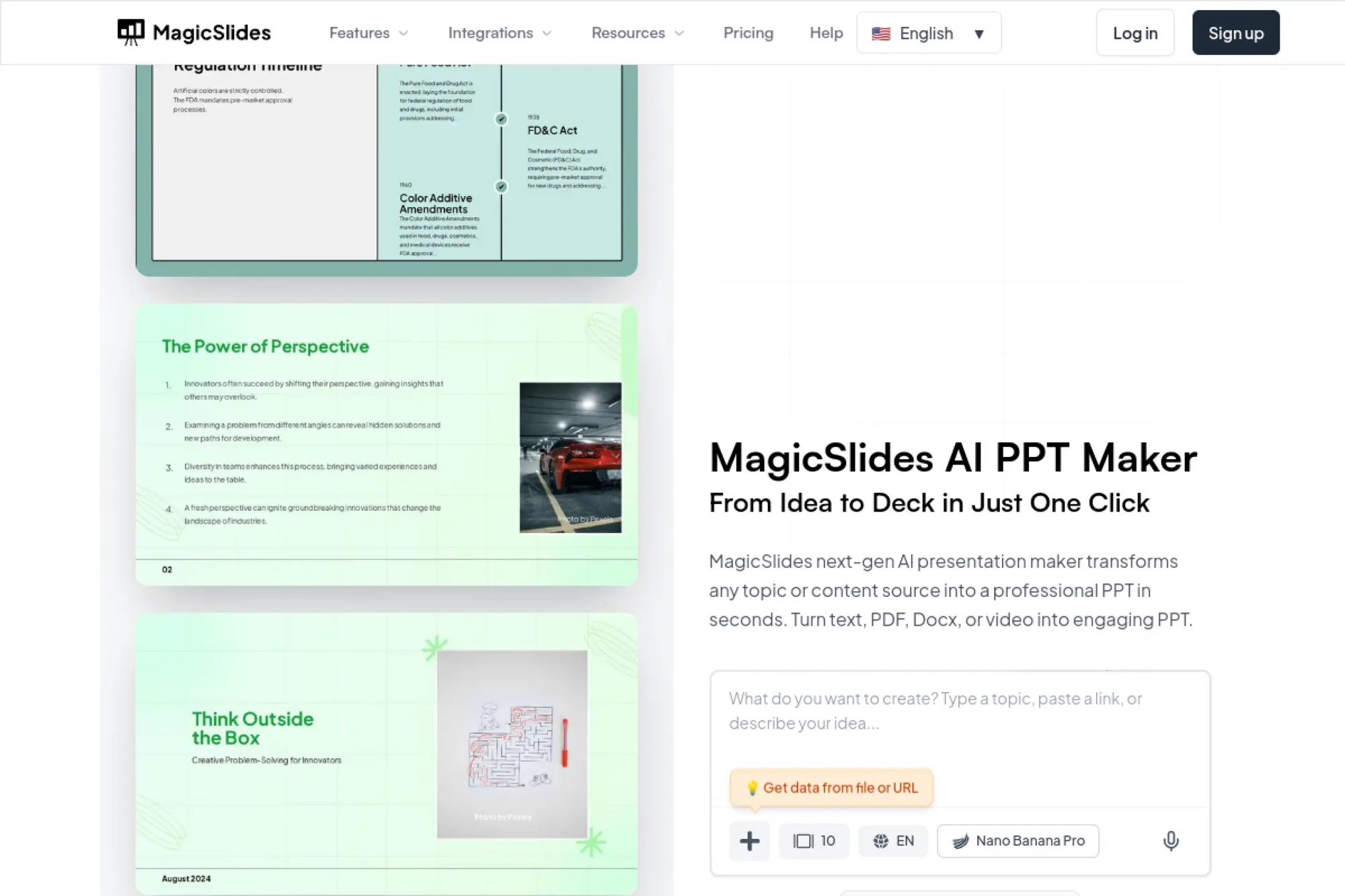
MagicSlides helps you generate slide decks from prompts, text, or sources like URLs. It fits teams that want quick generation and then prefer to finalize inside PowerPoint or another editor.
Best for
Busy operators and educators who need fast slide drafts from existing material, especially when starting from written content.
Key workflows to configure
- Convert a blog post or outline into a structured deck.
- Regenerate slides that feel weak instead of rewriting from scratch.
- Download a PowerPoint file for offline presenting and editing.
Sales growth lever
Turn content into revenue assets. You can convert a case study or white paper into a sales deck that reps actually use.
Watch outs
URL-based generation can import fluff. Always edit down to what matters for the buyer: outcomes, proof, and next steps.
Quick start checklist
- Start with a clean outline or a strong source article.
- Review slide titles to ensure a logical argument.
- Replace generic visuals with product-relevant images.
15. Sendsteps.ai
Sendsteps.ai brings AI slide generation and audience interaction together. It works well when you want to generate a deck and also add live polls, quizzes, and Q&A moments that increase engagement.
Best for
Facilitators, trainers, and sales presenters who want audience participation and still need a PowerPoint export option for compatibility.
Key workflows to configure
- Generate slides from a topic, then insert interactive questions.
- Import an existing PowerPoint and enhance it with engagement.
- Export a PowerPoint version for sharing and internal review.
Sales growth lever
Increase meeting engagement. Interactive moments surface objections earlier and help reps guide the conversation toward a clear decision.
Watch outs
Interactive elements often work best in the web experience. If you export to PowerPoint, plan how you will handle live participation during delivery.
Quick start checklist
- Pick a standard interaction style for your team.
- Build question banks for common discovery topics.
- Rehearse the flow so polls support the story, not distract.
16. PopAi
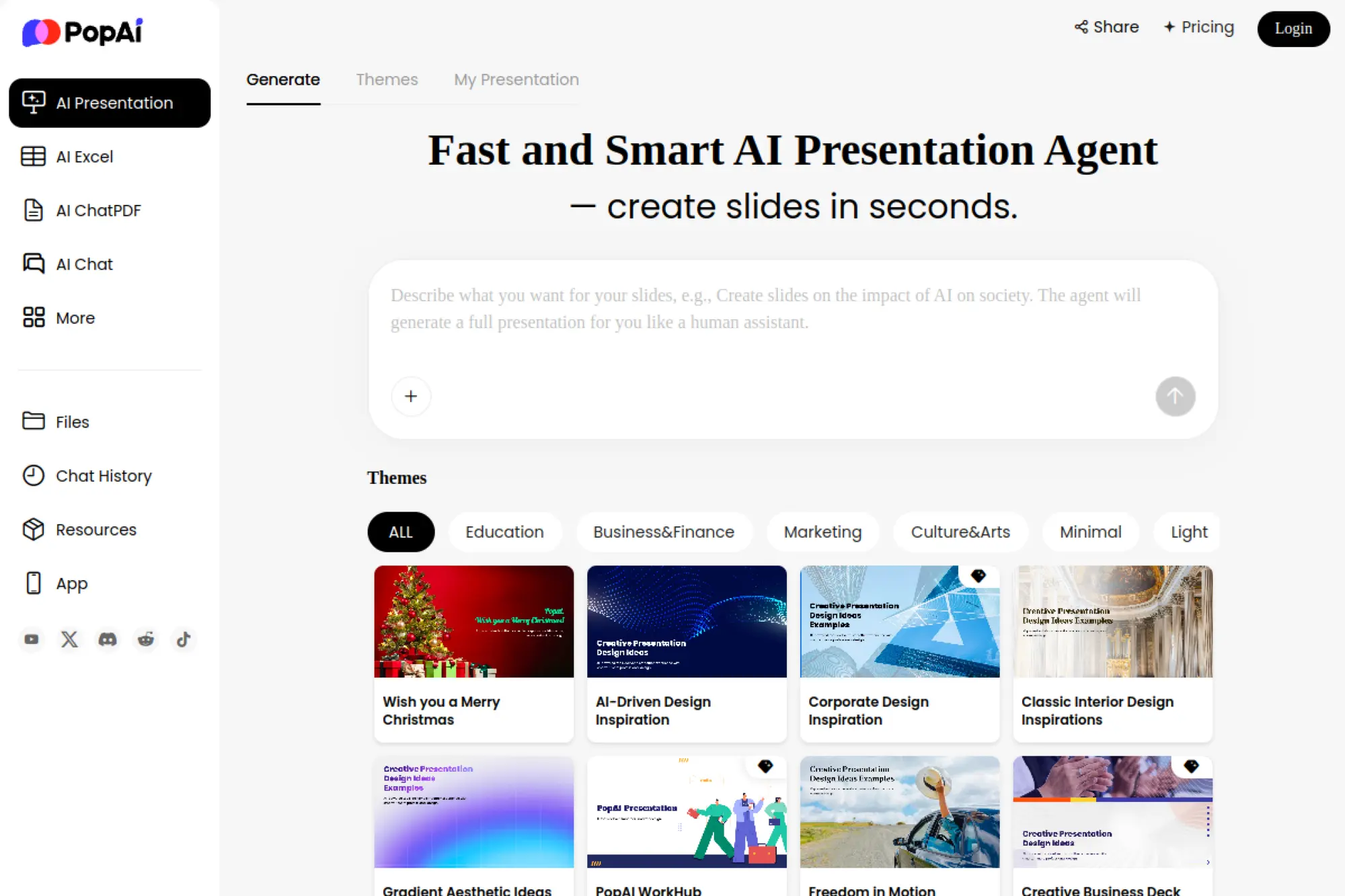
PopAi positions itself as a workspace that can turn topics and documents into presentations. It fits teams that want to start from PDFs, notes, or outlines and end with a PowerPoint-ready deck.
Best for
Knowledge workers who routinely convert documents into decks, like analysts, consultants, and operators who summarize research for decision-makers.
Key workflows to configure
- Convert a PDF into a slide outline, then refine slide order.
- Select a template style that fits the audience and tone.
- Export to a PowerPoint file for final edits and sharing.
Sales growth lever
Turn long content into sales enablement quickly. You can convert a product brief into a customer-ready deck without manual copy-paste.
Watch outs
Document-based generation can pull too much detail. Edit aggressively so each slide supports a clear sales narrative.
Quick start checklist
- Start with a clean source document with clear headings.
- Rewrite slide titles as “buyer questions” or “buyer truths.”
- Run a final PowerPoint edit pass for branding consistency.
17. AiPPT
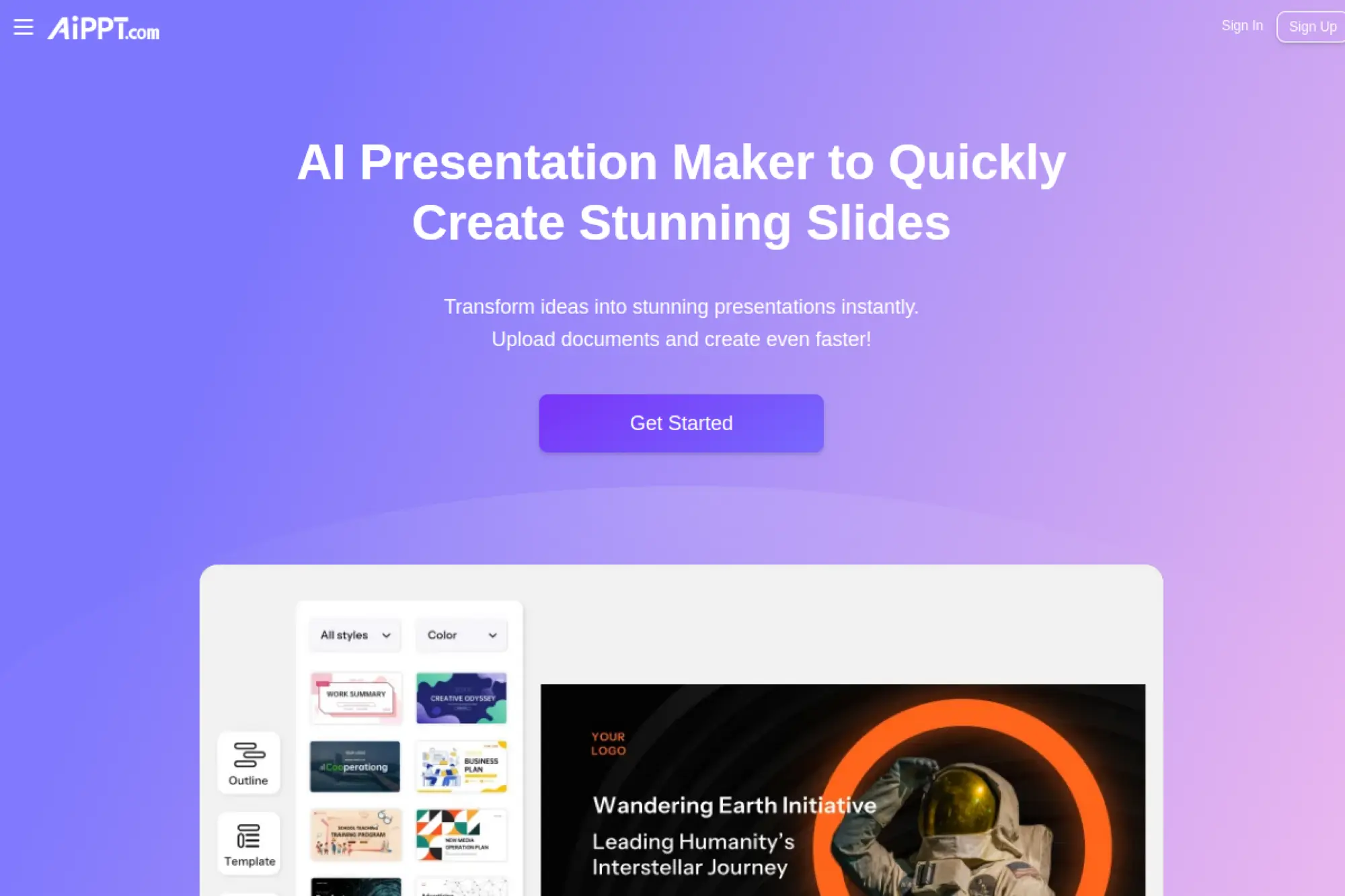
AiPPT focuses on generating presentation structure and draft slides quickly. It is a good fit when you want a prompt-to-deck workflow, then a PowerPoint export for final delivery.
Best for
Users who want fast slide drafts from a topic and prefer to polish inside PowerPoint afterward.
Key workflows to configure
- Generate an outline first, then edit for your storyline.
- Choose a template, then refine slide-by-slide messaging.
- Export to PowerPoint to match internal templates and rules.
Sales growth lever
Improve responsiveness. A rep can generate a draft proposal deck quickly and respond while buyer intent stays high.
Watch outs
AI-generated slides can feel generic. Add customer-specific proof: outcomes, constraints, and a clear next step.
Quick start checklist
- Write a simple “who, problem, outcome” prompt format.
- Replace filler claims with real numbers from your CRM.
- Apply your company template in PowerPoint before sharing.
18. AI PPT Generator
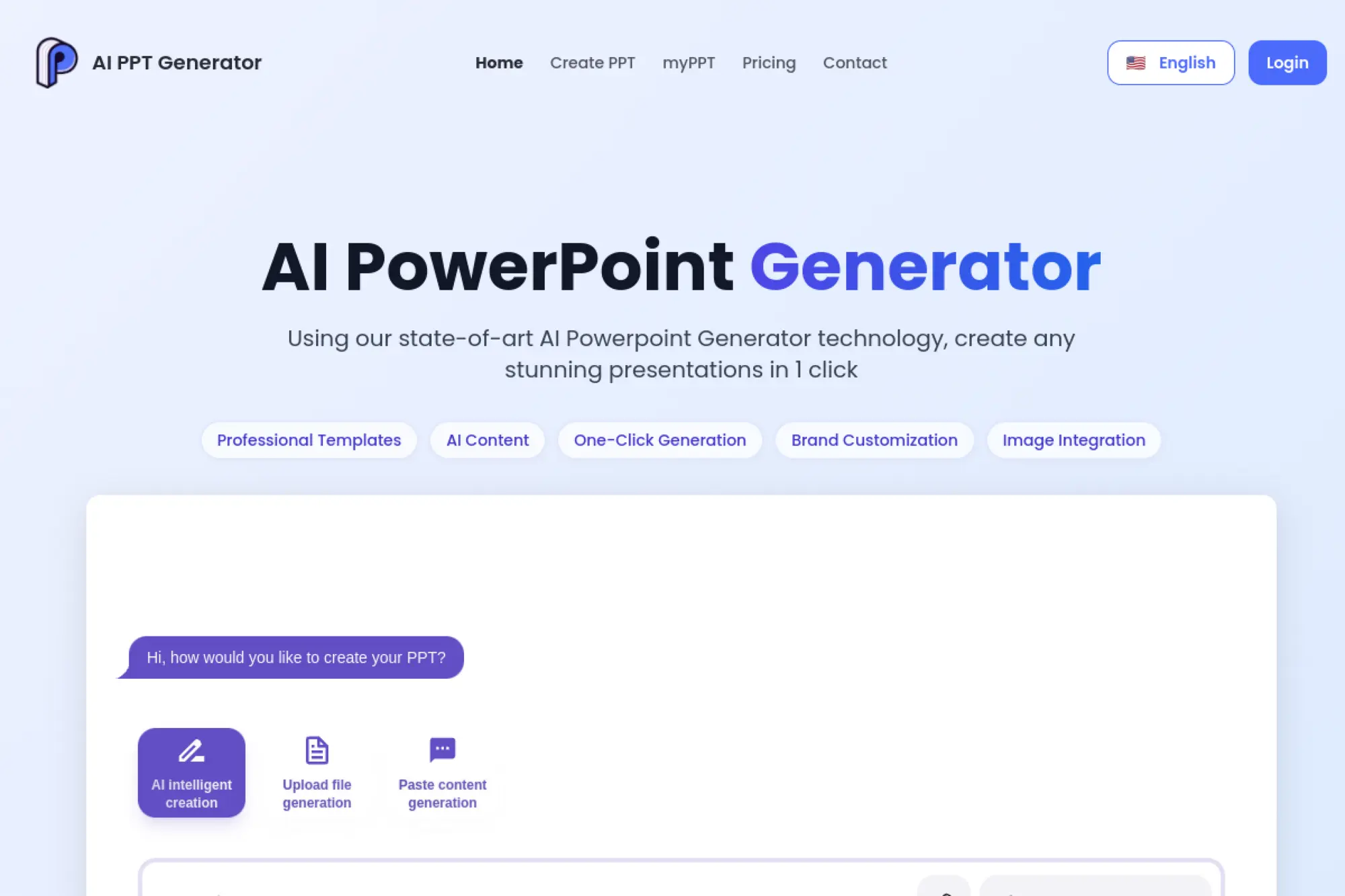
AI PPT Generator emphasizes fast creation from prompts or documents, plus export to common formats. It is useful when you want a straightforward web workflow and a PowerPoint file at the end.
Best for
Individuals and small teams who want quick decks without learning a complex editor, especially for routine meetings and teaching materials.
Key workflows to configure
- Create slides from a topic, then refine the outline.
- Upload an existing document to convert into a deck.
- Export to PowerPoint for editing and presenting.
Sales growth lever
Increase content velocity. More decks in less time means more webinars, more partner training, and more sales conversations supported by visuals.
Watch outs
Template quality varies across tools. Always check typography, spacing, and readability before presenting to leadership or customers.
Quick start checklist
- Use a consistent outline structure across your team.
- Keep slides focused on one message each.
- Export and review in PowerPoint before final distribution.
19. SlidesGPT
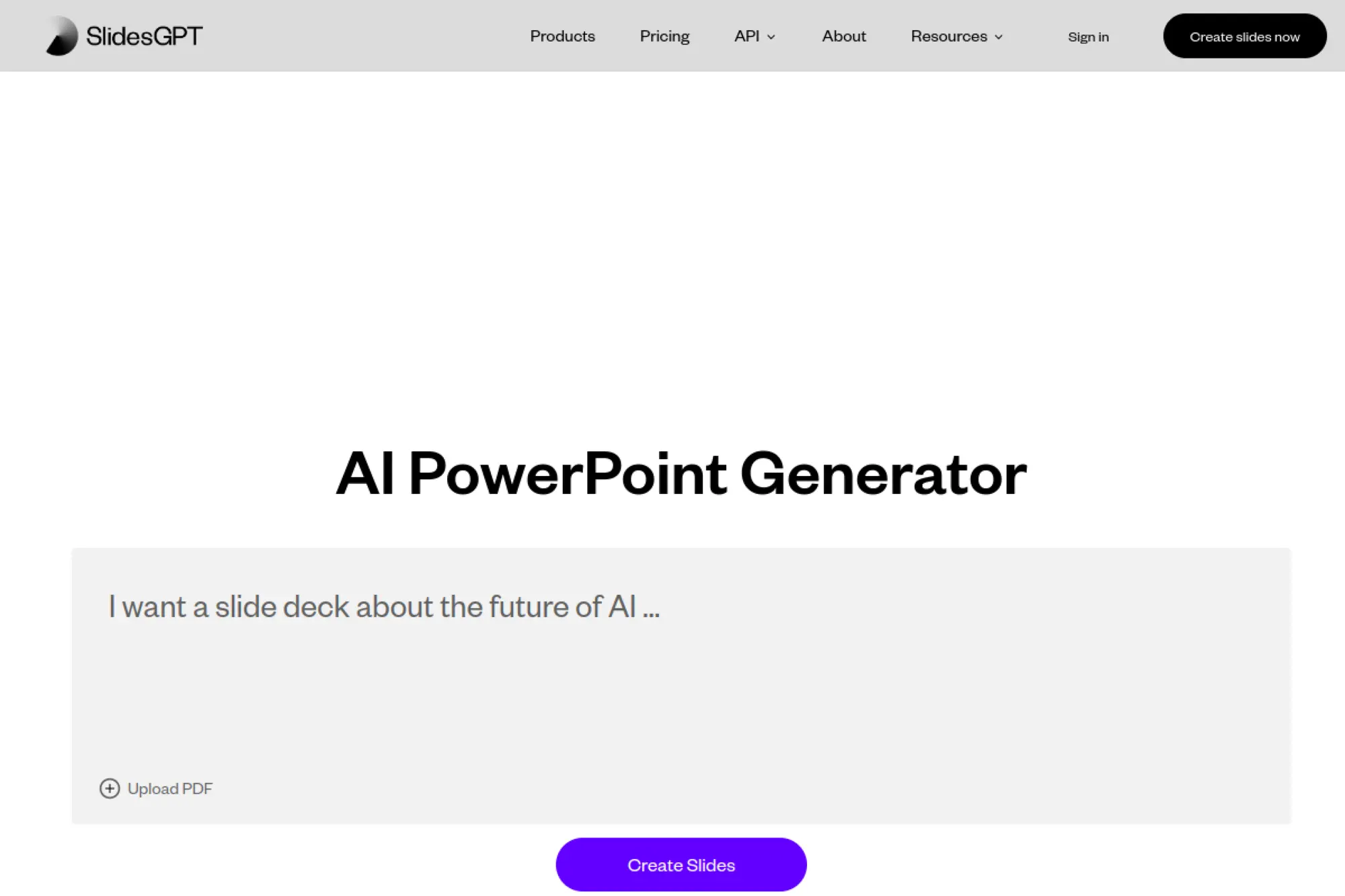
SlidesGPT focuses on generating presentations from prompts and text, then letting you download a PowerPoint file. It is useful when you want rapid ideation for decks, training, or summaries.
Best for
People who want a prompt-to-deck workflow with minimal setup, especially for education, research summaries, and quick business drafts.
Key workflows to configure
- Turn a prompt into a structured outline before generating slides.
- Convert long text into a concise deck draft.
- Download a PowerPoint file for final edits and formatting.
Sales growth lever
Generate talk tracks quickly. Faster decks let sellers spend more time on discovery and objection handling, not slide formatting.
Watch outs
AI-generated visuals can miss context. Replace images with product screenshots, customer logos you are allowed to use, and real outcomes.
Quick start checklist
- Write prompts that include audience and desired takeaway.
- Check for duplicated points across slides.
- Finalize branding in PowerPoint before external use.
20. SlideSpeak
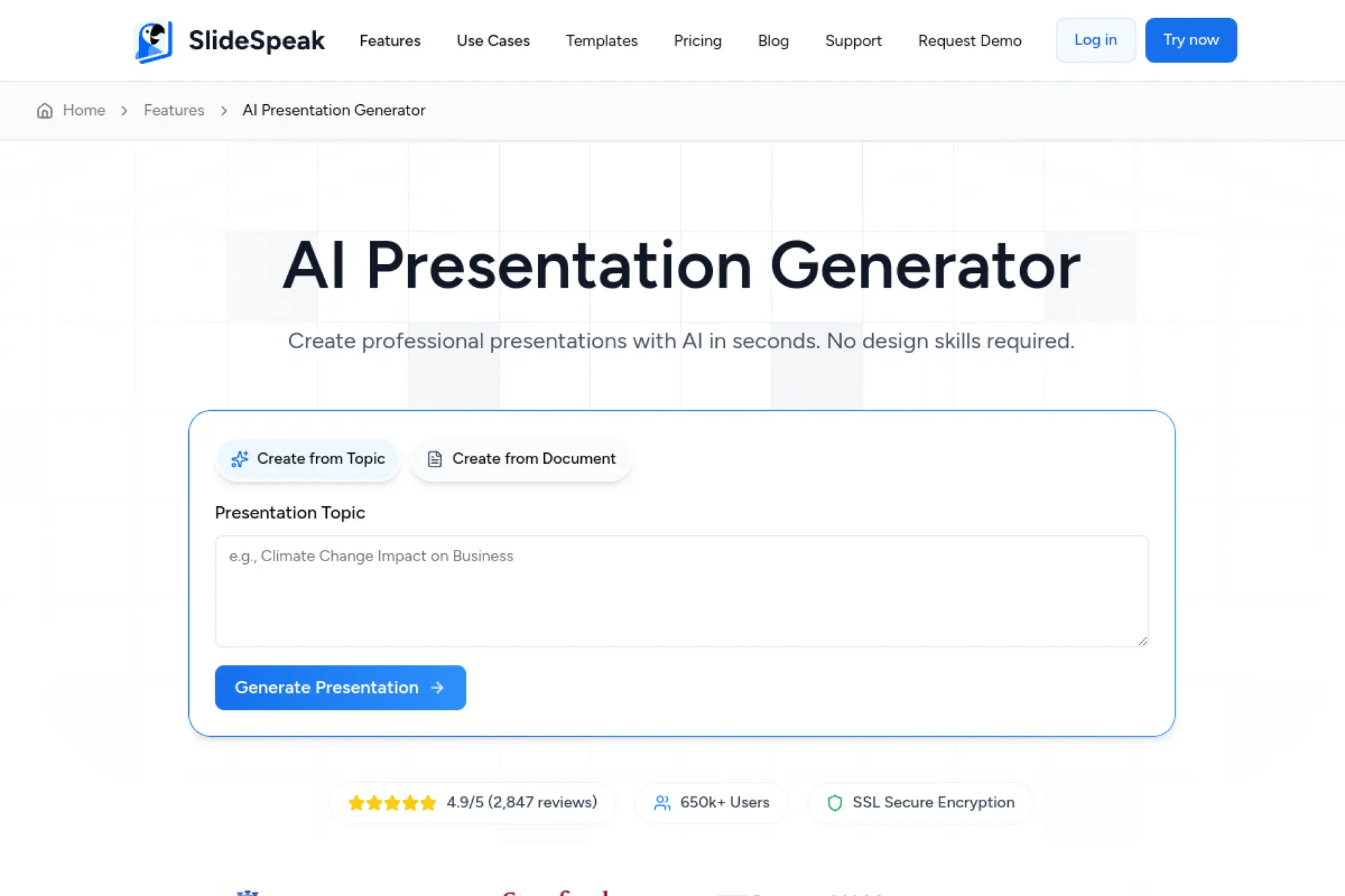
SlideSpeak is built for turning documents into presentations. It shines when you already have content in PDFs or docs and need an AI-assisted conversion into a PowerPoint-ready deck.
Best for
Analysts, enablement teams, and consultants who frequently convert reports into slides and need consistent structure without manual summarizing.
Key workflows to configure
- Upload a document and generate a slide outline from headings.
- Use AI rewriting to shorten and clarify dense sections.
- Export to PowerPoint for final layout polish and sharing.
Sales growth lever
Turn research into revenue. You can convert white papers, case studies, and internal memos into decks that support sales conversations.
Watch outs
Document conversion can copy structure too literally. Reorder slides so the story matches how buyers make decisions.
Quick start checklist
- Clean up your source document headings before upload.
- Rewrite slide titles to reflect key decisions, not topics.
- Confirm readability and spacing inside PowerPoint.
21. Presentations.AI
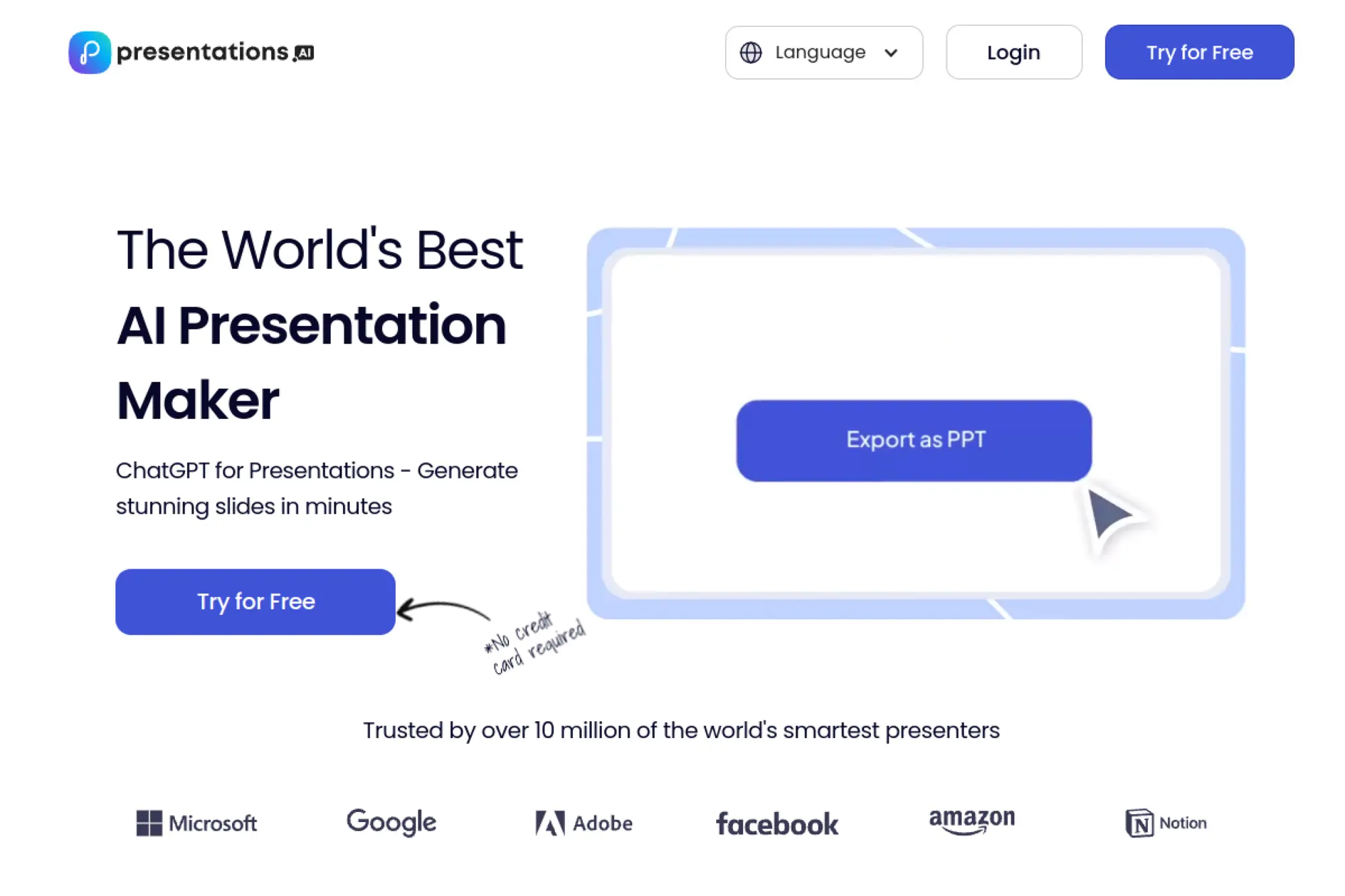
Presentations.AI targets automated deck creation with a polished look. It also offers PowerPoint export options, which helps when you need a traditional deck file after AI generation.
Best for
Teams that want a design-forward AI draft and plan to do final edits later in PowerPoint for stakeholder review.
Key workflows to configure
- Create a deck draft from a prompt and iterate on slide order.
- Rewrite sections to match your brand tone and audience.
- Export to PowerPoint for final formatting and internal approvals.
Sales growth lever
Upgrade first impressions. Better-looking decks can increase meeting quality and reduce the “we look small” penalty in competitive deals.
Watch outs
Export may require a paid tier. Confirm export requirements before you standardize the tool across a team.
Quick start checklist
- Define your standard deck storyline and reuse it.
- Build a set of approved brand phrases and claims.
- Test export quality with charts and images before rollout.
22. DeckRobot
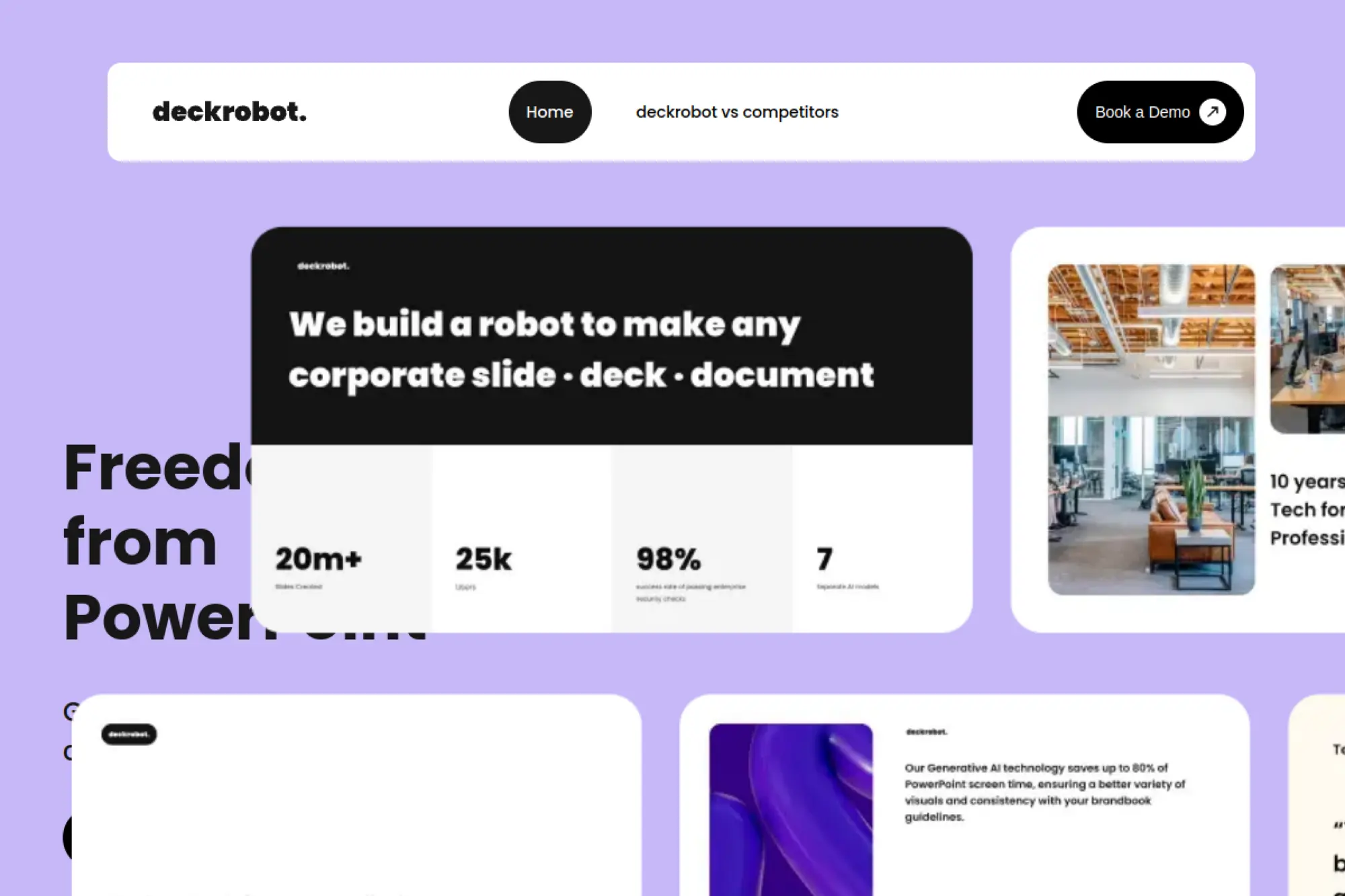
DeckRobot focuses on making PowerPoint slides match your brand fast. It is less about generating a full story from scratch and more about transforming content into clean, branded slides inside PowerPoint.
Best for
Enterprise teams that already have content but struggle with brand compliance, formatting, and consistent slide design across many presenters.
Key workflows to configure
- Set up approved brand styles and templates.
- Convert rough slides into branded layouts quickly.
- Standardize charts and visual structure across decks.
Sales growth lever
Increase trust through consistency. When every deck looks like it came from one strong brand, buyers focus on value, not formatting mistakes.
Watch outs
DeckRobot does not replace messaging strategy. You still need a strong narrative and proof points for your pitch to land.
Quick start checklist
- Audit your current decks for recurring formatting issues.
- Create a “clean slide” baseline template.
- Train reps on when to use automation versus manual edits.
23. Adobe Express
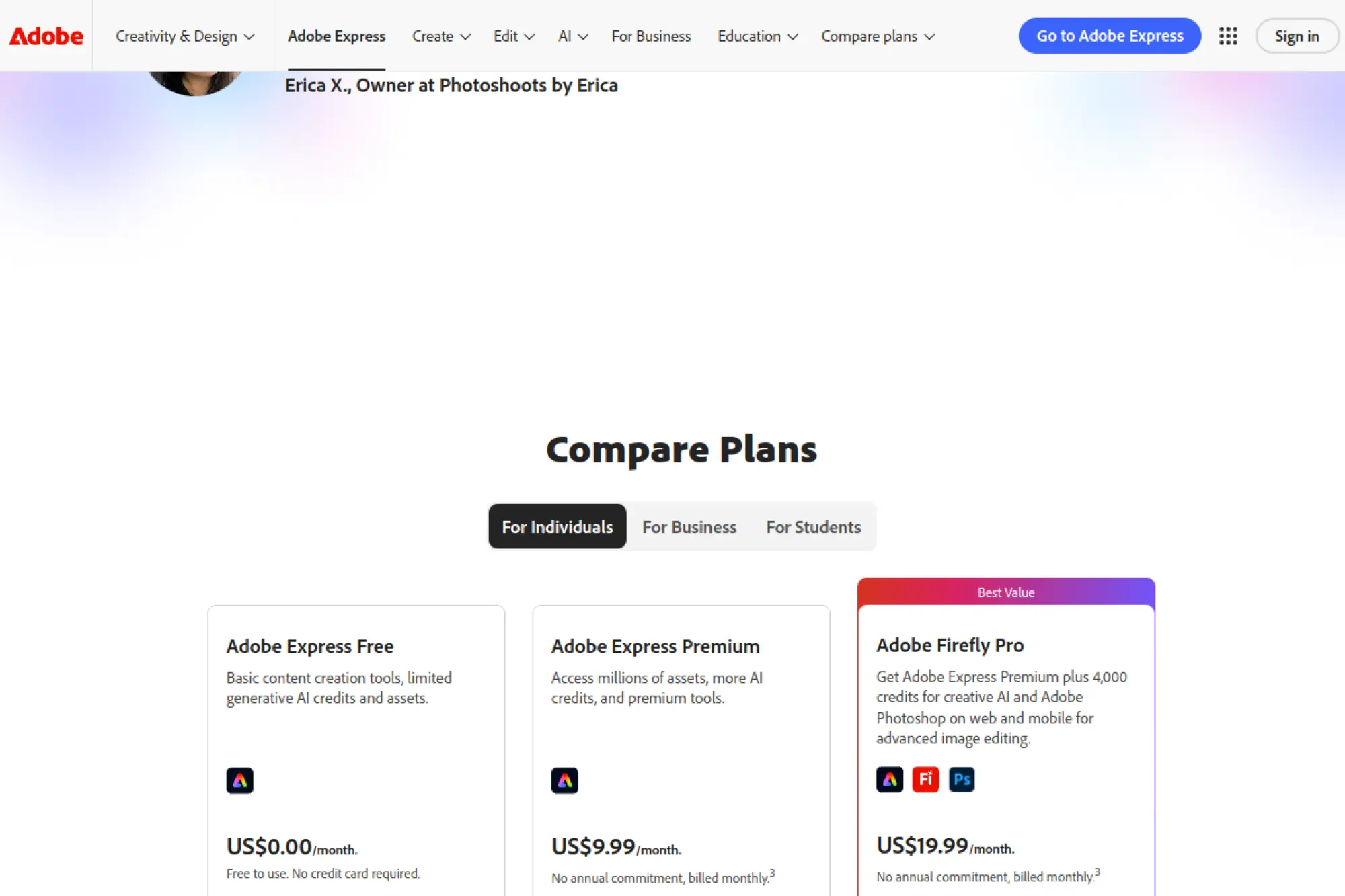
Adobe Express has become more practical for presentation workflows because it supports exporting presentations as PowerPoint files. Pair that with Adobe’s AI-assisted design features and you get a strong “design-first” generator for simple decks.
Best for
Teams that want quick, visually clean presentations and value easy creation of supporting assets like images and graphics.
Key workflows to configure
- Create branded presentation templates inside your brand system.
- Generate and edit visual assets to support your message.
- Export to PowerPoint when you need stakeholder edits.
Sales growth lever
Ship more on-brand decks without waiting on design. That reduces bottlenecks and lets sellers share proposals faster.
Watch outs
Exported PowerPoint files may not include advanced effects like video or animations. Keep your deck simple if you plan to export.
Quick start checklist
- Set up a brand kit with fonts and colors.
- Create a small template set for sales and marketing.
- Export a sample deck and test editability in PowerPoint.
24. MiriCanvas
MiriCanvas offers an AI presentation maker that generates slides from keywords or uploaded materials. It works well when you want a fast draft, strong template variety, and a download option for PowerPoint delivery.
Best for
Teams that want an all-in-one content tool that can draft slides, refine writing, and support collaboration, then export for PowerPoint use.
Key workflows to configure
- Generate an outline from a topic, then edit the flow.
- Select templates based on audience and tone.
- Download in PowerPoint format for offline editing and sharing.
Sales growth lever
Enable fast proposal creation. Standardized templates plus AI drafting can shorten the time from request to client-ready deck.
Watch outs
AI output quality depends on your input. Provide clear audience context and desired outcomes to avoid generic slides.
Quick start checklist
- Create a reusable prompt for each deck type you ship.
- Save brand templates as defaults for the team.
- Export and validate formatting in PowerPoint before delivery.
25. Twistly
Twistly positions itself as “ChatGPT for PowerPoint” through a PowerPoint add-in. That means you generate slides inside PowerPoint instead of generating elsewhere and then exporting.
Best for
PowerPoint-first teams that want AI drafting without changing tools, especially for training, education, and internal reporting decks.
Key workflows to configure
- Create a full deck from text, files, or notes inside PowerPoint.
- Add speaker notes automatically to improve delivery.
- Rewrite slides to match a specific tone and audience.
Sales growth lever
Reduce friction for reps. When AI lives inside PowerPoint, sellers can build and edit in the same tool they already trust.
Watch outs
Like all AI generators, it can produce “safe” copy. Push it to be specific, then replace placeholders with real proof and customer language.
Quick start checklist
- Install the add-in on a test group first.
- Create prompt templates for your most common decks.
- Build a final review habit for claims and visuals.
26. Slidely AI

Slidely AI focuses on native PowerPoint editing through an AI assistant and add-in. It positions itself around professional workflows where you need slides to remain “real PowerPoint objects,” not flattened exports.
Best for
Professionals who need PowerPoint-native outputs for charts, layouts, and corporate templates, especially in consulting-style environments.
Key workflows to configure
- Generate and edit slides directly in PowerPoint.
- Convert rough content into structured layouts automatically.
- Use AI to rewrite content to match executive expectations.
Sales growth lever
Increase speed without losing control. Native editing keeps decks compatible with internal templates, which reduces rework before client delivery.
Watch outs
Even with native slides, you still need strong inputs. If your source content lacks a clear story, AI will not magically create strategy.
Quick start checklist
- Pick an approved template as the default starting point.
- Create a shared library of “best slide prompts.”
- Set a standard for slide titles as decision statements.
27. Smallppt
Smallppt focuses on turning text into a PowerPoint-ready deck through an online workflow. You generate an outline, pick a template style, edit, and export for PowerPoint delivery.
Best for
Users who want a simple text-to-deck flow and prefer to finalize the deck later in PowerPoint or share it with a team.
Key workflows to configure
- Generate an outline, then refine the narrative order.
- Regenerate specific slides that feel weak or off-topic.
- Export to PowerPoint for final edits and offline presenting.
Sales growth lever
Convert product messaging into decks faster. That helps enablement teams keep sales materials current as positioning changes.
Watch outs
Template choice can change the perceived tone of your pitch. Create a small approved set so reps do not pick mismatched styles.
Quick start checklist
- Write a prompt that includes audience, goal, and tone.
- Review the outline for logical flow before exporting.
- Apply your final brand template in PowerPoint at the end.
28. Autoppt

Autoppt is designed for fast AI deck generation from text or uploaded material, plus online editing. It fits teams that want a web-first workflow but still need to export a PowerPoint file for distribution.
Best for
Operators and educators who want to generate a structured slide draft quickly from existing content, then customize the look before export.
Key workflows to configure
- Create slides from a topic or uploaded document.
- Switch templates to match audience expectations.
- Export to PowerPoint for stakeholder edits and delivery.
Sales growth lever
Reduce “dead time” between content and deck. Faster decks mean faster demos, faster webinars, and faster enablement rollouts.
Watch outs
AI can over-summarize or miss nuance. If you sell technical products, add the details that buyers need to trust your claims.
Quick start checklist
- Start with a clean outline or a well-structured document.
- Rewrite slide titles to reflect outcomes and value.
- Do a final read-through in PowerPoint before presenting.
29. PPT.AI
PPT.AI positions itself as a conversion-first presentation generator. It aims to turn source material into a structured deck and then export in PowerPoint format for editing and presentation.
Best for
People who start from documents, spreadsheets, or mixed media and want AI to handle slide structure and initial design choices.
Key workflows to configure
- Upload source content and let AI build a slide outline.
- Edit slide order to match your narrative.
- Export to PowerPoint so your team can finalize and present.
Sales growth lever
Turn complex material into a buyer-friendly story. When you simplify the message, you reduce confusion and move stakeholders toward a decision.
Watch outs
Multi-source generation can blend tones and terminology. Standardize your key product language before you generate the deck.
Quick start checklist
- Create a glossary of approved product terms.
- Generate, then immediately cut slides that feel redundant.
- Replace generic visuals with your own product screenshots.
30. TextDeck
TextDeck positions itself as an AI presentation generator with an emphasis on clean PowerPoint export. That matters when your real workflow ends in PowerPoint edits, approvals, and client delivery.
Best for
Teams that care less about a fancy web presenter and more about producing a clean, editable PowerPoint file that survives handoffs.
Key workflows to configure
- Generate a deck from prompts or imported business content.
- Use PowerPoint export as the default handoff format.
- Apply your company template after export for final compliance.
Sales growth lever
Improve proposal throughput. When exports stay editable, sales enablement can update decks quickly instead of rebuilding slides from scratch.
Watch outs
Export quality does not replace strategy. You still need a strong message hierarchy, proof points, and a clear call to action.
Quick start checklist
- Define a standard pitch outline your team agrees on.
- Generate a first draft, then tighten slide titles.
- Export to PowerPoint and run a final brand review.
Common Workflows That Drive Better Decks (and Better Deals)
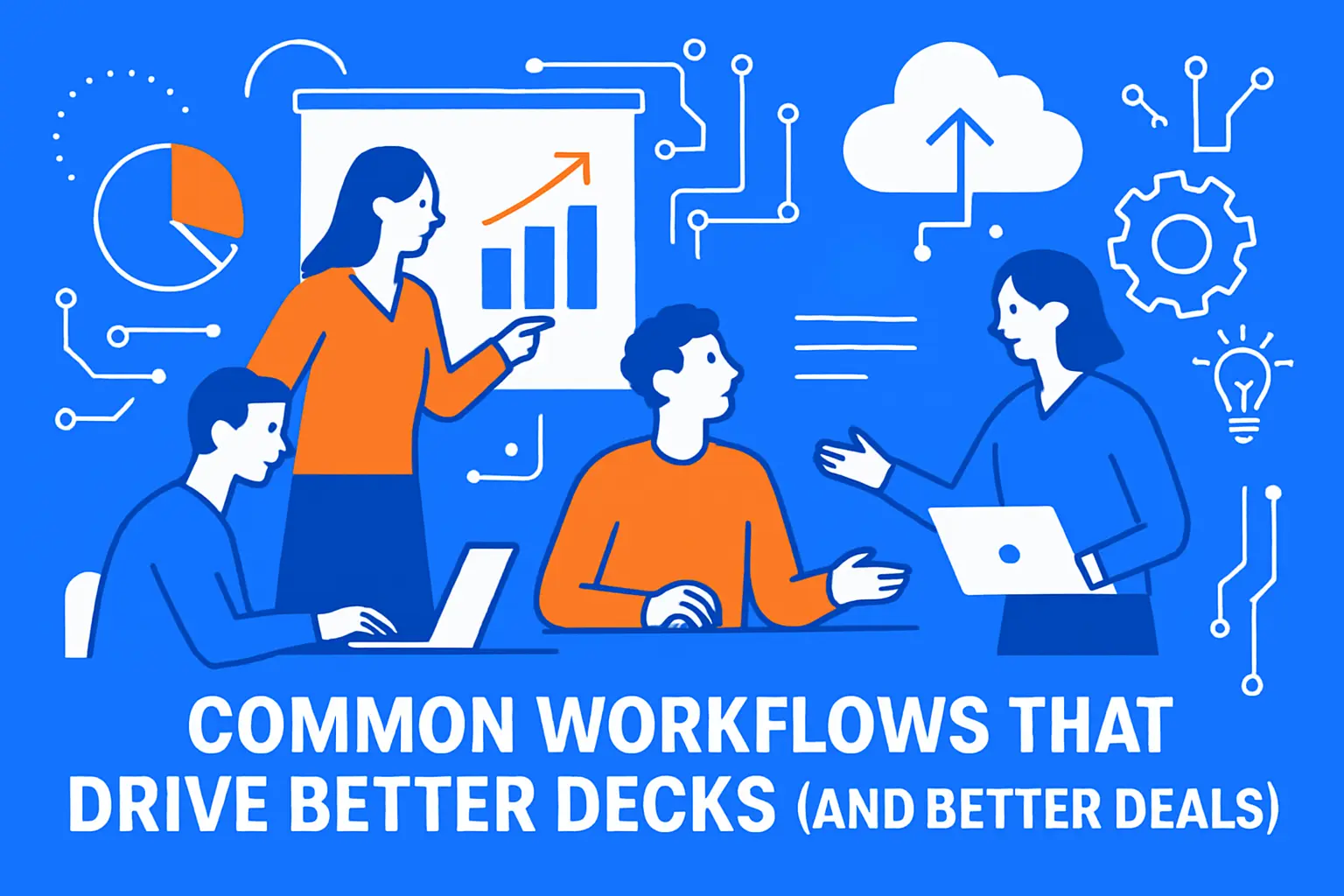
Most teams do not need more slide tools. They need a clearer system for building decks that match how buyers decide.
These workflows tend to create the biggest payoff:
- Document to deck: Convert briefs, research, or proposals into a structured draft. Then rewrite slide titles as decision statements.
- Account-specific tailoring: Start from a standard story, then tailor examples, use cases, and language for the customer’s industry.
- Deck cleanup and brand alignment: Use an AI design tool to normalize spacing, typography, and layout so every slide looks intentional.
- Enablement at scale: Convert internal product updates into decks that reps can reuse without editing from scratch.
- Training and workshops: Build interactive or guided decks that keep audiences engaged, then export to PowerPoint when you need compatibility.
One habit matters more than any feature: always end with a human “truth pass.” Confirm product details. Confirm pricing statements. Confirm case study claims. AI accelerates drafting, but humans keep credibility intact.
Prompt Pack
1) Sales deck (10 slides)
Create a 10-slide sales presentation for [PRODUCT] targeting [ICP]. Structure: Problem, Why now, Solution, How it works, Key benefits (3), Proof (metrics/case study placeholders), Competitive differentiation (non-defamatory), Pricing framework (no numbers), Implementation steps, CTA. Write slide titles as decision statements and keep each slide to 3–5 bullets.
2) Exec update (6 slides)
Turn this weekly update into a 6-slide exec deck. Slides: Outcomes, Metrics, Wins, Risks, Decisions needed, Next week. Use crisp language, remove fluff, and add speaker notes with a 30-second talk track per slide.
3) Training module (12 slides)
Build a 12-slide training deck on [TOPIC] for [AUDIENCE LEVEL]. Include: learning objectives, 3 sections with recap slides, 5-question quiz at end, and speaker notes with examples.
FAQ: Getting Results From AI PowerPoint Generators
Can AI create a PowerPoint automatically?
Yes. Many tools can generate a full draft deck from a prompt or a document. The best outcomes happen when you provide structured input, clear audience context, and your preferred storyline.
Will these tools replace slide designers?
They usually replace repetitive layout work first. Designers still add value when you need custom visuals, data storytelling, and high-stakes narrative direction. Many teams use AI for drafts and designers for flagship decks.
How do I keep AI-generated slides accurate?
Treat AI as a drafting tool, not a fact engine. Provide source material for claims. Keep a review step before sending decks externally. If your deck includes regulated or contractual statements, involve the right reviewer.
What is the biggest mistake teams make with AI decks?
They accept the first draft. AI gives you a starting point. The real advantage comes from editing faster: tighter titles, fewer slides, clearer outcomes, and stronger proof.
How do I improve slide quality fast?
Use a simple rule: each slide should answer a question the audience already has. If a slide does not answer a real question, delete it or merge it into another slide.
Which approach is best: add-in or web app?
Add-ins win when your organization standardizes on PowerPoint and you need native edits. Web apps win when you want fast drafting and you do not mind exporting to PowerPoint for final cleanup.
Do AI tools help with speaker notes?
Many do. Speaker notes often become the hidden win. They help new presenters deliver consistent messaging and reduce “reading the slide” habits.
How do I roll this out to a sales team?
Start with a single deck type. Build a shared prompt template. Create a short checklist for review. Then ask for feedback after real customer meetings and iterate quickly.
AI slide creation now feels mainstream. The real edge comes from process, not novelty. Pick a tool that fits your workflow, set basic standards, and focus on speed plus clarity.
If you want the best AI PowerPoint generator for your team, choose the one that reduces edits, preserves brand trust, and helps sellers tell a sharper story. That is how slide automation turns into revenue impact.







Conclusion
Choosing the best ai powerpoint generator isn’t about finding the tool with the most features—it’s about finding the one that fits how your team actually builds decks. Start by deciding where you’ll finalize edits: PowerPoint-native tools are best for compatibility and handoffs, Google Slides-native tools are ideal for real-time collaboration, and web-first generators shine when you want fast drafts with modern layouts (as long as you plan a quick formatting pass after export).
No matter which option you pick, the winning workflow is the same: begin with a clear outline, generate a first draft, then run a “truth and tone” pass to confirm data accuracy, tighten slide text, and lock the design to your brand template. If you roll this out across a team, prioritize tools that support templates, brand controls, and predictable sharing.
Once your deck is ready, make distribution frictionless—host landing pages, share assets securely, and protect links with reliable infrastructure. If you need stable hosting, SSL, and scalable cloud resources to support presentation-driven campaigns, 1Byte can help you ship faster and safer.