


- Git And FTP: What You Actually Deploy
- Practical Trade-Offs: Speed, Safety, And Rollbacks
- Security Differences That Matter In 2025
- Workflow Fit: Solo Freelancer Vs Team
- Tooling Options: From “Just Upload It” To Full CI/CD
- Reference Workflows You Can Copy
- When FTP Still Wins (And How To Make It Less Risky)
- Migration Plan: FTP To Git Deploy Without Breaking Production
- Common Mistakes And How To Avoid Them
Choosing between Git vs FTP for website deployment changes more than how you move files. It changes how you control risk, how you collaborate, and how fast you can recover when a release goes wrong. Git-centric deployment fits modern teams because it ties every production change to a commit, a review, and a repeatable pipeline. FTP still shows up because it feels direct and simple, especially on shared hosting.
This guide breaks down the trade-offs in plain terms. It also gives copy-ready workflows and tool suggestions, plus current security and developer-trend stats from widely cited industry reports.
Git And FTP: What You Actually Deploy

1. Git Deploys a Version, While FTP Deploys a Pile of Files
Git deployment starts with a commit. That commit becomes the “unit of change.” You can tag it, review it, test it, and roll it back. In contrast, FTP deployment usually happens as a sequence of uploads. Because you push individual files, your release can land in a half-updated state if you miss a file, upload in the wrong order, or overwrite something by accident.
That difference sounds small until you hit a production incident. Then it becomes the whole story: Git gives you a known version; FTP gives you a directory that “looks right.”
2. Git Lets You Separate Source Code From Build Output
Many sites are no longer “upload these HTML files.” Even simple marketing sites often use a build step (minification, bundling, image processing, static site generation). Git fits this pattern because you can store source code in the repo and let CI produce artifacts during deployment.
FTP can still work here, but you must decide: do you upload source files and build on the server, or do you build locally and upload the output? Both paths create new failure modes. Local builds vary by machine. Server builds require runtime tooling on the host. Git pipelines reduce that variation because they run the same steps each time.
3. Git Makes Environments Obvious (Dev, Staging, Production)
Teams rarely want “production is the only environment.” Git workflows encourage at least one extra layer, such as a staging environment tied to a branch. That makes it easier to test releases with real infrastructure before you go live.
FTP can support staging too, but it relies on discipline. You must remember which folder maps to which environment, and you must keep a manual checklist. Over time, people skip steps when they feel rushed.
Practical Trade-Offs: Speed, Safety, And Rollbacks

1. Rollbacks: Git Wins When Things Break
Git-based deployment makes rollback a normal action. You redeploy the previous tag. You do not hunt for “the old version” on someone’s laptop. You also avoid guesswork about what changed.
FTP rollback usually becomes a restore-from-backup event. That can work, but it often restores more than you intended. For example, you might only want to undo a CSS change, yet you end up restoring an entire directory and wiping other quick fixes.
2. Atomic Deploys Reduce “Half-Updated Site” Problems
With Git, many teams deploy atomically by releasing to a new directory and switching a symlink (or swapping a container/image). That keeps users from seeing mixed versions of assets and templates.
FTP uploads happen file-by-file. If a visitor loads the site while you upload, they might fetch new JavaScript that expects new HTML, or new PHP code that expects a new config key. That mismatch creates bugs that vanish after the upload finishes, which makes them harder to diagnose.
3. Large Sites Expose FTP’s Hidden Costs
FTP feels fast for small edits. However, it slows down when the site gets larger or when you need to sync many small files. You also spend time verifying what uploaded and what did not.
Git pipelines often speed up “big releases” because they automate checks and reduce rework. That matters more as teams add more contributors, more dependencies, and more environments.
Security Differences That Matter In 2025

1. Credentials: You Want Fewer Passwords Floating Around
FTP-based processes frequently spread long-lived credentials. People save passwords in clients, share them in chat, or store them in docs. That creates risk that persists long after a project ends.
Meanwhile, modern Git deployment can rely on short-lived tokens, scoped keys, and protected environments. This shift matters because third-party and identity-driven compromise keeps rising. Verizon’s 2025 DBIR news release highlights third-party involvement doubling to 30% in the analyzed breaches.
If you treat deployment credentials like shared office keys, attackers only need one copy. Git-centric deployments push you toward tighter access control and better traceability.
2. Secret Leaks: Git Makes Prevention Possible, But Only If You Use It Well
Git does not automatically mean “secure.” Developers still commit secrets. The difference is that Git gives you strong prevention tools if you turn them on.
GitHub’s own product page reports 4.4M Secrets prevented from leaking on GitHub in 2024, which shows how often developers accidentally push credentials.
Independent research also shows the scale of the problem. GitGuardian’s “State of Secrets Sprawl 2025” reports 23.8 million secrets leaked on public GitHub repositories in 2024, which means secret scanning and push protection should be part of your deployment story, not an afterthought.
Even worse, leaked secrets often remain usable. GitGuardian also reports 70% of secrets leaked in 2022 remain active today, so a single mistake can stay dangerous for years.
3. Auditing: Git Gives You a Clean Change Story
When you deploy from Git, you can answer “who changed what, when, and why” with one commit link. That supports incident response, compliance, and client reporting.
FTP workflows can track changes, but people must maintain the log manually. Manual logs drift. They also fail during emergencies, which is when you need them most.
Workflow Fit: Solo Freelancer Vs Team

1. Solo Projects: FTP Can Feel Easier, But Git Still Helps
If you build brochure sites on shared hosting, FTP looks attractive. You edit a file, upload it, and move on. That simplicity is real.
Still, Git helps even solo developers. It gives you a clean history, safer experimentation with branches, and easier “undo.” You can keep FTP as the transport while you adopt Git as the workflow. This hybrid approach often becomes the smoothest on-ramp.
2. Teams: Git Becomes the Default Language of Collaboration
Teams need code review, repeatable builds, and shared ownership. Git supports these needs naturally. It also matches what most developers already use.
Stack Overflow’s 2025 Developer Survey press release reports GitHub is the most popular documentation and collaboration tool at 81% usage among respondents, which aligns with what many teams see in practice: Git-based collaboration has become the normal expectation.
3. Organizations Under Pressure: Standard Metrics Push You Toward Automation
Once you ship often, manual deployment becomes a bottleneck. You also increase the chance of human error. This is why mature orgs invest in automated release processes and guardrails.
DORA’s 2024 research page notes it has heard from more than 39,000 professionals across industries, and that scale matters: it reflects how widely teams now treat software delivery as a measurable system that benefits from consistent workflows.
Tooling Options: From “Just Upload It” To Full CI/CD
1. FTP/SFTP Tools That People Actually Use
FTP tooling stays popular because it works almost everywhere. If your host supports it, you can deploy with a GUI tool in minutes. Common choices include FileZilla, Cyberduck, WinSCP (Windows), Transmit (macOS), and cPanel’s file manager.
However, you should treat classic FTP as legacy. Prefer SFTP (over SSH) or FTPS (FTP over TLS) when you must use file transfer. Also, restrict accounts. Give each person their own credentials. Then remove access as soon as the work ends.
2. Git-Based Deployment Tools That Reduce Repetition
Git deployment usually uses one of these patterns:
- CI/CD pipelines: GitHub Actions, GitLab CI/CD, Bitbucket Pipelines, Jenkins, CircleCI.
- Deploy services: tools that pull from your repo and push to your server via SSH/rsync.
- Platform deploy: the platform builds and serves your site directly (common for static and Jamstack sites).
GitLab’s 2025 Global DevSecOps report press release says 82% now deploy to production at least weekly, so even mid-sized teams often need a pipeline that runs reliably without heroics.
3. Hosting Reality: Many Sites Still Live In CMS Land
Plenty of websites run on a CMS and deploy differently than modern app stacks. That matters because you might not “deploy the site” so much as “deploy theme code” plus “manage content in the database.”
W3Techs reports WordPress is used by 43.2% of all websites, so a practical deployment plan must address the WordPress-style split: code in version control, content in the admin, and uploads in shared storage.
Also, many WordPress sites sit on commodity hosting. BuiltWith’s cPanel trends page shows 1,335,867 live websites using CPanel, which explains why FTP and file managers keep showing up in real client work.
Reference Workflows You Can Copy

1. Static Site Workflow (Git + CI + Atomic Publish)
This workflow fits marketing sites and documentation sites.
- Developer pushes to main.
- CI installs dependencies and runs tests (lint, unit tests, link checks).
- CI builds the site (for example: Hugo, Next.js static export, Astro, Eleventy).
- CI publishes build output to production (object storage, CDN, or a server directory).
- CI keeps a “previous release” artifact so you can roll back quickly.
Specific example: you deploy a landing page with a new pricing table. If the build fails, nothing goes live. If the release goes live and breaks layout on mobile, you redeploy the previous tag and fix the CSS in a follow-up commit.
2. WordPress Workflow (Git for Code, Admin for Content)
WordPress rarely fits “deploy everything from Git” because content lives in the database and uploads live in wp-content/uploads. A clean approach separates responsibilities:
- Put themes, custom plugins, and mu-plugins in Git.
- Deploy code via CI using SSH + rsync (or a deploy tool that supports atomic directories).
- Manage WordPress core updates using the host tooling or a controlled update process.
- Back up the database and uploads on a schedule (and before releases).
Specific example: you build a custom plugin that adds a lead form and sends to a CRM. Git protects the plugin code. You can review changes and add tests for the CRM integration. Meanwhile, marketers keep publishing new pages without needing deployment help.
3. PHP/Laravel or Node App Workflow (Build Once, Promote Across Environments)
For an app server, aim for “build once, deploy many.” That means you create one artifact and promote it from staging to production. You reduce surprises because staging and production run the same build.
- Merge to main triggers CI.
- CI runs tests and creates an artifact (zip, Docker image, or release directory).
- CI deploys to staging automatically.
- Team validates staging.
- A manual approval step promotes the same artifact to production.
This beats FTP because you stop treating production as a place where you assemble code by hand.
When FTP Still Wins (And How To Make It Less Risky)
1. FTP Wins When Hosting Blocks Modern Options
FTP (or more often SFTP) still makes sense when your constraints are hard:
- Your host provides no Git-based deploy hooks.
- You cannot run CI that can reach the server safely.
- You need a fast one-off edit on a tiny site and you accept the risk.
Even then, you can still work “Git-first” locally and treat FTP as the final step. This approach keeps your history and your rollback options.
2. Minimal-Risk FTP Checklist (If You Must Use It)
- Use SFTP or FTPS, not plain FTP.
- Create per-person accounts. Avoid shared logins.
- Restrict permissions to the smallest folder scope possible.
- Turn on server-side backups and test restores.
- Keep a deployment log (even a simple changelog file) and update it every time.
These steps do not make FTP “modern,” but they do reduce common failure modes.
3. Use FTP as a Transition Tool, Not a Destination
Many teams get stuck because they try to jump from “manual uploads” to “perfect DevOps” in one move. Instead, transition in layers:
- Start by putting the site in Git.
- Next, stop editing files on the server.
- Then add a simple deploy script (even a single rsync command).
- Finally add CI checks and environment approvals.
This path delivers benefits early without requiring a full platform rebuild.
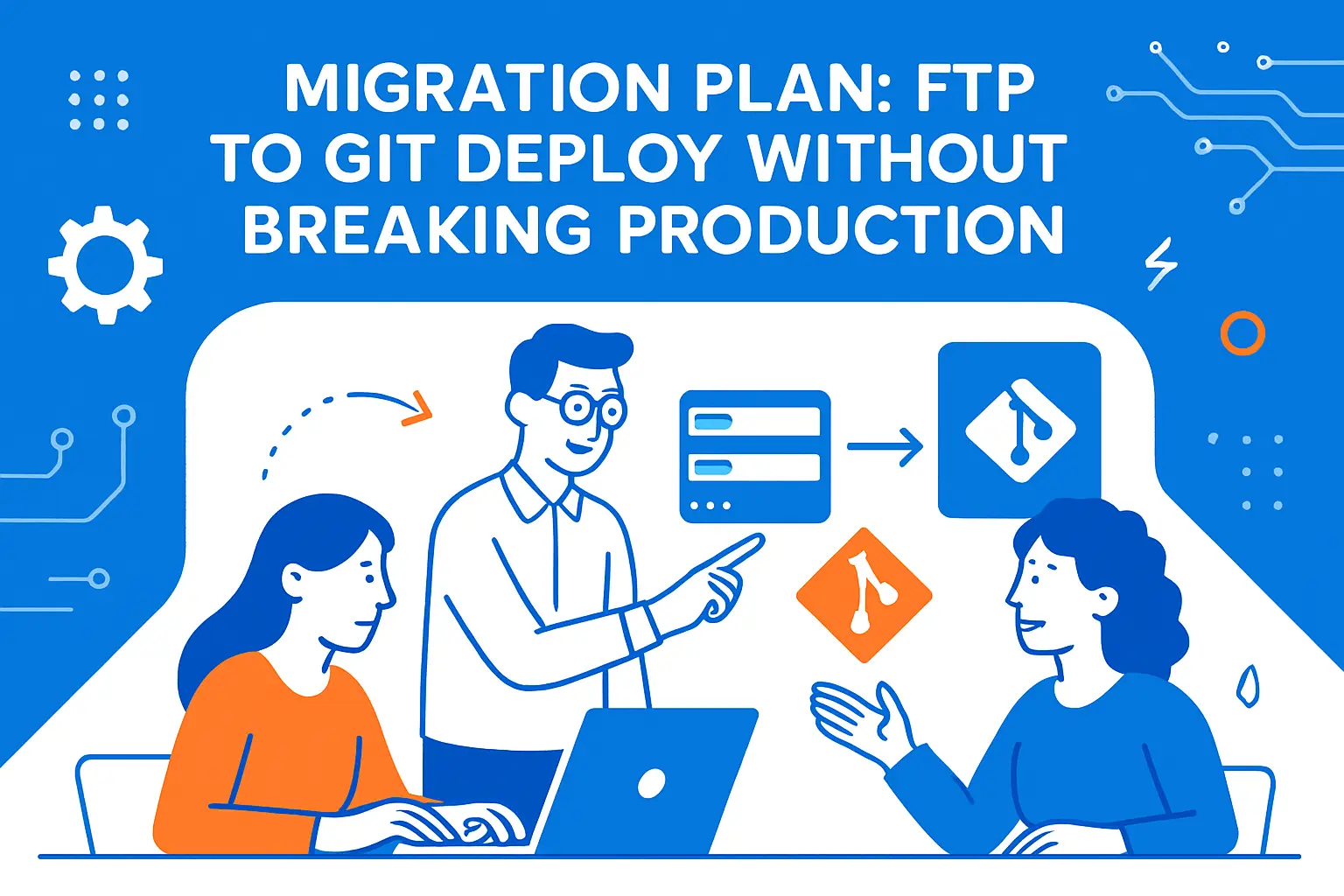
Migration Plan: FTP To Git Deploy Without Breaking Production
1. Baseline Your Current Production State
Before you change anything, capture what “good” looks like:
- Download the full production web root.
- Export environment-specific config values into a secure place.
- Document cron jobs, web server rewrites, and runtime versions.
- Record where user uploads and logs live.
This baseline stops you from discovering hidden dependencies mid-migration.
2. Create a Clean Repository That Matches Production
Now build your initial Git repository from the baseline. Then remove what does not belong in version control:
- Remove cache folders and logs.
- Remove user uploads if your app generates them at runtime.
- Remove secrets and replace them with environment variables or a secrets manager.
After that, create your first tag. That tag becomes your “known good” rollback point.
3. Add CI/CD Guardrails Gradually
Start small. Add checks that catch real production issues:
- Linting and formatting so diffs stay readable.
- Unit tests for business logic.
- Build validation so your pipeline fails before deployment.
- Security checks like dependency scanning and secret scanning.
As you add automation, you also reduce the need for tribal knowledge during releases.
Common Mistakes And How To Avoid Them
1. Treating Git Like Dropbox (And Committing Secrets)
People often adopt Git but keep bad habits. They commit .env files, API keys, or vendor credentials “just to get it working.” Later, they forget.
Industry reporting suggests remediation can take a long time. Help Net Security notes a median time to remediate leaked secrets found in a GitHub repository of 94 days, which is plenty of time for misuse if the credential grants real access.
Fix the process, not just the incident. Add pre-commit hooks, enable secret scanning, and rotate secrets immediately after any exposure.
2. Shipping Unnecessary Files Because “FTP Worked That Way”
FTP habits lead people to upload everything: node_modules, build caches, and local config files. Git-based deploys work better when you ship only what production needs.
Keep deployment output lean. It reduces upload time, reduces attack surface, and lowers the chance of environment mismatch.







3. Editing Production Directly
Direct server edits feel fast, but they break every future deploy. Your Git history stops matching production. Then you get “it worked yesterday” mysteries.
Make a rule: all changes start in Git. If you must hotfix, patch in Git first, then deploy. If an emergency forces a server edit, immediately backport it into the repo and redeploy so production matches version control again.
Git vs FTP for website deployment is not a debate about trendy tools. It is a choice about how you manage change. FTP can still work for constrained hosting and tiny edits, especially when you treat it as a transport layer. However, Git-based deployment scales better because it brings repeatability, review, and rollback into the default workflow. Pick the approach that matches your site’s complexity today, then build toward the workflow you will need when the site and the team inevitably grow.