

Visual content moves faster than most teams can design it. That gap fuels the rise of AI image tools in marketing, product, and creative work. You can now go from a rough idea to a polished concept image in minutes, then refine it into a production asset with the right workflow.
This guide helps you choose the best AI image generator for your exact needs. You will not see vague hype here. You will see practical use cases, repeatable workflows, and real watch-outs that affect quality, speed, and brand safety.
Each pick below includes clear setup steps you can copy. That matters because “good prompts” alone rarely scale. Your process makes the difference.
How to Choose the Best AI Image Generator for Real Work
Pick your tool the same way you pick a camera or design system. Start with the output you need, then work backward into controls, editing, and collaboration.
- Output style: Some generators excel at cinematic realism. Others shine in illustration, typography, or product mockups.
- Control and editing: Look for inpainting, outpainting, background swaps, and “reference image” controls if you need consistency.
- Brand consistency: If your team ships weekly campaigns, you need saved styles, reusable prompts, and asset libraries.
- Rights and risk: Your use case may require commercially oriented tooling and clear usage terms.
- Workflow fit: The best results happen when the generator fits your design stack, not when it sits outside it.
Most teams get better outcomes when they treat image generation as a pipeline: ideation → selection → editing → brand review → export → reuse. Choose tools that support that loop.
FURTHER READING: |
| 1. Best AI Image Generators: Top 30 Picks for 2026 |
| 2. Best Content AI Writing Tools: Top 30 Picks for 2026 |
| 3. Best Web Scraping Tools: Top 30 to Try in 2026 |
Fresh Stats and Trends Shaping AI Image Generation
- Market forecasts expect the AI image generator category to reach USD 1.08 billion by 2030, registering a CAGR of 17.7% as demand for visual content keeps climbing.
- Enterprise adoption keeps rising, with a Gartner survey reporting 29% of respondents already using generative AI in production.
- Marketing teams lean into creative use cases first, as another Gartner survey found 77% have adopted it for creative development tasks among marketing organizations that use GenAI.
- Workplace usage is also moving quickly, with Gallup reporting frequent AI use rose from 19% to 23% in a recent quarter-to-quarter shift.
- Rollouts still hurt without planning, since an RSM survey reported 92% of companies using generative AI encountered challenges during rollout and highlighted common gaps in skills and governance.
Those signals point to one takeaway: image generation is no longer “nice to try.” It is becoming normal production tooling. That also raises the bar on governance, repeatability, and brand control.
The Best AI Image Generator Options to Test Next

1. Midjourney
Midjourney is a creative-first image generator that many teams use for bold concepts, moodboards, and brand exploration. It tends to reward strong art direction. You can iterate fast, compare variants, and steer results by refining style language over time.
Best for
Use Midjourney when you need striking visuals for campaigns, pitch decks, or concept art. It fits teams that want strong aesthetics and can invest in prompt craft.
Key workflows to configure
- Build a reusable “brand style prompt” with your preferred lighting, mood, and composition language.
- Create a prompt library for recurring needs like hero banners, editorial portraits, or abstract backgrounds.
- Set up an internal review loop that tags outputs by theme so you can reuse what works.
Sales growth lever
Midjourney helps you ship distinctive creative that stands out in crowded feeds. That matters for top-of-funnel attention. Use it to generate campaign directions, then hand off the best frames to your design team for final production assets.
Watch outs
Expect some randomness across generations, even with similar prompts. Plan for “style drift” and keep a tight selection process. Also, avoid using outputs that look too close to a specific artist’s recognizable style for brand work.
Quick start checklist
- Write a short creative brief in plain language.
- Turn it into a reusable prompt template with brand tone words.
- Generate a batch of options and pick a clear winner.
- Refine with targeted edits and regenerate only what needs change.
- Save the final prompt and the winning image for reuse.
2. DALL·E

DALL·E works well when you want the model to follow instructions closely and when you want to iterate through conversation. Many teams like it because it feels more like directing a creative assistant than “prompt engineering.” You can describe what you want, review the output, then ask for changes in natural language.
Best for
Choose DALL·E when your team needs rapid concepting with clear instruction following. It also fits marketing teams that want to generate images alongside copy and messaging in one workflow.
Key workflows to configure
- Create a “creative brief prompt” that includes brand voice, audience, and use case.
- Standardize an edit workflow: generate → critique → request targeted change.
- Use a prompt checklist that forces specifics like subject, environment, and mood.
Sales growth lever
DALL·E can speed up your time-to-launch for new offers. Use it to generate lifestyle visuals that match your landing page headline, then test multiple creative directions without waiting on a full shoot or illustration cycle.
Watch outs
Be careful with text inside images. It can still miss spelling or spacing. You should also avoid prompting for brand logos or exact replicas of protected characters, even when the output looks “close enough.”
Quick start checklist
- Write a one-paragraph creative brief for a single asset.
- Generate initial options and pick the closest match.
- Ask for changes using plain language and narrow scope.
- Export the best image and finish typography in your design tool.
- Document the prompt and the final variant for your team.
3. Adobe Firefly
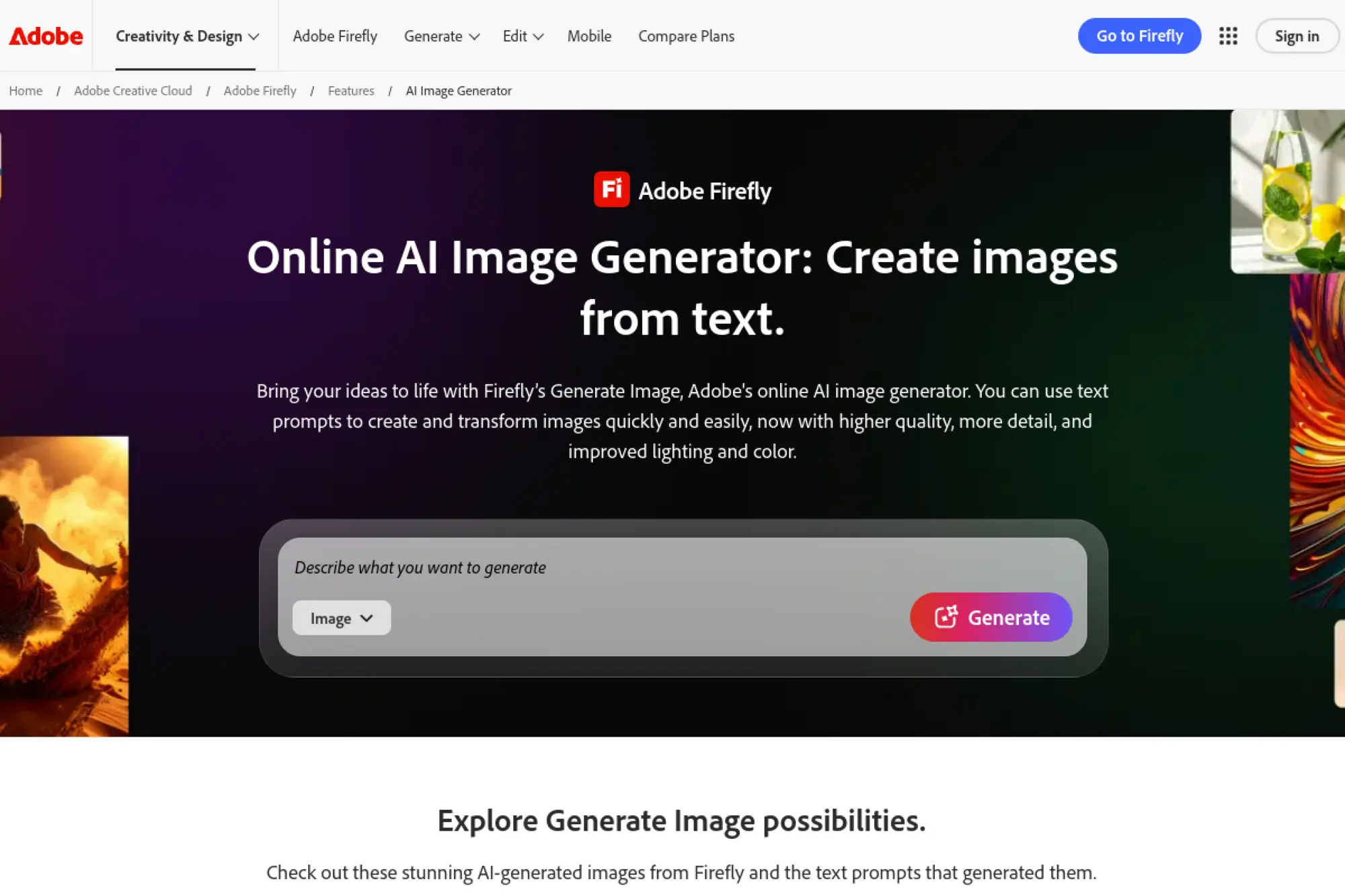
Adobe Firefly is built for creators who live in Adobe workflows and want AI generation plus editing in a familiar environment. The strongest use case is not just “make an image.” It is “make an image, then refine it into something usable in production.” Firefly fits teams that need speed without giving up control.
Best for
Pick Firefly if you already use Photoshop and need generative fill, scene expansion, and fast concepting inside an established design pipeline.
Key workflows to configure
- Create a shared prompt style guide for your brand’s visual tone.
- Build a repeatable “generate then edit” workflow for banners, social assets, and product scenes.
- Set up approvals so designers review AI outputs before they hit paid media.
Sales growth lever
Firefly can reduce creative bottlenecks in campaign production. You can generate on-brand background scenes, then use editing tools to match product placement and messaging. That lets you launch new creatives faster and keep creative fatigue low.
Watch outs
Firefly works best when you give it strong references and clear intent. If your prompts are vague, it may produce generic stock-like visuals. Also, keep an eye on subtle artifacts around hands, packaging edges, or small text.
Quick start checklist
- Choose a campaign theme and define the brand mood.
- Generate options for background and setting first.
- Composite product and refine with generative edits.
- Run a brand and legal review before publishing.
- Save your best prompts as reusable templates.
4. Google ImageFX
ImageFX is Google’s experimental image generation tool in Google Labs. It focuses on fast exploration and helps you find prompt wording that “clicks” with the model. Many users like it for photoreal concepts and for brainstorming art direction without getting stuck rewriting prompts from scratch.
Best for
Use ImageFX for early-stage ideation, mood exploration, and visual concept drafts that you plan to refine later in a design tool.
Key workflows to configure
- Turn your marketing brief into a short prompt, then iterate on nouns and adjectives instead of rewriting everything.
- Create a “prompt log” where you store winning phrasing and reuse it across campaigns.
- Pair ImageFX outputs with an editing tool for cleanup and finishing touches.
Sales growth lever
ImageFX helps teams generate fresh creative directions quickly. That supports faster campaign testing and faster creative refreshes. You can explore multiple visual angles for the same message, then pass the strongest to your production team.
Watch outs
Because it is an experimental product, availability and features can change. Treat it as an ideation engine, not your only production system. Also, do not rely on it for perfect typography inside images.
Quick start checklist
- Write a clear subject and setting in one sentence.
- Generate options and note which words drive the best output.
- Refine prompts by changing only one idea at a time.
- Export winners and finish layouts in your design suite.
- Save top prompts in a shared team doc.
5. Bing Image Creator

Bing Image Creator is a practical choice when you want quick access and a simple interface. It works well for social-first visuals, quick illustrations, and concept images you can build into posts. Many teams use it as a “fast draft” tool, then move to editing and layout tools for final production.
Best for
Use Bing Image Creator for quick concept images, social post visuals, and early creative exploration when you want low friction and easy access.
Key workflows to configure
- Create prompt templates for your most common assets, like blog headers or ad backgrounds.
- Establish a naming system for downloads so assets do not get lost in personal folders.
- Pair outputs with a consistent editing workflow to fix small defects before publishing.
Sales growth lever
You can move faster on seasonal campaigns and quick-turn promotions. That speed helps you respond to trends while they still matter. Use it to generate multiple concept directions, then pick the strongest and build a full creative set around it.
Watch outs
Output quality can vary by prompt style. Keep prompts specific and avoid vague “make it cool” language. Also, plan to add any critical text in a design tool rather than relying on generated typography.
Quick start checklist
- Define your campaign message and visual vibe.
- Generate multiple visual directions.
- Select one direction and refine with focused prompt changes.
- Export and edit for polish and brand fit.
- Store prompts and assets for reuse next time.
6. Microsoft Designer
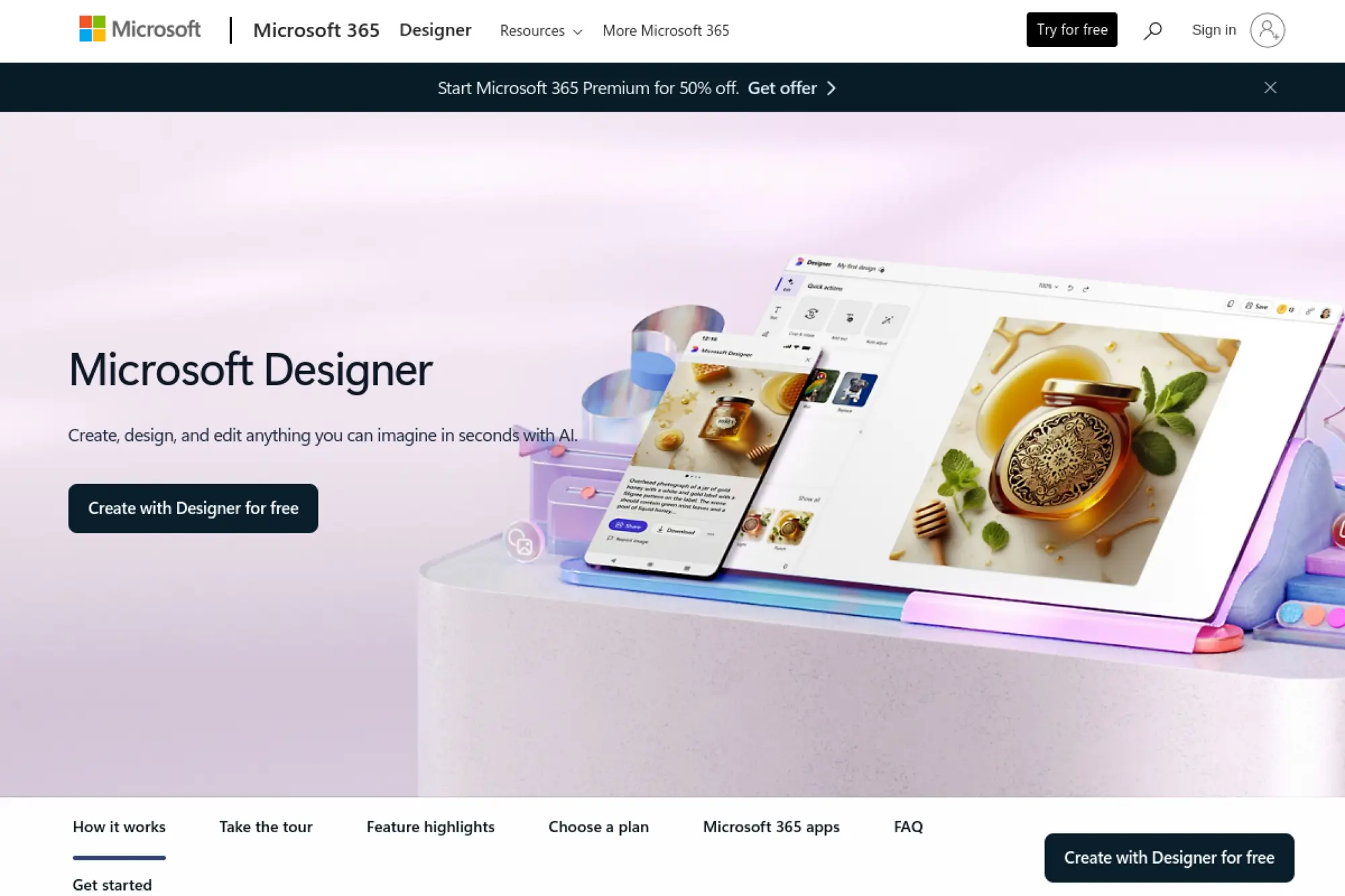
Microsoft Designer sits closer to “finished design” than many pure image generators. It helps you turn an idea into a complete creative, not just a standalone picture. That makes it useful when you need a social graphic, a simple promo, or a branded layout without a heavy design process.
Best for
Choose Microsoft Designer if your team needs quick marketing graphics and wants AI assistance inside a layout-oriented workflow.
Key workflows to configure
- Create a brand-ready template set for recurring assets like announcements and promos.
- Build a workflow where AI generates the base image and Designer handles layout and typography.
- Standardize export naming and storage so the team can find the latest version.
Sales growth lever
Designer helps you ship more creatives with consistent formatting. That supports faster social posting, more ad variations, and cleaner landing page visuals. When your team removes design friction, it can test more ideas and learn faster.
Watch outs
AI-generated images still need review for brand fit. Also, do not treat “auto design” as final. Use it as a draft generator, then apply human judgment to spacing, contrast, and hierarchy.
Quick start checklist
- Create a simple campaign template with your brand elements.
- Generate imagery that matches the headline and offer.
- Place text and refine hierarchy for clarity.
- Run a quick brand review before publishing.
- Save the template and reuse it for future promos.
7. Black Forest Labs FLUX
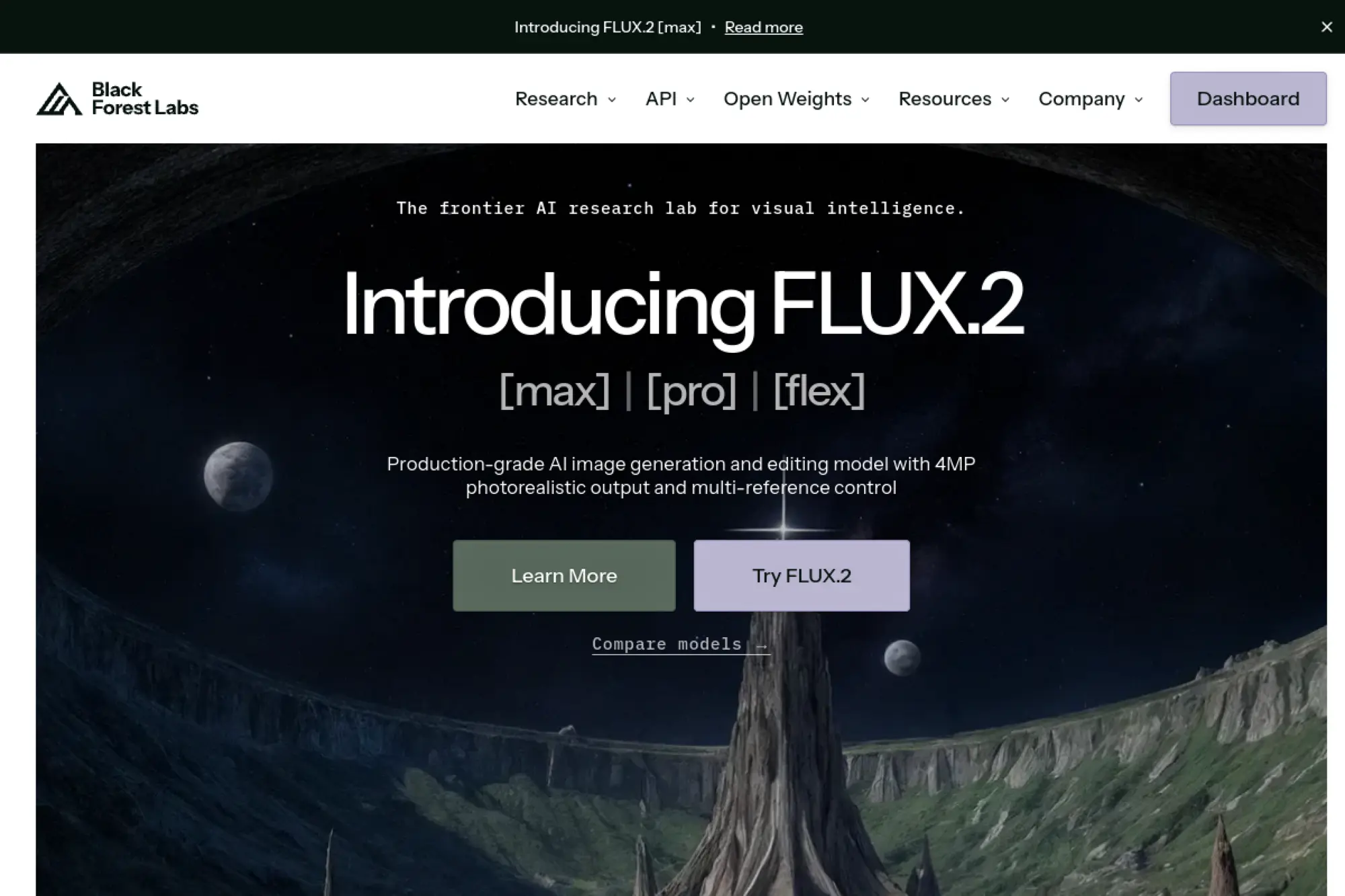
FLUX is a strong choice for teams that care about prompt control, visual detail, and flexible deployment options. It often appears inside other creative platforms, but it also stands on its own as a model family with a growing ecosystem. This makes FLUX especially useful for advanced users who want more control than a basic “text-to-image” box.
Best for
Use FLUX when you need high-quality generation with strong prompt adherence and when your team wants to experiment with more advanced workflows.
Key workflows to configure
- Set up a reference-driven workflow to keep characters, products, or scenes consistent.
- Build a “visual QA checklist” that flags common failure points like hands and small objects.
- Document a standard prompt structure so multiple team members can produce consistent results.
Sales growth lever
FLUX can support higher-fidelity creative for ads and landing pages, which can lift perceived brand quality. When your visuals look intentional and consistent, your offers feel more credible and your campaigns convert more reliably.
Watch outs
Advanced tools can tempt teams to chase endless variation. Set guardrails so you do not burn time iterating without a clear goal. Also, confirm usage rights and platform policies if you generate client work.
Quick start checklist
- Define a clear creative goal and target audience.
- Choose a consistent style direction and document it.
- Generate a set of candidates and pick a winner quickly.
- Refine with targeted edits instead of full regenerations.
- Save prompts and references for the next campaign.
8. DreamStudio
DreamStudio is a practical front end for Stable Diffusion-style workflows. It appeals to users who want flexibility, model options, and a more technical path to fine control. It also fits teams that want to experiment without locking into a single “house style.”
Best for
Choose DreamStudio if you want a configurable workflow and you plan to experiment with different looks, from photoreal to illustration.
Key workflows to configure
- Create prompt templates for specific asset types, such as product lifestyle scenes or blog headers.
- Use a reference-image workflow for consistent composition and style direction.
- Set up an editing loop that fixes errors with inpainting instead of full reruns.
Sales growth lever
DreamStudio can cut costs for early creative exploration. Your team can validate a visual direction before committing to a shoot. That reduces waste and helps you ship more campaign concepts with less risk.
Watch outs
Quality depends heavily on your prompt clarity and your willingness to iterate. Also, keep governance in mind. Teams can easily create off-brand outputs without a shared style guide and review process.
Quick start checklist
- Write a prompt that includes subject, setting, and mood.
- Generate options and pick the closest match.
- Edit problem areas with targeted fixes.
- Export and finish typography in your design tool.
- Store prompts in a shared library for reuse.
9. Leonardo AI
Leonardo AI targets creators who want production-ready assets, not just experiments. It supports workflows for marketing, product photography, and even game-style asset creation. Many users like its mix of generation plus editing and its focus on repeatable outputs.
Best for
Use Leonardo AI for product visuals, character concepts, and brand assets that need a consistent look across a campaign.
Key workflows to configure
- Create a brand style preset using reference images and a shared prompt format.
- Build a “campaign asset pipeline” that generates background options first, then composes hero visuals.
- Use an internal gallery or board approach to review and approve assets quickly.
Sales growth lever
Leonardo AI helps you create consistent creative sets for ads, storefronts, and email. That consistency can improve trust. It also speeds up iteration when a campaign needs new visuals without changing the whole concept.
Watch outs
As with most generators, detailed products and packaging may need cleanup. Keep your product details accurate. Also, do not treat AI outputs as “truth” for any regulated category or claims-based marketing.
Quick start checklist
- Collect a small reference pack of brand visuals.
- Write a reusable prompt template that matches your brand tone.
- Generate a set of candidate images for one use case.
- Refine with editing tools and export in your preferred format.
- Save the style preset for the next batch.
10. Ideogram
Ideogram stands out when you need images that include readable text, clean layouts, and design-like composition. It works well for posters, simple brand graphics, and social assets where typography matters. If your workflow often fails at “text inside the image,” Ideogram is worth testing early.
Best for
Pick Ideogram for typography-heavy assets like poster concepts, logo-like drafts, product taglines in visuals, and social graphics that need readable words.
Key workflows to configure
- Create a set of prompt templates for common layout types, such as headline plus background.
- Define your brand typography rules outside the model, then guide Ideogram toward similar structure.
- Use a “generate then vectorize” pipeline if you plan to rebuild the final design in a vector tool.
Sales growth lever
Readable text in images can improve performance for social ads and organic posts, especially when your audience skims. Ideogram lets you prototype those assets quickly, then polish them into final creatives without losing the core concept.
Watch outs
Even strong text rendering can still produce occasional misspellings or odd kerning. Always proofread. Also, avoid relying on the model to produce your final logo files. Treat it as a concept generator.
Quick start checklist
- Choose a short headline and a clear design intent.
- Generate multiple layout options and pick the cleanest.
- Proofread text and adjust prompts for clarity.
- Rebuild final typography in your design tool if needed.
- Save the best prompt pattern for the next asset.
11. Canva Magic Studio

Canva Magic Studio works best when your team wants to generate images directly inside a design workflow. Instead of generating images in one tool and then importing them, you can stay in Canva and move from idea to finished post with less friction. This is a strong fit for marketing teams that ship daily content.
Best for
Use Canva Magic Studio if you want AI image generation embedded in templates, social formats, presentations, and everyday marketing collateral.
Key workflows to configure
- Create a shared brand kit and reusable templates that define spacing, fonts, and colors.
- Use AI images as background layers, then overlay brand typography and product details.
- Build a review workflow that checks brand compliance before publishing.
Sales growth lever
Canva shines when speed and consistency drive growth. You can keep campaigns fresh without rebuilding layouts from scratch. That supports frequent creative refreshes, which can improve engagement and reduce performance drop-off over time.
Watch outs
Do not let convenience lower your quality bar. Some AI outputs may look generic. Also, keep a clear folder structure so your team does not lose track of “final” vs “draft” assets.
Quick start checklist
- Pick a proven Canva template for your asset type.
- Generate imagery that matches the message and audience.
- Apply brand kit styles and check readability.
- Export and run a quick stakeholder review.
- Save the final design as a reusable template.
12. Freepik AI Image Generator
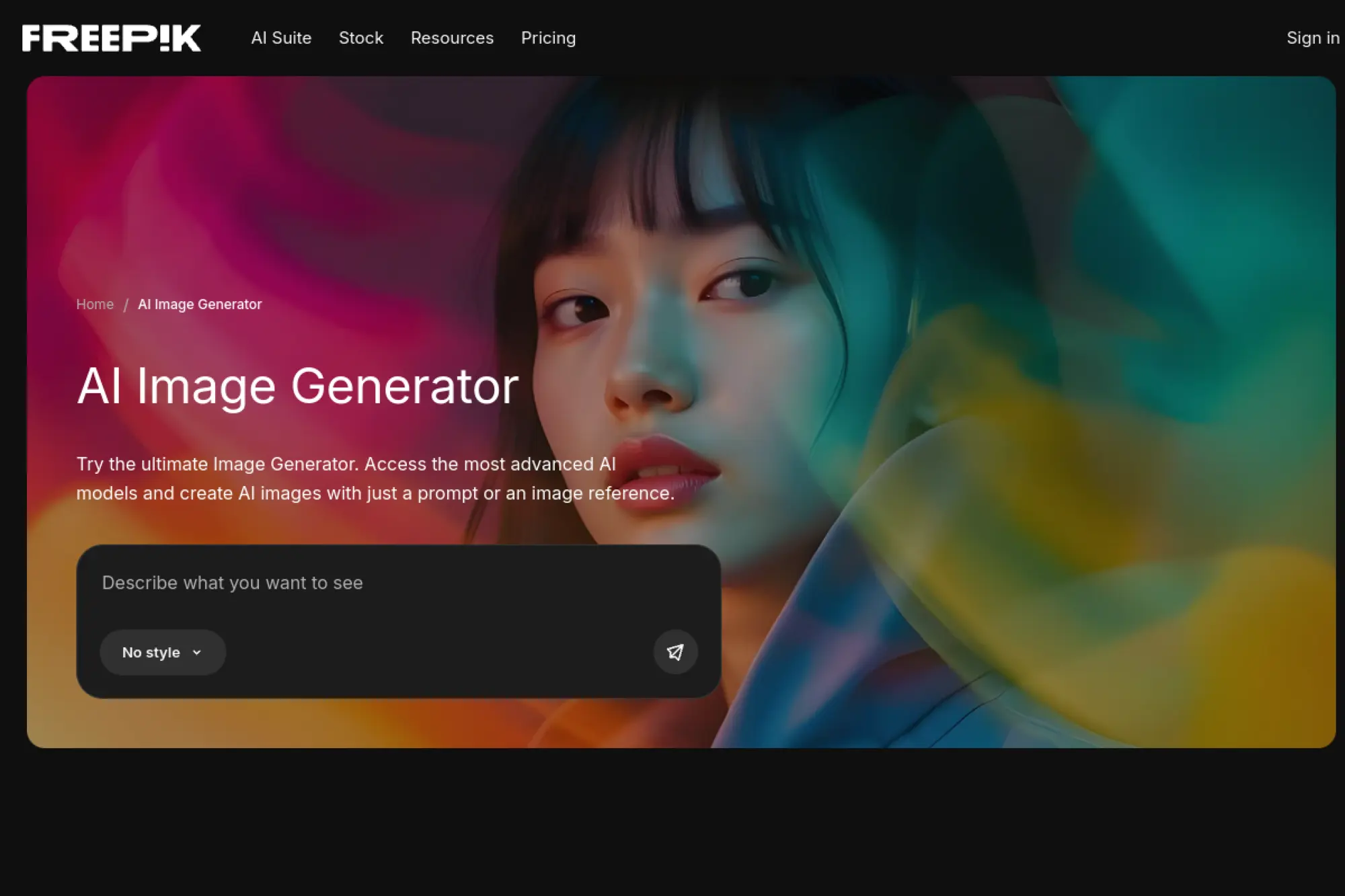
Freepik’s AI Image Generator sits inside a broader creative suite, which makes it appealing for content teams. You can generate images, edit them, and keep assets near stock resources and design tools. That “all-in-one” approach matters when your team runs multiple channels and needs quick creative turnaround.
Best for
Choose Freepik when you want image generation plus editing in a single workspace, especially for marketing teams that also rely on stock assets.
Key workflows to configure
- Create a brand style library using reference images and saved prompt patterns.
- Set a workflow for “generate, edit, export” so assets move cleanly into your content calendar.
- Standardize naming conventions and folder structure for campaigns.
Sales growth lever
Freepik can reduce the time between campaign idea and shippable creative. That helps you publish more consistently and keep visuals aligned across ads, blog content, and social posts. Consistency builds recognition, and recognition supports conversion.
Watch outs
Multi-model suites can create inconsistent looks if teammates switch styles without coordination. Lock down a small set of preferred styles for your brand. Also, review outputs for subtle product inaccuracies.
Quick start checklist
- Define a single campaign style direction and mood.
- Generate several candidates and pick a clear winner.
- Run edits for polish and brand consistency.
- Export and store in your campaign folder.
- Document the prompt for future reuse.
13. Shutterstock AI Image Generator
Shutterstock’s AI Image Generator is a strong option when licensing and commercial usage matter to your workflow. It connects image generation to a stock ecosystem, which can help teams stay inside a single procurement and usage framework. That reduces friction for marketing and creative operations.
Best for
Use Shutterstock when your team needs licensable assets and wants a workflow that feels closer to stock acquisition than experimental AI art.
Key workflows to configure
- Create prompts that match your brand photography style, not generic “AI art” language.
- Build a pipeline that combines generated images with licensed stock elements when needed.
- Store usage notes and licensing context alongside final assets for future audits.
Sales growth lever
When your team can publish confidently, it can publish faster. Shutterstock supports that by reducing uncertainty about usage. Faster creative cycles can help you refresh ads and landing visuals before performance declines.
Watch outs
Even with commercial framing, you still need human review. Check for brand inconsistencies, odd anatomy, and unrealistic product depiction. Also, avoid generating content that imitates protected characters or trademarks.
Quick start checklist
- Define the campaign goal and target audience.
- Generate images aligned to your brand photo style.
- Review for realism and compliance with your standards.
- Download and store with clear campaign labeling.
- Add the prompt to your shared prompt library.
14. Generative AI by Getty Images
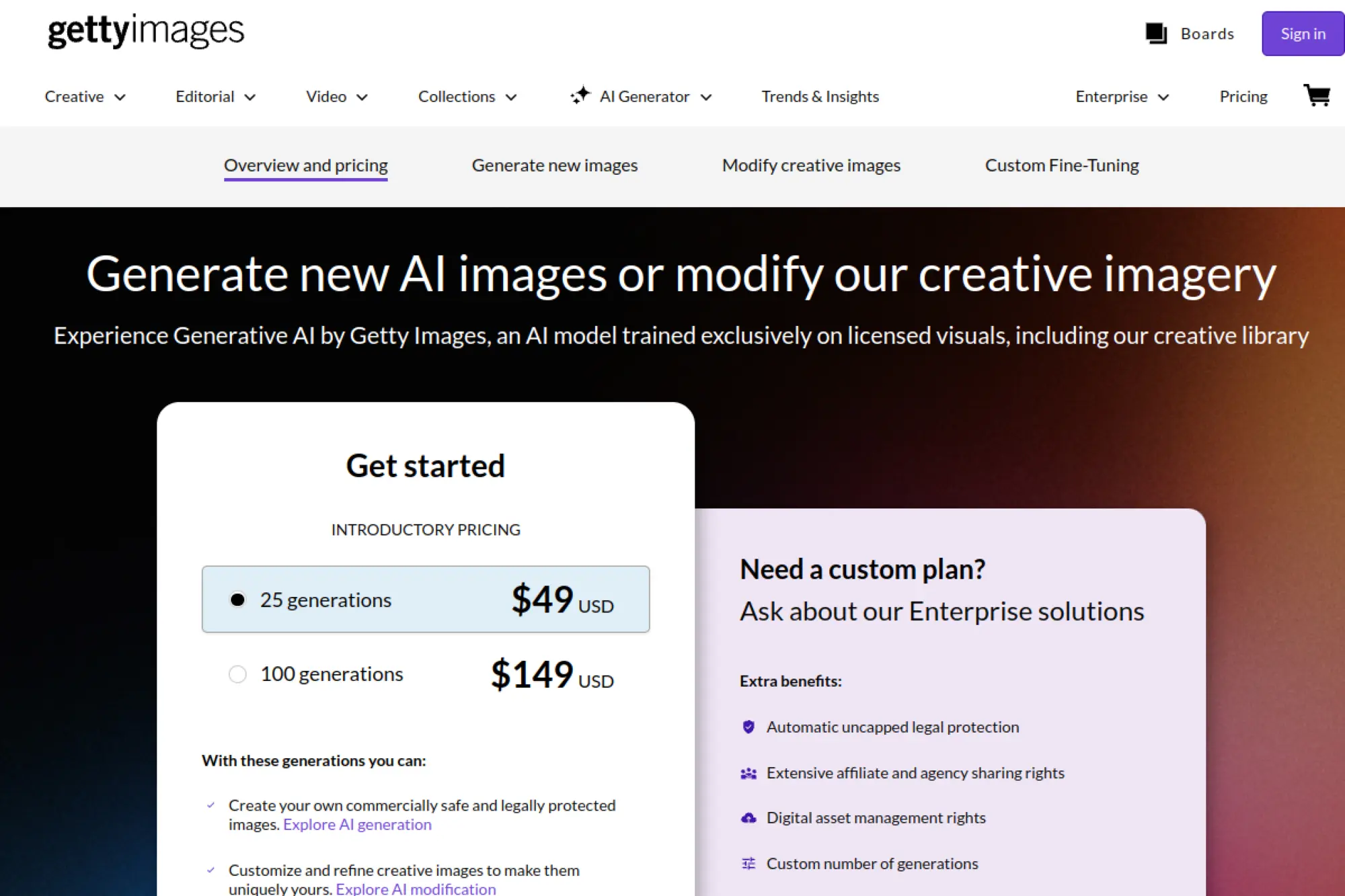
Getty Images positions its generative AI offering around commercial use cases and brand confidence. It targets teams that care about risk management, enterprise workflows, and high-stakes campaigns. This is less about “fun images” and more about controlled generation that fits professional marketing needs.
Best for
Choose Getty’s generative AI if you work with regulated brands, large budgets, or strict legal review. It also fits teams that already use Getty for visual sourcing.
Key workflows to configure
- Create a standard “creative request” template that includes product category, audience, and intended channel.
- Set up an approval workflow that involves brand and legal reviewers early.
- Build a reuse system so winning prompts become repeatable campaign assets.
Sales growth lever
Brand-safe image generation helps teams move faster without increasing risk. That speed supports more frequent campaign updates and faster localization. When visuals align to brand standards, trust rises and conversion becomes easier.
Watch outs
Enterprise-focused tooling can feel slower for casual exploration. Treat it as a production tool. Also, keep prompts aligned to real product truth. AI can invent details that confuse customers if you do not review carefully.
Quick start checklist
- Draft a short campaign brief with channel and audience.
- Generate concept options and shortlist the best candidates.
- Run brand review and adjust prompts to fix issues.
- Export final assets and store them with campaign metadata.
- Save winning prompts for the next launch.
15. Recraft
Recraft is a great fit for designers who need assets that behave like design assets. It leans into workflows that matter for logos, icons, vectors, and brand systems. That makes it a strong choice when you care about clean shapes, scalable graphics, and consistent style across a set of assets.
Best for
Use Recraft for brand kits, icon sets, logo exploration, and marketing graphics that need a clean, design-forward look.
Key workflows to configure
- Create a brand style definition that locks in color direction, shape language, and mood.
- Generate assets as sets, then curate them into a reusable design library.
- Use vector-friendly workflows so outputs transition smoothly into your final design tool.
Sales growth lever
Consistent visual identity supports trust. Recraft can help small teams build polished brand systems without long design cycles. That improves perceived quality across landing pages, emails, and product listings, which can lift conversion.
Watch outs
AI logo concepts still need human judgment and trademark checks. Do not ship a generated logo without validation. Also, keep your typography production-grade by rebuilding final text in a dedicated design tool.
Quick start checklist
- Define a brand mood and target customer impression.
- Generate a set of icons or logo concepts in one style.
- Select the strongest direction and refine it.
- Export and rebuild final typography if required.
- Save the style so future assets match.
16. Kittl
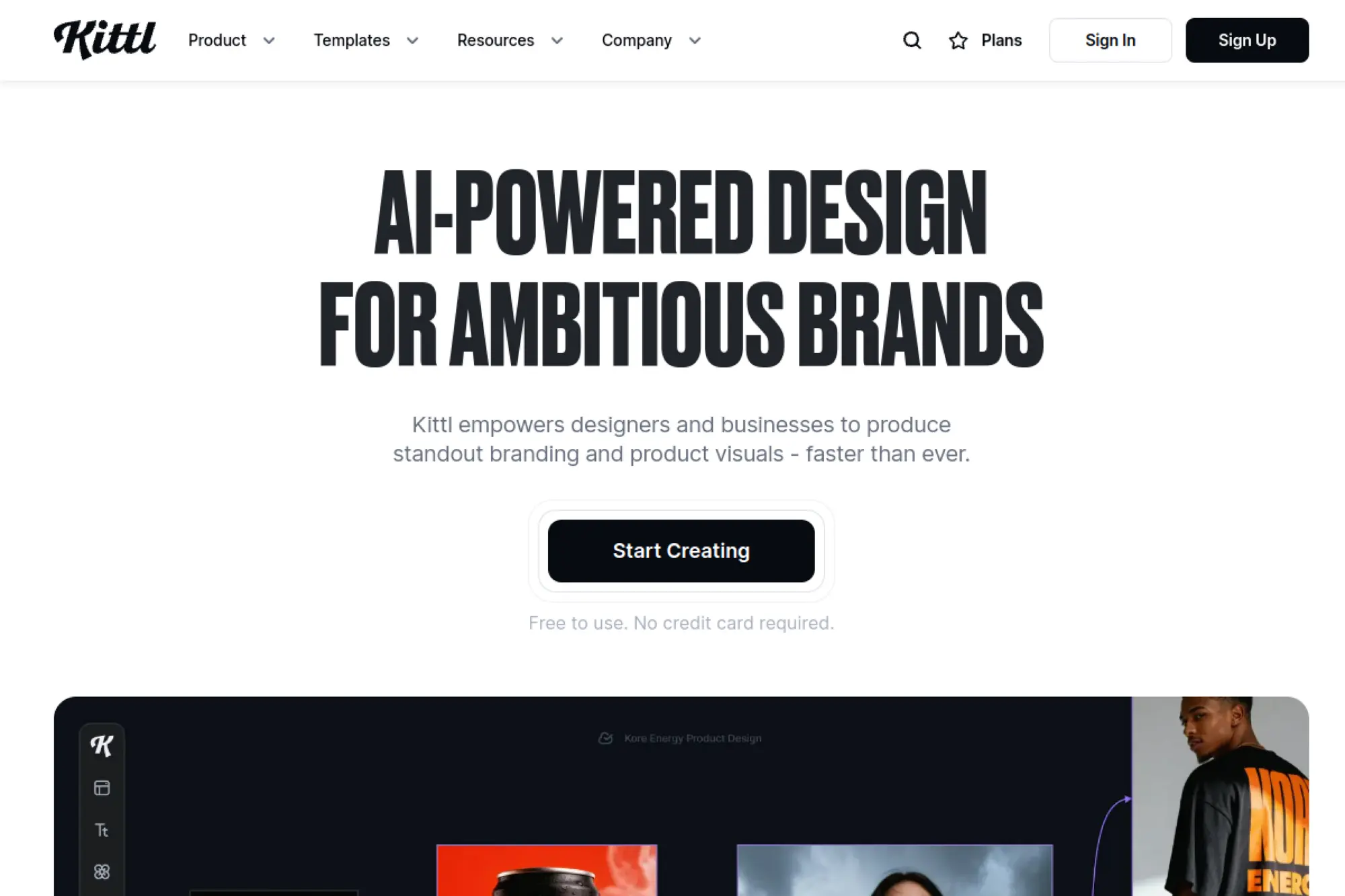
Kittl is an AI-first design platform that blends templates, typography, and generation tools. It is especially useful for creators who build merch, social graphics, packaging concepts, and product designs. It feels closer to a design studio than a raw generator, which helps when you need finished-looking outputs.
Best for
Pick Kittl for print-ready graphics, merch concepts, typography-driven designs, and creative templates that you can ship quickly.
Key workflows to configure
- Create reusable templates for product categories, such as apparel or stickers.
- Generate supporting graphics, then combine them with typography and layout inside the editor.
- Set a brand kit approach for clients or stores so designs stay consistent.
Sales growth lever
Kittl helps sellers create fresh product designs faster. That supports more frequent product drops and better store variety. When you test more designs, you increase your chance of finding winners and building a repeatable product engine.
Watch outs
Generated graphics can look trendy but generic. Keep your brand voice clear. Also, avoid relying on AI for final claims or factual statements on product designs. Proofread everything that goes to print.
Quick start checklist
- Choose a product category and define style direction.
- Generate a set of graphic elements that match the style.
- Compose the final layout with clean typography.
- Run a print and brand review before exporting.
- Save the template for the next design batch.
17. Picsart AI Image Generator
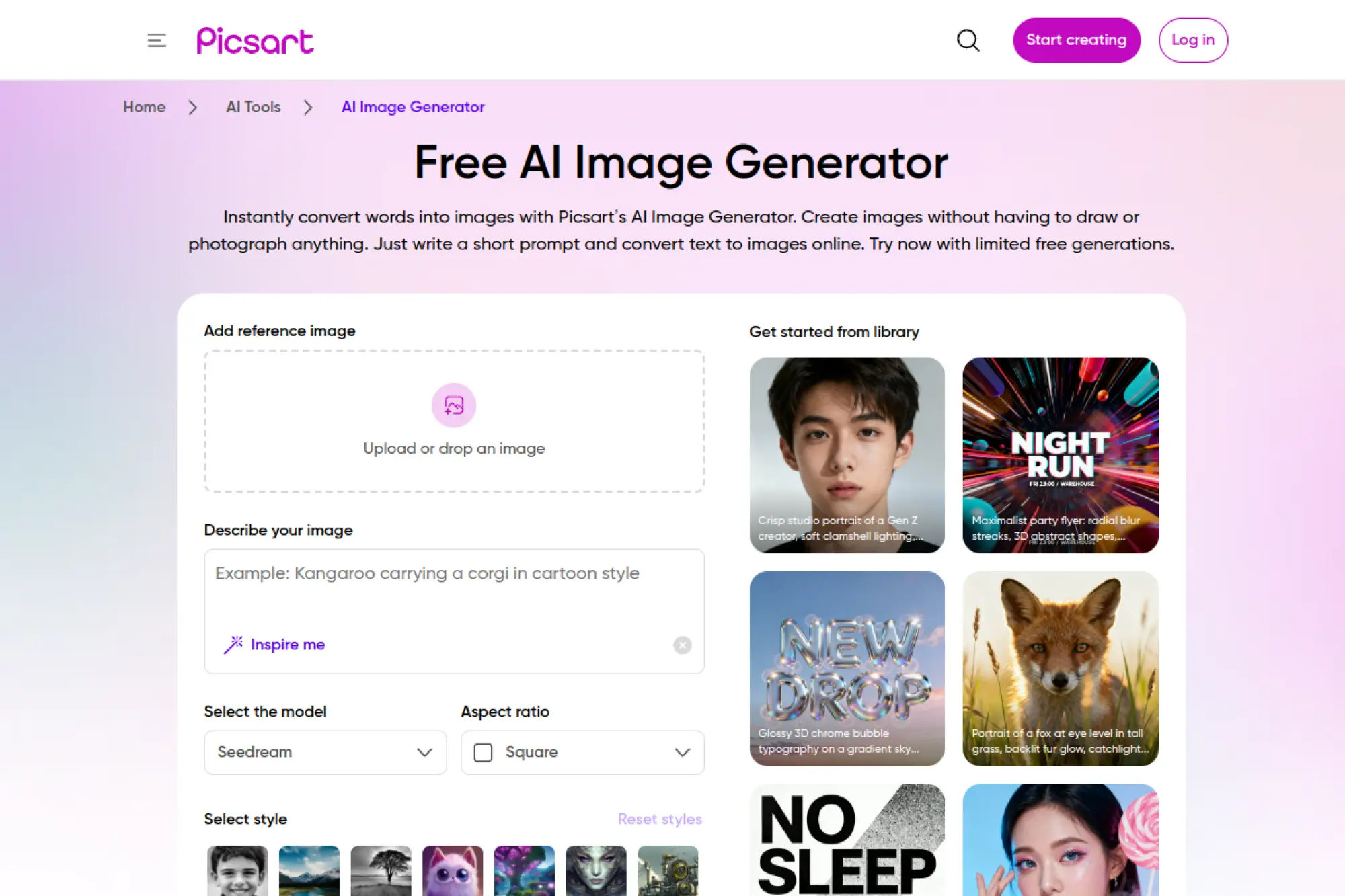
Picsart blends image generation with editing in a creator-friendly environment. It works well for social content because you can create an image and then immediately remix it, add effects, and prepare it for posting. This “create and publish” flow suits creators who value speed and convenience.
Best for
Use Picsart for social creators, small business marketing, and fast visual experiments that you plan to edit into a finished post.
Key workflows to configure
- Set up a simple prompt framework that keeps outputs aligned to your niche or brand tone.
- Create a repeatable editing routine: background cleanup, color correction, and final crop.
- Organize assets by campaign so you can reuse winning visuals later.
Sales growth lever
Picsart can help you publish more consistently on social channels. Consistency supports audience growth, and audience growth supports sales. Use it to produce quick content series that reinforce your offer and drive traffic to your storefront.
Watch outs
Fast tools can lead to rushed output. Maintain a quality bar and avoid overusing the same look. Also, review images for odd details that might weaken trust, especially for product photos.
Quick start checklist
- Pick a content theme tied to your offer.
- Generate a visual concept that fits the theme.
- Edit for clarity and brand look.
- Add clean typography and post-ready formatting.
- Save the prompt and reuse it as a series format.
18. PhotoRoom
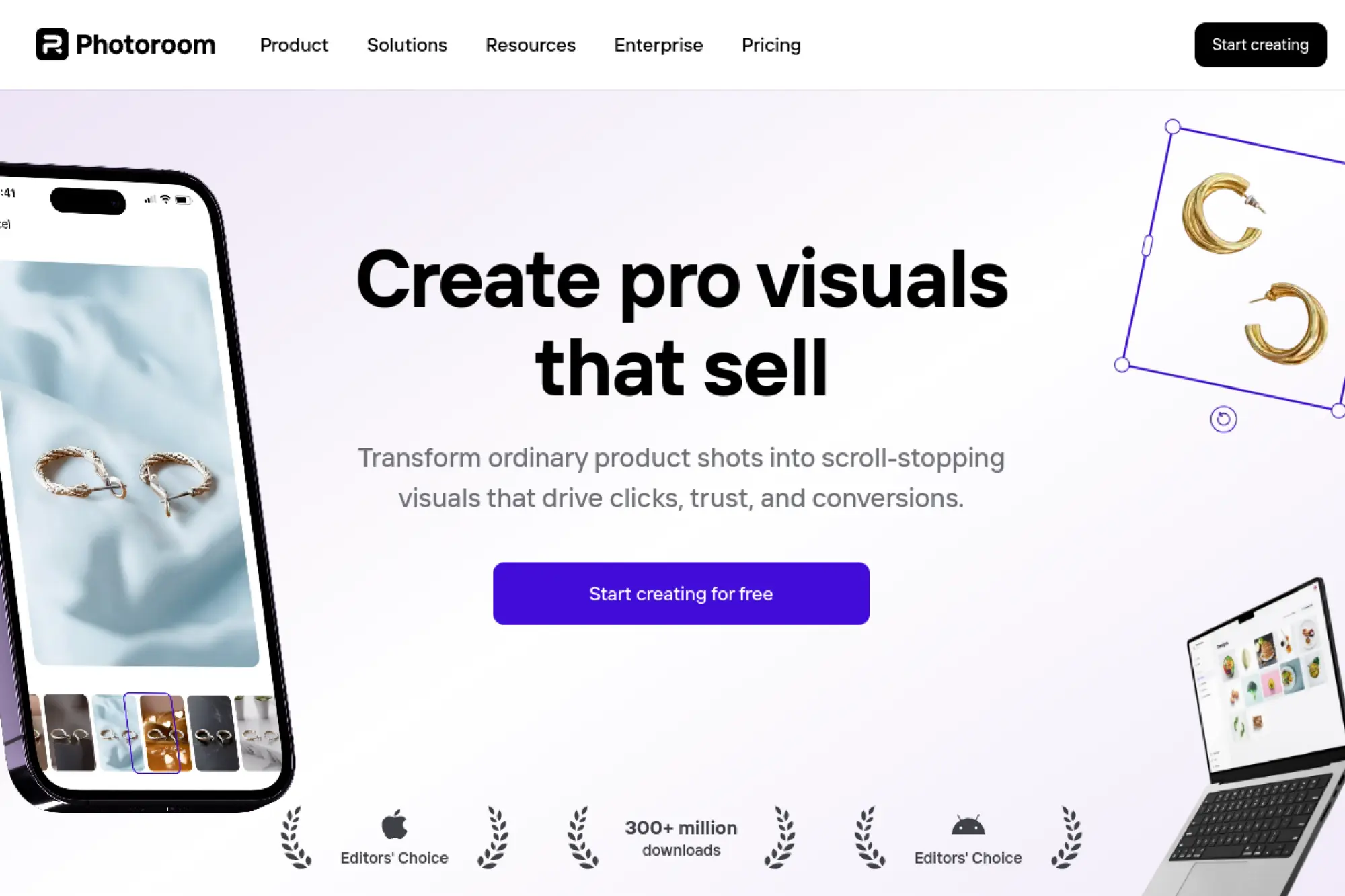
PhotoRoom focuses on product visuals and e-commerce outcomes. It shines when you need to take a basic product photo and turn it into something that looks studio-ready. Sellers and marketing teams use it to build listing images, ads, and lifestyle scenes without a full photo shoot.
Best for
Choose PhotoRoom for e-commerce product listings, marketplace images, and product-focused ads where clean presentation drives clicks and trust.
Key workflows to configure
- Create a product photo intake workflow so you start with consistent base images.
- Build background styles that match your brand’s visual identity.
- Standardize export and naming so your catalog stays organized.
Sales growth lever
Better product imagery can improve click-through and conversion. PhotoRoom helps you quickly create consistent, professional-looking visuals across your catalog. That consistency builds buyer confidence and reduces friction in the purchase decision.
Watch outs
AI-generated lifestyle scenes can look unrealistic if lighting and shadows do not match. Always review for believability. Also, keep product representation accurate. Do not let the tool invent features or materials.
Quick start checklist
- Gather clean product photos with consistent angles.
- Remove backgrounds and fix edges carefully.
- Generate or apply backgrounds that match your brand.
- Export images and upload to your store or ad platform.
- Save the workflow as a repeatable catalog process.
19. Clipdrop
Clipdrop is less about “create a brand new scene” and more about practical image work. It helps you remove backgrounds, clean up objects, extend images, and upscale for better quality. That makes it a strong companion tool even if you generate images elsewhere.
Best for
Use Clipdrop when your main pain is editing, cleanup, and fast improvements to existing images or AI outputs.
Key workflows to configure
- Set a cleanup workflow for removing distractions and fixing rough edges.
- Create a consistent background approach for product and profile images.
- Use an upscaling and enhancement step before final export.
Sales growth lever
Clipdrop can make your creative look more professional with less effort. Cleaner visuals increase trust. Trust increases conversions. It also helps marketing teams polish AI-generated drafts into assets that look production-ready.
Watch outs
Cleanup tools can sometimes remove important product details. Review carefully. Also, avoid pushing enhancement too far. Over-processed images can look artificial, which can hurt credibility.
Quick start checklist
- Pick the asset you want to improve.
- Remove background and clean distracting elements.
- Extend the image if you need extra space for design layout.
- Upscale and export for final use.
- Store the edited version with clear naming.
20. getimg.ai

getimg.ai positions itself as an “all-in-one” platform for generation and editing. It aims to reduce the burden of choosing models and prompts by guiding users through a simpler workflow. For teams, it can act as a centralized space where assets, variations, and edits stay organized.
Best for
Choose getimg.ai when you want a unified workspace for generating, editing, and managing images for marketing or creative production.
Key workflows to configure
- Create a consistent prompt format for your brand’s typical visuals.
- Set up an editing routine that fixes errors quickly without restarting.
- Use shared folders or team workflows to keep campaigns organized.
Sales growth lever
Centralized creative production helps you ship faster. getimg.ai supports that by keeping generations and edits in one flow. Faster shipping means more learning and faster iteration, which helps you improve campaign performance over time.
Watch outs
Even “automatic” model selection still needs human direction. Keep briefs clear. Also, watch for subtle inconsistencies across a campaign set. You may need to lock down style references to maintain cohesion.
Quick start checklist
- Define one campaign and one asset type to start.
- Generate multiple candidates and shortlist quickly.
- Edit small issues rather than regenerating everything.
- Export, publish, and track performance.
- Reuse the best prompt as your baseline template.
21. NightCafe
NightCafe is known for community-driven creation and exploration. It is useful when you want to browse styles, remix prompts, and learn how other creators describe visual ideas. That makes it a good tool for inspiration, especially if your team feels stuck in the same visual patterns.
Best for
Use NightCafe for creative exploration, style discovery, and prompt learning through a strong community ecosystem.
Key workflows to configure
- Create an internal “style board” workflow where you collect and review inspiration outputs.
- Turn successful prompts into reusable templates for your brand’s tone.
- Build a review process that filters out off-brand aesthetics early.
Sales growth lever
Fresh creative directions can refresh your brand presence and improve engagement. NightCafe can help teams break out of visual sameness, which supports stronger creative testing and better attention in ads and social feeds.
Watch outs
Community platforms can produce trend-heavy aesthetics. Trends can help, but they can also dilute brand identity. Keep your brand style guide close and use NightCafe for inspiration, not identity.
Quick start checklist
- Browse styles that match your brand’s mood.
- Remix a prompt and adapt it to your product or message.
- Generate options and pick the most on-brand result.
- Export and finish layout in your design tool.
- Save the winning prompt in your team library.
22. Artbreeder

Artbreeder approaches image creation more like “breeding” and evolving visuals than pure prompt-to-image generation. It is useful for character exploration, portraits, and concept variations where small changes matter. If you build stories, games, or branded mascots, this style of iteration can be valuable.
Best for
Use Artbreeder for character concepts, portrait exploration, and iterative refinement where gradual change matters more than fast prompt cycling.
Key workflows to configure
- Define a character brief: personality, age range, mood, and style direction.
- Create a versioning system so you can track which iterations lead to the best result.
- Export candidates and build a final character sheet in your design tool.
Sales growth lever
Characters and mascots can strengthen brand recognition. Artbreeder helps you explore consistent character directions that you can use across packaging, social posts, and campaigns. Recognition supports trust, and trust supports conversion.
Watch outs
Character likeness can drift across iterations. Keep references and selection criteria tight. Also, treat outputs as concept art. You may still need an illustrator or designer to finalize a character for brand use.
Quick start checklist
- Write a short character brief with personality and vibe.
- Create several character directions and compare them.
- Refine the strongest direction through controlled iteration.
- Export and build a consistent character pack for your team.
- Document the chosen style for future assets.
23. WOMBO Dream
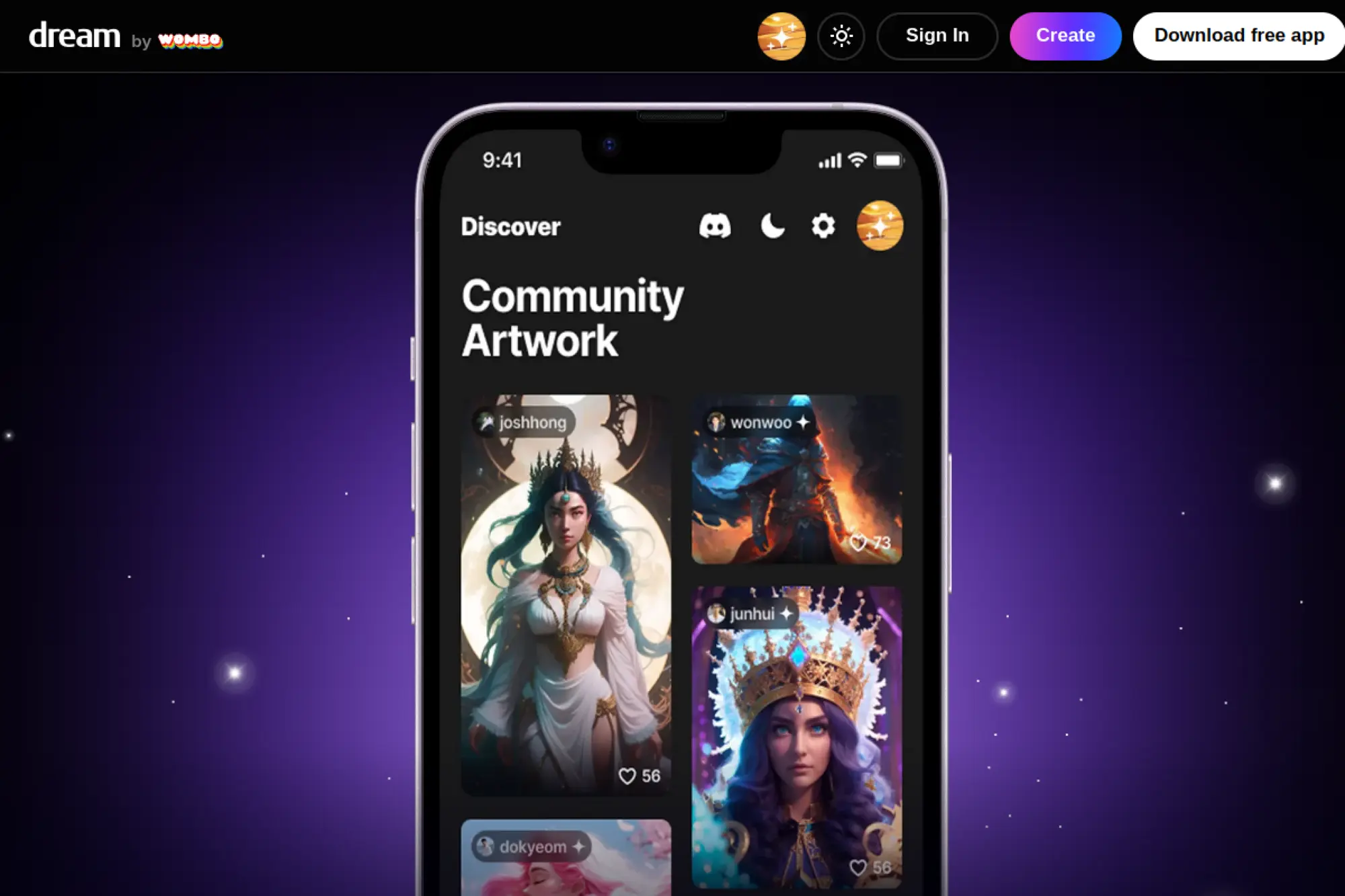
WOMBO Dream is a mobile-friendly generator that focuses on quick creation and style variety. It is a good choice when you want fast inspiration, concept art, or playful visuals for content. Many creators use it for personal brands, quick experiments, and draft visuals that do not require complex editing pipelines.
Best for
Choose WOMBO Dream for fast mobile creation, personal content, and lightweight concept images you can build into posts or stories.
Key workflows to configure
- Create a list of prompt themes that match your content pillars.
- Pick a consistent style direction so your feed does not look random.
- Use a simple post-production routine: crop, color tune, and add clean typography.
Sales growth lever
WOMBO Dream supports fast content production, which helps creators stay consistent. Consistency supports reach. Reach supports sales. Use it to create attention-grabbing visuals that introduce your offer and drive traffic to your link hub or store.
Watch outs
Mobile-first tools can encourage “quantity over quality.” Keep standards clear. Also, avoid using it for detailed product depiction where accuracy matters. Use it for mood and concept more than product truth.
Quick start checklist
- Pick a content topic tied to your audience’s needs.
- Generate several visuals in a consistent style.
- Select the clearest image and edit for readability.
- Add your message and publish with a clear call to action.
- Save prompts that consistently perform well.
24. Fotor AI Image Generator

Fotor works well for small teams that want simple image generation plus familiar photo editing. It tends to fit “business casual” marketing needs: blog visuals, basic ads, social graphics, and lightweight design tasks. If you want a straightforward tool that feels like a photo editor with AI features, it is a solid option.
Best for
Use Fotor for small business marketing, basic content production, and quick image drafts that you will polish with simple edits.
Key workflows to configure
- Create prompt templates for recurring assets like blog headers and promotional graphics.
- Use a standard editing routine to correct colors and remove small distractions.
- Build a content folder system so your team can find assets quickly.
Sales growth lever
Fotor can help teams publish more consistently without needing advanced design tools. When you increase creative output and keep your visuals coherent, you support better brand recall and stronger engagement across channels.
Watch outs
Simple tools may struggle with complex prompts. Keep prompts direct and descriptive. Also, review outputs for artifacts that could reduce credibility, especially for business categories where trust matters.
Quick start checklist
- Choose one channel and one asset type to begin.
- Generate visuals that match the post’s message.
- Edit for clarity and consistent brand tone.
- Export and publish with clean formatting.
- Save the prompt template for future posts.
25. Pixlr
Pixlr is a lightweight browser-based editor that also offers AI image generation features. It is useful when you want to generate an image and then quickly edit it without switching tools. That is a practical workflow for quick web content, social posts, and small creative tasks that do not need a complex design stack.
Best for
Choose Pixlr for quick browser editing paired with AI generation, especially when you need fast turnaround and simple adjustments.
Key workflows to configure
- Create a baseline prompt template that matches your brand’s visual language.
- Use a consistent edit routine: crop, adjust contrast, and refine backgrounds.
- Set a workflow for exporting assets into your content management system.
Sales growth lever
Pixlr reduces friction between generation and polishing. That helps you ship more content in less time. More consistent publishing can improve reach and engagement, which supports lead flow and sales over time.
Watch outs
Lightweight tools may not handle advanced consistency needs. If you need the same character across many assets, use reference-driven tools. Also, avoid relying on generated text. Add final typography manually.
Quick start checklist
- Draft a prompt that matches the post or campaign theme.
- Generate options and pick the cleanest image.
- Edit for brand tone and readability.
- Export and test in the actual channel layout.
- Save the prompt and edits as a repeatable pattern.
26. Craiyon

Craiyon is a simple tool that works well for brainstorming. It is not the most precise generator, but it can help you visualize an idea quickly. For teams, that makes it useful in early ideation when you want to explore concepts before investing time in higher-fidelity tools.
Best for
Use Craiyon for quick ideation, rough drafts, and early brainstorming when speed matters more than polish.
Key workflows to configure
- Use it as a “concept sketch” step before moving to a higher-end generator.
- Collect outputs in a moodboard to align stakeholders on direction.
- Convert rough concepts into a cleaner creative brief for your main tool.
Sales growth lever
Faster ideation helps teams explore more campaign ideas. More ideas increases the chance of finding a strong hook. A stronger hook can improve engagement and click-through once you translate it into higher-quality creative.
Watch outs
Do not treat Craiyon outputs as production-ready. Use them for direction, not delivery. Also, check that early concepts do not accidentally introduce off-brand or confusing visuals that derail your messaging.
Quick start checklist
- Write a short concept prompt and generate options.
- Pick the most promising direction and refine the idea in words.
- Move the refined brief into a higher-end generator.
- Finalize with editing and brand review.
- Document what worked so ideation gets faster next time.
27. Mage.space
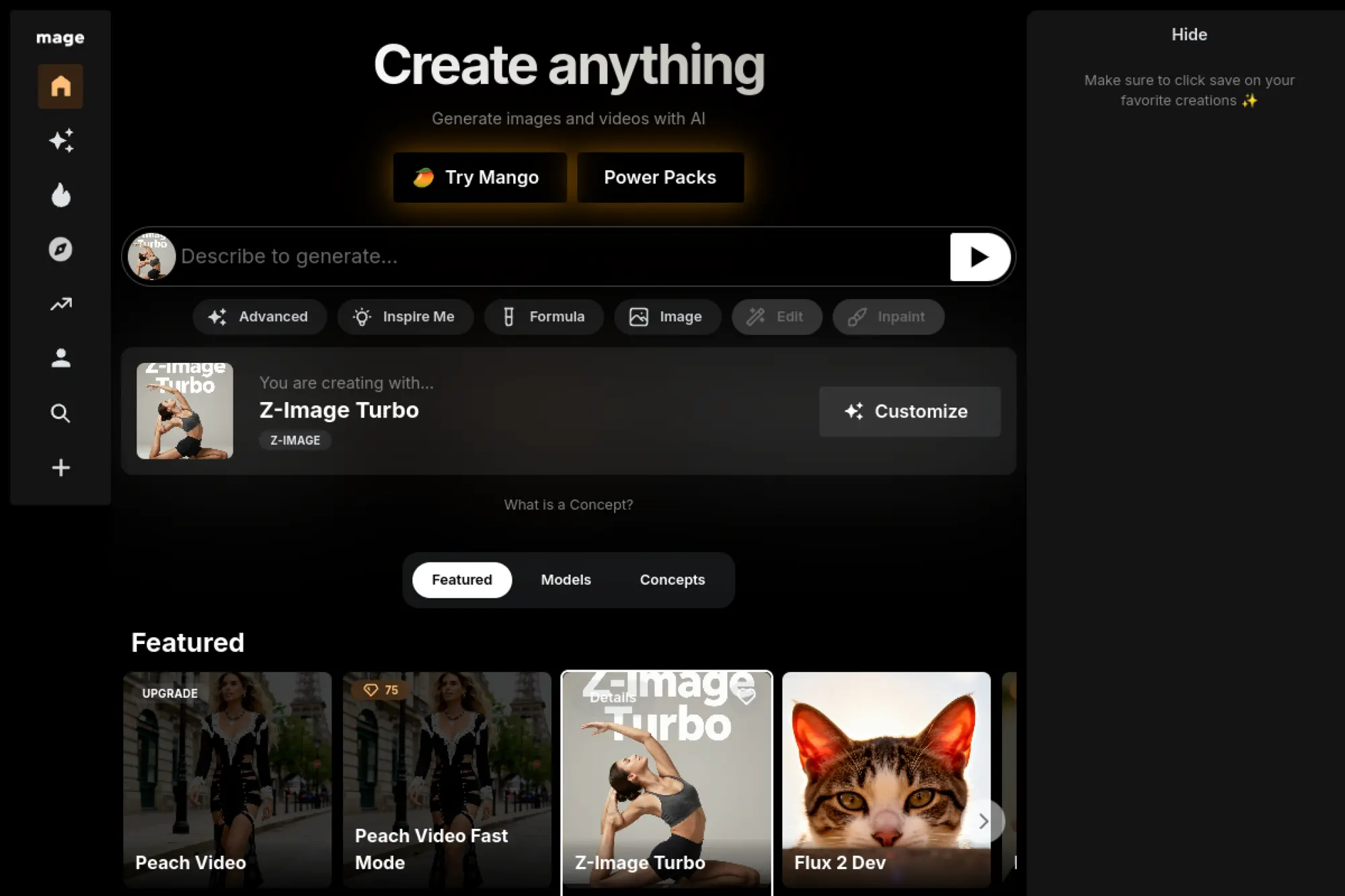
Mage.space is popular with users who want an accessible interface for diffusion-style generation and a broad range of community-driven looks. It can be useful when you want to explore different styles and experiment with creative directions without committing to a heavyweight platform.
Best for
Use Mage.space for experimentation, style discovery, and creative exploration when you want flexible generation options.
Key workflows to configure
- Build a “style exploration” workflow where you test multiple looks for the same concept.
- Create a prompt library that records what styles align with your brand.
- Export top candidates and finish them in an editor for production use.
Sales growth lever
Style exploration helps you find a distinctive visual identity for campaigns. Distinct visuals can improve scroll-stopping power and brand recall. That can translate into better engagement and stronger conversion rates once you standardize what works.
Watch outs
Community-driven platforms can include inconsistent quality. Always curate carefully. Also, create internal guardrails so your team does not accidentally publish visuals that conflict with brand guidelines or audience expectations.
Quick start checklist
- Start with one campaign concept and a clear mood.
- Generate multiple style options and compare results.
- Select one direction and refine prompts for consistency.
- Polish the final asset in an editor.
- Save the chosen style rules for future work.
28. Tensor.art

Tensor.art works well for users who want to explore many different community models and styles in one place. It often appeals to creators who want flexibility and a broad ecosystem of looks. If your creative needs include niche aesthetics or highly specific styles, this platform can help you discover what works.
Best for
Choose Tensor.art for broad model exploration, niche styles, and creators who want to experiment with many different aesthetics.
Key workflows to configure
- Create an internal “approved model list” so teams do not scatter across too many looks.
- Set a consistent prompt structure so outputs stay comparable across experiments.
- Build a review gallery where stakeholders can pick winners quickly.
Sales growth lever
When you can generate many stylistic directions quickly, you can match creative to different audience segments. Better creative-audience fit can improve ad relevance and engagement. Once you identify a winning style, you can scale it across your campaign set.
Watch outs
Too many options can slow decisions. Limit experimentation time with clear objectives. Also, verify that any model or style you use fits your brand risk tolerance, especially for commercial client work.
Quick start checklist
- Define your campaign audience and creative goal.
- Test a small set of styles aligned to that audience.
- Choose one consistent direction and refine prompts.
- Export and polish in your design workflow.
- Document the winning style for repeat campaigns.
29. SeaArt
SeaArt is often used for style-heavy generation and community-driven discovery. It can be useful when you want to find a specific visual vibe, especially for illustrated and character-oriented work. Many creators use it as a place to explore aesthetics and then refine outputs into publishable assets.
Best for
Use SeaArt for style exploration, character-driven visuals, and creators who want a community ecosystem to discover new looks.
Key workflows to configure
- Set a consistent character or scene description template so outputs stay cohesive.
- Create a library of brand-safe styles that match your audience.
- Use a post-processing step to align colors and contrast across a campaign set.
Sales growth lever
SeaArt can help you create distinctive creative that appeals to specific audiences, especially when illustration performs well for your niche. Distinctive visuals can improve engagement and keep your content from blending into generic stock imagery.
Watch outs
Style-heavy outputs can drift into trends that do not match your brand. Keep guidelines clear. Also, review for consistency across a set, especially if you publish multi-post series or ad sequences.
Quick start checklist
- Choose a single style direction aligned to your audience.
- Generate a small set of candidate visuals.
- Select one direction and refine for consistency.
- Edit colors and details for brand fit.
- Save prompts so future assets match.
30. PixAI

PixAI focuses strongly on illustration and anime-style creation, which makes it a specialized choice. If your brand or content niche performs well with that aesthetic, PixAI can help you generate character-driven visuals, stylized scenes, and consistent creative themes that feel tailored to your audience.
Best for
Choose PixAI for anime and illustration-heavy content, character-based storytelling, and niche communities where stylized art drives engagement.
Key workflows to configure
- Define character rules: outfit, mood, and recurring visual motifs.
- Create prompt templates for scenes so each post feels like part of the same world.
- Use a consistent color direction to keep the brand look unified.
Sales growth lever
When your niche responds to stylized art, consistent characters can become brand assets. That builds recognition. Recognition builds community. Community builds sales. Use PixAI to create recurring visual series that supports your product narrative.
Watch outs
Stylized outputs can distract from clarity if you overload scenes. Keep messages simple and readable. Also, avoid using generated art that looks too close to a specific franchise or recognizable protected character.
Quick start checklist
- Create a character concept that matches your brand tone.
- Generate several scene ideas using a consistent prompt template.
- Pick the best and refine for clean composition.
- Add final text and calls to action in your design tool.
- Save the character and prompt rules for future posts.







Prompt and Brand Consistency Tips That Improve Results

Most teams do not fail because the model is “bad.” They fail because the workflow is unstable. Fix the workflow and your outputs improve quickly.
- Write prompts like briefs: Include audience, emotion, and use case. Do not just list objects.
- Lock a brand style: Choose a small set of visual directions, then repeat them across assets.
- Use references responsibly: Reference images help consistency, but you should avoid copying other brands or creators.
- Separate image and typography: Generate the scene, then add final text in your design tool for precision.
- Create a reuse loop: Save winning prompts, keep a gallery of approved outputs, and build from what works.
When you treat AI as a system, not a toy, it becomes a reliable part of production. That is how teams turn a generator into a repeatable growth tool.
Choosing the best AI image generator depends on what you ship, how often you ship it, and how much control your brand requires. Start with one tool from the list that fits your workflow, build a prompt library, and create a review process. You will see quality and speed improve in parallel.